What's inside
- Where to buy
- Key Takeaways
- Quick Picks
- How We Chose These Picks
- What Does a Router Actually Do on a Starlink Connection?
- Which of the Best Starlink Routers Fits the Way Your House Is Built?
- How Do the Six Picks Compare Side by Side?
- How Does Starlink’s Own Mesh Differ From Running Your Own?
- How Do You Set Up Bypass Mode With Your Own Router?
- What Should You Check Before Spending Anything?
- How Do You Test Whether a New Router Actually Helped?
- What Mistakes Do Starlink Owners Make When Adding Routers?
- What About Power Cuts, Cable Runs and Other Rural Realities?
- Final Recommendation
- Frequently Asked Questions
- Related Guides
As an Amazon Associate I earn from qualifying purchases. This post may contain affiliate links at no extra cost to you.
gizmoverdict.com is reader-supported. When you buy through links on our site, we may earn an affiliate commission.
Where to buy
Every linked pick in this guide is sold through Amazon’s US store, including the two official Starlink routers, which are also available direct from Starlink itself. Prices move and stock on the official hardware comes and goes, so treat the listings as the current route rather than a permanent shelf.
The best starlink routers are a strange shopping category, because Starlink already hands you a router in the box. Nobody reading this guide lacks a router. What you might lack is coverage in the back bedroom, a guest network you trust, parental controls with real teeth, or a way to run the hardware you already own and like. That is the honest frame for everything below: this is not a hunt for a faster internet connection, since no router on earth can make a satellite dish pull down more than the sky and your plan allow. It is a hunt for the right division of labour between the dish outside and the wireless network inside.
Three distinct jobs hide inside this one keyword, and the six picks split across them. Job one is extending the official network with official mesh nodes, keeping one app, one network name and one throat to choke when something breaks. Job two is bypass mode: the Starlink router steps aside, passes the raw connection through, and a router or mesh system you choose takes over routing, security and wireless duties. Job three is the budget add-on, a third-party node that speaks to the Starlink system cheaply and asks few questions. Confusing these jobs is how people end up with double NAT problems, orphaned nodes and a drawer full of returned hardware, so each pick below is labelled with the job it actually does.
One more piece of honesty before the picks. The dish sets the speed ceiling on a Starlink connection — its view of the sky, your service plan, weather and network congestion decide what arrives at the house. A router decides how well that arrival is shared around the building. A brilliant router behind an obstructed dish gives you excellent wireless coverage of a mediocre connection, and no pick here can fix a dish that needs a clearer view or a taller mount. Buy routing hardware to solve routing problems, and this guide will serve you well.
Key Takeaways
- Starlink’s own Gen 3 router is the cleanest upgrade path when the supplied router feels thin, because it stays inside the official app and support chain.
- Bypass mode is the fork in the road: flip it and the Starlink router becomes a silent bridge while your own router or mesh system runs the home network.
- The Archer AX21 is the low-drama way to test bypass life, an honest WiFi 6 router with gigabit ports and EasyMesh if you later want company for it.
- Mesh is the coverage answer for bigger or awkward houses — the eero 6+ for hands-off households, the Deco S4 three-pack when square footage is the whole problem.
- Nothing on this page raises your download ceiling; spend on a router for coverage, control and stability, and spend effort on dish placement for speed.
Quick Picks
| Pick | Badge | Why it earns its place |
|---|---|---|
| Starlink Gen 3 Wi-Fi Router | Official upgrade pick | The tri-band WiFi 6 router Starlink itself sells for Gen 3, Gen 4 and Mini kits, and the only pick that keeps everything inside the Starlink app. |
| Starlink Mini Router | Official mesh node | A compact official extender that stretches a Starlink mesh toward the rooms the main router cannot reach, on a tabletop or the wall. |
| TP-Link Archer AX21 | Bypass-mode starter | A dual-band WiFi 6 router with gigabit ports that takes over routing duties cleanly when the Starlink unit is set to bypass. |
| Amazon eero 6+ | Set-and-forget mesh | A mesh router rated for gigabit-class plans and dozens of devices, built for households that want coverage without a settings hobby. |
| TP-Link Deco S4 3-Pack | Whole-property blanket | Three AC1900 mesh units with gigabit ports apiece, aimed squarely at spreading one network across a large or spread-out home. |
| Mini Mesh WiFi Router for Starlink | Third-party add-on node | An independent maker’s compact dual-band node claiming compatibility with Gen 2 through Mini systems, for buyers who accept a thinner support net. |
How We Chose These Picks
We started by refusing the premise that a Starlink household needs the fastest router in the shop. Satellite latency and dish throughput vary through the day in ways cable never does, so raw wireless speed classes matter less here than stability, coverage shape and how gracefully a system handles the Starlink router’s double life as modem-bridge and router. Every candidate was sorted into one of the three jobs described above before it was judged, because a superb bypass router and a superb official node are not rivals — they are answers to different questions.
Within the official camp, the test was integration: does the hardware join the Starlink app, update through the same channel and stay covered by the same support conversation? Within the bypass camp, we looked for gigabit Ethernet (a 100-megabit port would strangle a healthy Starlink connection at the first hop), a current WiFi standard, a mesh upgrade path for later, and setup software a non-specialist can survive. The third-party node had to clear a lower but real bar: explicit claimed compatibility with the Starlink generations it names, and a reason to exist beside the official Mini Router.
We also excluded whole categories that Amazon will happily sell you alongside these searches. Range extenders that create a second network name were left out, because a Starlink household’s problem is rarely raw signal — it is one coherent network across an awkward property, and half-measures that make devices cling to the wrong access point create more complaints than they cure. Powerline adapters were excluded for the electrical reality of rural properties, where circuits sprawl across outbuildings and surge protection. Travel routers, however good, answer a different question. What remains is the six-way choice above, and it covers the realistic decision space without padding it.
Coverage figures in this guide come only from listing titles, and we treat them as the manufacturers’ own framing rather than measurements — a number earned in an open test house says little about a stone-walled farmhouse. Where a title is silent, we say nothing numerical at all. If your shortlist spans both camps, our wider roundup of the best mesh routers covers the general mesh field in more depth, while this guide stays specific to life behind a dish.
What Does a Router Actually Do on a Starlink Connection?
Picture the chain. The dish on the roof or pole talks to satellites and delivers an internet connection to the Starlink router inside. That router then does several jobs at once: it hands out addresses to everything in the house, translates between your private network and the public internet, runs the WiFi radios your phones join, and applies whatever rules — guest access, port forwards, content filters — you have set. When people say the Starlink router is basic, they usually mean the last two jobs. Its routing is competent; its feature set and, on some generations, its wireless reach are where owners start shopping.
Bypass mode rewrites that chain. Flip it in the Starlink app and the supplied router stops routing: it passes the connection through to whatever you plug into it, and your own router inherits addressing, firewall and WiFi duties. Two consequences follow. First, the Starlink app loses much of its network detail, because the thing it managed has stepped aside. Second, you must not run both routers as routers — two address-handing, translating boxes in series is the classic double NAT setup, and it is what breaks game consoles, VPNs and port forwarding in ways that look random until someone draws the chain on paper.
The mesh alternative keeps the Starlink router in charge and adds nodes that extend its wireless footprint under one network name, with devices handed from node to node as you move. Official nodes do this inside the Starlink ecosystem. A third-party node like the Mini Mesh pick below claims to join the same party from outside it. Either way, the dish still decides the total amount of internet entering the house; the nodes only decide how fairly and how far that amount is spread. A workshop two rooms and a brick wall away from the router does not need a faster plan. It needs a node.
There is also a quieter third configuration worth naming: leave the Starlink router routing, skip mesh entirely, and simply replace nothing. If your house is small, your devices few and your complaints zero, the correct purchase is no purchase, and several sections below are written to talk you out of spending when the symptoms point at dish placement or plan limits instead of wireless coverage.
Generation literacy helps here, because Starlink’s kit has evolved quickly and the picks in this guide span that evolution. Early rectangular-dish kits shipped a router many owners found short on range and ports; the current generations improved the radios and, in the Gen 3 router’s case, offer a retail upgrade path that did not exist before. The Mini kit pursues the opposite virtue — a dish with networking shrunk for travel and small spaces — which is why its companion router in this guide is an extender rather than a powerhouse. When a listing names the generations it suits, believe the list literally: Starlink hardware generations are not interchangeable in the casual way USB cables are, and a bargain node meant for another generation is a return label waiting to happen.
Which of the Best Starlink Routers Fits the Way Your House Is Built?
Read the six sections below as three pairs. The official pair keeps you inside Starlink’s fence. The bypass pair hands the keys to mainstream mesh and router brands. The last pair is about reach on a budget, one official node already introduced above in the table and one independent alternative examined in full here alongside its official counterpart’s bigger sibling. Order within the pairs is by how most households actually escalate: replace or extend first, rewire the network’s brain second.

Starlink Gen 3 Wi-Fi Router — Official upgrade pick
The Gen 3 router is Starlink’s own answer to owners who outgrew the router bundled with earlier kits. Its listing describes a tri-band WiFi 6 unit built for the Gen 3, Gen 4 and Mini kits, which makes it both an upgrade for older setups and a spare or replacement for current ones. Because it is official, it lives in the Starlink app like the router it replaces: same setup flow, same update channel, same support conversation when something misbehaves at midnight.
Who feels the difference? Households whose bundled router covers the house but feels crowded — many devices, several simultaneous streams, a gamer two rooms away. Tri-band WiFi 6 hardware gives the network more lanes to organise that load, and staying official means mesh expansion later is a known quantity rather than an experiment. What it will not do is change what the dish delivers, and it will not give you the deep settings menu of a enthusiast router brand. It is the conservative, defensible upgrade: better wireless, zero ecosystem risk.
There is also a replacement-market reality behind this pick: Starlink routers live outdoors-adjacent lives, near entry doors and in utility rooms, and they do occasionally die. Owners of current kits who need a like-for-like replacement — after a power surge, a spill, a puppy with opinions about cables — are this router’s second audience, and for them the listing’s named compatibility with Gen 3, Gen 4 and Mini kits is the whole decision. Check your kit generation on the Starlink app before ordering, and the swap itself is the least dramatic hardware change in this entire guide.
- Standard: WiFi 6, tri-band, per the listing title
- Compatibility: Gen 3, Gen 4 (4X V4) and Mini kits, per the title
- Management: Starlink app, same as the bundled router
- Role: replacement or upgrade router inside the official system
Strengths
- Full official support — firmware, app and warranty conversations all stay with one company.
- Tri-band WiFi 6 gives busy households more airtime discipline than the older bundled units.
- Named compatibility with the Mini kit makes it a sensible hub for portable setups brought home.
Trade-offs
- Feature depth is Starlink’s, not yours — advanced users will miss manual controls quickly.
- It solves wireless crowding, not coverage deserts at the far end of a long house.
- Buying official means paying official prices in a category with cheaper rebels below.
Best for: Starlink owners who want a stronger router without leaving the official ecosystem or learning a second app. Not suited for: tinkerers who want VLANs, custom DNS rules and a settings page with real depth.

Starlink Mini Router — Official mesh node
Do not let the name mislead you: despite “Mini” in its name and its origin alongside the Mini kit, this little unit’s listed job is extending a Starlink mesh network, and its title says it works as a high-performance WiFi extender compatible with Starlink systems generally. It mounts on a tabletop or a wall, which sounds like a footnote until you have tried to place a node in a hallway with no furniture — wall mounting puts the radio at a useful height with no shelf required.
As a mesh node it plays the simplest role in this guide: join the existing Starlink network, rebroadcast it into the dead zone, disappear. A nursery that drops video calls, a converted garage office, a guest room where streaming buffers — one node placed halfway between router and problem room is the classic fix, and an official node is the version of that fix with no compatibility gamble. It is not a router for building a separate network, and it will not add features the main router lacks. It adds geography, which for most Starlink households is the actual shortage.
Its portability heritage shows in the details that matter for renters and seasonal homes. A node that wall-mounts leaves no mark beyond a couple of screw holes, and one that also sits happily on a table suits the cabin that gets reconfigured every spring. Owners who carry a Mini kit between a house and a holiday property sometimes buy this node for the house and leave the travelling kit alone, a division of labour the official ecosystem makes painless because both networks live in the same app under the same account.
- Role: mesh extender node for Starlink systems, per the title
- Mounting: tabletop or wall, per the title
- Management: through the main Starlink setup and app
- Form factor: compact, sized for hallways and spare rooms
Strengths
- Official compatibility removes the pairing lottery third-party nodes can involve.
- Wall-mount option makes honest placement possible in rooms without a spare surface.
- Small footprint suits the in-between spots — landings, halls — where nodes work best.
Trade-offs
- Extends the network you have; a weak main router stays weak at the centre.
- No extra routing features ride along — no guest-network wizardry beyond the system’s own.
- One node covers one dead zone; sprawling properties may need several, and costs add up.
Best for: Starlink households with one or two specific dead rooms and no desire to re-architect anything. Not suited for: anyone planning a bypass-mode network, where third-party mesh below is the money better spent.

TP-Link Archer AX21 — Bypass-mode starter
The Archer AX21 is where this guide leaves the official fence. Put the Starlink router in bypass mode, run a cable to this TP-Link, and the AX21 becomes your network’s brain: a dual-band WiFi 6 router in the AX1800 class with gigabit ports, per its listing, and EasyMesh support if you later want to grow it into a mesh with compatible TP-Link company. It is a mainstream, well-understood box — the kind of router whose setup screens appear in a thousand forum answers, which matters when you are troubleshooting at a rural property with the satellite link itself as your only way to search for help.
Its appeal for Starlink homes is proportion. Satellite throughput on typical plans sits comfortably inside what an AX1800-class router handles, so paying for a flagship gaming router mostly buys radios your dish cannot feed. The AX21 instead spends its budget on being competent everywhere: gigabit Ethernet so the wired hop never bottlenecks, WiFi 6 for modern devices, and a brand app that keeps setup survivable. Owners building serious smart homes should note it also plays well as the front door to a house full of gadgets — the same reasoning that drives our guide to the best routers for iot devices applies here, with this box as a sane foundation.
One scenario deserves a direct mention because it decides many Starlink purchases: the home office at the end of the house. An AX21 placed where the dish cable enters will not magically cover a study forty feet and three walls away, and buyers in that position should either budget for an EasyMesh companion from the start or skip to the mesh picks below. Judged as what it is — a single, honest router for a modest footprint — the AX21 is the easiest bypass recommendation in this guide to defend.
- Standard: WiFi 6, dual-band, AX1800 class per the title
- Ethernet: gigabit ports, per the title
- Expansion: EasyMesh compatible, per the title
- Role: main router behind a Starlink unit in bypass mode
Strengths
- Gigabit ports mean the bypass hop never becomes the bottleneck on a healthy plan.
- EasyMesh leaves a growth path that pure standalone routers cannot offer later.
- Mainstream model with deep community knowledge behind every setup question.
Trade-offs
- Dual-band only — crowded homes may prefer the tri-band discipline of pricier rivals.
- Coverage is one box’s worth; large homes will still end up adding mesh hardware.
- Bypass mode hides Starlink app detail, so you trade the mothership’s dashboard away.
Best for: owners ready to run their own network who want a proven, proportionate first router behind the dish. Not suited for: big properties needing whole-estate coverage from day one — start with mesh instead.

Amazon eero 6+ — Set-and-forget mesh
The eero 6+ approaches bypass mode from the opposite temperament to the Archer: instead of a settings-rich single router, it offers a mesh system designed to be administered from a phone in minutes and then ignored. Its listing rates it for internet plans up to a gigabit, coverage up to 1,500 square feet for this single unit, and connections for more than 75 devices — numbers quoted from Amazon’s title, and a reminder that a lone eero is the starter unit of a system meant to grow node by node.
Behind a Starlink dish, that temperament suits a particular household: the one where nobody wants to be the network administrator. The eero app handles updates automatically, walks setup step by step, and makes adding a second unit for the far end of the house a shopping decision rather than a project. The honest cautions are about control and extras. Eero keeps advanced knobs behind its own choices, and some households find certain deeper features live in Amazon’s subscription tier — check the current terms against what you actually need before assuming a feature is included forever. For pure coverage-and-calm, though, it is the easiest bypass life on this page.
Satellite households get one specific gift from eero’s design philosophy: resilience to weird upstream behaviour. Starlink connections change public addresses and occasionally drop for seconds during satellite handovers, and a mesh system built for non-technical owners is engineered to shrug, reconnect devices quietly and avoid demanding a human interpret an error code. In a house where the router lives behind the television and the nearest enthusiast is a grandchild who visits monthly, that shrug is a feature worth paying for.
- Role: mesh router, single unit of an expandable system
- Plan support: up to gigabit-class plans, per the title
- Coverage: up to 1,500 sq. ft. for the 1-pack, per the title
- Devices: 75+ connections claimed in the title
Strengths
- The friendliest setup and day-to-day app experience in this roundup.
- Automatic updates suit households with no resident tech enthusiast.
- Expandable one node at a time as coverage needs reveal themselves.
Trade-offs
- A single unit covers modest homes; bigger floor plans mean buying more nodes.
- Power users get little manual control compared with the TP-Link route.
- Some advanced features sit in Amazon’s paid tier — verify before relying on them.
Best for: families who want bypass-mode benefits — better coverage, real guest network — with near-zero ongoing administration. Not suited for: enthusiasts who enjoy firmware settings, or very large homes on a strict budget.
TP-Link Deco S4 3-Pack — Whole-property blanket
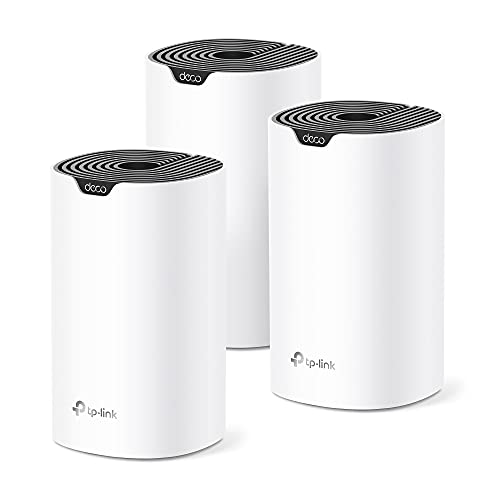
Where the eero starts small, the Deco S4 three-pack starts with the whole map. TP-Link’s listing describes an AC1900 mesh system covering up to 5,500 square feet across its three units, each with gigabit ports, designed to replace both router and extender in one move. Behind a Starlink router in bypass mode, that is a complete network in a box: one unit cabled to the dish’s router, two more placed through the house, and a single network name from porch to back bedroom.
The S4’s WiFi generation is older than the WiFi 6 picks above, and honesty requires saying what that costs: less headroom for the newest devices and less elegant handling of very crowded airwaves. What it buys in return is proven, simple coverage at a three-unit scale most WiFi 6 bundles charge considerably more to reach. For a rural Starlink property — long ranch house, detached office, kids at one end and a workshop at the other — square footage is the binding constraint far more often than wireless generation. The Deco app keeps the trio behaving as one system, and the per-unit gigabit ports let a node double as a wired anchor for a desk or TV that prefers a cable.
Placement is where three-pack owners win or lose the purchase. Resist lining the units up in a row down the hallway; a triangle that puts one node near the dish entry, one toward the bedrooms and one toward the work end of the house gives devices a nearer landing in every direction. Because the S4 units are interchangeable, you can also demote the least-needed node to a problem that appears later — a new baby’s room, a converted loft — without buying anything, a flexibility single-router owners simply do not have.
- System: three AC1900 mesh units, per the title
- Coverage: up to 5,500 sq. ft. claimed in the title
- Ethernet: gigabit ports on the units, per the title
- Role: full bypass-mode network for large floor plans
Strengths
- Three units solve the geography problem in one purchase instead of instalments.
- Gigabit ports on nodes give wired options in rooms far from the dish entry point.
- Deco’s single-app management keeps a three-node system feeling like one router.
Trade-offs
- WiFi 5-era radios are the oldest wireless generation among these six picks.
- Three nodes is overkill — and wasted money — in a compact two-bedroom home.
- Peak per-device speeds trail the WiFi 6 picks when the dish is having a good day.
Best for: large, long or awkward properties where coverage area, not feature depth, is the whole complaint. Not suited for: small homes, or buyers who specifically want WiFi 6 or newer radios throughout.

Mini Mesh WiFi Router for Starlink — Third-party add-on node
This compact node comes from an independent maker rather than Starlink, and its listing claims compatibility with Gen 2, Gen 3, Gen 4 and Mini systems, with dual-band 2.4 and 5 GHz wireless. That breadth is its pitch: one inexpensive unit that promises to stretch whichever Starlink generation you own toward the room that needs it, without paying official-node money.
Third-party status cuts both ways, and this guide will not pretend otherwise. In its favour, the concept is sound — a mesh node is a well-understood device, and owners on a budget may reasonably accept a thinner support structure for a simple job. Against it: compatibility claims rest on the maker’s listing rather than Starlink’s certification, firmware updates and troubleshooting help come from a small brand rather than the mothership, and if a future Starlink update changes how nodes pair, the official Mini Router above will be fixed first. Buy it with eyes open, keep the packaging until it has survived a week of evenings, and it can be a perfectly rational economy. Just know which rung of the ladder you are standing on.
The fairest test for a node like this is the job interview you give it in its first days. Pair it, place it where the dead zone begins, and then use the room normally for a week of evenings — calls, streams, a laptop working late. A node that holds those sessions without drops has earned its shelf space regardless of the logo it lacks. A node that needs re-pairing after every Starlink update has told you its real price, and the return window is the time to act on that information rather than after months of low-grade frustration.
- Maker: independent third-party brand, not Starlink
- Claimed compatibility: Gen 2, Gen 3, Gen 4 and Mini systems, per the title
- Wireless: dual-band 2.4 GHz and 5 GHz, per the title
- Role: add-on mesh node for an existing Starlink network
Strengths
- Claims the widest generation compatibility of any node in this guide.
- Dual-band radios cover both the reach band and the speed band.
- Compact size disappears into the hallway spots where nodes belong.
Trade-offs
- Compatibility is a listing claim, not a Starlink endorsement — pairing risk is yours.
- Support and firmware cadence from a small maker cannot match the official channel.
- No ecosystem extras; it extends a network and does nothing else.
Best for: budget-minded owners with one dead zone who accept a calculated compatibility gamble. Not suited for: anyone whose network must simply work — a work-from-home lifeline deserves the official node.
How Do the Six Picks Compare Side by Side?
| Pick | Job it does | Wireless class | Grows by |
|---|---|---|---|
| Starlink Gen 3 Wi-Fi Router | Replaces the bundled router inside the official system | WiFi 6, tri-band | Official mesh nodes |
| Starlink Mini Router | Extends the official network into dead rooms | Starlink mesh node | Adding further nodes |
| TP-Link Archer AX21 | Takes over routing in bypass mode | WiFi 6, dual-band, AX1800 | EasyMesh companions |
| Amazon eero 6+ | Runs a self-managing mesh in bypass mode | WiFi 6 mesh | Additional eero units |
| TP-Link Deco S4 3-Pack | Blankets a large home as a three-unit bypass network | WiFi 5, AC1900 mesh | Additional Deco units |
| Mini Mesh WiFi Router for Starlink | Adds a budget node to the official network | Dual-band 2.4/5 GHz | Further nodes, pairing permitting |
The table’s middle column is the one to shop by. Wireless class differences between these picks are real but second-order on a satellite link; the difference between extending a network and replacing its brain is first-order, and it decides which app you live in, who you call for help and what breaks when an update lands badly. If two picks still tie after that column, break the tie with the growth column — the system you can extend next year beats the system you must replace.
How Does Starlink’s Own Mesh Differ From Running Your Own?
The two coverage strategies in this guide solve the same dead-room problem with opposite philosophies, and the difference shows up most on the worst day, not the best one. Starlink’s own mesh keeps one vendor in charge of dish, router and nodes. When an update lands, it lands on the whole system at once, tested as a set. When something breaks, the support conversation has one participant on the other side of the table, and the app you already use for dish statistics is the same app that shows your nodes. The cost of that peace is a ceiling on ambition: the official system’s settings are the settings Starlink chose to expose, and its expansion path is the nodes Starlink chooses to sell.
A bypass mesh from eero or TP-Link inverts the bargain. You gain the mainstream market’s pace — more node shapes, more frequent feature work, guest networks and device controls designed by companies whose whole business is home networking — and you gain portability: if you move from Starlink to fibre in three years, an eero or Deco network moves with you unchanged, while official Starlink nodes become shelf ornaments. The cost is a two-vendor life. When the connection stumbles, you must first decide whether the fault lives in the sky segment or the living-room segment, and each vendor’s support team has a natural incentive to point at the other’s half. Experienced owners handle this with the wired test described later in this guide; everyone else should weigh it honestly before choosing the rebel path.
There is a subtler difference in how the two systems age. Official Starlink hardware tracks the dish generations — the Gen 3 router’s listing names the Gen 3, Gen 4 and Mini kits because Starlink designs its routers as companions to specific dish families. A mainstream mesh ignores dish generations entirely and cares only about the Ethernet handoff, which is why a bypass network tends to survive a dish upgrade untouched while an official setup may invite a router conversation at the same time. Neither pattern is a defect. They are different answers to the question of who you want thinking about your network’s future — and for households that already juggle dozens of smart devices, the segmentation thinking in our guide to the best wifi routers parental controls becomes relevant the moment children and gadgets share one network.
Performance, finally, is where the two philosophies converge. On a typical residential plan, both approaches deliver the dish’s throughput to the rooms that matter, and speed tests in the good rooms will flatter either. The differences that persist are in the bad rooms, in the settings menus, and in who answers when you call for help — which is why this guide sorts by job and temperament rather than by headline wireless numbers.
How Do You Set Up Bypass Mode With Your Own Router?
Work in this order and the job takes an unhurried half hour. First, set up your new router or mesh system while the Starlink router still runs the network: plug the new router into power near the Starlink unit, run its app setup far enough to name your network and password, but do not cable it to Starlink yet. Using the same network name and password as your current Starlink WiFi is a legitimate trick — every device in the house then rejoins the new system without individual re-pairing, though security purists may prefer a fresh password and an evening of reconnecting gadgets.
Second, connect an Ethernet cable from the Starlink router to the new router’s internet port. On generations whose router lacks a spare Ethernet port, Starlink’s own Ethernet adapter is the official way to get one — check your generation’s arrangement before the weekend you plan this. Third, open the Starlink app, find the bypass mode setting under the router’s options, and enable it. The Starlink router reboots into its silent bridge role. Fourth, confirm the new router has picked up the connection and is handing out addresses — its app will say so in plain language — then walk the house with a phone, checking the rooms that used to struggle.
Two warnings belong in bold mental type. Never leave both boxes routing: if you skip bypass mode and simply chain routers, you have built the double NAT trap described earlier. And keep the Starlink router physically in the chain even in bypass — it is also the dish’s power and data partner on most kits, not an optional ornament. Reversing the whole change is equally simple: a factory reset of the Starlink router, or toggling bypass off where the app allows, restores the original arrangement, so the experiment is safer than it feels. Households that later add outbuildings should read our coverage of the best routers for large homes and heavy users before assuming one more node will civilise a detached barn.
What Should You Check Before Spending Anything?
Start with the dish, not the shop. Open the Starlink app’s obstruction and statistics views: if the dish reports frequent obstructions or the connection drops in patterns that match weather and tree sway, no router purchase addresses your actual problem. Next, run the wired test — plug a laptop directly into the Starlink router (via the Ethernet adapter if your generation needs one) and compare speeds with the same test over WiFi in your problem room. A wide gap says wireless coverage is the fault and this guide applies. A narrow gap says the connection itself is the ceiling, and the money belongs in a better mount, a clearer site, or patience with your plan.
Then measure your house honestly. Construction matters more than floor area: a sprawling timber-frame ranch is one easy wireless space, while a compact brick cottage with a foil-backed extension can defeat routers twice its price. Note where the Starlink router must live — the cable from the dish decides this more than your furniture preferences do — and count walls between it and the rooms that matter. Homes on wheels and seasonal properties play by slightly different rules again; our roundup of the best routers for rvs covers the mobile end of that world. Finally, decide your appetite for administration. The official route and the eero route ask almost nothing of you. The TP-Link routes ask a little, once, and repay it in control. Neither answer is wrong; buying against your own temperament is.
One more check is embarrassingly cheap: count your devices. A household that has quietly accumulated forty connected things — phones, televisions, cameras, plugs, a robot vacuum with ambitions — is running a different network from the one it set up, and crowding symptoms like evening slowdowns and devices dropping off are often arithmetic rather than failure. Every pick in this guide comfortably handles a modern device count, but knowing yours tells you whether to weight the mesh systems’ headroom or a single router’s simplicity when you choose. The count takes ten minutes in the Starlink app and has settled more arguments in our testing notes than any speed test.
How Do You Test Whether a New Router Actually Helped?
Satellite internet makes before-and-after testing genuinely tricky, because the connection itself refuses to sit still. Speeds vary by time of day, satellite geometry and neighbourhood load, so a single heroic speed test after installing a new router proves almost nothing — the dish may simply have been having a good minute. Test like a sceptic instead. Before changing anything, run the same speed test, on the same device, in the same problem room, at three different times of day, and write the numbers down. Repeat the identical ritual a day after the change, and compare the sets rather than the peaks. What you are hunting is not a bigger best number; it is a higher worst number in the room that used to fail.
Then test the things speed tests cannot see. Hold a video call from the problem room at the household’s busiest hour, when someone else is streaming and a console is downloading an update. Walk slowly from the router to the far end of the house mid-call and notice whether the handover between nodes stutters. Ask the person who works from the spare room whether their afternoon changed — their lived experience across a week outweighs any chart. And keep the Starlink app’s own statistics in view throughout: if outages and obstruction time did not change while room-level misery vanished, you have cleanly separated the dish’s weather from your WiFi’s weather, which is the entire intellectual point of this guide.
Give any new arrangement a full week before judging it, including a weekend, because household load patterns differ sharply between Tuesday and Saturday. Keep receipts and packaging until that week ends. Owners who skip the baseline step almost always end up arguing with themselves about whether the purchase worked; owners who write down three numbers beforehand never have to.
What Mistakes Do Starlink Owners Make When Adding Routers?
The champion mistake is chaining two active routers and then troubleshooting everything except the chain — the double NAT problem again, responsible for more “Starlink broke my console” threads than any satellite. Second place goes to buying speed instead of coverage: a flagship router with heroic wireless classes, placed in the same corner as the old one, delivering the same dead nursery at higher theoretical throughput. Third is blaming WiFi for dish problems — obstructions, a mount that flexes in wind, a cable run damaged by a strimmer — and returning innocent routers while the real fault stays on the roof.
Placement errors follow close behind. A mesh node dropped in the dead room itself has nothing to repeat — nodes belong halfway back toward the router, where the signal they extend is still strong. Hiding any router inside a metal cabinet, behind the television or on the floor behind a sofa taxes every pick in this guide equally. And a quieter mistake: renaming the network during a bypass migration and spending three evenings re-pairing smart bulbs, printers and the one camera with the ladder-only reset button. Same name, same password, clean handover. Business premises make all of these errors at higher stakes, which is why café owners will find a sterner version of this advice in our guide to the best routers for cafes.
What About Power Cuts, Cable Runs and Other Rural Realities?
Starlink homes are disproportionately rural homes, and rural realities shape router ownership in ways city-focused reviews ignore. Power first: a dish and router that reboot after every flicker of the grid will spend storm season perpetually re-acquiring satellites and re-negotiating the network, and every device in the house pays the reconnection tax. A modest uninterruptible power supply under the router — sized for the router and dish electronics, not the whole house — turns most flickers into non-events and gives a generator time to matter during real outages. Whichever pick you buy, it draws its power in the same room as the Starlink router, so one UPS covers the whole chain.
Cable discipline comes second. The run from dish to router is the network’s lifeline: keep it within its rated length, protect outdoor sections from UV and strimmers, and give the entry point a drip loop so water follows gravity away from the wall plate rather than into it. When owners report a network that degrades slowly over a season, a nicked or waterlogged cable is a more common culprit than any router in this guide. Third, heat and dust: routers in farm offices and workshop corners live harder lives than routers in media consoles, and a mesh node placed above a wood stove or inside a sealed porch box will throttle or fail in ways that look like software faults. Ventilation is a specification too, even if no listing prints it.
Finally, plan for the house’s second internet life. Many Starlink properties eventually add a fallback — a mobile data connection for the week the dish is down, or a wired link to a neighbour’s barn office. Routers differ in how gracefully they accept a second source, and while none of the six picks is sold as a dual-WAN specialist, the mainstream bypass picks inherit their brands’ wider ecosystems, where failover-capable siblings exist. If that future is likely for you, it is one more argument for the bypass camp: the network you build now becomes the foundation, and only the dish-side changes later.
Final Recommendation
Most Starlink households should start inside the fence: the Gen 3 router if the bundled unit feels crowded, a Mini Router node if one room is starved, and nothing at all if the app says the dish is the problem. Move to bypass mode when you want something the official system does not offer — a real guest network, finer controls, or coverage shaped your way — and then choose by temperament: the Archer AX21 for a single competent brain, the eero 6+ for a network that administers itself, the Deco S4 three-pack when the map of your house is the entire argument. The third-party Mini Mesh node is a fair budget gamble for a single dead zone, taken knowingly. Whatever you choose, choose it for the job it does in the chain, because on a satellite connection the router is the distributor, never the source — and a household that understands that sentence will spend once, in the right place, and then get back to forgetting the network exists.
Frequently Asked Questions
Does a better router make Starlink faster?
It can make your WiFi faster and steadier, which sometimes feels identical. If the dish delivers a modest speed to the house and the old router wastes some of it through weak coverage or crowding, a better router recovers the waste. It cannot raise what the dish delivers — obstructions, plan limits and congestion live upstream of anything a router controls.
What is bypass mode, in one paragraph?
Bypass mode tells the Starlink router to stop being a router. It passes the internet connection through to your own router, which then handles addresses, firewall and WiFi. You gain features and control; you lose some of the Starlink app’s network detail, and the Starlink hardware stays in the chain because the dish still needs it.
Can I use my old router from cable internet with Starlink?
Usually, yes — that is exactly what bypass mode is for. Check that its Ethernet ports are gigabit class, since an older 100-megabit port would cap a healthy Starlink connection, and factory-reset it before setup so cable-era settings do not haunt the new network.
Will a mesh node reach my detached workshop?
Possibly, if the workshop is close and the walls between are kind. Mesh nodes need a decent signal to repeat, so a node in the house’s nearest room to the workshop is the usual arrangement. Long gaps, metal-clad buildings and buried outbuildings often defeat wireless entirely; a buried Ethernet run or a point-to-point link is the honest fix there, and our notes on best wifi extenders with ethernet explain the wired-backhaul logic that applies.
Do third-party Starlink accessories void anything?
Adding a third-party mesh node is a network choice, not a modification of the dish, but support conversations get simpler when your network is official. If your connection is a work lifeline, the official node’s premium buys you a single accountable vendor, which is worth real money to some households and none to others.
Can I run the official router and a bypass router in different parts of the house?
Not as two cooperating routers — that is the double NAT arrangement again, with devices on separate private networks that cannot always see each other, which breaks printers, local streaming and smart-home hubs in maddening ways. What you can do is run one router and extend its reach with nodes, or retire the Starlink unit to bypass and let one system own the whole house. One brain per network is the rule; everything in this guide is a way of choosing which brain, or of giving the existing brain longer arms.
Should I replace the Starlink router or add to it first?
Add before you replace, unless the complaint is features rather than coverage. Extending with a node is cheaper, reversible and diagnostic: if the dead room heals, coverage was the disease. If the whole network still feels crowded and feature-poor with coverage fixed, then a router replacement or a bypass migration is justified — and you will make that second decision with better information than you have today.
How many mesh nodes does a house need?
Fewer than marketing suggests. Start with the router’s own coverage, add one node for the worst dead zone, live with it a week, and only then judge whether another is needed. Nodes placed too close together waste money and can make roaming behaviour worse, not better.
Related Guides
Keep reading with our roundup of the best mesh routers for the wider mesh field beyond satellite homes, the best routers for iot devices if your Starlink house is filling with smart gadgets, and the best routers for large homes and heavy users when the property itself is the challenge.
Related guides
- Best 4K UHD HDR HDMI Extenders: 4K60, Long-Run and 4K120 Kits Compared
- Best 25–35 Inch Monitors With Lowest Display Lag: An Honest Ranking Without Invented Numbers
- Best Enterprise SATA SSDs: Endurance Classes, Power-Loss Protection and Fleet Sense
- Best Color Product Label Printers: Six Desktop Machines for Short-Run Product Labels


