What's inside
- Key Takeaways
- Quick Picks
- How Did We Choose These Picks?
- What Is the Difference Between an Access Point, an Extender and AP Mode?
- How Should You Plan a Cable Run Like a Professional?
- What Does a Good Roaming Experience Actually Feel Like?
- When Does a Business Outgrow Standalone Units?
- How Do the Six Picks Compare as a System?
- How Do You Turn an Ordinary Router Into an Access Point?
- What Mistakes Do Access Point Installers Keep Making?
- Final Recommendation
- Frequently Asked Questions
- Related Guides
As an Amazon Associate I earn from qualifying purchases. This post may contain affiliate links at no extra cost to you.
gizmoverdict.com is reader-supported. When you buy through links on our site, we may earn an affiliate commission.
Where to buy: All six picks below carry verified pool links. One honesty note before the reviews: most of these picks are purpose-built access points rather than routers with an access point mode, and this guide argues that is the correct answer to the search, while still explaining, in its own section, how to press an ordinary router into access point duty when that is what you own.
People searching for the best routers to configure as access points usually have a house with a geography problem. The router, chained to the modem where the line enters, covers its own end of the building beautifully and abandons the rest. An access point is the grown-up solution: a device that does no routing at all, but takes a wired connection from the main router and broadcasts the same network, under the same name, in the rooms the router cannot reach. Devices wander between the two and stay on one network, one set of rules, one password. It is the architecture behind every office, school and hotel network you have ever used, scaled down to a hallway and a spare Ethernet cable.
Here is the distinction this guide is built on. A consumer router switched into access point mode is a router doing a simpler job: it surrenders its address-assigning and firewall duties to the main router and becomes a broadcaster. That works, and a later section explains the configuration faithfully. A dedicated access point, by contrast, was born for the job: powered over the same Ethernet cable that feeds it, in the professional cases, designed to live on a ceiling, managed as part of a fleet, and built to hand clients to its siblings gracefully. The six picks below are mostly that second species, because when a reader asks which hardware to buy for access point duty, the honest answer is usually hardware designed for it.
Power over Ethernet, PoE, is the idea that quietly organises the professional half of this list. One cable carries both data and electricity, so the access point can live exactly where the signal should be, the ceiling of the landing, the centre of the hall, without an electrician or a nearby socket entering the negotiation. Around that idea cluster the other professional virtues: central management when several units share a house or business, fast roaming so a call survives the walk from kitchen to study, and multiple network names so guests and gadgets can be given their own lanes at the edge of the network, not just at its centre.
Key Takeaways
- An access point extends one network by wire; it is not a second router.
- Dedicated access points beat router AP mode on placement, power and roaming.
- PoE lets one cable feed data and power, freeing the unit to live on a ceiling.
- Controller-managed systems shine when two or more units share a building.
- Repurposing an old router costs nothing and suits a single extra room.
- Same network name and password across units is what makes roaming feel seamless.
Quick Picks
| Pick | Badge | Why it earns its place |
|---|---|---|
| TP-Link TL-WA1201 | Desktop all-rounder | AC1200 access point with multi-SSID, client and extender modes for flexible first steps. |
| TP-Link TL-WA1801 | Wi-Fi 6 upgrade | AX1800 access point adding Wi-Fi 6 and passive PoE to the same flexible formula. |
| Omada EAP225 | Managed value | AC1350 ceiling access point with PoE injector included and Omada management. |
| Omada EAP650 | Managed Wi-Fi 6 | AX3000 Omada access point with mesh, roaming and WPA3 in the listing. |
| Ubiquiti U6+ | Ecosystem polish | Compact Wi-Fi 6 access point from the UniFi world of centralised networks. |
| NETGEAR WAX210PA | Standalone simplicity | Wi-Fi 6 access point sold with its power adapter, four SSIDs and no controller demanded. |
How Did We Choose These Picks?
The grading began with role fidelity: each pick had to be excellent at being an access point, not merely capable of it. Power arrangements were recorded exactly as listings state them, injector included, adapter included, or passive PoE supported, because the cost and convenience of powering a ceiling unit is half the purchase. Management style formed the second axis, dividing the set into controller ecosystems, Omada and UniFi, for multi-unit buildings, and standalone units for the single-room rescue. Wireless generation and multi-SSID support were scored third, as refinements on a sound foundation.
One deliberate absence should be explained. No ordinary router appears as a pick, though the guide teaches router AP mode in full later, because the pool for this keyword is an access point pool and honesty about the pool matters. Readers repurposing a router they already own need the method section, not a purchase; readers buying fresh deserve dedicated hardware.
What Is the Difference Between an Access Point, an Extender and AP Mode?
Confusion among these three cousins causes more bad purchases than any specification. An extender, or repeater, listens to the existing wireless signal and rebroadcasts it, which means it must sit where the signal is already weakening and it spends half its conversation repeating; it is the solution of last resort for a corner nothing else can reach. An access point is wired: it receives the network at full strength through a cable and broadcasts from a position chosen for coverage, which is why offices are built from them. Access point mode is what happens when a router is told to behave like the second device, wired to the main router, its routing brain stood down. The mode is legitimate and often free, since the router may already be in a cupboard; the dedicated units in this guide simply do the same job with better placement, power and roaming manners.
Roaming deserves its sentence. When several broadcasters share a network name, the client device largely decides when to move between them, and professional access points add diplomacy to that decision, encouraging a phone to release a distant unit and accept the nearer one, with fast transition standards that keep a call intact mid-walk. A pair of repurposed routers can share a name too, but their diplomacy is ruder, and clients may cling to a fading signal in the wrong room. In a single extra room the difference is academic; across a whole building it is the difference between a system and a pile of radios.
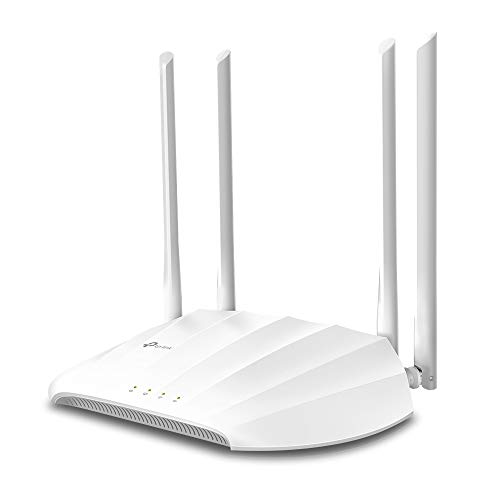
TP-Link TL-WA1201 — Desktop all-rounder
The TL-WA1201 is the friendliest doorway into dedicated access point hardware. Its listing describes an AC1200 dual-band gigabit access point with MU-MIMO and beamforming, support for multi-SSID, client and range extender modes, and four fixed antennas on a desktop body. That mode list is the personality: the same box can serve as a true wired access point today, as a client bridge feeding a wired device tomorrow, or as an extender in the corner where no cable will ever run. For a first access point purchase, that versatility insures the money against the house’s surprises.
The desktop form is its other honesty. No ceiling mounting, no PoE calculations, just a unit that sits on a shelf in the dead-zone room, cabled back to the router, broadcasting the network at full wired strength. Multi-SSID support lets that room offer a guest name alongside the household one. AC1200 Wi-Fi 5 radios are the era’s compromise, entirely adequate for the bedrooms, studies and kitchens these units usually rescue, where the enemy was never speed but absence.
Buy it knowing its ceiling: a household planning a managed fleet across three floors should start with the Omada or UniFi picks below instead. Buy it as the single-room cure, the flexible spare, the first experiment in wired extension, and the WA1201 is precisely sized, the rare networking purchase that does not demand a five-year plan.
- Wireless: AC1200 dual band, MU-MIMO, beamforming
- Modes: access point, multi-SSID, client, extender
- Form: desktop with four fixed antennas
- Port: gigabit Ethernet per listing
- Habitat: single-room rescue and flexible sparing
Strengths
- Mode versatility protects the purchase against surprises.
- Desktop simplicity needs no mounting or PoE planning.
- Multi-SSID brings guest lanes to the far room.
Trade-offs
- Wi-Fi 5 radios trail the newer picks.
- No controller story for a growing fleet.
- Desktop body broadcasts from furniture, not ceilings.
Its resale and reuse value deserves a mention too. Because the WA1201 speaks several modes fluently, a household that later graduates to a managed fleet does not own a dead end; the unit becomes the workshop’s bridge, the garden room’s extender, the spare that rescues a relative’s dead zone in an afternoon. Flexible hardware keeps finding work long after specialised hardware retires, and that afterlife belongs in the purchase calculation.
Best for: a first wired access point for one neglected room. Not suited for: a multi-unit managed installation across a building.

TP-Link TL-WA1801 — Wi-Fi 6 upgrade
The TL-WA1801 repeats its sibling’s flexible formula in the newer wireless language. The listing describes an AX1800 dual-band Wi-Fi 6 gigabit access point with HE80 and beamforming, multi-SSID, client and extender modes, four fixed antennas and passive PoE support. Two upgrades matter. Wi-Fi 6 brings its efficiencies for crowded airwaves and newer clients, so the rescued room stops being the network’s poor relation. Passive PoE loosens the placement leash: power can ride along the data cable from a suitable injector, letting the unit sit higher and more centrally than the nearest socket would allow.
Read the PoE word carefully, because passive and standard PoE are dialects, not synonyms, and the powering hardware must match the unit’s expectation; the listing’s phrasing is your instruction to check the exact arrangement before the ceiling ladder comes out. That small print aside, the WA1801 occupies the sweet middle of this guide: more modern than the WA1201, less of an ecosystem commitment than the Omada and UniFi pair, happy as a single unit and content on a desk or a high shelf.
For a household whose main router is already Wi-Fi 6, this is the access point that keeps the far rooms in the same generation, which matters for the features clients share across the network. For a household still on older radios, its sibling above saves money toward the same rescue. Either way, the family’s shape is the same: wired backbone, honest placement, one network everywhere.
- Wireless: AX1800 Wi-Fi 6 dual band, HE80
- Modes: access point, multi-SSID, client, extender
- Power: passive PoE supported per listing
- Form: desktop with four fixed antennas
- Habitat: Wi-Fi 6 homes extending by wire
Strengths
- Modern radios match a Wi-Fi 6 main router.
- Passive PoE widens placement beyond socket reach.
- Keeps the flexible multi-mode personality.
Trade-offs
- Passive PoE demands care with powering hardware.
- Still a standalone unit, not a managed fleet member.
- Desktop styling suits shelves better than ceilings.
There is a quiet pleasure in a network whose generations match. Phones stop falling back to older behaviours in the far rooms, the router’s client list reads consistently, and troubleshooting loses an entire dimension of maybe it is the old radio. The WA1801 sells that consistency at a modest premium over its sibling, and households that keep equipment for many years will find the premium easier to defend than the saving.
Best for: Wi-Fi 6 households wiring one or two extra rooms. Not suited for: buyers wanting controller management from day one.

Omada EAP225 — Managed value
With the EAP225 the guide crosses into professional architecture. The listing describes an Omada AC1350 wireless access point with a PoE injector included, a five-year warranty, Wi-Fi 5 dual band, mesh and roaming support, PoE power and Omada management, aimed at a business Wi-Fi experience. Translate the posture: this is a ceiling puck designed to be one of several, all reporting to TP-Link’s Omada controller, whether that controller is software on a computer, a hardware box, or the cloud arrangement, so a whole building’s wireless can be configured once and governed centrally.
The included injector is a small mercy with large consequences for a first installation: power and data marry in that little box near the switch, and a single cable climbs to the ceiling where the access point belongs. Roaming and mesh support mean clients are handed between units with professional manners, and the five-year warranty signals the intended service life, measured in tenancies rather than in product cycles. Cafés, clinics, rental blocks and serious home offices are the natural habitats.
Its Wi-Fi 5 radios are the deliberate economy: where coverage and management matter more than the newest client speeds, the EAP225 delivers the architecture at a gentler price than its Wi-Fi 6 sibling below. A building that will live on this system for years should weigh that sibling seriously; a building whose clients are ordinary and whose budget is real will find the 225 the thinking person’s fleet foundation.
- Wireless: AC1350 Wi-Fi 5 dual band
- Power: PoE, injector included in the listing
- Management: Omada platform, mesh and roaming
- Warranty note: five years per listing
- Habitat: ceilings of businesses and serious homes
Strengths
- Full managed architecture at an entry fleet price.
- Injector included simplifies the first installation.
- Long warranty suits permanent mounting.
Trade-offs
- Wi-Fi 5 in a Wi-Fi 6 and 7 world.
- Controller concept asks an evening of learning.
- Ceiling form expects a deliberate installation.
The EAP225 also teaches an organisation a transferable skill: thinking of wireless as a system with a controller, a naming scheme and a plan, rather than as a series of unrelated boxes bought in emergencies. Premises that learn that lesson on inexpensive hardware carry it profitably to every later upgrade, because the architecture, once understood, survives the radios entirely.
Best for: multi-room premises adopting managed Wi-Fi on a budget. Not suited for: a renter wanting a unit on a bookshelf tonight.

Omada EAP650 — Managed Wi-Fi 6
The EAP650 is the EAP225’s argument updated for the present fleet. Its listing describes an Omada AX3000 wireless access point with a DC adapter in this package, a five-year warranty, Wi-Fi 6 dual band, mesh, roaming and WPA3, PoE power options and Omada management for a business Wi-Fi experience. AX3000 doubles its sibling’s wireless class, which matters in the rooms where access points earn their keep under load: the training room, the busy café corner, the family kitchen at the homework hour, where a dozen clients negotiate at once.
Note the power detail in this particular listing: a DC adapter is named, with PoE power described through specific injector models, so a buyer planning a ceiling fleet should price the powering arrangement per unit rather than assuming the 225’s included injector repeats here. That is not a criticism, merely the professional habit this guide keeps teaching: in access point land, the power plan is part of the product, and listings reward being read to the last comma.
Choose the 650 when the building’s clients are modern, the ceilings are high, and the system is expected to serve for the warranty’s full span without a mid-life radio upgrade. Between the two Omada picks, this is the one a growing business will not outgrow by spring, and its roaming and WPA3 complete the checklist that separates a fleet from a scattering of independent radios.
- Wireless: AX3000 Wi-Fi 6 dual band, WPA3
- Power: DC adapter in package, PoE via named injectors
- Management: Omada platform, mesh and roaming
- Warranty note: five years per listing
- Habitat: modern managed fleets, busy rooms
Strengths
- Wi-Fi 6 capacity for crowded rooms.
- Full Omada management and roaming manners.
- Long warranty matches a permanent installation.
Trade-offs
- Powering hardware needs deliberate budgeting.
- Ecosystem commitment exceeds a standalone unit’s.
- Overbuilt for a single spare-room rescue.
Busy rooms reveal access point quality in a way spec sheets cannot rehearse: the training session where thirty laptops join at once, the café rush, the family gathering where every pocket holds a client. The EAP650’s AX3000 class and Wi-Fi 6 efficiencies exist for those joining storms, spreading clients across its radios without the first arrivals monopolising the air. If your building has a room with a rush hour, this is your pick.
Best for: businesses and large homes building a lasting managed system. Not suited for: anyone whose whole brief is one weak bedroom.

Ubiquiti U6+ — Ecosystem polish
The U6+ listing is the tersest in this guide, a dual-band access point speaking 802.11 a/b/g/n/ac/ax at up to 3 Gbit/s class, and its brevity is itself a clue: Ubiquiti’s UniFi products are bought as citizens of an ecosystem, and the listing assumes you know the country. UniFi’s controller software, run on a computer, a dedicated console or a cloud arrangement, designs the whole network from one screen, adopts each access point into the fleet, and presents the building’s wireless as a single organism with maps, client histories and roaming behaviour to match. The U6+ is the compact, value-minded Wi-Fi 6 citizen of that world.
In practice, households and businesses choose UniFi for the governance experience: add a unit, adopt it, and it inherits the networks, the guest rules and the passwords without a separate configuration ceremony. The hardware disappears into ceilings, the software keeps the memory. For a property that will grow, a second building, a workshop, a rental next door, that central memory is worth more than any single radio specification, and the U6+’s modest class keeps the cost of each additional room sane.
The cautions are the ecosystem’s own. A single U6+ bought casually, with no intention of running the controller properly, wastes its birthright; standalone buyers are better served by the TP-Link desktops or the NETGEAR below. Power over Ethernet is the UniFi way, so an injector or PoE switch joins the basket if none exists. Enter this world deliberately, as a platform decision, and it is the most polished answer in the guide.
- Wireless: Wi-Fi 6 dual band, 3 Gbit/s class
- Management: UniFi controller ecosystem
- Power: PoE arrangement to be planned
- Form: compact ceiling-friendly unit
- Habitat: growing multi-unit properties
Strengths
- Centralised management with an admired interface.
- New units inherit settings on adoption.
- Compact hardware vanishes into a ceiling.
Trade-offs
- Value depends on embracing the controller.
- PoE hardware may be an extra purchase.
- Single-unit casual use wastes its strengths.
UniFi households tend to describe their network the way gardeners describe an estate, as something tended, mapped and gradually extended, and the U6+ is priced to make extension a habit rather than an event. A unit for the annex this spring, another for the workshop next year, each adopted into the same memory: that rhythm is the ecosystem’s real product, and anyone who suspects they will enjoy it should trust the suspicion.
Best for: properties planning a unified, growing network. Not suited for: a one-off fix with no ecosystem appetite.

NETGEAR WAX210PA — Standalone simplicity
NETGEAR’s WAX210PA closes the set by answering the reader who wants professional hardware without joining anything. The listing describes a 1.8 Gbps Wi-Fi 6 access point with its power adapter included, a dual-band AX1800 specification, one gigabit Ethernet PoE port, capacity for up to 128 devices, WPA3, a compact body and up to four SSIDs. The adapter in the box is the headline for this audience: no injector arithmetic, no controller adoption, just a business-grade radio that plugs in, is configured through its own interface, and gets on with covering the room.
Four SSIDs give a small business or an organised home the essential separations, main, staff or family, guests, gadgets, without an ecosystem’s overhead. The 128-device note suits the café, salon or classroom where many quiet clients matter more than a few fast ones. NETGEAR’s business line also brings a sobriety of design that suits rented premises and visible mountings.
Its boundary is growth. A second WAX210PA can certainly be added, but the pair will be managed as individuals rather than as the single organism the Omada and UniFi systems become. For one unit, or two in a small premises, that simplicity is a feature with a long life. For a building with ambitions, start with the fleets above. The WAX210PA is the professional’s single instrument, and it plays that role without apology.
- Wireless: AX1800 Wi-Fi 6 dual band, WPA3
- Power: adapter included, PoE port present
- Networks: up to four SSIDs per listing
- Device note: up to 128 devices per listing
- Habitat: small premises wanting standalone quality
Strengths
- Business hardware with zero ecosystem homework.
- Adapter included ends the power question.
- Four SSIDs cover a small premises’ separations.
Trade-offs
- Multiple units are managed individually.
- No mesh fleet story for larger buildings.
- Compact radios serve rooms, not halls.
The WAX210PA also respects a particular kind of buyer: the one who has read the fleet arguments, understood them, and declined, because their premises has four rooms and their diary has no line for network administration. That declination is wisdom, not laziness, and hardware that honours it with business-grade radios and a power adapter in the box deserves its place at the head of the standalone class.
Best for: small businesses and homes wanting one excellent standalone unit. Not suited for: a campus expecting centralised fleet control.
How Should You Plan a Cable Run Like a Professional?
The cable is the unglamorous hero of every successful installation in this guide, and it rewards the same planning as any other building work. Measure the route twice, along skirting, through loft spaces and down the backs of cupboards, and buy a cable comfortably longer than the measurement, because the route you imagined and the route the house permits are cousins, not twins. Keep the run away from mains cabling where the path allows a choice, use clips rather than staples that bite, and leave a gentle loop of spare length at each end, labelled, so a future move of furniture does not become a re-cabling.
Termination is where patience pays. A badly crimped connector or a socket wired in the wrong order will pass a casual test and fail under load on the evening of a family event, which is the Murphy schedule of all networking faults. Test the finished run with the most demanding device you own before the furniture goes back. And photograph the route for the household records, because the person who needs to find that cable in three years will be grateful, and will probably be you.
What Does a Good Roaming Experience Actually Feel Like?
It feels like nothing, which is the point. A video call started at the desk continues down the stairs, through the hall and into the kitchen without a freeze, a rejoin or a change in the other party’s voice. A phone carried to the garden office arrives already loyal to the nearer access point. Children moving between bedrooms with a game in hand never learn that the network has geography at all. When roaming works, the house’s wireless becomes a single room with invisible walls removed, and the only evidence is an absence of complaints that used to structure the evening.
When it fails, the symptoms are equally characteristic: a device clinging to the far unit at one bar while standing beside the near one, calls that break exactly at the staircase, a laptop that must be toggled to accept the better signal. Managed fleets attack those symptoms with transition assistance and sensible power balance between units, overlapping enough to hand over, not so much that clients cannot decide. Standalone units can approach the same behaviour with patient placement and matched settings. Either way, judge an installation by walking it with a call in progress, the oldest and most honest test in wireless networking.
When Does a Business Outgrow Standalone Units?
The threshold is rarely a number of rooms; it is a number of changes. A premises whose network is set once and left alone can run standalone units happily for years. A premises that adds staff networks, rotates guest passwords weekly, opens a second site or fields complaints from three rooms at once needs the fleet’s memory: one place where the whole wireless estate can be seen, searched and altered. Omada and UniFi sell that memory. The hardware in their picks is almost the admission ticket; the controller is the membership.
Households reach the same threshold in disguise when the network acquires tribes: children with schedules, a home business with clients on the premises, a rental annex, a workshop full of machines that should never meet the family’s laptops. Multiple SSIDs exist in the standalone picks too, and for one unit they suffice. Across three units, keeping those tribes consistent by hand becomes the chore the controller was invented to abolish. Buy the architecture for the changes you can already see coming, not for the building you might one day own.
Channel planning sounds like the deepest arcana and reduces to a neighbourly principle: adjacent access points should not shout on the same channel, and in the crowded 2.4GHz band there are effectively three non-overlapping lanes to share among your units and the street’s. The 5GHz band offers a wider road system, which is one more reason modern clients prefer it. Managed controllers will survey and assign channels automatically, and standalone owners can copy the principle manually in an evening, checking which channels the neighbours favour and choosing the quieter ones. A network planned this way stops arguing with itself, and the improvement is audible in every call that crosses the house.
How Do the Six Picks Compare as a System?
| Pick | Standard | Management | Power story |
|---|---|---|---|
| TP-Link TL-WA1201 | Wi-Fi 5 AC1200 | Standalone, multi-mode | Conventional adapter territory |
| TP-Link TL-WA1801 | Wi-Fi 6 AX1800 | Standalone, multi-mode | Passive PoE supported |
| Omada EAP225 | Wi-Fi 5 AC1350 | Omada controller | PoE injector included |
| Omada EAP650 | Wi-Fi 6 AX3000 | Omada controller | Adapter in pack, PoE options |
| Ubiquiti U6+ | Wi-Fi 6 | UniFi controller | PoE to be arranged |
| NETGEAR WAX210PA | Wi-Fi 6 AX1800 | Standalone | Adapter included |
The management column is the real fork in this guide. Decide whether your building’s wireless should be a fleet with a memory or a set of independent instruments, and the table narrows itself to two or three names.
How Do You Turn an Ordinary Router Into an Access Point?
The method deserves care, because it is free and widely misdone. Start with the spare router disconnected from everything except a computer, and log into its settings. Give it a fixed address inside the main network but outside the main router’s pool of automatic addresses, so the two never quarrel. Switch off its DHCP server, the part that hands out addresses, because a network tolerates exactly one address-giver and that job belongs to the main router. Set the wireless name and password identical to the main network, on a different channel where the interface allows the choice, so clients see one network with two doors.
Then cable the pair together using a LAN socket on each, pointedly not the spare router’s internet or WAN socket, unless its dedicated AP mode instructs otherwise; many modern routers offer that mode as a single setting, which performs all of the above politely and should be preferred when present. Place the unit where the dead zone lives, reboot everything once, and walk the house watching a phone move between the two broadcasters. Done well, the repurposed router vanishes into the architecture. Done carelessly, with DHCP left alive, it creates a private sub-network where printers disappear and casting fails, which is why the checklist above is worth following in order, without improvisation.
What Mistakes Do Access Point Installers Keep Making?
The champion error is placing the access point inside the dead zone’s far edge and cabling it heroically, when a position halfway, where it can serve the whole weak region, would have covered more of the house. Second comes the double-router accident described above, two address-givers, one household of confused devices. Third is expecting wireless uplinks to perform like wired ones, buying an access point and then running it as an extender because the cable run felt daunting; the cable is the product, and an afternoon with a drill and some clips is the difference between a system and a hope.
Installers also forget the ceiling’s virtue. A unit at head height or above, centrally placed, covers a floor with an evenness no bookshelf corner can match, which is why the professional picks are shaped like smoke alarms rather than like routers. Finally, fleets get bought without a power plan, and ceilings wait while injectors are ordered. Read the power column of the comparison table before the wireless one, and your installation day will end with a working network instead of a delivery tracking page.
Renters deserve their own paragraph in this guide, because the finest architecture in the world is useless where drilling is forbidden. The desktop TP-Link pair and the NETGEAR earn their keep in rented homes: a cable run along skirting with removable clips, a unit on a tall bookcase, and coverage transformed without a single permanent mark. When the tenancy ends, the system leaves in a box and the deposit survives. Owners planning a forever home can read the ceiling picks with different eyes, but nobody should let a lease talk them out of wired extension entirely.
Guest and gadget networks gain a second life at the access point layer. A visitor in the far wing meets the guest network at full strength rather than as a rumour from the router’s end of the house, and a camera at the property’s edge can join its own restricted network where it actually lives. Extending the tribes, not just the main signal, is what separates a thoughtful installation from a louder one, and the multi-SSID support threaded through these picks exists for exactly that purpose.
Maintenance, once installed, is mostly a matter of leaving the system alone and reviewing it seasonally: firmware offered by the controller or the unit, a glance at the client list for forgotten devices, a walk-test after furniture moves. Access points fail so quietly, a single unit down in a corridor can hide behind its siblings’ coverage for weeks, that the managed systems’ habit of reporting their flock is worth more than it first appears. Check the flock; a fleet that reports itself is a fleet that can be trusted.
There is a temptation to solve coverage with transmit power, and the professional world resists it for a reason worth understanding. A loud access point can be heard across the house, but the phone answering it whispers, and the conversation fails in the direction nobody measured. Balanced systems, several units each speaking moderately and hearing well, outperform one shouting unit in both directions. That is the entire philosophy of the access point in a single paragraph, and it is why this guide keeps recommending more wire and less volume.
The old router in the cupboard deserves a fair final hearing before any purchase. If it offers a true AP mode, holds a wireless standard your devices still respect, and the dead zone is a single room, the experiment costs an afternoon and a cable. Run it for a fortnight. If the household stops complaining, the experiment was the answer and the picks above become a future shopping list for the day the veteran finally retires. If the complaints persist in roaming, in consistency, in the sheer age of its radios, you will buy dedicated hardware with evidence in hand, which is the best state a buyer can occupy.
Outdoor spaces extend the same logic past the walls. A garden office, a workshop across the yard or a terrace where summers are worked and lived all want the network at wired strength, and an access point at the end of a properly run outdoor-rated cable answers them in a way no indoor unit shouting through two walls ever will. The managed fleets treat such outposts as ordinary citizens, which is one more argument for their architecture in properties that keep growing outward.
Security at the edge follows the same central discipline as at the core. Every access point added is another door into the network, and it should run current firmware, a changed administrative password and only the network names the household actually uses. The managed systems make that hygiene a single operation across the fleet, which is an under-sung argument for them in premises where nobody’s job description includes the word network. An unpatched access point in a corridor is a quiet risk; a fleet that updates together is a posture.
Label everything on installation day: the unit’s location on its underside, the cable’s destination at the switch, the port it occupies in the household notebook. Access point systems are infrastructure, and infrastructure outlives memory. The next person to troubleshoot the building, perhaps you in five years with a different phone in hand, will read those labels as a letter from a considerate predecessor, which is exactly what they are.
And take a moment, when the last unit is adopted and the walk-test passes, to appreciate what has actually been built. The house now has what hotels and offices have: a network with a backbone, designed rather than accumulated. Every later technology in this batch of guides, the guest policies, the VoIP priorities, the games and the calls, travels better on a designed network. The access point is where home networking grows up, and the six picks above are simply six ages at which to let it.
One more scenario completes the picture: the house whose router cannot move because the fibre or the dish cable enters at a fixed point, and whose family refuses, reasonably, to live in the two rooms the signal favours. That house is the access point’s founding story, repeated in every generation of wireless standard. The technology changes its letters, Wi-Fi 5, 6, one day 7 and beyond, while the story stays identical: run the wire to where the people are, and let a quiet unit on the ceiling do the rest. Buy the current generation for the rooms you are rescuing, keep the backbone honest, and the story ends the same way it has for twenty years, with a house that finally works in every room it contains.
Budget honestly for the whole installation, not merely the unit: cable, clips, a drill bit’s wear, an injector where the power plan needs one, perhaps a small switch where the router’s ports run out. The extras are modest and they are the difference between a Saturday that finishes and a project that waits a month for a parcel. Professionals price the system; amateurs price the box. This guide has tried throughout to teach the professional habit, because the hardware in it deserves a finished installation rather than a promising start.
The walk-test, done properly, is worth describing once more in its full ceremony, because it is the acceptance test every pick in this guide must pass. Start a call with a patient person. Begin beside the router, walk the whole house at conversation pace, pause in the historically cursed rooms, climb the stairs, visit the garden door. Note every stumble and the exact spot it happened, because a stumble has an address, and an address can be fixed with a moved unit, a turned unit or one more unit. A network that passes the walk has earned the household’s trust in the only currency that spends: an ordinary evening, uninterrupted.
Keep the acceptance standard for a month, not an evening. Devices join, neighbours’ networks shift, furniture migrates, and a system that still passes the walk in four weeks is a system, not a honeymoon. The managed picks will show you the month’s story in their client histories if you ask them. The standalone picks ask only that you notice the silence where complaints used to be, which is, in the end, the same report in a quieter typeface.
There is a final, almost philosophical reason the access point outlasts every other networking fashion: it separates the two jobs that consumer boxes insist on marrying. Routing is judgement, done once, centrally, by the device that faces the internet. Broadcasting is hospitality, done wherever people gather, by units whose only talent needs to be welcome. Buildings understood this division decades ago. Homes are arriving at it now, one dead zone at a time, and each arrival makes the next upgrade simpler, because a house with a wired backbone can adopt any future radio by changing only its edges.
So choose the edges well, place them generously, feed them by wire, and let the centre grow old in peace. That is the whole doctrine, and the six picks above are its current instruments, from the desktop all-rounder that rescues a single room to the fleets that govern a building like a small, polite utility.
A note for households with a technically confident teenager or a curious relative: an access point installation is the finest first networking project to hand them. The stakes are forgiving, the method is documented in this guide, the result is visible in every room, and the skills, cabling, addressing, placement, testing, transfer to every later system the household will ever own. Infrastructure learned young becomes infrastructure maintained for decades, and the ceiling puck they install this year may still be serving, quietly and without a single compliment, when they bring their own children to visit the house it covers.
That longevity deserves one practical footnote: buy the mounting hardware and the spare cable at the same time as the unit, and keep one spare access point cable run in mind when the walls or the loft are open for other work. Buildings offer rare moments of easy access, and a cable pulled during a renovation costs almost nothing compared with the same cable fished through finished rooms a year later. The best access point installations are often the ones whose hardest runs were laid opportunistically, waiting patiently in the dark for the day the household finally bought the puck.
When that day comes, this guide’s six names will either still be current or will have taught you how to read their successors: role first, power second, management third, radios last. A reader who can grade an access point in that order no longer needs a roundup for the next purchase, which is the finest outcome any roundup can honestly claim.
Role first also protects you from the category’s one seductive error: buying a second full router for access point duty at a sale price and spending the savings on the compromises, the bulk, the unused ports, the radios designed for a different posture. A dedicated unit is smaller in every dimension except the one that matters, which is fitness for the ceiling it will live on. Fitness, in infrastructure, is the only luxury that compounds.
Compounding fitness shows itself in the smallest courtesies: a unit that reboots after a power cut and rejoins the fleet without a visit, a status light that can be dimmed for a bedroom ceiling, a bracket that lets the puck be twisted free for inspection without tools. Listings rarely sing about such things, and this guide has not invented claims about them for individual picks, but the professional families represented here compete on exactly that stratum of detail. When two finalists tie on every printed specification, choose the one whose maker sweats the unprinted ones, because your ceilings will be living with the choice for years.
Years is the right unit for the decision, and it argues for buying the current wireless generation in the rooms you rescue even when the older generation would pass today’s test. The WA1801 over the WA1201, the EAP650 over the EAP225, the U6+ as the fleet’s citizen: in each pair the newer radio is the one whose clients will still feel native in five winters. Where the budget truly binds, the older units remain honourable, and this guide has said so at each step, but honourable and identical are different words, and a ceiling, once mounted and painted around, has a way of turning a temporary compromise into a decade-long arrangement that nobody quite remembers choosing.
Take heart if the cabling looks intimidating: the first cable run is the only frightening one, and it teaches the route, the tools and the house’s hidden geography in a single afternoon. Every later unit in the fleet rides on that first lesson’s confidence.
Final Recommendation
For the single neglected room, the WA1201 is the flexible first cure and the WA1801 its Wi-Fi 6 refinement. For a building that deserves a system, the EAP225 founds a managed fleet on a budget, the EAP650 modernises it, and the U6+ offers the UniFi world’s polish to those ready to run its controller. The WAX210PA stands apart as the standalone professional, one excellent unit with no homework attached. And if a spare router already waits in your cupboard, the AP mode method above costs nothing but an afternoon. Wire the backbone, place for the rooms you live in, and let one network finally cover the whole address.
Frequently Asked Questions
Will an access point make my internet faster?
It makes the internet you already have available, at full wired strength, in rooms where it previously arrived weakened or not at all. Speed tests in the rescued room often improve dramatically, but the ceiling remains your connection and the main router’s capacity.
Can I mix an access point with my existing router’s Wi-Fi?
Yes; that is the standard pattern. Give both the same network name and password, let the main router keep all routing duties, and place the access point by cable where coverage fades. Clients will move between them as they wander.
Do I need PoE?
Only if you want the freedom to mount the unit where no socket lives, typically a ceiling. Desktop picks and the adapter-included NETGEAR avoid the question entirely, while the Omada and UniFi fleets treat PoE as their native power and reward the small extra planning.
How many access points does a house need?
Most houses need one beyond the router, placed for the weak half of the building. Large, long or multi-storey homes may need two, and the managed systems exist for the moment a third appears and central control starts paying rent.
Is a mesh system the same thing?
A mesh is a family of units designed to cooperate, often with wireless links between them. A wired access point system achieves similar coverage with each unit fed by cable, which is faster and steadier where cables can run. The two approaches can even coexist, but a wired backbone is the connoisseur’s foundation.
Can an access point use the same name as a mesh system nearby?
It can, but two independent systems sharing a name will not coordinate roaming or settings, and clients may behave unpredictably between them. Prefer one architecture per building: extend a mesh with its own nodes, or build the wired access point system and let it own the name alone.
What cable should I run for a ceiling access point?
A standard Ethernet cable of a current category, long enough for the true route with slack at both ends, is the practical answer for home and small business runs. Where the unit is PoE powered, the same cable carries its electricity, which is why one careful run replaces both a data line and a socket hunt.
Should every access point use the same channel?
No. Neighbouring units should use different, non-overlapping channels so they stop competing with each other, while sharing the same network name and password so clients experience one network. Managed controllers arrange this automatically; standalone owners can set it manually in a few minutes per unit.
Related Guides
Build the rest of the wired house with the guest access and easy management roundup, put a serious core behind your access points using the satellite internet router guide’s multi-WAN picks, or open the whole system up with the custom firmware router roundup.


