What's inside
- Key Takeaways
- Quick Picks
- How Did We Choose These OLED Laptops?
- What Makes an OLED Panel Different in Daily Use?
- How Do the Six OLED Panels Compare?
- How Should You Look After an OLED Screen Over Years of Use?
- Is OLED Worth It for Work, or Only for Films and Games?
- How Does OLED Compare With the LCD and Mini-LED Screens You Already Know?
- Which Settings Should You Change on a New OLED Laptop?
- Should Your OLED Laptop Be a Convertible, a Clamshell or an Ultralight?
- What Happens When You Dock an OLED Laptop to an Ordinary Monitor?
- Which of These Six Fits Your Kind of Day?
- How Long Will an OLED Laptop Stay Good, and What Ages First?
- How Does an OLED Panel Change Photo and Video Work in Practice?
- What Mistakes Do Buyers Make When Shopping for an OLED Laptop?
- Final Recommendation
- Frequently Asked Questions
- Related Guides
As an Amazon Associate I earn from qualifying purchases. This post may contain affiliate links at no extra cost to you.
gizmoverdict.com is reader-supported. When you buy through links on our site, we may earn an affiliate commission.
Where to buy: All six laptops in this guide are linked to the Amazon listings we verified, and each link lands on the configuration whose own listing title names an OLED panel. That last detail matters more than usual here: several of these model lines are also sold with ordinary LCD screens under nearly identical names, so use the links or check the listing title word for word before paying, because an OLED badge in a search result does not guarantee the panel in the box.
An OLED screen earns its premium in the moments LCD cannot imitate. Each pixel lights itself, so black is genuinely black rather than dark grey, contrast is effectively bottomless, and a film scene shot in a cave looks like a cave instead of a fog. For anyone shopping for the best laptops with OLED display, the honest starting point is that the technology’s advantages are real and visible within ten seconds of opening the lid — and so are its conditions, which involve brightness in sunny rooms, care habits over years of use, and a price step that has to be justified by how much of your life is spent looking at the screen.
This guide separates the six verified OLED machines by the kind of life they suit. Two are convertibles that fold into tablets for drawing and presenting. One is a Snapdragon machine built around efficiency and silence. One is a premium Dell with a variable refresh rate that climbs high for smoothness and drops low to save power. The ASUS pair split between a Ryzen all-rounder and an ultralight Copilot+ design. What unites them is that every panel claim in the sections below comes from the listing title of that exact configuration — resolution, size and panel type as the seller states them — and where a listing is silent about a figure, this guide stays silent too rather than borrowing numbers from a different variant.
Who should pay for OLED at all? Anyone whose laptop doubles as their cinema, anyone who edits photographs and needs to trust shadows, anyone who works in dim rooms where an LCD’s grey blacks glare back, and anyone who simply spends eight hours a day reading on the screen and wants those hours to feel better. Who should not? Buyers working under harsh office lighting all day, buyers on a strict budget whose work is spreadsheets and email, and buyers who leave the same static window open for twelve hours daily and would rather not think about panel care at all. Both groups are served honestly below.
Key Takeaways
- Every pick below is OLED in its own listing title; sibling variants of the same model names exist with LCD panels, so verify before buying.
- Only one pick, the HP Spectre x360, folds into a tablet with a pen; the other five are clamshells of very different weights and chips.
- The Acer Swift Go 14 lists a 90Hz OLED, the one refresh figure stated outright among the more affordable picks.
- The Lenovo Yoga Slim 7X pairs its 3K OLED with a Snapdragon X Elite chip, trading software breadth for efficiency.
- OLED care is simple but real: vary your content, let the screen sleep, and avoid parking static toolbars at full brightness all day.
- Resolution ranges from WUXGA to 3.2K across the six; at 14 inches, all of them are sharp, so choose on form and chip rather than pixels alone.
Quick Picks
| Pick | Badge | Why it is here |
|---|---|---|
| ASUS Zenbook 14 OLED | Best all-round OLED laptop | Ryzen AI 7 performance, 32GB of memory and a terabyte of storage behind a WUXGA OLED panel. |
| HP Spectre x360 14 OLED | Best OLED convertible | A 2.8K OLED touchscreen that folds into tablet mode, with a pen in the box and 32GB fitted. |
| Acer Swift Go 14 OLED | Best OLED value with a 90Hz panel | The listed 2880 x 1800 OLED at 90Hz brings smoothness usually reserved for pricier machines. |
| Lenovo Yoga Slim 7X | Best OLED for battery-minded travellers | A 3K OLED over a Snapdragon X Elite platform, built for long days away from a charger. |
| Dell XPS 14 Premium | Finest OLED panel in the guide | The 3.2K OLED touch screen with 48–120Hz variable refresh is the display the others are measured against. |
| ASUS Zenbook A14 | Lightest OLED pick | A WUXGA OLED with full DCI-P3 coverage in an ultralight Snapdragon design for creators on the move. |
How Did We Choose These OLED Laptops?
The first filter was verification. A laptop only entered this guide if the specific listing we link states an OLED panel in its own title, because model names in this market are slippery: the same badge can cover LCD and OLED variants sold side by side, and a guide that recommends “the OLED version” while linking the LCD one has failed at its only job. Each of the six below passed that check, and the panel description in each section repeats the listing’s own words — WUXGA OLED, 2.8K OLED, 3K OLED, 3.2K OLED — so you can cross-check the page you land on in seconds.
The second filter was balance. A beautiful panel on a machine with too little memory or storage becomes an ornament on a bottleneck, so every pick here carries at least 16GB of memory and 512GB of storage in its listed configuration, and most carry more. The third filter was variety of honest roles: a buyer who wants a convertible for pen work, a buyer who wants maximum battery, and a buyer who wants the finest panel available should each find their machine, rather than six near-identical clamshells ranked by trivia.
What we did not do is rank these laptops by brightness figures or refresh rates that their listings do not state. Where a number appears in a section below, it comes from that pick’s own listing title. Where the title is silent, the discussion stays qualitative — how the panel behaves for films, photographs and text — because inventing a nit figure for a specific configuration would be exactly the kind of false precision this guide exists to avoid.
What Makes an OLED Panel Different in Daily Use?
The difference announces itself in dark content. On an LCD, a black letterbox bar in a film is lit by the same backlight as the picture, so it glows faintly grey; on OLED the bar’s pixels switch off and the bar disappears into the bezel. Night photographs hold their shadows instead of washing them out, dark-mode interfaces look printed rather than projected, and contrast gives images a depth that resolution numbers cannot describe. Motion benefits too, because OLED pixels change state almost instantly, so fast pans and scrolling text stay clean without the smearing that slower panels show.
The trade-offs are equally concrete. OLED panels typically cannot match the brightest LCDs for full-screen brightness in a sunlit room, although the HDR peak figures quoted for some listings describe small highlights rather than the whole screen. Static content held at high brightness for years can age pixels unevenly, which is why the care section later in this guide matters. And OLED draws power according to what it shows: dark interfaces sip electricity, bright white documents drink it. None of these are reasons to avoid the technology. They are reasons to choose the machine whose surrounding design — battery size, hinge, chip efficiency — fits the way you will actually use the panel.

ASUS Zenbook 14 OLED — Best all-round OLED laptop
If a single machine has to represent this guide’s idea of balance, it is this Zenbook. The listed configuration runs an AMD Ryzen AI 7 445 with 32GB of LPDDR5X memory and a 1TB SSD behind a 14-inch WUXGA OLED screen, which means the panel is the headline but not the whole story: there is enough memory for heavy multitasking, enough storage for a photo library and a project archive, and a processor with real multi-core strength for the days the laptop is a workstation rather than a cinema. The 180-degree lay-flat hinge, a small thing on paper, turns out to be genuinely useful for showing a photograph or a chart to someone across a table.
The WUXGA resolution deserves a defence, because buyers comparing spec sheets may mark it down against the 2.8K and 3K panels elsewhere in this guide. At 14 inches, WUXGA text is already crisp at arm’s length, and the lower pixel count is kinder to battery life and to the integrated graphics driving it. What the eye actually registers on this screen is the OLED contrast and colour, not a resolution shortfall. Choose the Zenbook if you want the OLED experience wrapped in the most complete general-purpose specification here, and if your work mixes documents, photographs, media and travel without specialising in any one of them to an extreme.
A note for buyers comparing this guide with our programming roundup: the same Zenbook configuration appears there too, because a machine this balanced earns places in more than one conversation. The emphasis differs — there it was memory and hinge for developers, here it is the panel — but the listing is identical, and cross-reading the two sections gives a fair picture of a laptop that refuses to be only one thing.
- Processor: AMD Ryzen AI 7 445, Copilot+ PC class
- Memory and storage: 32GB LPDDR5X, 1TB SSD
- Display: 14-inch WUXGA OLED, 180° lay-flat hinge
- Wireless and input: Wi-Fi 6E, backlit keyboard
- Operating system: Windows 11 Pro as listed
Strengths
- The fullest specification in the guide wrapped around its OLED panel.
- Lay-flat hinge suits sharing and presenting without a second screen.
- A terabyte of storage means the media library the panel deserves can live on the machine.
Trade-offs
- WUXGA resolution is the lowest here, even if the eye rarely notices at this size.
- Glossy panel reflections need managing in bright rooms.
- Memory is soldered, so the 32GB configuration is a permanent decision.
Best for: buyers wanting one OLED laptop that does everything well, from office work to film nights. Not suited for: pen users who need a screen that folds into a tablet — that is the Spectre’s job below.

HP Spectre x360 14 OLED — Best OLED convertible
The Spectre x360 answers a question the clamshells cannot: what if the screen itself is the tool? Its 14-inch 2.8K OLED touchscreen folds a full turn, so the laptop becomes a tablet for sketching, annotating documents or presenting across a desk, and the listing includes an active pen alongside an Intel Ultra 7-155H processor, 32GB of LPDDR5X memory and a 512GB SSD. Drawing on an OLED panel is a particular pleasure, because the pen’s dark lines sit on truly dark backgrounds and colours behave the way they will in print and on other good screens.
Convertible design always costs something, and here the bill arrives as weight and as a hinge that prioritises flexibility. A 2-in-1 carried as a tablet is heavier than a dedicated tablet, and nobody should buy this machine planning to read novels on it one-handed for hours. Its real pattern is a laptop first that becomes a drawing surface, a signing pad or a presentation easel when the moment asks. For illustrators, architects marking up plans, teachers annotating live and anyone whose work mixes typing with handwriting, that pattern is worth more than the spec-sheet differences separating it from the Zenbook above.
The bundled items in this listing, including a port expander, vary by seller, so treat the pen as the accessory that matters and the rest as a bonus. The core proposition — a verified 2.8K OLED, a serious processor, and memory headroom in a folding body — is what earns the Spectre its place as the convertible recommendation of this guide.
- Processor: Intel Ultra 7-155H
- Memory and storage: 32GB LPDDR5X, 512GB SSD
- Display: 14-inch 2.8K OLED touchscreen, 2-in-1 folding design
- Included input: active pen as listed
- Sign-in: fingerprint reader, backlit keyboard
Strengths
- Pen work on a 2.8K OLED is the most tactile experience in this guide.
- 32GB of memory keeps the convertible honest as a full work machine.
- Tent and tablet modes make it a presentation tool as well as a laptop.
Trade-offs
- Heavier in tablet use than any dedicated tablet.
- 512GB is the storage figure to watch if your asset library is large.
- The folding hinge is one more mechanism to treat with care over years.
Best for: illustrators, annotators and presenters who want their OLED to fold. Not suited for: buyers who never use a pen and would rather spend the same money on storage.

Acer Swift Go 14 OLED — Best OLED value with a 90Hz panel
The Swift Go 14 is the pick that dismantles the assumption that OLED means flagship money. Its listing states a 14-inch OLED at 2880 x 1800 resolution running at 90Hz, driven by an Intel Core Ultra 5 125H with 16GB of LPDDR5X memory and a 512GB SSD, in Acer’s thin-and-light Swift body with Intel Evo platform credentials. That 90Hz figure, printed plainly in the title, is the detail to savour: a refresh rate above the standard 60Hz makes scrolling, window movement and casual gaming visibly smoother, and it is a specification many pricier OLED laptops leave unstated or skip entirely.
Positioning matters with this machine. Sixteen gigabytes is enough for office work, study, media and light creative tasks, and the processor is a genuinely modern one, but the Zenbook and Spectre above carry double the memory for heavier multitaskers. The Swift Go’s buyer is someone whose day is documents, browsing, streaming and photography at a hobbyist level, and who wants the screen — the part they look at for every one of those tasks — to be the best component in the machine. That is a rational allocation of a budget, and this guide respects it: the display is the one part of a laptop you can never upgrade, while an external drive can always rescue storage later.
For students and first-time OLED buyers, this is also the lowest-risk entry into the technology in the guide. You learn whether OLED’s contrast changes your evenings as much as promised, you get the 90Hz smoothness as a daily bonus, and the machine remains a perfectly capable thin-and-light laptop even if the panel romance fades. Few purchases in this category hedge their bets so gracefully.
- Processor: Intel Core Ultra 5 125H, Intel Evo platform
- Memory and storage: 16GB LPDDR5X, 512GB SSD
- Display: 14-inch OLED, 2880 x 1800, 90Hz as listed
- Graphics: Intel Arc integrated
- Model reference: SFG14-72-53BP as listed
Strengths
- A stated 90Hz refresh rate at this level is rare and genuinely felt.
- The most accessible route into a verified OLED panel in this guide.
- Evo platform credentials signal attention to responsiveness and battery behaviour.
Trade-offs
- 16GB of memory caps heavy multitasking sooner than the 32GB picks.
- 512GB of storage fills quickly for video hoarders.
- The chassis and keyboard are good rather than luxurious next to the Dell and HP.
Best for: students, home users and first-time OLED buyers who want smoothness and contrast without flagship pricing. Not suited for: heavy multitaskers who already know 16GB is their ceiling problem.

Lenovo Yoga Slim 7X — Best OLED for battery-minded travellers
The Yoga Slim 7X pairs its screen with a different kind of processor, and understanding that pairing is the whole decision. The listing describes a 14-inch touch OLED at 3K resolution over Qualcomm’s Snapdragon X Elite platform with 16GB of memory and a 512GB SSD, carrying Copilot+ PC status with a 45 TOPS neural rating in the title. Snapdragon machines sip power in a way Intel designs struggle to match, so the OLED panel — a component that can drink battery on bright content — is matched here with the most frugal engine in the guide. For a traveller whose laptop shows films, documents and photographs across long unplugged days, that is a considered combination.
The condition attached is software. Windows on Snapdragon has matured enormously and runs the mainstream catalogue — browsers, office suites, creative staples, development basics — natively or in fast emulation, but niche professional tools, old peripherals with exotic drivers and some games remain the friction points. The honest test is your own software list: if everything on it is mainstream, the Yoga Slim 7X offers the OLED experience with the least charger anxiety here. If one indispensable legacy application anchors your work, an Intel or AMD pick from this same guide is the safer home for it.
Design-wise the Slim 7X lives up to its name, a slim clamshell that treats the 3K OLED as the centrepiece of a quiet, cool-running machine. It is the pick for buyers whose priority order reads screen, battery, silence, weight — and who have already confirmed their software travels with them onto the Snapdragon platform.
- Processor: Snapdragon X Elite with Qualcomm Adreno graphics
- Memory and storage: 16GB, 512GB SSD
- Display: 14-inch 3K OLED touchscreen
- AI rating: 45 TOPS neural processing as listed, Copilot+ PC
- Wireless and camera: Wi-Fi 7 and Bluetooth 5.4, FHD IR webcam as listed
Strengths
- The most battery-conscious pairing of an OLED panel in this guide.
- 3K resolution is the sharpest here alongside the Dell’s 3.2K.
- Runs cool and quiet, suiting shared spaces and long flights.
Trade-offs
- Snapdragon software compatibility must be checked against your own application list.
- 16GB of memory is fixed and finite for future workloads.
- Gaming breadth is the weakest of the six picks.
Best for: travellers and remote workers whose software is mainstream and whose days are unplugged. Not suited for: anyone dependent on niche Windows software or old peripheral drivers.
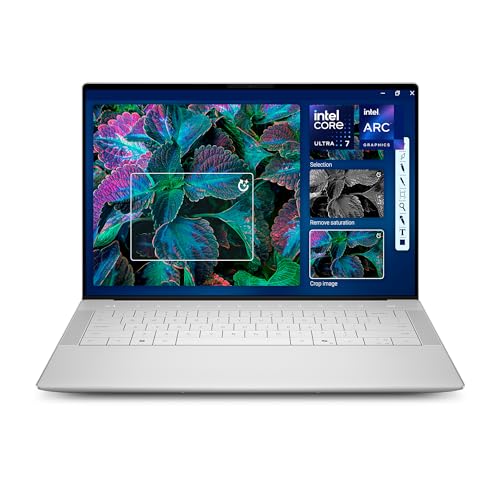
Dell XPS 14 Premium — Finest OLED panel in the guide
The XPS 14 Premium is what happens when a manufacturer treats the display as the product and the laptop as its frame. The listing centres on a 14.5-inch touch OLED at 3.2K resolution with a variable refresh range of 48–120Hz, and that range is the intelligent part: the panel races when you scroll, game or scrub video, and idles down when the screen shows a static page, sparing the battery that OLED technology otherwise spends freely. Around the panel sit an Intel Core Ultra 7 255H, 32GB of memory and a 1TB SSD, so nothing behind the glass embarrasses it.
Buyers should understand what the premium buys and what it does not. It buys the most refined panel behaviour in this guide, the most polished chassis, and a specification with no weak line. It does not buy ports: the XPS design leans on USB-C and Thunderbolt class connections, so a desk built on older plugs needs a dock in the budget. Nor does it buy a folding hinge or a pen-first design; artists who draw should look back at the Spectre. The XPS buyer is a reader, a writer, a photo editor and a film watcher who wants the screen itself to be beyond argument, and who organises the rest of the desk around that priority.
In the context of this guide the Dell is the reference point — the machine whose panel the others are implicitly compared with — and it also appears in our programming guide for the same screen-led reasons. If your budget reaches it and your software is Windows-based, it is the OLED laptop here least likely to produce a moment of buyer’s remorse about the display itself.
- Processor: Intel Core Ultra 7 255H with Intel Arc graphics
- Memory and storage: 32GB, 1TB SSD
- Display: 14.5-inch 3.2K OLED touch, 48–120Hz variable refresh as listed
- Sign-in: fingerprint reader in the backlit keyboard deck
- Model line: Dell XPS 14 Premium DA14250
Strengths
- Variable refresh to 120Hz gives the smoothest motion in the guide.
- 32GB and a terabyte mean the specification never argues with the screen.
- The most premium build and finish of the six picks.
Trade-offs
- Port selection expects a USB-C desk or a dock purchase.
- The price sits at the top of this guide’s range.
- No pen or folding mode for artists who work by hand.
Best for: screen-first buyers who read, edit photographs and watch films daily and want the panel settled beyond debate. Not suited for: pen artists, or desks full of legacy connectors.

ASUS Zenbook A14 — Lightest OLED pick
The Zenbook A14 exists for the buyer who has decided that weight is a specification, not an afterthought. Its listing describes a 14-inch WUXGA OLED with full DCI-P3 colour coverage and a 600-nit HDR peak figure in the title, driven by an 8-core Snapdragon X Plus with a 45 TOPS neural rating, 16GB of RAM and a 512GB SSD, in ASUS’s ultralight A14 body. The colour coverage line matters to its intended audience: full DCI-P3 is the cinema colour space, and its presence in the listing signals a panel aimed at people who grade photographs and video, not merely watch them.
Like the Yoga Slim 7X, this is a Snapdragon machine, so the same software conversation applies — mainstream applications thrive, exotic ones need checking. The difference between the two Snapdragon picks is emphasis: the Lenovo leans toward resolution and all-round travel polish, while the ASUS leans toward minimal weight and creator colour. A photographer or designer who carries a laptop to every shoot and judges images on site will feel the A14’s priorities in the right places; an office user who never leaves the desk will not miss what it optimised away.
This ASIN also appears in our fanless laptops guide, because the A14 line’s Snapdragon design is one of the very few genuinely fanless Windows laptops — a connection worth following if silence matters to you as much as the screen does. Here, its seat is earned by the OLED panel and the colour story attached to it, in the lightest body this guide can offer.
- Processor: 8-core Snapdragon X Plus, 45 TOPS neural rating as listed
- Memory and storage: 16GB RAM, 512GB SSD
- Display: 14-inch WUXGA OLED, full DCI-P3 coverage, 600-nit HDR figure as listed
- Operating system: Windows 11 Pro as listed
- Audience stated in listing: creator, business and professional use
Strengths
- The lightest route to a creator-grade OLED panel in this guide.
- Full DCI-P3 coverage speaks directly to photo and video work.
- Snapdragon efficiency suits location work away from power.
Trade-offs
- Snapdragon software checks apply, as with the Lenovo pick.
- 16GB and 512GB are the fixed ceiling of this configuration.
- WUXGA resolution trails the 2.8K and 3K panels for fine detail work.
Best for: photographers, designers and travellers who count grams and grade colour on location. Not suited for: desk-bound users, who gain nothing from its lightness, or legacy-software dependents.
How Do the Six OLED Panels Compare?
| Pick | Panel as listed | Chip | Memory / Storage | Form |
|---|---|---|---|---|
| ASUS Zenbook 14 OLED | 14-inch WUXGA OLED | Ryzen AI 7 445 | 32GB / 1TB | Clamshell, lay-flat hinge |
| HP Spectre x360 14 | 14-inch 2.8K OLED touch | Intel Ultra 7-155H | 32GB / 512GB | 2-in-1 with pen |
| Acer Swift Go 14 | 14-inch OLED 2880 x 1800, 90Hz | Intel Ultra 5 125H | 16GB / 512GB | Clamshell |
| Lenovo Yoga Slim 7X | 14-inch 3K OLED touch | Snapdragon X Elite | 16GB / 512GB | Slim clamshell |
| Dell XPS 14 Premium | 14.5-inch 3.2K OLED touch, 48–120Hz | Intel Ultra 7 255H | 32GB / 1TB | Clamshell |
| ASUS Zenbook A14 | 14-inch WUXGA OLED, DCI-P3 | Snapdragon X Plus | 16GB / 512GB | Ultralight clamshell |
The pattern in the table is a trade between panel ambition and platform. The sharpest screens ride with Intel chips and 32GB in the Dell and HP; the most efficient machines pair slightly gentler resolutions with Snapdragon silicon; the Acer proves resolution and refresh can arrive at a friendlier price when memory steps down to 16GB. None of these exchanges is a trap, provided you choose the row whose compromises sit in the parts of a laptop you use least.
How Should You Look After an OLED Screen Over Years of Use?
OLED care has acquired a frightening reputation out of proportion to the habits it actually asks for. Modern panels include pixel-refresh routines and shifting techniques built in by the manufacturer, and the owner’s share is modest: let the screen sleep when you step away rather than displaying a static desktop for hours, vary what the screen shows across the day, and avoid parking one bright window in the same position at maximum brightness as a permanent habit. Taskbars can auto-hide, wallpapers can rotate, and dark themes in your main applications both look better on OLED and treat it kindly. Follow those ordinary habits and the panel anxiety mostly evaporates.
Brightness discipline is the second habit, and it doubles as battery discipline. OLED brightness is a direct spend of both power and pixel life, so run the panel at the level the room needs rather than the maximum it offers. In a dim room that will be well under half, which is also where OLED’s contrast advantage is most visible. In a bright room, accept that this technology asks a little more of you than an LCD would, and position the screen away from direct window light where you can. These are small behaviours, learned in a week, that protect a screen you intend to enjoy for years.
Is OLED Worth It for Work, or Only for Films and Games?
The entertainment case is obvious, but the working case is stronger than most buyers expect. Text on OLED is rendered against a true black background in dark themes, and the contrast makes long reading sessions measurably more comfortable for many people; code editors, writing tools and documentation all live in exactly that visual world. Photographers and designers gain colour and shadow accuracy they can trust. Presenters gain a screen that stays legible at angles in a meeting room. The work tasks that gain least are the bright-white, spreadsheet-and-email days under office lighting, where an LCD’s strengths — cheap brightness and zero care considerations — still hold their own.
The deciding question is therefore about your ratio. If the majority of your screen hours involve reading, images, media or dim-room work, OLED repays its premium weekly. If your laptop is a bright-office appliance for documents, the premium buys less, and the Swift Go’s friendlier end of this guide — or an LCD machine entirely — becomes the rational allocation. This guide recommends OLED laptops because our readers tend to live on their screens across work and leisure alike, but it refuses to pretend the technology is the right spend for every desk.
How Does OLED Compare With the LCD and Mini-LED Screens You Already Know?
Most buyers arrive at this guide owning an LCD laptop, so the comparison that matters is against that memory. A conventional LCD lights its whole panel with a backlight and blocks light to make dark tones, which is why its blacks are grey and its contrast limited. Mini-LED improves the arrangement by dividing the backlight into many small zones that dim independently, gaining contrast and brightness that can exceed OLED in a lit room, at the cost of occasional halos around bright objects on dark backgrounds. OLED removes the backlight entirely: every pixel is its own light, which is why its blacks are absolute and its viewing angles stay true, and why its weakness shows up as total full-screen brightness rather than contrast.
In practice the three technologies sort themselves by room and content. Films, photographs and dark interfaces favour OLED. Bright offices and outdoor-adjacent work favour the best LCDs and Mini-LEDs. Mixed lives favour OLED more often than buyers expect, because most people watch, read and browse in ordinary indoor light rather than in sunlight, and because the content they care most about — the evening film, the photo library, the document in a dark theme — is exactly where OLED’s advantage is theatrical. The six machines in this guide were chosen for those mixed lives, which is why no apology for the technology runs through their sections.
Which Settings Should You Change on a New OLED Laptop?
A short setup routine makes an OLED machine better on day one and safer across its life. Start by enabling the operating system’s dark theme and the dark modes inside your main applications; on OLED this is simultaneously an aesthetic upgrade, a battery measure and a kindness to the panel. Set the screen to sleep after a few idle minutes and let the taskbar auto-hide if your system offers it, so no bright element parks in one place for a whole working day. Then set brightness by the room you are in rather than by habit: most indoor work is comfortable far below maximum, and every step down extends both the battery and the panel’s easy life.
Next, match the refresh behaviour to the machine. On the Dell XPS 14 Premium, leave the variable refresh enabled so the panel can climb for motion and settle for static pages. On the Acer Swift Go, confirm the display is actually running at its 90Hz setting, because some systems default to 60Hz for power reasons and quietly withhold the smoothness you paid for. On the convertibles, calibrate the pen once in the manufacturer’s utility and test it in the application you draw in, not just the demo. Finally, run the manufacturer’s own panel-care or pixel-refresh utility schedule as offered rather than disabling it; those routines exist to keep the screen uniform, and they ask nothing of you but permission.
Should Your OLED Laptop Be a Convertible, a Clamshell or an Ultralight?
Form factor decides how the panel enters your day, and this guide contains all three shapes deliberately. The convertible, represented by the Spectre x360, treats the screen as a surface to write on and present from; buy it when a pen or a shared table is genuinely part of your work, because the hinge’s cost in weight is paid daily while its benefit arrives only when used. The conventional clamshells — the Zenbook 14 OLED, the Swift Go and the XPS — treat the screen as a window to look through, and differ mainly in how much power, memory and money stand behind the glass. The ultralights, the Yoga Slim 7X and the Zenbook A14, treat the screen as something carried: their panels are chosen to impress in cafés, client offices and departure lounges, on battery, at a weight your shoulder forgets.
A useful test is to reconstruct last week honestly. Count the hours the laptop sat on your own desk, the hours it travelled, and the moments you wished the screen could fold, tilt or be drawn on. Most buyers discover a lopsided answer — nearly all desk, or nearly all travel — and the lopsided answer should win. The balanced Zenbook 14 OLED exists for the genuinely mixed week, which is rarer than people claim when a shiny convertible is in front of them.
What Happens When You Dock an OLED Laptop to an Ordinary Monitor?
Many buyers in this guide will spend weekdays docked to an external LCD monitor and evenings on the laptop’s own panel, and that rhythm changes what the OLED premium means. The laptop screen becomes the leisure and travel screen — films in bed, photographs on the sofa, reading on trains — while the desk monitor carries the static spreadsheets. Viewed that way, the OLED upgrade is not competing with your monitor budget; it is insuring every hour the monitor is not there. It also softens the panel-care conversation, because the longest static sessions happen on the external display, not on the OLED itself.
Two practical checks follow. Confirm the laptop drives your monitor at its full resolution over the cable you intend to use; all six picks carry modern USB-C or Thunderbolt class display output appropriate to their platforms, but older docks and cables are frequent culprits when a screen wakes at the wrong resolution. And calibrate your expectations about matched colour: an OLED laptop beside an average LCD monitor will make the monitor look washed out in dark content, which is a compliment to the laptop and a known trigger for an unplanned monitor upgrade the following month.
Which of These Six Fits Your Kind of Day?
The writer and reader should land on the Dell XPS 14 Premium or the Zenbook 14 OLED: the Dell if the budget allows the finest panel behaviour in the guide, the Zenbook if the same money must also cover a terabyte of storage and a full general-purpose specification. The photographer should shortlist the Zenbook A14 for its stated DCI-P3 coverage and weight, and the Spectre x360 if marking up images by pen is part of the workflow. The student should start at the Acer Swift Go 14, whose 90Hz OLED delivers the technology’s pleasures at the guide’s friendliest point, and step up only if memory pressure is a known problem in their subjects.
The frequent flyer should begin with the Yoga Slim 7X, whose Snapdragon platform was chosen for exactly their pattern of long unplugged days, after the ten-minute software check its section describes. The illustrator, teacher or presenter should not deliberate long: the Spectre x360 is the only folding, pen-carrying machine here, and its 32GB specification means choosing it costs nothing in work capability. And the buyer who simply wants the best screen in the guide and dislikes deliberation has the Dell waiting, with the dock caveat noted and accepted.
How Long Will an OLED Laptop Stay Good, and What Ages First?
Buyers sometimes worry that an OLED laptop is a shorter-lived purchase than an LCD one, and the honest answer separates the panel from the machine. The panel, treated with the ordinary habits described earlier, is rarely the part that retires a laptop. Batteries fade, memory ceilings arrive, storage fills and software support windows close — the same forces that end any laptop’s life — long before a cared-for OLED screen becomes the problem. That is why this guide weighted memory and storage so heavily in its selections: the 32GB and terabyte configurations are the ones whose owners will still be enjoying their panels in year five, while a starved configuration gets replaced with its screen still beautiful.
There is one panel-specific ageing pattern worth naming plainly. Pixels wear in proportion to how brightly and how long they have been lit, so a screen used for years with one static bright layout can develop faint unevenness where that layout lived. The mitigations are the same habits already covered — varied content, auto-hiding bars, screen sleep, sane brightness — and they are effective precisely because the wear is proportional and slow. Buyers whose work genuinely is one static application at full brightness for twelve hours a day, such as monitoring dashboards, are the exception this guide keeps acknowledging: for that desk, an LCD machine is not a lesser choice but the correct tool, and no amount of OLED enthusiasm should argue them out of it.
Warranty thinking follows from this. A standard warranty covers defects, and panel uniformity complaints are judged against the manufacturer’s own standards, so keep your receipt and photograph the screen’s test patterns in the first week if you are particular. None of the six picks is a fragile purchase; they are premium machines from manufacturers with established service networks, and the OLED panel should be treated as one durable component among several rather than as a delicate exception.
How Does an OLED Panel Change Photo and Video Work in Practice?
For photographers, the shift is about trust in the shadows. On an LCD, the darkest tones of an image are displayed through a backlight’s grey floor, so shadow detail you cannot see on screen may still exist in the file — or may not — and editors learn to work around the uncertainty with histograms and caution. An OLED panel shows the file’s dark end much closer to how it will appear on good phones, televisions and other OLED screens, which is where most photographs are now viewed. The Zenbook A14’s stated full DCI-P3 coverage and the higher-resolution panels on the HP, Lenovo and Dell picks serve this work directly: coverage for colour confidence, resolution for judging fine detail at full-screen size.
Video editors gain a preview that resembles the audience’s screens, especially for the dark, graded footage that streaming platforms specialise in. Scrubbing behaviour benefits from the panels’ fast response, and on the Dell the variable refresh climbing toward 120Hz keeps timeline movement fluid. None of the six machines in this guide carries a discrete graphics card, so they suit editing at the level of short-form and moderate projects rather than heavy effects pipelines; readers whose timelines are effect-laden should pair this guide’s screen advice with the discrete-graphics machines in our content creation roundup, where OLED panels and stronger GPUs arrive together.
One workflow habit is worth adopting whichever pick you choose: keep a mid-grey test image and a shadow-detail test image in your library, and glance at them after any major system or driver update. It takes thirty seconds and confirms the panel is still showing you the full tonal range you bought it for, so the trust described above stays earned rather than assumed.
What Mistakes Do Buyers Make When Shopping for an OLED Laptop?
The costliest mistake is buying the model name instead of the configuration. As this guide’s opening warned, popular lines ship with both LCD and OLED panels under near-identical badges, and marketplace pages make the distinction easy to miss when you are tired and the price looks good. Always confirm the panel type in the specific listing’s title or specification before paying; every link in this guide was checked on exactly that point. The second mistake is assuming all OLED panels are equal. Resolution, refresh behaviour and colour coverage differ across these six picks, and the sections above separate them by those stated figures rather than treating “OLED” as a single grade of screen.
A third mistake is neglecting the machine around the panel: 16GB configurations are fine for the workloads described, but a buyer who edits large photo catalogues or multitasks heavily should step up to the 32GB picks rather than blaming the screen when the laptop stumbles. And a fourth, quieter mistake is ignoring the Snapdragon question on the two Arm-based picks — not because the platform is weak, but because one unexamined legacy application can sour an otherwise perfect purchase. Check your software list; it takes ten minutes and settles the matter completely.
Final Recommendation
Start with the ASUS Zenbook 14 OLED if you want the complete package: a verified OLED panel, 32GB of memory, a terabyte of storage and a Ryzen chip that handles work and leisure without special pleading. Choose the Dell XPS 14 Premium when the screen is the purchase and the budget follows that priority, because its variable-refresh 3.2K panel is the finest here. Take the Spectre x360 if a pen is part of your working life, the Swift Go 14 if value and a stated 90Hz matter most, and one of the Snapdragon machines — Lenovo for travel polish, ASUS A14 for lightness and colour — if your software list is mainstream and your days are spent away from chargers. Whichever you choose, verify the OLED panel in the listing you actually buy, adopt the simple care habits in this guide, and you will own the kind of screen that makes every other laptop you touch feel slightly unfinished.
Frequently Asked Questions
Does OLED burn-in still happen on modern laptops?
Permanent image retention is far less common than the fear of it, thanks to built-in panel maintenance and shifting techniques. The risk concentrates in one pattern: the same bright static element displayed for many hours daily over years. Varied content, screen sleep and sensible brightness — the habits in the care section above — reduce it to a minor consideration for normal use.
Is a higher resolution OLED always better at 14 inches?
No. Beyond a point, extra pixels cost battery and graphics effort while adding sharpness the eye cannot separate at normal distances. The WUXGA picks in this guide look crisp in person; the 2.8K and 3K panels earn their keep for detailed photo work, dense interfaces and buyers who sit close. Choose by workload, not by the biggest number.
Why do two picks use Snapdragon processors?
Because efficiency is an OLED feature in disguise. A panel that spends power according to its content pairs well with a chip that sips power at all times, and the Lenovo and ASUS Snapdragon machines are the battery-minded entries in this guide. The condition is software compatibility, which is mainstream-friendly but worth a ten-minute check of your own applications.
Can I game on these OLED laptops?
Light and mid-weight gaming suits them well, and OLED’s fast pixel response flatters fast-moving games; the Acer’s 90Hz and the Dell’s up-to-120Hz variable refresh are the stated figures to note. Demanding titles at high settings want a discrete graphics card, which none of these integrated-graphics machines carries — that is a different guide and a heavier class of laptop.
How can I be sure the laptop I receive actually has an OLED panel?
Check the listing title and specification for the word OLED before ordering, and check the system information when the machine arrives, while the return window is open. The links in this guide point at configurations whose own titles state OLED; if a seller page you reach does not say it, do not assume it.
Should I choose OLED or save money with a good LCD?
Decide by where your screen hours go. If most of them are bright documents in a lit office, a good LCD serves you honestly and the saving is real. If your hours spread across reading, photographs, films and dim rooms — the pattern most personal laptops actually live — the OLED premium is spent on the exact moments you notice your screen most, and owners rarely regret it. The Acer Swift Go 14 exists in this guide precisely to shrink that decision: it brings the panel within reach without demanding flagship money for the experiment.
Do OLED laptops need a special warranty or insurance?
No special product is required. Buy from a seller whose return window lets you inspect the panel in your own lighting during the first days, keep the receipt, and rely on the manufacturer’s standard cover as you would for any premium laptop. If a seller offers accidental-damage protection at a sane price and you travel constantly, that decision is about your travel pattern, not about the OLED panel specifically.
Is OLED harder on battery life than LCD?
It depends entirely on what you display. Dark content can use less power than an LCD, because unlit pixels draw nothing; bright white full-screen content uses more. Dark themes, moderate brightness and the variable refresh on the Dell pick all tilt the balance in OLED’s favour for typical mixed use.
Will an OLED screen look worse in a bright room?
It will look different rather than worse, provided you manage reflections. Glossy OLED panels mirror windows and lamps more visibly than matte LCDs, so seating position matters: angle the screen away from direct light sources and the contrast advantage survives in all but the harshest rooms. Buyers whose desk faces a wall of glass should weigh that honestly, and may find the brighter moments of their day better served by one of the higher-specification picks here used at sensible brightness than by any panel technology chosen blindly.
Does an OLED laptop make a good second screen beside a desktop?
It makes an unusually good one, with one habit attached. As a portable second display for a desktop setup — reference material, documentation, a film while the main monitor works — the OLED’s contrast and viewing angles flatter exactly those side roles, and every pick here connects over modern USB-C class links. The habit is the care routine from earlier in this guide: a laptop that spends its docked hours showing one static window for months should let that screen sleep when idle, so the panel ages evenly across its whole surface rather than in the shape of your favourite application.
Related Guides
If the panel is only part of your decision, our guide to the best laptops for programming and web development weighs these screens alongside keyboards and memory, the best content creation laptops covers machines with discrete graphics for heavier visual work, and the best fanless laptops includes the Zenbook A14 examined from the silence angle.
Related guides
- Best Direct Thermal Printers: Shipping-Label Machines and Professional Label Systems
- Best 4K UHD HDR HDMI Extenders: 4K60, Long-Run and 4K120 Kits Compared
- Best Enterprise SATA SSDs: Endurance Classes, Power-Loss Protection and Fleet Sense
- Best Color Product Label Printers: Six Desktop Machines for Short-Run Product Labels


