What's inside
- Key Takeaways
- Quick Picks
- How We Chose These Picks
- Which Form Factor Does Your Laptop Actually Take?
- How Do You Upgrade a Laptop’s Drive Without Breaking the Laptop?
- Heat, Battery and Weight: What Does Speed Cost a Laptop?
- What Capacity Does a Laptop Need When It Is the Only Computer?
- Six Laptop Drives, Sorted by the Machines They Fit
- What Should You Do in the First Week After the Swap?
- Can an Older Laptop Carry Two Drives at Once?
- Shapes and Speeds: The Six in a Single View
- Which Laptop Storage Mistakes Are the Costliest?
- Final Recommendation
- Frequently Asked Questions
- Related Guides
As an Amazon Associate I earn from qualifying purchases. This post may contain affiliate links at no extra cost to you.
gizmoverdict.com is reader-supported. When you buy through links on our site, we may earn an affiliate commission.
Where to buy: all six drives link to their Amazon listings from the Quick Picks table and from their detailed reviews. Before ordering any of them, confirm your laptop’s accepted form factor from its manual or its existing drive — in this category, the right shape matters more than any other specification, and a drive of the wrong shape is not a bargain at any price.
The best laptop solid state hard drives cannot be ranked on speed alone, because laptops disagree with each other about what a drive even is. A gaming laptop built this year expects an M.2 2280 NVMe stick and will accept nothing else. A business laptop from six years ago may hold the same-looking stick that secretly speaks SATA, or a 2.5-inch bay with cables, or — in the thinnest ultrabooks and the handheld gaming machines — a short 2230 stick half the mainstream length. The first question of a laptop storage upgrade is therefore not “how fast” but “what shape, speaking which protocol” — and the six picks below were chosen to cover every answer a real laptop can give.
Two picks are flagship-class M.2 2280 NVMe drives, from Samsung and KingSpec, stating read figures above 7,100 MB/s for the current generation of machines. One is Crucial’s P310 in the short 2230 form at a full 2TB, for handhelds, mini PCs and ultrabooks. One is TEAMGROUP’s MS30, an M.2 stick that speaks SATA — the roundup’s most instructive pick, because it fits the slot shape while obeying the older protocol, and only certain slots welcome it. And two are 2.5-inch SATA drives, from Timetec and Ediloca, for the large surviving fleet of laptops with proper drive bays. Capacities run from 512GB to 2TB, because a laptop’s storage need depends on whether it is a person’s only computer or their second one.
What follows is organised around fit first and speed second: how to identify what your laptop accepts, the six drives reviewed in depth, the installation realities of machines that open with pentalobe screws and ribbon cables, and the mistakes — most of them shape-shaped — that strand laptop upgrades in return parcels.
Key Takeaways
- Form factor rules this category: the six picks span M.2 2280 NVMe, M.2 2280 SATA, 2.5-inch SATA and M.2 2230, and each fits a different laptop population.
- TEAMGROUP’s MS30 is an M.2 stick speaking SATA — shape and protocol are separate facts, and its slot must accept SATA before it can work.
- Samsung’s 990 EVO Plus and KingSpec’s XG7000 state the flagship figures, up to 7,150 and 7400MB/s read respectively, for current NVMe laptops.
- Crucial’s P310 packs 2TB into the short 2230 form that handhelds and ultrabooks require, at up to 7,100MB/s.
- The two 2.5-inch SATA picks — Timetec 1TB and Ediloca 512GB — serve the bay-equipped fleet, where the transformation matters more than the protocol.
- Thin modern laptops accept only M.2 sticks; if your machine has no bay, the SATA pair cannot help it at any price.
Quick Picks
| Pick | Badge | Why it earns its place |
|---|---|---|
| Samsung SSD 990 EVO Plus 1TB, PCIe Gen 4×4 | 5×2 M.2 2280 | The Dual-Mode Flagship | Up to 7,150 MB/s with a title that declares both Gen 4×4 and 5×2 operation, plus HMB and TurboWrite 2.0. |
| TEAMGROUP MS30 512GB M.2 2280 SATA III SSD | The Shape-Shifting SATA Stick | M.2 2280 in shape, SATA III in protocol, up to 530/430 MB/s — for laptops whose M.2 slot speaks the older language. |
| Timetec 1TB SSD 3D NAND SATA III 2.5 Inch 7mm | The Bay Fleet’s Terabyte | Up to 550 MB/s read with an SLC cache, in the 7mm body slim bays demand. |
| Ediloca 512GB SSD Internal Solid State Drive 2.5" SATA III | The Tough Half-Terabyte | 540MB/s read, 3D TLC NAND, and shock resistance declared in the title, for laptops that travel hard. |
| KingSpec XG7000 1TB M.2 NVMe PCIe Gen 4 SSD | The Challenger Flagship | Up to 7400MB/s read — the highest stated figure here — aimed at gaming PCs and laptop upgrades alike. |
| Crucial P310 2TB M.2 2230 SSD, PCIe Gen4 NVMe | The Short Stick With the Long Library | Two terabytes in 2230 form at up to 7,100MB/s, naming Steam Deck, ROG Ally, MSI Claw and ultrabooks in its title. |
How We Chose These Picks
The selection began with a census of laptop storage realities rather than with performance charts. Modern NVMe laptops form the largest group and receive two flagship candidates with different characters — Samsung’s specification-rich EVO Plus and KingSpec’s challenger XG7000, whose stated read figure actually tops the Samsung’s. Handhelds and ultrabooks form the second group, served by the P310’s 2230 form, the only pick physically capable of entering those machines. The third group — laptops whose M.2 slots speak SATA — is small, shrinking and chronically mis-served by shopping advice that confuses shape with protocol; the MS30 represents it deliberately. The fourth group, the bay fleet, receives the Timetec and Ediloca at the two capacities that fleet actually buys.
Every figure quoted in the reviews is transcribed from its title, and the titles in this category proved unusually informative — five of the six state a read figure, and the MS30 and the Samsung 990 (in its own roundup) show that even write figures appear when a maker chooses. The one discipline this article adds beyond transcription is fit honesty: where a title names the machines a drive suits — the P310’s handheld list, the XG7000’s PS5 and gaming PC framing — the review repeats the naming and warns where a laptop’s slot, not the drive’s ambition, will decide the outcome.
The arrangement below follows the census rather than the speed chart. Read the form-factor guide first, locate your laptop’s group, and then read its picks closely; the other groups’ reviews are context, not candidates, and treating them as candidates is the exact error this article exists to prevent.
Which Form Factor Does Your Laptop Actually Take?
Four shapes govern this roundup, and each deserves its paragraph. The M.2 2280 — 22 millimetres wide, 80 long — is the mainstream stick of the current era, and in most modern laptops it speaks NVMe over PCIe. The Samsung and KingSpec picks live here. But the 2280 shape also hosts SATA drives, of which the MS30 is this article’s example, and an M.2 slot wired only for NVMe will not recognise a SATA stick, while a slot wired for SATA will not unlock an NVMe drive’s nature. The slot’s protocol, stated in the laptop’s specifications, is therefore as much a part of fit as the stick’s length — the two facts together are what “compatible” means.
The M.2 2230 is the 2280’s short sibling: same width, 30 millimetres long, built for machines where every gram and millimetre was negotiated — handheld gaming PCs, the thinnest ultrabooks, mini PCs. Crucial’s P310 serves it at 2TB, a capacity that would have seemed implausible in this form not long ago. Owners of 2230 machines have no substitute available in this roundup or anywhere: a longer stick does not fit, does not bend, and does not forgive optimism. Measure, or trust the manual, before anything else.
The 2.5-inch SATA drive is the veteran: a cabled rectangle that fills the bay of laptops built before the stick era, and of budget and business machines built during it. The Timetec and Ediloca picks serve this fleet, and their stated figures — up to 550 and 540MB/s read — sit at the SATA interface’s familiar ceiling. A bay laptop upgraded with either drive gains the full flash transformation its hardware allows. What it cannot gain is NVMe pace, because the bay speaks SATA and the conversation ends there; owners should buy these drives for the transformation, not in hope of negotiating with the interface.
Identifying your own machine’s answer takes minutes: the manual’s storage specification, the maker’s support page for your exact model, or the evidence of the drive already inside — a stick’s label states its protocol and length to any reader opening the base panel. Do that identification before reading another word of reviews, because in this category the best drive in the world, in the wrong shape, is a paperweight with excellent specifications.
How Do You Upgrade a Laptop’s Drive Without Breaking the Laptop?
Laptop upgrades are gentler than their reputation and less forgiving than a desktop’s. The preparation mirrors every other article in this programme — a verified backup first, a cloning plan or a fresh-install plan second — with one laptop-specific addition: charge the machine and then shut it down completely, and if the battery is removable, remove it; if it is internal, many makers advise disconnecting it once the panel is open, because a live board and a slipped screwdriver are poor companions. The base panel itself opens with small screws of two or three species — keep them in order, ideally in a muffin tin or on a magnet, because laptop screws are length-coded and a long screw in a short hole can damage what it was meant to protect.
The drive work itself divides by shape. A 2.5-inch drive slides from its caddy after two connectors and a few screws, and the new drive inherits the caddy. An M.2 stick releases with a single screw at its end, rises to an angle, and slides out; the replacement reverses the motion, and the screw should be snug rather than forced, because the stick’s mounting post strips under enthusiasm. Ribbon cables and speaker wires often cross the work area in thin machines — photograph everything before touching it, and let the photographs argue with your memory later.
After the first successful boot, resist closing the story too quickly. Run the machine through a day of ordinary use — updates, a large copy, sleep and wake cycles, which laptops perform constantly and which exercise the new drive’s power behaviour — before wiping the old drive or declaring the upgrade finished. Laptop drives live a harder electrical life than desktop ones, all heat and battery transitions, and a day of probation catches the rare incompatibility that a single boot cannot. Then close the panel for the last time and enjoy the machine’s second youth.
Heat, Battery and Weight: What Does Speed Cost a Laptop?
Desktop buyers shop storage in a vacuum of consequences; laptop buyers shop inside a sealed box with a battery, and the differences deserve a section of their own. Heat comes first. A flagship NVMe drive working at full pace generates real warmth, and in a thin laptop that warmth has nowhere generous to go — the stick sits millimetres from the battery and the base panel you feel on your lap. In ordinary use this is a non-event, because laptop storage idles and bursts rather than sustaining, but a gaming laptop copying a library internally will warm its storage corner noticeably, and the drives’ own thermal throttling exists for exactly that afternoon. The practical response is not to avoid fast drives; it is to favour machines and sticks whose thermal path — a pad to the chassis, a spreader where the design provides one — was considered by someone.
Battery is the second cost, and it is smaller than folklore suggests. An SSD draws its power in proportion to its activity, and a faster drive finishes a task sooner and returns to idle, which is why real-world battery differences between the drives in this roundup are measured in minutes across a day rather than in hours. The older enemy of laptop battery life was the spinning disk’s constant mechanical readiness, and every pick here, SATA or NVMe, retires that enemy on installation. Weight, the third cost, is a rounding error with one exception: a 2.5-inch drive and its caddy outweigh a stick noticeably, which matters to the ultrabook traveller and to nobody else — and the ultrabook traveller’s machine takes only sticks anyway.
The honest summary is that laptop-specific costs argue for matching, not for minimalism. A flagship drive in a gaming laptop with the cooling to feed it is a correct purchase whose heat is a designed-for condition. The same drive in a passively cooled thin machine will spend its hardest moments throttled to the pace its housing allows — still fast, still worthwhile, but bought with open eyes. Read your laptop’s thermal story the way you read its slot protocol: as a fact about the machine that the drive must be chosen inside.
What Capacity Does a Laptop Need When It Is the Only Computer?
A laptop that is a second machine can live almost anywhere on this roundup’s capacity range; a laptop that is the only computer deserves a stricter audit. Its drive must hold the operating system and its growth, the full software life of its owner, the photo library that accumulates at phone speed, the downloads folder’s permanent residents, and — the item everyone forgets — the working space that updates, caches and the owner’s future projects will claim without asking. Audited honestly, that list lands most only-computer owners at a terabyte, which is why four of these six picks live there or above, and why the two 512GB picks are framed throughout this article as role-specific rather than general recommendations.
The audit has a second half: growth direction. A library measured today at 400GB is not a 512GB destiny; it is a terabyte appointment on a two-year fuse, because nothing in a personal archive ever shrinks. The discipline this roundup has preached in every category applies with double force to laptops, whose single slot offers no second shelf to add later — the capacity bought on installation day is the capacity the machine’s whole remaining life must fit inside, short of another opening of the case. Buy for the library’s future tense.
Handhelds invert the audit in an instructive way. Their libraries are games — large, countable, and stored nowhere else — so their arithmetic is exact: sum the install sizes of the collection you intend to keep resident, add the year’s expected arrivals, and the answer is either the P310’s two terabytes or a confession that the collection needs curating. The exactness is a relief after the desktop’s guesswork, and it is why the 2230 pick’s capacity, extravagant on paper, is the most precisely justified number in this article.
Six Laptop Drives, Sorted by the Machines They Fit

Samsung SSD 990 EVO Plus 1TB, PCIe Gen 4×4 | 5×2 M.2 2280 — The Dual-Mode Flagship
Samsung’s title for the 990 EVO Plus contains a detail no other pick here can match: the drive operates as PCIe Gen 4×4 or 5×2 — two interface personalities in one stick, the second using two lanes of the newer generation to reach similar bandwidth. For a laptop buyer the practical meaning is breadth: this drive adapts to slots wired in either fashion, a flexibility aimed at a market where ultrabook makers wire their storage in creative ways. Add the stated up to 7,150 MB/s, the HMB technology and Intelligent TurboWrite 2.0 named in the title, and the EVO Plus presents the most completely specified candidacy in the roundup — a flagship that has read the laptop market’s complications and answered them in its own listing.
HMB deserves a plain explanation, because it shapes laptop behaviour specifically. Host Memory Buffer designs borrow a small portion of the computer’s own RAM for the drive’s housekeeping instead of carrying dedicated memory on the stick, which suits laptops — where the RAM is plentiful and the stick’s power budget is not — particularly well. TurboWrite, Samsung’s cache system, governs how the drive absorbs bursts of writing, the pattern of installs and updates that dominates a laptop’s storage life. Neither feature appears as a number, yet both describe exactly the qualities a laptop drive is used for, and their presence in the title signals a drive engineered for this article’s subject rather than merely sized for it.
The cautions are the flagship’s standard ones. The premium assumes a laptop whose slot and workload can use it; an older NVMe machine will run this drive gladly at its own ceiling and never know what it paid for. And the title, for all its completeness, states a read figure only. Within those bounds, the EVO Plus is the roundup’s reference laptop drive: the one against which the challenger below is measured, and the default recommendation for a current-generation machine at the end of this article.
- Capacity: 1TB
- Form factor: M.2 2280
- Interface: PCIe Gen 4×4 | 5×2, NVMe
- Read speed: up to 7,150 MB/s
- Technologies named in title: HMB, Intelligent TurboWrite 2.0
- Write speed: Not stated in the listing title — verify with Samsung documentation
Strengths
- Dual interface personalities suit slots wired in either modern fashion.
- HMB design is tailored to laptop power and memory realities.
- The most completely specified title in the roundup.
Trade-offs
- Flagship premium is stranded in an older or narrower slot.
- Write figure unstated despite the title’s general completeness.
- 2280 length excludes the handheld and ultrabook population entirely.
Best for: a buyer seeking the reference NVMe drive for a current laptop. Not suited for: a 2230 machine, which this stick physically cannot enter.
There is a ownership texture to the EVO Plus worth naming for laptop buyers specifically: Samsung’s migration software has carried more laptop owners across a drive swap than any other tool in the consumer market, and a first-time upgrader benefits from a path that millions of identical journeys have worn smooth. The drive’s hardware earns its flagship place on specification; the smoothness of the Saturday morning it creates earns it the rest of the way.
TEAMGROUP MS30 512GB M.2 2280 SATA III SSD — The Shape-Shifting SATA Stick
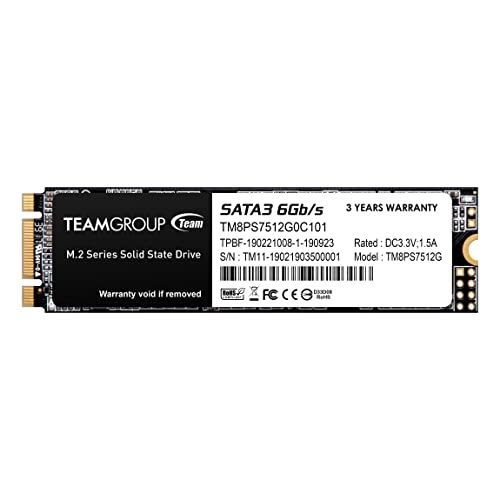
The MS30 is the roundup’s teaching drive, and its title should be read twice: M.2 2280 in shape, SATA III 6Gb/s in protocol, with read and write figures up to 530/430 MB/s stated in full. A population of laptops — business machines and early ultrabooks of the stick era — shipped with M.2 slots wired for SATA rather than NVMe, and for those machines this unassuming stick is not a compromise but the only internal upgrade that exists. Their owners are routinely sold NVMe drives by advice that never asked the protocol question, and the MS30’s candidacy begins with the honesty of its own title: it tells you exactly what it speaks.
TEAMGROUP completes the disclosure with the details value drives hide: SLC cache, 3D NAND TLC, both speed figures, and compatibility with laptops and desktops stated outright. The performance on offer is the SATA class’s — the stated 530 MB/s read sits at that interface’s ceiling — delivered in stick form to machines whose bays never existed. For a laptop of that generation still running its original small SATA stick or, worse, a hybrid arrangement, 512GB of declared flash at the protocol’s full pace is a complete transformation, delivered in the only shape the machine accepts.
The warning attached to this pick is absolute and worth its own sentence: verify the slot’s protocol before ordering, because an NVMe-only slot will not see this drive at all. The laptop’s specification states the slot’s language plainly, and the five minutes spent reading it are the difference between the roundup’s most satisfying rescue and its most avoidable return. Within its true population, though, the MS30 has no rival in this article — it is the only pick that speaks its machines’ language.
- Capacity: 512GB
- Form factor: M.2 2280
- Protocol: SATA III 6Gb/s — not NVMe
- Flash: 3D NAND TLC with SLC cache
- Read speed: up to 530 MB/s
- Write speed: up to 430 MB/s
Strengths
- The only pick serving SATA-wired M.2 slots, a population nothing else here fits.
- Complete disclosure: cache, flash type and both speed figures in the title.
- Full SATA-ceiling pace in the shape those machines require.
Trade-offs
- Useless in an NVMe-only slot; protocol verification is mandatory, not optional.
- 512GB is the modest capacity of its class and era.
- SATA pace in a market whose headlines belong to NVMe, however well matched it is.
Best for: buyers seeking the correct stick for a SATA-wired M.2 laptop slot. Not suited for: any NVMe slot, where this drive will not be recognised.
The MS30 also quietly serves a second population its title names: desktops. Small office machines and older all-in-ones with SATA-wired M.2 slots exist in surprising numbers, and a stick that speaks their language, bought once and installed identically across a row of them, is a fleet manager’s small pleasure. A pick chosen for laptops that also rescues the office’s forgotten corner is earning its place in this roundup twice.

Timetec 1TB SSD 3D NAND SATA III 2.5 Inch 7mm — The Bay Fleet’s Terabyte
Timetec’s proposition is the fleet upgrade in its purest form: a terabyte of 3D NAND on SATA III, in a 2.5-inch body 7mm thin, stating up to 550 MB/s read and an SLC cache design in its title. The audience is the enormous population of laptops with real drive bays — business machines, budget laptops, the previous decade’s mainstream — whose owners need room and reliability rather than protocol excitement. The stated read figure sits at the top of the SATA band, a small statement of intent from a maker whose business is memory and storage upgrades for exactly these machines.
The 7mm thickness, printed in the title where it belongs, is the fit detail that matters for this fleet: slim bays of the era were built to 7mm, standard bays accept it with room to spare, and no owner of either is stranded. The SLC cache tells the same everyday story it tells everywhere — bursts absorbed quickly, marathon copies settling to the flash’s native pace — and for a laptop whose writing life is documents, photos and updates, the burst is the whole story. A terabyte at this positioning also solves the fleet’s chronic condition, which is not speed but fullness: these machines shipped with 500GB spinning drives that have been at ninety percent for years.
Timetec’s name carries less consumer theatre than the giants’, and the review treats that neutrally: the title’s disclosure is complete for its class, the interface is the universal one, and the drive’s job is the best-understood job in computing. A buyer with a laptop carrying a bay and a tired disk does not need a flagship; they need this — a full terabyte, honestly specified, at the interface’s ceiling.
- Capacity: 1TB
- Form factor: 2.5-inch, 7mm thickness
- Interface: SATA III 6Gb/s
- Flash: 3D NAND with SLC cache performance boost
- Read speed: up to 550 MB/s
Strengths
- Top-of-band stated read figure for the SATA class.
- 7mm body declared in the title, fitting slim and standard bays alike.
- A full terabyte answers the bay fleet’s real problem, which is fullness.
Trade-offs
- Bay-only: no stick-era laptop can use it at any price.
- No write figure stated in the title.
- Cache design settles during very long copies, as its class does.
Best for: a buyer after a terabyte for a bay-equipped laptop. Not suited for: a stick-only ultrabook, which has no bay to offer it.
Owners of bay laptops should also hear the Timetec’s silence argument: in a quiet room, a spinning drive is the loudest component a laptop has, and a terabyte of flash removes the sound entirely along with the seeking delays. Media laptops and bedroom machines feel this as a quality-of-life change out of proportion to its cost, and it arrives free with the capacity the machine needed anyway.

Ediloca 512GB SSD Internal Solid State Drive 2.5" SATA III — The Tough Half-Terabyte
Ediloca’s title spends its words differently from its bay-mate’s: 512GB, SATA III 6Gb/s, a 540MB/s read figure, 3D TLC NAND declared, and then a phrase the Timetec omits — shock-resistant and drop-proof. That phrase is aimed at a real laptop population: machines that live in site bags, school backpacks and car boots, where the drive’s enemy was never only slowness. A spinning disk in a travelling laptop lives one drop away from retirement; flash has no platter to crash, and Ediloca states the resulting toughness as a headline virtue rather than leaving it as an implication of the technology.
The capacity tells the other half of the positioning. At 512GB this is the pick for the laptop whose role is defined and bounded — the field machine, the student’s essay-and-browse computer, the second laptop — where the storage need is the system, the software and a working set of files, and where the budget is better spent on the transformation than on empty terabytes. The declared TLC flash and the stated read figure, a step below the Timetec’s, place it honestly in the value tier of the bay world, and its title’s completeness about flash type exceeds what several larger brands offer at this level.
Choose it when the laptop travels and its storage needs are stable; choose the Timetec when the same bay needs a terabyte. Between them, the bay fleet’s decision is genuinely that simple, and the Ediloca’s contribution is to make the smaller, tougher, cheaper answer a deliberate choice rather than a compromise discovered later.
- Capacity: 512GB
- Form factor: 2.5-inch
- Interface: SATA III 6Gb/s
- Flash: 3D TLC NAND
- Read speed: 540MB/s
- Build note: shock-resistant and drop-proof, as stated in the listing title
Strengths
- Toughness declared in the title, matched to laptops that travel hard.
- Flash type stated openly at a tier where rivals often omit it.
- Right-sized capacity for bounded, well-understood laptop roles.
Trade-offs
- 512GB fills quickly if the laptop becomes a primary machine.
- Stated read figure sits a step below its bay-mate’s.
- No write figure in the title.
Best for: a buyer prioritising a tough, right-sized drive for a travelling laptop. Not suited for: a primary machine with a growing media library, which will outgrow 512GB.
The Ediloca’s half-terabyte also makes a shrewd second drive in the bay laptops that carry two storage positions — a fast, tough system disk beside a large cheap archive drive, each doing the work its tier does best. Owners of such machines should read this pick and the Timetec as a possible pair rather than as rivals, because the fleet’s two-bay veterans were built for exactly that division of labour.

KingSpec XG7000 1TB M.2 NVMe PCIe Gen 4 SSD — The Challenger Flagship
The XG7000 arrives with the roundup’s highest stated number — up to 7400MB/s read on PCIe Gen 4 — and a title that aims it at PS5, gaming PCs and laptop upgrades in one breath. KingSpec positions this drive as a challenger flagship: the specification sheet of the establishment at a challenger’s address. For the laptop reader, the relevant claim is the middle one — this is a drive that expects to be installed in gaming and performance laptops, delivering stated pace within sight of the interface’s ceiling, from a maker building its name on exactly such drives.
The “Championship Edition” flourish in the full title and the 3D NAND declaration complete a listing that is long on ambition and complete on the essentials: capacity, form, interface generation, flash type, read figure. What it does not state is a write figure, and the review records that gap with the usual rule rather than filling it from the maker’s other materials. In service, a gaming laptop’s storage life is dominated by installs and updates — writing, in bursts — and by game loads, which are reading; the stated figure covers the second of those completely and the first only by implication, a balance buyers should understand rather than discover.
Against the Samsung, the XG7000’s case is the challenger’s eternal one: equivalent headline ambition, a different badge, and a decision that comes down to how much weight a buyer puts on the establishment’s depth — its software ecosystem, its dual-mode flexibility — against a stated figure that is, on paper, the larger of the two. That is a legitimate preference to hold in either direction, and this roundup’s final recommendation will not pretend otherwise.
- Capacity: 1TB
- Form factor: M.2
- Interface: NVMe PCIe Gen 4
- Flash: 3D NAND
- Read speed: up to 7400MB/s
- Audiences named in title: PS5, gaming PC and laptop upgrade
- Write speed: Not stated in the listing title — verify with KingSpec documentation
Strengths
- Highest stated read figure in the roundup.
- Explicitly aimed at laptop upgrades as well as consoles and desktops.
- Flash type and interface generation both declared.
Trade-offs
- Write figure unstated, on a drive whose audience installs constantly.
- A challenger brand’s ecosystem depth trails the establishment’s.
- 2280-class form excludes the short-slot machines, as with the Samsung.
Best for: a buyer working to flagship pace for a gaming laptop from a challenger line. Not suited for: a buyer for whom the maker’s software ecosystem is part of the purchase.
A word about the XG7000’s console framing, since laptop readers may wonder whether it disqualifies the drive for their machine: it does not. The PS5 and a gaming laptop ask an NVMe drive for the same things — sustained game loads, fast installs, cool behaviour in a tight enclosure — and a title that names both is describing one workload wearing two uniforms. The laptop claim is printed in the same sentence as the console claim, and it should be believed at the same strength.

Crucial P310 2TB M.2 2230 SSD, PCIe Gen4 NVMe — The Short Stick With the Long Library
The P310 closes the roundup by solving the hardest fit problem in it: two terabytes, at up to 7,100MB/s on PCIe Gen4, in the 2230 form that handheld gaming PCs and the thinnest ultrabooks demand. Crucial’s title names the congregation directly — Steam Deck, ASUS ROG Ally, MSI Claw, mini PCs and ultrabooks — and each of those machines shares the same storage story: a single short slot, a factory drive that filled within months, and an owner for whom this swap is the only upgrade the device will ever offer. A 2TB ceiling in that slot is not a luxury specification; it is the difference between curating a library and owning one.
The stated figure deserves emphasis because it refutes an assumption: short does not mean slow. At 7,100MB/s the P310 states pace in the flagship band of the 2280 world, delivered in a stick half the length, which is an engineering flex the title performs quietly. For a handheld, the consequence is that the storage stops being the device’s compromise — games install at desktop pace, libraries live internally rather than on cards, and the machine’s portability stops being taxed by external storage dangling from its only port.
Its trade-offs are the form’s own. The 2230 fits nothing outside its population — a mainstream laptop’s 2280 slot can sometimes accept a shorter stick with the right mounting position, but that is a verification exercise, not an assumption — and the capacity premium for two terabytes in this size is real. Buy it when your machine’s slot is short and its library ambitions are long; it is the only pick in this article that can serve those machines, and it serves them at full flagship pace.
- Capacity: 2TB
- Form factor: M.2 2230
- Interface: PCIe Gen4 NVMe
- Read speed: up to 7,100MB/s
- Devices named in title: Steam Deck, ASUS ROG Ally, MSI Claw, mini PCs and ultrabooks
Strengths
- Two terabytes in the short form, the largest capacity in the smallest body here.
- Flagship-band stated pace; the form exacts no performance tax.
- Compatibility named device by device in the title.
Trade-offs
- Fits only the 2230 population; mainstream slots need verification, not assumption.
- Capacity at this size carries the form’s premium.
- No write figure stated in the title.
Best for: a buyer seeking maximum storage for a handheld or ultrabook with a 2230 slot. Not suited for: a bay laptop, which cannot accept a stick of any length.
The P310’s last distinction is temporal: handhelds and ultrabooks are the youngest machines in this article and will be owned the longest into the future, so the drive installed in them should be the one their owners will not outgrow. Two terabytes at Gen4 pace is the closest thing this category offers to a permanent answer, and permanence, in a device opened exactly once, is worth more than any single benchmark.
What Should You Do in the First Week After the Swap?
A new laptop drive earns trust gradually, and the first week is its probation. Use the machine normally — that is the entire protocol — but pay the specific attentions a new component deserves. Watch the first large update complete without complaint. Put the machine through its real sleep and wake rhythm, on battery and on mains, because power transitions are where marginal installations confess. Copy one genuinely large file and note that the pace holds. None of this requires benchmarks or utilities; it requires only that the laptop live its actual life while its owner keeps half an eye open, which is how every good installation in this programme has been verified.
Two administrative tasks belong to that week as well. Confirm the backup regime has noticed the new drive — backup software occasionally treats a swapped disk as a stranger and quietly stops, which is the worst failure mode in all of storage because it is silent. And register the old drive’s new role before entropy claims it: enclosure ordered, label written, place in the drawer assigned. An old drive left loose on a desk is a backup that will be formatted in a moment of need by someone unaware of what it holds; an old drive labelled and shelved is an archive.
At the week’s end, the upgrade should be boring. The machine boots quickly, sleeps soundly, holds its library with room to spare, and has stopped being a subject of conversation. That boredom is the product every pick in this roundup is really selling, in six different shapes — and it is why the week’s small disciplines are worth their modest effort.
Can an Older Laptop Carry Two Drives at Once?
A generation of laptops shipped with optical drives their owners rarely used, and the aftermarket answered with one of its cleverest inventions: a caddy shaped like a DVD drive that holds a 2.5-inch SATA drive instead. An older laptop so equipped can run the arrangement this article has praised in desktop contexts — a modest SSD in the main bay for the system, a large drive in the caddy for the archive — or reverse the emphasis entirely. For the bay fleet in this roundup, that possibility reframes the Timetec-versus-Ediloca question: in a two-position machine they are not rivals but partners, the Ediloca’s tough half-terabyte running the system while a terabyte of Timetec holds the library, each bought for the job its specification describes.
Some business laptops of the same era offer a more official version of the trick — a second bay, an expansion base, or an M.2 slot alongside the 2.5-inch bay — and their owners should inventory every storage position the machine owns before ordering anything. A laptop with both a bay and a SATA M.2 slot can take the Timetec and the MS30 in a single afternoon and emerge with a division of labour that rivals a desktop’s. The general principle outlives the specific hardware: a laptop’s storage story is written by its total architecture, not by whichever drive happens to be installed, and owners reading the whole architecture buy once.
None of this applies to the thin machines, whose single slot is their whole story and whose owners should return to the form-factor section with the P310 and the flagships in mind. But for the fleet that can expand, expansion beats replacement as a philosophy: the original drive demoted to archive duty is a drive whose cost is already sunk, and the new money buys only the speed.
Shapes and Speeds: The Six in a Single View
The table below is organised by the only order this category respects — first by what fits, then by what is claimed. Find your laptop’s shape, and the table reduces itself to your shortlist; the stated figures then rank a field that fit has already chosen.
| Drive | Form | Protocol | Capacity | Stated read |
|---|---|---|---|---|
| Samsung 990 EVO Plus | M.2 2280 | NVMe Gen 4×4 / 5×2 | 1TB | Up to 7,150 MB/s |
| TEAMGROUP MS30 | M.2 2280 | SATA III | 512GB | Up to 530 MB/s |
| Timetec | 2.5-inch 7mm | SATA III | 1TB | Up to 550 MB/s |
| Ediloca | 2.5-inch | SATA III | 512GB | 540MB/s |
| KingSpec XG7000 | M.2 | NVMe Gen 4 | 1TB | Up to 7400MB/s |
| Crucial P310 | M.2 2230 | NVMe Gen4 | 2TB | Up to 7,100MB/s |
Which Laptop Storage Mistakes Are the Costliest?
The protocol error leads the list, and it is this article’s refrain: an M.2 shape guarantees nothing about language, and an NVMe drive bought for a SATA-wired slot — or the MS30 bought for an NVMe slot — is a return parcel with a lesson inside. The length error follows: 2230 and 2280 are not approximations of each other, and a handheld’s slot accepts the short stick or nothing. Third comes the bay assumption, made by owners of thin modern laptops ordering a 2.5-inch drive for a machine that has not contained a bay in a decade of design. Each of these errors is a fact about the laptop, knowable in five minutes, purchased instead at the price of a return.
A fourth error is subtler because it wears the costume of diligence: researching the drive exhaustively while never researching the laptop. Buyers arrive knowing cache architectures and controller generations, then discover at the open case that their machine’s slot is keyed differently, its screw is a size they do not own, or its battery must be disconnected before the panel lifts. The laptop is half the system being upgraded, and it deserves half the research — its manual, its service videos, its forum threads about the exact model. Storage knowledge is portable between machines; machine knowledge is not, and the afternoon rewards the second kind.
The quieter mistakes are about expectations. A SATA drive, however good, will not give a bay laptop NVMe pace, and a Gen4 flagship will not give an older laptop Gen4 pace; the slot is the ceiling in both directions, and disappointment lives in the gap between the drive’s title and the slot’s reality. Finally, the migration mistake: opening a laptop without a verified backup, on the theory that the old drive can serve as one afterwards. It can — if the swap succeeds. The backup exists for the afternoon it does not, and laptops, with their ribbon cables and length-coded screws, deserve that respect more than desktops do.
Final Recommendation
Fit decides first, and within each fit the recommendations are these. For a current NVMe laptop, the Samsung 990 EVO Plus is the reference choice — dual-mode flexibility, laptop-aware design, a flagship figure — with the KingSpec XG7000 as the legitimate challenger for a buyer reading the stated numbers and preferring the larger one. For a handheld or ultrabook with a short slot, the Crucial P310 2TB stands alone, and its combination of capacity and pace makes it the easiest recommendation in the article. For a SATA-wired M.2 slot, the TEAMGROUP MS30 is the only correct answer and a genuinely satisfying one. For the bay fleet, take the Timetec’s terabyte for a primary machine and the Ediloca’s tough half-terabyte for a travelling one. A laptop is the most personal computer most people own, and its storage, correctly shaped and honestly specified, is the upgrade it feels most intimately — the P310 sliding into a handheld and doubling its world may be the purest example in this list, but every one of these six, fitted to the machine it was chosen for, earns the same quiet moment of disbelief at the first boot.
Frequently Asked Questions
How do I know whether my laptop’s M.2 slot is SATA or NVMe?
Read the laptop’s storage specification on the maker’s support page for your exact model and year — it states the slot’s protocol explicitly, in so many words. The existing drive’s label is the second witness: a stick marked SATA or one lacking any NVMe marking tells its own story plainly, to anyone willing to read it before spending money. Never infer the protocol from the slot’s shape; the MS30 and the flagships share a silhouette and speak different languages.
Can I put a 2230 drive in a 2280 slot, or the reverse?
The reverse is impossible — a longer stick cannot enter a shorter space. The forward direction sometimes works, where the 2280 slot’s mounting screw has a 2230 position or an adapter is used, but it is a per-model verification, not a rule. The P310’s natural home is a true 2230 slot; confirm your machine before treating it as anything else.
Will a Gen4 drive work in my older NVMe laptop?
Yes, at the older slot’s speeds — PCIe generations interoperate in both directions, and the drive will be recognised, formatted and used without complaint or configuration. What it will not do is perform beyond the slot’s generation, so the purchase should be made as a bet on a future machine as much as a gift to the current one. The drive will serve at the machine’s ceiling and carry its premium unused, which is why owners of older slots should weigh the value options for their generation rather than defaulting to a flagship whose figure they cannot reach.
Is 512GB enough for a laptop in this roundup?
For a bounded role — the second laptop, the field machine, the student’s computer — yes, provided the machine’s files are stable and its media lives elsewhere. The question to ask is not how much the laptop holds today but whether its role can change: a second machine promoted to primary duty inherits a primary library, and the 512GB drive that was right-sized for its old job becomes the constraint on its new one. For a person’s only computer, 512GB becomes a management chore as photo and game libraries grow, and the terabyte picks in each form factor exist precisely for that reader.
Why does the Samsung list two interface modes, 4×4 and 5×2?
Because laptops wire their slots differently. The 990 EVO Plus can run on four lanes of PCIe Gen4 or two lanes of Gen5, reaching similar bandwidth either way, which widens the range of machines that can use it at full pace. It is a compatibility feature stated in the title, and one of the reasons that drive anchors this roundup.
Should I clone my laptop’s drive or reinstall everything?
Clone when the existing system is healthy and the new drive is the same size or larger in usable terms; reinstall when the system was already troubled or when you want the upgrade to double as a spring cleaning. Laptop owners should add one consideration desktops escape: a clone preserves the machine’s battery profiles, lid behaviour and the small calibrations of years, while a reinstall rediscovers them — sometimes better, sometimes after a week of small annoyances. Either way, the backup comes first — laptops concentrate a person’s whole digital life in one small machine, and the swap should never be the moment that life is at risk.
Can I keep my old laptop drive as external storage afterwards?
Yes, and you really should do exactly that. A 2.5-inch drive drops into any USB enclosure; an M.2 stick needs an enclosure matching its protocol — NVMe and SATA enclosures are different products, the same lesson this article teaches about slots. The old drive becomes the backup the upgrade deserved, or a fast portable for moving large files between machines.
Related Guides
Laptop storage connects to the wider storage map in several directions. Our roundup of the best solid state hard drives at 1 terabyte goes deeper on the capacity most of these picks share, the guide to the best solid state SATA hard drives serves the bay fleet’s interface in full, and our look at the best cheapest SSDs gathers the value end of every form factor in one place.