What's inside
- Key Takeaways
- Quick Picks
- How Did a Keyword About Drives Become a Guide About Capacity?
- Why Did Solid State Drives Stop Being a Feature?
- How Much Solid State Storage Does a 15-Inch Laptop Actually Need?
- NVMe, SATA and eMMC: What Do the Storage Acronyms Still Mean?
- Why Did Touch and Solid State Arrive Together?
- Six Machines, One Storage Era: The Side-by-Side
- What Do Buyers Still Get Wrong About Laptop Storage?
- How Should You Migrate From an Old Laptop Without Losing a File?
- How Long Does a Laptop SSD Live, and How Should You Treat It?
- How Do You Measure Your Own Storage Need Before Ordering?
- Should You Consider an Older or Refurbished Machine to Save Money?
- Which Storage Life Matches Which Pick?
- Final Recommendation
- Frequently Asked Questions
- Related Guides
As an Amazon Associate I earn from qualifying purchases. This post may contain affiliate links at no extra cost to you.
gizmoverdict.com is reader-supported. When you buy through links on our site, we may earn an affiliate commission.
Where to buy: Listings confirmed in this site’s verified pool sit under five of the six laptops below, each with its solid-state drive’s capacity printed in its spec box; the sixth is also linked and also solid-state, because at this point in laptop history there is no other kind — a fact this guide explains rather than exploits.
Start with the sentence the whole keyword turns on: every laptop in this guide has a solid state drive, and so does every serious laptop sold today. The best 15 laptops with solid state drives and touch screen is a search phrase from an era when an SSD was an upgrade worth hunting for, when a spinning hard drive still lurked inside budget machines and boot times were measured in minutes. That era has ended. Flash storage won so completely that “with SSD” now describes the category rather than a corner of it — and the honest guide’s job shifts from finding SSD machines to explaining what actually differs between them: capacity, speed class, and whether the drive can ever be replaced.
So read this shortlist as a guide to 15- and 16-inch touchscreen laptops — the size the “15” in the keyword most plausibly names — where the storage conversation is conducted properly. The picks print their drive capacities in their spec boxes, the essays explain how much capacity different lives require, and one pick, a 14-inch machine, is included and labelled as the smaller alternative for buyers whose “15” was approximate. Touch, meanwhile, is the keyword’s still-meaningful half: all six screens answer fingers, four fold into convertibles, and the pen question is answered per machine.
What has not changed since the keyword was coined is the underlying desire: a big touchscreen laptop that feels fast. The SSD is precisely why modern machines feel fast — instant wake, applications opening without ceremony, a system that never waits on a spinning platter — and the six below deliver that feeling across a spread of sizes, hinges and budgets.
Key Takeaways
- Every current laptop ships with a solid state drive; the real choices are capacity and speed class, not whether to have one.
- 512GB is the comfortable floor for a 15-inch machine; 1TB suits photo, video and game libraries that live locally.
- Four of the six picks measure 15.6–16 inches; one declared smaller pick measures 14 inches and is labelled as such.
- Touch divides the six into four folding convertibles and two clamshells — decide the hinge before the drive.
- Drive replaceability varies by model and matters at year four; the essays explain where each pick stands in spirit.
Quick Picks
| Pick | Badge | Why it earns its place |
|---|---|---|
| Samsung Galaxy Book5 Pro 360 16 | The current flagship | A 16-inch AMOLED convertible with Intel’s latest platform and Samsung’s S Pen — the newest machine in this guide. |
| Lenovo Yoga 7i 16 | The terabyte mainstream | A 16-inch 2K touch folder with 1TB of storage — capacity-led value at the big canvas. |
| HP Spectre x360 16 | The polished terabyte | A 16-inch WQXGA flagship convertible pairing 1TB with the finest finish in this guide. |
| Samsung Galaxy Book4 360 (15.6-inch) | The literal fifteen | A 15.6-inch AMOLED convertible with a 512GB drive — the size the keyword names, from Samsung’s previous flagship generation. |
| Lenovo IdeaPad Slim 3 15.6 Touch | The clamshell saver | A 15.6-inch touch clamshell with 512GB — big screen and solid state without the convertible premium. |
| Dell Inspiron 14 7440 2-in-1 | The labelled smaller option | A 14-inch folder with 512GB for buyers whose fifteen was a direction, not a measurement. |
The table’s hidden curriculum is the storage column of the reviews below: two terabytes-class machines at the premium end, a run of half-terabyte drives through the middle, and not a spinning disk anywhere — exactly the landscape the introduction promised.
How to read the six reviews that follow: each opens with the machine’s size and hinge stated plainly, because those are the facts a shopper must settle first, then turns to the storage configuration and what it permits, and only then to the texture of ownership. Readers who already know their capacity tier can skim to the spec boxes with confidence; readers still deciding will find the essays between the reviews doing the deciding work, since in this category the essays — about capacity, about the drive’s quiet universality — are where the purchase is actually made.
How Did a Keyword About Drives Become a Guide About Capacity?
The shortlist was built from the verified pool’s 15- and 16-inch touchscreen machines, with the Inspiron admitted as a labelled smaller alternative, and then interrogated on storage rather than merely listed with it. For each pick the questions were the ones a buyer can still meaningfully ask in the all-SSD era. How much capacity does the verified configuration carry? Does the machine’s design treat the drive as a serviceable component or a permanent fixture? And does the rest of the specification — memory, panel, hinge — justify the storage tier it ships with?
Capacity was mapped against lives rather than against benchmarks. A documents-and-cloud life fits in 512GB with room to spare for years. A photographic life, a local film library, a games shelf or a virtual-machine habit each argue for the terabyte tier, and they argue at purchase time, because the slimmest machines in this class increasingly treat storage as a decision made once. The two 1TB picks sit at the premium end of the guide not by coincidence but because capacity and finish travel together in manufacturers’ line-ups.
Speed class was handled qualitatively on purpose. Modern NVMe drives in machines of this tier are all fast enough that their differences vanish inside the tasks these laptops perform — booting, opening applications, copying working files. A buyer would need laboratory instruments to rank the six drives by speed and a stopwatch-defying workload to care about the ranking. What owners actually feel is capacity headroom and system responsiveness, which is memory and processor as much as drive — and the reviews distribute their praise accordingly.
Touch and hinge coverage follows the pattern of the companion guides: four convertibles for buyers who fold, two clamshells for buyers who do not, pen support stated per machine, and every diagonal printed where a shopper can see it before the praise begins.
One deliberate omission deserves a sentence. Gaming laptops with touchscreens exist at this size, and none appears here, because the keyword’s intent — a fast, touchable, general-purpose machine — is served better by the six above than by a heavier gaming chassis whose touch panel is an afterthought. Readers whose primary verb is gaming should shop that category directly; readers whose verbs are documents, media, calls and annotation are home.
Why Did Solid State Drives Stop Being a Feature?
The short history is worth a section, because it explains the shelf a buyer faces. A decade and a half ago, the SSD was the single most dramatic upgrade a laptop could receive: the same machine booted in seconds instead of minutes, applications snapped open, and the drive’s immunity to shock ended the era of laptops dying from a desk-height fall. Manufacturers charged accordingly, and keywords like this one existed to help buyers find the machines that had made the leap.
Then flash memory’s price collapsed, generation by generation, until the economics inverted. A spinning drive needs motors, platters, heads and the engineering to protect them; at small capacities it became the more expensive way to store data, as well as the slower, heavier and more fragile one. Laptop makers standardised on solid state across every tier — first the premium lines, then the mainstream, finally the budget shelves — and the netbook-class eMMC storage that once filled the cheapest machines has itself been displaced by proper SSDs in most current designs.
The consequences for shoppers are all pleasant. Boot and wake times are uniformly quick across this entire guide. Mechanical drive failure, once the commonest laptop death, has essentially vanished. And the storage decision has simplified into the two questions the reviews keep asking: how much capacity does your life need, and — for the long-ownership buyer — can the drive be serviced if the years demand it. A keyword that once hunted for a feature now deserves a guide to a specification, which is what the following pages aim to be.
How Much Solid State Storage Does a 15-Inch Laptop Actually Need?
Work from the library, not from the brochure. Add up what genuinely lives on your current machine: the operating system and applications claim a fixed share everywhere; documents and mail are usually smaller than owners fear; photographs, video and games are where capacities go to die. A household whose media lives in cloud libraries and streaming services will find 512GB roomy for the machine’s whole life. A photographer shooting raw, a family archiving phone video locally, or a gamer with a dozen large titles installed will feel 512GB as a negotiation by year two and should buy the terabyte tier while the choice exists.
External and cloud storage soften but do not erase the decision. An external SSD is an excellent archive and a poor substitute for internal room, because the files you need are reliably on the drive that stayed home. Cloud tiers rent convenience at a monthly rate that, across a five-year ownership, can exceed the one-time step to a larger internal drive. The arithmetic differs by household; the principle does not — internal capacity is bought once and forgotten, while every alternative is a habit that must be maintained.
There is also a longevity angle buyers rarely hear. Flash drives wear by writing, and a drive kept nearly full wears its remaining cells harder and leaves the system less room for its own housekeeping. Owners who buy a tier above their expected need are not wasting money; they are buying the headroom that keeps the machine feeling quick in year four. In an all-SSD market, that headroom is the true successor to the old “get an SSD” advice — the same instinct, translated into the only storage language that still matters.
A worked example makes the tiers concrete. Consider a household laptop holding a decade of phone photographs and video, a music library, the children’s school archives and a handful of large games: that collection, unremarkable as it sounds, routinely crosses half a terabyte before the operating system and applications claim their share. Consider, by contrast, a professional whose files live in a company cloud and whose laptop holds only the current quarter’s work: the same 512GB drive is mostly empty in year three. Neither buyer is typical in the abstract — each is typical of a tribe — and the picks are ordered so that each tribe can find its machine by the size of its library as much as by the size of its screen.
NVMe, SATA and eMMC: What Do the Storage Acronyms Still Mean?
Three acronyms haunt laptop listings, and a buyer deserves the plain version of each. NVMe is the current standard in every pick here: a drive that speaks directly to the processor over a fast modern connection, delivering the instant responsiveness this guide treats as the era’s baseline. SATA SSDs are the previous generation’s format — still dramatically faster than any spinning drive, still found in older and serviceable designs, and entirely adequate in the hand despite slower laboratory figures. eMMC is the budget flash once common in the cheapest small laptops and Chromebooks: integrated, modest in speed and capacity, and the one format a buyer of a full-size Windows laptop should still glance at a spec sheet to avoid.
The practical translation is short. If a 15-inch Windows laptop’s storage says NVMe or simply SSD, you are in the modern world and the capacity number is the only remaining question. If it says SATA SSD, the machine will feel quick in every ordinary task and the drive may even be easier to service. If it says eMMC at this size, read the rest of the specification with heightened suspicion, because that choice usually travels with other economies.
One more term deserves decoding because sellers lean on it: drive speed claims in megabytes per second. Those figures describe sequential transfers — copying one enormous file — which is the rarest thing a laptop drive does. The responsiveness owners feel comes from random access, where every modern NVMe drive is effectively instant. A buyer comparing two picks in this guide by their drives’ headline speeds is measuring the wrong race; compare capacities, and let the processors and memory settle the rest.
Why Did Touch and Solid State Arrive Together?
It is not a coincidence that this keyword pairs its two features. Touch laptops and SSDs rose through the same decade because they served the same idea: the laptop as an appliance rather than a machine room. A touchscreen invites the casual, instant interactions of a phone; an SSD delivers the instant waking those interactions demand. A touch laptop that took a minute to wake would betray its own premise, and an SSD laptop with a keyboard-only interface belonged to the older world’s idea of work. The convertible era — the folding machines that dominate this guide — is what happened when the two ideas finished merging.
That merger also explains the category’s design language. Sealed, thin chassis exist because flash storage needs no access bay and generates little heat; folding hinges exist because touch made postures worth having; instant-wake standby exists because drives stopped spinning. A buyer reading these six reviews is reading the descendants of that merger, and the keyword that summoned them, however dated its storage half sounds, names the merger’s two parents accurately.
The forward-looking footnote is that the pairing has completed its work. Touch is now a checkbox across the laptop market just as solid state is, and the interesting questions have moved on — to pen quality, panel technology, capacity generosity and hinge craft. Those are the questions this guide’s reviews spend themselves on, because they are the ones whose answers will still matter in year four.

Samsung Galaxy Book5 Pro 360 16 — The current flagship
Samsung’s Book5 Pro 360 is the newest flagship in this guide: a 16-inch AMOLED touchscreen that folds a full circle, built on Intel’s Core Ultra 7 platform, with the S Pen ecosystem that Samsung has refined across its phones and tablets. Its storage story is the modern flagship pattern — fast NVMe solid state, capacity set by the configuration chosen at purchase, in a chassis thin enough that buyers should treat the drive as a fixture rather than a future project. Choose the capacity as if it were permanent, because in every practical sense it is.
The AMOLED panel remains the reason this machine leads the guide. Sixteen inches of Samsung’s own display technology, with the contrast and colour the company is known for, turns the big-canvas jobs — split-screen documents, photo review, presentation building — into the machine’s home territory. In tablet posture it is a desk-bound annotation surface of genuinely paper-like proportions, and the S Pen writes on it with the battery-free, low-latency feel that makes Samsung’s pen the one rival ecosystems measure themselves against.
Galaxy phone owners receive the ecosystem dividend in full: calls, messages, file sharing and second-screen tricks flow between phone and laptop with a smoothness Windows alone does not offer. Everyone else receives a flagship Windows convertible whose merits stand without the phone — the panel, the pen and the build need no assistance.
As the guide’s premium anchor, the Book5 Pro’s lesson is about specification honesty. Its price buys the newest platform and the finest screen here, and its storage should be bought a tier generously for exactly the headroom reasons the capacity essay describes. A flagship kept half-empty is a flagship that stays fast.
- Real size and hinge: 16-inch, full 360-degree convertible
- Display: AMOLED touch with S Pen support — the guide’s finest panel
- Processor: Intel Core Ultra 7 platform
- Storage: NVMe solid state; capacity by configuration — buy a tier generously, treat it as permanent
- Ecosystem: Galaxy phone cooperation for Samsung households
- Posture reality: Annotation and presentation at desks; not a handheld tablet
Strengths
- Panel and pen combination no other pick fully matches
- Newest platform in the guide, with the longest support runway
- Flagship build that makes the size feel intentional
Trade-offs
- Premium pricing, with capacity generosity adding to it
- Sixteen inches tests bags and trays sized for fifteen
- Ecosystem bonuses evaporate for non-Samsung phone owners
Best for: Samsung households and pen-led professionals wanting the current flagship convertible experience.
Not suited for: strict 15-inch shoppers and buyers who prefer serviceable storage over thin design.

Lenovo Yoga 7i 16 — The terabyte mainstream
The Yoga 7i 16 makes the simplest storage argument in this guide: a full terabyte of solid state, in a 16-inch 2K touch convertible, at a mainstream price posture. Paired with an Intel Core Ultra 7 155U and 16GB of memory, that drive defines the machine’s ownership experience — this is the laptop for the buyer whose archive travels with them, whose photo library and project folders and offline media add up to a life that a 512GB machine would spend its years negotiating with.
The 2K panel at 16 inches suits that archive-keeping life. Photographs review at a size where focus can be judged, documents sit beside their sources without scaling tricks, and the touchscreen serves the seated interactions — scrolling, tapping, presenting from tent mode — that a desk-anchored machine performs daily. Pen support covers annotation at the desk, where a 16-inch tablet posture belongs.
Lenovo’s convertible experience shows in the hinge, which manages the large panel’s leverage without drama, and in the keyboard, which uses the wide chassis properly. The machine’s travels are between desks rather than along commutes, and its specification seems written by someone who understood that: capacity and canvas first, portability a respectful second.
Against its flagship neighbours, the Yoga 7i trades panel glamour and finish for storage and price sanity. For the buyer whose old laptop died of a full drive — a commoner death than a slow processor — that trade is not a compromise but a correction.
- Real size and hinge: 16-inch, full 360-degree convertible
- Display: 2K touch panel sized for side-by-side work
- Processor: Intel Core Ultra 7 155U
- Storage: 1TB solid state — the capacity-led configuration of the mainstream tier
- Memory: 16GB, matched to the drive’s ambition
- Travel character: Desk-to-desk portability; too much machine for tray tables
Strengths
- Terabyte capacity ends storage negotiation for most owners
- Large sharp canvas for document pairs and photo review
- Mainstream pricing undercuts the flagships meaningfully
Trade-offs
- Panel richness sits below the AMOLED and WQXGA flagships
- Size and weight anchor it to desks
- Finish is workmanlike beside the Spectre
Best for: archive-keepers and photo-heavy owners who need a terabyte and a big touch canvas without flagship pricing.
Not suited for: daily commuters and buyers who rank panel glamour above capacity.

HP Spectre x360 16 — The polished terabyte
HP’s Spectre x360 16 pairs the same terabyte generosity as the Yoga with the guide’s most considered design: a 16-inch WQXGA touchscreen, Core Ultra 7 power, 16GB of memory and a chassis finished to the standard the Spectre name has maintained for a decade. Its storage story matches its design story — premium NVMe capacity, chosen at purchase, inside a machine built to be kept. Buyers at this tier are not purchasing components; they are purchasing the absence of future errands.
The WQXGA panel is the Spectre’s working luxury. At 16 inches its resolution renders documents with an ease that accumulates across long days — text edges smooth, spreadsheets calm, photographs honest — and the tall 16:10 shape shows more of every page than the 16:9 screens of older fifteen-inchers. Touch and pen support turn that canvas into an annotation surface for the desk-bound reviewing that senior work consists of.
Folded, the Spectre presents rather than reads: tent mode is its party posture, the one that turns a meeting table into a stage. Its speakers, cameras and microphones are tuned to that presenter’s life, and its keyboard is the one writers in this guide’s line-up will linger on. Every flagship claim it makes is about the texture of work, and the texture is genuinely a tier above the mainstream picks.
The choice between this and the Book5 Pro is the guide’s most pleasant dilemma: Samsung’s AMOLED and S Pen against HP’s resolution, finish and presentation polish, both at a terabyte. Phone ecosystem and panel taste will decide it, and neither answer is wrong.
- Real size and hinge: 16-inch, full 360-degree convertible
- Display: WQXGA touch in a tall 16:10 shape
- Processor: Intel Core Ultra 7
- Storage: 1TB solid state, matched to the flagship brief
- Memory: 16GB
- Character: Presentation polish — speakers, cameras and keyboard tuned for senior work
Strengths
- Terabyte capacity inside the guide’s finest finish
- Tall, sharp screen transforms long document days
- Call and presentation hardware a tier above the mainstream
Trade-offs
- Flagship pricing for texture that mainstream picks approximate
- Sixteen inches is a desk commitment, not a travel habit
- Pen experience, while good, cedes the crown to Samsung’s S Pen
Best for: presenters and senior professionals who want a terabyte flagship that looks and sounds the part in every room.
Not suited for: value-led buyers and anyone whose laptop lives in a carry-on.

Samsung Galaxy Book4 360 (15.6-inch) — The literal fifteen
Measure the keyword literally and this is its closest resident: a 15.6-inch touchscreen laptop, solid state throughout, folding through the full convertible repertoire. The Book4 360 is Samsung’s previous-generation flagship, carrying an AMOLED panel, Intel’s Core 7, 16GB of memory and a 512GB drive — a specification that reads, line by line, like the answer the searcher who typed this keyword hoped to find, at a price posture softened by the arrival of its successor.
The 512GB drive is the configuration’s one line that asks a question back. For document, browsing and cloud-centred lives it is ample for the machine’s whole span. For local media libraries it is a budget to be managed. The capacity essay earlier in this guide exists largely because of picks like this one: the panel and the pen argue flagship, the drive argues mainstream, and the buyer should decide which argument their own library supports before the panel’s beauty settles the matter by default.
On every other line, the Book4 delivers the flagship experience its successor inherited. The AMOLED canvas annotates beautifully with the S Pen at full-page scale, tent mode presents with confidence, and the Galaxy ecosystem cooperations remain available to Samsung phone owners. A generation’s maturity brings the usual dividends — known behaviour, available accessories, a design whose ownership stories are already written.
Buyers choosing between the two Samsung picks are choosing between generations and diagonals: this 15.6-inch original at its gentler tier, or the 16-inch Book5 Pro with the newest platform. The storage advice is identical for both — buy the capacity your library needs, because neither machine invites you to change your mind later.
- Real size and hinge: 15.6 inches — the keyword’s literal size; full 360-degree convertible
- Display: AMOLED touch with S Pen support
- Processor: Intel Core 7
- Storage: 512GB solid state — ample for cloud-centred lives, managed for local libraries
- Memory: 16GB
- Generation note: Previous flagship — maturity and price posture over newest silicon
Strengths
- The exact size class the keyword names, with a flagship panel
- S Pen annotation at full-page scale
- Post-flagship pricing on flagship technology
Trade-offs
- 512GB is the configuration’s limiting line for media-heavy owners
- Newer platform lives in the Book5 for longevity-first buyers
- Tablet posture remains a desk arrangement at this size
Best for: annotators and Samsung households wanting the literal 15-inch-class flagship experience at a softened tier.
Not suited for: terabyte-scale local libraries and buyers who always purchase the newest generation.
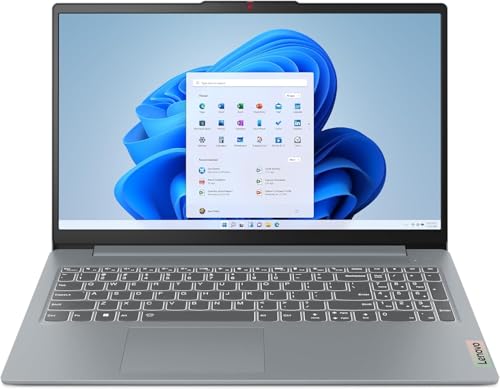
Lenovo IdeaPad Slim 3 15.6 Touch — The clamshell saver
The IdeaPad Slim 3 is this guide’s proof that the all-SSD era democratised speed. A mainstream 15.6-inch clamshell with a Full HD touchscreen, AMD’s Ryzen 7 5825U, 16GB of memory and a 512GB solid-state drive, it boots, wakes and opens applications with the same snap that once sold premium machines — because the component responsible for that snap is now standard at every tier, this one included. Buyers whose previous laptop carried a spinning drive will experience this modest machine as a revelation, and that experience is the keyword’s original promise, fulfilled at the budget end.
What the mainstream tier does not buy is posture. The IdeaPad’s screen does not fold; its touch serves seated tapping, scrolling and zooming, which — as the companion guides keep noting — is how most touch is actually used. Its panel is an honest LCD rather than a lush AMOLED, its processor an older generation that handles office and media work without strain and without headlines, and its finish is durable rather than decorative.
For households, schools and small offices, those are the right economies. The money a convertible would spend on its hinge is here spent on the specification’s floor — full memory, proper capacity, a big screen — and Lenovo’s high-volume line ensures that chargers, cases and eventual replacement parts stay findable for years. As a shared family machine or a paperwork workstation, it is arguably the most rational object in this guide.
Its storage deserves the final word because it illustrates the era: 512GB of solid state, unremarkable on a modern spec sheet, would have been a premium configuration when this keyword was young. The IdeaPad is what the keyword’s victory looks like — the feature became the floor.
- Real size and hinge: 15.6 inches; clamshell — the screen does not fold
- Display: Full HD touch LCD for seated interaction
- Processor: AMD Ryzen 7 5825U — older generation, mainstream-sufficient
- Storage: 512GB solid state — the modern floor, delivered at a mainstream tier
- Memory: 16GB — no economising on the line that matters
- Role: The household and office workhorse of the guide
Strengths
- Full modern specification — memory, capacity, big touch screen — at the gentlest tier here
- SSD responsiveness that shames older premium machines
- High-volume line keeps parts and accessories available
Trade-offs
- No folding postures and no pen-led annotation story
- Panel and finish are honest rather than impressive
- Older silicon trails the guide’s newer platforms in efficiency
Best for: families, schools and small offices wanting a big touchscreen laptop whose budget went into the basics.
Not suited for: presenters, annotators and buyers chasing flagship panels.

Dell Inspiron 14 7440 2-in-1 — The labelled smaller option
The label comes first, as this guide’s honesty rules require: the Inspiron 7440 measures 14 inches, not fifteen. It closes the shortlist because a share of this keyword’s searchers mean “a portable touchscreen laptop with fast storage” more than they mean a diagonal, and for those buyers Dell’s mainstream convertible — FHD+ touch panel, Intel Core 5, 16GB of memory, 512GB of solid state — is a legitimate destination. Buyers who do mean the diagonal should stop at the fifth pick; this one is explicitly the smaller alternative.
What the smaller size returns is mobility. The Inspiron folds through the full repertoire — laptop, tent, stand, tablet — in a chassis that rides in ordinary bags and opens on ordinary trays, and its 16:10 panel returns vertical lines to documents in a way that narrows the practical gap to its bigger siblings. Pen support covers annotation and signatures, and Dell’s support network stands behind the machine in the way workplace buyers value.
Its storage configuration matches the guide’s mainstream centre: half a terabyte of NVMe solid state, quick in every task the machine will meet, sized for document-and-cloud lives. Media-heavy buyers at this size should note that the same capacity discipline applies — the drive is the life you bring to it — and that stepping up in this guide’s order is also stepping up in capacity, since the terabyte tier lives at 16 inches.
As the closing pick, the Inspiron performs a useful service: it proves the guide’s thesis from the small end. Even the machine included as an exception is solid state to its core, because there is nothing else left to be.
- Real size and hinge: 14 inches — BELOW the keyword’s size, labelled; full 2-in-1 convertible
- Display: FHD+ touch in a taller 16:10 shape
- Processor: Intel Core 5
- Storage: 512GB solid state
- Memory: 16GB
- Ownership: Dell’s support and parts ecosystem
Strengths
- Genuine portability the 15–16-inch picks cannot offer
- Full folding repertoire with pen support
- Balanced mainstream specification with no weak line
Trade-offs
- Screen size breaks the keyword’s brief — included as an alternative, not a match
- 512GB ceiling matches the mainstream, not the terabyte tier
- Panel character is LCD-practical rather than AMOLED-lush
Best for: mobile buyers whose “15” was approximate and who value the fold and the support network over the diagonal.
Not suited for: size-strict shoppers and anyone whose workspace needs the full 15.6–16-inch canvas.
Six Machines, One Storage Era: The Side-by-Side
| Pick | Real size | Hinge | Panel | SSD capacity |
|---|---|---|---|---|
| Galaxy Book5 Pro 360 | 16″ | 360° convertible | AMOLED | By configuration — buy generously |
| Yoga 7i 16 | 16″ | 360° convertible | 2K LCD touch | 1TB |
| Spectre x360 16 | 16″ | 360° convertible | WQXGA touch | 1TB |
| Galaxy Book4 360 | 15.6″ | 360° convertible | AMOLED | 512GB |
| IdeaPad Slim 3 15.6 | 15.6″ | Clamshell | FHD touch LCD | 512GB |
| Inspiron 7440 | 14″ — smaller option | 2-in-1 convertible | FHD+ touch | 512GB |
The capacity column is the guide in miniature: a terabyte where the flagships and the value flagship sit, half a terabyte through the mainstream, and solid state in every single row.
What Do Buyers Still Get Wrong About Laptop Storage?
The oldest surviving error is shopping for the drive’s existence rather than its size — the very habit this keyword encodes. A listing that trumpets “SSD” in 2026 is announcing that the laptop is a laptop; the number after it is the information, and buyers who read only the trumpet end up with a 256GB machine negotiating with a photo library.
The second error is assuming a drive can be upgraded later because it could be in 2015. Thin convertibles increasingly solder or bury their storage, and even where a slot exists, opening a sealed chassis is a warranty conversation. Buy the capacity for the ownership you plan, at the desk where you order, not in a future you imagine.
The third error is the opposite nostalgia: paying a premium for exotic drive speed claims. In the workloads these machines perform, NVMe tiers are indistinguishable in the hand. Money moved from a speed claim to capacity, memory or panel returns value an owner can actually feel.
The fourth error is forgetting the backup that solid state makes more urgent, not less. An SSD that fails usually fails completely, without the clicking warnings spinning drives gave. The responsiveness this guide celebrates should be paired with an automatic backup habit from day one — the one storage accessory every pick here genuinely needs.
The fifth error is subtler and increasingly common: treating cloud storage as if it were the same thing as local capacity. A cloud library is a service, with a subscription, a login and a dependence on connection; a local terabyte is a possession. Both have their place, and the capacity essay’s arithmetic should be run with honest eyes about which of the two a household will still be paying for, and logging into, in year five.
How Should You Migrate From an Old Laptop Without Losing a File?
Begin a week before the new machine arrives, not the night it does. Inventory the old drive by folder size so the new machine’s capacity is tested against reality rather than hope, and let that inventory confirm — or correct — the capacity tier you ordered. Photographs and video dominate most surprises; finding them early is the difference between a migration and an excavation.
Copy in layers. Documents and photographs first, by direct transfer or a trusted cloud sync allowed to finish completely; application data and browser profiles second, since modern browsers and office suites carry their own migration tools that work best when used deliberately rather than improvised. Keep the old machine intact and unplugged for a month after the move — the cheapest insurance in computing is a previous laptop that still contains everything, exactly as it was.
Finish by setting the new machine’s backup before its honeymoon ends. An external drive on a schedule, a cloud tier, or both: the mechanism matters less than its automation, because a backup that depends on remembering is a backup that will be remembered about on the worst possible day. The SSD’s speed makes all of this painless — which is precisely why the era this keyword celebrates is worth celebrating correctly.
Then live on the new machine for a full week before wiping or selling the old one. The file everyone forgets — a browser’s saved sessions, an application’s licence, a folder that lived on the desktop rather than in documents — announces itself through absence, and a week of ordinary work is the cheapest possible audit. Only when the new laptop has survived that week, backups running, should the old drive be retired, wiped and recycled with the confidence that nothing it held is lost.
How Long Does a Laptop SSD Live, and How Should You Treat It?
Flash storage wears by writing, and manufacturers rate drives by the total data they can absorb across their lives — figures that, for the drives in machines of this class, exceed what ordinary owners write in a decade of heavy use. The realistic summary is reassuring: a modern laptop SSD is more likely to be retired with the laptop than to wear out beneath its owner, and the spinning drive’s random mechanical deaths have no equivalent in the solid-state world. Longevity anxiety, in this category, can be retired along with the hard drive.
Treatment is correspondingly simple. Keep some free space — a drive run permanently at the brim slows its own housekeeping and wears its remaining cells unevenly, which is the practical core of the capacity essay’s advice to buy a tier generously. Let the operating system’s built-in maintenance run; modern Windows manages flash health automatically, and the defragmentation rituals of the spinning era are not merely unnecessary but counterproductive on solid state. Beyond that, the drive asks nothing, which is the point of it.
The one discipline that remains is external to the drive entirely: backup. Solid state fails rarely but completely, and its failures arrive without the audible warnings spinning platters used to give. An automated backup — external drive, cloud, or both — converts that small risk into a non-event, and it is the only storage accessory this guide recommends without qualification for every single pick.
How Do You Measure Your Own Storage Need Before Ordering?
Open your current machine and read its drive the way an auditor would. Note the total capacity and the free space first — the difference is your actual footprint, and it is frequently a surprise in both directions. Then sort the largest folders: in most households the ranking is photographs and video, then games, then everything else combined, and the identity of the largest folder tells you which tier of this guide your life belongs to.
Project forward honestly. A library growing by a phone’s worth of video each year needs its growth added to the footprint before a tier is chosen; a static archive of finished projects can be exiled to an external drive with a clear conscience. The formula is unglamorous — current footprint, plus three years of growth, plus a fifth again for headroom — and it lands most buyers on exactly the tier their instincts suggested, now with arithmetic behind the instinct.
Apply the same audit to the cloud. If your photographs already live in a cloud library you trust and pay for willingly, the local footprint shrinks and 512GB breathes easily. If the cloud is a free tier you resent and a subscription you intend to cancel, count the library as local. Storage decisions fail when they are made about the life we describe rather than the life we lead; the audit takes ten minutes and tells the truth.
Should You Consider an Older or Refurbished Machine to Save Money?
The all-SSD era has a generous consequence for budget buyers: a laptop from several generations ago, bought refurbished from a reputable channel, still delivers the instant responsiveness this keyword celebrates, because its drive is solid state too. Business-class machines of the last decade were built to be serviced, and their replacement batteries, keyboards and drives circulate widely. For a buyer whose needs are documents and browsing, that market is rational in a way it never was when a used laptop might hide a dying spinning drive.
The cautions are the standard used-market ones, sharpened by this category. Touchscreens and hinges are the expensive wear items on folding machines, so a refurbished convertible deserves a hinge and panel inspection a clamshell does not. Battery health should be stated, not assumed. And the operating system’s support window matters more with each passing year — a machine whose Windows support has ended is a machine whose price should reflect its isolation.
None of the six picks in this guide is such a machine — all are current verified listings — but the guide would be incomplete without acknowledging the shelf beside them, because the keyword’s bargain-hunting readers will meet it. Buy there with the same discipline applied here: capacity printed, size measured, condition stated, returns accepted.
Which Storage Life Matches Which Pick?
The cloud-native professional — documents in a suite, media in streaming services, photographs in a cloud library — is the 512GB tier’s natural citizen, and every mainstream pick here serves that life without a moment of storage anxiety. This buyer should choose by hinge and panel: the Book4 for annotation, the IdeaPad for household value, the Inspiron for travel. The drive will simply never enter the conversation again, which is the highest compliment the era can pay it.
The photographer and the family archivist live at the terabyte tier or in negotiation. Raw files and phone video accumulate with a steady indifference to intentions, and the Yoga 7i’s capacity-led value or the Spectre’s finished terabyte are bought precisely to postpone the external-drive era by years. These buyers should also hear the backup section’s advice as addressed to them personally: a library that exists in one place is a library on loan from fortune.
The gamer with a local library belongs at the terabyte tier for a different reason — modern titles are enormous and uninstalling is a chore that sours the hobby. The honest caveat travels with the recommendation: these are integrated-graphics machines, suited to esports, older libraries and cloud gaming, and the terabyte serves the library’s breadth rather than its graphical ambition.
The upgrader from a spinning-drive era — still a real reader of this keyword — should know that any pick here will feel like the future arriving at once. For that buyer the guide’s subtleties matter less than its floor: the cheapest machine on this page outruns the laptop being replaced by a margin that will make them laugh out loud at the first boot. Choose by size and budget, and enjoy the laugh.
Final Recommendation
Buy the capacity your library demands and the hinge your week uses, and let the SSD take care of itself — it will, in every machine here. Terabyte lives belong with the Yoga 7i for value or the Spectre for finish; Samsung loyalists should choose between the Book4’s literal fifteen inches and the Book5 Pro’s newer flagship canvas; households should take the IdeaPad’s honest clamshell arithmetic; and travellers should accept the Inspiron’s smaller label in exchange for its mobility. The keyword asked for a feature that no longer needs finding. What it found instead is a class of big, quick, touchable laptops that would have seemed miraculous when the phrase was coined — and that, in the end, is the most honest answer this guide can give.
One verification habit protects the whole purchase, and it takes less than a minute at the product page: confirm the capacity printed in the listing matches the tier the review describes, because convertible and clamshell lines alike are sold in overlapping configurations under one model name. The machine this page reviewed is the machine in its spec box. A buyer who checks that single line — and the diagonal beside it — will receive exactly the laptop, and exactly the drive, that the preceding pages promised.
Frequently Asked Questions
Do any laptops still ship with hard drives instead of SSDs?
Essentially none in the mainstream market. Spinning drives survive in some desktop towers and external enclosures, but laptop makers have standardised on solid state at every tier — which is why this guide treats capacity, not drive type, as the decision.
Is 512GB enough for a 15-inch laptop?
For documents, browsing, office work and cloud-centred media, yes, comfortably for years. For local photo, video or game libraries, it becomes a managed budget; those buyers should choose the terabyte picks while the choice exists at purchase. The deciding evidence is on your current machine: measure its actual footprint, add your library’s yearly growth, and let that arithmetic — not a headline — pick the tier.
Can I upgrade the SSD later in these laptops?
Treat the answer as no for planning purposes. Some models retain serviceable slots and many do not, and sealed convertible chassis make the question a warranty matter as much as a technical one. Buy the capacity for the full ownership you intend.
Does an SSD make a bigger difference than the processor?
Historically it did — replacing a spinning drive transformed old machines. Today, with solid state universal, responsiveness differences between these picks come from memory and processor headroom, which is why the reviews weigh those lines as heavily as the drives.
What does NVMe mean, and should I care?
NVMe is the current connection standard for laptop SSDs, and every pick in this guide uses it. You should care only to this extent: it confirms the machine is built to the modern storage pattern. Beyond that confirmation, capacity is the number that will shape your ownership — headline drive speeds will not.
There is one household pattern worth naming before the verdict, because it recurs in every conversation about this keyword: the buyer who keeps a machine for seven or eight years. For that buyer, every argument in this guide compounds — buy the terabyte if the library is growing, buy the memory headroom, buy the hinge from the maker with the longest track record — because the cost of underbuying is paid annually, in small frustrations, for most of a decade. The capacity audit in the how-to section is written for that buyer most of all.
Why is a 14-inch laptop in a 15-inch guide?
As a labelled alternative for buyers whose size requirement is approximate and whose real priorities are portability and the folding format. Its size is declared in its review, its spec box and the comparison table — never disguised.
Related Guides
Continue browsing the neighbouring shelves: best 14 to 15 inch touch screen laptops, best 13 touch screen laptops compared, and best 10 inch touch screen laptops and their successors.


