Our Top Picks
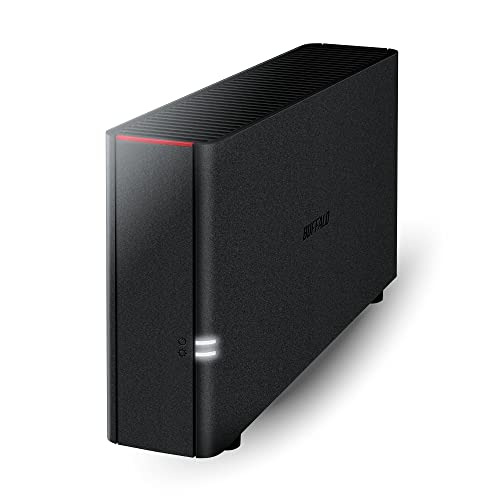 BUFFALO LinkStation 210 4TB 1-Bay NAS Network Attached4TB (1x4TB)9.45 x 3.31 x 8.67 inches2.43 poundsCheck on Amazon
- BUFFALO LinkStation 210 6TB 1-Bay NAS Network Attached6TB (1x6TB)5.9 x 6.88 x 1.77 inches2.43 poundsCheck on Amazon
 BUFFALO LinkStation 710 2TB 1-Bay NAS Network Attached2TB (1x2TB)8.1 x 3.6 x 5 inches2.9 poundsCheck on Amazon

What's inside
- LaCie drives on a home network, explained in plain terms
- The four network roles and what each one demands
- The current LaCie lines, matched to network work
- Interfaces, and the bottlenecks that actually govern speed
- Inside the drives: CMR recording and why it matters here
- RAID on the 2big, without illusions
- File systems and cross-platform access
- Running a media library with Plex or Jellyfin
- Backups from several machines to one LaCie destination
- Rescue Data Recovery, read carefully
- Common failures and how to work through them
- When a real NAS is the better answer
- Seeding the drive and keeping the system legible
- A final decision checklist
- Check prices on Amazon
- Disclosure and how this guide was assembled
As an Amazon Associate I earn from qualifying purchases. This post may contain affiliate links at no extra cost to you.
LaCie drives on a home network, explained in plain terms
A LaCie drive does not become network storage by itself. With one narrow exception in older product history that does not apply to the current Mobile Drive, Rugged, d2 Professional, 2big RAID, or 2big Dock lines, these are direct-attached drives. They connect to one host by USB-C, USB 3.x, or Thunderbolt, and that host decides whether anyone else on the network can see the files. The host might be a router with a USB port, a desktop that stays on, a laptop that comes and goes, a small media computer, or a network-attached storage unit that accepts external capacity. Understanding that single fact prevents most disappointment, because the drive, the host, the cable, the file system, and the network link each impose a different limit, and the slowest of them sets the experience for every phone, television, and computer in the house.
That arrangement still suits many homes very well. A household that wants one shared folder for scanned documents, a larger library for a media server, or a single destination that several computers back up to does not always need a full storage server with its own processor, memory, drive bays, and fan noise. A well chosen LaCie drive attached to equipment already running can fill the role with far less setup, provided the expectations match the hardware. The drive will not manage user accounts with the polish of a dedicated unit, it will not transcode video on its own, and it will not stay available when its host sleeps, reboots for updates, or gets unplugged for a trip. Those are not flaws in the drive. They are the boundaries of the design, and this guide works through them role by role.
Four jobs dominate home use, and each job favors a different member of the range. The first is a simple shared folder served from a router. The second is extra capacity attached to a NAS or to an always-on computer that already handles sharing. The third is a media library read by Plex, Jellyfin, or a similar server that streams to televisions and tablets. The fourth is a backup target, either for Time Machine on one or more Macs or for backup software on Windows machines that need a destination larger than any single internal drive. A portable Rugged drive can do any of these jobs for a while, yet a drive built for a desk, with its own power supply and room for full-size disks inside, usually serves the permanent jobs better and with less strain.
The four network roles and what each one demands
A shared folder from the router USB port
Most mid-range and premium routers offer a USB port and a file sharing feature built on the SMB protocol, sometimes with a media server option beside it. Plugging a LaCie drive into that port turns the router into a very modest file server. Computers on the local network see a share, sign in with credentials the router manages, and read or write files without any single computer needing to stay awake. For a folder of household documents, installers, school files, or photos viewed occasionally, the convenience is real and the running cost is little more than the drive itself, since the router was already on around the clock.
The limits arrive quickly once the workload grows. Router processors are chosen for moving packets, not for serving files, and many models share one internal bus between the USB port and other functions. A drive capable of far higher throughput will slow to whatever the router can sustain, and large transfers can coincide with a noticeable dip in responsiveness for everyone else if the router is older or already loaded with quality-of-service rules, VPN duties, or a mesh backhaul. Router firmware also tends to support a short list of file systems well, to offer coarse permission controls, and to receive sharing updates on the router maker schedule rather than on yours. Treat the router share as a light-duty folder, and it performs that job honestly. Treat it as the foundation for daily work by several people, and the cracks show within weeks.
Extra capacity on a NAS or an always-on host
The second role keeps sharing duties on equipment designed for them and uses the LaCie drive purely as capacity. Attached to a NAS, a desktop LaCie unit can hold a secondary library, receive a scheduled copy of important shares, or serve as the local staging area for an off-site routine. Attached to a home server or a small desktop that runs media and backup software, a d2 Professional or a 2big unit becomes part of a larger plan rather than the whole plan. The host handles accounts, permissions, scheduled tasks, and remote access rules, while the drive contributes quiet, predictable storage behind a single cable.
This division of labor is the most reliable way to use these drives on a network, because every weakness of direct-attached storage is covered by a host that was built to stay available. It also creates a clear upgrade path. When the household outgrows the arrangement, the drive can move to backup duty, travel duty, or a single-computer role without wasted effort, and the host can gain internal capacity instead. Readers weighing internal disks for a dedicated unit against external capacity of a similar size may also find the comparison in the following resource useful.
A library for a media server
Media playback is a forgiving workload in one direction and an unforgiving one in another. Reading a film or a music library is mostly sequential, so even a modest hard drive delivers data far faster than a single stream consumes it, and several simultaneous streams still sit well below the ceiling of a modern disk. The strain comes from everything around playback: library scans that read thousands of small files, thumbnail and chapter image generation, subtitle searches, and the moment when two viewers start large files while a backup job writes to the same disk. A drive that feels instant for one stream can pause noticeably during a scan, not because the disk failed, but because spinning media handles competing random requests slowly by nature.
The server itself does the heavy lifting for compatibility. Plex and Jellyfin decide whether a file plays directly, gets its audio converted, or needs full video transcoding, and that decision depends on the server processor and the player device, never on the drive. A LaCie unit storing the library should therefore be judged on capacity, sustained read behavior, noise, heat during long scans, and how gracefully it stays mounted through server restarts. Portable drives earn a place here for travel libraries and for temporary collections, while the desktop lines suit a permanent library that grows season after season.
A backup destination for several machines
Backup duty reverses the emphasis. Speed matters during the first full copy and during large restores, yet day to day the job rewards capacity, consistency, and boring reliability. The drive must mount the same way every time, present the same volume name, tolerate backup windows that overlap, and keep enough free space for version history to remain useful. Time Machine on macOS expects a volume it can manage over time, and Windows backup tools expect a destination that does not vanish mid-job. A drive shared through a host adds one more dependency, since the host must advertise the share correctly and stay awake for the full window, which is why backup planning appears in its own detailed section later in this guide.
Portable drives tempt people here because they are already on the desk, and for a single laptop they can be entirely sensible. The shared version of the job is stricter. Several machines writing on a schedule will find every weak point, from a loose cable to a host that sleeps at the wrong hour, and a desktop drive with its own power supply removes several of those weak points at once. The following resource covers portable options shaped around that single-machine and small-scale side of the job.
best backup portable hard drives
The current LaCie lines, matched to network work
Mobile Drive: the quiet portable for light sharing
The Mobile Drive line is the slim, bus-powered side of the range, built around a compact enclosure, a USB-C connection, and the expectation that the drive will move between desks as often as it sits still. In network terms, that profile fits temporary shares, a small library attached to a media computer, or a rotating backup for one laptop that occasionally serves files to a second machine. It draws power from the host port, which keeps cabling simple and also makes host behavior decisive: a router port that supplies limited power, or a hub that shares power across several devices, can leave a bus-powered drive unreliable even when the same drive behaves perfectly on a laptop port.
Capacity in this line suits documents, photos, and a curated media collection rather than a whole household archive that grows without pruning. The enclosure favors quiet operation and a tidy desk over sustained heavy writes, so long backup sessions and large library ingests are jobs to schedule rather than to run continuously. None of that diminishes the line for the work it was designed to do. It means the Mobile Drive should be the deliberate choice for portability and low noise, not the default choice for a share that three people and a media server lean on every evening.
Rugged Mini: the travel drive that can cover a shift
The Rugged Mini pairs a spinning disk with the familiar orange bumper and a sealed, shock-tolerant build intended for bags, site visits, and desks that are not gentle. Its USB connection and bus power keep it simple, and its protection story is about drops, dust, and rain exposure rather than about network features, which it does not add. On a home network it earns its keep as a rotating off-site copy, as the drive that carries a media library between houses, or as a temporary share while a permanent desktop unit is being replaced. The bumper does not change throughput, permissions, or file system behavior, and it should not be read as a promise that the drive belongs in permanent service outdoors or in a damp utility space.
Because the disk inside is a compact portable unit, sustained write behavior and heat under a heavy scan differ from a full-size desktop drive. A Rugged Mini can fill in admirably, and many households will already own one, which makes it the natural first drive to experiment with before committing to a larger setup. Experimentation teaches the real lessons of a particular router or host, such as which file system it accepts and how its sleep settings behave, at no extra cost. If the experiment becomes the permanent system by accident rather than by decision, though, the household inherits portable-drive limits in a desktop role, and an upgrade conversation becomes overdue.
Rugged SSD: fast, small, and best used with intent
The Rugged SSD line replaces spinning media with flash storage, adds stronger sealing in several generations, and in Thunderbolt-equipped versions offers transfer ceilings far beyond any spinning portable. On a network, that speed is mostly capped by the link between the viewer and the host, so a gigabit connection will hide nearly all of the advantage during ordinary playback or file retrieval. The advantage reappears at the host itself: ingesting a large shoot, reorganizing a library, running a local edit project from the drive, or completing a first backup before the drive settles into shared duty all finish far sooner, and the absence of moving parts removes spin-up delay from the experience.
Flash also changes the value calculation for permanent network duty. Cost per unit of capacity runs higher than spinning drives, total capacity tops out lower than the desktop lines, and a permanently attached SSD spends its endurance and its price premium on work that a disk would handle at a fraction of the cost. The strongest network uses are therefore specific ones: a fast working drive that a media server also reads, a travel library that must survive rough handling, or a compact backup target for a laptop whose owner values short backup windows. Used with that intent, the Rugged SSD is excellent. Used as bulk storage behind a router, most of what makes it special never reaches the people on the network.
Shoppers comparing small portable capacity across brands, including the sizes most people carry for a laptop bag or a camera kit, can place these LaCie portables in a wider field with the resource below before settling on a network role for one.
best 2 tb portable hard drives
d2 Professional: the single-disk desktop anchor
The d2 Professional is the natural center of a LaCie home network setup. It is a desktop unit with its own power supply, a full-size enterprise-class disk inside in current generations, a machined aluminium enclosure that sheds heat without a fan, and a choice of USB-C and Thunderbolt connections depending on generation. Bus power uncertainty disappears, the drive can run for long backup windows and long library scans without the thermal compromises of a slim portable, and the single-disk design keeps setup and file system choices straightforward. For a router share that has outgrown a portable, for a media library with room to grow, or for a shared backup destination, this is the line that matches the job description most closely.
Single-disk storage carries a single point of failure, and the d2 does not pretend otherwise. Everything on it needs a second copy somewhere else if the files matter, whether that copy lives on a computer, on another external drive, or in a cloud archive for the most important folders. What the d2 offers in exchange is clarity: one volume, one file system decision, one cable, one power supply, and performance that stays consistent because the disk inside was selected for sustained desktop service. Households that understand the backup obligation and meet it will find the d2 pattern easy to live with for years.
2big RAID and 2big Dock: two disks, two different promises
The 2big RAID places two full-size disks in one desktop enclosure and lets the owner choose how they work together. In RAID 0 the pair acts as one larger, faster volume with no protection, so a single disk failure takes the whole volume with it. In RAID 1 each disk mirrors the other, halving usable capacity while keeping the volume alive through one disk failure, at the cost of treating that protection as availability rather than as backup. Hardware RAID inside the enclosure presents one volume to the host, which keeps router and NAS compatibility simple, and also means the enclosure itself becomes part of the recovery story, a point the RAID section below examines in full.
The 2big Dock extends the same two-disk idea into a desktop hub, adding front card slots, display and device connectivity through Thunderbolt, and a role as the docking point for a laptop that also needs storage. On a network, the Dock makes most sense when one desk is the creative center of the house: the laptop docks, the library and working files live on the 2big, and that same machine or a server shares selected folders onward. As a pure network purchase it adds cost and complexity that a d2 or a plain 2big RAID does not, and its extra ports deliver nothing to a router in a hallway cupboard. Choose the Dock for the desk it transforms, and let the network benefit as a side effect of a well organized workstation.
Capacity planning for the desktop lines should start from the library and backup history the household actually keeps, not from the largest number on a box. The wider field of large external drives, for readers comparing a d2 or 2big against other desktop options of similar scale, is surveyed in the resource below.
Interfaces, and the bottlenecks that actually govern speed
USB-C is a connector, not a speed
The small oval USB-C plug appears across the LaCie range, yet the protocol behind the plug changes everything about throughput. A USB-C port might carry USB 3.x data at five or ten gigabits per second, or it might carry Thunderbolt at far higher rates, and the cable, the host port, and the drive controller all have to agree before any of those figures apply. A Rugged SSD on a Thunderbolt port can move data at a pace that a spinning d2 cannot approach, while the same SSD on an older USB port falls back to that port ceiling. Before blaming a drive for modest transfers, confirm the negotiated link on the host, try the cable supplied with the drive, and connect directly rather than through an unpowered hub that may renegotiate the connection at a lower tier.
For network use, this detail matters less than most buyers expect, because the network link usually sits below every modern interface ceiling. It matters greatly at setup time, during ingestion, and whenever the drive moves between hosts for local work. A household that loads a library locally over Thunderbolt and then serves it over gigabit ethernet experiences both worlds: minutes saved at the desk, and a hard ceiling in the living room that no drive upgrade can lift. Planning around that split prevents wasted spending on interface speed that the network will never reveal.
The router USB port is usually the slowest component
Router sharing features vary more than drive specifications do. Some routers expose USB 3.x and handle SMB sharing competently for light loads. Others include the port mainly for a printer legacy, a small media share, or occasional file access, with throughput that reflects that modest ambition. Firmware may limit the number of shares, handle user accounts in broad groups rather than per person, and index media slowly on a processor already busy with routing. Power delivery is another quiet variable, since a port that struggles with a bus-powered portable can produce disconnects that look like drive faults until the same drive runs flawlessly on a desktop supply or a powered hub approved for the setup.
A practical expectation keeps the relationship healthy. Use the router share for convenience folders, for a read-mostly photo archive, and for files that several devices need occasionally. Move the share to a computer or NAS when transfers become daily work, when several people write at once, when a media server needs dependable scanning, or when backup software needs a destination that reports errors clearly. The drive can stay the same through that move. Only the host changes, and with it the ceiling, the permissions model, and the quality of the logs when something goes wrong at two in the morning.
Gigabit ethernet, Wi-Fi, and the arithmetic of a stream
A wired gigabit connection carries, in real household conditions, roughly a hundred megabytes per second of useful file traffic at best, and often less once protocol overhead, other traffic, and host limits enter the picture. That figure already exceeds the bitrate of high quality streamed video many times over, which is why a modest drive serves several viewers comfortably. It also explains why copying a terabyte library across the network is an overnight job rather than a coffee break, regardless of the drive badge. Homes with faster wired links between a server and a switch can lift the ceiling for local copies, yet every hop to a Wi-Fi device reintroduces the wireless limit for that device.
Wi-Fi performance depends on distance, walls, band selection, channel congestion from neighbors, and the client device itself. A television on a weak signal will buffer with a fast drive, a fast server, and a clear conscience all around, because the last hop is starving. When playback problems appear, test the same file from a wired device before changing any storage decision. Storage troubleshooting that skips the network hop wastes money, while a relocated access point, a wired run to the main television, or a mesh node placed with line of sight to the viewing room often resolves the complaint completely.
Inside the drives: CMR recording and why it matters here
Current desktop LaCie units in the d2 and 2big lines are documented with conventional magnetic recording disks, commonly shortened to CMR, in which tracks sit side by side without overlapping. The alternative, shingled recording, overlaps tracks to raise capacity and pays for it during sustained writes, rewrites, and rebuild work, when the drive must reorganize data before it can accept more. For a network drive, the distinction shows up in exactly the jobs this guide keeps returning to: long backups that rewrite changed blocks, RAID rebuilds that write an entire disk, and media ingestion that fills large spans in one session. CMR behavior stays steadier through those jobs, with fewer pauses and more predictable completion times.
Portable spinning drives deserve a calmer version of the same conversation. Their workloads are usually lighter, their capacities smaller, and their recording technology has varied across the industry and across generations, so the sensible step is to check the documentation for the exact model and capacity rather than to assume. If a portable will serve mainly as a travel or rotating copy, recording method rarely decides satisfaction. If a portable is quietly becoming the permanent household share, that check joins the list of reasons to move the role to a desktop unit whose disk specification is published and suited to sustained service.
CMR is not a guarantee of longevity, and it does not rescue a drive from heat, vibration, power problems, or simple age. It removes one known source of slowdowns from jobs that network storage performs constantly. Combined with sensible placement, honest scheduling, and a second copy of anything important, it forms part of a pattern: choose components whose documented behavior matches the workload, instead of hoping a workload will politely shrink to match an unsuitable component.
RAID on the 2big, without illusions
RAID 0 for size and speed, with total exposure
RAID 0 stripes data across both disks in a 2big, so reads and writes can draw on both at once and the full combined capacity appears as one volume. For a scratch library, a rebuildable media cache, or working space whose contents live elsewhere in final form, that trade can be rational. For a household archive it is fragile by design, because either disk failing ends the volume, and recovery then depends entirely on the separate backup that should exist anyway. Network use adds a subtle temptation to forget this exposure, since the share looks identical to any other folder on the network right up until the day it vanishes.
RAID 1 mirroring, availability, and the backup distinction
RAID 1 writes the same data to both disks, so the volume survives one disk failure and keeps serving files while the owner arranges a replacement. That availability has genuine value for a shared library and for a backup destination that several machines depend on, because a single failure becomes an urgent errand rather than an immediate outage. Mirroring does not protect against deletion, corruption that gets written faithfully to both disks, theft, fire, or a failed enclosure, and it must never be counted as the second copy in a backup plan. The mirror is one copy stored twice inside one box on one desk, and the plan still needs a copy outside that box.
File systems and cross-platform access
exFAT: the flexible middle with a fragility warning
exFAT reads and writes natively on modern macOS and Windows, handles very large files without the old four-gigabyte ceiling that still traps people on legacy formats, and asks for no extra software in a mixed household. That convenience explains its popularity on portable LaCie drives that move between machines. Its weakness is resilience: exFAT lacks the journaling that helps a file system recover cleanly after a power loss or an abrupt disconnect, so a drive that lives permanently on a network host, exposed to restarts and outages, carries more corruption risk in this format than in a journaled alternative. Use exFAT for movement and compatibility. For a fixed network volume, prefer the native format of the host whenever the sharing protocol allows it, because other devices reach the files through the network rather than by plugging into the drive directly.
APFS and Mac-centered sharing
APFS is the modern macOS file system, with snapshots, strong handling of solid-state storage, and close integration with Time Machine in current macOS releases. A Mac that serves as the network host can share an APFS volume to other devices, and Time Machine destinations in particular benefit from staying within the ecosystem Apple documents and supports. The cautions are equally clear. Windows cannot read APFS natively for direct connection, router firmware support is inconsistent, and some NAS hosts treat APFS external volumes as read-only or refuse them entirely. In a Mac-centered home with a Mac host, APFS is often the right answer. In a router-centered or NAS-centered plan, confirm support in writing from the host documentation before formatting a large drive and loading it with data.
NTFS and Windows-centered sharing
NTFS is the long-standing Windows file system, journaled, mature, and the natural choice for a volume attached to a Windows host that shares folders to the household. macOS reads NTFS natively but does not write to it without additional software, which matters for direct connection and not for network access through the Windows host. Router support for NTFS is widespread yet uneven in performance and permission handling, and Linux-based NAS hosts generally handle NTFS external volumes well for data while preferring their own native formats for system-managed shares. As with APFS, the host decides. Format for the machine that will stay attached, serve through the network for everyone else, and document the choice on a label or in household notes so a future helper does not reformat first and ask questions later.
Permissions, accounts, and the guest access trap
File system choice governs a single attached computer. Network permissions govern the household, and they live on the host. A router share might offer one password for everyone and a guest mode for convenience. A computer host can give each person an account, make some folders read-only, keep a private folder for each member, and reserve an admin-only area for installers and archives. Decide the permission model before loading data, because reorganizing a shared library after everyone has scattered files across it is tedious and error-prone. At minimum, keep guest write access off, give children and guests read-only entry to media, and keep backup folders writable only by the backup service or the owner of each machine, so one compromised or confused device cannot alter everyone else backups.
Names and paths cause quieter trouble. Keep share names short, avoid spaces at the start or end of folder names, and settle on one capitalization pattern for top-level folders, because clients differ in how they handle case sensitivity and long paths. A library that behaves on the host can still confuse a television app if folder names rely on characters the app handles poorly. Plain letters, numbers, hyphens, and underscores travel best across the mix of systems in a typical home, and a consistent pattern makes automated backup and media scanning rules far easier to maintain.
Running a media library with Plex or Jellyfin
Where the server lives changes everything
The drive stores files, but the server location determines capability. A server running on a capable desktop or a NAS-class host can index large libraries, serve several streams, and transcode when a player cannot handle a format directly. A server or DLNA feature running inside a router is a lighter creature, usually limited to direct playback of compatible files with minimal library polish. A server on a small streaming box can be surprisingly competent for direct play while struggling with heavy transcoding. Place the server on the strongest always-on device available, attach the LaCie drive to that same device where possible, and the library avoids an extra network hop between storage and server that adds latency and one more failure point to every scan.
Keep the server database and cache on the host internal storage rather than on the external drive when the software allows that split. Databases involve constant small reads and writes, exactly the traffic spinning disks handle least gracefully, and keeping them internal leaves the external volume to do the sequential reading it does best. It also means a disconnected or sleeping external drive produces a visible empty library instead of a corrupted server installation, which is a cleaner failure to diagnose and to recover from once the drive returns.
Backups from several machines to one LaCie destination
Time Machine over the network
Modern macOS can back up to a shared folder offered by another Mac, by supported NAS hosts, and by some other servers that implement the required SMB features correctly. The arrangement is elegant when it works: laptops back up whenever they are home and awake, history accumulates on the large external volume, and no one plugs anything in. It is also sensitive to details. The host must stay awake or wake reliably, the share must advertise Time Machine support properly, the volume needs generous headroom because history expands to use available space, and interruptions during a backup can leave the software verifying state on the next run. A LaCie desktop drive on a Mac host that already stays on is a strong fit. The same drive behind a router whose Time Machine support is unofficial or undocumented is a gamble to avoid with the only copy of family photos.
Give each Mac its own backup identity, keep the destination volume dedicated rather than mixing it with a media library that competes for space, and check the backup status on each machine monthly instead of trusting that a green icon somewhere means every laptop is protected. The first backup for each machine is large and slow over Wi-Fi, so start machines one at a time, ideally wired or close to an access point, and let each finish before adding the next. Later incremental runs are small by comparison, and a household that survives the first weekend of setup usually finds the routine invisible after that.
Windows and mixed-household backup routines
Windows households can use the built-in history and image tools where available, or third-party backup software that writes to a network share on a schedule. The principles mirror the Mac side: a dedicated share, credentials the software can store securely, a host that stays available during the window, and periodic restore checks that open real files from the backup rather than trusting a success message. Keep one folder per machine, name folders by machine rather than by person so a replaced laptop inherits a clear place, and set retention rules in the software instead of letting every tool keep everything forever on a shared volume that several tools are filling at once.
Rescue Data Recovery, read carefully
Many LaCie drives include a term of Rescue Data Recovery services, with the exact duration and terms varying by product line and region and stated in the documentation supplied with the drive. In general terms, the service attempts laboratory recovery when a covered drive fails, including failures from mechanical problems, and the attempt is made whether or not the owner caused the failure in some common accident scenarios described by the program terms. For a household, the value is real but narrow: it is a recovery attempt on a failed drive, performed after the failure, with no promise that every file returns, and with the drive out of service during the process.
Read the coverage as a safety net, never as the plan. A backup destination that fails still leaves the source machines intact, so recovery there is a convenience. A media library with no other copy is where Rescue tempts people into risk, because the existence of a recovery service feels like protection while the library is healthy. It is not protection in the backup sense. It does not restore a working share tonight, it does not cover files deleted months ago, and it does not help if the whole enclosure is lost rather than merely failed. Register the drive, keep proof and serial details in household records away from the drive itself, and confirm the current terms for the exact model, since program details change and memory of a brochure is not documentation.
Common failures and how to work through them
The share vanishes when the drive sleeps
Sleep is the most frequent cause of a network LaCie that seems to fail at random. Drives spin down to save power and reduce wear, hosts sleep on their own schedules, and routers may power down USB ports in energy-saving modes. A client then finds a share that times out, a media server reports an empty library, or a backup fails with a destination error, and by the time someone investigates, the drive has woken and everything looks healthy. Diagnose by timing: note when failures occur, check host sleep logs and backup schedules against those times, and look for a pattern of inactivity before each failure. Fixes include setting the host to stay awake during backup and viewing hours, disabling aggressive USB power saving for the drive, adjusting drive sleep through the tools the manufacturer documents, and scheduling a small periodic task only when a platform genuinely needs help keeping a mount alive.
Balance the fix against wear and energy. A media drive that spins constantly for a household that watches twice a week wastes power and accumulates running hours for no benefit, so scheduled wakefulness beats permanent wakefulness for most homes. Modern hosts can wake for network access in some configurations, and backup software can often wake a machine for its window. Configure the pattern that matches household habits, then test it on an ordinary evening rather than assuming the settings took effect, because sleep behavior is notorious for differing between what a settings panel promises and what a machine does at midnight.
Read-only surprises and permission errors
Permission failures usually trace to one of four places. The share permissions on the host may allow reading while the underlying folder permissions deny writing, and both layers must agree before a client can save a file. The volume may have remounted read-only after an unclean shutdown, which is a file system protecting itself until it is checked. A Mac may encounter an NTFS volume connected directly and discover that reading is all the operating system offers. Or the account on the client may differ from the account the owner believes is in use, especially on devices that silently reconnect with guest access after a password change. Work from the host outward: confirm the volume is writable locally, confirm the share settings, confirm the folder settings, then sign in from the client with the intended account and test a new small file in the exact folder that failed.
Resist the shortcut of opening every folder to everyone with full control. It silences the error today and creates a larger one later, when a media player, a guest device, or a piece of malicious software finds a writable backup folder. The few minutes spent aligning accounts and groups properly also produce documentation value, because the resulting list of who can reach what becomes the household record for the next troubleshooting session.
Heat during round-the-clock service
A network drive is an always-available drive, and availability means hours. Fanless desktop enclosures shed heat through their shells and depend on surrounding air, so a cupboard that feels acceptable for a router can run a loaded drive warmer than intended, especially in summer or beside a game console that exhausts hot air into the same space. Portable drives in permanent service face a harder version of the problem, since their compact shells and bus power were designed around intermittent use. Warning signs include transfers that slow during long jobs, disconnects that cluster on warm afternoons, and a shell that feels hot rather than warm to the touch.
Responses start with placement rather than replacement: open air, vertical clearance where the design expects it, distance from other heat sources, and a surface that does not insulate the base. Host disk tools can report drive temperature on many setups, giving a factual basis for judging whether a move helped. If a permanent role consistently pushes a portable drive hard, accept the signal and move the role to a desktop unit. That is not an admission of a bad purchase. It is the normal lifecycle of a growing household system, and the portable returns to travel and rotation work where its design strengths matter.
When a real NAS is the better answer
A dedicated NAS earns its place when the household needs several of the following at once: multiple internal drives with redundancy managed by one system, user accounts and quotas with real depth, scheduled snapshots, dependable remote access managed by the storage system itself, applications such as media servers and photo managers running on the storage device, and support for many simultaneous users. At that point, a LaCie drive attached to a router or a single computer is being asked to imitate a product category that exists precisely because imitation reaches a ceiling. Recognizing the ceiling early saves the cost of accessories and workarounds spent postponing an inevitable purchase.
The transition does not waste the LaCie. A d2 or 2big becomes the NAS backup target, the local copy that protects against deletion and device failure in a way internal redundancy cannot. A Rugged drive becomes the off-site rotation. The media library can stay on the LaCie during migration, moving in stages while the new system proves itself. Households often find that the external drive they bought first remains in service for years after the NAS arrives, in a role that suits it even better than the original one.
Conversely, a NAS is poor value when the need is genuinely simple: one shared folder, one media library served by an existing computer, or one backup destination for two laptops. In those homes the dedicated unit adds accounts to manage, updates to apply, fans to hear, and drive bays to fill, while delivering little the LaCie arrangement lacks. The deciding question is not which product is more advanced. It is how many of the advanced capabilities will be used every week, by name, rather than admired on a specification sheet during the first weekend.
Seeding the drive and keeping the system legible
The first load deserves its own plan, separate from everyday use. Connect the LaCie drive directly to the computer that holds the source files, or use a wired network link, and copy in a deliberate order: documents and photos first, because they are the hardest material to replace, then the media library in sections small enough to verify, and only then the archives and installers that can be obtained again. After each section, open a sample of files from a second device through the share, confirm that names, dates, and folder structure survived the copy intact, and note the amount transferred in the household record. This staged approach takes a little longer than one unattended overnight dump, yet it localizes any problem to the section where it appeared, instead of leaving the household to audit an entire volume after a silent error.
Legibility matters just as much once the system is running. Keep a one-page household note beside the router or in a shared documents folder naming the host, the drive, the share names, who may write to each folder, when backups run, and what to do when a share cannot be found: check the host is awake, check the drive light and cable, restart the client connection, and only then restart equipment, in that order. Most home storage trouble is minor, and a calm written sequence prevents a minor fault from becoming accidental reformatting, needless cable swapping, or a well meant change to permissions that locks out the backup service.
A final decision checklist
- Write the role in one sentence: router share, host-attached capacity, media library, backup destination, or a named combination with one role given priority.
- Choose the host before the drive, and confirm its sharing features, supported file systems, sleep behavior, and account controls from its own documentation.
- Match the line to the duty: Mobile Drive for light portable work, Rugged Mini for transport and rotation, Rugged SSD for fast local work and travel, d2 Professional for the permanent single-disk role, 2big RAID for mirrored availability, and 2big Dock when the desk itself needs the hub.
- Format for the host, serve other devices through the network, and keep direct-plug compatibility only for drives that genuinely travel between computers.
- Plan capacity for the third year, reserve room for backup history, and set a free-space threshold that triggers calm pruning rather than emergency deletion.
- Decide permissions before loading data, keep guest writing off, and keep each machine backup folder restricted to its owner or backup service.
- Arrange the second copy outside the drive, and outside the building for the files that cannot be replaced, with a rotation rhythm tied to an existing household habit.
- Test a restart, a pilot share from every kind of client, a complete first backup, and a real restore before declaring the setup finished.
- Record model, serial, format, shares, and coverage details in household notes stored away from the drive, and add a monthly glance at backup status to the household routine.
- Revisit the NAS question honestly when simultaneous users, snapshots, or remote access needs grow beyond what a host and an external drive provide gracefully.
Check prices on Amazon
Live listings for the shortlist in this guide are pulled from Amazon below, so prices and availability are always current at the moment you look.

Seagate Exos 22TB SATA HDD 6Gb/s 7200RPM 3.5-inch Enterprise Hard Drive (ST22000NM000C) (Renewed)


Disclosure and how this guide was assembled
This guide was assembled from published specifications, manufacturer documentation, interface standards, and the documented sharing behavior of the router, computer, and media server systems discussed in each section, and no contributor directly handled or used the drives described here. Recommendations therefore rest on documented capability and on how those capabilities fit the network roles examined, rather than on personal use of any unit. The site that publishes this guide is maintained in part through retail listings, meaning the retailer may provide a commission when a reader follows a retail link and completes a qualifying transaction, at no added cost to the reader; that relationship does not determine which lines are covered, which limitations are stated, or when this guide advises a different kind of product altogether.
For a home that wants shared files without ceremony and media without fuss, the right LaCie is the one whose documented strengths line up with the host already in the house, whose limits the household has read before the first cable is plugged in, and whose quiet presence on the network lets the library, the backups, and the ordinary evenings proceed as if dependable storage were the simplest thing in the world.