What's inside
- Where to buy
- Key Takeaways
- Quick Picks
- How Did We Judge Tablets by Handwriting Rather Than Drawing?
- How Do You Turn Handwritten Notes Into Text You Can Search?
- What Does a Week of Real Note Taking Look Like on Each Route?
- How Do You Organise Digital Notebooks So They Stay Findable?
- What About Annotating PDFs, Slides and Set Texts?
- How Long Do Pens, Nibs and Batteries Last in Note-Taking Service?
- Which Route Suits Writers With Accessibility Needs?
- Two Routes, Six Machines: the Note-Taking Line-Up at a Glance
- Which Mistakes Do Note-Takers Make When Choosing a Tablet?
- Final Recommendation
- Frequently Asked Questions
- Related Guides
As an Amazon Associate I earn from qualifying purchases. This post may contain affiliate links at no extra cost to you.
gizmoverdict.com is reader-supported. When you buy through links on our site, we may earn an affiliate commission.
Where to buy
The best drawing tablets for note taking hide a fork in the road, and this guide refuses to pretend otherwise: there are two genuinely different ways to turn handwriting into digital notes, and the six picks below divide cleanly between them. Route one is the pen tablet — a slim drawing pad from Wacom, Huion or XPPen that plugs into a computer you already own and sends your handwriting into that computer’s notes apps, documents and whiteboards. Route two is the standalone note device — a self-contained tablet with its own screen, from BOOX’s colour e-ink notebook to TCL’s paper-feel LCD and Wacom’s all-in-one MovinkPad — which takes notes by itself, anywhere, and syncs them later. Neither route is the correct one; they are answers to different questions about where your notes need to end up.
Route one suits the writer whose notes must live inside a working computer life: the student whose lecture annotations belong beside the slides, the professional whose meeting scribbles become documents in the same afternoon, the teacher writing over a shared screen. Its virtues are price, simplicity and the full power of desktop software; its price of admission is the hand-eye split, drawing on the desk while watching the monitor, which most writers stop noticing within a week. Route two suits the writer whose notes begin far from a desk — in seminars, site visits, hospital corridors, trains — and whose first requirement is a page that is simply there, with a battery measured in days and a screen that reads like paper in any light.
The picks below are labelled by route everywhere they appear, including the comparison table, because the most common disappointment in this category is a route mistake rather than a product failure: a beautiful standalone notebook bought by someone whose notes needed to live in a team workspace, or a fine pen tablet bought by someone who takes notes in fields. Read the route first, the badge second, and the six chairs will sort themselves with unusual honesty. As throughout this guide’s family, prices stay on the listings where they belong.
Key Takeaways
- Two routes divide the guide: pen tablets that feed handwriting into a computer, and standalone devices that take notes on their own screens.
- The BOOX Note Air6 C leads the standalone route with a 10.3-inch colour e-ink page, an adjustable front light and open Android underneath.
- Wacom’s Intuos Small with Bluetooth leads the pen-tablet route, freeing the pad from cables while the computer does the thinking.
- The MovinkPad 11 is Wacom’s bridge between routes: a standalone Android tablet carrying the Pro Pen 3 and a matte screen.
- TCL’s Note A1 NXTPAPER offers the paper-feel LCD route — a bright, fast screen with a matte soul, a stylus and case in the bundle.
- Huion’s Inspiroy 2 Medium and XPPen’s Deco 01 V3 prove the pen-tablet route’s value end is fully grown for students and writers.
Quick Picks
| Pick | Badge | Why it earns its place |
|---|---|---|
| BOOX Note Air6 C | Best standalone note device | A 10.3-inch colour e-ink notebook with a front light and the app freedom of open Android. |
| Wacom Intuos Small (Bluetooth) | Best pen tablet for notes | The cable-free classic: a battery-free pen writing into your computer’s own notes and documents. |
| Wacom MovinkPad 11 | Best no-computer Wacom | Wacom’s pen precision in a standalone Android tablet with a matte, anti-glare screen. |
| TCL Note A1 NXTPAPER | Best paper-feel LCD | An 11.5-inch matte 2.2K display with a stylus and case included, built for notes at LCD speed. |
| Huion Inspiroy 2 Medium | Best value pen tablet | A scroll wheel, eight keys and PenTech 3.0 tilt in a 9×5 pad made for writers as much as artists. |
| XPPen Deco 01 V3 | Best budget pen tablet | The full 10×6 writing surface with a 16K pen, serving lecture halls on a student budget. |
How Did We Judge Tablets by Handwriting Rather Than Drawing?
Note taking audits a pen differently from art, and the judging followed the handwriting. Legibility at speed came first: a note pen must track fast, small letterforms without wobble, because handwriting is dozens of tiny strokes per line rather than the long considered lines of a drawing. Latency was judged at the nib during ordinary writing pace, where even a small delay makes letterforms feel drunk. Pressure mattered less as a count than as control — enough sensitivity to distinguish a deliberate underline from a resting hand, without demanding the artist’s full dynamic range.
The second test was the life of a note after it is written. Can it be found next month? Converted to text when it becomes a document? Exported to the application where the writer’s other work lives? The routes diverge sharply here, and honestly: pen tablets inherit the computer’s entire filing system, search and backup, which is a superpower no standalone can match, while standalone devices counter with their own sync, recognition and export tools of varying maturity. Each pick below was judged on its own route’s terms, and the per-model sections say plainly where a note goes when the pen lifts.
The third test was endurance in both senses — the battery’s and the writer’s. Standalone picks were weighed on days between charges and screens that stay kind through a long seminar; pen tablets were weighed on the desk ergonomics of writing for an hour at a stretch, where a pad’s size, surface texture and freedom from cables decide whether the shoulder complains. A note tool is used in longer, less glamorous sessions than almost any other technology in this batch, and it was judged accordingly.

BOOX Note Air6 C — Best standalone note device
The Note Air6 C is the standalone route at its most complete: a 10.3-inch colour e-paper page with the pen-on-paper texture its listing promises, an adjustable front light for the seminar room’s dim back rows, and open Android underneath, so the notebook is a starting point rather than a border. Colour here is the soft e-ink register — the listing speaks of 4,096 hues — which turns out to be exactly what notes want: a red annotation that is visibly red, a highlight that separates from the text, a diagram whose parts can be told apart, all without the glow and appetite of an LCD. For handwriting, colour is information, not entertainment, and this page treats it that way.
The writing itself benefits from BOOX’s long apprenticeship in e-ink software. Refresh modes can be tuned per application, the native notes app recognises handwriting and organises notebooks sensibly, and the open system means the writer’s preferred tools — a particular notes app, a cloud drive, a reference manager, the team workspace — can usually be installed rather than lobbied for. The 6GB of memory and 64GB of storage in this listing keep that multi-app life fluid, and the maker’s super-refresh work narrows the historic gap between e-ink’s calm and a writer’s impatience when flipping through a long notebook.
Endurance is the e-ink route’s home advantage. A colour e-ink notebook still measures its battery in days of note-heavy use rather than the hours an LCD tablet budgets, and the page stays readable in the window seat, the courtyard and the over-lit ward where glowing screens fight the room. The honest costs are the category’s: colour that will never be vivid, a first week spent configuring Android to behave like a notebook, and a price tier that reflects being two devices’ worth of engineering in one slab.
Choose the Air6 C when notes are born away from your desk but must grow up in your digital life — the student whose seminars are scattered across a campus, the clinician or consultant whose rounds are the office, the researcher annotating colour material in the field. It is the standalone chair against which the route’s other members are measured, and it holds the route’s flag with genuine authority.
- Display: 10.3-inch colour e-paper, adjustable front light
- Memory and storage: 6GB, 64GB as listed
- System: Android 16 as listed, open app installation
- Pen: stylus with pen-on-paper writing feel as listed
- Route: standalone — notes live on the device and sync onward
Strengths
- Colour annotation on a calm, sunlight-readable e-ink page
- Open Android lets the notebook join your existing apps and cloud
- Front light and multi-day battery suit note taking anywhere, any hour
Trade-offs
- Muted e-ink colour will disappoint anyone expecting tablet-screen vividness
- Android needs a configuration week before it feels like a notebook
- Premium tier for the standalone route’s flagship conveniences
Best for: Students and field professionals whose notes start far from a desk but must sync into digital life.
Not suited for: Writers whose notes must land directly inside a desktop document workflow.

Wacom Intuos Small (Bluetooth) — Best pen tablet for notes
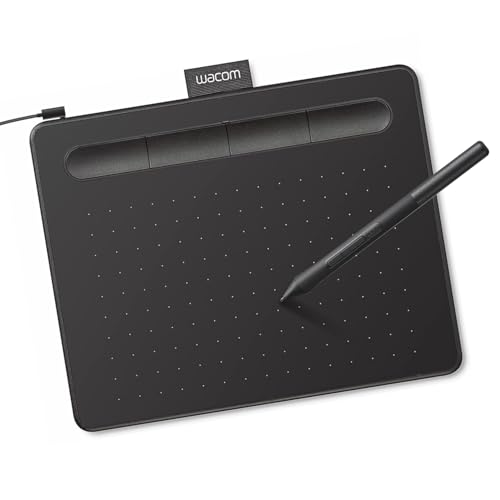
The Intuos Small in its Bluetooth form is the pen-tablet route distilled to its essence: a pad, a battery-free pen, and a wireless link to the computer where your notes actually belong. The Bluetooth matters more for writers than for artists. A note pad lives a scattered life — beside the keyboard during a call, on the lap during a lecture recording, pushed aside when the desk becomes a desk — and a cable resents every one of those movements. Wireless, the Intuos simply goes where the writing is happening, while the note itself lands in the computer’s own applications: the notes program your work already lives in, the document you are annotating, the whiteboard your class shares.
Wacom’s pen behaviour is the route’s reference standard, and for handwriting its virtues are the quiet ones: letterforms that start exactly where the nib lands, pressure that distinguishes a firm underline from a resting stroke, and four ExpressKeys that map beautifully to a writer’s tiny command set — undo, eraser, page down, and the pen-colour switch that turns marginalia into a system. The bundled software in the Intuos line gives new owners drawing and creative tools as a bonus, though the note-taker’s real software is whatever already organises their life, and the pad serves all of it impartially.
The small footprint suits the writer’s desk, which is usually a desk first and a studio second. Between keyboard and coffee it occupies the strip a paper notepad once did, and its active area maps to a laptop screen at a proportion handwriting finds natural — small movements, legible letters, no wrist travel. Chromebook compatibility extends the same arrangement to the school-issued machines students actually carry, which is why this model recurs in classrooms wherever handwritten input meets a borrowed laptop.
Its limits are the route’s limits, stated once here for all the pad picks: there is no screen to glance at, the computer must be present and awake, and the hand-eye split asks its familiar week of patience. For the writer at a desk, those are small prices for notes that are born filed, searchable and backed up inside the machine where the rest of the work lives. That is why the Intuos holds the route’s crown: it makes the computer you own into the notebook you needed.
- Format: small pad sized for desks, laps and lecture rows
- Pen: battery-free Wacom stylus, always ready
- Keys: 4 ExpressKeys mapped to writer’s commands
- Connection: Bluetooth wireless, cable-free writing
- Compatibility: Mac, Windows and Chromebook as listed
Strengths
- Notes land directly inside your computer’s own apps and filing system
- Bluetooth freedom suits the scattered physical life of note taking
- Wacom pen manners keep fast handwriting legible and honest
Trade-offs
- No screen of its own — the computer must be present for every note
- Hand-eye split takes most new writers a week to stop noticing
- Four keys is a lean set for shortcut-hungry power users
Best for: Desk-based writers, students and teachers whose notes belong inside their computer’s workflow.
Not suited for: Note taking in fields, wards and other places computers do not go.

Wacom MovinkPad 11 — Best no-computer Wacom
The MovinkPad 11 is the bridge this guide needed: Wacom’s pen, freed from the computer entirely. It is a standalone Android tablet — 8GB of memory and 128GB of storage in its listing — with an anti-glare matte screen and the Pro Pen 3, the pen family that also equips Wacom’s professional display line. For the writer who loves how a Wacom feels but takes notes in places a laptop cannot follow, the MovinkPad resolves a decade-old dilemma: the note device no longer has to come from a different pen religion than the desk equipment.
The matte screen is its defining surface decision. Where e-ink achieves paper feel by being paper-like in substance, the MovinkPad’s etched, anti-glare LCD achieves it by texture and light discipline — the pen drags faintly, reflections stay down, and the writer gains everything e-ink cannot offer: full colour, instant page turns, video, and the whole Android app world at native speed. Battery life is the LCD’s confession in return, measured in a working day rather than a working week, so the MovinkPad’s owner charges nightly like a phone owner and thinks nothing of it.
As a note device its software life is Android’s: install the notebook app you prefer, sync through the cloud you already pay for, annotate PDFs in the reader your team uses. Wacom’s contribution is the pen’s behaviour across all of it — the pressure manners and tilt honesty that make handwriting feel like handwriting rather than like a finger with delusions. For artists who also write, it doubles as a genuine sketching tablet, which no other standalone in this guide claims with the same pedigree.
Place it on the map honestly: against the BOOX it trades e-ink’s calm and endurance for speed, colour and app fluidity; against the Intuos it trades the computer’s filing power for total independence. The writer who takes notes in motion all day and creates in the evening — the design student, the field engineer who sketches, the journalist who draws the scene as well as describing it — will find the MovinkPad is not a compromise between the routes but a third answer with its own centre of gravity.
- Display: 11-inch anti-glare matte screen as listed
- Pen: Wacom Pro Pen 3
- Memory and storage: 8GB RAM, 128GB as listed
- System: Android, no computer needed as listed
- Route: standalone — a self-contained note and drawing tablet
Strengths
- Pro Pen 3 handwriting feel in a fully independent device
- Matte screen keeps glare down while colour and speed stay LCD-class
- Doubles as a real drawing tablet for sketching between notes
Trade-offs
- Battery works in days’ shifts, not e-ink’s weeks
- Android’s app abundance needs curating into a calm notebook
- Premium positioning among this guide’s standalone options
Best for: Writers and sketchers who want Wacom’s pen without carrying a computer.
Not suited for: Week-long field trips where charging is a rumour.

TCL Note A1 NXTPAPER — Best paper-feel LCD
TCL’s NXTPAPER technology has spent years arguing that an LCD can be taught manners, and the Note A1 is that argument built as a note tablet: an 11.5-inch 2.2K display at a 120Hz refresh, behind a matte paper-feel finish that cuts glare and gives the included 8,192-level stylus something to grip. The bundle matters — stylus and case arrive in the box — and the hardware around the screen is unapologetically tablet-class: 8GB of memory, 256GB of storage, and an 8,000mAh battery in its listing, the largest storage figure in this guide by a wide margin.
The writing experience is the LCD route’s best case. The high refresh rate keeps the ink trail glued to the nib with a responsiveness e-ink cannot approach, pages turn instantly, and colour is full and honest — highlighted text looks like the marker you chose, and annotated photographs remain photographs. TCL’s paper modes soften the display for long reading, warming and muting it toward the page it imitates. For the writer whose notes mingle with slides, screenshots, web research and video, this is the standalone that never has to apologise for being a screen.
The maker’s AI note-taking positioning deserves a measured sentence: transcription and summarising features are genuinely useful for the meeting-heavy writer, and they are software, which means they will improve, shift and occasionally migrate between plans over the device’s life in ways hardware never does. Buy the Note A1 for its screen, pen and storage — certainties — and treat its intelligence as a welcome tenant rather than the landlord.
Against the MovinkPad, the Note A1 counters Wacom’s pen pedigree with a bigger, sharper paper-feel panel, double the storage and a complete bundle. Against the BOOX, it counters e-ink’s endurance with speed and colour truth. Its owner charges more often than the e-ink writer and glances at a brighter world than the matte finish can fully tame — and in exchange takes notes at the full tempo of modern tablet life, which for students in multimedia courses and professionals in slide-driven meetings is not a trade but a description of the job.
- Display: 11.5-inch 2.2K NXTPAPER matte, 120Hz as listed
- Pen: 8,192-level stylus included as listed
- Memory and storage: 8GB, 256GB as listed
- Battery: 8,000mAh as listed
- Bundle: stylus and case included; AI note features as listed
Strengths
- Paper-feel matte screen with LCD speed, colour and responsiveness
- Largest storage in the guide for note archives and course material
- Stylus and case in the box make it a complete kit on day one
Trade-offs
- Battery life is tablet-class, far short of the e-ink route’s days
- AI features are software promises that will evolve over time
- Matte finish slightly softens the punch of photos and video
Best for: Students and meeting professionals whose notes mix handwriting with slides, colour and media.
Not suited for: Writers who need a notebook to survive a week away from a charger.

Huion Inspiroy 2 Medium — Best value pen tablet
The Inspiroy 2 Medium understands something about writers that its drawing-first rivals sometimes miss: handwriting is a high-repetition, small-gesture activity, and the hardware that serves it best is the hardware that manages pages. Its signature is the scroll wheel, a physical dial that falls under the free hand and does the writer’s most frequent non-writing actions — scrolling the document, turning the page, zooming the whiteboard — without the pen hand ever leaving its post. Eight custom keys flank it for the commands each writer repeats, and the whole arrangement sits on a 9×5-inch surface sized for a desk that also holds a keyboard, a mug and a life.
The pen is Huion’s PenTech 3.0 with tilt support and a battery-free design, and for notes its relevant virtues are a light activation that keeps fast letterforms clean and a nib texture with enough drag to stop handwriting skating. Tilt, an artist’s feature, earns a writer’s footnote: it does nothing for ordinary script, but the student annotating diagrams or the engineer sketching a structure mid-note will use it in the same session the notes were taken, which is the Inspiroy pitch in miniature — one pad for the mixed pen work a real desk produces.
Value is the chair’s name and the pad honours it without the usual value smells. The build is slim and tidy, the driver exposes per-application profiles so the wheel can scroll a document in one program and zoom a canvas in another, and the medium size maps to ordinary monitors at handwriting-friendly proportions. It lacks the Intuos’s wireless freedom and bundled-software halo; it answers with hardware the Wacom does not offer at this tier and a wheel that, once lived with, becomes genuinely difficult to give up.
For the writer equipping a study desk, the teacher annotating from home, or the professional whose meetings produce as many sketches as sentences, the Inspiroy 2 Medium is the pen-tablet route’s smart money. It assumes its owner has opinions about their workflow and gives them the controls to enforce those opinions — the definition of a value pick that respects its buyer.
- Active area: 9 x 5 inches
- Pen: PenTech 3.0, battery-free, tilt support as listed
- Controls: scroll wheel plus 8 custom keys
- Compatibility: computers and mobile devices as listed
- Route: pen tablet — notes feed into the connected computer
Strengths
- Scroll wheel handles pages and documents without moving the pen hand
- Per-application profiles let one pad serve notes, slides and sketching
- Medium size balances handwriting room against real desk space
Trade-offs
- Wired connection in a guide whose route-leader has cut the cord
- Tilt’s benefits belong to sketching more than to ordinary script
- No bundled-software story to rival the Wacom’s box
Best for: Writers and teachers whose notes mix with documents, diagrams and slides all day.
Not suited for: Minimalists who want the fewest possible controls between pen and page.

XPPen Deco 01 V3 — Best budget pen tablet
The Deco 01 V3 appears in this batch twice, in two different guides, wearing two different badges — and that double life is itself the review. In the non-Wacom guide it is the balanced value drawing tablet; here, judged purely as a note instrument, it is the budget pen tablet to beat, because its virtues translate directly: a full 10×6-inch writing surface that gives handwriting the same room a paper pad does, a battery-free stylus with the line’s 16K pressure figure in its listing, eight shortcut keys, and compatibility that includes the Chromebooks students are actually issued. A lecture hall full of these would be a well-equipped lecture hall.
Size is the note-specific argument. Handwriting shrinks badly on small pads, because the mapping compresses a natural letter into a few millimetres of hand travel, and the result feels like writing a letter through a keyhole. The Deco’s 10×6 area restores near-natural scale against a laptop or monitor, so a page of notes is produced with the hand movements the writer already owns. For students transcribing at lecture speed, that naturalness is worth more than any pen statistic — it is the difference between a tool that keeps up and a tool that must be kept up with.
The compromises repeat its drawing-guide character in a writer’s accent: wired only, a functional rather than luxurious build, and a pen whose refinements sit a step below the flagship generation’s. None of them touches a lecture, a seminar or a revision session. The driver is XPPen’s shared, polished one, so the pad configures like its expensive relatives — area mapping, pressure curve, per-program keys — and knowledge gained on it transfers upward when its owner eventually upgrades, which is what a budget pick in a healthy ecosystem is supposed to promise.
Buy it as the student instrument, the second-desk pad, the household’s shared handwriting surface for forms and annotations. It will not be the most loved object in this guide, and it may well be the most used — the fate of honest tools at honest tiers since tools were invented.
- Writing surface: 10 x 6 inches, full notepad scale
- Pen: battery-free stylus with the listed 16K pressure figure
- Keys: 8 programmable shortcut keys
- Works with: Mac, PC, Android and Chromebook per the listing
- Route: pen tablet — handwriting lands in the connected computer
Strengths
- Full-size writing area keeps handwriting at natural scale and speed
- Chromebook support matches the machines students actually carry
- Shares XPPen’s flagship driver, so setup skills transfer on upgrade
Trade-offs
- Wired only, so the pad stays within cable reach of the computer
- Build and pen refinement sit a step below the flagship tier
- Large footprint crowds the smallest study desks
Best for: Students and budget-conscious writers needing a full-size handwriting surface.
Not suited for: Writers who take notes away from a computer entirely.
How Do You Turn Handwritten Notes Into Text You Can Search?
The promise that sells this whole category is retrieval: a sentence written in October should be findable in March. Each route keeps that promise differently. On the pen-tablet route, the conversion lives in the computer’s software — the notes applications that dominate student and professional life mostly recognise handwriting natively now, indexing the ink itself so a typed search can find a handwritten word, and offering one-tap conversion when a page must become a document. The writer’s job is merely to write in one of those applications rather than in a drawing program that treats ink as pixels, a choice worth making on day one and painful to reverse in month six.
On the standalone route, conversion lives on the device or in its maker’s cloud. The BOOX’s native recognition is among the more practised in e-ink, the TCL leans on its AI features, and the MovinkPad inherits whichever Android notes application its owner installs — which is the standalone route’s secret flexibility: an unsatisfying built-in tool can be replaced, while a pen tablet’s software was never the pad’s problem in the first place. Accuracy everywhere follows the same law stated in this batch’s e-ink guide: recognition mirrors the handwriting it is fed, rewarding separated letters and punishing deadline scrawl with drafts that need editing rather than transcripts that need none.
The working habit professionals settle into is two-tiered, and it suits both routes. Pages destined for other people get converted, because typed text is the currency colleagues accept. Pages that are thinking — brainstorms, workings-out, the honest mess of understanding something — stay in ink, where they remain faster to produce and easier to reread with the memory of having written them. Search bridges the two tiers increasingly well; total conversion of everything is a tidiness the tools permit and experience does not recommend.
What Does a Week of Real Note Taking Look Like on Each Route?
Follow a postgraduate through a week and the routes’ personalities stop being abstract. Monday’s lectures favour whatever is already in the bag and awake: the standalone pair open like notebooks, while the pen-tablet writer’s ritual — laptop up, pad placed, application chosen — costs ninety seconds and buys a note that lands beside the lecture slides in the same folder, already halfway to being revision material. Tuesday’s laboratory or placement work, gloved, standing, interrupted, belongs wholly to the standalone devices; nobody has ever taken a good note on a pen tablet while holding a clipboard in the other hand, and nobody ever will.
Wednesday’s group project exposes the pen tablet’s deepest advantage: sharing. A note written into the computer is one command away from the team’s workspace, the shared document, the email — while the standalone’s note must be exported, synced and sent, a small ceremony that is painless weekly and grating hourly. Thursday’s long private study session reverses the verdict again: the e-ink page’s calm and the matte LCD’s lack of glare outlast the monitor-lit desk, and the writer who owns both routes finds, as most dual owners do, that the standalone has quietly become the reading-and-thinking device while the pad handles production.
Friday’s deadline settles the only question that matters, which is not which route is better but which route’s friction your own week can afford. Count your away-from-desk notes against your share-with-the-team notes; the larger pile names your primary route, and the other route — if budget allows a second device — becomes the most useful luxury in the category rather than a redundancy.
How Do You Organise Digital Notebooks So They Stay Findable?
The failure mode of digital notes is not loss; it is abundance without geography. Paper forced a hierarchy — one notebook per subject, a shelf per year — while a tablet accepts infinite notebooks with names like Notes 47, and the writer who accepts that invitation owns, by spring, an archive that functions as a write-only memory. The fix is embarrassingly analog: decide the hierarchy before the first real page. One notebook per course, client or project; one page naming convention that includes the date in the same order every time; and a weekly ten-minute review in which strays are filed, converted or deleted while the week still remembers what they were.
Templates quietly do the heavy lifting in mature systems. A meeting page with the agenda, decisions and actions in fixed places converts faster, reads better months later, and — on the standalone devices — can be saved as the notebook’s default page so the structure arrives before the discipline does. A lecture page with a margin column for questions turns revision into a self-test. None of this is software-specific; every pick in this guide supports the habit in its own dialect, and the habit matters more than the dialect. The writers whose digital notes fail almost never blame their tablet twice once this is pointed out; they blame the month they spent writing into a pile.
Archiving closes the system. When a course ends or a project ships, export the notebook whole — PDF for reading, native format where the software allows — into the same long-term storage as the rest of your documents, and remove it from the device’s daily view. A notebook library with twelve live volumes and forty archived ones feels like a desk; a library with fifty-two live volumes feels like a warehouse, and writers avoid warehouses. The pen-tablet route performs this ritual inside the computer’s ordinary filing, which is its quiet structural advantage; the standalone route performs it through export, which is one more reason the Friday export habit, built early, decides long-term satisfaction on that side of the fork.
What About Annotating PDFs, Slides and Set Texts?
Half of real note taking is writing on other people’s pages, and the routes divide this labour characterfully. The standalone devices are annotation naturals: open the PDF, write in its margins with the pen, close it, and the marked document is the deliverable — the BOOX and TCL handle this as a core ritual, and the MovinkPad’s Android readers do the same in colour at full speed. For reading-heavy professions and courses, where the set text is the curriculum, a standalone is not merely convenient; it is the shape of the work itself, and the pen tablet’s computer-mediated route feels like posting a letter when you could have spoken.
The pen tablet answers with scale and software depth. Annotating inside the computer’s full document environment means the marked PDF sits beside the essay it feeds, the reference manager files it, and the annotation tools of professional PDF software — stamps, measurement, form-filling, redaction — are all present, where a standalone’s reader offers the honest subset. Teachers marking a class set, editors working through proofs and anyone whose annotations must merge into documents by Friday will feel the computer’s gravity and should obey it.
Slides deserve their own sentence because students ask about them constantly. The winning pattern, on either route, is one slide per notebook page with the pen free in the margin the lecturer did not use — which means importing the deck as a PDF before the lecture, a two-minute ritual that separates students whose notes are findable from students whose notes are photographs of a screen. Both routes perform the ritual; the standalone performs it in the lecture hall itself, which is why so many students who can afford only one route and live in lecture halls choose it.
How Long Do Pens, Nibs and Batteries Last in Note-Taking Service?
Note taking is gentler on hardware than drawing in every way but one: volume. A writer produces thousands of small strokes a day, and the nib — the small replaceable tip that drags across the surface — wears accordingly, rounding over a term of heavy lectures from a point toward a chisel. The symptom is a line that feels scratchier and skips at the lightest strokes, and the cure is a thirty-second nib swap from the inexpensive multipacks every maker here sells. Buy spares with the device, keep them in the same case, and the ritual never becomes a delivery wait during exam season. The battery-free pens on the pad route and the standalone styluses alike share this consumable logic; none of the six pens needs charging, which removes the dead-pen morning from the category entirely.
Batteries divide by route, as everything does. The pads draw power from the computer or sip their own small cells for weeks of Bluetooth sessions in the Intuos’s case. The standalones carry the whole computer with them: e-ink’s days stretch toward weeks for the BOOX under note-heavy use, while the two LCD standalones work in full days and expect a nightly charger, exactly like the phones their owners already manage. The ownership habit that matters is not the figure but the rhythm — a device with a home and a charging place is a device that is ready; a device charged opportunistically is a device that dies during the one seminar that mattered.
Surfaces age kindly in this service. The textured films and matte screens that give these pens their paper drag polish very slowly under handwriting’s light pressure, and a device used for notes alone will feel new far longer than one used for heavy drawing. Protect the standalone screens in transit — a case is not optional for a bag-carried notebook, and two of this guide’s standalones bundle theirs — and the hardware in this article will outlast the degree, the project or the posting it was bought for, which is the most that can be asked of any tool that works for a living.
Which Route Suits Writers With Accessibility Needs?
Note taking is intimate work, and the right route can hinge on the writer’s body as much as on their workflow. Writers with low vision should look hard at the standalone LCD pair: the TCL’s large 11.5-inch page and the MovinkPad’s matte screen both enlarge handwriting and documents under proper system text controls, while the e-ink BOOX offers the glare-free page that light-sensitive eyes often prefer above every other quality, with front-light warmth adjustable to the room. Writers whose hands tire or whose grip is unreliable should weigh pen weight and activation force — the battery-free pens across this guide are light by design, and the pad route lets the writing surface sit at exactly the height and angle a chair, cushion or lap desk dictates, a freedom a self-contained screen cannot always match.
Writers who dictate as much as they write will find the standalones’ microphones and transcription features waiting for them, while the pad route inherits the computer’s mature dictation and screen-reading ecosystem whole. There is no universal winner here, and this guide will not invent one: the correct method is to name the specific need first — magnification, dictation, posture, endurance — and then read the six chairs against it, because every pick in this article answers at least one accessibility need better than its neighbours, and the matching exercise is more honest than any ranking.
Two Routes, Six Machines: the Note-Taking Line-Up at a Glance
| Model | Route | Surface | Pen | Where notes live |
|---|---|---|---|---|
| BOOX Note Air6 C | Standalone | 10.3-inch colour e-ink | BOOX stylus | On device, syncs to apps and cloud |
| Wacom Intuos Small (Bluetooth) | Pen tablet | Small pad, no screen | Battery-free Wacom pen | Inside the computer’s own apps |
| Wacom MovinkPad 11 | Standalone | 11-inch matte LCD | Pro Pen 3 | On device, Android apps and cloud |
| TCL Note A1 NXTPAPER | Standalone | 11.5-inch matte 2.2K LCD | 8,192-level stylus included | On device, with AI note features |
| Huion Inspiroy 2 Medium | Pen tablet | 9 x 5-inch pad, no screen | PenTech 3.0, tilt | Inside the computer’s own apps |
| XPPen Deco 01 V3 | Pen tablet | 10 x 6-inch pad, no screen | Battery-free, 16K levels | Inside the computer’s own apps |
The route column is the table’s thesis: three machines are notebooks, three are peripherals, and comparing them column-by-column as if they were one species produces nonsense. Compare within a route for the machine, and between routes only for the philosophy. The final column is where satisfaction is decided — a note’s home matters more than the handwriting that produced it, because handwriting is an afternoon and retrieval is forever.
Which Mistakes Do Note-Takers Make When Choosing a Tablet?
The route mistake leads, as this guide warned at the top: buying a standalone notebook for notes that must live in a team workspace, or a pen tablet for notes taken standing in the rain. Both errors produce excellent hardware used resentfully, and both are prevented by the Friday test in the section above — count where your notes are born and where they must end up, and let the arithmetic choose.
The second mistake is writing in the wrong application for a month. On either route, notes scribbled into a drawing app or a dead-end proprietary pad become pictures of notes rather than notes: unsearchable, unconvertible, unexportable. Spend the first evening choosing the application your notes will live in — ideally the one your other work already uses — and write there from the first page. Migration later is possible and miserable in equal measure.
Third, buyers over-weight pen specifications and under-weight the page-turning, filing and finding that dominate real note life. A scroll wheel, a sane notebook hierarchy, a sync that has never eaten a page — these unglamorous virtues decide whether a device is still in use at Christmas. Finally, new owners skip the backup conversation until it is a eulogy: set the sync, test one export, and confirm a note can be recovered before the notebook holds anything irreplaceable, because the first month of notes always becomes irreplaceable retroactively. There is a subtler version of the same error on the pen-tablet route, where the notes are perfectly safe on the computer yet scattered across three applications and a desktop folder named, with unjustified optimism, To Sort. Safety and findability are different virtues, and a note that survives but cannot be located has failed its owner almost as completely as a note that was lost outright. One application, one hierarchy, one export ritual: the dull trinity that every satisfied owner in this category eventually adopts, usually after one painful semester of doing otherwise and one lost afternoon spent hunting a page they could picture but not find.
Final Recommendation
Choose your route by where your notes are born, then choose within it without anxiety, because every chair here is honest. Desk-born notes belong on the pen-tablet route: the Intuos Small with Bluetooth for the cable-free classic, the Inspiroy 2 Medium for the wheel-and-keys workflow, the Deco 01 V3 for the full-size student bargain. Notes born in the world belong on a standalone: the BOOX Note Air6 C for colour e-ink calm and endurance, the MovinkPad 11 for Wacom’s pen at LCD speed, the TCL Note A1 for the big paper-feel screen and the complete bundle. Make the choice once, write in one application from the first page, and let the notebook disappear into the work — the surest sign that the right route was taken, and that the six machines in this guide were judged the way their owners will judge them: not by their specifications, but by whether the notes are simply there, legible and findable, on the grey morning, months later, when they are needed most of all, without warning, ceremony or a search through drawers, bags, coat pockets and old, rain-warped, coffee-ringed paper notebooks.
Frequently Asked Questions
Which route is better for a student?
It depends where the student’s notes must end up. Coursework that lives in documents, shared drives and revision apps favours the pen-tablet route, with the Deco 01 V3 and Intuos as its natural chairs, because notes are born already filed. Lecture-hopping, library life and reading-heavy courses favour a standalone, where the BOOX’s battery and calm page outlast the teaching day. Many students honestly need the pad first and the standalone later, in that order, as budgets allow.
Can a pen tablet really work for handwriting, not just drawing?
Yes — handwriting is in some ways the easier task, since letterforms are small, practised movements your hand has made for decades. The requirements are a pad large enough to keep letters at natural scale, which is why the 10×6 Deco earns its place here, and a proper notes application on the computer to receive the ink as searchable, convertible writing rather than as a picture. Given those two, most writers stop noticing the pad within a week.
Is e-ink or a matte LCD better for long note sessions?
E-ink wins on endurance and eye calm: no glow, sunlight readability, and days of battery, at the price of slower page handling and muted colour. A matte LCD like TCL’s NXTPAPER or the MovinkPad’s screen wins on speed, colour truth and app fluidity, at the price of nightly charging and a brighter presence in the room. Writers whose sessions are long and text-only lean e-ink; writers whose notes mingle with slides, colour and media lean matte LCD, and both are describing their work accurately.
Do I need handwriting-to-text conversion?
Only for the pages other people must read. Conversion turns a notebook into a document factory, which matters for minutes, reports and shared study notes, and matters hardly at all for private thinking, revision and planning, where ink’s speed and honesty are the point. Every route in this guide offers a conversion path — through the computer’s apps on the pad route, or the device’s tools on the standalone route — so let the need rank your software choices rather than your hardware.
Can I take notes in a meeting without looking rude?
A notebook-shaped device reads socially as a notebook, which is one of this category’s under-sung virtues: the e-ink and matte standalones in particular sit on a meeting table with the manners of paper, no glow, no notifications, no suspicion that email is being checked under the agenda. Pen tablets carry a laptop with them, which changes the room’s reading of the act — acceptable in working meetings, heavier in sensitive ones. Whichever route you choose, the etiquette that matters is older than the technology: eyes up when others speak, pen down during the difficult conversations, and the device closed when the meeting turns personal.
How do left-handed writers fare on these routes?
Well, with one setup step. On the pad route, most drivers allow the pad to be rotated so its keys sit under the right hand instead, and the writing itself is unaffected because the surface is symmetrical. On the standalones, handwriting is handwriting — the page does not care which hand holds the pen — though palm-rejection settings deserve a check during the first session, since a left hand’s resting position differs. Writers who hook their hand above the line, the classic left-handed posture, should favour the matte and e-ink surfaces here, whose drag keeps the nib honest at that angle.
What happens to my notes if the device breaks?
On the pen-tablet route, almost nothing: the notes live on the computer, and the pad is a replaceable peripheral. On the standalone route, everything depends on the sync you set up in the first week — with cloud sync or regular export enabled, a broken device is an errand; without it, it is a loss. This asymmetry is the standalone route’s one structural risk, and it is entirely managed by ten minutes of setup performed before the notebook accumulates anything precious.
Related Guides
Explore the neighbouring shelves with our guides to e-ink notebooks for reading and annotating documents drawing tablets that are not made by Wacom pen displays for artists who want the ink on the screen itself
[…] the wider family technology picture, see our guides to large-print ereaders for comfortable book reading simple smart speakers for hands-free help around the home video calling devices that keep […]