What's inside
- Key Takeaways
- Quick Picks
- How Did We Narrow Down the Affordable Pen Displays Worth Buying?
- Why Does Lamination Matter More Than the Pressure Number?
- What Should You Check About Color Before Trusting a Budget Display?
- How Do the Six Pen Displays Compare on Paper?
- What Does Drawing on Glass Actually Feel Like Day to Day?
- How Long Will an Affordable Pen Display Realistically Last?
- How Do You Set Up a Pen Display Without the Usual Headaches?
- How Does a Pen Display Compare With Drawing on a Screenless Tablet?
- Which Cable and Port Story Should You Expect From Each Class?
- What Mistakes Send New Pen Displays Back to the Store?
- Final Recommendation
- Frequently Asked Questions
- Related Guides
As an Amazon Associate I earn from qualifying purchases. This post may contain affiliate links at no extra cost to you.
gizmoverdict.com is reader-supported. When you buy through links on our site, we may earn an affiliate commission.
Where to buy: every pen display in this guide is sold through its Amazon listing, and that page is where you verify the exact cable type in the box and whether a stand is bundled before ordering; once a model catches your eye, visit its listing to check price on Amazon and read the connection requirements twice, because a pen display asks more of your computer’s ports than a plain tablet does.
There is a moment every digital artist remembers: the first time the line appears directly under the pen, exactly where the hand expects it. Pen displays exist to deliver that moment, and the best affordable drawing tablets with screen and pressure have finally reached the point where delivering it no longer requires a professional budget. The six models below draw on screens between roughly twelve and fourteen inches, they all sense pen pressure in the thousands of levels as their makers state it, and they all plug into a computer you probably already own. What divides them is subtler than the shared sales pitch. Lamination quality decides how close the cursor sits to the pen tip. Glass treatment decides how the surface feels and how reflections behave under your lamp. Color coverage, always a maker-stated figure, decides how much trust you can place in what the screen shows you.
Honesty about the trade you are making belongs at the top of any pen-display guide. Drawing on the image itself feels immediately natural, which is why beginners gravitate to this format, but you pay for that naturalness in posture, since your eyes point down at a desk for hours, and in complexity, since a display can fail in ways a plain board cannot. Our companion guide to screenless tablets makes the opposite case, and plenty of experienced artists prefer it. This article assumes you have weighed that choice and want the pen on the picture. Given that decision, the job here is to spend the least money for the most honest screen, and to teach you which specifications predict satisfaction and which merely decorate a listing.
Key Takeaways
- Full lamination matters more than any pressure figure: bonding the glass to the panel shrinks the visible gap between pen tip and cursor, which is what your hand actually perceives as accuracy.
- Gamut percentages on these listings, 99%, 120%, and 123% sRGB depending on the model, are maker-stated coverage claims, useful for ranking within this group rather than as laboratory measurements.
- The newest pens here claim 16K pressure levels, while the GAOMON PD1161 works at a maker-stated 8192; in daily drawing the difference registers far less than glass quality does.
- HUION’s Kamvas 13 Gen 3 is the control champion of the set, pairing dual dials with its Canvas Glass 2.0 surface and an included stand.
- Check your computer’s ports before falling for any model: several of these displays can run from a single full-featured USB-C cable, while others need a three-in-one cable with HDMI and USB together.
- Wacom One 14 buys you the largest canvas here and the most conservative, classroom-proven ecosystem, at the cost of the group’s slimmest shortcut hardware.
Quick Picks
| Pick | Badge | Why it earns its place |
|---|---|---|
| XPPen Artist 12 3rd | Best compact display | An 11.9-inch panel with etched anti-glare glass and a dial wheel, sized for desks where a 16-inch display would dominate. |
| HUION Kamvas 13 Gen 3 | Best overall value | Dual dials, full lamination, and a stand in the box make it the most complete starter kit in this roundup. |
| XPPen Artist 13.3 Pro V2 | Best color claim | Its maker-stated 123% sRGB coverage is the boldest color figure here, wrapped around a fully laminated 13.3-inch screen. |
| VEIKK VK1200 V2 | Best two-pen bundle | Two styluses in the box mean a lost or damaged pen never cancels a drawing session or a deadline. |
| GAOMON PD1161 | Best simple starter | A straightforward 11.6-inch FHD display with tilt support and eight keys, for artists who want the screen without the fuss. |
| Wacom One 14 | Best big canvas | Fourteen inches of laminated IPS from the brand whose pens set the standard everyone else is measured against. |
How Did We Narrow Down the Affordable Pen Displays Worth Buying?
We began with every pen display positioned for beginners and students, then applied the filters that experience says matter. A model had to be fully laminated or, at minimum, honest about its construction, because the air gap in older budget displays is the single most common reason owners describe the drawing feel as “swimming.” Each listing had to state its color coverage and pen pressure plainly, since makers who hide those numbers usually have a reason. Compatibility had to cover Windows and Mac at minimum, with Android, Chromebook, or Linux support treated as a genuine bonus for households with mixed machines. Stands mattered more than most roundups admit: a display used flat on a desk forces a hunch that shortens sessions, so a bundled or integrated stand earned real credit.
We also weighted the pen itself as a separate component, because on a display the pen is both the drawing tool and the thing you will replace first if it disappoints. Battery-free designs were required across the board. Tilt support was noted where listings claim it, since pencil-style shading depends on it. Finally, we kept the size spread deliberate, from the 11.6-inch models that suit a laptop-sized desk to the 14-inch Wacom that begins to feel like a sheet of paper, because the right screen size in this category is a furniture decision as much as a technology one.
A final filter deserves naming: every model here comes from a maker with an established driver-download page and a visible history of supporting its displays across operating-system updates. Pen displays live or die by that support, since a panel without a current driver becomes a plain monitor with an expensive pen. A few ultra-cheap displays from unknown brands failed this test despite attractive screens, and we left them out on purpose.
Why Does Lamination Matter More Than the Pressure Number?
Hold a pen over an unlaminated display and look from an angle: the cursor floats visibly below the glass, separated from the tip by a gap you can measure in millimeters and feel in every careful line. That gap is parallax, and full lamination is the manufacturing step that nearly erases it by bonding the cover glass directly onto the panel. When XPPen, HUION, and VEIKK describe these models as full-laminated in their listings, they are claiming the cursor will sit where the nib touches, which transforms inking from an exercise in compensation into something close to drawing on paper. No pressure specification, however large, can compensate for a cursor that lives in the wrong place.
Pressure levels still deserve a fair explanation. The 16K figure attached to the newest XPPen and HUION pens means 16384 distinguishable pressure steps as the makers state it, double the 8192 of the previous generation represented here by the PD1161. What those steps buy is smoothness at the extremes: hairline strokes that stay hairlines, and gradual thickening when you lean into a line without a visible jump. Most artists, most of the time, work in the comfortable middle of the range where both generations behave beautifully. Buy the newer pen when prices are close, certainly, but never choose a worse screen to get a bigger pressure number, because your eyes will judge the screen every second while your hand notices pressure mainly in delicate work.
Glass treatment is the third leg of drawing feel. Etched anti-glare glass, which XPPen specifies on the Artist 12 3rd and HUION builds into its Canvas Glass 2.0, scatters reflections and gives the surface a faint tooth that slows the nib like paper does. A glossy screen looks punchier in a dark room and feels like drawing on ice. Neither is objectively superior, yet beginners consistently control their lines sooner on a matte, slightly resistant surface, and anyone working under ceiling lights will curse a glossy panel by the second hour. When a listing mentions anti-glare treatment by name, that is a feature worth weighing as heavily as a shortcut key or two.
What Should You Check About Color Before Trusting a Budget Display?
Color claims in this tier arrive as sRGB coverage percentages, and the listings here span 99% on the Kamvas 13 Gen 3 to 120% on the VK1200 V2 and 123% on the Artist 13.3 Pro V2, each figure stated by its maker. Read those numbers as a ranking hint rather than a promise: a panel claiming coverage beyond 100% is describing a gamut wider than the sRGB space, which can look more vivid and can also oversaturate if the driver and application are not managing color carefully. For web illustration, social content, and learning, any of these panels serves well out of the box. For print work, the honest workflow is to soft-proof in your application and confirm critical colors on a second, trusted screen until you know your display’s habits.
Brightness and viewing angle shape color trust just as much in practice. A dim panel tempts you to over-saturate artwork to compensate, and narrow viewing angles shift hues when you lean. IPS panels, which Wacom names explicitly on the One 14, hold their color across wider angles, one reason design teachers favor them for classroom critique. Whatever model you choose, spend the first week comparing its rendering against your phone or a second monitor with a few familiar photographs. Learning your own display’s tendencies is a skill, and it transfers to every screen you will ever own.
Calibration hardware exists for owners who outgrow eyeballing it, and the good news is that these panels accept software profiles like any other monitor. A student who later buys a colorimeter for a photography class can profile a Kamvas or an Artist display and tighten its accuracy considerably. Until that day, the built-in color modes plus a reference screen will carry illustration and design coursework without drama, and prints made through a decent lab will land close to what the screen suggested once you know its habits.

XPPen Artist 12 3rd — Best compact display
Twelve inches is the pen-display size that disappears into a normal desk setup, and the third-generation Artist 12 makes the strongest case yet for staying small. XPPen’s listing highlights an 11.9-inch screen behind anti-glare etched glass, the X4 pen at a maker-stated 16K pressure levels, a dial wheel, and eight shortcut keys. The etched glass is the feature your hand will thank daily: it lends strokes a whisper of resistance that glossy panels lack, so lines start and stop where you intend instead of skating. The dial handles the continuous adjustments, zoom and brush growth, that keys handle clumsily.
Compatibility is unusually wide for this class, spanning Mac, PC, Android, Chromebook, and Linux per the listing, which makes the Artist 12 a plausible single purchase for a student whose school issues Chromebooks while home runs a Windows desktop. Its smaller canvas does ask illustrators to zoom more often on detailed pieces, the standing trade of every compact display, but for character art, stickers, emotes, and learning fundamentals, the size feels like a sketchbook page rather than a limitation. If the compact footprint suits your furniture, head to the Artist 12’s Amazon listing and check price on Amazon once you have confirmed your computer’s ports match its cable.
Streamers and VTubers have quietly adopted displays in this size for a practical reason: an 11.9-inch panel fits in the camera frame beside a keyboard without swallowing the desk, and the etched surface kills the reflections that studio lights throw off glossy glass. Anyone drawing live will appreciate that combination more than a marginal spec advantage elsewhere.
Small displays also travel between rooms in a way larger ones never do. The Artist 12 can move from a bedroom desk to a kitchen table for a family drawing night and back again in one hand, which suits households where no single workspace belongs to the artist alone. Portability inside the home is an underrated feature that spec sheets never capture.
- Screen: 11.9 inches, anti-glare etched glass
- Pen: X4, battery-free, 16K pressure levels as maker-stated
- Controls: dial wheel plus 8 keys
- Platforms per listing: Mac, PC, Android, Chromebook, Linux
- Positioning: designed for beginners, per maker
Strengths
- Etched glass gives the most paper-like stroke control in this roundup.
- Dial wheel covers zoom and brush sizing in one smooth gesture.
- Five-platform compatibility is the broadest listed by any pick here.
Trade-offs
- Detailed illustration means frequent zooming on the smaller canvas.
- No stand is headlined in the listing, so check what your posture will rest on.
- Compact size suits a second monitor less well as a general display.
Best for: students and streamers with modest desks who still want current-generation pen feel and glass.
Not suited for: comic artists who ink full pages and prefer to see the whole spread at once.

HUION Kamvas 13 Gen 3 — Best overall value
If one model in this group reads like a checklist answered point by point, it is the Kamvas 13 Gen 3. HUION’s listing describes a 13.3-inch fully laminated screen under Canvas Glass 2.0, PenTech 4.0 at a maker-stated 16384 pressure levels, dual dials flanking the control layout, 99% sRGB coverage as the maker states it, and a stand included in the box. The dual dials deserve emphasis because they split duties elegantly: one lives under your thumb for canvas zoom while the other handles brush size, and after a week your free hand runs both without a glance downward. That is the kind of detail that separates a display you tolerate from one that disappears into the work.
The 13.3-inch size hits the balance most desks want, large enough for illustration and light photo work, small enough to slide aside when the computer returns to spreadsheets. HUION lists compatibility across PC, Mac, and Android, and the PenTech 4.0 generation brings the line’s most refined light-touch response, which matters for the faint construction lines that underpin finished drawings. Taken together, no other pick here assembles quite so complete a starter kit at this tier. Prospective buyers can open the Kamvas 13’s Amazon listing to check the price on Amazon and confirm the current stand and cable configuration.
One habit worth forming with any dual-dial display: assign the dials deliberately on day one and resist reassigning them for a month. The productivity these controls promise lives entirely in muscle memory, and artists who reshuffle their layout weekly never collect the dividend that makes the Kamvas hardware special.
Photo editors crossing into display work find the Kamvas comfortable for a different reason: the laminated stack keeps the pen honest when you are tracing a mask edge at high zoom, where even a small parallax gap turns into a visible error. Retouching at that zoom level is where this model’s construction justifies itself most clearly.
- Screen: 13.3 inches, full lamination, Canvas Glass 2.0
- Pen: PenTech 4.0, 16384 levels as maker-stated
- Color: 99% sRGB per maker
- Controls: dual dials plus shortcut keys
- In the box per listing: stand included
Strengths
- Two dials divide zoom and brush duties better than any single-wheel layout.
- Included stand fixes the posture problem without a second purchase.
- Full lamination keeps the cursor tight against the nib at glancing angles.
Trade-offs
- Its 99% sRGB claim is the most conservative color figure in this group.
- Dial habits take a week of discipline before they start paying back.
- Android use depends on your phone’s video-out support, as with all displays here.
Best for: beginners who want the most complete, ready-on-arrival pen display kit in the affordable class.
Not suited for: color-critical print specialists who need a wider, verifiable gamut story.
XPPen Artist 13.3 Pro V2 — Best color claim
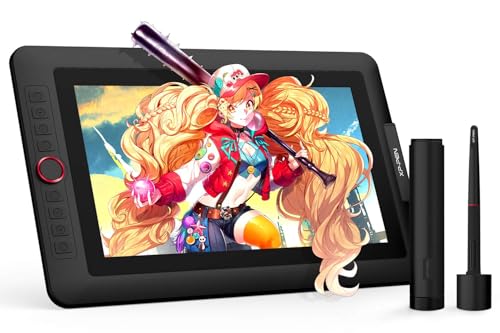
The Artist 13.3 Pro V2 has been a fixture of recommendation lists long enough to earn the word “proven,” and its second version keeps the formula that built that reputation. XPPen’s listing describes a fully laminated anti-glare display with 123% sRGB coverage as the maker states it, the pen at 16K pressure levels, eight shortcut keys, and an adjustable stand included. The Pro line’s red dial wheel became a small icon of this product class, a single control you can find by touch in the dark, and it remains the fastest route to fluid zoom-and-draw rhythm on any XPPen display.
What the bold color figure means in practice is headroom. A panel that can show more than the sRGB space renders saturated illustration work, game art, and vibrant character design with room to spare, and the fully laminated stack keeps that color honest at the angles a drawing posture actually uses. The listing spans art and animation across Mac, PC, and Android, and the model’s long production run means tutorials, driver advice, and replacement nibs are easier to find than for any rival here. Artists who value that maturity can visit the Artist 13.3 Pro V2’s Amazon listing to check price on Amazon and confirm which stand revision currently ships.
Animators in particular keep choosing this model, because frame-by-frame work rewards a display whose behavior never surprises you, and a mature platform with years of driver refinement behind it delivers exactly that steadiness. The eight keys map cleanly onto the onion-skin and frame-stepping commands that animation software leans on hardest.
There is a workflow nicety in the bundled adjustable stand as well: animators and inking artists prefer different drawing angles, flatter for long strokes and steeper for detail, and a stand that moves through a real range lets one desk serve both moods without books stacked under the panel as improvised risers.
- Screen: 13.3 inches, full-laminated, anti-glare
- Color: 123% sRGB per maker
- Pen: battery-free, 16K pressure levels as maker-stated
- Controls: dial wheel plus 8 keys
- In the box per listing: adjustable stand
Strengths
- Widest maker-stated color coverage in this roundup, with lamination to support it.
- Long production history means deep tutorial and troubleshooting resources.
- The dial-and-keys layout is a refined, learn-it-once control scheme.
Trade-offs
- Vivid factory tuning can oversaturate until you settle the color settings.
- The design is an evolution of an older platform rather than a clean-sheet model.
- Single dial where the Kamvas offers two, if you prefer split controls.
Best for: illustrators and animators who want proven hardware and the richest color headroom at this tier.
Not suited for: buyers who prefer the newest industrial design and dual-dial layouts.
VEIKK VK1200 V2 — Best two-pen bundle
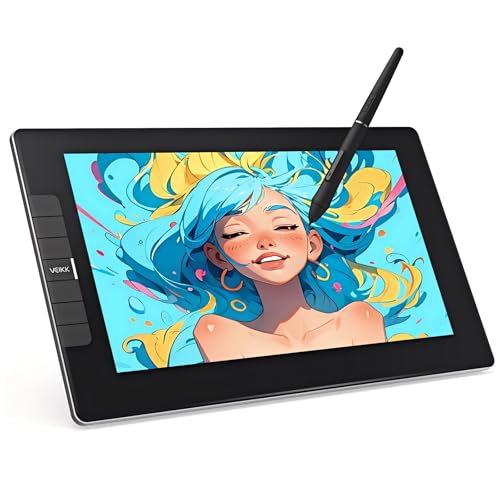
VEIKK’s VK1200 V2 earns its slot through a bundle decision so practical it is surprising more makers do not copy it: two styluses in the box. Pens get dropped, borrowed, chewed by deadlines, and left in other rooms, and a spare transforms each of those small disasters into a shrug. The display itself is an 11.6-inch fully laminated panel, with the listing stating 16384 pressure levels and 120% sRGB coverage from the maker, plus support across PC, Mac, Linux, and Windows as VEIKK lists it. Linux support, still uncommon among pen displays, quietly widens this model’s audience to the open-source art community.
As a drawing surface the VK1200 V2 sits comfortably in the modern class: lamination keeps parallax low, the panel size suits character work and study sketches, and the two pens mean one can live on the desk while the other rides in a bag for the laptop. VEIKK’s driver has matured into a straightforward tool with per-application profiles, even if its interface lacks the polish of the biggest brands. For a buyer whose worst fear is being unable to draw on the one free evening of the week, this is the insurance policy pick. Its Amazon listing spells out the pen count and accessories, so give it a read and check the price on Amazon if the twin-stylus bundle speaks to you.
Art teachers running shared workstations should note the two-pen logic scales beautifully to classrooms: one pen per student station stays with the display, while the spare covers the inevitable disappearance, and the whole fleet keeps drawing without an emergency order mid-term.
The VK1200 V2 also suits the two-computer household neatly. Leave one stylus paired with the family desktop setup and the other in the laptop bag, and the display itself becomes the only thing that has to move between machines. Small logistics like that decide whether gear gets used on a tired weekday evening.
- Screen: 11.6 inches, full-laminated
- Color: 120% sRGB per maker
- Pen: two battery-free styluses, 16384 levels as maker-stated
- Platforms per listing: PC, Mac, Linux, Windows
- Bundle: second stylus included
Strengths
- Spare pen in the box removes the most common single point of failure.
- Full lamination and a wide maker-stated gamut at a compact size.
- Linux compatibility serves artists the bigger brands often overlook.
Trade-offs
- Driver interface feels plainer than Wacom’s or HUION’s current software.
- Compact canvas means detailed spreads need disciplined zoom habits.
- Shortcut hardware is modest next to the dial-equipped rivals.
Best for: students, teachers, and deadline-driven artists who cannot afford a pen failure to cancel a session.
Not suited for: control enthusiasts who want dials and a deep bench of keys on the bezel.
GAOMON PD1161 — Best simple starter
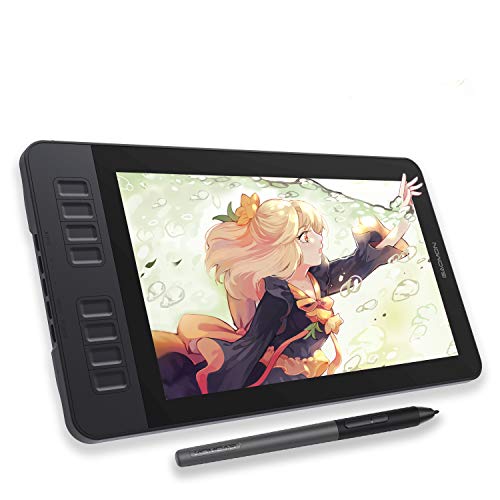
The PD1161 is the elder of this group, and its continued presence in recommendation lists says something useful: a straightforward pen display, honestly built, ages slowly. GAOMON’s listing describes an 11.6-inch FHD anti-glare screen, a battery-free stylus at a maker-stated 8192 pressure levels, tilt support, and eight shortcut keys, working with Mac and Windows. Tilt is the specification to notice, because several newer rivals at this tier omit it, and artists who shade with the edge of a digital pencil, charcoal-style, will feel its absence elsewhere. The FHD resolution on a screen this size keeps lines crisp without taxing an older laptop’s graphics.
Simplicity is the PD1161’s real proposition. The control layout is eight keys and nothing else to learn, the connection story is the familiar three-in-one cable arrangement of its generation, and the whole device asks very little of a first-time owner beyond plugging it in and drawing. Its pen belongs to the 8192 generation, which the earlier section of this guide puts in perspective: entirely capable for sketching, inking, and coloring, with the newest pens pulling ahead mainly in the lightest-touch work. Buyers who prize an uncomplicated start can open the PD1161’s Amazon listing and check price on Amazon after confirming their laptop offers the HDMI and USB ports it needs.
There is also a secondhand wisdom to this model: because it has sold for years, community answers exist for nearly every setup question a new owner might type into a search bar at midnight. That invisible support network is worth real money to a beginner troubleshooting alone.
Calligraphy and lettering practice is a quiet strength here, because tilt support lets a broad digital nib respond to pen angle the way a real broad-edge pen does. Lettering artists on a budget often discover the PD1161 through that single feature after passing over newer models that dropped it.
- Screen: 11.6 inches, FHD, anti-glare
- Pen: battery-free, 8192 pressure levels as maker-stated, tilt support
- Controls: 8 shortcut keys
- Platforms per listing: Mac, Windows
- Connection: three-in-one cable class
Strengths
- Tilt support enables pencil-edge shading techniques rivals here may skip.
- Uncluttered controls make the first week genuinely easy.
- Years of sales mean abundant community troubleshooting knowledge.
Trade-offs
- Previous-generation pen, felt mainly in ultra-light sketching strokes.
- No dial, so zoom changes step by key presses rather than flowing.
- Platform list stops at Mac and Windows in the listing.
Best for: first-time pen-display owners who want tilt shading and the least complicated setup in the group.
Not suited for: artists who rely on dial controls or need Chromebook and Linux support.
Wacom One 14 — Best big canvas
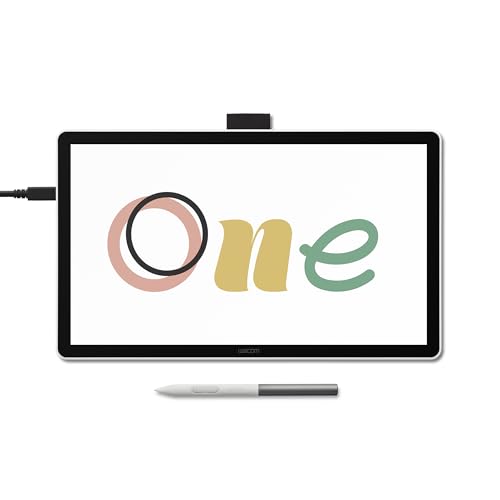
Wacom’s answer to the affordable pen-display wave is characteristically restrained: a 14-inch IPS Full HD laminated screen, a pen built on the company’s decades of pen research, and an ecosystem designed to work with the widest possible range of computers, including Chromebooks, as the listing states. Fourteen inches is meaningfully larger than the 13.3-inch models here, close to a sheet of A4 paper, and illustrators who think in full pages feel that difference in every session. Wacom also plays a longer game with pen compatibility, since the One line is known for accepting pens from several other makers, giving owners unusual freedom if they lose or dislike the bundled stylus.
The restraint shows in the shortcut hardware, which is minimal compared with the dials and key banks elsewhere in this roundup. Wacom’s bet is that beginners benefit from a clean surface and strong defaults, and that serious users will add a keyboard or a separate shortcut remote later. It is a defensible bet, and the driver polish plus the sheer trust teachers place in the brand make the One 14 the easiest model here to recommend to a school or a cautious parent. Anyone drawn to that combination of size and simplicity can visit the Wacom One 14’s Amazon listing to check the price on Amazon and review the pen options it supports.
Classroom deployments favor this model for a mundane reason that matters at scale: when thirty students use identical hardware, the teacher troubleshoots one configuration instead of thirty. The One 14’s conservative design, with no exotic controls to diverge, is practically a feature written for group settings.
Parents buying for a young artist land here often as well, because the Wacom name carries a support network they can navigate without technical confidence, and the 14-inch canvas gives a child’s broad, energetic strokes room that smaller panels crop. Growing room, in this case, is literal.
- Screen: 14 inches, IPS Full HD, laminated
- Pen: battery-free Wacom pen
- Controls: minimal onboard, driver-led
- Platforms per listing: Windows, Mac, Chromebook
- Positioning per maker: beginners and students
Strengths
- Largest canvas in the group, close to a real sheet of paper.
- IPS panel holds color at the angles a drawing posture produces.
- Brand ecosystem and classroom trust are unmatched in this set.
Trade-offs
- Sparse onboard shortcuts push work back onto the keyboard.
- You pay a brand premium for polish rather than raw specifications.
- Fourteen inches needs a desk that can spare the footprint permanently.
Best for: students, teachers, and page-format illustrators who want the biggest honest canvas and the safest ecosystem.
Not suited for: shortcut maximalists who want dials and key banks built into the bezel.
How Do the Six Pen Displays Compare on Paper?
| Model | Screen | Pen (maker-stated) | Color claim (maker) | Signature control |
|---|---|---|---|---|
| XPPen Artist 12 3rd | 11.9 in, etched AG glass | X4, 16K levels | Not headlined | Dial wheel + 8 keys |
| HUION Kamvas 13 Gen 3 | 13.3 in, Canvas Glass 2.0 | PenTech 4.0, 16384 | 99% sRGB | Dual dials |
| XPPen Artist 13.3 Pro V2 | 13.3 in, full-laminated AG | 16K levels | 123% sRGB | Dial + 8 keys |
| VEIKK VK1200 V2 | 11.6 in, full-laminated | 16384 levels | 120% sRGB | Two pens included |
| GAOMON PD1161 | 11.6 in, FHD AG | 8192 levels, tilt | Not headlined | 8 keys |
| Wacom One 14 | 14 in, IPS FHD laminated | Wacom pen | Not headlined | Ecosystem simplicity |
Two patterns stand out when the six sit in one table. First, lamination has become universal at this tier, which means the class as a whole has crossed the threshold where budget displays feel genuinely direct. Second, the real differentiation has moved to controls and bundles: dials on the HUION and XPPen models, a second pen from VEIKK, tilt on the GAOMON, and size plus ecosystem from Wacom. Choose by the row whose signature matches your habits, and the shared specifications will take care of themselves.
What Does Drawing on Glass Actually Feel Like Day to Day?
New owners often expect a pen display to replicate paper, and the honest answer is that it replicates something adjacent: a smooth, slightly resistant surface where the image responds instantly and the undo key forgives everything. The first sessions usually involve drawing too fast, because the low friction of glass removes the natural braking that paper provides. Etched and matte surfaces, like the glass on the Artist 12 3rd and the Canvas Glass on the Kamvas, restore some of that braking, which is why experienced display users shop by surface treatment as much as by panel size. Within a week, most artists stop noticing the material and start noticing only the work, which is the real milestone.
Heat and light shape the daily experience in smaller ways. Pen displays warm up gently under the drawing hand during long sessions, noticeable on the smaller models where your palm rests near the panel’s edge, and rarely a problem beyond comfort. Reflections matter more: a desk facing a window will fight any screen, and anti-glare coatings earn their keep precisely in ordinary rooms with ordinary lamps, not in the dark studio of product photography. Viewing distance is the last quiet variable. Artists tend to sit closer to a 12-inch display than to a 14-inch one, so the smaller models reward good posture habits early, while the Wacom One 14 lets you lean back and judge a whole page the way you would pin it to a wall.
Sound, oddly, belongs in this list too. A pen on etched glass makes a soft scratching that many artists find satisfying and some housemates find distracting at midnight. If you draw late in a shared space, the matte models are paradoxically the louder ones, while glossy glass whispers. None of this appears on a spec sheet, yet these small sensory facts decide whether a display becomes a daily habit or a weekend guest.
Session length changes the verdict on nearly every trait. A display that feels delightful for a forty-minute sketch can reveal its flaws at hour three: a stand that will not hold its angle, a cable that presses into the wrist, a bezel shortcut you keep triggering with the heel of your hand. When you evaluate your own unit during its return window, judge it after your longest realistic session rather than your first excited hour, because that is the experience you are actually buying.
How Long Will an Affordable Pen Display Realistically Last?
The panel itself is rarely the weak point. Modern IPS and laminated displays in this class routinely outlast the computer driving them, and brightness fade is measured in years of daily use rather than months. The components that age are the ones that move: cables flexed at the connector, stands loosened by daily angle changes, and above all pen nibs, which are consumables by design. Budget honestly for nib replacements a few times a year if you draw daily, and treat the cable with the respect you would give a good pair of headphones, coiled loosely and never pinched under the stand.
Software support decides the second half of a display’s life. A model whose maker keeps publishing drivers for new operating systems stays useful long after its panel specs look dated, and the brands in this roundup have generally maintained their recent models well. This is one more reason the mature Artist 13.3 Pro V2 and the Wacom One 14 hold appeal despite newer rivals: their support stories are proven rather than promised. Before buying any model, a quick look at the maker’s driver download page, checking that your operating system appears with a recent date beside it, is the most predictive five minutes you can spend.
Resale and hand-me-down value follow the same logic. Pen displays from recognized makers find second owners easily among students, which softens the cost of upgrading later to a larger professional model. A display that begins with a beginner often ends up teaching a second beginner, and choosing a brand with available nibs and cables years later keeps that chain alive.
How Do You Set Up a Pen Display Without the Usual Headaches?
Begin with the cable, because most pen-display frustration is born there. If your laptop has a full-featured USB-C port that carries video, a single cable may drive the display; otherwise the three-in-one cable needs an HDMI port, a USB port for data and power, and sometimes a wall adapter for the hungrier models. Connect everything before installing the driver, then install the driver before opening your art application, in that order, and restart once even if nothing asks you to. Skipping the restart is how owners end up with a pen that moves the cursor but applies no pressure, the classic first-day complaint in this category.
Calibration comes next. Run the driver’s calibration routine with the pen held at your natural drawing angle, tapping each target honestly rather than performing a “correct” grip you will never use again. Then set the display’s brightness to match your room instead of leaving it at the showroom maximum, because an overbright screen tires eyes and distorts your sense of value in the artwork. Finally, arrange the physical setup: stand angled like a drafting table, keyboard pushed to the side or above the display, and the shortcut hand resting where it can reach keys and dial without lifting your drawing arm’s elbow from the desk. Twenty minutes of this unglamorous work pays back every session afterward.
How Does a Pen Display Compare With Drawing on a Screenless Tablet?
Since the two formats share this guide’s wider family, the comparison deserves a straight answer. A pen display wins on immediacy: the line appears under the nib, so tracing, lettering, and precise inking feel like their paper ancestors, and beginners need almost no adaptation period. A screenless tablet wins on posture, desk space, durability, and price per inch of drawing area, and it keeps the canvas fully visible with no hand in the way. Neither victory is total, which is why so many working artists own one of each and reach for them by task.
If you are choosing your first device and feel torn, decide by the work you will actually do this year. Storyboarding, comics, and illustration with heavy line art reward the display. Photo retouching, vector work, and sculpting reward the board, because precision pointing matters more than seeing the nib. Students on a tight budget should also weigh that a screenless board plus a decent monitor often costs less than a display alone. Our screenless companion guide exists precisely for readers who land on that side of the fence, and it judges those boards on their own merits rather than as consolation prizes.
There is no shame in sequencing the two formats across a learning journey, either. Many artists begin on whichever device a gift or a sale puts in front of them, build real skill for a year, and then add the other format when a specific project demands it. The hand skills transfer completely between them; only the coordination habit changes, and it changes back within a session or two once you have learned both. What never transfers is money spent twice on the wrong size, so let the desk and the work, not the format debate, drive the first purchase.
Which Cable and Port Story Should You Expect From Each Class?
Pen displays divide into two connection families, and knowing which family a model belongs to prevents the most common ownership disappointment in this category. The newer family runs over a single USB-C cable when the computer’s port carries video, power, and data together, a feature usually called DisplayPort alternate mode. Desktops rarely offer it, gaming laptops often do, and thin ultrabooks are a coin toss that your spec sheet settles. When it works, the desk stays clean and the display behaves like a natural extension of the laptop. When it does not, no adapter fully substitutes, which is why the listings’ compatibility notes deserve a slow read.
The older family, represented here by the PD1161’s generation, uses a three-in-one cable that splits into HDMI for the picture, USB for pen data, and sometimes a second USB or wall plug for power. It looks messier and works with almost everything, including older desktops and machines whose USB-C ports carry data only. Artists with a fixed desk often end up preferring it, because the cable never moves and its reliability is boring in the best way. Artists who draw in two rooms, or who share one display between a laptop and a desktop, should count plugs before choosing, since swapping a three-in-one harness twice a day wears connectors and patience alike.
Power delivery hides one more trap. A display fed only by a laptop’s USB port can dim or flicker when the machine is itself running on battery and rationing power, a behavior owners misread as a defective panel. Plugging the display’s power leg into a wall adapter, where the model provides one, cures it immediately. Add that check to your first-day routine: if brightness misbehaves, suspect power before suspecting the screen.
What Mistakes Send New Pen Displays Back to the Store?
Port blindness leads the list. Buyers fall for a screen, order it, and discover their laptop lacks the HDMI output or the full-featured USB-C port the display needs, turning a joyful unboxing into an adapter hunt. Read your computer’s port specifications before ordering, not after. The second mistake is skipping the stand and drawing flat for a month, then blaming the display for a sore neck that posture caused. Third comes judging color in the first hour, before the panel’s settings are tamed and before your eyes have compared it against a known screen; early returns often trace to a factory vivid mode that one settings visit would have fixed.
A subtler error is treating the pen display as your only monitor. These panels are drawing instruments first, and their color and brightness tuning reflect that. Keeping your regular monitor connected as a reference, for checking finished work and for general computing, makes the display better at its actual job. And protect the glass: a screen protector feels like an upsell until the first time a nib with a worn, sharp edge drags across an unprotected panel. Replace nibs before they wear to a point, and the surface will stay honest for years.
Final Recommendation
A word about sequencing for readers buying their very first drawing device of any kind: if a laptop upgrade is also competing for the same budget this year, fund the computer first and the display second, because every model here borrows its host’s processor and memory for the heavy lifting. A modest display on a healthy computer draws beautifully, while a gorgeous display on a struggling machine stutters through large canvases and teaches you to blame the wrong component.
The Kamvas 13 Gen 3 is the model we would buy first with our own money at this tier: dual dials, full lamination, a stand in the box, and a current-generation pen form the most complete package here. The Artist 13.3 Pro V2 answers for color-hungry illustrators and animators who value a proven platform, the Artist 12 3rd shrinks the same idea for small desks and streamers, and the VK1200 V2 insures your sessions with its second pen. The PD1161 remains the gentle on-ramp, tilt and all, while the Wacom One 14 serves anyone who wants the largest canvas and the calmest ecosystem. Pick the one whose strengths match your next year of drawings, set it up slowly and properly, and the first time a line lands exactly where your hand intended, you will understand why artists describe this format not as drawing on a computer but simply as drawing, full stop, with the sketchbook finally able to undo.
Frequently Asked Questions
Does a pen display work with any laptop?
Almost any modern laptop can drive one, but the connection differs. Machines with a full-featured USB-C port may run certain models over a single cable, while others need HDMI for video plus USB for pen data and power. Check the listing’s requirements against your ports before ordering, and budget for the three-in-one cable routine if your laptop is older. Chromebooks appear in the compatibility lists of the XPPen Artist 12 3rd and the Wacom One 14, which widens the options for school-issued machines considerably.
Why does the cursor look offset from my pen tip?
That offset is parallax or a calibration mismatch. Fully laminated models minimize the physical gap, and running the driver’s calibration with your natural grip corrects most of what remains. Viewing the screen from a steep side angle exaggerates the effect, so calibrate and judge from your real drawing position.
Is 8192 pressure levels enough, or do I need 16K?
For sketching, inking, and coloring, 8192 levels as maker-stated is genuinely enough, and generations of professional work were produced with less. The 16K pens refine the lightest strokes and the smoothest ramps, which delicate painters will appreciate. Screen quality, lamination, and glass should outrank this number in your decision.
Can I use a pen display as a regular second monitor?
Yes, every model here functions as a normal display when you are not drawing, which helps justify the desk space. Keep in mind the panels are tuned as drawing instruments, so for color-critical final checks many artists still glance at a reference monitor. For documents, video, and general use they behave like any other screen.
Do pen displays need screen protectors?
They benefit from them. A protector preserves the etched texture that gives these screens their paper feel, and it guards against a worn nib scratching the surface. Many owners draw without one and rely on timely nib changes instead. Either approach works if you inspect nibs regularly and replace them before they sharpen. Choose the matte protector style if you add one, since a glossy film would undo the anti-glare treatment you paid for.
Which size is right for a small desk?
The 11.6 to 11.9-inch models fit desks where the display must share space with a laptop and keyboard, and they suit character art and study work well. Step up to 13.3 or 14 inches if you ink full pages or keep many tool palettes open, provided the desk can keep the display out permanently rather than stored between sessions.
Can I connect a pen display to a phone?
Several models here list Android support, and phones with USB-C video output can drive them for drawing apps on the go. The phone’s battery drains quickly while powering a display, so treat phone pairing as a travel convenience rather than a primary workstation, and expect the drawing area to map to the phone’s aspect ratio rather than the full panel in some applications.
Related Guides
Readers still deciding between formats should read the case for the board in Best Drawing Tablets Without Screen, and those who have settled on a screenless tool for a first purchase will find the entry class compared in Best Affordable Art Tablets. Design-focused buyers who plan to live inside layout and vector software can also compare the control-first shortlist in Best Affordable Graphics Tablets. The design-work angle on pen displays is covered by the best affordable tablets for graphic design.
Related guides
- Best Balancing Stabilizers for Mirrorless Cameras: Payload, Balancing and Native Vertical Shooting
- Best Basic Phones Camera Buyers Can Trust: Flip Phones and Simple Handsets That Still Take a Photograph
- Best 3D Art Tablets
- Best Affordable Android Tablets: Five True Android Slates and One Fire OS Specialist, Clearly Labelled
[…] who have settled on the tethered display route can compare the wider affordable field in Best Affordable Drawing Tablets With Screen And Pressure, and those leaning toward a first screenless board will find the entry class in Best Affordable Art […]
[…] weighing the screenless format against drawing directly on a display should continue to Best Affordable Drawing Tablets With Screen And Pressure, while anyone who prefers a pen tablet judged purely on its own terms will find the companion […]
[…] about the direct-on-glass alternative will find the affordable end of that format compared in Best Affordable Drawing Tablets With Screen And Pressure, while newcomers who want the gentlest possible first board should look at the entry class gathered […]