What's inside
- Key Takeaways
- Quick Picks
- How Did We Choose Six Tablets Across Two Different Species?
- What Really Separates the Standalone Route From the Tethered One?
- How Do the Two Routes Compare for a Working Artist?
- What Does an Ordinary Drawing Day Look Like on Each Route?
- How Do the Routes Handle Color, Print, and Paid Work?
- Why Do App Ecosystems and File Export Deserve Their Own Discussion?
- What Does the Hybrid Setup Look Like When Artists Own Both?
- What Practicalities Govern Life With a Standalone Drawing Computer?
- How Should You Decide Which Route Fits Your Next Two Years?
- What Should Parents and Gift Buyers Weigh Differently?
- What Mistakes Do Artists Make When Choosing Between the Routes?
- Final Recommendation
- Frequently Asked Questions
- Related Guides
As an Amazon Associate I earn from qualifying purchases. This post may contain affiliate links at no extra cost to you.
gizmoverdict.com is reader-supported. When you buy through links on our site, we may earn an affiliate commission.
Where to buy: standalone tablets and tethered displays shop differently, so each pick below links to its Amazon listing where you can confirm exactly what ships in the box, a computer or merely a cable; once you know which route fits your life, open the relevant listing to check price on Amazon and read its storage and pen details carefully.
Every artist shopping this category faces one fork in the road, and this entire guide is organized around it. Down one path sit the standalone tablets: complete Android drawing computers with screens, pens, apps, and batteries, needing no other machine and answering to no desk. Down the other sit the tethered tools: pen displays and pen tablets that borrow a computer’s processor, memory, and professional software, and repay that dependence with power the standalones cannot match. The best affordable tablets for artists include honest champions of both routes, three of each in the picks below, because the right answer depends on where you draw, what software raised you, and whether a capable computer already sits in your home. Read the route sections as carefully as the product reviews; choosing the correct path matters more than choosing the correct model on it.
Here is the fork stated as plainly as we can manage. A standalone tablet is a sketchbook that happens to run apps: you draw on the couch, in a park, on a train, and the file lives on the device until you export it. A tethered setup is a studio that happens to be portable in pieces: the drawing surface is an accessory, the computer is the brain, and the ceiling on canvas size, layer count, and software sophistication sits far higher. Neither route is the budget version of the other. They are different instruments that happen to share a pen, and artists who understand that buy once and draw happily, while artists who blur the distinction buy twice and blame the products. This guide will keep returning to that fork at every stage, in the takeaways, in the comparison table, and in the final verdict, because a reader who chooses the right route has already made the decision that matters most.
Key Takeaways
- The standalone route is led by the XPPen Magic Drawing Pad, a 12.2-inch Android drawing computer whose pen carries a maker-stated 16384 pressure levels, the tethered class’s own figure.
- PicassoTab 10 and the Frunsi RubensTab T11 Pro are the beginner-priced standalones, built around tutorials and pre-installed apps so a new artist can draw within minutes of unboxing.
- The tethered route’s champions here are full pen displays, the XPPen Artist 13.3 Pro V2 and the HUION Kamvas 13 Gen 3, plus the screenless Wacom Intuos Small for artists whose monitor already earns its desk space.
- App ecosystems decide real satisfaction: standalones live inside Android drawing apps, while tethered tools unlock the full desktop programs and their file formats, brushes, and plugins.
- File export is a genuine section of an artist’s life on the standalone route, so judge those tablets partly by how gracefully work leaves them for print, clients, or a desktop.
- Already own a decent computer? The tethered route stretches your money further. Own none, or draw everywhere? The standalone earns its keep immediately.
Quick Picks
| Pick | Route | Badge | Why it earns its place |
|---|---|---|---|
| XPPen Magic Drawing Pad | Standalone | Best standalone overall | A 12.2-inch paper-like drawing computer with a pro-class pen, tilt, and generous storage for a mobile studio. |
| PicassoTab 10 | Standalone | Best first standalone | Tutorials, bonus items, and a paper-like screen wrap the Android drawing experience in a beginner’s welcome mat. |
| Frunsi RubensTab T11 Pro | Standalone | Best ready-to-draw box | Pre-installed drawing apps and an FHD screen mean the first sketch happens the same hour the box opens. |
| XPPen Artist 13.3 Pro V2 | Tethered display | Best tethered display | A fully laminated 13.3-inch pen display with the famous red dial, built for desktop software at full strength. |
| HUION Kamvas 13 Gen 3 | Tethered display | Best tethered controls | Dual dials and PenTech 4.0 over a fully laminated canvas-glass screen, for artists who drive software from the bezel. |
| Wacom Intuos Small wired | Tethered board | Best tethered board | The screenless route into desktop art, with bundled software and the most forgiving learning curve in the business. |
How Did We Choose Six Tablets Across Two Different Species?
We began by refusing to rank the routes against each other, because a standalone judged by desktop standards looks weak and a tethered display judged by portability looks chained. Instead we picked the strongest affordable examples of each species, three and three, using the standards native to each. Standalones were judged as complete computers: screen feel, pen quality, processor and memory headroom for real canvases, storage, the app ecosystem they open, and how gracefully files leave the device. Tethered picks were judged as instruments: lamination, pen generation, controls, and the maturity of the desktop experience they unlock. Every figure quoted comes from the maker’s listing, attributed as such, because standalone marketing in particular loves a number without a context.
We also insisted on honesty about ceilings. Each standalone review names the kind of work that will eventually outgrow it, and each tethered review names the furniture and computer commitments it assumes. An artist reading carefully should be able to predict, before spending anything, which frustrations each route will hand them in year two, because that prediction, not the unboxing, is where satisfaction is decided.
One more selection rule deserves daylight: we excluded standalone tablets that are merely general Android tablets with a stylus accessory bundled as an afterthought, because a drawing computer lives or dies by its pen, and the three standalones here were each designed around theirs. The PicassoTab’s paper-like screen, the Frunsi’s preloaded art environment, and the Magic Pad’s pro-generation stylus are all pen-first decisions, and that priority is what separates an artist’s tablet from a tablet an artist could technically use.
What Really Separates the Standalone Route From the Tethered One?
Start with where the thinking happens. A standalone tablet carries an Android computer behind its screen, with the PicassoTab listing an octa-core processor and 6GB of memory with 128GB of storage, the Frunsi an octa-core chip with pre-installed apps, and the Magic Drawing Pad stepping up to 8GB with 256GB. Those resources run Android’s drawing applications, which have matured impressively: layered canvases, pressure brushes, and respectable export tools, all touch-first and couch-friendly. What they do not run is the full desktop software stack, the complete Photoshop-class editors, the heavyweight vector suites, the 3D sculpting programs, or the animation pipelines with their plugin ecosystems. The ceiling is real, and it sits exactly where professional production begins.
The tethered route inverts every term. The Artist 13.3 Pro V2 and the Kamvas 13 Gen 3 are, computationally, sophisticated monitors with pens; the Intuos Small is a pure input surface. Their power is your computer’s power, which means a strong desktop turns them into professional instruments and a wheezing old laptop turns them into expensive mirrors of its struggles. In exchange for that dependence you receive the entire desktop art world without translation: full file-format support, every brush engine, color management, print pipelines, and the ability to open a client’s file exactly as it was sent. The fork, reduced to one line, is freedom of place versus freedom of software, and most artists know in their gut which freedom their current life needs more.
Cost accounting differs by route too, in ways listings never total for you. The standalone’s price is nearly the whole price, apart from apps and a case. The tethered route’s true price includes the computer you already own or must buy, the desk it lives on, and the monitor in the Intuos’s case. Artists with a capable computer gathering dust should hear that as good news: the tethered route lets a sunk cost do new work. Artists starting from zero should hear the standalone’s all-in honesty with equal respect.
Learning resources split along the same line, and the split matters to self-taught artists. Desktop software owns the deep library: decades of books, courses, and community knowledge assume its interfaces, so the tethered route plugs a learner into the largest classroom on earth. Standalone apps counter with gentler on-ramps and, in the PicassoTab’s and Frunsi’s cases, tutorials inside the box itself, trading depth for a warmer first month. A learner who knows they thrive on structured abundance should weight the desktop library heavily; a learner who quits when overwhelmed should weight the warm on-ramp just as heavily, because the best curriculum is the one still open in month three.

XPPen Magic Drawing Pad — Best standalone overall
Route: standalone, a complete drawing computer in one slab. The Magic Drawing Pad is what happens when a serious pen-tablet maker builds a standalone instead of a phone company dabbling in art. XPPen’s listing describes a 12.2-inch paper-like screen, the X3 Pro Slim stylus at a maker-stated 16384 pressure levels with tilt support, and 8GB of memory with 256GB of storage, the strongest standalone specification in this guide by a wide margin. That pen figure matters symbolically as much as practically: this device refuses the assumption that portable means compromised, and its stylus belongs to the same generation driving XPPen’s tethered pro boards. The paper-like surface treatment gives strokes the gentle drag that glass-slab tablets lack, which sketch artists notice within the first minute.
As a working tool, the Magic Pad suits the artist whose studio is a rotation of couch, café, and commute. The 12.2-inch canvas is large enough for finished illustration rather than mere sketching, the storage swallows a library of projects without housekeeping anxiety, and Android’s mature drawing apps cover the vast majority of illustration, comics, and concept work that does not require desktop-only software. Its ceiling is the standalone ceiling, honestly stated: when a project demands the full desktop stack, this becomes the sketching front-end to a computer rather than the whole studio. Mobile-first artists can open the Magic Drawing Pad’s Amazon listing to check price on Amazon and confirm the stylus model in the current bundle.
The slim stylus deserves its own sentence, because XPPen shaped it for long sessions and it shows in the hand: less barrel fatigue, a balance closer to a real pencil, and a drawing posture that survives a full evening of line work on the couch.
Traveling professionals have begun carrying the Magic Pad as a second machine even when a full studio waits at home, because client sketches, thumbnails, and color studies born on the road import cleanly into the desktop pipeline later, and the device asks for nothing but a charger at the hotel.
- Route: standalone Android drawing computer
- Screen: 12.2 inches, paper-like surface
- Pen: X3 Pro Slim stylus, 16384 levels and tilt as maker-stated
- Memory and storage per listing: 8GB + 256GB
- Computer required: none
Strengths
- Pro-generation pen with tilt, unique among standalones at this tier.
- Largest standalone canvas and storage in this guide.
- Paper-like surface gives mobile drawing a traditional feel.
Trade-offs
- Android app ceiling applies to desktop-only workflows and plugins.
- Costs more than the beginner standalones, as its specification promises.
- Big enough to want a bag of its own rather than a jacket pocket.
Best for: mobile illustrators who want standalone freedom without a toy-class pen.
Not suited for: artists whose income depends on desktop software features and file pipelines.

PicassoTab 10 — Best first standalone
Route: standalone, no computer needed. The PicassoTab 10 understands its buyer precisely: someone, often a parent buying for a young artist or an adult returning to drawing after years away, who needs the first session to succeed. Simbans’ listing describes a 10-inch paper-like laminated screen, a pen at 4096 pressure levels as maker-stated, an octa-core processor with 6GB of memory and 128GB of storage, six bonus items in the box, and tutorials included. That last phrase carries the product. A beginner’s enemy is not a modest pen specification; it is the blank first hour, the app unopened, the settings unexplored, the quiet decision to do something else instead. Tutorials and a prepared bundle attack that enemy directly.
Judge the pen figure with the route’s honesty: 4096 levels, an older generation’s number, is entirely sufficient for learning line control, coloring, and the layer discipline that underpins all digital art, and the paper-like screen helps a new hand more than extra pressure steps would. The PicassoTab’s real curriculum is confidence. An artist who finishes ten drawings on it has learned transferable skills and can graduate to anything; an artist intimidated by a professional device owns an expensive reminder. Gift-givers and returning artists can visit the PicassoTab 10’s Amazon listing to check the price on Amazon and review the bonus items currently bundled.
Families should note the quiet advantage of a dedicated drawing device over a shared family tablet: the art apps stay on the home screen, the projects stay in one library, and the young artist’s work is not competing with a sibling’s games for storage or attention.
There is a developmental wisdom in its limits as well. A young artist on a PicassoTab learns drawing itself, line, layer, and color, without simultaneously learning a professional application’s thousand menus, and skills sequenced that way tend to stick better than skills drowned in interface.
- Route: standalone, no computer needed
- Screen: 10 inches, paper-like laminated
- Pen: 4096 levels as maker-stated
- Memory and storage per listing: 6GB + 128GB, octa-core
- Extras: 6 bonus items, tutorials included
Strengths
- Tutorials and bundle design make the first week genuinely guided.
- Paper-like screen forgives a beginner’s unsteady hand.
- Complete drawing station with no computer anywhere in the story.
Trade-offs
- Pen is an older generation, felt in the finest light-touch work.
- Serious artists will outgrow its ceiling within a year or two.
- Smaller canvas suits sketching and coloring better than big finished pieces.
Best for: young artists, gift buyers, and returning drawers who need a guided, complete start.
Not suited for: experienced digital artists seeking a primary production machine.

Frunsi RubensTab T11 Pro — Best ready-to-draw box
Route: standalone, fully self-contained from the first minute. The RubensTab T11 Pro competes on immediacy. Frunsi’s listing describes a 10.1-inch FHD display, an octa-core CPU, pre-installed drawing apps, and tutorials for beginners, aimed at artists and students. Pre-installed is the operative phrase: where most tablets hand you an empty Android home screen and a weekend of app-store research, this one arrives with the drawing software already aboard, so the distance from unboxing to first sketch is measured in minutes. For the buyer this guide worries about most, the enthusiastic beginner whose motivation has a half-life, that immediacy is not a convenience but the whole ballgame.
The FHD resolution on a 10.1-inch screen keeps lines and interface text crisp, and the device’s positioning as a learning machine is honest throughout: this is a place to build the drawing habit, develop a personal style, and produce finished work at social-media and personal-print scale. Its app ecosystem is Android’s, with the export routes that implies, and artists who later graduate to desktop production will find the transition is about software, not about relearning to draw. Students and beginners who value momentum can head to the RubensTab T11 Pro’s Amazon listing to check price on Amazon and see which apps the current unit preloads.
Dorm-room practicality rounds out its case: one device for drawing, reading, and video between classes, no desk footprint, no cable to a computer that a roommate might trip over, and a library of finished pieces that travels home in a backpack at term’s end.
Its tutorial content quietly teaches file hygiene too, walking new artists through saving and sharing their work, which seeds the export habit this guide keeps insisting on before it can become an emergency lesson.
- Route: standalone, no computer needed
- Screen: 10.1 inches, FHD
- Processor per listing: octa-core CPU
- Software: drawing apps pre-installed, tutorials included
- Audience per maker: beginners, artists, students
Strengths
- Pre-installed apps collapse the setup weekend into minutes.
- Crisp FHD panel at a size that travels anywhere.
- Tutorials support the habit-forming first month.
Trade-offs
- Listing is quieter on pen specifics than its standalone rivals.
- Android ceiling applies once desktop workflows beckon.
- Storage discipline matters on a shared school-and-art device.
Best for: students and beginners who draw most when the tool asks nothing of them first.
Not suited for: pen-specification hunters who want the newest stylus generation.
XPPen Artist 13.3 Pro V2 — Best tethered display
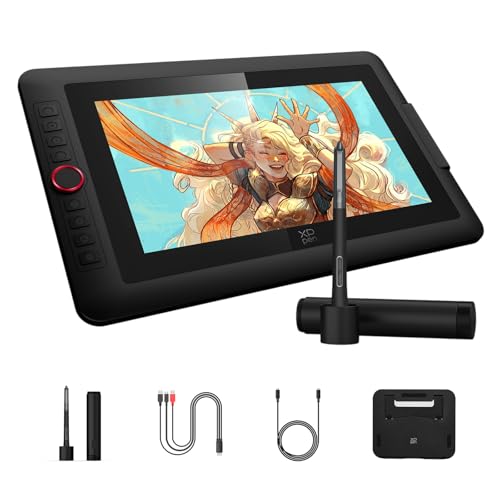
Route: tethered pen display, computer required. Cross to the tethered side and the conversation changes from convenience to capability. This Artist 13.3 Pro V2 listing, the red-dial variant, describes a fully laminated anti-glare glass screen with 99% sRGB coverage as the maker states it, the X3 Pro pen at a maker-stated 16K pressure levels, eight keys, the signature red dial wheel, and an included stand, for art and animation across Mac, PC, and Android hosts. Drawing happens directly on the image, with the cursor tucked under the nib by the lamination, while your computer supplies the full desktop applications in their complete, uncompromised forms.
The red dial is more than a color accent; it is the control your free hand will live on, rolling through zoom levels and brush sizes while the pen never leaves the canvas, and the stand in the box means the display arrives ready for a drafting posture rather than flat-desk hunching. For an artist with a capable computer already in the house, this is the highest-ceiling drawing experience in the guide, the one that will not need replacing when a hobby becomes a portfolio and a portfolio becomes paid work. Desktop-ready artists can examine the Artist 13.3 Pro V2’s Amazon listing to check the price on Amazon and confirm the stand and cable configuration for their machine.
Animation work flatters this display particularly, because the laminated directness makes frame-checking feel like flipping paper, and the dial steps through frames with a rhythm that keyboard tapping never quite matches.
Comic artists working in page format find the 13.3-inch canvas honest for full-page inking when paired with a stand angle that mimics a drafting board, and the anti-glare glass keeps a desk lamp from painting a white streak across dark panels.
- Route: tethered pen display
- Screen: 13.3 inches, full-laminated AG glass
- Color: 99% sRGB per maker
- Pen: X3 Pro, 16K levels as maker-stated
- Controls: red dial wheel plus 8 keys, stand included
Strengths
- Desktop software at full strength, with direct on-image drawing.
- Dial-driven workflow is the fastest in the tethered group.
- Included stand completes the desk setup out of the box.
Trade-offs
- Requires a computer with the right ports, and a desk to live on.
- Useless on a train, a couch, or anywhere the host cannot follow.
- Color figure is a maker claim to verify against your own references.
Best for: illustrators and animators with a good computer who want the professional drawing feel at home.
Not suited for: artists who draw in many places and own no desk-based machine.
HUION Kamvas 13 Gen 3 — Best tethered controls
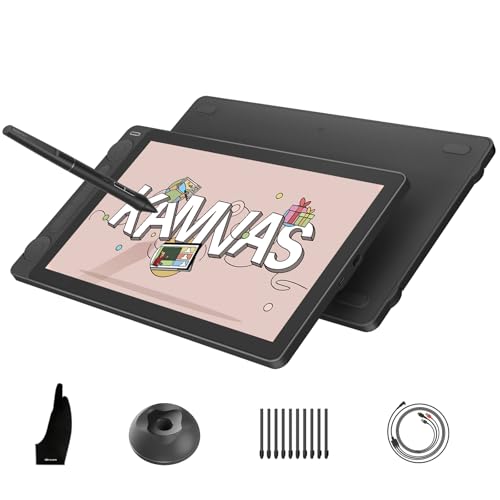
Route: tethered pen display, computer required. A note on identity first, because honest guides owe you one: this is a second retail listing of the same Kamvas 13 Gen 3 model that appears in our pen-display roundup, offered here as one pick because it earns its place in the artist’s-route comparison on its own merits. HUION’s listing for it describes a 13.3-inch full-laminated screen with anti-sparkle Canvas Glass, 99% sRGB coverage as maker-stated, PenTech 4.0 at a maker-stated 16K pressure, and dual dials. The dual dials remain the distinguishing hardware: two continuous controls, typically split between canvas zoom and brush size, where every rival in this guide offers one dial or none.
Canvas Glass earns its name in the drawing feel, a subtle sparkle-free matte that gives the pen purchase without dulling the image beneath it, and PenTech 4.0’s light-touch behavior rewards the faint construction drawing that precedes finished work. Paired with a desktop, the Kamvas delivers the same full-software ceiling as the XPPen display, differentiated by control philosophy: two dials and HUION’s driver character against the red dial and XPPen’s. Artists who run their sessions from the bezel can look at the Kamvas 13 Gen 3’s Amazon listing to check price on Amazon and verify which stand arrangement this listing bundles.
Photo-artists who composite and paint in the same file will appreciate the dials for layer navigation as much as for brushes, scrolling a deep layer stack with a thumb roll while the pen stays parked on the canvas.
There is a steadiness to HUION’s recent driver work that returning buyers notice: profiles persist across updates, the dial assignments survive, and a working artist’s carefully built setup stops being collateral damage in someone else’s software release.
- Route: tethered pen display
- Screen: 13.3 inches, full-laminated, anti-sparkle Canvas Glass
- Color: 99% sRGB per maker
- Pen: PenTech 4.0, 16K levels as maker-stated
- Controls: dual dials plus keys
Strengths
- Dual dials give the richest continuous control in this guide.
- Canvas Glass balances pen grip against image clarity beautifully.
- Current-generation pen with excellent light-pressure manners.
Trade-offs
- Same computer-and-desk dependence as every tethered display.
- Two dials reward a week of habit-building before paying off.
- Duplicates a model covered in our pen-display guide, by design.
Best for: desktop artists who steer zoom, brush, and layers from dials all session long.
Not suited for: anyone shopping for a drawing device that leaves the house.
Wacom Intuos Small wired — Best tethered board
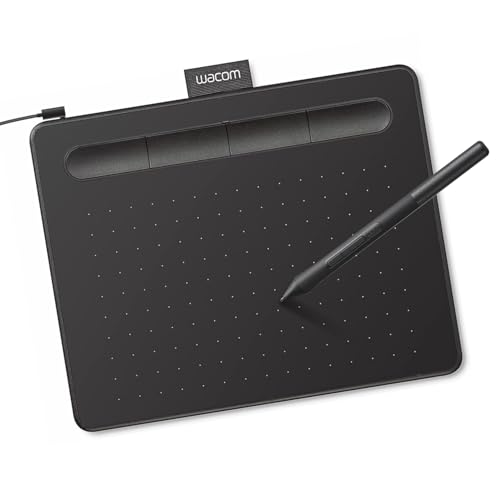
Route: tethered pen tablet, computer and monitor required. The Intuos Small represents the third physical form in this guide: no screen of its own at all, just a battery-free pen on a compact surface, drawing onto your existing monitor. Wacom’s listing describes four ExpressKeys and bundled creative software across Mac, Windows, and Chromebook. In a guide full of screens, its case rests on two pillars. The first is economic honesty: if your household already owns a good monitor, paying for another display inside a pen display duplicates what you have, and the Intuos puts the whole budget into pen quality and software instead. The second is the bundled software, which gives a new artist real desktop applications to grow into, the same full-strength ecosystem the tethered displays unlock.
The trade is the hand-eye learning curve, roughly a week of tracing and drills before the cursor feels like an extension of the pen, repaid by posture, durability, and a board that will outlast several computers. For a student whose art life happens at one desk with one good screen, that trade is often the smartest money in this entire guide. Desk-based beginners can pull up the Intuos Small’s Amazon listing to check the price on Amazon and see which software the current bundle includes.
There is also a longevity argument unique to this pick: a screenless board has no panel to age, so the Intuos bought for a first art class can plausibly serve a first job, migrating from drawing to photo retouching to signature-and-annotation duty across a decade of desks.
Budget planners should run its arithmetic honestly: board plus bundled software plus the monitor already in the house can undercut every other route in this guide while delivering the same desktop applications, which is why this modest slab keeps winning student recommendations year after year.
- Route: tethered screenless pen tablet
- Pen: battery-free
- Controls: 4 ExpressKeys
- Platforms per listing: Mac, Windows, Chromebook
- Extras: bundled creative software
Strengths
- Puts the whole budget into pen and software when a monitor already exists.
- Bundled applications complete a beginner’s desktop art setup.
- Nearly indestructible format with the longest service life here.
Trade-offs
- Hand-eye separation needs a week of honest practice.
- Compact field feels small against a large monitor’s mapping.
- Wired connection keeps it at one desk by design.
Best for: desk-based students with a good monitor who want desktop software without buying a second screen.
Not suited for: artists who know they want the line under the pen from day one.
How Do the Two Routes Compare for a Working Artist?
| Question | Standalone route | Tethered route |
|---|---|---|
| Where can you draw? | Anywhere: couch, park, train | At the desk the computer lives on |
| What software runs? | Android drawing apps | Full desktop applications |
| What else must you own? | Nothing essential | A capable computer; a monitor for the board |
| Where is the ceiling? | App features, canvas and layer scale | Your computer’s power, rarely the tablet |
| How do files travel? | Export and cloud transfer are a habit to build | Native files, already where they belong |
| Guide’s examples | Magic Drawing Pad, PicassoTab 10, RubensTab T11 Pro | Artist 13.3 Pro V2, Kamvas 13 Gen 3, Intuos Small |
Read the table as a personality test rather than a scorecard. Every row where the standalone column sounds like your actual life is a point for freedom of place; every row where the tethered column sounds like your ambitions is a point for freedom of software. Most readers lean clearly one way within a minute, and that lean, honestly acknowledged, is a more reliable guide than any benchmark we could print.
Notice the one row where the routes genuinely converge: the ceiling question is really about time. Standalone ceilings arrive when projects professionalize, tethered ceilings arrive when computers age, and both arrivals are measured in years for most artists. Buying for the next two years, as this guide recommends, keeps either ceiling comfortably beyond the horizon of the purchase.
What Does an Ordinary Drawing Day Look Like on Each Route?
Picture the standalone day first. The tablet wakes on the kitchen table with the artist’s coffee, collects twenty minutes of sketching before work, rides in a bag, and opens again on the train with the same canvas waiting at the same zoom. Drawing threads itself through the day’s gaps because the tool is always the nearest screen, and the artist’s total weekly drawing time quietly doubles compared with their desk-bound era. The costs arrive in the evening: a large canvas with many layers begins to tax the processor, the battery asks for its nightly charge, and a piece destined for a client must make the export journey to a computer before it can enter a professional pipeline.
Now the tethered day. The artist sits down at a prepared station where everything is already awake: display angled, dials where the free hand expects them, desktop software open at yesterday’s file with its full layer stack intact. Sessions run longer and deeper, canvases grow to print dimensions without complaint, and a client file opens natively in the application it was authored in. The costs are the mirror image: no drawing happens away from that chair, a household move or a trip suspends production entirely, and the station’s quality is chained to a computer whose health becomes the artist’s problem to maintain. Neither day is the correct one. They are portraits of two different artistic lives, and the reader’s task is recognition, not scoring.
Notice what both days share, because it is the part buyers control least and benefit from most: a ritual. The standalone artist’s ritual is the morning wake-and-sketch; the tethered artist’s is the station prepared the night before. Devices that slot into an existing ritual get used, and devices that demand a new one get admired. Choose the route whose ritual resembles a habit you already keep.
How Do the Routes Handle Color, Print, and Paid Work?
Color is where the tethered route’s maturity shows first. Desktop pipelines offer managed color from canvas to print profile, and a pen display like the Artist 13.3 Pro V2, with its maker-stated 99% sRGB coverage, sits inside that pipeline as a known quantity once you have compared it against references. Standalone screens are tuned for pleasing immediacy rather than pipeline discipline, which serves social and personal work beautifully and asks for a verification step, a glance at a trusted screen, before anything goes to a printer. Artists who sell prints learn that step quickly and stop resenting it; artists who do print work weekly usually migrate their production to the tethered desk while keeping the standalone for sketching.
Paid work adds file etiquette to the question. Clients send layered desktop files, expect them back in kind, and assume a toolchain that the standalone route approximates through export rather than inhabits. A freelancer can absolutely build a practice on a standalone for original work sold as finished images, and many do, especially in illustration niches where the deliverable is a flattened file. The moment the deliverable becomes a living production file inside someone else’s pipeline, the tethered route stops being a preference and becomes the job description. Let your intended income, if any, cast its vote with that clarity.
Why Do App Ecosystems and File Export Deserve Their Own Discussion?
Because artists do not live inside one drawing; they live inside a flow of files. On the standalone route, your library lives in Android applications, each with its own canvas formats and habits. The mature apps export flattened images easily and layered files in the common interchange formats, and cloud drives make moving work to a computer a routine rather than a project. But the routine must be built deliberately: decide your export format on day one, keep a cloud folder as the bridge, and name files like someone who will search for them in a year. Artists who skip that discipline end up with masterpieces trapped inside an app on a tablet with a cracked screen, a modern tragedy this guide is determined to prevent.
The tethered route’s ecosystem advantage is depth rather than convenience. Desktop applications bring decades of brush engines, plugin architectures, color-management pipelines, and print-ready export, plus the ability to open whatever file a client, teacher, or collaborator sends without conversion anxiety. If your artistic future includes commissions, print, or collaboration, that depth stops being a luxury and becomes the job itself. If your future is a personal sketchbook that occasionally becomes a poster for your own wall, the standalone ecosystem will carry you further than its critics admit, and the export habit is a small tax on a great deal of freedom.
One practical bridge deserves a recipe rather than a mention. On the standalone, finish each session by exporting the day’s piece twice: once in the app’s native layered format for your archive, and once as a full-resolution flattened image into a synced folder named by year and month. The double export takes under a minute, survives the loss of any single app or device, and means a piece chosen months later for print or portfolio is already waiting in a form any computer can open. Artists who adopt this tiny ceremony stop fearing the standalone’s ecosystem entirely, because their library was never truly trapped inside it.
What Does the Hybrid Setup Look Like When Artists Own Both?
Spend time in working artists’ studios and a pattern repeats often enough to deserve its own section: the standalone handles beginnings and the tethered desk handles endings. Sketches, thumbnails, and color studies are born wherever the artist happens to be, on the Magic Pad or a PicassoTab, because beginnings thrive on immediacy and forgive modest tools. The survivors of that sketching harvest travel, through the export bridge, to the desktop, where the pen display and the full software stack take them to finished, print-ready, client-safe adulthood. Each route does the half of the job it is genuinely best at, and the artist stops asking one device to be two.
The hybrid also solves the motivation problem that defeats many beginners. A tethered-only artist must go to the desk to draw at all, and desks lose arguments against tired evenings. A standalone-only artist eventually meets a project their apps cannot finish. Owning the sketching half first and the production half second, in whichever order your answers to the decision questions suggest, sequences the spending across a year or two and lets each purchase be justified by work already happening. If this guide’s fork feels impossible to choose, that sequencing is probably your answer wearing a disguise.
Hybrids do ask for one discipline the single-route artists escape: file housekeeping between the two worlds. The double-export habit from the ecosystem section becomes the bridge’s toll, paid in a minute a day. Artists who pay it describe the two devices as one studio with a portable annex; artists who skip it describe a drawer of orphaned sketches, which is the same equipment living a sadder story.
What Practicalities Govern Life With a Standalone Drawing Computer?
Battery rhythm is the first: a standalone is a device you charge, and artists who draw daily settle into the same overnight habit they keep for a phone, with a long evening session occasionally negotiating with a charger cable. Storage is the second: layered project files grow faster than beginners expect, which is why the Magic Pad’s 256GB and the PicassoTab’s 128GB, as their listings state, are meaningful specifications rather than decoration, and why the export bridge doubles as an archiving habit that keeps the device breathing. The third practicality is updates. Android applications evolve, and an app you love may change its brush engine or its pricing; keeping your master files exported in open formats insulates your library from any single app’s decisions.
Protection is the fourth, unglamorous and decisive. A standalone concentrates your entire studio in one breakable slab, so a case and a screen protector are not accessories but insurance on your portfolio, and a cloud backup of finished work is the difference between a cracked screen being an annoyance and being a bereavement. Tethered artists distribute that risk across machines by accident; standalone artists must distribute it on purpose, and the five minutes it takes is the cheapest professional habit in this entire guide.
Finally, remember that a standalone is also a general tablet when you are not drawing, which cuts both ways: reading, video, and reference browsing in the same device is a genuine convenience on a trip, while notifications and games compete for the same home screen as your canvas. A dedicated drawing profile or a disciplined home-screen layout keeps the studio door closed when you mean to work.
How Should You Decide Which Route Fits Your Next Two Years?
Answer three questions in writing, because vague intentions produce vague purchases. First: where did your last twenty creative sessions physically happen, at a desk or everywhere else? The honest geography of your past predicts your future better than your aspirations do. Second: what software do the artists you want to learn from actually use, and does your route run it natively? Tutorials teach the teacher’s tools, and fighting a translation layer while learning is a tax on every lesson. Third: what computer do you already own, truly, not the one you plan to buy someday? A capable machine in the house is the tethered route’s strongest argument, and its absence is the standalone’s.
If the answers split, consider the hybrid truth many artists live: a standalone for the daily sketching habit and a tethered setup for production, acquired in whichever order the answers suggest. The skills transfer completely between routes; only the furniture differs. What you should not do is buy a tethered display for a life lived on trains, or a standalone for a portfolio aimed at desktop-only production pipelines, and then blame the device for a mismatch this section just described.
Add a fourth question if money is tight, because it usually is: which purchase can be undone by the other later? A standalone bought first becomes the sketching front-end of a future desk setup, losing nothing. A tethered display bought first cannot become portable at any price. When every other answer ties, that asymmetry is a rational tiebreaker, and it is why so many artists’ equipment histories begin with a portable device and grow a studio around it.
What Should Parents and Gift Buyers Weigh Differently?
Adults buying for a young artist carry a different risk from adults buying for themselves: the device must survive not only use but enthusiasm’s natural fluctuations, and it must teach without a resident expert to configure it. That calculus favors the guided standalones strongly. A PicassoTab or a RubensTab arrives with tutorials and apps aboard, asks for no computer, no driver, and no parental troubleshooting session, and it can be carried to a grandparent’s house for the weekend without a support call. The gift that works unaided is the gift that gets used in February, not just on the holiday morning.
When the young artist is older, already drawing seriously, and sharing a family computer, the tethered route becomes the thoughtful gift instead, because it plugs into the software their online teachers use and grows toward portfolio work. The Intuos Small’s bundled software softens the setup burden considerably. Either way, the wisest gift-buying question is not “which is best” but “who will help when it confuses them,” and the standalone route’s honest answer, nobody needs to, is worth a great deal in households where the adults are not artists themselves.
What Mistakes Do Artists Make When Choosing Between the Routes?
The classic error is buying the standalone for its freedom and then mourning the desktop software, a mismatch visible in advance to anyone who lists the applications their target workflow requires. Its mirror image is buying the pen display for its professional aura and then drawing twice a month because the desk is in a cold spare room, while a couch-friendly standalone would have collected daily sketches. Route honesty is lifestyle honesty, and it cannot be outsourced to a review, including this one.
A second mistake is underestimating export until it hurts: a standalone artist who never builds the cloud bridge discovers its absence at the worst moment, usually a deadline or a dying battery before a trip. A third is assuming a tethered display upgrades a weak computer; it does not, and pairing a fine display with a struggling laptop produces lag that owners misattribute to the pen. Judge the whole chain you are actually buying, device, host, desk, and habits together, because the chain is the product.
The fourth mistake is buying for an imagined audience instead of a real practice: the professional-looking desk assembled for photographs, the ultra-portable kit assembled for trips that happen once a year. Audit the last twenty sessions, as the decision section insists, and let that unglamorous evidence overrule the fantasy studio and the fantasy expedition alike. Your actual Tuesdays are the market research that matters.
Final Recommendation
If your drawing life is mobile and your computer is weak or nonexistent, walk the standalone path and take the Magic Drawing Pad for its pro-class pen, or the PicassoTab and RubensTab for their guided welcomes. If your life has a desk and a capable computer, walk the tethered path and choose the Artist 13.3 Pro V2 for its dial-driven directness, the Kamvas 13 Gen 3 for its twin dials and glass, or the Intuos Small when a good monitor already waits. Either way, buy for the artist your last twenty sessions prove you are, set up the export bridge or the desk properly on day one, and let the route disappear beneath the work, because the best tablet for an artist is ultimately the one that stops being a purchase and starts being simply where the drawings come from, morning after ordinary morning.
Frequently Asked Questions
Can a standalone tablet really replace a computer for art?
For sketching, illustration, comics, and social-scale finished work, yes, entirely. Android’s drawing apps are mature, layered, and pressure-aware. The replacement ends where desktop-only software begins: heavy print pipelines, certain plugins, 3D work, and some professional file requirements still live on computers, which is why we judge the routes separately. Many working illustrators run their entire public practice from a standalone and touch a computer only for invoicing.
Which route is better for a complete beginner?
The one matching the beginner’s environment. A beginner with no computer should start standalone, where the PicassoTab and RubensTab add tutorials to the welcome. A beginner with a family computer and a desk often learns faster tethered, especially with the Intuos’s bundled software or a pen display’s directness. Motivation follows convenience in both cases.
How do I move artwork from a standalone tablet to a computer?
Export from the drawing app in a layered interchange format when you need to keep editing, or as a high-resolution image for sharing and print, then move the file through a cloud drive, a cable, or email to yourself. Build that bridge on day one and keep one consistent folder; the habit matters more than the method. Test the whole journey with a throwaway sketch before any real piece depends on it.
Do tethered pen displays work with Chromebooks?
Some do and many do not, so check each listing rather than assuming. The Intuos Small in this guide lists Chromebook support explicitly, while full pen displays more often target Windows and Mac hosts, with Android pairing on certain models. School buyers should verify their exact fleet before ordering anything tethered.
Is the Kamvas 13 Gen 3 here the same model as in the pen-display guide?
Yes. This pick is a second retail listing of the same Gen 3 model, included once in this guide because the route comparison needs HUION’s strongest affordable display. Its hardware story, dual dials, Canvas Glass, and PenTech 4.0 pen, is identical; only the listing differs.
Which route holds its value better over time?
Tethered tools age more slowly, because the computer they depend on can be upgraded around them, while a standalone’s processor and Android version age with the device. Standalones repay that with years of zero-friction drawing anywhere. Judge value by drawings produced per year, not by specification decay, and both routes can win.
Can I start standalone and move to a desk setup later?
Yes, and it is the most common equipment story we hear. Your drawing skill, your layer discipline, and your exported library all transfer; only the software interface changes, and even that adjustment takes days rather than months. The standalone then remains useful as the sketching and travel half of a hybrid setup rather than becoming obsolete.
Related Guides
Readers who have settled on the tethered display route can compare the wider affordable field in Best Affordable Drawing Tablets With Screen And Pressure, and those leaning toward a first screenless board will find the entry class in Best Affordable Art Tablets. Design-leaning artists who plan to live in layout software should also read Best Affordable Tablets For Graphic Design before deciding.
Related guides
- Best Balancing Stabilizers for Mirrorless Cameras: Payload, Balancing and Native Vertical Shooting
- Best Basic Phones Camera Buyers Can Trust: Flip Phones and Simple Handsets That Still Take a Photograph
- Best Sony Full Frame Cameras for Astrophotography: Sensitivity vs Resolution
- Best Affordable Android Tablets: Five True Android Slates and One Fire OS Specialist, Clearly Labelled