What's inside
- Key Takeaways
- Quick Picks
- How Did We Weigh Tools for Sculpting Rather Than for Sketching?
- Why Does the Pen Matter More Than the Panel?
- How Do the Two Families and Six Tools Compare Honestly?
- What Does a Computer Need to Run the Software These Tools Serve?
- How Do You Build a Sculpting Setup Around the Pen?
- How Should You Choose a Size for Sculpting Work?
- What Should Texture Painters Demand From a Pen Display?
- How Do These Tools Fit Into a Working Studio Pipeline?
- Which Misunderstandings Cost 3D Beginners the Most?
- What Does a Month of Practice Actually Look Like?
- Final Recommendation
- Frequently Asked Questions
- Related Guides
As an Amazon Associate I earn from qualifying purchases. This post may contain affiliate links at no extra cost to you.
gizmoverdict.com is reader-supported. When you buy through links on our site, we may earn an affiliate commission.
Where to buy: The six tools below are linked from the verified pool, and the word tool is chosen carefully: not one of them is a computer, every one of them plugs into a computer, and any listing that lets a buyer believe otherwise is doing that buyer a disservice this guide refuses to repeat.
There is a misunderstanding built into the search for the best 3d art tablets, and clearing it up is worth more than any single recommendation that follows. These are not tablets in the iPad sense — self-contained screens with their own processors and app stores. They are precision input instruments for a computer: surfaces and displays across which a stylus moves a cursor, a brush or a sculpting tool inside software like Blender and ZBrush that runs on your PC or Mac. The computer does the thinking. The tablet — pen tablet or pen display — does the touching, and the quality of that touch is what separates a frustrating evening from a fluent one.
For 3D work specifically, the stylus is not an accessory to the process; it is the process. Sculpting a character’s brow, masking a hard-surface panel, painting wear onto a texture or posing a rig all happen through pressure, tilt and thousands of tiny directional decisions that a mouse makes clumsily and a good pen makes unconsciously. Pressure sensitivity controls the depth of a sculpting stroke the way a thumb controls clay. Tilt turns brushes into broad, natural tools. The pen is why digital sculptors describe their hardware the way violinists describe bows, and it is why this guide spends so much of its length on feel rather than on resolution figures.
The category divides into two families, and the division is the first real decision. Pen tablets — the Intuos Pro and the Deco Pro here — are opaque surfaces: you draw on the desk while watching the monitor, a learned coordination that becomes invisible with practice and rewards its learners with posture, desk space and value. Pen displays — the other four picks — put the image under the pen, so you sculpt where you look, at higher prices and with a second screen’s worth of cables and colour questions to manage. Neither family is the advanced one. Studios employ masters of both, and this guide treats the choice as temperament plus budget, never as a ladder.
Key Takeaways
- Every pick here needs a computer running the 3D software; none of them sculpts, renders or stores anything by itself.
- Pen tablets ask you to draw on the desk while watching the monitor; pen displays let you work directly on the image.
- For sculpting, pressure response and pen feel matter more than the pressure-level figure printed largest on the box.
- The Movink is the premium portable display, the Kamvas the value display, and the Intuos Pro the professional’s opaque benchmark.
- Your monitor, desk space and posture should choose the family before your budget chooses the model within it.
Quick Picks
| Pick | Badge | Why it earns its place |
|---|---|---|
| Wacom Intuos Pro Medium | The professional pen tablet | An opaque drawing surface with the Pro Pen 3, the benchmark against which every screenless tablet for serious sculpting is still measured. |
| XPPen Artist 15.6 Pro V2 | The big-screen display value | A 15.6-inch pen display that gives sculptors a generous canvas and a shortcut-rich stand experience without flagship money. |
| Huion Kamvas 13 (Gen 3) | The compact display favourite | A 13.3-inch pen display that has become the default recommendation for artists who want to draw on-screen at a sane size and cost. |
| Wacom One 14 | The simple Wacom display | Wacom’s straightforward pen display for artists who want the brand’s pen feel and driver polish without the professional line’s complexity. |
| Wacom Movink 13 OLED | The premium portable OLED | A slim OLED pen display for artists who move between desks and want the finest panel in this entire guide riding along with them. |
| XPPen Deco Pro LW (2nd Gen) | The wireless pen tablet | An eleven-inch wireless drawing surface that frees the desk from cables while keeping a proper pen for sculpting sessions. |
How Did We Weigh Tools for Sculpting Rather Than for Sketching?
Three-dimensional work loads a pen differently from illustration, so the judging followed the sculpting. Strokes in ZBrush or Blender’s sculpt mode are shorter, more frequent and more pressure-modulated than drawing strokes; the artist is constantly varying depth, building and shaving forms with the side of a virtual tool. That makes the beginning of the pressure curve — how little force starts a stroke, and how smoothly the first quarter of pressure registers — more important than the headline maximum, and it makes pen weight, grip diameter and button placement into endurance questions across four-hour sessions rather than five-minute demos.
The second lens was the working loop around the pen. Sculptors live on shortcuts: brush size, strength, symmetry, masking, subdivision levels, camera orbiting. Tools that put programmable keys and dials under the non-drawing hand — or make reaching the keyboard natural — quietly out-produce tools with marginally better specifications and nowhere to put a shortcut. Driver quality was weighed just as heavily, because the driver is the translator between pen and software, and a flaky translator ruins sessions in ways no specification sheet warns about. Stability across Blender, ZBrush and the painting tools was treated as a feature, not an assumption.
Displays added their own criteria: colour behaviour for texture painting, matte finishes that resist both glare and the plasticky drag some coatings add, parallax — the visible gap between pen tip and pixel — and the cable arrangement, since a pen display is also a monitor competing for ports and desk. Finally, everything was priced as a system. A pen display is a second screen; a pen tablet presumes a monitor worth looking at. The honest comparison includes what each family asks of the desk it joins.
Why Does the Pen Matter More Than the Panel?
Watch a sculptor work and count the decisions a mouse cannot make. A single stroke across a cheek might begin at a whisper of pressure to suggest a plane, deepen through the middle to carve the fold, and feather out at the end — three intentions in one gesture, all encoded in force. Multiply that by the thousands of strokes in a session and the pen’s pressure curve becomes the artist’s vocabulary. This is why experienced digital sculptors speak about pens the way they do, and why the cheapest component in the box — a passive stylus with no battery, in most of these picks — is the one worth choosing a brand over.
It is also why the pressure-level arms race deserves a shrug. Beyond a certain point, no human hand distinguishes the steps, and the differences that remain perceptible are the curve’s shape, the activation force at the bottom, and the absence of wobble in slow diagonal lines. Those qualities come from pen engineering and driver tuning, the two things the established makers in this guide have spent decades refining. A buyer choosing between a famous pen on a modest surface and an unknown pen on a glossy specification sheet should choose the pen, every time, and let the surface catch up in the next upgrade cycle.

Wacom Intuos Pro Medium — The professional pen tablet
The Intuos Pro is the instrument the professionals in this field actually use, and the Medium is its definitive size: a working area large enough for confident strokes, small enough that the hand travels rather than the arm. As a pen tablet it shows you nothing — the surface is opaque, your monitor carries the image — and that apparent austerity is its philosophy. What Wacom sells here is the finest pen-to-surface relationship in the business: the Pro Pen 3 with its customisable grip and nib options, a surface texture tuned to feel like resistance rather than ice, and drivers whose stability across sculpting software is the industry’s reference standard.
For 3D work the arrangement has underappreciated virtues. Your hand never covers the model you are sculpting, because the hand is on the desk and the model is on the monitor, full-screen and unobstructed. Your posture is a monitor posture, neck neutral, rather than the hunched curve a display invites over long sessions. And the tablet itself is a thin slab that slides into a drawer or a laptop bag, leaving the desk clear — a real consideration in the small studios and shared rooms where much 3D art actually happens. The learning curve is the honest price: eye-hand separation takes most new users days to weeks before it disappears, and some never forgive it.
The shortcut story completes the professional case. Programmable keys and a touch ring sit under the idle hand, sized and placed by people who clearly sculpt, and the pen’s own buttons fall where a working grip expects them. In a ZBrush session, where brush size and strength change hundreds of times, that choreography is the difference between flow and friction. Buyers choosing between this and a display of similar cost are choosing between the finest pen experience with a learning curve, and a good pen experience with none. Studios full of Intuos tablets suggest how that argument usually ends for people who sculpt all day — but the displays below exist because for many artists it ends the other way.
At a glance:
- Type: pen tablet — opaque surface, image stays on your monitor
- Pen: Pro Pen 3, battery-free, with nib and grip options
- Size: Medium, the working area most professionals settle on
- Controls: programmable keys and touch ring on the tablet body
- Requires: a computer running your 3D software, plus your own monitor
Strengths
- The benchmark pen feel and driver stability for sculpting
- Hand never obscures the model; posture stays monitor-neutral
- Shortcut hardware arranged by people who understand the workflow
Trade-offs
- Eye-hand coordination must be learned over days or weeks
- No screen, which beginners often mistake for a lesser product
- Premium pricing for what looks, to the uninformed, like a slab
Best for: full-time sculptors and texture artists who want the professional standard and will invest the practice the opaque surface asks for.
Not suited for: anyone who knows from experience that they only enjoy working directly on the image — the displays below exist for you.

XPPen Artist 15.6 Pro V2 — The big-screen display value
The Artist 15.6 Pro V2 is the display for sculptors who think in wide gestures. Fifteen point six inches of drawing screen gives a model room to breathe — turntable views, reference pinned beside the canvas, sculpting tools visible without devouring the workspace — and XPPen has built its reputation on delivering that scale without the flagship tariff. The pen is battery-free, the surface is laminated to keep the cursor close under the nib, and the package leans into the shortcut economy with a red dial and programmable keys that sculptors map to brush size and strength within their first session and never unmap.
In sculpting practice the size cuts two ways, both honestly. Long, confident strokes across a large form feel wonderful, and zoomed detail work benefits from the physical room. But the arm travels further, sessions can tire a shoulder that a smaller display would spare, and the unit claims a serious footprint of desk — measure yours before ordering, including the space its stand wants behind it. Colour performance suits texture painting well for the class, though professionals colour-grading final renders will still treat their main monitor as the reference and this as the canvas, which is the correct hierarchy for every display in this guide.
XPPen’s drivers have matured into genuine reliability, and the value argument is the headline: this is the route to a large pen display for artists whose budgets must also feed a computer capable of the software — a budgeting truth this category ignores at its peril, since the finest display in the world cannot help a machine that stutters through a subdivision level. For a Blender or ZBrush artist upgrading from a mouse or a small tablet, the Artist 15.6 Pro V2 is the most canvas per unit of money in this guide, and its size makes the upgrade feel like an event.
At a glance:
- Type: pen display — draw directly on the 15.6-inch screen
- Pen: battery-free stylus with shortcut dial and keys on the body
- Panel: laminated drawing surface to minimise pen-to-pixel gap
- Desk need: the largest footprint in this guide; measure first
- Requires: a computer with a free display connection and USB
Strengths
- The most drawing area per unit of money in this line-up
- Shortcut dial becomes indispensable within one sculpting session
- Laminated panel keeps detail work honest and close
Trade-offs
- Large footprint and longer arm travel across long sessions
- Colour reference work still belongs on a calibrated main monitor
- Cable and stand arrangement wants a settled, dedicated desk
Best for: sculptors who work big, keep a dedicated desk, and want a large canvas without raiding the computer budget to pay for it.
Not suited for: small desks, travelling artists, and anyone whose shoulder already complains about long drawing days.

Huion Kamvas 13 (Gen 3) — The compact display favourite
If one pen display has become the default answer for artists entering the field, it is the Kamvas line at this size, and the third generation of the thirteen-inch model shows why. At 13.3 inches it hits the portability sweet spot — big enough to sculpt on, small enough to live in a bag beside the laptop that powers it — and Huion has spent generations sanding down the rough edges: the pen feel is confident, the surface texture resists the slippery cheapness of early pen displays, and the whole unit runs from a laptop without demanding a studio’s worth of ports and power bricks in the common single-cable arrangement its class popularised.
For 3D artists the Kamvas makes a particular kind of sense. Sculpting is often a laptop activity — a character refined on a sofa, a prop finished in a studio’s spare corner — and a display that travels with the laptop extends that life instead of anchoring it. The screen’s colour behaviour serves texture painting credibly, the shortcut keys along the side take the standard sculpting assignments, and the price leaves room in the budget for the software licences and the computer itself, which are the unglamorous essentials beginners underfund while overfunding their first drawing screen.
Its limits are the limits of its size and class. Thirteen inches means interface chrome competes with canvas, and sculptors who keep many panels open will zoom and pan more than the Artist’s owners do. The pen, while good, is not the Wacom benchmark — the difference lives in the finest quarter of the pressure curve and in nib feel, perceptible to experienced hands, invisible to most beginners. As the recommendation for a first pen display, or a travelling second one, the Kamvas 13 Gen 3 is the pick this guide hands over with the fewest caveats — provided its buyer understands it is a window into a computer, not the computer itself.
At a glance:
- Type: pen display — 13.3-inch screen you draw on directly
- Pen: battery-free stylus, side shortcut keys for sculpting commands
- Portability: sized to travel beside the laptop that drives it
- Surface: textured finish that avoids the glassy drag of cheap displays
- Requires: a laptop or desktop running the 3D software
Strengths
- The balanced first pen display: size, price and pen feel in tune
- Travels with a laptop instead of anchoring the artist to one desk
- Leaves budget room for the computer and software that matter more
Trade-offs
- Interface and canvas compete for its thirteen inches
- Pen refinement sits a step below the Wacom benchmark
- Small text in dense 3D interfaces can strain at native settings
Best for: beginners buying a first pen display and laptop-based sculptors who work in more rooms than one.
Not suited for: artists with a fixed studio desk who would use a larger canvas daily and never carry the display anywhere.
Wacom One 14 — The simple Wacom display
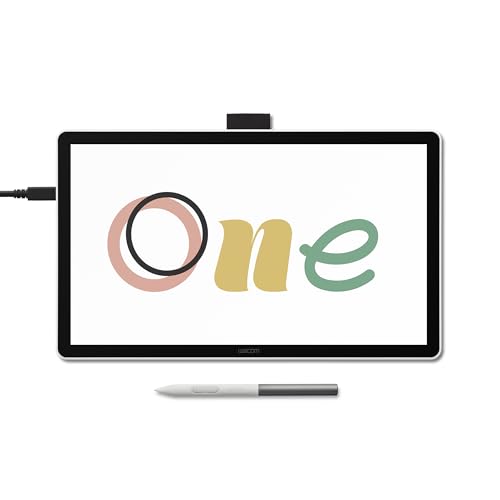
The Wacom One line exists for buyers who want the company’s pen and drivers without the professional line’s price or complexity, and the fourteen-inch model is its most convincing form: a pen display with a screen large enough to work on seriously, a setup simple enough for a first-timer, and the driver polish that remains Wacom’s quiet superpower. Where rival displays compete on bundled extras and specification fireworks, the One competes on the morning after — the session where nothing crashes, the pen behaves identically in every application, and the artist forgets the hardware entirely, which is the highest compliment input equipment can earn.
For sculpting, that steadiness has real value. The pen’s pressure behaviour is tuned by the same engineers behind the Intuos, and it shows in the low end of the curve where sculpting strokes live. The display itself is a workmanlike panel — adequate colour for painting textures, a matte finish that behaves in ordinary rooms — presented without pretension as a canvas rather than a reference monitor. Fourteen inches splits the difference between the Kamvas’s portability and the Artist’s expanse, a size that suits a permanent desk in a small room better than either extreme.
What the One asks in return is acceptance of its simplicity. The shortcut hardware is minimal compared with the dial-and-keys arrangements elsewhere in this guide, pushing more work onto the keyboard — which some sculptors prefer anyway, since a keyboard’s worth of shortcuts outnumbers any tablet’s. Third-party pens are welcomed on this line, a flexibility artists with existing pen collections appreciate. Buyers who want maximum features per coin will drift to XPPen or Huion; buyers who want the Wacom feel on a screen, with the fewest surprises, will understand exactly what the One is for.
At a glance:
- Type: pen display — 14-inch screen, draw where you look
- Pen: battery-free Wacom pen; the line also welcomes third-party pens
- Character: deliberately simple setup and controls
- Drivers: the polish and stability Wacom built its name on
- Requires: a computer; your keyboard carries more of the shortcuts
Strengths
- Wacom pen feel and driver steadiness at a gentler level than the Pro line
- A screen size that balances desk presence and small rooms
- Setup simplicity that suits first-time pen display owners
Trade-offs
- Minimal on-body shortcuts compared with dial-equipped rivals
- Panel is a canvas, not a colour-reference instrument
- Feature-for-price contests are won by the challenger brands
Best for: artists who value the Wacom pen and painless drivers over bundled extras, and first-time display buyers who fear complexity.
Not suited for: shortcut maximalists who want dials and keys covering the whole sculpting command set from the tablet body.

Wacom Movink 13 OLED — The premium portable OLED
The Movink is what happens when the pen display is designed by people who also had to carry it. At thirteen inches with an OLED panel, it is strikingly slim and light for its class — a display that slips into a bag like a magazine and sets up wherever the laptop lands — and the OLED screen itself is the finest in this guide: perfect blacks, vivid colour, and contrast that makes a sculpted model’s forms read with sculptural clarity before a single light is adjusted in the scene. For texture painters, that panel is not vanity; deep shadow detail and honest saturation are working tools.
Its pen story matches the panel’s ambition, with Wacom’s professional pen technology in a body aimed at mobility, and the whole unit sips power through a simple connection in a way that suits trains, studios-for-the-day and the kitchen-table second shift. This is the display for the artist whose 3D work happens in several places a week — the freelancer between client desks, the student between studio and dormitory, the game developer hot-desking through a project — and who refuses to let the travelling setup feel like the compromised setup.
The premium is real and should be interrogated like one. The Movink costs flagship money for thirteen inches, its OLED virtues matter most to artists who paint and present as well as sculpt, and pure sculptors working in grey clay mode may find the panel’s splendour wasted on their viewport. OLED also asks a small discipline about static interface elements over years of use, a consideration the other panels here spare you. None of that dents its position as the connoisseur’s pick of this guide — it simply defines the connoisseur: mobile, colour-aware, and willing to pay for the best travelling canvas the category currently makes.
At a glance:
- Type: pen display — 13-inch OLED, the finest panel here
- Pen: Wacom professional pen technology, battery-free
- Build: exceptionally slim and light for a pen display
- Connection: simple single-cable life aimed at laptop artists
- Requires: a computer; designed to follow it between desks
Strengths
- OLED contrast that makes forms and textures read beautifully
- Genuinely portable, where rival displays are merely movable
- Professional pen feel in a travel-weight body
Trade-offs
- Flagship pricing for a thirteen-inch canvas
- OLED splendour is partly wasted on grey-clay sculpting viewports
- Static interface elements ask a little care over the years
Best for: mobile artists and texture painters who work across several desks and want no quality surrendered to the travelling life.
Not suited for: static studio sculptors, for whom a larger, cheaper display and a grey viewport make the premium hard to justify.

XPPen Deco Pro LW (2nd Gen) — The wireless pen tablet
The Deco Pro LW answers the pen tablet’s oldest annoyance — the cable — by removing it. This second-generation eleven-inch-class drawing surface connects wirelessly, which transforms the ergonomics of a sculpting desk: the tablet can sit at the angle your wrist wants rather than the angle the cable allows, migrate to a lap or a sofa session, and leave the desk looking like furniture instead of a wiring diagram. XPPen pairs that freedom with a proper battery-free pen and a shortcut arrangement built around a mechanical-style wheel and keys, the controls sculptors actually program and use.
As an opaque tablet it shares the family’s terms: a learning curve for eye-hand coordination, repaid by an unobstructed monitor view and a natural desk posture. The wireless link, in this generation, is steady enough that the pen’s response does not advertise its freedom — the highest praise a wireless input device can receive — though artists should still keep the cable in a drawer for the day the battery fades mid-deadline, because it will choose that day. The working area suits medium-scale sculpting well; artists with the broadest gestures may look to the Intuos’s larger siblings in spirit, but most hands find this size honest.
Against the Intuos Pro, the Deco Pro LW’s argument is freedom and value; against the displays, it is price and posture. It will not match Wacom’s last degree of pen refinement or driver mystique, and it asks the same practice investment as any opaque surface. What it offers instead is the most liveable version of the pen-tablet idea for a modern, uncluttered desk — and for sculptors whose studios are also their living rooms, that liveability is not a soft benefit. It is the difference between a tool that stays out and gets used, and a better tool that lives in a drawer.
At a glance:
- Type: pen tablet — opaque, wireless drawing surface
- Pen: battery-free stylus; wheel and shortcut keys on the body
- Size: eleven-inch class working area for medium-scale work
- Connection: wireless freedom, cable in reserve for flat-battery days
- Requires: a computer and monitor, like every pick in this guide
Strengths
- Wireless placement freedom transforms sculpting ergonomics
- Wheel-and-keys shortcut layout suits the sculpting command set
- Strong pen-tablet value without the professional line’s tariff
Trade-offs
- Eye-hand coordination learning curve, as with all opaque tablets
- Pen refinement trails the Wacom benchmark at the curve’s edges
- Battery management joins the list of studio habits
Best for: sculptors with uncluttered or shared desks who want pen-tablet posture without the tether, at a friendly level of spending.
Not suited for: artists who want to draw directly on the image, and professionals for whom the Intuos pen is a settled requirement.
How Do the Two Families and Six Tools Compare Honestly?
| Tool | Family | Screen | Pen headline | Choose it when |
|---|---|---|---|---|
| Intuos Pro Medium | Pen tablet | None — uses your monitor | Pro Pen 3 benchmark | Pen feel outranks everything |
| Artist 15.6 Pro V2 | Pen display | 15.6-inch | Battery-free, dial shortcuts | You want the biggest canvas value |
| Kamvas 13 (Gen 3) | Pen display | 13.3-inch | Battery-free, travel-ready | You sculpt beside a laptop anywhere |
| Wacom One 14 | Pen display | 14-inch | Wacom pen, simple controls | You want Wacom steadiness on-screen |
| Movink 13 | Pen display | 13-inch OLED | Professional pen, portable | You move desks and paint textures |
| Deco Pro LW | Pen tablet | None — uses your monitor | Battery-free, wireless body | You want an untethered clean desk |
The family’s column deserves the longest look, because it predicts your first month. Pen tablet owners spend that month learning to trust their hands without watching them, then enjoy years of unobstructed screens and good posture. Pen display owners spend the first hour delighted, then the first month managing cables, colour expectations and the gentle hunch of drawing downward. Both months end in fluency. The honest question is which tuition you would rather pay, and the answer is knowable in advance: if you already touch-type without looking, the opaque tablet’s lesson will feel familiar; if you sketch on paper daily, the display’s directness will feel like home.
Budget tells a parallel story in the same table. The two opaque picks deliver their professional pen experience without buying a screen at all, which is why they anchor the value end of serious sculpting even when one of them wears a premium badge. The displays convert money into immediacy — the image under the pen — at a rate that rises steeply with panel quality, ending at the Movink’s OLED. Neither story is the frugal one in absolute terms, because the computer behind every row out-costs the row itself; the table is best read as a guide to where your second-largest purchase should point, after the machine that does the thinking has been honestly funded.
What Does a Computer Need to Run the Software These Tools Serve?
Since every pick in this guide is an instrument rather than a computer, the system requirements belong in the buying decision, because a pen tool attached to a struggling machine produces a struggling artist. Sculpting at meaningful subdivision levels wants a capable processor, generous memory and — for Blender’s rendering and viewport ambitions — a graphics card with real work in it. ZBrush leans on processor and memory more than graphics. Texture painting at high resolutions eats memory and storage alike. None of this requires a flagship workstation for learning and mid-scale professional work, but it does mean the tablet budget and the computer budget are one budget, and overspending on the display while the machine wheezes is the classic beginner’s misallocation this guide most wants to prevent.
Practically: confirm your machine runs your chosen software smoothly with a mouse first — painful as that sounds — because the pen multiplies fluency, not frame rates. Check the ports the display picks need, since a pen display is a monitor and competes for the same connections, and laptops with a single suitable port may need the dock conversation from another of this site’s guides. Leave storage headroom for sculpting projects, whose files swell with subdivision levels and texture sets. The tablet is the pleasurable purchase; the computer is the enabling one, and the order of operations matters.
How Do You Build a Sculpting Setup Around the Pen?
Begin with the non-drawing hand, because it decides your speed. Map the half-dozen commands you touch constantly — brush size, strength, undo, symmetry, subdivision, camera reset — onto the tablet’s keys or wheel, or arrange the keyboard where that hand rests naturally, and resist remapping for a fortnight while the layout becomes reflex. Sculptors who skip this step own excellent hardware and work at half its pace, reaching for menus like beginners for years. The mapping is personal, but the principle is universal: the pen hand sculpts, the other hand conducts, and the eyes should never leave the model to hunt a command.
Then set the pressure curve before judging the pen. Every driver in this guide lets you soften or firm the curve, and sculpting generally rewards a curve that reaches useful depth without a crushing grip, sparing the hand across long sessions. Work at a desk height that keeps the drawing forearm supported, position the monitor — or the display — to keep the neck near neutral, and schedule the hand stretches you will otherwise schedule retrospectively. Finally, calibrate expectations for the first month: early sculpts will be worse than your mouse work before they become incomparably better, and that valley is the tuition every pick in this guide charges in its own currency.
How Should You Choose a Size for Sculpting Work?
Size in this category is a bargain between stroke and shoulder. A larger working area lets a stroke travel further before the hand must lift, which flatters broad form-building and makes fine detail a matter of hand movement rather than constant zooming. It also asks the arm to travel, the desk to surrender territory, and the eyes — on a display — to patrol a wider field. The medium sizes dominate professional desks for a reason that has nothing to do with budgets: they are where the bargain balances for an eight-hour day, big enough for confidence, small enough for endurance.
Match the size to the sculpture’s scale in your own practice. Character artists working at portrait distances live happily at thirteen inches of display or a medium surface; environment and hard-surface artists, whose models sprawl and whose strokes run long, feel the benefit of the Artist’s extra inches daily. Laptop-based artists should measure the display against the bag and the café table, not the studio desk, because a pen display that only fits at home will only be used at home. And pen tablet buyers should remember the mapping choice their driver offers: the surface can be mapped to a portion of the monitor, so a larger tablet can be tamed — while a small tablet can never be stretched.
There is a test worth performing in any shop that allows it: draw the slowest, straightest diagonal line you can, corner to corner, and watch for wobble; then make a row of dots from the lightest touch you can manage upward, and watch where the pressure begins. Those two gestures reveal more about a tool’s sculpting character than an hour of specification reading, and they travel across brands honestly. A tool that passes both, in a size your desk and shoulder accept, will not be the reason a sculpt fails. That is the most any buying guide can promise, and for a decision that will shape thousands of hours of making things, it is honestly enough to be going on with.
What Should Texture Painters Demand From a Pen Display?
Sculpting can forgive a display almost anything except a lying cursor; texture painting cannot forgive a lying colour. Artists who paint materials — skin, fabric, corroded metal, the grime in a spaceship corridor’s corners — should interrogate a display’s colour coverage and its behaviour at low brightness, where shadow detail in a texture either survives or crushes into mud. The Movink’s OLED leads this guide precisely here. The other displays are honest canvases for painting, with the standing professional arrangement that final colour judgement happens on a calibrated main monitor, under controlled light, before anything ships.
Finish matters in a painter’s hand as much as gamut. A surface with a slight tooth gives the pen the drag that makes a dry-brush stroke feel dry; a glassy surface turns every stroke into a slide and exhausts the wrist’s micro-corrections. Matte finishes also fight the studio’s windows, which is why so many pen displays look less dazzling in photographs than glossy consumer tablets and feel better across a working week. Painters should also think in layers of screen protection: a replaceable film preserves the panel beneath years of nib traffic, and on the premium displays especially, that small habit protects the expensive part of the purchase.
Finally, painting is where the second-screen nature of a pen display earns its keep in a way sculpting never quite does. Reference photographs, material libraries and the 3D viewport can live on the main monitor while the texture itself fills the display under the pen, a division of labour that makes the display feel less like a compromise monitor and more like a dedicated canvas. Artists whose 3D work is mostly modelling may never notice this benefit; artists who finish their own textures will organise their whole desk around it within a month.
How Do These Tools Fit Into a Working Studio Pipeline?
In a studio, the pen tool is personal equipment in a shared pipeline, and that changes what good means. Drivers must behave identically across machines so an artist can sit anywhere; pens must survive being borrowed, dropped and occasionally lost, which is why the battery-free designs in this guide dominate professional purchasing — there is nothing to charge, pair or flatten at a deadline. Standardising on one family, as many studios do with the Intuos line, means a replacement pen is a drawer away rather than a delivery away, and a freelancer arriving with the same tool is fluent by the first coffee.
Home artists building a pipeline of one should borrow the studio’s logic anyway. Keep the tablet’s software and your shortcuts backed up like any other project asset, because a rebuilt computer without your brush mappings is a week of friction disguised as a fresh start. Keep spare nibs, the cable you hope not to need, and the pen’s box — resale values in this category are kind to complete packages, and artists upgrade families as their work grows. And treat the desk itself as part of the pipeline: the monitor arm, the tablet’s angle and the keyboard’s home are productivity equipment, adjusted once and profited from daily.
Which Misunderstandings Cost 3D Beginners the Most?
The expensive one is buying a pen display believing it is a standalone tablet, discovering at unboxing that it needs a computer, and starting ownership with a returns process or an unplanned laptop purchase. This guide has stated the truth in its first paragraph, its takeaways and every review, because the misunderstanding is that common. The second is the reverse snobbery: dismissing pen tablets as the cheap option, when the opaque surface is the professional standard in much of the industry and the preference of artists who could choose anything.
The third misunderstanding is specification worship — choosing by the pressure-level figure, the largest number on the box, while ignoring pen feel, driver stability and shortcut design, the things a sculptor touches ten thousand times a session. The fourth is neglecting the computer, covered above, and the fifth is expecting the tool to supply the skill: a fine pen makes practice pleasurable, which compounds, but the first hundred sculpts are tuition regardless of equipment, and the artists who accept that in advance spend their money calmer and their evenings better than the ones shopping for a shortcut that the entire history of craft says does not exist. Buy the tool that makes you want to sit down tomorrow, at the price that leaves the rest of the setup healthy, and the misunderstandings lose their power over the purchase.
What Does a Month of Practice Actually Look Like?
Week one is humbling in either family, and expecting that is half of surviving it. Display owners fumble cables and colour settings; surface owners produce sculpts noticeably worse than their mouse work and wonder what they have bought. The exercises that shorten the valley are boring and effective: spheres sculpted into heads without reference, then with it; pressure drills that build a ridge at constant depth; navigation until orbiting a model is as thoughtless as turning a page. Artists who schedule these drills like scales on a piano reach fluency in a fortnight. Artists who only practise on real projects reach it too, by a slower and more discouraging road. Keep the early work, however embarrassing, because it becomes the evidence you will want later — the before-picture that proves the valley was a tuition fee and not a verdict on your talent, your tool or your decision to take up the strangest and most tactile branch of digital art in the first place.
By week three the tool begins to vanish at intervals — a passage of sculpting where the hand simply does what the eye intends — and those intervals lengthen into sessions. This is also when shortcut mappings stop being a diagram you consult and become reflexes, and when most artists make their one permanent adjustment: a pressure curve softened, a button remapped, a tablet angle changed by five degrees that somehow changes everything. Week four’s revelation is retrospective: open the first day’s sculpt beside the current one and the argument for the entire category makes itself, in your own work, more persuasively than any review in this guide has managed.
Final Recommendation
Decide the family first. If you can learn the opaque surface — and most people can, in weeks — the Intuos Pro Medium is the professional’s instrument and the safest long-term buy in this guide, with the wireless Deco Pro LW as its liveable, friendlier-priced alternative. If you know you work best directly on the image, the Kamvas 13 Gen 3 is the balanced first display, the Artist 15.6 Pro V2 the big-canvas value, the Wacom One 14 the steady brand-name route, and the Movink 13 the premium travelling instrument for artists whose work and colour judgement justify it.
Whichever you choose, remember what you actually bought: not a tablet that makes art, but a pen that disappears — because the session where you stop noticing the tool entirely and argue only with the sculpture is the session this entire category exists to give you. Fund the computer first, choose the family by temperament, let the pen’s feel outrank the panel’s glamour wherever the two compete, and the tool you buy this year will still be serving the artist you are becoming several years from now.
Frequently Asked Questions
Can any of these tablets run Blender or ZBrush by themselves?
No — and this is the most important answer in the guide. All six picks are input devices: pen tablets and pen displays that connect to a computer, which runs Blender, ZBrush or any other 3D software. Standalone tablets like an iPad run their own sculpting applications and are a different category entirely, discussed only as a contrast here. If a listing for any pen display leaves you unsure on this point, treat that vagueness as a warning about the seller rather than a mystery about the product.
Which is better for a beginner, a pen tablet or a pen display?
The display is easier on day one because drawing where you look is natural; the pen tablet is often better by month three because of posture, unobstructed view and value. Beginners who already draw on paper usually adapt to a display instantly and to a tablet within weeks. Budget should arbitrate: a good pen tablet plus a healthy computer beats a glamorous display starving a weak machine. The Kamvas is this guide’s balanced first display; the Deco Pro LW its friendliest first drawing surface.
Do pressure levels really matter for sculpting?
Far less than the boxes imply. Once a pen passes a competent threshold, what your hand actually perceives is the shape of the pressure curve, how little force starts a stroke, and whether slow lines stay smooth — qualities of pen engineering and drivers, not of the headline number. Sculpting lives in the first half of the pressure range, modulating depth constantly, so a pen that is exquisite at low pressure beats a pen that merely counts higher. This is the core of Wacom’s reputation and the thing to test in any hands-on trial.
Can I use these for 2D drawing and painting as well?
Every one of them, and most owners do — the same pen that sculpts a brow paints a texture, sketches a concept and retouches a render. Nothing in this guide’s picks is 3D-only; the 3D framing simply changes which qualities were weighed first, favouring pressure control, shortcut design and endurance over the illustration-first criteria. Artists whose work mixes 2D and 3D can buy from this list with confidence, and the displays’ colour behaviour, discussed per pick, matters more the more painting the workload includes.
Is an iPad a better choice than all of these?
It is a different choice rather than a better one. An iPad is a standalone computer with its own sculpting applications, superb for sketching, concept sculpting and portable work, and it cannot run the full desktop versions of Blender or ZBrush that professional pipelines are built on. Many 3D artists own both: the iPad for ideas anywhere, and a pen tool on a computer for production. If your work must live inside the desktop software — for a studio, a course or a client — the picks in this guide are the route, and the iPad is a companion rather than a substitute. The confusion between the categories is understandable, since both are flat, pen-friendly and called tablets in shops; the distinction that matters is where the software runs, and on that question the two shelves could not be further apart.
How long do the pens and nibs last?
The pens themselves are battery-free in these picks and last for years; nibs are the consumable, wearing gradually against the surface texture, faster for heavy-handed sculptors and textured surfaces. Every maker sells inexpensive replacement nib packs, and most pens hide spares in their stands or cases. A worn nib feels scratchy and can mark a display’s coating, so the habit to build is simple: swap the nib when it feels sharp rather than when it fails, and keep a pack in the drawer beside the tablet.
One closing piece of housekeeping for buyers of the displays: photograph your desk before you order, with a tape measure in frame if your spatial sense is as optimistic as most artists’. Pen displays fail more purchases through furniture than through specifications, and the tape measure is the cheapest insurance in this entire guide — cheaper even than the spare nibs you should add to the same order, so the first worn nib, sometime in month two, is a thirty-second swap rather than a delivery wait with a deadline leaning on it. Small preparations, unglamorous as they are, separate the artists whose tools disappear from the artists whose tools interrupt — and disappearing, as this guide has argued from its first page, is the entire job description of the equipment on this list.
Related Guides
Artists building out a desk, or rebuilding one around a new main machine, may also want our two-in-one tablet and keyboard combination roundup, the guide to third-party docks for Windows tablets and our comparison of 128-gigabyte tablets across platforms for the standalone, self-contained side of the tablet shelf.
Related guides
- Best Balancing Stabilizers for Mirrorless Cameras: Payload, Balancing and Native Vertical Shooting
- Best Basic Phones Camera Buyers Can Trust: Flip Phones and Simple Handsets That Still Take a Photograph
- Best Affordable Android Tablets: Five True Android Slates and One Fire OS Specialist, Clearly Labelled
- Best Fast Charge Qi Wireless Chargers: Qi2 at 15W and Qi2.2 at 25W