What's inside
- Where to buy
- Key Takeaways
- Quick Picks
- How did we judge the best 22 inch gaming monitors?
- How does each contender actually play?
- How do the six line up for a player?
- What does refresh rate actually buy you at this size?
- How should you configure a small gaming setup?
- What mistakes do buyers make in this niche?
- What do experienced small-panel players know that spec sheets never say?
- Final Recommendation
- Which genres gain the most from this size and speed?
- IPS or VA — which panel family should a small-screen gamer choose?
- Why do portable and LAN setups keep this size alive?
- What should you verify in the first week of gaming on a new panel?
- What do overdrive and the gaming presets actually change?
- How should you match a graphics card to a 22-inch panel?
- A word about input lag, since this size attracts the question
- How do you arrange a small panel for long competitive sessions?
- How long does a gaming panel in this class stay relevant?
- What separates a good evening setup from a frustrating one?
- Frequently Asked Questions
- Related Guides
As an Amazon Associate I earn from qualifying purchases. This post may contain affiliate links at no extra cost to you.
gizmoverdict.com is reader-supported. When you buy through links on our site, we may earn an affiliate commission.
Where to buy
Each screen below links to an Amazon US listing verified against the manufacturer’s model identity during research, because this segment renames products relentlessly and a mistyped suffix can deliver a 75Hz office panel wearing a gaming headline. Before ordering, match the model code in the listing title to the code in the review — Sceptre’s series naming and AOC’s long alphanumeric strings especially reward thirty seconds of care.
Shopping for the best 22 inch gaming monitors means accepting one honest premise and rejecting one lazy one. The honest premise: this size is entry-level esports territory, where 1080p at high refresh on a small, dense panel delivers genuinely competitive motion clarity for desks that cannot host a 27-inch flagship. The lazy one: that every screen sold near a gaming keyword is gaming hardware. Of the six panels in this guide, exactly two were designed as gaming monitors from the panel up, one more reaches gaming speed by overclock, and three are office monitors that happen to refresh at 100Hz and play games respectably. Those three are labelled as what they are throughout this guide — not as a criticism, because a 100Hz office screen is a fine evening gaming display, but because a buyer choosing between them and a true 144Hz panel deserves to know which side of the line their money lands on.
Why game at 22 inches at all? Pixel density is the connoisseur’s answer: 1080p across roughly 21.5 to 22 inches resolves near 100 pixels per inch, so edges stay clean without the graphics horsepower a 1440p panel demands, and modest GPUs hold high frame rates that feed these refresh rates properly. Desk geometry is the pragmatist’s answer: small rooms, dorm desks, LAN-party portability and second-screen gaming rigs all fit this size when nothing larger fits at all. And cost is the closer: the entire class undercuts one mid-range 27-inch gaming monitor while covering the refresh range from competent to properly quick.
The reviews below therefore grade each screen twice — once as a gaming instrument, once as the desk monitor it will also be for the other twenty hours of the day — because at this size and price, dual duty is not a bonus feature. It is the product.
Key Takeaways
- Only the Sceptre (144Hz) and the AOC (120Hz Fast IPS) are gaming monitors by design; the Philips reaches 120Hz by overclock, and the two Samsungs plus the Dell are 100Hz office panels that game honestly but modestly.
- At 22 inches, 1080p is a competitive advantage rather than a limitation — density near 100 PPI with frame rates modest graphics cards can actually sustain.
- Panel character splits the class: the Dell is a flat VA screen with deep contrast, while the AOC, Philips and both Samsungs are flat IPS panels with steadier viewing angles.
- Adaptive Sync or FreeSync appears on the gaming-leaning picks and matters more to smoothness than a single millisecond of claimed response time.
- Built-in speakers exist on exactly one pick — the Sceptre — so headset and speaker budgets apply to the other five.
- Stand adjustment is thin across the class; competitive players who need precise height and angle should plan a VESA arm into the purchase.
Quick Picks
| Pick | Badge | Why it earns its place |
|---|---|---|
| Sceptre E225W-FW144 (2026) | True gaming flagship here | The only native 144Hz panel in the set, with DisplayPort, HDMI and the class’s only built-in speakers. |
| AOC 22B35HM23 | Fast IPS contender | A 120Hz Fast IPS panel with 4ms GtG and Adaptive Sync — the sharpest motion-and-colour balance at this size. |
| Philips 22E2N1100 | The overclock bridge | An IPS office panel that overclocks to 120Hz, wrapped in a four-year advance replacement warranty. |
| Samsung S30GD Essential | Office first, games fine | A 100Hz IPS business screen with a Game Mode — honest evening gaming, no esports pretensions. |
| Dell SE2225HM | Contrast for dark games | A flat 21.5-inch VA panel at 100Hz whose 3000:1 contrast flatters atmospheric titles and film. |
| Samsung S40GD | Borderless dual-duty pick | A 100Hz IPS business panel with a Game Picture Mode, best where the desk is shared or paired. |
How did we judge the best 22 inch gaming monitors?
The first pass separated design intent from marketing adjacency. A gaming monitor, for this guide’s purposes, combines a native refresh rate above the office standard, a response-time specification aimed at motion clarity, and adaptive sync support — and the six were sorted against that definition before any were reviewed, which is how the honest labels in the Quick Picks table were earned. Screens failing the definition were not expelled; they were reclassified, because a guide that only lists pure gaming panels at this size would have two entries and a great deal of silence where most buyers actually shop.
Verification ran through the site’s product data for every linked model, confirming refresh figures, panel families and port lists against the listings themselves. Where a specification is commonly misread — the Philips overclock, MPRT versus GtG response figures — the review states the correct reading in plain terms rather than repeating the flattering one.
Scoring then weighed motion behaviour first (refresh, sync, response method), panel character second (IPS consistency versus VA contrast, all flat at this size), and ownership practicalities third: ports for a PC-plus-console desk, speakers or their absence, stand and VESA provisions, and the warranty standing behind the panel. Price posture was considered only qualitatively, as befits a class where street prices move weekly; the ordering below reflects capability and honesty of positioning, not a snapshot of discounts.
How does each contender actually play?

Sceptre E225W-FW144 (2026 series) — True gaming flagship here
Sceptre’s entry is the only screen in this roundup that a competitive player would recognise as home turf without qualification. The 22-inch flat panel runs Full HD at up to 144Hz, carries both HDMI and DisplayPort so a gaming PC and a console can live on it together, and — a detail unique in this set — includes built-in speakers, sparing a cramped desk the separate audio purchase. The Machine Black chassis keeps the styling in the gaming register without RGB theatrics, and the 2026 series designation marks this as the current iteration of a line Sceptre has refined across several generations of budget esports panels.
In play, the headline is refresh headroom used properly. At 144Hz with a PC feeding it frames to match, motion resolves with the clarity that makes tracking targets in shooters feel like a skill issue rather than a hardware one — which is all a competitive player ever asks. The honest caveats are the class’s usual ones: Sceptre’s headline rate deserves a check in the display settings after setup, the stand will not give a tournament player the full ergonomic menu, and the brand’s support network is a specialist’s rather than a giant’s. None of that displaces it. If gaming is the primary purpose of the purchase and the desk is small, this is the screen the rest of the guide is measured against.
- Panel: 22-inch, flat, Full HD
- Refresh: up to 144Hz — the highest native figure here
- Connections: HDMI and DisplayPort
- Audio: built-in speakers, unique among these six
- Series: E225W-FW144, 2026 iteration
Strengths
- Genuine gaming specification at a size and price the esports-curious can reach.
- Dual modern inputs cover PC and console without cable swapping.
- Integrated speakers simplify the smallest desks and LAN setups.
Trade-offs
- Stand ergonomics trail the screen’s competitive ambitions; an arm helps.
- Panel-tuning menus are functional rather than rich for tinkerers.
- Support reach is narrower than the Dell or Samsung organisations provide.
Best for: competitive and aspiring-competitive players on small desks who want real refresh headroom. Not suited for: buyers who prioritise colour-critical work, or who need full ergonomic stands included.

AOC 22B35HM23 — Fast IPS contender
AOC answers Sceptre with the panel purist’s specification: a Fast IPS screen at 120Hz, with response quoted as 4ms grey-to-grey — the measurement method motion purists trust more than the MPRT figures elsewhere in this class — plus Adaptive Sync and an HDR badge. Fast IPS matters because it attacks the historical IPS weakness, smearing in fast pans, while keeping the family’s virtues: colour that stays true off-axis and consistency across the screen. For the player who also edits photos, watches colour-sensitive content or simply hates the angle shift of lesser panels, this is the balanced weapon.
The supporting details are sensible rather than lavish. HDMI 1.4 handles the 120Hz at 1080p without drama, the stand tilts, low-blue-light modes cover the workday hours, and AOC’s gaming-adjacent tuning gives the picture a livelier posture than the office picks below. The HDR badge needs the standard translation — signal acceptance, not cinematic HDR hardware — and the single-input economy means a second source joins by cable swap. Judged strictly as a gaming instrument it concedes 24Hz to the Sceptre; judged as the screen a person also lives with, its IPS composure closes much of that gap.
- Panel: 22-inch Fast IPS, flat
- Refresh: 120Hz with Adaptive Sync
- Response: 4ms GtG as listed
- Connections: HDMI 1.4, tilt stand
- Extras: HDR signal support, low blue light modes
Strengths
- Fast IPS motion with IPS colour integrity — the class’s best blend of both.
- GtG response quoting is the more honest measurement for players comparing panels.
- Adaptive Sync smooths the frame-rate dips mid-tier GPUs produce.
Trade-offs
- Twenty-four hertz behind the Sceptre at the top of the motion table.
- HDR here means compatibility, not high-brightness HDR rendering.
- Stand and input count stay in the class’s economical register.
Best for: players who want real gaming speed without surrendering IPS colour behaviour. Not suited for: maximum-refresh purists, or multi-source desks needing several inputs.
Philips 22E2N1100 — The overclock bridge
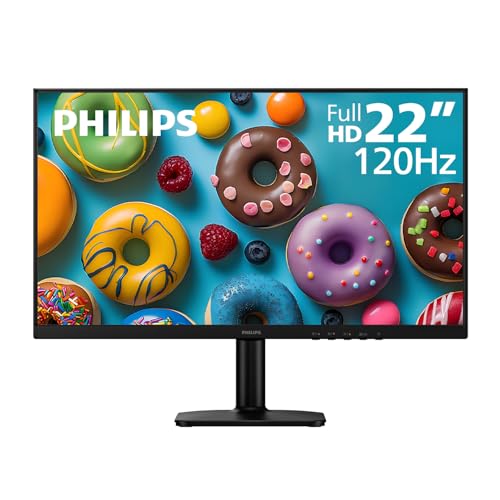
Philips built the bridge between this guide’s two worlds. The 22E2N1100 is, by birth, a business IPS monitor — flat panel, flicker-free backlight, low-blue-light engineering, VESA mount — whose panel overclocks to 120Hz, with Adaptive Sync and a 1ms MPRT figure completing the gaming vocabulary. An overclocked refresh rate is a supported operating mode rather than a hack, but it is one the owner must engage in the menu, and this guide insists on the distinction because the screen that arrives runs in office trim until told otherwise.
What makes the Philips more than a compromise is the ownership proposition wrapped around it: a four-year advance replacement warranty, the strongest in this entire comparison, under which a failed screen is replaced without the dead-unit-first shipping ritual. For a player whose PC is also their livelihood, that cover converts the overclock question from a gamble into a preference. In gaming trim it will not match the Sceptre’s native speed or the AOC’s Fast IPS polish, and MPRT figures flatter panels by measuring with backlight strobing — read it as quick, not as a millisecond verdict. As the one-screen answer for a work-first, play-often desk, though, it is arguably the most adult product here.
- Panel: 22-inch IPS, flat
- Refresh: up to 120Hz via overclock, Adaptive Sync
- Response: 1ms MPRT as listed
- Connections: HDMI 1.4, VGA; VESA mount fitted
- Warranty: four-year advance replacement
Strengths
- Business-monitor manners with a real gaming gear available on demand.
- Advance replacement warranty removes downtime risk for working players.
- Flicker-free, low-blue design respects the workday half of its life.
Trade-offs
- Headline speed requires enabling the overclock; it is not the default state.
- MPRT response numbers are not directly comparable with GtG figures.
- No DisplayPort for desks standardised on that connection.
Best for: professionals who game seriously after hours and cannot afford screen downtime. Not suited for: players wanting native high refresh out of the box, or DisplayPort-only setups.

Samsung S30GD Essential — Office first, games fine
Now the honest reclassification begins. Samsung’s S30GD is an Essential-series business monitor: IPS panel in the 22-inch class, flat, 100Hz, with eye-care features and a tilt-only stand, per its own listing. Samsung fits a Game Mode, and at 100Hz the screen plays modern titles perfectly enjoyably — smoother than any 60Hz panel, responsive enough for single-player adventures, racing games and casual multiplayer. What it is not is esports equipment, and this review will not call it that: serious competitive players will feel the gap to 144Hz in fast shooters, and the stand, inputs and tuning all declare office intent.
That honesty cuts both ways, because as an office monitor that games, the S30GD is excellent value in a way the pure gaming picks cannot match. The IPS panel keeps text and colour civilised across long workdays, Samsung’s eye-care tuning is designed for shift-length exposure, and the whole product carries the service backing of the largest display maker in the set. A buyer whose gaming is an evening hobby rather than an identity should choose this kind of screen without a moment’s guilt — just choose it knowingly, at office-monitor expectations, rather than discovering the classification after checkout.
- Panel: IPS, 22-inch class, flat
- Refresh: 100Hz — office standard, gaming-capable
- Stand: tilt only, per the listing
- Extras: Game Mode, Advanced Eye Care features
- Model code: LS22D304GANXZA
Strengths
- Superb workday panel with genuinely pleasant casual gaming on top.
- Samsung’s eye-care engineering suits the longest desk hours in this guide.
- Manufacturer scale means support and availability are non-issues.
Trade-offs
- Not competitive gaming hardware, whatever the surrounding marketing implies.
- Tilt-only ergonomics need a riser or arm for correct posture.
- No sync technology headline for variable frame rates.
Best for: workers who game casually and want one dependable screen for both. Not suited for: ranked competitive players, who should take the Sceptre or AOC instead.

Dell SE2225HM — Contrast for dark games
Dell’s SE2225HM joins the Samsung in the office-first category, but brings a different panel personality to its gaming hours. This is the set’s flat VA screen — 21.5 inches, 100Hz, 5ms response, 3000:1 contrast — and VA’s deep blacks genuinely change certain games. Horror titles, space sims, stealth games and anything that lives in shadow detail all gain atmosphere that IPS panels render in charcoal rather than black, and films between matches benefit identically. If your gaming taste runs atmospheric rather than competitive, this office monitor may serve your evenings better than a faster IPS serves someone else’s.
The workday half is Dell business standard: HDMI, DisplayPort and VGA covering every source a mixed desk accumulates, tidy styling, and the SE line’s fleet-grade reliability. The gaming caveats must be stated as plainly as the Samsung’s were. One hundred hertz and 5ms is yesterday’s gaming specification — perfectly playable, visibly behind the true gaming picks in motion clarity — and VA panels can smear in the fastest dark transitions, the one scenario where this panel’s strength and weakness share an address. Buy it as the contrast-rich office screen that games well, and it will not disappoint; buy it as esports gear, and it will.
- Panel: 21.5-inch VA, flat — the only VA here
- Refresh: 100Hz, 5ms response
- Contrast: 3000:1 native
- Connections: HDMI, DisplayPort, VGA
- Character: office monitor, atmospheric-gaming strength
Strengths
- Black depth transforms dark games and video in dim rooms.
- Fullest input selection in the set for mixed-generation desks.
- Dell business backing and fleet-grade build expectations.
Trade-offs
- Office-class speed; competitive players will find its ceiling quickly.
- VA smearing can appear in the fastest dark scene transitions.
- Viewing angles narrow compared with the IPS contingent.
Best for: atmospheric and single-player gamers who work on the same desk by day. Not suited for: competitive multiplayer specialists, or shared-angle viewing.

Samsung S40GD — Borderless dual-duty pick
The second Samsung completes the office contingent with the set’s most presentable face. The S40GD is a 22-inch borderless IPS business monitor at 100Hz, with Eye Saver Mode, an ergonomic design brief and a Game Picture Mode that adjusts the image’s posture for play. That last feature is the tell for its classification: gaming here is a picture preset on a business product, not the product’s purpose, and Samsung’s own framing — business monitor first — is one this guide adopts verbatim in spirit. Within it, the screen is a pleasure: thin bezels that make dual setups look intentional, IPS colour that survives a colleague’s viewing angle, and smoothness a full step beyond the 60Hz generation.
Choose it over its S30GD sibling when the desk is shared, paired or customer-visible, because borderless styling and angle stability are the currencies those settings spend. Choose the gaming-designed picks over it whenever the refresh rate is the point of the purchase. There is no shame in either direction — the only failure mode this guide is determined to prevent is a buyer paying gaming expectations into a business product, or dismissing a business product that would have served their actual, mostly-working, sometimes-playing week better than a twitchy esports panel with a mediocre stand.
- Panel: 22-inch IPS, flat, borderless
- Refresh: 100Hz — business class
- Features: Eye Saver Mode, Game Picture Mode, ergonomic design
- Model code: LS22D402GANXGO
- Character: presentation-first dual-duty screen
Strengths
- Borderless design elevates shared and paired-monitor desks.
- IPS consistency serves viewers beyond the main seat.
- Eye-comfort tuning for full-shift professional use.
Trade-offs
- Gaming is a preset here, not a design purpose — set expectations accordingly.
- Contrast stays in IPS territory for dark-room play.
- Business feature set omits speakers and gaming-menu depth.
Best for: shared, paired or client-facing desks with casual gaming after hours. Not suited for: players shopping primarily for motion performance.
How do the six line up for a player?
| Monitor | Panel | Refresh | Sync | Honest classification |
|---|---|---|---|---|
| Sceptre E225W-FW144 | 22-inch flat | 144Hz native | Gaming feature set | Gaming monitor |
| AOC 22B35HM23 | 22-inch Fast IPS, flat | 120Hz | Adaptive Sync | Gaming monitor |
| Philips 22E2N1100 | 22-inch IPS, flat | 120Hz overclock | Adaptive Sync | Business panel, gaming gear |
| Samsung S30GD | 22-inch class IPS, flat | 100Hz | Game Mode | Office monitor that games |
| Dell SE2225HM | 21.5-inch VA, flat | 100Hz | Not a headline feature | Office monitor that games |
| Samsung S40GD | 22-inch IPS, flat | 100Hz | Game Picture Mode | Office monitor that games |
That classification column is the most valuable thing in this guide. Specifications can be compared anywhere; an honest statement of what each product was designed to be is what turns a spec sheet into a decision.
What does refresh rate actually buy you at this size?
Each step up the ladder buys motion clarity and a shorter gap between your input and the picture’s response, with returns that depend on the games you play. The move from the 60Hz of older screens to this class’s 100Hz floor is the largest single jump: panning cameras stop strobing, tracking feels connected, and even desktop scrolling becomes civilised. From 100 to 120Hz the gain is real but finer, most visible in fast shooters and racing lines. From 120 to the Sceptre’s 144Hz, competitive players still swear by the difference while everyone else needs a side-by-side to be sure — which is exactly why this guide refuses to sneer at the 100Hz picks for the audiences they actually serve.
Two conditions govern whether any of it reaches your eyes. The graphics hardware must produce frames at the rate the panel can show — a 144Hz screen fed 70 frames per second is a 70-frame experience with headroom — and the display must actually be set to its full rate in the operating system, a step forgotten in a surprising share of setups. Adaptive Sync, fitted to the AOC and Philips, smooths the in-between reality where frame rates wander, tearing and stutter both suppressed. Judge a gaming monitor as a chain — GPU, cable, settings, panel — because the weakest link, not the headline, is what you play on.
How should you configure a small gaming setup?
Start with the signal path. Connect the PC by DisplayPort where the monitor offers it, or by the supplied HDMI lead, then open the advanced display settings and set the highest refresh the panel advertises; verify it stuck by returning to the menu after a restart. Enable the sync technology in the graphics driver, choose the monitor’s gaming preset or overdrive setting at its middle position — maximum overdrive often trades smearing for inverse ghosting — and disable any eco mode that dims or caps the panel mid-session.
Then arrange the physical game. Screen centre slightly below eye level, panel an arm’s length away, angled squarely at your seat; at 22 inches the whole display sits inside your central vision, which competitive players count as this size’s hidden virtue — no head movement, no scanning, the minimap and the crosshair in one glance. Lighting behind the monitor, even a simple lamp, reduces the contrast strain of a bright panel in a dark room. Headphones will serve five of these six picks better than any speaker solution, and the Sceptre’s built-in audio is best treated as a convenience for voice chat and casual video rather than the main event.
Finish in the games themselves. Cap frame rates a few frames below the panel’s maximum when using sync, lower the settings that cost frames without buying visibility — shadows and volumetrics first — and prefer exclusive fullscreen or its modern equivalents where latency matters. A small panel rewards these disciplines disproportionately, because at 1080p most systems can actually hold the rates this class was built to display.
What mistakes do buyers make in this niche?
Paying for the word gaming instead of the specification is the founding error — the three office picks in this guide are good products whose surrounding marketing borrows a halo their refresh rates have not earned. The mirror error follows: dismissing those same 100Hz screens for a household whose gaming is genuinely casual, and overspending on speed nobody in the home will perceive. Third comes forgetting the settings step, leaving a 144Hz panel idling at 60Hz for a year. Fourth, ignoring the audio question until the silent screen meets the speakerless desk. And fifth, expecting console gaming at high refresh from ports or titles that only deliver standard rates — the panel’s ceiling is not the console’s promise.
What do experienced small-panel players know that spec sheets never say?
They know that consistency beats peak specification. A panel whose brightness, overdrive and sync behaviour stay identical across every session becomes invisible, and invisible equipment is what skill compounds on; the player still fiddling with settings in month three is paying a tax the disciplined player spent once in week one. They know that the monitor is the last place a struggling setup should look for blame — frame rate, settings discipline and network quality each cost more performance than the difference between 120 and 144Hz — and the first place to look for comfort, because the eyes report to nobody else. And they know that at this size, the screen’s second career is guaranteed: today’s main panel is tomorrow’s companion display, so the purchase is never really finished serving, which quietly justifies choosing the genuine gaming design over the impostor when the two sit within a small sum of each other.
They also know how to read a class like this one without cynicism. The presence of office monitors in a gaming guide is not a scam to be exposed but a market to be mapped: three of these screens will make three different households perfectly happy, provided the households buy them with open eyes. The competitive player’s disdain for a 100Hz business panel and the office worker’s indifference to 144Hz are both rational. What is not rational is the fog in between — and fog, in the end, is the only opponent this guide was written against.
Final Recommendation
One practical closing note: whichever screen you order, keep its box through the first month. Gaming panels are the most commonly upgraded and resold items in a PC setup, the original packaging is the difference between a safe shipment and a cracked panel, and storage cupboards across the gaming world are stacked with exactly this foresight. Register the warranty, photograph the rear label with its model and serial codes, and file the invoice with the PC’s other paperwork — the boring trinity that separates owners from former owners when something eventually needs support.
Decide what you are, then buy the label that matches. Competitive player on a small desk: the Sceptre is your screen, with the AOC as the colour-purist’s alternative a step behind in speed and a step ahead in panel grace. Working professional who plays hard but second: the Philips bridges your two lives with a warranty worthy of both. Atmospheric gamer, shared desk, office-first household: the Dell and the two Samsungs will serve you honestly at 100Hz, provided you buy them as what they are. The worst purchase in this class is never a particular model — it is a mismatch between the badge a buyer imagined and the design a manufacturer actually built, and that is a mistake this guide has labelled out of your way. So buy the screen your games, your desk and your working week jointly describe, in that order of questioning, with no question skipped, no badge taken on faith, and no label — gaming or otherwise — believed until the specification underneath it has been read — at this size, more than any other in the monitor market, that description is knowable in advance, measurable on your own desk with a tape and an honest hour, and stable enough that the right choice today will still read as the right choice when the next graphics card arrives to feed it.
Which genres gain the most from this size and speed?
Competitive shooters are the obvious beneficiaries, and the reason is geometry as much as electronics. On a 22-inch screen the whole tactical picture — crosshair, corners, minimap — sits within the cone of vision you read without moving your head, so information arrives faster than on a large panel that forces scanning. Add 120 to 144Hz of refresh and the target you track moves in finer steps; the Sceptre and AOC exist for exactly this pairing of size and speed. Players migrating down from a big, slow television routinely describe the change as the game becoming honest.
Racing and sports titles form the second tier of winners. Their motion is continuous rather than twitch-based, so the step from 60 to 100Hz already transforms them — which is why the office contingent in this guide plays them so convincingly — while sync technology removes the tearing that pans across scenery used to guarantee. Fighting games care about a different variable, input responsiveness, where high refresh helps modestly and consistent frame pacing matters more; every pick here serves a fighting-game household adequately, and none should be bought on a fabricated latency figure.
Strategy, simulation and role-playing games invert the priorities. Their frames are dense with interface and text, where this class’s pixel density flatters them, and their pace forgives 100Hz entirely — freeing the buyer to choose on panel character, where the Dell’s contrast enriches dark fantasy worlds and the Samsungs’ IPS stability suits long, shared, sofa-adjacent sessions. The lesson generalises: match the screen to the genre you actually log hours in, not the genre whose marketing shouts loudest, and half the picks in any guide eliminate themselves honestly.
IPS or VA — which panel family should a small-screen gamer choose?
The IPS case rests on consistency. Colour and brightness hold as your posture shifts through a long session, teammates leaning in from the side see the true picture, and modern Fast IPS — the AOC’s panel — has closed most of the motion gap that once defined the family. For a screen that also handles photo work, streamed content with company, or simply a player who slouches heroically, IPS is the low-regret default, which is why four of these six picks wear it.
The VA case rests on depth. The Dell’s 3000:1 contrast is not a marginal spec-sheet edge; in a dark room it is the difference between shadow detail and shadow soup, and entire genres — horror, stealth, space — are authored in that register. VA’s costs are equally specific: angles narrow, and the fastest dark transitions can smear. A centred, solo, evening player may never trigger either cost in a month of gaming, which is why dismissing VA for gaming wholesale is as sloppy as calling every 100Hz panel esports gear. The families are tools with personalities, and at 22 inches the desk, the lighting and the game library should arbitrate between them.
One clarification protects buyers from a common listing trick: every panel in this guide is flat. Curved screens exist at larger sizes where the wrap serves immersion; at 22 inches a curve would distort more than it envelops, and no pick here attempts it. If a listing in this size brags about curvature, you are reading about a different product than the ones verified for this guide.
Why do portable and LAN setups keep this size alive?
A 22-inch monitor is the largest screen that travels like luggage rather than furniture. It fits a standard equipment case or a careful car boot, weighs little enough to carry one-handed, and sets up on a folding table without structural opinions. For students moving between home and term-time rooms, competitors attending local events, and anyone whose gaming happens in more than one postcode, that portability is not a compromise — it is the entire point, and it explains the Sceptre’s built-in speakers better than any spec analysis: at a LAN desk, every separate device you did not have to pack is a victory.
The same logic makes this class the natural second screen of a larger rig. A main 27-inch display for spectacle, a fast 22-inch panel for the competitive title or the stream chat and stats — the pairing costs less than many single flagship monitors and lets each screen specialise. Buyers building toward that arrangement should choose from the true gaming picks, since the companion’s whole job in the pairing is speed, and keep its VESA compatibility in mind for the arm that will eventually hold both panels in formation.
What should you verify in the first week of gaming on a new panel?
Four checks, done once, protect the whole ownership. Confirm the refresh rate twice — once in the operating system, once in the monitor’s own on-screen readout if it offers one — because a mismatch between the two is a cable or driver problem best caught inside the return window. Run a dark game scene and a bright one at your real playing brightness, looking for the uniformity flaws that spec sheets never mention: corner bleed on IPS, smearing trails behind bright objects on VA. Test every input you own, including the console you will not touch until the holidays. And play one long session at your real posture, because a stand that seemed adequate in a five-minute unboxing has ended more gaming setups than any panel defect.
If the panel fails a check that matters to your games, exchange it while exchange is a formality. If it passes, file the invoice, register the product where the maker offers it — Philips’ advance replacement machinery in particular rewards the registered — and then stop evaluating. A gaming monitor’s job is to disappear beneath the game; the players who enjoy this class most are the ones who did their diligence in week one and never thought about the screen again.
What do overdrive and the gaming presets actually change?
Overdrive is voltage applied with intent: the panel drives pixels harder through their transitions to cut the smearing that fast motion reveals. Every gaming-leaning pick here offers it in some form, usually in steps, and the middle step is where wisdom lives. Too little and trails follow moving objects; too much and the overshoot creates bright halos — inverse ghosting — that look worse than the blur they cured. Set it once with a fast game scene on screen, choose the step where motion looks cleanest rather than the step with the most aggressive name, and then leave it alone across titles, because chasing the setting per game is a hobby disguised as optimisation.
Picture presets deserve the same one-time discipline. The gaming modes on these screens — Samsung’s Game Mode and Game Picture Mode, AOC’s tuned profiles — typically adjust brightness, contrast, sharpness and sometimes response behaviour as a bundle. Some of that bundle is genuinely useful, some is showroom saturation that misrepresents the game’s own art direction, and competitive players often gain more from a custom profile: brightness matched to the room, sharpness at neutral, any dynamic contrast disabled so brightness stays stable during play. Treat the preset as a starting draft, not a verdict, and distrust any mode whose name promises advantage rather than describing a setting.
One setting to hunt down and disable for play is any frame-interpolation or motion-smoothing borrowed from television logic, where fitted; it manufactures frames and latency together. Equally, eco and ambient-light auto-brightness features belong to the workday — a screen that dims itself mid-match is a screen arguing with its owner. The gaming setup ritual in this guide exists to make these decisions once, deliberately, so the panel’s behaviour becomes a constant your skill can build on.
How should you match a graphics card to a 22-inch panel?
The friendly secret of this class is that 1080p is merciful. Integrated graphics from recent processors will drive the desktop and light titles; the competitive conversation starts with entry-level discrete cards, which in esports titles at tuned settings can feed even the Sceptre’s 144Hz. The pairing question is therefore not whether your card qualifies, but which panel tier your card’s honest frame rates justify. A system that holds a hundred frames in your main title gains nothing from 144Hz headroom today — though it gains a screen ready for tomorrow’s upgrade — while a system loafing at three hundred frames in a lightweight shooter is being actively held back by a 100Hz office panel.
Use your actual games as the benchmark, not review averages. Load your most-played title, set the resolution and quality you genuinely use, and watch the frame counter through a busy scene rather than a quiet menu. That number, plus a little headroom, is your panel budget speaking. Sync technology widens the acceptable band in both directions, which is why the AOC and Philips carry it: a card that wanders between eighty and a hundred and twenty frames will feel composed on a sync panel and juddery on a fixed one, a difference worth more than the last few hertz at the top of the range.
A word about input lag, since this size attracts the question
Players shopping small, fast panels often ask which has the lowest input lag, and deserve a straighter answer than the market usually gives. Manufacturers of monitors in this class almost never publish input lag figures — the millisecond numbers on these listings describe pixel response, a different quantity entirely — so any guide quoting precise lag rankings for these six would be inventing them. What can be said honestly is structural: higher refresh rates shorten the wait for the next frame to be shown, gaming-designed panels minimise processing in their fast modes, and television-style image processing is absent from this class altogether. The practical consequence is that all six picks sit in the low-lag territory appropriate to their refresh tiers, the Sceptre and AOC’s gaming designs lead their tier by construction, and players who need measured, laboratory-grade lag data should look to independent measurement databases for the specific model rather than to any listing copy — including, in spirit, this one.
How do you arrange a small panel for long competitive sessions?
Small screens invite players to sit closer, and closeness must be earned with correct height. The panel’s centre belongs a fraction below eye level so the gaze falls naturally across the whole picture; on the tilt-dominant stands of this class, that usually means a riser or an arm, and it is worth the hardware because a low screen bends the neck for exactly the hours when a competitive player can least afford the distraction. Distance follows from size: far enough that the corners stay in peripheral awareness — typically a stretched arm’s length — and no farther, or the size advantage dissolves.
The rest of the station should serve the screen’s smallness rather than fight it. A compact keyboard or a full-size one pushed to a slight angle frees the mouse’s territory on the same side as the dominant hand; the mouse pad, not the monitor, is where desk space should be spent. Cable the panel so the desk’s front edge stays clear, light the wall behind it to soften the room-to-screen contrast, and keep the second screen, if any, at the same height so eye movements between displays stay level. None of this is glamorous, and all of it shows up in the fourth hour of a session, which is where small-panel setups either justify themselves or fall apart.
How long does a gaming panel in this class stay relevant?
Longer than the graphics card beneath it, usually. Refresh and resolution standards at 1080p move slowly, HDMI and DisplayPort at these rates are settled connections, and a well-kept panel will outlast two PC upgrade cycles while remaining entirely respectable — competitive standards bodies still run events on specifications this class meets. When a player does upgrade, the old screen demotes gracefully to the second-display role described earlier, which is why buying the honest gaming design now beats buying the office panel twice. Care is minimal: surge protection, no thumbs in the panel when repositioning, brightness below maximum for desktop hours, and a microfibre cloth as the only cleaning instrument. Treat it that way and the screen’s resale or hand-me-down value in three years will surprise you, because the second-hand market for small fast panels is permanently hungry.
What separates a good evening setup from a frustrating one?
Usually nothing electronic. The frustrating setups share a choreography: a screen left at its shipping brightness searing a dark room, a chair that puts the panel at chest height, a mouse cable dragging across the keyboard because the desk was arranged around the monitor box rather than the player. The good ones were arranged in the opposite order — player seated naturally first, screen brought to the player’s eyes, peripherals fitted into the space that remained, light placed behind the panel, cables given a path that is not across the action. At 22 inches the screen is small enough to be the servant of that arrangement rather than its master, which is a ergonomic compliment larger displays cannot accept. Spend the first evening with a new panel on arrangement before settings; the settings menu will still be there tomorrow, and it will make more sense once the geometry is right.
Frequently Asked Questions
Is 22 inches big enough for serious gaming?
For competitive play, it has real advocates: the entire scene fits in central vision, pixel density stays high, and high frame rates are achievable on modest hardware. For immersive single-player spectacle, most players prefer larger canvases. Seriousness lives in the refresh rate and the player’s skill far more than in the diagonal. It is also worth remembering that this size travelled to tournaments in a carry case long before it decorated desks — portability is a competitive feature in its own right, and for the player whose matches happen at friends’ houses, campus events or local venues, a screen that moves with them will log more serious gaming than a larger panel that never leaves home.
Can my graphics card actually feed 144Hz at 1080p?
In esports titles with sensible settings, a wide range of current and recent mid-range cards can; in the newest cinematic releases, expect to trade settings for frames. The adaptive sync picks soften any shortfall, and a 144Hz panel bought today remains the right partner for the upgraded card you may buy next year.
What is the difference between MPRT and GtG response figures?
They measure different things. GtG times a pixel’s transition between grey levels; MPRT measures perceived blur persistence, often with backlight strobing involved. A 1ms MPRT claim and a 4ms GtG claim can describe comparable real-world motion, so compare figures only within the same method — one reason the AOC’s GtG quoting earns respect in its review.
Do consoles benefit from these high-refresh panels?
Partly. Current consoles output high-refresh modes in supported titles over HDMI, and a 120Hz-capable screen can accept them, but many titles still render at standard rates where the panel’s benefit reduces to its general picture quality. PC players extract the full value of this class; console players should check their favourite titles’ modes before paying for speed.
Why do three office monitors appear in a gaming guide at all?
Because shoppers meet them under gaming searches, their 100Hz panels genuinely play games well by historical standards, and an honest guide gains nothing by pretending the shelf holds only purebred gaming hardware. They are included with their classification printed in plain sight, which is more respect for the buyer than a keyword-matched listing page offers.
What if I mostly play on console but work on PC?
Then the dual-input picks deserve your first look, and your expectations deserve one adjustment. The PC side will exploit everything these panels offer; the console side will run many titles at standard rates and reward the screens for their picture quality, input count and desk manners rather than their ceilings. In that mixed life the Philips and the Sceptre — each with the connections to host both machines gracefully — make the strongest cases, while the single-HDMI picks ask you to swap cables or add a switch, a small toll collected every single day. Count your sources before you count hertz; the arithmetic of daily friction beats the arithmetic of refresh on any desk that works for a living, and the screen that removes a daily annoyance will be thanked more often than the screen that adds a specification you admire twice a year.
How do I clean a gaming screen without damaging it?
Power it down, let it cool, and use a dry microfibre cloth with light strokes; dampen the cloth — never the panel — with plain water for anything stubborn. Sprays marketed for household glass can attack the anti-glare surface, and paper products can scratch it, so both stay in the kitchen where they belong. A clean panel is not vanity in this class: at the close distances small screens invite, dust and fingerprints sit inside the same focal plane as the game, and the two minutes a month this routine costs are repaid in every dark scene.
Should I buy a monitor arm at the same time?
If your chosen pick’s stand is tilt-only and your desk height is fixed, yes — or at least budget the riser. Competitive comfort is mostly screen height, and the arm is the only accessory that also returns desk space and enables the dual-screen formations this guide describes. Check the VESA pattern on your model’s specification before ordering; most of this class supports the common 100mm pattern, but the check costs nothing and the wrong bracket costs a week.
My screen arrived — why does it say 60Hz in Windows?
Because the operating system defaults conservatively and waits to be told. Open the advanced display settings, select the monitor, and choose its highest listed refresh; if the highest listed figure is still 60, suspect the cable or the port — older HDMI leads and laptop docks are the usual culprits — and try the cable supplied in the box on a direct port. This five-minute fix is the single most common rescue in the entire category.
Is an overclocked refresh rate safe for the panel?
When the manufacturer builds and menus the overclock, as Philips does here, it is a supported mode covered by the product’s design intent — and in this case by an unusually strong warranty. It may not hold on every individual unit at the maximum figure, which is why the setting exists as an option rather than a default; enable it, verify stability, and keep the receipt-era paperwork regardless.
Related Guides
Before spending, it is worth seeing the wider compact field in best 21 24 inch monitors, and anyone tempted by a bigger canvas on a gaming budget should weigh best 27 gaming monitors around 300 against the small-desk discipline this guide describes. Gamers building the full desk can pair these panels with the best 100 watt studio monitors for the sound side of the setup. The non-gaming view of this size class is ranked in the best 21 inch monitors.
Related guides
- Best Enterprise SATA SSDs: Endurance Classes, Power-Loss Protection and Fleet Sense
- Best Color Product Label Printers: Six Desktop Machines for Short-Run Product Labels
- Best Printers for Dental Practices
- Best 1440p 165Hz Monitors: One Native 165Hz Pick, Three 180Hz Upgrades, an Overclock Headline and a 160Hz Ultrawide


[…] around 300, while small-desk competitors will find the portable end of the spectrum mapped in best 22 inch gaming monitors. The smallest end of the desk spectrum is covered by the best 21 inch monitors for buyers […]