What's inside
- Where to Buy the Best Cable Modem Routers Without Guessing
- Key Takeaways
- Quick Picks
- How Did We Choose These Best Cable Modem Routers?
- How Do the Best Cable Modem Routers Compare Side by Side?
- What Should You Check Before Replacing a Rented Gateway?
- How Do You Activate a Customer-Owned Cable Modem Router?
- What Mistakes Do Buyers Make With Cable Modem Routers?
- Final Recommendation
- Why Does the Coax Run Behind the Walls Matter as Much as the Box?
- How Should You Set Up Security and Updates on a Combo You Own?
- When Should You Troubleshoot, and When Should You Replace the Combo?
- How Does a Combo Cope as a Household’s Habits Change?
- ARRIS, NETGEAR or Motorola: Does the Brand Change the Experience?
- What Happens When One Box Is No Longer Enough?
- A Short Word on Buying Day Itself
- Frequently Asked Questions
- Related Guides
As an Amazon Associate I earn from qualifying purchases. This post may contain affiliate links at no extra cost to you.
gizmoverdict.com is reader-supported. When you buy through links on our site, we may earn an affiliate commission.
Where to Buy the Best Cable Modem Routers Without Guessing
The best cable modem routers solve a billing irritation and a wiring irritation at the same time, because one box terminates your cable line and broadcasts your Wi-Fi, which means one purchase replaces the rented gateway your provider keeps charging you for and one power brick replaces two. Buy through the linked listing under each pick name below, and read the model code on that listing twice before paying, since this shelf is full of near-identical names separated by a single letter that changes the radio inside. Every pick in this guide is a genuine combination unit with a DOCSIS 3.1 modem built in; modem-only boxes that need a separate router are a different shopping trip and were deliberately left out.
Renting versus buying deserves a straight answer rather than a slogan. A rented gateway arrives pre-provisioned, gets swapped by the provider when it dies, and quietly costs you money every single month for as long as you keep the service. A purchased combo asks you to do one activation, places the hardware risk on your shoulders, and then simply works for years while the monthly equipment line disappears from the bill. We are not going to invent a payback period for you, because that arithmetic depends on your provider, your plan and how long you stay at one address. What we can say honestly is that households who stay put tend to come out ahead, households who move every year should think harder, and nobody should buy a combo their provider has not approved for their plan.
One warning belongs at the front. A cable modem router is married to cable service: it speaks DOCSIS down a coaxial line, and it is useless on fibre, DSL or satellite connections. If there is any chance your street is about to be lit with fibre, or you are already eyeing a move to a fibre provider, a combo is a bet on staying with cable. Readers in that position sometimes prefer a separate modem and router so only half the purchase is stranded by a technology change. Everyone else, settled on cable for the foreseeable future, gets the tidier shelf, the single firmware to update and the single box to reboot when the internet sulks.
Key Takeaways
- All six picks are true DOCSIS 3.1 combinations, so the modem half will not be the bottleneck on current gigabit-class cable plans.
- The ARRIS G54 is the ceiling of this shelf, a quad-band Wi-Fi 7 unit whose listing supports plans up to ten gigabits and adds a ten-gigabit Ethernet port.
- The G34 and G20 cover the sensible middle, both AX3000 Wi-Fi 6 designs aimed at plans up to one gigabit, separated mainly by their wired port counts.
- NETGEAR answers with the CAX30 for smaller homes and the CAX80 for households that stream, game and video-call at the same hour.
- The Motorola MG8702 is the older-school choice, an AC3200 design whose listing leans on signal-boosting and provider approval rather than the newest radio standard.
- Provider approval is not paperwork for its own sake: an unapproved modem can be refused at activation, so match the exact model to your plan before ordering.
Quick Picks
| Pick | Badge | Why it earns its place |
|---|---|---|
| ARRIS SURFboard G34 | Balanced All-Rounder | An AX3000 Wi-Fi 6 combo with four gigabit Ethernet ports that fits the typical gigabit-plan household without overspending on radio it cannot use. |
| ARRIS SURFboard G54 | Future-Proof Flagship | A quad-band Wi-Fi 7 machine with multi-gig support for readers who upgrade plans often and want the modem shelf settled for years. |
| NETGEAR Nighthawk CAX30 | Compact Nighthawk | NETGEAR’s guided setup and four gigabit ports wrapped around a 2.7-gigabit-class Wi-Fi 6 radio for flats and smaller houses. |
| NETGEAR Nighthawk CAX80 | Busy-House Power | A six-gigabit-class Wi-Fi 6 combo built for homes where the evening peak means several streams and a game running together. |
| Motorola MG8702 | Signal-First Classic | An AC3200 combo whose pitch is power-boosted Wi-Fi and broad cable approval, suited to readers who value reach over novelty. |
| ARRIS SURFboard G20 | Lean Two-Port Option | The G34’s recipe trimmed to two Ethernet ports for homes where almost everything connects wirelessly anyway. |
How Did We Choose These Best Cable Modem Routers?
We started from the modem, because a combo lives or dies by whether the provider will activate it and whether its DOCSIS generation matches the plans being sold today. DOCSIS 3.1 is the current class for cable, and every pick here carries it, which matters less for raw speed on a modest plan than for how the modem handles a congested neighbourhood node at eight in the evening. Older DOCSIS 3.0 hardware still appears on this shelf at tempting discounts, and we passed it over on purpose: buying yesterday’s modem standard to save a little money is how readers end up shopping again in eighteen months.
The router half was judged on fit rather than spec-sheet theatre. Wi-Fi 6 is the honest mainstream, Wi-Fi 7 is the forward-looking step, and the older AC wave still serves homes whose devices are mostly AC themselves. Coverage figures printed on these listings are the manufacturers’ own numbers measured under their own conditions, so we treated them as rough size hints, never as promises about your walls. Port counts, by contrast, are hard facts you can plan around, and they separate several picks here more cleanly than radio branding does.
Finally, we kept the category pure. Voice gateways with telephone ports belong to a different decision and appear in a sibling guide in this series, while modem-only units were excluded even when they were excellent, because a reader searching for a combination box should not be handed homework in the form of a second purchase. Each pick below had to stand as a complete answer: plug in the coax, activate, and have a home network.

ARRIS SURFboard G34 — Balanced All-Rounder
The G34 is the pick we would hand to the largest number of cable households, and that is because it refuses to specialise. Its listing describes an AX3000 Wi-Fi 6 router joined to a DOCSIS 3.1 modem approved for plans up to one gigabit, with coverage claimed up to 2,500 square feet and four gigabit Ethernet ports along the back. Read those figures the way they deserve to be read: the plan ceiling and the port count are planning facts, while the coverage number is ARRIS’s own estimate that your floor plan will either flatter or embarrass. In a typical two-storey house with the box placed centrally, a single well-specced Wi-Fi 6 unit like this is a reasonable first attempt before anyone spends on mesh.
What makes the G34 easy to recommend is the absence of a catch. Four wired ports is the count a real household actually needs once the television, a desktop, a game console and perhaps a network drive all ask for cable at once, and many rival combos quietly ship with two. The Wi-Fi 6 radio brings the efficiency features that matter when dozens of small devices — bulbs, plugs, cameras, speakers — share airtime with the laptops doing heavy work. Nothing here chases the multi-gig future, and that restraint is the point: on a gigabit-or-slower plan, the G34’s modem is not the weak link, and the money saved over a flagship can go towards the internet bill itself.
- Class: DOCSIS 3.1 modem with Wi-Fi 6 router
- Listing radio class: AX3000
- Plan support per listing: up to 1 Gbps
- Wired ports per listing: four 1 GbE
- Coverage figure: manufacturer claim up to 2,500 sq ft
Strengths
- Four gigabit Ethernet ports, double what several direct rivals offer, so wired gear does not need a switch on day one.
- DOCSIS 3.1 modem matched to gigabit-class plans, which is where most cable households actually live.
- Wi-Fi 6 efficiency features help crowded device households more than a headline speed figure would.
Trade-offs
- No multi-gig port, so a future plan above one gigabit would outgrow the wired side of this box.
- Single-unit coverage still obeys physics; long ranch layouts and masonry walls may demand a mesh node later.
- The design is a plain black tower that most owners will hide, which can cost a little signal if hidden badly.
Best for: gigabit-plan households wanting one honest box with enough wired ports for the entertainment corner. Not suited for: readers already paying for multi-gig cable tiers or planning to upgrade to one soon.

ARRIS SURFboard G54 — Future-Proof Flagship
The G54 is what the combo category looks like when nobody trims the specification. ARRIS lists a DOCSIS 3.1 multi-gig modem joined to a quad-band Wi-Fi 7 router rated BE18000, supporting plans up to ten gigabits, covering a claimed 5,000 square feet and carrying a ten-gigabit Ethernet port. Four bands is the detail worth pausing on: beyond the familiar frequencies, the extra band gives the router more room to separate demanding traffic from the background chatter of a smart home, and Wi-Fi 7 clients can use the newest tricks the standard allows. This is a box bought by people who upgrade their plan whenever the provider dangles a faster tier and are tired of replacing hardware each time.
Honesty about who needs this matters. If your plan is a few hundred megabits and your devices are a generation or two old, the G54’s ceiling is scenery you will never visit, and the G34 further up this page is the wiser purchase. The G54 earns its premium in homes that already feel the pinch: creators uploading large files daily, households with wired workstations that could use a multi-gig link, early Wi-Fi 7 laptops and phones arriving one upgrade at a time. Buying the flagship also buys time, because a router with this much headroom tends to survive two or three device generations without becoming the bottleneck anyone blames.
- Class: DOCSIS 3.1 multi-gig modem with Wi-Fi 7 router
- Listing radio class: BE18000, quad-band
- Plan support per listing: up to 10 Gbps
- Wired highlight per listing: 10 GbE port
- Coverage figure: manufacturer claim up to 5,000 sq ft
Strengths
- The strongest radio in this guide, with quad-band Wi-Fi 7 ready for devices that have not been bought yet.
- A ten-gigabit Ethernet port gives wired workstations and switches a path that matches multi-gig plans.
- Plan support up to ten gigabits means the modem half should outlast several provider upgrades.
Trade-offs
- The premium is wasted on slower plans; the hardware cannot make a modest tier feel fast.
- Wi-Fi 7 benefits arrive only as Wi-Fi 7 clients do, so older households see a smaller step up.
- Flagship hardware in a combo means a modem problem or a router problem retires the whole unit.
Best for: multi-gig subscribers and heavy home offices that want the cable shelf settled for years. Not suited for: budget-plan households, who would be paying for headroom they cannot use.

NETGEAR Nighthawk CAX30 — Compact Nighthawk
NETGEAR’s CAX30 takes the Nighthawk formula — aggressive styling, an app-led setup, a brand many buyers already trust from standalone routers — and folds a DOCSIS 3.1 modem into it. The listing describes a Wi-Fi 6 combo in the 2.7-gigabit class with four gigabit ports and multi-gig positioning, certified in the listing copy for the big cable providers including Xfinity and Spectrum. That last point deserves emphasis, because provider certification lists are where combo purchases succeed or fail, and a household should always confirm its own provider and plan against the current approved list rather than trusting any guide, including this one.
In daily life the CAX30 suits the smaller end of the housing spectrum: flats, townhouses and modest family homes where one router position can see most rooms and the device count is counted in dozens rather than hundreds. The guided setup NETGEAR advertises is genuinely the right idea for this category, since activating a customer-owned modem already involves a provider account step that confuses people; a setup flow that sequences the coax, the activation and the Wi-Fi naming calmly is worth real money to a first-time buyer. Where the CAX30 steps aside is raw ceiling — its radio class sits below the CAX80 below, and busy large homes should read that pick before deciding this one is enough.
- Class: DOCSIS 3.1 modem with Wi-Fi 6 router
- Listing radio class: 2.7 Gbps Wi-Fi 6
- Wired ports per listing: four gigabit
- Setup: guided, app-led per listing
- Provider mentions in listing: Xfinity and Spectrum among others
Strengths
- Four gigabit ports at a size and class aimed at smaller homes, where rivals often cut the count to two.
- NETGEAR’s guided setup softens the provider-activation hurdle that puts many buyers off owning a modem.
- Nighthawk firmware gives owners familiar controls carried over from the standalone router line.
Trade-offs
- The 2.7-gigabit radio class is the modest end of this guide; large busy homes will feel it sooner.
- No multi-gig Ethernet, so wired speeds stop at gigabit whatever the plan says.
- The sculpted Nighthawk shell takes more shelf presence than its plain rivals.
Best for: flats and smaller houses on mainstream cable plans that want a painless activation story. Not suited for: big multi-storey homes with several simultaneous heavy users at the far rooms.
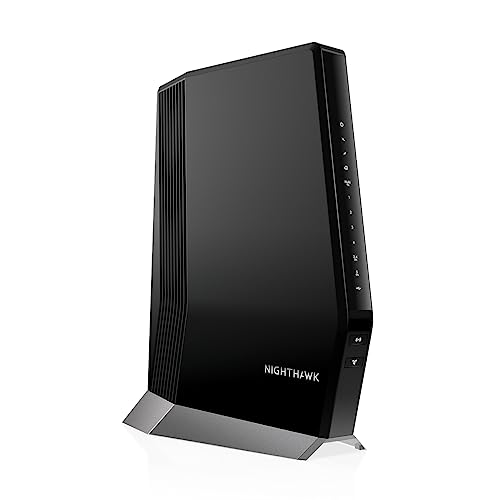
NETGEAR Nighthawk CAX80 — Busy-House Power
The CAX80 is the CAX30’s bigger sibling in every way that matters to a crowded house. Its listing puts the Wi-Fi 6 radio in the six-gigabit class, keeps the four gigabit ports, and describes multi-gig readiness, which together describe a combo aimed at the home where the evening peak is a genuine event: two televisions streaming, a teenager in a competitive match, a parent still on a work call, and a cloud backup quietly trying to finish. Radios do not create bandwidth your plan does not have, but a stronger router divides what you have more gracefully, and that division is what a six-gigabit-class design is actually selling.
There is a judgement call to make between this pick and the ARRIS G54, and it is really a question about timing. The CAX80 is a Wi-Fi 6 flagship, complete and mature, while the G54 bets on Wi-Fi 7. Households replacing everything today, phones and laptops included, may prefer the newer standard; households whose devices are Wi-Fi 6 and likely to stay that way for years will find the CAX80 meets them exactly where they live. Either way, confirm the CAX80 against your provider’s approved list for your specific tier, because high-end combos are precisely the purchases where a plan mismatch hurts most.
- Class: DOCSIS 3.1 modem with Wi-Fi 6 router
- Listing radio class: 6 Gbps Wi-Fi 6
- Wired ports per listing: four gigabit
- Positioning per listing: multi-gig ready
- Household fit: multiple simultaneous heavy users
Strengths
- The strongest Wi-Fi 6 radio in this guide, built for homes where peak hour is genuinely congested.
- Four gigabit ports keep the wired core of the house off the air entirely.
- A mature platform whose behaviour is well understood by its large owner base.
Trade-offs
- Wi-Fi 6 only, so the newest Wi-Fi 7 devices cannot use their extra tricks here.
- Its wired ports are gigabit class, which caps a wired workstation below multi-gig plan speeds.
- Physical size and styling demand a visible spot, and burying it in a cupboard wastes its antennas.
Best for: large, device-dense households on gigabit-class cable that stream and game through the same evening. Not suited for: early adopters determined to build around Wi-Fi 7 clients this year.
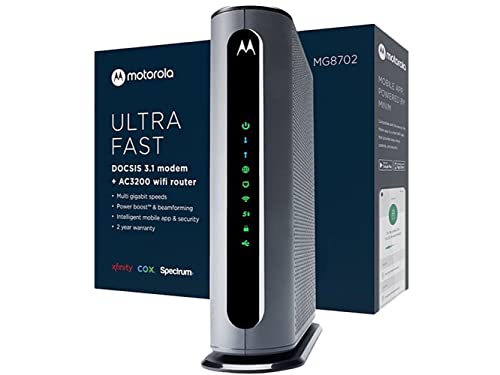
Motorola MG8702 — Signal-First Classic
The MG8702 comes from a different moment in this category’s history and makes no apology for it. Motorola’s listing describes a DOCSIS 3.1 modem paired with an AC3200 Wi-Fi router, highlights what the brand calls Intelligent Power Boost, and notes approval for Comcast Xfinity among its credentials. AC Wi-Fi is a generation behind the Wi-Fi 6 picks around it, and on a spec table that looks like a simple loss. In an actual house the question is narrower: if your phones, laptops and televisions are themselves AC-era, the router generation matches the clients, and Motorola’s pitch is that it spends its effort on pushing a clean signal further rather than on a newer badge.
That makes the MG8702 the pick for a particular reader: someone in a spread-out home, perhaps with the modem point stuck in a corner because that is where the cable enters, who has been fighting weak rooms rather than slow headline speeds. Power-boost claims are vendor language and should be weighed as such, but the underlying idea — antenna and amplifier design aimed at reach — addresses the complaint such households actually have. What this pick cannot do is grow with Wi-Fi 6 or 7 clients later, so buyers planning a round of new laptops should look at the ARRIS pair instead and treat this as the right answer to a present-tense problem.
- Class: DOCSIS 3.1 modem with AC Wi-Fi router
- Listing radio class: AC3200
- Listing highlight: Intelligent Power Boost
- Approval noted in listing: Comcast Xfinity among providers
- Design priority: reach over radio novelty
Strengths
- A reach-first design aimed at the weak-room problem that dominates real cable households.
- DOCSIS 3.1 modem keeps the cable half current even though the radio is an older generation.
- Motorola’s long history in cable modems shows in broad provider approval.
Trade-offs
- AC Wi-Fi lacks the crowded-airtime efficiency features Wi-Fi 6 brought to busy homes.
- Newer laptops and phones cannot stretch their legs on this radio.
- Signal-boost wording is the manufacturer’s own claim, not an independent measurement.
Best for: spread-out homes whose real enemy is a fading signal in the far bedroom. Not suited for: device collectors upgrading to Wi-Fi 6 or Wi-Fi 7 clients this year.

ARRIS SURFboard G20 — Lean Two-Port Option
The G20 is best understood as the G34 with the wired side trimmed. ARRIS lists the same essential recipe — DOCSIS 3.1 modem, AX3000 Wi-Fi 6 router, support for cable plans up to one gigabit, coverage claimed up to 2,500 square feet — but with two gigabit Ethernet ports instead of four. Whether that trade is sensible depends entirely on an honest count of what you actually plug in. Many modern homes wire nothing at all, or wire only a television or a single desktop, and for those households two ports is not a compromise; it is the correct amount of copper and the saving over the G34 is found money.
The caution is about futures rather than presents. Wired habits creep: a network drive arrives, a console gets moved onto cable because its Wi-Fi annoyed someone, a home office hardwires itself for video calls. A small unmanaged switch solves that day cheaply, so the G20 is not a trap, but buyers who already know they wire three or more devices should simply start with the G34 and skip the intermediate step. Judged on its own terms, though, the G20 delivers the same modem generation and the same radio class as its sibling, which makes it the tidy pick for wireless-first homes that still want to own their modem.
- Class: DOCSIS 3.1 modem with Wi-Fi 6 router
- Listing radio class: AX3000
- Plan support per listing: up to 1 Gbps
- Wired ports per listing: two 1 GbE
- Coverage figure: manufacturer claim up to 2,500 sq ft
Strengths
- Same DOCSIS 3.1 modem and AX3000 radio as the G34, trimmed only where wireless homes will not notice.
- A simpler back panel suits installations tucked into media furniture with limited cable room.
- Keeps ownership economics intact for renters-by-choice who wire almost nothing.
Trade-offs
- Two ports fill quickly once a console, a drive and a desktop all ask for cable.
- No multi-gig path, so faster future plans would need new hardware anyway.
- Coverage still rests on placement; a two-port saving does not fix a badly sited router.
Best for: wireless-first flats and houses on gigabit-or-slower plans that wire at most a device or two. Not suited for: wired entertainment racks and home offices that already own a fistful of Ethernet cables.
How Do the Best Cable Modem Routers Compare Side by Side?
| Pick | Modem | Radio class | Wired ports | Character |
|---|---|---|---|---|
| ARRIS SURFboard G34 | DOCSIS 3.1 | Wi-Fi 6 AX3000 | Four gigabit | The balanced default |
| ARRIS SURFboard G54 | DOCSIS 3.1 multi-gig | Wi-Fi 7 BE18000 quad-band | Includes 10 GbE | The long-horizon flagship |
| NETGEAR CAX30 | DOCSIS 3.1 | Wi-Fi 6, 2.7 Gbps class | Four gigabit | The smaller-home Nighthawk |
| NETGEAR CAX80 | DOCSIS 3.1 | Wi-Fi 6, 6 Gbps class | Four gigabit | The busy-house Nighthawk |
| Motorola MG8702 | DOCSIS 3.1 | AC3200 | Gigabit class | The reach-first classic |
| ARRIS SURFboard G20 | DOCSIS 3.1 | Wi-Fi 6 AX3000 | Two gigabit | The lean wireless-first pick |
Read the table by columns, not rows. The modem column barely separates these six, which is exactly why the decision moves to radio class and port count: those two columns describe your daily experience long after the activation call is forgotten. A household that wires its heavy gear should weight ports; a household that lives entirely on Wi-Fi should weight the radio; and a household doing both should simply start at the top of the table and work down until the specification stops matching its evenings.
What Should You Check Before Replacing a Rented Gateway?
Begin with the approval list, because it is the only step that can veto everything else. Every cable provider publishes which customer-owned modems it will activate and on which plan tiers, and the exact model code matters — a suffix letter can be the difference between approved and refused. Check your tier specifically, since a modem approved for slower plans is not automatically approved for the gigabit tier. While you are on the provider’s site, note whether your account includes voice service; if it does, a plain internet combo like every pick here is the wrong product, and the voice-gateway guide in this series is the one you need.
Next, walk to wherever the cable enters your home and look at the reality of the installation. A combo must live where the coax is, unless you pay for a new drop, so that location becomes your router location too. A central, elevated, open spot is ideal; a basement corner behind a water heater is the classic combo failure, blamed on the hardware when the siting was the crime. If your coax point is hopeless, that is a genuine argument for a separate modem and router joined by Ethernet, or for a combo plus a mesh node later — but decide it before ordering, not after the far bedroom reports one bar.
Then count two things honestly: wired devices and wireless generations. Wired devices today plus the ones realistically arriving within two years give you your port floor, and a switch can extend it, but starting with enough ports is tidier. Wireless generations tell you which radio class will actually be used — a house of Wi-Fi 6 laptops gains nothing from Wi-Fi 7 branding, while a house mid-upgrade may reasonably buy ahead. Neither count requires precision; both require honesty, which is cheaper than returns.
How Do You Activate a Customer-Owned Cable Modem Router?
Activation follows the same broad choreography with most cable providers, and knowing the steps in advance turns a dreaded chore into twenty unremarkable minutes. First, disconnect the rented gateway completely and connect the new combo to the same coax, using a snug hand-tightened connector and the shortest reasonable cable run. Power it on and wait longer than feels necessary; modem firmware handshakes with the network happen on the modem’s schedule, and impatient reboots restart clocks that were about to finish.
Second, join the temporary network name printed on the unit’s label from a phone or laptop, and follow the provider’s activation path — usually a browser page or the provider’s app that asks you to sign in and confirm the new equipment. Some providers still prefer a phone call, during which you will read out the modem’s MAC address from that same label, so photograph the label before the box goes onto a low shelf. Third, once service is confirmed on a wired or wireless test device, set your own network name and password, update the admin credentials, and check for a firmware update before you reconnect the household’s whole device zoo.
Finally, do not return the rented gateway until the new combo has survived a full normal day, including the evening peak. Keep the rental’s return receipt when you do take it back, because equipment charges have a way of lingering on bills after the hardware has gone home. A screenshot of your first successful speed test and a note of the activation date cost nothing and settle most billing conversations before they start.
What Mistakes Do Buyers Make With Cable Modem Routers?
The classic mistake is buying the modem the deal page recommended without checking the provider’s approved list for the buyer’s own tier, then discovering at activation that the box belongs to a slower plan’s list. The second mistake is treating coverage claims as guarantees: a square-footage figure from a listing assumes construction and layouts that may share nothing with a brick terrace or a steel-framed flat, and the cure is placement and, where needed, mesh — not a angrier review. The third is forgetting that a combo concentrates risk, so the household that cannot tolerate a day without internet should keep the old gateway until the new one has proved itself, as described above.
Two quieter errors deserve mention. Owners bury combos inside closed cabinets and behind televisions, cooking the electronics and strangling the signal, then conclude the model was poor. And buyers who take telephone service from their cable provider sometimes order an internet-only combo in cheerful ignorance, learning about telephony ports only when the house phone goes silent. Both errors are free to avoid and expensive to discover late, which is the entire argument for reading a guide before the box arrives rather than after.
Final Recommendation
Most cable households should start at the ARRIS SURFboard G34 and only move when they can name the reason: up to the G54 for multi-gig plans and Wi-Fi 7 ambitions, sideways to the CAX80 for a crowded Wi-Fi 6 house, to the CAX30 for a smaller home that values an easy setup, to the MG8702 where weak rooms are the standing complaint, or down to the G20 where almost nothing is wired. That discipline — buying the box your evenings actually need — is worth more than any single specification in this guide. When the coax light settles and the house phone stays silent because you never needed one, the G34 in the middle of the shelf simply disappears into the background of a home that stopped thinking about its internet, and that disappearance is the highest praise a modem router can earn.
Why Does the Coax Run Behind the Walls Matter as Much as the Box?
Owners love blaming the modem and rarely interrogate the cable feeding it, yet the coaxial run inside a house is part of the product you effectively bought. Cable signal weakens through splitters, and older homes often hide a daisy-chain of them behind walls and in attics, each one dividing the signal to feed a room that may no longer even contain a television. A new combo connected at the end of that chain can perform measurably worse than the same box connected near the entry point, and the symptoms — evening dropouts, a modem that resyncs when the neighbourhood gets busy — look exactly like faulty hardware. Before returning a combo that misbehaves, connect it as close to where the cable enters the building as you reasonably can, with as few splitters in between as possible, and see whether the personality changes.
The connectors themselves deserve a minute of suspicion. Loose fittings, corroded outdoor junctions and the thin white patch cables that arrived free with some long-forgotten device all leak signal quality in ways no router setting can repair. Hand-tighten every fitting you can reach, replace patch cables that feel flimsy, and keep the modem’s run away from tight bends. None of this is glamorous, and none of it appears on a listing page, but technicians who fix cable internet for a living start at the wiring for a reason: a surprising share of bad internet is bad plumbing wearing a digital disguise.
Placement of the router half then builds on that wiring reality. The coax point fixes roughly where the combo must stand, so the craft lies in making the best of that spot: raise the unit onto open furniture rather than the floor, keep it out of closed cabinets, give its antennas air on every side, and avoid stacking it on top of other warm electronics. If the fixed point is genuinely poor — a garage corner, a basement utility room — a single Ethernet run to a better position for a separate access point, or a mesh node paired over a wired backbone later, rescues the layout without replacing the combo. Judge placement by the rooms where people actually sit with laptops, not by the signal in the hallway outside the cupboard.
Heat is the slow enemy in all of this. Modem routers run continuously for years, often in the warmest corner of an entertainment stack, and electronics that bake tend to fail in confusing intermittent ways long before they fail completely. A combo that reboots itself on warm evenings, or whose dropouts correlate with the room’s temperature rather than the hour, is telling you something about its environment. Clear space around the vents, never stack the cable box or a game console directly on top of it, and treat persistent heat as a fault to fix rather than a quirk to tolerate, because thermal stress shortens the life of the one device your whole house depends on.
How Should You Set Up Security and Updates on a Combo You Own?
Owning the gateway means owning duties the provider used to perform silently, and the first is the admin password. Every combo ships with default credentials printed on its label, and those defaults are public knowledge; changing the administrator password during setup is not an advanced move but the minimum price of ownership. Use a password the household does not reuse elsewhere, store it wherever the family keeps its important logins, and write the recovery basics on paper kept somewhere sensible, because the person who needs that password at midnight is rarely the person who set it.
Firmware on a cable modem carries a wrinkle owners should understand. On most cable networks the modem side of the firmware is pushed and approved by the provider, which means you cannot always update it yourself and should not try to force the issue with files found on forums. The router side is yours: check its update setting, turn on automatic updates where the brand offers them, and revisit the admin page a few times a year. A combo is infrastructure, and infrastructure hygiene is mostly the discipline of not letting years pass between glances at it.
The guest network deserves deliberate thought rather than a shrug. Visitors, and especially the growing crowd of inexpensive smart devices with murky update habits, are safer on a guest or isolated network than on the same segment as the household’s laptops and storage. Every platform in this guide can carve out some version of that separation, and setting it up once pays quietly forever: the visiting cousin gets internet, the doorbell camera gets internet, and neither gets a path to the work laptop. Parental controls and scheduling, where offered, belong to the same conversation — useful household tools, best configured calmly at setup rather than reactively at bedtime.
Finally, name your network like an adult. A network name that announces the exact hardware model advertises your equipment to the street, and a name carried over from the rented gateway is actually the smarter play: keep the same network name and password the household already uses, and every phone, printer and reluctant smart bulb rejoins without a weekend of re-pairing. That single trick turns a modem swap from a household event into a non-event, and it is the setup step experienced owners mention first when asked for advice.
When Should You Troubleshoot, and When Should You Replace the Combo?
A sensible troubleshooting order saves both money and weekends. Start with the provider: check for a local outage before touching anything, because no amount of local cleverness repairs a neighbourhood fault. Then look at the modem’s lights and interpret them plainly — a unit that cannot hold its downstream lock has a signal or hardware problem, not a Wi-Fi problem, and separating those two families of fault is half the craft. Test with one device wired directly into the combo; if the wired test is clean while wireless struggles, your hunt belongs to placement, interference and client devices, in that order.
Keep a small log when faults are intermittent. Note the time, what the household was doing, and what the modem’s status page reported, because patterns in that log — always at peak hour, always when it rains, always after the heating starts — point at causes no single speed test can reveal. Providers respond better to customers holding dates and symptoms than to customers holding grievances, and a combo still under its maker’s support umbrella deserves a call to that maker too, with the log in hand.
Replacement earns its moment when the evidence stacks up: a modem that resyncs daily on a clean coax run, a provider that has stopped approving the model for your tier, a radio two generations behind the household’s devices, or wired ports that no longer match the plan you pay for. Any one of those is a reason; together they are a verdict. When that day comes, this guide’s structure still serves you — check approval, count ports, match the radio to the clients you own now rather than the ones you owned when the old box was new — and the retired combo, if it still works, can serve a relative on a slower plan instead of going straight to the recycling bin.
How Does a Combo Cope as a Household’s Habits Change?
The household that buys a modem router rarely stays the household it was. A partner starts working from home and suddenly the spare room needs dependable video calls at nine sharp. A child becomes a teenager and the network acquires a gaming console, a streaming habit and strong opinions about lag. A doorbell camera arrives, then a second camera, then a litter of smart plugs, and the device list that once fit on a sticky note becomes a scrolling page in the admin app. A well-chosen combo absorbs this growth quietly because its real specification is not the radio class but the headroom: enough addresses, enough airtime discipline, enough wired ports for the devices that graduate to cables.
Working from home deserves specific planning because its traffic is unforgiving in a particular direction. Video calls expose upload weaknesses and jitter that a film stream politely hides, and cable connections have historically been asymmetric, generous coming down and modest going up. No router in this guide can change the shape of the plan itself, but a stronger unit can prioritise the call over the cloud backup competing with it, and a wired connection for the work laptop removes Wi-Fi from the list of suspects entirely. If the home office is the household’s income, treat its Ethernet cable as furniture: permanent, unglamorous and never borrowed for anything else.
Streaming households grow in the opposite direction, adding screens rather than calls. Each television that arrives tends to stay, and the evening load becomes several simultaneous high-bitrate streams plus phones idling on the same air. This is where the difference between the radio classes in this guide stops being theoretical. A modest Wi-Fi 6 unit handles a couple of streams and background devices gracefully; a house with four televisions, two consoles and a crowd of phones is simply a bigger network than it was, and buying the stronger router at the start is cheaper than discovering the ceiling during a cup final.
ARRIS, NETGEAR or Motorola: Does the Brand Change the Experience?
All three brands in this guide have sold cable hardware for years, and the honest differences between them are about emphasis rather than competence. ARRIS, through the SURFboard line, is the modem specialist’s brand: its range here spans the lean G20, the balanced G34 and the flagship G54 in a tidy ladder, and its products tend to be bought by people who think modem-first. NETGEAR brings a router company’s instincts, with the Nighthawk name, an app-led setup and firmware whose controls will feel familiar to anyone who has owned its standalone routers. Motorola’s licensed line leans on heritage and reach, pitching signal strength and provider approval to buyers who distrust novelty.
Support culture differs in ways worth a thought before purchase. Owning a modem means your first call during an outage may be to the provider, who will sometimes blame customer hardware as a reflex; a brand with clear status pages, readable logs and reachable support makes that conversation shorter. Check, before ordering, that the maker publishes firmware notes for the model, that its support pages cover activation with your provider by name, and that other owners’ questions about your exact model are being answered somewhere. Those are better predictors of a calm ownership experience than any single specification, and they cost ten minutes of reading.
None of this should harden into tribal loyalty. The right brand for a given house is the one whose specific model matches the approval list, the port count and the radio generation that house needs, and all three makers have a model in this guide that fits some household well. Buy the fit, keep the receipt and the label photograph, and let the badge on the front matter as little in year three as it will in fact matter, which is not at all compared with whether the far bedroom can hold a call.
What Happens When One Box Is No Longer Enough?
Sometimes the honest answer to a coverage problem is that the house is bigger than one radio, and owners should hear that as a normal stage rather than a failed purchase. Thick-walled homes, long single-storey layouts and properties with annexes or garden offices routinely defeat any single unit, including flagships. The combo still earns its place in that story as the modem and the wired heart of the network; what changes is that Wi-Fi distribution gets help. A mesh node or access point placed where people actually sit, ideally fed by Ethernet run back to the combo, extends the same network name into the dead zone without a second modem or a second activation saga.
The order of attempts matters. First comes placement, because moving a combo two metres and one shelf higher has rescued more networks than any purchase. Second comes a wired test in the weak room if a cable path exists, since a room that cannot hold Wi-Fi often sits near a coax or Ethernet point installed for a television. Third comes added hardware, bought to match the existing system where the brand offers a sensible path, and placed halfway between the combo and the dead zone rather than inside the dead zone itself, a placement error that guarantees the node repeats a whisper. Owners who climb that ladder patiently usually stop one rung earlier than they feared.
There is also a point where the household simply outgrows the combo pattern, and recognising it is part of honest guidance. A home that has added a wired office, a mesh system, a network drive and a hobbyist’s rack has quietly become a small network with a manager, and separates — modem, router, switches, access points — fit that life better than any single box. Nothing in this guide pretends otherwise. The combo remains the right answer for the great majority of cable homes precisely because most homes want the internet to be an appliance, and appliances should be judged by how completely they disappear.
A Short Word on Buying Day Itself
When the box arrives, resist the urge to install it during the household’s busiest hour. Choose a quiet morning, photograph the label before the unit goes onto its shelf, keep the rented gateway and its power supply together in one bag until the return is complete, and tell the household the internet will blink for a while so nobody schedules a call across the gap. After activation, walk the home once with a phone, checking the rooms that matter rather than the rooms near the router, and write down where the weak spots are before a week of habit makes you forget them. That small ritual — calm timing, a photograph, a walk, a note — is the difference between owners who feel in command of their network and owners who merely possess one.
One last buying-day habit separates careful owners from hopeful ones: keep the order confirmation, the model code and the activation date together, in the same email folder or notebook where the provider account details live. If a billing dispute or a support call ever comes, those three scraps answer most of the questions you will be asked, and they take thirty seconds to file while the details are fresh. Ownership of infrastructure is mostly this — small acts of record-keeping done once, calmly, instead of archaeology performed later under pressure with the internet down and the household watching. File the maker’s support number beside those records too, because the day you need it is never a day with spare patience for searching.
Frequently Asked Questions
Will any of these combos work with my cable provider?
Probably, but probably is not the standard to buy by. Each of these models is sold for the major cable networks and several listings name providers directly, yet approval is granted per provider and per plan tier, and lists change. Take the exact model code to your provider’s customer-owned modem page, match it against your tier, and only then order; that two-minute check is the difference between a smooth activation and a return label.
Does a combo perform worse than a separate modem and router?
Not inherently. A combo removes one network hop’s worth of cabling and one box’s worth of failure points, and the picks here pair current DOCSIS 3.1 modems with routers that would be respectable as standalone units. Separates keep one advantage: you can upgrade or replace either half independently, which matters to enthusiasts and to anyone expecting a technology change. For a settled cable household, the combo’s simplicity usually wins the argument.
What happens to my home phone if I buy one of these?
If your telephone service comes from your cable provider, none of these six is your product, because they are internet-only combinations without telephony ports. Voice service needs an eMTA voice gateway, and this batch of guides covers those in the Xfinity-focused article. If your phone is a mobile or an independent VoIP service running over ordinary internet, a combo here carries it like any other traffic and there is nothing special to arrange.
How long should a DOCSIS 3.1 combo stay useful?
DOCSIS 3.1 is the generation providers are building their current tiers on, so a combo bought today should remain activatable through several plan changes, with the router half more likely to age first as Wi-Fi standards move. Expect the practical limit to be your household’s devices rather than the modem: when your laptops and phones are two Wi-Fi generations ahead of the router, the upgrade itch will arrive on its own schedule.
Can I use one of these combos with fibre or DSL instead?
No. The modem inside speaks DOCSIS over coaxial cable and has no way to terminate a fibre ONT or a DSL line. If you change technology later, the combo cannot follow you, which is why the intro suggests that households expecting an imminent fibre build should think about separates. On cable, though, that single-purpose design is exactly what makes activation straightforward.
Should I buy a cheaper DOCSIS 3.0 combo to save money?
We would not. DOCSIS 3.0 units linger on shelves at attractive discounts, but providers are steadily steering customers to 3.1, some tiers already require it, and the saving buys a shorter useful life. The six picks here all carry 3.1 precisely so that the modem half of your purchase is not the reason you shop again soon.
Related Guides
Readers comparing provider-specific and neighbouring questions in this cluster will also want best comcast xfinity cable modem routers, best fios gigabit routers and best gaming routers around 100.
Copper-line households face a different hardware shelf entirely, covered in best centurylink dsl modem routers.


