What's inside
- Key Takeaways
- Quick Picks
- How Did We Choose These Six Affordable Art Tablets?
- What Actually Matters When You Buy Your First Pen Tablet?
- Why Do So Many Working Artists Still Choose a Tablet With No Screen?
- Which Software Should You Pair With a First Tablet?
- Can You Draw on a Phone or a Chromebook With These Boards?
- How Do the Six Boards Compare Side by Side?
- How Should a Beginner Set Up a Screenless Tablet for the First Week?
- What About Left-Handed Artists and Multi-Monitor Desks?
- How Do You Keep a Pen Tablet Working for Years?
- What Mistakes Do First-Time Tablet Buyers Keep Making?
- Final Recommendation
- Frequently Asked Questions
- Related Guides
As an Amazon Associate I earn from qualifying purchases. This post may contain affiliate links at no extra cost to you.
gizmoverdict.com is reader-supported. When you buy through links on our site, we may earn an affiliate commission.
Where to buy: each board below links straight to its Amazon listing, which is where you confirm which cable and pen nibs sit in the box and how soon it can reach your desk; when a pick sounds right, open its listing and check price on Amazon there, since that page always carries the current figure.
A first drawing tablet rarely fails anyone on specifications. It fails on the second Tuesday, when the novelty has worn off and the board either fits the way you actually work or starts gathering dust beside the keyboard. That is the standard this guide to the best affordable art tablets is built around. All six picks here are screenless pen tablets, the kind where your hand moves on a plain surface while your eyes stay on the monitor, and all six sit in the entry tier where a student, a hobbyist sketching after work, or a teacher annotating slides can buy in without treating the purchase like a studio investment. What separates them is not the headline pressure number. It is active-area size, the shortcut hardware under your non-drawing hand, the software bundled in the box, and how forgiving each board is while your hand and eyes learn to work in different places.
That hand-eye split deserves a plain explanation before any product names. Drawing on a screenless board feels strange for roughly the first week. Your pen travels across a matte surface and the line appears a foot away on the display, which means your brain has to stop watching your fingers and start watching the cursor. Most people adapt faster than they expect, especially if they trace photographs and do simple shape drills for the first few sessions. In exchange for that learning curve you get a straighter posture, a clear view of the whole canvas with no hand covering it, and a desk tool with no display panel to crack, power, or pay to replace. Screenless boards are also the natural starting point for photo retouching, where precision matters more than seeing the pen touch the image.
One more framing note before the picks themselves. “Affordable” in this category does not mean disposable. The boards below come from the same product families that stock design studios and school labs, trimmed in size and shortcut count rather than built down to a toy standard. A careful buyer at this tier is purchasing the genuine pen technology of each brand, the same pressure-sensing approach used higher up the range, packaged for smaller desks and newer artists. That is why the differences worth your attention are ergonomic and practical, and why this guide spends more words on desks, drivers, and daily habits than on any single specification.
Key Takeaways
- Active area shapes comfort more than pressure figures do: a 10×6-inch surface lets your whole forearm join longer strokes, while a 6×4 board suits short sketching bursts and cramped desks.
- Wacom’s Intuos Small is the only pick here whose bundled creative software is a headline feature in its own right, which matters if you own no drawing apps yet.
- The XPPen Deco 01 V3 carries the newest pen generation in this group, with a maker-stated 16K pressure levels, plus a full 10×6 drawing field at an entry-tier position.
- Shortcut count is a workflow decision, not a spec trophy: the HUION H1060P offers 12 hard keys plus 16 soft keys, while the VEIKK A30 answers with a touch pad you operate by feel.
- Every pen in this roundup is battery-free per its listing, so none of them needs charging before a session or mid-flow during one.
- Buy the size your desk can keep out permanently; a board that lives in a drawer gets used a fraction as often as one that stays beside the keyboard.
Quick Picks
| Pick | Badge | Why it earns its place |
|---|---|---|
| Wacom Intuos Small wired | Best starter bundle | The software packed with it means a complete beginner can unbox, install, and be drawing inside one evening. |
| XPPen Deco 01 V3 | Best full-size value | A generous 10×6 field and the group’s newest pen generation, aimed squarely at beginners who plan to keep growing. |
| HUION Inspiroy H1060P | Best shortcut layout | Twenty-eight programmable inputs in total give keyboard-shy artists a way to leave the keyboard in a drawer. |
| XPPen StarG640 | Smallest footprint | A 6×4 surface that slips into a laptop sleeve and still handles notes, signatures, and osu! play with ease. |
| GAOMON M10K | Best control ring | The touch ring under your fingertips handles zoom and brush-size changes without breaking a stroke’s rhythm. |
| VEIKK A30 | Best touch controls | Four touch keys and a central touch pad suit artists who prefer swiping gestures to clicking physical buttons. |
How Did We Choose These Six Affordable Art Tablets?
We started from the entry tier of the screenless market and filtered for boards a first-time buyer can actually live with. Every pick had to offer a battery-free pen, because a stylus that needs charging adds a failure point a beginner does not need. Every pick had to work with the drawing applications people genuinely open, from free tools like Krita and MediBang to subscription software, and had to connect to at least two of the major desktop platforms, with Chromebook and Android support counted as a bonus for school and tablet-based households. Boards that only made sense as gaming pads or signature pads were set aside unless they also held up for sketching.
From there we weighed the things listings can actually prove. Active-area dimensions come straight from each maker’s listing, as do pressure-level figures, which we report as maker-stated numbers rather than laboratory findings, because no two brands measure pen response identically. Shortcut hardware was judged on placement and type rather than raw count alone: a ring or dial you can turn without looking earns more credit than a long row of identical buttons. We also gave real weight to what arrives in the box, since bundled software, spare nibs, and a pen stand change the true cost of starting. Finally, we deliberately kept a spread of sizes. A roundup of six identical 10×6 boards would be easier to write and far less useful to read.
We also excluded a few tempting listings on principle. Boards sold mainly as signature pads for point-of-sale counters lack the pressure nuance drawing demands, and a handful of ultra-cheap no-name tablets ship with drivers so neglected that recommending them would waste more of a beginner’s time than their savings could justify. Everything that survived those cuts is a board we would confidently hand to a friend starting their first digital sketchbook.
What Actually Matters When You Buy Your First Pen Tablet?
Pressure sensitivity is the figure every listing shouts about, so it is the right place to begin being skeptical. The HUION and GAOMON and VEIKK boards here state 8192 levels; the Deco 01 V3 states 16K, meaning 16384. In practice, what your hand notices is not the top of that range but the bottom: how light a touch still registers, and how smoothly a stroke thickens as you press harder. A well-tuned 8192 pen feels more natural than a poorly tuned pen with double the levels, and both figures are maker claims rather than measurements you can compare across brands like-for-like. Treat the number as a generation marker, newest pens tending to pair higher counts with better initial activation, and then move on to the specifications that shape your daily sessions.
Active area is the second specification, and the one buyers most often get wrong in both directions. A 10×6-inch field mapped to a large monitor means small hand movements produce small cursor movements, which is wonderful for careful line work and tiring for sweeping gestures across a wide canvas. A 6×4 field flips that trade: the cursor crosses the screen with a flick, which suits note-taking, photo touch-ups, and fast rough sketching, but fine detail asks for a steadier hand or a zoomed-in canvas. Neither is better in the abstract. Match the board to your monitor size and your stroke length, and remember you can shrink the active area in the driver software, while you can never stretch a small board bigger.
The third consideration is the driver, the unglamorous software layer that decides whether your shortcuts work in your chosen app. All six brands here provide their own driver with per-application profiles, so the brush-size key on the board can become an eraser toggle inside a different program. Set aside twenty minutes after unboxing to assign your four most-used commands, because a tablet whose shortcuts you never configured behaves like a far dumber tool than the one you paid for. Pen tilt support, where offered, matters mostly to artists who shade with the side of a virtual pencil; if your work is line art, inking, or retouching, tilt is a pleasant extra rather than a reason to choose one board over another.
Report rate, the speed at which the board tells the computer where the pen is, rarely appears in beginner discussions yet shapes fast work. A higher report rate keeps the cursor glued to the pen during rapid hatching and quick osu!-style movements, while slower reporting can make very fast strokes feel like they are cutting corners. Listings in this class do not always publish the figure, so we have not ranked the six by it; the honest guidance is that any current board from these makers handles normal drawing speeds without visible lag, and only players of fast rhythm games or artists with an extremely quick hand need to dig into that specification before buying.
Wacom Intuos Small wired — Best starter bundle
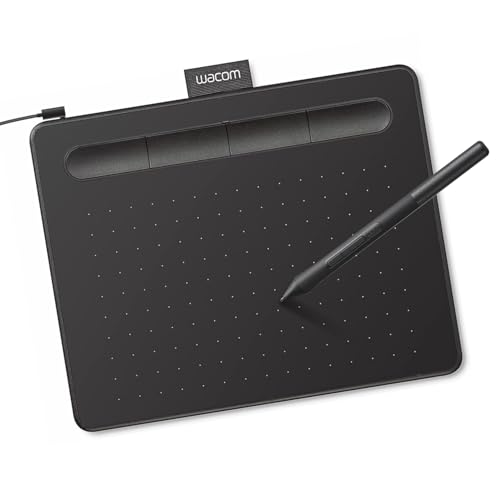
Wacom has sold drawing tablets longer than any other name in this guide, and the Intuos Small shows that experience in an unglamorous way: everything about it is slightly more considered than the spec sheet suggests. The pen is battery-free, the surface texture has a faint paper-like drag that slows a beginner’s stroke just enough to keep lines honest, and the four ExpressKeys sit where a thumb naturally rests. The active area is the compact end of the range, which makes the board easy to keep on a crowded student desk and easy to drop into a bag next to a Chromebook, a pairing Wacom explicitly supports alongside Mac and Windows.
The genuine headline, though, is the software bundle the listing describes. A first-time artist often owns no drawing applications at all, and downloading trials while also learning hand-eye coordination is a recipe for giving up. The Intuos route hands you real creative programs to grow into, which quietly removes the second purchase most beginners do not budget for. Add Wacom’s mature driver, the one most tutorial creators assume you are using when they say “just open the pen settings,” and this becomes the lowest-friction first board in the group, even though several rivals beat it on paper specifications. If the bundled software tempts you, the listing page is the place to confirm which programs are currently included before you check the price on Amazon and order.
One more consideration belongs to households rather than individuals. Because the Intuos line has been the default recommendation in classrooms for years, a student who learns on this board will find the same pen behavior waiting in school art rooms and community-college labs, which shortens every future adjustment. Shared familiarity is a soft benefit that never appears on a spec sheet, yet it is often the reason teachers specify this exact model on supply lists.
- Connection: wired USB
- Pen: battery-free, maker-listed for the Intuos line
- Shortcuts: 4 ExpressKeys
- Platforms per listing: Mac, Windows, Chromebook
- Extras: bundled creative software
Strengths
- Polished driver with the deepest library of tutorials and presets built around it.
- Bundled software turns the box into a complete starting kit rather than hardware alone.
- Surface texture gives new artists welcome friction instead of a slippery glass feel.
Trade-offs
- Compact drawing field feels tight once you graduate to long, sweeping strokes.
- Wired-only connection keeps the board tethered to one spot on the desk.
- Four shortcut keys is the slimmest count among the full-featured picks here.
Best for: complete beginners who own no drawing software and want the smoothest supported path into digital art.
Not suited for: artists who already know they draw with big arm movements and need a wide field from day one.

XPPen Deco 01 V3 — Best full-size value
The Deco 01 V3 is the board we would hand to a beginner who already suspects they will still be drawing in a year. Its 10×6-inch active area gives your forearm room to participate in a stroke, which is how experienced illustrators keep lines smooth, and the eight shortcut keys along the side cover the core commands, undo, brush size up and down, eraser, hand tool, without forcing your other hand back to the keyboard every thirty seconds. XPPen lists the pen at 16K pressure levels, the newest generation figure in this roundup, and while we treat that as a maker claim, the pen’s light-touch response in this class is genuinely easy to live with for sketching and inking.
Versatility is the Deco’s quieter virtue. The listing spans Mac, PC, Android, and Chromebook, so the same board can follow a student from a school Chromebook to a home desktop to a phone for quick edits, and XPPen even names teaching and osu! among its uses, which hints at how responsive the surface feels for fast, small movements too. It lacks the bundled-software story of the Wacom and the sheer key count of the HUION, but as a single board that does the central job well and grows with its owner, it is the balanced center of this group. Readers comparing it against the Intuos should open the Deco’s Amazon listing to check price on Amazon and weigh the bigger field against Wacom’s software bundle.
Sketchbook artists crossing over to digital tend to settle on the Deco quickly, because its size encourages the same shoulder-led movement they already own. Keep a traditional sketchbook beside it for warm-ups and the transition shortens further: five minutes of paper lines, then the same exercise on screen, teaches your arm that the tools differ less than the first session suggested.
- Active area: 10 x 6 inches
- Pen: battery-free stylus, 16K pressure levels as maker-stated
- Shortcuts: 8 keys
- Platforms per listing: Mac, PC, Android, Chromebook
- Aimed at: beginners, teaching, and rhythm-game play
Strengths
- Full-size field supports forearm-driven strokes from the very first week.
- Newest pen generation in this group, with a light initial touch for sketching.
- Broadest platform list here, including Android phones and school Chromebooks.
Trade-offs
- No bundled creative applications, so budget a free program like Krita into your setup.
- Side keys are identical in feel, so you will glance down until muscle memory forms.
- The larger footprint claims real desk space that tiny workstations may not spare.
Best for: beginners and students who want one generously sized board that keeps up as their skills widen.
Not suited for: buyers who need their art software included in the box on the day the tablet arrives.

HUION Inspiroy H1060P — Best shortcut layout
Count the inputs on the H1060P and the design philosophy announces itself. Twelve physical shortcut keys run down the left side, and a further sixteen soft keys line the top of the 10 x 6.25-inch surface, giving twenty-eight programmable triggers in total, by far the most in this roundup. For an artist who works in an application with deep menus, Photoshop-style retouching being the classic case, that density means layers, masks, brush presets, and actions can all live under one hand. The pen is battery-free with a maker-stated 8192 pressure levels, and the listing confirms Mac, Windows, and Android compatibility.
The catch with twenty-eight keys is that nobody uses twenty-eight keys. What owners actually do is program the eight they reach for constantly and let the rest wait until a specific project demands them, and the H1060P supports that pattern well because its driver allows per-application profiles. Set the top soft keys for your drawing app and something else entirely for your photo editor, and the board quietly reshapes itself as you switch windows. Left-handed artists should note the layout can be rotated in the driver, turning the key column to the right side. Anyone whose workflow is shortcut-heavy enough to justify that forest of buttons can verify the current bundle on its Amazon listing and check the price on Amazon before committing.
Photo retouchers will get the most from that key density, because retouching is a keyboard discipline disguised as an art form: dodge, burn, mask, invert, feather, repeat. Mapping that vocabulary onto the H1060P’s two key zones turns a two-handed shuffle into a steady rhythm, and the board’s slightly taller field gives portrait-orientation work a touch more vertical travel than its 10×6 rivals offer.
- Active area: 10 x 6.25 inches
- Pen: battery-free stylus, 8192 pressure levels as maker-stated
- Shortcuts: 12 hard keys plus 16 soft keys
- Platforms per listing: Mac, Windows PC, Android
- Layout: rotatable for left-handed use via driver
Strengths
- Unmatched shortcut density for menu-heavy applications and retouching workflows.
- Slightly taller drawing field than the other 10-inch boards in this group.
- Per-app profiles let the same keys serve different programs intelligently.
Trade-offs
- Soft keys along the top are easy to brush accidentally while reaching for the canvas.
- New users can waste early sessions programming keys instead of drawing.
- No Chromebook support in the listing, which rules it out for some school setups.
Best for: retouchers and shortcut-driven artists who want the keyboard pushed out of the workflow entirely.
Not suited for: minimalists who know they will only ever use undo, zoom, and a brush-size toggle.
XPPen StarG640 — Smallest footprint
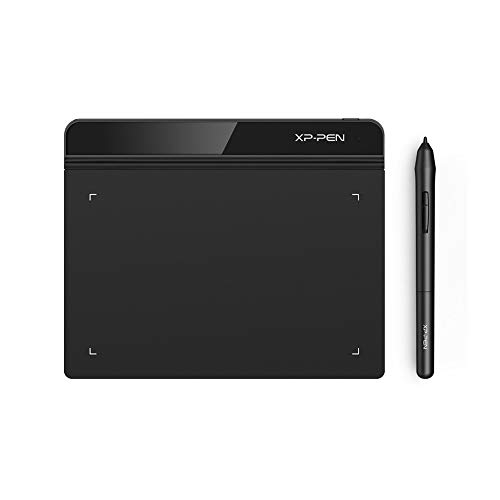
Every roundup needs one pick that answers a different question, and the StarG640 answers “what if I barely have a desk?” Its 6×4-inch active area is the smallest in this group, roughly the footprint of a paperback novel, and that constraint is the point. The board slides into a laptop sleeve, sits comfortably on the tray table of a train, and leaves room on a dorm desk for the notebook and coffee that a 10-inch board would evict. XPPen lists it for Mac, Windows, and Chromebook, and names drawing, e-learning, and remote working among its uses, which matches how owners actually treat it: part sketch pad, part handwriting and annotation tool.
Small boards ask for a technique adjustment rather than an apology. Because a short pen movement crosses the whole monitor, you draw more from the wrist and zoom in for detail work, leaning on the application’s zoom shortcut the way photographers lean on a tripod. For rough sketching, thumbnails, signature capture, whiteboard-style teaching, and the rhythm game osu!, which the Star line is well known for, that quick-twitch mapping feels natural within an hour. What it will not do gracefully is sustained finished illustration at large canvas sizes. Treat it as the portable second board or the modest first step, and it makes complete sense; its Amazon listing will confirm the pen and cable in the box when you check price on Amazon.
Teachers running online classes quietly love boards in this size class for a separate reason: handwriting on a StarG640 looks like handwriting, with none of the wobble that a mouse produces, so worked examples in math and language lessons stay legible for students watching a shared screen. The same legibility serves anyone signing documents or annotating PDFs at a remote job.
- Active area: 6 x 4 inches
- Pen: battery-free stylus
- Shortcuts: minimal, driver-assigned
- Platforms per listing: Mac, Windows, Chromebook
- Carry: sleeve-friendly, travel weight class
Strengths
- Genuinely portable, so it travels between home, class, and office without thought.
- Fast cursor mapping suits handwriting, annotation, and quick thumbnail sketches.
- The natural entry point for anyone unsure whether digital drawing will stick.
Trade-offs
- Fine detail demands constant zooming because the field is so compressed.
- Long strokes feel cramped once your technique develops past wrist drawing.
- Few onboard controls means the keyboard stays within reach for shortcuts.
Best for: students, teachers, and travelers who need a board that lives in a bag rather than on a desk.
Not suited for: illustrators planning finished large-canvas work as their main use from the start.

GAOMON M10K — Best control ring
The M10K’s signature piece of hardware is its touch ring, a circular control set into the board’s left side that your index finger can roll to zoom a canvas, resize a brush, or scroll a timeline depending on how you assign it in the driver. Ten shortcut keys accompany it across a 10×6-inch field, and GAOMON lists the battery-free pen at 8192 pressure levels with Mac, Windows, and Android compatibility. Rings and dials earn their keep in a way extra buttons do not: they handle continuous adjustments, the gradual zoom into a detail, the slow growth of a soft brush, where a key can only step in fixed jumps.
GAOMON aims the M10K at beginners, students, and teachers, and the design suits that audience in one specific way: the ring gives a new artist a single, memorable gesture for the two adjustments beginners make most, zooming and brush sizing, instead of a scatter of keys to memorize during the awkward first month. Photo editors will find the same gesture maps neatly onto slider-style adjustments in retouching software. The board’s surface and pen sit squarely in the proven entry class rather than pushing any specification frontier, so the ring is honestly the reason to choose it over near-identical rivals. If that gesture appeals, open the M10K’s Amazon listing to check the price on Amazon and confirm the included pen stand and nibs.
Video editors borrowing a board for rotoscope-style tasks or title design discover a second use for that ring: frame-by-frame scrubbing. Assign it to timeline movement and the M10K becomes a small editing controller that happens to draw, which is a pleasant bonus for students whose coursework mixes illustration with motion projects.
- Active area: 10 x 6 inches
- Pen: battery-free stylus, 8192 pressure levels as maker-stated
- Shortcuts: 10 keys plus touch ring
- Platforms per listing: Mac, Windows, Android
- Ring roles: zoom, brush size, scroll, driver-assigned
Strengths
- Touch ring handles smooth, continuous adjustments that buttons cannot match.
- Ten keys plus the ring covers core commands without overwhelming a newcomer.
- Full 10×6 field at an entry position, with Android support for phone sketching.
Trade-offs
- Ring sensitivity takes a few sessions to calibrate to your preferred speed.
- No Chromebook mention in the listing, unlike the Wacom and XPPen rivals.
- Design and photo work needing tilt-heavy shading should look at tilt-listed models.
Best for: beginners and photo editors who zoom and resize brushes constantly and want one gesture for both.
Not suited for: Chromebook-only households that need guaranteed school-laptop compatibility.

VEIKK A30 — Best touch controls
VEIKK took a different path from every other maker in this group. Instead of rows of clicking buttons, the A30 puts four touch keys and a gesture touch pad on its 10×6-inch surface, controls you operate by tapping and sliding a fingertip rather than pressing anything down. The appeal is tactile and a little futuristic: the board stays silent in a shared room or a late-night study session, and the pad can mimic scrolling and zoom gestures that feel borrowed from a laptop trackpad. VEIKK lists the pen as battery-free with 8192 pressure levels, and the compatibility line is the broadest here, spanning Windows, Mac, Android, and Linux.
Touch controls divide opinion, so be honest with yourself before choosing this one. Artists who love the positive click of a physical key, the certainty of pressing something without looking, sometimes find touch zones less reassuring because there is no travel to confirm the press. Artists who work by feel and gesture tend to adapt within days and then prefer the silence. The A30’s underlying drawing performance is standard entry class, which means the decision really is about the control surface, plus that Linux support, which is rare enough in this price neighborhood to be a deciding factor for open-source artists running Krita on a Linux desktop. VEIKK’s Amazon listing carries the full compatibility list, so glance through it and check price on Amazon if the gesture approach sounds like your style.
The A30 also makes an interesting shared-household board, because its flat control surface wipes clean and presents no forest of buttons for a younger sibling to mash mid-session. Families passing one tablet between a parent retouching photos and a teenager learning to draw will appreciate how little there is to reconfigure between users beyond loading a driver profile.
- Active area: 10 x 6 inches
- Pen: battery-free, 8192 pressure levels as maker-stated
- Shortcuts: 4 touch keys plus gesture touch pad
- Platforms per listing: Windows, Mac, Android, Linux
- Control style: silent touch, no mechanical clicks
Strengths
- Gesture pad makes zooming and scrolling feel like a natural extension of your hand.
- Silent operation suits shared bedrooms, libraries, and late-night sessions.
- Linux compatibility is a genuine rarity at this end of the tablet market.
Trade-offs
- Touch zones give no physical confirmation, which some artists never warm to.
- Accidental palm contact near the pad can trigger an unwanted gesture early on.
- Only four touch keys, so heavy shortcut users will still keep a keyboard nearby.
Best for: gesture-minded artists and Linux users who want quiet, modern-feeling controls on a full-size field.
Not suited for: artists who rely on blind, click-confirmed button presses throughout long sessions.
Why Do So Many Working Artists Still Choose a Tablet With No Screen?
It is tempting to read the screenless format as a compromise, the thing you settle for until a pen display becomes affordable, and that reading is wrong in a way that matters for your decision. Professional retouchers routinely work on screenless boards in front of large, color-critical monitors that no pen display in this price neighborhood can match for accuracy or size. Animators in studios often prefer a board because their hand never covers the frame they are judging. Illustrators who draw for six or eight hours a day point to posture: eyes level at a monitor, shoulders down, instead of curled over a glowing surface at desk height. The format is a tool with genuine advantages that happen to cost less, which is not the same as being a lesser tool.
There are also practical economics to respect. A screenless board has no panel to develop dead pixels, no backlight to dim with age, and no display cable carrying video alongside data, so the failure modes shrink to a worn pen nib and an aging USB lead, both cheap and replaceable. A board bought for a first year of drawing commonly stays in service as a second machine’s input device, a travel companion, or a hand-me-down for a younger sibling long after its owner upgrades. When you judge the six picks in this guide, judge them as long-lived desk instruments rather than stepping stones, and the question shifts from “which is least limited” to “which fits the way I already sit, draw, and work.”
Longevity shows up in software support as well. The makers represented here have shipped drivers across many operating-system generations, and a board whose driver still installs cleanly on a new laptop five years later is worth more than a marginally fancier board abandoned by its maker. That is a quiet argument for buying from established tablet brands at this tier, and all six names in this roundup have multi-year track records of keeping older models usable rather than orphaning them.
Which Software Should You Pair With a First Tablet?
The application you draw in shapes your progress as much as the hardware does, so it deserves a deliberate choice. Krita is the usual recommendation for a reason: it is free, built specifically for illustration and concept art, and its brush engines reward exactly the pressure control these boards provide. MediBang Paint suits comic and manga workflows and syncs across devices, which pairs nicely with a board that also connects to a phone. FireAlpaca is the lightest of the three and runs happily on aging school laptops. The Wacom’s bundled commercial programs add structured lessons and polished interfaces on top of that free foundation, which is why its software story keeps surfacing in this guide.
Whatever you install, configure it before you judge the tablet. Turn on the application’s pressure-driven brush size or opacity, because several programs default to a fixed-width pen that makes any tablet feel like a mouse. Set the canvas to a comfortable size, learn the zoom and pan shortcuts, and map those two commands to the board before mapping anything artistic. Artists who spend their first session on configuration tend to blame the hardware less and progress faster, because every confusing behavior afterward has a known setting behind it. Your second week can add layer shortcuts, color-picker triggers, and the flip-canvas command that illustrators use to spot drawing errors with fresh eyes.
Can You Draw on a Phone or a Chromebook With These Boards?
Several picks here list Android support, and the experience is better than skeptics assume. Connect a Deco 01 V3 or an H1060P to a phone and the board maps to a portion of the screen, giving you a pocket drawing setup for sketching on a train or annotating in a café, with apps like MediBang and ibisPaint accepting the pen’s pressure once you enable it in their settings. The working area shrinks to match the phone’s aspect ratio, which feels odd for the first minutes and then fades into the background. For travel sketching, where the alternative is a fingertip on glass, a small board in the bag transforms what a phone can do.
Chromebooks are the other growth area, driven by schools. The Wacom Intuos and the XPPen boards in this guide list Chromebook compatibility, which in practice means the tablet works through the ChromeOS pen framework without a traditional driver install, and shortcut customization is simpler than on a desktop. That limitation matters less in a classroom than it would in a studio: a student needs pressure, an eraser toggle, and reliability across a fleet of identical laptops, and these boards deliver that. Households sharing one Chromebook between homework and hobbies should still confirm the specific model on the maker’s listing, since ChromeOS support arrived in waves and older stock descriptions occasionally lag behind current compatibility.
There is a third host worth mentioning for completeness: the Raspberry Pi and Linux crowd, served here by the VEIKK A30’s listed Linux support and by community drivers for several other brands. Open-source artists running Krita on Linux have historically been an afterthought in this market, so a listing that names their platform outright carries weight beyond its rarity. Whichever secondary device you plan to use, test the pairing during the return window rather than months later, because compatibility quirks announce themselves immediately or not at all.
How Do the Six Boards Compare Side by Side?
| Board | Active area | Pen (maker-stated) | Controls | Notable extra |
|---|---|---|---|---|
| Wacom Intuos Small wired | Compact class | Battery-free | 4 ExpressKeys | Bundled creative software |
| XPPen Deco 01 V3 | 10 x 6 in | Battery-free, 16K levels | 8 keys | Android and Chromebook support |
| HUION Inspiroy H1060P | 10 x 6.25 in | Battery-free, 8192 levels | 12 hard + 16 soft keys | Per-application key profiles |
| XPPen StarG640 | 6 x 4 in | Battery-free | Minimal onboard | Sleeve-sized portability |
| GAOMON M10K | 10 x 6 in | Battery-free, 8192 levels | 10 keys + touch ring | Ring for zoom and brush size |
| VEIKK A30 | 10 x 6 in | Battery-free, 8192 levels | 4 touch keys + touch pad | Linux support, silent controls |
Use the table as a map of priorities rather than a ranking. The four 10-inch boards differ mainly in how your free hand talks to the software: buttons in bulk on the HUION, a rolling ring on the GAOMON, gestures on the VEIKK, a balanced eight keys on the XPPen. The two smaller stories sit at the ends of the table for opposite reasons, Wacom selling software and polish in a compact frame, the StarG640 selling sheer portability. Pressure figures cluster tightly once you set aside the Deco’s newer pen generation, which is exactly why the control layout and the active area deserve more of your attention than the numbers in the middle column.
How Should a Beginner Set Up a Screenless Tablet for the First Week?
Start by placing the board directly in front of your monitor, centered on the screen rather than on your keyboard, because the mapping between hand and cursor assumes that alignment and your brain learns it faster when the geometry is honest. In the driver, set the board’s active area to match your monitor’s full surface for the first days, even if strokes feel twitchy; shrinking the area is a refinement for later, once the basic coordination exists. Then assign only four shortcuts: undo, brush size down, brush size up, and the hand or zoom tool. Everything else can stay on the keyboard until the first week ends.
For practice, tracing is underrated. Open a photograph or a favorite illustration on a lower layer and trace its contours slowly, watching the screen rather than your hand, for fifteen minutes a day. Follow that with shape drills, circles and straight lines drawn from the shoulder, and one genuinely fun drawing where accuracy does not matter. Most people feel the click, the moment the cursor starts feeling like an extension of the pen, somewhere between the third and sixth session. If a week passes with no progress, check the unglamorous culprits first: an outdated driver, a second tablet driver from an old board still installed and conflicting, or the board sitting at an angle to the screen. Those three causes explain nearly every “this feels broken” report in this product class.
Posture deserves a deliberate decision during that first week too. Rest the board flat like a sheet of paper rather than propped at an angle, keep your elbow supported, and set the monitor high enough that your gaze stays level while your hand works below it. Artists migrating from paper often hunch toward the board as if the image were on it; breaking that reflex early is what turns the screenless format from an oddity into the most ergonomic way many of them have ever drawn. A wrist rest is unnecessary for most people, but a chair at the right height is not, and the difference shows up around hour two of a long session.
What About Left-Handed Artists and Multi-Monitor Desks?
Left-handed drawers face a layout question right-handed buyers never notice: the shortcut column on most boards sits on the left, exactly where a left-handed artist’s free hand is not. Every driver in this group can rotate the board 180 degrees, moving the keys to the right side, and the HUION and XPPen models handle that flip gracefully because their surfaces are symmetrical enough to use upside down. If you draw left-handed, plan that rotation from the first setup session rather than adapting to a mirrored layout, and prefer models whose cable exits what becomes the top edge after rotation, so the lead does not cross your drawing arm.
Multi-monitor desks raise a mapping question instead. A pen tablet can cover one display or stretch across all of them, and stretching feels efficient until you realize your effective precision has halved, because the same 10 inches of board now steer twice the pixels. Most artists settle on mapping the board to their main drawing monitor and using the mouse for the second screen, which keeps strokes predictable. Several drivers also offer a quick toggle between displays, worth assigning to a spare key if your reference images live on one screen and your canvas on the other. Neither choice is permanent, so experiment during the first week while your habits are still forming.
How Do You Keep a Pen Tablet Working for Years?
Pen nibs are the one consumable in this product class, and they wear faster than new owners expect, especially on textured surfaces like the Wacom’s. A nib worn to a sharp chisel edge can scratch the drawing surface, so check it monthly by running a fingertip across the tip, and swap in a fresh one from the spares every board in this guide includes when the tip feels rough or looks lopsided. The swap takes ten seconds with the nib remover in the box, and keeping up with it preserves both the surface and the quality of your light strokes.
The board itself asks for little: a dry microfiber wipe keeps the surface honest, and storing the pen in its stand or holder rather than loose in a drawer protects the pressure sensor in its tip from knocks. Cables deserve the most respect, since a flexed USB lead is the component most likely to end a board’s life; route it with slack, avoid pinching it under a monitor stand, and the hardware underneath will typically outlast the computer it is plugged into. Drivers are the final maintenance item. Update them when your operating system receives a major upgrade, and remove any previous brand’s driver entirely before installing a new board, because leftover drivers are the single most common cause of phantom pressure problems in this category.
What Mistakes Do First-Time Tablet Buyers Keep Making?
The classic error is buying by pressure number alone, treating 16384 as automatically twice as good as 8192, when the figure is a maker-stated ceiling that says little about how a pen behaves at the light pressures where sketching actually happens. A related mistake is choosing the largest board in the belief that bigger must be more professional, then discovering it crowds the keyboard off the desk and gets unplugged, after which it gets used less than the small board it replaced. Desk reality beats spec ambition every time: measure the space where the tablet will live before ordering.
Skipping driver setup is the third recurring failure. Owners who never open the configuration panel end up reaching for the keyboard hundreds of times a session and conclude the tablet is slow, when the tablet was simply never taught their shortcuts. The fourth mistake is judging the purchase on day one. Hand-eye separation feels wrong initially for essentially everyone, including experienced traditional artists, and boards returned inside the first forty-eight hours are often boards that would have felt natural by day six. Give the learning curve its week before deciding the format is not for you, and keep your traditional sketchbook nearby in the meantime; the two skills reinforce each other more than beginners expect.
A fifth mistake hides in the accessories aisle: buying an expensive stand, glove, and screen protector bundle before the first drawing exists. A two-finger drawing glove is genuinely pleasant once you draw daily, and a spare pack of nibs is wise within the first months, but none of it improves a first week that has not happened yet. Spend the early budget on time at the desk instead. The one accessory worth considering immediately is a simple desk mat under the board if your table surface is glassy, because a board that slides mid-stroke undermines the muscle memory you are trying to build.
Final Recommendation
For the broadest group of readers, the XPPen Deco 01 V3 is the sensible default: a full-size field, the newest pen generation in the set, and platform support wide enough to follow you between machines. Choose the Wacom Intuos Small instead when the bundled software and the most guided beginner experience matter more than drawing area, and pick the HUION H1060P when your applications reward a deep bench of shortcuts. The GAOMON M10K suits gesture-and-zoom-heavy work, the VEIKK A30 suits quiet touch controls and Linux desktops, and the little StarG640 remains the honest answer for a bag, a dorm, or a first tentative step. Whichever board lands on your desk, leave it plugged in and within reach after the first drawing is done, because the tablet you keep seeing is the one that quietly turns a passing curiosity into a habit that survives the year.
Frequently Asked Questions
How long does it take to get used to drawing without a screen?
Most beginners report that the cursor starts feeling connected to the pen within three to six practice sessions, especially with tracing drills done while watching the monitor. Full comfort, the point where you stop thinking about the separation at all, usually arrives within a few weeks of regular drawing. Traditional drawing skill transfers completely; only the coordination layer is new.
Is a higher pressure level count worth paying extra for?
Only mildly, and never as the sole reason. Figures like 8192 and 16384 are maker-stated ceilings, and the quality of light-touch response and stroke smoothing influences your lines far more than the headline count. A newer pen generation often brings other refinements along with the bigger number, which is the real reason to value it.
Can these tablets work with free drawing software?
Yes. Krita, MediBang Paint, and FireAlpaca all accept pen pressure from every board in this guide, and the shortcut keys can be mapped to each program’s commands through the tablet driver. The Wacom additionally bundles commercial creative software per its listing, but no pick here requires a paid application to function fully.
Which size should I choose for a large monitor?
A 10×6-inch board maps more comfortably to a 27-inch or ultrawide display, because cursor movement stays proportional and detail work needs less zooming. On a laptop screen, a compact board feels proportionally larger and works perfectly well. You can also restrict a big board’s active area in the driver, which gives a large tablet a small tablet’s manners when wanted.
Do any of these pens need charging or batteries?
No. Every pick uses a battery-free pen according to its listing, drawing power from the tablet surface itself. That means no charging cables, no dead-pen interruptions, and no battery swelling years down the line, which is one reason screenless boards tend to outlast more complex devices.
Should I buy a drawing glove and other accessories right away?
Hold off until you have drawn for a few weeks. A two-finger glove reduces friction and palm warmth during long sessions and many artists swear by it eventually, but it solves a problem you may never have. Spare nibs are the one accessory worth adding early, since a worn tip is the only routine wear item on any of these boards.
Related Guides
Readers weighing the screenless format against drawing directly on a display should continue to Best Affordable Drawing Tablets With Screen And Pressure, while anyone who prefers a pen tablet judged purely on its own terms will find the companion shortlist at Best Drawing Tablets Without Screen. If your work leans toward design software and shortcut-driven production, Best Affordable Graphics Tablets covers the same class from that angle. Design-led pen displays are compared in the best affordable tablets for graphic design.
Related guides
- Best Sony Full Frame Cameras for Astrophotography: Sensitivity vs Resolution
- Best Basic Phones Camera Buyers Can Trust: Flip Phones and Simple Handsets That Still Take a Photograph
- Best Affordable Android Tablets: Five True Android Slates and One Fire OS Specialist, Clearly Labelled
- Best Kids Smartwatches for Texting and Calling: Six Watch-Phones Under Parent Control