What's inside
- Where to buy
- Key Takeaways
- Quick Picks
- How We Chose
- Why does 5K resolution matter more at 27 inches than at 32?
- What should a photo editor check before trusting a 5K panel’s colour?
- How much USB-C power does a 5K monitor need to deliver?
- How do you set up a 5K monitor so the sharpness survives the first hour?
- Which connection should you choose when a 5K monitor offers several?
- What separates a Mac-first 5K monitor from a general-purpose one?
- How long should a 5K monitor stay useful, and what dates it first?
- The six 5K monitors, reviewed one by one
- Side-by-side comparison
- Common Mistakes
- Final Recommendation
- FAQ
- Related Guides
As an Amazon Associate I earn from qualifying purchases. This post may contain affiliate links at no extra cost to you.
gizmoverdict.com is reader-supported. When you buy through links on our site, we may earn an affiliate commission.
Where to buy
The search for the best 5k computer monitors usually starts with a Mac on the desk and a complaint about text. A 4K panel at 27 inches renders a macOS desktop at a scaling compromise: either everything is a touch small at full resolution, or the system renders a doubled interface that never quite lands on the panel’s native pixel grid. A 5K panel at the same size, 5120 by 2880 pixels, solves that arithmetic cleanly, because the operating system can double every interface point into exactly four physical pixels and the result is the crisp, print-like text that made this class famous. Windows users arrive at 5K from a different direction — raw canvas for photo editing, timelines with more tracks visible, spreadsheets that stop demanding horizontal scrolling — but the destination is the same: a dense 27-inch screen where pixels disappear and work remains.
Six listings make up this guide, and they split into clear families. Samsung’s ViewFinity S8 and ViewSonic’s VP2788-5K are the straightforward professional 5K propositions, built around colour and connectivity. BenQ’s MA270S is the Mac-first specialist, with dual Thunderbolt 4 ports and controls that reach into macOS itself. KTC’s H27P3 is the value challenger whose listing claims a wide gamut and a dual-mode trick at 5K2K. Apple’s Studio Display is the ecosystem statement piece, although its listing title here is strikingly terse — it names the glass and the stand and almost nothing else, and this guide will treat that silence honestly rather than filling it with assumed specifications. Finally, LG’s UltraGear entry drags the class into gaming territory with a Mini-LED panel and a 165Hz refresh rate, proof that 5K is no longer only a retina-text story.
A word about the phrase 5K itself before the picks. In this guide it means the 5120×2880 resolution class, roughly fourteen and three-quarter million pixels, about seventy-seven percent more than 4K UHD. One pick, the KTC, also advertises a 5K2K dual mode — a wider, shorter 5120-pixel-wide format — and its review explains what that trade involves. Where a listing title states a feature, the review uses it; where a title is silent, the specification box says so in plain words and the prose does not smuggle the feature in through the back door. That discipline matters most for the Apple entry, and it matters for USB-C power delivery figures, which only some of these titles bother to print.
Desk depth deserves a mention too, because 27-inch panels with full stands occupy more of it than their screen dimensions suggest, and a shallow desk can push a big display uncomfortably close. Measure from the wall to your seated eye position before ordering, and remember that several of these stands allow the screen to sit further back than a fixed foot would, while a VESA arm — supported by the mounts some titles name — can reclaim the whole footprint. Comfort at this size is geometry before it is technology.
Availability across these six is through Amazon US, and the sensible buying routine is identical for each: open the linked listing, confirm the model code in the title matches the model code discussed here, read the port list on the listing itself rather than trusting a search snippet, and check the stand description twice if your desk setup depends on height adjustment or a VESA arm. Panel technology at this density rewards a careful first hour — set the scaling, calibrate the brightness to your room, and run a uniformity check on a grey screen while the return window is wide open.
Key Takeaways
- 5K at 27 inches means 5120×2880 and pixel-doubled interface scaling that keeps text razor sharp on a Mac.
- The BenQ MA270S is the Mac specialist here: dual Thunderbolt 4 with 96W and 15W, daisy chaining, KVM and on-Mac brightness control, all stated in its title.
- The ViewSonic VP2788-5K prints the strongest charging figure in the set, 100W Power Delivery over Thunderbolt 4, alongside 99% DCI-P3 and Pantone Validated status.
- LG’s UltraGear is the only gaming-shaped entry: Mini-LED IPS, 165Hz, DisplayHDR1000 and both major sync systems in the title.
- Apple’s Studio Display listing title names only standard glass and a tilt-adjustable stand; every other specification must be verified on the listing or with Apple directly.
- The KTC H27P3 undercuts the class formula with 65W Type-C, 99% DCI-P3 and a ΔE figure under 2 printed in its title — claims to verify on arrival.
Quick Picks
| Pick | Panel as titled | Headline strengths | Watch out for |
|---|---|---|---|
| Samsung ViewFinity S8 27″ 5K | 27-inch, 5120×2880, HDR10 | Eye Saver Mode, USB-C port, Samsung Display Manager | No charging wattage or stand detail in the title |
| BenQ MA270S 27″ 5K | 27-inch, 5120×2880, Nano Gloss | Dual Thunderbolt 4 96W/15W, daisy chain, KVM, Mac Color | Built for Mac workflows first |
| KTC 27″ 5K2K Ultrawide | 27-inch, 5120×2880, dual mode | 65W Type-C, 99% DCI-P3, 100% sRGB, ΔE under 2 | Value-brand listing; verify claims on arrival |
| Apple Studio Display | Not stated in the listing title | Standard glass, tilt-adjustable stand | Title states almost nothing; verify everything |
| LG UltraGear 27″ 5K | 27-inch Mini-LED IPS, 5120×2880, 165Hz | DisplayHDR1000, G-Sync, FreeSync Premium, full stand motion | Gaming priorities shape the whole design |
| ViewSonic VP2788-5K 27″ | 27-inch, 5K, IPS | Thunderbolt 4, 100W PD, 99% DCI-P3, Pantone Validated | HDR400 is a compatibility tier, not mastering grade |
How We Chose
Every pick in this guide comes from a verified Amazon US listing whose full title was read line by line before a word of review copy was written. That sounds like a low bar until you see how much monitor marketing depends on the reader assuming a specification that the title never actually states. So the selection rule here was simple: a monitor earned its place by what its own listing claims, in writing, and the review that follows is fenced by those claims. Resolution, gamut percentages, charging wattage, stand movements, sync systems — if it appears in a review below as a fact about that product, it appears in that product’s title. If it does not appear in the title, the specification box marks it as not stated, and the discussion treats it as a question to resolve on the listing page, not as a hidden bonus.
Beyond that evidentiary rule, the six were chosen to map the real decision a 5K shopper faces. Most people cross-shopping this class are not choosing between six identical panels; they are choosing between philosophies. There is the Mac-native philosophy, where the monitor behaves like an extension of the laptop — waking with it, charging it at full speed, mirroring its colour profile, even obeying its brightness keys. There is the colour-professional philosophy, where validation programmes and gamut coverage carry the argument. There is the value philosophy, where a lesser-known brand prints aggressive numbers and asks to be judged on arrival. And there is the performance philosophy, where 5K resolution meets a refresh rate and backlight that belong to gaming hardware. A guide that picked six near-identical professional panels would fail the reader who actually games, just as a guide of six gaming panels would fail the retoucher. The spread below is deliberate.
Two exclusions deserve a sentence each. Panels that reached 5K-class pixel counts only through marketing arithmetic — ultrawides with fewer vertical pixels dressed in 5K language without the 5120×2880 grid or a clearly stated alternative — were held to the standard the KTC meets: state your exact resolution in the title or stay out. And listings flagged as renewed were removed entirely; a factory-sealed panel with a clean return window is the only sane way to buy a display whose uniformity you cannot judge from a product page.
Why does 5K resolution matter more at 27 inches than at 32?
Pixel density is the whole argument, and 27 inches is where 5120×2880 lands in the zone display engineers call retina-class for desktop viewing distances: around 218 pixels per inch, dense enough that individual pixels vanish at a normal seated distance and text edges are drawn by anti-aliasing you cannot see. Stretch the same grid across 32 inches and the density falls, the doubling trick still works, but the crystalline quality softens. Shrink it below 27 and the interface, even doubled, becomes small enough to strain. This is why the class has standardised on 27-inch panels — every pick in this guide is a 27-inch screen — and why a shopper tempted by a larger 4K panel as a cheaper substitute should sit in front of both before deciding: the 4K screen gives more physical room, the 5K screen gives more resolved detail per glance, and for text-heavy work the detail usually wins.
The scaling mechanics deserve one more paragraph because they explain the Mac gravity of this entire category. macOS is built around logical points; at 5K on a 27-inch panel it renders a 2560×1440 workspace where every point maps to four physical pixels, so interface elements are the comfortable size of a 1440p desktop with the sharpness of something far beyond it. Windows handles the same panel through fractional scaling, which modern applications tolerate well, though older software can look soft. Neither operating system is wrong; they simply reward the panel differently, and several picks below lean into that difference with Mac-specific colour modes and controls.
What should a photo editor check before trusting a 5K panel’s colour?
Start with the gamut the title actually claims and the working space the work actually uses. A retoucher delivering for the web lives in sRGB and needs that space covered completely and accurately; a photographer printing wide-gamut work or editing for modern phone screens cares about DCI-P3 coverage, which several titles here quantify — 99% from the KTC and ViewSonic, a P3 gamut claim without a percentage from the BenQ. Percentages are claims, not measurements, so the second check is what stands behind them: a validation programme such as Pantone Validated on the ViewSonic, a printed ΔE figure such as the KTC’s under-2 claim, or a Mac colour-matching system such as BenQ’s Mac Color. The third check is uniformity across the panel, which no title can promise and only an in-person grey-screen test can reveal — one more reason the return window matters more than the launch-day discount.
Gloss is the quiet variable. BenQ specifies a Nano Gloss finish on the MA270S, a deliberate choice for Mac users accustomed to glossy laptop screens and working in controlled light. Matte finishes, which the other titles leave unspecified, scatter reflections and forgive bright rooms at a small cost in perceived contrast. Neither is superior in the abstract; the room decides. An editor working opposite a window should weight reflection handling heavily, while a colourist in a dim studio can enjoy the gloss panel’s punch without penalty.
How much USB-C power does a 5K monitor need to deliver?
Enough to run the laptop under load, not merely to keep its battery icon from falling while it idles. The titles in this guide that print a number span 65W on the KTC, through the BenQ’s dual-port arrangement of 96W and 15W, to the ViewSonic’s 100W. A 14-inch MacBook Pro sips modestly and lives happily on 65W in most workloads; a 16-inch machine under a sustained render can draw harder, and a monitor delivering less than it draws will still work — it will simply supplement rather than sustain, and the battery will ebb slowly through a long session. The honest reading of a wattage figure is therefore about headroom, and the honest response to a missing figure — Samsung’s title names a USB-C port without a wattage, Apple’s names no port at all — is to check the listing’s specification section before assuming the single-cable desk is achievable.
Daisy chaining and KVM switching belong to the same conversation because they decide how many cables the desk swallows. The BenQ states both outright: daisy chain support for a second display driven through the first, and a KVM so one keyboard and mouse can serve two computers. For a desk that hosts a work laptop and a personal machine, those two lines in a title are worth more than a gamut percentage point, and their absence elsewhere is not a defect so much as a positioning — the gaming LG, for instance, spends its complexity budget on the backlight and refresh rate instead.
How do you set up a 5K monitor so the sharpness survives the first hour?
Begin with the cable, because more 5K disappointment traces back to cabling than to panels. Use the cable supplied with the monitor or a certified cable rated for the connection you intend — Thunderbolt for the BenQ and ViewSonic, the appropriate DisplayPort or HDMI lead elsewhere — since an old charge-only USB-C cable from a drawer will often light the screen at a reduced resolution and quietly convince its owner the panel is soft. Once lit, set the operating system’s scaling deliberately rather than accepting the default: on a Mac, choose the doubled workspace that presents a 2560×1440 layout at full panel sharpness; on Windows, pick a scaling percentage your applications render cleanly and restart the one legacy program that still looks fuzzy rather than blaming the display.
Brightness comes next, and the correct setting is the one matched to the room, not the one that impresses in the first minute. A panel driven at full brightness in a dim office fatigues eyes and shifts perceived colour; a panel too dim in a bright room invites the user to lean in and squint at the very text the purchase was meant to clarify. Set brightness while displaying the sort of content the day actually contains — documents, photographs, timelines — then leave it alone for a week before judging. Where a pick integrates with the host’s own brightness keys, as the BenQ does on a Mac, that discipline is easy to keep, because adjustment becomes a keystroke rather than a menu expedition behind the panel.
Finish the first hour with inspection, not admiration. Display a full-screen mid-grey and look for patches that drift pink or green; display full black in a darkened room and note corner bleed; display white and hunt for dust specks trapped in the stack. Every brand in this guide ships an occasional imperfect unit, and the difference between a good purchase and a grievance is simply whether the inspection happened while an exchange was still a formality. Save the box until the week is out.
Which connection should you choose when a 5K monitor offers several?
Thunderbolt is the natural first choice on the two picks that offer it, because a single lead then carries the picture, the charging current and the monitor’s hub functions back to the laptop, and the desk keeps its one-cable promise. The BenQ adds daisy chaining to that picture, letting a second display hang from the first instead of competing for the laptop’s scarce ports. DisplayPort is the connoisseur’s alternative on a desktop tower: a direct, uncomplicated path from graphics card to panel with no docking behaviour in between, and the input to reach for when a gaming-leaning host — the LG UltraGear’s natural partner — wants the panel’s full refresh range without negotiation.
HDMI earns its place as the universal guest port. A work laptop, a personal machine and a small streaming or console device can rotate through a desk across a week, and the panel with an HDMI socket free — the ViewSonic and KTC both list one alongside their fancier inputs — absorbs that rotation without a cable-swapping ritual. The practical rule is to assign each machine a permanent input and teach the desk’s users which source button press summons which computer; the KVM in the BenQ automates exactly that chore for two machines, which is why multi-computer households should weight its presence heavily. Whatever the wiring, write the input map on a note inside a drawer: six months later, when a screen wakes black because it is listening to the wrong port, that note is the difference between a shrug and a support call.
One last connection truth applies across the whole guide: a port’s presence in a title guarantees the socket, not the performance of whatever you plug into it. Charging wattage, daisy-chain support and hub behaviour are separate claims, stated by some titles here and left silent by others, and the specification boxes below keep those ledgers separate on purpose.
What separates a Mac-first 5K monitor from a general-purpose one?
Stand in front of the BenQ MA270S and the ViewSonic VP2788-5K side by side — two excellent 27-inch 5K panels — and the difference is not the picture. It is the relationship with the computer. The Mac-first monitor treats the laptop as its centre of gravity: colour modes tuned to echo the MacBook’s own screen, brightness and volume that answer the Mac’s keys, charging sized for a MacBook Pro, a second Thunderbolt port that invites a daisy chain in the way Mac desks grow. The general-purpose monitor treats every host as an equal citizen: more input types, a validation badge from a colour authority, charging headroom for the hungriest laptops of any brand, and no assumption about which operating system’s conventions the desk follows.
Neither philosophy is a luxury trim of the other; they optimise different days. A desk that is Mac-only, all day, every day, feels the Mac-first integration hourly — in the keystroke that dims the screen, in the photo that holds its colour crossing from laptop to monitor. A desk shared between a Mac and a Windows tower, or a designer whose clients speak Pantone rather than P3, feels the general-purpose panel’s neutrality just as often. The Samsung and the KTC sit on the generalist side of that line with their own accents, office eye care from one and aggressive claimed numbers from the other, while the LG steps outside the argument entirely by asking how the desk spends its evenings. Reading this guide well means deciding which day is yours before comparing a single specification, because the best panel in the wrong philosophy is still the wrong panel.
There is also a growth question hidden in the philosophy choice. Mac-first desks tend to grow by accretion — a second display chained, a phone charging from the spare port, a second Mac arriving for a partner or a job change — and the BenQ’s KVM and daisy chain anticipate that growth explicitly. Generalist desks grow by substitution, machines of different brands rotating through the same screen, which the ViewSonic’s four input families absorb without complaint. Buy for the desk you expect in two years, not only the one photographed today.
How long should a 5K monitor stay useful, and what dates it first?
Resolution classes age slowly. 5K at 27 inches will look correct for as long as the panel itself lasts, because the human eye, not the industry, sets the sharpness ceiling this density already reaches; nobody’s eyesight is scheduled to improve past it in a product cycle. What dates a monitor is everything around the grid: its connections, its charging figures, its hub generation. A panel whose Thunderbolt implementation delivers 96W or 100W today will welcome the next two laptops without an adapter’s apology, while a panel whose port selection belongs to an earlier generation begins negotiating with each new machine. This is why the connection clauses in these titles deserve reading as longevity clauses, and why a buyer choosing between two otherwise equal panels should take the one whose ports belong to the future rather than the past.
The finish question belongs to the same long view, because a screen’s surface is the one specification no setting can change. Gloss, specified on the BenQ as Nano Gloss, deepens perceived contrast and matches the finish of the laptops it partners, at the cost of mirroring bright windows and lamps for the panel’s whole life. Matte finishes forgive difficult rooms and overhead lighting for just as long. If your desk faces a window you cannot shade, weight that single fact above several specification lines when choosing between these six — the room will still be there in five years, arguing with whichever surface you bought.
Panel ageing itself is gentle in this class: brightness ebbs slowly, uniformity drifts slowly, and a monitor verified carefully in its first week tends to stay verified. The practical lifespan of a 5K purchase is therefore set less by the panel than by the desk around it — the machines it must dock, the arms it must fit, the rooms it must survive. Buy the connections and the surface for the desk you expect, and the resolution will take care of the decade.
The six 5K monitors, reviewed one by one

Samsung ViewFinity S8 27″ 5K
Samsung’s ViewFinity S8 is the establishment candidate in this class: a 27-inch, 5120×2880 panel from the brand that has made high-resolution desktop displays a product line rather than an experiment. Its title leads with the resolution and HDR10, then spends its remaining words on Eye Saver Mode, a USB-C port and Samsung Display Manager software. Read plainly, that is a productivity monitor pitched at people who stare at documents and images all day and want the panel to look after their eyes and their window layout while it does so. The ViewFinity name has always signalled Samsung’s creator-and-office tier rather than its gaming tier, and nothing in this listing contradicts that reading.
The working experience this specification sketches is a calm one. 5K density handles the text side; HDR10 support means the panel can accept and display high-dynamic-range content in a watchable form, though the title makes no brightness claim that would elevate it into HDR mastering territory. Eye Saver Mode is Samsung’s low-blue-light and flicker-management branding, the sort of feature that sounds like brochure filler until the ninth hour of a retouching session makes it feel like furniture. Display Manager is the windowing utility — splitting the canvas into zones so a reference image, an edit window and a brief can share the screen without manual dragging — and on a canvas this large, window management stops being a convenience and becomes the difference between using the resolution and merely owning it.
- Size and resolution: 27-inch, 5K (5120×2880)
- HDR: HDR10
- Eye comfort: Eye Saver Mode
- USB-C: USB-C Port stated; power delivery wattage — Not stated in the listing title — verify with the maker’s documentation
- Software: Samsung Display Manager
- Model: LS27H800EFAXZA
- Stand adjustments: Not stated in the listing title — verify with the maker’s documentation
- Gamut coverage: Not stated in the listing title — verify with the maker’s documentation
Strengths
- The ViewFinity line’s office-creator focus suits long document and image sessions.
- Eye Saver Mode addresses the fatigue side of high-density desktop work directly.
- Display Manager software gives the large canvas a practical window layout system.
Trade-offs
- The title gives no charging wattage for its USB-C port, so single-cable laptop use needs checking.
- No gamut percentage is printed, leaving colour coverage an open question on the listing.
- Stand ergonomics go undescribed in the title, which matters for shared desks.
Best for: office-based creators who want Samsung’s 5K canvas with eye-care features for long days.
Not suited for: a desk that needs a printed, guaranteed charging wattage before purchase.
If the ViewFinity’s calm, office-first take on 5K matches your desk, check the current price on Amazon and confirm the port details on the listing before ordering.

BenQ MA270S 27″ 5K
BenQ built the MA270S as though the design brief were a single sentence: make the external monitor a Mac would design for itself. The title is the most information-dense in this guide — 27 inches, 5K 5120×2880, a Nano Gloss finish, dual Thunderbolt 4 ports delivering 96W and 15W, Mac Color, daisy chaining, a KVM switch, brightness and volume control operated from the Mac, height and tilt adjustment, and a P3 colour gamut. Every clause answers a friction that Mac users know from lesser monitors: the external screen that ignores the laptop’s brightness keys, the second cable for power, the extra display that needs its own run back to the machine, the colour shift between the laptop panel and the desk panel.
The dual-port power arrangement is the detail to dwell on. A 96W port feeds the laptop at a level that sustains a MacBook Pro through heavy work, while the 15W companion port handles a phone or a second, lighter device — a small, thoughtful split that recognises how desks actually accumulate hardware. Mac Color is BenQ’s attempt to close the visual gap between the monitor and the MacBook’s own screen, so a photo dragged from one display to the other does not change its mind about what colour it is. Controlling the monitor’s brightness and volume from the Mac’s own keys sounds like a garnish until a week of reaching behind a panel to hunt for a joystick makes it feel essential. Add the KVM — one keyboard and mouse serving, say, a work Mac and a personal Mac mini through the same screen — and the MA270S reads less like a monitor and more like a docking station that happens to have an excellent panel attached.
- Size and resolution: 27-inch, 5K 5120×2880
- Finish: Nano Gloss
- Ports: Dual Thunderbolt 4, 96W / 15W
- Colour: Mac Color, P3 Color Gamut (percentage — Not stated in the listing title — verify with the maker’s documentation)
- Features: Daisy Chain, KVM, Brightness & Volume Control on Mac
- Stand: Height & Tilt Adjustment (pivot — Not stated in the listing title — verify with the maker’s documentation)
- HDR: Not stated in the listing title — verify with the maker’s documentation
Strengths
- Brightness and volume control from the Mac removes daily friction other monitors ignore.
- 96W main-port charging sustains a MacBook Pro while the 15W port tends a phone.
- Daisy chaining plus KVM makes a two-Mac desk genuinely single-cable tidy.
Trade-offs
- The whole design leans Mac; a Windows-first desk uses only part of what it offers.
- Nano Gloss rewards controlled lighting and can mirror a bright window behind you.
- The P3 gamut is claimed without a percentage in the title, so coverage depth is unquantified.
Best for: MacBook Pro owners building a one-cable desk with a second Mac in the picture.
Not suited for: a bright, window-facing room where a glossy finish will reflect all afternoon.
For a Mac desk that should wake, charge and match colour as one system, see the MA270S listing on Amazon for today’s price.

KTC 27″ 5K2K Ultrawide
KTC is the insurgent in this line-up, a value-oriented brand asking to be judged on a specification sheet that reads like it was written to embarrass more expensive panels: a 27-inch 5K monitor with a 5K2K dual mode, a 65W Type-C port, HDR400, 5120×2880 resolution, 99% DCI-P3, 100% sRGB, a ΔE figure under 2, and HDMI plus DisplayPort inputs. The dual mode is the interesting engineering: the panel can present its full 5K grid for desktop work, or switch to the wider, shorter 5K2K format that suits ultrawide-shaped content and certain games. The title names the Mac mini as a compatibility target, a shrewd acknowledgement of where 5K demand currently lives.
The mature way to read this listing is as a set of claims awaiting a home trial. A ΔE under 2, if the shipped unit honours it, is accuracy territory that professional panels advertise proudly; 99% DCI-P3 with full sRGB covers both the web editor and the P3 photographer. The 65W Type-C delivery runs a MacBook Air or a 14-inch Pro comfortably and keeps a bigger machine supplemented. None of this makes the KTC a gamble so much as a verification exercise: order it, run a uniformity screen, check the colour against a known reference, confirm the dual mode behaves with your machine, and let the return window arbitrate. Shoppers comfortable with that routine get the most aggressive price-to-specification ratio in this guide; shoppers who want the numbers guaranteed by a validation programme should look at the ViewSonic below.
- Size and resolution: 27-inch, 5120×2880, 5K2K Dual Mode
- USB-C: 65W Type-C Port
- HDR: HDR400
- Colour: 99% DCI-P3, 100% sRGB, ΔE<2
- Inputs: HDMI & DP
- Compatibility named: Mac mini
- Model: H27P3
- Stand adjustments: Not stated in the listing title — verify with the maker’s documentation
Strengths
- The dual-mode panel covers both full 5K desktop work and 5K2K widescreen content.
- A printed ΔE under 2 and 99% DCI-P3 are bold claims at this end of the class.
- 65W Type-C keeps the single-cable promise for lighter Macs.
Trade-offs
- Every headline figure is a listing claim without a validation programme behind it.
- Stand movement is absent from the title, so VESA plans may be necessary.
- 65W will supplement rather than sustain a 16-inch laptop under full load.
Best for: Mac mini owners happy to verify strong claimed specifications during the return window.
Not suited for: a colour-critical studio that needs certified accuracy paperwork for client work.
The KTC’s sheet is the boldest in this round-up relative to its tier — check its Amazon price and plan a careful first-week test if you order one.
Apple Studio Display
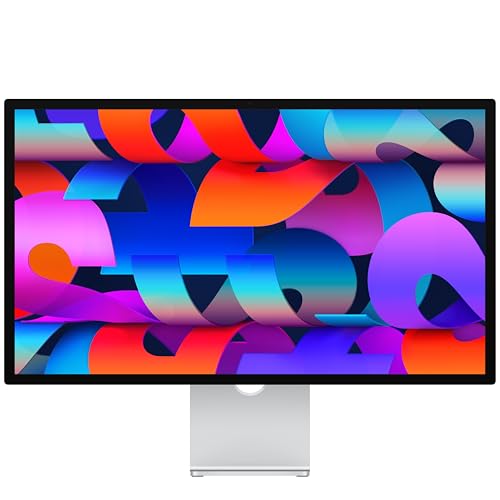
Here is the whole of what this listing’s title tells the world: Apple Studio Display, standard glass, tilt-adjustable stand. No resolution. No size. No ports, no power delivery figure, no colour claim. In a guide governed by the rule that a review may only assert what a title states, the Studio Display therefore becomes an exercise in describing a product by its reputation and its two confirmed attributes — and in being explicit that everything else about this specific listing must be verified on the page or with Apple before money changes hands. Variant confusion is the real-world risk with this product family: glass options and stand options define different configurations at different prices, and a title that names standard glass and the tilt stand at least pins those two choices down.
What can be said responsibly is why the Studio Display sits in a 5K guide at all: it is the reference point of the class, the display Apple’s own ecosystem is designed around, and the one against which Mac users measure every rival in this list — the BenQ MA270S exists in its shape precisely because this product defined the shape. The tilt-adjustable stand confirms height is not part of this configuration’s movement, which matters for desk ergonomics and for anyone planning to rely on the stand rather than an arm. Beyond that, the disciplined advice is procedural: open the listing, confirm the full specification in Apple’s own words, confirm which stand and glass the price attaches to, and only then weigh it against the rivals whose titles told you more.
- Product: Apple Studio Display
- Glass: Standard Glass
- Stand: Tilt-Adjustable Stand
- Size: Not stated in the listing title — verify with the maker’s documentation
- Resolution: Not stated in the listing title — verify with the maker’s documentation
- Ports and power delivery: Not stated in the listing title — verify with the maker’s documentation
- Colour gamut: Not stated in the listing title — verify with the maker’s documentation
Strengths
- The configuration is pinned on the two choices that matter most: glass and stand type.
- It remains the ecosystem reference the other Mac-focused picks are measured against.
- Apple’s retail support structure stands behind the purchase in a way value brands cannot match.
Trade-offs
- The listing title withholds every performance specification a comparison needs.
- A tilt-only stand leaves height to an arm or a riser for many seated positions.
- Variant mix-ups are a genuine ordering risk without careful listing reading.
Best for: Apple-centred desks that have already verified the full specification on the listing itself.
Not suited for: comparison shoppers who want the key numbers settled before opening a product page.
If your desk is Apple through and through, open the Studio Display listing, verify the configuration line by line, and check the price there.

LG UltraGear 27″ 5K
LG looked at the 5K class — all that retina text, all those Macs — and asked what would happen if the panel also ran at 165Hz behind a Mini-LED backlight rated for DisplayHDR1000. The UltraGear 27GM950B-B is the answer, and its title reads like a gaming monitor that wandered into a resolution class above its station: Mini-LED IPS at 5120×2880, NVIDIA G-Sync and AMD FreeSync Premium, AI upscaling, HDMI, DisplayPort and USB-C inputs, and a stand with tilt, height, swivel and pivot. This is the pick for the desk that edits photographs on weekday afternoons and plays games on weekday nights, and refuses to own two screens to do it.
The Mini-LED backlight is the substantive difference from every other panel here. Local dimming zones let bright highlights and dark scenes coexist with a contrast that uniform-backlight IPS cannot approach, which is what the DisplayHDR1000 tier is certifying in the title — a genuine HDR presentation tier, several classes above the HDR400 compatibility badges elsewhere in this guide. The 165Hz refresh at full 5K is a demanding target that will humble many graphics cards, and the AI upscaling feature exists precisely for that gap, reconstructing a lower-rendered frame up to the panel’s grid. Adaptive sync from both ecosystems means the panel plays fairly with whichever GPU feeds it. Even the stand joins in: pivot on a 27-inch 5K panel makes a superb vertical companion orientation for code and documents, a trick the productivity picks mostly leave unstated.
- Size and resolution: 27-inch, 5120 x 2880
- Panel: Mini-LED IPS
- Refresh rate: 165Hz
- HDR: DisplayHDR1000
- Sync: NVIDIA G-Sync, AMD FreeSync Premium
- Features: AI Upscaling
- Inputs: HDMI, DP, USB-C (power delivery — Not stated in the listing title — verify with the maker’s documentation)
- Stand: Tilt/Height/Swivel/Pivot
- Model: 27GM950B-B
Strengths
- DisplayHDR1000 over Mini-LED is the only true HDR presentation tier in this guide.
- 165Hz at 5K future-proofs the panel for stronger graphics cards.
- A full-motion stand including pivot covers gaming, editing and vertical reading alike.
Trade-offs
- Driving 5K at high refresh rates demands serious GPU hardware for native rendering.
- USB-C is listed without a power figure, so laptop charging needs a listing check.
- Local dimming can halo around bright objects on dark backgrounds in some content.
Best for: a single-desk setup splitting time between colour work and high-refresh gaming.
Not suited for: a laptop-only desk expecting the monitor to be its primary charger.
Gamers who also live in Lightroom should check the UltraGear’s Amazon listing for the current price and full input details.
ViewSonic VP2788-5K 27″
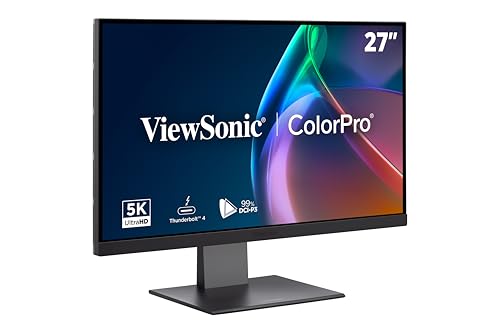
ViewSonic’s VP2788-5K is the professional’s professional in this set: a 27-inch 5K IPS designer display whose title stacks Thunderbolt 4, USB-C, HDMI and DisplayPort connectivity, 100W Power Delivery, 99% DCI-P3 with sRGB coverage, Pantone Validated status, HDR400 and an adjustable stand. The Pantone validation is the line that separates it from the KTC’s self-declared numbers — an external colour authority has checked this panel against its system, which is exactly the sort of evidence a designer producing brand work can lean on. The 100W delivery is the strongest charging figure in the guide, enough headroom for any laptop this panel will plausibly meet.
The connectivity tells a cross-platform story the BenQ deliberately does not. Thunderbolt 4 serves the Mac and modern Windows machines; the separate HDMI and DisplayPort inputs welcome a desktop tower, a console-side PC or a second machine without cable swapping; the plain USB-C mention alongside Thunderbolt covers hosts that speak only that dialect. HDR400 should be read honestly — it certifies the panel can accept HDR signals and present them watchably, not that it grades HDR masters — but for a designer whose deliverables are overwhelmingly SDR stills and layouts, that is the correct tier to pay for. The adjustable stand is named without its axes enumerated, a small title economy that the listing page will resolve. Taken together, this is the pick that asks the fewest leaps of faith: every major claim is either a standard, a validation or a number.
- Size and resolution: 27-inch, 5K
- Panel: IPS Designer Display
- Ports: Thunderbolt 4, USB C, HDMI, DisplayPort
- Power delivery: 100W Power Delivery
- Colour: 99% DCI-P3, sRGB, Pantone Validated
- HDR: HDR400
- Stand: Adjustable Stand (axes — Not stated in the listing title — verify with the maker’s documentation)
- Refresh rate: Not stated in the listing title — verify with the maker’s documentation
Strengths
- Pantone Validated status gives its colour claims an external referee.
- 100W Power Delivery is the most charging headroom offered in this guide.
- Four input families make it the easiest panel here to share across machines.
Trade-offs
- HDR400 is signal compatibility, and HDR-focused video work should look at the LG instead.
- The stand’s adjustment axes are not enumerated in the title.
- No Mac-specific control integration is claimed, unlike the BenQ’s key-level harmony.
Best for: designers producing brand and print work who charge a hungry laptop from the same cable.
Not suited for: HDR video finishing, where the backlight tier matters more than validation.
Designers who want validation behind the gamut numbers can review the VP2788-5K on Amazon and check today’s price there.
Side-by-side comparison
| Monitor | Resolution | Colour claim | USB-C / Thunderbolt power | Stand as titled |
|---|---|---|---|---|
| Samsung ViewFinity S8 | 5K (5120×2880) | Not stated in the listing title | USB-C Port; wattage not stated in the listing title | Not stated in the listing title |
| BenQ MA270S | 5K 5120×2880 | P3 Color Gamut | Dual Thunderbolt 4, 96W/15W | Height & Tilt Adjustment |
| KTC H27P3 | 5120×2880, 5K2K Dual Mode | 99% DCI-P3, 100% sRGB, ΔE<2 | 65W Type-C | Not stated in the listing title |
| Apple Studio Display | Not stated in the listing title | Not stated in the listing title | Not stated in the listing title | Tilt-Adjustable Stand |
| LG UltraGear 27GM950B-B | 5120 x 2880 | Not stated in the listing title | USB-C listed; wattage not stated in the listing title | Tilt/Height/Swivel/Pivot |
| ViewSonic VP2788-5K | 5K | 99% DCI-P3, sRGB, Pantone Validated | Thunderbolt 4, 100W Power Delivery | Adjustable Stand |
Common Mistakes
The most expensive mistake in this class is assuming a specification that a title never stated. It takes many forms: presuming a USB-C port charges at full laptop wattage when no figure is printed, presuming a stand lifts because a rival’s does, presuming a famous product’s listing configuration matches the configuration reviewed elsewhere. The Studio Display entry in this guide is the standing warning — glass and stand variants change what you receive — but the same care applies to the Samsung’s unquantified USB-C port and the ViewSonic’s unenumerated stand. Read the exact listing, match the model code, and let the page, not the product’s reputation, close the sale.
A second mistake is buying 5K for a machine that cannot drive it gracefully. Older laptops and modest integrated graphics can usually light the panel, but scaling, external-display limits and port bandwidth differ by generation; a laptop that outputs 5K only at a reduced refresh rate, or only through one specific port, will make an expensive monitor feel like a compromise. Check the host’s display support against the panel’s input list before ordering, particularly where Thunderbolt is the intended path.
Third, shoppers routinely overpay for the wrong HDR tier or underpay and expect the right one. HDR400 on the KTC and ViewSonic means signal compatibility. DisplayHDR1000 on the LG means a backlight built for HDR presentation. Neither is a trick; they are different products for different work, and the mistake is expecting one to do the other’s job — grading HDR timelines on a 400-tier panel, or paying for a Mini-LED gaming flagship to display spreadsheets.
A fifth mistake is treating the monitor as the end of the colour chain when the work is colour. A 5K panel with a wide claimed gamut still displays whatever profile the operating system hands it, and a laptop left on a mismatched colour profile will make a good monitor look wrong with complete consistency. Spend ten minutes in the display settings of the host — confirming the profile the maker intends for the panel, and on the BenQ, engaging its Mac colour matching when a MacBook’s internal screen is the reference — before concluding anything about the hardware. Several support threads’ worth of disappointment dissolve at exactly this step, and it costs nothing but attention.
Finally, do not skip the first-day panel check. Display uniformity, backlight bleed at the corners and dead pixels are unit-level realities at every brand tier in this guide. A five-minute grey-screen and black-screen inspection on arrival, inside the return window, converts a potential month of quiet dissatisfaction into a simple exchange.
Final Recommendation
Match the panel to the machine and the work, in that order. A MacBook Pro desk that wants one cable, matched colour and brightness keys that behave should take the BenQ MA270S and enjoy the most thought-through Mac integration in the class. A designer whose clients care about colour systems should take the ViewSonic VP2788-5K, where Pantone validation and 100W of delivery remove both the accuracy argument and the charging argument in a single purchase. The LG UltraGear owns the hybrid desk — nothing else here pairs 5K with 165Hz and a DisplayHDR1000 backlight. Samsung’s ViewFinity S8 is the steady office choice, KTC’s H27P3 is the value play for a verifier, and the Studio Display remains the ecosystem reference whose listing demands the most careful reading of all. Choose the philosophy first; the panel follows.
FAQ
Is 5K worth it over 4K for office work?
For text-heavy days, yes, at 27 inches the doubled scaling keeps type crisp in a way 4K at the same size cannot quite match, and the benefit compounds across long reading and writing sessions. For a desk dominated by video calls and browser windows, the difference narrows and the money may serve better elsewhere.
Can one cable really run a 5K monitor and charge a laptop?
Where the title prints the wattage, judge by the number: 100W on the ViewSonic, 96W on the BenQ’s main port and 65W on the KTC cover most laptops, with the larger machines under heavy load preferring the higher figures. Where no wattage is printed, as with the Samsung, treat charging as unconfirmed until the listing’s specification section says otherwise.
What is the KTC’s 5K2K dual mode for?
It lets the panel present a wider, shorter 5120-pixel-wide format alongside its full 5120×2880 grid — useful for widescreen-shaped content and certain games, and for users who like an ultrawide working shape without buying a second, physically wider monitor.
Why does the Apple Studio Display review state so little?
Because its listing title states so little: standard glass and a tilt-adjustable stand are the only attributes given. This guide does not fill silence with assumptions, so the review directs you to verify size, resolution, ports and power on the listing or with Apple directly.
Which of these is the gaming choice?
The LG UltraGear, unambiguously: it is the only pick whose title pairs 5K with a 165Hz refresh rate, Mini-LED backlighting, DisplayHDR1000 and both G-Sync and FreeSync Premium. The others are desktop panels that can show a game, which is a different thing.
Do I need Thunderbolt, or is USB-C enough?
USB-C carrying a display signal is enough to light any of these panels from a compatible host. Thunderbolt, as on the BenQ and ViewSonic, adds the tidier docking behaviours — higher assured power delivery, daisy chaining on the BenQ, and hub-style connectivity — that multi-device desks appreciate.
Should a 5K monitor go straight onto a monitor arm, or is the supplied stand the safer start?
Live with the supplied stand for the first week, even if an arm is already planned. That week tells you where your eyes actually settle against a 5120 by 2880 desktop: how high the panel centre needs to sit, how far back it can go before menu text feels distant, and whether you tilt it once and forget it or adjust it whenever you swap between documents and photographs. The listings describe quite different starting points, from height and tilt adjustment on the BenQ MA270S to the tilt, height, swivel and pivot movement named for the LG UltraGear, so the stand in the box may already cover the movement your desk needs. If an arm still appeals after that trial week, treat it as a separate purchase decision. Read the listing again for the panel’s weight and its mounting pattern before ordering anything, measure the desk clamp position against your cable run, and keep the original stand in its box rather than discarding it. A boxed stand makes a later desk move, a warranty conversation or a resale far simpler than a panel balanced on hardware bought in a hurry.
Related Guides
- Best monitors for MacBook Pro with USB-C docking
- Best monitors for colour grading video work
- Best 49-inch ultrawide gaming monitors
A 5K desk usually runs more than one operating system across the week, and our guide to the best laptops for developers linux covers the machines that make the Linux side painless.
The desk display and the travel display are bought with the same eyes, and our guide to the best mini projectors for powerpoint presentations covers the pocketable half of the setup.


