What's inside
- Key Takeaways
- Quick Picks
- How Did We Choose These Six 40-Inch Monitors?
- What Does a 40-Inch Ultrawide Actually Replace on a Desk?
- Why Does the 5K2K Versus 3440×1440 Split Matter So Much?
- The Six Best 40 Inch Computer Monitors, Examined One at a Time
- How Do the Six Compare Side by Side?
- How Does a 40-Inch Ultrawide Compare With the Alternatives You Are Probably Considering?
- How Should You Set Up a 40-Inch Monitor So It Stays Comfortable?
- What Mistakes Do Buyers Make at This Size?
- How Do You Actually Work Across Forty Inches All Day?
- What Should You Check in the First Week of Ownership?
- How Long Should a Monitor This Size Last, and What Protects the Purchase?
- What Should You Expect From HDR and Colour on a Desk Monitor?
- Final Recommendation
- Frequently Asked Questions
- Related Guides
As an Amazon Associate I earn from qualifying purchases. This post may contain affiliate links at no extra cost to you.
gizmoverdict.com is reader-supported. When you buy through links on our site, we may earn an affiliate commission.
Where to buy: Every monitor in this guide links to its Amazon listing, where the exact panel, stand and port list for that model can be confirmed before ordering. That check matters more at this size than at any other, because brands sell 40-inch screens in two very different resolutions under nearly identical names, and the listing page is where the difference is spelled out.
The best 40 inch computer monitors occupy a peculiar and wonderful corner of the desk market. Forty inches is too wide to be a bigger version of a normal monitor, and that is precisely the point. A screen this size, almost always in the 21:9 ultrawide shape, replaces the two-monitor setup that knowledge workers have tolerated for decades: no bezel gap down the middle, no second stand eating the desk, no window forever stranded half on one display and half on the other. In its place you get one continuous work surface wide enough for a document, a spreadsheet and a chat window to sit side by side without any of them being squeezed into a sliver.
But the 40-inch label hides the single most important decision in this category, and it is a decision about resolution rather than size. Most of the screens below carry 5120×2160 pixels, a class called 5K2K or WUHD, which keeps text nearly as crisp as a good 27-inch 4K display while adding enormous width. One pick, the INNOCN 40C1R, carries 3440×1440 instead — the same pixel count as a familiar 34-inch ultrawide, stretched over a larger panel. That is not a defect; it is a different product for a different buyer, with a faster refresh rate and a gaming lean. What it must never be sold as is a 5K2K screen, and this guide keeps the two classes clearly labelled from the first table to the final verdict.
Who actually benefits from a panel this wide? Analysts who live in spreadsheets with forty visible columns. Writers and editors who keep research beside the draft. Developers who want an editor, a terminal and a preview open at once — readers in that camp may also want our best 32 inch 4k computer monitors comparison for the taller, sharper alternative. Video editors gain a timeline that stretches instead of scrolls. And anyone whose neck has spent years swivelling between two mismatched screens will feel the ergonomic argument within a day. If your work is mostly one window at a time, honestly, a smaller screen serves you just as well; width only pays when your work spreads out.
Key Takeaways
- Resolution divides this class in two: five picks here are 5120×2160 5K2K panels built for dense desk work, while the INNOCN 40C1R is a 3440×1440 screen that trades pixel density for a 144Hz gaming-friendly refresh.
- A 40-inch 21:9 display roughly equals two 27-inch monitors side by side in usable width, with no centre bezel and a single stand to accommodate.
- USB-C power delivery is only quoted where a listing title states it: the Deco Gear names 90W and the M² Vision names 65W, so treat any other hub claim as something to verify on the listing.
- Curve is universal in this group, and at this width it is functional — the far corners of a flat 40-inch panel would sit noticeably farther from your eyes than the middle.
- Refresh splits by intent: 75Hz and 120Hz on the productivity-first models, 144Hz on the INNOCN and 180Hz on the Samsung Odyssey G7 for buyers whose evenings involve games.
- Desk depth is the hidden requirement; plan on sitting farther back than you do from a 27-inch screen, or text at the edges will demand head turns all day.
Quick Picks
| Pick | Badge | Why it earns its place |
|---|---|---|
| Dell UltraSharp U4025QW 40-Inch 5K2K | Reference productivity panel | The UltraSharp name applied to a curved 5K2K canvas — the conservative, buy-it-for-a-decade choice for serious desk work. |
| LG 40U990A-W 40-Inch 5K2K Ultrafine | Fullest stated feature list | Thunderbolt 5, 120Hz, DisplayHDR 600 and a full ergonomic stand, all named in one listing title. |
| INNOCN 40C1R 40-Inch Ultrawide | Fastest of the value tier | A 3440×1440 panel at 144Hz with FreeSync Premium — a gamer’s 40 inches, honestly labelled as the lower resolution. |
| Samsung 40-Inch Odyssey G7 WUHD | Gaming flagship | WUHD resolution with a 180Hz refresh and 1ms response for buyers who refuse to choose between width and speed. |
| Deco Gear 40-Inch 5K2K Ultrawide | Hub value | True 5120×2160 resolution plus a stated 90W USB-C output and picture-by-picture, without flagship pricing language. |
| M² Vision 40-Inch 5K2K Ultrawide | Mac-friendly alternative | An IPS Black 5K2K panel at 120Hz with 65W USB-C, pitched squarely at laptop-first desks. |
How Did We Choose These Six 40-Inch Monitors?
We began by policing the category boundary. Plenty of screens are marketed with a 40-inch-class label while belonging to a different conversation — televisions with a monitor mode, 38-inch ultrawides wearing a rounded-up size, and stretched 3440×1440 panels described in language designed to make a hurried reader assume 5K2K. Each pick below is a genuine 40-inch computer monitor, and each one’s resolution is reported exactly as its listing title states it, in the resolution line of its spec box and in the comparison table near the end of this guide.
From there we weighted the things that decide whether a very wide screen succeeds on a real desk. Pixel density came first, because at this size the gap between 5120×2160 and 3440×1440 is the gap between crisp document text and merely adequate document text. Connection quality came next: a monitor this large almost always anchors a laptop setup, so USB-C behaviour matters — and because listings vary enormously in what they promise, we only credit a wattage figure where the title prints one. Stand adjustment, curve, and the honesty of the gaming claims rounded out the scoring. Readers who want the wider context on single-cable desks will find our best 5k monitors guide useful background, though that category centres on 27-inch 16:9 panels rather than these wide screens.
Finally, we deliberately kept one lower-resolution pick in the six rather than pretending the class is uniform. A buyer whose priority is motion — fast games, smooth scrolling, a high refresh at a gentler demand on the graphics card — may rationally prefer the INNOCN’s trade. Excluding it would have made the guide tidier and less truthful. What we would not do is blur the distinction, so every mention of that monitor in this article carries its real resolution with it.
What Does a 40-Inch Ultrawide Actually Replace on a Desk?
Picture the standard two-monitor arrangement: two 27-inch screens, each 2560×1440 or 3840×2160, angled inward like an open book, with a bezel seam exactly where your eyes naturally rest. Applications learn to live on one side or the other. Anything you want centred — a video call, a game, a film — sits off to the left or right of your chair, and your neck keeps a slight permanent rotation that physiotherapists know well. The 40-inch ultrawide abolishes the seam. Its 21:9 canvas is close to the combined width of that pair, the centre of the screen is the centre of your desk, and window management becomes a question of thirds rather than of sides.
The practical layout most owners settle into is a three-zone desk. The middle third holds the primary task — the document being written, the code being edited, the call in progress. The left third holds reference material: the brief, the data table, the browser research. The right third holds the ambient layer — messages, email, a calendar, music — visible at a glance without ever demanding the foreground. Operating-system snap tools make this arrangement a two-keystroke habit, and picture-by-picture modes, where a monitor accepts two inputs at once, extend it further for people who run a work laptop beside a personal machine. The Deco Gear in this guide explicitly lists PIP and PBP among its stated features.
There are honest costs. A single ultrawide is a single point of failure where two screens degrade gracefully. Video content shot in 16:9 leaves black bars at the sides. Some older software, and a good deal of screen-sharing etiquette, still assumes a standard rectangle — sharing a full 5120-pixel-wide screen on a call makes your text microscopic on a colleague’s laptop, so share a window or a zone instead. And the physical object is imposing: roughly ninety centimetres from corner to corner, it dominates a small room in a way a pair of modest monitors somehow does not. None of these costs outweigh the seam-free workspace for the buyers this format suits, but they are worth naming before the box arrives rather than after.
Why Does the 5K2K Versus 3440×1440 Split Matter So Much?
Resolution numbers are abstract until they are translated into text. A 5120×2160 panel carries about eleven million pixels. A 3440×1440 panel carries just under five million — less than half — spread across the same forty inches of glass. On the 5K2K screens, a document at full size shows letterforms with smooth edges and fine detail; small interface text, spreadsheet gridlines and code annotations stay legible without scaling tricks. On the 3440×1440 INNOCN, the same physical screen renders everything larger and softer. Larger is genuinely comfortable for some eyes; softer is the price, most visible in fine text and least visible in video and games, where motion hides what stillness would reveal.
The second consequence runs in the opposite direction, through your graphics hardware. Driving eleven million pixels is real work. A laptop that glides along at 3440×1440 may warm up, spin its fans and shorten its battery’s patience when asked to push a 5K2K desktop, especially with a second screen attached. Games are more demanding still: rendering a fast title at 5120×2160 asks far more of a graphics card than rendering it at the INNOCN’s resolution, which is exactly why the high-refresh picks in this guide split the way they do. The Samsung reaches 180Hz while carrying WUHD resolution, a flagship-grade combination; the INNOCN reaches 144Hz by carrying fewer pixels. Neither approach is cheating. They are different answers to the question of where a fixed hardware budget should be spent — on sharpness or on motion.
Our advice is to decide by your dominant hours. If most of your screen time is text — documents, code, tables, terminals — the density of 5K2K repays you every minute of every day, and the five 5120×2160 picks are your shortlist. If most of your screen time moves — games first, work second — the calculus flips, and a lower pixel count at a higher refresh stops looking like a compromise. Buyers who are still torn between shapes rather than resolutions can compare the narrower class in our best 38 inch ultrawide monitors roundup, where the same tension appears in a slightly smaller frame.
The Six Best 40 Inch Computer Monitors, Examined One at a Time

Dell UltraSharp U4025QW 40-Inch 5K2K — The reference productivity panel
Dell’s UltraSharp line has spent two decades as the default answer for offices that buy monitors the way they buy filing cabinets: once, carefully, and with the expectation of a long and uneventful service life. The U4025QW applies that philosophy to the 40-inch class. Its listing title is almost austere — a 40-inch-class 5K2K WUHD curved LED screen in a 21:9 shape — and the restraint is itself a signal. This is not a monitor chasing gaming headlines. It is a very large, very sharp work surface from the brand whose support infrastructure corporate buyers already trust.
What that buys you day to day is the full 5120×2160 canvas with Dell’s customary attention to the unglamorous details: consistent panel behaviour, a desk presence that reads as professional equipment rather than gaming furniture, and an ownership experience built around the screen simply working for years. The curve keeps the far corners of that wide canvas at a comfortable viewing distance, which matters when the corners hold reference material you glance at hundreds of times a day. Because the title keeps its claims narrow, buyers with specific hub or wattage requirements should read the listing’s full specification rather than assuming — Dell sells this class of monitor to laptop-dock buyers, but we credit only what a title prints, and this one prints resolution, shape and curve.
- Class: 40-inch curved ultrawide, 21:9
- Pixels: 5K2K WUHD, the 5120×2160 class
- Panel description in title: curved screen LED monitor
- Orientation: productivity-first, from Dell’s UltraSharp line
- USB-C wattage: no figure printed in the listing title — verify on the listing
- Refresh figure: none printed in the title
Strengths
- The full 5K2K pixel count for dense, crisp text across the whole width.
- UltraSharp ownership: a business-grade line with a long record in offices.
- Understated design that suits a professional desk or a client-facing room.
Trade-offs
- The title’s brevity means port and hub details need confirming before you rely on them.
- Nothing in its positioning courts gamers; high-refresh buyers have better-matched picks below.
- Flagship-class UltraSharp models historically sit at the premium end of their category.
Best for: professionals standardising on one large, sharp, long-lived screen for text-heavy work. Not suited for: buyers whose priority is high-refresh gaming, or anyone who needs a stated USB-C wattage confirmed by the title alone.

LG 40U990A-W 40-Inch 5K2K Ultrafine — The fullest stated feature list
If the Dell’s title is a whisper, the LG’s is a speech. The 40U990A-W arrives with nearly every modern box ticked in print: a 5120×2160 Nano IPS curved panel, Thunderbolt 5 connectivity, DisplayHDR 600, built-in speakers, a 120Hz refresh, HDMI 2.1 and DisplayPort 2.1, USB-C, and a stand adjusting for tilt, height and swivel — finished in white, which alone distinguishes it in a category painted almost entirely black. For a buyer who wants one purchase to settle the monitor question and the docking question together, this is the most complete single answer in the guide.
Thunderbolt 5 is the headline beneath the headlines. A current laptop connected over one cable gains the full 5K2K desktop at the panel’s 120Hz, with the monitor acting as the desk’s connection hub — the arrangement that makes a 40-inch screen practical for people who dock and undock daily. The 120Hz refresh deserves emphasis too, because it doubles the motion smoothness of a standard office panel without asking you to step down in resolution; scrolling long documents and dragging windows across that wide canvas simply feel calmer. Add Nano IPS colour behaviour and a proper ergonomic stand, and the LG reads as the pick for buyers who would rather pay once for the complete specification than assemble it from compromises.
- Class: 40-inch curved ultrawide, white finish
- Pixels: 5120×2160 (5K2K WUHD), named outright in the title
- Panel: Nano IPS, DisplayHDR 600
- Refresh: 120Hz
- Connections named: Thunderbolt 5, HDMI 2.1, DisplayPort 2.1, USB-C
- Stand and audio: tilt, height and swivel adjustment; built-in speaker
Strengths
- Thunderbolt 5 plus current-generation video ports make it the strongest hub story here.
- 120Hz at full 5K2K resolution, where several rivals settle for less motion.
- A complete ergonomic stand and built-in speakers reduce the accessory list to zero.
Trade-offs
- Getting full value from Thunderbolt 5 requires a laptop that offers it; older machines use a subset.
- The white finish will either delight you or clash with everything else on your desk.
- Its breadth of features aims it at committed buyers rather than the merely curious.
Best for: laptop-first professionals who want the monitor to be the dock, at full resolution and refresh. Not suited for: desktop-only setups that would never use the hub, or buyers committed to a black desk scheme.

INNOCN 40C1R 40-Inch Ultrawide — The honest 3440×1440 speed pick
Everything about the 40C1R makes sense once its resolution is stated plainly, so let us state it first: this is a 3440×1440 monitor. It is not a 5K2K screen, it does not carry the pixel density of the other five picks, and any seller language implying otherwise should be ignored. What it is, on its own terms, is an appealing machine — a 40-inch IPS ultrawide running at 144Hz with FreeSync Premium, HDR400, 95% DCI-P3 colour coverage and a stated 500-nit brightness, with USB Type-C and HDMI connections and a tilt-and-height-adjustable, mountable design. Judged as a big, fast gaming and entertainment screen that also handles office work, rather than as a cheap 5K2K, it earns its place here.
The lived experience differs from the 5K2K picks in ways that cut both directions. Text is larger at default settings and a little less finely drawn — most noticeable in dense documents, barely noticeable in video, and invisible in a fast game. Motion is where the INNOCN collects its repayment: 144Hz with adaptive sync is the smoothest combination in this guide short of the Samsung, and it is achievable at 3440×1440 by graphics hardware that would struggle to feed a 5K2K panel at anything like that pace. For the buyer whose desk hosts work by day and games by night, with the emphasis after dark, this trade is not a compromise to apologise for. It is the correct engineering choice for their priorities, bought with open eyes.
- Class: 40-inch ultrawide, 21:9
- Pixels: WQHD 3440×1440 — explicitly not the 5K2K class
- Panel: IPS, HDR400, 95% DCI-P3, 500 nits as titled
- Refresh: 144Hz, FreeSync Premium
- Connections named: USB Type-C, HDMI
- Stand: tilt and height adjustment; mountable
Strengths
- 144Hz motion at a resolution ordinary gaming hardware can genuinely drive.
- Colour and brightness figures stated in the title are respectable for its tier.
- The same 40-inch physical presence as the pricier picks, for sprawling work layouts.
Trade-offs
- Fine text lacks the crispness of every 5120×2160 pick in this guide.
- USB-C is named without a wattage, so laptop charging speed needs a listing check.
- Buyers who later pivot to text-heavy work may outgrow its density.
Best for: gamers and mixed-use buyers who want forty inches and high refresh without flagship graphics hardware. Not suited for: anyone whose main work is dense text, or who has been assuming it matches the 5K2K picks pixel for pixel.

Samsung 40-Inch Odyssey G7 WUHD — The gaming flagship
Samsung’s Odyssey line exists to remove excuses, and the 40-inch G7 is its argument that a buyer should not have to choose between an ultrawide’s width and a gaming monitor’s speed. The title pairs WUHD resolution — the 5120×2160 class it shares with the productivity picks — with a 180Hz refresh, a 1ms grey-to-grey response figure, VESA DisplayHDR 600 certification and AMD FreeSync Premium Pro, wrapped in a curved panel. On paper, and unusually for this category, the paper is the point: this is the only pick here claiming flagship numbers on both axes at once.
The honest caveats are about the rest of the system rather than the screen. Feeding 5120×2160 at high frame rates is among the most demanding jobs a gaming PC can be given, and the G7’s ceiling will only be visited by genuinely powerful graphics hardware; with a mid-range card you will run it beautifully at lower settings or lean on upscaling, which is still a fine experience but not the brochure one. During the working day the same panel moonlights as a full-density 5K2K desk screen, which is the real two-for-one here — an Odyssey by night that does not embarrass itself in a spreadsheet by morning. Buyers whose gaming is occasional should weigh whether the LG’s hub depth serves their desk better; buyers who play seriously will not need the question finished.
- Class: 40-inch curved gaming ultrawide
- Pixels: WUHD, the 5120×2160 class
- Refresh and response: 180Hz; 1ms GtG as titled
- HDR and sync: VESA DisplayHDR 600; AMD FreeSync Premium Pro
- Model line: Odyssey G7 (G75F series), 2025 listing
- Orientation: gaming flagship that doubles as a dense work screen
Strengths
- The strongest combined resolution-and-refresh claim in this guide.
- DisplayHDR 600 gives games and films more highlight punch than basic HDR labels.
- Full 5K2K density means no second monitor is needed for serious daytime work.
Trade-offs
- Exploiting 180Hz at this resolution demands a high-end graphics card.
- Its gaming-first tuning and styling will not suit every professional room.
- Hub and charging details are not the title’s focus; laptop dockers should verify.
Best for: serious players who want one screen for ranked evenings and productive days. Not suited for: modest gaming PCs, or buyers whose desk budget for graphics sits elsewhere.
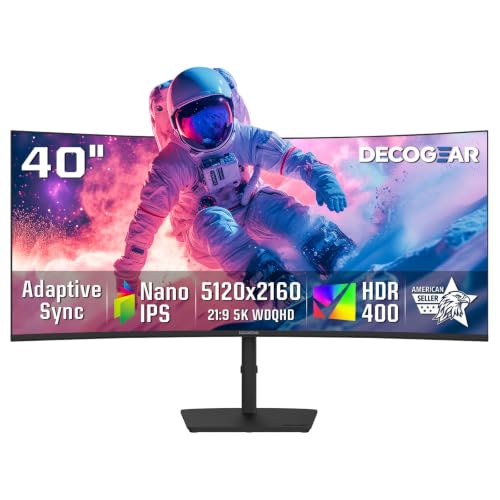
Deco Gear 40-Inch 5K2K Ultrawide — The hub value
Deco Gear’s entry is the pragmatist of the group. The title confirms the essential credential first — a genuine 5120×2160 5K2K resolution on a curved Nano IPS panel at 21:9 — and then spends its remaining words on features working buyers actually touch: Adaptive Sync, HDR support, 100% sRGB coverage, a USB-C connection rated at 90W, built-in speakers, an ergonomic stand, and PIP/PBP for showing two sources at once. A 75Hz refresh and a 1ms MPRT figure complete a specification that reads less like a flagship manifesto and more like a well-kept toolbox.
That stated 90W matters more than its single line suggests. It is enough power delivery, as a class, to run and charge the great majority of laptops from the monitor’s own cable, which turns this screen into a one-plug docking arrangement without a separate dock on the desk — and unlike several rivals here, the figure is printed in the title rather than left to be hunted down. The 75Hz refresh is the deliberate economy: a modest step above the traditional 60Hz office standard, enough to smooth scrolling and cursor movement noticeably, while stopping well short of gaming territory. If your work is documents, dashboards and calls, that is the right place to save. Picture-by-picture then adds a quiet party trick for anyone running two machines — half the screen for each, on one panel.
- Class: 40-inch curved ultrawide, 21:9
- Pixels: 5120×2160, 5K2K, stated twice in the title
- Panel: Nano IPS, HDR support, 100% sRGB
- Refresh and response: 75Hz; 1ms MPRT as titled
- USB-C power delivery: 90W, as titled
- Extras named: speakers, ergonomic stand, PIP and PBP modes
Strengths
- True 5K2K density paired with the strongest stated charging figure in the guide.
- Picture-in-picture and picture-by-picture serve genuine two-computer desks.
- Speakers and an ergonomic stand are included rather than assumed.
Trade-offs
- 75Hz rules it out for buyers who game with any seriousness.
- A value brand’s long-term support network is thinner than Dell’s or LG’s.
- HDR is claimed without a named DisplayHDR tier in the title.
Best for: laptop workers who want 5K2K width, one-cable charging and two-source flexibility in a single sensible purchase. Not suited for: gamers, or buyers who rank brand support infrastructure above specification per pound of desk.

M² Vision 40-Inch 5K2K Ultrawide — The Mac-friendly alternative
The M² Vision makes its pitch to a specific desk: the laptop-first, probably MacBook-carrying worker who wants a 5K2K ultrawide without paying a flagship brand for features aimed at someone else. Its title confirms the core credentials — 5120×2160 at 120Hz on an IPS Black panel, with USB-C at a stated 65W, HDR600, a height-adjustable stand, and explicit MacBook compatibility. IPS Black is the interesting line in that list: it is a panel variant developed to deepen contrast beyond what conventional IPS manages, so blacks and shadow detail hold up better in films and darker application themes while keeping the wide viewing angles IPS is known for.
At 120Hz this is also, quietly, the joint-smoothest of the productivity-leaning picks, matching the LG’s refresh while asking less of your attention elsewhere. The 65W USB-C figure sits a step below the Deco Gear’s 90W; for most laptops under ordinary workloads that class of output runs the machine and holds or grows its charge, though the largest workstation-class laptops under full load are the exception worth checking against your own machine’s adapter rating. What the M² Vision asks in return for its value positioning is a measure of trust in a lesser-known name — panel quality is claimed in the same vocabulary as the majors, but the brand’s track record is shorter, and a careful buyer will lean on the listing’s warranty terms and the retailer’s returns window accordingly.
- Class: 40-inch ultrawide aimed at laptop desks
- Pixels: 5120×2160, 5K2K
- Panel: IPS Black, HDR600 as titled
- Refresh: 120Hz
- USB-C power delivery: 65W, as titled; MacBook compatibility stated
- Stand: height adjustment named in the title
Strengths
- IPS Black contrast addresses the classic IPS weakness in dark scenes.
- 120Hz at full 5K2K, matching the premium LG’s motion figure.
- Stated 65W charging and named MacBook compatibility speak directly to laptop owners.
Trade-offs
- A smaller brand means a shorter track record to lean on.
- 65W may not fully feed the largest laptops under sustained heavy load.
- Stand adjustment beyond height is not described in the title.
Best for: MacBook and laptop users who want IPS Black contrast and 120Hz without flagship-brand pricing language. Not suited for: buyers who only purchase from established monitor brands, or owners of very power-hungry laptops.
How Do the Six Compare Side by Side?
| Monitor | Resolution class | Refresh | Defining trait |
|---|---|---|---|
| Dell UltraSharp U4025QW | 5K2K, 5120×2160 | Not stated in title | Business-grade UltraSharp pedigree |
| LG 40U990A-W Ultrafine | 5K2K, 5120×2160 | 120Hz | Thunderbolt 5 hub with HDR 600 |
| INNOCN 40C1R | WQHD, 3440×1440 | 144Hz | Speed over density, honestly labelled |
| Samsung Odyssey G7 | WUHD, 5120×2160 | 180Hz | Flagship gaming numbers at full width |
| Deco Gear 5K2K | 5K2K, 5120×2160 | 75Hz | 90W charging plus PIP/PBP |
| M² Vision 5K2K | 5K2K, 5120×2160 | 120Hz | IPS Black panel, MacBook pitch |
Read the table as a map of intentions rather than a league ladder. Every row except the INNOCN shares the same pixel count, so the contest among five of the six is about everything surrounding the panel — hub depth, refresh, contrast technology, brand support. The INNOCN competes on a different axis entirely, and comparing its 144Hz against the Deco Gear’s 75Hz without noting the resolution gap would repeat exactly the marketing confusion this guide exists to prevent.
How Does a 40-Inch Ultrawide Compare With the Alternatives You Are Probably Considering?
Most buyers arrive at this category from one of three directions, and the honest comparison differs for each. If you currently run two 27-inch monitors, the 40-inch ultrawide trades a little total pixel count — a dual 4K pair carries more — for continuity: one centre, one stand, one cable negotiation, no seam. People whose work constantly crosses the middle, such as editors and timeline-based creators, feel the gain immediately. People whose work is genuinely two separate tasks, a reference screen that never changes beside a working screen, may find the pair’s hard boundary is actually a feature, and should hesitate before surrendering it.
If you are coming from a single 32-inch 4K display, the move is lateral in sharpness and transformative in shape. The 40-inch 5K2K picks keep a similar class of text clarity while exchanging vertical height for horizontal room. Writers of long documents and viewers of tall web pages sometimes miss the height more than they expected; spreadsheet workers, developers and anyone living in side-by-side comparisons rarely look back. This is why the two categories coexist rather than one replacing the other, and why our cluster treats them as siblings rather than rivals.
The third direction is from below: buyers eyeing a 49-inch super-ultrawide who wonder whether forty inches is the sensible stopping point. The 49-inch class stretches to a 32:9 shape that wraps further into peripheral vision — magnificent for simulation and for genuinely panoramic work, but wide enough that its edges become ambient-only territory for most desk tasks, and it demands even more desk depth and width. Forty inches at 21:9 is, for most people, the largest canvas whose every corner still does daily work. Readers whose ambitions run wider can survey that next class in the best super ultrawide monitors guide; readers whose desks are modest should treat the 40-inch as the ceiling rather than the compromise.
There is also the television question, asked in every generation of this category: a 42-inch TV is cheaper per inch, so why not? Because televisions are designed for across-the-room viewing — their pixel structure, brightness behaviour, input lag handling and stand geometry all assume a sofa. A handful of small TVs make credible monitors for casual use, but for eight hours of text at arm’s length, a purpose-built monitor panel with a proper stand and a matte, eye-level working posture is the tool designed for the job you actually have.
How Should You Set Up a 40-Inch Monitor So It Stays Comfortable?
Distance comes first, and it surprises most buyers. A screen this wide wants an arm’s length and then some — roughly seventy to ninety centimetres from eyes to glass for most people — so the whole canvas sits within a comfortable field of view and the edges are read with eye movement rather than constant head turning. On a shallow desk, that may mean a wall mount or a monitor arm pulling the panel to the desk’s rear edge, or even a deeper desk. Measure before ordering: the tape measure is the cheapest accessory in this entire category and the one most often skipped. Height follows the usual rule, with the top of the panel near eye level, though the size of these screens leads many owners to set them a touch lower so the upper corners do not loom.
Scaling is the second decision, and 5K2K owners should approach it deliberately. At native settings with no scaling, interface text on a 5120×2160 40-inch panel is crisp but compact — comfortable for many, small for some. Operating-system scaling at a moderate level trades a little of the width advantage for larger text while keeping the sharpness that distinguishes these panels from the 3440×1440 alternative; scaling down the effective workspace slightly is not defeat, it is calibration. Window layout is the third habit: learn your system’s snap shortcuts, park the ambient applications at the edges, and resist maximising a single application across the full width — a browser stretched over forty inches produces paragraph lines far too long to read comfortably, which is why newspaper columns are narrow.
Cabling deserves a paragraph of its own because a 40-inch monitor usually becomes the desk’s hub whether you planned it or not. If you are docking a laptop through USB-C or Thunderbolt, confirm the cable in the box or on your order is rated for the full job — video at this resolution plus data plus charging is more than the flimsy charging lead in a drawer can carry, and a surprising number of ultrawide disappointments trace back to a cable quietly negotiating a lesser connection. Keep the machine’s own power adapter within reach during the first week regardless of any stated wattage; once you have watched the battery behaviour across your real workload, you will know whether the one-cable life is genuinely yours. Readers building a full single-cable desk should cross-check the hub-first approach against their laptop maker’s own docking guidance before assuming any monitor can replace a dedicated dock.
What Mistakes Do Buyers Make at This Size?
The costliest mistake is the one this guide opened with: buying a 3440×1440 screen while believing it to be a 5K2K, because a headline said 40-inch ultrawide and a hurried eye filled in the rest. The defence is a ten-second habit — find the pixel figures in the listing and read them digit by digit. The second mistake is geometric: ordering the panel before measuring the desk, then discovering that a shallow worktop puts the screen close enough to cause neck ache by Thursday. The third is assuming any USB-C port charges any laptop at full speed. Wattage is a number, it varies across this very guide from a stated 65W to a stated 90W to figures some titles do not print at all, and it should be matched against your machine’s own adapter rating rather than hoped about.
Two further errors are quieter. One is feeding a high-refresh pick through an old cable or an elderly port and concluding the monitor underdelivers, when the connection negotiated a lesser mode on day one. The other is judging text sharpness in the first hour at factory settings: brightness set for a showroom, scaling left at an unfamiliar default, and a colour temperature chosen by nobody. Give any of these screens an evening of adjustment — brightness down to room level, scaling set to your eyes, windows arranged into zones — before forming the verdict you will live with for years.
How Do You Actually Work Across Forty Inches All Day?
The owners who love these monitors share a habit the sceptics usually have not tried: they stop thinking of the screen as one window and start treating it as a room with addresses. A typical knowledge-work day illustrates the pattern. Morning begins with the primary document centred and narrow — a writing window kept deliberately close to a book page’s width, because prose is read in short lines. Research lives to the left, where a browser and a notes file stack in the space a second monitor once occupied. Messages and the calendar hold the right-hand margin, close enough to monitor, far enough to ignore. Nothing is maximised. Everything has a home position, and returning a stray window to its zone becomes as automatic as putting a mug back on its coaster.
Different trades furnish the room differently. A financial analyst might give the centre to a workbook whose columns run from January to December without horizontal scrolling, with a chart pinned above the ambient layer and a mail client narrowed to a list. A video editor inverts the layout entirely: timeline across the bottom, preview centred where a television would sit, bins and effects panels filling the wings. A developer keeps the editor in the middle at a readable font size — one of the under-sung gifts of 5120 horizontal pixels is that code can be large and still leave room for the terminal beneath it and documentation beside it. A support specialist or community manager, whose work is many small conversations rather than one large artefact, may run four slender columns and feel genuinely wealthy.
Two disciplines keep the room tidy. The first is resisting the full-width application: almost no program is designed for a five-thousand-pixel line length, and the ones that stretch obligingly — browsers, word processors, mail clients — produce the worst reading ergonomics on the desk. Constrain them to a zone and the ultrawide becomes several well-shaped monitors that happen to share a bezel-free panel. The second discipline is a keyboard habit. Every modern operating system offers snap shortcuts, and third-party window managers go further with saved layouts per task. Ten minutes spent defining a work layout, a call layout and an evening layout pays itself back daily, because the screen’s width is only an advantage when arranging it costs no thought. Buyers coming from a dual-screen setup should expect roughly a week of mild disorientation while these habits form; the near-universal report after that week is that the old seam feels unthinkable.
What Should You Check in the First Week of Ownership?
A 40-inch panel is a large, expensive object with a returns window, and the first week is when that window should be earned. Begin with the panel itself, in a darkened room and then in daylight: display a plain white screen, a plain black screen and a mid-grey one, and look for blotches, dead pixels at the corners your eyes rarely visit, and any backlight unevenness along the curved edges. Run your real applications rather than test patterns for the verdict — a faint irregularity that never appears in documents, films or games is a fact about the panel, not a problem in your life — but anything visible in ordinary work should be reported while exchanges are easy.
Next, audit the connection chain with the same honesty. Confirm the resolution and refresh rate the operating system reports, not the ones the box promised; a cable or port quietly negotiating a lesser mode is the single most common disappointment in this category, and it is fixable in minutes once noticed. If you dock a laptop, live the one-cable life for several full working days, including a long video call and a heavy afternoon, and watch whether the battery holds, the fans stay civilised and the screen wakes from sleep without a renegotiation dance. Test picture-by-picture if your model offers it, test the speakers you may rely on for calls, and raise and lower the stand through its full travel while the returning of it is still free.
Finally, judge the ergonomics on a tired Thursday rather than a delighted Monday. New-screen enthusiasm hides neck strain for about three days. If your shoulders are rising by evening, the panel is too close, too high or both, and the fix is furniture, not willpower: push it back, drop it slightly, or put it on an arm. The buyers who keep these monitors for a decade are the ones who did this unglamorous calibration early. The buyers who return them almost always cite size, when the actual culprit was a desk arrangement nobody measured.
How Long Should a Monitor This Size Last, and What Protects the Purchase?
A 40-inch monitor should be bought on a five-to-eight-year horizon, because the category it serves changes slowly: resolutions, ports and panel behaviour at this level do not date the way phones or graphics cards date. That horizon changes how the smaller print should be read. Warranty length and the maker’s service network matter more here than in a budget purchase, which is part of the Dell’s quiet appeal and a question worth putting to the value brands before ordering — not because their panels are suspect, but because a screen you intend to keep through two laptops should have a support path you have actually seen written down. Keep the box for the first month, register the product if the maker asks, and photograph the serial label before the panel goes against a wall where the label cannot be reached.
Care is mostly a matter of restraint. Clean the panel with a dry or barely damp microfibre cloth and no household sprays; support the screen by its stand rather than lifting by a corner; and let the curve keep its shape by never leaning objects against the glass. Electrically, a basic surge protector is proportionate insurance for a device that will stay plugged in for years. Do those few things and the realistic failure modes narrow to the ones a warranty exists for — which is exactly where a long-horizon purchase wants to be.
What Should You Expect From HDR and Colour on a Desk Monitor?
HDR labels travel badly from televisions to desks, so calibrate your expectations before the first film. Two picks here carry a named DisplayHDR 600 tier — the LG and the Samsung — which represents a genuine step in peak brightness and local contrast behaviour over a basic HDR claim. The INNOCN lists HDR400, the Deco Gear lists HDR support without a named tier, and the M² Vision lists HDR600 in its title. In practice, on any of them, HDR video and games will show brighter highlights and more dramatic skies than standard content on the same screen, while ordinary office work should simply be left in its normal mode. A monitor is not a cinema television, and buyers expecting room-darkening spectacle from a desk panel will misjudge an otherwise excellent screen.
Colour claims deserve the same calm reading. The Deco Gear states 100% sRGB coverage, which is the working gamut of the web and of ordinary office content — complete coverage there means colours in documents, sites and photographs display as intended. The INNOCN states 95% DCI-P3, a wider cinema-derived gamut that matters mainly to video work and to buyers whose content pipeline actually uses it. Nano IPS, named by both the LG and the Deco Gear, is a panel enhancement associated with richer colour reproduction; IPS Black, on the M² Vision, pursues contrast instead. None of these labels substitutes for a calibration step if colour is your profession: even an excellent panel benefits from a measured profile, and anyone printing or grading for clients should budget the ten minutes a colorimeter asks for. For everyone else, the stated coverages in this guide comfortably exceed what documents, dashboards and streaming video will ever request.
One practical note applies to every pick regardless of its labels: set brightness for the room, not for the showroom. A 40-inch panel at full brightness in a dim study is a light source as much as a display, and eye fatigue blamed on resolution or flicker is very often simple over-brightness. Lower it until white on the screen resembles a sheet of paper under your room’s lighting, then leave it there for a week before touching it again.
Final Recommendation
For most buyers reading this guide, the LG 40U990A-W is the recommendation to beat
: it is the one pick that states the complete modern specification — 5K2K Nano IPS, Thunderbolt 5, 120Hz, HDR 600, a full ergonomic stand — without asking you to compromise on the axis you care about most. Buyers who rank institutional trust and a restrained professional manner above hub depth should take the Dell UltraSharp U4025QW instead, and treat it as the decade-long fixture it is designed to be. The value argument belongs to the Deco Gear, whose stated 90W charging and picture-by-picture mode cover the real needs of a two-machine laptop desk, while the M² Vision is the shrewd alternative for MacBook owners drawn to IPS Black contrast at 120Hz.
Gamers should split by hardware honesty. With a powerful graphics card, the Samsung Odyssey G7 delivers the rare combination of full WUHD density and 180Hz motion. With a mainstream card, the INNOCN 40C1R is the smarter forty inches — provided you buy it as the 3440×1440 screen it is. Whichever direction you lean, let the resolution line, not the diagonal, make the decision; at this size, the width is the invitation, but the pixels are the purchase — and a forty-inch screen chosen by its pixel count first will still be earning its desk space long after narrower fashions have been recycled.
Frequently Asked Questions
Is a 40-inch monitor too big for a home office?
It is too big for a shallow desk and entirely reasonable for a deep one. The deciding measurement is viewing distance: if you can sit roughly seventy centimetres or more from the screen, the width becomes an asset; if your desk forces you closer, a 34-inch ultrawide or a 32-inch 4K panel will feel calmer. Room size matters less than desk depth. If the only desk available is a narrow writing table against a wall, treat that as the answer rather than as an obstacle to engineer around, and spend the budget on a smaller panel plus a good chair instead.
What is 5K2K, and is it the same as 5K?
No. Plain 5K usually means 5120×2880 in a conventional 16:9 shape. 5K2K — also labelled WUHD — keeps the same 5120 horizontal pixels but trims the height to 2160, producing the 21:9 ultrawide shape these monitors use. Same width, different height, different desk experience.
Will my laptop run a 5120×2160 monitor?
Most laptops from the last several years can output the resolution for desktop work, but the port and cable decide whether you also get the panel’s full refresh rate and charging over the same connection. Check your machine’s video output specification, use a cable rated for the job, and remember that gaming at this resolution is a far heavier demand than documents.
Why does one pick have fewer pixels than the others?
Because it is built for a different priority. The INNOCN 40C1R’s 3440×1440 panel allows its 144Hz refresh to be reached by ordinary gaming hardware, at the cost of finer text detail. It is included deliberately and labelled consistently, so a motion-first buyer can choose it knowingly rather than discover the difference after delivery.
Do I need a monitor arm for a screen this size?
Not necessarily — five of these picks describe adjustable or ergonomic stands — but an arm helps on shallow desks by reclaiming the footprint the stand occupies and letting the panel sit at the very back edge. If you go that route, confirm the monitor’s mounting pattern and the arm’s weight rating for a 40-inch panel before buying either.
Is a curved screen strange for spreadsheets and documents?
Most owners stop noticing within days. At forty inches the curve serves geometry rather than drama, keeping the edges at a more even distance from your eyes. Straight lines in spreadsheets remain straight in practice; anyone doing precision drafting who is worried should favour the gentlest curve and test with their own files during the returns window.
Related Guides
Buyers still weighing shapes and sizes should compare the narrower class in our best racing sim monitors guide if the desk doubles as a cockpit, browse the best 49 inch monitors roundup for the step beyond forty inches,.
Gamers weighing a big desk panel against a dedicated rig screen should compare this shortlist with our guide to the best racing sim monitors before spending.


