What's inside
- Where to buy
- Key Takeaways
- Quick Picks
- How We Chose
- How much power delivery does a MacBook Pro actually need?
- Why does Mac colour matching matter on an external monitor?
- Should a MacBook Pro desk choose 4K, QHD or 5K?
- How do you set up a one-cable Mac desk in the first hour?
- What peripherals belong in the monitor’s hub, and what do not?
- How long should a docking monitor serve a Mac desk?
- Why do some Mac owners keep the laptop open beside the monitor?
- What should a Windows laptop owner take from this guide?
- What about two monitors, wake behaviour and the humble cable?
- The six MacBook Pro USB-C monitors, reviewed one by one
- Side-by-side comparison
- Common Mistakes
- Final Recommendation
- FAQ
- Related Guides
As an Amazon Associate I earn from qualifying purchases. This post may contain affiliate links at no extra cost to you.
gizmoverdict.com is reader-supported. When you buy through links on our site, we may earn an affiliate commission.
Where to buy
The promise behind the best macbook pro usb c monitors is a single cable. You sit down, plug one lead into the laptop, and the desk wakes as a system: picture on the big screen, battery charging, peripherals alive through the monitor’s hub, no brick under the desk, no dongle farm in the drawer. Whether a given monitor keeps that promise is written in its title — in the wattage figure beside the USB-C port, in whether a hub is named, in whether the maker bothered to design for the Mac at all. This guide reads six listings by that standard, from LG’s two UltraFine panels through Samsung’s 37-inch ViewFinity, BenQ’s two Mac-dedicated MA models, and Dell’s high-refresh QHD alternative. Where a title prints the watts, the review banks them. Where a title names USB-C and stays silent on power — the Samsung and the Dell both do — the specification box records the silence, because a single-cable desk built on an assumed wattage is a desk that may spend its evenings slowly discharging.
The six divide by intent. BenQ’s MA320U and MA270UP are the Mac-native pair, designed for MacBook Pro and Air by name, with dual USB-C, 90W Power Delivery, Mac colour matching and the small miracle of controlling the monitor’s brightness and volume from the Mac itself. LG’s UltraFines are the established all-rounders: the 27-inch with 90W delivery and a pivot stand, the 32-inch with 60W and a bigger canvas. Samsung’s ViewFinity S8 at 37 inches is the spacious outlier with a built-in KVM for two machines. Dell’s S2725DC is the curveball — a QHD, 144Hz panel in a guide of 4K screens, trading pixel density for motion and a full ergonomic stand.
Resolution deserves a framing sentence before the reviews. A MacBook Pro’s own screen is exceptionally dense, and a 4K external at 27 or 32 inches will not match its per-inch sharpness — macOS will scale the interface to a comfortable size and the result is excellent, but owners expecting the laptop’s exact crystalline quality should read this site’s 5K monitor guide as well. What the 4K panels here offer instead is value, size and the docking behaviours above. The Dell’s QHD resolution makes the trade in the open: fewer pixels, more refresh, and a desktop that suits motion-heavy work.
It is also worth naming what this guide is not: a ranking of the six by a single score. The category’s whole point is that desks differ — in machine, in load, in whether the laptop stays open, in whether a second computer shares the chair — and a single ladder would flatten exactly the distinctions the titles work to express. Read the six as a map with six well-marked destinations, and locate your desk on it honestly; the right monitor is the destination your desk was already pointing at.
The verification routine for this class is specific: match the model, read the wattage on the listing if the title omits it, confirm the hub’s port layout if peripherals matter, and check the stand’s movements against your desk. Then plug in, once, and enjoy the tidiest cable situation in desktop computing.
Key Takeaways
- Printed wattage is the single-cable contract: 90W on the LG 27-inch and both BenQ MA models, 60W on the LG 32-inch, unstated on the Samsung and Dell titles.
- BenQ’s MA pair are the Mac-native picks: Mac Color Match, dual USB-C, a USB hub, and brightness and volume control operated from the Mac.
- LG’s 27UP850K pairs 90W delivery with a tilt/height/pivot stand and 95% DCI-P3.
- Samsung’s 37-inch ViewFinity S8 is the big-canvas option with a built-in KVM switch — but its title states no charging wattage.
- Dell’s S2725DC trades 4K for QHD at 144Hz with a full height/tilt/pivot/swivel stand; its USB-C wattage is likewise unstated in the title.
- Four of the six are 4K panels; choose the Dell only when refresh matters more than density.
Quick Picks
| Pick | Panel as titled | Headline strengths | Watch out for |
|---|---|---|---|
| LG UltraFine 27UP850K 27″ 4K | 27-inch 4K UHD IPS, 60Hz | USB Type-C 90W PD, DCI-P3 95%, pivot stand, speaker | 60Hz is the class norm, not a motion feature |
| LG UltraFine 32UP83A 32″ 4K (USB-C 60W) | 32-inch 4K UHD IPS, 60Hz | Bigger canvas, 60W PD, pivot stand, HDR10, Reader Mode | 60W is light for a large MacBook Pro under load |
| Samsung ViewFinity S8 37″ 4K (KVM) | 37-inch 4K UHD | Built-in KVM, HDR10, ergonomic design, eye care | USB-C wattage not stated in the title |
| BenQ MA320U 32″ 4K | 32-inch 4K | Dual USB-C, 90W PD, Mac Color Match, hub, Mac key control | Stand lists height and tilt only |
| BenQ MA270UP 27″ 4K | 27-inch 4K | Dual USB-C, 90W PD, Mac Color Match, hub, Mac key control | The compact sibling; same stand movements as the 32 |
| Dell S2725DC 27″ QHD USB-C | 27-inch QHD, 144Hz | Full ergonomic stand, speakers, FreeSync, DP 1.4 | QHD density and unstated USB-C wattage |
How We Chose
Selection started from verified Amazon US listings and one organising question: what does the title prove about the single-cable desk? Power delivery was the primary evidence, recorded exactly as printed — 90W, 60W, or silence — because the difference between those states is the difference between a laptop that charges through its workday and one that merely sips. The second axis was Mac intent. Two titles name the MacBook outright and build features around it; two come from a line long associated with Mac desktops; two are platform-neutral panels whose USB-C ports serve any laptop. A guide that pretended those intents were identical would mislead the very buyer it addresses, so the reviews keep the distinction visible throughout.
Reader questions shaped the pool more than specifications did, in one respect: the recurring confusion in this category is not which panel is best but why a monitor with the right port can still disappoint. The answers are always in the fine clauses — wattage, hub behaviour, scaling — so the selection favoured listings whose titles expose those clauses to daylight, and treated the two silent titles as teaching examples rather than exclusions. A buyer who finishes this guide reading titles more carefully has received most of its value before choosing anything.
The third axis was the desk around the cable: hub presence, stand movement, speakers, KVM switching — the furniture of a working setup, credited only where a title states it. Resolution and refresh were weighed last and honestly: five 4K-class panels at 60Hz and one QHD panel at 144Hz is not a defect in the pool but a map of what the market sells to this buyer, and the Dell’s inclusion gives the motion-minded Mac owner a considered alternative rather than a sermon. Renewed listings were excluded, as throughout this site’s monitor coverage, because a docking monitor is infrastructure and should arrive with a full warranty and return window.
A final selection note concerns the two silences. The Samsung and Dell titles both name USB-C without a wattage, and rather than excluding two otherwise strong panels, the guide includes them with the silence flagged in every place it matters — quick picks, specification box, comparison table. That is the standing bargain of these guides: the reader gets the full market picture, and the evidence labels travel with the claims.
How much power delivery does a MacBook Pro actually need?
Enough to cover the machine’s draw during your heaviest ordinary hour, with a little left over. A MacBook Air and a 14-inch MacBook Pro live comfortably on the 90W that three of these titles print, and will manage on 60W for the lighter patterns of use — writing, browsing, calls — while charging more slowly or merely holding their level under sustained heavy work. A 16-inch MacBook Pro under a long render or compile is the demanding case: it will accept 60W gratefully and still spend battery during the worst of the load, then recover when the load passes. None of this makes 60W a defect; it makes it a sizing decision. The LG 32-inch’s 60W suits the big-canvas, moderate-load desk perfectly well, and the same figure would frustrate a 16-inch machine’s owner who expected the monitor to replace the wall charger entirely.
There is a related sizing question for the hub’s sake: a monitor delivering 90W to the laptop is managing a power budget, and peripherals hung from its hub draw from their own allowance on top. In practice the keyboards, receivers and drives of an ordinary desk are trivial loads, and no buyer should let hub arithmetic veto a panel — but the desk that expects the monitor to fast-charge a phone, power a bus-powered drive and run the laptop at full tilt simultaneously should read the listing’s power section as a whole, not port by port. BenQ’s split-port design, 90W for the machine and a separate allowance implied by its dual USB-C layout, is the tidy answer to exactly that pile-up.
The true failure mode is not 60W — it is unknown watts. A title that names USB-C and prints no figure, as the Samsung and Dell do, leaves the buyer unable to size anything, and the listing’s specification section becomes required reading rather than due diligence. When you read it, look for the delivery figure attached to the USB-C port specifically, since a hub’s downstream ports and the host port are different circuits with different budgets. BenQ’s dual-port arrangement on the MA models illustrates the thoughtful end of this design space: a full-power port for the laptop and a companion for lighter devices, so the phone stops competing with the workstation.
Why does Mac colour matching matter on an external monitor?
Because the MacBook’s own screen is very good, and an external panel that disagrees with it taxes every piece of visual work. Drag a photograph from the laptop screen to a monitor with a different colour character and the image changes its mind mid-drag; grade video against the laptop as reference and the external screen becomes a second opinion you never asked for. BenQ’s Mac Color Match, printed in both MA titles, is the maker’s attempt to close that gap — a colour mode tuned to echo the MacBook’s rendering so the two screens behave like one system. It will not turn a 4K panel into a reference monitor, and this guide’s grading coverage sets the bar for that claim elsewhere, but for the designer, developer or writer whose reference is the laptop itself, matching it is the most useful colour feature a docking monitor can offer.
Consistency across the day matters in a second way that rarely gets specified: the external panel should not drift in character as the laptop’s own display adapts to the room. Macs adjust their screens to ambient light, and a fixed external panel beside an adapting one can feel subtly out of step by evening. The practical answer is humble — set the monitor’s brightness for the room’s settled state, in the evening if evenings are when the serious work happens — and the philosophical answer is the BenQ approach of binding the two screens’ behaviour together as closely as the maker can. Either way, the desk that notices the effect is not imagining it, and the fix is calibration of habits, not another purchase.
The companion feature, control of the monitor’s brightness and volume from the Mac, sounds like garnish and behaves like infrastructure. A monitor that ignores the keyboard’s brightness keys forces a menu dive for the most common adjustment in desktop life; a monitor that obeys them — as both BenQ titles promise — disappears into the Mac’s own habits. LG’s long association with Mac desktops shows in its polish rather than in printed Mac features, and the Samsung and Dell ask the Mac to adapt to them. None of these philosophies is wrong; they are simply priced into the experience at different depths, and the buyer who works with the laptop open beside the big screen will feel the difference daily.
Should a MacBook Pro desk choose 4K, QHD or 5K?
Each resolution answers a different desk. QHD at 27 inches, the Dell’s proposition, renders the macOS interface at its native comfortable size with no scaling arithmetic — text is larger and less dense than the laptop’s, motion at 144Hz is lovely, and the whole arrangement suits code, documents and motion-heavy work where density is not the point. 4K at 27 or 32 inches, the other five picks, invites macOS to scale a doubled interface: crisper text, more resolved detail, a workspace that feels like the natural big sibling of the laptop screen. 5K, covered in this site’s dedicated guide, is where the scaling becomes mathematically perfect at 27 inches, at prices that reflect it.
Budget reasoning belongs in the open as well. This guide prints no prices, by this site’s standing practice, but the tiers are legible from the titles: the Mac-native BenQs charge for integration, the LGs for balance, the Samsung for size and switching, the Dell for refresh and articulation. The false economy in this category is buying a cheaper panel whose missing wattage or hub then requires a dock that costs the difference; the true economy is one purchase that retires three accessories. Add the accessory bill to any panel that needs one before comparing it against a panel that does not.
The pragmatic reading for this guide’s buyer: if the external monitor is the main screen and the work is visual, 4K is the balanced answer and the pool’s centre of gravity is no accident. If the monitor is a second workspace for timelines, terminals and dashboards, QHD at 144Hz earns its place with motion the 4K picks do not offer. And if the laptop is a MacBook Pro whose owner winces at any softness in text, the honest signpost points up the range to 5K — better to know the ladder exists than to buy the wrong rung confidently.
How do you set up a one-cable Mac desk in the first hour?
Start with the cable that came in the monitor’s box, or a certified equivalent rated for both video and the power figure the title promises — the drawer cable that charged a phone for two years is the most common saboteur of this entire category, silently capping the link below what the panel and laptop agreed to do. Connect laptop to the monitor’s host port specifically, since a hub’s downstream sockets are for peripherals, not for the computer. Then watch the laptop’s battery icon during a genuinely heavy ten minutes — an export, a compile, a big file copy — because that is the audit of the wattage claim: a battery that holds or climbs under load is a contract honoured, and one that ebbs is information to act on while the return window is open.
Next, the picture. Open the display settings and choose the scaled resolution deliberately, with your real applications on screen: the setting that makes interface text the size you would print is the right one, and it differs between the 27-inch and 32-inch panels in this guide. If the laptop stays open as a second screen, arrange the two displays in the settings to match their physical positions, so the pointer crosses the seam where your hand expects it to. On the BenQ pair, take the extra minute to confirm the brightness keys now govern the monitor — the small ceremony that confirms the integration you paid for. Finally, route the peripherals through the monitor’s hub if it has one, coil the retired dock into a drawer, and photograph the working cable layout. The one-cable desk’s only maintenance is remembering how it was achieved.
What peripherals belong in the monitor’s hub, and what do not?
The hub — named in both BenQ titles and implied by the port sets elsewhere — is happiest serving the desk’s permanent residents: the keyboard receiver, the webcam, the backup drive that syncs nightly, the card reader that lives beside the monitor’s foot. These are devices that benefit from arriving with the laptop’s single connection and vanishing when it leaves. Devices with their own opinions belong elsewhere: high-draw accessories that compete for the hub’s power budget, and anything you need while the laptop is away — a drive that another machine must reach, a printer the household shares — should not depend on a monitor that sleeps when the Mac does.
The KVM on the Samsung deserves its own sentence in this inventory, because it changes the hub’s meaning: peripherals plugged into a KVM monitor serve whichever computer is currently selected, so the keyboard, mouse and webcam become the desk’s shared citizens rather than one laptop’s property. For the two-machine household that is the entire argument for the 37-inch ViewFinity, and it is why its missing wattage figure is worth the listing trip rather than a reason to dismiss it. Inventory your peripherals before choosing: a desk with three permanent USB residents needs a hub in the title; a desk with one wireless keyboard needs nothing but the cable.
How long should a docking monitor serve a Mac desk?
Longer than the laptop, ideally — and that horizon should steer the purchase toward the connection set rather than the panel fashion of the season. Macs will keep speaking USB-C and Thunderbolt for the foreseeable future, and a monitor whose port delivers 90W with a hub and modern inputs will welcome the next two laptops as warmly as the current one. The specifications that date a docking monitor are the wattage ceiling and the hub’s generation, which is another way of saying the printed figures this guide keeps returning to are also its longevity figures. A panel bought slightly above today’s need — the 90W titles for a buyer whose current machine sips 60W — is not extravagance; it is the next laptop’s welcome mat.
The panel itself ages gracefully at 4K. Resolutions in this class remain useful across a decade of software, and macOS scaling keeps the interface honest as design fashions change. What the owner must supply is the first-week verification — uniformity, a dead-pixel hunt, the charging audit above — because a docking monitor is infrastructure, and infrastructure should be proven when it is installed, not when it is merely new.
Why do some Mac owners keep the laptop open beside the monitor?
Because the MacBook’s screen is too good to waste and the desk gains a second, smaller workspace with its own jobs: the call window, the chat column, the reference document, the music controller — the supporting cast that would otherwise steal corners of the big screen. The arrangement favours the 27-inch picks here, since a 32 or 37-inch panel beside an open laptop becomes a wall that dominates a modest desk, and it favours the colour-matching BenQs, because two screens in one field of view disagree more noticeably than two screens used in sequence. Owners who work this way should also attend to heights: the laptop on a small riser, its screen’s top edge somewhere near the monitor’s, spares the neck the bobbing that a low laptop screen imposes across a day.
The closed-laptop alternative — clamshell mode, the Mac shut and the big screen as the whole world — is the tidier philosophy and the one the 32-inch and 37-inch picks are sized for. It demands the most from the monitor: the hub must serve everything, the speakers or an alternative must carry calls, the wattage must sustain the machine through its heaviest hour, because there is no second screen and no visible battery icon to warn of a shortfall. Read the titles with your philosophy in hand: the dual-screen owner buys a companion, the clamshell owner buys a headquarters, and the specification that matters most shifts accordingly.
What should a Windows laptop owner take from this guide?
Almost everything except the Mac-specific clauses. The wattage arithmetic is universal — a hungry Windows workstation deserves the same printed 90W respect — and the LG pair and the Dell serve any USB-C laptop with the same ports they offer a Mac. The BenQ MA models will light a Windows machine happily, but their signature features — Mac colour matching, control from the Mac’s keys — are addressed to macOS, so a Windows-first desk pays for integration it cannot use and should weight the LGs’ neutrality or the Dell’s refresh accordingly. The discipline, though, is identical on both platforms: the title is the contract, the wattage is the clause that matters, and silence is a question to carry to the listing.
What about two monitors, wake behaviour and the humble cable?
Three practical questions trail this category everywhere, and they deserve collected answers before the reviews. Two monitors first: chaining and multi-screen arrangements depend on the Mac model’s own external-display support and on the monitor’s features, and the titles here do not promise daisy chaining — so plan on a second cable to the laptop for a second screen unless the listing says otherwise, and check your specific MacBook Pro’s display count in Apple’s documentation before shortlisting. Desks that know they want two externals from the start should buy for that architecture deliberately rather than discover its limits at setup.
Wake behaviour second: a healthy USB-C chain wakes as one system — open the laptop or touch a key and the panel follows — and when a setup refuses, the causes are almost always mundane: the cable, the wrong port, or a power-saving setting buried in the monitor’s menu. Establish the wake test during the first week, while the setup is still being tuned, rather than accepting a daily ritual of reaching behind the panel for its power button. And the cable itself, third and most underestimated: use the lead supplied with the monitor, or a certified USB-C or Thunderbolt cable rated for video and for the wattage the title promises. Charge-only cables are this category’s silent saboteurs — they fit perfectly and deliver a fraction of the link — so when a one-cable desk underperforms, the cable is the first suspect and the cheapest swap.
Size, briefly, since it governs two of these picks: a 37-inch monitor is too large only when the desk says so. The Samsung’s canvas rewards the roomy single-screen setup and punishes the shallow desk where its edges crowd the sitter’s peripheral vision; measure the depth, sit at your real distance, and remember that a large 4K panel can run a scaled workspace that keeps interface elements comfortable rather than tiny. Size is a workspace decision, not a sharpness penalty. As for sound, the speakers named across these titles — the Dell even specifies its 2 x 3W pair — are a clean sufficiency for calls and casual media; music work and film pleasure still belong to external speakers or headphones, with the monitor’s audio serving as the desk’s reliable default voice.
The six MacBook Pro USB-C monitors, reviewed one by one

LG UltraFine 27UP850K 27″ 4K
The 27UP850K is the balanced centre of this guide: a 27-inch 4K UHD IPS panel with DisplayHDR 400, a built-in speaker with MaxxAudio, 95% DCI-P3 colour, a 60Hz refresh, USB Type-C with 90W Power Delivery, DisplayPort and HDMI inputs, and a tilt/height/pivot stand. Every element of the single-cable brief is present and printed — the wattage that sustains a MacBook Pro, the hub-class connectivity implied by the port set, the pivot movement that turns the screen into a tall document column. LG’s UltraFine line earned its Mac-desk reputation over years of being the default recommendation, and this title shows the formula intact: nothing exotic, everything answered.
The pivot deserves its sentence, because among these six titles it is rarer than it should be — a 27-inch 4K panel in portrait is a magnificent reading and coding surface, and LG prints the movement where rivals leave it to chance. The 95% DCI-P3 figure gives creative work a credible wide-gamut canvas, short of the colour-critical tiers in this site’s grading guide but well matched to design, photography-adjacent and video-preview work at a Mac desk. The speaker with MaxxAudio covers calls and casual media without desk clutter. If the guide had to name the pick that asks its buyer the fewest questions, this is it: the wattage is printed, the stand is complete, the colour is quantified.
- Size and resolution: 27-inch, 4K UHD (3840 x 2160)
- Panel: IPS, DisplayHDR 400
- Refresh rate: 60Hz
- Colour: DCI-P3 95% (Typ)
- USB-C: USB Type-C 90W PD
- Inputs: DP, HDMI
- Audio: Built-in Speaker with Maxx Audio
- Stand: Tilt/Height/Pivot Stand
- Model: 27UP850K-W
Strengths
- 90W delivery is printed in the title, settling the charging question outright.
- A pivot stand at 27 inches makes a superb portrait document column.
- 95% DCI-P3 gives creative work a properly wide canvas.
Trade-offs
- 60Hz keeps motion ordinary beside the Dell’s 144Hz.
- No Mac-specific control integration is claimed in the title.
- A separate KVM is absent for two-machine desks.
Best for: a one-cable MacBook Pro desk that wants every key question answered in the title.
Not suited for: motion-first work, where the Dell’s refresh rate argues louder.
Balanced desks can check the 27UP850K’s price on Amazon with the specification already settled.
LG UltraFine 32UP83A 32″ 4K (USB-C 60W)
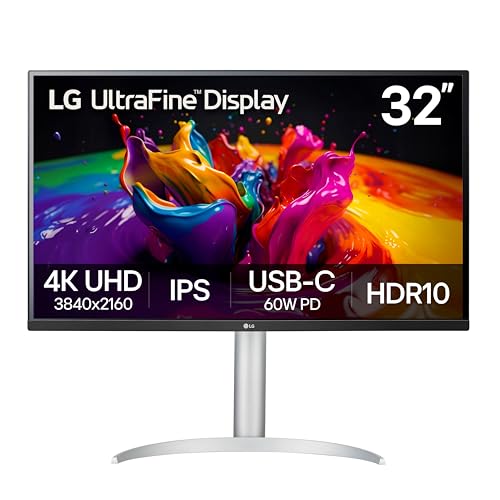
The 32UP83A is the same UltraFine idea at a larger scale: a 32-inch 4K UHD IPS panel at 60Hz with USB Type-C at 60W Power Delivery, HDMI and DisplayPort, a built-in speaker, a tilt/height/pivot adjustable stand, Reader Mode and HDR10, finished in white. The 32-inch canvas changes the working day in the ways size always does — timelines unroll, documents sit side by side at full width, the interface breathes — and the stand keeps the pivot trick its smaller sibling offers, turning that big canvas into a very tall page when the work is a manuscript or a codebase.
The number to interrogate is the 60W. As this guide’s power section explains, 60W is a sizing decision rather than a flaw: it sustains lighter Macs entirely and a MacBook Pro through ordinary loads, while a 16-inch machine under sustained heavy work will treat the monitor as a supplement and sip its battery during peaks. The white finish and Reader Mode — LG’s eye-comfort reading preset — sketch the intended room: a bright, document-heavy home office where the big screen is furniture as much as instrument. If your load profile matches, the trade stays invisible; if your renders run for hours should take the 90W picks and their smaller or pricier canvases instead.
- Size and resolution: 32-inch, 4K UHD (3840 x 2160)
- Panel: IPS, HDR10
- Refresh rate: 60Hz
- USB-C: USB Type-C 60W PD
- Inputs: HDMI, DisplayPort
- Audio: Built-in Speaker
- Stand: Tilt/Height/Pivot Adjustable Stand
- Features: Reader Mode
- Finish: White
Strengths
- The 32-inch canvas with pivot serves documents and timelines generously.
- Reader Mode suits long reading days in bright rooms.
- The white finish integrates with light, modern home offices.
Trade-offs
- 60W delivery will supplement, not sustain, a large MacBook Pro at full load.
- 60Hz is the standard desktop rate, with no motion headroom.
- Colour coverage goes unquantified in the title.
Best for: a document-and-timeline desk driving a MacBook Air or a moderately loaded Pro.
Not suited for: a 16-inch MacBook Pro rendering for hours on monitor power alone.
Big-canvas readers should see the 32UP83A on Amazon and weigh its price against its wattage honestly.

Samsung ViewFinity S8 37″ 4K (KVM)
Samsung’s ViewFinity S8 at 37 inches is the extrovert of this guide: the largest canvas here, a 4K UHD high-resolution panel with HDR10, USB-C and an ergonomic design, a built-in KVM switch and Intelligent Eye Care, in a 2025 model. The 37-inch size is the argument — a screen that swallows a timeline, a document and a reference whole, at a scale where a MacBook Pro’s desktop stops feeling like an enlargement and starts feeling like a room. The built-in KVM is the second argument, aimed at the desk with two machines: one keyboard and mouse, switched between computers through the monitor, which for a work-laptop-plus-personal-Mac household is the difference between a system and a pile.
And then the silence, which this review must state as plainly as the size: the title names USB-C and prints no wattage. For a monitor whose entire context is the single-cable Mac desk, that omission makes the listing’s specification section mandatory reading — the delivery figure decides whether the big screen also replaces the charger or merely hosts it. Intelligent Eye Care and the ergonomic design language suggest long-day comfort was a design input, though the stand’s specific movements are not enumerated in the title either. Verify those two items, and the S8’s case — the most screen, with a switchboard inside — stands on its considerable merits.
- Size and resolution: 37-inch, 4K UHD
- HDR: HDR10
- USB-C: USB-C stated; power delivery wattage — Not stated in the listing title — verify with the maker’s documentation
- Features: Built-In KVM Switch, Intelligent Eye Care
- Design: Ergonomic Design (specific stand movements — Not stated in the listing title — verify with the maker’s documentation)
- Model: LS37D800UANXZA, 2025
- Colour gamut: Not stated in the listing title — verify with the maker’s documentation
Strengths
- Thirty-seven inches is the most workspace this guide offers.
- A built-in KVM makes a two-computer desk genuinely civilised.
- Eye-care features suit the long sessions a screen this size invites.
Trade-offs
- The missing wattage figure is the first thing to resolve on the listing.
- Stand movements are described as ergonomic design, not enumerated.
- Its footprint demands a desk sized for the ambition.
Best for: a two-machine household that wants one very large screen as headquarters.
Not suited for: a small desk, or a purchase made without reading the power specification.
Two-machine desks should open the ViewFinity S8 listing on Amazon, confirm the wattage, then judge its price.

BenQ MA320U 32″ 4K
The MA320U is BenQ’s Mac monitor at the larger size, and its title is a checklist of the Mac desk’s known frictions, each answered: a 32-inch 4K 3840×2160 panel for MacBook Pro and Air, dual USB-C, 90W Power Delivery, Mac Color Match, a USB hub, brightness and volume control on the Mac, a height and tilt adjustable stand, and a P3 colour gamut. Start with the control line, because it is the feature owners will feel hourly: the monitor’s brightness and volume answer the Mac’s own keys, so the external screen stops behaving like a foreign appliance and starts behaving like part of the laptop. Mac Color Match addresses the visual side of the same relationship, tuning the panel’s rendering toward the MacBook’s own screen so work dragged between them holds its appearance.
The dual USB-C arrangement and 90W figure handle the power side with headroom for a MacBook Pro, while the hub absorbs the peripherals that would otherwise need a separate dock — the quiet goal of this entire category. The 32-inch canvas suits the single-screen professional: design layouts, long documents, timelines, all at a scale where the laptop can close and stay closed. The stand’s vocabulary is height and tilt, without the pivot its LG rivals print, so portrait readers should note the omission. As a Mac-first proposition at 32 inches, though, nothing else in this guide is as completely thought through — every clause of the title is a Mac user’s sentence.
- Size and resolution: 32-inch, 4K 3840×2160
- Positioning: Monitor for MacBook Pro/Air
- USB-C: Dual USB-C, 90W Power Delivery
- Colour: Mac Color Match, P3 Color Gamut (percentage — Not stated in the listing title — verify with the maker’s documentation)
- Features: USB Hub, Brightness & Volume Control on Mac
- Stand: Height & Tilt Adjustable Stand (pivot — Not stated in the listing title — verify with the maker’s documentation)
- Refresh rate: Not stated in the listing title — verify with the maker’s documentation
Strengths
- Brightness and volume control from the Mac removes a daily friction entirely.
- Mac Color Match keeps the big screen in agreement with the laptop’s.
- 90W delivery plus a hub retires the separate dock for most desks.
Trade-offs
- No pivot is listed, so portrait reading needs another solution.
- The P3 gamut is claimed without a percentage in the title.
- Its Mac-first design gives a Windows laptop only part of the experience.
Best for: a MacBook Pro professional running a closed-laptop, single-screen studio desk.
Not suited for: portrait-document workflows that rely on the monitor’s own stand.
Mac-first desks at 32 inches should check the MA320U’s Amazon price and its full port layout there.

BenQ MA270UP 27″ 4K
The MA270UP is the MA320U’s compact sibling, carrying the same Mac-native specification onto a 27-inch 4K 3840×2160 panel: dual USB-C, 90W Power Delivery, Mac Color Match, a USB hub, brightness and volume control on the Mac, a height and tilt adjustable stand and a P3 colour gamut, designed for MacBook Pro and Air. The sameness is the point — BenQ is offering one philosophy at two sizes — and the 27-inch version suits the desk where space is measured, the second home office, or the setup where the laptop stays open beside the external screen and a 32-inch panel would crowd the arrangement.
At 27 inches the 4K grid is denser, so text renders finer, and the scaled macOS interface lands at the size most Mac users know from the classic 27-inch desktop era. The Mac integration features lose none of their value at this size; arguably the key-controlled brightness matters more on the smaller desk, where reaching behind the panel is a tighter squeeze. The same two cautions apply as with its sibling: the P3 claim carries no percentage in the title, and the stand speaks height and tilt without pivot. A buyer choosing between the two BenQs is really choosing a room, not a specification — and should let the desk’s dimensions, honestly measured, cast that vote.
- Size and resolution: 27-inch, 4K 3840×2160
- Positioning: Monitor for MacBook Pro/Air
- USB-C: Dual USB-C, 90W Power Delivery
- Colour: Mac Color Match, P3 Color Gamut (percentage — Not stated in the listing title — verify with the maker’s documentation)
- Features: USB Hub, Brightness & Volume Control on Mac
- Stand: Height & Tilt Adjustable Stand (pivot — Not stated in the listing title — verify with the maker’s documentation)
- Refresh rate: Not stated in the listing title — verify with the maker’s documentation
Strengths
- The full Mac-integration set survives the step down in size intact.
- Denser 4K at 27 inches renders text especially finely.
- 90W delivery suits even the larger MacBook Pro models.
Trade-offs
- The smaller canvas gives timelines and layouts less room to sprawl.
- Pivot is again absent from the stand’s stated movements.
- The P3 percentage remains a listing lookup.
Best for: a compact Mac desk, or a laptop-open dual-screen arrangement at home.
Not suited for: a single-screen studio that needs every inch of canvas available.
Compact Mac desks can view the MA270UP on Amazon for today’s price and port details.
Dell S2725DC 27″ QHD USB-C
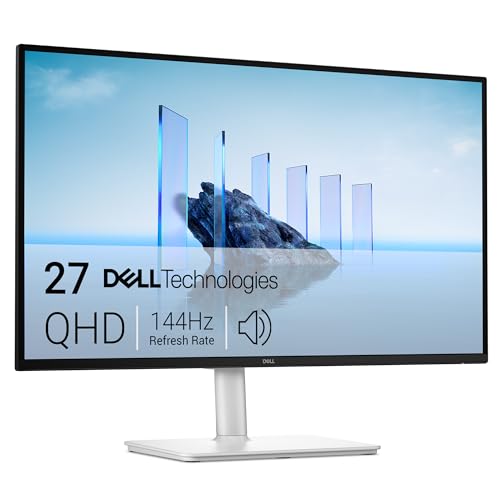
Dell’s S2725DC is the deliberate exception in this guide, and its title makes the exception’s terms explicit: a 27-inch QHD 2560×1440 panel at 144Hz with a 1ms claim, two 3W speakers, USB-C, HDMI and DisplayPort 1.4 connectivity, a stand with height, tilt, pivot and swivel, AMD FreeSync, in ash white. Where the other five picks compete on docking polish at 4K, the Dell competes on motion and ergonomics at QHD — a proposition for the Mac owner whose external screen serves dashboards, code, calls and fast-moving content, and who would trade pixel density for a 144Hz desktop’s fluidity and a stand that moves in every direction a desk can ask.
The stand is genuinely the fullest here — the only title printing all four movements — and pivot at QHD makes a tall, readable portrait column for documents and terminals. The speakers, specified at 2 x 3W where rivals leave wattage vague, cover the call-heavy day without accessories. Two silences frame the purchase, though: the USB-C wattage is not printed, so the single-cable charging question goes to the listing, and QHD’s density is a real step down from the laptop’s screen that some Mac owners will notice every hour. The Dell is the right answer to a specific question — what if my Mac desk values motion and posture over pixels? — and the wrong answer to the guide’s headline question asked naively.
- Size and resolution: 27-inch, QHD (2560×1440)
- Refresh rate: 144Hz
- Response time: 1ms
- Audio: 2 x 3W Speakers
- Inputs: USB-C/HDMI/DisplayPort 1.4 (USB-C power wattage — Not stated in the listing title — verify with the maker’s documentation)
- Stand: Height/Tilt/Pivot/Swivel
- Sync: AMD FreeSync
- Finish: Ash White
- Model: S2725DC
Strengths
- 144Hz makes the macOS desktop feel fluid in a way 60Hz panels cannot.
- The fullest stand in the guide: height, tilt, pivot and swivel all printed.
- Specified speakers handle a call-heavy day without extra hardware.
Trade-offs
- QHD text is visibly less dense than the MacBook’s own screen.
- USB-C charging wattage must be confirmed on the listing.
- FreeSync serves little purpose in a Mac-only pipeline.
Best for: a motion-and-posture-first Mac desk for code, dashboards and calls.
Not suited for: pixel-critical design work judged against the laptop’s own display.
Motion-minded Mac owners should check the S2725DC on Amazon, wattage first, price second.
Side-by-side comparison
| Monitor | Resolution | USB-C power as titled | Mac features as titled | Stand as titled |
|---|---|---|---|---|
| LG 27UP850K | 4K UHD | 90W PD | Not stated in the listing title | Tilt/Height/Pivot |
| LG 32UP83A | 4K UHD | 60W PD | Not stated in the listing title | Tilt/Height/Pivot |
| Samsung ViewFinity S8 37″ | 4K UHD | Not stated in the listing title | Built-In KVM Switch | Ergonomic Design |
| BenQ MA320U | 4K | 90W Power Delivery, Dual USB-C | Mac Color Match, control on Mac, USB Hub | Height & Tilt |
| BenQ MA270UP | 4K | 90W Power Delivery, Dual USB-C | Mac Color Match, control on Mac, USB Hub | Height & Tilt |
| Dell S2725DC | QHD | Not stated in the listing title | Not stated in the listing title | Height/Tilt/Pivot/Swivel |
Common Mistakes
The expensive mistake in this category is assuming the wattage. A USB-C logo promises a connection, not a charging rate, and the desk built on an unexamined assumption discovers the truth across a week of evenings ending at forty percent. Where the title prints the figure, bank it; where it does not — Samsung and Dell here — the listing’s specification is part of the purchase, not an optional extra.
Second, do not buy a second dock to solve a problem the monitor already solves. Two picks here carry hubs, one carries a KVM, and several carry speakers; the accessory reflex — dock, speakers, switch, all bought separately out of habit — can duplicate the monitor’s own circuitry at real cost. Inventory the title first, then shop for what is genuinely missing.
Third, match the resolution to the work rather than to the laptop’s prestige. A MacBook Pro deserves a good screen, but a QHD panel serving terminals and dashboards is not an insult to it, and a 4K panel bought for status while the work is email is money parked in pixels nobody reads. The reverse error is just as real: the designer who saves money at QHD and spends a year noticing text density has bought the discount daily.
A quieter mistake is seating the laptop’s charger in a drawer forever on the strength of the first good week. Monitor charging is a convenience with a single point of failure — the cable, the port, the panel’s own sleep behaviour — and the professional desk keeps the wall charger within reach for the day the monitor is serviced or the laptop must charge across the room. The one-cable dream survives this prudence easily; it simply stops being a single point of failure dressed as minimalism.
Finally, set the scaling deliberately on day one. macOS offers several scaled resolutions for each of these panels, and the default is not always the one your eyes or your workspace would choose. Ten minutes in the display settings, at your real seating distance, with your real applications open, is the cheapest upgrade in this entire guide.
Final Recommendation
For the Mac-native desk, the BenQ pair stands apart: choose the MA320U at 32 inches for a closed-laptop studio, the MA270UP at 27 inches for a compact or dual-screen arrangement, and enjoy the only titles here that promise the monitor will obey the Mac’s own keys and match its colour. For the balanced all-rounder with every figure printed, LG’s 27UP850K remains the safe centre of the category, with its 32-inch sibling serving bigger, lighter-loaded desks. Samsung’s 37-inch ViewFinity is the spacious two-machine headquarters, pending one wattage check. And the Dell is the honourable exception for the desk that values 144Hz motion and a fully articulated stand over pixel density. The single cable is the dream; the printed wattage is the contract — buy where the contract is written down.
One last thought for the desk that is still deciding: the measure of this category is not the first morning’s tidiness but the hundredth morning’s invisibility. A docking monitor chosen well stops being equipment and becomes the room’s behaviour — sit, plug, work, leave — and the specifications in these titles are simply the predictors of which panel will achieve that invisibility for which desk. Choose the one whose promises are printed, whose wattage matches your machine’s appetite and whose size matches your room, and the cable will take care of everything else.
FAQ
Will one USB-C cable charge my MacBook Pro and drive the display?
On the titles that print 90W — the LG 27UP850K and both BenQ MA models — yes, that is the stated design. The LG 32-inch prints 60W, enough for lighter machines and moderate loads. The Samsung and Dell titles do not state a wattage, so confirm the figure on their listings before relying on single-cable charging.
Is 60W enough for a 16-inch MacBook Pro?
For ordinary work, largely — the machine will charge or hold its level through most tasks. Under sustained heavy loads it may draw more than 60W and spend some battery, recovering afterward. Owners who render for hours should prefer the 90W titles.
What does Mac Color Match actually do?
It tunes the BenQ MA panels’ colour rendering toward the MacBook’s own screen, so images and interfaces keep a consistent appearance as they move between the laptop and the monitor. It is a consistency feature for Mac desks, not a substitute for the calibrated accuracy covered in this site’s grading guide.
Should I choose the 27-inch or 32-inch BenQ?
The specification is the same philosophy at two sizes. Choose 27 inches for compact desks and laptop-open arrangements, 32 inches for a closed-laptop single-screen studio. Measure the desk; the room decides this one.
Why is a QHD monitor in a MacBook Pro guide?
Because some Mac desks value motion and ergonomics over density. The Dell’s 144Hz and full stand serve code, dashboards and calls beautifully. If your work is visual and text-critical, stay with the 4K picks — or read the 5K guide.
Do I still need a separate dock with these monitors?
Often not. The BenQ pair include USB hubs, the Samsung includes a KVM, and several include speakers. Inventory what the title already provides before buying accessories that duplicate it.
What should I test during the first week before deciding a one-cable monitor is settled?
Run the desk the way you actually work, and note anything that makes you reach for a workaround. Close the lid and wake the machine from sleep several times, including once after it has slept overnight, because a docking setup that wakes perfectly at noon can still stumble after a long idle. Start a heavy job, an export or a long call with screen sharing, and glance at the battery indicator partway through: the point of printed wattage figures such as the 90W delivery named in several of these listings is that the battery should hold or climb under load, not merely survive a light afternoon. Plug every peripheral you own into the monitor in turn, including the drive you back up to, and copy something large enough to reveal a flaky connection. Where a title promises control from the Mac itself, as the BenQ listings do for brightness and volume, test those keys while an application is playing sound. Anything that fails, do it twice before blaming the monitor; cables and adapters cause their share of these faults, and a short written log keeps the diagnosis honest.
Related Guides
- Best 5K computer monitors for Mac desks
- Best monitors for colour grading video
- Best monitors for vertical positions and portrait reading
The same MacBook that docks to these displays also feeds the meeting-room projector, and our guide to the best mini projectors for powerpoint presentations covers that pocketable half.


