What's inside
- Where to buy
- Key Takeaways
- Quick Picks
- How did we choose monitors for a three-device desk?
- Why does a second HDMI socket change daily life more than a second anything else?
- What should you check about HDMI versions before trusting two ports?
- How do you set up a two-HDMI desk so switching stays painless?
- What mistakes do buyers make when shopping for dual-HDMI screens?
- What does a shared screen day actually look like, hour by hour?
- How should the desk itself be arranged around a two-input monitor?
- How do you verify both ports properly in the first week?
- Which matters more for a shared screen: refresh rate or panel size?
- What changes when two people, not two devices, share the screen?
- How long should a dual-HDMI monitor serve before the ports date it?
- Final Recommendation
- Frequently Asked Questions
- Related Guides
As an Amazon Associate I earn from qualifying purchases. This post may contain affiliate links at no extra cost to you.
gizmoverdict.com is reader-supported. When you buy through links on our site, we may earn an affiliate commission.
Where to buy
Linked names below lead to Amazon listings where you can count the ports on the product photos yourself before ordering. The best 2 hdmi monitors solve a problem that has nothing to do with picture quality: three machines and one screen. A work laptop arrives home in the evening, a desktop PC lives permanently under the desk, and a console sits beside it waiting for the weekend. Without a second HDMI input, every change of machine means reaching behind the panel, pulling a cable out by feel, and threading it into a different device in the dark. With two HDMI sockets, the change becomes a button press on the input menu, and the cable spaghetti behind the desk stays exactly where you left it.
Four of the six screens in this guide carry links because their verified listings state the dual-HDMI arrangement outright: two Acer Nitro gaming panels that print "2xHDMI" in their titles, an older Acer Nitro that spells out two HDMI ports plus a VGA legacy socket, and a BenQ home-office panel whose listing names an HDMI Port 2 alongside DisplayPort. The two BenQ MOBIUZ gaming screens sit in prose without links, and the reason is worth understanding: their listings describe the HDMI generation fitted, version 2.0, without stating how many sockets the monitor actually carries. That distinction matters enormously in this category, so they are discussed honestly as near-misses rather than quietly promoted into a promise the evidence does not support.
Read the category with one more caution in mind. A second HDMI port is only useful if switching between inputs is painless, if both sockets accept the signal your devices send, and if the panel itself suits the work all three machines will do on it. A fast gaming panel wasted on a spreadsheet laptop is no tragedy, but a dim office panel asked to carry console play every evening will disappoint somebody daily. The picks below are therefore judged as shared screens first and specification sheets second.
Key Takeaways
- Two Acer Nitro panels and a BenQ office screen state their twin HDMI sockets directly in their verified listings, so they anchor the linked choices.
- An HDMI version number is not a port count: listings that say HDMI 2.0 may still hide a single socket, which is why two strong gaming screens appear here without links.
- Input switching speed and an auto-input setting matter as much as the sockets themselves when three devices share one desk.
- Gaming-leaning panels dominate this list because console-plus-PC households drove demand for dual HDMI long before office buyers did.
- Keep one short, certified cable per device permanently plugged in; a shared screen fails when the cables start travelling instead.
Quick Picks
| Pick | Badge | Why it earns its place |
|---|---|---|
| Acer Nitro KG240Y 240Hz | Fastest shared screen | Two HDMI sockets feed a 240Hz IPS panel, so the console and the gaming PC both arrive without a cable swap. |
| Acer Nitro KG241Y 180Hz | The balanced switcher | Dual HDMI at 180Hz covers competitive play on one input and a work laptop on the other without overspending on speed. |
| Acer Nitro VG240Y | Legacy-friendly veteran | Two HDMI ports sit beside a VGA socket, welcoming an older desktop or projector-era laptop into the same rotation. |
| BenQ GW2490 100Hz | The office-first sharer | Eye-care tuning, a named second HDMI port and DisplayPort make it the calmest screen here for long document days. |
| BenQ MOBIUZ EX251 | Prose only: port count unstated | A quick 25-inch gaming panel whose listing confirms the HDMI generation but never the number of sockets. |
| BenQ MOBIUZ EX271 | Prose only: port count unstated | The 27-inch sibling offers the same caveat at a larger size, with the same unanswered question behind the panel. |
How did we choose monitors for a three-device desk?
The first filter was documentary rather than technical. A pick could only carry a purchase link if its verified listing text stated two HDMI inputs in plain language, because this entire category collapses if the headline feature rests on a guess. Screens whose listings named an HDMI version, a single HDMI mention, or ports in general terms were not rejected as products; several are excellent. They were simply moved to the prose tier, where the uncertainty could be described instead of concealed, and readers who find a retailer photo confirming the socket count can still buy them with open eyes.
Once the port evidence was sorted, the judging turned to life around the ports. How does the monitor behave when a sleeping laptop wakes and grabs the input? Does the on-screen menu bury source selection three levels deep, or does a joystick press reach it instantly? Is there a DisplayPort as well, so the desktop can take the high-bandwidth path while the two HDMI sockets serve console and laptop? Panels earned their ranking by answering those everyday questions well, not by winning a refresh-rate contest nobody in this category entered.
Panel character formed the third filter. A screen shared between a spreadsheet laptop, a desktop and a console spends its mornings rendering text and its evenings rendering games, so IPS viewing angles and tolerable brightness uniformity outweighed exotic gaming features. Every linked pick uses an IPS-class panel, and that is a deliberate editorial choice rather than a coincidence of the pool: three people may crowd around a shared screen, and the person at the edge should still see the picture properly.
Finally, size discipline mattered. All six screens sit between roughly 24 and 27 inches, because a shared household monitor lives on a real desk with a keyboard, a console and probably a mug competing for the same surface. A 32-inch panel would dominate that space and push the laptop off its stand. Readers who want the giant shared screen should treat this guide as a port-buying lesson and apply its evidence rules to larger models elsewhere.
Why does a second HDMI socket change daily life more than a second anything else?
HDMI won the living-room and console world completely, and it remains the only connector that a games console, a streaming stick, most laptops and many small PCs all speak without adapters. DisplayPort is technically stronger for PC gaming, and USB-C is more elegant for laptops, but neither helps when a PlayStation or an older work laptop knocks on the door. Two HDMI inputs therefore cover the two guests most likely to arrive uninvited, while DisplayPort handles the resident desktop. That division of labour is the quiet architecture behind every pick in this guide.
There is also a wear argument that rarely appears in buying advice. HDMI sockets tolerate repeated plugging poorly compared with their reputation; the connector relies on friction, and the port soldered to a monitor’s main board is not designed for thousands of mating cycles. A household that swaps one cable between three devices twice a day performs over a thousand insertions a year across the participating ports. Leaving three cables permanently seated and switching electronically converts a mechanical wear problem into a menu press, and monitors tend to die at connectors and power supplies long before their panels fade.
The second socket also rescues picture settings. Most monitors remember separate picture modes per input, so the console can live in a vivid game mode with black equalisation raised while the laptop input stays in a low-blue-light reading profile. With a single shared cable, both devices inherit whatever profile was active, and somebody is always squinting or always over-saturated. Per-input memory turns one panel into two correctly tuned screens that happen to share a power cord.
What should you check about HDMI versions before trusting two ports?
Version numbers govern bandwidth, and bandwidth decides which signals each socket accepts. An HDMI 2.0 input handles 4K at 60Hz or 1080p at high refresh rates comfortably, which covers every panel in this guide because all six are Full HD screens. The trap appears when buyers assume the second socket matches the first. Some monitors fit one full-bandwidth input and one lesser companion intended for a set-top box, and the product photos rarely confess the difference. On a 1080p panel the practical gap is refresh rate: a console or PC pushing high frame rates needs the socket that accepts the panel’s full speed.
Cable quality multiplies the confusion. A tired cable that worked at 60Hz may flicker or drop to black at 180Hz, leading owners to blame the new monitor for an old wire’s limits. When you set up a dual-HDMI desk, retire the mystery cables, buy two or three short certified leads of identical specification, and label each one at both ends with the device it serves. Troubleshooting later becomes a thirty-second substitution test instead of an afternoon of suspicion aimed at the wrong component.
Audio deserves a sentence of its own. HDMI carries sound to the monitor’s speakers or headphone output, which is convenient for a console and occasionally maddening for a laptop that silently reroutes its audio every time it docks. Decide deliberately which device owns sound in your setup, set that preference inside each operating system, and the shared screen will stop playing notification pings through tinny monitor speakers during somebody else’s game.
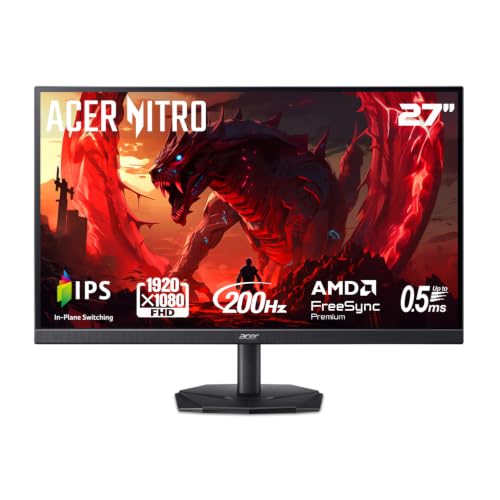
Acer Nitro KG240Y 240Hz — Fastest shared screen
The KG240Y approaches the shared-desk problem from the gaming end and simply refuses to compromise anywhere else. Its listing states the two HDMI sockets plainly, adds DisplayPort for the resident PC, and behind those ports sits a 23.8-inch IPS panel running at 240Hz with FreeSync Premium. In a three-device household that specification reads like a seating plan: the desktop takes DisplayPort and the full refresh rate, the console takes the first HDMI, and the laptop takes the second HDMI for evening email without disturbing either of the other two cables.
What elevates this panel above a spec-sheet exercise is how the speed changes the sharing experience. A console that outputs 120Hz in supported titles uses the headroom properly, a gaming PC can push far beyond it, and the humble work laptop benefits in an unexpected way: cursor movement and window dragging at high refresh feel noticeably smoother during the quick between-meetings checks this screen will host. Nobody buys 240Hz for spreadsheets, yet everybody who touches the mouse notices the difference within seconds.
The honest limitation is that 240Hz at 1080p is a competitive player’s tool, and households without a fast PC or a current console will pay for capability that sleeps unused. The panel also belongs to a gaming line, with styling and a stand that prioritise tilt over the full ergonomic range of an office monitor. If the desk’s centre of gravity is documents rather than matches, the BenQ further down this list will serve weekdays better. As a single screen asked to satisfy a gamer, a console and a laptop in rotation, though, nothing else here covers all three briefs at this speed.
- Panel: 23.8-inch IPS, 1920×1080, 240Hz
- Inputs: 2×HDMI and DisplayPort, as stated in its listing
- Sync: AMD FreeSync Premium
- Mounting: VESA mountable, with blue-light filtering and flicker-free backlighting
Strengths
- Twin HDMI sockets are declared outright, removing the guesswork this category usually demands.
- DisplayPort frees both HDMI inputs for guests instead of consuming one for the main PC.
- Refresh headroom satisfies consoles at 120Hz and still leaves room for a serious gaming rig.
Trade-offs
- Stand adjustment is gaming-grade rather than office-grade, so a monitor arm may follow later.
- Buyers without high-refresh sources pay for speed that stays dormant.
- At 23.8 inches, split-screen laptop work feels snug beside a console session.
Best for: a gamer whose desk also hosts a console and a laptop, all three wired in permanently. Not suited for: a text-heavy home office that would trade every hertz for height adjustment and softer eye-care tuning.
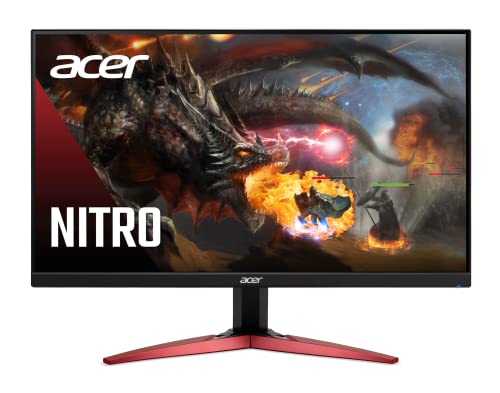
Acer Nitro KG241Y 180Hz — The balanced switcher
If the KG240Y is the enthusiast’s answer, the KG241Y is the household’s. It keeps the same dual-HDMI-plus-DisplayPort layout that makes this category work, keeps the 23.8-inch IPS panel and FreeSync Premium, and settles at 180Hz — a figure that still doubles what a console can request and triples a standard office panel, without chasing the last competitive increment. For the mixed desk, that balance is not a compromise so much as a correct reading of the room.
The sharing experience is where this monitor quietly shines. Input switching between a work laptop in the morning and a console after dinner becomes a habit rather than a chore, and because both HDMI cables stay seated, the desk’s cable channel never gets disturbed. Owners of dual-device desks consistently report that the second input changes behaviour more than any picture specification: the laptop gets used at the big screen instead of on the sofa, simply because connecting it stopped being an event.
Reservations mirror its sibling’s, softened. The stand remains a tilt-led gaming design, the styling announces its lineage, and 180Hz still exceeds what a purely administrative household needs. But the price of admission to permanent dual-HDMI convenience is lower here in spirit — you are buying the port layout and a thoroughly capable panel, not a tournament instrument. For most three-device desks, this is the pick that will be forgotten fastest, which is precisely what shared infrastructure should aspire to.
- Panel: 23.8-inch IPS, 1920×1080, 180Hz
- Inputs: 2×HDMI and DisplayPort, as stated in its listing
- Sync: AMD FreeSync Premium
- Mounting: VESA mountable, flicker-free with blue-light filtering
Strengths
- The same honest dual-HDMI declaration as its faster sibling, at a calmer specification.
- 180Hz still covers console high-frame modes with room to spare.
- IPS angles suit a screen that several people glance at from different chairs.
Trade-offs
- Ergonomics remain tilt-focused; long document days may want an arm.
- No USB hub, so the laptop still needs its own peripheral arrangements.
- Gaming aesthetics will not blend into a minimalist study without some tolerance.
Best for: mixed households splitting one desk between work laptops, a desktop and a console. Not suited for: esports players who specifically want the 240Hz ceiling, or buyers needing USB-C docking from the monitor itself.

Acer Nitro VG240Y — Legacy-friendly veteran
The VG240Y comes from an earlier Nitro generation, and its age turns out to be its superpower in this specific category. Alongside two HDMI ports, its listing includes a VGA socket — an input younger monitors have abandoned entirely. That dusty blue connector matters more than nostalgia suggests: households and small offices are full of still-serviceable older desktops, thin clients and laptops whose only video output predates the HDMI era, and this is the one screen here that welcomes such a machine into the rotation without an adapter chain.
Expectations should be calibrated to its generation. The panel runs at 75Hz with FreeSync, which reads modestly beside its 180Hz and 240Hz relatives, yet for the actual workload of a shared family screen — console play at standard rates, homework documents, streamed video, a parent’s evening admin — 75Hz with an IPS panel remains a perfectly pleasant place to sit. The picture is honest, the angles are wide, and the input menu does not care whether the signal arrived from a brand-new console or a decade-old tower PC.
The counterweight is future-proofing, or rather its absence. There is no DisplayPort in the listing, so a modern desktop must occupy one of the HDMI sockets, narrowing the very flexibility this category celebrates. Buyers building a fresh three-device desk around current hardware should take one of the newer Nitros instead. Buyers whose device zoo includes something with a VGA output — and more households qualify than admit it — will find this veteran solves a problem its shinier siblings cannot touch.
- Panel: 23.8-inch IPS, 1920×1080, 75Hz
- Inputs: 2×HDMI plus VGA, as stated in its listing
- Sync: AMD FreeSync (Radeon FreeSync generation)
- Character: earlier Nitro design, tilt stand
Strengths
- VGA support rescues older machines that every other pick here turns away.
- Two HDMI inputs still cover a console and a modern laptop simultaneously.
- IPS panel keeps family viewing angles forgiving.
Trade-offs
- No DisplayPort, so a new desktop consumes one HDMI socket.
- 75Hz ceiling will feel plain to players arriving from faster panels.
- An older design means fewer modern conveniences in menus and ports.
Best for: households mixing a console, a current laptop and one older VGA-only machine. Not suited for: a brand-new all-HDMI-and-DisplayPort setup that wants maximum refresh from every input.

BenQ GW2490 100Hz — The office-first sharer
BenQ’s GW2490 reverses the priorities of the Acer trio. It is an eye-care office monitor first — low-blue-light tuning, adaptive brightness, flicker-conscious design and built-in speakers — that happens to carry the dual-input layout this guide exists to celebrate. Its listing names a second HDMI port explicitly alongside DisplayPort, which means the work laptop and the home desktop can both stay connected while the panel spends its day doing what BenQ office screens do best: making eight hours of text tolerable.
The 100Hz refresh rate deserves a kind word, because it quietly upgrades the office experience in ways 60Hz panels cannot. Scrolling documents judder less, cursor trails calm down, and the occasional lunchtime game runs far more pleasantly than an office monitor has any right to allow. Combined with thin bezels and VESA mounting, the GW2490 fits the modern home-office pattern where the work screen must also serve a personal machine after hours, and where the swap between them now takes a button press instead of a cable ritual.
Its limits are the mirror image of the Nitros’. Console players chasing 120Hz modes will find the ceiling early, and FreeSync-style gaming extras are not the point of this design. The speakers are meeting-grade rather than entertainment-grade. None of that dents its actual brief: a shared desk where work dominates the hours and a second machine needs permanent residence. Among these six, it is the pick most likely to be recommended by the person whose eyes share the desk longest.
- Panel: 24-inch-class IPS, 1920×1080, 100Hz
- Inputs: two HDMI ports (second port named in listing) plus DisplayPort
- Comfort: eye-care technology, low blue light, adaptive brightness
- Mounting: VESA mount, thin bezels, built-in speakers
Strengths
- Dual HDMI arrives inside a genuinely work-tuned panel rather than a gaming shell.
- Adaptive brightness suits desks near windows where light changes across the day.
- 100Hz lifts everyday scrolling and casual play above the office standard.
Trade-offs
- Console high-frame modes above its ceiling go unused.
- Speakers handle calls well but films deserve external help.
- No gaming sync branding for players who prioritise tear-free speed.
Best for: a home office where a work laptop and a personal desktop share one eye-friendly screen. Not suited for: competitive console or PC players measuring their evenings in frames per second.
BenQ MOBIUZ EX251 — Prose only: port count unstated
The EX251 is, on its gaming merits, one of the most appealing screens in this entire discussion: a roughly 25-inch Full HD MOBIUZ panel with a headline 180Hz rate and a higher overclocked figure, 1ms-class response claims, FreeSync, a USB hub and built-in speakers. If a friend described it without mentioning inputs, most shared-desk buyers would shortlist it immediately. It appears here without a purchase link for one precise reason: its verified listing describes an HDMI 2.0 interface without stating how many HDMI sockets the monitor carries.
That gap is not pedantry. This guide’s entire promise is two HDMI ports, and a version number cannot testify to a socket count; plenty of monitors pair a single HDMI 2.0 input with DisplayPort and call the arrangement complete. The EX251 may well carry two HDMI inputs in the metal — the MOBIUZ line often equips gaming screens generously — but a buying guide that prints the claim without evidence teaches readers to trust exactly the kind of assumption that leaves them one port short at setup time.
The practical path is simple. If the EX251’s speed and size tempt you, open its listing, study the rear-panel photograph, and count the HDMI sockets with your own eyes before ordering. Should the photo confirm two, you gain a fast, speaker-equipped shared screen with a USB hub the Acer picks lack. Should it show one, the KG241Y above delivers the same daily experience with its port layout in writing. Either way, the decision will rest on evidence, which is where buying decisions belong.
- Panel: roughly 25-inch Full HD, 180Hz headline with higher overclock figure
- Inputs: HDMI 2.0 generation and DisplayPort named; HDMI socket count not stated in listing
- Extras: USB hub and built-in speakers named in listing
- Status: prose-only in this guide pending a port count
Strengths
- High refresh and gaming colour modes suit a console-plus-PC pairing.
- A USB hub reduces the peripheral shuffle when laptops rotate through.
- Built-in speakers keep a shared desk free of extra boxes.
Trade-offs
- The defining question of this category goes unanswered by its listing.
- Speakers in gaming panels rarely satisfy film nights.
- Its size sits between standard classes, so check desk depth before assuming a fit.
Best for: buyers willing to verify the rear panel photo who want gaming speed plus a hub. Not suited for: anyone ordering on specification text alone who needs the second socket guaranteed in writing.
BenQ MOBIUZ EX271 — Prose only: port count unstated
Everything said about evidence applies to the EX271 with one variable changed: scale. This is the 27-inch MOBIUZ sibling, a Full HD gaming panel at 180Hz with FreeSync, a USB hub and speakers, pitched at players who find 24-inch screens cramped for console sessions viewed from a little further back. On a shared desk that hosts a console, that extra glass has real charm — two people on a sofa-side chair arrangement can actually follow the action.
The same documentary problem follows it here. Its listing confirms the HDMI generation without enumerating sockets, so it stands in the prose tier beside its smaller sibling. There is an additional honesty point specific to this model: 27 inches at 1920×1080 spreads the same pixels across more glass, so text from the work laptop will look softer than on the 24-inch picks. For console-first sharing that trade is usually worth making; for a laptop-first desk it usually is not, and the guide would rather surface that tension than hide it behind a link.
Treat the EX271 as a conditional recommendation. Verify the port photograph, accept the gentler pixel density as the price of console-friendly size, and it becomes a legitimate shared screen with hub convenience built in. Skip the verification step and you are gambling the entire premise of the purchase on an unlabelled variable — the one gamble this category never requires, because four picks above put their sockets in writing.
- Panel: 27-inch Full HD, 180Hz, IPS-class gaming panel
- Inputs: HDMI 2.0 generation and DisplayPort named; socket count unstated
- Extras: USB hub, built-in speakers, gaming colour modes
- Status: prose-only in this guide pending a port count
Strengths
- Console sessions gain presence that 24-inch screens cannot match.
- Hub and speakers reduce the accessory clutter around a shared desk.
- 180Hz keeps PC play properly fluid on the DisplayPort input.
Trade-offs
- Full HD across 27 inches softens fine text from a work laptop.
- HDMI socket count remains unconfirmed by the listing text.
- A larger footprint crowds desks where a laptop stand also lives.
Best for: console-led shared desks that verify the rear panel before buying. Not suited for: text-first workers, or anyone unwilling to check a product photo before trusting a port claim.
How do you set up a two-HDMI desk so switching stays painless?
Begin with a fixed seating plan for cables and never improvise it afterwards. Desktop to DisplayPort, console to HDMI 1, laptop to HDMI 2 — then write the assignment on a small label taped beneath the desk edge. Every future moment of confusion, every visiting relative, every troubleshooting session benefits from that ten-second act of documentation. Use the shortest cables that reach comfortably; slack loops behind a monitor collect dust, radiate tangle energy, and eventually pull a connector sideways under their own weight.
Next, teach the monitor your preferences. Most modern panels offer an auto-input option that wakes to whichever device powers on, and a manual override through the joystick or button cluster. Enable auto-switching if your household powers devices one at a time, but disable it if the desktop runs overnight jobs — a sleeping-room console wake-up should not steal the screen from a rendering PC. Set each input’s picture mode individually while the relevant device is active: reading profile for the laptop, game profile for the console, standard for the desktop. The monitor remembers the pairing even if the manual never mentions it clearly.
Sound routing needs one deliberate decision. Pick the device that owns audio — usually the desktop or the console — connect speakers or a soundbar to that path, and mute the monitor’s internal speakers on the other inputs if the firmware allows per-input volume. Laptops are the usual saboteurs: dock one and it may seize audio output through HDMI without asking. A single visit to its sound settings, choosing the laptop’s own speakers or your headphones as default, prevents every future recurrence.
Finally, rehearse the failure modes once, while nobody is in a hurry. Pull the console’s cable and watch which input the monitor falls back to. Wake the laptop with the desktop already displaying and confirm the switch takes one press, not a menu expedition. These two minutes convert the first real mid-evening fault from an argument into a shrug, and they reveal any mislabelled cable while the fixing is still amusing.
What mistakes do buyers make when shopping for dual-HDMI screens?
The champion mistake is reading a version as a quantity. HDMI 2.0, HDMI 2.1 and similar labels describe capability per socket, not the number of sockets, and marketing copy exploits the ambiguity constantly. The defence is boring and total: find the numeral. Listings that mean two ports say 2×HDMI, HDMI ×2, or name a second port; listings that describe only a version have told you something else entirely. This guide’s two prose-only entries exist as a standing demonstration of the rule applied without favouritism.
A second error is forgetting the third device. Buyers count console plus laptop, celebrate two HDMI ports, and then discover the desktop also needed one because its graphics card’s DisplayPort output is already driving another screen. Map every device and every existing cable before ordering, including the streaming stick hiding in the television’s shadow that somebody will inevitably want at the desk. If the true count is four devices, the answer may be a small HDMI switch feeding one monitor input — a legitimate accessory, provided it supports the refresh rates your fastest source demands.
Third comes cable complacency: assuming the drawer of accumulated HDMI leads contains two that can carry high-refresh signals. At 180Hz and 240Hz, marginal cables produce the cruellest fault in computing — intermittent black screens that vanish whenever a technician looks. Start the new desk with fresh, certified, identical cables and the mystery fault usually never applies for the job. Keep one spare of the same specification in the drawer, labelled, for the substitution test that settles every future argument.
The final mistake is buying the port layout and ignoring the panel’s day job. A shared screen spends most of its powered hours on whichever device works longest, and in most households that is a laptop showing text. Choosing a dim, narrow-angled panel because its gaming numbers glittered will tax somebody’s eyes for years to save a console experience measured in hours per week. Weight the decision by hours, not by excitement.
What does a shared screen day actually look like, hour by hour?
At half past seven the laptop wakes first. Its owner answers overnight messages at the big screen because the keyboard at this desk is better than the one in the laptop, and because the BenQ-style reading profile on HDMI 2 keeps the brightness gentle in a dim kitchen-adjacent room. The console, asleep on HDMI 1, does not stir; the desktop, asleep on DisplayPort, does not either. One device, one press, no cables — the morning works because the seating plan was decided months ago and nobody has improvised since.
By nine the laptop has left for an office or a train, and the desktop owns the desk until evening. Here the second HDMI socket earns its keep in an unglamorous way: nothing changes. The console cable stays seated, the laptop cable waits in its labelled coil, and the desktop’s owner never thinks about inputs at all. Infrastructure succeeds by disappearing, and a dual-HDMI monitor disappears better than any rival arrangement because there is no switch box glowing on the desk and no cable draped across the keyboard tray waiting to be knocked loose by a cat, a child or a careless elbow.
Evening reverses the flow. The console wakes for an hour of play while dinner cooks, and the monitor’s per-input game profile — brighter, sharper, black levels lifted — arrives with it automatically. Later the laptop returns for a film or a video call with family, and its softer profile returns too. Three personalities, one panel, zero reconfiguration: that is the product actually being bought in this category, and the port count is merely its admission ticket. Shoppers who grasp this buy for switching behaviour and menu sanity; shoppers who miss it buy a refresh rate and wonder why the desk still feels cluttered.
Weekends add the fourth character nobody budgeted for: a guest device. A friend’s laptop carrying photos, a child’s school Chromebook, a streaming stick borrowed from the television. The spare capacity of a two-HDMI desk absorbs the guest by temporarily evicting the least-used resident — usually the home laptop — and the eviction takes seconds because the cables are labelled. On a single-port desk the same visit triggers the full archaeological dig behind the monitor. Small hospitality, repeated monthly, is an underrated specification.
How should the desk itself be arranged around a two-input monitor?
Start at the wall and work forward. The monitor’s power brick and the three video cables should travel together through one cable channel or desk grommet, emerging at a single managed bundle rather than three separate expeditions across the desk’s underside. Label both ends of every video cable — device name at the monitor end, input number at the device end — with a label maker or masking tape and a honest hand. Future you, crouched behind this desk in poor light, is the audience for every one of these decisions.
Position the monitor so its input buttons or joystick fall naturally to the dominant hand without reaching around the panel. On several picks here the control sits underneath the lower bezel, which is fine on an open desk and miserable inside a hutch or tight alcove; measure the furniture before the monitor, not after. If the controls will be awkward, a monitor arm solves two problems at once — it frees the surface beneath the screen for the console, and it lets the panel swing toward a sofa-side chair for co-operative console sessions before swinging back to work position in the morning.
Sound furniture matters as much as video furniture. A small soundbar centred under the panel, fed from the device that owns audio, keeps dialogue anchored to the picture for every input that routes sound through the monitor’s output. Headphone users should claim the monitor’s front or side audio jack if one is fitted, because a cable that lives at the desk beats a cable that travels with a headset between rooms. None of this appears on a specification sheet, and all of it decides whether the shared screen feels designed or merely assembled.
Leave one empty power socket and one spare certified HDMI cable in the drawer, permanently. The guest device, the failing cable and the surprise streaming stick all arrive on the same wet Sunday eventually, and the household that prepared for them spends the afternoon watching something instead of shopping for parts. Preparation is the cheapest feature in this entire guide and the only one no manufacturer can sell you.
How do you verify both ports properly in the first week?
Unbox with a notebook, not with optimism. Connect the first device to HDMI 1 and record three things: the resolution and refresh rate the operating system reports, whether variable refresh engages if the pairing supports it, and whether audio passes if you intend to use it. Repeat the identical ceremony on HDMI 2 with the same device and the same cable before introducing any other variable. Ports are occasionally uneven in capability, and the first week — inside every return window — is when an uneven port is a retailer’s problem rather than yours.
Then test the choreography, not just the connections. Put both devices to sleep, wake the console, and time how long the picture takes to arrive. Wake the laptop while the console still displays and confirm the switch behaves as the manual promised. Deliberately select the wrong input and recover from the mistake using only the monitor’s controls in the dark, because that is the exact conditions under which the recovery will someday be needed for real. Any monitor that fails the dark-recovery test will be cursed monthly; send it back while cursing is still free.
Finish by stress-testing the marginal case: the highest refresh rate your fastest device can send, sustained for half an hour of actual play rather than a desktop idle. Intermittent cable and port faults hide at idle and confess under load, usually as a one-second black flash every few minutes. Swap in the spare certified cable at the first flash before blaming the panel. If the flash survives two known-good cables on both inputs, the monitor has told you what it is, early enough for you to act on the information.
Which matters more for a shared screen: refresh rate or panel size?
The honest answer depends on which device clocks the most hours, and households routinely misjudge their own statistics. The console feels like the main event because its sessions are loud and social, yet in most homes the laptop’s quiet document hours outnumber console hours three to one across a month. Weight the panel toward the majority use: size and comfort for the worker, speed for the player, and only when one person fills both roles does the decision become genuinely difficult. The KG241Y exists precisely for that overlap — fast enough to respect the player, civilised enough for the worker’s Tuesday.
Viewing distance settles what preference leaves open. A desk places eyes roughly an arm’s length from the glass, where a 24-inch Full HD panel looks crisp and a 27-inch one begins to show its pixel structure in fine text. A console chair rolled back another half-metre reverses the verdict entirely. Measure your two real distances before choosing, because the same household can honestly need both answers and must then decide which seat gets served first. There is no shame in either outcome; there is only waste in buying for a seat nobody occupies.
Budget reasoning follows the same hours logic. Money spent lifting a shared screen from 75Hz to 180Hz buys joy in proportion to the high-refresh hours actually available to enjoy it, while money spent on a better stand, a monitor arm or a soundbar pays out on every single session regardless of source. Dual-HDMI shoppers are, by temperament, infrastructure buyers — people fixing a daily friction — and infrastructure money is usually best spent on the friction itself rather than on spectacle adjacent to it.
What changes when two people, not two devices, share the screen?
Partner households add negotiation to the technical problem. Two laptops, one desk, alternating days: the dual-HDMI layout turns the handover into a non-event, but only if both people agree the seating plan and resist private improvements. The moment one partner swaps a cable to a preferred port or changes the shared input’s brightness, the other partner’s next session begins with a small mystery. Shared screens need a constitution — settings on the monitor belong to the household, settings inside each person’s own machine belong to them — and the households that write it down, even jokingly on a sticky note, stop having the argument entirely.
Children introduce a different variable: homework devices multiply. A school laptop that must reach the big screen for a presentation rehearsal, a console rationed to weekends, a family desktop that parents still use for accounts — three claimants again, and the two-HDMI monitor with a DisplayPort desktop covers the full parliament without a single cable touching the floor. Parents also gain a subtle supervision benefit, because work done at the household desk in shared space is work that stays visible, and the big screen invites that visibility in a way a laptop at a bedroom desk never will.
One last scenario deserves a paragraph because it converts sceptics reliably. Picture the hybrid worker whose employer replaces a laptop mid-year: the new machine arrives, its cable joins HDMI 2 during a lunch break, and the old machine keeps HDMI 1 — no, keeps its DisplayPort seat — until the migration of files and logins completes a week later. At no point did the desk stop working. That overlapping week, impossible on a single-input screen without daily swaps, is the entire philosophy of this category compressed into one calm anecdote, and it is why owners of dual-HDMI monitors rarely return to anything else.
How long should a dual-HDMI monitor serve before the ports date it?
A monitor bought today will likely outlive two generations of the devices feeding it, which reframes the port question entirely. Consoles refresh on long cycles, laptops on medium ones, and the screen watches both processions from the same desk. Two HDMI inputs plus DisplayPort is currently the layout with the longest plausible relevance, because it seats today’s trio and still offers a spare philosophy — one premium input, two universal ones — when tomorrow’s streaming box or handheld dock arrives asking for hospitality.
The greater dating risk sits in bandwidth rather than count. These are Full HD panels, and their inputs are specified accordingly; a future device that wants to push very high resolutions will find the panel itself, not the socket, to be the ceiling. Buyers comfortable that 1080p serves their desk for the panel’s whole life — a perfectly reasonable position at 24 inches — can ignore the issue entirely. Buyers already eyeing a resolution jump should treat this purchase as the shared screen for the current room and let the next monitor inherit a different brief.
Care extends the timeline cheaply. Dust the vents yearly, keep the cable bundle from hanging its weight on the sockets, and power the panel through a surge-protected strip alongside the devices it serves. Connector failures and power-supply failures end more monitor lives than panel wear ever will, and both enemies are slowed by exactly the kind of permanent, undisturbed cabling that a two-input desk encourages from its first day.
Keep the monitor’s manual, or at least a photograph of its input-menu page, in the same drawer as the spare cable. Menu logic varies enough between brands that memory fails exactly when a guest is waiting to show holiday photographs, and thirty seconds with the right page beats five minutes of hopeful button pressing in front of an audience.
Final Recommendation
For most three-device desks, the Acer Nitro KG241Y is the recommendation to beat: dual HDMI declared in writing, DisplayPort for the resident PC, 180Hz that flatters both console and casual gaming, and an IPS panel that treats the work laptop fairly. Step up to the KG240Y if a fast gaming PC joins the rotation and its owner will genuinely use 240Hz. Choose the BenQ GW2490 when working hours dwarf playing hours and eyes cast the deciding vote. Keep the VG240Y in mind the moment an older VGA machine enters the conversation, because nothing else here can seat it. And let the two MOBIUZ screens stand as the guide’s closing lesson: in a category defined by a number, the listing that will not state the number has not earned your trust yet — count the sockets in the photograph, or buy the screen that already counted them for you.
Frequently Asked Questions
Can both HDMI inputs run at the monitor’s full refresh rate?
On the gaming picks here, the HDMI inputs are built for high-refresh Full HD signals, but the only way to be certain about a specific unit is the listing’s input specification and, failing that, a test with a known-good cable during the return window. DisplayPort remains the safest path for the absolute ceiling on the 240Hz model, which is why this guide seats the desktop there and gives HDMI to devices whose maximum demands sit lower.
Will a console and a PC wake the monitor automatically when they power on?
Generally yes, provided the monitor’s auto-input or CEC-style wake setting is enabled and the device itself sends a wake signal, which consoles and most modern PCs do. Laptops are the inconsistent party: some only present a signal after their lids open or their docks negotiate. If one device refuses to wake the screen, a single press of the input button is the fallback, and the seating plan label under the desk tells you which input to select.
Is an HDMI switch box a good substitute for a second port?
It is a workable substitute with real costs. A switch adds a remote or button press of its own, another power draw, and a bandwidth ceiling that cheap models set disappointingly low for high-refresh gaming. Where the monitor itself offers two proper inputs, switching happens inside the panel with per-input picture memory intact. Reserve external switches for the fourth device, or for rescuing a beloved single-HDMI monitor that is otherwise perfect.
Do I lose picture quality by using HDMI instead of DisplayPort for my PC?
At 1920×1080 within the bandwidth these inputs support, the image itself is identical; the differences live at the extremes of refresh rate and in variable-refresh implementation details. Seat whichever device pushes the highest frame rate on the connection with the most headroom — usually DisplayPort — and let the others use HDMI without a moment of visual regret.
Why did two BenQ gaming monitors appear without links in a buying guide?
Because their verified listings specify the HDMI generation fitted without stating the number of HDMI sockets, and this category’s defining feature is a count, not a generation. Rather than guess, the guide discusses both screens in full and tells you exactly how to confirm the count from the rear-panel photograph. If the photograph shows two sockets, either becomes a strong choice; the guide simply refuses to make that claim on your behalf without evidence.
Should the television’s streaming stick move to the desk monitor?
It can, and in small flats it often should, because a stick in the second HDMI socket turns the desk screen into the household’s overflow television for the nights when the main set is occupied. The monitor’s speakers will be the weak link for films, so route audio to headphones or a small speaker if dialogue matters. Remember that the stick also claims the socket your laptop wanted, which returns the household to negotiation — the permanent residents should keep their seats, and the stick should be the guest that borrows the console’s input on movie nights and gives it back afterwards.
Related Guides
Readers building out a multi-device desk may also want our coverage of dual-monitor setups for gaming desks, the companion shortlist of 24-inch gaming monitors worth shortlisting, and our explainer on choosing between HDMI and DisplayPort for high-refresh play.


[…] at this fork may also find our roundup of the best 1440p monitors decisive, alongside our guide to the best 24 inch gaming monitors and our survey of the best […]