What's inside
- Key Takeaways
- Quick Picks
- How Did We Judge Extenders for Xfinity Homes?
- Rented Gateway or Owned Equipment: Why the Fork Decides Everything
- What Happens When the Gateway Changes, or the Household Moves?
- How Many Pods Does an xFi Home Actually Need?
- How Do the Six Compare Side by Side?
- What Is the Full Menu for an Owned-Equipment Household?
- How Do Guest Access and Smart Devices Fit an Xfinity Setup?
- How Does a Universal Extender Behave Behind an xFi Gateway?
- What Does the Pod Route Buy in Daily Practice?
- Where Should Pods and Extenders Be Placed in an Xfinity Home?
- How Should an Xfinity Extender Problem Be Troubleshot?
- What Mistakes Do Xfinity Households Make With Extenders?
- What Should Be Checked in the First Week of a New Setup?
- Final Recommendation
- Frequently Asked Questions
- Related Guides
As an Amazon Associate I earn from qualifying purchases. This post may contain affiliate links at no extra cost to you.
gizmoverdict.com is reader-supported. When you buy through links on our site, we may earn an affiliate commission.
Where to buy: The buy button on every product below opens the exact listing this site vetted when building this Xfinity shortlist. Xfinity households face one compatibility fork that decides everything — rented gateway or owned equipment — and this guide puts that fork at the front, because the first two picks work on only one side of it.
The best wireless extenders for comcast xfinity internet begin with a question no other extender category asks so sharply: whose gateway sits at the centre of the home? Xfinity’s own xFi Pods are mesh nodes for the xFi system, and they are magnificent within it — but the first pod’s listing title states the condition in capital terms: only compatible with Xfinity rented routers, not compatible with customer-owned routers. A household renting its gateway can buy pods and join the native mesh. A household with its own purchased modem and router cannot use pods at all, and must extend its network the universal way, with a third-party extender working behind whatever router it owns.
That fork organises this entire roundup. The first two picks are xFi Pods — the original single pod and the second-generation XE2-SG model — for rented-gateway households that want the native route. The remaining four are NETGEAR extenders whose titles state that they work with any router: two Wi-Fi 5 models at AC1200 and AC1900 classes, a Wi-Fi 6 Nighthawk with an Ethernet port, and a Wi-Fi 7 Nighthawk with a 2.5G port. Third-party extenders behind an xFi gateway operate as standard extenders in the ordinary way; what they do not do — and what no honest guide should imply — is join the xFi mesh or behave as pods. They create coverage by repeating the gateway’s network, with the extender’s usual placement rules and the usual option of a separate or cloned network name.
One more piece of framing before the picks. Renting versus owning is itself a live decision in many Xfinity homes, and the extender purchase sometimes tips it: a household in love with the pod ecosystem is committing to the rented gateway for as long as the pods serve, while a household owning its equipment keeps every extender option in this guide’s second half permanently open. Neither commitment is foolish. But it should be made knowingly, at the start, rather than discovered when a pod refuses to activate.
Key Takeaways
- xFi Pods only work with rented Xfinity gateways — the first pod’s title states it outright — and are not compatible with customer-owned routers.
- Third-party extenders work behind an xFi gateway as ordinary extenders; they do not join the xFi mesh or act as pods.
- The second-generation XE2-SG pod is the current native option for rented-gateway households wanting to grow an xFi system.
- All four NETGEAR picks state “works with any router” in their titles, covering owned-equipment households and rented ones alike.
- Stated coverage across the NETGEAR set runs from 1,500 to 2,100 square feet, under the usual favourable-conditions reading.
- Generation-matching still applies: the Wi-Fi 6 and Wi-Fi 7 NETGEAR picks realise their refinements behind routers of the same generation.
Quick Picks
| Pick | Badge | Why it is here |
|---|---|---|
| Xfinity Comcast xFi Pods WiFi Network Range Extenders, 1-Pack | Native pod, rented gateway only | The original xFi Pod for extending an xFi mesh — compatible only with Xfinity rented routers, per its title. |
| Xfinity XE2-SG 2nd Generation xFi Pod | Current-generation pod | The second-generation pod, described in its title as bigger and better with improved connectivity, for xFi households. |
| NETGEAR WiFi Extender EX5000 | Compact universal starter | AC1200 Wi-Fi 5 coverage up to 1,500 square feet and 1.2 Gbps class for up to 25 devices, working with any router. |
| NETGEAR WiFi Extender EX6400 | Largest universal coverage | AC1900 Wi-Fi 5 up to 2,100 square feet and 1.9 Gbps class for up to 35 devices, working with any router. |
| NETGEAR Nighthawk WiFi Extender EAX15 | Wi-Fi 6 with Ethernet | AX1800 Wi-Fi 6 up to 1,500 square feet and 1.8 Gbps class, with a 1G Ethernet port and any-router compatibility. |
| NETGEAR Nighthawk WiFi 7 Extender EXS27 | Newest universal generation | Wi-Fi 7 at 5 Gbps class up to 1,500 square feet for 45 devices, with a 2.5G Ethernet port and any-router compatibility. |
How Did We Judge Extenders for Xfinity Homes?
Compatibility was judged before performance, in both directions. For the pods, the titles were read for their conditions — and the first pod’s title could hardly be clearer about the rented-gateway requirement. For the third-party extenders, the titles were read for the opposite assurance: each NETGEAR listing here states that it works with any router, which is the claim an Xfinity household with owned equipment, or a rented gateway used in ordinary mode, actually needs. An extender that cannot state its compatibility in its title was not admitted to a guide whose entire premise is a specific provider’s ecosystem.
The second judgement was honesty about mesh. Xfinity’s xFi is a mesh system when pods are present, and the pods are its citizens. A universal extender placed behind the gateway does something different and simpler — it repeats the network as a conventional extender — and conflating the two behaviours is the category’s characteristic mis-sale. Each pick below is therefore labelled with the behaviour it actually performs, and the guide’s FAQ returns to the distinction, because households deserve to know whether they are buying a mesh node or a repeater before the box is opened.
Performance criteria followed the streaming guide’s logic, since Xfinity homes stream like all others: band architecture, coverage stated in the title, device ceilings, and Ethernet ports where the titles offer them. The two Nighthawk picks carry the wired option — a 1G port on the EAX15, a 2.5G port on the EXS27 — enabling the wired-television strategy behind an xFi gateway exactly as behind any other router. The Wi-Fi 5 pair trade generation for simplicity and, in the EX6400’s case, the largest stated coverage in the set.
Rented Gateway or Owned Equipment: Why the Fork Decides Everything
Xfinity households arrive by two roads. The rented gateway — the xFi box supplied with the service — is the path of least resistance: one device, provider-managed, eligible for pods, and increasingly the centre of Xfinity’s own whole-home ambitions. The owned road substitutes a purchased modem and router, saving the rental line on the bill and giving the household full control of its network hardware, at the cost of maintaining that hardware itself. Both roads are respectable. They simply lead to different extender shelves.
The pod condition deserves its prominence because it is absolute rather than preferential. A pod in a customer-owned household does not work badly; it does not work. Its activation and management live inside the xFi system that only the rented gateway anchors. Households contemplating a switch from renting to owning should therefore count their pods among the equipment the switch retires, and households contemplating pods should understand they are also choosing the gateway’s tenancy for the pods’ service life. The listings in this guide state what they state, and this guide repeats it at every pod mention rather than once: rented gateway, or no pods.
For owned-equipment households, the good news is that nothing else about Xfinity service constrains the extender choice. The internet arriving at an owned router is ordinary internet, and any universal extender — all four NETGEAR picks here — extends it by the ordinary rules. Even rented-gateway households may prefer a universal extender in specific cases: a room where a wired port is wanted, a network name arrangement the pods do not offer, or a plan to own equipment later. The fork decides which products are possible, not which are wise in every room.

Xfinity Comcast xFi Pods WiFi Network Range Extenders, 1-Pack — Native pod, rented gateway only
The original xFi Pod is the native answer for a rented-gateway household with a weak room: a small plug-in mesh node that joins the xFi system anchored by the rented gateway, extending the same network — same name, same settings, provider-managed — into the part of the house the gateway cannot reach. Within that ecosystem the experience is the most hands-off in this entire roundup. The pod is adopted through Xfinity’s own system, the mesh coordinates itself, and the household’s involvement ends at choosing the socket.
And then the condition, stated here for the third time because it cannot be stated too often: this pod’s listing title declares it only compatible with Xfinity rented routers and not compatible with customer-owned routers. That is not a limitation to be worked around with settings or persistence; it is the product’s definition. The single-pod pack suits a household with one defined weak area — the far bedroom, the basement office — while multi-room weakness argues for the second-generation pods or a rethink of gateway placement. Bought inside its condition, it is the simplest coverage an Xfinity household can purchase. Bought outside it, it is a return waiting to happen.
- Role stated in title: xFi Pod mesh extender for Xfinity
- Compatibility stated in title: only compatible with Xfinity rented routers
- Exclusion stated in title: not compatible with customer-owned routers
- Pack stated in title: 1-pack, single pod, white
- Coverage figure: Not stated in the listing title — verify with Xfinity documentation
- Speed class: Not stated in the listing title — verify with Xfinity documentation
Strengths
- Native xFi mesh membership: one network, provider-coordinated, nothing to configure beyond placement.
- Single-pod pack matches the one-weak-room problem precisely.
- Plug-in form disappears into a wall socket with no shelf or cable management.
Trade-offs
- Absolutely requires the rented Xfinity gateway; useless with owned equipment.
- No coverage or speed figures are stated in the title to plan by.
- Its value is locked to remaining an Xfinity household on the rented gateway.
Best for: a buyer seeking one weak room cured inside a rented-gateway xFi household, the native way. Not suited for: a buyer seeking any function at all behind a customer-owned modem or router.

Xfinity XE2-SG 2nd Generation xFi Pod — Current-generation pod
The XE2-SG is the second generation of the xFi Pod, and its title describes it as bigger and better with improved connectivity, sold as a single pack. As the current model of the pod line, it is the natural purchase for a rented-gateway household expanding an xFi system now: the newer hardware generation, carrying the same native-mesh proposition as the original pod — adoption into the gateway’s system, one network name, coordinated coverage — with the generational improvements its title claims in general terms.
Generational mixing deserves a sentence for households expanding an older deployment. Pod systems generally welcome their own newer members, and a household with first-generation pods in place can ordinarily grow with the XE2-SG where the weakest territory lies, letting the newer hardware take the hardest link. The arrangement should be confirmed against Xfinity’s current guidance at purchase time, since ecosystem policies are the provider’s to revise — one more respect in which the pod route trades the household’s control for the provider’s management, knowingly and, for its constituency, gladly.
The ecosystem condition applies to this pod with the same force as to its predecessor, because the condition is a property of the xFi Pod system itself: pods run with the rented Xfinity gateway that anchors xFi, and the first-generation pod’s listing states the rented-only rule explicitly for the family. A household with owned equipment should pass both pod picks by, however improved the connectivity, and shop the NETGEAR half of this roundup instead. A rented-gateway household choosing between the two pods should generally choose this one — the current generation — unless an existing first-generation deployment argues for matching what is already on the walls.
- Role stated in title: 2nd generation XFI Pod
- Model stated in title: XE2-SG, Model B1A
- Claim stated in title: bigger and better with improved connectivity
- Pack stated in title: single pack
- Ecosystem: xFi Pod — requires the rented Xfinity gateway that anchors the xFi system
- Coverage figure: Not stated in the listing title — verify with Xfinity documentation
Strengths
- The current pod generation for households growing an xFi system today.
- Native mesh behaviour with the rented gateway, as with the original pod.
- Single-pack format allows room-by-room growth of the pod count.
Trade-offs
- The rented-gateway condition governs it as strictly as the first-generation pod.
- The title’s improvement claims are general; no figures are stated to verify them against.
- Pods remain an Xfinity-only asset with no use after a move to owned equipment or another provider.
Best for: a buyer seeking to start or grow an xFi pod deployment on a rented gateway with the current hardware. Not suited for: a buyer seeking extender service behind owned equipment, in any configuration.

NETGEAR WiFi Extender EX5000 — Compact universal starter
The EX5000 opens the universal half of the roundup with the simplest proposition in it: an AC1200 Wi-Fi 5 extender whose title states coverage up to 1,500 square feet, a 1.2 Gbps class, capacity for 25 devices, easy setup, a compact design, and compatibility with any router. For an Xfinity household, that last phrase is the headline — this extender works behind an owned router of any brand and behind the rented gateway used as an ordinary router, asking nothing about the household’s tenancy arrangements at all.
Its scale is honestly domestic: one weak room, a modest device census, the standard extender arrangement in which the unit sits within the router’s good signal and rebroadcasts it under the same or a related name. The compact form suits hallways and landings where a larger unit would be an obstacle. What it does not do is join any mesh — not xFi’s, not anyone’s — and households should hold that expectation plainly: the EX5000 is a repeater of the classic kind, well specified for its station, and its station is the straightforward rescue of a room the router almost reaches.
- Wireless class stated in title: AC1200, Wi-Fi 5
- Speed class stated in title: 1.2 Gbps
- Coverage stated in title: up to 1,500 square feet
- Device count stated in title: 25 devices
- Compatibility stated in title: works with any router
- Design stated in title: compact
Strengths
- Universal compatibility frees it from the rented-versus-owned question entirely.
- Compact plug-in form suits the hallway placements extenders live in.
- Specification is complete and checkable from the title alone.
Trade-offs
- A conventional extender, not a mesh node for xFi or any other system.
- Wi-Fi 5 class and a 25-device ceiling suit a room, not a whole busy home.
- No Ethernet port is advertised in the title for a wired final hop.
Best for: a buyer seeking a simple, universal rescue of one weak room on any Xfinity equipment arrangement. Not suited for: a buyer seeking native xFi mesh behaviour or a wired port for the television.

NETGEAR WiFi Extender EX6400 — Largest universal coverage
The EX6400 is the EX5000’s larger sibling in spirit: an AC1900 Wi-Fi 5 extender stating coverage up to 2,100 square feet — the largest figure among the universal picks here — a 1.9 Gbps class, capacity for 35 devices, easy setup, a compact design and any-router compatibility. For an owned-equipment Xfinity household in a larger home, or a rented-gateway household that prefers the universal route, it is the Wi-Fi 5 answer with the most room in it: a long flat, a spread single storey, a basement-and-loft arrangement where one strong extender must cover generously.
There is a deployment pattern where this pick is the quiet optimum: the rented-gateway household in a large home that has decided against pods — perhaps because a switch to owned equipment is planned within the pods’ likely life, perhaps because the household simply prefers owning its radios. The EX6400 covers that home generously today, behind the rented gateway in ordinary extender mode, and covers it identically the day the owned router replaces the gateway. Few products in this roundup survive a tenancy change with their role entirely intact; this one does, and in a large home that continuity is worth real money.
The calibration mirrors its sibling’s. It remains a conventional extender — no xFi mesh membership, no pod behaviour — and its Wi-Fi 5 generation pairs most naturally with the large installed base of Wi-Fi 5 routers in owned-equipment homes. Behind a current Wi-Fi 6 router it performs its duties fully while leaving the newer standard’s refinements unrealised, which argues for the EAX15 in that specific house. Within its own terms, though, the EX6400’s combination of stated coverage and class is the roundup’s most complete Wi-Fi 5 proposition, and its long presence in NETGEAR’s line reflects a design that has settled into its role.
- Wireless class stated in title: AC1900, Wi-Fi 5
- Speed class stated in title: 1.9 Gbps
- Coverage stated in title: up to 2,100 square feet
- Device count stated in title: 35 devices
- Compatibility stated in title: works with any router
- Design stated in title: compact
Strengths
- The largest stated coverage among the universal extenders in this roundup.
- AC1900 class and a 35-device ceiling suit larger, busier single-extender deployments.
- Any-router compatibility keeps it valid across equipment changes.
Trade-offs
- Conventional extender behaviour only; no mesh membership of any kind.
- Wi-Fi 5 generation trails the Nighthawk picks for modern routers.
- No Ethernet port is advertised in the title.
Best for: a buyer seeking the roomiest universal extender for a larger home on owned or rented equipment. Not suited for: a buyer seeking xFi pod behaviour, Wi-Fi 6 refinements, or a wired hop to the screen.

NETGEAR Nighthawk WiFi Extender EAX15 — Wi-Fi 6 with Ethernet
The EAX15 brings the Nighthawk name and the current-mainstream generation to the universal half: an AX1800 Wi-Fi 6 extender stating up to 1,500 square feet of coverage, a 1.8 Gbps class, capacity for 20 devices, easy setup, any-router compatibility — and a 1G Ethernet port, the feature its Wi-Fi 5 siblings’ titles do not offer. That port enables the wired final hop for a television or a desk behind an Xfinity gateway or an owned router alike, which makes this the streaming-conscious pick of the universal set.
Consider the home office as this pick’s home ground. A rented gateway sits at one end of the house; the office, two floors or four walls away, needs a connection steady enough for calls and a port for the desk’s docking station or a wired printer. The EAX15 placed at the office’s threshold satisfies both in one unit, and its Wi-Fi 6 link to a current gateway holds the call quality that a Wi-Fi 5 repeater at the same socket would leave to chance. Multiply that room by a household’s worth of similar rooms and the ceiling question returns — but as a single-room instrument, the specification is coherent and complete.
Its device ceiling is the lowest in the roundup at 20, and the honest reading is that this extender is aimed at a room rather than a census: a streaming room, a home office, a teenager’s floor corner, where the count of simultaneously present devices is small and the quality of each connection is the point. Behind a Wi-Fi 6 router — owned, or the rented gateway where its generation matches — the AX1800 link runs at the standard’s full courtesy. Behind older equipment it remains a capable extender with a useful port, its generation waiting for the router to catch up.
- Wireless class stated in title: AX1800, Wi-Fi 6
- Speed class stated in title: 1.8 Gbps
- Coverage stated in title: up to 1,500 square feet
- Device count stated in title: 20 devices
- Ports stated in title: 1G Ethernet port
- Compatibility stated in title: works with any router
Strengths
- The Ethernet port enables the wired-television strategy the Wi-Fi 5 picks cannot offer.
- Wi-Fi 6 matches the current generation of routers on both sides of the rental fork.
- Nighthawk positioning signals the performance tier of NETGEAR’s extender line.
Trade-offs
- The 20-device ceiling is the roundup’s lowest and suits a room, not a household.
- Stated coverage is single-area scale at 1,500 square feet.
- It extends conventionally; it does not become an xFi pod behind the rented gateway.
Best for: a buyer seeking a Wi-Fi 6 extender with a wired option for the screen, on any Xfinity equipment. Not suited for: a buyer seeking to serve a device-dense whole home from one extender.
NETGEAR Nighthawk WiFi 7 Extender EXS27 — Newest universal generation
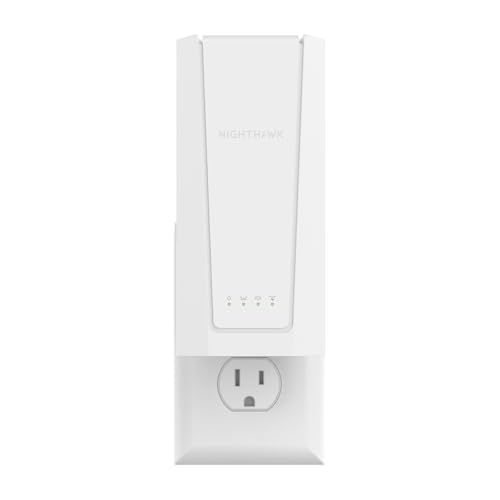
The EXS27 closes the roundup at the newest generation: a Wi-Fi 7 extender in the BE5000 class stating up to 5 Gbps, coverage up to 1,500 square feet, capacity for 45 devices, easy setup, any-router compatibility and a 2.5G Ethernet port. For an Xfinity household, its any-router claim carries the same liberating meaning as its siblings’ — it serves owned routers and rented gateways without distinction — while its generation serves the household whose router is already Wi-Fi 7, or whose next router will be.
The 2.5G port is the fastest wired doorway in this guide, ready for a wired device or a future access-point role that gigabit would trim. The calibration is by now familiar: behind a Wi-Fi 5 or 6 router, the EXS27 extends at the older standard’s terms, and its premium purchases longevity rather than immediate transformation. As the final word of the universal half, it represents the direction of travel — extenders that assume current-generation routers and fast wired duties — and for the household already living in that present, it is the proportionate flagship.
- Compatibility stated in title: works with any router
- Ports stated in title: 2.5G Ethernet port
- Device count stated in title: 45 devices
- Coverage stated in title: up to 1,500 square feet
- Speed class stated in title: 5 Gbps
- Wireless class stated in title: Wi-Fi 7, BE5000
Strengths
- Wi-Fi 7 radios paired with the fastest wired port of any pick in this guide.
- The highest device ceiling among the universal picks, at 45.
- Any-router compatibility keeps it valid through gateway and router changes.
Trade-offs
- Wi-Fi 7 refinements require a Wi-Fi 7 router to be realised.
- Stated coverage remains single-area scale despite the flagship class.
- Conventional extender behaviour only — no xFi mesh membership.
Best for: a buyer seeking a future-proof universal extender for a current-generation Xfinity home network. Not suited for: a buyer seeking native pod behaviour, or maximum stated coverage above all.
What Happens When the Gateway Changes, or the Household Moves?
Equipment decisions in an Xfinity home are unusually reversible on one side of the fork and unusually final on the other, and planning should respect the asymmetry. A universal extender survives every transition: swap the rented gateway for owned equipment, upgrade the router a generation, even leave Xfinity for another provider, and the NETGEAR picks here simply extend the new network as they extended the old. Their any-router titles are, in effect, a promise of portability, and for households whose arrangements change — movers, renters, the perpetually reorganising — that portability is a material part of their value.
Pods travel in the opposite direction. They are assets of one tenancy: return the rented gateway and the pods’ anchor leaves with it; move to a provider without the xFi system and the pods have no system to join. None of this makes pods a poor purchase for a settled rented-gateway household — years of hands-off service can justify them completely — but it does mean the pod decision should be taken with the household’s horizon in view. A family expecting to buy its own modem next year, or to move house and provider the year after, should weigh the universal rows of the comparison table more heavily than their present convenience alone would suggest.
How Many Pods Does an xFi Home Actually Need?
Fewer than anxiety suggests, placed better than instinct places them. The xFi system’s own setup flow reports the link between each pod and the rest of the system, and that report — not the floor plan — is the spacing authority. In practice, most single-family homes are served by one or two pods beyond the gateway: one for the far floor or wing, a second only where construction or a second dead zone proves the need. Pods added beyond the need do not add coverage; they add neighbours for devices to deliberate among, and the system’s performance can soften rather than sharpen.
The discipline mirrors the mesh guide’s: begin with the gateway relocated to its best central position, add one pod at the edge of its good signal toward the weakest territory, live with the result through several evenings of ordinary use, and only then decide whether the map still shows a gap worth a second pod. Households that buy pods in a bundle against a problem they have not yet measured are purchasing insurance against a floor plan they have not read. The single-pack format of both pod listings here suits the measured approach — growth by evidence, one room at a time.
How Do the Six Compare Side by Side?
| Pick | Kind | Class | Coverage in title | Governing condition |
|---|---|---|---|---|
| xFi Pod, 1-Pack | Mesh pod | Not stated in the listing title | Not stated in the listing title | Rented Xfinity gateway only |
| XE2-SG 2nd Gen Pod | Mesh pod | Not stated in the listing title | Not stated in the listing title | Rented Xfinity gateway only |
| NETGEAR EX5000 | Universal extender | AC1200 Wi-Fi 5 | Up to 1,500 sq ft | Works with any router |
| NETGEAR EX6400 | Universal extender | AC1900 Wi-Fi 5 | Up to 2,100 sq ft | Works with any router |
| NETGEAR EAX15 | Universal extender | AX1800 Wi-Fi 6 | Up to 1,500 sq ft | Works with any router |
| NETGEAR EXS27 | Universal extender | Wi-Fi 7 BE5000 | Up to 1,500 sq ft | Works with any router |
The governing-condition column is the table’s reason for existing. Two rows are governed by a tenancy; four are governed by nothing at all. Knowing its own side of the fork, a household can read the rest of the table — class, coverage, ports — as an ordinary extender comparison. A household yet to settle the fork should settle it before reading further, because no figure in the other columns can rescue a pod bought for an owned router, or compensate an owned-equipment household that overlooked the universal row matching its room.
What Is the Full Menu for an Owned-Equipment Household?
Owning the modem and router converts the Xfinity extender question into the general extender question, and the general menu is wide. The universal picks in this roundup are its straightforward entries — one unit, one room or wing, conventional behaviour. Beyond them stand the routes covered by the neighbouring guides: a mesh system of the household’s chosen family, with the owned router retired in favour of the system’s own routing or set to serve it; powerline kits spearing through hostile walls; outdoor units for the yard. Owned equipment is the condition of maximum freedom in home networking, and the household that chose it for the rental saving may find the freedom the larger prize.
That freedom carries one obligation the rented route handles automatically: currency. An owned router ages on the household’s own schedule, and an extender bought to match it — a Wi-Fi 6 NETGEAR behind a Wi-Fi 6 router — inherits that schedule. The sensible rhythm is to replace the router when its generation starts costing performance, and to let extenders follow a step behind, since the universal picks here degrade gracefully across generations: an AX1800 extender behind tomorrow’s Wi-Fi 7 router still extends, at Wi-Fi 6 terms, until its own turn for replacement arrives. The EXS27 exists for households that prefer to invert that rhythm and let the extender wait, ready, for the router to catch up.
How Do Guest Access and Smart Devices Fit an Xfinity Setup?
Two household populations ride on every extender decision without appearing in any title. Guests need internet that reaches the spare room and the garden without reaching the household’s own devices; on the pod route, Xfinity’s system manages guest arrangements at the gateway level and the pods carry them outward as part of the one network. Behind a universal extender, the guest network’s reach depends on which network the extender repeats, and households should verify that the arrangement they intend — guests extended, or guests confined to the gateway’s own range — is the one their setup actually produces.
Smart-home devices form the second population, and they vote for coverage over speed. Bulbs, plugs, cameras and sensors gather at the property’s edges — the garage, the boiler room, the far fence — and they attach to whichever signal reaches them and stay there. A pod or extender added for a streaming room often quietly adopts a dozen such devices at the margins, and the device ceilings in the universal titles — 20 to 45 across the NETGEAR set — should be counted against the household’s full census, gadgets included, rather than against its people. Households approaching a ceiling should count before choosing, because the census, once taken, is not negotiable.
How Does a Universal Extender Behave Behind an xFi Gateway?
Ordinarily, and that ordinariness is the point. The rented gateway broadcasts its network; the universal extender connects to that network as a client and rebroadcasts it from a better position, under the same name or a suffixed one, exactly as it would behind any other router. Devices in the extended area use the internet identically. What does not happen is any conversation between the extender and the xFi system as a system: the extender is not adopted as a pod, does not appear as a mesh node in Xfinity’s management, and does not coordinate roaming with the gateway or with any pods the household also owns.
Network naming follows from the same distinction. The extender can rebroadcast under the gateway’s exact name, which keeps life simple and asks devices to choose their attachment, or under a distinct name that makes the extended area explicit and lets the household pin fixed devices — the television, the office desk — to it deliberately. For a streaming screen or a work desk, the pinned arrangement is often the more reliable one, since a fixed device has no reason to roam and every reason to stay where the signal was measured.
That last point shapes mixed households. A home can run pods for the general territory and a universal extender for one specific duty — the wired television in the far room, through an EAX15 or EXS27 port — and the arrangement works, provided expectations are set: devices near the extender are on the extender’s rebroadcast, with the conventional handover behaviour that implies, rather than on the pod mesh. Households wanting one seamless system should choose one family and extend within it. Households wanting one special room wired may mix deliberately, with eyes open.
What Does the Pod Route Buy in Daily Practice?
It is worth describing the pod household’s ordinary day, because the comparison with the universal route is experiential rather than numerical. The network has one name everywhere. A phone carried from the attic to the basement stays on a call. The Xfinity app shows the gateway and pods as one system, reports a pod that has lost its link, and handles updates across the fleet without the household scheduling anything. When coverage misbehaves, there is one vendor’s support door to knock on, and the equipment on both ends of the conversation is theirs. For households whose appetite for network administration is zero — a large and honourable constituency — this integration is not a luxury; it is the product.
The universal route’s ordinary day is nearly as calm once installed, with two differences in texture. The extender’s area is a neighbourhood of the network rather than a seamless part of it: handovers are conventional, the extender may present its own name or a suffixed one, and its administration lives in NETGEAR’s app rather than Xfinity’s. In exchange, the household owns its equipment outright, chooses its router freely, and carries its extenders to any future arrangement. Neither day is the better one in the abstract. They are the days of two different tenancies, which is why this guide has insisted from its first paragraph that the tenancy question comes first and the product question second.
Where Should Pods and Extenders Be Placed in an Xfinity Home?
The placement physics are the same on both sides of the fork. A pod or extender belongs within the gateway’s clearly good signal — roughly halfway toward the weak area, elevated, in the open — because it can only pass on what it can hear. The gateway itself deserves the first placement effort: a rented xFi gateway marooned in a corner cabinet behind the television handicaps every pod and extender downstream of it, and relocating it to a central, open position is the cheapest coverage an Xfinity household can buy, frequently retiring one pod’s worth of weakness before any purchase.
Height and openness serve pods exactly as they serve every radio in this series. A pod at ankle height behind a sofa is broadcasting into furniture; the same pod at the height of a sideboard, in the room’s open air, covers its territory as designed. Wall sockets dictate the available positions more than in any other category — pods plug in directly and cannot be cabled to a better spot — so the choice among a room’s sockets is the placement decision, and it deserves the same testing rigour: try the socket nearest the gateway-facing wall, check the link report, and let evidence overrule tidiness.
Pod-specific discipline is mostly about spacing. Pods spaced too far apart form a chain of weak links; pods spaced too close merely duplicate each other. The xFi system’s own guidance during setup reports link quality, and its verdicts should be obeyed over the floor plan’s geometry. For universal extenders, the streaming guide’s rule applies with equal force: test at the busy evening hour, wire the screen where a port exists, and judge the installation by the worst room’s worst moment rather than by a midday speed test beside the unit.
How Should an Xfinity Extender Problem Be Troubleshot?
Begin at the service, because extenders distribute whatever they are fed. Test a device wired to the gateway or the owned router at the household’s busy hour; if the feed itself sags, no pod or extender downstream can repair it, and the conversation belongs with the provider or the internet tier. Next, the gateway’s position: the relocation test — central, elevated, unboxed from the media cabinet — costs nothing and resolves a surprising share of cases outright, on both sides of the rental fork.
Then the extension layer, one variable at a time. Check the pod’s or extender’s reported link quality in its app or system page, and treat a weak report as a placement instruction: closer to the gateway, higher, out from behind the large appliance. Confirm which network each struggling device has actually joined, since a phone clinging to the gateway’s fading signal from the far bedroom will report a coverage failure that the pod two rooms away never had the chance to fix; toggling its Wi-Fi forces a fresh and usually wiser attachment. Finally, test the room with the household’s strictest real load — the evening stream, the call — rather than with a midday speed check, because Xfinity homes, like all homes, keep their true network hours in the evening.
Where the troubleshooting points at construction — the room that defeats pods and extenders alike behind masonry or metal — the neighbouring guides hold the remaining routes: powerline through the house’s wiring, or a mesh system of the household’s own where owned equipment presides. An Xfinity subscription constrains none of those; the gateway’s tenancy decides the pod question only, and every other technology in this guide series remains available to the house that needs it.
What Mistakes Do Xfinity Households Make With Extenders?
Buying pods for an owned router leads the list by a distance, and this guide’s repetition of the condition is its attempt to retire that mistake from the earth. The second is the mirror error: assuming a universal extender will join the xFi mesh and coordinate like a pod, then judging it harshly for behaving as the conventional extender it always was. The third is renting-versus-owning drift — buying pods in a year when the household is quietly planning to purchase its own modem, thereby scheduling the pods’ retirement without noticing.
A related placement error is pod-hoarding at the gateway: clustering pods in the rooms nearest the gateway, where signal was never the problem, while the genuinely weak territory gets one pod stretched across two gaps. Pods obey the same geography as every radio in this guide series — each belongs at the edge of good signal, facing the weakness — and the xFi app’s link reports will say so plainly to any household that reads them. The floor plan’s symmetry is a temptation; the signal’s map is the authority.
A fourth mistake is neglecting the gateway’s own position and generation while shopping for its satellites. A fifth is extending a network that is struggling for a different reason — an internet tier sagging at the busy hour, a gateway overdue for the provider’s replacement — and blaming the extender for faithfully distributing a troubled service. The diagnostic order from the neighbouring guides applies unchanged: service first, gateway placement second, extension third.
What Should Be Checked in the First Week of a New Setup?
Live with it at full household load before declaring victory. The checks are the same on both sides of the fork: walk the home on a call at the evening peak and note where the voice roughens; stream the household’s flagship programme in the rescued room while the rest of the evening’s devices do their worst; confirm that the devices at the property’s edges — the doorbell, the garage camera, the boiler’s controls — have attached and stayed attached through a full day. Pods and extenders both reveal their placement errors under this ordinary pressure, and both are usually cured by a socket’s move rather than by a replacement.
Keep the packaging until the week is out, and keep a note of the winning positions afterwards. Xfinity households rearrange gateways when providers swap equipment and when rooms change purpose, and the note converts each future rearrangement from a fresh investigation into a restoration of a known-good map. Infrastructure that is documented gets maintained; infrastructure that lives in memory gets replaced unnecessarily, and extenders suffer that fate more than any other category in this guide series.
Final Recommendation
One closing thought on the provider’s place in all this. Xfinity’s ecosystem is unusually complete — gateway, pods, app and support under one roof — and that completeness is genuinely valuable to the household that wants networking to be a service rather than a hobby. The universal route’s completeness is of a different kind: the completeness of ownership, in which every component answers to the household and survives every change of provider or tenancy. This guide has treated both as legitimate because both are, and it has reserved its only absolute language for the one place absolutes live in this category: a pod without a rented gateway is not a compromised extender, it is no extender at all.
Settle the fork, then shop. Rented-gateway households wanting the native system should buy pods — the XE2-SG as the current generation, the original pod where an existing deployment argues for it — and enjoy the most hands-off coverage in this guide. Owned-equipment households should forget pods entirely and choose among the universal NETGEAR picks by room and generation: the EX5000 for the simple single room, the EX6400 for the larger home, the EAX15 where Wi-Fi 6 and a wired screen matter, the EXS27 where the network has already arrived at Wi-Fi 7. An Xfinity home’s coverage problem is never really about Xfinity — it is about matching the extender to the gateway’s tenancy, and after that, to the room.
Frequently Asked Questions
Do xFi Pods work with a customer-owned modem and router?
No. The first-generation pod’s listing title states the rule directly: only compatible with Xfinity rented routers, not compatible with customer-owned routers. Pods are nodes of the xFi system anchored by the rented gateway, and without that anchor they have no function. Owned-equipment households should choose a universal extender instead.
Will a NETGEAR extender join my xFi mesh?
No. A universal extender behind an xFi gateway works as a conventional extender — repeating the gateway’s network from a better position — and does not become a mesh node, appear in Xfinity’s pod management, or coordinate roaming with pods. Households wanting one coordinated system should extend within the pod family; households wanting a specific room covered or wired can use a universal extender with that expectation set.
Can I use pods and a universal extender together?
Yes, with the behaviours kept distinct. Pods cover the general territory as the native mesh; a universal extender can serve one special duty, such as wiring a far television through its Ethernet port. Devices near the extender use its rebroadcast rather than the pod mesh, which suits a fixed screen or desk perfectly well.
Should I rent the gateway just to use pods?
That is a household arithmetic question rather than a networking one. Pods offer the simplest, most managed route to whole-home coverage on Xfinity, and for households that value that simplicity the rental carries the pods as part of its justification. Households that prefer owning equipment lose nothing essential: the universal extenders in this guide cover the same rooms by the conventional route.
Which universal extender suits a Wi-Fi 6 router on Xfinity?
The NETGEAR EAX15, whose AX1800 Wi-Fi 6 class matches the router’s generation and whose 1G Ethernet port adds the wired option for a screen or desk. Where the household’s router is already Wi-Fi 7, the EXS27 is the matching pick; behind Wi-Fi 5 equipment, the EX5000 or EX6400 pair most proportionately.
If I switch from renting to owning later, what happens to my extenders?
Universal extenders carry over untouched — they extend the new owned router exactly as they extended the gateway. Pods do not carry over: without the rented gateway anchoring the xFi system, they have no network to join, and a household planning the switch should treat its pods as equipment the switch retires. That asymmetry is worth pricing into the original purchase, as the moves-and-changes section describes.
Can a pod fix a weak signal in a detached garage?
Only if the garage sits within genuine pod range of the house’s system with a reasonably clear path — pods are indoor mesh nodes repeating a signal they must first hear well. A detached building beyond comfortable range belongs to the outdoor and bridge routes in the neighbouring guides, or to powerline where the garage shares the house’s electrical system. Expecting a pod to leap a yard it can barely hear across is the pod version of the classic extender placement error.
Are pods worth it if the rented gateway already covers most of the house?
If most of the house is covered, the remaining question is how much the uncovered part matters. A single pod at the edge of the gateway’s strength is the proportionate answer for one valued room — the office, the nursery, the main bedroom — and the single-pack listings here exist for exactly that scale of problem. Where the uncovered territory is a corner nobody uses, the honest recommendation is no purchase at all: extenders should be bought against named rooms with named needs, on either side of the fork.
Does an extender slow down an Xfinity connection?
A conventional extender shares airtime between receiving and rebroadcasting, so devices behind it receive a portion of the gateway’s wireless capacity — the standard extender behaviour on any provider. Placement within strong gateway signal and, where available, a wired final hop to the screen keep the effect below what streaming and browsing can notice.
Related Guides
The wider extender landscape around an Xfinity home is covered in our guides to mesh extenders for whole-home coordinated coverage, wifi range extenders for streaming in the far room and powerline range extenders for rooms that radio cannot reach.