What's inside
- Key Takeaways
- Quick Picks
- How We Chose These Picks
- What Does the PS4 Pro Actually Accept in Its Drive Bay?
- Does the Pro Treat a New Drive Differently From the Base Console?
- How Do You Know the Factory Drive Is Actually Failing?
- How Do the Six PS4 Pro Picks Compare Side by Side?
- How Do You Replace a PS4 Pro Drive Without Losing the Library?
- Which Mistakes Ruin a PS4 Pro Drive Swap?
- Final Recommendation
- Frequently Asked Questions
- Related Guides
As an Amazon Associate I earn from qualifying purchases. This post may contain affiliate links at no extra cost to you.
gizmoverdict.com is reader-supported. When you buy through links on our site, we may earn an affiliate commission.
Where to buy: the six drives below link to their Amazon listings from the Quick Picks table and from their detailed reviews. A PlayStation 4 Pro accepts one internal 2.5-inch SATA drive no thicker than 9.5mm, so before ordering, check the listing for the drive’s thickness — where a title below states it, we say so, and where it stays silent, the spec box flags the check rather than guessing.
The best internal hard drives to replace playstation 4 pro owners actually need are narrower than the phrase suggests. The console’s drive bay sets the rules: a 2.5-inch SATA drive, thin enough to slide into the caddy, with capacity that improves on the factory drive and behaviour that suits a games library — long sequential reads, big installs, constant patching. Every pick in this roundup is a 2.5-inch SATA drive sold for console or laptop duty, drawn from Western Digital, Seagate’s FireCuda hybrid line, and two specialist bundles built around Toshiba and MaxDigitalData drives. There are no solid-state picks here, deliberately: this list covers the spinning and hybrid drives in its pool, judged on their own terms.
Thickness is the trap in this category, and it deserves saying early. The PS4 Pro’s bay accepts drives up to 9.5mm thick; many 2.5-inch drives at 2TB are built thicker than that for the laptop-aftermarket shelf, and a drive that cannot physically enter the bay is not a bargain at any capacity. Of the six titles below, exactly one — the MaxDigitalData — prints its 7mm thickness in its name. The rest leave the figure unstated, so their spec boxes carry a verify note pointing at the maker’s documentation. Check it before the console is opened, not after.
Key Takeaways
- The PS4 Pro bay takes a single 2.5-inch SATA drive of 9.5mm thickness or less — fit is a physical gate before capacity is even discussed.
- Only the MaxDigitalData title states thickness outright (7mm); every other pick needs its thickness confirmed from maker documentation before purchase.
- Seagate’s two FireCuda picks are hybrid SSHDs, pairing spinning capacity with flash acceleration — the 1TB title states 8GB of flash explicitly.
- The MDD 2TB listing is a bundle built around a Toshiba 2TB drive, aimed at owners who want the upgrade packaged as a kit.
- Every pick here spins at the console-friendly end of the market; the stated speeds in these titles are 5400 RPM wherever a title prints a speed.
Quick Picks
| Pick | Badge | Why it is here |
|---|---|---|
| Western Digital 1TB 5400RPM SATA 2.5inch Hard Drive (for PS4) | Sold for PS4 outright | Its title names the console directly, with 5400RPM, 16MB cache and SATA 6.0Gb/s all stated. |
| MDD 2TB PS4 Hard Drive Upgrade Kit Bundle with Toshiba 2TB | Kit-form 2TB upgrade | A bundle built around a Toshiba 2TB 5400RPM drive for owners doubling the factory capacity in one step. |
| MaxDigitalData 1TB 5400RPM SATA 2.5inch 7MM Gaming Hard Drive | Thickness stated: 7mm | The only title here that prints its slim 7mm height, removing the bay-fit question entirely. |
| Seagate FireCuda 2TB Solid State Hybrid Drive SSHD – 2.5 Inch | Hybrid at 2TB | Flash-accelerated hybrid capacity for a large library that loads its favourites repeatedly. |
| Seagate FireCuda Gaming SSHD 2.5 1TB Flash Accelerated (8GB) | Gaming hybrid at 1TB | The title states its 8GB flash acceleration and gaming positioning for a like-size replacement with quicker habits. |
| WD 2TB 2.5-inch 128MB SATA III Hard Drive for Laptops, PS4 (WD20SPZX) | Named WD model, 2TB | A specific WD model code with 128MB cache stated, sold for laptops and PS4 in the same title. |
How We Chose These Picks
A word about what was not filtered for: novelty. This upgrade category is mature, and the drives in it are proven designs rather than fresh releases, because console owners performing surgery on a beloved machine value a known quantity over a new badge. Every pick here belongs to a line or a specialist niche with years of this exact work behind it. Where a listing’s age might give a shopper pause, the correct reading is the opposite — in replacement drives, a long production history is the specification that cannot be printed in a title.
The console’s bay wrote the first filter: 2.5-inch SATA drives only, because nothing else can be installed internally in a PS4 Pro. Within that frame we favoured drives whose listings speak to console or gaming duty — three titles name the PS4 or gaming outright — and drives from lines with a track record in exactly this upgrade, notably Seagate’s FireCuda hybrids, which spent years as the default recommendation for enlarging a PlayStation’s storage without leaving spinning media.
Capacity logic formed the second filter. The factory drive in a PS4 Pro is a 1TB unit, so a replacement earns its afternoon of work by matching it with better behaviour or doubling it. The list therefore splits into 1TB picks — the like-for-like replacements and the hybrids — and 2TB picks for owners whose libraries have outgrown the original drive. Capacities beyond 2TB were not chased: at 2.5-inch sizes they historically arrive in thicker housings that the bay refuses, which circles back to the thickness discipline running through this guide.
The third filter was honesty about what a title proves. Two picks state their cache sizes, three state spindle speed, one states thickness, one states its flash capacity. The spec boxes record exactly that and no more, marking the rest for verification with the maker’s documentation. In a category where a millimetre decides whether the job finishes, that paperwork discipline is not pedantry; it is the difference between an upgrade and a return.
What Does the PS4 Pro Actually Accept in Its Drive Bay?
It is worth appreciating how unusual that simplicity is. Most storage upgrades involve a thicket of interfaces, form factors and protocols; the Pro asks for one decision — which of a handful of console-shaped drives — and this roundup exists because even that single decision has a trap in it. Owners who internalise the bay’s three rules can shop the entire category confidently, including listings beyond this list, which is the real graduation this guide aims for.
One drive, in one size, on one interface: a 2.5-inch SATA hard drive, no thicker than 9.5mm. The console’s system software imposes its own floor on capacity — drives below a few hundred gigabytes are not accepted as system drives — but every pick in this roundup clears that floor several times over, so the binding constraints for a shopper are thickness and the SATA interface, in that order. The caddy in the bay holds the drive with a handful of screws, and the whole physical swap is famously the friendliest hardware job in console ownership; the discipline is in choosing a drive that fits before the back panel comes off.
The caddy itself deserves a sentence of respect. It is a simple frame, but it decides the drive’s alignment with the connector and its protection in handling, so the swap should reuse it carefully, with its screws snug rather than forced. A drive seated crookedly in the caddy can present as a dead drive at first boot — one more reason the job rewards the unhurried afternoon this guide keeps prescribing, in which a seating problem is noticed by eye rather than diagnosed in panic.
Thickness is where listings earn scrutiny. Slim 7mm drives fit by design — the MaxDigitalData prints that figure proudly — while the standard 9.5mm class also fits, and anything beyond it does not fit at all. Because most titles in this roundup omit the figure, the pre-purchase routine is fixed: open the maker’s documentation for the exact model, find the height line, and only then order. A drive that is one millimetre too proud will teach this lesson at the worst possible moment, with the console open and the old drive already wiped.
Hard drive or hybrid: what does an SSHD change in a console?
A hybrid drive keeps a library on spinning platters and learns which blocks the console asks for most — the system areas, the current game’s most-loaded data — holding those in a small flash cache. Seagate’s FireCuda line is the category’s standard-bearer, and its 1TB title here states the arrangement plainly: flash accelerated, with 8GB of flash. The lived effect is not a transformed console but a quicker one in its habits: the games in current rotation load their familiar screens faster, because the drive has quietly promoted them to flash.
There is a middle truth between the enthusiasts and the sceptics here, and it is where this guide lands: a hybrid will not make an old console feel new, but it reliably makes a well-kept console feel cared for — menus that answer promptly, favourite levels that arrive a breath sooner, a boot sequence that stops being a kettle-watching interval. In a machine whose remaining years will be measured in thousands of small waits, shaving the familiar ones is a quality-of-life purchase, and it is priced like a hard drive rather than like a console.
The honest limits matter too. A hybrid’s flash is a cache, not a second drive; a library of thirty games played in rotation gives the learning algorithm little to hold onto, and the first load of anything is always a spinning-disk load. Owners who live in two or three games at a time feel the FireCuda effect most; owners who graze widely feel mostly the capacity. Both FireCuda picks below are judged on that realistic basis.
What do the cache figures in these titles actually change?
Cache is the drive’s short-term memory — a small, fast buffer that absorbs bursts of writing and stages reads. The titles here state three sizes: 16MB on the console-named WD and the Toshiba in the MDD kit, 64MB on the MaxDigitalData, and 128MB on the WD20SPZX. In console service the differences are real but modest: installs and patch application, the writing-heavy work of a games library, proceed a touch more smoothly behind a larger buffer, while steady game loading is governed by the platters and, in the hybrids, by the flash layer instead.
The right way to use cache in a buying decision is as a tiebreaker among drives that already fit — physically, in capacity, in console positioning. It should never outrank the thickness check or the hybrid question, and it cannot rescue a drive that fails either. But when two 2TB candidates stand side by side and one prints 128MB against the other’s silence, the printed figure is a legitimate point in its favour, and this guide scores it exactly that way in the detailed reviews.
How much capacity does a PS4 Pro library really consume?
Modern game installs are heavy, patches are relentless, and captured gameplay accumulates in the background, so a 1TB drive that felt generous at the console’s launch now holds a modest rotation once the system software takes its share. Doubling to 2TB — the ceiling this roundup recommends for internal fit reasons — roughly doubles the rotation, which for most households converts storage management from a weekly chore into an occasional one. Owners with very large libraries should plan the internal drive as the console’s fast shelf and keep the overflow on external storage the console supports, rather than hunting for an oversized internal drive the bay will refuse.
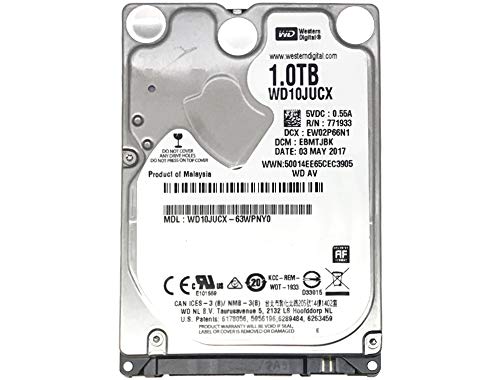
Western Digital 1TB 5400RPM SATA 2.5inch Hard Drive (for PS4) — Sold for PS4 outright
There is a refreshing directness to a listing that names the console in its title. This Western Digital drive presents itself as a PS4 replacement first and a 2.5-inch drive second, and its title carries the working figures with it: 1TB capacity, 5400RPM spindle, 16MB cache, SATA 6.0Gb/s interface in 2.5-inch form. For an owner whose factory drive has died or begun its decline, this is the like-for-like resurrection — same capacity class, console-named positioning, no translation required.
The 5400 RPM speed is the console’s native rhythm rather than a compromise: the PS4 Pro’s storage subsystem was designed around drives of this class, and a replacement that matches it restores the console’s original behaviour exactly. What this pick does not do is grow the library. Owners replacing a healthy drive purely for space should look at the 2TB picks; owners replacing a failing drive to get the console back on its feet will find this the straightest path.
Thickness is the one figure the title omits, and in this category that omission always earns the same instruction: confirm the drive’s height against Western Digital’s documentation for the model before ordering, since the bay’s 9.5mm ceiling is absolute. The listing’s console positioning is encouraging, but the register habit — check the number, then buy — costs five minutes and prevents the only failure mode this upgrade has.
There is a diagnostic virtue in choosing the factory-spec path: if the console still misbehaves on a fresh, correctly specified drive, the fault lies elsewhere, and the owner has eliminated storage from the enquiry in one step. Revival purchases are often really fault-finding purchases, and a drive that matches the original specification exactly is the cleanest control experiment a console can be given.
- Capacity: 1TB (stated in the listing title)
- Spindle speed: 5400RPM (stated in the listing title)
- Cache: 16MB (stated in the listing title)
- Interface and form: SATA 6.0Gb/s, 2.5-inch (stated in the listing title)
- Positioning: for PS4 game console (stated in the listing title)
- Thickness: Not stated in the listing title — verify with Western Digital documentation
Strengths:
- Console named in the title, with speed, cache and interface all stated.
- Matches the factory drive’s capacity class and rotational rhythm exactly.
- Western Digital provenance for owners standardising on the brand.
Trade-offs:
- No capacity growth over a healthy factory drive.
- Thickness requires a documentation check before the console is opened.
- Plain spinning drive, so no hybrid flash acceleration for favourite games.
Best for: a PS4 Pro with a failing factory drive being restored to original specification. Not suited for: a capacity upgrade project, where the 2TB picks double the library instead.
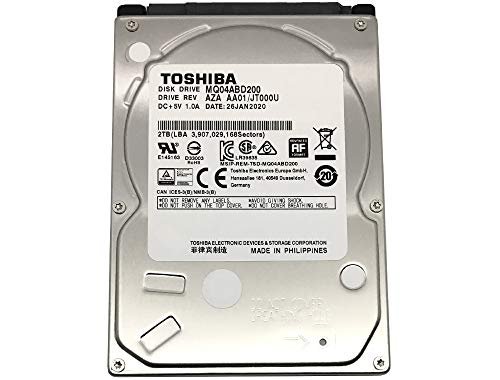
MDD 2TB PS4 Hard Drive Upgrade Kit Bundle with Toshiba 2TB — Kit-form 2TB upgrade
Some owners want a product; others want a project in a box. This MDD listing takes the second approach: a PS4 hard drive upgrade kit bundle built around a Toshiba 2TB drive whose stated figures — 5400RPM, 16MB cache, SATA 6Gb/s — match the console’s native class while doubling its capacity. The bundle framing suits first-time upgraders who would rather buy the job as a package than assemble its parts from separate listings.
The Toshiba heart of the kit deserves its own sentence, because Toshiba’s 2.5-inch drives have a long history in console and laptop service, and the bundle puts that provenance inside a PS4-shaped wrapper. Two terabytes is the meaningful upgrade for a Pro: the library rotation doubles, the delete-to-install shuffle relaxes, and the console’s remaining years stop being rationed.
Kit discipline applies at purchase time. Confirm from the listing and MDD’s documentation exactly what the bundle contains and — the recurring theme of this guide — the Toshiba drive’s thickness, which the title does not state. A kit promises convenience, and the five-minute verification keeps the promise honest; the bay’s 9.5mm ceiling does not care how the drive was packaged.
The bundle idea also travels well: households with two ageing PlayStations, or a Pro and a base console sharing the same drive class, can repeat a known-good purchase rather than researching twice. A kit that worked once, documented in the household’s own memory, is worth more than a theoretically finer drive bought cold — provided, always, that the thickness check is repeated for the second console rather than inherited on faith.
- Capacity: 2TB (stated in the listing title)
- Drive: Toshiba, 5400RPM, 16MB cache, SATA 6Gb/s (stated in the listing title)
- Format: PS4 hard drive upgrade kit bundle (stated in the listing title)
- Form factor: 2.5-inch class console drive — confirm exact dimensions with MDD documentation
- Thickness: Not stated in the listing title — verify with MDD documentation
Strengths:
- Doubles factory capacity with the upgrade packaged as a single purchase.
- Toshiba drive at its core, in the console’s native speed and cache class.
- Bundle framing lowers the research burden for first-time upgraders.
Trade-offs:
- Bundle contents and drive thickness both need listing-level confirmation.
- Plain spinning storage, without the FireCuda picks’ flash acceleration.
- Kit value depends on what is actually included, which the title summarises only.
Best for: a first-time upgrader who wants the 2TB job bought as one packaged decision. Not suited for: an owner who prefers a bare drive from a single maker with a fully stated specification sheet.

MaxDigitalData 1TB 5400RPM SATA 2.5inch 7MM Gaming Hard Drive — Thickness stated: 7mm
This listing earns its place with one number nobody else in the roundup prints: 7MM, right in the title. Seven millimetres is the slim class of 2.5-inch drives, comfortably inside the PS4 Pro bay’s 9.5mm ceiling, and stating it removes the single most common failure of this entire upgrade category before it can happen. Around that figure the title is equally businesslike — 1TB, 64MB cache, 5400RPM, SATA 6.0Gb/s, 2.5-inch, gaming positioning.
The 64MB cache is the largest stated among the plain spinning picks here, four times the figure printed for the two 16MB drives. Cache does not remake a console drive’s character, but in a workload of game installs, patches and scattered library reads it smooths the small transactions, and it costs the buyer nothing to prefer it when the fit question is already answered. MaxDigitalData specialises in exactly this replacement-drive niche, and the listing reads like it: every figure the console owner actually needs, in the name.
As a 1TB drive it is a replacement rather than an expansion, so its audience is the owner restoring a console or standardising on a known-fit drive for a second machine. For that audience, certainty is the product: the drive in the title is dimensionally guaranteed to enter the bay, and the afternoon’s only remaining work is the software ritual described later in this guide.
Its slimness has a second, quieter benefit: the same 7mm class serves the thinnest laptops, so a drive retired from console duty later — or bought first for a laptop and reassigned — crosses between the household’s machines without drama. Replacement-drive specialists live on that interchangeability, and an owner with several ageing devices may find this pick quietly becoming the household standard for reviving all of them.
- Capacity: 1TB (stated in the listing title)
- Thickness: 7mm (stated in the listing title)
- Cache: 64MB (stated in the listing title)
- Spindle speed: 5400RPM (stated in the listing title)
- Interface and form: SATA 6.0Gb/s, 2.5-inch (stated in the listing title)
- Positioning: gaming hard drive (stated in the listing title)
Strengths:
- The only title here stating thickness — bay fit is settled before purchase.
- Largest stated cache among the plain spinning picks in this roundup.
- Complete, console-relevant specification printed in the listing name itself.
Trade-offs:
- One terabyte restores rather than expands the library.
- Specialist brand lacks the household-name recognition of WD or Seagate.
- No hybrid flash, so loading behaviour is honest spinning-disk behaviour.
Best for: an owner who wants the fit question answered in the title and a dead console revived without a documentation hunt. Not suited for: a library that has already burst the factory drive, where 2TB is the point of opening the console.

Seagate FireCuda 2TB Solid State Hybrid Drive SSHD – 2.5 Inch — Hybrid at 2TB
The FireCuda name carried the PS4 upgrade conversation for years, and this 2TB hybrid is why: it doubles the factory capacity while adding the SSHD arrangement — spinning platters for the library, flash acceleration for the parts of it the console touches constantly. The title states the essentials: solid state hybrid drive, 2.5-inch, SATA. For the owner who plays a rotation of favourites, the hybrid learns that rotation and serves its hot data from flash, which is the closest a spinning-based upgrade gets to changing the console’s loading manners.
Two terabytes of hybrid is the maximal version of this roundup’s thesis: the largest capacity the bay sensibly accepts, in the drive class with the cleverest behaviour. Large libraries benefit in capacity; current favourites benefit in responsiveness; the console’s system areas, read at every boot and every menu, live exactly where the flash learning helps most. It is the pick for the Pro that remains a household’s main machine and is expected to feel looked-after rather than merely enlarged.
The title leaves spindle speed, cache and thickness unstated, so the standard verification applies — Seagate’s documentation for the model will settle the height against the bay’s ceiling before purchase. FireCuda hybrids of this class were designed with console bays in mind throughout their production life, but this guide’s rule is uniform: the number gets checked, not assumed, whoever makes the drive.
Expectations should be set across weeks, not minutes. A hybrid’s first evening feels like a plain drive, because the cache is still a student; by the second week of ordinary play, the familiar loads — the boot, the menu, the current campaign’s hubs — have been promoted, and the console’s rhythm tightens in the places the household actually touches. Owners who judge this drive on day one undersell it; owners who judge it on day fourteen usually become the people who recommend hybrids to their friends.
- Capacity: 2TB (stated in the listing title)
- Type: Solid state hybrid drive (SSHD) (stated in the listing title)
- Form factor: 2.5-inch (stated in the listing title)
- Interface: SATA (stated in the listing title)
- Spindle speed: Not stated in the listing title — verify with Seagate documentation
- Thickness: Not stated in the listing title — verify with Seagate documentation
Strengths:
- Hybrid flash acceleration layered over the roundup’s joint-largest capacity.
- FireCuda line was the console-upgrade standard-bearer of its era.
- Benefits compound for owners who replay a stable rotation of favourites.
Trade-offs:
- Flash benefits fade for wide, shallow libraries that never repeat data.
- Speed, cache and thickness all wait in Seagate’s documentation.
- Hybrid complexity is wasted if the console is being revived only to be sold.
Best for: a PS4 Pro staying in front-line service, with a 2TB library and a handful of heavily played favourites. Not suited for: a grazed library of dozens of titles touched once each, where the flash cache finds nothing to learn.

Seagate FireCuda Gaming SSHD 2.5 1TB Flash Accelerated (8GB) — Gaming hybrid at 1TB
Where its 2TB sibling leads with capacity, this FireCuda leads with its mechanism: the title states flash acceleration and puts a number on it — 8GB of flash standing in front of a 1TB spinning drive, in a 2.5-inch SATA 6Gb/s package sold explicitly as a gaming SSHD. That transparency makes the value proposition easy to reason about. The flash is small against a modern game’s install size, but it was never meant to hold a game; it holds the console’s most-requested blocks, and it holds them at flash speed.
At 1TB this is the thinking owner’s like-for-like replacement: the factory capacity, restored with better manners. Consoles whose drives are failing get a second life; consoles whose owners live inside a few games get loading behaviour that improves over the first weeks as the cache learns. The gaming positioning in the title is not decoration — this drive was marketed into exactly the bay it is being bought for here.
As with the larger FireCuda, the title omits spindle speed and thickness, and the documentation check applies before the purchase. Owners comparing the two hybrids should decide on library size first — the mechanism is shared, the capacity is not — and let the 2TB model take the verdict wherever the collection has already outgrown a terabyte.
This is also the pick that best suits a console shared by a household with divided loyalties — one player’s long campaign, another’s sports title, a child’s platformer in permanent rotation. Three or four hot titles is almost the ideal enrolment for an 8GB learning cache: small enough to be learned thoroughly, varied enough to make the learning visible at every power-on. A single-game household gets the same effect from the plain picks; a many-game household dilutes it; the middle household is this drive’s home turf.
- Capacity: 1TB (stated in the listing title)
- Type: Gaming SSHD, flash accelerated with 8GB flash (stated in the listing title)
- Form factor: 2.5-inch (stated in the listing title)
- Interface: SATA 6Gb/s (stated in the listing title)
- Spindle speed: Not stated in the listing title — verify with Seagate documentation
- Thickness: Not stated in the listing title — verify with Seagate documentation
Strengths:
- Flash capacity stated outright — the hybrid mechanism is quantified, not implied.
- Gaming positioning matches the exact bay and workload it is bought for.
- Restores factory capacity with noticeably better loading habits for favourites.
Trade-offs:
- No capacity growth for libraries already pressing against a terabyte.
- Thickness and spindle speed require the Seagate documentation check.
- Cache learning needs repeated play patterns before benefits fully arrive.
Best for: a 1TB Pro revival where the owner plays a tight rotation and wants the hybrid benefit at factory capacity. Not suited for: a collection measured in dozens of installed titles, where the 2TB hybrid’s room matters more.

WD 2TB 2.5-inch 128MB SATA III Hard Drive for Laptops, PS4 (WD20SPZX) — Named WD model, 2TB
Western Digital’s 2TB entry competes on specificity: the title names the exact model, WD20SPZX, states a 128MB cache — the largest cache figure printed anywhere in this roundup — and addresses the drive to laptops and PS4 in the same breath. A named model code is a paperwork gift: every figure the title omits, including thickness and spindle speed, can be resolved against that code in Western Digital’s documentation in one search, with no ambiguity about which variant is on sale.
The dual laptop-and-console positioning reflects how this drive class actually lives: the same slim 2.5-inch SATA drives serve both bays, and WD sells the model into both. For the PS4 Pro owner, the consequence is availability and documentation depth — a mainstream model with a paper trail — wrapped around the capacity that makes the upgrade worthwhile. Two terabytes doubles the factory library, and the large cache flatters the install-and-patch workload that dominates a console drive’s writing life.
The discipline, once more, is thickness: the title does not state it, the bay’s ceiling is 9.5mm, and the model code makes the check trivially easy. Do the check, and this becomes one of the roundup’s most defensible purchases — a big-brand, big-cache, fully traceable 2TB drive aimed at the console by name.
Second-life thinking flatters this pick as well. A mainstream WD model with a published specification can leave the console years later and drop into a laptop, an enclosure or a small NAS experiment with its documentation still one search away — the model code sees to that. Drives bought as anonymous listings rarely enjoy that afterlife, because nobody can remember what they are. Traceability, unglamorous as it sounds, is a form of value that compounds quietly across a household’s whole device fleet.
- Capacity: 2TB (stated in the listing title)
- Model: WD20SPZX (stated in the listing title)
- Cache: 128MB (stated in the listing title)
- Interface and form: SATA III, 2.5-inch (stated in the listing title)
- Positioning: for laptops and PS4 (stated in the listing title)
- Thickness: Not stated in the listing title — verify with Western Digital documentation
- Spindle speed: Not stated in the listing title — verify with Western Digital documentation
Strengths:
- Largest stated cache in the roundup at 128MB.
- Exact model code in the title makes every missing figure one search away.
- Console named in the positioning, at the full 2TB upgrade capacity.
Trade-offs:
- Two key figures — thickness and speed — still require the documentation visit.
- Plain spinning drive; no flash layer for favourite-game loading.
- Laptop-shared positioning means the listing speaks to two audiences at once.
Best for: a 2TB upgrade buyer who values a traceable model code and the roundup’s largest stated cache. Not suited for: an owner who refuses all documentation checks, where the 7mm MaxDigitalData settles fit from its title alone.
Does the Pro Treat a New Drive Differently From the Base Console?
The replacement ritual is shared across the PlayStation 4 family — same bay philosophy, same backup and initialisation path — but the Pro gives a new drive a slightly grander stage. Its enhanced titles carry larger texture loads and its capture features write more background data, so the Pro’s library tends to grow faster and its storage works a little harder than a base console’s. That is an argument, when replacing a Pro drive, for taking the capacity step the base console might skip: the 2TB picks in this roundup suit the Pro’s appetite precisely because its games are the heavy ones.
It is also why the hybrid effect can feel more pronounced on the Pro. Enhanced titles lean on repeated streaming of their most-used assets, and repeated access is the exact pattern a learning cache exists to catch. None of this changes the buying rules — fit first, capacity second, mechanism third — but it tilts the Pro’s verdicts toward the generous end of every scale this guide uses, and it explains why a console sold on enhanced performance deserves a storage decision made with the same ambition.
How Do You Know the Factory Drive Is Actually Failing?
Spinning drives rarely die silently, and a PS4 Pro telegraphs its storage trouble in a recognisable dialect: installs that stall at the same percentage, games that freeze while streaming in scenery, a database-rebuild prompt that keeps returning, clicking or repeated spin-up sounds from the bay, and boot times that stretch week by week. Any one symptom can have another cause; a cluster of them, arriving together on an ageing console, is the drive asking to be replaced while the backup is still easy to take.
Timing matters because replacement is also data rescue. A drive in early decline still reads well enough to back up from, usually at full comfort; a drive in late decline makes the backup itself an ordeal of retries. Owners who act on the first cluster of symptoms perform the calm version of this guide’s how-to — backup, swap, restore — while owners who wait for total failure inherit the version where the library is rebuilt from downloads and the saves are whatever the cloud happened to hold. Every pick in this roundup works for both stories, but only one story is pleasant.
A practical test before ordering: rebuild the console’s database from safe mode, a harmless maintenance step that reorganises the drive’s indexes. If the symptoms melt away, the drive may have been a victim of software untidiness rather than hardware decline, and the replacement can wait. If the symptoms persist or return within days, the hardware verdict stands — and the backup should be taken that evening, while the evidence is fresh and the drive is still cooperating.
Internal upgrade or external drive: which should come first?
The console supports external storage for games, which tempts owners to postpone the internal question indefinitely. External room is a fine expansion and a poor foundation: the system itself, its database and its most fundamental loading paths live on the internal drive, and a failing internal drive cannot be compensated for by any amount of external capacity. The order of operations is therefore fixed — a healthy internal drive first, from this roundup; external overflow second, for the library that outgrows even 2TB.
For owners whose internal drive is healthy but full, the same logic runs in reverse: the 2TB internal upgrade and an external overflow solve different halves of the problem, and the cheaper half depends on the household. Doubling the internal drive keeps everything in one managed place and improves the console’s core behaviour; adding external room is quicker and leaves the console unopened. The hybrids complicate the choice pleasantly, since no external spinning drive offers their flash learning for the console’s own hot data.
How Do the Six PS4 Pro Picks Compare Side by Side?
| Drive | Capacity | Stated in title | Role |
|---|---|---|---|
| WD (B08QTT1P5R) | 1TB | 5400RPM, 16MB cache, SATA 6.0Gb/s, for PS4 | Factory-spec revival |
| MDD kit with Toshiba (B09DDFRFHN) | 2TB | 5400RPM, 16MB cache, SATA 6Gb/s, bundle | Packaged capacity upgrade |
| MaxDigitalData (B07QX9SGM4) | 1TB | 7mm thickness, 64MB cache, 5400RPM | Guaranteed-fit replacement |
| Seagate FireCuda (B01M1NHCZT) | 2TB | SSHD hybrid, 2.5-inch SATA | Hybrid capacity upgrade |
| Seagate FireCuda Gaming (B01LWRTRZU) | 1TB | 8GB flash stated, gaming SSHD | Hybrid factory-size revival |
| WD WD20SPZX (B08375Q9ND) | 2TB | 128MB cache, model code, PS4 named | Documented capacity upgrade |
Read the cache column with the restraint the buying guide recommended: the WD20SPZX’s 128MB is a genuine point of distinction, the MaxDigitalData’s 64MB a solid middle, and the 16MB figures on the revival picks entirely adequate for restoring a console to its factory manners. Cache breaks ties; it does not create them. Likewise the flash column belongs only to the FireCudas, and it should be weighed as a behaviour — quicker familiar loads — rather than as capacity, since 8GB of flash in front of a terabyte is a seasoning, not a course.
Three questions sort the table. First, capacity: is this a revival at 1TB or an upgrade to 2TB? Second, mechanism: plain spinning, or a FireCuda hybrid whose flash rewards a stable rotation? Third, paperwork: the MaxDigitalData answers its fit from the title, the WD20SPZX makes its answers one model-code search away, and the rest ask for the standard documentation check on thickness. An owner who answers those three questions in order will find the table has effectively chosen for them.
How Do You Replace a PS4 Pro Drive Without Losing the Library?
Choose the day with the same care as the drive. The swap wants a charged controller for the safe-mode menus, a wired connection if downloads will be needed, and enough unclaimed hours that a slow backup cannot create pressure to skip verification steps. Owners who treat the occasion almost ceremonially — tools laid out, USB stick prepared, old drive’s screws kept in a saucer — consistently report the job as satisfying; owners who improvise it between other errands report the other kind of story, the kind this guide’s mistakes section is made of.
Back up before touching a screwdriver. The console’s own backup facility can write the full system — games, saves, settings — to external storage, and at minimum the save data and captures should be copied out, because the new drive will be initialised from nothing. Owners with a second storage tier should also note which games matter most, since the restore order decides what is playable first on the new drive.
Prepare the software before the hardware. A full system-software installation file on a USB stick is required to bring a blank drive to life — the smaller update file will not do — so download the complete installation package from PlayStation’s official support pages and stage it in the folder structure the console expects. Doing this while the old drive still works turns the swap itself into a calm half-hour instead of an evening of improvisation.
The physical swap is the easy act: power down fully, remove the bay cover, slide the caddy out, exchange the drives with attention to orientation, and reassemble. This is where the thickness check pays — the new drive should sit in the caddy exactly as the old one did. Then boot into the console’s safe mode with the USB stick inserted, choose the option that initialises the system and reinstalls the software, and let the machine build itself on the new drive.
After the restore, give the console a settling week before judging the result. Re-download the household’s core rotation first so the playable library returns immediately, then let the long tail of installs proceed in the background over several evenings rather than queueing forty games on night one and mistaking the resulting congestion for the new drive’s character. Check that captures, trophies synchronisation and save uploads have all resumed their normal habits, and run one full backup of the new installation once it feels complete — the fresh drive deserves the same protection the old one enjoyed.
Finish by restoring the backup, signing back into accounts, and letting the hybrid picks — if one was chosen — learn the library over the following days of ordinary play. Verify saves before wiping or reusing the old drive, and keep that old drive in a drawer for a month: it is the final backup of the console’s previous life, and drawers are cheaper than regret.
Which Mistakes Ruin a PS4 Pro Drive Swap?
A sixth mistake is procedural vanity: performing the swap on a Friday night with friends arriving Saturday to play, leaving no slack for the restore that takes longer than the estimate or the update file that turns out to be the wrong package. This is a job that rewards a quiet afternoon and punishes a deadline, because every one of its steps — backup, initialisation, restore, verification — proceeds at the speed of moving a library, not the speed of turning screws. Schedule it like a move of house, in miniature, and it will feel like one of the easiest upgrades in console ownership.
The cardinal mistake is buying on capacity alone and meeting the thickness ceiling with the console already open — the failure this guide’s verify notes exist to prevent. Second is skipping the full installation file and discovering at safe mode that an update package cannot initialise a blank drive. Third is wiping or discarding the old drive before the restore is verified, converting a routine swap into a data-loss story. Fourth is expecting hybrid flash to behave like a solid-state drive across a huge library, then judging the FireCuda picks by a promise they never made. The fifth is subtler: replacing a dying drive with the cheapest unknown listing rather than a console-positioned pick, and repeating the whole ritual within the year.
Final Recommendation
One last piece of sequencing advice: buy the drive before the old one forces the issue, whenever the failure symptoms described earlier have begun their chorus. A replacement chosen calmly, with its thickness verified and its installation file already downloaded, turns the swap into maintenance. The same purchase made in a panic, shipped overnight to a console that no longer boots, turns it into a rescue — and rescues, in storage as in sailing, are simply maintenance that was postponed past the point of comfort.
Decide first whether the console is being revived or enlarged. For enlargement with the fullest benefit, the FireCuda 2TB hybrid is this roundup’s flagship: double capacity, flash learning for the games in rotation, and a lineage built for this bay. For a documented, big-brand enlargement, the WD20SPZX answers with its model code and 128MB cache. Revivals split by temperament — the MaxDigitalData for owners who want fit proven in the title, the 1TB FireCuda Gaming for owners who want hybrid manners at factory size, and the console-named WD or the Toshiba-hearted MDD kit for the straightest like-for-like swaps. Whichever name lands in the caddy, check its height first — and the Pro will repay the homework with years of quiet shelf space.
Frequently Asked Questions
Will any 2.5-inch drive fit the PS4 Pro?
No — the bay’s ceiling is 9.5mm thickness, and 2.5-inch drives are built in several heights. Slim 7mm drives fit by design, as the MaxDigitalData title states outright; standard-height drives in the class the console was built around also fit; thicker high-capacity laptop drives do not fit at all. Because most titles omit the figure, confirm the exact model’s height in the maker’s documentation before ordering. It is the single check this entire upgrade turns on.
Why is there no solid-state drive in this roundup?
Because the pool behind this guide covers spinning and hybrid drives, and the picks are judged within that honest scope. A solid-state drive is a different purchase with a different price shape and its own roundup; what can be said here is that the hybrid FireCuda picks exist precisely to narrow the loading-behaviour gap while keeping spinning-drive capacity economics. Owners set on solid-state should shop that category deliberately rather than treating it as an upgrade of this list.
Do I lose my games and saves when I swap the drive?
Not if the backup step is done first. The console’s backup facility copies the system to external storage, and the new drive is initialised blank and then restored from that copy. Saves can also travel via cloud storage for subscribers or a USB copy of the save data. The losses in real swap stories almost always trace back to skipping the backup or discarding the old drive before the restore was verified — both are process errors, not features of the drives.
How does a hybrid drive decide what goes in its flash?
Automatically, by watching requests. The drive’s firmware tracks which data blocks the console reads most and promotes them into the flash layer — in the 1TB FireCuda’s case, a stated 8GB. System areas and the current games’ most-loaded data naturally dominate that traffic, which is why benefits concentrate on the titles in active rotation and on the console’s own menus and boot path. The owner configures nothing; the learning happens across ordinary play sessions.
Is 2TB the largest sensible internal size for a PS4 Pro?
For internal spinning drives, yes, and fit is the reason: beyond 2TB, 2.5-inch drives have historically been built in housings thicker than the bay accepts. Two terabytes also doubles the factory library, which resolves the storage pressure for most households. Owners whose collections exceed even that should treat the internal drive as the console’s primary shelf and use the external storage options the system software supports for the overflow, rather than forcing the bay to accept a drive it was not shaped for.
Does the replacement need to be the same brand as the factory drive?
No. The console cares about the interface, the form factor and the thickness ceiling, not the badge, and the six picks here span four makers precisely because the bay is brand-blind. What a familiar brand buys is documentation depth and predictable specification sheets — the WD20SPZX’s model code being the roundup’s best example — while the specialist listings buy console-specific focus. Either currency is legitimate; the bay accepts both, provided the physical and interface rules are honoured.
Can the old drive be reused after the swap?
Yes — a healthy removed drive works well in a USB enclosure as portable storage or a backup target, and a failing one should simply be retired. Keep it untouched for a few weeks after the swap regardless, until the new installation has proven itself and the restored library has been spot-checked. After that grace period it becomes a perfectly good spare drive for the household, with the console’s old life safely behind it.
How long does the whole replacement take?
The physical swap is measured in minutes — the bay was designed for it — and the software initialisation in tens of minutes. The honest total is dominated by the two data movements: the backup out, whose duration follows the library’s size and the external drive’s pace, and the restore back in. Most households should budget an unhurried afternoon, with the console playable the same evening. Rushing the data stages is the only way to make the job slow, because a skipped backup discovered later costs days, not minutes.
Will a replacement drive make the Pro quieter?
It can, modestly. A drive in decline often announces itself acoustically — seeking harder, retrying audibly — and a fresh drive of the console’s native class restores the machine’s original sound signature. Owners chasing silence beyond that should know the console’s fan dominates its acoustic profile under load, so drive choice tunes the idle and loading noises rather than the gaming ones. The slim, console-class picks here all live comfortably within the machine’s intended sound; none is a performance drive with performance manners.
Related Guides
Continue with our roundup of external storage for consoles, the walkthrough on backing up a games library safely, and our picks for 2.5-inch drives for laptop upgrades.


