What's inside
- Key Takeaways
- Quick Picks
- Choosing the Best Hard Drives for Recording Games: What Did We Weigh First?
- What Does a Recording Session Actually Ask of a Drive?
- How Do the Six Recording Drives Compare?
- How Should You Set Up a Recording Drive Before a Session?
- What Mistakes Do Creators Make With Recording Storage?
- How Do Consoles Treat External Drives, Generation by Generation?
- How Does Your Bitrate Setting Decide Your Storage Bill?
- How Should a Growing Recording Archive Be Organised?
- How Does Footage Travel From the Session to the Finished Video?
- Final Recommendation
- Frequently Asked Questions
- Related Guides
As an Amazon Associate I earn from qualifying purchases. This post may contain affiliate links at no extra cost to you.
gizmoverdict.com is reader-supported. When you buy through links on our site, we may earn an affiliate commission.
One clarification before a drive is named, because this keyword hides two purchases: this guide covers storage for recordings — the drive that receives hours of gameplay and holds the archive — not capture hardware itself. Capture cards and consoles’ built-in recording are a separate layer of kit, mentioned in passing; the question these drives answer is where the footage lives, how fast it can be written without dropping frames, and how much you can keep.
The best hard drives for recording games are chosen by a workload that most storage never meets: sustained, unbroken writing. A game recording is not a file copied in a burst; it is a river — tens of megabits every second, for hours, at a rate that cannot pause because the drive is having a slow moment. Drives that advertise a dazzling peak speed but sag under a three-hour write will drop frames in the final hour of a session, which is to say in the hour that usually contains the moments worth keeping. This guide therefore reads every listing for sustained-writing clues — interface headroom, stated read and write figures where both are printed, and capacity honest enough for an archive — and treats peak-only numbers with the suspicion they have earned.
The six picks divide into the two honest architectures of a recording setup. Portable SSDs — the Samsung T7 Shield, the SanDisk Extreme PRO and the Crucial X9 Pro — write fast, travel between desk and console and location, and suit the recorder who captures to the drive directly. Game drives in the spinning tradition — WD_BLACK’s D10 and P10, and Seagate’s licensed PlayStation drive — hold libraries and archives at capacities flash cannot match for the money, and suit the creator whose footage accumulates by the terabyte and whose consoles need a home for their game libraries alongside the recordings. Most serious setups end up with one of each: the SSD catches the session, the big disk keeps the year.
Key Takeaways
- Recording is sustained writing, not burst copying: judge these drives by write endurance, stated write figures where they exist, and interface headroom, not by the biggest read number printed on the box.
- The Crucial X9 Pro is the only listing here that states both read and write speeds — up to 1050MB/s in each direction — at the largest SSD capacity in the guide, a full 4TB of fast working flash.
- The SanDisk Extreme PRO states the highest read figure in the guide, up to 4000MB/s over USB4, with IP65 sealing and drop protection up to 3M stated alongside it.
- The WD_BLACK D10 is the archive giant at 8TB, a desktop game drive for PlayStation, Xbox, PC and Mac households that record across every platform they own.
- Seagate’s Game Drive is officially licensed for PlayStation: it archives PS5 games and plays PS4 games directly, per its listing, and it is the only pick here that states a warranty term — three years — in its title.
- Capture hardware is a separate purchase with its own guide elsewhere; every pick here is the storage half of the recording setup, the half that decides whether tonight’s footage still exists next year.
Quick Picks
| Pick | Badge | Why it is here |
|---|---|---|
| Samsung T7 Shield 2TB | Rugged capture SSD | Up to 1,050 MB/s with IP65 water resistance in a rugged shell built for creators and gaming. |
| WD_BLACK D10 Game Drive 8TB | The archive giant | Eight terabytes of desktop game storage for PlayStation, Xbox, PC and Mac — the library and the vault in one. |
| WD_BLACK P10 Game Drive 5TB | Portable library drive | Five terabytes that travel between PlayStation, Xbox and PC, sized for games and footage alike. |
| SanDisk Extreme PRO Portable SSD 2TB | The USB4 sprinter | Up to 4000MB/s read speeds over USB-C and USB4, with IP65 sealing and 3M drop protection stated. |
| Crucial X9 Pro 4TB | The stated-both-ways SSD | Up to 1050MB/s read and write, both printed, in a 4TB portable aimed at professional creators. |
| Seagate Game Drive for PS4/PS5 5TB | The licensed PlayStation drive | Officially licensed 5TB HDD that archives PS5 games, plays PS4 games directly, with a 3-year warranty stated. |
Choosing the Best Hard Drives for Recording Games: What Did We Weigh First?
The first test was the write path, end to end. A recording chain is only as strong as its slowest link — capture device, interface, drive — so listings were read for the interface generation and for whether the maker states a write figure at all, not merely a read peak. The Crucial X9 Pro states both directions; the SanDisk Extreme PRO states a read figure and a USB4 connection whose headroom is itself information; the Samsung T7 Shield states a combined up-to figure on USB 3.2 Gen 2, a known and honest quantity for capture duty. Where a listing is silent on sustained-write behaviour — all of them are, in so many words — the spec boxes say so, because no listing title in this category prints the one number recorders most want, and pretending otherwise would be invention.
The second test was capacity against real recording appetites. Capture bitrates vary enormously by resolution and quality setting, but even a moderate 1080p recording habit consumes tens of gigabytes in an evening, and a 4K workflow consumes them by the hour. A recording drive must hold the session, the project and the not-yet-edited backlog simultaneously, or the creator spends their life deleting yesterday to make room for tonight. The ladder here — 2TB SSDs for the active session, 4TB for the working archive, 5TB and 8TB spinners for the vault — reflects that arithmetic.
The third test was ecosystem honesty. Console recording and console game storage have rules — which drives can play which generation’s games, which can only archive them — and the listings here state those rules with unusual clarity, Seagate’s most explicitly of all. Picks were credited for saying exactly what they do in a console household, and this guide repeats those statements verbatim rather than generalising them into promises no listing made.
What Does a Recording Session Actually Ask of a Drive?
Picture the data’s shape. A capture at a typical streaming-grade bitrate writes a steady stream measured in megabytes per second, unbroken, for the length of the session — modest next to any SSD’s peak, but merciless in one specific way: it cannot wait. When a drive’s write pace dips — because its cache has filled and the underlying flash is slower than the headline, because the interface is shared, because the disk is nearly full and fragmenting its free space — the capture does not pause politely. Frames drop, audio drifts, or the recording corrupts, and the loss concentrates exactly where long sessions put their best material: at the end.
This is why interface headroom is a recording feature and not a benchmark vanity. A drive writing through USB 3.2 Gen 2 at a fraction of the connection’s ceiling has room for the session’s peaks and the drive’s own housekeeping; a drive writing near its ceiling has none. It is also why this guide keeps the two jobs — catching and keeping — conceptually separate. Catching wants sustained pace and headroom; keeping wants capacity and calm. The SSD picks are catching drives that can also keep a working archive; the WD_BLACK and Seagate picks are keeping drives that also hold the game library the recordings came from. Buying one drive to be supreme at both is how creators end up deleting footage at midnight.
Consoles add their own chapter. A PlayStation or Xbox recording to external storage, or archiving games to it, operates under the platform’s rules about what external drives may do — rules the Seagate listing states for its case, and which this guide’s console section below takes up in full. The PC recorder has more freedom and more responsibility: the capture software’s settings, the drive’s format and the session’s bitrate are all theirs to choose, and all three belong in the pre-flight check the how-to section describes.
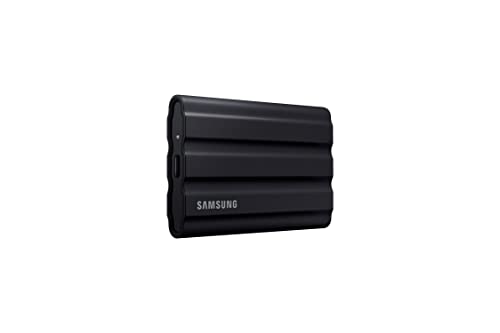
Samsung T7 Shield 2TB — The rugged capture drive
The T7 Shield’s listing pairs a known quantity with a working shell: a portable SSD up to 1,050 MB/s on USB 3.2 Gen 2, rugged, IP65 water resistant, positioned for photographers, content creators and gaming, model MU-PE2T0S/AM. For recording, the Gen 2 figure is the honest centre of the proposition — a ceiling roughly ten times a high-bitrate capture’s appetite, which is exactly the headroom the sustained-writing argument asks for. The drive will not be the reason a session drops frames; the rest of the chain can be audited with the storage already exonerated.
The Shield part of the name earns its keep in the places recording actually happens: the desk crowded with controllers and coffee, the location shoot for a channel’s travel series, the shared streaming room where kit is borrowed and returned by many hands. IP65 in the listing means the drive is sealed against dust and water jets by the standard’s definition — rain and spills, the realistic enemies — and the rugged build addresses the drops that portable drives collect in a year of being carried between console, PC and bag. A capture drive lives a harder physical life than a backup drive, and this listing is written for that life.
There is a second recording life this drive suits that deserves naming: the console-adjacent one. A creator who captures on a PC but plays on consoles, or who records with friends across platforms, ends up moving footage constantly — from capture PC to edit laptop, from a friend’s setup home. A rugged, sealed, pocketable drive is the courier that survives that social workflow, and the Shield’s stated creator-and-gaming positioning reads as though Samsung had the same itinerary in mind. Drives in this role are handled by other people, in other people’s rooms, with other people’s care levels; armour is the price of lending your archive’s front door.
Two terabytes at capture appetites is a working archive, not a vault: weeks of sessions, the current projects, the backlog awaiting edit. The Shield’s natural partner in this guide is one of the big spinning picks, receiving each finished project as the SSD makes room for the next. Bought alone, it suits the creator whose output is edited and published promptly — the streamer whose recordings become videos within days and whose archive, properly, is the published channel itself.
- Capacity: 2TB, per the listing title
- Top speed: Up to 1,050 MB/s, per the listing title
- Interface: USB 3.2 Gen 2, per the listing title
- Sealing: IP65 water resistant, per the listing title
- Build: Rugged, per the listing title
- Model: MU-PE2T0S/AM, per the listing title
- Sustained write figure: The title does not state one — no maker in this guide prints one; plan on the interface headroom instead
Strengths
- Capture headroom in depth: the Gen 2 ceiling towers over any recording bitrate it will meet.
- Stated IP65 sealing and a rugged brief for the desks and bags capture drives actually inhabit.
- A creator-and-gaming positioning in the listing that matches this guide’s exact use.
Trade-offs
- Two terabytes fills at 4K appetites; a vault partner is a plan, not an accessory.
- Its ceiling is the Gen 2 generation’s, below the USB4 pick’s headline pace.
- No separate write figure is printed, as with nearly every drive in this category.
Best for: a streamer recording nightly to a drive that rides between the gaming PC and a laptop edit station. Not suited for: a 4K archivist who keeps every raw session for a year, whose vault needs the D10’s eight terabytes.
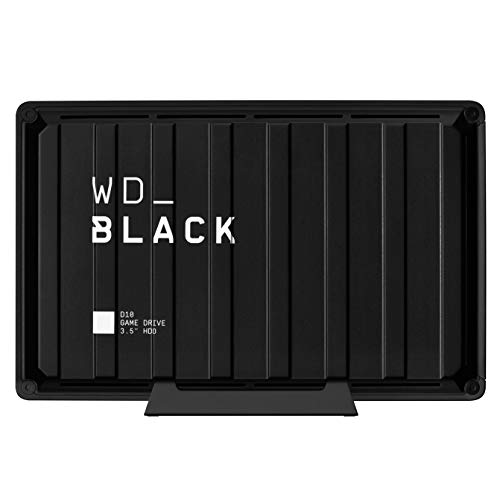
WD_BLACK D10 Game Drive 8TB — The archive giant
The D10’s listing is a capacity statement: a WD_BLACK 8TB Game Drive, a portable external hard drive — portable in the luggable, desktop sense its class intends — compatible with PlayStation, Xbox, PC and Mac, model WDBA3P0080HBK-NESN. Eight terabytes is the largest capacity in this guide, and it is aimed at the creator’s second problem, the one that arrives a year in: the archive. Sessions worth keeping, projects awaiting their edit, the game library itself — the D10 holds the whole estate in one enclosure, on one shelf, with one cable.
As a recording target, read its role precisely. A desktop spinning drive of this class is the vault and the library; the day’s capture is better caught by an SSD and then committed to the D10, where its pace is more than sufficient for transfers and for serving footage back to the editor. That division of labour is not a criticism — it is the architecture this guide recommends — and the D10’s cross-platform compatibility makes it the natural vault for a household whose recordings come from a PlayStation, an Xbox and a PC in rotation, since the listing welcomes all of them.
The listing states no transfer speed and no spin figure in its title, and the spec box records that; WD_BLACK’s desktop game drives are built around performance positioning in the maker’s wider literature, but this guide confines itself to what the listing says: capacity, compatibility, class. For the vault role, those stated facts are the decision. A direct-to-drive capture workflow that needs a printed pace should choose from the SSD tier, where the numbers live.
- Capacity: 8TB, per the listing title
- Type: Game Drive, external hard drive HDD, per the listing title
- Compatibility: PlayStation, Xbox, PC and Mac, per the listing title
- Model: WDBA3P0080HBK-NESN, per the listing title
- Transfer speed: Not stated in the listing title — see WD’s documentation for figures
- Spin speed: Not stated in the listing title — see WD’s documentation
- Power: Desktop-class drives of this size use mains power — confirm the arrangement in WD’s documentation
Strengths
- The guide’s largest single vault: a year of sessions and the game library in one enclosure.
- Stated compatibility across both console families and both computer platforms.
- The natural archive partner for every SSD pick in this guide.
Trade-offs
- A fixture with a power supply, not a pocket drive; the vault stays home.
- No speed is printed in the listing, so direct-capture planners should look to the SSD tier.
- Concentrating the archive in one device raises the value of a second copy of the best work.
Best for: a multi-console household whose recordings, projects and game libraries have outgrown every drawer drive they own. Not suited for: a creator who records on the move and needs the capture drive in a jacket pocket at a friend’s house.

WD_BLACK P10 Game Drive 5TB — The portable library
The P10 takes the D10’s proposition and makes it travel: a WD_BLACK 5TB Game Drive, portable external hard drive, works with PlayStation, Xbox and PC, model WDBA3A0050BBK-WESN. Five terabytes in a portable shell is the library that goes where the gaming goes — to the friend’s console, the second setup, the laptop at a relative’s house — carrying both the games and the footage recorded from them. For creators whose recording life is split across places, the P10 is the drive that keeps the split from becoming a mess of partial copies.
Its recording role mirrors its bigger sibling’s, adjusted for the road: a vault and library first, a transfer target second. Finished sessions move from the capture SSD to the P10; projects live on it between edits; the game library rides on it between consoles. Spinning portables ask for the usual courtesy — still while writing, padded while travelling — and repay it with a cost per terabyte that lets a creator keep everything rather than curate under pressure. The listing’s silence on Mac compatibility, where the D10’s title includes Mac, is noted in the spec box: the P10 states PlayStation, Xbox and PC, and Mac households should read that as the listing’s word.
Five terabytes is also, not coincidentally, the size at which a recording archive stops being a backlog and becomes a library with a past: a year of a regular channel’s raw material, held with room to spare. Creators underestimate how often that past gets mined — the anniversary compilation, the “first time we played” retrospective, the clip a community member swears happened in a session from two seasons ago — and every one of those moments is a small dividend paid by capacity bought before it was needed, on a drive that was somewhere in the house because it was built to travel. Creators who publish and delete may never need it; creators who mine old footage for retrospectives, compilations and the occasional perfect clip from two seasons ago will find that the archive pays rent in content long after its purchase is forgotten.
- Capacity: 5TB, per the listing title
- Type: Portable external hard drive, Game Drive, per the listing title
- Compatibility: PlayStation, Xbox and PC, per the listing title
- Model: WDBA3A0050BBK-WESN, per the listing title
- Mac compatibility: Not stated in the listing title — the D10’s listing includes Mac; this one does not
- Transfer speed: Not stated in the listing title — see WD’s documentation
- Shock rating: Not stated in the listing title — carry it padded, as any portable spinner deserves
Strengths
- Vault capacity that travels — the library and the archive in one portable shell.
- Cross-console stated compatibility for the multi-platform household.
- Lets a creator keep a year of raw footage instead of deleting under pressure.
Trade-offs
- Mac is absent from its stated compatibility, unlike its larger sibling.
- A spinning portable wants gentle handling while writing and while carried.
- No printed speed; its pace is a transfer pace, not a capture headline.
Best for: a creator who records at two setups — home console and a laptop elsewhere — and needs one library that travels between them. Not suited for: a Mac-only desk, whose owner should note the compatibility this listing does not claim and choose the D10 instead.
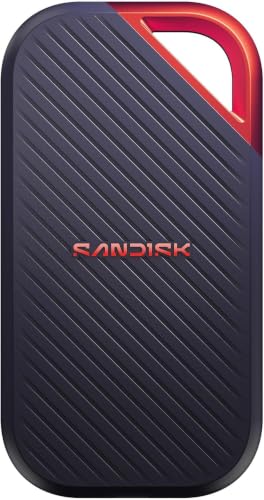
SanDisk Extreme PRO Portable SSD 2TB — The USB4 sprinter
The Extreme PRO’s listing leads with the largest number in this guide: up to 4000MB/s read speeds, on USB-C and USB4 connectivity, with IP65 water and dust resistance and up to 3M drop protection, in a 2TB portable SSD. The honest framing for a recording buyer is that no capture stream needs anything near that pace — and that the headroom is nevertheless the point. A drive whose ceiling is forty times the session’s appetite is a drive operating, all session long, in the most relaxed corner of its abilities; and the USB4 connection, on a host that offers it, also serves the edit, where scrubbing a 4K timeline from the drive stops feeling like a compromise.
The armour matches the T7 Shield’s stated class and adds the printed drop figure: IP65 sealing and protection up to 3 metres, both in the title. For the creator who records at events — tournaments, conventions, a channel filmed across other people’s venues — the PRO is the capture drive built for the itinerary, fast enough that offloading a day’s cards and footage between sessions is a coffee, not a chore, and armoured enough that the bag it rides in can be treated like luggage rather than glassware.
It is worth pausing on who should not buy this drive, because its headline invites the wrong audience. A creator recording 1080p sessions at home, on a PC whose fastest port is the Gen 2 generation, will use perhaps a twentieth of what this drive can do and none of its USB4 distinction; the T7 Shield or the X9 Pro will serve that desk identically for the purpose and leave budget for the vault. The PRO’s premium is rational exactly where its two stated extremes are both in play — a workflow that genuinely moves terabytes between venues and edits at the destination, on machines new enough to speak USB4. Buying the ceiling you cannot reach is the mirror image of the mistake this guide opened with: there, a drive too weak for the session; here, a session too small for the drive.
The listing states a read speed; it does not state a write figure in its title, and the spec box says so with the guide’s usual discipline. Recording buyers should take the proposition as it stands: a USB4 interface with enormous headroom, a flagship read pace for the edit, and SanDisk’s professional portable line behind it. On hosts without USB4 the drive steps down to its USB-C generations’ pace — still ample for capture — so the purchase should be made with the travelling machine’s ports in mind, as with every interface story in this batch.
- Capacity: 2TB, per the listing title
- Read speed: Up to 4000MB/s, per the listing title
- Interface: USB-C and USB4 connectivity, per the listing title
- Sealing: IP65 water and dust resistance, per the listing title
- Drop protection: Up to 3M, per the listing title
- Write speed: Not stated in the listing title — see SanDisk’s documentation for the figure
- Encryption: Not stated in the listing title — see SanDisk’s documentation
Strengths
- The deepest headroom in the guide, for capture and for editing 4K from the drive alike.
- Armour fully stated: sealing and a drop height, both printed in the listing.
- Event-and-travel ready, with offload pace that resets a day’s media between sessions.
Trade-offs
- Hosts without USB4 see a lesser pace; the headline belongs to equipped machines.
- The write figure is not printed in the title, a gap a recording buyer must accept or research.
- Two terabytes is a working tier; the year’s archive still wants a spinning vault.
Best for: a tournament-and-events creator capturing all day and editing 4K from the same drive at night. Not suited for: a home recorder whose PC offers no USB4 and whose sessions are 1080p, where the T7 Shield covers the job completely.

Crucial X9 Pro 4TB — The stated-both-ways SSD
In a category where listings print read speeds and let buyers guess the rest, the X9 Pro’s title is a small act of integrity: up to 1050MB/s read and write, both stated, on USB-C 3.2, in a 4TB portable SSD for professional creators, model CT4000X9PROSSD902. For recording, the write figure is the one that signs the cheques, and here it is in print, equal to the read, at a level roughly ten times a heavy capture’s appetite. A buyer can plan a direct-to-drive recording workflow around this listing without a single act of faith.
Four terabytes doubles the other SSD picks’ capacity, and that changes the drive’s role: this is not merely the session catcher but the working archive — months of footage, the active projects, the library of clips a channel draws on — in one pocketable device. A creator can run a whole season from this drive: capture to it nightly, edit from it directly, and let the spinning vault receive only the finished and the precious. The creator positioning in Crucial’s listing is, for once, a precise description of the buyer.
Neither a sealing nor a drop rating is printed in this listing’s title, and the spec box records that; the X9 Pro’s case is a desk-and-bag proposition rather than an armoured one, and creators whose recording life is rough should weigh the Shield or the Extreme PRO accordingly. What it prints instead — both speeds, the capacity, the interface — is the specification set a recording workflow actually runs on, and no other pick in this guide states that set as completely.
- Capacity: 4TB, per the listing title
- Read speed: Up to 1050MB/s, per the listing title
- Write speed: Up to 1050MB/s, per the listing title
- Interface: USB-C (3.2 generation), per the listing title
- Model: CT4000X9PROSSD902, per the listing title
- Drop rating: The title is silent — Crucial’s documentation carries any rating
- Water/dust rating: Not printed in the title — Crucial’s documentation is the source
Strengths
- Read and write both printed — the only listing here a recording workflow can be planned on without faith.
- Four terabytes makes it a season’s working archive, not just a session catcher.
- Gen 2-class pace that every modern port can feed; no interface lottery.
Trade-offs
- No armour figures in the title; rough-location buyers must look to the armoured picks.
- Its ceiling matches the T7 Shield’s generation, not the USB4 pick’s headline.
- At 4TB of flash it is the considered purchase among the SSDs here.
Best for: a YouTube creator running a whole season — capture, edit, working archive — from one pocket drive. Not suited for: a location recorder dropping kit into wet grass weekly, who needs a printed sealing rating before the drive ships.

Seagate Game Drive for PS4/PS5 5TB — The licensed PlayStation drive
Seagate’s listing is the most rule-explicit in this guide, and PlayStation households should read it as the platform’s law stated plainly: a 5TB external HDD, USB 3.0, officially licensed for PlayStation, which archives PS5 games and plays PS4 games directly, with a blue LED and a 3-year warranty. The archive-versus-play distinction is the single most misunderstood fact in console storage, and this listing states it in its own title: current-generation games live on the console’s internal storage and visit this drive as an archive; last-generation games can live and play from it outright.
For recording, that architecture defines the drive’s job in a PlayStation household. The console’s captures and the PS4 library live here comfortably; the drive is the household’s PlayStation vault, freeing the internal storage for the PS5 titles that must live there. A creator recording on PlayStation and editing on a PC will move footage off the console by their usual route and keep this drive as the console-side estate — games archived, captures gathered, the internal disk breathing again. The stated 3-year warranty, rare in these listings, suits a drive that will serve a console generation’s full term.
USB 3.0 in the listing is the older generation’s pace, adequate for its archive-and-PS4 duties and not a capture headline; the spec box records it without varnish. Xbox and PC households should also note the licensing is PlayStation’s — this is the one pick in the guide that belongs to a single ecosystem, and it wears that allegiance proudly, blue LED and all. Within that ecosystem it is the most completely explained drive here.
- Capacity: 5TB, per the listing title
- Type: External HDD, per the listing title
- Interface: USB 3.0, per the listing title
- Licensing: Officially licensed for PlayStation, per the listing title
- PS5 role: Archives PS5 games, per the listing title
- PS4 role: Plays PS4 games directly, per the listing title
- Warranty: 3-year warranty, per the listing title
Strengths
- The platform’s rules stated in the listing itself — no other pick explains its console role as completely.
- A stated 3-year warranty behind a drive bought for a console generation’s whole term.
- Five terabytes of PS4 library and capture vault in the console’s own licensed colours.
Trade-offs
- PlayStation-only allegiance; the Xbox side of the house needs the WD_BLACK picks.
- USB 3.0 pace is archive pace, not a capture or transfer headline.
- PS5 games cannot be played from it — archived only, exactly as the listing says.
Best for: a PlayStation household whose internal storage is choked with PS5 installs and whose PS4 library deserves a permanent, playable home. Not suited for: an Xbox-and-PC creator, for whom this drive’s licence, LED and loyalties are all pointed at the wrong sofa.
How Do the Six Recording Drives Compare?
| Pick | Type | Capacity | Listing headline | Recording role |
|---|---|---|---|---|
| Samsung T7 Shield | SSD | 2TB | Up to 1,050 MB/s; IP65; rugged | Session catcher, travel |
| WD_BLACK D10 | HDD desktop | 8TB | PlayStation, Xbox, PC, Mac | Household vault |
| WD_BLACK P10 | HDD portable | 5TB | PlayStation, Xbox, PC | Travelling library |
| SanDisk Extreme PRO | SSD | 2TB | Up to 4000MB/s read; USB4; IP65; 3M drop | Event capture and edit |
| Crucial X9 Pro | SSD | 4TB | Up to 1050MB/s read and write | Season’s working archive |
| Seagate Game Drive | HDD | 5TB | Licensed; archives PS5, plays PS4; 3-yr warranty | PlayStation vault |
Read down the role column and a pattern emerges that is worth stating as a rule of thumb for this whole category: the catcher should be the fastest drive you own, and the keeper should be the largest, and confusing those two superlatives is the original sin of recording storage. A season’s footage has two different needs at two different times — pace tonight, patience forever — and the table is really two shortlists wearing one set of rows.
The table separates into catchers and keepers, and the healthiest setups buy one from each column of the family tree. The catchers are judged on stated write information and headroom — the Crucial prints the most, the SanDisk brings the deepest ceiling, the Samsung the rugged all-round brief. The keepers are judged on capacity and ecosystem fit — the D10 for the whole house, the P10 for the travelling library, the Seagate for the PlayStation faithful. A creator who tries to make one row do both jobs will meet the compromise at the worst hour of a session.
How Should You Set Up a Recording Drive Before a Session?
Run a pre-flight, every time, because recording failures are discovered in footage and footage cannot be reshot. First, space: confirm the drive holds at least twice the session’s expected size, since a drive past nine-tenths full writes slower and fragments the stream’s home. Second, the chain: one cable, known-good, from the capture source to the drive, with no hub in between that has not been tested at full session length. Third, a five-minute test recording at the session’s real settings, played back and inspected — dropped frames announce themselves in the test if you let them, and a test is the only audience they should ever have.
Then set the session’s housekeeping before the game starts. Name the recording folder for the date and the game, so the archive organises itself as it grows. Decide the bitrate deliberately: higher is not automatically better once the upload and the edit enter the arithmetic, and a bitrate the drive, the encoder and the eventual audience can all sustain beats a heroic setting that stutters. And if the session matters — a tournament, a sponsored stream, a once-only event — record a second copy somewhere: the console’s internal storage, a second drive, anywhere that does not share the primary drive’s fate. The creators with archives are the ones who treated their best sessions as unrepeatable, because some of them were.
What Mistakes Do Creators Make With Recording Storage?
The founding mistake is buying on the read speed. Recordings are written, edits are read, and a drive bought for its read headline may carry an unstated write behaviour that only a three-hour session will reveal. The second mistake is recording to a nearly full drive, where the stream’s home fragments and the pace sags in the final hour. The third is the single-copy archive: months of footage on one portable, carried everywhere, one drop or one theft from being a channel’s lost year. The vault-and-catcher architecture in this guide exists because each of those mistakes has ended real channels’ archives.
A further mistake belongs to the editing stage and is paid for in hours: recording at a bitrate chosen for pride rather than for the delivery platform, then warehousing the difference forever. The archive grows at the bitrate’s command, the edit renders slower, the uploads crawl — and the audience, watching the platform’s re-encoded version, sees none of the heroic original. Set the dial by the destination, as the bitrate section argues, and let the vault’s terabytes be spent on more sessions rather than on heavier ones.
The console mistakes are quieter. Owners buy an external drive expecting to play current-generation games from it, and meet the archive rule the Seagate listing states so plainly — read listings for the rule before the drive arrives, not after. Owners also format a drive for one console and discover the format is a commitment, wiping the drive when it changes households. And PC creators forget that the capture drive and the game drive ideally are not the same device: a game loading from the disk that is simultaneously writing the recording is a small contention that a second drive removes entirely, which is the final, practical argument for the two-drive setup this guide keeps recommending.
How Do Consoles Treat External Drives, Generation by Generation?
The rule that governs console storage in this generation is simple to state and expensive to learn late: current-generation games demand the console’s internal-class storage speed, so external drives serve them as archives — a place to park a game you are not playing this month, sparing the download when you return — while previous-generation games, built for slower disks, can live on an external drive and play from it directly. The Seagate listing in this guide states that rule for PlayStation in so many words. The WD_BLACK listings state broad compatibility with both console families; the exact play-versus-archive terms on the Xbox side are set by the platform and should be confirmed in the console’s own documentation, because they follow the same generational logic.
For a recording household, the practical consequence is a division of the estate. The internal drive holds the current games and the freshest captures. The external drive — the Seagate for a PlayStation house, a WD_BLACK for a mixed one — holds the previous generation’s library in playable form, the current games in parked form, and the accumulated captures that the internal drive has no room to keep. Managed that way, the external drive is not the internal drive’s poor relation; it is the larger half of the household’s gaming memory, and its capacity, not the console’s, decides how much of the past stays within arm’s reach.
One more console habit deserves a sentence: formatting. A drive formatted as a console’s extended storage belongs to that console’s ecosystem until it is reformatted, and reformatting erases it. Creators moving a drive between a console and a PC editing station should treat that boundary as a one-way door with a warning sign — empty the drive deliberately, on purpose, with its contents homed elsewhere first. More footage has been lost to a cheerful “format this drive?” prompt than to any hardware failure in this category.
How Does Your Bitrate Setting Decide Your Storage Bill?
Every recording setup has a dial that quietly sets the size of its archive: the capture bitrate. Turn it up and each hour of footage grows — richer, more forgiving in the edit, and heavier on every drive it touches. Turn it down and the archive slims, at the cost of artefacts that appear exactly where games are hardest to compress: fast motion, particle effects, rain, confetti, the scenes a highlight reel is made of. The storage question and the quality question are the same question asked in different units, and this guide’s capacity ladder only makes sense once your dial’s position is honest.
A workable way to choose is to work backwards from the audience. Footage destined for a streaming platform will be re-encoded by that platform into its own ladder of qualities; recording at a sensible multiple of the platform’s top delivered bitrate preserves detail through that second compression without warehousing absurdity. Footage destined for an archive — a documentary project, a channel’s raw history — justifies the heroic settings and the 8TB vault to match. Footage recorded for clips and shorts, consumed on phones, can live at the ladder’s modest end and let a 2TB SSD hold months of it.
Whatever the dial’s position, measure your real consumption for one week before buying storage around it. Creators routinely discover their sessions are half the length, or twice the bitrate, that their mental model assumed, and a week of actual gigabytes-per-evening is worth more than any table of estimates — including this one. The drives in this guide span the outcomes generously, but they cannot rescue a plan built on a guessed appetite.
How Should a Growing Recording Archive Be Organised?
An archive’s value is set by whether future you can find the clip. The organisation that survives growth is boring and total: a folder per session, named by date and game; the session’s raw files inside it, untouched; a separate folder for the project that the session fed, with its edits and exports; and a simple text index — a spreadsheet is fine — logging date, game, drive and a line about what the session contained. The index is the archive’s soul. Terabyte drives full of identically named capture files are not an archive but a landfill with good intentions.
Two copies, again, for anything that matters: the vault on the shelf and a copy elsewhere — the second spinning pick, a cloud tier for the finished projects, a drive at another address for the channel’s crown jewels. And a retention decision made in advance, in writing, while you are calm: which sessions are kept forever, which are kept until the project ships, which are highlights-only after a month. Deciding in advance converts deletion from a midnight panic into a policy, and policies are how archives stay both complete and affordable across years of sessions.
Finally, schedule the archive’s health like the other always-on citizens of this batch: a yearly pass that confirms the vault mounts, a sample of old sessions play, and the index still matches the folders. Footage is only an asset while it is findable and playable; the annual check is the small rent that keeps a recording archive from quietly becoming a rumour stored on a disk.
How Does Footage Travel From the Session to the Finished Video?
The workflow between recording and publishing is where drives quietly shape a channel’s output, because friction at this stage decides what gets edited at all. The smooth path runs: session captured to the SSD; the same evening, the session copied to the vault and logged in the index; the edit worked from the SSD, whose pace makes scrubbing and assembly painless; the finished project exported, and its files homed on the vault beside the raw session they came from. At every step the footage exists twice, and at no step does a creator have to delete something to make room for the next action. That absence of pressure is what the two-drive architecture actually buys.
Contrast the single-drive version, familiar to every creator who has lived it: the session shares a disk with the library; the edit stalls while footage copies; the disk fills mid-project and the oldest sessions are culled at midnight, by tiredness, without the index being updated. Channels rarely die from a lack of ideas; they fray from a workflow that makes each video a small logistics crisis. The drives in this guide are inexpensive, as production equipment goes — the architecture they enable is the cheapest quality-of-life upgrade a recording setup offers.
One refinement for creators who publish on a schedule: keep a “current season” boundary on the SSD. When a season closes, its sessions and projects migrate wholesale to the vault, and the SSD starts the new season empty. The boundary keeps the working drive fast and uncluttered, gives the archive a natural chapter structure, and turns the annual health check into a season-by-season audit that a single sitting can actually complete.
Final Recommendation
Build the setup in the two halves this guide has argued throughout. For catching: the Crucial X9 Pro if you want the write figure in print and a season’s working archive in your pocket; the SanDisk Extreme PRO if your recording life is events and travel on USB4-equipped machines; the Samsung T7 Shield if you want the rugged all-rounder whose Gen 2 headroom quietly covers every session. For keeping: the WD_BLACK D10 as the household vault, the P10 as the library that travels, and the Seagate as the PlayStation household’s own licensed answer, PS4 library and all.
If the budget allows one drive only, buy the Crucial X9 Pro and keep it below nine-tenths full; it is the single pick here that can catch, hold and serve a working archive without apology. Then let the second purchase, when it comes, be the vault its archive has earned — by that point you will know your gigabytes-per-evening from experience rather than estimate, and the D10, the P10 or the Seagate will size themselves to a year of your real sessions instead of a guess made before the first one. And whatever you buy, run the five-minute test recording before the session that matters — because a recording drive’s whole reputation is decided in the last hour of the longest night, and the creators who keep their archives are the ones who checked the chain while checking was still free.
Frequently Asked Questions
Can I record gameplay directly to an external drive?
On a PC, yes — capture software will write to any drive you point it at, and the SSD picks here are chosen for exactly that duty. On consoles, the platform’s rules govern where captures are stored and moved, and external drives serve as the archive and library tier; check your console’s own settings for what it will write where, and use the drives here as the footage’s home once captured.
How much space does an hour of gameplay recording take?
It scales with bitrate, which you set. A moderate 1080p recording consumes on the order of several gigabytes an hour; high-bitrate 1080p multiplies that; 4K multiplies it again, several times over. Do your own arithmetic from your capture settings before a long session — the pre-flight section’s rule, twice the expected size in free space, absorbs the surprises.
Why do recordings sometimes stutter even on a fast drive?
Because the chain, not the drive, is the system: a capture near the interface’s ceiling, a drive nearly full, a game loading from the same disk, or a budget cable can each introduce the dip that drops frames. The remedies are headroom, free space, separate drives for game and recording, and the five-minute test that finds the weak link while it is still cheap to fix.
Can these drives hold my game library as well as recordings?
The spinning picks are built for exactly that double duty — it is the WD_BLACK proposition outright, and the Seagate’s listing spells out its PlayStation terms: PS4 games playable directly, PS5 games archived. The SSDs can hold libraries too, but their capacity is better spent on the active recording and editing work only they can do.
Is a capture card part of this guide’s picks?
No — deliberately. Capture hardware is a separate layer of the setup with its own buying questions, and it is mentioned here only to draw the boundary. These six drives are the storage layer: where recordings are written, kept and archived, whichever capture device or console feature produced them.
Should the game and the recording live on the same drive?
Ideally not. A game streaming its world from a disk while that disk also writes the recording is doing two jobs with one set of moving parts — or one flash controller — and the contention shows up as the occasional hitch in one job or the other. The two-drive architecture this guide recommends solves it by construction: games on their drive or the internal storage, recordings on the capture SSD, the vault receiving both estates’ finished goods in the evening.
What format should a recording drive use?
The one your chain agrees on, chosen once and left alone. PC capture setups generally standardise on the host system’s modern default; console extended storage is formatted by the console itself and should be allowed to stay that way. The mistake to avoid is the casual reformat — every format change erases the drive, and a recording archive should only ever meet that dialog box deliberately, emptied, and on a day chosen for the purpose.
How long should I keep raw recordings?
As long as the archive’s economics allow — which is the practical argument for the big spinning vaults. Raw footage is a channel’s back catalogue and its future compilations; creators who delete aggressively save terabytes and occasionally lose the clip that would have anchored a retrospective. Keep the finished projects and the best sessions indefinitely, the routine sessions until the vault’s pressure says otherwise.
Related Guides
From the recording desk, the trail leads three ways: our best hard drives for photographers when traveling guide, where portable SSDs do the same catching work for stills and video on the road; the best hard drives for home media servers roundup, for the finished library’s permanent home; and the best hard drives for mac backups guide, for the backup discipline a footage archive deserves as much as any Mac.
Related guides
- Best 1440p 165Hz Monitors: One Native 165Hz Pick, Three 180Hz Upgrades, an Overclock Headline and a 160Hz Ultrawide
- Best 13×19 Professional Printers
- Best 3rd Party MacBook Chargers: 96W-Class Alternatives, the 100W Cable Rule, and the Apple Benchmark
- Best Built PC: Six Prebuilt Gaming PCs Judged on Parts, Power and Upgrades


