What's inside
- Where to Buy, and What Clinical Work Actually Asks of a Laptop
- Key Takeaways
- Quick Picks
- How Did These Six Earn a Place on a Physician’s Shortlist?
- What Does a Clinic Day Do to a Laptop, Hour by Hour?
- Should a Physician Buy Into the Practice’s Fleet or Choose Independently?
- Which Features Actually Protect Patient Information Day to Day?
- How Should a Physician Set Up the Desk the Laptop Docks Into?
- What About Dictation, Imaging Viewers and the Rest of the Software Stack?
- How Do Battery and Weight Play Out Across a Real Working Week?
- How Long Should This Purchase Last, and What Should the Cover Include?
- What Order Should a Busy Physician Actually Buy Things In?
- How Do a Physician’s Six Contenders Differ Where It Counts?
- What Separates a Business Laptop From a Consumer Laptop When Something Breaks?
- Which Accessories Earn Their Money in Clinical Life?
- What Mistakes Do Physicians Make When Buying a Work Laptop?
- How Should a Telehealth Session Be Set Up So the Laptop Stops Being the Weak Link?
- Which Pick Fits Which Specialty’s Particular Day?
- Final Recommendation
- Does the AI Label on These Machines Change Anything for a Clinician?
- What Should a Physician Check During the First Week With a New Machine?
- Frequently Asked Questions
- Related Guides
As an Amazon Associate I earn from qualifying purchases. This post may contain affiliate links at no extra cost to you.
gizmoverdict.com is reader-supported. When you buy through links on our site, we may earn an affiliate commission.
Where to Buy, and What Clinical Work Actually Asks of a Laptop
The best laptops for a physician are bought for a working day that never resembles the product photos. Rounds start before the coffee cools, the electronic health record stays open for twelve hours straight, a telehealth visit runs from a borrowed office between procedures, and the machine gets carried from exam room to conference room to a couch where the day’s notes finally get finished. A laptop that delights a reviewer for a weekend can fail that routine in a month: the battery fades by mid-afternoon, the webcam makes a remote consultation look like it was filmed underwater, or the keyboard turns forty notes a day into a slow ache.
All six machines below are business-class or premium laptops sold through Amazon and mainstream professional retailers, and every linked listing was checked against its full product title before it was allowed onto the shortlist. The selection leans deliberately toward machines a hospital IT department would recognise: business support channels, fingerprint readers, infrared webcams for face sign-in, and the Thunderbolt docks that already populate clinic desks. Two are featherweight flagships for physicians who move constantly, three are 14-inch workhorses built for managed fleets, and one is a larger 15-inch option for doctors whose day is anchored to a desk and a chart rather than a corridor.
One boundary deserves stating at the outset. No laptop, by itself, makes a practice compliant with anything. Privacy and security obligations are met by configuration, policy and the software a practice runs — encryption switched on, accounts managed properly, updates applied. What a laptop can do is make that job easier or harder: the six here all ship with Windows 11 Pro or macOS, biometric sign-in hardware and modern connectivity, which is the raw material an IT administrator needs. Buy the machine that supports the policy, then let the policy do its work.
Key Takeaways
- The ThinkPad X1 Carbon Gen 13 is the carry-everywhere answer: 32GB of memory, a 2.8K OLED screen and a 1080p infrared webcam in the lightest chassis on this list.
- The EliteBook 840 G11 and Latitude 7450 are the fleet choices, the machines hospital IT departments deploy by the hundred because parts, docks and support are standardised.
- The MacBook Pro 14 with M4 Pro is the pick where dictation, imaging viewers and long unplugged days matter more than matching a Windows fleet.
- Every pick carries at least 16GB of memory and a 512GB drive, because an EHR client, a browser full of results tabs and a video visit running together punish anything less.
- Screen quality is a clinical feature, not a luxury: physicians read dense text and greyscale imaging for hours, and the OLED and high-resolution options here earn their place on that basis.
Quick Picks
| Pick | Badge | Why it is here |
|---|---|---|
| Lenovo ThinkPad X1 Carbon Gen 13 | Best for Rounds | Featherweight carbon chassis, 32GB of memory and a sharp OLED panel for a doctor who never sits in the same room twice. |
| HP EliteBook 840 G11 | Best Fleet Laptop | A touchscreen business 14-incher with dual Thunderbolt 4 ports and the manageability large practices standardise on. |
| Microsoft Surface Laptop 7 15-inch | Best Big Screen | The 15-inch touchscreen option for desk-based charting, with Snapdragon efficiency for long days away from a charger. |
| Apple MacBook Pro 14-inch (M4 Pro) | Best Performance | M4 Pro power and a Liquid Retina XDR display for imaging-heavy work and the heaviest multitasking on the list. |
| Lenovo ThinkPad T14 Gen 5 | Best Value Workhorse | The durable, serviceable ThinkPad formula with a 5MP webcam and dual Thunderbolt 4 at a plainer specification. |
| Dell Latitude 7450 | Best for Dell Shops | A 16-core business machine with Wi-Fi 7 and an infrared webcam, native to the Dell dock ecosystem many clinics already own. |
How Did These Six Earn a Place on a Physician’s Shortlist?
The filter started with the working day rather than the spec sheet. Any machine that could not plausibly run an EHR client, a PACS viewer in a browser, a telehealth platform and a stack of reference tabs at once was cut, which in practice meant a floor of 16GB of memory and a modern processor from Intel, AMD, Apple or Qualcomm. Machines with only consumer support channels were cut next, because a laptop that carries a clinic’s schedule cannot wait a week on a mail-in repair queue; business lines exist precisely so that a dead machine on Monday is a working machine by Wednesday.
Security hardware was the third filter. Every pick here offers biometric sign-in — a fingerprint reader, an infrared camera, or both — because a physician signs in dozens of times a day, and every second spent typing a password at a shared workstation is a second the workflow resists. The fourth filter was the camera and microphone, judged by telehealth standards rather than video-call politeness: patients notice a grainy image and muffled audio even when colleagues would not. Finally, weight and battery were weighed honestly. A laptop that lives on a cart can be heavier; a laptop that travels between two clinic sites and a hospital cannot.
What Does a Clinic Day Do to a Laptop, Hour by Hour?
Consider the shape of the load. Morning rounds mean the machine wakes from sleep forty times, opens the same heavy record system each time, and gets read at arm’s length while standing — which is why instant wake, a bright screen and a hinge that opens flat enough to share with a colleague all matter more than benchmark scores. Midday brings the telehealth block, where the webcam, the microphone and the Wi-Fi radio carry the entire consultation. Afternoon is documentation: dictation software listening for hours, templates expanding, results arriving in tabs that never get closed. A physician’s laptop is therefore a study in sustained, mixed, unglamorous load — nothing extreme, everything simultaneous, all day.
That profile explains several choices below. Memory matters more than raw processor speed because the workload is breadth, not depth. Screen resolution matters because the text is small and the hours are long. A good keyboard matters because notes are still typed, whatever the dictation brochures promise. And a machine that can drive two external monitors from a single dock cable matters because the desk setup — one screen for the chart, one for imaging or results — is where half the working week actually happens.
Should a Physician Buy Into the Practice’s Fleet or Choose Independently?
Physicians in large organisations often have no choice: the fleet is the fleet, and the honest advice is to learn its dock and keep a second charger in the bag. Independent practitioners, partners and locums face the real decision, and the deciding question is who supports the machine when it fails. A business laptop from HP, Dell or Lenovo plugs into next-business-day service networks and the dock-and-monitor setups already common in clinics. An Apple or Microsoft machine buys a different experience — quieter, longer-lived on battery, often better screens — at the cost of checking that the practice’s record system, dictation tools and imaging viewers genuinely support the platform, in a browser or otherwise, before money changes hands.
Residency and fellowship add a wrinkle: the machine must survive being carried everywhere for three to seven years, through call rooms and cafeteria tables, on a trainee’s budget logic even when the salary has improved. That argues for the serviceable middle of this list — the T14 and EliteBook class — over the flagships, unless the training programme is imaging-heavy enough that the MacBook Pro’s screen and processor pay for themselves in daily comfort.
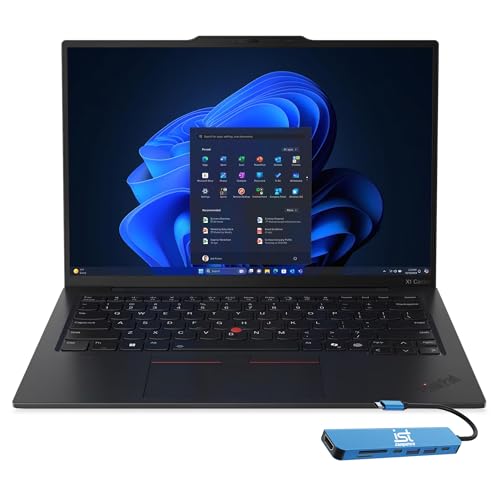
Lenovo ThinkPad X1 Carbon Gen 13 — Best for Rounds
The X1 Carbon line exists for people whose office is wherever they are standing, and the Gen 13 Aura Edition is the most complete version of that idea on this list. The specification in the listing is generous in exactly the places a physician feels: an Intel Core Ultra 7 258V processor, 32GB of memory, a 1TB drive, and a 14-inch 2.8K OLED screen. That memory figure matters. Thirty-two gigabytes is the point at which the record system, the imaging tab, the dictation engine and the video visit simply stop competing with each other, and the machine stays calm from the first round to the last note of the day.
The 1080p infrared webcam deserves its own sentence, because it does double duty: face sign-in that works in a dim call room, and a telehealth image clear enough that a patient can read your expression. The chassis is the lightest here, which sounds like a luxury until the fourth hour of carrying it between floors. The keyboard keeps the deep, quiet ThinkPad travel that long documentation sessions reward, and two Thunderbolt 4 ports mean one dock cable at the desk drives everything. Wi-Fi 7 is forward-looking rather than essential today, but a machine bought for five years should speak the network language of year four.
- Processor: Intel Core Ultra 7 258V
- Memory and storage: 32GB RAM, 1TB SSD
- Display: 14-inch 2.8K OLED
- Camera and sign-in: 1080p IR webcam, fingerprint reader
- Ports: 2x Thunderbolt 4, Wi-Fi 7
- Operating system: Windows 11 Pro
Strengths
- Lightest serious option here, and the difference compounds across a day of rounds.
- 32GB of memory removes the slowdowns that plague lesser machines at 4 p.m.
- The OLED panel renders dense text and greyscale imaging with unusual clarity.
Trade-offs
- Memory is soldered; the configuration bought is the configuration kept.
- OLED screens draw more power at high brightness than plain IPS panels.
- It sits at the premium end of this list, priced by its materials as much as its parts.
Best for: hospitalists, rounding specialists and any physician whose laptop moves rooms more often than it sits still. Not suited for: a desk-bound charting station where a larger screen would serve better for less.

HP EliteBook 840 G11 — Best Fleet Laptop
The EliteBook 840 G11 is the machine a practice manager would choose, and that is a compliment. It is a 14-inch business laptop with a WUXGA touchscreen, an Intel Core Ultra 7-165H processor, 16GB of memory and a 512GB drive — a specification that reads as ordinary until you notice how deliberately it matches the infrastructure of a real clinic. Two Thunderbolt 4 ports feed the standard dock. The touchscreen earns its keep in exam rooms, where tapping through a flowsheet with a fingertip is faster than hunting for a mouse on a crowded counter. Windows 11 Pro and HP’s management tooling mean an IT administrator can image it, encrypt it and push policy to it exactly like the two hundred machines already in the building.
In daily use the EliteBook’s virtue is the absence of friction. It wakes quickly, signs in with a fingerprint or a glance, and handles the standard clinical stack — record system, browser, dictation, video — without theatre. The 16GB of memory is adequate rather than lavish; a physician who keeps an imaging viewer and forty tabs open all day will feel the ceiling sooner than on the 32GB machines here, and should treat the memory figure as the honest limit of this configuration. For the far more common pattern of chart, message, call, note, it is simply a well-judged tool that disappears into the work.
- Processor: Intel Core Ultra 7-165H
- Memory and storage: 16GB RAM, 512GB SSD
- Display: 14-inch WUXGA IPS touchscreen
- Camera and sign-in: webcam with backlit keyboard; biometric options per configuration
- Ports: 2x Thunderbolt 4, Wi-Fi 6E
- Operating system: Windows 11 Pro
Strengths
- Touchscreen suits exam-room workflows where a mouse is impractical.
- Fleet-grade manageability and support through HP’s business channels.
- Balanced specification with no money wasted on rarely used extras.
Trade-offs
- 16GB of memory is the ceiling of this listing’s configuration.
- The screen is a good IPS panel, not the OLED class of the flagships here.
- Styling is corporate plain, which some will read as a virtue and others will not.
Best for: group practices and employed physicians standardising on an HP fleet with shared docks. Not suited for: imaging-heavy reading at the laptop’s own screen, where a higher-resolution panel pays off daily.
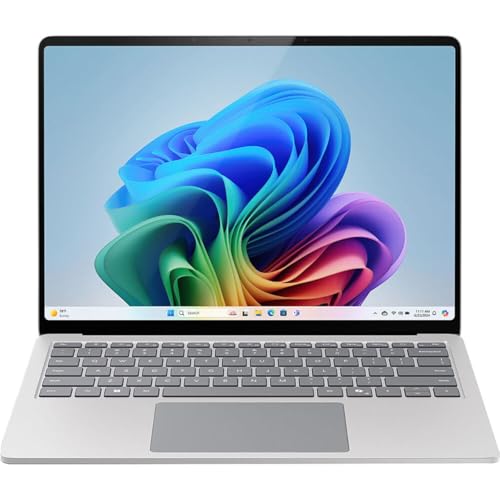
Microsoft Surface Laptop 7 15-inch — Best Big Screen
Some physicians barely move: the day is a desk, a door that opens for patients, and a screen that carries everything. For that pattern, the Surface Laptop 7 in its 15-inch form is the most pleasant charting station on this list. The listing pairs a Qualcomm Snapdragon X Elite processor with 16GB of memory and a 512GB drive behind a 15-inch touchscreen, and the combination has a particular character — silent under the ordinary clinical load, cool on the desk, and unusually frugal with battery when the day does spill into a conference room or a home office.
The honest caveat with any Snapdragon Windows machine is compatibility, and it deserves plain language. Mainstream software — browsers, the major record systems accessed through them, dictation tools, video platforms — runs well. The risk lives at the edges: an obscure legacy client, a specialised device driver for an ageing peripheral, a niche imaging plug-in. A physician whose entire stack is browser-based will never meet that risk. A physician tethered to a specific Windows-only application should confirm that application runs on ARM before choosing this machine, because the screen and the silence cannot compensate for the one program that will not open.
- Processor: Qualcomm Snapdragon X Elite
- Memory and storage: 16GB RAM, 512GB SSD
- Display: 15-inch touchscreen
- Camera and sign-in: Windows Hello face sign-in camera
- Ports: USB-C with docking support; check the listing for the full port layout before ordering
- Operating system: Windows 11 (Copilot+ PC)
Strengths
- The largest screen here in a chassis that still travels well between sites.
- Cool, quiet running suits a consulting room where fan noise is unwelcome.
- Battery frugality covers long days that drift away from the desk charger.
Trade-offs
- ARM compatibility must be verified for any specialised Windows software.
- 16GB of memory, again, bounds the heaviest multitasking.
- Microsoft’s port selection assumes a dock or hub at the main desk.
Best for: desk-anchored physicians, telehealth-heavy schedules and anyone whose stack lives in the browser. Not suited for: practices dependent on legacy Windows-only clinical applications that have not confirmed ARM support.

Apple MacBook Pro 14-inch (M4 Pro) — Best Performance
The MacBook Pro 14 with M4 Pro is the performance ceiling of this list, and for certain specialties the ceiling is the point. Radiology-adjacent work, large imaging sets in a viewer, video review, and the general sprawl of a dozen demanding applications meet a 12-core processor and 24GB of unified memory that treat the load as routine. The 14.2-inch Liquid Retina XDR display is the finest screen here for greyscale nuance — the subtle differences in an image that a physician’s eye is trained to catch are exactly what a high-contrast, high-brightness panel exists to show.
Choosing it is also choosing macOS, and the guide would be dishonest not to frame that as the real decision. Where the practice’s record system is browser-based and dictation is handled by a platform with proper Mac support, the MacBook Pro is arguably the best daily machine a physician can carry: fast, quiet, long-lived on battery, and built around a trackpad and keyboard that hold up over years. Where the workflow depends on Windows-only software, the answer is to run it in a virtual machine only if IT blesses that route — or to pick one of the Windows machines above and stop negotiating. The hardware is superb; the ecosystem question must be answered first.
- Processor: Apple M4 Pro, 12-core CPU, 16-core GPU
- Memory and storage: 24GB unified memory, 512GB SSD
- Display: 14.2-inch Liquid Retina XDR
- Camera and sign-in: Touch ID; camera specification per Apple’s listing details
- Ports: Thunderbolt, HDMI and SD card reader on the Pro chassis
- Operating system: macOS, built for Apple Intelligence
Strengths
- The strongest sustained performance here, delivered quietly.
- XDR display is the best tool on the list for reading imaging at the laptop itself.
- Build quality and battery behaviour suit a five-year working life.
Trade-offs
- macOS shuts the door on Windows-only clinical software unless IT approves a workaround.
- Nothing inside is upgradeable after purchase.
- 512GB fills quickly for physicians who keep large imaging sets locally; external or network storage becomes part of the setup.
Best for: imaging-heavy specialists and Mac-based practices that have confirmed their software stack. Not suited for: a Windows-standardised clinic where the laptop must image and behave like every other machine in the fleet.

Lenovo ThinkPad T14 Gen 5 — Best Value Workhorse
The T14 Gen 5 is what the X1 Carbon’s sensible sibling looks like: slightly heavier, slightly plainer, and built around the idea that a working laptop should be serviceable for years. The listing specifies an Intel Core Ultra 7 155U processor, 16GB of DDR5 memory, a 512GB drive, a 14-inch FHD+ IPS screen and a 5MP webcam — a camera resolution worth noticing, because it puts this mid-priced machine ahead of several flagships for telehealth clarity. Two Thunderbolt 4 ports, a fingerprint reader and Windows 11 Pro complete a specification that covers the clinical day without decoration.
What the T14 buys, beyond its parts, is a long and boring service life, which is the highest praise a work laptop can earn. ThinkPad T-series machines are the ones IT departments keep in service through battery swaps and keyboard replacements while sleeker machines are retired whole. For a resident buying with their own money, or a small practice equipping three exam rooms, that durability arithmetic matters more than a thinner bezel. The screen is the honest compromise: perfectly legible for charting and notes, a step below the OLED and XDR panels for extended imaging review.
- Processor: Intel Core Ultra 7 155U
- Memory and storage: 16GB DDR5 RAM, 512GB SSD
- Display: 14-inch IPS FHD+
- Camera and sign-in: 5MP webcam, fingerprint reader
- Ports: 2x Thunderbolt 4
- Operating system: Windows 11 Pro
Strengths
- 5MP webcam gives telehealth visits a clarity many pricier machines lack.
- Serviceable, durable design aimed at a long working life.
- The full business checklist — Pro Windows, biometrics, dual Thunderbolt 4 — at a mid-list position.
Trade-offs
- The FHD+ panel is the plainest screen on this list.
- Heavier in the bag than the X1 Carbon it otherwise resembles.
- 16GB configuration will age sooner than the 32GB flagships for heavy multitaskers.
Best for: residents, small practices and any physician who values a machine that can be repaired rather than replaced. Not suited for: primary imaging interpretation at the laptop screen, where panel quality is doing clinical work.

Dell Latitude 7450 — Best for Dell Shops
Clinics standardise on Dell for the same reason they standardise on anything: the docks are already screwed to the desks. The Latitude 7450 is built to walk into that environment and belong. Its listing specifies an Intel Ultra 7 165H processor — a 16-core chip with more headroom than the U-series processors in several rivals here — 16GB of DDR5 memory, a 512GB drive, a 14-inch FHD+ screen, Thunderbolt 4, an infrared webcam and Wi-Fi 7. That is a specification aimed at a physician who keeps the record system, a dictation engine and a video platform running concurrently and would like the fan to stay out of the conversation.
The 165H processor is the interesting choice in this machine. It trades a little battery frugality for sustained responsiveness, which suits a pattern of work that is mostly docked — plugged into power and monitors at a desk, undocked for the walk to a meeting. Physicians whose days are spent roaming wards should weigh the X1 Carbon instead. Physicians whose laptop lives on a Dell dock, drives two monitors and occasionally travels will find the 7450 the most natural fit on the list, precisely because it asks them to change nothing about the setup they already have.
- Processor: Intel Core Ultra 7 165H, 16-core
- Memory and storage: 16GB DDR5 RAM, 512GB SSD
- Display: 14-inch FHD+
- Camera and sign-in: IR webcam for face sign-in
- Ports: Thunderbolt 4, Wi-Fi 7
- Operating system: Windows 11 Pro
Strengths
- The strongest Intel processor on this list for sustained multitasking.
- Drops straight onto the Dell docks and monitors clinics already own.
- Wi-Fi 7 and an IR camera cover the next several years of infrastructure.
Trade-offs
- The H-series processor is thirstier than the U-series rivals when roaming.
- Screen resolution is workmanlike rather than a reason to buy.
- Its advantages assume a Dell environment; outside one, rivals argue harder.
Best for: physicians in Dell-standardised organisations and dock-based workers who multitask heavily. Not suited for: all-day ward roaming on battery, where lighter, thriftier machines last longer between charges.
Which Features Actually Protect Patient Information Day to Day?
Strip away the marketing and the daily protections are mundane: full-disk encryption turned on, a screen that locks quickly, sign-in that is fast enough that nobody is tempted to share a session, and updates that install without a fight. This is why biometric sign-in appears in every pick above — not as a luxury, but because a fingerprint touch takes a second and a typed password at a shared workstation takes fifteen, and workflows route around friction. It is also why Windows 11 Pro matters on the Windows machines: it carries the management and encryption tooling that a practice’s IT policy will actually use, where the Home edition leaves gaps someone has to work around.
The physician’s part of the bargain is behavioural. Keep the laptop’s privacy screen in mind in public spaces, let the machine lock when you step away, and store nothing locally that belongs in the record system. A privacy filter is a cheap accessory for doctors who chart in cafés or on trains, and it does more for real-world confidentiality than any specification on this page. The machine enables the habits; the habits do the protecting.
How Should a Physician Set Up the Desk the Laptop Docks Into?
The two-monitor desk is the highest-value upgrade in this entire guide, and none of the six picks struggles with it: a Thunderbolt dock, one cable, chart on one screen and imaging or results on the other. Add an external webcam only if the laptop’s own camera is the weak 720p class — none of the six here forces that purchase, and the T14’s 5MP camera and the X1 Carbon’s 1080p unit are genuinely good. A headset with a decent microphone improves telehealth audio more than any laptop speaker upgrade, and a second charger left at the desk means the one in the bag stays in the bag.
Set the display scaling so the record system’s smallest text is readable without leaning in, and put the laptop on a stand at eye level if it serves as a third screen. Ergonomics is unglamorous advice that pays out across a decade of documentation: the best laptop for a physician is partly the chair, the screen height and the keyboard it connects to at the desk where half the notes get written.
What About Dictation, Imaging Viewers and the Rest of the Software Stack?
A physician’s software stack is wider than the record system, and each layer makes its own demand. Dictation is the first: modern speech recognition runs partly in the cloud and partly on the machine, listening continuously while the record system, a browser and a messaging client compete for attention. It is rarely the processor that buckles; it is memory, again, and the quality of the microphone path. Every machine here has the processor headroom for dictation, but the physician who dictates for three hours a day should treat the headset as part of the laptop purchase, because a good headset microphone makes recognition accuracy a property of the voice rather than of the room.
Imaging is the second layer, and it divides the list cleanly. Browser-based PACS viewers — now the norm in most organisations — run acceptably on all six machines, because the heavy lifting happens on a server and the laptop mostly displays. The difference shows in the panel: a radiologist or cardiologist glancing at studies between cases will read more, and read it more comfortably, on the X1 Carbon’s 2.8K OLED or the MacBook Pro’s XDR display than on an FHD+ panel, simply because fine greyscale gradations survive the journey to the screen. Physicians whose primary interpretation happens at a calibrated workstation can ignore this entirely; physicians who genuinely read at the laptop cannot.
The third layer is the long tail: the VPN client the hospital insists on, the prescribing module, the video platform the telehealth service chose, the reference apps, the secure messaging tool. Individually trivial, collectively they are why 16GB is a floor rather than a target, and why the platform question — Windows, macOS or ARM Windows — must be answered against the whole stack and not just its largest member. Before buying, list every application used in a normal week and check each one against the platform. It takes twenty minutes and it is the difference between a laptop that serves for five years and one that generates a workaround every day.
How Do Battery and Weight Play Out Across a Real Working Week?
Battery claims in listings are measured under conditions no clinic reproduces, so the useful question is not how long a machine lasts but how its day is shaped. A physician who docks at a desk for most sessions needs the battery only for meetings, corridor consultations and the occasional room without a free outlet — a few hours of reserve, honestly delivered, is enough, and that describes all six picks. A physician who rounds for five hours with the machine in hand needs something else: light weight first, because the arm tires before the battery does, and then the discipline of a charger stationed where the documentation happens.
Weight deserves the same realism. The gap between the X1 Carbon and the heaviest machine here is roughly the weight of a full water bottle, which sounds trivial in a shop and feels significant at hour six of carrying it between floors alongside everything else a physician carries. This is why the guide separates its recommendations by geography rather than by specification: the best laptop for a physician who moves is a different machine from the best laptop for a physician who sits, even when their software is identical. Be honest about which physician you are on most days, not on the day you happen to be shopping.
Charging infrastructure quietly decides satisfaction too. All six machines charge over USB-C, which means the charger at home, the charger at the desk and the charger in the bag can be the same inexpensive pattern, and a colleague’s charger can rescue a forgotten one. Keep one in each place the laptop regularly sleeps. The cost is minor; the alternative — discovering a dead battery at the start of a telehealth block — is the kind of small disaster that colours a machine’s reputation for years.
How Long Should This Purchase Last, and What Should the Cover Include?
Plan on four to five years. That horizon drives several recommendations in this guide: it is why memory headroom matters more than a slightly faster processor, why business support channels outrank consumer ones, and why Wi-Fi 7 on the X1 Carbon and Latitude is worth having even though the clinic’s access points may not speak it yet. A machine bought near the start of a residency should be specced for the attending years; a machine bought for a stable practice should be specced for the record system’s next two upgrades, which historically demand more memory and never less.
On cover, the questions to ask are concrete. Does the warranty bring a technician to the machine, or does the machine travel to a depot and vanish for a week? Is accidental damage — the dropped laptop, the spilled coffee in the call room — included or excluded? Is the battery, the one component guaranteed to age, covered or treated as a consumable? For a machine that carries a clinic’s schedule, next-business-day on-site service is the provision that matters, and it is a business-line provision: one more reason this guide contains no consumer laptops. Physicians buying personally should weigh the accidental-damage option with unusual honesty, because clinical environments are hard on hardware in ways offices are not.
Finally, budget for the exit as well as the entrance. When the machine retires, its drive holds traces of a working life that touched patient information, even in a well-run browser-based practice. Business machines make certified drive wiping and asset disposal straightforward through the vendor’s channels; plan the disposal route at purchase time, when it is a line in a spreadsheet, rather than at retirement, when it becomes an afterthought with a deadline.
What Order Should a Busy Physician Actually Buy Things In?
First, answer the platform question with IT — or, if independent, against the written list of the week’s applications. Second, pick the chassis that matches the geography of the working week: the X1 Carbon for movement, the Surface Laptop 7 or a docked business machine for a desk-centred practice, the MacBook Pro where imaging and a confirmed Mac stack justify it. Third, fix the configuration: memory before storage, storage before cosmetic options, because memory cannot be added later in any of these machines while storage can be supplemented externally. Fourth, order the unglamorous kit in the same week — the dock, the second charger, the headset, the privacy filter — because a laptop that arrives before its dock spends its first month as an expensive compromise. Fifth, spend one quiet hour on setup: encryption on, lock timer short, updates scheduled, sign-in biometrics enrolled, and the record system tested from home before it is needed from home. That hour, more than any specification in this guide, is what makes the machine feel like it was chosen well.
How Do a Physician’s Six Contenders Differ Where It Counts?
| Machine | Memory | Screen | Sign-in | Character |
|---|---|---|---|---|
| ThinkPad X1 Carbon Gen 13 | 32GB | 14-inch 2.8K OLED | Fingerprint + IR camera | Lightest, for constant movement |
| HP EliteBook 840 G11 | 16GB | 14-inch WUXGA touch | Fingerprint options | Fleet standard with touchscreen |
| Surface Laptop 7 15-inch | 16GB | 15-inch touch | Face sign-in | Big, quiet desk machine |
| MacBook Pro 14 (M4 Pro) | 24GB | 14.2-inch XDR | Touch ID | Performance and display ceiling |
| ThinkPad T14 Gen 5 | 16GB | 14-inch FHD+ IPS | Fingerprint | Serviceable long-life workhorse |
| Dell Latitude 7450 | 16GB | 14-inch FHD+ | IR camera | Dock-native power for Dell shops |
What Separates a Business Laptop From a Consumer Laptop When Something Breaks?
The specification sheets look similar, which is why the distinction confuses buyers until the first failure. A consumer laptop that dies on a Monday enters a mail-in queue measured in weeks. A business laptop from the lines represented here — ThinkPad, EliteBook, Latitude — enters a service network built around next-business-day response, on-site technicians and parts held in regional depots, because the vendors sell uptime to organisations rather than hardware to individuals. For a physician, whose laptop is effectively the front door of the practice, that difference is not a perk; it is the whole argument, and it is why this guide’s six are drawn from business ranges even where a consumer machine offered a prettier screen for the same money.
The second difference is quieter: longevity of the model line. Business ranges keep the same dock connector, the same charger pattern and the same management tools across generations, so a practice’s accessories survive a refresh and a replacement machine slots into an existing desk without a weekend of re-cabling. Consumer lines redesign freely. A practice buying three machines a year apart will feel that stability as surely as a hospital buying three hundred, and it is worth real money in avoided accessories and avoided surprises.
Which Accessories Earn Their Money in Clinical Life?
Four accessories consistently justify themselves. The dock comes first, already discussed, because it converts the laptop into a two-monitor workstation with one cable. The headset comes second: a proper headset microphone transforms both dictation accuracy and telehealth audio, and it does so for every machine in this guide equally. Third, the privacy filter, for any physician who charts outside the clinic’s walls — trains, cafés and waiting rooms are full of sightlines, and a filter narrows the readable angle to the person directly in front of the screen. Fourth, the second charger, stationed where the laptop sleeps, so the travelling charger never has to be unpacked at home.
Beyond those four, spend cautiously. A laptop sleeve or a bag with a genuinely padded compartment protects the machine that carries the practice; a spare mouse for the home office removes a small daily friction; a lock cable suits shared offices. Everything else — decorative stands, exotic hubs, the third monitor — should have to argue its case against a week of real use before it is bought. The pattern of this whole guide applies to the accessories too: the clinical day, honestly observed, is the only reliable shopping list.
What Mistakes Do Physicians Make When Buying a Work Laptop?
The first is buying a consumer gaming or ultra-budget machine because the processor looked fast, then discovering the support channel, the webcam and the keyboard were designed for a different life. The second is under-buying memory: 8GB configurations still exist in shops, and they are a false economy for anyone whose record system shares the machine with a browser and a video platform. The third is ignoring the dock — buying a laptop whose ports do not match the desk setup, then living with a tangle of adapters for five years. The fourth is choosing a platform, Mac or ARM Windows, before confirming the practice’s one indispensable application runs on it. That check takes an email to IT and saves a return. The fifth is forgetting the unglamorous accessories: the second charger, the privacy filter, the headset. They cost little and are missed daily.
How Should a Telehealth Session Be Set Up So the Laptop Stops Being the Weak Link?
Most disappointing video visits are not caused by the laptop’s processor; they are caused by light, distance and network. Put the window or the lamp in front of the face rather than behind it, raise the machine so the camera sits at eye level — a stack of textbooks has improved more consultations than any camera upgrade — and sit close enough that the microphone hears a voice rather than a room. On the network side, a wired connection through the dock beats Wi-Fi whenever the desk allows it, and closing the household’s streaming competition during a clinic block is a legitimate scheduling conversation, not a technical footnote.
Within the machine, the choices in this guide already cover the fundamentals: the X1 Carbon’s 1080p infrared camera and the T14’s 5MP camera produce the clearest pictures, the MacBook Pro’s camera and microphone array are strong, and every pick has the processing headroom to run the platform without the fan intruding. What remains is rehearsal. Join a test call from the room you will actually use, at the hour you will actually use it, and watch the recording. Physicians rehearse procedures without thinking twice; a two-minute rehearsal of the telehealth setup deserves the same professionalism, because the patient experiences the technology as part of the care.
Which Pick Fits Which Specialty’s Particular Day?
Patterns differ enough by specialty that a short tour is worthwhile. Hospital medicine and internal medicine, with their rounds and their documentation volume, map to the X1 Carbon or the T14 depending on budget: movement plus typing, all day. Radiology and pathology, where the screen is an instrument, map to the MacBook Pro for its display, with the X1 Carbon’s OLED as the Windows answer — always subject to the organisation’s viewer and workstation arrangements. Psychiatry and other conversation-led specialties doing heavy telehealth should weight the camera and the quiet chassis: the T14’s 5MP webcam, the X1 Carbon’s infrared unit, or the Surface Laptop 7’s calm, silent desk presence.
Primary care, the specialty of breadth, is best served by the fleet machines — EliteBook or Latitude — because the day is the standard stack run relentlessly, and support matters more than any single feature. Surgeons and proceduralists, whose laptop time clusters before and after theatre in offices and lounges, can justify the larger Surface screen for the charting blocks and will rarely test battery limits. Emergency medicine, with shared workstations and personal machines used in bursts, argues for the fastest sign-in and the toughest chassis: biometrics enrolled, T14 or X1 Carbon, and no patience for a machine that wakes slowly at 3 a.m. None of these mappings is a rule; they are the shape of the days, and a physician whose day matches a different specialty’s shape should buy for the shape, not the title.
Final Recommendation
Most physicians should start with the ThinkPad X1 Carbon Gen 13: it is the machine that fits the largest number of real working days, light enough for rounds, powerful enough for the documentation backlog, and equipped with the camera and memory the job quietly demands. Practices standardising a fleet should look at the EliteBook 840 G11 or the Latitude 7450 and simply match whichever dock ecosystem already lives on their desks. Specialists whose eyes live in imaging, and whose software stack is confirmed Mac-friendly, will get the most from the MacBook Pro 14. Residents buying their own should take the T14 Gen 5 seriously and spend the savings on the desk setup. A physician’s laptop is not a reward or a statement; it is the chart, the telephone and the office folded into one object — choose the one that disappears, and let the work be the memorable part of the day.
Does the AI Label on These Machines Change Anything for a Clinician?
Several picks here arrive wearing an AI PC badge, and a physician is entitled to ask what that buys in a clinic. Today, honestly, the visible benefits are modest and mostly local: faster on-device transcription in some tools, background blur and gaze correction in video calls handled without troubling the main processor, and quicker searching across local files. The neural processing units in the X1 Carbon, the EliteBook, the Latitude and the Surface are competent hardware waiting for the clinical software world to make fuller use of them, and the record systems will adopt such features on their own timetable, not the laptop vendors’.
The right buying posture is therefore indifference with a tilt: do not pay a premium for the badge, and do not let it decide between two machines — but, given two otherwise equal options, take the one with the modern neural hardware, because a laptop bought for five years will live through several generations of software features that assume it. What the badge must never do is substitute for the fundamentals this guide keeps returning to: memory, screen, camera, keyboard and support. A physician’s day is documented in the record system, not in a keynote demo, and the machines above were chosen for the day.
What Should a Physician Check During the First Week With a New Machine?
The first week decides whether small problems get exchanged or endured, so run the machine through the real day rather than admiring it. Do a full documentation session and note whether the keyboard and your wrists are still friends at the end of it. Run one genuine telehealth visit and ask the patient, plainly, whether they could see and hear you well. Dock and undock a dozen times; flaky dock behaviour announces itself early and is far easier to resolve inside a return window. Test the record system from home, over the home network, before the first evening it is needed there — VPN and multi-factor quirks are weekday-evening discoveries best made without a clinic waiting.
Check the battery against a real clinic block rather than a listing’s promise: unplug at the start of rounds and see where the gauge stands at lunch. Enrol both fingerprint and face sign-in if the machine offers both, because gloves, masks and dim call rooms each defeat one method occasionally and the other becomes the habit. Confirm the warranty registration actually shows the cover you paid for, in the vendor’s system, with the right start date — paperwork errors are common and painless to fix in week one. Finally, photograph the serial label and store the receipt somewhere the practice can find it. When a machine fails in year three, the practices that recover fastest are the ones that can produce those two artefacts in a single phone call.
Frequently Asked Questions
How much memory does a physician’s laptop need?
Sixteen gigabytes is the working floor for a machine running a record system, a browser and a video platform together, and 32GB is the comfortable choice for physicians who add imaging viewers or heavy dictation to that mix. Every pick in this guide meets the floor; the X1 Carbon’s 32GB is the headroom option.
Does the laptop itself make a practice HIPAA compliant?
No. Compliance comes from configuration, policy and practice — encryption enabled, accounts managed, software kept current, staff following the rules. A business laptop with Windows 11 Pro or macOS, biometric sign-in and proper management tooling makes that configuration easier to achieve and sustain, which is why this guide sticks to business-class machines.
Is a Mac suitable for clinical work?
Where the record system and dictation platform are browser-based or properly Mac-supported, yes — the MacBook Pro 14 is one of the strongest machines here. Where a practice depends on Windows-only software, confirm the position with IT before buying, because no screen quality compensates for the essential application not running.
What screen size suits a physician best?
Fourteen inches is the travelling compromise most doctors settle on; fifteen inches, like the Surface Laptop 7 here, suits desk-anchored charting. Physicians who read imaging primarily at a workstation should buy the laptop for portability and let the docked monitors do the reading.
How important is the webcam, really?
For telehealth, it is a clinical instrument: patients judge clarity and trust partly by what they see. Prefer 1080p or better — the X1 Carbon’s infrared camera and the T14’s 5MP unit are the standouts here — and pair any laptop with a decent headset for audio.
Is a touchscreen worth having in clinical work?
It depends on the room. At a desk with a mouse, touch adds little. At an exam-room counter, tapping through flowsheets, showing a patient a trend chart and turning the screen toward them, or signing with a fingertip where the workflow allows it, touch removes real friction — which is why the EliteBook and the Surface Laptop 7 carry it here. Physicians who have never used touch in clinic rarely miss it; those whose rooms are built around shared screens tend to insist on it.
Should a physician buy the extended warranty or self-insure?
For a solo practitioner whose income stops when the laptop does, next-business-day on-site cover is usually worth its cost across a four-to-five-year life, because a single depot repair can consume a week of clinics. Larger organisations negotiate the same protection at fleet scale. The accidental-damage add-on is a judgement call about the environment: call rooms, theatre corridors and home visits argue for it more strongly than a private office does.
When should a physician replace a work laptop?
When the battery no longer covers a clinic session, when security updates or the record system’s requirements leave it behind, or when repairs start costing working days. Business machines in this class are typically planned around a four-to-five-year life.
Related Guides
Physicians comparing across roles may also find our guides to the best laptops for a computer science major, laptops that survive workshop life for automotive technicians and mobile workstations for ArcGIS and image processing useful — the first for trainees still in coursework, the others for the family members and side projects that so often end up sharing a physician’s advice, if not the laptop itself.
Related guides
- Best Printers for Watercolor: Pigment and Fine-Art Machines for Reproducing Paintings
- Best Direct Thermal Printers: Shipping-Label Machines and Professional Label Systems
- Best 4K UHD HDR HDMI Extenders: 4K60, Long-Run and 4K120 Kits Compared
- Best 25–35 Inch Monitors With Lowest Display Lag: An Honest Ranking Without Invented Numbers


