What's inside
- Where to buy
- Key Takeaways
- Quick Picks
- How We Chose These Picks
- Feeder or Flatbed: Which Scanning Style Does Your Paperwork Actually Need?
- What Makes a Scan Useful Five Years Later?
- How Should a Household Choose Between Ink, Toner and Tank for a Scanning-Led Purchase?
- What Scanning Settings Should a Household Set Once and Never Revisit?
- How Do You Keep a Home Archive Safe Once It Exists?
- Feeders, Flatbeds and Duplex Passes: The Scanning Field Compared
- How Do You Get Other People in the House to Actually Scan?
- Which Paperwork Should a Home Scan First, and Which Can Wait?
- How Long Should a Home Keep the Paper After Scanning It?
- How Do You Turn a Drawer of Paperwork Into a Searchable Archive in One Weekend?
- Which Scanning Mistakes Cost Households the Most?
- Final Recommendation
- Frequently Asked Questions
- Related Guides
As an Amazon Associate I earn from qualifying purchases. This post may contain affiliate links at no extra cost to you.
gizmoverdict.com is reader-supported. When you buy through links on our site, we may earn an affiliate commission.
Where to buy
Each of the six machines below links to a verified US Amazon listing, and scanning hardware rewards a particular kind of listing-reading: find the document feeder’s sheet capacity, find whether two-sided scanning is automatic or a manual re-feed, and find the words monochrome or colour in the print description, because two of this guide’s best scanners print in black and white only and say so plainly for anyone who reads that far. Ink and toner stories live on the listing too, and a home that scans daily usually prints daily, so both halves of the machine deserve the same scrutiny.
The best printers for home scanning are bought backwards compared with most technology: the scanner is the headline and the printer is the supporting act. The household driving this purchase has a drawer — everyone has the drawer — of insurance documents, school forms, warranties, tax papers, medical letters and photographs that exist exactly once, in paper, in a world that increasingly demands them as files. The right machine turns that drawer into a searchable archive over a few weekends, and then keeps the archive current with a feeder that makes scanning a habit instead of an event.
So this line-up is ranked on scanning virtues first: feeder capacity and appetite, two-sided scanning, speed through a mixed stack, and output that software can search afterwards. An Epson inkjet all-in-one with a proper feeder leads on balance. A Canon colour laser brings single-pass duplex scanning and office-grade manners. Two Brother monochrome lasers — named as monochrome in their own reviews, in plain words — earn their places purely as document-scanning athletes. An Epson tank machine trades feeder speed for running costs, and an HP OfficeJet rounds out the set as the polished home-office compromise. Printing quality is judged too, but as the second question, the way the buyers of these machines actually ask it.
Key Takeaways
- Epson’s WorkForce Pro WF-4820 is the balanced scanner-printer: a 35-sheet feeder, fast colour printing up to 25 ppm and two-sided output in one home-office body.
- Canon’s Color imageCLASS MF753Cdw is the serious scanning instrument — a laser all-in-one whose feeder and duplex scanning handle paperwork like office equipment.
- Brother’s DCP-L2640DW is a monochrome laser, stated plainly: it prints black and white only, and it is here because its document scanning and running costs are superb.
- The EcoTank ET-3830 scans from a flatbed only — no feeder — and earns its place on tank-ink printing economics for homes whose scanning is occasional and flat.
- HP’s OfficeJet Pro 9125e is the polished all-rounder, with feeder scanning and the friendliest software experience of the set.
- Brother’s MFC-L2820DW adds fax to the monochrome laser formula for homes whose paperwork still arrives that way.
Quick Picks
| Pick | Badge | Why it is here |
|---|---|---|
| Epson WorkForce Pro WF-4820 | Best Overall | A 35-sheet feeder, quick colour printing and honest two-sided handling. |
| Canon Color imageCLASS MF753Cdw | Best Laser Scanning | Colour laser printing with feeder scanning built for paperwork volume. |
| Brother DCP-L2640DW | Best Monochrome | Black-and-white laser printing with fast, frugal document scanning. |
| Epson EcoTank ET-3830 | Best Ink Value | Tank printing economics with a flatbed for deliberate, occasional scanning. |
| HP OfficeJet Pro 9125e | Best Home Office | Feeder scanning wrapped in the most approachable software here. |
| Brother MFC-L2820DW | Best With Fax | The monochrome laser formula plus fax for traditional paperwork. |
How We Chose These Picks
Scanning criteria led, in the order a home archivist feels them. Feeder behaviour came first — capacity, willingness to take a mixed stack of thin receipts and stiff card without a tantrum, and whether both sides of a page are captured in one pass or demand a manual second act. Scan destination came second: a home machine must deliver files to a folder, a phone or the cloud with searchable text, because a scan that cannot be found later is merely a photograph of a document. Speed was judged on the whole job — stack in feeder to file on disk — rather than on any single page’s sprint.
Printing was then judged as the supporting act it is in this category: text sharpness for the forms these homes reprint, running costs for the school-and-office flood, and colour capability stated honestly where it exists and named as absent where it does not. Two picks are monochrome lasers, and the guide never lets them borrow colour language; their presence is a scanning argument, and it is made in the open. No machine appears above without a pool-verified listing behind its name.
Feeder or Flatbed: Which Scanning Style Does Your Paperwork Actually Need?
The distinction decides this purchase more than any brand does. A flatbed scanner is a glass plate and a lid: one page at a time, lifted and placed by hand, perfect for the fragile, the bound, the odd-sized and the precious — photographs, book pages, a child’s artwork, a passport. A document feeder is a tray and a mechanism: a stack of loose pages drawn through one by one while you make tea, perfect for the thirty-page insurance renewal and the term’s worth of school forms. Homes differ in which pile is bigger, and the honest answer for most is that both piles exist, which is why the machines in this guide mostly carry both — glass for the precious, feeder for the plentiful.
Two-sided scanning is where feeder quality separates. The elegant machines capture both sides as the page passes, either by scanning twice in one journey or by flipping the sheet mechanically; the budget approach asks you to re-feed the stack and collates in software, which works until a page sticks and the order silently scrambles. For a home archiving double-sided bank statements and contracts, true duplex scanning is worth real money. For a home scanning mostly single-sided school letters, it is a luxury to buy knowingly rather than a necessity to overspend on.
Capacity is the third leg: a 35- or 50-sheet feeder swallows a document whole, while a small feeder turns a long scan into a relay race of refills. Match the feeder to your longest typical document, not your longest imaginable one, and the machine will feel right-sized every ordinary week of its life.
What Makes a Scan Useful Five Years Later?
Not resolution — organisation. A home archive succeeds when the file can be found, read and trusted long after the paper is recycled, and the machine’s contribution is threefold. It should produce searchable PDFs, where the text inside the document can be found by the computer’s search rather than existing as a mute photograph of words; every serious machine here supports that output through its software. It should name and file predictably, sending scans to a consistent folder structure rather than scattering them across a desktop named by date alone. And it should scan at a quality that survives zooming — enough resolution for a signature to be legible and a small-print clause to be readable, without ballooning every grocery list into a file the size of a film.
The habits around the machine matter as much as its settings. Scan both sides even when the back looks blank, because the one time it matters will be a contract. Keep a naming convention boring enough to survive your own forgetfulness — year, source, subject — and back the archive up the way you back up photographs, because an archive that exists on one ageing laptop is a drawer fire waiting for a smaller excuse. The machines below all feed such a system competently; the system itself is the buyer’s to build, and this guide’s how-to section lays out a version that works.
One more quality deserves a sentence before the reviews, because it decides whether the archive survives contact with real paperwork: tolerance for imperfection. Real household documents are creased, coffee-marked, printed on paper thin enough to read through, and occasionally stapled by someone with strong opinions. A home scanner earns its keep not on pristine test pages but on that battered reality — straightening a skewed capture in software, seeing text through a fold’s shadow, feeding a page that has lived in a wallet since spring. The six below were chosen with that reality in the room, and their reviews judge them by it.
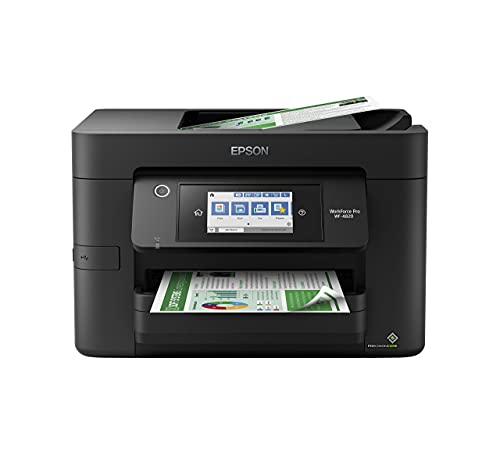
Epson WorkForce Pro WF-4820 — Best Overall
The WF-4820 wins this guide the way good home-office machines usually win: by having no weakness the average household will ever meet. Its 35-sheet automatic document feeder takes a realistic stack of household paperwork in one loading, scans and copies through it without supervision theatre, and sits above a colour inkjet engine printing at up to 25 pages per minute with automatic two-sided output and a 250-sheet tray underneath. The combination matters because home scanning is rarely a dedicated session; it is three pages scanned between printing a boarding pass and copying a form, and a machine that does all three fluently gets used, which is the entire point of an archive.
Scanning quality is businesslike in the best sense: crisp text capture that searchable-PDF software reads accurately, colour faithful enough for the photographs and certificates that pass through a home, and a flatbed beneath the feeder for the bound and fragile items a feeder must never eat. The ink system is cartridge-based with the WorkForce line’s business positioning, so running costs sit above the tank machine’s and below the impulse-buy tier — a fair trade for the speed. Its honest limitations are a feeder that, while capable, is not the single-pass duplex athlete the Canon laser offers, and a paper path tuned for office stock rather than photo papers. For the household whose paperwork is colour, mixed and constant, it is the most complete answer here.
Placement completes the case. This is a machine sized for a home office desk rather than a kitchen counter, with the solid, squared-off presence of equipment that expects daily work. Households graduating from a toy all-in-one will feel the difference in the first feeder run: the stack goes in, the file comes out, and the drawer of doom gets measurably thinner.
Software manners complete the ownership picture. Epson’s scan utilities cover the destinations a home actually uses — folder, email, cloud — and the machine’s wireless printing behaves with the same lack of drama, which sounds like faint praise until you have owned the alternative. The WF-4820’s real achievement is the absence of stories: no weekly troubleshooting ritual, no feeder superstitions, no ink anxiety disproportionate to its appetite. In a category bought to reduce household friction, boring reliability is the headline feature, and this Epson has it in the largest print on the page.
- Type: colour inkjet all-in-one, print, scan, copy and fax
- 35-sheet automatic document feeder
- Print speeds up to 25 ppm, 250-sheet tray
- Automatic two-sided printing
- Flatbed for bound and fragile originals
Strengths
- The most balanced feeder-scanning and printing combination here.
- Fast colour printing keeps the whole office workload in one machine.
- Generous paper tray suits scan-and-reprint household rhythms.
Trade-offs
- Feeder duplexing is not the single-pass kind the Canon laser offers.
- Cartridge running costs sit above the EcoTank’s.
- Office-tuned paper handling, not a photo printer’s path.
Best for: households with constant, mixed colour paperwork and one desk to hold it.
Not suited for: pure photo printing, or archive projects measured in thousands of pages.

Canon Color imageCLASS MF753Cdw — Best Laser Scanning
If the Epson is the balanced athlete, the Canon is the specialist who trains for one event and wins it. The MF753Cdw is a colour laser all-in-one — print, scan, copy and fax — whose document feeder and duplex scanning are built to office standards, capturing both sides of a page as it passes and turning a banker’s box of paperwork into files at a pace inkjets watch with respect. Laser printing brings its own household virtues: text of typewriter permanence, pages that shrug off a highlighter and a coffee ring, and a machine that wakes from sleep ready rather than performing warm-up rituals.
For the home archivist with a serious backlog — a decade of statements, a small business’s records migrating out of a spare room, a family legal history to digitise — this is the machine that makes the project finite. Colour laser output handles the charts, letterheads and colour documents of real paperwork beautifully; photographic reproduction is not its calling and the guide will not pretend otherwise, since laser colour on photo paper is a compromise every technology makes. Running costs follow laser logic: toner cartridges cost more per box and far less per page than inkjet impulse purchases, with the highest yields suiting exactly the volume this machine invites.
Its demands are space and commitment. An imageCLASS is office furniture, heavier and larger than the inkjets here, and its talents are wasted on a home that scans twice a year. Bought by the household with a real archive to build and a steady document life to serve afterwards, it is the closest thing to professional scanning infrastructure this guide offers a home.
One more virtue deserves its sentence: consistency under repetition. Laser feeders are built for offices where the ten-thousandth page is a Tuesday, and that engineering shows in the home archive context as a stack’s last page scanning as cleanly as its first. For a project measured in banker’s boxes, that stamina is not a luxury specification — it is the difference between a machine that finishes the archive and one that becomes part of the backlog’s furniture.
- Type: colour laser all-in-one, print, scan, copy and fax
- Document feeder with duplex scanning
- Laser text permanence and smudge resistance
- Mobile-ready wireless printing and scanning
- Office-grade build and paper handling
Strengths
- Feeder scanning at a pace and polish the inkjets cannot match.
- Laser pages survive highlighters, spills and decades.
- Backlog projects become weekends instead of seasons.
Trade-offs
- Size and weight claim a permanent, sturdy home.
- Photographs are a compromise on laser colour.
- Over-specified for homes whose scanning is occasional.
Best for: serious home archives and home-based businesses with document volume.
Not suited for: photo printing or small desks with occasional scanning.

Brother DCP-L2640DW — Best Monochrome
Plain words first, because this pick demands them: the DCP-L2640DW is a monochrome laser printer. It prints in black and white only. It will never print a colour photograph, a birthday banner or a chart with coloured lines, and it is in this guide anyway — near the top — because the question this guide answers is about scanning, and as a document-scanning and document-printing machine for a text-based household, it is close to unbeatable value. Its feeder takes a stack of paperwork and turns it into files quickly and without fuss; its laser engine prints those documents back with crisp permanence; its running costs are the kind that make a household stop thinking about printing entirely.
Brother’s compact multi-function design — copy, scan and print, with duplex printing and mobile printing — fits the shelf the colour machines cannot, and the whole machine has the unglamorous reliability the brand’s monochrome line is bought for. Scanning is where it quietly shines for its price class: fast capture of text documents, clean files for searchable archives, and a feeder appetite matched to household stacks. Colour originals scan in colour as files, of course — the scanner sees colour even though the printer cannot return it — so the archive itself loses nothing; only the reprints are monochrome.
The household this suits knows itself: paperwork is text, photographs live on a separate photo printer or at a print service, and the scanner’s job is documents at volume. For that household, paying for a colour print engine would be buying a capability to leave unused, and the Brother’s honesty — documents, fast, cheap, forever — is the most grown-up proposition in the guide.
Students and home workers sharing a flat should also hear the case: a semester’s handouts, readings and forms are monochrome by nature, and a machine that scans them into searchable files at toner prices quietly becomes the household’s memory. The DCP’s compactness suits the shelf-and-desk reality of shared housing, and its wireless manners mean the whole household prints to it without cable diplomacy. It is the least glamorous machine in this guide and, for a large class of real homes, very possibly the most useful one.
- Type: monochrome laser multi-function, print, copy and scan
- Black-and-white printing only — stated plainly
- Document feeder for stack scanning
- Duplex printing and mobile printing
- Compact footprint for shelves and small desks
Strengths
- Document scanning speed and manners well above its class.
- Toner economics that make printing a non-decision.
- Scanner captures colour files even though printing is mono.
Trade-offs
- No colour printing of any kind, ever — the defining limit.
- Photograph reprints are not merely poor but impossible in colour.
- Fax is absent on this model; its sibling below carries it.
Best for: text-document households archiving paperwork at volume on a budget.
Not suited for: any home that prints colour, however occasionally, from the same machine.

Epson EcoTank ET-3830 — Best Ink Value
The ET-3830 is the deliberate counter-argument inside this guide, included to keep the ranking honest: it has no document feeder at all. Scanning happens on its flatbed, one page under the lid at a time, and for the household whose scanning life is a few pages a month — a signed form returned, a certificate preserved, a photograph digitised — that is not a flaw but a correct sizing of the feature. What the machine offers instead is the EcoTank proposition applied to a printing-heavy home: bottled ink, borderless photo printing, automatic two-sided output and speeds up to 15 pages per minute, in an all-in-one that scans and copies perfectly well at flatbed pace.
Judged as this guide’s title demands — scanning first — it ranks fourth honestly and says why: a home with a genuine archive project will feel every page of a feederless workflow, and the machines above exist for that home. Judged as a household printer that also scans, it may be the smartest money here, because most homes print weekly and scan monthly, and the tank system’s running costs reward exactly that ratio. The flatbed itself is a good one, with the resolution for photographs and artwork that feeders cannot handle anyway, so the precious-and-fragile pile is served as well here as anywhere in the guide.
Buy it with the ratio in mind and it will never disappoint. Buy it hoping the feeder fairy visits at night and it will be resented unfairly for a specification it stated on the box. The guide’s respect for it is precisely that it makes a household declare its real scanning volume before spending, which is the question this entire category should start with.
There is also a hybrid household worth naming: the one whose scanning arrives in rare, precious handfuls — a grandparent’s letters, a child’s yearly artwork, the deeds and certificates of a house purchase — while its printing is a daily river. For that home the feeder question is a trap, because the precious handful was always going to travel the flatbed anyway, and the daily river is where money and patience actually drain. The ET-3830 is built for exactly that household, and its presence in a scanning guide is the guide’s way of saying the best scanner is sometimes the one attached to the printer you needed more.
- Type: tank colour all-in-one — print, scan, copy
- Flatbed scanning only — no document feeder
- Print speeds up to 15 ppm, automatic two-sided printing
- Borderless photo printing
- Bottled ink refills with visible reservoirs
Strengths
- Printing economics the cartridge machines cannot approach.
- Flatbed quality serves photographs and fragile originals well.
- Colour printing included, unlike the monochrome pair.
Trade-offs
- Every scanned page is placed by hand, one at a time.
- Archive projects become marathons rather than weekends.
- No fax or feeder conveniences for paperwork-heavy homes.
Best for: print-heavy homes whose scanning is occasional, flat and unhurried.
Not suited for: backlog digitising, where the missing feeder is the whole story.
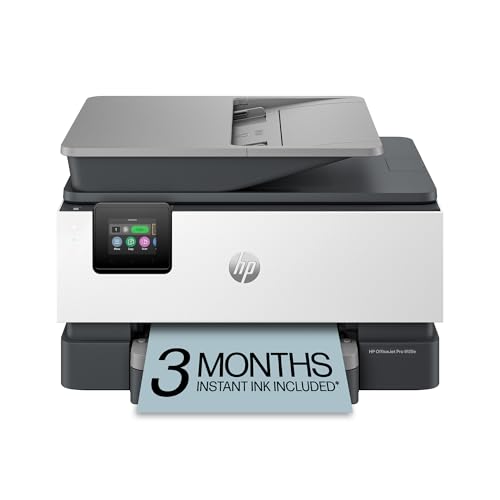
HP OfficeJet Pro 9125e — Best Home Office
HP’s 9125e is the machine for the household that wants the scanning life without the equipment aesthetic: a colour inkjet all-in-one — print, scan, copy and fax — with a document feeder for the paperwork stacks, wireless everything, and the most approachable software experience in this guide. That last quality is not a garnish. Scanning only becomes an archive when the least technical person in the house will do it unprompted, and HP’s app-driven flow — scan to phone, to email, to cloud in a few taps — is the one most likely to convert a family’s good intentions into a finished folder of files.
The hardware beneath the polish is respectable home-office kit: feeder scanning for multi-page documents, two-sided printing, colour output tuned for documents and graphics, and mobile compatibility that treats phones as first-class citizens. Against the Epson WF-4820 it trades a measure of raw feeder-and-tray muscle for friendliness; against the lasers it trades permanence and pace for colour and approachability. Ink follows HP’s ecosystem logic, with subscription framing available for households that prefer consumables to arrive before they run out — a model that suits predictable moderate volumes and should be modelled honestly by heavy ones.
For the home office that is also a kitchen-table business, a school administration centre and a family archive project in rotation, the 9125e’s balance of feeder competence and human software makes it the pick most likely to still be scanning happily in year three — because it was never a chore in week one.
Families with a photograph habit should calibrate expectations honestly: the 9125e prints colour documents and casual photographs with the competence of its class, and its scanner digitises family pictures respectably on the flatbed, but households building a serious photo practice will eventually pair it with a photo-minded machine and let each do its own work. That is not a criticism — it is the same division of labour this guide recommends everywhere, with the HP as the paperwork half of the partnership and a very good half at that.
- Type: colour inkjet all-in-one, print, scan, copy and fax
- Document feeder for multi-page scanning
- App-driven scan-to-phone and cloud workflows
- Automatic two-sided printing
- Wireless and mobile printing throughout
Strengths
- The friendliest scanning software in the guide.
- Feeder competence covers real household paperwork stacks.
- Colour documents and graphics print with office polish.
Trade-offs
- Feeder and tray muscle trail the Epson WorkForce slightly.
- Ink economics need modelling at high volumes.
- Laser permanence for documents is not on offer.
Best for: mixed households where several people share scanning duties.
Not suited for: maximum-speed archiving or toner-grade document permanence.

Brother MFC-L2820DW — Best With Fax
The second Brother in this guide shares the first one’s defining honesty, so it gets the same plain opening: the MFC-L2820DW is a monochrome laser all-in-one. Black-and-white printing only. What distinguishes it from its DCP sibling is the full office inheritance — copy, scan and fax in one compact body, with duplex printing and the document feeder that makes its scanning a volume proposition. The fax is not a joke feature in the households this machine serves: medical offices, legal processes, insurers and a long tail of institutions still conduct real business by fax, and a home that must send three faxes a year will send them from this machine at midnight in pyjamas rather than from a shop counter at noon.
As a scanner, it carries the family virtues: a feeder that eats paperwork stacks, fast monochrome printing for the reprints, toner economics that flatten the cost of a document habit, and a scanner that — like its sibling — captures colour files even though the printer returns only monochrome. The included subscription trial framing in its listing will suit some households and be ignored by others; the machine’s value does not depend on it. Against the DCP-L2640DW, the choice is simply whether fax and the fuller office feature set earn their small premium in your paperwork’s dialect.
Together the two Brothers make the guide’s monochrome argument in stereo: for text-based homes, the money other machines spend on colour engines is better spent on feeder quality, toner yield and reliability — the unglamorous specifications that decide whether an archive project finishes. This one adds the fax line to that argument and closes it.
Homes caring for elderly relatives will recognise a further constituency for this machine: the paperwork of care is document-shaped, fax-haunted and relentless, and it arrives at households that did not choose to become offices. A compact machine that scans the hospital letters, faxes the insurer, copies the prescriptions list and prints the appointment summary — all in monochrome, all without drama — is not a gadget in that household. It is staff. The MFC-L2820DW’s specification reads like a checklist for exactly that unglamorous, essential work, which is why it closes this guide’s six rather than padding them.
- Type: monochrome laser all-in-one, print, copy, scan and fax
- Black-and-white printing only — stated plainly
- Document feeder for stack scanning
- Duplex printing, mobile printing, works with voice assistants
- Compact body for home-office shelves
Strengths
- Fax included for the institutions that still demand it.
- Feeder scanning with laser document economics.
- Full office feature set in the smallest footprint here.
Trade-offs
- Colour printing is absent by design, permanently.
- Photo work belongs to another machine entirely.
- Over-featured for homes whose fax count is truly zero.
Best for: document households whose paperwork includes fax-driven institutions.
Not suited for: colour printing of any description.
How Should a Household Choose Between Ink, Toner and Tank for a Scanning-Led Purchase?
The print engine still matters even when the scanner leads, because the archive machine becomes the household printer by default the day it arrives. Inkjet colour — the Epson, the HP — is the flexible citizen: documents, school colour, the occasional photograph, at cartridge running costs that reward moderation. Laser — Canon colour, Brother monochrome — is the document professional: permanent text, indifferent to idle weeks, cheapest per page at real volume, and honest about its photographic limits. Tank inkjet — the ET-3830 — is the economist: colour flexibility at near-laser running costs, paid for with a slower, feederless scanning life.
The decision tree is genuinely short. If the house prints colour weekly and scans monthly, tank or cartridge inkjet. If the house prints documents daily and scans weekly, laser. If the house prints text only and scans everything, the Brothers end the discussion. The error to avoid is buying the engine for the hobby you admire and the scanner for the paperwork you actually have; this guide’s ranking inverts the usual priority precisely because the drawer, not the photo album, is what brought you here.
What Scanning Settings Should a Household Set Once and Never Revisit?
Defaults are the archive’s constitution, and a household that sets them once, well, scans happily for years; a household that renegotiates per document scans for a month and stops. For documents, the settled wisdom is searchable PDF at a middle resolution — high enough that small print survives zooming, low enough that a forty-page file stays emailable — with automatic blank-page skipping off for contracts and on for everything else, since a skipped page that was not blank is a silent archive wound. Colour mode deserves a default of its own: scan in colour even for mostly monochrome paperwork, because stamps, signatures in blue ink and highlighter marks are information, and storage is cheaper than regret.
Photographs get their own preset: high resolution, image format rather than PDF, no automatic enhancement, because the faded original should be archived as it is and enhanced later from the honest file if desired. Fragile items get the third preset — flatbed, gentle settings, patience — and the household that writes these three presets down, on a card taped inside the office cupboard, has effectively hired the machine’s future operators: every family member, every year, scanning identically. Consistency across a decade of scans is what turns a folder of files into an archive with a voice, and it costs one thoughtful afternoon to buy.
How Do You Keep a Home Archive Safe Once It Exists?
An archive’s enemies change once the scanning is done: no longer drawers and damp, but dead laptops, lapsed cloud accounts and formats nobody opens anymore. The defence is the same dull trio that protects family photographs. Keep the archive in two places, one of them not in the house — a cloud folder, a drive at a relative’s home, any geography that a single burst pipe cannot reach. Keep it in formats with long lives, which for documents means the humble PDF and for photographs the common image formats every device on earth can open. And keep a plain-text index, a simple document listing what the archive holds and where, because the archive’s owner in twenty years may be a child executor who never met the filing system and should not need to.
The machines in this guide support the first steps of that safety by scanning to standard destinations without proprietary lock-in — a folder is a folder, whoever made the scanner. Resist any workflow that traps scans inside one app’s private library, however pretty the app is; an archive you cannot carry to the next computer is a drawer with better lighting. Scan openly, file plainly, back up boringly, and the paperwork of a household becomes the first family record that has ever actually been safe.
Feeders, Flatbeds and Duplex Passes: The Scanning Field Compared
| Pick | Print engine | Feeder | Colour printing | Scanning character |
|---|---|---|---|---|
| Epson WorkForce Pro WF-4820 | Colour inkjet | 35-sheet | Yes | Balanced all-rounder |
| Canon Color imageCLASS MF753Cdw | Colour laser | Yes, duplex scanning | Yes | Fastest paperwork athlete |
| Brother DCP-L2640DW | Monochrome laser | Yes | No — mono only | Frugal document specialist |
| Epson EcoTank ET-3830 | Colour inkjet, tank | None — flatbed only | Yes | Deliberate, occasional scanning |
| HP OfficeJet Pro 9125e | Colour inkjet | Yes | Yes | Friendly software-led scanning |
| Brother MFC-L2820DW | Monochrome laser | Yes | No — mono only | Documents plus fax |
The colour column is the one to read twice. Two of the six print no colour at all, and both earn their rows anyway — proof that this category is bought for the scanner. The feeder column tells the companion truth: five of six will eat a stack unattended, and the one that will not is the printing-economics pick, present for homes whose scanning genuinely is occasional. Everything else in the guide is commentary on those two columns.
How Do You Get Other People in the House to Actually Scan?
Every archive project has a founder, and the founder’s real job is not scanning — it is recruitment. A machine only its owner can operate produces an archive that ends at the owner’s patience, so the household workflow must be operable by its least technical member at midnight. That means one-button or one-app scanning to a known destination, a printed card of the three household presets taped where sleepy eyes can find it, and a physical inbox tray beside the machine with a household rule attached: paper that enters the tray gets scanned on Sundays, by whoever is passing with tea. The HP’s software friendliness and the feeder machines’ stack-and-walk-away manners exist for exactly this social purpose, and they are worth more to a real archive than any specification measured in pages per minute.
Ritual completes what setup begins. A ten-minute weekly scan session, attached to an existing household rhythm, keeps the inflow at zero growth — the drawer never reforms because paper is digitised at the speed it arrives. Founders should also share the archive’s location and the index document with the household’s other adults, in writing, in a place that survives the founder’s own forgetfulness. An archive is a family institution, and institutions outlive their founders precisely to the extent that the knowledge was written down.
Which Paperwork Should a Home Scan First, and Which Can Wait?
Triage by consequence, not by drawer order. Scan first the documents whose loss would be expensive or impossible: property deeds and titles, identity documents, insurance policies, wills and powers of attorney, medical histories that specialists keep requesting, and the warranties for the house’s expensive machinery. These are few, precious and mostly flatbed work, and an afternoon secures them forever. Scan second the documents whose loss would be merely miserable: tax records, employment history, school and vaccination records, the service history of the car. These are the feeder’s natural prey, bulky and uniform, and they are where the machines with real feeders justify themselves in a single weekend.
Everything else can wait, and some of it should wait forever. Manuals live online in better versions. Old bank statements beyond the years any authority can ask about are shredder food with a clear conscience. The discipline of not scanning the worthless third of the drawer is what makes the worthwhile two-thirds finishable, and finishing — not starting — is the entire difference between households with archives and households with a scanner and a guilty drawer. Sequence by consequence, and even the flatbed-only ET-3830 household can secure what matters most in a weekend; the feeder machines simply extend the same logic to the whole drawer.
How Long Should a Home Keep the Paper After Scanning It?
Longer than the scanning weekend’s euphoria suggests, and the honest answer varies by document class in ways a guide can sketch but not settle. Identity and property documents, wills and anything with a seal or a wet signature: the paper is the document, and the scan is a convenience copy — keep the originals, properly stored, forever. Tax and financial records follow the retention periods the relevant authorities publish, and the scan’s job is access, not replacement. Everyday paperwork — statements available online, expired insurance schedules, instruction booklets — can leave for the shredder once the scan is verified, and the verification ritual matters: open the file, read a page at random, search for a word you know is inside. A scan verified is a document; a scan assumed is a hope with a filename.
Households should also keep the paper for one full cycle of whatever the document governs — the insurance year, the warranty period, the school year — even where rules permit earlier destruction, because institutions in a dispute develop a sudden reverence for originals. The scanner’s promise was never that paper becomes worthless; it is that paper stops being the only copy. Keep the irreplaceable, shred the replaceable, and let the archive carry the memory of both.
How Do You Turn a Drawer of Paperwork Into a Searchable Archive in One Weekend?
Sort before you scan, because the feeder rewards order and punishes archaeology. Work through the drawer with three boxes: scan and keep the paper, scan and shred, and do not scan at all. Most drawers surrender a third of their bulk to the third box immediately — duplicates, expired offers, manuals that live online — and the project shrinks to a human size before the machine is even switched on. Then scan by category, not by drawer order: all insurance together, all tax years together, all medical together, because filing discipline is easiest while the category is in your hands and your head simultaneously.
Set the machine up for the weekend properly. Choose searchable PDF as the default output, pick a resolution that keeps small print legible without absurdity, set the destination folder before the first stack, and test ten pages before committing a hundred — checking that both sides captured, the order held, and the text searches. Feed in batches the feeder likes: same-size pages together, staples out, torn corners smoothed, receipts slipped into a carrier or scanned on the flatbed where they belong. Keep the shredder for the second weekend, not the first; live with the files for a week, spot-check the important ones, and only then let the paper go. An archive built with that patience is one a household actually trusts, and trust is what turns scanning from a project into a habit the next drawer never survives long enough to form.
Which Scanning Mistakes Cost Households the Most?
Scanning everything at maximum resolution is the beginner’s classic: files balloon, the weekend stretches, and nothing about a gas bill is improved by being archived like a museum piece. The mirror error — scanning legal documents at draft quality so the small print dissolves — is worse, because it is discovered years later, at the exact moment the document mattered. Match the setting to the document class once, save it as the default, and stop renegotiating per page.
Feeder abuse runs second: staples left in, mixed sizes forced through together, a torn page trusted to luck. Feeders are honest machines that punish optimism mechanically, usually mid-stack, usually silently reordering the pages around the jam. And the quietest mistake is filing chaos — a thousand perfectly scanned pages named by scanner default, findable only by opening them one by one. The archive’s value is its retrievability; ten minutes of naming discipline per session is the cheapest insurance in this entire guide.
A fourth mistake hides in the household rather than the machine: scanning without a witness to the system. When only one person knows where the archive lives, what the naming convention means and where the backups sit, the archive is one forgotten password from being a legend the family tells about paperwork it used to be able to find. Write the system’s one-page summary — locations, conventions, backup schedule — and keep a printed copy with the paper documents that remain. It feels absurd until the day it is the most useful page in the house.
Final Recommendation
For most homes, the Epson WorkForce Pro WF-4820 is the scanner-printer to buy: a real feeder, fast colour printing, and no weakness the household paperwork of ordinary life will expose. Homes facing a genuine archive — years of documents, a business’s records — should step up to Canon’s imageCLASS MF753Cdw and let laser feeder speed turn the project into a weekend. Text-only households should embrace the Brothers without embarrassment: the DCP-L2640DW for pure document value, the MFC-L2820DW when fax still speaks in your paperwork’s life, both monochrome by design and excellent because of it. The EcoTank ET-3830 is the honest exception for print-heavy, scan-light homes, and HP’s 9125e is the friendliest door into the scanning habit for households that share the job. The drawer of doom is not a storage problem; it is a machine problem, and one of these six is the size of yours.
Whichever name you choose, spend the first session on the ten most consequential documents in the house rather than the first ten in the drawer. An archive that begins with the deeds, the policies and the identity papers has already justified the machine before the second stack is loaded — and a household that can find its insurance policy in nine seconds, at midnight, in an emergency, understands in one moment everything this guide spent six machines trying to say. Buy the feeder your paperwork deserves, set the defaults once, and let the drawer become what it should always have been: a place for pens, string, spare batteries and the good scissors everyone keeps losing, not for the family’s irreplaceable, unfindable, slowly yellowing paper.
Frequently Asked Questions
Do I need a document feeder, or is a flatbed enough?
Count your longest regular document. If paperwork arrives in multi-page stacks — statements, contracts, school packets — a feeder changes scanning from a chore into a habit, and the machines here with feeders earn their premium weekly. If your scanning is photographs, certificates and single pages, a flatbed like the ET-3830’s serves perfectly and the money saved buys years of ink.
Why are two monochrome printers in a home guide at all?
Because this guide ranks scanning, and the Brother pair scan documents superbly at running costs colour machines cannot touch. They print black and white only — the reviews say so in plain words — so they suit text-document households whose colour needs live elsewhere or nowhere.
What does duplex scanning actually save?
Time and order. A feeder with true two-sided scanning captures both faces in one pass and keeps a forty-page contract in sequence automatically. Without it, double-sided documents mean re-feeding the stack and trusting software collation — workable for five pages, miserable for fifty.
Can these scanners handle photographs and fragile items?
Yes — on the flatbed, never through the feeder. Every machine here pairs its feeder with a glass plate for photographs, bound pages and delicate originals. Feeders are for loose, sturdy, uniform pages; anything precious travels the glass route one careful page at a time.
What file format should home scans use?
Searchable PDF for documents, so the words inside can be found by your computer’s search years later, and high-quality image files for photographs and artwork. Set the format once in the machine’s software defaults rather than choosing per scan, and the archive stays consistent enough to trust.
Laser or inkjet for a home that scans daily?
Daily scanning with document printing points laser — the Canon for colour, the Brothers for monochrome value — because toner economics and feeder build reward volume. Daily scanning with modest printing and colour needs points to the feeder inkjets, with the Epson WF-4820 the most balanced of them.
How do I stop scanned pages arriving out of order?
Feed uniform stacks — same size, same orientation, staples removed — and let the feeder finish a document before loading the next. Out-of-order archives are almost always born at a jam that was cleared hastily, so after any jam, re-scan that document from the beginning rather than trusting the partial file; thirty seconds of repetition is cheaper than a contract whose page nine lives in another month’s folder.
Is a dedicated scanner better than these all-in-ones?
For a single enormous backlog, a dedicated sheet-fed scanner is faster still — but it then sits idle for a decade while the all-in-one keeps printing, copying and scanning the household’s weekly paper. Most homes are better served by the machine that stays useful after the project ends, which is the entire premise of this guide’s six. The exception proves the rule: a household digitising a deceased relative’s lifetime of records, or a home business converting its whole filing history in one season, can justify the dedicated tool — and should then sell it or pass it on when the mountain is moved, rather than letting it gather the dust the paperwork used to.
Related Guides
Paperwork is only one department of the home office: our guide to printers for a small craft business covers machines that earn money rather than file it, the round-up of low-ink printers for college students solves the dorm-room version of the running-cost problem, and the comparison of photo and sticker printers for home projects handles the colour side of the household’s printing life.



[…] building out the studio should also read the guide to printers for selling craft and art products, where the business maths of editions is worked through, the comparison of photo printers for […]