What's inside
- Key Takeaways
- Quick Picks: PCIe 4.0 SSDs at a Glance
- How Did We Narrow Down the PCIe 4.0 Field?
- Why Does Endurance Matter More in Gen4 Than Speed?
- Comparison Table: Six Gen4 Drives, Honest Axes
- How Does a Gen4 Drive Behave Across a Whole Day of Mixed Use?
- Field Notes From the Gen4 Generation
- What Should You Check on Your Motherboard Before Ordering?
- How Do You Fit a Gen4 Drive Into a PS5 or a Tight Desktop Slot?
- How Do You Move Your Existing System Onto a New Gen4 Drive?
- Which Gen4 Buying Mistakes Keep Repeating?
- How Do You Choose Between Two Drives That Both Look Right?
- How Do You Keep a Gen4 Drive Healthy for Its Whole Service Life?
- Final Recommendation
- Frequently Asked Questions
- Related Guides
As an Amazon Associate I earn from qualifying purchases. This post may contain affiliate links at no extra cost to you.
gizmoverdict.com is reader-supported. When you buy through links on our site, we may earn an affiliate commission.
Where to buy: each drive below is linked to its Amazon listing, which is where you verify the exact capacity, the heatsink configuration and the seller before you commit; when the moment comes to buy, use that page to check price on Amazon, because listings for these drives are updated far more often than any roundup page can be.
There is a particular kind of buyer this guide exists for: the one who has already decided that PCIe 4.0 is their interface and wants the best pcie 4 0 ssds sorted without being upsold into a newer generation their motherboard cannot use. That decision is more sensible than the industry admits. Gen4 x4 slots sit in an enormous installed base of desktops and laptops, the drives have matured through several firmware generations, and the performance on offer — sequential ratings clustered around seven thousand megabytes per second — already exceeds what games, Windows and most creative work can spend. What separates the six drives below is not whether they are fast. It is endurance, capacity, cache design and the small print of ownership.
Endurance deserves its headline early, because it is the axis this class actually competes on. Two of the picks come from Seagate’s FireCuda 530 family, whose listings print terabytes-written figures that dwarf the class norm — 1,100 TBW on the 1TB 530R and a striking 5,100 TBW on the 4TB 530 — alongside 1.8-million-hour MTBF ratings. Against them stand an older Samsung flagship still selling on merit, a Sabrent capacity play with strong write pace, the 1TB version of WD’s gaming flagship, and Crucial’s DRAM-less P310 proving how far value engineering has come. Every figure quoted is the maker’s rating as printed on the listing.
Capacities vary deliberately in this guide, unlike a single-size comparison, because Gen4 buyers shop across sizes: 1TB for a focused gaming or boot drive, 2TB as the mainstream library size, and 4TB for the owner who intends to stop managing space altogether. Read each pick against the size you actually need; a drive that is perfect at one capacity may be pointless at another. Endurance figures, where the listings print them, scale with capacity for physical reasons — more NAND shares the work — so compare TBW within a size class before comparing across the table.
Key Takeaways
- Gen4 is a mature class: the differences that matter now are endurance ratings, sustained-write behaviour and capacity, not headline speed.
- The FireCuda 530 family carries the endurance crown here, with printed TBW figures several times higher than typical consumer drives.
- The 980 PRO is an earlier flagship generation still on sale; judge it on its current positioning rather than its launch reputation.
- DRAM-less design in the P310 narrows the real-world gap to the flagships for gaming and desktop duty, at a friendlier tier.
- PS5 owners should note which listings state console compatibility and heatsink fit, rather than assuming any fast Gen4 drive qualifies.
- Match capacity to your library honestly: game sizes keep growing, and a drive bought full is a drive bought twice.
Quick Picks: PCIe 4.0 SSDs at a Glance
| Pick | Badge | Why it made the cut |
|---|---|---|
| Seagate FireCuda 530R 1TB with heatsink | Endurance-first pick | A heatsink-equipped drive whose printed 1,100 TBW rating and Rescue Services target owners who write hard and worry accordingly. |
| Samsung 980 PRO 1TB | The established flagship | The drive that defined early Gen4 performance, still supported by Samsung’s software ecosystem and thermal control design. |
| Sabrent Rocket 4 Plus 2TB | Capacity and pace | TLC-based Sabrent flagship with strong rated write speed and explicit PS5 compatibility in its listing. |
| WD Black SN850X 1TB | Gaming specialist | The 1TB edition of WD’s game-library flagship, carrying the family’s rated pace into a smaller, focused size. |
| Seagate FireCuda 530 4TB | The big vault | Four terabytes with a 5,100 TBW printed rating — the set-and-forget library drive for heavy writers. |
| Crucial P310 1TB | Value pace-setter | A DRAM-less design whose rated reads reach into flagship territory while its positioning stays in value country. |
How Did We Narrow Down the PCIe 4.0 Field?
Gen4 is crowded, so the first filter was class discipline: only drives whose listings centre on PCIe 4.0 x4 NVMe performance, in the standard M.2 2280 shape that desktops, laptops and consoles share. The second filter was differentiation. A shortlist of six near-identical flagship drives would waste your time, so we built the field across the axes that genuinely divide Gen4 ownership: printed endurance, cache architecture, capacity ceiling, heatsink provision and maker support tooling.
Figures were taken only from listings — sequential ratings, the FireCuda TBW and MTBF numbers, the Rocket 4 Plus write figure — and are presented throughout as maker ratings rather than laboratory promises. Where a drive’s reputation comes from its launch era, we say so; the 980 PRO in particular must be judged as the product it is today, in today’s line-up, not as the headline act it was at release.
We also weighed how each maker behaves after the sale, because a drive is a five-year relationship. Firmware cadence, the clarity of the health software, the honesty of the listing itself — whether it prints endurance, names its NAND, states its compatibility plainly — all counted. A shortlist is partly a judgement about which companies describe their hardware the way engineers would, and the six names here earned their places on that standard as much as on speed.
One more consideration shaped the list: the PlayStation 5. Its expansion slot made Gen4 drives with proper heatsinks a console topic as much as a PC one, and two listings here speak to that audience directly. PC readers lose nothing by their inclusion; the same thermal discipline that satisfies a console serves a cramped desktop slot equally well.
Why Does Endurance Matter More in Gen4 Than Speed?
Because speed has converged. When nearly every serious Gen4 drive advertises sequential reads somewhere near the interface ceiling, the remaining engineering differences hide in how much writing the drive is built to absorb and how gracefully it behaves while absorbing it. A terabytes-written rating is the maker stating, in contract-adjacent language, how much data you may push through the drive across its warranty life. Most owners will never approach even a modest rating; video editors, virtual-machine hoarders and NAS tinkerers live closer to the line, and for them the FireCuda figures in this guide are not trivia but the product.
NAND type is the quiet third variable. TLC, which the Rocket 4 Plus and the FireCuda 530 listings both name, stores three bits in each cell and remains the performance mainstream: quick, durable and economical enough at every capacity in this guide. Denser QLC designs store four bits per cell and trade sustained-write grace and endurance for capacity economics, which is why they appear in archive-oriented drives rather than in a performance shortlist like this one. When a listing bothers to name its NAND, it is telling you which trade the engineers chose; when it does not, the positioning usually answers instead.
Sustained-write behaviour is endurance’s daily face. All SSDs write into a fast cache first; when a transfer outlasts the cache, pace falls to the NAND’s native speed, and how far it falls separates flagship engineering from value engineering more honestly than any peak number. DRAM-equipped drives also keep their address maps in dedicated memory, which keeps scattered small writes tidy when the drive is busy and full. Keep both ideas — total endurance for the years, sustained behaviour for the afternoons — and the reviews below sort themselves.

Seagate FireCuda 530R 1TB with heatsink — Endurance-first pick
The 530R is the refreshed, heatsink-wearing member of Seagate’s endurance-focused 530 family, and its listing leads with the numbers that define it: speeds up to 7,400 MB/s, a 1,100 TBW rating at this 1TB size, a 1.8-million-hour MTBF figure, and Seagate’s Rescue Services bundled into the proposition. Read those together and the intended owner comes into focus — someone who writes heavily, keeps drives for a long time, and likes the idea that the maker has planned for both the workload and the worst day.
The factory heatsink is more than decoration. It is a low-profile design in the pattern console expansion made famous, which means it also suits desktop slots tucked under graphics cards where a tall aftermarket cooler would foul. Thermally, a drive rated this fast that arrives with its cooling solved is simply easier to own: install it, and sustained transfers stay composed without a shopping detour into thermal pads and miniature screws.
Rescue Services deserve a plain explanation. Seagate’s programme offers in-lab data recovery attempts if the drive fails, which is a different promise from a warranty replacement — a replacement gives you an empty drive, while recovery aims at your data. It does not replace a backup, and Seagate does not guarantee success, but as bundled peace of mind on a drive aimed at heavy writers it is a genuine differentiator in a class where most extras are stickers.
Who should skip it? Buyers who write lightly and will never lean on the endurance rating are paying for armour they will not test, and capacity-first shoppers should note this listing is the 1TB size; the same family’s bigger capacities, including the 4TB pick below, carry the endurance story further. For the write-hard owner at 1TB, though, this is the most deliberately engineered drive in the guide.
Consider also the buyer this drive quietly serves: the small-studio editor or home-lab owner whose single workstation drive doubles as a scratch disk, an export target and a cache for network storage. That triple duty writes more in a month than a gaming drive sees in a year, and it is precisely the pattern consumer endurance ratings were invented to describe. The 530R is the only 1TB pick here whose listing speaks that language fluently.
- Interface: PCIe Gen4 x4, NVMe 1.4, M.2 2280 with heatsink
- Maker-rated speed: up to 7,400 MB/s (from the listing)
- Endurance as printed: 1,100 TBW; 1.8M hours MTBF
- Capacity in this guide: 1TB
- Extras: Seagate Rescue Services included per the listing
Strengths
- Endurance rating far beyond the consumer norm at this capacity.
- Factory heatsink that fits consoles and cramped desktop slots alike.
- Recovery services bundled, which no rival in this guide offers.
Trade-offs
- Light writers pay for durability headroom they will never touch.
- One terabyte fills quickly if your game library is the workload.
- Heatsink is redundant where a motherboard already provides good slot cooling.
Best for: heavy writers at the 1TB size who value endurance and a recovery safety net. Not suited for: capacity hunters, who should look at the 4TB member of this same family below.
Samsung 980 PRO 1TB — The established flagship
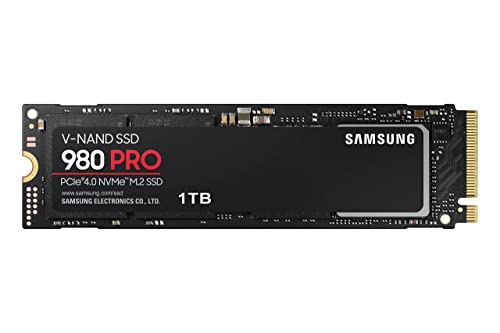
Every interface generation has a drive that taught buyers what the new speed felt like, and for Gen4 that drive was the 980 PRO. Its listing still carries the language of that era — maximum speed, thermal control, a gaming M.2 flagship — and the hardware underneath remains a proper flagship design: Samsung’s own controller, onboard DRAM, and a nickel-coated heat spreader approach to keeping sustained pace civilised. It is an older generation than the 990 PRO found in our general PC guide, and this review judges it on those terms.
Why does it still earn a place? Because maturity is a feature. Years on the market mean its firmware is a known quantity, Samsung’s Magician software supports it completely, and any motherboard quirk it ever had has been documented in a forum thread somewhere. Buyers who value a solved product over a newest product — workstation builders, cautious upgraders, anyone whose PC earns money — find that profile genuinely attractive.
The cautions are about context, not quality. Its rated pace belongs to the first Gen4 flagship wave, so later drives in this very guide post higher sequential figures, and its positioning sometimes drifts close to newer Samsung models that outrun it. Compare it on the day against the current line before ordering; when the gap is small, the newer drive is the rational buy, and when the 980 PRO sits at a clear step below, its maturity makes it the thinking person’s bargain.
Fit is straightforward: a standard 2280 stick for Gen4 slots, with the usual advice to use your board’s heatsink if it has one. In a laptop it behaves well, though this guide’s lens is the desktop and console class it was born into.
There is a collector’s angle to the 980 PRO that deserves honesty: it is the drive a certain kind of builder specifies when assembling a period-correct flagship machine, or replacing a failed unit in a system built around this generation. That is not nostalgia pricing — it is the practical reality that matched, known components keep older high-end systems predictable, and Samsung’s continued catalogue support makes the match possible years after launch.
- Interface: PCIe 4.0 NVMe, M.2 2280
- Design: Samsung flagship controller with onboard DRAM and thermal control (per the listing)
- Capacity in this guide: 1TB
- Software: Samsung Magician support
- Positioning: earlier flagship generation, still in the current catalogue
Strengths
- A fully mature flagship with years of firmware refinement behind it.
- Complete Samsung software support for health, updates and cloning.
- Consistent flagship behaviour under mixed desktop workloads.
Trade-offs
- Later Gen4 drives in this guide post higher rated sequential figures.
- Positioning can crowd newer Samsung models; compare on the day.
- One terabyte is the modest end for a modern game library.
Best for: buyers who prefer a proven flagship with complete software support. Not suited for: shoppers determined to own the newest Samsung generation regardless of positioning.
Sabrent Rocket 4 Plus 2TB — Capacity and pace
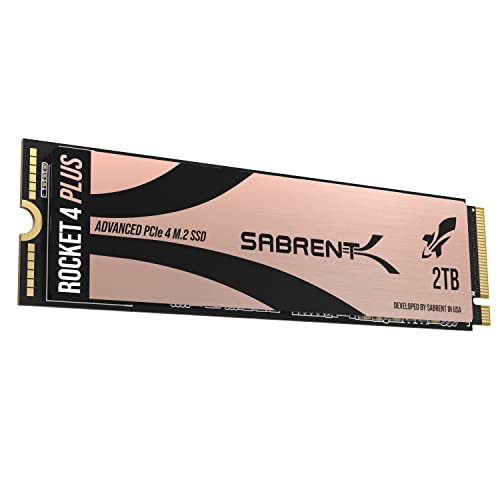
Sabrent built its name by selling enthusiast hardware without the flagship tax, and the Rocket 4 Plus is that philosophy in Gen4 form. The listing quotes up to 7,100 MB/s read and 6,600 MB/s write — note the write figure, which is the strongest in this guide relative to its class — specifies TLC NAND, states PS5 compatibility outright, and reminds you it also runs, capped, in PCIe 3.0 slots. At 2TB it lands in the capacity sweet spot most buyers are shopping for.
TLC deserves a gloss, because it is doing quiet work in that listing. Triple-level-cell NAND is the mainstream performance choice, storing three bits per cell with a good balance of pace, endurance and cost; drives built on denser QLC trade some sustained-write grace for capacity economics. Sabrent specifying TLC on the Rocket 4 Plus signals the drive’s intent: this is the performance line, not the budget line wearing a fast badge.
In service, the Rocket 4 Plus suits the owner whose transfers run both directions — game installs and footage ingest as much as loading and playback — because that rated write pace is where it distinguishes itself from rivals that read quickly and write modestly. Sabrent’s own software utilities and the company’s enthusiast-community presence round out an ownership picture that is less polished than Samsung’s but entirely respectable.
The honest reservations: Sabrent’s dashboard ecosystem is thinner than the big brands’, and the drive’s heatsink story depends on variant and slot, so console buyers should confirm the exact configuration on the listing before ordering. Neither point touches the core proposition — flagship-adjacent pace in both directions at a sensible tier.
Sabrent’s audience tends to be the self-build community, and the Rocket 4 Plus rewards that audience’s habits: it is frequently the drive recommended in build threads when someone asks for flagship behaviour without flagship branding, and its specification sheet answers questions — NAND type, both-direction speeds, backward compatibility — that bigger brands sometimes leave to reviewers. Buyers who enjoy knowing exactly what they own will feel at home here.
- Interface: PCIe Gen4 NVMe, M.2 2280; PCIe 3.0 backward compatible (per the listing)
- Maker-rated speeds: up to 7,100 MB/s read and 6,600 MB/s write
- NAND: TLC, as specified on the listing
- Capacity in this guide: 2TB
- Console note: PS5 compatibility stated on the listing
Strengths
- Rated write pace that embarrasses several bigger brands.
- TLC NAND specified plainly, with the sustained behaviour that implies.
- Two terabytes at an enthusiast-friendly positioning.
Trade-offs
- Support software is functional rather than class-leading.
- Heatsink configuration varies; console buyers must check the variant.
- Brand support network is smaller than Samsung’s or WD’s.
Best for: owners whose workloads write as hard as they read, at the 2TB size. Not suited for: buyers who rank a polished software ecosystem above raw pace.

WD Black SN850X 1TB — Gaming specialist
This is the 1TB edition of the drive our general PC guide recommends at 2TB, and the interesting question is what changes when the same flagship hardware shrinks. The listing’s ratings do not change: up to 7,300 MB/s read and 6,300 MB/s write, the full SN850X pace in a smaller capacity. What changes is the use case it implies — a dedicated boot-and-current-games drive, a console expansion stick, or the fast half of a two-drive build where a larger, cheaper drive holds the archive.
As a gaming drive its virtues are the family’s virtues: onboard DRAM, composed behaviour through long install sessions, and an optional heatsink configuration aimed at console slots that translates happily to tight desktops. WD’s dashboard offers its game-oriented mode for those who like their drive to stay in a responsive state during play; the hardware earns the recommendation, the mode is garnish.
Capacity honesty is the main counsel here. One terabyte holds an operating system plus a rotating cast of large modern titles, and “rotating” is the operative word — owners who keep everything installed forever will meet the delete-or-move decision sooner than they expect. If your library habits are curatorial, 1TB of flagship pace is a sharp tool; if they are archival, the 2TB edition or the FireCuda 530 below will age more gracefully in your machine.
Against its stablemate in our PC guide, nothing about the recommendation changes except the size conversation. Against the 980 PRO it offers newer architecture and higher rated figures; against the 530R it offers gaming polish instead of endurance armour. The Gen4 class is rich enough that “which flagship” is a personality question, and this one is the gamer’s personality.
A two-drive strategy deserves a sentence in this pick’s favour: pairing this 1TB flagship with a large, inexpensive secondary drive gives a build flagship behaviour where it is felt — the operating system, the current games — and cheap capacity where it is not. Owners who think in systems rather than single components often land exactly here, and the SN850X’s focused size makes the arithmetic work.
- Interface: PCIe 4.0 x4, M.2 2280
- Maker-rated speeds: up to 7,300 MB/s read and 6,300 MB/s write (from the listing)
- Cache design: onboard DRAM
- Capacity in this guide: 1TB
- Extras: optional heatsink version; WD dashboard software
Strengths
- Full flagship rated pace at the focused 1TB size.
- Install-session composure that suits modern game delivery.
- Heatsink variant ready for console or compact desktop duty.
Trade-offs
- One terabyte asks library curators to make regular decisions.
- Dashboard trails Samsung’s for overall polish.
- No endurance headline to rival the FireCuda family.
Best for: gamers who keep a curated library and want flagship pace at 1TB. Not suited for: install-everything collectors, who need the bigger capacities in this guide.

Seagate FireCuda 530 4TB — The big vault
Some drives are bought to be fast; this one is bought to end an era of storage anxiety. The FireCuda 530 at 4TB pairs transfer speeds up to 7,300 MB/s with a printed endurance rating of 5,100 TBW and the family’s 1.8-million-hour MTBF figure — numbers that, taken together, describe a drive designed to hold a whole library and be written over for years. Its listing names 3D TLC NAND and addresses both PS5 and PC owners, and at this capacity the console angle becomes almost comic: it can swallow a shelf of games and ask for more.
The endurance figure deserves its moment, because 5,100 TBW is not a rounding of the class norm — it is several multiples of what typical consumer drives print at any size. Endurance scales with capacity in SSD design, since more NAND shares the writing, and Seagate leans into that physics harder than anyone else in this guide. For a workstation that ingests footage daily, a home server cache, or a game archive that is constantly being refreshed, that rating converts directly into years of unworried service.
Ownership notes: at 4TB the drive invites a single-drive lifestyle, which makes backup discipline more important, not less — a vault is worth copying. Thermally, sustained transfers at this class deserve the heatsink treatment, whether from your board or an add-on, and console buyers should confirm the fitted configuration on the listing. The 530 line predates the 530R refresh, so its software story is Seagate’s standard tooling rather than a bespoke suite.
Who should pass? Anyone whose actual stored life is a few hundred gigabytes is buying a hangar for a bicycle, and budget builders will find the same money transforms other parts of the machine. But for the owner who has deleted one game too many, this is the drive that changes the subject permanently.
Think of the cost conversation correctly at this size: the relevant comparison is not this drive against a 1TB pick, but this drive against the second and third drives the 1TB buyer will eventually add, plus the evenings spent shuffling libraries between them. For the heavy collector, the vault pricing is frequently the cheaper lifetime arrangement, and the endurance rating means the arrangement does not carry an expiry date written in terabytes.
- Interface: PCIe Gen4 x4, NVMe 1.4, M.2 2280
- Maker-rated speed: transfer speeds up to 7,300 MB/s (from the listing)
- Endurance as printed: 5,100 TBW; 1.8M hours MTBF
- NAND: 3D TLC, as specified on the listing
- Capacity in this guide: 4TB
Strengths
- The largest capacity and the highest endurance rating in this guide, together.
- Flagship-class rated pace, so size never means slowness.
- A genuine end to library management for heavy collectors.
Trade-offs
- Positioned as a premium purchase in absolute terms.
- Single-drive living raises the stakes on backup discipline.
- Overwhelming overkill for modest storage needs.
Best for: collectors, creators and home-server builders who write heavily at 4TB. Not suited for: light users whose entire digital life fits on the 1TB picks.

Crucial P310 1TB — Value pace-setter
The P310 is the drive that makes Gen4 buying guides awkward to write, because it refuses to stay in the value corner its positioning assigns it. The listing rates the 1TB version up to 7,100 MB/s — a figure the first flagship wave would have been proud of — from a DRAM-less design that borrows system memory through host memory buffer instead of carrying its own DRAM. It includes Acronis data recovery software, per the listing, and names laptops, desktops and handheld gaming consoles as its habitats.
Plainly stated, since this guide promised plainness: DRAM-less means the drive’s map of your data lives partly in your PC’s RAM rather than on the drive itself. In the P310’s target workloads — gaming, general desktop use, handheld play — that arrangement is effectively invisible, because those workloads are bursty rather than sustained. The design trims cost and power draw, which is how the rated pace and the friendly positioning coexist.
Where the architecture shows its edges is the familiar place: very long continuous writes, and heavy multitasking on a nearly full drive, where a DRAM flagship stays more composed. A buyer whose PC is a game box and daily driver will essentially never visit those edges; a buyer whose PC renders, ingests and archives all day lives there, and should shop the top of this guide instead.
At 1TB the P310 is the natural recommendation for a focused build — a gaming PC with a curated library, a handheld upgrade, a laptop refresh — anywhere the budget has other priorities and the workload is honest about itself. It is the strongest evidence in this guide that Gen4’s maturity has moved real performance down the price ladder.
Handheld owners deserve a specific note, because the listing names their machines: a Windows handheld lives on bursty reads, sips power, and has no room for cooling heroics, which reads like a design brief written for this drive. In that habitat the DRAM-less architecture’s efficiency is not a compromise at all — it is the specification that matters most after capacity.
- Interface: PCIe Gen4 NVMe, M.2 2280
- Maker-rated read: up to 7,100 MB/s (from the listing)
- Cache design: DRAM-less, host memory buffer — stated plainly
- Capacity in this guide: 1TB
- Extras: Acronis data recovery software included per the listing
Strengths
- Rated reads that reach into early-flagship territory.
- Efficient, cool operation suited to laptops and handhelds as well as desktops.
- Bundled migration software smooths the upgrade path.
Trade-offs
- DRAM-less design concedes sustained-write composure to the flagships.
- Nearly full and busy is its least graceful state.
- Endurance story is ordinary next to the FireCuda family.
Best for: focused gaming builds, laptops and handhelds wanting Gen4 pace on a budget. Not suited for: sustained-write workstations, which should buy DRAM and endurance instead.
Comparison Table: Six Gen4 Drives, Honest Axes
| Drive | Capacity here | Maker-rated pace | Endurance as printed | Defining trait |
|---|---|---|---|---|
| FireCuda 530R | 1TB | Up to 7,400 MB/s | 1,100 TBW | Heatsink fitted, recovery services bundled. |
| Samsung 980 PRO | 1TB | First-wave flagship class | Flagship consumer class | Maturity and Samsung’s software depth. |
| Sabrent Rocket 4 Plus | 2TB | 7,100 read / 6,600 write MB/s | TLC-based design | Write pace that rivals its read pace. |
| WD Black SN850X | 1TB | 7,300 read / 6,300 write MB/s | Flagship consumer class | The gamer’s flagship at a focused size. |
| FireCuda 530 | 4TB | Up to 7,300 MB/s | 5,100 TBW | The vault: capacity and endurance together. |
| Crucial P310 | 1TB | Up to 7,100 MB/s read | Value class | DRAM-less pace that embarrasses its tier. |
One row invites a second glance: the two Seagate entries share a family name yet serve different briefs, the smaller one wrapping its endurance in a heatsink and recovery services for a single-drive machine, the larger one turning the same engineering toward capacity. Families in this class are not sizes of one product so much as variations on an engineering argument, and reading them that way makes the whole table clearer.
Notice how the table refuses to crown a single winner. That is the truthful shape of the Gen4 market in its mature phase: the axes have separated, and each drive here leads on the axis it was engineered for.
How Does a Gen4 Drive Behave Across a Whole Day of Mixed Use?
Benchmarks freeze a drive at its most theatrical moment; ownership is a montage. Picture a representative day on a Gen4 desktop. The morning boot and the browser’s hundred tabs are random-read work, over before you notice, and every drive in this guide performs that act identically. The midday game patch is the first real test: tens of gigabytes arriving as fast as your connection allows, unpacked and written in bursts, and here the cache designs begin to separate — the flagships and the Rocket 4 Plus shrug, the P310 keeps pace admirably, and an older value drive would start to breathe hard. The afternoon’s creative work, scrubbing a timeline or stitching a panorama, is a thousand small reads that reward the DRAM-equipped drives’ tidy bookkeeping. The evening backup, hundreds of gigabytes in one pour, is the sustained-write examination, where the FireCuda family’s engineering and the flagships’ composure justify their existence in a way no loading screen ever will.
That montage explains the shape of this guide’s recommendations better than any chart. Most owners live in the morning and midday of that day, which is why the value pick is so easy to recommend. Owners who regularly reach the evening — the backup, the ingest, the archive refresh — are the ones the endurance and flagship picks were built for. Neither group is wrong; they are simply shopping for different afternoons.
There is a second montage worth picturing, the console one. A PS5 with an expansion drive lives a narrower life: installs, updates, and the constant streaming of game assets during play. It never runs a backup or stitches a panorama. That narrowness is why the console conversation centres on fit, heatsinks and rated pace rather than endurance — and why a drive like the 530R, engineered well past the console’s needs, is a luxury there rather than a necessity, while in a workstation the same engineering is the entire point.
Field Notes From the Gen4 Generation
Some lessons only arrive after a class of hardware has been in service for years, and Gen4 has now served long enough to teach them. The first is that early thermal fears were overblown for desktops and understated for consoles: a Gen4 flagship under any competent heatsink in a ventilated case is a solved problem, while the same drive bare in a sealed console bay was a genuine design challenge that the industry answered with factory heatsinks like the 530R’s.
The second lesson is that firmware maturity is invisible until it is absent. The drives in this guide have collectively passed through the operating-system updates, chipset launches and edge cases of several years, and the survivors carry that debugging in their code. It is the unglamorous reason an older flagship like the 980 PRO can be a wiser purchase than a faster-on-paper newcomer with six months of history.
The third lesson concerns capacity drift. Owners who bought 500GB Gen4 drives at the generation’s dawn — a reasonable choice then — have spent the years since performing library triage, while 1TB buyers are only now feeling the squeeze and 2TB buyers remain comfortable. The pattern is consistent enough to treat as law: within a generation, capacity ages faster than speed. A drive that feels merely adequate in size will feel inadequate long before a drive that feels adequate in speed feels slow.
The fourth lesson is about the value tier’s quiet coup. When Gen4 launched, DRAM-less drives were visibly lesser machines. The P310’s presence in this guide, rated within touching distance of the flagships, marks how completely controller design and host memory buffer implementation have closed that gap for ordinary workloads. The flagships still own the sustained-write frontier, but the frontier has moved to where fewer owners live.
What Should You Check on Your Motherboard Before Ordering?
Four checks, five minutes, no returns. First, the slot inventory: how many M.2 slots the board has, their sizes, and which generation each runs at — the primary slot is usually CPU-wired and fastest, while later slots may share bandwidth through the chipset. Second, the sharing table: many boards disable a SATA port or trim another slot when a particular M.2 slot is populated, and discovering that after installation feels like a fault when it is actually a documented behaviour. Third, the heatsink provision: whether the slot you will use has a board heatsink, which decides the variant you order. Fourth, the BIOS: boards from early in the Gen4 era occasionally need an update to recognise later drives at full speed, and checking the support page before the drive arrives turns a potential evening of confusion into a non-event.
Laptop buyers have a shorter list with sharper teeth: slot length, single- or double-sided acceptance, and whether the machine’s slot is wired for NVMe at all — a surprising number of older laptops carry M.2 slots that speak only SATA, a trap our companion guide on M.2 SATA drives explores in full. Console buyers have the shortest list of all: the manufacturer’s stated requirements, matched against the listing’s compatibility claims, with the heatsink fitted before the drive goes anywhere near the bay.
How Do You Fit a Gen4 Drive Into a PS5 or a Tight Desktop Slot?
The console route first, because its rules are strictest. Sony’s expansion bay asks for a Gen4 drive of suitable speed wearing a heatsink that fits a defined envelope, and the listings here that state PS5 compatibility — the Rocket 4 Plus and the FireCuda 530 among them — are the ones to start from. The 530R arrives with its heatsink already fitted, which removes the fiddliest step: bonding a third-party cooler with thermal pads and hoping the combined height clears the bay cover. Whatever you fit, the console will format the drive itself; your job is mechanical fit and patience during the first boot.
Desktop fitting is gentler but has its own traps. The primary M.2 slot on many boards hides beneath the graphics card, so fitting the drive before the card — or accepting a short wrestling match — is part of the ritual. Use the board’s own heatsink where provided, remembering the protective film on its thermal pad, and route no cables across the slot, because a cable pressing on a heatsink is a slow thermal sabotage. In small-form-factor cases, prefer the drives that arrive cool-running or pre-heatsinked over a bare flagship plus hope.
Laptops sit between the two: confirm the machine takes a 2280 stick, check whether it expects single-sided drives, and remember that a heatsink variant usually does not fit a laptop chassis at all. The P310’s efficiency makes it the natural traveller in this guide; the flagships are happier where air moves.
How Do You Move Your Existing System Onto a New Gen4 Drive?
The migration itself is a solved problem, and the tools are largely bundled with the drives. Samsung’s data migration software, Crucial’s included Acronis access and WD’s utilities all perform the same essential trick: copy the old drive’s contents, partition for partition, onto the new one, then hand over the boot role. The practical craft lies around the edges of that trick. Connect both drives at once — a second M.2 slot if you have one, or an inexpensive USB enclosure for the old drive — and clone with the machine otherwise idle, because a clone taken while the system churns is a clone that invites questions later.
After the copy completes, the step owners fumble is the handover. Enter the BIOS, set the new drive as the boot device, and — this matters — physically remove or disable the old drive for the first successful boot, so Windows settles onto its new home without ambiguity about which installation it is running. Once the system has booted cleanly twice, reconnect the old drive, confirm your files and applications are intact, and only then format it for its second career as storage, scratch space or the backup target it was always destined to become.
Choose the clean-install road instead when the existing system carries years of accumulated damage — failing updates, mystery slowdowns, software you cannot identify. A fresh Windows installation on a fast Gen4 drive is a genuinely pleasant afternoon, and it ensures the new drive is judged on its merits rather than blamed for the old system’s ghosts. Either way, the non-negotiable step precedes both roads: a backup of the files you cannot replace, stored somewhere that is not either of the two drives involved.
Which Gen4 Buying Mistakes Keep Repeating?
The first is treating TBW as a score to maximise regardless of workload. Endurance ratings matter enormously to the minority who write heavily and barely at all to everyone else; a gamer who buys the 530R’s armour for a library that mostly sits still has spent on insurance against a flood in the desert. Match the rating to your writing life, not to your anxiety.
The second is assuming a Gen4 drive delivers Gen4 pace anywhere. Slot wiring decides: a drive in a chipset slot shared with other devices, or in an older board’s Gen3 slot, runs at the slot’s ceiling. The listings’ backward-compatibility notes — the Rocket 4 Plus states its PCIe 3.0 behaviour outright — are there because this confusion generates returns. Five minutes with the motherboard manual outperforms any benchmark.
The third is capacity nostalgia: buying the size that sufficed three years ago. Game installs have roughly doubled across this console generation, and a 1TB drive that felt generous at purchase becomes a management chore. Buy the size your next three years need, which is why this guide spans 1TB to 4TB rather than pretending one size serves everyone.
The last is heatsink double-buying — paying for a factory heatsink and then mounting the drive under a motherboard heatsink anyway, sandwiching cost without benefit. Decide which cooling story your slot tells before choosing the variant on the listing.
How Do You Choose Between Two Drives That Both Look Right?
Tie-breaks are where buyers stall, so here is the order of questions that resolves them. Start with capacity, because it is the only specification you cannot change later and the one whose shortage you will feel weekly. If one candidate is the size your next three years need and the other is the size your last three years needed, the decision is already made, whatever the benchmarks say.
Next, ask which drive’s weakness you will meet less often. Every pick here has a documented soft spot: the P310’s sustained writes, the 980 PRO’s older rated figures, the FireCuda premium for endurance you may not use. Your workload visits some weaknesses constantly and others never, and the right drive is the one whose soft spot lives in a room you do not enter. A gamer never meets the P310’s; an editor meets it before lunch.
Then consider the ecosystem you are already in. A builder with Samsung drives and Magician installed gains real convenience from staying in the family; a WD household with the dashboard configured likewise. Ecosystem gravity is a soft factor, but across five years of firmware updates and health checks it compounds, and it legitimately breaks ties that specifications cannot.
Finally, let the day’s positioning speak — but only after the first three questions have narrowed the field to drives that genuinely fit. A bargain on the wrong drive is not a bargain; it is a discount on a compromise you will rehearse every time the weakness you chose visits. Fit first, price last, and the Gen4 class will reward you with a drive you stop thinking about, which remains the highest achievement in storage.
How Do You Keep a Gen4 Drive Healthy for Its Whole Service Life?
SSDs ask for less maintenance than any component in the machine, but the little they ask for matters. Leave free space: a drive kept below roughly eighty percent full manages its wear and caches the way its designers intended, while a drive run at the brim slows its own housekeeping and ages faster. That single habit does more for longevity than any utility.
Use the maker’s software as an instrument panel rather than a toy. Samsung Magician, WD’s dashboard, Seagate’s tools and Crucial’s utilities all report the same essential truths — health percentage, temperature, firmware state — and a glance twice a year catches the rare drive that is aging badly while there is still time to copy its contents calmly. Update firmware when a release addresses stability or a problem you recognise, with a backup made first, and otherwise leave working firmware alone.
Heat is the slow variable. A drive that lives at the top of its thermal range under your workload will throttle on the longest transfers and age its NAND faster; the fix is boring — a heatsink that is actually fitted, a case fan that actually spins, a slot choice that does not tuck the drive against the graphics card’s exhaust. None of this is weekly work. It is a ten-minute consideration at installation that pays out quietly for years, which is the most that storage maintenance should ever ask of anyone.
Final Recommendation
Choose by the axis your life actually loads. Heavy writers should start with the FireCuda family — the 530R at 1TB with its recovery services, the 4TB 530 when capacity joins the endurance brief — because no other drives here print numbers like theirs. Gamers will be happiest with the SN850X’s focused flagship polish, all-rounders who write in both directions should take the Rocket 4 Plus seriously, and the 980 PRO remains the connoisseur’s mature flagship when its positioning behaves. The P310, meanwhile, is the correct answer for the largest number of ordinary builds, and saying so costs the flagships nothing. Gen4’s gift to buyers is that every one of these is a good drive; the only failure available is buying the one engineered for somebody else’s workload, and after this guide, you will not. Fit the drive to the machine, the workload and the years ahead, and this mature generation will repay you with silence — the sound of storage that never asks for attention again.
Frequently Asked Questions
Is PCIe 4.0 still worth buying when Gen5 exists?
Yes, for the large majority of machines. Most boards in service offer Gen4 slots at best, game loading barely distinguishes the generations, and Gen4 drives have matured into reliable, well-supported products. Gen5 earns its premium in specific sustained-transfer workloads on boards that support it.
What does TBW actually tell me?
Terabytes written is the total amount of data the maker rates the drive to absorb across its warranty life. Ordinary desktop and gaming use writes a small share of even a modest rating, while daily video ingest or heavy virtual-machine work can make a high rating — like the FireCuda figures printed in this guide — genuinely valuable.
Can I use these drives in a PCIe 3.0 slot?
They will work, capped at Gen3 speeds. The Rocket 4 Plus listing states that backward compatibility explicitly. It is a sensible temporary arrangement during a staged upgrade, but a poor permanent one, since you would be paying for pace the slot cannot deliver.
Do I need a heatsink on a Gen4 drive?
For sustained transfers and console use, yes in practice; for light desktop duty under a motherboard heatsink, the board’s solution suffices. What matters is that one competent cooling path exists — factory, board or aftermarket — rather than none.
Why is the 980 PRO here if newer Samsung drives exist?
Because it remains on sale, fully supported, and built to a flagship design that time has debugged. Judged at the right positioning it is a rational purchase; judged against its launch reputation it confuses. This guide judges the drive as it stands today.
Should console owners buy the same drive as PC owners?
The hardware overlaps heavily, but the priorities differ. Console fitting is dominated by the heatsink envelope and the manufacturer’s stated requirements, while PC fitting adds slot wiring and sharing rules to the list. The 530R’s factory heatsink and the listings that state PS5 compatibility exist precisely because the console’s mechanical rules are the strictest in this guide.
How long should a Gen4 drive last in normal service?
Years beyond the machine it is installed in, for most owners. Desktop and gaming workloads write a modest fraction of even an ordinary endurance rating across a typical ownership span, and the drives here are built to flagship or endurance standards well above that. Heat management and free-space headroom influence real lifespan more than the badge on the box.
What should I do with my old drive after upgrading?
Give it a second career rather than a drawer. In a desktop’s spare slot it becomes a scratch disk or a dedicated library drive; in a USB enclosure it becomes fast portable storage; dedicated as a backup target, it becomes the cheapest insurance in your setup. Wipe it with the maker’s secure-erase tool only after the new installation has proven itself over a week or two of ordinary use.
Are Gen4 drives a good fit for a home server or NAS?
They can be, with eyes open. A NAS cache or a small server’s boot volume rewards exactly the endurance and composure the FireCuda family sells, while a bulk media store is usually better served by larger, slower storage. Match the drive to the role: fast and durable for the working volumes, capacious and economical for the archive, and never let a single drive of any kind be the only copy of anything.
Does DRAM matter in a Gen4 drive?
Under sustained writing and on a nearly full drive, yes — DRAM-equipped flagships stay composed longer. For gaming and general use, the P310 demonstrates how far a well-executed DRAM-less design has closed the gap. Your workload, not the spec sheet, decides how much to weight it.
Related Guides
Readers still weighing the wider field should start with Best SSDs for PCs, then look at how these drives behave in mirrored sets in Best SSDs for RAID, and finally consider whether a smaller boot drive from Best 256GB SSDs could pair with bulk storage in a two-drive build.


