What's inside
- Key Takeaways
- Quick Picks
- How These Picks Were Chosen
- Why Chromebooks Own This Price Tier
- What This Budget Buys in 2026, Itemised Without Prices
- School, Home Office and Family Duty: The Three Real Workloads
- Comparison Table
- The Processor Ladder, Translated Into Daily Feelings
- Keyboards and Trackpads: Where Budget Machines Surprise
- Is 4GB of Memory Enough in This Class?
- HD, FHD and WUXGA at Fourteen Inches: What Changes?
- Android Apps, Linux and the Hidden Depths of a Chromebook
- Chromebook or Windows Under This Ceiling?
- Battery Life and the Honest Meaning of All-Day
- Durability and Repairability at the Budget End
- Common Mistakes
- Second Machines and First Machines: Two Different Purchases
- Final Recommendation
- Setting Up a Budget Chromebook So It Feels Like a More Expensive Machine
- When This Budget Is the Wrong Budget
- FAQ
- Total Cost of a Budget Laptop, Counted Properly
- A Word About Buying This Class as a Gift
- The Class in One Household: A Composite Picture
- Refurbished Temptations at This Tier, and Why We Steer Around Them
- One More Comparison: This Class Against the Smaller Budget Machines
- Related Guides
As an Amazon Associate I earn from qualifying purchases. This post may contain affiliate links at no extra cost to you.
gizmoverdict.com is reader-supported. When you buy through links on our site, we may earn an affiliate commission.
Where to buy: Each laptop below is linked to its current Amazon listing. Prices in this class move constantly, so treat the tier descriptions in this guide as positioning rather than promises, and confirm the configuration on the listing before ordering.
The best 14 inch laptops under $500 begin with a truth the marketing would rather blur: at fourteen inches and this budget, the Chromebook is not the consolation prize — it is the main event. ChromeOS runs lightly enough that modest processors and 4GB of memory deliver a fluid browsing, document and video experience, and manufacturers can spend the budget on the screen, the keyboard and the chassis instead of on an operating system licence and the hardware to feed it. Windows at this level exists, and this guide discusses its representative honestly in prose, but it arrives on small eMMC storage with an entry processor and asks more patience of its owner. Readers who accept the class on its real terms will find genuinely good machines here; readers shopping for a cut-price mainstream Windows laptop will find a lesson instead.
We discuss money in tiers rather than in figures, deliberately. Prices at this end of the market shift with seasons, sales and stock, and a specific number printed in a guide would be wrong before the season turned. What stays true is the ladder’s shape: an entry rung of HD Chromebooks for the lightest work, a middle where touchscreens and better storage appear, and a top rung — still inside this class’s ceiling — where the Acer Chromebook Spin 314’s Intel Core i3-N305 processor stands in a different performance world from the Celeron and Kompanio machines below it. That Spin is the pick that redraws what this budget can mean, and its review explains why in detail.
Fourteen inches is the right size for this experiment because it is the smallest size that feels like a real laptop rather than a compromise: a full-feeling keyboard, a screen that holds a document and a reference together, and enough presence for video calls and family media. Everything in this guide is judged against the jobs this class actually performs — schoolwork, home administration, browsing, streaming, communication — and nothing here is dressed up as a gaming or creative workstation. Within those jobs, the differences between the picks are real and worth your attention.
Key Takeaways
- At 14 inches under this ceiling, Chromebooks are the mainstream choice; Windows appears as an entry eMMC exception, discussed in prose.
- The Acer Chromebook Spin 314’s Core i3-N305 is a clear performance step above the Celeron and Kompanio picks.
- Memory is 4GB across most of the class; manage tabs and expectations accordingly.
- Storage descriptions need reading: one pick’s 128GB combines 64GB of eMMC with a 64GB SD card.
- The Acer Chromebook Spin 514 with a Core i5 is the stretch pick above this class’s ceiling, named honestly as such.
Quick Picks
- Best overall in class: Acer Chromebook Spin 314 — Core i3-N305, 8GB of LPDDR5 and a WUXGA Gorilla Glass touch display.
- Best touchscreen value: Lenovo IdeaPad Slim 3 14 Chromebook — FHD touch, Kompanio 520 and a 128GB storage arrangement to read carefully.
- Best simple Chromebook: HP Chromebook 14 — Celeron N4120, 4GB and 64GB eMMC in a thin, honest design.
- Best lightweight current model: Lenovo IdeaPad Slim 3 Chromebook 2024 — HD display, 4GB and 64GB with MaxxAudio speakers.
- Best Windows alternative: HP Stream 14 — the Windows route at this level, discussed without a link and with its eMMC trade-off stated.
- Best stretch pick: Acer Chromebook Spin 514 with Core i5 — above this class’s ceiling, included so the ladder’s next rung is visible.
How These Picks Were Chosen
Linked picks are current, clean listings verified through the site’s product data, in the 14-inch class and positioned by their makers at this budget tier. The cast is Chromebook-led because that is what the class honestly contains; inventing a Windows-heavy list would have meant linking machines whose storage and processor combinations we could not recommend with a straight face. The HP Stream 14 represents the Windows route in prose, where its trade-offs can be explained without a recommendation link implying more than it delivers, and the Spin 514 represents the rung above the ceiling in prose for the opposite reason — it is excellent, and it is not in this class, and both facts deserve print. Within the linked four, we weighted processor class first — it divides this list more than any other specification — then display, then storage honesty, then the small features that decide daily satisfaction.
A note on the budget framing itself: the figure in this guide’s title is the reader’s ceiling, treated throughout as a tier boundary rather than a price tag attached to any individual machine. Listings move; tiers endure; buy the tier that fits the work.
Why Chromebooks Own This Price Tier
The economics are structural, not promotional. ChromeOS asks little of the hardware beneath it, so a processor that would labour under a heavier operating system feels responsive here, and the savings compound: less memory required, modest storage viable, no licence cost of consequence, and engineering budget left over for the parts owners actually touch. The result is that a Chromebook at this tier can offer a touchscreen, a convertible hinge or a genuinely good display, where a Windows machine at the same tier is still paying for its own foundations. Add the platform’s habits — instant updates in the background, a reset that returns the machine to new in minutes, user accounts that keep a family’s members separate — and the class’s centre of gravity is not a mystery. It is arithmetic.
The boundary of that argument is software. A buyer who needs a specific Windows application, offline desktop software or a particular peripheral’s driver support is not served by any amount of Chromebook value, and for that buyer the Stream discussion below, or a step up in budget, is the honest path. Everyone else — the browser-based majority — is shopping in the class where their money goes furthest.

Acer Chromebook Spin 314 — Best Overall in Class
Badge: Best overall in class
The Acer Chromebook Spin 314 CP314-2HN-30V1 Convertible Laptop stands apart in this guide before its hinge even moves, because of the processor in its title: an Intel Core i3-N305. That chip belongs to a different performance family from the Celerons and MediaTek processors around it — more cores, more responsiveness, and headroom that survives the way people actually accumulate tabs, documents and video calls across a school or working day. Around it, Acer builds the class’s most complete specification: a 14-inch WUXGA IPS touch display with Corning Gorilla Glass and a matte finish, 8GB of LPDDR5 memory — double the class norm — and a convertible design that folds through tent and tablet postures.
Every element of that specification answers a known weakness of the tier. The WUXGA resolution, at 1920 by 1200, is visibly crisper than the HD panels below it and gives writers more vertical room. Gorilla Glass and a matte finish suit a machine that will be touched, carried and used under classroom and kitchen lighting. The doubled memory is the difference between a Chromebook that forgives multitasking and one that supervises it. If the budget reaches the top of this class, this is where it should land: the Spin 314 is not the best of a weak field but a genuinely good laptop that happens to live in this tier.
Strengths
- Core i3-N305 performance, a clear class above the rest.
- 8GB of LPDDR5 memory, double the tier’s norm.
- WUXGA IPS touch with Gorilla Glass and a matte finish.
Trade-offs
- Sits at the top of this class’s tier by design.
- Convertible weight exceeds the lightest clamshells here.
- Confirm full storage specification on the exact listing.
Spec box: Display 14-inch WUXGA IPS touch, Gorilla Glass, matte · Processor Intel Core i3-N305 · Memory 8GB LPDDR5 · Form factor convertible · Operating system ChromeOS.
Best for: Buyers wanting the strongest machine this budget class contains. Not suited for: Anyone whose budget sits firmly at the entry rung.

Lenovo IdeaPad Slim 3 14 Chromebook — Best Touchscreen Value
Badge: Best touchscreen value
The Lenovo IdeaPad Slim 3 14-inch Chromebook Laptop brings a touchscreen to the middle of this class: a 14-inch FHD touchscreen driven by an 8-core MediaTek Kompanio 520, with 4GB of RAM, a webcam and a battery figure in its title aimed at the full day. The FHD resolution matters at fourteen inches — text is crisper and split-screen work is more comfortable than on the HD panels in this guide — and touch at this size suits the browsing, media and school platforms the machine will live in. The Kompanio platform is the quiet, cool-running kind of processor ChromeOS wears well, aimed at efficiency rather than benchmarks.
One specification requires the careful reading this guide keeps teaching: the storage is described as 128GB composed of 64GB of eMMC plus a 64GB SD card. That arrangement works — ChromeOS treats the card as available space — but it is not the same as 128GB of internal storage, because a card can be removed, can be slower, and should not hold the only copy of anything important. A buyer who understands that distinction gets a well-specified touchscreen Chromebook; a buyer who skims it may be confused at setup. We print it in the review, in plain sight, where it belongs.
Strengths
- FHD touchscreen at a mid-class rung.
- Efficient 8-core Kompanio 520 platform.
- Slim, light design suited to daily carrying.
Trade-offs
- Storage combines eMMC with an SD card; read it carefully.
- 4GB of memory asks for tidy tab habits.
- Touch adds a layer pure typists may not need.
Spec box: Display 14-inch FHD touchscreen · Processor MediaTek Kompanio 520, 8-core · Memory 4GB · Storage 128GB as 64GB eMMC plus 64GB SD · Operating system ChromeOS.
Best for: Buyers wanting touch and FHD without reaching the top rung. Not suited for: Anyone unwilling to manage card-based storage thoughtfully.
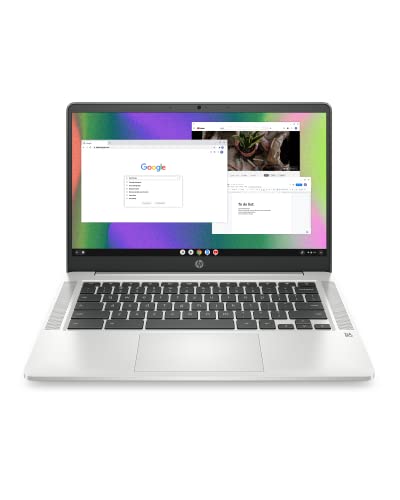
HP Chromebook 14 — Best Simple Chromebook
Badge: Best simple Chromebook
The HP Chromebook 14 Laptop is the class in its most straightforward form: an Intel Celeron N4120, 4GB of RAM and 64GB of eMMC storage behind a 14-inch HD display, running Chrome OS in a thin Ash Gray design whose title promises 4K graphics support for external displays and long battery life. There is no hinge trick and no touchscreen headline here, and that simplicity is the proposition — a laptop-shaped Chromebook for the household jobs of browsing, documents, school platforms, streaming and calls, from a maker whose Chromebook line has served this exact brief for years.
The expectations to set are the class’s standard ones, stated without apology. The Celeron N4120 handles the browser day competently and asks patience beyond it; 4GB of memory rewards closed tabs; the HD panel is clear for text and video at this size without pretending to be a creator’s display. Buyers who recognise their workload in that description get a machine that does its job quietly for years. Buyers who do not should be reading the Spin 314’s review again, because the gap between these two picks is the real decision inside this guide.
Strengths
- Straightforward, proven Chromebook formula from HP.
- Thin design with battery life aimed at the full day.
- External display support extends it at a desk.
Trade-offs
- Celeron performance is for light work only.
- HD display rather than the FHD of the Lenovo above.
- 64GB of eMMC assumes cloud-first habits.
Spec box: Display 14-inch HD · Processor Intel Celeron N4120 · Memory 4GB · Storage 64GB eMMC · Operating system Chrome OS · Finish Ash Gray.
Best for: Households wanting a simple, honest Chromebook. Not suited for: Multitaskers or anyone expecting FHD clarity.

Lenovo IdeaPad Slim 3 Chromebook 2024 — Best Lightweight Current Model
Badge: Best lightweight current model
The Lenovo IdeaPad Slim 3 Chromebook Laptop in its 2024 form is the current-generation entry point of this guide: a lightweight 14-inch design with an HD display, a 720p camera, 4GB of memory and 64GB of storage, with Waves MaxxAudio speakers named in its title. The speaker credit is worth more than it looks — in a class where audio is usually an afterthought, a machine tuned for clearer sound serves the video calls, lessons and streamed media that dominate this tier’s actual use. Lenovo’s Slim 3 line is the company’s mainstream Chromebook family, and the 2024 model carries that lineage’s virtues of light weight and uncomplicated operation.
Position it honestly against its own sibling above: the other IdeaPad Slim 3 in this guide offers an FHD touchscreen and a different processor, while this one offers the lighter, simpler, current-year clamshell at the class’s accessible rung. The HD panel and 4GB of memory set the same expectations as the HP — a browser-day machine — and the choice between them comes down to the details a buyer can verify on the listings: the exact processor, the finish, the keyboard feel as reviewed, and which machine’s compromises match their habits better.
Strengths
- Current 2024 model in a lightweight mainstream design.
- MaxxAudio speakers serve calls and media unusually well here.
- Simple clamshell operation for undemanding users.
Trade-offs
- HD display where a sibling pick offers FHD touch.
- 4GB of memory and 64GB of storage are the class floor.
- 720p camera is adequate rather than impressive.
Spec box: Display 14-inch HD · Camera 720p · Memory 4GB · Storage 64GB · Audio Waves MaxxAudio speakers · Operating system ChromeOS · Model year 2024.
Best for: Buyers wanting a light, current, simple Chromebook. Not suited for: Touch or FHD seekers, who should take the sibling pick.
HP Stream 14 — Best Windows Alternative
Badge: Best Windows alternative
The HP Stream 14 is this guide’s Windows witness, discussed without a link so its bargain can be stated in full. The Stream line exists to put genuine Windows at the lowest rungs of the market, and at fourteen inches it gives a Windows-needing buyer — the family with one essential Windows program, the student whose courseware demands it — a real option inside this class’s territory. That option’s price is paid in specification rather than money: entry storage built on eMMC, which is slower and smaller than the SSDs of mainstream laptops, and performance tuned for one or two applications at a time. Windows itself and its updates claim a meaningful share of that small storage, so cloud habits are compulsory rather than tidy.
None of that makes the Stream a bad product; it makes it a specific one. Bought knowingly for compatibility, it serves. Bought as a supposed equal of the Chromebooks here — on the assumption that Windows is automatically the more serious choice — it disappoints, because in this tier the Chromebook is the more serious engineering. We place it in prose, with its trade-off named in its badge line, so that the Windows-needing minority is served honestly and the majority is not misled.
Strengths
- Genuine Windows for software that requires it.
- A known line from HP at this budget’s Windows rung.
- Covers browsing, documents and media within its envelope.
Trade-offs
- Small, slow eMMC storage is the defining compromise.
- One-or-two-apps performance expectations required.
- Discussed without a link in this Chromebook-led class.
Spec box: Class 14-inch Windows laptop · Line HP Stream · Storage eMMC class, see listing · Status prose-only; verify exact configuration and storage on listing.
Best for: Buyers with a genuine Windows requirement at this tier. Not suited for: Anyone choosing it by default over a Chromebook.
Acer Chromebook Spin 514 with Core i5 — Best Stretch Pick
Badge: Best stretch pick
The Acer Chromebook Spin 514 in its Core i5 configuration closes this guide by showing the reader the next rung of the ladder, labelled as exactly that. It sits above this class’s ceiling — that is the whole of its role here — and it earns the mention because a buyer straining at the top of this budget deserves to know what a stretch buys: a Core i5-class Chromebook convertible with performance headroom that changes the machine’s horizon from a few years of light work to a long primary-laptop life. For a student entering a multi-year course, or a household buying one machine to serve everyone, that stretch can be the most economical decision in the article despite leaving the class’s territory.
We keep it prose-only and ceiling-breaking on purpose. A guide that quietly slipped an above-budget machine into its linked picks would be breaking its own title’s promise, and a guide that hid the rung entirely would be failing the ambitious reader. The honest middle is this entry: named, framed, unlinked, and recommended only to the buyer who has decided the ceiling itself is the thing to reconsider.
Strengths
- Core i5-class performance above this tier’s ceiling.
- Convertible Chromebook format with a long horizon.
- The natural step up from the Spin 314’s already strong offer.
Trade-offs
- Above this guide’s budget class by definition.
- Discussed without a link as a stretch reference.
- Over-specified for the lightest school and home work.
Spec box: Class 14-inch Chromebook convertible · Processor Intel Core i5 class · Line Acer Chromebook Spin 514 · Status stretch pick above this guide’s tier.
Best for: Buyers willing to stretch for a multi-year primary machine. Not suited for: Firm budgets, which this guide’s linked picks serve.
What This Budget Buys in 2026, Itemised Without Prices
It helps to see the tier as a shopping list of trades. At the entry rung, the money buys the essentials executed competently: a 14-inch HD screen, a light processor, the class-floor memory and storage, and a chassis from a maker whose support exists. The middle rung adds the refinements a daily user actually feels — a sharper or touch-enabled display, a storage arrangement with more room, small audio and camera improvements. The top rung, where the Spin 314 sits, buys the two things the lower rungs ration: processor headroom and memory, plus a display specification that would not embarrass a machine a full class above. Understanding the tier this way prevents the classic error of comparing an entry machine’s compromises against a top-rung machine’s price as if both were the same product with different stickers. They are different products, at different rungs, for different households, and this guide’s ordering simply walks the ladder in the open.
The corollary is that discounts move machines between rungs without changing what they are. A top-rung model on promotion is still a top-rung model and worth seizing; an entry model at full figure is still an entry model. Buy the rung, not the moment.
School, Home Office and Family Duty: The Three Real Workloads
School is the class’s home workload, and it is worth being specific about why these machines fit it: the platforms schools issue work through are browser-based, the documents are light, the day is long and battery-shaped, and the machine must survive a backpack. Every linked pick was chosen inside that reality. Home office duty — email, documents, video calls, a spreadsheet of consequence — fits the same machines with one caveat about multitasking weight, which the memory sections address. Family duty is the most varied and the most forgiving: streaming, browsing, photographs, video calls with grandparents, the household’s administrative life. A family buying one shared machine should weight the Spin 314’s headroom, because shared machines accumulate everyone’s habits at once; a family buying per-person machines can happily live at the middle and entry rungs, one honest Chromebook each.
Comparison Table
| Model | Display | Processor | Memory | Storage | System |
|---|---|---|---|---|---|
| Acer Chromebook Spin 314 | 14″ WUXGA IPS touch | Core i3-N305 | 8GB LPDDR5 | See listing | ChromeOS |
| IdeaPad Slim 3 14 Chromebook | 14″ FHD touch | Kompanio 520 | 4GB | 64GB eMMC + 64GB SD | ChromeOS |
| HP Chromebook 14 | 14″ HD | Celeron N4120 | 4GB | 64GB eMMC | Chrome OS |
| IdeaPad Slim 3 Chromebook 2024 | 14″ HD | See listing | 4GB | 64GB | ChromeOS |
| HP Stream 14 | 14″ class | Entry class | See listing | eMMC class | Windows |
| Acer Spin 514 i5 (stretch) | 14″ convertible | Core i5 class | See listing | See listing | ChromeOS |
The Processor Ladder, Translated Into Daily Feelings
Three processor families share this guide, and the differences between them are best described as feelings rather than figures. The Celeron N4120 in the HP feels adequate: pages load, documents open, video plays, and the machine’s personality is patience at the edges — a beat before a heavy page settles, a pause when too much is asked at once. The MediaTek Kompanio 520 in the touchscreen Lenovo feels calm: cool, quiet, untroubled by the ordinary day, with efficiency as its character and the same ceiling when multitasking grows ambitious. The Core i3-N305 in the Spin 314 feels relaxed in a different way — the headroom way — where additional tabs and tasks are absorbed rather than negotiated. None of these processors is a mistake at its rung; the mistake is buying a lower rung while expecting the feelings of a higher one. Read the reviews with your own tolerance for waiting honestly assessed, and the ladder will sort itself.
Keyboards and Trackpads: Where Budget Machines Surprise
Buyers bracing for misery at this tier can relax about the inputs. Fourteen inches gives every maker room for a full-width keyboard deck, and the mainstream lines here — IdeaPad, HP’s Chromebook range, Acer’s Spin family — use keyboards that students and writers live on without complaint. Trackpads are smaller than flagship glass but accurate for the pointing this class does. The differences that remain are matters of taste in key feel and layout rather than adequacy, which is why this guide spends its scrutiny on processors, memory and screens instead: at this size and tier, the typing experience is the one thing nobody needs to worry about, and a review that pretends otherwise is manufacturing drama. If a specific user is sensitive to keyboards, the mainstream brands here are also the ones most likely to be demonstrable in a local shop before purchase.
Is 4GB of Memory Enough in This Class?
Under ChromeOS, for this class’s stated jobs, yes — with the same discipline our smaller Chromebook guide teaches. The operating system is light, the work is browser-shaped, and a managed set of tabs runs acceptably on every 4GB pick here. The ceiling appears with tab accumulation and with several demanding web applications open together, and it appears sooner than a new buyer expects, which is why the Spin 314’s doubled memory is treated in this guide as a headline feature rather than a statistic. If your household’s habits are gloriously untidy — dozens of tabs, a call, a document and a stream in parallel — the honest choices are the 8GB pick, the stretch pick, or a larger budget, in that order.
HD, FHD and WUXGA at Fourteen Inches: What Changes?
This guide contains all three resolutions, and at fourteen inches the differences are visible rather than theoretical. HD, at the class’s entry rung, renders text and video serviceably and is the right panel for the lightest budgets. FHD sharpens text noticeably, makes split-screen work more comfortable and is the point where a 14-inch screen stops being a compromise for reading-heavy days. WUXGA — the Spin 314’s 1920 by 1200 — adds vertical room on top of FHD’s sharpness, which writers and spreadsheet users feel in every session. None of these panels serves colour-critical creative work, and none needs to; the ladder exists so a buyer can match the screen to the reading load, which at this size is the display decision that actually matters.
Android Apps, Linux and the Hidden Depths of a Chromebook
New buyers sometimes underestimate what a modern Chromebook does beyond the browser, so the extras deserve a paragraph. Most current Chromebooks run Android applications from the Play Store, which brings the messaging, reading, media and light productivity applications families already know from their phones onto the bigger screen — the touchscreen picks here wear that ability particularly well. Many also offer a Linux environment for the technically curious, which turns a school machine into a gentle introduction to real computing for an older student. Neither feature should drive the purchase — the browser remains the platform’s heart — but both extend the useful life of a budget machine in directions its price does not suggest. Parents buying for a child who might grow toward computing will find that headroom quietly valuable in the third year, when the machine’s owner has changed more than the machine has.
Chromebook or Windows Under This Ceiling?
Decide by naming the software, as this batch’s guides keep advising, because at this budget the answer is unusually clear-cut. If the work lives in a browser — school platforms, documents, email, streaming, calls — a Chromebook delivers it faster, simpler and with better screens and hinges at the tier, and the Windows machine’s only win is a logo the work never uses. If one essential program is Windows-only, the calculus inverts completely and the Stream’s compromises become the cost of admission, to be accepted knowingly. What the budget does not permit is indecision: a buyer who purchases Windows just in case, at this tier, spends the machine’s whole life paying storage and patience for an insurance policy the household never claims on.
Battery Life and the Honest Meaning of All-Day
One linked title in this guide advertises a battery figure, and the class generally trades on long life, so the terms deserve the same honesty as the storage figures. Manufacturer battery numbers are measured streaming video at modest brightness with everything else idle; a real day of classes, calls and documents draws more. The structural truth underneath the numbers is still favourable: these are low-power processors driving modest panels, and a school or home day untethered is a realistic plan rather than a hope, particularly on the efficiency-minded Kompanio and Celeron models. The habits that protect that plan are the usual ones — brightness set for the room rather than the showroom, tabs closed when finished, the charger living where the machine sleeps. Buyers comparing this class against a Windows machine at the same tier should also know that the Chromebook’s efficiency advantage is part of its value case, not a footnote to it.
Durability and Repairability at the Budget End
Budget machines are sometimes assumed to be disposable, and the assumption is worth resisting with the facts of this class. Chromebooks from Lenovo, HP and Acer at this tier are close relatives of the machines those makers sell into schools by the thousand, and they inherit the design priorities of that world: simple construction, tolerant keyboards, and software that can be reset to factory freshness in minutes when it misbehaves. The most common failures over a school career are a lost charger, a cracked screen from a bag drop and a battery that fades in the later years — in roughly that order — and the first two are habits and accessories rather than engineering. A sleeve and a labelled spare charger remain the highest-value companions to any pick here, and they cost less than the difference between the rungs of this ladder.
Common Mistakes
- Expecting a mainstream Windows laptop at this ceiling and blaming the Stream for the arithmetic.
- Reading the Lenovo’s combined storage figure as internal storage.
- Treating the Celeron and Kompanio picks as equals of the i3-N305 Spin 314.
- Ignoring the ChromeOS update expiry when buying an older model in this class.
- Letting a stretch pick silently replace the budget instead of deciding to stretch.
- Buying for a household’s heaviest imaginable day instead of its ordinary week.
Second Machines and First Machines: Two Different Purchases
This class serves two buyers whose standards differ, and separating them sharpens every recommendation above. The second-machine buyer — a household with a main computer already — wants a satellite: light, cheap to replace, synced to the same accounts, ready for the sofa, the kitchen and the trip. For them the entry and middle rungs are not compromises but the correct specification, and the HP Chromebook 14 or either IdeaPad Slim 3 will feel exactly right. The first-machine buyer — a student whose only computer this is, a household equipping itself from zero — should buy as high up the ladder as the ceiling allows, because every limitation will be met daily rather than occasionally; that buyer is the Spin 314’s natural owner, and the stretch pick exists for the version of them whose horizon is longest. Naming which buyer you are, before comparing any two models, is the fastest decision this guide can give you.
Final Recommendation
Buy the tier your work describes. For the strongest machine this class contains, the Acer Chromebook Spin 314 is the standout — a better processor, double memory and the best display here, in a convertible shell — and it is the pick we would hand to a student or a household wanting years from this budget. For touch and FHD at the middle rung, take the Lenovo IdeaPad Slim 3 with its storage arrangement understood. For the simple, honest floor of the class, the HP Chromebook 14 and the 2024 IdeaPad Slim 3 divide the honours by detail. And let the two prose entries do their work: the Stream if Windows is truly required, the Spin 514 if the ceiling itself deserves reconsidering. Shopped by tier rather than by headline, this is a class that respects its buyers. One last discipline completes the purchase: when the machine arrives, spend its first evening the way this guide’s setup section describes — updates finished, accounts in place, storage habits agreed, charger stationed — and resist judging it in the first hour, when every laptop is busy becoming itself. Judged in its second week, doing the ordinary work of an ordinary household at an unordinary level of value, the right pick here will not feel like a budget compromise at all. It will feel like the machine the household needed, bought at the rung the work required, with money left over for the rest of life — which is, in the end, the entire point of a budget class that works.
Setting Up a Budget Chromebook So It Feels Like a More Expensive Machine
Half the perceived speed of this class is setup, and the routine is short. Sign in with the account the machine will actually live under, let the first round of updates finish before judging performance, and pin the half-dozen sites and applications the user genuinely opens daily. Set the browser to reopen only the previous session’s essential page rather than every historical tab, which quietly protects the 4GB models from their owners’ habits. Move photographs and documents into cloud storage from the first day, so the modest local drives never become a filing problem. Create separate profiles for family members instead of sharing one desktop, because ChromeOS makes it effortless and it keeps a shared machine feeling personal. Finally, agree where the machine charges overnight. A budget laptop set up this way in its first hour will feel, for its whole life, like a machine from a rung above the one it was bought on — the cheapest performance upgrade in this entire guide.
When This Budget Is the Wrong Budget
A guide loyal to its readers should name the moment to leave its own class. If the machine must run desktop creative software, development environments of consequence, or games beyond the browser and the cloud, no pick here will grow into the job, and stretching within the tier only delays the correct purchase. If the buyer is a professional whose laptop earns their living, the reliability and headroom of the classes above this one are business expenses, not luxuries. And if a household keeps replacing budget machines every two years because each was bought at the floor, the arithmetic may already favour one mid-range machine kept for five. This class is the right answer for an enormous number of real households — the school years, the second computer, the family machine, the grandparent’s window to everyone — and naming its boundary protects exactly those buyers from asking it to be something else.
FAQ
Can a laptop in this class run Microsoft Office? The Chromebooks run the web versions of Microsoft 365 and Google Docs, which cover school and home needs. Full desktop Office requires Windows, which in this tier means the Stream’s compromises or a larger budget.
How long do Chromebooks in this class stay updated? Each model has a published ChromeOS auto-update expiry. Check it for the exact model before buying, especially on any discounted older stock, and match it to the years of service you need.
Is the Acer Spin 314 really that different from the others? Yes, in the two places that matter most here: its Core i3-N305 is a stronger processor family than the Celeron and Kompanio chips, and its 8GB of memory doubles the class norm. Together they produce a visibly more relaxed machine.
What does storage made of eMMC plus an SD card mean? It means part of the advertised capacity lives on a removable card. It works as everyday space, but keep important files backed up to the cloud, and do not treat the card portion as equivalent to internal storage.
Can these laptops handle video calls and online classes? Yes — that workload is the centre of this class’s design brief. Keep background tabs modest on the 4GB models and every pick here handles calls, classes and documents together.
Can a Chromebook in this class print and use a mouse and external monitor? Yes. Modern ChromeOS prints to most current network printers, pairs with Bluetooth and USB mice without ceremony, and drives an external display over its USB-C or display connections — the HP Chromebook 14’s title even advertises its external graphics support. A budget laptop at a desk with a monitor is a perfectly respectable workstation for this class’s workloads.
What happens when a Chromebook reaches its update expiry? It keeps working, but it stops receiving system and browser updates, which gradually becomes a security and compatibility concern. That is why this guide insists on checking the date before purchase: a machine with years of runway left is a different purchase from old stock near its expiry, even at the same specification.
Is a convertible like the Spin 314 worth it at this budget? If the machine will be used for reading, presenting or schoolwork in varied postures, yes — the hinge is real hardware that earns its place daily. If it will live open on one desk forever, a clamshell at the same rung returns the hinge’s cost as specification, and the IdeaPad and HP picks serve that life directly.
How do I choose between the two IdeaPad Slim 3 models? By screen and storage philosophy. The FHD touchscreen model suits readers and touch users who accept its card-assisted storage; the 2024 HD model suits buyers who prefer the simpler, lighter, current-year clamshell. Both share the class’s memory floor, so the choice is about the display, not the power.
Should I stretch to the Spin 514 instead? If the machine must serve as a household’s or student’s primary computer for many years, the stretch is rational and this guide names it openly. If the budget is firm, the Spin 314 already delivers most of the experience inside the class.
Total Cost of a Budget Laptop, Counted Properly
The honest price of any pick here includes three small companions: a sleeve for the bag it will live in, a spare charger for the place it will work second-most, and, for the card-storage Lenovo, a cloud habit that costs nothing but attention. Buyers who add those companions at purchase own a complete system; buyers who skip them own a laptop and a series of small future inconveniences that get blamed on the machine. Set against that arithmetic, the rung differences inside this class are the real decision: the step from the entry machines to the Spin 314 buys measurable daily ease for years, while the step from any of them to a replacement bought early buys nothing at all. Budget buying rewards the household that buys once, at the right rung, with the small companions included — and that household, notably, is the one this guide’s ordering was built to serve.
A Word About Buying This Class as a Gift
Budget laptops are among the most-given technology gifts, and the giving has its own rules. Buy for the recipient’s ecosystem rather than your own — a student whose school issues Chromebooks will be fluent from the first morning, while a grandparent surrounded by Windows-using helpers may be better served by the familiar, compromises and all. Include the sleeve and set the machine up before wrapping it: accounts created, updates finished, the video-call application tested with a call to yourself. A gifted laptop that works perfectly at first power-on teaches its recipient that the machine is friendly; one that demands an afternoon of setup teaches the opposite, at exactly the moment first impressions form. The picks in this guide were chosen to be giftable in that sense — mainstream makers, simple platforms, nothing exotic to support from a distance.
The Class in One Household: A Composite Picture
Picture the household this guide is really about, because it exists in every street. A student carries the Spin 314 or the touchscreen Lenovo to school, where its battery outlasts the day and its accounts keep schoolwork separate from everything else. A parent runs the household from the HP Chromebook at the kitchen table — bills, bookings, the family calendar, a video call with a sibling overseas — on a machine that wakes instantly and never asks to be maintained. The 2024 IdeaPad lives in the spare room as the guest and grandparent machine, simple enough that nobody needs instructions. None of these computers is powerful, and the household is not poor in computing for it: every job that actually occurs in a home is being done, on screens of a proper size, by machines that cost less together than one flagship laptop. That is the achievement of this class when it is bought by tier and set up with care, and it is why a guide to inexpensive laptops deserves the same rigour as a guide to expensive ones — the readers’ money is identical, and so is their right to honest arithmetic.
Refurbished Temptations at This Tier, and Why We Steer Around Them
Searches at this budget return a second shadow market alongside the new machines: refurbished and renewed laptops, including older business models whose original prices were several times this class’s ceiling. The temptation is understandable — yesterday’s flagship feels like more laptop than today’s budget machine — and for the confident buyer who has read this batch’s renewed guidance, it can occasionally be right. Our linked list stays with new machines for a simpler reason: at this tier, the new Chromebook’s warranty, battery freshness and update runway are worth more than an old flagship’s faded advantages, and the buyer least equipped to judge a used machine is the buyer this class most serves. If you do wander into that market, import the whole discipline — condition grade, battery terms, update or support horizon, keyboard layout, return window — and price the unit against the Spin 314’s new-machine proposition before admiring its pedigree. Pedigree is not a specification, and at this budget, specifications are what survive.
And a closing reassurance for the reader who has absorbed every caveat in this long guide and now hesitates over the whole class: the caveats exist because the class is honest, not because it is fragile. Millions of students are doing today’s schoolwork on machines materially identical to the entry picks here, and their education is not suffering for the processor badges involved. Buy the rung your work describes, set the machine up once and properly, and then forget the shopping entirely — the surest sign that a budget laptop was bought well is how completely it disappears into the life it was bought to support. Homework gets done, calls get made, photographs get shared and bills get paid, and nobody in the household thinks about gigahertz at all — which is not the failure of this class but its finest success, purchased honestly and priced in tiers. Choose the tier, verify the listing, check the update date, and let the machine get on with the unglamorous, essential work of a household — the work this class, at its best, performs as faithfully as machines costing several times as much perform theirs. That is not a small claim for the least expensive full-size laptops in this entire batch, and the four linked machines above were chosen, rung by rung, to make it true in your house rather than merely plausible on this page. Verify the one you choose — configuration, condition, update date — with the same ten careful minutes this batch’s guides keep recommending, and the class will repay the attention for years. Budget laptops bought this way — by tier, by workload, by listing rather than by headline — are the ones still serving, quietly and without complaint, when the next school year, the next job and the next family chapter arrive in turn. That durability of purpose — not of marketing, but of fit between a machine and the life it was honestly bought for — is the standard this guide set itself, and the standard by which its picks should be judged. Meet it — with the Spin’s headroom, the Lenovo’s touchscreen clarity, or the entry machines’ plain competence, according to your household’s real week — and this least expensive class in the batch will have done something the expensive classes promise and do not always deliver: exactly what was asked of it, for exactly what it cost. No inflated promises were needed to get there, and none were made — which is, in the end, the most valuable specification in this entire article. Buy with it in mind, and the laptop that arrives will match the one you imagined — the rarest outcome in budget technology, and the one worth every minute of the reading. Then close the listings, open the box when it comes, and let the school terms, the family calls and the quiet evenings of ordinary work begin. That is what the money was for, and in this class — shopped honestly, tier by tier — it is reliably, refreshingly what the money gets. Choose your rung, trust the arithmetic over the advertising, and welcome a machine that asks little and delivers its whole brief. Few purchases in technology reward honesty this directly, and fewer still leave the buyer with change — of money, and of mind about what a laptop needs to cost. Keep the receipt, keep the charger labelled, and keep the tabs closed — the class will handle everything else it was ever honestly asked to do. And when a neighbour asks how the household’s new laptop can possibly have cost so little and served so well, the answer is this whole article in one sentence: the right tier, honestly bought. Nothing in this class needs exaggerating, and nothing in it was — which is why its recommendations can be followed with a confidence that flashier categories rarely earn. Follow them, and spend the savings on the things a laptop cannot provide: the course, the trip, the books, the time. The laptop, after all, was only ever the means — and in this class, at last, the means and the budget agree.
One More Comparison: This Class Against the Smaller Budget Machines
Readers cross-shopping this batch’s smaller budget guides should understand what the move to fourteen inches buys, because it is the best-value upgrade in the entire budget landscape. Against the 11.6-inch class, the screen grows from a child’s workspace to a family’s, the keyboard becomes full-feeling, and split-screen work turns practical — for a price step that is small beside the difference in daily comfort. Against the under-200 tier, this class buys current models with update runway, better displays and processors a generation more relaxed. A household choosing between those guides and this one should default here whenever the ceiling permits: fourteen inches at this tier is where budget laptops stop feeling like budget laptops, and the machines above — the Spin 314 above all — are the proof arranged in ascending order.
Related Guides
Readers at the tightest end of the market should see the best laptops under 200, those ready to step up in size can compare the best 15.6 inch laptops, and students weighing every size should read the best laptops for college students. The smallest mainstream class is rounded up in the best 11.6 inch laptops.
Related guides
- Best Direct Thermal Printers: Shipping-Label Machines and Professional Label Systems
- Best 4K UHD HDR HDMI Extenders: 4K60, Long-Run and 4K120 Kits Compared
- Best 25–35 Inch Monitors With Lowest Display Lag: An Honest Ranking Without Invented Numbers
- Best Enterprise SATA SSDs: Endurance Classes, Power-Loss Protection and Fleet Sense



[…] stretch further with a little more room, so if you can step up a tier, our guide to the best 14 inch laptops under 500 shows what the next ceiling buys. Families choosing a machine for school should also read about the […]