What's inside
- Key Takeaways
- Quick Picks
- How Did We Judge Chroma Without a Laboratory?
- What Do the Numbers 4:4:4 Actually Mean?
- Why Does 4:4:4 Only Live in PC and Game Modes?
- Six Screens That Keep Colour at Full Resolution
- The Six at a Glance, by Signal Path
- Where Do Buyers Usually Break the Chain?
- How Do You Configure a TV for Full-Chroma PC Use, Step by Step?
- Does Pixel Structure Matter as Much as Chroma?
- How Do Refresh Rate and Bandwidth Conspire Against Full Chroma?
- Consoles, Streamers and the Other Inputs: Who Else Needs Full Chroma?
- Size, Distance and Pixel Density: The Geometry of a Readable Screen
- What Does a Workday Actually Look Like on a 4:4:4 Television?
- How Should You Test a Candidate Set During the Return Window?
- A Brief History of the Subsampled Compromise
- What About HDR From a Computer — Does It Fight the Chroma Path?
- Final Recommendation
- Frequently Asked Questions
- Related Guides
As an Amazon Associate I earn from qualifying purchases. This post may contain affiliate links at no extra cost to you.
gizmoverdict.com is reader-supported. When you buy through links on our site, we may earn an affiliate commission.
Where to buy: Each television below is sold through Amazon and was confirmed in this site’s verified pool. Chroma performance is described by panel class and mode behaviour, not by invented lab figures — any review quoting you a decimal-place measurement for this topic is decorating, not measuring.
The best 4 4 4 chroma TVs matter to a specific and growing tribe: people who sit close to a large screen and read. Chroma subsampling is the quiet compromise inside nearly every video signal — colour information stored at lower resolution than brightness, on the assumption that eyes notice brightness detail more than colour detail. For film and television the assumption holds beautifully. For a desktop full of text it collapses, because coloured text on a contrasting background is precisely the case where colour resolution is the picture. A set that subsamples to 4:2:0 or 4:2:2 smears red text on black, fringes the edges of icons, and turns a crisp 4K desktop into something that looks faintly out of focus no matter how you adjust it. The best 4 4 4 chroma TVs refuse the compromise: in the right mode, on the right input, they carry the full colour resolution of the source, and text snaps into the sharpness the panel’s pixel count promised.
The qualifying clause — right mode, right input — is the heart of this guide, because 4:4:4 on a modern television is a configuration, not a permanent state. Sets achieve it in their PC or Game picture modes, where the processing that assumes video content is switched off; they achieve it on inputs configured for full-bandwidth signals; and they lose it the moment a well-meaning feature — motion smoothing, noise reduction, a “vivid” preset — re-engages the video pipeline. A buyer who understands this buys any of the six sets below with confidence. A buyer who does not will plug into the wrong port, leave the set in its showroom mode, and conclude wrongly that the whole topic is a myth.
The six picks span the technologies that do this well: LG’s 42-inch OLED evo C4 and C5, the desk-sized flagships whose PC behaviour is the class benchmark; LG’s 65-inch C5 for the living-room-desk hybrid; Samsung’s 43-inch QN70H Neo QLED and 65-inch QN90H, mini-LED sets whose game modes are built for full-bandwidth PC signals; and Sony’s 65-inch Bravia 8 OLED, the processing house’s entry. Every one of them is also simply an excellent television, because a set bought for text will spend half its life showing film, and this guide refuses to recommend a one-trick screen.
Key Takeaways
- 4:4:4 means colour is stored at full resolution; 4:2:0 and 4:2:2 subsample it, which is invisible in film and obvious in coloured text.
- On televisions, full chroma is a mode, not a default: PC or Game mode, on a correctly configured full-bandwidth HDMI input, is where it lives.
- Engaging video processing — smoothing, noise reduction, vivid presets — is the commonest way owners accidentally switch 4:4:4 back off.
- OLED sets dominate this niche because their PC modes are mature and their per-pixel structure renders text without backlight complications.
- The source must cooperate: a PC set to output RGB or YCbCr 4:4:4, over a cable rated for the bandwidth, completes the chain.
- At sofa distance the difference vanishes; this entire topic matters because the reader sits close, which is why size and desk fit recur below.
Quick Picks
| Pick | Badge | Why it is here |
|---|---|---|
| LG 42 OLED evo C4 | The desk benchmark | The 42-inch OLED whose PC mode set the standard every other set in this niche is judged against. |
| LG 42 OLED evo C5 | Brighter desk flagship | The newer generation of the same idea, with more luminance for lit workspaces. |
| Samsung 43 QN70H Neo QLED | Mini-LED at desk size | Full-bandwidth game-mode behaviour and high brightness, without OLED’s static-image considerations. |
| Samsung 65 QN90H Neo QLED | Big-screen PC force | For the workstation that is also a cinema: mini-LED brightness at 65 inches with proper game-mode chroma. |
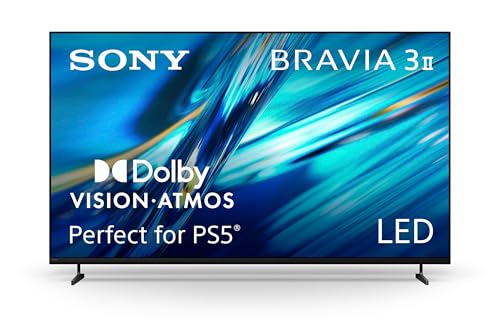
| Sony 65 Bravia 8 OLED | The processor’s entry | Sony’s graphics-friendly modes and peerless upscaling for mixed work and film duties. |
| LG 65 OLED evo C5 | Living-room hybrid | The large OLED for a desk that shares its room with a sofa and a film habit. |
How Did We Judge Chroma Without a Laboratory?
Honestly, and within stated limits. Chroma behaviour is a property of a television’s signal pipeline — which modes pass full colour resolution, which inputs accept full-bandwidth signals, which processing features break the chain — and that behaviour is established by design and documented by makers, not something a review needs a colorimeter to discuss. This guide therefore evaluates the picks by class and by their documented mode behaviour: whether a dedicated PC or graphics mode exists, whether the game mode accepts full-bandwidth 4K signals at high refresh, and how the maker’s processing philosophy treats that path. We make no claim to have measured individual units, and we quote no invented figures for lag, luminance or error — the numbers that matter for configuration are the ones in your set’s menus, not in our prose.
Selection then layered the ordinary virtues on top. A 4:4:4 set is bought by someone who will stare at it for working hours, so panel quality, text rendering at the structure level — pixel layout, uniformity, coating — and ergonomic practicality (size, stand, VESA mount) all counted. We favoured the sizes the tribe actually uses: 42 and 43 inches for desks, 65 inches for hybrid rooms. And every model was verified against this site’s product pool before a link was attached, because a configuration guide pointing at the wrong model year would fail at its only job.
One more methodological note: makers change menu names and mode behaviour between generations, occasionally within a generation by firmware. The guidance below names the mode families to look for — PC, Game, Graphics — rather than promising an identical menu path on every unit. Treat the sections as a map of what must be true, then verify it on your set with the test described in the how-to section: coloured text, at 100% scaling, judged by your own eyes at your own desk.
What Do the Numbers 4:4:4 Actually Mean?
The notation describes how a video signal samples colour relative to brightness. In each group of pixels the first number is the brightness sampling width — always 4 in this notation — and the following numbers describe how many colour samples accompany it across two rows. In 4:4:4, every pixel carries its own complete colour information: nothing is shared, nothing is approximated. In 4:2:2, colour is sampled at half the horizontal resolution; in 4:2:0, the system used by broadcast, streaming and Blu-ray, colour resolution is halved in both dimensions, so a block of four pixels shares a single colour sample between them.
The engineering logic is impeccable for its intended content. Human vision resolves fine detail primarily through brightness, and in a photograph or a film frame, colour changes gradually across neighbouring pixels, so sharing colour samples among them is perceptually almost free — it halves or quarters the data while the audience notices nothing. Compression systems built empires on that thrift. The failure case is synthetic imagery: a desktop, a spreadsheet, a code editor, a game’s user interface. There, colour changes at full sharpness between adjacent pixels — red letters on black, a green highlight on white — and the sharing assumption collapses. The subsampled signal physically does not contain the information needed to draw the edge cleanly, and no sharpness setting can invent it.
The visible symptoms are distinctive once known: coloured text carries a soft halo, thin coloured lines lose saturation or shift hue, and red and blue elements suffer most because of how the colour encoding weights them. Black text on white survives subsampling almost unscathed — its information lives in the brightness channel — which is why a set can look perfectly sharp for documents and disgrace itself on a terminal window or a designer’s canvas. The reader who has ever thought a big 4K screen looked oddly blurry for work has usually met this phenomenon, not a defective panel.
Why Does 4:4:4 Only Live in PC and Game Modes?
Because a television’s default pipeline is built for video, and video processing is the enemy of full chroma. To make broadcast and film look their best, sets apply a chain of operations — noise reduction, edge enhancement, motion interpolation, colour management — several of which internally subsample or otherwise process the colour channels. That chain assumes a video signal, and its designers optimise for the content televisions historically showed. A PC input breaks the assumption: the source is already pixel-perfect, and every operation in the chain can only degrade it.
PC mode is the maker’s admission of that fact. Engaging it — usually by labelling the input as PC, or selecting a dedicated picture mode — bypasses the video chain, maps the incoming pixels to the panel as directly as the design allows, and preserves the signal’s full chroma. Game mode arrives at a similar destination from a different direction: built to minimise input lag, it strips processing to the floor, and the stripped path passes full chroma as a by-product. This is why the two modes are this guide’s twin keys, and why the gaming specification of a set — full-bandwidth inputs, high refresh, variable refresh — correlates so strongly with its quality as a monitor.
A note on names, because the menus will try to lose you: makers variously call the relevant input setting “enhanced format”, “HDMI deep colour”, “input signal plus” or nothing at all, and the PC behaviour may hide behind the input’s label, a picture mode, or a game optimiser dashboard. The vocabulary differs; the underlying act is identical — telling the set that this input carries a full-bandwidth, full-chroma signal from a machine that has already perfected it, and that the television’s job is to pass it through untouched. When in doubt, the manual’s page on connecting a computer is the maker’s own confession of where the switch lives.
The corollary is fragility. Because 4:4:4 lives in a bypass, anything that re-engages the pipeline revokes it: switching picture presets, enabling a smoothing feature, sometimes even changing an input’s label back. Owners chasing a chroma problem should audit the whole chain in order — source output format, cable, input configuration, picture mode, individual processing toggles — because the break can hide at any link, and the set will not announce which one it was. The how-to section below walks that audit in sequence.
Six Screens That Keep Colour at Full Resolution
Two sizes dominate — the desk class at 42–43 inches, and the hybrid class at 65 — and two panel technologies divide the field. Read each pick for its mode behaviour first and its general brilliance second; in this niche, the order matters.

LG 42 OLED evo C4 — The desk benchmark
The 42-inch C4 is the set that defined this category, and it remains the reference against which rivals are described. LG’s small OLEDs earned that position by treating PC use as a first-class citizen: label the input as PC and the set reconfigures itself around pixel fidelity — full chroma, minimal processing, and the behaviour of a monitor that happens to have a tuner. The OLED structure helps at the panel level too, since each pixel is its own light source with its own colour, and text edges are rendered by the pixels themselves rather than negotiated with a backlight.
As a working screen, the virtues compound. The 42-inch diagonal at 4K gives a pixel density that keeps text smooth at desk distance without scaling tricks; the viewing angles mean the screen’s edges, close to your peripheral vision at this size, hold their colour; and the gaming specification — high refresh, variable refresh, low lag in game mode — serves the evening half of the desk’s life without a mode change. Owners do observe the standard OLED considerations: automatic brightness behaviours that protect the panel can subtly shift a static desktop’s luminance, and static toolbars ask for the usual habits of auto-hiding and screen savers. These are manageable, documented behaviours, and the tribe has collectively decided they are a fair price.
The C4’s remaining argument is maturity. Several model years of concentrated PC-user scrutiny have mapped its menus, its firmware habits and its edge cases in public; a buyer inherits that knowledge base. In a niche defined by configuration, the best-documented set has a real advantage over a marginally brighter mystery.
- Panel: 42-inch OLED evo, 4K
- Chroma path: PC input labelling for full 4:4:4
- Gaming class: high refresh, variable refresh support
- Desk note: pixel density suits 100% scaling at arm’s length
Strengths
- The reference PC-mode behaviour in this class
- Per-pixel OLED structure renders text edges exactly
- Deep public knowledge base for configuration
Trade-offs
- Panel-protection brightness behaviour on static screens
- Static-image care habits are part of ownership
- Peak brightness modest beside mini-LED rivals
Best for: desk-bound professionals and gamers who want the proven monitor-substitute and will follow its simple configuration once.
Not suited for: all-day static dashboards in bright rooms, where a mini-LED’s indifference to static content is worth more.

LG 42 OLED evo C5 — Brighter desk flagship
The C5 takes the benchmark’s formula and addresses its known caveat. Brightness is the generational story: the newer panel pushes luminance higher, which at a desk translates into a screen that holds its contrast against window light and overhead office lighting rather than demanding the curtains of a cinema room. Everything that made the C4 the reference — the PC input behaviour, the gaming specification, the pixel structure — carries forward, wrapped in the current generation’s processing and platform.
For a buyer choosing between the two 42-inch LGs, the honest axes are room light and ownership horizon. A north-facing study flatters the C4 and saves the difference; a bright home office, or a desk that faces glass, justifies the C5 every working day. The newer model also buys time: firmware attention flows to the current generation first, and a screen bought for a decade of desk duty should start as young as possible.
Nothing about the upgrade changes the configuration discipline this guide teaches — PC labelling, the right input, processing left off — and nothing changes the OLED care habits. The C5 is the benchmark with the lights turned up, recommended on exactly those terms.
- Panel: 42-inch OLED evo, 4K, brighter generation
- Chroma path: PC input labelling for full 4:4:4
- Processing: current-generation image processor
- Desk note: extra luminance for glass-facing workspaces
Strengths
- Benchmark PC behaviour with more brightness headroom
- Longest firmware horizon of the desk picks
- Text rendering and gaming spec match the C4’s standard
Trade-offs
- Newer-generation cost over the C4
- Same OLED static-image considerations
- Brightness still trails the mini-LED pick in harsh light
Best for: bright home offices and long-horizon buyers who want the desk benchmark in its current, brightest form.
Not suited for: shaded rooms where the C4’s listing delivers the same behaviour for less.

Samsung 43 QN70H Neo QLED — Mini-LED at desk size
The QN70H exists because Samsung does not sell its flagship Neo QLED line at 42 inches in an OLED-rivalling form — this 43-inch mini-LED is the desk-sized bearer of that line, and it makes the LCD case for the niche. Its game mode is built for full-bandwidth PC and console signals, its brightness comfortably exceeds the OLED picks, and its panel is indifferent to static content in a way no emissive panel can be: a spreadsheet, a dashboard or a code editor can sit on it all day, every day, with no protective dimming and no care habits to learn.
Text rendering on a good LCD is a different character from OLED rather than a lesser one. The backlight’s local dimming should be configured thoughtfully for desktop use — aggressive dimming can halo bright text on dark backgrounds, and the PC and game modes’ more direct backlight behaviour is generally the right choice at a desk. With that set, the QN70H delivers crisp full-chroma text with the luminance to work in a sunlit room, a combination the OLEDs cannot match on their best day.
Samsung’s platform and gaming extras round out a pick aimed at the desk that works and plays in equal measure. For the reader whose static-content anxiety has kept them out of this niche entirely, the QN70H is the door back in: full 4:4:4 behaviour, flagship brightness, and a panel you never have to think about.
- Panel: 43-inch Neo QLED mini-LED, 4K
- Chroma path: Game/PC mode with full-bandwidth input
- Static content: no burn-in consideration of any kind
- Brightness class: above the OLED desk picks
Strengths
- Static desktops all day with zero panel anxiety
- Brightness for sunlit workspaces
- Full gaming specification from the Neo QLED line
Trade-offs
- Local dimming needs mode care to avoid text haloing
- Blacks and viewing angles trail OLED
- One inch larger than the LGs — measure shallow desks
Best for: professionals with static screens and bright rooms, who want full chroma without OLED’s ownership habits.
Not suited for: dark-room film devotees, who will prefer the OLED picks’ absolute blacks after hours.

Samsung 65 QN90H Neo QLED — Big-screen PC force
At 65 inches the use case changes character: nobody puts this on a desk at arm’s length, but a great many workstations, studio setups and sim rigs place a large screen four to six feet away, where its text is large-type and its canvas is enormous. The QN90H serves that arrangement with the mini-LED virtues at scale — high brightness, an anti-glare screen, dense backlight control — and with game-mode signal handling that preserves full chroma from a PC at full bandwidth. A racing rig, a flight-sim cockpit or a video-editing station built around this set gets a monitor’s signal integrity with a cinema’s acreage.
The anti-glare treatment deserves emphasis for workspace duty, because large screens in lit rooms become mirrors for windows and lamps, and Samsung’s coating is the class benchmark for suppressing that. Colour volume at brightness is the other workspace gift: charts, footage and game worlds hold their saturation at the luminance a lit room demands.
As with its 43-inch sibling, local dimming behaviour in desktop modes should be set deliberately, and the set’s scale demands a wall or a serious stand rather than a desk edge. Judged as what it is — the large-format end of the 4:4:4 idea — the QN90H is the most capable LCD in this guide.
- Panel: 65-inch Neo QLED mini-LED, 4K
- Chroma path: Game mode, full-bandwidth HDMI
- Screen: anti-glare treatment, class-leading
- Postings: sim rigs, studios, large-format workstations
Strengths
- Full chroma at cinema scale with high brightness
- Anti-glare screen suits lit studios and rooms
- No static-content considerations for dashboards
Trade-offs
- Far too large for a conventional desk
- Dark-room blacks trail the OLED picks
- Local dimming configuration matters for text work
Best for: sim rigs, editing stations and hybrid rooms where the screen sits beyond the desk and works all day.
Not suited for: arm’s-length desktop use — the 42 and 43-inch picks exist for that geometry.

Sony 65 Bravia 8 OLED — The processor’s entry
Sony’s Bravia 8 approaches the niche from the processing house’s direction. Its graphics-oriented picture modes are designed to pass a PC or console signal with minimal interference — the precondition for full chroma — and its legendary upscaling serves the mixed diet of a hybrid screen: native 4K text and work by day, broadcast and catalogue film by night, each handled with the judgement Sony’s processors are bought for. The OLED panel supplies the per-pixel text rendering and perfect blacks the technology is known for.
The Bravia 8’s acoustic design adds a workspace nicety: dialogue and call audio emerge from the screen surface, centred on the picture, which keeps video calls and reference footage feeling anchored rather than ventriloquised from beneath the desk line. Google TV supplies the app breadth, and the set’s gaming support, while less loudly marketed than Samsung’s, covers the full-bandwidth essentials the chroma path requires.
Choose the Sony when the screen’s second job — film and broadcast in a good room — matters as much as its first, and when upscaling quality for mixed sources outweighs the LGs’ slightly more PC-centric tuning. It is the connoisseur’s route into the niche, priced and behaved accordingly.
- Panel: 65-inch OLED, 4K
- Chroma path: graphics/game modes with minimal processing
- Audio: screen-surface speakers for centred sound
- Platform: Google TV
Strengths
- Finest upscaling for the non-PC half of the screen’s life
- Per-pixel OLED text rendering
- Dialogue anchored to the picture for calls and film
Trade-offs
- PC tuning slightly less specialised than LG’s
- Brightness conservative beside mini-LED
- Premium pricing for processing quality
Best for: hybrid rooms where work shares the screen with serious film and broadcast viewing.
Not suited for: pure desk duty, where the 42-inch picks fit the geometry and the budget better.

LG 65 OLED evo C5 — Living-room hybrid
The 65-inch C5 is the large-format expression of the benchmark: the same PC-mode discipline as its 42-inch siblings, scaled to the room where a workstation occupies one end and a sofa the other. At four to six feet, its 4K text is presentation-sized — pair programming, design reviews, a spreadsheet thrown up for the room — while its film performance after hours is the full C-series argument: perfect blacks, wide angles for the sofa’s ends, and the current generation’s brightness headroom.
For the household consolidating screens — one great display instead of a monitor plus a television — this is the pick that makes consolidation respectable. The configuration remains the guide’s refrain: PC labelling on the computer’s input, full-bandwidth configuration, processing left off on that path, and the set’s other inputs free to run their video presets for film sources. Modern sets store settings per input, so the two lives coexist without a daily menu ritual.
The cautions are scale’s own: a 65-inch screen demands the wall or stand to hold it, static desktop elements at this size ask for the standard OLED habits, and at sofa distance the chroma advantage fades to irrelevance — you are buying the C5’s overall excellence, with 4:4:4 as the workstation bonus. On those terms it earns its place as the hybrid’s choice.
- Panel: 65-inch OLED evo, 4K, brighter generation
- Chroma path: PC input labelling, per-input settings
- Dual life: workstation canvas and flagship cinema
- Platform: webOS, latest generation
Strengths
- One screen credibly serving desk and sofa
- Current-generation brightness and processing
- Per-input settings keep both lives configured
Trade-offs
- Chroma advantage invisible from the sofa
- OLED care habits apply to desktop elements
- Wall or substantial stand required
Best for: consolidated rooms — a workstation and a cinema sharing one flagship screen.
Not suited for: a dedicated desk, where the same money buys the 42-inch C5 and a proper monitor’s ergonomics besides.
The Six at a Glance, by Signal Path
| Pick | Size / panel | Chroma route | Static-content stance |
|---|---|---|---|
| LG 42 C4 | 42-inch OLED | PC input label | Care habits required |
| LG 42 C5 | 42-inch OLED | PC input label | Care habits required |
| Samsung 43 QN70H | 43-inch mini-LED | Game/PC mode | No concern |
| Samsung 65 QN90H | 65-inch mini-LED | Game mode | No concern |
| Sony 65 Bravia 8 | 65-inch OLED | Graphics/game mode | Care habits required |
| LG 65 C5 | 65-inch OLED | PC input label | Care habits required |
The pattern in the table is the guide in miniature: every route runs through a mode that strips video processing, and the technology choice reduces to your static-content habits and your room’s light. There is no wrong door here — only the wrong configuration after walking through it, which the next sections exist to prevent.
Where Do Buyers Usually Break the Chain?
The commonest failure is the input label. Owners connect a PC to a new set, see a desktop, and stop — never learning that the input defaults to a video profile in which the pipeline subsamples and processes. The picture looks plausible, the text looks almost right, and the owner blames the panel. Labelling the input as PC, or selecting the PC/graphics picture mode, is a thirty-second fix that transforms the screen, and it is the step this guide would tattoo on the niche’s collective forearm.
The second failure lives at the source. A computer outputting a subsampled format — some default to 4:2:0 at high refresh over a strained connection — gives the set nothing to preserve. The display settings must be checked for an RGB or full-chroma output at the resolution and refresh in use, and the cable must be rated for the bandwidth that combination demands; an elderly cable in the chain is a classic silent culprit. Third comes the preset wanderer: a household member selects a vivid or sports preset for a match, the processing chain re-engages, and the next morning’s text is fringed again. Per-input settings and a word with the household prevent the recurrence.
Finally, scaling masquerades as a chroma fault. An operating system set to fractional scaling renders text through its own resampling, which softens edges in a way owners misdiagnose. Test at 100% scaling first — if text is crisp there, the chroma chain is healthy and the softness is the OS’s arithmetic, to be solved with scaling choices rather than television settings.
How Do You Configure a TV for Full-Chroma PC Use, Step by Step?
Work the chain from the wall outward. First, connect the computer to the set’s full-bandwidth HDMI input — on many models certain ports carry the full specification while others are lesser, and the manual’s port diagram is the authority. Use a cable certified for the bandwidth of 4K at your target refresh rate; keep it as short as the furniture allows. Second, in the set’s input settings, enable the enhanced or full-bandwidth format for that input, and label the input PC if the set offers input labelling, since on LG’s models the label itself is the mode.
Third, set the picture mode for that input to PC, Game or Graphics as the maker names it, and walk its sub-menus switching off the video furniture: motion smoothing, noise reduction, dynamic contrast and edge enhancement all off. Fourth, at the computer, confirm the output: 3840×2160, your target refresh rate, and a colour format of RGB or YCbCr 4:4:4 — the graphics control panels of all three major vendors expose the choice, sometimes only after the resolution and refresh are set. Fifth, set the OS scaling to 100% for the test, open a page of coloured text — red and blue on dark and light backgrounds — and inspect it from your working distance. Crisp in all four combinations means the chain is whole.
Keep the test honest by using your worst real content, not your best: the syntax theme with red on near-black, the dense spreadsheet with coloured status columns, the terminal with its coloured prompts. A chain that keeps those clean at your chair’s distance will keep anything clean, and a chain that fails them in the shop-demo’s soft grey text would have failed you in week two regardless.
Only then adjust comforts: raise scaling if the size demands it, knowing the softness trade is now yours by choice, enable the set’s eye-comfort settings if they do not re-engage processing (check the text again after), and set the screen-saver and taskbar habits an OLED asks for. Write down the final settings. Firmware updates occasionally reset an input’s configuration, and the owner with a note restores in a minute what the owner without one rediagnoses in an evening.
Does Pixel Structure Matter as Much as Chroma?
It is the niche’s second variable, and honesty requires ranking it below the headline topic while acknowledging its effects. Panels arrange their subpixels differently: the standard RGB stripe is what operating systems’ text rendering assumes, and it produces the crispest results with subpixel font smoothing enabled. Some OLED panels use alternative subpixel arrangements, which can lend tiny colour fringes to text edges at close inspection even with a perfect 4:4:4 signal — a panel-geometry effect, not a signal fault. The mitigations are known: sit at the distance the size intends, prefer the text-rendering settings your OS offers for non-standard layouts, and judge the screen with real documents rather than a magnifier.
Backlit panels carry their own structure story: local dimming zones behind bright text on dark backgrounds can bloom, which is why the Samsung picks’ desktop modes matter and why this guide mentions dimming behaviour in their entries. None of these effects overturns the picks — all six are proven in this duty — but the buyer who understands them will configure once, correctly, instead of returning a healthy set for a phenomenon with a menu-based answer.
How Do Refresh Rate and Bandwidth Conspire Against Full Chroma?
Every signal is a budget. A 4K picture at 60Hz in full 4:4:4 colour already consumes a large share of what a standard full-bandwidth HDMI connection carries; raise the refresh to 120Hz and the demand doubles, pushing against the ceiling of the interface generation the set and the source share. This arithmetic explains the niche’s most confusing symptom: a configuration that holds full chroma at 60Hz and silently falls back to subsampling when the owner selects 120Hz. Nothing is broken. The pipe is simply full, and the system sheds colour resolution to fit the frame rate, exactly as it was designed to do.
The buyer’s responses are threefold. First, ensure every link is the full-bandwidth generation: the set’s enhanced input setting, the computer’s port, and a certified cable — a single lesser link caps the whole chain. Second, decide your priority per activity: many desk workers run 60Hz with full chroma for text and switch to a high-refresh game configuration for play, where subsampling is invisible in motion. Third, when shopping, treat a set’s gaming specification as its chroma specification in disguise — the models engineered for full-bandwidth 4K high-refresh signals are precisely the models whose PC paths are taken seriously by their makers. All six picks clear that bar by design; the configuration sections above exist to make sure the rest of your chain does too.
Consoles complicate the budget in one specific way worth flagging: their high-refresh modes at 4K are exactly the signals most likely to exceed a marginal chain, and a console that negotiates down to a subsampled or lower-refresh mode gives no error message — it simply runs, and the owner never knows the ceiling was the cable’s. The same certified-cable discipline that serves the PC serves the console, and the set’s game dashboard, where offered, will report the incoming signal’s format for those who care to look.
There is a related trap in the opposite direction: an owner who cannot achieve a setting assumes the set lacks the capability, when the source’s control panel has hidden the full-chroma option behind an unselected resolution or a “PC” timing mode. The graphics drivers of all three major vendors expose colour format choices contextually, and the option sometimes appears only after the display is set to its native resolution with a PC timing. Patience in the source’s menus is part of the configuration, and it is cheaper than a return.
Consoles, Streamers and the Other Inputs: Who Else Needs Full Chroma?
The PC is the demanding source, but it is not the only one whose output rewards a clean path. Modern games consoles render their interfaces and many games with sharp coloured elements, and their high-refresh modes travel over the same full-bandwidth inputs; a console connected to the set’s best port, in game mode, receives the same unmolested signal path this guide configures for computers. In-game, fast motion hides subsampling almost completely — but console dashboards, store pages and text-heavy strategy games are desktop-like content, and they fringe under a video pipeline exactly as a spreadsheet does.
Streaming devices and disc players, by contrast, neither need nor benefit from the bypass: their content arrives subsampled at the source, and the set’s video processing genuinely improves it. The mature setup therefore differs per input — PC and console inputs configured for direct passage, video inputs configured for the maker’s best processing — which modern sets accommodate by storing picture settings per input. Owners who grasp this stop hunting for one universal “best mode” and start thinking in per-source terms, which is the moment a television becomes a well-run system rather than a single screen with moods.
A final source deserves a warning: older laptops and bargain mini-PCs whose HDMI outputs are of an earlier generation. Such a machine may cap its 4K output at 30Hz, or at subsampled colour, regardless of the television’s capability, and no menu on the set can conjure bandwidth the source does not have. Check the source’s port specification before blaming the screen; a modern adapter from a full-bandwidth display output on the computer often rescues the chain.
Size, Distance and Pixel Density: The Geometry of a Readable Screen
Chroma decides whether text can be sharp; geometry decides whether it is comfortable. A 42-inch 4K screen viewed from a typical desk distance of around two and a half feet presents pixels fine enough that most users run it at 100% scaling, gaining the full canvas the resolution promises. The 43-inch Samsung is effectively the same proposition. At 65 inches, the same pixel count spread over more than twice the area yields large, presentation-scale text at four to six feet — right for shared work and rigs, wrong for a private desk, where the screen’s edges leave the comfortable field of view and the neck begins to file complaints.
The tribe’s settled wisdom is that 42 to 43 inches is the largest size that behaves like a monitor and the smallest that behaves like a television, which is why this guide’s desk picks cluster there and why those models receive the makers’ most serious PC attention. Buyers tempted to stretch to a 48 or 55-inch bargain for desk use should sit at their real desk, at their real distance, in front of a comparable screen before committing; the returns process is a poor substitute for that experiment. Conversely, buyers who fear 42 inches will feel small should remember that their current monitor’s diagonal is probably 27 or 32 — the step to 42 is a doubling of area, and it lands as abundance, not adequacy.
Sound, often forgotten in this niche, deserves its sentence: a television’s speakers at a desk fire downward or backward into the desk surface and wall, and for calls and reference audio they are serviceable, while for music and film the desk’s existing speakers or a compact soundbar remain better. The ARC and optical outputs on all six picks make that handoff painless, and the per-input configuration means the work setup and the film setup can route audio differently without a daily negotiation.
Mounting completes the geometry. At these sizes a VESA arm or a low stand that lets the screen sit at the desk’s back edge reclaims the depth a television’s feet consume, and eye level should meet the screen’s upper third. All six picks carry standard mounting patterns; the hour spent on the mount is repaid daily, in posture and in desk space alike.
What Does a Workday Actually Look Like on a 4:4:4 Television?
Abstract configuration advice lands better with a picture of the destination. The settled 42-inch desk runs the screen at native resolution, scaling at or near 100%, with windows tiled across a canvas that holds a document, a browser and a communications app in full view simultaneously — the multi-monitor desk collapsed into one panel with no bezels interrupting the drag of a window. Text in every tile is rendered by the full-chroma path, so the code editor’s coloured syntax, the spreadsheet’s conditional formatting and the design tool’s fine lines all carry their intended edges. Video calls occupy a tile rather than the screen, and the set’s speakers or a desktop pair handle audio without ceremony.
The evening transition is the niche’s quiet delight: the same screen, on the same input, becomes the games display with a refresh-rate change, or the film screen via its own streaming apps, with the per-input settings keeping each life in its own configuration. Owners consistently report that the single-screen desk reduces the low-grade friction of multi-device life — one power button, one remote, one panel to clean — beyond what the specification promised. The costs are the ones this guide has catalogued: the configuration hour, the OLED habits where applicable, and the knowledge that a television’s warranty and ergonomics are not a monitor’s. For the tribe, the exchange is settled and favourable.
How Should You Test a Candidate Set During the Return Window?
Because configuration, not hardware, decides success in this niche, the return window should be used as a structured trial rather than a vague settling-in. On day one, complete the full chain configuration from the how-to section and run the coloured-text test at your real distance, with your real applications — not a synthetic pattern alone, but the code editor, the terminal, the spreadsheet you actually inhabit. On day two, work a full day on the screen and note the comfort factors no specification lists: brightness behaviour across the afternoon’s changing light, reflections at your chair’s angle, the automatic dimming habits of an OLED under your static windows.
Across the week, deliberately exercise the transitions: game mode and back, a film on a video input, a console session, a firmware update if one is offered — since updates are the known reset risk, meeting one inside the window teaches you your set’s behaviour while remedies are free. If, at the window’s end, the text is crisp, the transitions are boring and the care habits feel livable, the screen has passed the only examination that matters. If the chain refuses to hold full chroma despite a correct audit, that specific set and your specific source are quarrelling, and the window is the time to exchange rather than to endure.
A Brief History of the Subsampled Compromise
Chroma subsampling is older than digital television: analogue colour systems already carried colour at lower fidelity than brightness, because the engineers of the 1950s understood the eye’s priorities and the era’s bandwidth was precious. Digital video inherited the thrift and standardised it — 4:2:2 became the professional production format, 4:2:0 the distribution format, and an entire civilisation of content was built on the assumption that colour detail could be shared among pixels without the audience knowing. For seventy years of photographed content, the assumption never visibly failed.
What changed was not the eye but the content. The computer desktop put synthetic imagery — drawn, not photographed — in front of the same displays, and synthetic imagery is built from exactly the sharp colour transitions subsampling discards. The monitor industry never subsampled, because its sources were always computers; the television industry always did, because its sources were always cameras. The niche this guide serves exists in the collision of those two traditions, now that one screen is asked to be both industries’ product. The makers’ PC modes are the treaty between the traditions, and the six sets here are the ones whose treaties are best drafted.
What About HDR From a Computer — Does It Fight the Chroma Path?
Often, yes, and the collision is worth understanding before it ambushes a new owner. Desktop HDR raises the signal’s bandwidth and engages tone-mapping paths that, on some sets and sources, trade against full chroma at high refresh — the budget arithmetic again. Many desk users therefore run the desktop in SDR with full chroma for work, where text is king and the SDR image is stable and predictable, and let HDR engage in games and films where it belongs. Others accept a high-refresh HDR configuration with subsampled colour for a gaming-first desk, where motion hides the cost.
Neither choice is wrong; the error is making it accidentally. Decide which master the desk serves, configure deliberately for that master, and re-run the coloured-text test after any change so the trade you have made is the trade you intended. The screen will do as it is told — the entire discipline of this niche is telling it clearly.
Final Recommendation
For the desk, the LG 42 C5 is this guide’s first answer — the benchmark’s behaviour with the brightness modern rooms demand — with the C4 as its proven, kinder-priced twin for shaded studies. For the desk that never sleeps and fears static content, the Samsung 43 QN70H removes the anxiety entirely. At 65 inches, choose by room: the QN90H for lit studios and rigs, the Bravia 8 for processing connoisseurs, the C5 for the consolidated living room. Whichever you bring home, the purchase is only half the task — label the input, set the mode, verify the source, and check the coloured text with your own eyes. Full chroma is not a feature a television has; it is a state a system achieves, and now you know how to achieve it.
Frequently Asked Questions
How can I tell if my TV is actually running 4:4:4?
Display fine coloured text — red and blue lettering on contrasting backgrounds — at 100% scaling and inspect it at your normal distance. In full chroma the edges are clean and the colours pure; under subsampling they smear and fringe. Dedicated chroma test patterns, widely available, make the judgement unambiguous in seconds.
Does 4:4:4 matter for films and streaming?
Essentially not. Films and streams are mastered and delivered in 4:2:0, so a set in a video mode shows them exactly as intended. The topic matters for computer desktops, consoles’ interface elements and any synthetic imagery with sharp coloured edges — which is why this niche is about monitor use.
Why does my text look soft even in PC mode?
Audit the chain: the computer may be outputting a subsampled format at your resolution and refresh, the cable may lack the bandwidth, the input may not be set to its enhanced format, or the OS may be applying fractional scaling. Work through the how-to section in order; the fault is almost always one of those four.
Is game mode as good as PC mode for text?
On most current sets, yes — game mode strips the same processing and passes full chroma as a by-product of its low-lag design. PC or graphics modes remain the first choice where offered, since they are tuned for the purpose, but a set whose game mode is its only bypass is not disqualified.
Do I need a special HDMI cable for 4:4:4 at 4K?
You need a cable rated for the bandwidth your resolution, refresh rate and colour format demand together — full chroma at high refresh is among the heaviest consumer signals. Use a certified cable of the appropriate class, keep runs short, and suspect the cable early when a configuration refuses to hold.
My set shows 4:4:4 at 60Hz but not at 120Hz. Is it faulty?
Almost certainly not. The higher refresh doubles the signal’s data rate, and somewhere in your chain — the input’s configured format, the source’s port generation, or the cable — the bandwidth runs out and the system sheds colour resolution to fit. Upgrade the weakest link, usually the cable or the input setting, and the full-chroma high-refresh combination typically appears.
Does a DisplayPort adapter help?
Televisions in this class are HDMI devices, so the practical route is the computer’s HDMI output or a quality adapter from its DisplayPort or USB-C video output. A good adapter preserves the full signal; a bargain one can silently cap bandwidth and reproduce exactly the faults this guide teaches you to chase. Buy the adapter as carefully as the cable.
Will 4:4:4 wear out my OLED faster?
The chroma mode itself does not age a panel; static content does, which is why the OLED picks come with care habits — auto-hiding taskbars, screen savers, varied content. Buyers unwilling to adopt the habits should take the mini-LED picks and never think about it again.
Related Guides
Closely neighbouring questions are covered in our full guide to 4K TVs used as computer monitors, the premium 65-inch classes compared for mixed work and film, and the honest history of 3D 4K televisions and what replaced them.