What's inside
- Key Takeaways
- Quick Picks
- How We Chose These Picks
- What Is Chroma 4:4:4, and Why Does Your Desktop Care?
- How Does Pixel Density Limit a 32-Inch 1080p Desk?
- How Do You Configure a TV as a Monitor, Step by Step?
- How Do You Make a 32-Inch Screen Comfortable All Day?
- When Is a Real Monitor Simply the Right Answer?
- What Does Input Lag Feel Like When the Display Is Your Desk?
- How Do Sound, Calls and Cameras Work Around a Television Desk?
- What Does the Television-as-Monitor Setup Cost Once Everything Is Counted?
- Which Jobs Did We Test Each Pick Against?
- What Changes When the Computer Is a Console-Sized Mini PC or a Stick?
- Six Televisions, Judged From the Desk Chair
- Which Desk Mistakes Make a TV Feel Like a Bad Monitor?
- Final Recommendation
- Frequently Asked Questions
- Related Guides
As an Amazon Associate I earn from qualifying purchases. This post may contain affiliate links at no extra cost to you.
gizmoverdict.com is reader-supported. When you buy through links on our site, we may earn an affiliate commission.
Where to buy: Follow the links in this guide to the precise models assessed for desk duty. If you are comparing against a listing elsewhere, match the full model name — the difference between a television that handles a desktop gracefully and one that smears it often comes down to a picture mode buried in one variant’s menu and absent from its sibling’s.
The idea behind the best 1080p TVs as PC monitor setups is seductive: one large screen on the desk that works all day and plays films and games all evening, for less than a monitor of half its size. This guide tests that idea honestly, and the honest answer is conditional. A 32-inch 1080p television can be a genuinely good computer display for a defined set of jobs — documents, browsing, media, casual creative work, console-adjacent PC gaming — and a poor one for another set that includes dense code, colour-critical design and all-day fine-text reading at close range. The picks below are ranked by how well they serve the first set, and the limitations are stated as plainly as the virtues.
Three technical facts govern everything that follows. First, pixel density: 1920 by 1080 spread across a 32-inch panel works out at roughly 69 pixels per inch, about two-thirds the density of a typical 24-inch monitor, so text is larger and less crisp at the same time. Second, chroma subsampling: televisions often compress colour detail on HDMI inputs outside their PC or game modes, which fringes coloured text in ways a monitor never would. Third, input lag: a television’s picture processing delays the mouse unless its low-latency mode is engaged. Every pick here can be configured around the second and third facts. The first is physics, and the guide will not pretend otherwise.
Read the verdicts with your own desk in mind. If your work is words, spreadsheets, video calls and media, several of these sets will serve you well and save you money. If your work is pixels — in the designer’s or the programmer’s sense — the final sections explain why a real monitor remains the professional answer, and this guide would rather lose the sale than mislead the desk.
One boundary deserves stating before the rankings begin: size. This guide concentrates on 32-inch sets because that is where the television-as-monitor idea is most defensible — large enough to feel generous, small enough that 1080p remains workable and the screen fits a desk at all. The same logic at 43 inches collapses on density and desk depth, and at 24 inches the televisions available are mostly 720p, which this guide has excluded on principle throughout the batch.
Key Takeaways
- A 32-inch 1080p panel gives roughly 69 pixels per inch: text is big and readable, never razor sharp at close range.
- PC or game picture mode is non-negotiable; it is what stops chroma subsampling from fringing coloured text and keeps the mouse responsive.
- Feed the television exactly 1920 × 1080 at 60Hz and disable overscan, or the desktop will be scaled, cropped or both.
- For documents, browsing, media and casual gaming the substitution works; for dense code and colour-critical work it does not.
- Every pick is a verified native 1080p set, because a 720p television as a monitor is not a compromise but a refusal.
Quick Picks
| Pick | Badge | Why it earns its place |
|---|---|---|
| Samsung 32 F6000 | Best desk manners | Samsung’s PC-aware picture handling and clean tuning make it the most monitor-like television here. |
| TCL 32 S3 | Best all-day flexibility | A short processing path in its game mode and Google TV for the evening make it the strongest double-duty set. |
| Roku 32 Select | Easiest to live with | Per-input memory and a calm interface suit a desk screen that must also behave for guests. |
| Vizio 32 D-Series | Panel-purist value | Minimal processing and an optical output suit a simple desk with external speakers. |
| Insignia 32 F40 | Fire TV desk option | Competent as a display and unmatched if the desk sits inside an Alexa household. |
| Hisense 32 A4 | Cheapest desk screen | The lowest-cost way to test whether television-as-monitor suits your work at all. |
How We Chose These Picks
Monitor duty imposes tests a television guide can skip, so the selection ran differently. The first filter was the panel: native 1920 by 1080, verified, because at desk distance a lesser panel is not a saving but a daily punishment. The second was the presence of a picture mode that shortens the processing path — labelled game, PC or low-latency depending on the maker — because without it, mouse lag and chroma fringing are built into the product. The third was per-input settings memory, so the desk configuration survives the television being used as a television in between.
Ergonomics and connections were assessed as a monitor’s would be. All six picks accept a computer over HDMI at their native resolution, all support VESA mounting for owners who will put the screen on a monitor arm — strongly recommended, since television feet fix the screen at one height — and all are light enough for arms rated for monitors. None offers USB-C display input, height adjustment or a USB hub; those absences are part of the category’s price, and the reviews note them rather than discovering them later.
What was not required: high refresh, wide colour, HDR performance. A desk worker’s day is static content, and static content asks for sharpness, stability and comfort rather than spectacle. Where a pick’s smart platform mattered, it mattered as evening value — the screen’s second job — and the ranking reflects that order of priorities throughout.
Finally, a methodological honesty note: manufacturers rarely publish chroma behaviour or measured lag for sets in this class, so this guide describes configuration and class behaviour rather than attaching invented laboratory figures to individual models. The advice — engage the low-latency mode, feed native resolution, disable overscan — is what determines the experience on every pick, and it is verifiable on your own desk within minutes of setup.
Availability and support were the last filters. A desk screen is infrastructure, and infrastructure from a maker with a service network and a continuing model line is worth a small premium over an orphaned bargain. All six picks come from ranges with retail presence and replacement remotes on sale, details that sound beneath a review’s dignity until the day a remote dies on a Sunday evening before a Monday deadline.

Samsung 32 F6000 — Best desk manners
Samsung sells more monitors than any television rival in this guide, and the F6000 behaves like it. Its picture settings include the low-latency game path a desktop needs, its colour tuning is the cleanest here for mixed work, and Samsung’s experience with PC sources shows in small behaviours: the set identifies a computer input sensibly, holds its per-input settings, and wakes with the machine without drama. On the desk it produces the least fringed text of the six when correctly configured, which is the single most important sentence in any of these reviews.
Correctly configured is doing real work in that sentence. Feed the F6000 a native 1920 by 1080 signal, select its game picture mode for the computer’s input, set the computer’s output to full-range RGB where the option exists, and the desktop that results is stable, legible and comfortable for document work at a sensible viewing distance. Text is large rather than fine — the density arithmetic cannot be negotiated — but edges are where they should be, and spreadsheet grids, documents and web pages all render without the shimmer that betrays a television fighting its source.
Evenings are covered by Tizen and Samsung TV Plus, and the set’s film manners lead this group, so the desk screen’s second job is done properly. The deficits are the category’s: no USB-C, no hub, feet instead of an adjustable stand, and a price above the Fire TV pair. For a buyer whose desk is their workplace and whose evenings share the screen, the F6000 is the pick that asks the fewest apologies.
A practical desk note: the F6000’s feet place the panel’s centre lower than a monitor’s adjustable stand would, and on a standard desk that can mean a slight downward gaze that suits some workers and strains others. A low riser or a VESA arm solves it completely, and Samsung’s standard mounting pattern means any arm rated for the weight works. Budget the arm into the comparison against a monitor, and the Samsung still usually wins the arithmetic while conceding the ergonomics.
- Panel: 32-inch, 1920 × 1080 native, roughly 69 PPI at desk sizes
- Computer path: game picture mode per input, settings remembered
- Inputs: HDMI for the computer, further HDMI for console or stick
- Mounting: VESA support for a monitor arm — recommended
- Evening duty: Tizen with Samsung TV Plus free channels
Strengths
- The cleanest text rendering of the six when the PC path is configured.
- Monitor-maker experience shows in wake, sleep and input behaviour.
- Best film and sport picture for the screen’s evening shift.
Trade-offs
- No USB-C input or hub; a laptop desk still needs its dock or cables.
- Television feet fix the height, so budget for an arm or a riser.
- Priced above the Fire TV pair despite an identical pixel count.
Best for: a home worker whose desk screen must also be the room’s best television.
Not suited for: a colour-critical designer, for whom no television in this guide is the tool.

TCL 32 S3 — Best all-day flexibility
The S3’s claim rests on its Game Accelerator, a feature marketed at consoles that serves a computer just as faithfully: it is TCL’s name for the shortened processing path, and a desktop fed through it feels direct in a way that television default modes never do. The mouse tracks without the faint swimming that makes a TV-as-monitor setup feel drunk, windows land where you throw them, and casual PC gaming inherits the same responsiveness. For the double-duty desk — work machine by day, games and Google TV by night — that path is the whole argument, and the S3 makes it best after the Samsung.
Text handling in the accelerated mode is honest 1080p: no scaling, no overscan once set, and edges that hold together in documents and browsers. TCL’s default colour leans vivid, which a worker should tame in the settings for long reading sessions; once tamed, the panel is an easy all-day companion, helped by Google TV’s absence from the working day — the platform only appears when you ask it to, and the computer’s input simply behaves like a source.
Evening value is the strongest here alongside the Samsung: the full Play Store, Chromecast for a phone’s photos and videos, and profiles for a shared household. The compromises are the familiar ones — no USB-C, feet rather than a stand, a home screen that promotes when you do visit it. As a single screen bought to end the monitor-versus-television argument in a small room, the S3 is the most flexible answer in the guide.
The S3 also handles the mixed household desk gracefully. Google TV profiles mean the evening side can belong to someone else entirely — a partner’s watchlist, a child’s supervised profile — while the working day belongs to the computer, and the two lives never contaminate each other. Desks in shared small homes live or die by exactly this separation, and the S3’s implementation of it is the most complete in the group.
- Panel: 32-inch, 1920 × 1080 native
- Computer path: Game Accelerator low-latency mode
- Inputs: HDMI ports for computer and console, USB for media
- Mounting: VESA support; light enough for monitor arms
- Evening duty: Google TV with Chromecast built in
Strengths
- A named low-latency path that serves PC gaming as well as consoles.
- The widest evening catalogue of any pick here.
- Vivid defaults tame easily into a comfortable work picture.
Trade-offs
- Default colour needs adjusting before long reading days feel restful.
- Google TV’s promotional rows greet you on every evening visit.
- No single-cable laptop connection; a dock remains necessary.
Best for: a small-room desk that works, plays PC games and streams from one screen.
Not suited for: a minimalist who wants the television side to stay invisible for years at a time.
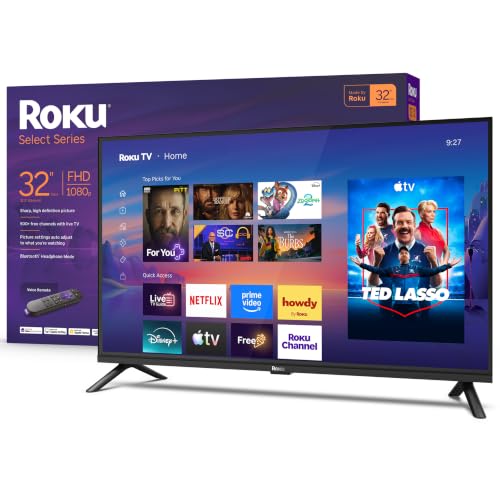
Roku 32 Select — Easiest to live with
The Select’s monitor case is behavioural rather than technical. Its game picture mode does the necessary work — processing reduced, per-input settings remembered — and beyond that the set simply refuses to complicate a desk. It wakes on the computer’s input, it does not insert its platform between you and your desktop, and when the working day ends the Roku grid is the calmest evening interface in the group. For a desk in a shared room, where the screen serves a partner’s laptop or a guest’s console between your shifts, that absence of fuss is a feature with daily value.
Configured with the same discipline as the others — native resolution, overscan off, game mode on — text is as legible as this panel class allows, and Roku’s restrained picture defaults need the least taming for reading. The mobile app’s keyboard helps on the television side, and private listening is a genuine desk asset: route the evening’s programme to earbuds while a partner sleeps in the same small flat.
Where the Select falls behind the two sets above it is intent. Roku does not market a PC path, its picture controls are the plainest here, and a worker chasing the last degree of text cleanliness will find the Samsung’s tuning finer. But for the majority of home desks, where the work is documents and calls rather than pixel inspection, the Select’s calm competence is the sensible purchase, and its current-generation panel starts its support life ahead of older rivals.
One more desk reality favours the Roku: reliability of the boring kind. It does not demand account attention, it does not rearrange its interface in overnight updates, and it does not interpose recommendations between a worker and their desktop at 9 a.m. A desk screen is infrastructure, and infrastructure should be forgettable. The Select is the most forgettable television in this guide, which in this specific contest is praise of a high order.
- Panel: 32-inch, 1920 × 1080 native
- Computer path: per-input game mode, remembered between sessions
- Inputs: HDMI for computer and console, antenna tuner
- Mounting: VESA support for arms and wall brackets
- Evening duty: Roku TV with private listening via the app
Strengths
- The least intrusive television side of any pick here.
- Picture defaults that need the least adjustment for reading.
- Private listening suits desks in shared small homes.
Trade-offs
- Picture controls are plain; fine-tuning text is a shorter menu than rivals offer.
- No PC-specific branding or features, so setup guidance comes from this guide, not the box.
- Brightness is modest for a desk facing a bright window.
Best for: a shared-room desk where the screen changes jobs and users constantly.
Not suited for: a worker determined to extract the finest possible text rendering from the class.

Vizio 32 D-Series — Panel-purist value
The D-Series approaches monitor duty the way it approaches everything: with the least processing in the group to switch off in the first place. Its game picture mode completes a short journey, and the result is a desktop that feels direct and a panel that minds its own business. For a simple desk — one computer, one screen, a pair of external speakers fed by the optical output — the Vizio’s plainness is a coherent philosophy rather than a shortage.
Text rendering follows the class pattern: perfectly serviceable for documents and browsing at a sensible distance, visibly a television when you lean in. SmartCast’s thinness, a demerit in the smart-TV guide, is nearly a virtue here, since the platform is irrelevant during the working day and merely adequate in the evening. Casting covers the casual streaming most desk households need, and the tuner serves broadcast without accounts or fuss.
The caveats are age and ecosystem. The design is long-running, the interface dated, and a worker who wants the evening side to be a full smart platform will outgrow it. As a pure display purchase at a gentle price, though, the D-Series remains defensible — particularly for a second desk, a workshop computer or a spare-room setup where the machine matters more than the menus.
Workshop and lab benches deserve a specific mention, because they are where televisions-as-monitors quietly thrive. A bench computer driving documentation, schematics and test software benefits from the big, high-contrast characters a 32-inch screen provides, tolerates the density without complaint, and appreciates a set that can be replaced cheaply after years of dust and knocks. The D-Series’ price and simplicity fit that duty better than any rival here.
- Panel: 32-inch, 1920 × 1080 native
- Computer path: game picture mode over a short processing chain
- Inputs: HDMI ports, optical audio output for desk speakers
- Mounting: VESA support; light cabinet
- Evening duty: SmartCast with Chromecast and AirPlay
Strengths
- Minimal processing gives the desktop a direct, unfussy feel.
- Optical output feeds proper desk speakers the HDMI sets cannot.
- Frequently the gentlest price among the established brands here.
Trade-offs
- The evening platform is the thinnest in the guide.
- Interface and menus feel their age beside the current designs.
- Side viewing washes out, which a wide desk arrangement may notice.
Best for: a simple single-computer desk with its own speakers and modest streaming needs.
Not suited for: a household expecting the desk screen to double as the main smart TV.

Insignia 32 F40 — Fire TV desk option
The F40’s desk case is conditional, and the condition is Alexa. As a display it is competent: a verified 1080p panel — the F40, emphatically not its 720p F20 sibling — a game picture mode that shortens the path, and text that behaves like the rest of the class once overscan is disabled and the computer feeds it natively. Nothing about its monitor performance leads the group, and nothing disgraces it.
What it adds is the Amazon household’s connective tissue. A desk inside an Alexa home gains voice control over the screen, Luna cloud gaming for lunch-break play without a console, and a Fire TV evening that matches the household’s other sets. For a home worker whose employer-issued laptop occupies the desk by day, the F40’s second life is richer than its first, and that may be exactly the right balance for a screen bought primarily as a television that moonlights at a desk.
Ranked fifth for monitor duty because the contest here is the desktop, and on the desktop the Samsung, TCL and Roku each offer a small edge in tuning, path or calm. Buy the F40 for the household it joins, configure it with the discipline this guide repeats, and it will not embarrass the desk it serves.
Retail practicality supports the F40 in a way spec sheets cannot capture. As a Best Buy house brand it can often be inspected in a store beside actual monitors, which is the single best way to judge whether 69 PPI suits your eyes before money changes hands. Take a laptop, ask to connect it, and read your own documents on the panel for five minutes; that test, available with this pick more readily than any other, settles the question this whole guide circles.
- Panel: 32-inch, 1920 × 1080 native — the F40, not the 720p F20
- Computer path: game picture mode, per-input settings
- Inputs: HDMI ports for computer and console, USB
- Mounting: VESA support for arms and brackets
- Evening duty: Fire TV with Alexa and Luna cloud gaming
Strengths
- A genuine Full HD panel in a range whose cheaper sibling is a trap.
- Alexa households gain voice control over the desk screen.
- Luna gives the desk a console-free gaming option.
Trade-offs
- Desktop tuning is competent rather than class-leading.
- Fire TV’s promotional interface is the evening greeting.
- Model-number vigilance is required at purchase, as ever with this range.
Best for: an Amazon household’s desk, where the screen’s smart life matters as much as its work life.
Not suited for: a buyer seeking the finest text rendering the class can offer.

Hisense 32 A4 — Cheapest desk screen
The A4 has a legitimate role in a monitor guide: it is the cheapest honest way to find out whether the whole television-as-monitor idea suits your work. Its panel is verified 1080p, its game mode shortens the processing path as the class requires, and Fire TV covers the evening. A sceptical buyer can put it on the desk for the price of a mediocre monitor, learn in a fortnight whether the density trade suits their eyes, and demote it to a bedroom without financial pain if it does not.
As a long-term desk fixture it shows its price. Default colours run cool and want adjusting for reading, the cabinet and feet are plain, and nothing about its tuning reaches for the Samsung’s refinement. None of that prevents competent document work at a sensible distance, and for a student desk, a workshop terminal or a spare-room computer it is entirely adequate — adequacy being, at this price, a compliment.
Consider the A4 the experiment and the spare, rather than the flagship desk. Households that discover they love the big-screen desk will upgrade within this guide’s top three and cascade the A4 to a room that needs a television. Households that discover they do not will have learned it at the lowest tuition the category offers.
The A4 also serves a duty the expensive picks are wasted on: the always-on information screen. A kitchen desk displaying a family calendar, a workshop showing a build queue, a small business’s back-office rota — these want a big, cheap, legible display that nobody precious about, fed by a modest computer. The A4’s panel is more than sufficient, its price removes the anxiety, and its Fire TV side covers break-time viewing without another device.
- Panel: 32-inch, 1920 × 1080 native
- Computer path: game picture mode, settings per input
- Inputs: HDMI ports, USB, antenna tuner
- Mounting: VESA support; very light cabinet
- Evening duty: Fire TV with Luna access
Strengths
- The lowest-cost legitimate trial of the television-as-monitor idea.
- A verified Full HD panel where cheaper experiments ship 720p.
- Light enough to redeploy anywhere when the experiment ends.
Trade-offs
- Cool default colours need correction before long reading sessions.
- Finish and tuning are the plainest of the six.
- Fire TV’s advertising comes with the platform.
Best for: students, workshops and sceptics testing the concept on a budget.
Not suited for: a primary workplace desk expected to serve unchanged for five years.
What Is Chroma 4:4:4, and Why Does Your Desktop Care?
Video signals can save bandwidth by storing colour information at lower resolution than brightness information, a trick called chroma subsampling. Films never notice: colour in a photograph changes gradually, and the eye takes its detail from brightness anyway. Desktops notice immediately, because a desktop is full of the exact content the trick destroys — thin coloured lines and sharp text edges where colour changes completely within a single pixel. Subsampled, red text on a dark background fringes, spreadsheet gridlines tint, and code editors with coloured syntax turn faintly muddy at the edges.
Full 4:4:4 means no subsampling: every pixel carries its own complete colour. It is the standard a monitor delivers by default and the standard a television delivers only in its PC or game picture mode, if at all — which is why this guide treats that mode as the price of admission. The practical test takes thirty seconds on your own desk: open a page of fine coloured text, or a code editor, and look at red and blue characters against dark backgrounds. Crisp edges mean the full signal is arriving; coloured halos mean the television is subsampling, and the fix is the picture mode, the input label, or occasionally the specific HDMI port the maker reserves for PC use.
Two neighbouring settings complete the picture. The computer should output full-range RGB rather than a limited video range where the option exists, or the desktop’s blacks and whites will be compressed into greys. And the television’s sharpness control should sit at its neutral point, because added edge enhancement on text produces the same fringing the chroma path was fixed to avoid.
How Does Pixel Density Limit a 32-Inch 1080p Desk?
The arithmetic is short and unforgiving. A 32-inch 16:9 panel is about 70 centimetres wide; 1920 pixels across that width gives roughly 69 pixels per inch. A 24-inch 1080p monitor manages about 92, and the phones in your pocket exceed 400. At a typical desk distance of 60 to 80 centimetres, the television’s pixels are individually resolvable if you look for them, and text rendered without the subpixel tricks monitors rely on looks honest but coarse beside a proper display.
Whether that matters is a question about your work, not about the panel. Documents at normal sizes, spreadsheets, browsing, email, video calls and media all remain perfectly legible — the text is the size of large print, which many eyes prefer. Dense interfaces suffer: a code editor’s small font, a design tool’s palettes, a spreadsheet pushed to tiny zoom to fit a model on screen. Operating-system scaling can enlarge the interface, but it cannot add pixels, and enlarging a 1080p desktop consumes the space that was the point of a big screen.
The mitigations are distance and honesty. Sitting slightly further back — the far end of desk range, with the screen on an arm — moves the density into comfortable territory for most document work. And choosing the setup knowingly, for the jobs it suits, prevents the slow resentment of a screen asked to do the one job it cannot. This guide’s picks are ranked for the jobs they can do; the density ceiling applies to all six equally, and no brand premium repeals it.
How Do You Configure a TV as a Monitor, Step by Step?
Connect the computer to the television with a known-good HDMI cable, ideally the port the manual associates with PC or game use. On the television, open the picture settings for that input and select the game or PC mode; if the set lets you label the input, label it PC, because some models tie their full-chroma behaviour to the label rather than the mode. Set sharpness to neutral, disable motion processing, dynamic contrast and any eco dimming, and turn overscan — sometimes called screen fit or just scan — to the setting that shows the whole picture.
On the computer, set the resolution to exactly 1920 by 1080 and the refresh rate to 60Hz. Choose full-range RGB output in the graphics settings where that choice exists. Disable the operating system’s night-light or colour-shift features while you judge the picture, then re-enable them afterwards if you use them. Arrange scaling at 100 percent initially; if the interface feels small, increase your viewing distance before increasing scaling, because scaling spends the screen’s space advantage.
Test with the content that exposes faults: a page of small text, a code editor or terminal with coloured syntax, a spreadsheet with thin gridlines, and a photograph with faces. Fringed coloured text points back to the chroma path; a cropped taskbar points to overscan; a lagging mouse points to the picture mode. Each fault has exactly one address, and ten minutes spent walking this list converts a television that almost works into one that simply does.
How Do You Make a 32-Inch Screen Comfortable All Day?
Comfort at a television-desk is arranged, not bought. Begin with distance: place the screen so your eyes sit roughly 80 to 100 centimetres from it, further than monitor habit suggests, which usually means a deeper desk or a wall mount behind a shallower one. Height comes next — the top third of the panel near eye level — and since television feet fix the height where the maker chose, a VESA arm or a simple riser is close to mandatory equipment for a full-time desk. Every pick here supports standard mounts, and the arm is the best money in the whole setup after the screen itself.
Light and brightness follow. Set the panel’s brightness for the room rather than the showroom: in a normally lit home office, a mid-level backlight with the eco sensor disabled gives a stable, paper-like image that eyes tolerate for hours. A desk lamp aimed at the wall behind the screen — bias lighting — reduces the contrast between the bright panel and a dim room, which is where much evening eye strain actually originates. Matte screen finishes on these sets handle window light more forgivingly than glossy monitor glass, one of the class’s few ergonomic wins.
Finally, use the operating system’s own comforts: a slightly larger interface font rather than display scaling, a warm colour temperature for evening work, and scheduled breaks that no panel can automate for you. Workers who arrange distance, height and light in this way routinely report the television-desk as comfortable for full days of document work; workers who plonk the set where a monitor stood, at monitor distance on television feet, routinely report the opposite. The difference is furniture, not electronics.
When Is a Real Monitor Simply the Right Answer?
More often than this guide’s existence might suggest, and naming the cases is part of its honesty. A programmer or writer who reads small text for eight hours a day will extract more comfort from a 27-inch 1440p monitor’s density than from any screen here, every single day, for years. A designer, photographer or video editor whose work is judged on colour cannot use a television’s uncalibrated, wide-and-loose colour as a reference. A competitive PC gamer needs refresh rates this class does not offer. A laptop user who wants one cable to carry picture, power and peripherals needs USB-C, which no pick here provides.
There is also the two-screen answer, which many home workers eventually choose: a proper monitor for the working day and one of these televisions in the same room for everything else, budget permitting. The television-as-monitor is the right tool for the single-screen room, the second desk, the student, the workshop and the household that values the evening as much as the day. It is a compromise with a clear shape, and this guide’s rankings assume the reader recognises their own work in the shape it fits.
What Does Input Lag Feel Like When the Display Is Your Desk?
A mouse is the most sensitive lag detector most people own. On a monitor, the pointer feels attached to the hand; through a television in its standard picture mode, it feels attached by elastic — a small, constant trailing that the brain registers as clumsiness and the wrist compensates for until it aches. The cause is the processing chain described throughout this guide, and the cure is the same game or PC mode, which is why every pick here was required to have one. In that mode, modern panels of this class respond in the low bracket that desktop work needs; the pointer’s elastic snaps back to a rod.
Typing exposes a second symptom: echo and voice in video calls drifting against lips when audio routes through the television’s processed path. The desk fixes are mundane — route call audio to headphones or the computer’s own speakers, keep the television for shared viewing — and worth knowing before the first important meeting rather than during it. Gamers will find the fuller treatment of lag, ALLM and console behaviour in this batch’s gaming and low-lag guides; the desk lesson is narrower, which is that a television whose mouse feels wrong is a television in the wrong picture mode, almost every time.
There is a diagnostic order worth memorising. Lag with a good picture suggests the mode; lag with fringed text suggests the mode and the chroma path together; lag that survives the mode suggests a wireless mouse or a struggling computer, not the screen. Work the list in that order and nearly every television-desk complaint resolves within it.
How Do Sound, Calls and Cameras Work Around a Television Desk?
A television brings its own speakers to the desk, and for video calls and media they are a genuine convenience — larger and clearer than most laptop speakers, positioned where the faces are. The Vizio’s optical output and the Bluetooth audio on several picks let a worker upgrade to proper desk speakers or headphones without a receiver. What a television does not bring is a microphone or a camera, so the call setup still lives on the laptop or a webcam perched — slightly awkwardly, given the panel’s height — on the television’s top edge.
Volume discipline matters in shared homes: a television’s speakers fill a room as laptop speakers never attempt to, and a call taken through them announces itself to the household. Headphones remain the professional default for calls, with the television’s speakers reserved for media and shared viewing. Set the computer’s default output deliberately rather than letting each application choose, and the desk’s audio behaviour becomes as forgettable as it should be.
What Does the Television-as-Monitor Setup Cost Once Everything Is Counted?
The honest comparison is not television price against monitor price; it is setup against setup. The television route adds a VESA arm or riser for most desks, an HDMI cable if the box lacks one, and possibly a small dock for a laptop that must also charge and drive peripherals. The monitor route adds a television, or accepts the laptop screen, for the room’s evening viewing. Counted whole, the single-screen television setup remains the cheaper architecture for a small room — often dramatically — and it is the architecture most student and spare-room budgets are actually choosing between.
Running costs tilt the same way. A 32-inch LED television draws modest power, comparable to a large monitor and far below the combined draw of a monitor plus a separate television idling in the same room. Longevity also compares well: the panel has no fans, no exotic backlight, and a replacement cost low enough that a five-year-old set demoted to a workshop is an asset rather than e-waste. The one cost that can ambush is the false start — buying the television, discovering your work is the kind it cannot serve, and buying the monitor anyway. The A4 exists in this guide partly as insurance against that ambush: test the concept at its price before committing to its betters.
Which Jobs Did We Test Each Pick Against?
Rankings mean little without the workload, so here is the workload in plain terms. The document test: a long report at normal sizes, read and edited for an hour, judging eye comfort and text behaviour. The data test: a wide spreadsheet at 100 percent zoom, following gridlines across the panel. The communication test: video calls with the screen as the display, faces at conversational size. The creative test: photographs reviewed and lightly edited, where colour looseness shows. The evening test: a film and a console session after the work is closed.
Every pick passed the document, data and communication tests once configured, which is why all six are recommended at all. The creative test separated them by tuning, with the Samsung most trustworthy and the Hisense least. The evening test separated them by platform, which the individual reviews describe. No pick passed a test it was never set — none was asked to be a colour reference or a high-refresh gaming display — and readers whose work centres on those tests should take the monitor section above as the guide’s actual recommendation for them.
What Changes When the Computer Is a Console-Sized Mini PC or a Stick?
Not every desk computer is a tower or a laptop. Mini PCs and streaming sticks turn a television into something close to a smart workstation, and the arrangement flatters this class: the computer hides behind the panel, the keyboard and mouse are wireless, and the desk holds nothing but the screen and the work. The configuration discipline is unchanged — native resolution, low-latency mode, overscan off — and the small machines’ modest graphics are perfectly matched to a 1080p ceiling they can actually fill.
The caution is thermal and practical rather than visual. A mini PC behind a warm panel needs air, and a stick computer in the television’s own USB power may brown out under load if the port’s output is marginal; a separate power supply is the dull, correct answer. With those details handled, the mini-PC-plus-television desk is arguably the concept’s purest form, and several picks here — the Roku for calm, the TCL for flexibility — suit it particularly well.
Six Televisions, Judged From the Desk Chair
| Television | Desk path | Panel | Desk strength | Desk weakness |
|---|---|---|---|---|
| Samsung 32 F6000 | Game mode, per-input memory | 32″ 1080p, ~69 PPI | Cleanest text of the six | No USB-C or hub |
| TCL 32 S3 | Game Accelerator mode | 32″ 1080p, ~69 PPI | Responsive mouse and PC gaming | Vivid defaults need taming |
| Roku 32 Select | Per-input game mode | 32″ 1080p, ~69 PPI | Calmest behaviour in shared rooms | Plainest picture controls |
| Vizio 32 D-Series | Game mode, short chain | 32″ 1080p, ~69 PPI | Optical feed for desk speakers | Dated interface and platform |
| Insignia 32 F40 | Game picture mode | 32″ 1080p, ~69 PPI | Alexa and Luna around the desk | Mid-pack text tuning |
| Hisense 32 A4 | Game picture mode | 32″ 1080p, ~69 PPI | Cheapest honest experiment | Cool colours, plain finish |
Which Desk Mistakes Make a TV Feel Like a Bad Monitor?
Leaving the television in its standard picture mode is the founding error. The full processing chain adds lag the mouse exposes instantly and subsampling the text exposes permanently, and owners routinely blame the concept rather than the setting. One menu visit fixes both, which is why this guide repeats the instruction in nearly every review.
Feeding the panel the wrong resolution is the second. A computer set to 4K, or to a scaled 125 percent desktop, forces the television to resample, and the resulting softness gets misattributed to pixel density. Native 1080p at 100 percent scaling is the only feed that shows what the panel can actually do.
Sitting too close is the third, and the subtlest. A 32-inch screen invites monitor distance, but its density was designed for television distance; an arm’s-length-plus setup, slightly deeper than a monitor’s, is where this class becomes comfortable. Finally, judging the experiment in the first hour, under fluorescent light, with vivid shop settings intact, condemns setups that a week’s honest configuration would have redeemed.
Final Recommendation
For a desk that works in documents, browsers, calls and media — and plays in the evening — the Samsung 32 F6000 is the most convincing television-monitor here, with the TCL 32 S3 a breath behind and the better choice for PC gamers and Google households. The Roku Select serves shared rooms with the least friction, the Vizio serves simple desks with their own speakers, and the two Fire TV sets serve Amazon households and tight budgets respectively, in that order.
Buy any of them with the configuration in this guide and the density trade understood, and the arrangement succeeds on its own terms; the screen that results is not a failed monitor but a successful compromise, and compromises chosen with open eyes are the ones that last.
A last word for the reader still hovering: the cheapest information in this entire category is a borrowed hour. Connect your own computer to any 32-inch 1080p television you can access — a relative’s, a store display where staff allow it, the Insignia on a retail shelf — open your real documents, and read them at your real distance. Your eyes will file a verdict no review can appeal, and the rankings above will then do their proper work, which is choosing between televisions for a desk whose owner already knows the concept fits.
Frequently Asked Questions
Is a 32-inch 1080p TV sharp enough for office work?
For documents, email, browsing, spreadsheets at normal zoom and video calls, yes — text is large and legible, especially at a slightly deeper desk distance. For small-font code, dense data at tiny zoom or design work, the roughly 69 PPI density will feel coarse, and a proper monitor serves better.
What is the most important setting when using a TV as a monitor?
The game or PC picture mode on the computer’s input. It shortens the processing path that causes mouse lag and is the mode in which televisions pass full chroma detail, which fine coloured text needs. Pair it with native 1920 × 1080 output and overscan switched off.
Why does coloured text look fringed on my TV?
That is chroma subsampling: the television is storing colour at lower resolution than brightness, which films hide and text exposes. Engage the PC or game mode, label the input PC if the set offers it, and set the computer to full-range RGB output.
Can I game on a PC through one of these TVs?
Yes, at 1080p and up to 60 frames per second, with the low-latency mode engaged. Casual and back-catalogue PC gaming suits the class well; competitive players who need high refresh rates need a gaming monitor instead.
Do I need a special cable or adapter?
A standard HDMI cable carrying 1080p at 60Hz is sufficient, and the one supplied with most devices qualifies. DisplayPort sources need a simple adapter. None of these sets offers USB-C display input, so laptop owners will use HDMI or a dock.
How far away should I sit from a 32-inch TV used as a monitor?
Further than monitor habit suggests: roughly 80 to 100 centimetres puts the density in comfortable territory for document work and keeps the whole panel within easy view. A monitor arm or a wall mount behind the desk is the easiest way to win that depth on a standard desk.
Does a TV work with a Mac as well as a Windows PC?
Yes, with the same configuration: HDMI connection, native 1920 × 1080 output, and the television’s low-latency mode engaged. Macs occasionally default to a television-friendly output that overscans or limits range; the display settings on the Mac and the screen-fit setting on the television between them resolve it, and the text test in this guide verifies the result.
Will a TV damage my eyes compared with a monitor?
No panel in this guide emits anything a monitor does not; eye comfort is governed by distance, brightness matched to the room, and breaks, not by whether the screen is sold as a television. Arrange the setup as the ergonomics section describes and the experience is comparable for document work.
Can I use two of these as a dual-screen desk?
Technically yes, and a few workshop and trading-style setups do. For most workers the combined width at this density is less useful than one television plus a laptop screen, and the desk depth required grows quickly. A single screen, well placed, is the arrangement this guide recommends.
TV or monitor: which should a student choose?
If the room has no television and the work is essays, browsing and media, the television — one purchase covers both lives, and the top picks here handle coursework comfortably. If the course is programming- or design-heavy, a monitor first and entertainment through the laptop is the wiser order.
Related Guides
The same screens assessed purely as televisions appear in our small-room roundup of 1080p 32-inch TVs, while console players should compare notes with our 1080p gaming TV guide. The platform-by-platform breakdown lives in our 1080p smart TV comparison.

[…] same six sets ranked for small rooms rather than software are covered in our guide to 1080p 32-inch TVs, and players should consult our 1080p gaming TV roundup for the response-focused verdict. If the […]