What's inside
- Key Takeaways
- Quick Picks
- How We Chose These Picks
- Which Kind of Windows 10 Machine Is Yours?
- How Do the Six Compare Side by Side?
- How Do You Choose a Boot Drive for a Windows 10 Machine?
- How Do You Clone Windows 10 Onto the New Drive, or Install It Cleanly?
- What Mistakes Do Windows 10 Upgraders Keep Making?
- How Does a New Drive Change Windows 10’s Daily Behaviour?
- How Do You Prepare a Windows 10 Machine the Week Before the Swap?
- What Should You Check in the First Week on the New Drive?
- How Long Does a Revived Windows 10 Machine Stay Revived?
- Which Windows 10 Machines Should Not Get a New Drive?
- How Do Updates and Maintenance Change on Solid State?
- What Does the Swap Teach a Household About Its Next Computer?
- Final Recommendation
- Frequently Asked Questions
- Related Guides
As an Amazon Associate I earn from qualifying purchases. This post may contain affiliate links at no extra cost to you.
gizmoverdict.com is reader-supported. When you buy through links on our site, we may earn an affiliate commission.
Where to buy: Six drives follow, each with its own listing, and every specification quoted in these reviews comes from the title of the listing it belongs to. Two product types that crowd this search are deliberately absent from the picks: USB sticks carrying a Windows installer, which are tools for an afternoon rather than drives for a decade, and complete replacement computers, which answer a different question entirely. What follows is about the drive inside the machine you already have.
The best ssds for windows 10 answer a very specific ache. Windows 10 now lives mostly on mature hardware — the desktop bought for a home office years ago, the laptop that carried somebody through a degree, the family machine in the corner — and on a spinning hard drive that maturity curdles into a daily tax: the five-minute boot, the update that occupies a morning, the start menu that arrives like it is doing you a favour. The operating system is rarely the problem. The drive it waits on is, and replacing that drive is the single intervention that makes a Windows 10 machine feel like the computer it was on its first day.
The six picks divide along the line the host machine draws. Five are 2.5-inch SATA drives — the PNY CS900 at 500GB, the Samsung 870 EVO at 1TB, the WD Blue at 2TB, the TEAMGROUP Vulcan Z at 1TB and the Patriot P210 at 256GB — because the standard bay and the SATA cable are what most Windows 10-era machines offer, and a drive that fits the machine in front of you beats a faster drive that fits a machine in a catalogue. The sixth, the fanxiang S501 at 256GB, is the set’s lone NVMe pick, a PCIe Gen3x4 M.2 2280 drive for the later Windows 10 machines that arrived with an M.2 slot. One title in the set quotes a speed — the 870 EVO’s read speeds up to 560MB/s — and one, the WD Blue’s, omits the interface entirely; both facts are handled in the open in their reviews.
A word about the operating system’s own calendar, because it shapes the purchase honestly. Windows 10 is a finished platform living out its long twilight, and a drive bought for it should be bought as a drive, not as a tribute: every pick here is a standard component that will serve in the machine’s successor or in an enclosure afterwards. Buy for the hardware’s life, let the operating system be a tenant, and the upgrade stays rational whatever calendar the software keeps.
Key Takeaways
- The job is boot-drive replacement: five picks are 2.5-inch SATA for the bays Windows 10-era machines actually have, and one is an M.2 NVMe drive for later machines with the slot.
- Capacities span 256GB to 2TB; the right one is set by what the current drive holds, not by ambition.
- Only one title quotes a figure — the Samsung 870 EVO’s read speeds up to 560MB/s — and the WD Blue title omits its interface, which its review flags for verification.
- USB installers and complete PCs are not picks here; an installer stick is a tool you may still want for a clean installation, bought separately and judged differently.
- Cloning a healthy Windows 10 installation preserves programs, settings and sanity; a clean install suits a system with years of accumulated faults.
- Every drive here outlives the operating system it is bought for, so choose it as hardware with a second career, not as a Windows accessory.
Quick Picks
| Pick | Badge | Why it earns its place |
|---|---|---|
| PNY CS900 500GB | The Sensible Middle | 2.5-inch SATA III at 500GB; the straightforward boot-drive size for a machine whose files are modest. |
| Samsung 870 EVO 1TB | The Stated 560 | SATA III 2.5-inch at 1TB with read speeds up to 560MB/s printed in the title; the set’s only quoted figure. |
| WD Blue 2TB | The Roomy One | 2TB of 3D NAND for the machine that holds everything; its title omits the interface, so verify before ordering. |
| TEAMGROUP T-Force Vulcan Z 1TB | The Specified Terabyte | SLC cache, 3D NAND TLC, 2.5-inch SATA III — the most technically detailed SATA title in the set. |
| Patriot P210 256GB | The Lean Revival | 256GB SATA 3 in the standard shell; a boot drive for the machine whose data lives elsewhere. |
| fanxiang S501 256GB | The M.2 Option | NVMe over PCIe Gen3x4 in M.2 2280 form; the pick for later Windows 10 machines with the slot. |
How We Chose These Picks
The filter was the installed base. A pick had to fit a machine Windows 10 plausibly runs on today, which meant the 2.5-inch SATA bay first and the M.2 slot second, at capacities that map onto real installations — 256GB for the lean revival, 500GB and 1TB for the mainstream, 2TB for the machine that is also the household archive. Makers with findable support operations were required, because a boot drive is the component whose documentation gets read at the worst moments. Six drives met the test, and their titles were then allowed to speak for themselves, including the two that speak incompletely.
Exclusions shaped the set as much as inclusions. This search attracts listings for USB installation media and for whole computers, and both were refused as picks on principle: an installer is a means of putting Windows on a drive, not a drive; a replacement PC abandons the machine the reader asked about. They appear in this guide only as prose — the installer as a legitimate companion purchase for a clean install, the new PC as the honest alternative when a machine’s problems extend well beyond its storage.
Specification discipline follows the pattern of the companion guides: speeds, interfaces and NAND details appear only where a title states them. The 870 EVO’s 560MB/s is quotable because Samsung’s title prints it. The Vulcan Z’s cache and NAND type are quotable because TEAMGROUP’s title prints them. The WD Blue’s interface is not quotable because Western Digital’s title, in this listing, does not print it — and a boot drive is the last component to buy on an assumption, since the whole machine waits on the answer.
Which Kind of Windows 10 Machine Is Yours?
The reviews sort machines before they sort drives. If your computer predates the M.2 era — the great majority of Windows 10 hardware — your shortlist is the five SATA picks, and the only remaining question is capacity. If yours is a later build with an M.2 slot, empty or occupied by something small, the fanxiang represents your road, with the SATA picks still relevant where a spare bay offers a second drive. Read the reviews with your machine’s service manual, or its specifications page, open beside them; the fit is the first verdict, and capacity is the second.

PNY CS900 500GB — The Sensible Middle
Five hundred gigabytes is where a Windows 10 installation stops negotiating. The system, its updates, a browser, an office suite and the accumulated documents of a household fit with headroom to spare, and the CS900’s title offers exactly that in the standard dress: 500GB, 2.5-inch, SATA III. Nothing in the title reaches further — no speed, no NAND claim — and for the boot-drive job that restraint is nearly complete information, because what is being bought is the passage from spinning disk to solid state, a passage whose size does not depend on the last few percent of any figure.
PNY’s CS line has served this exact role across many machines, and the ownership story matches: a plain drive, plainly documented, fitted in an afternoon and forgotten. The buyer this pick serves has measured the current drive, found a working set comfortably under the line this capacity draws, and wants the revival without ceremony. The documentation holds the figures for the thorough; the title holds the fit, the size and the interface, which are the facts the swap itself depends on. As the set’s opening answer to the most common version of the question, the CS900 earns its place by being exactly as interesting as a boot drive should be, which is to say, not very — after the first delighted week.
- Capacity: 500GB, as stated in the listing title
- Interface: SATA III, 2.5-inch internal, as stated in the listing title
- Stated speed: Not stated in the listing title — verify with PNY documentation
- NAND type: Not stated in the listing title — verify with PNY documentation
Strengths
- The boot-drive capacity most Windows 10 households actually need, in the universal shell.
- A clean architectural title: size, format and interface settled at a glance.
- An unpretentious line with documentation suited to a first swap.
Trade-offs
- No figures in the title for the specification-minded; the documents carry them.
- A machine doubling as the family archive will want the terabyte picks instead.
- Nothing here serves an M.2-only machine; check the bay before the basket.
Best for: a mainstream Windows 10 desktop or laptop seeking a calm, correctly sized boot-drive revival.
Not suited for: a machine whose current drive already holds more than this capacity can inherit.
Samsung 870 EVO 1TB — The Stated 560
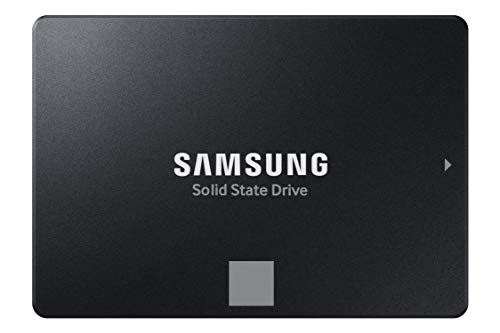
The 870 EVO’s title does what no other title in this set does: it prints a number. Read speeds up to 560MB/s, SATA III, 2.5-inch, 1TB — a complete specification sentence from the maker whose EVO line defined the consumer SATA era. That number sits essentially at the SATA interface’s practical ceiling, which is the honest context for it: within this connection standard, this is what fully realised looks like, and a Windows 10 machine fitted with it has extracted everything its bay can give.
At a terabyte, this is the pick for the Windows 10 machine with years of service intended — the good laptop, the home-office desktop that earns its keep — where the drive is bought as stewardship rather than triage. Samsung’s ownership depth is the supporting argument: mature management software, documentation for every stage of the swap, and a public record in this precise role stretching back through the line’s generations. If the machine deserves one careful purchase rather than one cheap one, the deliberation in this set usually ends here, with the only fully stated title and the deepest bench behind it.
- Capacity: 1TB, as stated in the listing title
- Interface: SATA III, 2.5-inch, as stated in the listing title
- Stated speed: read speeds up to 560MB/s, as stated in the listing title
- Line: 870 EVO, as stated in the listing title
Strengths
- The set’s only stated speed figure, at the SATA standard’s practical ceiling.
- A full terabyte for the machine intended to serve for years.
- The deepest support and software ecosystem among the SATA picks.
Trade-offs
- Stewardship positioning usually carries firmer pricing than the plain revival picks.
- Its figure is a read peak; write behaviour lives in the documentation like everyone else’s.
- Still a SATA drive: the ceiling it reaches is the interface’s, not the technology’s.
Best for: a valued Windows 10 machine seeking a fit-and-forget terabyte with its key figure stated up front.
Not suited for: a triage revival of a machine near retirement, where the plainer picks spend more wisely.

WD Blue 2TB — The Roomy One
Two terabytes answers the Windows 10 machine that is not just a computer but the household’s memory: the photo archive, the scanned documents, the music, the children’s school history, all on the machine in the corner. The WD Blue’s title confirms the capacity, the 3D NAND and the family — Western Digital, 2TB, WD Blue, internal PC SSD — and then, as in this guide’s earlier encounter with this listing family, it stops before the interface. For a boot drive that omission matters more than anywhere else, so the instruction stands at full volume: verify the connection in Western Digital’s documentation for this exact listing before ordering, because the machine’s bay is not negotiable and the title has declined to describe it.
Once verified, the proposition is generous and plain. A single drive that holds the system and the archive together simplifies a household machine’s life — one component to back up, one capacity to watch — and Western Digital’s support scale suits a component carrying that much of a family’s history. The counterweight is concentration: 2TB of household memory on one drive is a backup obligation, not a storage solution, and the owner who chooses this pick should pair it with the external copy the how-to section describes. Roomy, mainstream and — after one short verification — entirely knowable.
- Capacity: 2TB, as stated in the listing title
- Memory type: 3D NAND, as stated in the listing title
- Family: WD Blue internal PC SSD, as stated in the listing title
- Interface: Not stated in the listing title — verify with Western Digital documentation before ordering
Strengths
- The set’s largest capacity, ending storage arithmetic for an archive-holding machine.
- 3D NAND confirmed in the title, backed by one of the industry’s largest support operations.
- One drive for system and archive simplifies the household machine’s care.
Trade-offs
- The interface is unstated in the title; a boot drive bought unverified is a gamble.
- Concentrating the archive on the boot drive raises the backup stakes considerably.
- No speed figure in the title either; two facts await the same documentation visit.
Best for: the household’s archive-holding Windows 10 machine, where capacity is the whole question and verification is a small price.
Not suited for: a same-day repair, where a fully self-describing title is the safer instrument.

TEAMGROUP T-Force Vulcan Z 1TB — The Specified Terabyte
TEAMGROUP’s title is the most technically forthcoming of the SATA five: SLC cache, 3D NAND, TLC, 2.5-inch, SATA III, 1TB, under the T-Force Vulcan Z name. Each of those terms earns its place. The NAND type and the cache arrangement are the two facts that govern how a SATA drive behaves when it is written to hard — large copies, game installs, update storms — and they are precisely the facts most titles in this class omit. A listing that declares those facts speaks directly to the owner whose workload writes hard, rather than only about the fit.
The T-Force branding carries a gaming accent, and on a Windows 10 machine that accent translates plainly: this is the SATA pick pitched at the older gaming desktop, the one whose board predates M.2 but whose owner still installs hundred-gigabyte titles and notices how a drive behaves while doing it. A terabyte gives that machine its library and its system on one drive. No speed figure is printed, so the peak remains a documentation matter; what the title settles — cache, NAND, interface, size — is arguably the more useful half of the specification for the workload it addresses.
- Capacity: 1TB, as stated in the listing title
- Interface: SATA III, 2.5-inch internal, as stated in the listing title
- Memory: 3D NAND TLC with SLC cache, as stated in the listing title
- Stated speed: Not stated in the listing title — verify with TEAMGROUP documentation
Strengths
- The most complete technical title among the SATA picks: cache and NAND both declared.
- A terabyte pitched squarely at the older gaming or power-user desktop.
- Write-behaviour facts stated where rivals state none.
Trade-offs
- No peak figure in the title; the documentation completes the specification.
- Gaming-accented branding may read as ceremony to a purely office-bound machine.
- Support material is less ubiquitous than Samsung’s or Western Digital’s in some regions.
Best for: a Windows 10 gaming or power-user desktop on SATA, seeking a terabyte whose write behaviour is declared in its title.
Not suited for: a purchase that requires the peak figure from the listing itself before anything else.

Patriot P210 256GB — The Lean Revival
The P210 is the set’s exercise in sufficiency: 256GB, SATA 3, 2.5-inch, per its title, and nothing else claimed. That size is a boot drive in the strict sense — Windows, the browser, the office suite, the working documents — for a machine whose bulk lives somewhere else: the second drive in a desktop, the household’s network store, the cloud account the family actually uses. In that arrangement the lean drive is not a compromise but a correct allocation, fast where the system feels it and absent where it does not.
The discipline this pick demands is honesty about the machine’s habits, because 256GB punishes the sync-everything default more swiftly than any other pick here. A photo library set to mirror itself, a game installed on a whim, a year of unexamined downloads — each is a larger fraction of this drive than of any sibling. The owner who has already tamed those habits, or whose machine genuinely lives light, gets the full Windows 10 transformation for the set’s leanest commitment. Patriot’s title, the joint-shortest here, matches the proposition: the essentials, stated, and the rest left to a documentation check the thorough will make once.
- Capacity: 256GB, as stated in the listing title
- Interface: SATA 3, 2.5-inch internal, as stated in the listing title
- Stated speed: Not stated in the listing title — verify with Patriot documentation
- NAND type: Not stated in the listing title — verify with Patriot documentation
Strengths
- The leanest route to the full solid-state transformation for a light-living machine.
- Standard shell and interface; a one-procedure swap for older hardware.
- Pairs naturally with a desktop’s existing second drive or a household archive elsewhere.
Trade-offs
- The set’s tightest headroom; growth habits must already be tamed.
- The title declares the least, so the documentation check carries the most.
- As a machine’s only storage it will feel small within a year for most households.
Best for: a light-living Windows 10 machine with its bulk stored elsewhere, seeking the lean revival.
Not suited for: a single-drive household archive, which belongs with the terabyte and 2TB picks.

fanxiang S501 256GB — The M.2 Option
The S501 is the set’s change of geometry: NVMe, 3D NAND, PCIe Gen3x4, M.2 2280, 256GB, per a title that breaks off mid-parenthesis at its end — the read figure it began to quote is not completed in the listing title as supplied, so this guide quotes none and sends the reader to fanxiang’s documentation for the number. What is complete is the architecture, and the architecture is the story: a Gen3 NVMe stick for the later Windows 10 machines that shipped with an M.2 slot and, often, a small or spinning companion arrangement that never did the slot justice.
For those machines this pick offers the other road to the same destination. Where the SATA five revive through the bay, the S501 revives through the slot, at NVMe’s pace rather than SATA’s, in a machine whose board was built for it. The capacity discipline is the P210’s: 256GB is a system drive’s size, best married to a second drive or a light working set. fanxiang is a newer retail name than the majors in this set, which makes the documentation visit doubly worthwhile — figures and terms both — but the title’s architectural completeness, lane count included, is a better start than many famous listings offer. Verify the speed, confirm the slot, and the newest machine in the set gets its matching drive.
- Capacity: 256GB, as stated in the listing title
- Interface: PCIe Gen3x4 NVMe, M.2 2280, as stated in the listing title
- Memory: 3D NAND, as stated in the listing title
- Stated speed: Not stated in the listing title — verify with fanxiang documentation
Strengths
- The set’s only NVMe pick, for the later Windows 10 machines built with an M.2 slot.
- Architecture fully stated, including the Gen3x4 lane configuration.
- 3D NAND confirmed in the title, a fact several SATA rivals omit.
Trade-offs
- Useless to a bay-only machine; the slot check is absolute, not advisory.
- 256GB carries the same headroom discipline as the lean SATA pick.
- A newer retail name means a thinner public ownership record; the documentation visit matters.
Best for: a later Windows 10 laptop or desktop with an M.2 slot, seeking an NVMe boot drive at a system-drive size.
Not suited for: any machine without the slot, where the five SATA picks are the entire conversation.
How Do the Six Compare Side by Side?
| Drive | Capacity | Fit | Stated figure | Character |
|---|---|---|---|---|
| PNY CS900 | 500GB | 2.5-inch SATA III | Not stated | The sensible middle-sized revival |
| Samsung 870 EVO | 1TB | 2.5-inch SATA III | Reads up to 560MB/s | The stated, stewarded terabyte |
| WD Blue | 2TB | Not stated — verify | Not stated | The archive machine’s roomy answer |
| TEAMGROUP Vulcan Z | 1TB | 2.5-inch SATA III | Not stated | The write-declared gaming terabyte |
| Patriot P210 | 256GB | 2.5-inch SATA 3 | Not stated | The lean boot drive for light machines |
| fanxiang S501 | 256GB | M.2 2280 NVMe Gen3x4 | Not stated | The slot-based road for later machines |
The table divides cleanly into the bay road and the slot road, and then by how much each title is willing to say. Choose the road by the machine, the capacity by the current drive’s contents, and the pick by how much verification you are willing to do — the three decisions, in that order, are the whole guide in miniature.
How Do You Choose a Boot Drive for a Windows 10 Machine?
Measure the patient before prescribing. Open the current drive’s properties and note two numbers: its total size and its used space. The used space, projected forward at its recent growth, sets the floor for the new drive’s capacity — and it should be read honestly, including the user folders people forget: the downloads that became an archive, the desktop that became a filing cabinet, the game folder that became a museum. A new drive smaller than the honest projection does not create discipline; it creates a monthly emergency. The picks here span the realistic answers, from the P210’s lean 256GB for genuinely light machines to the WD Blue’s 2TB for the archive incarnate.
Then confirm the geometry with the machine’s own documentation. Bay or slot is not a preference; it is a fact about the hardware, and it halves the shortlist instantly. In a desktop, also confirm a spare SATA cable and power lead or order them alongside; in a laptop, confirm the bay is user-accessible and whether a bracket or caddy from the old drive must be transferred. These are five-minute checks that separate an afternoon’s pleasant project from a week of parcels.
The final choice is about the machine’s remaining life and the installation’s health, taken together. A sound machine with a clean Windows deserves cloning and a stewarded pick like the 870 EVO. A sound machine with a corrupted, sedimented Windows deserves the same drive and a clean install. A machine failing in several organs at once — battery, screen, hinges, drive — deserves an honest conversation about whether any drive is the right purchase, because a boot drive cures exactly one organ. This guide sells the cure gladly where the diagnosis fits, and says so where it does not.
How Do You Clone Windows 10 Onto the New Drive, or Install It Cleanly?
Cloning first, because it is the road most owners should take. Back up the irreplaceable files to somewhere external before anything else — not because cloning is dangerous, but because surgery on the drive that holds a family’s history deserves a spare copy on principle. Connect the new drive while the old one still runs the machine, by USB adapter, enclosure or spare bay, and run the cloning route the drive’s maker documents. The software copies the system partitions and the data, resizes to fit the target, and leaves you with a machine whose next boot — after the physical swap — is simply its old self, arriving faster.
The clean install is the other respectable road, chosen when Windows itself is the sedimented problem. It needs installation media — the USB installer discussed in this guide’s opening, a tool bought or made separately, never a pick — and an evening: install the system fresh on the new drive, reinstall the applications, restore the files from the backup, and re-enter the licences. The reward is a machine with no inherited faults; the price is the evening. Judge the old installation’s behaviour honestly and the choice makes itself.
Either road ends with the same fortnight: the old drive untouched in a drawer while the new arrangement proves itself through ordinary life — updates, printing, the household’s whole routine. Then the old drive takes its second career as the backup in an enclosure, and Windows 10’s update mornings stop being a household event. Set TRIM on, retire any defragmentation schedule aimed at the old disk, keep a fifth of the new drive clear, and the project is complete in the full sense: verified, insured and maintainable.
What Mistakes Do Windows 10 Upgraders Keep Making?
The first is buying the interface from a photograph: a 2.5-inch drive and an M.2 stick can share a listing’s gallery, and the WD Blue entry in this very set shows a major maker’s title omitting the interface altogether. Verify fit from documentation, always. The second is cloning a dying drive’s errors onto new hardware — bad sectors’ logical damage, a corrupted system — and then blaming the new drive for faithfully preserving them. If the old Windows was the problem, the clean install is the cure, and no drive includes it.
Third, owners undersize the purchase by measuring the current drive’s used space and forgetting its growth, then meet the red bar within the year. Fourth, they skip the backup because the clone “keeps everything”, misunderstanding that the clone and the original are the same data until the fortnight separates them. Fifth, they buy an installer USB believing they have bought storage — the confusion this guide’s opening exists to prevent. And sixth, they leave the old defragmentation schedule running against a solid state drive, spending its endurance to achieve nothing. Each mistake is small, common and entirely avoidable in a single careful afternoon.
How Does a New Drive Change Windows 10’s Daily Behaviour?
The changes arrive in a specific order, and knowing the order helps an owner judge the upgrade fairly. First the boot: the long stare at the manufacturer’s logo and the spinning dots collapses into a short wait, because the thousands of small files Windows reads while starting are exactly what solid state storage serves instantly. Then the login’s aftermath — the minutes during which a hard-drive machine is technically on but practically unusable while its startup programs queue — shrinks to seconds. Then updates: the monthly ritual that once occupied a morning becomes a restart and a pause, because update work is overwhelmingly small-file work.
What does not change deserves equal billing. A processor-bound task — exporting video, compiling, heavy photo processing — runs at the processor’s pace on any drive, and a machine short of memory will still swap, though it will swap less painfully. The honest summary is that a boot drive removes waiting, not work: every moment the machine once spent fetching is returned, and every moment it spent thinking remains its own. For the ordinary round of letters, browsing, messages and light creative work that defines most Windows 10 machines’ lives, fetching was most of the misery, which is why this modest upgrade carries its outsized reputation.
How Do You Prepare a Windows 10 Machine the Week Before the Swap?
The calmest swaps are won in the week before a screwdriver appears. Start with the backup, made early enough that it is not the last thing standing between you and the project: documents, photographs, browser bookmarks exported, the licence keys and account details a clean install would need, gathered into one folder that itself gets copied somewhere safe. Then run the machine’s own housekeeping — let Windows finish any pending updates and restarts, so the system being cloned is settled rather than mid-metamorphosis, and uninstall the programs you have been meaning to remove for a year, because cloning them across only to delete them is labour spent twice.
Midweek, do the physical reconnaissance. Find the machine’s service information and confirm the bay, the bracket, the cable situation and the screw sizes; a laptop’s drive may sit under a dedicated hatch or under the whole base panel, and the difference is worth knowing before the weekend. Check the firmware mode for storage is the modern AHCI setting rather than a legacy compatibility mode, since a legacy mode can hobble a solid state drive’s behaviour in ways that look like a faulty drive. Order any adapter, enclosure or cable the plan requires now, while their arrival is a convenience rather than a critical path.
By the swap day itself, the project should contain no discoveries: the backup exists, the system is settled, the fit is confirmed, the tools are on the table and the old drive’s fortnight drawer is chosen. What remains is an hour of gentle mechanics and a clone. Owners who prepare this way describe the upgrade as boring, and boring is the highest praise a boot-drive swap can earn — the excitement was supposed to be in the result, not the procedure.
What Should You Check in the First Week on the New Drive?
Day one belongs to verification. Confirm the system reports the capacity the title promised — allowing for the counting difference between makers and operating systems — because a capacity mismatch is the signature of a wrong-variant delivery and is painless to remedy now. Confirm the drive’s health and temperature read normally in its maker’s software or the system’s tools. Let Windows run its indexing and its update checks without interference; a new drive’s first days involve a background bustle that settles on its own, and judging the machine’s pace before it settles underrates the purchase.
The rest of the week belongs to ordinary life, deliberately unmodified. Open the programs in their usual order, print, scan, join the video call, let the household do its worst. Any missing file or sulking licence announces itself in this week, while the old drive sits untouched in its drawer holding the answer. Resist, with equal deliberation, the urge to fill the new drive’s headroom in celebration — the archive migration, the game reinstall festival, the photo library’s homecoming can all wait until the fortnight closes, and the drive will spend the interval proving itself rather than organising a housewarming.
At the fortnight’s end, close the project properly: the old drive is wiped or assigned, the backup rhythm is set with the old drive in its enclosure as the target, and the new drive’s details — code, capacity, date — are written down wherever the machine’s papers live. A swap closed this way stays closed. The machine simply works, the drawer holds a backup instead of a mystery, and the next storage conversation in the household starts from knowledge rather than from archaeology.
How Long Does a Revived Windows 10 Machine Stay Revived?
The revival lasts as long as the machine’s other components do, because the drive removes the one bottleneck that grows worse on its own schedule. A hard drive’s slowness compounds — fragmentation, ageing mechanics, an operating system’s accumulating appetite — while a solid state drive’s behaviour stays essentially flat across its life, governed by the headroom habit rather than by entropy. Owners routinely find the revived machine’s second life measured in years, and the limiting factor becomes a battery, a screen or a software requirement arriving from elsewhere, none of which the drive can be blamed for or asked to fix.
There is a planning consequence worth drawing. Because the drive will very likely outlast the machine’s remaining career, its purchase should be made with the emigration in mind: a capacity that will suit the next machine, a format the next machine will accept, documentation that will still be findable. The terabyte picks in this set emigrate gracefully to almost any successor; the lean picks emigrate to enclosures and second machines. Either way, the money spent reviving a Windows 10 machine is rarely spent only on that machine, and judging the purchase across both lives makes the arithmetic kinder than the sceptics expect.
And when the machine finally retires, the drive’s last duty in it is a proper farewell: a full backup taken, the drive wiped by the maker’s secure route before the machine changes hands, and its details struck from the household’s note. Storage remembers everything it is not told to forget, and a revived machine deserves an ending as careful as its revival.
Which Windows 10 Machines Should Not Get a New Drive?
Honesty in a buying guide includes the machines to walk away from. A laptop whose battery holds twenty minutes, whose screen is delaminating and whose drive is dying has not got a storage problem; it has a conclusion approaching, and a new drive fitted to it is a component in search of a computer. The same applies where the processor and memory were marginal a decade ago and the owner’s actual work has outgrown them: a boot drive will make that machine boot beautifully into tasks it still cannot perform. The diagnostic is the one this guide opened with — watch where the machine actually waits. If it waits on storage, buy the drive. If it waits on everything, the drive is a garnish.
There is a middle case that deserves care rather than dismissal: the machine that is sound but whose owner’s needs have changed — the household desktop asked to become a video-editing station, the student laptop asked to run professional software. There the drive is necessary but not sufficient, and the honest purchase is made as one line in a larger plan, with memory and expectations adjusted alongside. Guides that pretend a single component redeems every scenario sell drives; guides that name the scenarios sell the right drives, which is the only kind of selling that survives contact with the reader’s own machine.
For every other Windows 10 machine — the sound, the serviceable, the merely slow — the calculus of this guide holds, and it is not close. No other single purchase returns so much daily time for so little money and an afternoon’s gentle work. The walking-away cases are the exception that keeps the recommendation honest, and they are rarer than the revival cases by a wide margin.
How Do Updates and Maintenance Change on Solid State?
Windows 10’s maintenance habits were formed in the spinning era, and a new drive asks for three adjustments to them. The first is defragmentation: the operating system’s optimiser treats solid state drives differently from hard drives when it recognises them, running a light retrim rather than a file shuffle, and the owner’s job is simply to confirm the drive is recognised as solid state and leave the schedule alone. Manually defragmenting an SSD, a habit carried over from the old drive’s care, spends endurance to achieve nothing and should be retired with the disk it belonged to.
The second adjustment is expectation around updates. On the old drive, a major update was an event to schedule around; on the new one it is a restart and a short pause, because the thousands of small file operations an update performs are solid state’s home ground. Owners who delayed updates for fear of the morning-long occupation can return to letting the machine maintain itself promptly, which is a security benefit wearing a convenience costume. The third adjustment is backup cadence: a faster machine gets used more, accumulates more, and deserves its backup rhythm tightened accordingly — the enclosure with the old drive inside it, a monthly appointment, kept.
None of these adjustments is technical in any demanding sense. They are the small print of a successful revival, and they share a theme with everything else in this guide: the drive change is an afternoon, but the habits around it are what the household actually lives with for the following years.
What Does the Swap Teach a Household About Its Next Computer?
A successful revival recalibrates a household’s sense of what makes a computer feel old. The machine that was about to be replaced for slowness turns out to have been one component deep in its troubles, and that knowledge travels forward: the next computer gets specced with its storage taken seriously from the start, its owner’s upgrade instincts sharpen, and the phrase “it’s just getting old” loses its authority at the kitchen table. Several of the habits in this guide — measuring the drive before replacing it, cloning with a fortnight’s insurance, keeping the old component as the backup — generalise into a household doctrine that outlives Windows 10 entirely.
The doctrine has a financial corollary. A family that revives one machine successfully starts auditing the others before replacing them, and discovers how many “old” computers in the house are single-component problems wearing a general air of decline. Storage is the most common culprit, memory the second, and checking both before shopping will, across a decade, mean notably fewer computers bought and each of them liked for longer. The boot drive bought from this guide is therefore best understood as tuition as well as hardware: the afternoon teaches the method, and the method pays out on every machine the household owns thereafter.
One last piece of preparation costs nothing and saves the occasional project: photograph the machine’s interior before disconnecting anything, and again with the old drive half-removed. The photographs answer, instantly and without pride, the two questions every swap eventually asks — which cable went where, and which way round the bracket sat. Professionals do this without embarrassment on machines they have opened a hundred times, because memory is a component too, and it is the one most likely to be upgraded by a camera roll. Add the photographs to the backup folder before the clone begins, and the afternoon’s documentation is complete: the data copied, the system settled, the hardware recorded, the drawer chosen. It is a small ritual, and like every ritual in this guide it exists because the cheapest moment to record a fact is the moment when the fact is still visible — a truth the listings themselves teach, in titles that either state their specifications while they can or leave their readers to reconstruct them later at considerably greater effort. Preparation, in the end, is simply respect for that asymmetry, paid in advance at the cheap rate — a handful of photographs, a settled system, a written note — against the expensive rate charged by every fact that has to be recovered after the machine is open and the afternoon is spoken for. The owners who learn that exchange rate once tend to apply it everywhere: to the capacity check at first boot, to the generation check before checkout, to the note written while the title is still on the screen in front of them. Habits compound exactly like interest does, quietly and in one direction, and habits acquired around one drive swap keep working, unasked, on every purchase that follows it into the house thereafter. That is the quiet dividend of doing one upgrade properly: the machine gets faster, and so, permanently, does the household’s way of buying everything else. Few afternoons with a screwdriver pay out across quite so many future decisions, in quite so many unrelated shops and categories, for quite so many years. It begins, as every good outcome in this guide begins, with reading the title on the screen properly and completely, before the basket, before the parcel, before the screwdriver ever leaves the drawer.
Final Recommendation
Match the road to the machine and the size to the drive it replaces. Bay machines — most of the Windows 10 world — take the CS900 at 500GB for the mainstream revival, the 870 EVO at 1TB where the machine deserves stewardship and a stated figure, the Vulcan Z where write behaviour and a gaming accent matter, the P210 where the machine lives lean with its bulk elsewhere, and the WD Blue at 2TB where the machine is the household archive, once its interface is verified in Western Digital’s documents. Slot machines take the fanxiang S501 and the NVMe road, with its speed confirmed in the maker’s documentation. Clone a healthy system, install cleanly over a sedimented one, guard the old drive for a fortnight — and a Windows 10 machine stops feeling like an apology and goes back to being what it was bought as: the computer that simply works when its owner sits down.
Frequently Asked Questions
How do I check whether my machine takes a 2.5-inch drive or an M.2 stick?
Your machine’s specifications or service manual states its storage bay plainly, and opening the drive’s properties in Windows tells you what is fitted now, which is usually the same shape as what will fit next. Most Windows 10-era machines use the 2.5-inch SATA bay; later and thinner designs may offer an M.2 slot, sometimes alongside the bay. Five minutes with the manual settles it, and the answer divides this guide’s picks into your shortlist and everyone else’s.
Will an SSD really make Windows 10 feel faster, or is my processor the problem?
Watch the performance monitor during a slow moment: if the disk sits at full activity while the processor idles, storage is the bottleneck and a drive swap is transformative. Boots, logins, program launches and updates are all storage-bound on a hard drive. Processor-bound work — video exports, heavy computation — will not speed up, and a memory-starved machine may need memory as well, but for the everyday round the drive is usually the whole story.
Should I buy a USB with Windows 10 on it instead?
That product is installation media — a tool for putting Windows onto a drive — not a drive itself, which is why it is not a pick in this guide. You may still want one for a clean install, and making your own from Microsoft’s official tool is the route most owners take. Judge it as a tool purchase, separately from the storage decision.
What capacity should I choose?
Start from your current drive’s used space, projected forward: a light machine with bulk stored elsewhere suits 256GB to 500GB; the mainstream household fits 500GB to 1TB; the machine holding the family archive wants the 2TB pick. Keep a fifth of the new drive empty in your planning, because a solid state drive kept brimful loses its pace and its patience.
Can I clone my existing Windows 10 instead of reinstalling?
Yes, and for a healthy installation it is the recommended road: connect the new drive by adapter or spare bay, clone with the maker’s documented route, swap the drives, and keep the old drive untouched for a fortnight as insurance. Choose a clean install instead when the existing Windows carries years of faults you do not wish to preserve at higher speed.
My laptop has an M.2 slot. Which pick fits?
The fanxiang S501 is this set’s M.2 pick: NVMe over PCIe Gen3x4 in 2280 form at 256GB, per its title. Confirm your slot accepts the 2280 length and the NVMe protocol — some early slots are SATA-only — and verify the drive’s speed figure in fanxiang’s documentation, since its listing title does not complete the number.
Is it worth upgrading a Windows 10 machine at all now?
If the machine is sound apart from its drive, yes — and the purchase stays rational because every pick here is standard hardware with a life beyond this operating system: the drive can emigrate to a successor machine or retire into an enclosure as fast portable storage. What is not worth upgrading is a machine failing in several ways at once; a boot drive cures storage, and only storage.
Related Guides
Related reading for the workbench: our guides to small SATA SSDs for reviving older laptops and desktops, M.2 drives in the 500GB to 1TB band for modern machines, and NVMe generations explained for a future upgrade.