What's inside
- Key Takeaways
- Quick Picks
- How We Chose These Picks
- Which Size in This Band Fits the Way You Actually Store?
- How Do the Six Compare Side by Side?
- How Do You Decide Between 500GB and 1TB From Evidence?
- How Do You Install and Migrate in a Single-Slot Machine?
- What Mistakes Do Buyers in This Band Keep Making?
- How Does This Band Age as Libraries Grow?
- How Do You Read a Capacity Band’s Listings Without Being Fooled?
- What Does the Second Year of a Terabyte Actually Look Like?
- How Should a Shared or Family Machine Use This Band?
- What Happens When This Drive Becomes the Old Drive?
- How Do You Verify a New Drive in Its First Hour?
- Why Does This Band Exist at All?
- Final Recommendation
- Frequently Asked Questions
- Related Guides
As an Amazon Associate I earn from qualifying purchases. This post may contain affiliate links at no extra cost to you.
gizmoverdict.com is reader-supported. When you buy through links on our site, we may earn an affiliate commission.
Where to buy: The six drives below each link to a listing whose title is the only specification source used here, and in a band where 500GB and 1TB versions share product photographs, the capacity printed in the title at checkout is the detail to verify before anything else. A photograph cannot tell you which size is in the basket; the title can.
The best 500gb 1tb m2 ssds live in the band where most real machines actually shop. Below it sit the small revival drives; above it, the multi-terabyte libraries. Between 500GB and 1TB, in the M.2 format, is the size of a working life: an operating system with years of updates ahead of it, the applications of a trade or a degree, a game rotation, a project shelf — held on one stick, in one slot, without a second drive’s ceremony. The six picks here divide that band deliberately: two at 500GB for the system-drive specialists, four at 1TB for the single-drive majority, and one listing whose title, remarkably, states neither — a case this guide handles in the open rather than around.
Every pick is an M.2 NVMe drive; five titles say so outright, and the sixth — the Samsung 970 EVO Plus, whose listing title consists of the series name alone — is treated below with the honesty that silence deserves: its capacity, interface and speed are all recorded as not stated, and its verdict explains how a famous series name should and should not be bought. The stated figures elsewhere are worth gathering in one place: PCIe 4.0 for both SanDisk Optimus drives and the Samsung 990 PRO, a Gen4 claim with up to 7,100MB/s from the Crucial P310, a 7,450 MB/s headline from the 990 PRO at 1TB, and an NVMe claim without a generation from the WD Blue SN580.
The band’s central question is not speed but fit: is your machine a one-drive machine, and if so, is its working set a 500GB life or a 1TB life? Answer that from the evidence of your current drive — how full it is, how fast it fills, what you keep deleting — and the six verdicts below sort themselves into a shortlist of one or two. The rest of this guide is about making that answer precise, and about the two listings in the set whose titles ask a little more of the reader than the others.
Key Takeaways
- The band divides by job: 500GB picks suit a dedicated system drive beside other storage; 1TB picks suit a machine’s only drive.
- Every capacity below is per-pick from its own title — two drives at 500GB, three confirmed at 1TB, and one title that states no capacity at all.
- Stated speeds exist for two picks only: up to 7,450 MB/s for the Samsung 990 PRO 1TB and up to 7,100MB/s for the Crucial P310 1TB.
- Both SanDisk Optimus 5100 titles state PCIe 4.0 and M.2 2280 but no speed; the WD Blue SN580 title states NVMe and 1TB but no generation.
- The Samsung 970 EVO Plus listing title is the series name alone; everything else about that pick must be verified in Samsung’s documentation.
- Judge your current drive’s fullness before choosing the size; the band’s wrong purchases are almost all capacity misjudgements, not speed ones.
Quick Picks
| Pick | Badge | Why it earns its place |
|---|---|---|
| SANDISK Optimus 5100 1TB | The New Terabyte | PCIe 4.0, M.2 2280, NVMe at 1TB from SanDisk’s current line; a complete architectural title without a speed claim. |
| SANDISK Optimus 5100 500GB | The System-Drive Half | The same Optimus architecture at 500GB, shaped for the boot-drive role in a machine with storage elsewhere. |
| Samsung 990 PRO 1TB | The Stated Summit | PCIe 4.0 with up to 7,450 MB/s printed in the title; the band’s fastest stated figure at 1TB. |
| Crucial P310 1TB | The Laptop-Minded Terabyte | Gen4 with up to 7,100MB/s stated, pitched in its title at laptops and desktops alike. |
| Samsung 970 EVO Plus | The Name Alone | A celebrated series whose listing title states nothing beyond the name; buy it, if at all, from the documentation. |
| WD Blue SN580 1TB | The Mainstream Terabyte | 1TB NVMe from Western Digital’s Blue family; generation unstated in the title, so the documents arbitrate. |
How We Chose These Picks
The band was the brief: M.2 drives at 500GB and 1TB, the sizes a single-slot machine can actually live on, from makers with support operations a reader can find again in three years. Six survived, and their distribution is the market’s distribution in miniature — a pair of same-line siblings at the two sizes, two flagships carrying stated figures, one mainstream family drive, and one listing that tests the reader. That last inclusion is deliberate. A guide that only prints cooperative listings teaches nothing about the uncooperative ones, and the 970 EVO Plus entry below is this guide’s worked example of buying a famous name responsibly.
Specification discipline in this band has a special edge, because capacity siblings share photography, packaging design and often a single listing family. The rule applied throughout: a fact belongs to a pick only if that pick’s own title states it. The 990 PRO’s 7,450 MB/s belongs to the 1TB title here because that title prints it; the Optimus drives’ silence on speed is recorded as silence even though the same shelf holds faster-talking drives; the SN580’s generation is left open because its title leaves it open. Readers who internalise that rule can shop this band anywhere, including in listings this guide has never seen.
Each verdict then argues from the machine outward: single-slot or multi-drive, growing library or stable one, stated-figure buyer or documentation reader. In a band this practical, those distinctions decide satisfaction far more reliably than the few hundred stated megabytes per second separating the two flagships.
Which Size in This Band Fits the Way You Actually Store?
The reviews are ordered to make the band’s logic visible. The Optimus pair opens it, same line at both sizes, so the capacity decision can be watched in isolation. The two stated-speed flagships follow at 1TB, where the comparison is about figures and ecosystems. The 970 EVO Plus then demonstrates the documentation-first purchase, and the SN580 closes the set as the mainstream terabyte with one fact left open. If you read only one thing before the verdicts, read your current drive’s properties panel: its used space, honestly projected two years forward, is the most predictive number in this entire guide.

SANDISK Optimus 5100 1TB — The New Terabyte
SanDisk’s Optimus 5100 at 1TB opens the set as the complete modern sentence without a boast in it: NVMe SSD, PCIe 4.0, M.2 2280, 1TB. Architecture, interface generation, format and capacity are all present; a speed figure is not, and the spec box records that in the usual way. What the title describes is the current shape of a mainstream fast drive from a maker whose name has been on flash memory since flash memory had a retail shelf, and for a great many single-drive machines that description is the whole requirement.
Its role in the band is the reference terabyte against which the noisier picks are compared. The flagships below it add stated figures; the SN580 matches its capacity with a generation left open; its own 500GB sibling halves its room for the system-drive role. An owner seeking the current interface generation, the band’s most useful capacity, and a purchase settled almost entirely by the listing itself will find this pick quietly sufficient — with the single errand of the documentation, where the speed and endurance figures live, run once before checkout as this guide recommends for every silent figure.
- Capacity: 1TB, as stated in the listing title
- Interface: PCIe 4.0, M.2 2280, NVMe, as stated in the listing title
- Line: Optimus 5100, as stated in the listing title
- Stated speed: Not stated in the listing title — verify with SanDisk documentation
Strengths
- A complete architectural title at the band’s most useful capacity.
- Current-generation PCIe 4.0 interface, matching recent boards and laptops.
- A same-line 500GB sibling exists for the two-drive version of the same plan.
Trade-offs
- No speed figure in the title; the number lives in SanDisk’s documents.
- A newer line name carries a shorter public ownership record than the veteran nameplates here.
- Endurance details likewise await the documentation visit.
Best for: a single-drive Gen4 machine seeking a plainly specified terabyte from a long-established flash maker.
Not suited for: a buyer speccing a workstation from stated figures alone, who should take the documentation trip or choose a flagship below.

SANDISK Optimus 5100 500GB — The System-Drive Half
The same line at half the size is not a lesser pick; it is a pick for a different machine plan. Five hundred gigabytes on a PCIe 4.0 M.2 stick is a system drive in the classical sense — the operating system, the applications, the working documents — inside a computer whose photographs, media and archives live on a second drive, a network box or a portable disk. In that company the Optimus 500GB’s title reads as a precise instrument: same architecture as its sibling, no money spent doubling room the plan never uses.
The candour this pick requires is about the other plan, the single-slot one. A laptop whose only drive this would be should choose it only with a genuinely small working set — cloud-kept files, streamed media, a handful of applications — because 500GB defends its headroom poorly against growth. The verdict below splits exactly on that line, and it is the band’s most important split: this size is a component in a system, the terabyte above is a system in itself. Buy the one your machine plan describes, and both are right answers.
- Capacity: 500GB, as stated in the listing title
- Interface: PCIe 4.0, M.2 2280, NVMe, as stated in the listing title
- Line: Optimus 5100, as stated in the listing title
- Stated speed: Not stated in the listing title — verify with SanDisk documentation
Strengths
- Current-generation architecture at the band’s entry size, ideal for a dedicated boot drive.
- Shares a line and documentation with its 1TB sibling, simplifying a matched two-drive plan.
- A fully architectural title; nothing about the purchase needs assuming.
Trade-offs
- Half the room of the band’s main size; a growing single-drive machine will outgrow it.
- Speed and endurance figures sit in the documentation, as with its sibling.
- Its value depends on storage existing elsewhere; alone, it is a constraint.
Best for: a Gen4 desktop or multi-drive machine seeking a dedicated system drive while bulk lives on slower storage.
Not suited for: a single-slot laptop with a growing library, where the 1TB sibling is the honest choice.
Samsung 990 PRO 1TB — The Stated Summit
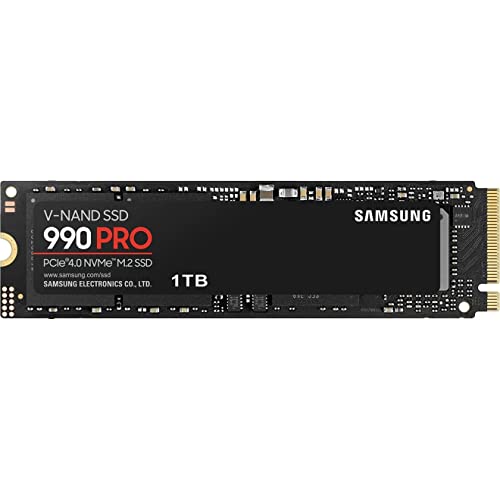
At 1TB the 990 PRO’s title repeats its family’s complete performance: PCIe 4.0, M.2 2280, up to 7,450 MB/s, all printed, nothing implied. In this band that completeness is the flagship argument in its purest form. A buyer can compare this drive against every other pick in the guide using the listings alone, and the comparison flatters it: it is the fastest stated figure at the terabyte size, from the maker with the deepest public record in consumer flash, in the format every modern slot accepts.
The terabyte version of a flagship invites one specific question the 2TB version never faces: is the buyer purchasing pace or purchasing room? At 1TB the honest answer is usually pace — a workstation’s scratch and system drive, a gaming machine whose library rotates through a second disk, a creator’s current-project drive. For those roles the stated figure is not decoration; sustained project work is where sequential pace earns its keep. For a single-drive machine whose library is the point, the same money deliberates between this pick’s figure and a larger drive elsewhere, and this guide’s recurring advice applies: room outlasts pace in the owner’s third year. Choose the 990 PRO 1TB for the job its specification describes, and it is the band’s summit. Choose it as a library, and it is a fast room that fills.
- Capacity: 1TB, as stated in the listing title
- Interface: PCIe 4.0, M.2 2280, as stated in the listing title
- Stated speed: up to 7,450 MB/s, as stated in the listing title
- Heatsink: Not stated in the listing title — verify with Samsung documentation
Strengths
- The band’s highest stated figure at 1TB, printed in a complete title.
- Flagship support depth: management software, documentation and a long service record.
- Suits the system-and-scratch role in a serious workstation precisely.
Trade-offs
- At 1TB its premium buys pace, not room; library-first owners should weigh larger drives.
- A Gen4 slot is required to feed the stated figure.
- Cooling provision is unnamed in the title, leaving thermal planning to the board.
Best for: a Gen4 workstation or gaming machine seeking the fastest stated terabyte as a system and working drive.
Not suited for: a single-drive library machine, where capacity deserves the budget first.

Crucial P310 1TB — The Laptop-Minded Terabyte
The P310’s title addresses two machines at once — “for Laptop, Desktop (PC)” — and at 1TB that address finds its natural home. The single-slot laptop is the band’s defining host, and a title that names it, alongside PCIe Gen4 and a stated up to 7,100MB/s, describes the most common serious upgrade in modern computing: the notebook that arrived with a quarter or half terabyte, filled it with a degree or a job, and now needs a full terabyte of current-generation pace without a change of computer.
Against the 990 PRO it concedes a few hundred stated megabytes per second and argues the ownership case: Crucial’s cloning guidance and support library are built for exactly the first-time upgrader this pick serves, and its parentage in the memory industry is as deep as the industry offers. In a laptop the slot and the chassis set the real ceiling anyway, which compresses the stated gap between the two flagships to a margin few owners will ever isolate. The desktop builder gets the same drive and the same reasoning in a roomier case. This is the band’s most hospitable terabyte: fully stated, doubly addressed, and aimed at the machine most likely to receive it.
- Capacity: 1TB, as stated in the listing title
- Interface: PCIe Gen4 NVMe, M.2 2280, as stated in the listing title
- Stated speed: up to 7,100MB/s, as stated in the listing title
- Intended hosts: laptop and desktop, as stated in the listing title
Strengths
- A stated Gen4 figure close enough to the flagship’s to make the comparison interesting.
- The only title in the set that names its host machines, laptops first among equals.
- Cloning and support material pitched at the first-time upgrader.
Trade-offs
- On stated peak it trails the 990 PRO’s headline at the same capacity.
- Laptop results ride on the machine’s slot generation and cooling.
- No heatsink is mentioned in the title; desktops rely on board shields.
Best for: a Gen4 laptop or desktop seeking a fully stated terabyte with an upgrader-friendly support story.
Not suited for: a benchmark-led workstation build where the highest stated figure decides.

Samsung 970 EVO Plus — The Name Alone
Here is the guide’s examination question. The listing title for this pick reads, in full: “Samsung 970 EVO Plus Series”. No capacity. No interface. No format, no generation, no speed. Everything a buyer needs has been left to the listing’s variant selector and to Samsung’s documentation, and this spec box therefore records the most instructive set of silences in the guide. The 970 EVO Plus series is, in the market’s memory, a celebrated line — but a series is a family, not a drive, and families contain many capacities and more than one era.
How, then, should this pick be bought? Exactly as its verdict states: from the documentation outward. Select the variant, note its exact capacity as the listing’s own selector states it, then confirm the full specification in Samsung’s published material for that variant before paying. Bought that way, a drive from a well-regarded series is a perfectly rational purchase, and the support depth behind the Samsung name applies in full. Bought on the name alone — capacity assumed from a photograph, generation assumed from the series’ reputation — it is the one pick in this guide that can arrive as a genuine surprise. The name earns the listing a place in this guide; only the paperwork earns it a place in a machine.
- Series: Samsung 970 EVO Plus, as stated in the listing title
- Capacity: Not stated in the listing title — verify with Samsung documentation and the listing’s variant selector
- Interface: Not stated in the listing title — verify with Samsung documentation
- Stated speed: Not stated in the listing title — verify with Samsung documentation
Strengths
- A series with a long, well-regarded public history in this exact market.
- Samsung’s documentation and support depth stand fully behind the name.
- Multiple variants in the series let a careful buyer match capacity precisely.
Trade-offs
- The title states nothing beyond the series; every material fact requires verification.
- Variant confusion is a live risk when a listing family spans capacities.
- It cannot be compared with the other picks from listings alone, by its own design.
Best for: a documentation-first buyer seeking a drive from this celebrated series, who will confirm the exact variant’s specification before ordering.
Not suited for: a one-click purchase on a deadline, where the fully stated picks above are the responsible choice.

WD Blue SN580 1TB — The Mainstream Terabyte
The SN580 closes the set from the mainstream: Western Digital’s Blue family, 1TB, NVMe, internal solid state drive, per its title. The Blue badge has signified the sensible middle of Western Digital’s ranges for years, and this pick’s proposition is that sensibility in M.2 form — a terabyte from one of the industry’s largest support operations, aimed at the general upgrade rather than the flagship contest. Its title leaves one door open: the PCIe generation is not stated, and in a band where rivals print Gen4 proudly, that omission is the pick’s defining errand.
The errand is short. Western Digital’s documentation for the SN580 states the drive’s interface generation and figures, and running that check — as this guide has now recommended in several dialects — converts this pick into a fully known quantity before money moves. What waits on the other side of that check is the mainstream bargain in its classic form: no flagship premium, no stated-figure contest, a terabyte of NVMe from a maker whose support pages will still exist when the drive is old. For the family desktop and the work laptop alike, that is a complete sentence once the generation is confirmed to match the slot.
- Capacity: 1TB, as stated in the listing title
- Interface: NVMe internal SSD, as stated in the listing title
- Generation: Not stated in the listing title — verify with Western Digital documentation
- Stated speed: Not stated in the listing title — verify with Western Digital documentation
Strengths
- Mainstream positioning backed by one of the industry’s largest support operations.
- A full terabyte in the universal NVMe M.2 class this band is built on.
- The Blue family’s long mainstream record suits mixed household workloads.
Trade-offs
- Generation and speed both await the documentation; the title settles capacity alone.
- It does not contest the flagships’ stated figures and should not be priced as if it did.
- Variant and listing families under the Blue name reward careful code-checking at checkout.
Best for: a general-purpose terabyte upgrade where Western Digital’s support depth matters and one documentation check is no burden.
Not suited for: a purchase requiring generation and speed settled by the listing itself before checkout, without exception or substitute.
How Do the Six Compare Side by Side?
| Drive | Capacity in title | Interface in title | Stated speed | Character |
|---|---|---|---|---|
| SANDISK Optimus 5100 | 1TB | PCIe 4.0, M.2 2280 | Not stated | The plainly built current terabyte |
| SANDISK Optimus 5100 | 500GB | PCIe 4.0, M.2 2280 | Not stated | The system-drive half of the same line |
| Samsung 990 PRO | 1TB | PCIe 4.0, M.2 2280 | Up to 7,450 MB/s | The stated summit at a terabyte |
| Crucial P310 | 1TB | PCIe Gen4, M.2 2280 | Up to 7,100MB/s | The laptop-minded flagship alternative |
| Samsung 970 EVO Plus | Not stated | Not stated | Not stated | The series name alone; verify the variant |
| WD Blue SN580 | 1TB | NVMe; generation not stated | Not stated | The mainstream terabyte with one open fact |
Notice how the table’s information thins as it descends, and how the verdicts thin with it in exactly the same places. That correspondence is the guide’s method made visible: confidence is bought with stated facts, and where the facts thin, the documentation — not the reviewer’s imagination — does the thickening.
How Do You Decide Between 500GB and 1TB From Evidence?
Open the drive you already own and do arithmetic instead of soul-searching. Note its total size and its used space. Then ask what the used space consists of: if the bulk is a media archive or a game shelf, that bulk has cheaper homes and the working set may be surprisingly small; if the bulk is the working set itself — applications, projects, a photo catalogue in active use — it will follow you to the new drive at full size. Project the honest working set forward two years at the growth rate your current drive demonstrates, add the operating system’s own appetite, and hold the result against the two sizes with a fifth kept in reserve. The size that survives that arithmetic with room to spare is your size.
Two common distortions deserve naming. The first is the new-drive optimism that assumes a tidier future self; libraries do not shrink because a drive is faster, and the owner who filled 512GB with good intentions will fill it again. The second is the photograph effect: because the 500GB and 1TB versions of a line look identical and sit near each other in listings, the smaller one gets chosen by momentum and regretted by spring. The Optimus pair in this guide is the standing illustration — same line, same architecture, one decision — and the decision deserves the arithmetic, not the momentum.
Where the arithmetic lands between sizes, take the larger. Capacity regret compounds monthly and is cured only by another purchase; the reverse regret, a drive with room to spare, has never once been reported as a burden. In this band above all, where the price of the step is modest and the drive will serve for years, headroom is the cheapest insurance on the page.
How Do You Install and Migrate in a Single-Slot Machine?
The single-slot laptop is this band’s home ground, and its migration has one extra step: the new drive starts outside the machine. Connect it by a USB M.2 enclosure, clone the existing system across with the maker’s endorsed utility, then swap the sticks and boot. The old drive, now the one in the enclosure, becomes the fortnight’s insurance and afterwards the household’s fastest portable storage — a second career this guide has praised before and will praise again, because it converts the upgrade’s leftover into the backup the machine always needed.
Desktops with a free slot have the easier geometry — both drives mounted at once, clone internally, set the new one as the boot device — and desktops with a second storage drive have the easiest decision: the 500GB picks exist for them. In every geometry the verifications afterwards are the same three: full capacity reported, the slot negotiating the generation paid for, and TRIM active. Add a firmware check while the maker’s page is open, and the installation is complete in the professional sense: not merely working, but confirmed.
One warning belongs to this band specifically. Because capacity siblings share a listing’s photographs, confirm on first boot that the system reports the capacity you ordered. It takes ten seconds, it catches the one-digit basket error while returns are painless, and it is the cheapest possible moment to discover that the stick in the slot is the other sibling.
What Mistakes Do Buyers in This Band Keep Making?
The band’s signature error is the basket mix-up between capacity siblings — the 500GB arriving where the 1TB was intended, discovered at the first capacity check or, worse, at the first storage warning. Its prevention is the title check at checkout and the capacity check at first boot, both described above. Second comes the generational shrug: paying Gen4 money for a Gen3 slot, or fitting a Gen4 drive where the SN580’s unstated generation was assumed rather than verified. The slot’s specification is a two-minute read; make it.
Third, buyers treat a famous series name as a specification — the 970 EVO Plus entry is the guide’s monument to that error — and assume capacity and interface from reputation. Fourth, they buy the 500GB size for a single-drive life because the photograph looked the same, which is the arithmetic error in its purest form. Fifth, they fill the new terabyte in the first month by migrating an archive that had a home already, and spend the drive’s life at the fullness where its housekeeping slows. The band punishes none of these errors cruelly, but it punishes all of them monthly, in small frictions that were each avoidable in a single afternoon.
How Does This Band Age as Libraries Grow?
The terabyte that feels generous today is on a known trajectory: operating systems swell, applications swell faster, and the working set of a trade or hobby grows with the owner’s ambition. The defence is not a bigger purchase than the band offers — it is the tiering habit, in which the M.2 drive holds the living material and everything dormant emigrates to cheaper storage on a rhythm. Owners who tier quarterly find a 1TB drive sufficient for a decade of work; owners who never tier find 2TB insufficient by year three. The band, in other words, is a test of housekeeping more than of budget.
The 500GB picks age on the same curve, faster, which is why their verdicts confined them to machines with storage elsewhere: in that company their ageing is somebody else’s problem, handled by the archive drive’s own slower clock. And every pick in the band, whatever its size, ages into the same honourable second career — the enclosure, the relative’s laptop, the media machine — provided its documentation remains findable, which is the final reason this guide keeps score of paperwork alongside pace.
How Do You Read a Capacity Band’s Listings Without Being Fooled?
Listings in this band share a visual language — same renders, same badges, same family names — because the products genuinely are siblings, and the shopper’s defence is to read for the variables that differ. There are four: the capacity, the generation, the stated figure where one exists, and the model code that binds them. Read in that order and a listing family becomes a small table you can hold in your head. Read by photograph and the family becomes a lottery, because the photograph is the one element guaranteed identical between the drive you want and the drive you do not.
The variant selector deserves its own warning. On listings that gather a whole family under one page, the selector’s default is not a recommendation; it is frequently the smallest or the most returned variant, and it changes the title’s numbers as it changes the basket’s contents. The discipline is to set the selector deliberately, then re-read the full title as it then stands, because the title after selection is the contract you are actually signing. The 970 EVO Plus entry in this guide is the extreme case — a title with nothing to re-read — but the habit it teaches applies to every sibling set on the shelf, including the Optimus pair, whose titles reward the habit by differing cleanly.
Finally, learn to hear what a complete title sounds like, because the sound becomes a reflex. Capacity, generation, format, figure: the 990 PRO and P310 titles have that rhythm, and once heard, its absence is audible in every other listing you ever open. Buyers with that reflex are not cleverer than other buyers; they are simply listening on the channel where the facts are broadcast, instead of the channel where the photographs are.
What Does the Second Year of a Terabyte Actually Look Like?
Year one is the honeymoon this band is sold on: the migration done, the old fullness forgotten, the machine quick. Year two is when the drive’s real biography is written, in updates and accumulations. The operating system has taken its annual tithe. The applications have each grown a cache. The project folder has a stratum of finished work nobody deleted because the drive still showed room. And the games — there are always games, or their professional equivalent in sample libraries and asset packs — have staged their quiet expansion. A terabyte absorbs all of this without complaint, which is precisely its danger: it complains later than a smaller drive, and by the time it complains the accumulation is archaeological.
The owners who sail through year two treat the drive’s properties panel as a seasonal instrument, like checking a boiler before winter. Four glances a year, five minutes each: what grew, what is dormant, what emigrates to the archive drive today rather than under pressure later. That rhythm keeps the working set working-sized and the headroom intact, and it converts the drive’s ageing from a surprise into a schedule. The owners who skip it meet the storage warning in the middle of a deadline, perform the same emigration in a temper, and conclude wrongly that the drive was too small. The drive was fine; the calendar was empty.
There is a consolation for the archaeological accumulators, and it is this band’s best-kept secret: the emigration, when it finally happens, is fast. Moving a hundred gigabytes off an NVMe drive is a coffee break, not a weekend, and the archive it lands on can be the retired predecessor in its enclosure. Year two’s lesson is therefore gentle. The terabyte forgives a year of inattention in an afternoon — provided the afternoon is eventually spent.
How Should a Shared or Family Machine Use This Band?
A machine with several users multiplies everything this guide has said about capacity, because each account keeps its own caches, its own downloads, its own idea of what “temporary” means. On a shared desktop or the family laptop, the terabyte picks stop being generous and become merely correct, and the 500GB picks should be excused from consideration unless a second drive carries the household’s bulk. The arithmetic of the choosing section still applies; it is simply run on the household’s sum rather than one person’s, and households reliably underestimate themselves by one member’s entire footprint.
Account hygiene is the shared machine’s version of tiering. Give the archives a single home — one shared folder on the data drive or the enclosure — rather than letting every account keep a private copy of the family photographs, because duplication is the silent multiplier in shared storage. Set the downloads of every account to empty into the same reviewed place. These are social arrangements wearing technical clothes, and they work for exactly as long as they are agreed out loud, which is a sentence about households as much as about drives.
And the shared machine makes the strongest case in this guide for the documented, mainstream picks — the SN580’s support depth, the Optimus line’s plainness — because a machine with several owners needs its components boring. The flagship’s stated figure delights one user; the mainstream drive’s findable documentation rescues all of them, on the evening something needs explaining. Choose for the household that will actually maintain the machine, not for the one member who read the benchmarks.
What Happens When This Drive Becomes the Old Drive?
Every pick in this guide is a future hand-me-down, and planning that future at purchase time is the mark of the grown-up storage buyer. A 1TB M.2 drive retired from a main machine in four years will still be, by the standards of that day, a fast and useful component: the natural upgrade for a relative’s laptop, the system drive of a media machine, the speedy heart of a portable enclosure. Its second life will be longer and happier if its documentation remains findable and its model code remains legible — two properties entirely determined by which pick you choose and whether you keep its details noted alongside it.
The portable afterlife deserves emphasis because this band’s sizes are the portable sweet spot. A terabyte in an enclosure is a working archive that fits in a coat pocket: the photo library on location, the project shelf between office and home, the backup that travels. Owners who anticipate that afterlife buy the documented drive and keep the receipt; owners who do not, improvise it later from a drawer of anonymous sticks. The improvisation works, mostly, but the anticipated version works better and costs nothing extra at the only moment it can be arranged, which is now.
There is a corresponding duty at the other end of the chain. When this drive eventually holds a copy of your life and you pass the machine or the stick along, wipe it properly, with the maker’s secure-erase route rather than a hopeful delete. Storage’s inheritability is a virtue precisely because the drives remember; the remembering should be a choice, made by you, at the proper time. Buy with the second life in mind, and close the first one deliberately.
How Do You Verify a New Drive in Its First Hour?
The first hour with a new drive has a checklist, and running it converts the purchase from a hope into a confirmed fact while every remedy is still easy. First, capacity: the system should report the size the title promised, allowing for the usual difference between the maker’s counting and the operating system’s. A report matching the other sibling’s size is the basket error, caught at the only painless moment. Second, link: the drive’s software or the board’s utility should show the slot negotiating the generation the purchase assumed. A Gen4 drive idling at Gen3 link speed in a Gen4 slot is a seating or settings matter, fixable now and mysterious later.
Third, temperature under a sustained copy: run a large file across the drive and watch the reported temperature settle somewhere the documentation considers ordinary. Fourth, the firmware version, checked against the maker’s current release while the drive is still empty enough to update without ceremony. Fifth — the step that separates the professional habit from the amateur one — make the first backup of the new arrangement before the old drive is wiped, reassigned or handed on. The fortnight rule from the installation section governs the old drive; this hour governs the new one, and together they mean the data exists in two places at every moment of the transition, which is the entire secret of calm migrations.
None of the five checks needs equipment beyond the machine itself and the maker’s software. All five together take less time than the cloning did. And a drive that has passed them has effectively begun its service record — the note, recommended elsewhere among these guides, that records code, capacity, host and date. Start the record in the first hour and the drive’s whole life, including its eventual second one, is documented from a position of knowledge rather than reconstructed from a position of need.
Why Does This Band Exist at All?
It is worth pausing on the band itself, because its boundaries are not marketing accidents. Five hundred gigabytes is roughly where a modern operating system, a professional application set and a working set of files stop being a negotiation; one terabyte is roughly where a single drive stops needing a companion for most owners. The band between them is therefore the territory of sufficiency — the sizes at which storage stops being the machine’s problem. Below the band, capacity management is a hobby the owner never chose; above it, capacity is a luxury being warehoused against a hypothetical. Inside it, the drive simply does its job, and the owner’s attention is free for the work the machine was bought to do.
That framing explains the band’s peculiar emotional register: its purchases are the least regretted in the whole storage market, because they are the most honestly matched to need. Nobody brags about a terabyte, and nobody apologises for one either. The flagships in this guide wear the band’s largest stated figures, the mainstream picks wear its plainest titles, and the whole set shares the property that matters — each drive, correctly chosen by the arithmetic of the choosing section, will spend years being unremarkable in the best sense. In a market that sells excitement by the gigabyte, sufficiency is the underrated specification, and this band is where it lives.
So if your deliberation feels anticlimactic — a terabyte, a known slot, a documented drive, a quiet checkout — that is the band working as designed. The exciting storage purchases are the ones in the other guides: the multi-terabyte libraries, the generational summits. This one is the purchase you make once, verify in an hour, and think about again in year four, when it is still, simply, enough.
One further habit completes the band’s method, and it costs a single line in a notebook or a notes application: record the drive’s model code, its capacity as the title stated it, the machine it went into and the date. That line is the difference, three years later, between knowing your storage and archaeology. It identifies the drive when it emigrates to an enclosure, it settles which documentation applies when a question arises, and it turns the household’s growing collection of similar sticks from a drawer of mysteries into a managed shelf. Every guide on this shelf has circled the same small truth from a different direction: in storage, the paperwork is part of the product, and the owners who keep it are the owners whose upgrades never become ordeals. The note also settles arguments with your future self about which sibling is in which machine — the capacity question that this band, with its identical photographs and its one-digit differences, makes uniquely easy to get wrong and uniquely cheap to get right forever, for the price of a single written line kept somewhere findable. Write it on the day of the installation, while the title is still open in front of you and the screwdriver is still warm, because the line written from memory in year three is a guess wearing the costume of a record, and this band’s whole method — titles read carefully, variants chosen deliberately, capacities verified at first boot — exists to replace guesses with records at every step where the two compete. A guess costs nothing on the day it is made and charges interest for years; a record costs a minute once and pays out every time the machine is opened, sold, inherited or troubleshot thereafter, which is why the cheapest component in this entire guide is a sentence you write yourself. Keep it with the machine’s other papers and the drive’s identity survives every move, every upgrade and every change of owner intact. Few purchases anywhere in computing repay a single minute of attention so reliably, so repeatedly, or for so many years afterwards. It is, in the end, the same discipline the listings themselves reward: read carefully once, and benefit quietly for the whole life of the hardware.
Final Recommendation
Decide the size from your current drive’s evidence and the shape resolves itself. A single-drive machine with a living library belongs at 1TB: the Crucial P310 for the laptop-minded upgrader seeking a stated figure and a friendly support story, the Samsung 990 PRO where the fastest stated terabyte and flagship depth are the point, the SanDisk Optimus 5100 for a plainly specified current-generation drive, and the WD Blue SN580 for the mainstream buyer content to confirm its generation in Western Digital’s documents. A machine with storage elsewhere takes the Optimus 500GB as its system drive and spends the difference on the archive. And the 970 EVO Plus stands as the band’s lesson in buying a name: a fine purchase made from the documentation outward, and a gamble made any other way. In the band where most machines actually live, satisfaction is rarely about the last few hundred megabytes per second — it is about a drive that still has room, and an owner who still has headroom, in year three.
Frequently Asked Questions
Is 500GB enough as a laptop’s only drive?
Only for a genuinely light working set: cloud-kept documents, streamed media, a modest set of applications. Most owners discover their working set is larger than their estimate, because caches, updates and one ambitious application all draw on the same small account. The arithmetic in the choosing section — current usage projected forward, a fifth in reserve — gives the honest answer for your machine.
Why does one pick’s title state no capacity?
The Samsung 970 EVO Plus listing title consists of the series name alone, so capacity, interface and speed are all absent from it. The listing’s variant selector and Samsung’s documentation carry those facts. This guide records the silence rather than filling it, and recommends confirming the exact variant’s full specification before ordering.
What generation is the WD Blue SN580?
Its listing title states NVMe and 1TB but does not name a PCIe generation. Western Digital’s documentation for the SN580 publishes the generation and the drive’s figures; check there, and confirm the answer matches your slot, before ordering.
Does the 990 PRO’s stated speed apply at 1TB as well as larger sizes?
The 1TB listing title in this guide prints “Up to 7,450 MB/s” itself, so the figure is stated for this capacity by its own title. As with every “up to” figure, it describes a peak sequential read under ideal conditions; sustained and everyday behaviour is a matter for the documentation and reputable testing.
Can I clone my current drive onto one of these?
Yes. In a single-slot laptop, place the new drive in a USB M.2 enclosure, clone across with the maker’s endorsed utility, then swap. In a desktop, mount both drives and clone internally. Keep the old drive untouched for a fortnight afterwards as insurance, and verify the reported capacity at first boot to catch any capacity-sibling mix-up while returns are easy.
How do I know whether my slot is Gen3 or Gen4 before I order?
Your motherboard’s or laptop’s specification page states the M.2 slot’s PCIe generation, and system-information utilities can confirm it in a running machine. The check matters in both directions: a Gen4 drive in a Gen3 slot runs at Gen3 pace, which may still suit a planned future machine, while the SN580’s unstated generation makes the slot’s figure the fixed point the documentation check is compared against. Two minutes with the manual settles the question that decides half the verdicts in this guide.
Which pick is best for a desktop with a separate data drive?
The SanDisk Optimus 5100 at 500GB is shaped for exactly that machine: current-generation architecture as a dedicated system drive, with bulk on the existing data drive. If the desktop’s slot is Gen4 and its owner prefers a stated figure, the 1TB flagships serve the same plan with room to spare.
Related Guides
Neighbouring shelves worth reading: our guides to NVMe drives across every generation and capacity, one maker’s full SSD staircase, tier by tier, and small SATA drives for older machines without an M.2 slot.