What's inside
- Key Takeaways
- Quick Picks
- How Did We Rank NAS Drives for an Office Share?
- Why Does the Recording Method Matter More in a NAS Than on a Desktop?
- How Much Capacity Does a Shared Office Drive Need?
- What Does Always-On Duty Actually Demand From a Drive?
- Should a Small Office Mirror Its Drives or Buy One Big One?
- What Does a Side-by-Side Look at the Six Reveal?
- How Does Drive Choice Affect the Office’s Backup Plan?
- What Mistakes Do Offices Make When They Buy NAS Drives?
- How Should an Office Set Up a New Shared Drive?
- Final Recommendation
- Frequently Asked Questions
- Related Guides
As an Amazon Associate I earn from qualifying purchases. This post may contain affiliate links at no extra cost to you.
gizmoverdict.com is reader-supported. When you buy through links on our site, we may earn an affiliate commission.
Where to buy: The six drives below are bare internal NAS drives, each linked to its own listing. Every figure quoted for them — capacity, rotational speed, cache, recording method — comes from that listing’s title, and where a title leaves a figure out, the spec box under the pick says so and points to the manufacturer’s documentation instead of guessing.
The best small office hard drives for shared files are not desktop drives, and the difference decides whether the office file share is a quiet utility or a recurring complaint. A shared drive in a small office is read and written by several people at once, all day, from a network-attached storage box that never fully sleeps — and the drives built for that life are NAS drives: Seagate’s IronWolf family and Western Digital’s Red family, both represented here. Their firmware expects vibration from neighbouring drives in the same enclosure, error recovery timed for arrays that cannot wait, and a duty cycle measured in always-on years rather than office-hours bursts.
One fact must be plain before any pick is discussed: these are bare drives. A NAS enclosure — the box with the bays, the network port and the file-sharing software — is sold separately and arrives with no drives inside it. Buying a drive from this list gives the office the storage; the enclosure gives it a home and an address on the network. Offices that already run a NAS and need room, speed or a replacement disk are exactly who this guide serves, and so are offices speccing the drives for a first enclosure, provided they budget for both halves of the system.
The six picks divide by capacity philosophy more than by brand. At the top sits a 16TB IronWolf for offices whose shared archive has become the business’s memory. The middle carries 10TB models from both families and a 4TB pair, and at the entry end a 2TB Red Plus serves the smallest shares — a handful of staff, a modest document library, a first step off a single PC’s shared folder. Every one of them is a 3.5-inch SATA internal drive where the title states the fitting, and every one assumes the same destination: a bay in a NAS, serving files to the whole office at once.
Key Takeaways
- Shared office files belong on NAS-class drives — IronWolf or Red — whose firmware and ratings assume multi-user, always-on duty inside a multi-bay enclosure.
- These are bare drives only: the NAS enclosure is a separate purchase and ships without disks, so budget and plan for both halves.
- Recording method matters for shared writing; the two IronWolf titles that state CMR say so explicitly, and this guide claims CMR for no drive whose title does not.
- Speed is stated on the Seagate side — 7,200 RPM on the 16TB and 10TB IronWolf models, 5,400 RPM on the 4TB — while the WD Red Plus titles state almost nothing, so their figures live in WD documentation.
- Capacity planning for a shared drive starts from the office’s growth, not its current folder size; a share that fills forces a disruptive migration.
- Mirroring two drives protects against a disk failure, not against deletion or ransomware — the office still needs a separate backup of the share.
Quick Picks
| Pick | Badge | Why it earns its place |
|---|---|---|
| Seagate IronWolf 16TB NAS Internal Hard Drive | Largest room here | Sixteen terabytes of CMR NAS storage at 7,200 RPM with a 256MB cache — the archive-class pick. |
| Western Digital 2TB WD Red Plus NAS Internal Hard Drive | Smallest-share starter | Two terabytes of Red Plus for the tiniest office shares and single-bay beginnings. |
| Seagate IronWolf 10TB NAS Internal Hard Drive | High-capacity all-rounder | Ten terabytes at 7,200 RPM with a 256MB cache for a busy multi-user share. |
| Western Digital 10TB WD Red Plus NAS Internal Hard Drive | WD’s big share drive | Ten terabytes of Red Plus for offices standardised on WD. |
| Western Digital 4TB WD Red Plus NAS Internal Hard Drive | Mid-size WD option | Four terabytes of Red Plus, the natural middle rung of the WD ladder. |
| Seagate IronWolf 4TB NAS Internal Hard Drive | Stated-spec value | Four terabytes with CMR, 5,400 RPM and a 64MB cache all printed in the title. |
How Did We Rank NAS Drives for an Office Share?
The ranking evidence is restricted to what the listing titles carry, and the titles turn out to divide the field cleanly. Seagate prints a full specification — capacity, recording method where claimed, form factor, interface, rotational speed and cache — while Western Digital’s Red Plus titles print capacity and family and leave the rest to documentation. Rather than treating that as a verdict on the drives, this guide treats it as a difference in shopping effort: the IronWolf figures can be checked on the listing page itself, and the Red Plus figures must be checked in WD’s published specifications for the exact model. Both checks are worth doing; one simply takes longer.
Within that evidence, the ordering logic for an office share runs capacity first, because a full share is the failure mode offices actually meet; rotational class second, because a share serving several simultaneous users feels seek behaviour all day; and recording method third, claimed only where a title states CMR, because sustained shared writing is exactly the workload where recording method stops being trivia. Brand, as in most mature categories, ranks last: IronWolf and Red Plus are direct rivals with long service behind both names, and an office already running one family gains real convenience from staying with it.
One more ranking input deserves honesty: the office’s own trajectory outranks every specification. A two-person practice planning to hire six staff should shop from the middle of this list upward regardless of today’s folder size, while a stable partnership with a decade of records already digitised can trust its measurements and buy close to them. Specifications describe drives; trajectory describes the buyer, and the better purchases in this category are the ones where the second description was allowed to argue with the first before money moved.
What the ranking refuses is false precision. No workload ratings, vibration tolerances or endurance figures are quoted for any pick, because none appear in the titles and each varies by exact model in the manufacturers’ tables. Where such a figure would decide a purchase — a large enclosure fully populated, a share under genuinely heavy write load — the text says which document settles it.
Why Does the Recording Method Matter More in a NAS Than on a Desktop?
Two recording methods appear in modern hard drives. Conventional magnetic recording, CMR, writes each track independently, so rewriting any part of the disk costs the same effort as writing it the first time. Shingled magnetic recording, SMR, overlaps tracks to pack more data onto the platters, and pays for that density when already-written areas must be rewritten: the drive has to move and rewrite neighbouring data, and sustained write speeds can sag badly while it does. On a desktop that writes in bursts and idles between them, that sag may never be noticed. In a NAS serving an office — where the share absorbs saves, syncs, copies and backups from several machines through the day, and where an array rebuild after a disk swap is one enormous sustained write — the sag is not theoretical.
That is why this guide is strict about the label. Two of the Seagate titles here state CMR outright: the 16TB IronWolf and the 4TB IronWolf. For those two, the recording method is a verified selling point. The 10TB IronWolf’s title, as listed, runs out of room before any recording-method claim, and the three WD Red Plus titles make no such claim either — so for those four drives this guide states the position honestly in their spec boxes: not claimed in the title, to be confirmed in the manufacturer’s documentation for the exact model before an office that cares about the distinction commits. An office whose share is mostly read — an archive consulted, not churned — may reasonably care less; an office whose share is a working scratch space for the whole team should care a great deal.
How Much Capacity Does a Shared Office Drive Need?
The honest way to size a share is to measure the present and then argue with it. Take the current shared folders’ total, add the local hoards that will migrate to the share once it exists — every office has them, on desktops and in personal cloud accounts — and then apply the growth the business actually experiences: a design studio’s project archive grows by terabytes, a bookkeeping practice’s by gigabytes. The purchase should cover several years of that growth, because replacing a full NAS drive is never just a drive swap; in a mirrored pair it is a rebuild, and in a single-drive box it is a migration, and both consume the office’s patience at the worst possible time.
There is a second sizing factor unique to shared storage: the share becomes the office’s memory, and memory accumulates sentiment as well as data. Old project folders are never deleted because nobody can prove they will not be needed; client records linger for compliance; the scanned archive of the paper era sits beside this morning’s work. Offices consistently underestimate how reluctant deletion becomes once storage is communal, which is why experienced buyers treat the arithmetic answer as the floor and buy the next capacity up when the budget allows. The 10TB and 16TB picks exist for exactly that realism. And the measurement itself should be repeated annually, on the same week each year, so the office watches its own growth curve rather than discovering it — a five-minute habit that turns every future drive purchase in this category from an emergency into a diary entry, planned in calm weather rather than negotiated in a crisis with a full disk holding the office’s work hostage.
What Does Always-On Duty Actually Demand From a Drive?
A desktop drive’s working life is a series of sprints separated by naps: it spins up in the morning, bursts through saves and searches, and idles or sleeps for most of the hours it is powered. A NAS drive gets no naps. The enclosure keeps it available around the clock because the office’s laptops wake at unpredictable hours, backups run at night, and the one partner working from home on a Sunday expects the share to answer. That duty pattern changes what wears and what matters: bearings and motors accumulate hours continuously, the drive’s thermal life is steady-state rather than spiky, and its firmware must handle being interrupted mid-task by the array’s needs rather than finishing every job at leisure.
Neighbourhood matters as much as hours. In a multi-bay enclosure each drive spins surrounded by siblings spinning too, and their combined vibration is an environment a lone desktop drive never meets. NAS families are designed and rated for that company — it is one of the concrete differences behind the label — and it is why populating a four-bay enclosure with four desktop drives so often ends in mysterious ejections and rebuilds even when every disk tests healthy alone. The office cannot see vibration on a specification sheet, but the array feels it every hour.
The third demand is manners under failure. When a drive in an array meets data it cannot read, the array itself holds another copy or the parity to reconstruct it — provided the drive reports the problem promptly instead of disappearing into a long private struggle to recover the sector. NAS firmware is tuned to report quickly and let the array do its job; desktop firmware is tuned to try hard and keep its owner waiting. In a single desktop that stubbornness is a virtue. In an office array it can stall everyone’s share, which is why the NAS label on every pick in this guide is functional, not decorative.
Should a Small Office Mirror Its Drives or Buy One Big One?
The mirrored pair is the configuration this guide keeps returning to, and the reasoning deserves its own space. Two drives of the same size, each holding a copy of everything, convert the commonest storage disaster — a disk dying without warning — into a non-event: the share stays up, the replacement arrives, the array rebuilds, and nobody’s work waits. The cost of that calm is exactly half the raw capacity, which is why mirrored pairs should be sized by usable room, not by the number on the box: a pair of 10TB drives is a 10TB share, not a 20TB one, and offices that forget this buy half the room they planned.
The single big drive has its honest place: a read-mostly archive, a second enclosure whose whole job is receiving backups of the main share, or a budget that genuinely cannot stretch to two disks yet. What it should never be is the office’s only working share holding its only copy of the business’s files, because that arrangement concentrates every risk — disk death, deletion, theft, flood — onto one mechanism. If the budget forces a single drive today, the grown-up compromise is one drive plus a disciplined separate backup, with the second bay filled and mirrored when funds allow.
There is also a growth argument for starting mirrored even when it feels oversized. An office that begins with a mirrored pair learns its real consumption rate with the safety net already in place, and its eventual upgrade — larger drives, swapped one at a time with rebuilds between — is a procedure, not a project. The office that begins single and fills the disk faces migration under pressure, which is the most expensive way to buy storage and the most common way small offices buy it twice.

Seagate IronWolf 16TB NAS Internal Hard Drive — Largest room here
The flagship of this list states the fullest specification of any pick: 16TB, CMR recording, 3.5-inch, SATA 6GB/S, 7,200 RPM and a 256MB cache. That combination — the largest capacity, the faster rotational class and the verified recording method — is the specification of a drive intended to be the office’s long-term memory, holding the working share and the accumulated archive on the same spindles without the performance sag that shingled designs can show under sustained writing.
The office it suits has a specific shape: enough staff that the share is genuinely busy, an archive measured in years, and work — media projects, CAD libraries, scanned records, virtual machine images — whose files are large and whose deletion nobody will authorise. In that office the 16TB drive is not extravagance; it is the size at which storage stops being a recurring agenda item. Fitted as a mirrored pair in a two-bay enclosure, it yields sixteen usable terabytes with a disk-failure safety net; fitted singly, it is a very large room with the usual single-drive caveat.
The 7,200 RPM class deserves its sentence here, because on a shared drive rotational pace is a quality-of-life figure. Several users opening large files, searching the share and saving at once generate the scattered access pattern where faster rotation and a deep cache are felt as responsiveness rather than measured as benchmarks. Nobody in the office will thank the drive by name; they will simply never develop the low-grade irritation that a sluggish share teaches people, and never build the shadow archives on their own desktops that a mistrusted share always produces.
Committing at this size concentrates data, and the office should behave accordingly: this drive’s share deserves a real backup — a second device or a cloud copy of at least the irreplaceable folders — because sixteen terabytes of the business’s memory is too much to exist in exactly one place, mirrored or not. The drive is the room; the backup is the insurance; confusing the two is the one expensive mistake at this capacity.
- Capacity: 16TB
- Recording method: CMR, as stated in the listing title
- Rotational speed: 7,200 RPM
- Cache: 256MB
- Interface: SATA 6GB/S, 3.5-inch internal, NAS family
There is one more duty this size performs better than any other in the guide: the whole-estate disk. An office large enough to run two enclosures — the working share and its backup — can standardise on this drive in both, so a failure anywhere is answered from the same spares shelf and the backup target’s capacity never becomes the ceiling on what the working share is allowed to keep.
Strengths
- Largest capacity in the guide with CMR stated outright
- 7,200 RPM class suits genuinely multi-user access
- Complete specification verifiable from the title alone
Trade-offs
- Highest commitment here, in cost and in data concentration
- Its pace is wasted on a two-person document share
- A mirrored pair doubles the outlay for the safety net
Best for: An established office holding a shared archive that serves as the business’s memory.
Not suited for: A tiny team with an entire share small enough to rattle around in a tenth of it.

Western Digital 2TB WD Red Plus NAS Internal Hard Drive — Smallest-share starter
Every range needs its honest floor, and this is it: two terabytes of Red Plus, the smallest drive in the guide, for the smallest real version of the job. That job exists in thousands of offices — three or four people, a shared folder of documents, spreadsheets, scans and correspondence, perhaps a modest photo library of the premises and products — and for it, NAS-class behaviour matters far more than capacity. This drive brings the family’s always-on, array-aware design to a share that would fit on a thumb drive’s bigger cousin, and that is a sensible purchase, not a compromised one.
Its title is the briefest here, stating brand, capacity, family and purpose and nothing else. Rotational speed, cache, interface detail and recording method all await the buyer in WD’s documentation for the exact model. For a small office that homework is a ten-minute errand with a real payoff: confirming the drive’s figures against the enclosure’s compatibility list before ordering, the same check this guide recommends at every size, matters most where the buyer has the least experience to fall back on.
The likeliest homes for this drive are a single-bay enclosure serving a micro-office, or one half of a mirrored pair in a two-bay box where the documents are few but genuinely cannot be lost. In the mirrored role its small size is almost a virtue: rebuilds after a disk swap complete quickly, and the pair’s cost stays in the territory a small business approves without a meeting. What it should not be asked to do is host a growing media archive or a whole team’s working projects; the capacity ceiling will arrive quickly and rudely.
Think of this pick as the drive that gets an office off the worst storage arrangement in small business — the shared folder on one person’s PC, unavailable whenever that machine sleeps, updates or dies — and onto a proper always-on share. The step from that arrangement to this drive is the largest quality jump in the guide, larger than any capacity step above it.
- Capacity: 2TB
- Family and tier: WD Red Plus, NAS family
- Form: Internal hard drive for NAS enclosures
- Rotational speed and cache: Not stated in the listing title — verify with Western Digital documentation
- Recording method: Not stated in the listing title — verify with Western Digital documentation
Its smallness also makes it the easiest drive here to keep as a cold spare. A spare 2TB disk in a drawer, bought with the enclosure, turns the worst storage morning a micro-office can have — a dead sole drive — into an inconvenience measured in hours, and at this capacity the insurance costs less than the meeting that would otherwise be held about it.
Strengths
- Genuine NAS-class design at the smallest capacity and cost here
- Quick rebuilds when used in a mirrored pair
- The right first step off a shared folder on someone’s PC
Trade-offs
- Nothing beyond identity is stated in the title
- Capacity ceiling arrives fast if the share grows media
- Single-bay use leaves the share with no disk-failure cover
Best for: A micro-office formalising its first real shared folder.
Not suited for: Media archives, design libraries or any share still growing quickly.
Seagate IronWolf 10TB NAS Internal Hard Drive — High-capacity all-rounder
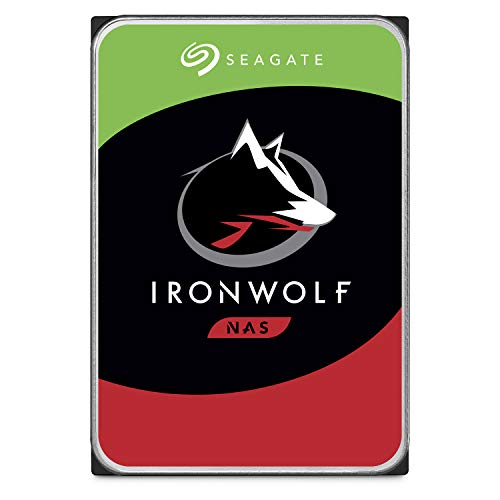
Ten terabytes at 7,200 RPM with a 256MB cache is the specification of the guide’s all-rounder: nearly the flagship’s pace and most of its room, at the capacity where a busy office’s working share and medium-term archive coexist comfortably. The title states the interface, the form factor, the speed and the cache in full. What it does not state — the title as listed ends at the cache figure — is the recording method, so the discipline of this guide applies: no CMR claim is made for this drive here, and an office for whom that distinction is decisive should confirm it in Seagate’s documentation for the exact model before ordering.
With that caveat handled, the drive’s character is clear. The 7,200 RPM class and deep cache serve the simultaneous-open, simultaneous-save pattern of a working share better than the slower class below, and ten terabytes postpones the capacity conversation for years in most offices. This is the pick for the team that has already filled one NAS, or is buying its first enclosure with the certain knowledge that the share will be worked hard rather than merely consulted.
It also makes a strategically tidy upgrade path. An office running smaller IronWolf drives can adopt this model as the new standard, retire the oldest disks to backup duty in a second enclosure, and keep one firmware family, one set of habits and one spares philosophy across the whole storage estate. Storage estates in small offices grow by accretion; choosing the drive that the next three purchases will repeat is worth more than a small saving on today’s single disk.
Heat and neighbours deserve a mention at this size. A 7,200 RPM drive in a fully populated enclosure lives warm and vibrates among siblings doing the same, which is precisely the environment the IronWolf family is designed and rated for — and precisely why a desktop drive of similar capacity is not a substitute at this duty level, whatever its specification sheet promises in isolation.
- Capacity: 10TB
- Rotational speed: 7,200 RPM
- Cache: 256MB
- Interface: SATA 6GB/S, 3.5-inch internal, NAS family
- Recording method: Not stated in the listing title — verify with Seagate documentation
Offices running design or media work will find one more virtue in the faster class: previews and project opens from the share stop feeling like network weather. Files still travel at network speed, but the disk at the far end answers promptly and in parallel for the whole team, which is the half of the experience this drive controls.
Strengths
- Flagship pace class with most of the flagship’s room
- Speed, cache and interface all stated in the title
- A natural standard drive for an office’s whole NAS estate
Trade-offs
- Recording method unstated in the title — documentation decides it
- More drive than a documents-only share will ever feel
- Warm-running class wants an enclosure with honest airflow
Best for: A busy multi-user share that has outgrown its first NAS drives.
Not suited for: A read-mostly archive where the slower, cheaper class suffices.

Western Digital 10TB WD Red Plus NAS Internal Hard Drive — WD’s big share drive
Western Digital’s answer at ten terabytes carries the family’s usual brevity: the title gives brand, capacity, family and NAS purpose, and leaves speed, cache and recording method to WD’s documentation. Read against the IronWolf above, that makes this pick the one for offices whose allegiance is already set — an enclosure populated with Red drives, a supplier relationship, a spares shelf — because at equal capacity the practical contest between these rival families is closer than either maker’s marketing allows, and continuity is a legitimate deciding vote.
The role, though, is identical to its rival’s: the big working share. Ten terabytes absorbs the project folders, the shared media, the exported accounts archives and the scanned paper mountain of a small business, with the always-on, multi-user design the Red Plus name denotes. An office migrating from a chaotic set of external drives and shared folders will feel the change less as speed than as order — one address for everything, available to everyone, backed by a device whose whole job is being available.
Because the title withholds the figures, the pre-purchase routine matters more here than anywhere else in the guide. Open WD’s specification for the exact model behind this listing, confirm the rotational speed and recording method against your workload’s needs, and check the model against your enclosure maker’s compatibility list. Ten minutes of that reading converts this from the least-described pick in the guide into a fully known quantity, and at ten terabytes the purchase is large enough to deserve the ten minutes.
Paired in a mirrored two-bay enclosure, this drive gives the office ten usable terabytes with tolerance for one disk’s failure — the configuration most small businesses should actually run, since the share it protects is usually the business’s working memory. Singly, it is a great deal of room entrusted to one mechanism, and the backup conversation in the mistakes section applies with full force.
- Capacity: 10TB
- Family and tier: WD Red Plus, NAS family
- Form: Internal hard drive for NAS enclosures
- Rotational speed and cache: The title omits both figures — WD’s documentation for the exact model carries them
- Recording method: The listing title makes no claim — check WD’s model documentation if the distinction matters
A ten-terabyte share also changes the office’s relationship with deletion for the better. With room to spare, retention policies can be set by the records’ actual value — keep client work for the compliance period, keep project archives indefinitely — instead of by the panic of a filling disk, and storage policy made calmly is usually storage policy made correctly.
Strengths
- Ten terabytes of NAS-class storage for WD-standardised offices
- Mirrored pair yields a large, failure-tolerant share
- Family continuity with existing Red installations
Trade-offs
- Title states nothing technical — every figure needs documentation
- Exact model must be matched to the enclosure’s list
- Single-drive use concentrates a large archive on one disk
Best for: A WD-equipped office stepping up to a genuinely large share.
Not suited for: Buyers unwilling to read a spec sheet before a big purchase.

Western Digital 4TB WD Red Plus NAS Internal Hard Drive — Mid-size WD option
Four terabytes is where many real office shares live: bigger than documents alone, smaller than a media archive, exactly the size of a team that shares working files, a bookkeeping history, a photo record of jobs done and a modest library of installers and templates. This Red Plus occupies that middle rung on the WD ladder, between the 2TB starter and the 10TB big share, with the same family design throughout — the NAS tuning is not rationed by capacity.
As with its WD siblings, the title is an identity label rather than a specification: capacity, family, purpose. The figures an office might compare — rotational speed, cache, recording method — are WD-documentation territory for the exact model. The comparison that can be made from titles alone is against the 4TB IronWolf below, whose title states everything; anyone verifying on the listing page will feel the difference in effort, while an office with Red drives already in service will accept the errand as the price of continuity.
In a two-bay enclosure this drive’s natural configuration is a mirrored pair: four usable terabytes, one disk’s failure absorbed without drama, rebuilds after a swap measured in hours rather than days. For many small offices that combination — mid-size, mirrored, NAS-class — is the correct total answer to shared storage, and everything larger in this guide is for offices whose archives have already outgrown it or visibly will.
It is also the sensible replacement standard. Offices whose first NAS shipped with small drives of mixed ancestry can consolidate onto this model as disks retire, ending with a uniform pair whose behaviour, spares and replacement routine are all known quantities. Uniformity is an underrated feature in storage that nobody wants to think about.
- Capacity: 4TB
- Family and tier: WD Red Plus, NAS family
- Form: Internal hard drive for NAS enclosures
- Rotational speed and cache: Neither figure appears in the title — confirm both in Western Digital documentation
- Recording method: Unstated in the title — Western Digital documentation settles it for the exact model
For the office replacing a failed disk in an existing Red pair, this is also the like-for-like answer: same family, same capacity class, a rebuild the enclosure manages on its own once the new disk is seated. Matching the surviving drive’s capacity exactly keeps the mirror’s arithmetic simple and the full four terabytes usable.
Strengths
- The middle capacity most working shares actually need
- Mirrored pair is the classic small-office configuration
- Full NAS-class design, not a cut-down small model
Trade-offs
- Specification entirely dependent on WD documentation
- Media-heavy growth will outrun four terabytes
- Two drives needed for the mirrored safety net
Best for: A small team’s working share, ideally as a mirrored pair.
Not suited for: Video archives or design libraries with terabyte appetites.
Seagate IronWolf 4TB NAS Internal Hard Drive — Stated-spec value
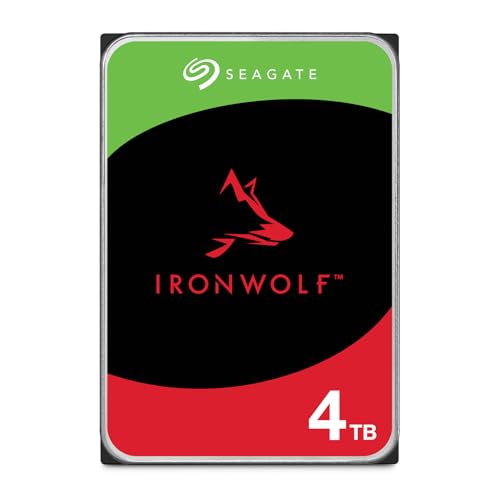
The most fully described mid-size drive in the guide: its title states CMR recording, the 3.5-inch form, SATA 6Gb/s, 5,400 RPM and a 64MB cache alongside the 4TB capacity. Every figure a buyer might check is checkable on the listing page itself, and the CMR statement in particular removes the one uncertainty that follows the WD picks and the larger IronWolf around — for an office whose share absorbs sustained writing, that printed word carries real weight.
The trade is rotational pace. At 5,400 RPM this drive belongs to the slower, cooler class, and its natural habitat is the share that is consulted and saved to steadily rather than hammered: documents, accounts, correspondence, reference libraries, the scanned archive. In that habitat the slower class is not a compromise anyone in the office will detect, because document work is small-file work at human tempo, and the drive’s NAS tuning — the part that actually protects the share — is fully present.
Where the office’s work is heavier — several editors on large shared files, a media library in active production — the 10TB IronWolf’s faster class is the better spend, and this guide says so in its own pick above. Judged in its own habitat, though, the 4TB IronWolf is arguably the most completely specified honest buy in the list: NAS-class, CMR stated, capacity matched to the most common share size, and nothing promised that the title does not print.
It also suits the second-enclosure role gracefully. Offices that outgrow a first NAS often demote it to backup duty; a drive like this, bought as the working share today, becomes the backup target’s disk tomorrow without any change of family or habits. Storage that ages into its next job instead of into a drawer is storage bought well.
- Capacity: 4TB
- Recording method: CMR, as stated in the listing title
- Rotational speed: 5,400 RPM
- Cache: 64MB
- Interface: SATA 6Gb/s, 3.5-inch internal, NAS family
The slower class carries one more understated benefit in a small enclosure: it asks less of the box’s power supply and cooling, and in the fan-light enclosures small offices favour, that gentleness compounds across a pair of drives running for years in a warm corner of the office.
Strengths
- CMR stated in the title — no documentation errand for the key figure
- Every specification verifiable from the listing alone
- Cooler, slower class suits document shares perfectly
Trade-offs
- 5,400 RPM class is the least responsive here
- Smaller cache than the larger IronWolf models
- Heavy multi-editor workloads belong a rung up
Best for: A document-centred office share with steady, sustained writing.
Not suited for: Large-file production work shared by several editors at once.
What Does a Side-by-Side Look at the Six Reveal?
| Drive | Capacity | Speed from title | Cache from title | Recording method |
|---|---|---|---|---|
| Seagate IronWolf | 16TB | 7,200 RPM | 256MB | CMR, stated in title |
| WD Red Plus | 2TB | Not stated in title | Not stated in title | Not stated in title |
| Seagate IronWolf | 10TB | 7,200 RPM | 256MB | Not stated in title |
| WD Red Plus | 10TB | Not stated in title | Not stated in title | Not stated in title |
| WD Red Plus | 4TB | Not stated in title | Not stated in title | Not stated in title |
| Seagate IronWolf | 4TB | 5,400 RPM | 64MB | CMR, stated in title |
The blanks in this table are information, not omission: they mark exactly which figures each manufacturer chose to print in a listing title and which require a documentation visit. An office comparing the two 10TB drives, or the two 4TB drives, should complete the WD rows from WD’s published specifications for the exact models, then compare like with like — capacity, speed class and recording method — rather than comparing a full specification against an empty one and mistaking disclosure for quality.
How Does Drive Choice Affect the Office’s Backup Plan?
The share and its backup are one system wearing two hats, and drive choice shapes both. A large working share commits the office to a backup at least as large, held somewhere the same accident cannot reach — a second enclosure in another room or building, a set of external drives rotated off-site, or a cloud tier for the irreplaceable subset. Offices discover this arithmetic late when they buy the impressive 16TB working drive first and price its backup afterwards; the grown-up order is to plan the pair together, even if the backup half is bought a quarter later, so that capacity decisions are made once, with both halves in view.
Mirroring, to repeat the guide’s central caution in its proper place, is not the backup half of that system. The mirror is availability — the share survives a disk — while the backup is history: yesterday’s version of the file, the folder deleted last month, the records as they stood before the incident. A backup arrangement earns its name only if it can answer a request for how things used to be, and that requires copies separated in time or place from the working share. The drives in this guide serve happily in either role — several offices run the same model in the backup enclosure that they run in the main one — but the roles themselves must never be confused, because the confusion is discovered exactly once, on the worst day.
One practical rhythm ties the system together: the enclosure’s health report read monthly, the backup’s completion checked weekly, and a single folder restored as a test each quarter. None of that is drive shopping, but all of it is what the drive purchase was for — an office whose files are findable, current and recoverable without heroics. Buy the drives in this list with that rhythm in mind and the storage stops being a topic at all, which was the point of centralising the files in the first place.
What Mistakes Do Offices Make When They Buy NAS Drives?
The founding mistake is buying the drive and forgetting the enclosure, or the reverse — the two halves arrive weeks apart while the office’s files stay on the arrangement everyone hates. Buy them as one project. The second mistake is filling a multi-bay enclosure with desktop drives saved from old PCs; their firmware’s leisurely error recovery can stall an array and even get a healthy drive ejected as failed, a failure mode that baffles owners who tested each disk individually and found it fine.
The third mistake is treating a mirrored pair as a backup. Mirroring survives a disk’s death; it faithfully and instantly mirrors deletions, overwrites and encrypted files too. The share still needs a separate backup — the old enclosure demoted to that duty, a large external drive on a schedule, or a cloud copy — held apart from the working share. Fourth comes undersizing: offices buy for the share they have, fill it within two years, and face a migration that a one-step-larger purchase would have postponed past everyone’s memory of the decision. The final mistake is silence about the arrangement — nobody in the office knows which box holds the files, whose job its health checks are, or what its beeping means — so assign the NAS an owner, however small the office, and write the arrangement down where a successor can find it.
How Should an Office Set Up a New Shared Drive?
Seat the drives in the enclosure’s bays, connect the enclosure to the office network by cable rather than wireless, and power up. The enclosure’s setup routine will offer volume choices; for two identical drives, the mirrored arrangement is the small-office default, trading half the raw capacity for tolerance of one disk’s failure. Create the share with the office’s real folder structure rather than one giant folder — projects, accounts, administration, archive — and set permissions by folder, because the share that everyone can write everywhere eventually contains a deleted folder nobody can explain.
Migration deserves a paragraph of its own, because most offices meet this guide while escaping an older arrangement. Move the files in stages — the archive first, while the old share still serves the daily work, then the working folders over a quiet weekend — and keep the old location intact and readable until the new share has survived a full week of ordinary use, including a backup cycle and a test restore. The temptation to wipe the old disk on day one to reclaim it as a spare should be resisted until that week has passed; the overlap period is the only rollback the office will ever have, and it costs nothing but patience.
Then do the three things that separate a system from an appliance. First, turn on the enclosure’s health notifications and aim them at a mailbox somebody reads; a NAS that emails about a tiring drive has done half of its owner’s job. Second, schedule the backup of the share itself from day one, while the data is small and the habit is cheap to form. Third, test a restore of one folder before the system is trusted, because an untested backup arrangement is a hope, not a plan. After that, the share should fade into the office’s background — which is where shared storage belongs, and where every drive in this guide is designed to live.
Final Recommendation
Most small offices should start their thinking at the mirrored middle: a pair of 4TB drives — the IronWolf where a fully stated specification, CMR included, is valued, the Red Plus where an existing WD installation makes continuity the deciding vote — inside a two-bay enclosure, backed up separately, owned by a named person. Offices whose archives have already become the business’s memory should skip the middle without guilt and buy the room they demonstrably need: the 16TB IronWolf for a Seagate-standardised estate, the 10TB Red Plus or its 10TB IronWolf rival for the busy working share, with the recording-method check done in documentation wherever the title leaves it open. The smallest offices, finally, should not let this guide’s big numbers talk them out of the 2TB Red Plus and a single-bay box, because the distance between a shared folder on someone’s PC and a proper always-on share dwarfs every other distance in this list. Size for the office you are becoming, mirror what you cannot lose, back up what mirroring cannot save, and the shared drive will repay the care by disappearing — the highest compliment office infrastructure can earn, paid quietly every working day.
One closing observation about the two families, since the office will live with the choice for years. IronWolf and Red Plus have competed in this exact role for a long time, and the practical gap between matched models is narrower than the gap between a considered purchase and a careless one in either family. The office that completes the specification, sizes for growth, mirrors the working share and keeps a separate backup has made the decisions that determine whether the system is still boringly reliable in five years — and boring, in shared storage, is the sound of everything working.
Frequently Asked Questions
Do these drives include the NAS box itself?
No. Every pick here is a bare internal drive. The enclosure — bays, processor, network connection and sharing software — is a separate product that ships without disks. An office buying its first NAS needs both: an enclosure with at least as many bays as the plan requires, and one drive per bay it intends to fill.
Can we use ordinary desktop drives in the NAS to save money?
They fit, and small arrays sometimes run on them for a while, but their firmware is tuned for a single drive in a desktop: leisurely error recovery that can stall or eject them from an array, no design allowance for neighbouring drives’ vibration, and no always-on duty assumption. For the office’s shared files — the data everyone needs every day — NAS-class drives are the proportionate purchase, and the saving is small against one lost morning of the whole team’s access.
What does mirroring actually protect the office from?
From one drive dying. With two mirrored drives, the share keeps working when a disk fails, and the replacement rebuilds from its twin. Mirroring does not protect against deleted or overwritten files, theft of the enclosure, fire, or malware that encrypts the share — all of which copy themselves to both drives instantly or destroy both together. That is why a separate backup remains necessary alongside any mirror.
How do we choose between IronWolf and Red Plus?
Compare completed specifications, not titles. Seagate prints its figures in these listings; WD’s must be gathered from its documentation for the exact model. Once both spec sheets are on the table, decide by capacity, rotational class and recording method against your workload — and let an existing installation of either family break a genuine tie, because spares, habits and familiarity carry real value in a small office.
Can the office mix drive sizes or brands in one enclosure?
It can, with arithmetic consequences. A mirrored pair built from unequal drives mirrors only up to the smaller drive’s capacity, and mixed families in one enclosure complicate the spares shelf and the troubleshooting when something beeps at midnight. The tidy pattern is matched pairs of one model, replaced together in sequence; mixed bays are a workable improvisation, not a plan, and an office formalising its storage should treat uniformity as one of the things it is buying.
When should the office replace a NAS drive?
When the enclosure’s health monitoring reports a degrading disk, when the share develops unexplained slowdowns or errors, or proactively when a mirrored pair’s drives have both aged together for years — in which case replace one, let the mirror rebuild, and only then replace the other, so the share never depends on a single ageing disk during the changeover.
Related Guides
An office storage plan usually grows beyond one share. The companion coverage of backup drives for small business records picks up where mirroring stops, and readers speccing the wider desk setup may also use the guide to external drives for office file archives alongside the overview of SSDs for office workstations.