What's inside
- Where to Buy a Printer When You Are Tired of Clearing Jams
- Key Takeaways
- Quick Picks
- How Did We Judge Printers on Paper Handling Without Inventing Test Data?
- Why Does Paper Misfeed in the First Place?
- How Do the Six Anti-Jam Candidates Compare?
- How Should You Load Paper So the Printer Gets a Fair Chance?
- What About Envelopes, Labels, and Other Paper That Is Not Paper?
- When a Jam Happens Anyway, What Is the Calm Way Out?
- How Do You Read a Jam Pattern Like a Technician Would?
- Which Habits Cause More Jams Than Any Printer Ever Will?
- How Should You Test a New Printer During Its Return Window?
- What Does a Jam Actually Cost an Office Over a Year?
- Final Recommendation
- Frequently Asked Questions
- Related Guides
As an Amazon Associate I earn from qualifying purchases. This post may contain affiliate links at no extra cost to you.
gizmoverdict.com is reader-supported. When you buy through links on our site, we may earn an affiliate commission.
Where to Buy a Printer When You Are Tired of Clearing Jams
Nobody searches for the best printers for preventing misfeeds and jams because a specification sheet excited them. They search after the third jam of the morning, with toner on their cuffs, a meeting in nine minutes, and a document half-printed in an order that makes no sense. This guide is written for that person. It ranks six laser printers by the paper-handling evidence in their listings — paper path design, duplex architecture, tray thinking, and connection options — because those are the parts of a printer that decide how paper travels, and paper travel is where misfeeds are born.
One honesty note belongs at the top, before any pick is named. No printer prevents jams the way a lock prevents entry. Paper handling is a design tendency, never a guarantee: a well-designed paper path fed damp, curled, or dog-eared paper will still misfeed, and a mediocre path fed fresh, flat, correctly loaded paper can run clean for weeks. What a good printer buys you is margin — a path with fewer sharp turns, rollers that grip evenly, trays that hold sheets square — so that ordinary human sloppiness stops turning into stoppages. Buy the margin, then keep your side of the bargain with decent paper and honest loading, which the later sections of this guide cover in detail.
Where you buy matters for one specific reason in this category: returns. A printer’s jam behaviour only reveals itself under your paper, in your room’s humidity, with your documents. Buy from a seller whose return window lets you run a few thousand real pages before the decision is final, keep the packaging until that test is done, and judge the machine on your worst document — the long duplex report, the slightly heavy letterhead — not on a single test page. Every pick below is a laser, because laser paper paths are built around a single heated pass that handles ordinary office paper predictably, and because the toner world simply has fewer of the feed quirks that plague ageing inkjet rollers.
Key Takeaways
- Jam resistance is a tendency created by paper path and tray design, never a promise — paper condition and loading decide the rest.
- Duplex models move paper through a second pass, so their internal paths are engineered for controlled sheet travel in both directions.
- Most misfeeds are born in the tray: overfilling, mixed paper stocks, and guides left loose account for more stoppages than worn rollers do.
- A wired Ethernet option, present on one pick here, removes wireless dropouts that users often mistake for printer failures.
- Fresh paper stored flat in its wrapper until use will improve any printer on this list more than any setting buried in a menu.
Quick Picks
| Pick | Badge | Why it is here |
|---|---|---|
| HP LaserJet Pro 3101sdw | Best all-in-one for jam-conscious offices | A monochrome duplex all-in-one whose automatic two-sided path is built for controlled sheet handling across long documents. |
| HP Color LaserJet Pro 3201dw | Best colour print-only route | A single-function colour duplex laser with no scanner mechanism complicating the top of the paper path. |
| Xerox C245 | Best compact colour all-in-one | A 26 ppm colour print, scan, and copy unit with wireless setup aimed at small teams and hybrid offices. |
| HP LaserJet Pro M452nw | Best wired-network option | A colour laser with built-in Ethernet, so the connection stops being a variable when documents stall. |
| Canon Color imageCLASS LBP646Cdw | Best rated-speed duplex unit | A print-only colour laser with duplex and a stated 26 PPM for offices that run long two-sided reports. |
| HP Color LaserJet Pro 3204dw | Best simple colour duplex alternative | A single-function colour duplex printer in the same family as the 3201dw, for buyers comparing within one range. |
How Did We Judge Printers on Paper Handling Without Inventing Test Data?
This category invites exaggeration, so the method here is deliberately narrow. We read the listing titles for paper-path evidence: whether the machine is duplex, because a duplex path is engineered to turn a sheet around inside the body and return it precisely, which is demanding sheet control by definition; whether it is single-function, because a print-only body has no scanner transport sharing space and attention with the paper path; and how the maker positions the machine, because a printer sold for offices and documents is built to different feed tolerances than one sold for occasional home letters. We did not run a laboratory, and no jam counts are claimed anywhere in this article, because none exist in the source material.
What the titles cannot tell you matters just as much. Roller material, tray spring tension, the exact radius of the turn inside a duplex loop — none of that is stated, so none of it is ranked here. Instead, the guide spends its length on the half of the misfeed problem that owners actually control: paper storage, loading technique, document habits, and the troubleshooting ladder that separates a thirty-second fix from a service call. Master that half and any pick below will run clean for you; ignore it and even the best path in the world can be made to misbehave by Friday.
One more framing decision: every pick is a laser printer, and that is not an accident of the pool. Laser engines pull paper through a defined path, fuse toner with heat, and eject a finished sheet in one continuous motion, and their feed systems are designed around the standard office stocks that make up most real printing. If your workload is mostly photographs or specialty media, your jam questions are different questions, and this guide will say so again in the mistakes section rather than pretend one ranking covers all paper.
Why Does Paper Misfeed in the First Place?
A misfeed is a disagreement between the printer and a sheet of paper about where that sheet should be. The printer expects to grip one sheet, square, at a predictable moment. The sheet, for its part, may be stuck to the sheet beneath it by static or humidity, curled at one corner from sitting near a radiator, thicker on one side because it is letterhead, or loaded at a slight angle because the tray guides were left a few millimetres loose. Multiply any of those small wrongs by the speed of a modern feed mechanism and the sheet arrives at the first turn misaligned — and a misaligned sheet folds, and a folded sheet stops everything.
Understanding that chain changes what you shop for. You shop for forgiveness: feed systems that separate sheets reliably, trays that make square loading the easy default, and paths with room for a slightly imperfect sheet to straighten itself before the tight turns. Duplex models deserve their reputation here, because a machine that can accept a sheet back into its body, reverse it, and present it again for the second side has been engineered around precise sheet control as a core job, not an afterthought. That engineering tends to show up in single-sided work too, as calmer, more consistent feeding — a tendency, again, not a law.
The environment writes the other half of the story. Paper is a sponge with ambitions: it absorbs moisture from a damp room and turns limp, or dries beside a heater and turns curly and static-prone. Offices that store paper on the floor under a window will fight jams on any machine. Offices that keep reams wrapped, flat, and in the same room as the printer will watch the same machine behave. When this guide’s picks differ, they differ in how much environmental and human imperfection they can absorb before the disagreement starts — and the sections below are organised to raise your side of that equation first. Keep one more variable in mind while you read them: age. A printer’s feed rollers are rubber, and rubber hardens, smooths, and gathers dust across years of service, so a machine that fed beautifully in its first year may begin doubling sheets in its fourth without anything being broken. That slow drift is why the diary and the audition method in this guide matter more than any single specification — they measure the machine in front of you, in its current condition, rather than the machine the catalogue described when it was new.

HP LaserJet Pro 3101sdw — Best all-in-one for jam-conscious offices
The 3101sdw’s title reads like a checklist of sheet-handling intent: monochrome laser, all-in-one, duplex, print, copy and scan, wireless printing, and automatic two-sided printing stated twice for emphasis. When misfeeds are the pain being solved, the duplex architecture is the heart of the case. A machine that routinely takes a printed sheet back inside, flips it, and feeds it again has a paper path designed around controlled reversals — the hardest move in desktop printing — and that design discipline is exactly what an office printing long reports needs on the ordinary single-sided jobs too.
The all-in-one functions add a subtle paper benefit of their own. Copying and scanning through a proper document path means originals are handled by a transport built for paper, rather than being fed by hand into a print tray they were never shaped for — a small misuse that causes a surprising number of “printer jams” that are really user improvisations. As the office’s single monochrome hub, this HP also consolidates volume onto one maintained machine instead of spreading it across ageing devices with unknown roller histories. Consolidation is an underrated anti-jam strategy: one machine, one paper stock, one set of loading habits, one person who knows its sounds. Current pricing and configuration details live on the listing, so confirm the exact model there before ordering for a whole team.
- Output: monochrome laser printing
- Functions: print, copy, scan — all-in-one
- Duplex: yes — automatic two-sided printing stated in the title
- Connections: wireless printing
- Positioning in the title: fast black-and-white printing
Strengths
- Automatic duplex path is engineered for precise sheet reversal on long documents.
- Scanning and copying handle originals through a proper transport instead of the print tray.
- Monochrome consolidation keeps one paper stock and one loading routine for the office.
Trade-offs
- Black-and-white output only, so colour documents need a second machine.
- An all-in-one body is larger than the print-only picks in this guide.
- Wireless-only positioning in the title leaves wired networking unconfirmed for fixed desks.
Best for: a small office running long two-sided reports through one shared monochrome hub. Not suited for: colour document work — the engine is monochrome, so every colour page must go elsewhere.

HP Color LaserJet Pro 3201dw — Best colour print-only route
There is a mechanical elegance to a print-only machine, and the 3201dw’s title states the formula plainly: colour laser, wireless, duplex, printer only, single function. Removing the scanner removes a whole transport system from the top of the box, removes the lid users open and lean on, and leaves a body whose entire engineering budget went into one journey — paper in, printed page out, turned over when asked. For jam-conscious buyers, that focus is the argument. Nothing else moves in this machine, so nothing else can misalign your sheet’s day.
Colour is the other half of its role. Offices whose documents genuinely carry colour — charts in a client report, a logo sheet, marked-up drafts where the colour is the markup — need colour that behaves like office printing, not like a photo hobby. A colour laser gives them that, and the duplex path gives long colour documents the same controlled second pass as the monochrome picks. The title’s home-office positioning is honest about scale: this is a machine for a desk or a small team, not a departmental corridor. Within that scale, its simplicity is a reliability feature that spec sheets rarely credit. The listing page carries the current terms; a buyer comparing it with the 3204dw below should read both titles carefully, because the two machines are close relatives separated by configuration details.
- Output: colour laser printing
- Functions: print only — single function
- Duplex: yes, stated in the title
- Connections: wireless; mobile compatibility stated
- Positioning in the title: home office use
Strengths
- Single-function body devotes the whole mechanism to one paper journey.
- Duplex colour suits long reports where colour carries information.
- No scanner lid or feeder for users to load, lean on, or leave open.
Trade-offs
- No scanning or copying at all — originals must be handled by another device.
- Four colour cartridges are a standing stocking cost over a monochrome unit.
- Home-office positioning means heavy departmental volume will outgrow it.
Best for: a desk or small team printing colour documents two-sided as a daily habit. Not suited for: an office with no scanner anywhere else — this unit cannot digitise or copy a single page.

Xerox C245 — Best compact colour all-in-one
Xerox built its name on paper moving through machines, and the C245 is its compact colour entry in this guide: a wireless colour all-in-one, described as 3 in 1 with print, scan and copy, running at 26 ppm, positioned for hybrid offices and small businesses, and noted as replacing the C235 model. That replacement note is quietly relevant to jam hunters. A successor model exists because a maker iterated on a design — fixing what the field taught it about the previous generation’s feeding, clearing, and everyday handling. Buying the current iteration rather than the outgoing one is one of the few evidence-based jam decisions a buyer can make from a title alone.
Now the caution this pick carries, stated as plainly as the pool requires. The C245’s title is silent on duplex. This guide does not claim two-sided printing for it, and its spec box below carries the caution line instead of a duplex tick. Where documents are mostly single-sided — letters, invoices, one-page forms, the daily traffic of a small business — that silence may not matter at all, and the machine’s compact all-in-one mix at a stated 26 ppm is a tidy fit. Where jam worries centre on long duplex reports, the honest steer is toward the duplex-titled picks above and below. A guide that blurred that line would be selling, not advising. Verify the two-sided question against the maker’s documentation before this Xerox joins a duplex workflow, and let the listing confirm everything else about the current configuration.
- Output: colour printing
- Functions: 3 in 1 — print, scan, copy
- Speed stated in the title: 26 ppm
- Connections: wireless setup stated
- Duplex: Not stated in the listing title — verify with the maker’s documentation
- Lineage in the title: replaces the C235 model
Strengths
- Successor-model design follows a full generation of field feedback on the C235.
- 26 ppm colour with scan and copy covers small-business paperwork in one compact unit.
- Wireless setup suits hybrid offices where the printer’s desk changes with the team.
Trade-offs
- Duplex is not stated in the title, so two-sided workflows cannot be assumed.
- Compact all-in-ones generally hold less paper than departmental trays.
- An Amazon Exclusive listing means comparison shopping across sellers is limited.
Best for: a small business printing mostly single-sided colour paperwork with occasional scanning. Not suited for: automatic two-sided printing — the listing title does not state duplex, so that capability is unconfirmed.
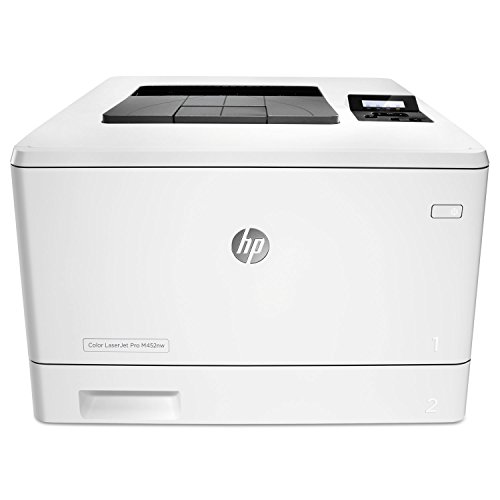
HP LaserJet Pro M452nw — Best wired-network option
A meaningful share of “printer jams” are not jams at all. The document stalls halfway because the connection dropped, the job restarts, two half-documents meet in the output tray, and the user concludes the printer cannot handle paper. The M452nw attacks that confusion at its root: its title specifies a wireless colour laser printer with built-in Ethernet. Plug it into the office network with a cable and the connection leaves the list of variables. What remains is pure paper handling, which is the honest problem this guide is about.
As a colour laser of an established generation, the M452nw also represents the known-quantity route. Its design has been in offices for years, its behaviour is documented in a way a brand-new model’s cannot be, and that maturity can be genuinely reassuring when predictable feeding matters more than fashionable features. The title’s Dash Replenishment note is a consumables convenience from its era — treat it as background, not as a reason to choose the machine. The reason is Ethernet plus a colour laser path in a body that offices have long experience keeping fed and cleared. Because it is an older listing, checking current stock and the exact CF388A configuration on the product page matters more here than for any other pick in this guide.
- Output: colour laser printing
- Connections: wireless plus built-in Ethernet
- Model code in the title: CF388A
- Consumables note in the title: Amazon Dash Replenishment ready
- Duplex: Not stated in the listing title — verify with the maker’s documentation
Strengths
- Built-in Ethernet removes connection dropouts from the failure list entirely.
- A long-established design carries years of documented office behaviour.
- Colour laser output covers general office documents without a scanner’s bulk.
Trade-offs
- Duplex is not stated in the title, so two-sided printing needs verification first.
- An older-generation listing may have thinner stock than current models.
- No scan or copy functions are claimed in the title.
Best for: a fixed desk or small office that can cable its printer to the network. Not suited for: a workspace with no reachable Ethernet point — its headline advantage depends on the cable existing.
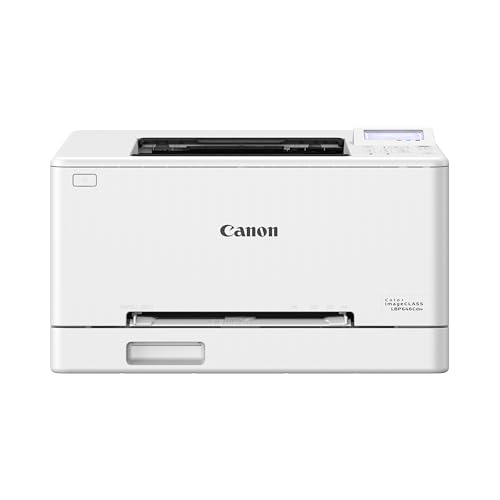
Canon Color imageCLASS LBP646Cdw — Best rated-speed duplex unit
Canon’s entry is the guide’s clearest statement of the duplex-plus-speed formula: a wireless laser printer with duplex, a stated 26 PPM, print only, in a white body. Twenty-six pages per minute is not a headline-grabbing figure, but in paper-handling terms a moderate, controlled pace is often the friend of clean feeding. Sheets that move at a speed the separation mechanism can genuinely manage arrive square; the fastest feed in a catalogue is no virtue if it outruns the rollers’ ability to present one sheet at a time. Canon’s number, read that way, describes a machine tuned for office documents rather than for a spec-sheet race.
Print-only focus repeats the 3201dw’s logic in Canon’s dialect: no scanner transport, no copier lid, one journey for the paper. The white finish is a trivial detail until the printer lives in a bright, client-facing office, where it simply looks like it belongs. Where this Canon earns its slot over its HP single-function cousin is the combination of a stated speed figure and Canon’s imageCLASS office lineage in one listing — a buyer can compare its 26 PPM directly against the Xerox C245’s stated 26 ppm and know the two are playing the same pace game with different function sets. That comparability is rare in printer listings and worth using. Confirm on the listing that the configuration matches the title before it joins a shared office, particularly if several units will be standardised.
- Output: colour laser printing
- Functions: print only
- Speed stated in the title: 26 PPM
- Duplex: yes, stated in the title
- Connections: wireless
- Finish in the title: white
Strengths
- Stated 26 PPM pace suits controlled, square feeding on office documents.
- Duplex is explicit in the title, so two-sided reports are a designed job.
- Print-only body keeps the mechanism single-purpose and uncluttered.
Trade-offs
- No scanning or copying — a second device must cover originals.
- Colour cartridge set costs more to keep than a monochrome unit’s single toner.
- White finish shows office dust and toner smudges more readily than dark bodies.
Best for: an office standardising on print-only colour duplex units with a stated pace. Not suited for: paperwork that arrives on paper — with no scanner, incoming documents cannot be digitised at this machine.

HP Color LaserJet Pro 3204dw — Best simple colour duplex alternative
Every shortlist benefits from a control sample, and the 3204dw is this guide’s. Its title mirrors the 3201dw’s formula — colour laser, duplex, printer only, single function, home-office positioning, colour documents, mobile compatibility — in a closely related model. That closeness is useful rather than redundant. Once the single-function colour duplex concept itself is settled, the two siblings can be compared on their listing pages — which configuration is currently stocked and sensibly presented — and the concept bought with confidence rather than falling in love with one model number.
The concept itself deserves its final statement here. Single-function duplex lasers are the paper-handling purists of this guide: one mechanism, one path, a designed U-turn for the second side, and nothing else asking the paper to do tricks. In a home office — the setting both HP titles name — that purity pairs with the environment’s natural advantages. One or two users load the tray, the paper stock is consistent, and the machine’s habits become known. Jam statistics are not published for either sibling and this guide invents none; what can be said honestly is that the design brief of these machines removes more misfeed causes than it adds, and in a small setting the owner’s loading habits will decide the rest. Let the listing arbitrate between the two HP siblings on current availability, and let your paper discipline do the rest of the work either way.
- Output: colour laser printing
- Functions: printer only — single function
- Duplex: yes, stated in the title
- Connections: mobile compatibility stated; wireless class
- Positioning in the title: home office use
Strengths
- Single-function duplex design concentrates the whole mechanism on clean feeding.
- A close sibling to the 3201dw, giving buyers a genuine configuration choice.
- Colour output with two-sided printing covers the standard home-office document mix.
Trade-offs
- No scan or copy capability anywhere in the title.
- Home-office scale will strain under departmental shared volume.
- Choosing between it and its sibling requires a listing visit, since the titles overlap heavily.
Best for: a home office committed to the print-only colour duplex concept. Not suited for: shared departmental volume — its stated positioning is the home office, not the corridor.
How Do the Six Anti-Jam Candidates Compare?
| Model | Colour? | Functions | Duplex in title? | Distinguishing point |
|---|---|---|---|---|
| HP LaserJet Pro 3101sdw | No | Print, copy, scan | Yes | Only monochrome all-in-one here |
| HP Color LaserJet Pro 3201dw | Yes | Print only | Yes | Single-function colour focus |
| Xerox C245 | Yes | Print, scan, copy | Not stated | Successor to the C235 at 26 ppm |
| HP LaserJet Pro M452nw | Yes | Not stated | Built-in Ethernet | |
| Canon LBP646Cdw | Yes | Print only | Yes | Duplex with a stated 26 PPM |
| HP Color LaserJet Pro 3204dw | Yes | Printer only | Yes | Sibling alternative to the 3201dw |
The duplex column is the table’s honest centre. Four picks state duplex in their titles and can be bought for two-sided work without further questions. Two do not state it, and for those two the correct buyer behaviour is verification, not assumption — a distinction this guide maintains because a misfeed hunter burned by an assumed feature becomes next month’s scathing review for a machine that never promised it. Beyond that column, choose by function set: all-in-one if originals need handling, print-only if the paper path should have the stage to itself, Ethernet if your failures have ever smelled of Wi-Fi.
How Should You Load Paper So the Printer Gets a Fair Chance?
Begin before the tray. Take paper from a fresh ream, not from the loose pile that has lived on top of the printer since spring, and fan the stack once — flex it, let air between the sheets — so the separation mechanism starts with sheets that are already willing to part. Check the stack’s edges with your thumb. Any sheet with a folded corner, a crease, or a torn edge goes in the recycling, because that sheet is a jam with a date on it, and it will choose the worst page of your longest document to prove it.
Load to the tray’s fill line and not one sheet beyond it. An overfilled tray presses the stack too hard against the feed rollers and invites doubles; an almost-empty tray lets the last sheets skew as the springs weaken. Set the paper guides snug against the stack — touching, not crushing — on both the side and the end, because the guides are the only thing keeping the stack square between one job and the next. Then tell the printer the truth: if the driver or panel asks what paper is loaded, answer with the actual stock. A machine that believes it is feeding plain paper while the tray holds heavy letterhead will use the wrong grip and the wrong heat, and the resulting misfeed gets blamed on the hardware that was lied to.
Storage completes the routine. Keep reams in their wrappers, flat, in the room where the printer lives, off the floor and away from exterior walls and radiators. Paper equilibrates to its room over a day or so; paper carried in from a cold store room or a damp stock cupboard carries its old climate into the feed path with it. Offices that adopt nothing else from this guide should adopt that: same room, wrapped, flat. It costs nothing, and it removes the single largest environmental cause of the misfeeds people write angry reviews about.
What About Envelopes, Labels, and Other Paper That Is Not Paper?
Most jam stories that end in real damage involve media that is not ordinary paper. Envelopes are two layers with a flap and a seam, and they feed like a small parcel; labels are a sandwich of face stock, adhesive, and liner that heat can soften; card is simply a plank that resents every turn in the path. Each of these belongs, on almost every desktop laser, in the manual or multipurpose feed — the slot that offers the straightest, shortest journey through the machine — and in small quantities, fed a few at a time, with the output support open so finished pieces land flat instead of curling off the tray edge. The six picks in this guide are ranked on their office-paper behaviour, because that is what their titles describe; none of them is presented here as a specialty-media machine, and a week that is mostly labels belongs in a different category entirely.
The settings matter as much as the slot. When the driver offers a media type — envelope, labels, heavy, transparency’s modern equivalents — choosing it changes feed speed, roller behaviour, and fuser temperature in ways that directly address why that media misfeeds. Printing labels on the plain-paper setting is the classic own goal: too much heat for the adhesive, too much pace for the stiffness. Tell the machine what it is eating. It is the same honesty principle as the tray settings in the loading section, applied to the jobs most likely to end with someone fishing a melted label sheet out of a warm printer.
There is also a sequencing trick worth adopting. Run specialty media at the start of a session, while the machine is cool and the operator is patient, rather than as the last job of a long day when both are frayed. Feed the first envelope and watch it complete the journey before loading the rest. A single test piece costs thirty seconds; a jam on piece nine of ten costs the whole batch, because the survivors have to be checked for adhesive contamination before they can be trusted. Jam prevention, at this end of the craft, is mostly choreography — and choreography is learnable.
When a Jam Happens Anyway, What Is the Calm Way Out?
It will happen anyway — tendency, not guarantee, remember — and the clearing technique decides whether one jam becomes a broken printer. Stop, breathe, and open the access the maker designed for clearing, which on most desktop lasers means the rear panel as well as the front. Pull paper slowly, with both hands, in the direction the paper was travelling. A sheet torn out backwards leaves fragments on rollers and sensors, and fragments are how one jam becomes a recurring ghost jam that returns every forty pages until a technician fishes out a corner the size of a stamp.
If the sheet resists, stop pulling. Rock it gently, check whether the duplex path holds a second sheet — duplex jams often travel in pairs — and consult the manual’s clearing diagram rather than improvising with tools. Never introduce anything metal near the fuser area, which stays hot long after the error light appears, and never reach blindly: the jam you can see is the only one you should touch. Once clear, print a short test document and watch the first three sheets travel. Clean feeding on those three is the machine telling you the path is truly empty; a hesitation on sheet two is the machine telling you it is not.
Keep a small jam diary for a shared machine — date, document type, paper stock, where the sheet stopped. Three entries usually reveal the pattern: always the heavy letterhead, always the long duplex job, always Monday mornings after the office has been cold all weekend. Patterns point at causes, and causes are fixable — a different stock, a manual-feed route for the odd job, a tray refill routine. A diary turns jam clearing from folklore into maintenance, and it takes ten seconds per entry.
How Do You Read a Jam Pattern Like a Technician Would?
Where a sheet stops tells you what it met. A jam at the tray mouth, with the sheet barely started, is a pickup story: the rollers could not separate or grip the top sheet, which points at overfilling, a mixed stack, worn pickup rubber, or paper too smooth or too heavy for the tray’s manners. A jam deep in the body, sheet wrapped partway around the path’s main turn, is a travel story: skew from loose guides, a curled leading edge, or a sheet that entered already angled and ran out of room to be wrong. A jam at the exit, with the page printed and crumpled in the doorway, is usually an output story — a blocked exit, an overfilled output tray pushing back, or a duplex sheet arriving to find its predecessor still leaving.
Duplex jams have their own accent. The sheet that fails on its second journey often carries a slight curl from its first pass through the heat, and it fails at the re-entry point where the path asks it to turn once more. Offices that see this pattern on long two-sided runs can test the theory cheaply: print the same document single-sided and watch it sail through. If it does, the fix is rarely a new printer. It is fresher paper with less memory of the ream’s curve, a pause that lets long duplex runs happen in batches, or — on the next purchase — a duplex-titled machine from this guide whose path was designed around exactly that re-entry.
Timing patterns talk too. Jams on the first job of the day suggest paper that sat in the tray overnight absorbing the room’s damp or cold; the cure is keeping the tray modestly filled and topping up in the morning rather than leaving a full tray to weather the weekend. Jams late in a long run suggest heat and dust — rollers warm, paper dust accumulating, grip fading — and the cure is the monthly roller care mentioned earlier plus the humility to split a five-hundred-page run into chapters. None of this requires instruments. It requires the diary, a memory for where sheets stop, and the willingness to believe the pattern over the anecdote.
Which Habits Cause More Jams Than Any Printer Ever Will?
The refill grab is the champion. Someone tops up the tray mid-job with paper from a different ream — different weight, different batch, slightly different size in one case of genuine horror — and the mixed stack feeds like a deck of mismatched cards. Refill between jobs, with one stock, or not at all. Second place goes to the recycled draft: printing on the blank side of already-printed paper feels thrifty and behaves terribly, because a once-fused sheet is curled, toner-dusted, and dimensionally tired, and it wraps itself around rollers with enthusiasm. Keep scrap paper for handwritten notes, where its ambitions end.
Third is the ignored guide: tray guides left wide after a run of envelopes, so the next letter stack wanders. Fourth is the hopeful overfill, the extra centimetre of paper pressed in because the job is long and the walk to the store cupboard is longer. Fifth is printing labels or heavy card through a standard tray on a machine whose manual-feed route exists precisely for stiff media — a category error that ends with adhesive near a fuser. And sixth, the quietest: never cleaning anything. A monthly wipe of the accessible rollers with the maker’s recommended method removes the paper dust that gradually turns grip into slip. None of these habits belongs to a brand. All of them follow any printer home, which is why this guide insists the machine is only half the purchase.
How Should You Test a New Printer During Its Return Window?
Treat the first fortnight as an audition with a script. Day one is setup and the honesty checks: load your ordinary paper, set the tray truthfully, print your most common document, and confirm the machine’s defaults match your habits — duplex where you want it, monochrome where colour is waste. Days two and three are volume rehearsals: run your longest regular document end to end, two-sided if that is your life, and watch the first and last ten pages rather than the middle, because feed faults announce themselves at the extremes of a run. Then leave the machine alone for a weekend and print first thing Monday, because the cold-start, sat-in-the-tray paper test is the one showroom demonstrations never run.
Week two is the awkward-media week. Feed the letterhead, the slightly heavier stock, the envelopes your office actually sends — through the manual route, with the media type set honestly — a few pieces at a time. Print from every device that will use the machine, including the awkward laptop that drops connections, and note whether stalls trace to the printer or to the network; if they trace to the network, you have learned something worth more than the printer, and the Ethernet-equipped M452nw’s logic may apply to your next decision. Keep the jam diary from the very first day, even if it stays empty. An empty diary across two honest weeks is the strongest evidence a desktop printer can offer.
Judge the audition by recovery as much as by purity. One jam in a fortnight of deliberate provocation, cleared in a minute through the designed access panels with the sheet emerging whole, is a pass — arguably a better sign than zero jams, because you have seen the failure mode and it is benign. Repeated jams at the same point, torn sheets, fragments left behind, or a clearing process that needs tools and prayer: that is a return, and the diary is your evidence. An audition run this way almost never ends in a hated printer, because the relationship began with evidence instead of hope.
What Does a Jam Actually Cost an Office Over a Year?
Less in paper than in rhythm. A jammed printer wastes a few sheets, occasionally a cartridge’s worth of toner across a bad month, but the real bill arrives in interrupted work: the report that misses the courier because its last six pages needed reprinting in the right order, the meeting that starts with an apology and a stapler, the assistant whose morning reorganises itself around a machine’s mood. Offices that track such things informally usually discover the same shape — a small number of bad days accounts for most of the pain, and those days cluster around the causes this guide keeps naming: a fresh ream of the wrong stock, a long duplex run on tired paper, a tray refilled in a hurry with whatever was nearest.
That clustering is good news, because it means reliability spending should be targeted rather than lavish. The offices that get the most from the picks in this guide are not the ones that buy the most expensive machine; they are the ones that pair a sensibly chosen machine with the cheap disciplines — one standard paper stock, wrapped storage, honest tray settings, a diary — and then watch the bad days thin out. If, after a season of that, one pattern survives, it will be specific enough to shop against precisely: the duplex re-entry, the envelope route, the network stall. Specific problems have specific solutions, and a printer bought against a named problem tends to stay bought.
Final Recommendation
Choose by the failure you actually have. If long two-sided documents are your jam scene, the HP 3101sdw in monochrome or the Canon LBP646Cdw in colour put a purpose-built duplex path at the centre of the purchase, with the HP 3201dw and 3204dw as single-function colour variations on the same idea. If your failures smell of stalled jobs and restarts rather than crumpled paper, the M452nw’s built-in Ethernet removes the invisible culprit. If your work is single-sided colour paperwork in a small office, the Xerox C245 is a tidy fit — with its duplex silence checked against the maker’s documentation before you rely on two-sided output from it. Then do the unglamorous half: fresh paper, square loading, honest settings, a jam diary. A printer chosen for its paper path and fed like the path matters will not grant you a jam-free life, because no such life is on sale; it will grant you something better, which is a machine whose rare bad mornings you understand. That understanding, in the end, is the real product this category sells. And it compounds quietly: every month the diary stays thin, the office’s trust in shared printing grows, people stop keeping defensive desktop printers and stop printing documents twice “just in case,” and the paper bill falls for reasons that never appear on any invoice. Reliability, once it becomes a habit on both sides of the tray, starts paying for things far beyond the printer itself.
Frequently Asked Questions
Can any printer truly guarantee no jams?
No, and treat any marketing that implies otherwise as a warning sign. Paper handling is a design tendency: a straighter path, a well-engineered duplex loop, and good separation design reduce how often imperfect paper causes a stoppage, but damp, curled, or badly loaded stock can defeat any desktop machine. The realistic goal is fewer jams, faster clearing, and a clear pattern when they happen.
Does duplex printing increase or decrease misfeeds?
Both, in different senses. A duplex job asks the sheet to travel further, so each two-sided page has more journey in which to fail; but duplex models are engineered around precise sheet reversal, and that engineering tends to make their feeding calmer overall. Owners who print long duplex documents should choose a model whose title states duplex plainly, as four of the six picks here do.
Why does my printer jam more in winter or summer?
Because paper responds to the room. Dry heated air encourages static, which makes sheets cling and feed in pairs; humid air makes paper limp and heavy, which makes it drag and fold. Storing reams wrapped and flat in the printer’s own room, and letting a fresh ream sit a day before use, narrows the swing. If jams cluster seasonally, the diary method in this guide will usually prove the pattern within a month.
Is a print-only printer less likely to jam than an all-in-one?
It has fewer mechanisms that can go wrong, which is a genuine but modest advantage. A single-function body like the Canon LBP646Cdw or the HP 3201dw devotes itself to one paper journey, with no scanner transport above it. An all-in-one counters with convenience and, in the 3101sdw’s case, a duplex path of the same engineered class. Loading habits and paper condition outweigh the difference between the two designs in most offices.
What paper should I buy to reduce misfeeds?
Buy consistent paper before you buy expensive paper. One reputable office stock in the weight your printer’s documentation recommends, bought in reams and stored properly, will outperform a rotation of bargain stocks of varying weight and finish. Mixed stocks in one tray are a leading cause of doubles and skew, so standardise the office on a single everyday paper and route anything unusual — card, labels, letterhead — through the manual feed where the machine expects it.
When is a jam problem actually a service problem?
When the pattern survives good paper and good loading. Jams at the same point in the path, on fresh stock, correctly loaded, repeated across different document types, suggest worn rollers or a tired separation pad rather than user error. That is the moment the jam diary earns its keep a second time: it gives a technician a history instead of a hunch, and it gives you evidence if the machine is still within its warranty period.
Should I keep using a printer that jams once a month?
Probably, yes. A monthly jam in a machine printing thousands of pages, cleared quickly and leaving no fragments, sits inside the normal behaviour of desktop paper handling — remember, the design goal is a tendency toward clean feeding, not perfection. The threshold for action is pattern, not existence: rising frequency, the same stopping point, torn sheets, or jams that cluster around one paper stock or one document type. Below that threshold, your loading and storage habits will return more reliability than a replacement purchase would.
Does a manual feed slot really make a difference?
For anything that is not ordinary paper, yes — it is often the whole difference. A manual or multipurpose feed gives stiff, thick, or layered media the shortest and straightest route through the machine, with the operator feeding a few pieces at a time and watching each one complete the journey. Most desktop lasers provide some version of this route, but the titles in this guide do not itemise feed slots model by model, so treat the manual’s diagram as the authority for your machine. The habit matters more than the hardware label: specialty media through the tray is where adhesive disasters and wrapped-around-roller jams are born, and the manual slot is where they are avoided.
Related Guides
Readers sorting out a wider office setup may also want best printers for medium sized offices for workgroup machines, best 2 tray laser printers when tray capacity is the real bottleneck, best printers for high school computer labs for shared rooms with heavy student use, and best color laser printers with duplex printing and document feeder for a deeper duplex shortlist.


