What's inside
- Where to Buy Printing Capacity for a Room Full of Teenagers
- Key Takeaways
- Quick Picks
- How Did We Choose Printers That Can Survive a School Timetable?
- Should a Lab Printer Join the Network by Cable or by Wi-Fi?
- What Should a Lab Printer Handle During One Ordinary Week?
- How Do the Six Lab Picks Compare Side by Side?
- What Does Cost Per Page Really Mean Across a School Year?
- How Should a Teacher Set Up a Lab Printer So It Stays Boring?
- What Happens in the First Term After a New Lab Printer Arrives?
- Which Mistakes Do Schools Make When Buying Lab Printers?
- Final Recommendation
- How Does Lab Printing Change During Exam Season and Coursework Deadlines?
- Frequently Asked Questions
- Related Guides
As an Amazon Associate I earn from qualifying purchases. This post may contain affiliate links at no extra cost to you.
gizmoverdict.com is reader-supported. When you buy through links on our site, we may earn an affiliate commission.
Where to Buy Printing Capacity for a Room Full of Teenagers
The best printers for high school computer labs are not chosen the way a home printer is chosen. Nobody in a lab cares about glossy photo output or a touchscreen that looks nice on a desk. What matters at 10:14 on a Tuesday morning is whether thirty students can send a worksheet, a lab report, or a half-finished essay draft to one machine and get pages back before the bell, without the queue collapsing into a crowd of teenagers standing around a blinking error light. A lab printer is shared infrastructure, closer to the room’s projector than to anyone’s personal gadget, and it should be bought that way.
Where you buy deserves a sentence or two because school purchasing is rarely a single credit-card swipe. District procurement offices, school bookkeepers, and department budgets all have their own paperwork, so order through whichever channel your school already uses for IT hardware and keep the invoice with the asset records. Buy the printer before you buy spare toner: the machine’s first semester will tell you which cartridge it actually eats through, and toner bought for the wrong model is money locked in a cupboard. If your school allows it, order one unit first, run it through a full term of real classwork, and only then standardise the other labs on the same model — identical machines mean one driver package, one toner shelf, and one set of habits for every teacher who supervises a printing session.
This guide ranks six laser machines: two compact monochrome units for satellite labs and overflow corners, two colour all-in-ones for departments that hand out diagrams and marked-up drafts, one security-minded colour Brother for labs handling exam material, and one fast monochrome Canon with expandable paper capacity for the lab that prints more than any other room in the building. Every pick is a laser, deliberately. Ink dries out over a summer holiday; toner does not, and a lab printer that wakes up in September ready to work is worth more than a slightly cheaper machine that needs its nozzles coaxed back to life during the first week of term.
Key Takeaways
- Laser beats inkjet in a school lab for one unglamorous reason: toner survives the summer break, while ink cartridges in a hot, empty classroom often do not.
- Monochrome machines cover most lab printing — essays, code listings, worksheets — at the lowest cost per page, so colour should be bought for specific rooms, not spread everywhere by default.
- An all-in-one earns its place when teachers need to copy a worksheet or scan a signed form in the lab itself instead of walking to the main office.
- Expandable paper capacity matters more than almost any headline feature once thirty students print in the same ten minutes.
- Wireless is convenient for laptop carts, but a lab that can wire its printer to the network switch removes one whole class of Monday-morning failures.
Quick Picks
| Pick | Badge | Why it is here |
|---|---|---|
| Brother HL-L2405W | Best compact lab workhorse | A small monochrome laser with wireless and mobile printing that fits the corner of a crowded lab and handles everyday class sets. |
| Canon imageCLASS LBP6030w | Best simple print-only unit | A single-function monochrome laser rated at 19 PPM that does exactly one job and asks very little of the person supervising it. |
| HP Color LaserJet Pro MFP 3301sdw | Best colour all-in-one for mixed departments | Colour printing, scanning, and copying with duplex in one wireless unit for labs shared between computing and design classes. |
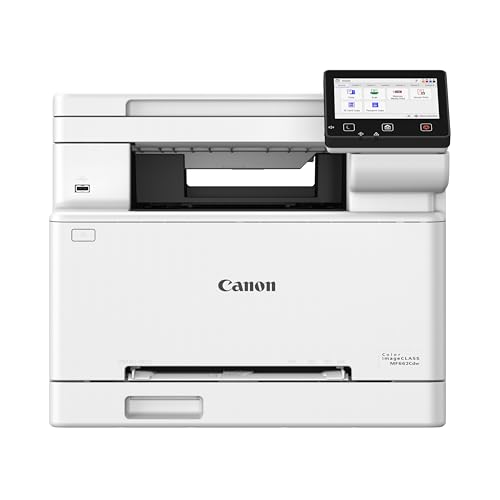
| Canon Color imageCLASS MF662Cdw | Best colour unit with a long warranty | A 26 PPM colour duplex all-in-one whose 3 year limited warranty suits a school that plans purchases in multi-year cycles. |
| Brother MFC-L8930CDW | Best for exam-season security | A business colour laser all-in-one with advanced security features and low-cost printing for labs that handle sensitive papers. |
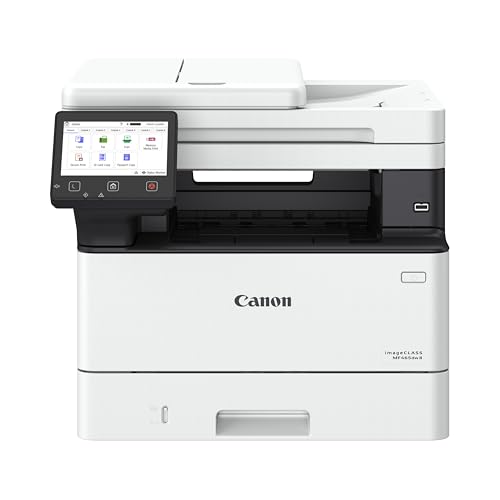
| Canon imageCLASS MF465dw II | Best high-volume monochrome hub | A 42 PPM monochrome all-in-one with fax and expandable paper capacity for the busiest lab in the building. |
How Did We Choose Printers That Can Survive a School Timetable?
We started from the timetable, not the catalogue. A computer lab prints in violent bursts: nothing for forty minutes, then a whole class at once, then nothing again. Machines were judged on how their listing titles describe shared-duty design — wireless or network readiness for a room of student devices, tray and paper-capacity thinking, duplex for paper budgets, and the kind of cost-per-page design that a department head can defend in a budget meeting. We did not invent duty-cycle ratings that the titles do not state, and where a title is silent about a figure, this guide stays silent too.
Colour was treated as a deliberate purchase, not a default. Computing classes print code, essays, and worksheets, almost all of it black on white. Colour earns its keep in specific rooms: a lab shared with art or design, a science lab printing diagrams where the colour carries meaning, a media class proofing layouts. So this list carries both — monochrome machines that keep the cost of ordinary pages low, and colour all-in-ones for the rooms with a genuine reason. If your lab has no colour reason, the honest advice is to buy monochrome and spend the difference on paper and a spare toner cartridge.
All-in-one functions were weighed against lab reality. Scanning and copying in the lab itself saves teacher trips to the office copier, and during exam season that distance matters. Fax, which appears on one pick below, is close to irrelevant for students but occasionally useful for the department office attached to the lab. Print-only machines were not marked down for lacking a scanner; they were judged as what they are — simpler devices with fewer things to jam, misalign, or be poked at by curious fingers between lessons.
Finally, we favoured machines a non-specialist can live with. Most labs are supervised by teachers, not technicians. A printer whose everyday care is limited to swapping a toner cartridge and clearing the occasional misfeed from an accessible tray will still be working in year three; a printer that needs menu-diving and firmware rituals will quietly fall out of use, and the lab will drift back to sending students down the corridor to the office machine.
Should a Lab Printer Join the Network by Cable or by Wi-Fi?
Every pick in this guide is a wireless model, because that is how the current catalogue is built, but a school should still think through the connection question room by room. Wireless printing suits the modern lab’s reality: laptop carts that dock in different rooms, Chromebooks that never touch a cable, a teacher’s device moving between desk and whiteboard. A wireless printer joins that world without installation drama, and for a satellite lab in a converted classroom with no spare network point, it may be the only practical option at all.
Wired networking, where a room offers it, earns its keep in the busiest spaces. A cable removes the printer from the scrum of thirty student devices competing for the same access point at the same moment, and it removes an entire category of fault — the printer that fell off the Wi-Fi over the holiday and rejoined nothing. School IT teams also tend to manage wired devices more tightly, with fixed addresses and monitored queues, which suits exam printing and the secure Brother’s role. The honest summary is that connection type rarely decides a purchase on its own; the room decides. High-volume hub near a switch cabinet: wire it if the model and the room allow. Flexible satellite space: wireless, tested from student accounts, with the network name and printer name labelled to match.
Whichever route a room takes, print management matters more than the wire. A single visible queue per lab, which a teacher can pause when a student sends a two-hundred-page mistake, prevents the classic lab disaster of the runaway job eating the paper tray while the class watches. Jobs should also vanish from the tray promptly: schools handle minors’ work and personal data, and a culture of collecting your own printing immediately is a safeguarding habit as much as a tidiness one. Several picks here are all-in-ones whose scan functions deserve the same thought — a scan sent to a shared folder is a document the school is responsible for, and departments should agree where lab scans land before the first student project uses the feature.
There is a timetable point hiding in the networking question too. Printing bursts happen at lesson changeovers, exactly when the whole school’s devices roam between access points and the network is at its most theatrical. A lab printer that holds its connection calmly through that churn — and a queue that shows students their job is real and waiting — prevents the duplicate-send problem, where an impatient student sends the same essay four times because the first send gave no sign of life. Half the paper waste in school labs is not printing at all; it is re-printing caused by silence. Choose the setup that talks back.
What Should a Lab Printer Handle During One Ordinary Week?
Picture the week honestly. Monday opens with two classes printing homework essays before first period has properly started. Tuesday brings a programming class printing code listings for a debugging exercise, because errors are easier to hunt on paper. Wednesday is the heavy day: a teacher prints a thirty-page class set of past exam questions, twice, because two groups share the lab. Thursday produces the colour work — diagrams for a science crossover lesson, covers for coursework folders. Friday ends with a rush of final drafts in the last lesson, every student convinced their essay needs one more printed copy to proofread on the bus home.
Three lessons fall out of that picture. First, the printer’s real workload is spiky, so warm-up behaviour and first-page-out habits matter more than a marathon speed figure. Second, paper capacity is a supervision issue, not just a convenience: a tray that empties mid-class-set sends a teacher to the supply cupboard at the worst moment. Third, duplex printing quietly halves the paper bill on long documents, and in a school that buys paper by the pallet, that saving is real money across a year. The picks below were matched against that week, room by room, rather than against a showroom checklist.

Brother HL-L2405W — Best compact lab workhorse
Small labs are the norm, not the exception. Many high schools run computing out of a converted classroom where the printer competes for surface space with a switch cabinet, a stack of textbooks, and the teacher’s desk. The HL-L2405W is built for exactly that corner: the listing describes a compact monochrome laser with wireless printing and mobile printing, which in lab terms means it can sit on a shelf or a filing cabinet rather than demanding a dedicated table, and students on Chromebooks or school laptops can reach it without a cable run across the floor.
Monochrome is the right default for this role. The overwhelming majority of lab output — essays, worksheets, code, past-paper questions — carries no colour information at all, and a black-and-white laser keeps the consumable story to a single toner cartridge that a caretaker or teacher can swap in minutes. The listing mentions a Refresh subscription trial, which a school may or may not use depending on its purchasing rules; treat it as an option to evaluate, not a reason to buy. Voice control through Alexa, also in the title, is a home feature that a lab will simply ignore. What a lab will use, every day, is the combination of compact size, wireless access, and laser output that does not smudge when a student picks up a still-warm page. To see the current listing terms for your school’s order, check price on Amazon and confirm the model suffix matches before procurement signs anything.
- Output: monochrome (black and white) laser printing
- Connections: wireless, with mobile printing
- Form factor: compact desktop unit
- Extras in the title: Refresh subscription trial included; works with Alexa
- Scanning or copying: Not stated in the listing title — verify with the maker’s documentation
Strengths
- Compact body fits the shelf space a converted-classroom lab can actually spare.
- Wireless plus mobile printing suits laptop carts and mixed student devices.
- Single-cartridge monochrome running keeps the consumables cupboard simple.
Trade-offs
- Black-and-white output only, so colour diagrams must go to another room’s machine.
- No scanner or copier is claimed in the title, so worksheet copying stays at the office copier.
- Compact desktop lasers generally carry smaller trays than departmental units, so heavy class sets need refills.
Best for: a small or overflow lab printing ordinary classwork close to where students sit. Not suited for: colour coursework — output is monochrome only, with no colour path at all.

Canon imageCLASS LBP6030w — Best simple print-only unit
There is a strong argument for the dumbest printer in the room. The LBP6030w is, by its title, a monochrome single-function wireless laser rated at 19 PPM, print only — and in a lab, print only is sometimes a feature. There is no scanner lid for students to leave open, no copy function to produce unauthorised duplicates of a test paper, and no fax menu for anyone to explore. It prints the page the teacher sent, and that is the whole contract.
Nineteen pages per minute will not win a race against a full class printing simultaneously, and this guide will not pretend otherwise. Where this Canon fits is the second-printer role: the satellite unit in a smaller lab, the backup that keeps a room running when the main machine is down, or the dedicated printer for a single classroom where one teacher controls the queue and prints in modest runs between lessons. Its compact white body takes little space, the wireless connection avoids a cable to the teacher’s desk, and the 1 year limited warranty in the title is the cover a school gets as standard. Judge it as a role player. A department that expects it to swallow whole-cohort printing alone will be disappointed; a department that deploys it where its simplicity matches the workload will find it quietly dependable. The listing page will confirm current availability for a model that has been in catalogues a long time, so verify stock there before writing it into a purchase plan.
- Output: monochrome laser, print only
- Speed stated in the title: 19 PPM
- Connections: wireless
- Warranty stated in the title: 1 year limited warranty
- Duplex printing: Not stated in the listing title — verify with the maker’s documentation
Strengths
- Single-function design removes scanner and copier misuse from the lab entirely.
- Compact footprint suits a single-classroom setup or a backup role.
- Wireless connection keeps install simple in rooms with few network points.
Trade-offs
- At 19 PPM it is the slowest rated machine in this guide.
- Print-only means no in-room copying or scanning of any kind.
- The warranty term in the title is shorter than the 3 year cover on two other picks here.
Best for: a backup or single-classroom role where one teacher manages a modest queue. Not suited for: whole-class simultaneous printing — the stated 19 PPM is the ceiling on its pace.

HP Color LaserJet Pro MFP 3301sdw — Best colour all-in-one for mixed departments
Some labs are genuinely shared territory. The same room hosts computing in the morning, a design class after lunch, and an after-school club in the evening, and each group arrives with different printing needs. The 3301sdw answers that timetable with colour printing plus scanning and copying in one wireless all-in-one, and with duplex printing for the paper budget. Colour diagrams for the science crossover lesson, a scanned sketch brought into a design project, a copied handout when the office copier is busy — one machine at the side of the room covers all of it.
The duplex point deserves emphasis because lab printing is long-document printing. A thirty-student class set of a twelve-page worksheet is 360 sheets single-sided; duplexed, the paper draw is halved and the stack a teacher carries back to the classroom is half as thick. The all-in-one label in the title also means the lab can handle the small administrative jobs that orbit teaching — scanning a permission slip, copying a seating plan — without anyone leaving the room unsupervised, which in a school is not a trivial benefit. This HP is the guide’s middle path: more capable than the compact monochrome units, less specialised than the security-focused Brother below, and the natural standardisation candidate for a department that wants one colour model across several shared labs. Current listing details and stock sit on the product page, which is where a department head should confirm the exact configuration before ordering several at once.
- Output: colour laser printing
- Functions: all-in-one — print with scan and copy capability in the MFP class
- Duplex: yes, stated in the title
- Connections: wireless
- Paper capacity figures: Not stated in the listing title — verify with the maker’s documentation
Strengths
- Colour plus scan and copy covers the mixed-department timetable in one unit.
- Duplex printing cuts paper use on long class sets substantially.
- Wireless all-in-one design suits rooms shared by several teachers and device types.
Trade-offs
- Colour toner means four cartridges to stock instead of one.
- An all-in-one has more moving parts for students to investigate than a print-only box.
- No fax is mentioned in the title, so the department office keeps that job elsewhere.
Best for: a lab shared between computing and colour-using subjects across the day. Not suited for: a paper budget with no colour line — four toner cartridges are a standing cost this machine carries.
Canon Color imageCLASS MF662Cdw — Best colour unit with a long warranty
Schools buy on cycles. A printer bought this September is expected to still be earning its keep when the current first-years sit their final exams, and the MF662Cdw’s title speaks directly to that horizon: a wireless duplex colour laser with copier and scanner, rated at 26 PPM, covered by a 3 year limited warranty. That warranty term is the headline here. Two of the six picks in this guide state one year; Canon states three, and for a school business manager comparing total cost across a budget cycle, the extra covered years are a concrete, comparable fact rather than a marketing mood.
The rest of the specification supports the same long-service story. Twenty-six pages per minute handles class sets without turning printing into a queueing lesson, duplex is built in for the paper budget, and the all-in-one functions cover the copying and scanning a department does daily. Colour output serves the rooms that need diagrams, charts, and coursework covers in colour, while the laser engine keeps text sharp for the essays and exam practice that make up most of the volume. Placed in a main lab rather than a satellite room, this is the kind of machine a department standardises on and then stops thinking about — which, in a school, is the highest praise a printer can earn. Confirm the warranty wording on the listing before purchase, since the exact terms are the maker’s, not this guide’s.
- Output: colour laser printing
- Functions: print, copier, scanner
- Speed stated in the title: 26 PPM
- Duplex: yes, stated in the title
- Warranty stated in the title: 3 year limited warranty
- Connections: wireless
Strengths
- The 3 year limited warranty in the title outlasts the cover stated for most rivals here.
- 26 PPM with duplex keeps whole-class colour sets moving without paper waste.
- Scanner and copier remove routine trips to the main office machine.
Trade-offs
- Colour running costs follow it: four cartridges on the shelf, not one.
- No fax function is claimed in the title.
- Its capability is wasted in a lab that prints nothing but monochrome essays.
Best for: a main lab a department wants to standardise on for a multi-year cycle. Not suited for: monochrome-only workloads — the colour engine’s cartridge set is paid for whether colour is used or not.

Brother MFC-L8930CDW — Best for exam-season security
Twice a year, a computer lab stops being a classroom and becomes a secure room. Mock exams, coursework components, and internal assessments get printed where they will be sat, and the question of who can print what — and who can reprint it — stops being theoretical. The MFC-L8930CDW’s title leads with business colour laser all-in-one duties, duplex print, scan, and copy, and then adds two phrases that matter in that season: low-cost printing and advanced security features. This guide cannot itemise those security features beyond what the title states, and it will not invent a feature list; what the title supports is that Brother positions this machine for environments where controlling access to printed material is part of the job.
Outside exam season it is simply a well-rounded departmental colour machine. Duplex print, scan, and copy cover the daily mix, and the low-cost printing positioning speaks to the cartridge economics a department head watches across a year of class sets. In a school, the sensible deployment is deliberate: this Brother lives in the lab or office-adjacent room where assessment material is produced, its access is managed by the staff who run exams, and the everyday student printing happens on the cheaper monochrome units elsewhere in the building. That division — secure machine for secure work, simple machines for open work — is how schools actually keep both costs and exam papers under control. Schools with an existing Brother fleet will also find the shared driver and toner habits a quiet operational plus, though the listing itself is the place to confirm cartridge commonality.
- Output: colour laser printing
- Functions: all-in-one — duplex print, scan, copy
- Positioning in the title: low-cost printing; advanced security features
- Class: business colour laser all-in-one
- Specific security mechanisms: Not stated in the listing title — verify with the maker’s documentation
Strengths
- Advanced security features in the title match exam-material printing duties.
- Full duplex print, scan, and copy set covers departmental paperwork end to end.
- Low-cost printing positioning suits a high class-set volume across the year.
Trade-offs
- The title does not itemise the security tools, so IT must verify specifics before relying on them.
- Colour all-in-one size and cost are over-specified for a plain worksheet lab.
- Managed access only works if staff actually configure and enforce it.
Best for: the room where assessments and coursework components are printed under staff control. Not suited for: open-access student printing — its security positioning is wasted where no access control is enforced.
Canon imageCLASS MF465dw II — Best high-volume monochrome hub
Every school has one lab that prints more than the rest combined — the big room near the library, the one timetabled back-to-back all day, the one other departments quietly borrow. The MF465dw II is specified for that room. Its title states monochrome wireless duplex printing with print, copy, scan, and fax, expandable paper capacity, and a speed of 42 PPM, the fastest figure in this guide by a wide margin. Expandable paper capacity is the phrase to underline: it means the tray story can grow with the room’s workload instead of the teacher refilling mid-class-set every single day, which is the moment lab printing usually turns into lab chaos.
Monochrome at this scale is an economy decision as much as a speed one. The busiest room produces the most pages, so it should produce them on the cheapest sensible cost per page, and that is a single-cartridge black-and-white laser. The all-in-one functions mean the same hub scans and copies for the departments around it, and the fax, while useless to students, occasionally serves the school office that shares the corridor. Deploy this Canon as the building’s workhorse, put the colour machines in the rooms with colour reasons, and the fleet as a whole costs less than colour everywhere while printing faster where volume actually lives. As with every pick here, the exact tray expansion options are the maker’s to describe — the title promises expandability, and the listing is where a buyer confirms which trays pair with it.
- Output: monochrome laser printing
- Functions: print, copy, scan, fax
- Speed stated in the title: 42 PPM
- Duplex: yes, stated in the title
- Paper capacity: expandable, per the title
- Connections: wireless
Strengths
- 42 PPM is the strongest stated speed in this guide, built for back-to-back classes.
- Expandable paper capacity attacks the mid-class-set refill problem directly.
- Full four-function set makes it a genuine departmental hub, not just a printer.
Trade-offs
- No colour output at all, so diagrams in colour still need another machine.
- A hub this capable is oversized for a small satellite lab’s daily volume.
- Fax hardware is carried even in schools that will never connect a phone line.
Best for: the highest-volume lab in the building, run as a shared monochrome hub. Not suited for: any room whose coursework depends on colour pages — this engine prints black and white only.
How Do the Six Lab Picks Compare Side by Side?
| Model | Colour? | Functions | Stated speed | Standout trait |
|---|---|---|---|---|
| Brother HL-L2405W | No | Not stated in title | Compact wireless body for small labs | |
| Canon LBP6030w | No | Print only | 19 PPM | Single-function simplicity |
| HP MFP 3301sdw | Yes | All-in-one with duplex | Not stated in title | Colour plus scan and copy for shared rooms |
| Canon MF662Cdw | Yes | Print, copy, scan | 26 PPM | 3 year limited warranty in the title |
| Brother MFC-L8930CDW | Yes | Duplex print, scan, copy | Not stated in title | Advanced security features in the title |
| Canon MF465dw II | No | Print, copy, scan, fax | 42 PPM | Expandable paper capacity |
Read the table by room, not by rank. The two compact monochrome units serve small rooms and backup roles; the two mid colour all-in-ones serve shared departments, split by whether warranty length or HP’s duplex all-in-one mix matters more to your purchasing cycle; the Brother serves controlled printing; the big Canon serves volume. A school that buys one of each has, in effect, a small fleet with a role for every machine — and a fleet with clear roles is far easier to support than six identical printers stretched across jobs they only half fit.
What Does Cost Per Page Really Mean Across a School Year?
Department heads get asked for a number, and the honest number is built from the school’s own habits rather than a brochure. Start with volume: count the reams. A lab that goes through a box of paper a month is printing in the region of five thousand pages a month, and across a school year that single room accounts for tens of thousands of pages. At that scale, the difference between a cheap page and a dear page is not pennies in a drawer; it is a visible line in the department budget, large enough to fund the field trip or the software licence that did not fit.
Three habits decide which side of that line a lab lands on. The first is duplex discipline. Worksheets, past papers, and draft essays almost never need to be single-sided, and every duplex default quietly removes half the paper cost of the longest documents in the building. The second is monochrome discipline on colour machines. A colour laser printing a black page still maintains four cartridges, and casual colour — a web page printed with its banners and photographs — costs several times a plain text page. Setting the driver default to black and white, and letting colour be a deliberate choice per job, is the single most effective cost control a school owns. The third habit is cartridge timing: replacing toner when the machine stops, not when the first low warning appears, because warnings are set conservatively and a cartridge shaken gently and refitted often has real pages left in it. Schools should teach that gently and log it, rather than letting every warning trigger a fresh cartridge from the cupboard.
This is also where the fleet idea pays for itself in accounting terms. The high-volume room runs the big monochrome Canon, so the building’s most numerous pages are produced by the machine class with the simplest consumable story. Colour lives in the rooms whose lessons justify it, on the HP, the mid Canon, and the Brother, and those rooms print fewer pages by design. The small Brother and the print-only Canon handle the satellite work where volume is low and convenience is the real currency. Nobody needs a spreadsheet more complicated than that: volume on monochrome, colour on purpose, simplicity at the edges. A department that can describe its printing in one sentence like that has usually already solved the cost problem.
One more cost hides outside the consumables entirely: teacher time. Every minute a teacher spends coaxing a printer is a minute taken from thirty students, and it is spent at the worst possible rate — mid-lesson, under pressure, with an audience. A slightly more expensive machine that simply works is cheaper than a bargain machine that needs attention twice a week, once the salary arithmetic is done honestly. Schools rarely write that line into a purchase comparison, but every teacher who has restarted a print spooler in front of a restless class has felt it.
How Should a Teacher Set Up a Lab Printer So It Stays Boring?
Boring is the goal. A lab printer should be set up once, documented once, and then ignored for months. Start with placement: a stable surface, reachable by the supervising teacher without crossing the room, close enough to a network point if the room allows a wired connection, and far enough from the door that the output tray does not become a corridor pickup point for other classes’ work. Put the printer’s name and room number on a label on the machine itself, and use that same name on the network, so a student reporting a problem can say something more useful than “the printer is broken.”
Next, decide the defaults and lock them in. Monochrome as the default on colour machines, duplex as the default on long documents, and a sensible paper size for your region will save more money than any negotiation on the purchase price. Create one shared print queue per lab rather than letting thirty student devices each invent their own connection, and test that queue from a student account, not just the teacher’s — permissions problems always hide in the account nobody tested. Print a test class set before the first real lesson, thirty copies of a ten-page document, and watch where the process strains: tray capacity, warm-up, the walk from desk to printer. That rehearsal finds the friction while the room is still empty.
Then write the one-page care sheet and tape it inside the nearest cupboard door. It should cover exactly four things: how to load paper the right way up, how to clear a misfeed without forcing anything, which toner cartridge the machine takes, and who to tell when it stops working. Labs fail at printers not because the machines are fragile but because small problems meet thirty impatient users and no instructions. A care sheet written in September is still paying for itself in June.
Finally, plan the consumables shelf before the first cartridge runs out, because it will run out mid-class-set — that is a law of school physics. Keep one spare toner per model in the building, log the date each cartridge is fitted, and review the log at half-term. The log tells you which room is really your high-volume room, which is information worth having before the next purchasing round, and it usually surprises everyone.
What Happens in the First Term After a New Lab Printer Arrives?
The first fortnight decides the machine’s reputation for years, and reputations in schools are sticky. If the printer falters during the first big class set — a jam nobody can clear, a queue nobody can see into — the room’s teachers will route around it for the rest of the year, sending their printing to the office and leaving an expensive machine idle. So the first term deserves a small, deliberate routine. Week one: the supervising teacher prints everything personally, learning the machine’s sounds and habits while the stakes are low. Week two: one trusted class prints under supervision, and the care sheet gets its first real test — if a student cannot follow the misfeed instructions, the sheet is wrong, not the student, and it gets rewritten that day.
By half-term the patterns are visible. The log of cartridge changes and paper refills shows whether the room is the volume hub the timetable suggested or something quieter. The queue shows which lessons generate the bursts, and a smart department adjusts defaults then: duplex locked on for the essay-heavy groups, colour released for the design class’s project fortnight, the satellite machine moved to whichever corner the log says is busiest. None of this requires expertise. It requires one person to own the printer the way a head of department owns the timetable — as a living system that gets reviewed, not a box that got installed.
The end of the first term is the moment to decide about standardisation. If the machine has been boring — and boring is triumph — the case for buying siblings for the other labs writes itself: same driver, same toner, same care sheet, and a spare that can be swapped into any room in minutes. If it has been troublesome, the term has still done its job, because the school learned it on one machine instead of six. Either way, the pilot-first approach this guide recommended at the start has paid for itself, and the department walks into the next purchasing round with a log book instead of opinions. That log, incidentally, is also the document that persuades a business manager to fund the second and third machines, because it replaces the usual argument about printing with dates, cartridge counts, and paper boxes that anyone can check.
Which Mistakes Do Schools Make When Buying Lab Printers?
The classic mistake is buying on the classroom’s quietest day. A printer demoed in an empty room in August looks fast and willing; the same machine in a wet November week, printing back-to-back class sets, is a different animal. Buy for the Wednesday peak, not the August demo. Closely related is the inkjet mistake: choosing cheap inkjets for a lab because the purchase price fits a small budget line, then discovering after the summer holiday that every cartridge has dried in the heat. Lasers cost more on the invoice and less across the year, and in schools the year is the unit that matters.
A third mistake is colour everywhere. Colour machines in rooms with no colour workload still consume colour toner — through calibration cycles, through students printing web pages in full colour because nobody set the default — and the department ends up funding four cartridges per room to produce black text. Set monochrome defaults, and buy colour only where a teacher can name the lessons that need it. The mirror-image mistake also exists: one colour machine for a whole building, located in a locked room, so the design class queues behind the exam printing. Match machines to rooms.
Schools also underbuy paper capacity and overbuy features. A scanner with a document feeder nobody uses is worth less than a second tray that ends the mid-lesson refill walk. And the quietest mistake of all: no standardisation. Six different models across six labs means six drivers, six toner types, and six sets of quirks for the one technician the school shares with three other schools. Where this guide’s fleet idea helps is exactly there — a small number of models, each with a clear role, repeated across rooms.
Final Recommendation
For most high schools, the sensible fleet is a mix rather than a single model. Put the Canon MF465dw II in the busiest lab, where its stated 42 PPM and expandable paper capacity absorb the timetable’s worst bursts. Standardise shared departmental rooms on the Canon MF662Cdw if the 3 year warranty fits your purchasing cycle, or the HP 3301sdw where its colour all-in-one mix suits the subjects sharing the room. Give the exam-adjacent lab the Brother MFC-L8930CDW and actually enforce its access controls. Fill small rooms and backup roles with the Brother HL-L2405W, and keep a Canon LBP6030w as the simple spare that can be carried into any room and printing within minutes. If the budget forces a single purchase first, start with the machine for your highest-volume room and expand the fleet role by role. A lab printer earns trust the slow way, one uneventful term at a time, and the six machines above are ranked to collect exactly that kind of trust.
How Does Lab Printing Change During Exam Season and Coursework Deadlines?
Twice a year the lab’s printing personality flips. Coursework deadlines turn students into bulk printers in the final week: drafts, appendices, and final copies emerge in long runs, often from the same dozen machines, and the printer that cruised through ordinary lessons suddenly works like a copy shop. Departments can soften that week with rules set early — draft printing on the satellite machines, final copies on the hub, duplex enforced, and a booking sheet for the colour machine so the design class and the science class are not negotiating at the door. None of that needs new hardware. It needs the fleet’s roles, which this guide has argued for throughout, to be written down and shared before the deadline week arrives.
Exam season is the opposite problem: low volume, high consequence. Internal assessments printed in the lab must be complete, legible, and accounted for, and the room’s ordinary open access becomes a liability. That is the Brother MFC-L8930CDW’s moment — printed material produced on a machine whose title advertises advanced security features, in a room supervised by the staff running the assessment, with every copy counted out and back. Schools should rehearse that too: a mock run in a quiet week, checking that the right staff can print, the wrong accounts cannot, and a misfeed during the run can be cleared and the page reprinted without breaking the count. Exam printing fails in rehearsal or it fails in public, and rehearsal is cheaper.
Both seasons teach the same underlying lesson. A lab printer is never just a printer; it is part of how a school handles trust — trust that a student’s work will appear when needed, and trust that sensitive work will appear only where it should. The six machines in this guide were chosen to cover both kinds of trust, and a department that assigns them deliberately will feel the benefit most on exactly the days when printing matters most.
Frequently Asked Questions
Is a laser printer really better than an inkjet for a school lab?
For shared lab duty, yes, and the reason is the calendar. Toner is a dry powder that sits happily through a six-week summer closure in a warm building; inkjet cartridges and printheads can dry or clog over the same break, so the first week of term becomes a maintenance week. Lasers also keep text crisp at small sizes, which matters for code listings and exam questions, and their cost per page on plain paper suits class-set volumes.
How many printers does one computer lab actually need?
One working printer per lab is the baseline, with a shared spare for the building. Two machines in one room help only when the room regularly prints for two classes at once; otherwise the second machine is better deployed as the building’s backup, because a lab with a dead printer and a spare down the corridor loses minutes, while a lab with a dead printer and no spare loses lessons.
Should every lab printer have colour?
No. Colour should follow named lessons — design work, science diagrams where colour carries meaning, coursework covers — not be spread by default. Monochrome machines print the bulk of lab work for less, and setting monochrome as the default even on colour machines stops casual colour printing from draining three extra cartridges.
What does expandable paper capacity change in practice?
It changes who refills the tray and when. A standard tray emptied by a thirty-student class set means the teacher stops teaching to fetch paper. Extra capacity, like the expandable design in the Canon MF465dw II’s title, stretches refills to natural breaks in the day. In a back-to-back timetable that difference decides whether printing feels invisible or constantly interruptive.
Can students print from Chromebooks and laptops to these machines?
The wireless models in this guide are the ones aimed at mixed student devices, and the Brother HL-L2405W’s title explicitly includes mobile printing. Your school’s network setup decides the details — most schools route student devices through one managed queue per lab — so test from a real student account during setup rather than assuming the teacher’s connection proves anything about the students’.
How long should a school expect a lab printer to last?
Plan in budget cycles, not promises. The warranty terms stated in these titles run from 1 year on the Canon LBP6030w to 3 years on the Canon MF662Cdw, and a school that standardises models, keeps spare toner logged, and follows a simple care sheet gives any of these machines its best chance of serving several cohorts. Heavy rooms will cycle machines faster than satellite rooms, which is another reason to match the model to the room’s real volume.
Who should own the lab printer day to day?
One named person per room — usually the teacher who teaches there most, backed by the school’s technician for anything beyond paper, toner, and misfeeds. Diffuse ownership is how small faults become permanent ones: everyone assumes someone else reported the odd noise or the fading corner of every page. A named owner with a one-page care sheet and a cartridge log keeps the machine’s small problems small, and gives the department a single voice when purchasing asks how the fleet is doing.
Related Guides
Departments equipping other shared spaces may also want best printers for medium sized offices for staff-room and admin printing, best printers for preventing misfeeds and jams for rooms where paper handling causes the most lost lessons, best printers for elementary schools if the same budget covers younger pupils’ classrooms, and best printers for coworking spaces for sixth-form study areas run like shared workspaces.


