What's inside
- Where to buy
- Key Takeaways
- Quick Picks
- How We Chose These Picks
- Which of These Machines Actually Prints on a Disc?
- Why Did Disc Printing Vanish from Ordinary Printers?
- Three Routes to a Labelled Disc, Compared Honestly
- What Should You Check Before Buying Printers for CD Labels?
- How Do You Verify a Disc Tray Before You Pay?
- Which Mistakes Ruin Disc Printing Projects?
- What Vocabulary Should You Master Before Reading Any Disc Printer Listing?
- How Does a Publisher Differ from a Tray Printer at the Desk?
- How Should Printed Discs Be Stored So the Faces Survive?
- What Else Belongs in the Budget Besides the Machine?
- How Does Ink Stay Put on a Spinning Disc?
- What Does a Week of Disc Work Look Like on Each Route?
- Which Disc Face Designs Still Read Clearly in Ten Years?
- Which Printable Disc Format Should a Small Run Choose?
- Final Recommendation
- Frequently Asked Questions
- Related Guides
As an Amazon Associate I earn from qualifying purchases. This post may contain affiliate links at no extra cost to you.
gizmoverdict.com is reader-supported. When you buy through links on our site, we may earn an affiliate commission.
Where to buy
The best printers for CD labels come with an honest warning before any list begins: printing directly onto a disc, once a headline feature on ordinary photo printers, has nearly vanished from current mainstream machines. The best printers for CD labels in 2026 are therefore a strange, mixed shelf. One genuine disc publisher still burns and prints discs in a single automated run. One keyboard-equipped title printer stamps text onto a disc surface and nothing more. The remaining four are Epson inkjets from the generations when a disc tray was a normal thing to find in a photo printer’s box, and their listings stay silent about that tray, so this guide treats disc printing on those four as unverified until the documentation for the exact unit says otherwise.
That honesty matters because the alternative is a cupboard full of wrong purchases. Sticker labels exist, and they peel, bubble, unbalance a spinning disc and jam in slot-loading drives, which is why no sticker kit appears among the picks. What follows separates three genuinely different tools: an automated publisher for runs of finished discs, legacy inkjets from the disc-tray era, and a small thermal title printer for plain text. Read the group descriptions before the individual reviews, because choosing the wrong group wastes more money than choosing the wrong model inside the right one.
One more piece of scene-setting: recordable discs themselves are a shrinking medium. Churches, schools, local studios, wedding videographers, community radio stations and families archiving home video still produce them in meaningful numbers, and a printed face turns a silver disc in a paper sleeve into something a recipient can identify at a glance. The picks below serve exactly that remaining audience, at volumes ranging from one disc at a time to a hundred-disc automated stack.
Key Takeaways
- Direct-to-disc printing has nearly disappeared from current mainstream printers, so this shortlist mixes one dedicated disc publisher, older disc-era inkjets and one thermal title printer.
- The Epson Discproducer PP-100III is the only pick that both burns and prints discs automatically, stacking up to a hundred at a time for unattended runs.
- Four Epson inkjets come from the disc-tray generations, yet their listing titles never mention a disc tray, so disc capability on those units is marked not stated and needs documentary confirmation before purchase.
- The Casio CW-75 prints text titles directly onto a disc surface through its own keyboard, with no computer involved and no colour artwork possible.
- Adhesive disc labels are consumables with real failure modes, not printers, and none appears as a pick here.
Quick Picks
| Pick | Badge | Why it earns its place |
|---|---|---|
| Epson Discproducer PP-100III | The automated publisher | Burns and prints CD, DVD and Blu-ray discs in one unattended stack run. |
| Casio Disc Title Printer CW-75 | The text-only labeller | Types a title on its QWERTY keyboard and prints it straight onto the disc. |
| Epson Stylus Photo R200 | The legacy photo inkjet | A disc-era photo printer sold under its original model code, with disc printing unverified in its title. |
| Epson Expression Premium XP-7100 | The all-in-one with an ADF | Five-colour printing plus scan and copy, an auto document feeder and borderless photos. |
| Epson Expression Premium XP-6100 | The compact all-in-one | Five-colour borderless printing with memory card support in a smaller footprint. |
| Epson Expression Photo XP-8600 | The photo-focused finisher | A photo-led all-in-one rounding out the list for homes printing pictures alongside discs. |
How We Chose These Picks
Selection started from the uncomfortable fact stated in the introduction: a modern shelf of disc printers barely exists. Rather than padding the list with ordinary printers and pretending, the shortlist was built around the three honest routes to a labelled disc. Route one is a purpose-built publisher that records and prints. Route two is the inkjet generations that historically carried disc trays, represented here by four Epson models spanning two decades of that design. Route three is direct thermal title printing, represented by the Casio unit with its own keyboard.
Every pick then faced the same evidence rule. A capability counts only when the listing title states it. Speeds, functions and connectivity quoted in the spec boxes come straight from those titles. Where a title stays silent about the very feature this keyword is about, the spec box records that silence plainly instead of borrowing specifications from a neighbouring model or from memory of an older brochure. That rule bites hardest on the four inkjets, and it is applied to them without exception.
Finally, each pick had to justify its running story. A disc publisher lives or dies on unattended reliability and ink capacity across a stack. A legacy inkjet lives or dies on cartridge availability and the condition of a used unit. A title printer lives or dies on ribbon supply. Those ownership questions shape the reviews below as much as the headline functions do.
Which of These Machines Actually Prints on a Disc?
Three different meanings hide inside the phrase printing on a disc, and separating them prevents the commonest disappointment in this category. The Discproducer prints full-colour artwork onto printable-surface discs as part of an automated publishing run. The Casio prints monochrome text onto a band of the disc face using thermal transfer. The four inkjets belong to model families from the years when a plastic disc tray slid into the front of the printer, yet the specific listings gathered here do not state that capability, so a careful buyer treats those four as ordinary photo and document printers until a manual or a seller photograph proves the tray exists.
Printable-surface media is the other half of the equation. Inkjet-printable CDs, DVDs and Blu-ray discs carry a matte white coating that accepts ink; ordinary shiny discs reject it, smearing under a fingertip. Any route through this list, publisher or legacy inkjet alike, begins with buying the coated media rather than the cheapest silver spindle on the shelf.
Why Did Disc Printing Vanish from Ordinary Printers?
The tray disappeared because the disc disappeared first. Streaming replaced the burned movie, cloud links replaced the burned data archive, and USB sticks replaced the software handout. Printer makers, watching disc volumes collapse year after year, quietly deleted a mechanical feature that added cost, a separate tray accessory in the box, a second paper path to engineer and a support burden of misloaded rigid media. Each deletion saved a little money on millions of units, and almost no showroom customer asked where the tray had gone.
The professional end of the market followed a different curve. Duplication and publishing houses consolidated onto dedicated equipment like the Discproducer line, where the printer is one station inside a recording machine. That split is why the modern market feels so hollow in the middle: the casual feature died with the casual medium, while the industrial tool survived for organisations still producing discs in volume. The six picks in this guide map exactly onto that hollowed landscape, two survivors at the extremes and four artefacts of the era when the middle was full.
Rental and second-hand channels tell the same story from another angle: disc publishers circulate among studios as project equipment, passed on when a contract ends, while tray-era inkjets surface in estate sales and office clearances. Both channels reward the same inspection habits this guide keeps repeating.
There is a practical consequence for anyone shopping today. Search results for this keyword are crowded with ordinary printers wearing disc vocabulary they have not earned, with label sticker kits presented as disc printing, and with legacy models described in the present tense. The verification discipline running through this guide exists because the category’s marketing memory is roughly a decade older than its hardware reality.
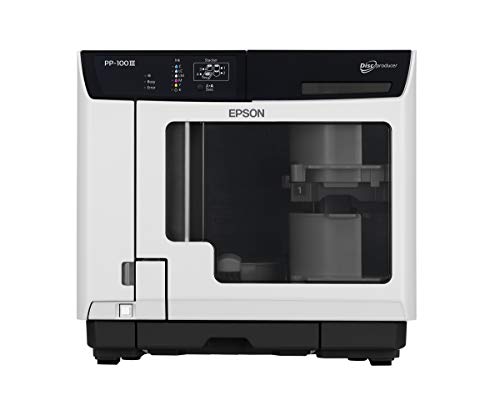
Epson Discproducer PP-100III — The automated publisher
The PP-100III occupies a category of one on this list: a disc publisher, meaning a machine that takes blank recordable discs in a stack, burns data onto them, prints artwork onto their faces and delivers finished discs without a human feeding each one. Its title names CD, DVD and Blu-ray in a single breath, so a small studio can standardise on one unit for a client’s archive disc, a congregation’s sermon DVD and a photographer’s Blu-ray delivery set. For organisations still shipping physical media every week, that automation replaces an afternoon of tray-loading with a job started and collected later.
The working rhythm matters more than the specification sheet here. A run is defined in the publisher’s software, the stack is loaded, and the machine cycles discs through recording and printing in sequence. Failed burns are rejected rather than mixed into the finished pile, which protects the credibility of a stack handed to a client. Ink comes in cartridges sized for production rather than for occasional home printing, and the printed face is full-colour artwork on printable-surface media, the same visual standard as a retail disc.
Ownership caveats are equally concrete. This is specialised equipment with a specialised price class, a footprint closer to a small appliance than to a desktop printer, and no role whatsoever in printing paper documents. It earns its keep only where disc volume is real and recurring. A household labelling a dozen discs a year would be buying a bottling plant to fill a water glass.
- Media: CD, DVD and Blu-ray recordable discs, per the listing title
- Role: combined burning and printing publisher for stacked runs
- Print style: full-colour artwork onto printable-surface disc faces
- Paper printing: none; this is a disc-only machine
- Disc tray for single discs: not applicable to a stack-fed publisher design
Strengths
- Burning and printing happen in one unattended pass, removing the two-step handling every other route demands.
- Three disc formats share one machine, so mixed client work needs no second unit.
- Stack feeding turns a hundred-disc job into a load-and-collect task rather than an afternoon of supervision.
Trade-offs
- Production pricing puts it beyond casual or occasional disc labelling budgets.
- It prints no paper at all, so a separate document printer remains necessary.
- Printable-surface media is mandatory; plain silver discs will not take the ink.
Best for: studios, churches, schools and services producing finished discs in recurring batches. Not suited for: occasional home labelling or any paper printing task.

Casio Disc Title Printer with QWERTY keyboard (CW-75) — The text-only labeller
The CW-75 answers a narrower question than the publisher above: how to get a legible title onto a disc with no computer, no software and no artwork. Its built-in QWERTY keyboard, named right in the listing title, lets the operator type the disc’s title and print it directly onto the disc surface in a thermal transfer band. Think of the discs burned at a live event, a field recording session or a community archive day, where the disc exists before any computer session does and a marker pen is the only alternative.
That independence defines both its charm and its ceiling. Output is text, in the printer’s own fonts, arranged as titles rather than designed labels. There is no colour artwork, no photograph, no logo beyond what lettering alone can suggest. Within those limits the result is tidy, permanent and far more readable than handwriting, and the unit’s small size lets it live in the same bag as the recorder that produced the discs.
Ribbon supply is the ownership question to settle before buying. Thermal transfer printing consumes a cassette, and a discontinued-era accessory lives or dies on whether those cassettes remain findable. Confirming ribbon availability first turns this from a gamble into a sensible purchase; skipping that check risks owning a keyboard with nothing to print.
- Input: built-in QWERTY keyboard, per the listing title
- Output: printed text titles directly on the disc surface
- Computer required: none for titling work
- Colour artwork: not offered; this is a title printer, not an art printer
- Burning: none; discs must already be recorded elsewhere
Strengths
- Complete independence from computers makes it usable at events and in the field.
- Typed titles stay legible for the life of the disc, unlike marker handwriting.
- Compact form travels with recording gear instead of anchoring a desk.
Trade-offs
- Text-only output cannot reproduce artwork, logos or photographs.
- Ribbon cassettes are a continuing supply question on a legacy accessory.
- It labels discs one at a time, so batch work crawls compared with the publisher.
Best for: event recordists, archivists and field workers titling discs on the spot. Not suited for: designed label artwork or volume disc production.

Epson Stylus Photo R200 Ink Jet Printer (C11C546011) — The legacy photo inkjet
The R200 is a time capsule from the years when a photo printer and a disc printer were routinely the same machine, and its listing sells it under the original C11C546011 model code with no feature claims at all. That bare title forces the honest framing used throughout this guide: the R200 belongs to the disc-tray generation of Epson photo printers, but this listing does not state disc printing, so the spec box below records the silence and the review treats verification as part of the purchase. A seller photograph showing the disc tray, or the manual for this exact model code, settles the question in a minute.
As a photo printer of its era, the R200’s appeal is the six-colour inkjet approach Epson used for glossy prints, paired with the front-loading path that made disc printing mechanically possible on this design family. Buying one now is a used-market exercise. Print heads on inkjets of this age clog when units sit idle, ink cartridges for discontinued lines carry scarcity pricing, and driver support on current operating systems can require patience. None of that makes the machine a bad buy; it makes the inspection checklist the real product.
Set against the two machines above it, the R200 offers the middle route: full-colour artwork potential on printable discs, single discs in sequence, at used-equipment money. Set against the three newer all-in-ones below, it offers era authenticity at the cost of age. Either way, the purchase begins with proof of the tray and a test print, never with assumptions.
- Class: ink jet photo printer, per the listing title
- Model code: C11C546011, as printed in the title
- Disc printing: Not stated in the listing title — verify with Epson documentation
- Connectivity: Not stated in the listing title — verify with Epson documentation
- Condition reality: a legacy model, so expect used-market sourcing and inspection
Strengths
- Represents the disc-era photo printer design at used-market cost.
- Six-colour era photo output suits the artwork side of disc faces and prints alike.
- A simple, single-purpose machine without all-in-one bulk.
Trade-offs
- Disc capability is unconfirmed by the listing and must be proven before purchase.
- Age brings clogged-head risk and ageing driver support.
- Cartridges for a discontinued line can cost more than the printer over time.
Best for: a buyer seeking the disc-tray era on a small budget and willing to inspect before paying. Not suited for: any purchase expected to deliver a guaranteed, warranted disc printer on day one.
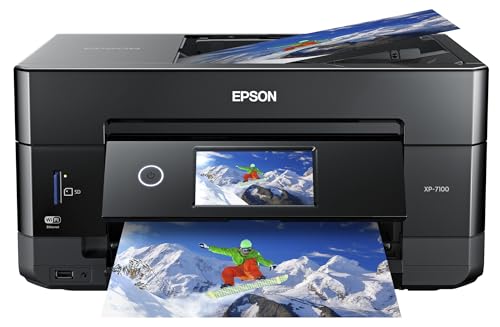
Epson Expression Premium XP-7100 — The all-in-one with an ADF
The XP-7100 is the strongest general printer in this group, and its title is generous with facts: five-colour printing, scan and copy functions, up to 15.8 ppm, an auto document feeder and borderless photo printing. Read that title closely, though, and the word disc never appears. Following the evidence rule, this review does not claim a disc tray for the XP-7100. It presents the machine as a capable home all-in-one from the Expression Premium line, a family with disc-era roots, and leaves disc verification to the documentation check described in the buying guide below.
Judged as a household machine, the feeder changes daily life more than any other single feature. Multi-page scanning for school forms, contracts and archive projects proceeds without lifting the lid for every sheet, and five-colour printing gives photographs a dedicated photo black that four-colour machines lack. Borderless output suits the photo projects the title itself names as the target use.
For the disc-labelling reader, then, the XP-7100 is a conditional pick. If the documentation for this exact model confirms a disc tray, it becomes the most modern one-disc-at-a-time route on the list, with a scanner and feeder earning desk space the rest of the year. If the documentation stays silent, it remains a fine all-in-one that does not solve the disc problem, and the publisher or the Casio above stays the answer.
- Functions: print, scan and copy, per the listing title
- Ink system: 5-colour print, per the listing title
- Speed: up to 15.8 ppm, per the listing title
- Feeder: ADF included, per the listing title
- Disc printing: Not stated in the listing title — verify with Epson documentation
Strengths
- The auto document feeder lifts it above the other all-in-ones here for paperwork-heavy homes.
- Five-colour printing improves photographs beyond four-colour output.
- Borderless photo printing matches the home photo projects the title targets.
Trade-offs
- Disc printing is unconfirmed by the title and cannot be assumed.
- Five cartridges mean five chances to run dry mid-project.
- All-in-one size exceeds a print-only machine’s footprint.
Best for: a household seeking a full-featured all-in-one first and a possible disc route second, pending documentation. Not suited for: a purchase justified by disc printing alone without that check.

Epson Expression Premium XP-6100 — The compact all-in-one
The XP-6100 sits one rung below its feeder-equipped sibling: the same five-colour print engine family, the same up to 15.8 ppm title figure and the same borderless photo printing, traded against a smaller body and a feature list that swaps the document feeder for USB and memory card support. Its title, like the XP-7100’s, never mentions discs. The same conditional logic therefore applies, and this review will not repeat the warning at length; the spec box records the silence, and the verification steps in the buying guide govern the decision.
Where the XP-6100 builds its own case is placement and direct printing. Memory card support lets a camera card print without a computer session, a small convenience that photo-printing households use weekly, and the compact shell fits shelves and side tables that reject full-size all-in-ones. Wireless printing, named in the title, keeps it reachable from every phone and laptop in the home.
Against the XP-7100, the choice is feeder versus footprint. Against the XP-8600 below, the choice is the Premium line’s five-colour document-and-photo balance versus a photo-led machine. None of the three modern all-in-ones can be recommended as a disc printer on title evidence; all three can be recommended as printers, with the disc question settled separately by documentation.
- Functions: print, scan and copy, per the listing title
- Ink system: 5-colour print, per the listing title
- Speed: up to 15.8 ppm, per the listing title
- Direct printing: USB and memory card support, per the listing title
- Disc printing: Not stated in the listing title — verify with Epson documentation
Strengths
- Compact body suits shelves and small desks that reject larger all-in-ones.
- Memory card printing skips the computer for quick photo runs.
- Five-colour output keeps photographs a step above basic four-colour work.
Trade-offs
- No document feeder, so multi-page scanning is a page-at-a-time chore.
- Disc printing is unconfirmed by the title, exactly as with its sibling.
- Smaller machines in this class carry smaller paper capacity.
Best for: space-limited homes printing photos and documents in roughly equal measure. Not suited for: feeder-driven paperwork or an unverified disc purchase.

Epson Expression Photo XP-8600 — The photo-focused finisher
The XP-8600 closes the list from the photo side of Epson’s range. Its title leads with the word Photo, describes a wireless colour photo printer with scanner and copier, and adds the word Small at the end, a compactness claim the other two all-in-ones do not make. Disc printing appears nowhere in the title, so the pattern holds for a third time: not stated, not claimed, verification required. A reader tired of reading that sentence has understood the central lesson of this entire category in 2026.
As a photo machine, the Expression Photo line’s priorities show in the details that matter at the kitchen table: borderless prints for framing, a scanner for digitising the family archive, and wireless reach so the print command comes from the phone holding the photograph. The small footprint suits a craft desk or a living-room sideboard better than an office corner.
Its role in a disc workflow, if documentation ever confirms one, would mirror the XP-6100’s: one disc at a time, artwork printed between photo jobs. Absent that confirmation, its honest role is the photo printer a disc-labelling household also owns, handling the inserts, covers and booklet printing that surround a finished disc even when another machine prints the disc face itself. That supporting work is real, and it is the basis on which the XP-8600 earns the final chair.
- Class: wireless colour photo printer with scanner and copier, per the listing title
- Size note: described as Small in the listing title
- Photo focus: Expression Photo line positioning, per the title
- Disc printing: Not stated in the listing title — verify with Epson documentation
- Paper roles: disc inserts, covers and booklets are natural work for this class
Strengths
- Photo-first design serves the prints and covers surrounding a disc project.
- Small footprint fits craft desks and living spaces.
- Scanning supports digitising artwork and archive photographs.
Trade-offs
- Disc printing is unconfirmed by the title, as with both sibling all-in-ones.
- Photo-led machines prioritise pictures over document speed and capacity.
- No document feeder is named for archive-scale scanning.
Best for: photo-printing households producing disc covers and inserts alongside their pictures. Not suited for: a confirmed direct-to-disc purchase on title evidence alone.
Three Routes to a Labelled Disc, Compared Honestly
| Pick | Route | Burns discs | Disc evidence in title | Colour on disc |
|---|---|---|---|---|
| Epson Discproducer PP-100III | Automated publisher | Yes | Named as a disc publisher and printer | Full artwork |
| Casio CW-75 | Thermal title printer | No | Named as a disc title printer | Text only |
| Epson Stylus Photo R200 | Legacy inkjet | No | Not stated | Unverified |
| Epson Expression Premium XP-7100 | Modern all-in-one | No | Not stated | Unverified |
| Epson Expression Premium XP-6100 | Modern all-in-one | No | Not stated | Unverified |
| Epson Expression Photo XP-8600 | Photo all-in-one | No | Not stated | Unverified |
The table states the whole category in six rows. Only two picks carry disc function in their titles. The other four carry a question that documentation must answer, and any buying decision that skips that question is a coin toss dressed as a purchase.
What Should You Check Before Buying Printers for CD Labels?
Start with the media, because the media decides whether any of this works. Inkjet-printable discs carry a coated, matte face made to receive ink, and they are sold explicitly as printable. Standard recordable discs with a shiny silver face reject inkjet ink, which pools, smears and can transfer onto drive mechanisms. A buyer seeking a direct-to-disc result should price printable media into the project from the beginning, in the same order as the printer, rather than discovering the distinction with a ruined first disc.
Next, match the route to the volume. One disc at a time suits the legacy inkjet route and the title printer, at the cost of human attention for every unit. A weekly stack of finished discs justifies the publisher, a machine designed entirely to remove that attention. Volume honesty is the cheapest feature in this category: count last month’s discs before choosing, not after.
Then verify, in writing, the exact capability of the exact model. For the four inkjets here, that means the manufacturer’s manual for the precise model code, a support page naming a disc tray or CD print function, or a seller photograph showing the tray in the box. Marketing memory from a model’s era is not evidence. Model lines span years and regions, and tray inclusion varied across both.
Software deserves a place on the checklist as well. Disc artwork is laid out in a circular template, and the publisher’s own job software, the printer driver’s disc layout utility or a dedicated label design program each handle that template differently. Text placed for one template can land across the centre hole in another. A test print on the cheapest printable blank in the box, checked against the template’s safe zones, costs almost nothing and exposes every mismatch between the design on screen and the circle on the desk. Studios keep one proven template file per machine and treat it as part of the equipment.
Finally, audit the consumables. Publisher ink, legacy cartridges and Casio ribbons each follow a different supply story, and a printer without obtainable ink is furniture. Check current availability of the exact cartridge or ribbon family before paying for the hardware, and treat a discontinued consumable line as a countdown timer on the machine’s useful life.
How Do You Verify a Disc Tray Before You Pay?
Verification follows a short ladder of evidence, from strongest to weakest. The top rung is the manufacturer’s own manual: download the PDF for the exact model code, search it for the words disc, CD print or tray, and read the loading instructions if they exist. A machine with a disc function always documents the loading path, because printing on a rigid disc without guidance would damage both disc and printer.
The second rung is the manufacturer’s support or specifications page for the same model code, which lists supported media types. Printable disc media appearing in that list confirms the function. The third rung is physical evidence from a seller: a photograph of the tray accessory, usually a flat plastic frame with a disc-sized recess, included in the sale. The bottom rung, worth nothing on its own, is a seller’s verbal assurance or a listing for a different model in the same family.
After purchase, the first disc is a test, not a production run. Load one printable disc, print a small test image, let the ink dry fully before handling, and check the result for banding or smearing. Only then commit a batch of recorded discs, because a misprinted blank costs pennies while a misprinted finished master costs the recording session behind it.
Which Mistakes Ruin Disc Printing Projects?
The classic failure is printing onto non-printable media. The ink never dries, the disc smears inside its case, and the mess can reach the drive that later plays it. The second failure is reaching for adhesive labels as the shortcut: labels lift at the edges with heat and age, throw a high-speed disc off balance, and can peel inside a slot-loading drive, converting a labelling shortcut into a repair bill.
A third mistake is assuming a modern all-in-one inherits the disc features of its ancestors. Product families evolve, trays disappear quietly, and the box on the doorstep settles the argument too late. The fourth is the mirror image: dismissing the humble title printer because it cannot do artwork, then handwriting titles with a marker carrying solvents never meant for disc surfaces, in lettering that fades within a year.
The fifth mistake is economic: buying the publisher for a dozen discs a year, or nursing a clogged legacy inkjet through a hundred-disc project one tray-load at a time. Both errors come from skipping the volume count in the buying guide above. The machine should fit the pile of discs actually waiting, not the pile imagined while browsing.
What Vocabulary Should You Master Before Reading Any Disc Printer Listing?
Five terms unlock the whole category. Printable surface describes media coated to receive ink, and it is a property of the disc, never of the printer. Direct-to-disc describes a printer path that carries the rigid disc under the print head, whether by tray, drawer or robotic arm. A publisher adds recording to printing, producing finished discs from blanks in one machine. A title printer, the Casio’s category, prints text in a band rather than artwork across a face. Lightscribe and its thermal cousins, sometimes mentioned in older listings, etched labels into special media with a laser and belong to history rather than to any pick here.
Two further terms guard against expensive confusion. A duplicator copies discs, often in towers of drives, but prints nothing; sellers occasionally blur duplicator and publisher because both handle stacks. And a label applicator centres adhesive labels onto discs, a real tool with a real purpose, yet one that produces the sticker outcome this guide deliberately keeps out of the pick list. A listing that cannot say plainly which of these machines it describes has not earned the benefit of the doubt.
Armed with those definitions, the six titles in the Quick Picks table sort themselves instantly. One publisher, one title printer, and four inkjets with titles describing paper printing and nothing more. The vocabulary does the first round of shopping before any money moves.
How Does a Publisher Differ from a Tray Printer at the Desk?
The daily texture of the two machine types could hardly differ more. A tray printer is a conversation: load a disc, send the job, wait, unload, repeat. The operator is the mechanism, and the output rate is the operator’s patience measured in discs per hour. Interruptions mid-run simply pause production, and a single urgent disc can jump the queue at any moment, because the queue is a person holding a stack.
A publisher is a delegation. The job is defined once, in software, with the data set, the artwork file and the copy count agreed before the first disc moves. Robotics then own the sequence, including the unglamorous parts: rejecting a failed burn, tracking which finished discs belong to which job, and presenting a completed stack rather than a scattering of individual results. Interruption is harder, because the machine’s virtue is precisely that nobody is watching it.
Failure looks different, too. A tray printer fails visibly and immediately, in front of the operator, disc by disc, in plain sight. A publisher can fail productively, generating a neat stack of identical mistakes if the artwork file or the data set was wrong at definition time. Studios running publishers therefore proof the first finished disc of every job before the stack completes, a habit that costs one disc of attention and saves a hundred discs of rework.
How Should Printed Discs Be Stored So the Faces Survive?
Storage decides whether careful printing was worth doing. Printed faces should never rest directly against another disc’s face or against a rough sleeve window; the coating that accepted the ink remains the most scratch-sensitive surface in the package. Individual jewel cases or smooth, lined sleeves keep faces isolated, and a full-face printed disc stored in a paper sleeve will eventually trade ink with that sleeve under pressure and warmth.
Environment matters in quieter ways. Heat accelerates both dye fade in the recorded layer and softening in any adhesive present in the package, while humidity encourages the coating to absorb moisture and hold fingerprints permanently. A cool, dry shelf away from direct sun is the entire prescription, and it applies equally to the publisher’s finished stacks and the archivist’s single discs.
Handling completes the picture. Discs are held by the edges and the centre hole, never by the face, and a printed disc is more vulnerable than a silver one because every touch lands on the information layer’s public side. The title printed so carefully at production time deserves better than a thumbprint across its middle by the first recipient.
Labelling the case matters as much as labelling the disc. A printed face hidden inside an unmarked case is a secret, so the case spine or the insert should repeat the title, the date and the same catalogue identifier used on the face. When disc and case eventually separate, as they always do in a busy archive, each half still carries enough information to find the other. That small duplication, costing one extra line of text, is the cheapest insurance in the entire workflow described in this guide.
What Else Belongs in the Budget Besides the Machine?
The printer’s price is the entry fee, not the project cost. Printable media costs more than standard recordable discs and must be bought in the right format mix, CD, DVD or Blu-ray, for the work actually planned. Ink consumption on full-face artwork is substantial, because a disc face printed edge to edge uses colour the way a photograph does, and publisher cartridges, legacy cartridges and thermal ribbons each carry their own replacement rhythm.
Cases and sleeves belong in the same calculation. A printed disc delivered in a blank paper sleeve wastes half its own purpose, since the face is the identification; a clear-window case or a printed insert completes the object. The XP-8600’s supporting role in this guide, printing covers and inserts, exists precisely because finished discs are packages, not bare media.
The final budget line is time, priced honestly. Tray printing a hundred discs consumes an operator’s afternoon; the publisher consumes a setup session. Legacy hardware consumes inspection and troubleshooting hours that never appear on an invoice. A buyer seeking the cheapest route per finished disc should count all three currencies, money, media and attention, before deciding which of the six picks is genuinely the economical one.
How Does Ink Stay Put on a Spinning Disc?
A printable disc face is not bare polycarbonate. The coating applied at the factory is a porous, matte layer engineered to grab water-based ink droplets and hold them while the carrier evaporates, leaving pigment locked at the surface. That is why the same printer produces a crisp, dry disc face on coated media and a wet smear on a standard disc: the printer behaves identically, and the surface decides everything. Full-face printable media extends the coating close to the centre hub, while standard printable media leaves a wider unprinted ring around the hole, a distinction worth checking when a design carries artwork near the middle.
Drying discipline separates clean results from smudged ones. A freshly printed disc looks dry before it is dry, and stacking discs immediately transfers ink between faces. Publishers solve this with handling order and time; a person feeding a tray by hand solves it with a drying rack, a clean sheet of paper between discs after full drying, and the patience to leave the first disc alone while the second prints. Humidity stretches drying times, so a damp room argues for longer rests between printing and sleeving.
Alignment is the third variable. A disc seated slightly off-centre in a tray prints an artwork circle that drifts toward one edge, a flaw invisible on screen and obvious in the hand. The publisher’s robotics exist partly to remove that variance. On a manual tray, seating the disc firmly and consistently, and running the printer’s own alignment utility after any head service, keeps the printed circle honest across a run.
What Does a Week of Disc Work Look Like on Each Route?
Consider three realistic weeks. A wedding videographer delivering twelve finished sets on a Friday loads the Discproducer on Thursday afternoon, defines the job once, and collects twelve burned, printed, matched discs without standing over any of them. The working risk concentrates at setup: the right master file, the right artwork, the right media in the stack. After that, attention is free for editing the next wedding.
A community archivist digitising a shelf of oral-history recordings works the opposite rhythm. Discs are burned one at a time as each interview finishes, and the Casio titles each disc at the recorder’s side before it enters the archive box. No artwork is needed, because the archive’s catalogue lives in a database and the disc face only has to connect a physical object to a catalogue entry. Legibility after twenty years is the entire specification, and typed thermal text meets it better than a marker.
A parent assembling holiday discs for extended family sits between the two, with six discs, a photograph for the face and no deadline beyond a posting date. This is the workload the legacy inkjet route was built for, assuming the tray question resolves favourably, and it is equally the workload where a wrong unverified purchase hurts most, because the project is small enough that nobody budgets a second machine. The verification ladder in this guide was written for that kitchen table.
Which Disc Face Designs Still Read Clearly in Ten Years?
Disc faces fail as documents long before they fail as objects. Thin type over a busy photograph dissolves into texture; pale inks on a white printable face lose contrast as the coating ages; and information printed only as an image, with no plain text title, becomes unsearchable the moment the set is separated from its case. Durable design starts with a hierarchy: the title in large, dark, plain lettering, then the date, then the producer or family name, with artwork pushed to the edges or the background at low contrast.
Colour choices carry practical weight as well. Deep, saturated bands survive handling and light exposure with their meaning intact, while gradient-heavy designs show every fingerprint and drying variation. A design that reserves a quiet zone for the title also survives a change of printer, because the title band prints identically on a publisher, a tray-fed inkjet or, reduced to text alone, through the Casio route if a set ever needs reissuing.
Finally, print the identifier that connects the disc to the world outside it: a catalogue number, a project code or a simple sequential number matching a list kept elsewhere. Discs outlive the memory of the person who burned them. The face that still explains itself to a stranger, years later, in a drawer full of identical silver circles, is the face that was designed as a label first and as artwork second.
Which Printable Disc Format Should a Small Run Choose?
Format choice begins with capacity, because the wrong blank wastes either money or an entire project. A CD holds the least and suits audio, spoken word and small data sets; its printable versions are the cheapest blanks in any catalogue and the natural default for the archivist’s interview discs. A DVD multiplies capacity several times over and remains the standard deliverable for standard-definition video, event recordings and mixed photo sets. A Blu-ray disc serves high-definition video and large archives, at a blank cost that argues for reserving it for final deliverables rather than drafts.
The hub question refines the choice further. Full-face, hub-printable media carries the coating almost to the centre ring, letting artwork run beneath the title text and around the hole. Standard printable media stops the coating short of the hub, leaving a silver ring that can look deliberate in a minimal design and accidental in a busy one. Matching the design file to the media actually loaded prevents the quiet disappointment of artwork cropped by chemistry rather than by the printer.
Consistency closes the decision. A run split across two brands of printable blanks will show two slightly different whites, two drying behaviours and two interpretations of the same artwork file. Studios standardise on one blank, one artwork template and one drying interval, then change variables one at a time when results drift. The six machines in this guide differ enormously in mechanism, yet all of them reward that discipline and punish improvisation in exactly the same way.
Final Recommendation
Choose by route first and model second. Recurring stacks of finished discs belong on the Discproducer PP-100III, the only machine here that burns and prints without supervision. On-the-spot titling belongs to the Casio CW-75, provided its ribbons are sourced first. The four Epson inkjets should be bought as the printers they provably are, with any disc role treated as a bonus confirmed by documentation, never as the reason for the purchase. Following that order of decisions ends with labelled discs; reversing it ends with a printer and a story. For the shrinking, stubborn world of physical discs, the publisher remains the last machine truly built for the job.
Frequently Asked Questions
Can a normal home printer print directly onto a CD?
Almost never, in the current market. Direct-to-disc printing required a dedicated tray path that mainstream models have largely dropped. The all-in-one inkjets in this guide come from families with disc-era history, but their listings do not state the feature, so the manual for the exact model is the only trustworthy answer.
What discs do I need for inkjet disc printing?
Printable-surface recordable discs, sold explicitly as inkjet printable. Their matte coated face absorbs ink and dries to a durable finish. Ordinary silver discs cannot hold inkjet ink and will smear, so the media purchase is part of the printer purchase.
Are adhesive CD labels a safe alternative?
They are a compromise with known failure modes. Adhesive can lift with heat and age, an off-centre label unbalances a spinning disc, and a peeling label inside a slot-loading drive can cause real damage. They remain common because they work on any printer, but no label kit is recommended as a pick here.
Does the Casio CW-75 need a computer?
No. Its built-in QWERTY keyboard, named in the listing title, handles title entry directly on the unit. The trade is scope: it prints text titles onto the disc and offers no artwork, colour design or burning function.
Why would anyone still print discs at all?
Physical delivery never fully vanished. Legal and medical archives, churches, schools, local performers, wedding videographers and families preserving home video still hand over discs, and a printed face separates a professional deliverable from a silver mystery disc in a paper sleeve.
Can the Discproducer also print paper labels or inserts?
No. It is a disc-only publisher, built around recording and printing optical media. Paper inserts, covers and booklets belong on a conventional printer, which is one reason the all-in-ones in this guide remain useful inside a disc project even when another machine prints the disc faces.
Is a used disc-era inkjet a risky purchase?
It carries the standard used-inkjet risks in concentrated form: heads clogged by years of idleness, scarce cartridges, and driver friction with current operating systems. The risks are manageable with a test print before payment, a confirmed cartridge source and proof of the disc tray, and unmanageable when any of those three checks is skipped.
Related Guides
Disc projects rarely live alone, and the surrounding equipment deserves the same scrutiny: see our guides to the best printers for photo printing at home, the best all-in-one printers for home offices and the best label printers for home organisation for the machines that handle the paper side of the same projects.


