What's inside
- Key Takeaways
- Quick Picks: The Best Monitors for Digital Conferences and Webinars, by Titled Call Hardware
- How Did We Judge Monitors Whose Real Job Is a Conversation?
- Why Does a Camera Inside the Bezel Behave Differently From One on a Clip?
- The Six Call-Ready Screens, Examined in Turn
- How Do You Frame Yourself Well on a Conferencing Monitor?
- What Changes When the Call Is a Webinar Rather Than a Meeting?
- How Should a Small Team Equip Several Identical Call Desks?
- What Does a Second Screen Do to a Call Setup?
- How Do the Six Compare on Their Titled Call Hardware?
- Which Mistakes Do Buyers Make With Conferencing Monitors?
- What Should You Check During the First Week With a New Conferencing Monitor?
- Final Recommendation
- Frequently Asked Questions
- Related Guides
As an Amazon Associate I earn from qualifying purchases. This post may contain affiliate links at no extra cost to you.
gizmoverdict.com is reader-supported. When you buy through links on our site, we may earn an affiliate commission.
Where to buy: Every screen in this guide is sold on Amazon, and each product name below links to its listing, where the camera hardware, the port panel and the stand in the box can be inspected in photographs before you spend anything. If your shortlist narrows to two, open both listings side by side — conferencing monitors hide their real differences in the details of the webcam housing and the rear ports, and those are exactly the details a title compresses away.
The best monitors for digital conferences and webinars solve a problem that a separate webcam solves only halfway. A camera perched on top of a screen still leaves you with a microphone somewhere on the desk, speakers somewhere else, and a cable for each — three devices to mute, update and knock over. A conferencing monitor folds the camera, the microphone array and the speakers into the one object that is already pointing at your face, and it does so at the exact height your eyes already use. That integration, judged strictly on what each maker prints in its listing title, is what this guide ranks.
Integration is not one feature but a chain, and a chain is only as strong as its least-described link. A title that names a 5MP pop-up camera and dual 5W speakers is making checkable promises; a title that says “webcam” and nothing more is making a vaguer one, and this guide grades those two kinds of sentence differently. You will see caution lines in the spec boxes wherever a title falls silent on camera resolution, microphone detail or power delivery, because in this category the silences are where buyer’s remorse breeds.
Who is this shortlist for? The home-office professional whose calendar is a wall of video calls, the trainer or consultant who presents webinars from a spare room, and the small-team lead equipping two or three identical call stations. It is not a guide to broadcast studios — nobody here is lighting a set — and it is not a guide to the cheapest screen that can join a meeting. It is a guide to monitors whose titles prove they were designed, from the bezel outward, to put a person on a call.
Key Takeaways
- Every pick below carries its camera inside the monitor as titled; the differences that matter are camera resolution, microphone wording and whether speakers are named at all.
- The Dell C2422HE is the only title here that states a camera resolution above 2MP — a pop-up 5MP IR camera — and the only one naming a dedicated Microsoft Teams button.
- USB-C with stated wattage appears on the ASUS BE27ACSBK (80W) and the Philips ultrawide (65W PD); the other four titles leave laptop charging out of the conversation.
- The Philips is the sole ultrawide in the set, a 34-inch curved UWQHD panel whose 21:9 width lets a presenter keep slides and audience visible side by side.
- One Dell listing, the P2424HEB, prints almost nothing beyond its product name, and this guide treats that near-empty title as a research assignment rather than a specification.
Quick Picks: The Best Monitors for Digital Conferences and Webinars, by Titled Call Hardware
| Pick | Badge | Why it made the cut |
|---|---|---|
| ASUS BE24EQK (2MP webcam) | The fully itemised 24-inch ASUS | A title that names its 2MP webcam, mic array and stereo speakers outright, on a 1080P IPS panel with three video inputs. |
| ASUS BE27ACSBK QHD USB-C | The docking-station ASUS | QHD resolution, USB-C at 80W, a daisy-chain output and USB docking in one 27-inch conferencing title. |
| Dell 24 Video Conferencing P2424HEB | The name-only Dell | A listing that stakes everything on the words “Video Conferencing Monitor” — included so its silence can be examined honestly. |
| Dell C2422HE (5MP pop-up) | The camera-first Dell | A pop-up 5MP IR camera, dual 5W speakers and a dedicated Teams button, the most call-specific title in this set. |
| Philips 34″ Curved USB-C Webcam | The presenter’s ultrawide | 34 inches of UWQHD curve with a webcam, noise cancelling mic and USB-C 65W PD, plus a four-year warranty behind it. |
| Acer 24″ Conferencing Monitor | The adjustable Acer | Height, swivel and tilt adjustment, an FHD webcam and built-in speakers on a 24-inch IPS panel, as titled. |
How Did We Judge Monitors Whose Real Job Is a Conversation?
We started with the camera, because it is the component a buyer cannot upgrade later without defeating the purpose of the purchase. Titles were read for three camera facts: that a webcam exists, what resolution is claimed for it, and whether it can hide — a pop-up or otherwise retractable design matters to people who reasonably dislike a lens watching an empty room. Only two of the six titles state a camera resolution at all, and that scarcity shaped the whole ranking: where a number exists, it leads the review; where it does not, the review says so in the spec box instead of borrowing a figure from a sibling model.
Audio came second, in both directions. A microphone described as an array, or as noise cancelling, is a different promise from the bare word “mic,” and speakers described with a wattage are a different promise from the bare word “speaker.” Webinar presenters live or die by how their voice arrives, so microphone wording earned more weight here than it would in an office-monitor guide. The third filter was the desk around the screen: USB-C wattage, docking and daisy-chaining decide whether the monitor is the hub of a call station or merely its display, and two titles here make the hub claim in print.
Panel facts were not ignored — size, resolution and ergonomics all appear in the reviews — but they were deliberately demoted. A conferencing monitor is bought for the ninety minutes a day it spends in a call, and judged by its owner in those minutes. The guide’s internal links reflect the same priorities: readers weighing a separate camera instead can compare best computer monitors with webcam against the wider field of best conference webcams before deciding that integration is worth paying for at all.
Why Does a Camera Inside the Bezel Behave Differently From One on a Clip?
Geometry, mostly. A webcam clipped to a monitor’s top edge sits above the screen, so on a call your eyes — reading the other person’s window in the middle of the display — point visibly downward from the camera’s perspective, and the effect reads as disengagement even when you are paying close attention. A camera built into the bezel of a conferencing monitor is engineered alongside the panel’s height adjustment and tilt, and the better designs place the lens so that the natural reading position and the camera’s line of sight nearly coincide. The difference is subtle in a still photograph and unmistakable across a one-hour negotiation.
The second difference is administrative. An integrated camera draws power and data through the monitor’s own connections, appears to the computer as part of one device, and cannot be left in a drawer, lent to a colleague or knocked behind the desk by a cleaning cloth. For a home user that is convenience; for anyone equipping several desks it is the difference between a standard and a suggestion. The pop-up design on the Dell C2422HE adds a third, social difference: a camera that physically retracts gives a room a legible privacy state, visible across the room, which a software mute indicator on a clip-on camera never quite provides.
None of this makes integrated cameras universally better — a dedicated webcam can out-spec the cameras in this entire guide, and it can be repositioned for overhead or document shots that a fixed bezel camera cannot attempt. The honest claim is narrower: for the seated, face-forward, talk-to-the-screen call that fills most calendars, the integrated design removes friction at exactly the points where friction accumulates — setup, eye line, cable count and privacy signalling.
The Six Call-Ready Screens, Examined in Turn
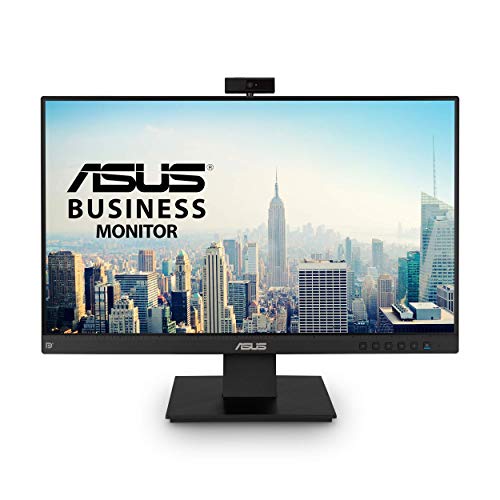
ASUS BE24EQK (2MP webcam) — The fully itemised 24-inch ASUS
ASUS writes this title the way a careful procurement officer would want it written: nearly every conferencing component is named and, where a number exists, numbered. The panel is a 24-inch Full HD IPS screen. The camera is a 2MP webcam. The microphone is described as a mic array — plural microphones, arranged to favour a voice in front of the screen over the room behind it. Stereo speakers are stated. The words “Video Conference” appear in the title itself, so there is no ambiguity about the product’s intended job.
The supporting specification suits a permanent desk. HDMI, DisplayPort and VGA are all titled, which means this monitor can host a modern laptop, a desktop and one legacy machine without an adapter drawer. Eye Care wording appears, VESA wall mounting is stated, the stand is described as ergonomic, and an EPEAT reference closes the title. What the title does not give you is any USB-C connection or charging wattage, so a laptop lifestyle runs through a separate power brick, and speaker output is described by configuration — stereo — rather than by watts.
- Panel: 24-inch IPS, 1080P Full HD as titled
- Camera: 2MP webcam stated in the title
- Microphone: mic array named
- Audio: stereo speaker stated; wattage not stated in the listing title — verify with the maker’s documentation
- Inputs: HDMI, DisplayPort and VGA named
- Mounting and stand: VESA wall mount and ergonomic stand as titled
- USB-C: Not stated in the listing title — verify with the maker’s documentation
Strengths
- The most completely itemised conferencing title among the 24-inch picks: camera, mic array and speakers all named.
- Three video inputs cover modern and legacy sources without adapters.
- Eye Care wording and an ergonomic stand suit a screen that hosts calls all day.
Trade-offs
- No USB-C appears in the title, so the monitor cannot charge the laptop it displays.
- The 2MP camera is the stated ceiling; presenters wanting a sharper titled figure should look at the Dell C2422HE.
- Speaker wattage is not printed, so call volume in a large room is unverifiable from the title.
Best for: a fixed home-office desk where the call station is assembled once and expected to simply work every morning. Not suited for: a one-cable laptop setup, because no USB-C connection is titled. Before ordering, a glance at the listing’s port photographs on Amazon will confirm the rear layout matches your machine mix.
There is a quiet virtue in this ASUS that the spec box cannot hold: predictability. Because the title itemises the call hardware, the buyer knows before delivery exactly which components the purchase replaces — the webcam, the desk microphone, the speakers — and can clear the desk of all three on the day the box arrives. Monitors whose titles gesture at conferencing without itemising it leave that arithmetic undone, and the desk keeps its clutter as insurance. For a worker whose home office is also a guest room or a kitchen corner, the itemised title is a small promise that the room can go back to being a room when the call ends.

ASUS BE27ACSBK QHD USB-C — The docking-station ASUS
The larger ASUS aims at a different desk: the one where the monitor is not an accessory to the computer but the fixed centre of the workspace, and laptops come and go. Its title stacks the evidence accordingly. The panel grows to 27 inches at 1440P QHD. USB-C is present with 80W of power delivery stated — the highest charging figure in this guide. DisplayPort daisy-chaining is named, which lets a second monitor hang off this one rather than off the laptop, and “USB Docking” is printed outright, announcing that the screen’s ports are meant to absorb the peripherals.
The conferencing hardware is present but described more briefly than on its smaller sibling: a webcam and a speaker are named, without a camera resolution or a microphone arrangement in the title. That brevity is the honest tension in this listing. As a display and a dock, the BE27ACSBK is the most ambitious title here; as a camera, it asks to be taken partly on trust, and the spec box below marks the gap rather than papering over it. Height adjustment, an ergonomic stand, VESA mounting and an EPEAT reference round out a title aimed at managed, professional desks.
- Panel: 27-inch IPS, 1440P QHD (2K) as titled
- USB-C: 80W power delivery stated in the title
- Chaining: DisplayPort DaisyChain named
- Docking: USB docking stated
- Camera: webcam named; resolution not stated in the listing title — verify with the maker’s documentation
- Audio: speaker named; wattage and microphone detail not stated in the listing title — verify with the maker’s documentation
- Stand: height adjustment and ergonomic design as titled
Strengths
- 80W USB-C delivery plus titled USB docking makes this the strongest one-cable proposition in the set.
- Daisy-chaining lets a second screen join the call station without another laptop port.
- QHD across 27 inches keeps shared documents and slide decks legible on screen share.
Trade-offs
- The camera’s resolution is not printed, a real gap in a conferencing purchase.
- Microphone wording is absent from the title, so voice pickup quality is unproven on paper.
- The 27-inch footprint needs a deeper desk than the 24-inch picks.
Best for: a single morning dock where the monitor itself is the dock, the charger and the call camera in one object. Not suited for: a presenter whose reputation rides on camera sharpness, because the title never states the webcam’s resolution. The full listing on Amazon is where that camera figure must be confirmed before this screen anchors a webinar setup.
Daisy-chaining deserves a sentence of its own, because it changes what a webinar desk can look like. With the second display fed from this monitor, a presenter can keep the audience gallery and chat on the chained screen while the deck occupies the main panel, and the laptop’s own lid can stay closed in a drawer. The arrangement is invisible to the audience and transformative for the presenter, who stops alt-tabbing between the slides and the room. That workflow, more than the extra pixels, is what the QHD panel and the docking title are really selling — a two-screen call station that assembles itself from a single cable.

Dell 24 Video Conferencing P2424HEB — The name-only Dell
Every guide has one listing that tests its honesty rules, and this is ours. The complete title, in full, is “Dell 24 Video Conferencing Monitor – P2424HEB.” From it, a reader can verify the maker, the size class, the product category and the model name — and essentially nothing else. No resolution is printed. No camera specification is printed. No speaker, microphone, port or stand claim is printed. Including the P2424HEB in a ranked guide at all is defensible only if the guide says, loudly and in the review itself, that the listing as titled is a label in search of a specification sheet.
So why include it? Because shoppers will meet this listing in search results beside the fully itemised ASUS titles, and the contrast is instructive. Dell’s conferencing line is a real product family, and the model name follows the pattern of its siblings — but this guide’s rule, stated in the methodology, is that titles are the evidence, and sibling resemblance is not evidence. Everything a buyer needs about this screen lives on the listing page and in Dell’s documentation, and the spec box below is therefore mostly caution lines. Treat them as the review: this pick is a research assignment with a reputable name on it, and it should be priced and shortlisted only after the assignment is done.
- Panel size: 24-inch class, from the product name as titled
- Category: video conferencing monitor, as titled
- Resolution: Not stated in the listing title — verify with the maker’s documentation
- Camera: Not stated in the listing title — verify with the maker’s documentation
- Microphone and speakers: Not stated in the listing title — verify with the maker’s documentation
- Inputs and USB-C: Not stated in the listing title — verify with the maker’s documentation
- Stand adjustment: Not stated in the listing title — verify with the maker’s documentation
Strengths
- The product name places it squarely in a dedicated video conferencing line rather than a general office range.
- A 24-inch class panel is the easiest size to fit into an existing home-office desk.
- The sparse listing makes comparison shopping honest work: every claim must be sourced from documentation.
Trade-offs
- No camera claim of any kind is printed in the title, in a category bought for its camera.
- No port, stand or audio fact can be verified without leaving the title behind.
- Against itemised rivals, this listing gives a careful buyer nothing to rank it on.
Best for: a Dell-standardised desk where the commitment rests on the full documentation, not on anything the title states. Not suited for: anyone comparison-shopping from titles alone, because this title supplies almost nothing to compare. Its Amazon page carries the specification table this listing’s title omits, and that table — not this review — has to make the case.
There is a broader lesson parked in this review, and it is worth stating once. Marketplace titles are written by sellers, not by standards bodies, and their completeness varies for reasons that have nothing to do with the quality of the hardware in the box. A short title can hide an excellent monitor; a long title can dress an ordinary one. The discipline this guide applies — credit what is printed, flag what is not, and never borrow a specification from a neighbouring model — will occasionally make a good product look under-described. That is the correct failure mode. The opposite failure, inventing specifications to make a table look complete, is how buying guides quietly become fiction.

Dell C2422HE (5MP pop-up) — The camera-first Dell
Where the P2424HEB’s title whispers, this Dell’s title speaks in specifics. The camera is a pop-up unit — it retracts into the frame when not in use — rated at 5MP with IR capability, the highest camera figure anywhere in this guide. The speakers are dual and rated at 5W integrated. And the title names a dedicated Microsoft Teams button, a physical control for the platform a large share of corporate calls now run on. Read as a whole, this is a listing written by a team that understood the product’s job is not displaying spreadsheets; it is hosting a person.
The panel description is terser: 24 inches, described as HD in the title, in a gray finish. That brevity cuts the other way from the ASUS listings — Dell spends its title words on the call hardware and economises on the display. A presenter who mostly appears on other people’s screens may happily accept that trade; a worker who also reads dense documents on the same panel all day should note that the title’s resolution wording is the vaguest in the set, and weigh the camera crown against it. The IR capability in the camera title hints at low-light and sign-in duties, though the guide reports the claim as printed rather than building promises on it.
- Panel: 24-inch, HD as titled
- Camera: pop-up 5MP IR camera stated in the title
- Audio: dual 5W integrated speakers stated
- Controls: dedicated Microsoft Teams button named
- Microphone: Not stated in the listing title — verify with the maker’s documentation
- Inputs and USB-C: Not stated in the listing title — verify with the maker’s documentation
- Finish: gray, as titled
Strengths
- The 5MP pop-up camera is the strongest camera claim in this guide, and it physically hides when idle.
- Dual 5W speakers are the only wattage-rated audio in the set.
- A dedicated Teams button serves the platform many corporate calendars actually run on.
Trade-offs
- The title’s “HD” wording is the least precise resolution claim among the six picks.
- Microphone hardware goes undescribed in the title despite the camera detail.
- Ports and charging are unmentioned, so docking duties need documentation to confirm.
Best for: a Teams-centred workday where how you appear on camera is the purchase’s whole point, and where a retractable lens settles the privacy question physically. Not suited for: document-heavy work judged on the title alone, because the panel’s resolution is described only as HD. Checking the listing on Amazon for the full panel specification is essential homework for this pick, not a formality.
The pop-up mechanism deserves its paragraph. A camera that rises for a call and sinks afterwards turns privacy from a setting into a posture — visible to a partner across the room, legible to the user in a glance, and immune to the forgotten software toggle. It also protects the lens itself, which spends its idle hours inside the frame rather than collecting the dust and fingerprints that slowly fog a fixed webcam. Against those virtues sits one mechanical truth: a moving part is a part that can wear, and a buyer planning a five-year service life should treat the mechanism’s smoothness in the first week as a quality signal worth noticing while returns are still easy.
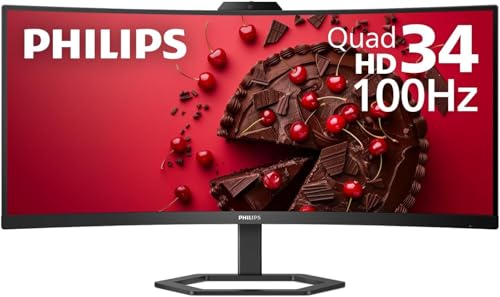
Philips 34″ Curved USB-C Webcam — The presenter’s ultrawide
Philips takes the conferencing idea and stretches it sideways. This is a 34-inch curved VA panel at UWQHD — 3440×1440 in a 21:9 aspect ratio, as titled — running at 100Hz, with a webcam, speakers and a noise cancelling microphone built in, USB-C with 65W power delivery, height adjustment, and the Philips signature of a four-year advance replacement warranty closing the title. For a webinar presenter, the width is the argument: the deck can occupy two-thirds of the screen while the audience gallery, the chat and the Q&A queue stay visible in the remaining third, and the presenter stops performing the alt-tab shuffle that audiences can always hear in a presenter’s voice.
The curve matters at this width. A flat 34-inch panel puts its edges measurably farther from the eyes than its centre; the curve evens that distance out and keeps the far corners — where the chat window lives — in comfortable focus. The noise cancelling microphone is the second presenter-specific claim, and it is the only microphone in this guide whose title promises active management of room sound rather than simply naming an array. Camera resolution, by contrast, is not stated, and the spec box flags it: the widest screen here asks its camera to be judged on the listing page rather than the title.
- Panel: 34-inch curved VA, UWQHD 3440×1440 (21:9) as titled
- Refresh: 100Hz as titled
- Camera: webcam named; resolution not stated in the listing title — verify with the maker’s documentation
- Microphone: noise cancelling mic stated
- Audio: speakers named; wattage not stated in the listing title — verify with the maker’s documentation
- USB-C: 65W power delivery stated
- Warranty: 4-year advance replacement warranty as titled
Strengths
- The 21:9 stage lets a presenter hold slides, gallery and chat in one glance without window juggling.
- A noise cancelling microphone is titled — the strongest voice claim in this set.
- USB-C charging, height adjustment and four-year cover complete a genuinely professional desk specification.
Trade-offs
- The camera’s resolution is never printed, an odd silence at the centre of a conferencing title.
- Thirty-four curved inches demand a wide, deep desk and dominate a small room.
- VA glass at 100Hz serves calls well but is not the panel family presenters would choose for colour grading.
Best for: presenting to groups on a screen that keeps the audience’s faces and questions visible while the deck stays up. Not suited for: a compact desk, because a 34-inch curved panel is furniture before it is a peripheral. Photographs on its Amazon listing give the truest sense of the curve’s depth, which dimensions alone understate.
A word about running webinars specifically, since the keyword names them. A webinar differs from a meeting in one cruel way: the presenter cannot see most of the audience, so the presenter’s screen must carry the entire feedback loop — raised hands, chat velocity, the poll results, the producer’s private messages. On a 24-inch 1080p panel that loop collapses into a stack of windows competing with the deck. The Philips’ width is therefore not indulgence; it is the feedback loop made visible, and presenters who have run a session both ways rarely volunteer to go back. If your calendar holds two or three internal calls a week, this screen is oversized for the job — but if strangers pay to watch you present, the titled package reads less like a monitor and more like a small studio that happens to hang on a stand.

Acer 24″ Conferencing Monitor — The adjustable Acer
Acer’s entry makes its case through posture. The title leads with adjustability — height, swivel and tilt are all named — on a 24-inch 1080P IPS panel with an FHD webcam, built-in speakers, a 75Hz refresh rate, an anti-glare surface, VESA mounting at 100mm, HDMI and VGA inputs, and a DKZ USB expander mentioned at the title’s end. For a call worker, the stand claims are not ergonomics garnish. Camera height is framing: a screen that rises to put its lens at eye level produces the straight-on shot that makes a speaker look attentive, while a fixed low stand produces the up-the-nostrils angle that no camera resolution can rescue.
The rest of the title is workmanlike. AMD FreeSync appears — a gaming-flavoured claim that does no harm on a call screen and hints the panel can moonlight — and the anti-glare wording suits rooms with windows, which is to say most spare-room offices. What the title withholds is microphone detail entirely, along with any USB-C or DisplayPort connection; the input pair as titled is HDMI and VGA. In a guide where rivals print mic arrays and noise cancelling claims, that silence is the Acer’s honest limitation, and anyone whose voice is the product should weigh it heavily.
- Panel: 24-inch IPS, 1080P as titled
- Camera: FHD webcam stated in the title
- Stand: adjustable height, swivel and tilt all named
- Surface: anti-glare stated
- Audio: built-in speakers named; microphone not stated in the listing title — verify with the maker’s documentation
- Inputs: HDMI and VGA named, with a DKZ USB expander mentioned
- Mounting: VESA mount (100mm) as titled
Strengths
- Three-way stand adjustment is the fullest ergonomic claim among the 24-inch picks, and it directly improves camera framing.
- An FHD webcam and built-in speakers cover the call basics in one titled package.
- Anti-glare treatment suits bright, window-lit home offices.
Trade-offs
- No microphone claim appears in the title at all — the weakest audio evidence in the set.
- HDMI and VGA are the titled inputs; DisplayPort and USB-C are absent.
- The 75Hz refresh, while above office standard, is a footnote feature for a conferencing screen.
Best for: a caller in a bright room whose current camera angle flatters nobody and whose desk needs the screen to adapt to the chair, not the reverse. Not suited for: a voice-led presenter, because the title makes no microphone claim whatsoever. The listing on Amazon is where the microphone question must be answered before this screen is trusted with a webinar.
Consider the shared-household angle, where this Acer quietly earns its place. In a home where the desk rotates between a parent’s calls, a partner’s shift work and a teenager’s homework, a monitor that re-aims itself in seconds — up for the tall user, down for the short one, swivelled toward the window light or away from it — serves three people without any of them re-engineering the setup. Integrated speakers and camera complete the rotation-proofing: nothing to plug in, nothing to pair, nothing to lose. It is the least specialised conferencing title in this guide and, for a rotating desk, possibly the most realistic one.
How Do You Frame Yourself Well on a Conferencing Monitor?
Start with height, because height is framing. Raise the screen — using the stand’s adjustment, or a riser where the stand is fixed — until the camera sits at or just above your eye line, then tilt the panel so the lens points at your face rather than your chest. On the picks with titled height adjustment, the Acer and the larger ASUS, this is a ten-second job; on a fixed stand it is a stack of books, and the stack of books is worth it. The audience reads a level camera as confidence and a low camera as a security guard’s view of a suspect, and no resolution figure compensates for the wrong angle.
Light comes second. Face the brightest soft light in the room — a window off to one side, a lamp bounced off a wall — and never sit with a bright window directly behind you, which turns every camera in this guide into a silhouette machine regardless of its megapixels. Third, distance: an arm’s length from the screen puts your head and shoulders in frame at a size that reads as present rather than interrogated, and it happens to be the distance the microphone arrays in these titles are voiced for. Finally, look at the lens when you make the point that matters. On an integrated monitor the lens sits millimetres from the window showing your audience, so the habit costs nothing and buys the closest thing video calls have to eye contact.
Background deserves the same thirty seconds of honesty. A conferencing camera frames a rectangle of your room and broadcasts it as your professional setting, and the rectangle’s edges cut closer than most people expect: the door that opens mid-call, the shelf of personal clutter, the window whose light swings across the afternoon. Walk the rectangle once with your eyes before the first important call, move the two or three objects that do not belong in your professional life, and then forget about it. The integrated camera’s fixed position, often cited as its limitation, is what makes this a one-time exercise instead of a daily one — the frame never moves, so once it is right, it stays right.
What Changes When the Call Is a Webinar Rather Than a Meeting?
Scale and asymmetry. In a meeting you are one tile among many, and a competent camera suffices. In a webinar you are the programme: your video fills the audience’s screen, your voice carries the full session, and your screen must simultaneously hold the deck, the chat, the questions queue and some view of the audience’s reaction. That is why this guide weighs microphone wording and screen width so heavily, and why the Philips ultrawide and the docking ASUS — the two picks that expand the presenter’s own view — earn their places despite unanswered camera questions.
Rehearsal changes too. A webinar presenter should run the exact call, on the exact monitor, with recording enabled, and watch the recording back: framing, voice level, the readability of a shared slide at audience size. The exercise takes twenty minutes and surfaces every weakness this guide’s spec boxes cannot — a microphone that clips, a camera that hunts for focus against a bright bookshelf, a deck whose footnotes vanish at 1080p. Readers equipping a full presenting setup may also want best headsets for conference calls as a fallback audio path, because the day the room acoustics defeat a monitor’s microphone is the day a headset in the drawer saves the session.
How Should a Small Team Equip Several Identical Call Desks?
Uniformity is the unglamorous prize in this category, and it changes which pick a team lead should favour. When three desks run the same conferencing monitor, every troubleshooting conversation shortens — the camera is in the same place, the mute behaviour is the same, the cable run is the same — and a new hire’s first call sounds like everyone else’s tenth. The itemised ASUS BE24EQK suits that standardisation instinct best on paper, because its title leaves the fewest components to chance: camera resolution, microphone arrangement and speaker configuration are all printed, so the standard being bought is a standard that can be written down.
The warranty wording also scales differently from the feature list. A single buyer reads “four-year advance replacement” as peace of mind; a team equipping desks reads it as a logistics policy, because advance replacement is what keeps a dead screen from becoming a week of borrowed laptops and rescheduled client calls. Neither Philips nor ASUS prints that wording on every model here — it appears on the Philips ultrawide’s title, and notably not on the two ASUS conferencing titles — so a team buyer should weigh the specific model’s terms rather than the brand’s reputation. The same caution applies to stands: desks differ in depth and chairs differ in height, and the Acer’s fully adjustable stand is worth more across a mixed team than it is to a single user whose one desk is already measured.
Finally, budget the unglamorous accessories the monitor does not replace. An integrated camera still benefits from a room with a door, a chair that does not squeak on microphone, and lighting that does not come from directly overhead. Teams sometimes spend the entire equipment allowance on screens and nothing on the rooms the screens sit in, then blame the hardware for calls that sound like they were recorded in a stairwell. The monitor is the visible purchase; the room is the audible one.
What Does a Second Screen Do to a Call Setup?
It separates the audience from the material, and that separation is worth more than any single specification in this guide. On one screen, the deck, the audience gallery, the chat and your own notes take turns occupying the same rectangle, and every switch is a small act of faith that you will find your place again. On two screens — whether the second is daisy-chained from the ASUS BE27ACSBK as its title allows, or simply connected to the laptop — the calls acquire a geography: people on the left, work on the right, and a presenter who glances sideways at a question instead of vanishing into a window shuffle.
The conferencing monitor should be the primary of the pair, the one facing you squarely, because its camera defines where “facing the audience” is. The second screen can be almost anything already owned — an older office monitor, a small portable panel — since it carries no camera duty. This is the cheapest upgrade path in the whole category: buy one genuinely call-designed screen, demote the existing display to gallery-and-chat duty, and the setup feels purpose-built for a fraction of a two-new-monitors budget. It also explains why daisy-chaining, a feature shoppers often file under trivia, earns its emphasis in the ASUS review above: it is the difference between the second screen needing a spare laptop port and simply borrowing the first screen’s.
One discipline follows from the two-screen arrangement. Your notes, your water glass and your phone all migrate to the second screen’s side of the desk, because everything near the camera’s screen is inside the audience’s peripheral view. Presenters who keep that geography clean look organised on camera in a way that has nothing to do with the camera — yet another case, in this category, of the room and the arrangement doing work that shoppers try to buy as a specification.
How Do the Six Compare on Their Titled Call Hardware?
| Pick | Size and panel | Camera as titled | Microphone as titled | Distinguishing titled feature |
|---|---|---|---|---|
| ASUS BE24EQK | 24″ IPS 1080P | 2MP webcam | Mic array | HDMI, DisplayPort and VGA inputs |
| ASUS BE27ACSBK | 27″ IPS 1440P QHD | Webcam, resolution unstated | Not stated | USB-C 80W, daisy-chain, USB docking |
| Dell P2424HEB | 24″ class | Not stated | Not stated | Product name only |
| Dell C2422HE | 24″ HD | Pop-up 5MP IR camera | Not stated | Dual 5W speakers, Teams button |
| Philips 34″ Curved | 34″ VA UWQHD 100Hz | Webcam, resolution unstated | Noise cancelling mic | USB-C 65W PD, 4-year warranty |
| Acer 24″ Conferencing | 24″ IPS 1080P | FHD webcam | Not stated | Height, swivel and tilt adjustment |
The microphone column is the table’s confession: half the titles in a conferencing category say nothing about the component a voice travels through. Read the table as a map of where each maker spent its title words — ASUS on itemisation, Dell’s C2422HE on the camera, Philips on the presenter’s whole stage — and the “not stated” cells as the questions your listing-page visit has to answer.
Which Mistakes Do Buyers Make With Conferencing Monitors?
The first is buying the camera number and ignoring the microphone silence. A sharp picture of a person whose voice echoes off a bare room persuades nobody, yet shoppers compare megapixels because megapixels are printed and skip the microphone because it is not. This guide’s spec boxes invert that habit deliberately: the microphone line is printed for every pick, even when the line has to report that the title says nothing.
The second mistake is assuming the monitor ends the cable story. Only two of these six titles state USB-C with wattage; the rest will display a laptop happily while its battery quietly drains through the afternoon’s calls. If your working pattern is dock-and-go, the charging claim is not a luxury feature — it is the feature — and a conferencing monitor without it reintroduces the power brick the purchase was meant to retire. The third mistake is framing neglect: leaving the screen at its shipping height, sitting against the light, and concluding the camera is poor. Cameras in this class are mostly honest; rooms and angles are where calls go wrong. Buyers comparing integrated screens against separates should also read best home office webcams to price the alternative honestly before committing to either architecture.
What Should You Check During the First Week With a New Conferencing Monitor?
Run a recorded test call before the first real one, and watch the recording as if you were the audience. Check three things in order. First, framing: head and shoulders centred, eye line level with the lens, no ceiling fan performing above your head. Second, voice: speak at your genuine meeting volume, from your genuine chair distance, and listen for echo, clipping and the room’s hard surfaces announcing themselves. Third, the shared view: put up the densest slide or document you actually present and confirm it stays readable when the platform compresses it, because that compressed version — not your crisp local screen — is what the audience judges your professionalism by.
Then test the failure modes while they are still free to fix. Join a call with the room’s worst lighting — late afternoon sun, overheads only — and see what the camera does with it. Mute and unmute the way you will a hundred times a month and learn where the controls live by touch. If the camera retracts, retract it and raise it a dozen times; a mechanism that feels fragile in week one will not improve by year two. Note the return deadline somewhere visible. A conferencing monitor is a relationship with your own face and voice, conducted daily, and the first week is when the terms of that relationship can still be renegotiated at no cost.
Final Recommendation
Match the screen to the call you actually take most. If your days are one-to-one and small-team calls at a fixed desk, the ASUS BE24EQK’s itemised hardware is the safest pair of hands here. If you present to audiences, the Philips ultrawide’s stage and noise cancelling microphone outweigh its unstated camera figure — verify that figure, then buy the width. If your organisation lives in Teams and your face is your credential, the Dell C2422HE’s pop-up 5MP camera is the pick with its priorities printed largest. The docking ASUS serves the laptop traveller, the Acer serves the bright rotating household desk, and the P2424HEB serves as a reminder to read documentation before money moves. Whichever you choose, spend the first call adjusting height and light before you judge the hardware — in this category, the room is half the product, and it is the half that ships free.
Frequently Asked Questions
Is a 2MP webcam enough for professional calls?
For meetings at ordinary window sizes, yes — a 2MP camera matches the 1080p grid most call platforms transmit, and the ASUS BE24EQK states that figure plainly. Presenters whose video fills an audience’s screen, or who record sessions for later viewing, have a real reason to prefer the Dell C2422HE’s titled 5MP camera, provided the rest of its specification checks out on the listing page.
Why do several titles in this guide omit the camera resolution?
Because marketplace titles are marketing documents, not specification sheets, and sellers emphasise what they believe sells. This guide treats the omission as information in itself: a maker confident in a camera number usually prints it. Where the number is absent, the spec boxes say so, and the figure must be confirmed in the maker’s documentation before the screen is shortlisted on camera quality.
Does USB-C wattage matter for a conferencing monitor?
It decides whether the monitor can be the desk’s only connection. The ASUS BE27ACSBK states 80W and the Philips 65W, both enough on paper to run and charge a typical work laptop through one cable. The other four titles make no charging claim, so their laptops keep a separate power supply — workable, but a different desk from the one-cable arrangement the category advertises.
What does a pop-up camera actually buy me?
Two things, both visible in the Dell C2422HE’s title: a privacy state you can see from across the room, because the lens physically retracts when the call ends, and a lens that spends its idle life sheltered inside the frame instead of gathering dust. The 5MP IR specification is the performance half of the same pick; the pop-up mechanism is the trust half.
Can a conferencing monitor replace a separate webcam for webinars?
For the seated, face-forward presentation that most webinars are, the integrated package — camera at eye line, array or noise cancelling microphone, speakers in the same object — covers the job and removes the setup ritual. Presenters who need to show a product bench, a whiteboard across the room or a second angle will still want a separate camera, because a bezel camera only ever faces the chair.
How important is the stand for call quality?
More than the camera’s megapixels, in most rooms. The Acer’s title names height, swivel and tilt adjustment, and that adjustability is what places the lens at eye level — the single largest framing improvement available at any price. A fixed stand can be supplemented with a riser, but a buyer choosing between two otherwise equal screens should take the titled adjustment every time.
Related Guides
Readers building out the rest of a call-ready desk will find the display side of the question continued in best ips monitors for office work, and the design-desk perspective on screens in best monitors for ux ui designer. Those still deciding between an integrated screen and a separate camera can weigh the two architectures across both guides before the desk is rebuilt around either.