What's inside
- Key Takeaways
- Quick Picks
- How Did We Assemble a List That Mixes Scanners and Non-Scanners?
- What Makes a Print Look Like Art Rather Than Output?
- How Good Is a Printer’s Built-In Scanner for Original Artwork?
- Which Paper Sizes and Media Should Guide Your Choice?
- How Should an Artist Set Up a Scan-to-Print Workflow That Stays Honest?
- What Mistakes Do Artists Make When Buying a Printer?
- How Does Colour Management Actually Work Between Screen, Scan and Sheet?
- How Should an Artist Price and Edition Prints From These Machines?
- How Do You Keep a Photo Printer Healthy in a Working Studio?
- What Should an Artist’s First Month With a New Printer Look Like?
- How Do These Machines Handle Black-and-White and Line Art?
- What About Framing, Mounting and the Print’s Life After the Printer?
- Can These Printers Earn Their Keep Beyond Fine Art?
- Final Recommendation
- Frequently Asked Questions
- Related Guides
As an Amazon Associate I earn from qualifying purchases. This post may contain affiliate links at no extra cost to you.
gizmoverdict.com is reader-supported. When you buy through links on our site, we may earn an affiliate commission.
Where to buy: All six machines in this guide link to listings checked in this site’s product pool. Artist-grade printers are specialist stock, so availability drifts between print runs and paper seasons; if a listing shows a long wait, that is the market being honest, and ordering ahead of a show deadline is wiser than hoping for a restock.
The search for the best printers and scanners for artists conceals two different purchases inside one phrase, and this guide will separate them before recommending anything. The printer half is about putting an image onto paper so faithfully that a buyer at a fair, a client at a proofing table or a gallery at framing cannot tell where the screen ended and the print began. The scanner half is about the reverse journey: taking a drawing, a watercolour or a collage off paper and into a file without flattening its texture or shifting its colour. A machine that does both journeys well is genuinely rare, and the honest shape of this class is that the best printing and the best scanning rarely live in the same box.
That honesty shapes the six picks below. Two of them are true all-in-ones with flatbed scanners built in — the Epson EcoTank Photo ET-8550 and the Epson Expression Photo HD XP-15000 — and their scanning is genuinely useful for digitising artwork up to the size of the glass. The other four are dedicated photo printers from Canon’s imagePROGRAF PRO line and Epson’s SureColor range: machines that devote every gram and every note of their price to the print itself, and that expect scanning to happen on a separate flatbed you choose for the purpose. Neither arrangement is a defect. They are two different studio philosophies, and the right one depends on whether your artwork starts life on paper or on a screen.
What unites all six is seriousness about ink and paper. These are six-colour, nine-colour and wider ink systems printing on fine-art media up to 13 by 19 inches or, in the two 17-inch machines, beyond it. They are not office printers with a photo mode; they are the machines illustrators, print sellers and photographers build a small business around, and they are judged here on that basis: colour fidelity, media handling, ink economy and the dignity of the finished sheet.
Key Takeaways
- Only two picks here actually scan: the ET-8550 and the XP-15000. The four dedicated photo printers print superbly and scan not at all.
- Ink set is destiny — six-colour dye systems favour luminous colour, while Canon’s nine-colour pigment sets favour matte papers and archival life.
- Paper size divides the list cleanly: four machines top out at 13 by 19 inches, and the P900 and PRO-1100 stretch to 17 inches wide.
- Tank ink changes the economics of test printing; cartridge and ink-tank pro machines reward artists who proof sparingly and print deliberately.
- A separate flatbed scanner, chosen for artwork, will out-scan any printer’s built-in glass — budget for one if digitising originals is your living.
- Borderless printing, media thickness handling and a straight paper path matter more to art prints than any speed figure.
Quick Picks
| Pick | Badge | Why it earns its place |
|---|---|---|
| Epson EcoTank Photo ET-8550 | Best overall | Six-colour tank printing up to 13 by 19 with a real flatbed scanner on top — the complete studio in one machine. |
| Canon imagePROGRAF PRO-310 | Best pigment prints | Nine-colour pigment ink and a colour LCD in a 13-inch machine built for matte fine-art papers. |
| Epson SureColor P900 | Best large-format step-up | Epson’s 17-inch flagship class with a 4.3-inch touchscreen for artists whose work outgrew 13-inch paper. |
| Canon imagePROGRAF PRO-1100 | Best 17-inch alternative | Canon’s 17-inch professional answer for pigment printers who want the wider sheet without changing ink philosophy. |
| Canon imagePROGRAF PRO-300 | Best 13-inch value | The established 13-inch PRO machine with Canon’s print layout software, at the friendlier end of the pigment class. |
| Epson Expression Photo HD XP-15000 | Best wide-format value | Six-colour wide-format printing with a scanner, at the price where home studios usually begin. |
How Did We Assemble a List That Mixes Scanners and Non-Scanners?
We started from the listings artists actually buy and refused to pretend the category is tidier than it is. A search for printers with scanners, conducted honestly, returns two families: all-in-one photo machines whose scanner shares the chassis, and professional photo printers whose makers omitted scanning deliberately to spend the whole budget on the print engine. Excluding the second family would produce a purer list and a worse guide, because for a large share of artists — everyone whose originals are born digital — the scanner is irrelevant and the print is everything.
Within that frame, we judged the print half on ink architecture and media handling. How many inks, of what kind, through what paper path, onto how wide a sheet: those four questions predict an art print’s quality far better than resolution figures, which across this class are uniformly high. We judged the scan half only where a scanner exists, and on the terms artwork imposes: a flatbed that opens flat for a sketchbook, glass large enough for the originals the artist actually makes, and software that saves a scan in a format a print workflow can use.
We also weighted running costs with an artist’s reality in mind. Test prints, proof sheets and the occasional ruined sheet are part of making art; a machine whose ink economics punish experimentation will quietly change the work itself. That is the EcoTank’s deepest argument, and it is why a tank machine tops a list that also contains more prestigious names. Prestige matters at the framing stage. Economics matter every day before it.
What Makes a Print Look Like Art Rather Than Output?
The first answer is the ink set, and it divides into two philosophies. Dye inks, used by the two Epson all-in-ones here, sink into glossy and luster coatings and produce the saturated, luminous colour that makes a print glow under fair lights; their historical weakness, fading, has narrowed with modern formulations but remains a consideration for work sold as permanent. Pigment inks, used by the Canon PRO machines and the SureColor P900, sit on the paper’s surface as tiny solid particles; they excel on matte and textured fine-art papers, resist water and time, and are the default choice when a print is sold as an archival object. Neither is better in the abstract. Glossy colour work leans dye; matte, textured, long-lived work leans pigment.
The second answer is the paper path. Fine-art papers are thick, sometimes board-like, and often textured enough to resent being bent around tight rollers. Machines with a rear or manual feed that gives heavy sheets a straighter journey produce fewer scuffed surfaces and fewer misfeeds, and they let the artist use the papers buyers actually want to touch. When you read a listing in this class, look for how it feeds its thickest media; that sentence predicts your Saturday mornings better than any other in the specification.
The third answer is calibration discipline, which no purchase provides. A printer renders what the file tells it, and the file was composed on a screen whose brightness and colour are themselves opinions. Artists who sell prints learn to soft-proof, to print small test strips of the difficult region of an image rather than whole sheets, and to view proofs under the light the buyer will use. The machines here support that discipline with good driver controls and layout software; none of them can substitute for it.
How Good Is a Printer’s Built-In Scanner for Original Artwork?
Honest answer: good enough for a great deal of real work, and not the equal of a dedicated flatbed. The scanners on the ET-8550 and XP-15000 will digitise a drawing or a gouache study faithfully for reproduction at or near its original size, for sharing, for archiving a sketchbook, and for selling prints of an original that stays safely in a drawer. Their glass limits the original’s size, their lids limit its thickness — a deep canvas will not lie flat, and should never be forced — and their optics are built to a price that the whole machine had to meet.
A dedicated flatbed scanner, bought separately, buys three things: a larger and more uniform scan area, optics and sensors devoted entirely to the scan, and software with serious colour controls. For an artist whose income is the sale of prints made from physical originals, that separate purchase is not an accessory but a second tool of the trade, and pairing one with a print-only machine from this list — the PRO-310 or the P900 above all — is the classic professional arrangement. For an artist whose originals are modest in size and whose scanning is occasional, the all-in-one route is simpler, cheaper and entirely respectable.
One technique matters more than the hardware tier: scan at higher resolution than the print needs, in the least compressed format the software offers, and keep that master file untouched. Every reproduction, resize and product mockup should descend from the master, never from a previous export. Storage is cheap; re-scanning an original you have since sold is impossible.
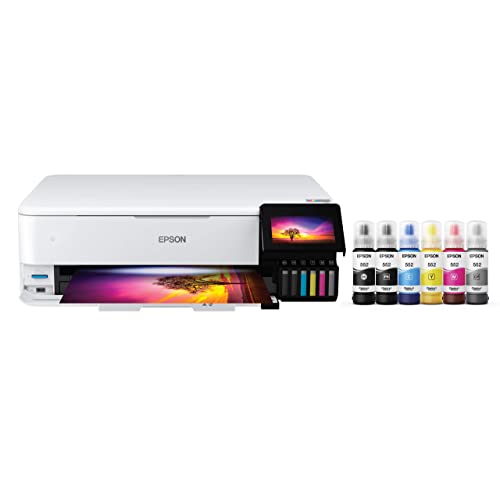
Epson EcoTank Photo ET-8550 — Best overall
The ET-8550 is the machine that reorganised home-studio economics: a cartridge-free, six-colour, wide-format all-in-one that prints, scans and copies up to 13 by 19 inches, at up to 16 pages per minute in its ordinary modes, with ink carried in refillable tanks rather than cartridges. For an artist, the tank is not a convenience feature; it is permission. Permission to print the test strip, then the proof, then the second proof with the shadows opened, without a small internal accountant vetoing each sheet. Work made on this machine tends to be better proofed than work made on cartridge machines, simply because the artist could afford to look at it on paper three times.
The six-colour dye ink set is tuned for photographic colour: the extra colours beyond the standard four smooth the gradients in skies, skin and still-life backgrounds where four-colour machines can show banding under a critical eye. On glossy and luster papers the results have the luminous, wet look that sells at fairs. On matte fine-art papers the dye ink is competent rather than magical, and the artist whose whole practice is matte and textured should read the Canon reviews below with care; ink philosophy, as this guide keeps insisting, is destiny.
The scanner on top is a proper flatbed of the kind artwork needs — the original lies flat, face down, under a lid, rather than being dragged through rollers that would crease a drawing and horrify its maker. It digitises paintings and collages up to the size of its glass, which covers the sketchbook and study sizes most artists scan weekly. Combined with copy functions for quick reference sheets, the ET-8550 is the only machine in this guide that can plausibly be a studio’s entire paper department, and for the artist starting to sell work, that completeness at one price is the strongest argument in the list.
- Functions: Print, scan, copy — a true all-in-one
- Ink: Six-colour cartridge-free tank system
- Maximum print size: 13 x 19 inches
- Speed: Up to 16 ppm in standard modes
- Intended setting: Creators and home studios
Strengths
- Tank ink makes proofing cheap enough to do properly, which improves the prints themselves.
- A genuine flatbed scanner sized for sketchbooks and studies, safe for originals.
- Wide-format output to 13 by 19 covers the print sizes most home-studio sellers offer.
Trade-offs
- Dye ink on matte fine-art paper lacks the depth pigment printers achieve there.
- Prints sold as archival objects need more caution than pigment work demands.
- The scanner’s glass, like all built-in glass, caps the size of original you can digitise.
Best for: artists who both digitise physical work and print it, especially print sellers who proof often. Not suited for: studios built entirely on thick matte fine-art papers, where pigment ink is the native language.

Canon imagePROGRAF PRO-310 — Best pigment prints
The PRO-310 is Canon’s 13-inch professional distilled: a wireless inkjet photo printer running a nine-colour pigment ink system, with a 3-inch colour LCD for setup, media handling and ink status at the machine itself. Pigment is the headline. Nine pigment inks give the machine an unusually wide palette for a printer of its size, and pigment’s behaviour on matte and fine-art papers — sitting on the surface, holding detail in textured stock, resisting water and time — is exactly what artists selling matte prints ask for. A print from this machine on a good cotton-rag paper has the dry, deep, slightly chalky richness that buyers associate with gallery work.
There is no scanner, and this review will not pretend otherwise: the PRO-310 is a printer, wholly. Canon spent the budget on the ink system, the paper handling and the screen-guided workflow, and the artist who buys it either works from digital originals or owns, or plans to own, a separate flatbed. Judged as one half of that classic two-device arrangement, the machine is superb value in capability per desk centimetre; judged as an all-in-one, it does not compete, because it was never entered in that contest.
Daily life with a pigment machine has its own texture. Pigment inks reward regular use — a print or a maintenance cycle on a rhythm, rather than a month of silence followed by a deadline — and the cartridges in a nine-ink system are replaced one colour at a time, which spreads cost but demands a shelf of spares for the colours your palette drinks fastest. Artists whose work is heavy in one register, all moody blues or all warm earth, learn their machine’s thirst within a month and stock accordingly. None of this is a flaw; it is the ordinary husbandry of a professional tool.
- Functions: Print only — no scanner fitted
- Ink: Nine-colour pigment system
- Maximum print size: 13 inches wide
- Interface: 3-inch colour LCD on the machine
- Paper character: Matte and fine-art media specialist
Strengths
- Nine pigment inks produce matte prints with genuine depth and archival manners.
- The on-machine colour screen makes media setup and ink checks a glance, not a driver expedition.
- A focused, compact professional tool that spends nothing on features artists here do not use.
Trade-offs
- No scanning at all; digitising originals requires a separate flatbed.
- Nine cartridges mean nine spares to track, and pigment likes regular exercise.
- Glossy papers play second fiddle to matte in this ink system’s affections.
Best for: artists selling matte and fine-art prints from digital files, or pairing with their own flatbed scanner. Not suited for: anyone who needs one box to digitise a sketchbook and print it before lunch.
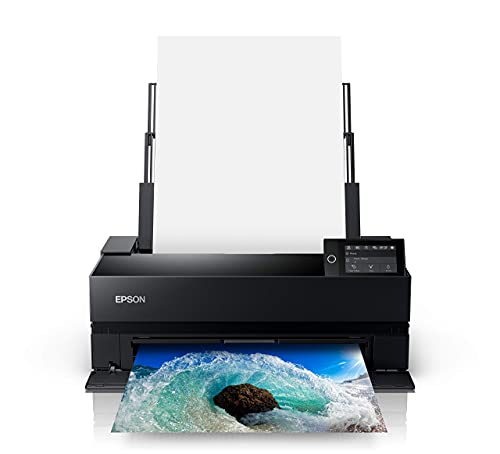
Epson SureColor P900 — Best large-format step-up
Seventeen inches is the width where a home studio starts to feel like a print shop, and the SureColor P900 is Epson’s statement machine at that size: a wireless 17-inch printer with a 4.3-inch touchscreen, from the SureColor line that professional photographers treat as a reference point. The step from 13 to 17 inches sounds like four inches of paper; in practice it is the difference between a print that sits on a shelf and a print that commands a wall, and for artists whose buyers hang work in living rooms rather than prop it on desks, that difference is commercial, not cosmetic.
Size brings obligations. A 17-inch machine needs a desk that is genuinely a bench, paper stock bought in larger and pricier sheets, and a framing conversation with every buyer, because standard frames stop being standard. The P900’s touchscreen-led workflow helps manage the machinery side of that life — media loading, settings and status handled at the printer, in the plain interface style Epson refined across this line — but the artist should walk in with eyes open: this is the pick for work that has already found its audience at smaller sizes and is being asked, by that audience, to grow.
Within the list, the P900 also plays a specific role against the Canon PRO-1100 below: it is the Epson-philosophy answer at 17 inches, for studios already invested in Epson papers, profiles and habits. Cross-brand comparisons at this level are less about a winner than about which ecosystem’s colour character suits the work — a judgement made from test prints of your own images, on your own paper, and not from any guide’s adjectives, including this one’s.
- Functions: Print only — scanning lives elsewhere
- Maximum print size: 17 inches wide
- Interface: 4.3-inch touchscreen
- Connectivity: Wireless
- Class: SureColor professional photo line
Strengths
- True wall-scale output that changes what an artist can sell and where it can hang.
- A mature touchscreen workflow that keeps a big machine feeling manageable.
- The natural summit for studios already working in Epson’s papers and profiles.
Trade-offs
- Demands bench space, pricier large media and a framing plan for buyers.
- No scanner; it is purely the print half of a studio.
- Oversized for artists whose market is desk prints and fair-table stock.
Best for: established artists and photographers whose sold work has outgrown the 13-inch sheet. Not suited for: beginners still discovering whether print selling suits them at all.

Canon imagePROGRAF PRO-1100 — Best 17-inch alternative
The PRO-1100 carries Canon’s professional pigment philosophy up to the 17-inch sheet: a wireless professional inkjet photo printer from the imagePROGRAF PRO family, sized for the artist who read the PRO-310 review above, agreed with every word about pigment on matte paper, and then looked at the dimensions of the work they actually sell. It is, in the structure of this guide, the wide answer to the same question, and its review can be shorter for the same reason a second volume can assume the first was read.
What changes at this size, beyond the sheet, is the centre of gravity of the studio. A 17-inch pigment printer becomes the room’s anchor: paper storage organises itself around its media sizes, the framing bench adapts to its output, and the artist’s pricing adapts to the fact that a wall-sized original print is a different product from a desk print, with different buyers. Canon’s professional software and driver ecosystem, shared with its smaller sibling, eases that transition for artists stepping up within the brand — the workflow learned at 13 inches largely transfers, which is a genuine and underrated form of value.
As with the P900, there is no scanner here, and the pairing advice repeats with emphasis: the PRO-1100 plus a dedicated flatbed is the complete professional digitise-and-print arrangement for artists working from physical originals at scale. Bought alone, it serves the digital-original artist completely. Either way, it asks to be bought deliberately, after the 13-inch stage has proven the demand — which is precisely the career moment it was designed for.
- Functions: Print only — no scanner fitted
- Maximum print size: 17 inches wide
- Connectivity: Wireless
- Family: imagePROGRAF PRO professional line
- Ink character: Canon professional pigment philosophy
Strengths
- Canon pigment quality at genuine wall scale for matte and fine-art work.
- Workflow continuity for artists stepping up from Canon’s 13-inch machines.
- Anchors a serious print-selling practice the way smaller machines cannot.
Trade-offs
- A considered, bench-claiming purchase that should follow proven demand, not precede it.
- Print only; the digitising half of a studio is a separate decision and budget.
- Large media and framing costs reshape the economics of every edition.
Best for: pigment artists with an audience asking for larger work, especially those already in Canon’s workflow. Not suited for: spare-bedroom studios where the desk must also hold everything else in a life.

Canon imagePROGRAF PRO-300 — Best 13-inch value
The PRO-300 is the elder statesman of Canon’s 13-inch professional line: a wireless colour wide-format printer producing up to 13 by 19 inches, with a 3-inch LCD screen and Canon’s Professional Print & Layout software in the bundle, and a long record in the studios of photographers and illustrators who needed pigment quality without flagship pricing. In a guide that also contains its younger sibling, the PRO-300’s case is the case of the proven design at the gentler price — the same argument the student guide elsewhere in this batch makes for an older Brother, translated into pigment.
The software deserves its paragraph, because at this level the driver is half the product. Professional Print & Layout is Canon’s attempt to make the journey from image file to correctly-fed, correctly-profiled sheet feel like one deliberate act rather than a negotiation with nested dialog boxes. For artists who print the same paper in the same sizes every week — which is to say, artists with a product line — that streamlining compounds into hours across a season, and into fewer ruined sheets, which at fine-art paper prices is the same thing as money.
Mobile device printing is present, as the listing notes, though most owners will treat it as a convenience for proofs rather than the main road; the main road is a computer, a calibrated screen and the layout software. And the recurring honesty applies: no scanner is fitted. The PRO-300 is the value route into Canon pigment printing, and its value is best realised by an artist who has already solved digitising — or never needed to.
- Functions: Print only — no scanner fitted
- Maximum print size: 13 x 19 inches
- Interface: 3-inch LCD screen
- Software: Canon Professional Print & Layout included
- Position: Established design, value end of the PRO line
Strengths
- The friendliest entry into Canon’s professional pigment quality at 13 by 19.
- Layout software that genuinely reduces wasted fine-art sheets.
- Years of owner experience behind every setup question you will ever type.
Trade-offs
- An older design whose price should be compared against its younger sibling on the day.
- No scanner, in a guide whose title promises scanning — pair it or pass it knowingly.
- Mobile printing is a side door here, not the main entrance.
Best for: artists entering pigment printing with a product line to produce and a budget to respect. Not suited for: studios needing digitising and printing from one chassis on one desk.
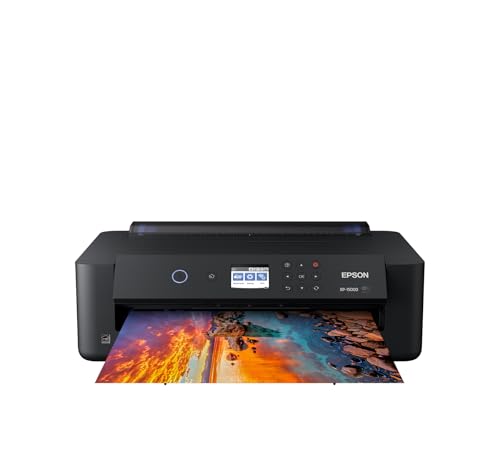
Epson Expression Photo HD XP-15000 — Best wide-format value
The XP-15000 is where wide-format art printing becomes an ordinary home-studio purchase: a wireless inkjet with six-colour printing up to 13 by 19 inches, automatic two-sided printing for its document modes, speeds up to 9.2 pages per minute in standard use, and a scanner on board for the digitising half of an artist’s week. It predates the EcoTank revolution in this list, running on cartridges, and its whole proposition is the entry ticket: the widest sheet and a real scanner at the price where most print-selling experiments begin.
Six colours is the specification to respect here. The two extra inks beyond the office four are what separate a photo printer from an office printer wearing a photo badge: gradients smooth out, difficult reds and skin tones gain room to breathe, and prints stop announcing their four-colour origins under close inspection. For the illustrator printing bold, graphic work — posters, risograph-style art, saturated digital painting — that colour breadth at this price is the entire argument, and it is a good one.
The cartridge economics are the honest counterweight, and they shape how the machine should be owned. Proofing on this printer costs real money per sheet, so its artists learn the discipline the EcoTank’s owners can postpone: soft-proof on screen, test in strips, print the final sheet once. Many excellent print sellers were trained by exactly that discipline and will tell you it made their colour judgement sharper. Buy this machine as a beginning, run it with that discipline, and let its successor — tank or pigment — be chosen later with a season of sales data in hand.
- Functions: Print and scan in one chassis
- Ink: Six-colour cartridge system
- Maximum print size: 13 x 19 inches
- Speed: Up to 9.2 ppm in standard modes
- Two-sided printing: Automatic for document work
Strengths
- The lowest-cost route in this guide to 13 by 19 printing plus a built-in scanner.
- Six-colour output with the breadth bold, saturated artwork needs.
- A forgiving first machine for learning the print-selling trade.
Trade-offs
- Cartridge ink makes careless proofing expensive; discipline is mandatory.
- Its scanner shares the size limits of every built-in flatbed here.
- Artists who outgrow it will be re-buying into tank or pigment within a few seasons.
Best for: artists starting a print practice on a real budget who need scanning and wide printing in one purchase. Not suited for: high-volume sellers whose proofing habits would empty cartridges weekly.
Which Paper Sizes and Media Should Guide Your Choice?
Decide by the largest print you will sell regularly, not the largest you can imagine selling once. Thirteen by nineteen inches covers the classic art-print economy: it mats down to standard frame sizes, ships in affordable tubes and flat packs, and fits the walls of the flats your buyers actually live in. Seventeen-inch output is a deliberate escalation into statement pieces, with statement-piece framing and postage to match. Artists who buy the bigger machine for an occasional exhibition piece often find the economics work better the other way: own the 13-inch machine for the product line, and let a local print service produce the rare giant.
Media choice then refines the pick. Glossy and luster photo papers flatter the dye machines; matte, baryta and cotton-rag fine-art papers flatter the pigment machines; canvas and very thick boards test every machine’s manual feed and should be trialled with a sample pack before an edition is promised to buyers. Whichever printer you choose, buy the sample pack of its maker’s papers first. An afternoon of test prints on six papers teaches more about a machine-artist marriage than a month of reviews, and it costs less than one ruined edition.
How Should an Artist Set Up a Scan-to-Print Workflow That Stays Honest?
Begin at the scanner, whether it is the flatbed on an all-in-one here or a separate unit: clean glass, an original lying truly flat, and a scan made at a resolution comfortably above the intended print, saved as an untouched master. Work on a copy, always. Colour corrections belong in a proper editing application, with the print as the reference — which means the first proof of any new original is partly a scanning audit: if the proof’s colour disappoints, the fault may live in the scan rather than the printer, and chasing it in the print settings alone will waste an afternoon and three sheets.
End at the light. Judge proofs under the illumination your buyers will use — ordinary room light for most art prints — rather than under a studio lamp chosen to flatter. Keep one known-good print, of an image you trust, beside the printer permanently; comparing each new proof against that fixed reference catches slow drifts in ink, paper batches and screen settings that no single print, judged alone, would reveal. These habits sound like fussiness. In a selling practice they are the difference between editions that match across a year and a drawer of almost-matching prints that cannot be sold together.
What Mistakes Do Artists Make When Buying a Printer?
The commonest is buying the printer before the product. An artist who has not yet decided what sizes, papers and editions they sell cannot know whether they need 13 inches or 17, dye or pigment, tank or cartridge — and a machine bought in that fog is usually replaced within two years, at a total cost exceeding the right machine bought once. Sell at markets and online with borrowed or service printing for one season; the data from that season is the specification sheet for your own printer.
The second mistake is treating the scanner in this guide’s title as a checkbox rather than a tool. If your originals are A3 sketchbook spreads, neither all-in-one here will swallow them whole; if your originals are canvas, no flatbed will. Measure your artwork before you measure printers. The third mistake is ignoring paper costs in the budget: at fine-art sizes, the paper in an edition can cost more than the ink, and a pricing model built only on ink will quietly lose money on every sale. The fourth is neglecting the spare-ink shelf, so that a sold-out colour on a Friday becomes a missed market on Saturday.
How Does Colour Management Actually Work Between Screen, Scan and Sheet?
Colour management is the discipline that stops three honest devices from telling three different truths. Your scanner sees the original through its own sensors; your screen shows the file through its own panel; your printer renders the file through inks on a particular paper, and each of those renderings is a translation. Profiles are the dictionaries. A scanner profile describes how that scanner’s numbers map to real colour; a paper profile, supplied by the printer maker for its own papers or by the paper maker for its stock, describes how the printer should lay ink on that specific sheet. When the chain of profiles is intact, a watercolour’s particular green survives the whole journey recognisably. When any link is missing, the artist ends up correcting by eye, print after print, paying for the missing dictionary in paper.
The practical routine is less forbidding than the theory. Keep the editing screen at a modest, fixed brightness — most print mismatches begin with a screen glowing far brighter than any paper can. Choose the paper profile that matches the exact sheet loaded, in the printer driver or layout software, every time; a profile for glossy used on matte is worse than a shrug, because it lays ink quantities calculated for a different surface. Let either the application or the printer manage colour, never both, and never neither. Those three habits, applied without exception, produce the state artists describe as the printer disappearing: the proof arrives looking like the intention, and the remaining differences are the honest physics of ink versus light.
Scanned originals add one more link, and it is where the two all-in-one machines in this guide earn a specific compliment: a scanner and printer designed as one system, fed the same maker’s papers, start with a shorter chain of translations than a scanner and printer from different families meeting for the first time. That is not an argument against the professional pairing of a separate flatbed with a Canon or SureColor printer — that pairing, once profiled, reaches higher — but it explains why beginners often find the all-in-one’s first prints startlingly close to the original on the glass, and why the separate-device route repays an afternoon of setup with interest thereafter.
How Should an Artist Price and Edition Prints From These Machines?
The printer choice and the pricing model are the same decision viewed from two sides. A print’s honest cost is paper plus ink plus the artist’s time plus a share of the machine itself, and the machines in this guide distribute those costs very differently. The EcoTank’s ink share is so small that its prints can be priced for volume — open editions, market stock, the steady sellers that pay a studio’s rent. A pigment machine’s cartridge costs push its prints toward smaller editions and higher prices, where the buyer is paying for permanence and for the matte surface’s particular beauty. Neither model is more artistic; they are different shops, and trouble begins when an artist prices tank prints like gallery editions or tries to sell pigment editions at market-stall prices.
Editioning also interacts with the scanner question in a way beginners miss. An open edition printed from a digital original can be reprinted forever at consistent quality. An edition printed from a physical original depends on the master scan, and on the original surviving; artists who scan once, carefully, and store the original flat and dark can reprint an edition across years with confidence. Artists who re-scan for every batch introduce small variations that collectors notice. The workflow advice from earlier in this guide — one master scan, untouched, everything descending from it — is therefore not tidiness. It is the foundation of an edition’s integrity, and ultimately of its price.
Finally, sign and record. A print’s value lives partly in its documentation: the paper, the ink system, the date, the edition number, recorded at the time of printing. The machines here will produce thousands of sheets across their lives; the artists who thrive are the ones whose records let them reproduce a sold print’s exact recipe two years later, on the same paper, with the same settings, when a buyer returns for its companion piece.
How Do You Keep a Photo Printer Healthy in a Working Studio?
Photo printers fail by neglect more than by wear. Ink systems that sit idle for weeks invite clogged nozzles, and the cure — cleaning cycles — spends the very ink the artist was saving by not printing. The rhythm that keeps every machine in this guide happy is modest and regular: a real print, or at least a nozzle check, on a weekly cadence, and the printer kept in a room whose temperature and dust levels a person would also tolerate. Studios in dusty workshops should cover an idle machine; studios in damp spaces should print more, not less, in the wet months, because moving ink is the cheapest dehumidifier the print head owns.
Paper handling is the second half of health. Fine-art sheets should be stored flat, in their boxes, away from the wall’s cold and the window’s sun, and handled by their edges — the oils on a fingertip can print as a faint refusal of ink exactly where a sky should be smooth. Thick media should travel the machine’s straightest path, one sheet at a time, with the driver told the truth about what is loaded. Most of the jams and scuffs blamed on printers in this class trace back to a driver claiming thin glossy while the machine was fed cotton rag; the printer believed what it was told, and the paper paid.
When a problem does arrive, diagnose in the order the evidence suggests: nozzle check before deep cleaning, one variable changed at a time, and the known-good reference print — recommended earlier in this guide — compared before any setting is touched. Artists who keep that discipline find these machines to be what their makers intended: not appliances, exactly, but instruments, which reward a player’s regular practice with years of faithful service.
What Should an Artist’s First Month With a New Printer Look Like?
Week one belongs to the paper sample packs and one honest test image: a file containing skin tones, a deep shadow region, a saturated red, a pale sky and some fine line work — ideally regions drawn from your own portfolio rather than a stranger’s test chart, because you know what your colours are supposed to be. Print that image on every paper in the pack, label each sheet on its back in pencil with paper, profile and settings, and pin the set where you work. That pinned row of sheets is your studio’s reference library, and it will settle arguments for years about what a given paper does to a given kind of image.
Week two belongs to the scanner, if your machine has one, or to the pairing with your flatbed if it does not. Scan your most difficult original — the one with the pale washes or the dense darks — and work the file through to a print you would sell. Note every step that surprised you. The surprises are the curriculum: each one is a place where your old assumptions about colour or scale were wrong, and writing them down converts a frustrating afternoon into a checklist that future-you will bless. Artists who skip this week meet the same surprises later, in front of a deadline, with a buyer attached.
Weeks three and four belong to production: a small, real edition or market batch, printed end to end at the pace you intend to work. Time it. Count the spoiled sheets and be honest about why each one spoiled. At the end of the month you will know your true cost per sellable print, your comfortable weekly output, and which of the machine’s habits genuinely annoy you — knowledge that no review, including this one, can supply, because it lives in the meeting between one artist’s work and one machine’s character. Only then does it make sense to judge whether the printer you bought is the printer you needed, and the answer, after such a month, is usually yes with adjustments rather than no with regret.
How Do These Machines Handle Black-and-White and Line Art?
Not every artist works in colour, and the ink systems here behave differently when the image is a pen drawing or a monochrome photograph. Multi-colour machines print greys by mixing colours, which can tint a neutral image slightly warm or cool depending on the paper; the better drivers in this class offer a dedicated monochrome mode that disciplines that mixture, and artists working in black and white should find and use it rather than trusting a colour pipeline to stay neutral out of politeness. Pigment systems have a particular advantage in line work on matte paper: the ink sits crisply on the surface, holding a fine pen line’s edge the way the nib laid it, which is why so many illustrators of monochrome work end up in the Canon half of this guide.
The dye machines answer with depth: on glossy paper a black-and-white photograph from the ET-8550 or XP-15000 has the rich, wet darkness of a darkroom print, a quality matte pigment prints deliberately forgo. The choice, once again, is the paper’s. An artist’s monochrome identity — darkroom gloss or matte graphic crispness — is an aesthetic decision that should be made with test prints in hand, and both families in this guide contain a machine capable of honouring either decision at a professional standard.
What About Framing, Mounting and the Print’s Life After the Printer?
A print’s journey does not end at the output tray, and the machine choice echoes down the rest of it. Pigment prints on matte paper tolerate framing without glass gracefully, their surface already dry and lightfast in character; glossy dye prints usually want glass or acrylic between them and the room, and the reflections that come with it. Artists selling at fairs learn to present each kind accordingly — a matte pigment piece can be handled and admired directly, which buyers love, while a glossy piece behind glazing reads as precious and finished. Neither presentation is superior; they are different shop windows, and knowing which window your machine’s output belongs in is part of pricing the work honestly.
Handling in the first day matters more than most artists expect. Fresh prints, dye especially, benefit from drying time before they are stacked, sleeved or framed; a night of rest, face up and undisturbed, lets the ink finish settling into the coating and prevents the faint transfer and gloss marks that stacking too soon can leave. Build that day into your production calendar for markets and shipping deadlines. The artists whose work arrives flawless are rarely the ones with the best printers; they are the ones whose schedules respected the physics of ink.
Can These Printers Earn Their Keep Beyond Fine Art?
Versatility is the quiet line in many artists’ budgets. The two all-in-ones print documents, copy sheet music, scan receipts for the tax folder and handle the household’s ordinary paper without complaint, which lets a studio justify one machine where a print-only device must argue for itself alone. The dedicated printers answer differently: they do one thing at a level the all-in-ones cannot reach, and their owners typically keep a cheap document printer in a cupboard for life’s admin. There is no shame in either household. There is only the question of which machine’s compromises you would rather live with daily — and that, like ink philosophy and paper size, is a question this guide can frame but only your own working week can answer.
Final Recommendation
Most artists should start where the whole studio fits in one decision: the Epson EcoTank Photo ET-8550, whose tank ink, wide sheet and real flatbed scanner cover both halves of this guide’s title with the least friction and the kindest running costs. Artists whose work is matte, textured and sold as permanent should step sideways to Canon pigment — the PRO-310 at 13 inches, the PRO-1100 when the walls demand 17 — and artists already in Epson’s world with an audience asking for size should climb to the SureColor P900. The PRO-300 remains the wise value entry into pigment, and the XP-15000 the honest first machine on a tight budget. Whichever you choose, choose it after your paper, your sizes and your buyers are known — because in this class the printer is not the art, but it is the last thing the art passes through before it becomes someone else’s treasure.
Frequently Asked Questions
Do all six printers in this guide actually scan?
No, and the guide says so at every pick. The Epson ET-8550 and XP-15000 are all-in-ones with flatbed scanners. The Canon PRO-310, PRO-300 and PRO-1100 and the Epson SureColor P900 are print-only machines; artists pair them with a separate flatbed scanner when digitising originals matters.
Dye ink or pigment ink — which should an artist choose?
Choose by paper and permanence. Dye inks excel on glossy and luster papers with luminous colour. Pigment inks excel on matte and fine-art papers and offer the stronger archival story for work sold as a lasting object. Many artists end up owning one of each across a career.
Is 13 by 19 inches big enough for selling art prints?
For most print sellers, yes: it covers the sizes that mat into standard frames and ship affordably. Seventeen-inch machines serve artists whose buyers specifically want wall-scale pieces, and whose framing and postage pricing already reflects that scale.
Can a printer’s built-in scanner replace a dedicated flatbed?
For originals that fit the glass and lie flat — drawings, watercolours, collages on paper — it can serve very well. Large, thick or textured originals, and artists whose income depends on scan quality, justify a dedicated flatbed with its larger area and devoted optics.
How can I keep proofing costs under control?
Soft-proof on screen first, print test strips of the difficult region instead of whole sheets, and keep notes per paper so each lesson is paid for once. Tank machines like the ET-8550 soften the cost further; cartridge and pro pigment machines reward the strip discipline most.
What paper should a beginner buy first?
The sample pack from your printer’s maker, spanning glossy, luster and matte. Print the same image on each, live with them for a week under ordinary light, and let your own work tell you which family your art belongs to before committing to boxes of one stock.
Related Guides
Artists building out a studio may also want our survey of flatbed scanners for digitising artwork, the companion piece on wide-format photo printers for photographers, and the practical walkthrough of fine-art papers and how to choose between them.
Related guides
- Best 4K UHD HDR HDMI Extenders: 4K60, Long-Run and 4K120 Kits Compared
- Best 25–35 Inch Monitors With Lowest Display Lag: An Honest Ranking Without Invented Numbers
- Best Color Product Label Printers: Six Desktop Machines for Short-Run Product Labels
- Best Enterprise SATA SSDs: Endurance Classes, Power-Loss Protection and Fleet Sense


