What's inside
- Where to buy
- Key Takeaways
- Quick Picks: Best 1080P Freesync Monitors
- How do you judge a FreeSync monitor beyond its badge?
- What is low framerate compensation, and why does it headline this guide?
- Comparison Table
- How do you enable FreeSync correctly on PC and console?
- Which cable carries FreeSync properly?
- How can you tell whether sync is actually improving your games?
- What do FreeSync buyers most commonly misunderstand?
- What else should a sync-first buyer understand?
- Final Recommendation
- Frequently Asked Questions
- Related Guides
As an Amazon Associate I earn from qualifying purchases. This post may contain affiliate links at no extra cost to you.
gizmoverdict.com is reader-supported. When you buy through links on our site, we may earn an affiliate commission.
Where to buy
This guide begins with a confession about how games actually render. Frame rates wander — across a map, through an explosion, whenever the scene gets ambitious — and a fixed-refresh screen answers that wandering with tearing, stutter or input lag, depending on which compromise you select. FreeSync dissolves the compromise by letting the monitor refresh when the graphics card finishes each frame, and the best 1080p freesync monitors are the screens that implement that conversation most completely: wide sync ranges, low framerate compensation where it matters, and honest behaviour with both AMD and Nvidia hardware.
Six verified models carry the recommendations below, each confirmed through our pool with its title recorded in the sources file. They are not simply the fastest screens from our gaming guide reheated — the selection deliberately includes a 75Hz veteran, two LG UltraGear models with dual sync allegiances, a 27-inch big-screen option and a 120Hz eye-care screen, because FreeSync’s value shows most clearly across the whole landscape of real frame rates, not only at the ceiling.
- Acer Nitro KG241Y — linked listing — 180Hz FreeSync Premium
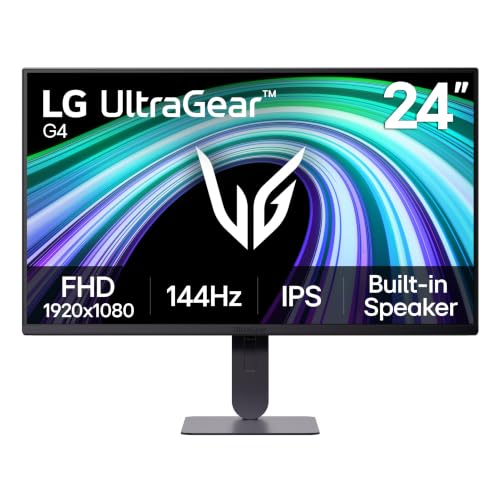
- LG UltraGear 24G411A — linked listing — FreeSync plus G-Sync Compatible
- LG UltraGear 24G414B — linked listing — 144Hz dual-sync value
- Samsung Odyssey G3 27 — linked listing — 180Hz on a bigger canvas
- ASUS VA249QG — linked listing — 120Hz eye-care sync
- Acer Nitro VG240Y — linked listing — the 75Hz sync veteran
A companion guide on this site ranks 1080p gaming monitors by raw motion, and readers arriving from there deserve to know immediately that this page asks a different question. Speed asks how high the frame rate can climb; sync asks how gracefully the screen behaves everywhere below the climb — in the demanding scene, on the ageing graphics card, during the console port with the wobbling frame pacing. Most gaming life is lived in that below, which is why a FreeSync-first ranking rearranges familiar names and admits a 75Hz monitor without embarrassment.
The technology’s second virtue is democratic. FreeSync rides on open standards rather than proprietary modules, so it appears on monitors at every level — including the two gentlest-priced picks here — and its premium tier adds low framerate compensation, which keeps motion smooth when a game’s output dips beneath the panel’s normal sync window. Nvidia’s adoption of the same underlying standard means most of these screens also serve GeForce owners under the G-Sync Compatible banner, a convergence the reviews note model by model.
What this guide refuses to do is treat the FreeSync badge as a binary. Ranges differ, compensation differs, behaviour over HDMI differs from DisplayPort, and a badge earned at a narrow window serves a fluctuating game worse than a wider window on a slower panel. The picks are ordered by the completeness of their sync story in the frame-rate territories real players inhabit, with panel quality and desk manners as the supporting evidence.
Key Takeaways
- Acer Nitro KG241Y leads on sync completeness: 180Hz, FreeSync Premium and LFC territory for dipping frame rates.
- LG 24G411A is the dual-allegiance pick, certified-friendly to both FreeSync and G-Sync Compatible setups.
- LG 24G414B delivers the same diplomacy at 144Hz with a height-adjustable stand and a gentler ask.
- Samsung Odyssey G3 27 stretches sync gaming to a bigger canvas for controller-distance players.
- ASUS VA249QG brings adaptive sync to eye-care territory, a calm 120Hz screen for mixed work and play.
- Acer Nitro VG240Y is the budget sync classic, proof that tearing-free play predates high refresh rates.
Quick Picks: Best 1080P Freesync Monitors
| Pick | Badge | Why it earns its place |
|---|---|---|
| Acer Nitro KG241Y 180Hz | Best Overall FreeSync Package | FreeSync Premium with low-framerate grace at the 180Hz sweet spot most cards can feed. |
| LG UltraGear 24G411A 120Hz | Best Dual-Sync Diplomacy | Both sync flags fly over this one: FreeSync for AMD, validated G-Sync Compatible for Nvidia. |
| LG UltraGear 24G414B 144Hz | Best 144Hz Sync Value | Dual sync allegiance, a height-adjustable stand and a speaker, at the classic esports rate. |
| Samsung Odyssey G3 27in (G30D) | Best Big-Screen Sync | FreeSync smoothness across 27 inches, for players who sit back with a controller. |
| ASUS VA249QG 120Hz Eye Care | Best Sync for Work-and-Play | Adaptive sync joins a full eye-care suite and a frameless design offices can live with. |
| Acer Nitro VG240Y | Best Budget Sync Classic | The elder statesman: FreeSync’s tear-free gift at 75Hz, for the gentlest commitment here. |
How do you judge a FreeSync monitor beyond its badge?
Range came first. A sync window that begins low and ends at the panel’s maximum covers the full biography of a game’s frame rate, from menu screens to firefights, while a narrow window abandons the player exactly when scenes get heavy. Where a model carries FreeSync Premium, its low framerate compensation extends grace below the window by repeating frames intelligently, and that feature — invisible in showrooms, obvious in demanding games — weighed heavily in the ordering below.
Cross-vendor behaviour came second. Many households run an AMD card today and an Nvidia card tomorrow, or a console beside a PC, so each pick’s standing with G-Sync Compatible operation and its sync behaviour over HDMI as well as DisplayPort were examined rather than assumed. The LG pair earn their places substantially on this diplomacy; the guide states plainly where a model is an AMD-first citizen.
Panel fundamentals formed the third layer, because sync cannot rescue a slow or smeared image. Response behaviour, panel type, colour adequacy for the hours between games and the eye-care provisions for long sessions all counted, as did the furniture questions — stand adjustment, VESA mounting, input count — that decide whether a technically gifted screen is livable furniture.
Verification, as everywhere on this site, gated entry itself. Only listings confirmed through our pool appear as picks, with exact titles in the sources file, and the frame-rate claims discussed are the class behaviours those listings support rather than laboratory promises copied from marketing pages.
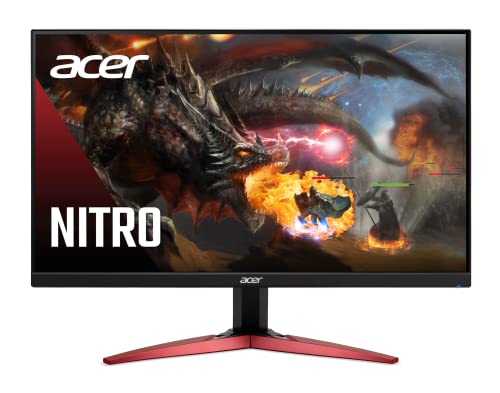
Acer Nitro KG241Y 180Hz — Best Overall FreeSync Package
The KG241Y wins this guide because its sync story is complete where players actually live. FreeSync Premium certification brings the two guarantees that matter beyond the badge: a properly wide adaptive range across its 180Hz ceiling, and low framerate compensation standing guard beneath that range, so when a demanding scene drags output toward the floor, the monitor multiplies frames and holds smoothness instead of dropping into judder at the precise moment the player is busiest. That behaviour, more than any headline number, is what FreeSync ownership is supposed to feel like.
Around the sync sits a well-judged Nitro package: a fast IPS-class 23.8-inch panel with the response manners 180Hz requires, two HDMI inputs beside DisplayPort for a PC-and-console desk, flicker-free and blue-light care for the working day, and VESA mounting to correct the tilt-only stand when the budget allows. Nvidia owners should note this is an AMD-first implementation without the formal Compatible validation its LG rivals advertise — GeForce results over DisplayPort are commonly good but uncertified — while AMD owners can buy with total confidence that this is the class’s most complete sync citizen.
- Panel: 23.8-inch Full HD, fast IPS class
- Refresh: 180Hz ceiling
- Sync: AMD FreeSync Premium with LFC behaviour
- Inputs: two HDMI and DisplayPort
- Eye care: flicker-free, blue-light filtering
- Mounting: VESA support, tilt stand
Strengths
- Low framerate compensation guards demanding scenes
- Wide sync range across a usable ceiling
- Console-friendly second HDMI input
Trade-offs
- G-Sync operation is uncertified territory
- Tilt-only stand until an arm arrives
- No USB hub in the package
Best for: AMD players and anyone whose games fluctuate through heavy scenes.
Not suited for: Nvidia owners who require formally validated G-Sync Compatible status.

LG UltraGear 24G411A 120Hz — Best Dual-Sync Diplomacy
Households divided by graphics-card religion — or simply unsure which religion the next upgrade follows — should start here. The 24G411A’s own listing flies both flags: AMD FreeSync for Radeon owners and NVIDIA G-Sync Compatible validation for GeForce owners, which removes the asterisk that follows most monitors in this category. Its panel can be overclocked from a 120Hz base toward 144Hz, so the sync window stretches a little beyond the badge, and the IPS panel underneath keeps colour honest for the desk’s non-gaming majority of hours.
LG’s software manners add a civilised touch: its switching utility lets a shared desk move between inputs and settings from the computer rather than by groping behind the panel, a kindness in households where the monitor serves two machines. HDR10 support stands ready for console content, and the stand’s tilt-only simplicity is the visible place the value was protected. As a sync purchase, though, the proposition is singular: whichever card the future installs, this screen has already signed the treaty.
- Panel: 24-inch Full HD IPS UltraGear
- Refresh: 120Hz base, overclockable toward 144Hz
- Sync: AMD FreeSync and NVIDIA G-Sync Compatible
- Response: 1ms MBR class
- Extras: HDR10 support, LG Switch software
- Inputs: HDMI and DisplayPort
Strengths
- Validated sync for both GPU camps
- Overclock headroom above the base rate
- Software input switching suits shared desks
Trade-offs
- Base refresh trails the 180Hz picks
- Tilt-only stand out of the box
- Overclock behaviour varies by individual panel
Best for: mixed or undecided GPU households wanting certified calm.
Not suited for: players whose hardware sustains the highest frame ceilings.

LG UltraGear 24G414B 144Hz — Best 144Hz Sync Value
The 24G414B is the diplomat’s sibling with better furniture. It repeats the family formula — FreeSync for AMD, G-Sync compatibility for Nvidia, an IPS panel with fast quoted response and HDR10 standing by — at a native 144Hz, the refresh rate a generation of competitive players standardised on and which mid-range cards feed comfortably in most titles. Where it quietly outclasses its sibling above is the stand, which adds height adjustment to tilt, correcting posture without an arm purchase and making this the more complete desk citizen of the two.
Small civilities accumulate around the panel: a built-in speaker for the desk that has no room for more, a reader mode that warms the image for document evenings, and the same software switching as its sibling for multi-machine households. Players chasing the highest ceilings will look to the 180Hz tier, and pixel-density purists remain in the 24-inch class where this screen lives happily. For a sync-first purchase that must also be a civilised everyday monitor, the 414B is the guide’s most balanced square of screen per unit of currency.
- Panel: 24-inch Full HD IPS UltraGear
- Refresh: 144Hz native
- Sync: FreeSync and G-Sync Compatible class
- Stand: tilt and height adjustment
- Audio: built-in speaker
- Extras: HDR10 support, reader mode, LG Switch
Strengths
- Height adjustment included at this level
- Both sync ecosystems welcomed natively
- Speaker and reader mode widen daily usefulness
Trade-offs
- 144Hz ceiling below the fastest tier
- Single-speaker audio is convenience class
- Design is plain beside gamer-styled rivals
Best for: players wanting certified dual sync with proper ergonomics included.
Not suited for: frame-ceiling chasers or audio-first entertainment desks.

Samsung Odyssey G3 27in (G30D) — Best Big-Screen Sync
Sync’s benefits do not shrink as screens grow, and the 27-inch Odyssey G3 exists for the player whose gaming happens at controller distance — racing rigs, sofa-adjacent desks, cinematic titles where the world should loom. Its 180Hz refresh with FreeSync support keeps that larger canvas as fluid as the smaller picks, and Samsung’s black equaliser performs its shadow-lifting service at a scale where dark corners are genuinely large places for opponents to hide. The fully adjustable stand, height included, matters doubly at this size, where a few degrees of tilt change the whole viewing geometry.
The honest trade is the one this resolution always makes at 27 inches: pixels spread thinner, so text softens and desk work at close range loses the crispness the 24-inch picks keep. Controller-distance players will never notice; spreadsheet neighbours sharing the screen might. Panel character leans toward contrast over the IPS picks’ colour vibrancy, suiting evening rooms and filmic games. Judged as the big-screen branch of the FreeSync family — the one that turns a desk into a small cinema that also competes — it fills a place none of the smaller five can occupy.
- Panel: 27-inch Full HD, Odyssey gaming series
- Refresh: 180Hz, 1ms class response
- Sync: AMD FreeSync support
- Tools: black equaliser, virtual aim point
- Eye care: eye saver mode, flicker-free
- Stand: full adjustment including height
Strengths
- Sync gaming at cinematic desk scale
- Stand adjusts completely for its size
- Shadow tools scale with the bigger picture
Trade-offs
- Text softness at close working distance
- G-Sync behaviour is uncertified
- Needs the deepest desk of the six
Best for: controller, racing and cinematic players at relaxed distances.
Not suited for: close-range text workers or certification sticklers.

ASUS VA249QG 120Hz Eye Care — Best Sync for Work-and-Play
Most FreeSync monitors announce themselves as gaming hardware and tolerate the working day; the VA249QG inverts the relationship, and a large audience lives exactly there. Its 120Hz IPS panel carries adaptive sync — the FreeSync-compatible technology under its generic name — so games and console sessions run tear-free, while the design brief around it is pure ASUS eye-care: low blue light, flicker-free backlight, frameless bezels that disappear in multi-screen offices, and speakers that handle the call calendar without extra hardware on the desk.
The input selection even keeps a VGA port for the legacy machine every office somehow retains, beside HDMI and DisplayPort for the present. Competitive players will find its ceiling modest and its gaming tools minimal, which is precisely the honesty of the design: this is the screen for the reader whose week is forty hours of documents and spreadsheets, six hours of games, and one desire — that both feel smooth and neither hurts their eyes by Friday. In a sync guide that prizes real frame-rate territories, the calm 120Hz working majority is a territory too.
- Panel: 24-inch Full HD IPS, frameless design
- Refresh: 120Hz with adaptive sync
- Sync: Adaptive-Sync (FreeSync-compatible class)
- Colour: 99% sRGB coverage
- Inputs: HDMI, DisplayPort and VGA
- Eye care: low blue light, flicker-free, speakers included
Strengths
- Eye-care suite leads this entire guide
- Sync smoothness for evening play sessions
- Frameless design suits multi-screen offices
Trade-offs
- Ceiling too modest for competitive specialists
- No FreeSync Premium compensation tier
- Gaming assist tools are minimal
Best for: professionals who game in the evenings and rest their eyes all day.
Not suited for: ranked players or AMD owners needing Premium-tier guarantees.

Acer Nitro VG240Y — Best Budget Sync Classic
Every category has an elder that teaches the youngsters humility, and in this one it is the VG240Y, a long-serving Nitro whose 75Hz FreeSync panel has been ending tearing for budget players since before high refresh became the fashion. Seventy-five hertz sounds modest in this company until the comparison is drawn honestly: against the fixed 60Hz screens it replaced in millions of homes, its adaptive window smooths exactly the frame-rate band — the forties through seventies — where modest graphics cards and older machines actually render their games, and in that band its sync is not a compromise but a perfect fit.
The rest of the machine is period charm with practical value: an IPS panel with honest colour, two HDMI inputs and even a VGA port for the inherited desktop, and response enhancement for its class. It will not satisfy a player whose card renders triple digits, its stand is basic and its design has been superseded by its own descendants elsewhere in this guide. But for a first gaming screen, a second desk, a child’s bedroom or a beloved older PC, the VG240Y demonstrates the founding truth of this entire category: smoothness is about agreement between card and screen, not about the largest number on either box.
- Panel: 23.8-inch Full HD IPS
- Refresh: 75Hz
- Sync: AMD FreeSync (Radeon FreeSync generation)
- Response: 1ms VRB class enhancement
- Inputs: two HDMI and VGA
- Design: long-serving Nitro value chassis
Strengths
- Sync smoothness at the gentlest commitment
- Perfectly matched to modest graphics cards
- Legacy inputs welcome older computers
Trade-offs
- 75Hz ceiling excludes fast-card owners
- No low-framerate compensation tier
- Basic stand and dated design
Best for: budget players, older PCs and first gaming screens.
Not suited for: anyone whose games render in triple figures.
What is low framerate compensation, and why does it headline this guide?
Adaptive sync windows have floors. When a game’s output falls below the floor — a huge explosion on a modest card, an unoptimised new release — a basic FreeSync monitor exits its sync range and the old choices return: tearing, stutter or lag, arriving precisely when the scene is most demanding. Low framerate compensation, the centrepiece of the FreeSync Premium tier, answers by displaying frames more than once, multiplying the effective rate back into the window so the conversation between card and screen never actually breaks.
The practical consequence is a particular kind of calm. Frame rates in real games do not cruise; they surge and sag with the scenery, and an LFC-equipped screen irons the sags in a way players describe as the game feeling better optimised than it is. This is why the KG241Y leads the guide despite rivals with matching ceilings, and why Premium, among FreeSync’s tiers, is the badge worth paying for while the base badge is merely worth having.
G-Sync Compatible operation deserves its own sentence of clarity. Nvidia’s programme validates specific FreeSync monitors for GeForce use, and unvalidated models often work well over DisplayPort while carrying no guarantee — a distinction this guide preserves per model, because a household’s next graphics card should never become an unpleasant surprise delivered by a footnote nobody read.
Comparison Table
| Pick | Standout trait | Watch out for | Reader it fits |
|---|---|---|---|
| Acer Nitro KG241Y | Premium sync with LFC grace | Uncertified for G-Sync | AMD players in fluctuating games |
| LG UltraGear 24G411A | Both sync flags, overclock headroom | Tilt-only stand | GPU-agnostic households |
| LG UltraGear 24G414B | Dual sync plus height adjustment | 144Hz ceiling | Balanced desk-and-play buyers |
| Samsung Odyssey G3 27 | Big-screen 180Hz sync | Close-range text softness | Controller-distance gamers |
| ASUS VA249QG | Eye care with adaptive sync | Modest ceiling, basic tools | Work-first evening players |
| Acer Nitro VG240Y | Budget sync for modest cards | 75Hz ceiling, dated design | First screens and older PCs |
How do you enable FreeSync correctly on PC and console?
On a PC the ritual has three stations. Enable the setting in the monitor’s own menu first, because several models ship with it dormant; then enable it in the graphics driver’s control panel, where AMD and Nvidia each keep the toggle in their display sections; then confirm inside a game that the monitor’s refresh readout — most gaming models can display it — moves with the action rather than sitting fixed. A refresh number that dances is the signature of sync actually working, and it is more trustworthy than any settings page.
Consoles simplify the ritual to a handshake: the console’s video settings must allow variable refresh, the HDMI input in use must be the one the monitor specifies for high-bandwidth signals, and the game itself must offer the mode. When a console session still tears, the culprit is usually a game without variable-refresh support rather than the screen, which is worth knowing before a return label is printed in anger.
Finish with the frame cap habit. Setting an in-game or driver-level limit a few frames beneath the panel’s maximum keeps the system inside its sync window permanently, preventing the brief exits at the ceiling that reintroduce tearing in the lightest scenes — menus and skyboxes — where frame rates spike highest and players least expect artefacts.
Which cable carries FreeSync properly?
DisplayPort is the reference connection for FreeSync on a PC: it carries the full range, the highest refresh rates and, on Nvidia systems, the G-Sync Compatible pathway. Every pick in this guide offers it, and a gaming PC should live there by default, with HDMI reserved for the console or the second machine.
HDMI FreeSync is real but more conditional — it depends on the monitor’s implementation, the HDMI generation at both ends and, on consoles, the platform’s own support. The dual-HDMI picks here serve console players well, yet a reader troubleshooting sync over HDMI should test DisplayPort before doubting the panel, because the cable standard, not the screen, is the usual ceiling. Certified cables matter at the margins too: a marginal lead causes dropouts that masquerade as sync faults.
How can you tell whether sync is actually improving your games?
Run the pendulum test your driver provides, or simply revisit the scene that always tore — a slow pan across a bright horizon in a familiar title is the classic torture case. With sync working, the pan glides without the horizontal shear that fixed refresh produces when frame times wander, and rapid strafing stops micro-stuttering. The improvement is easiest to see in the first hour and impossible to unsee in the tenth, which is why players who adopt sync rarely return to fixed refresh voluntarily.
A second test lives at the low end. Deliberately enter the most demanding area of a demanding game and watch whether motion stays coherent as the frame rate sags; on the Premium pick here, compensation holds the image together noticeably deeper into the sag than on basic implementations. That low-end behaviour, unglamorous and unadvertised, is where this guide’s ranking was truly decided.
What do FreeSync buyers most commonly misunderstand?
The deepest misunderstanding is that the badge is the feature. Two monitors can both print FreeSync on the box while offering different ranges, different low-end behaviour and different performance over HDMI, and the difference between them is the difference between sync that survives a demanding game and sync that deserts it. Read for range and tier — Premium and its compensation — before reading for refresh ceilings, because the ceiling is the part of the graph your games visit least.
A second error is assuming sync repairs low frame rates themselves. FreeSync makes forty frames look graceful; it does not make them forty-five, and a game rendered genuinely slowly still feels slow through the hands. Settings discipline — lowering the one or two options that tax a card most — remains the player’s half of the bargain, with sync as the diplomat that makes the resulting number presentable.
Finally, buyers sometimes enable everything and verify nothing, then blame the technology for a settings chain that was never completed. The three-station ritual in the guide above takes four minutes, ends with a dancing refresh counter as proof, and converts FreeSync from a box claim into an observed fact. In this category more than most, verification is not pedantry; it is the product working at all.
What else should a sync-first buyer understand?
Frame pacing is the invisible half of smoothness. Two games can average identical frame rates while one delivers frames at even intervals and the other serves them in stutters, and sync technology interacts with pacing in ways averages never reveal: a well-paced forty-five feels calmer than a ragged sixty on the same screen. This is why two players can disagree about a monitor while both telling the truth, and why this guide ranks sync behaviour across ranges rather than crowning a single specification.
The history of the technology explains its present generosity. FreeSync grew from an open standard for adaptive refresh that panel makers could adopt without licensing a proprietary module, which is why it appears on a 75Hz veteran and a Premium 180Hz athlete in the same guide. That openness also produced the naming sprawl buyers must navigate — FreeSync, FreeSync Premium, adaptive sync as a generic label — and the tiers, read carefully, are the map through it.
A monitor’s sync behaviour over its second childhood deserves thought. These panels will outlive their first graphics card, and a screen whose sync story spans both vendors and a wide range ages into the next build without becoming its bottleneck. The LG pair’s diplomacy and the Acer leader’s compensation are, in this light, longevity features disguised as gaming features, and longevity is the metric monitors are ultimately judged by.
HDR and sync occasionally negotiate for the same soul. Enabling HDR modes can alter a panel’s brightness and processing behaviour, and on some models the cleanest sync performance lives in the standard picture modes. Players who notice a change in motion feel after enabling HDR should test both configurations in their fastest title and keep the one their eyes prefer, because the interaction is model-specific enough that no guide can legislate it from outside the room.
Ultrawide curiosity sometimes distracts 1080p shoppers, and the sync lens settles that question too. A wider canvas multiplies the pixels a card must render, dragging frame rates down into exactly the territory where compensation earns its keep — while the six picks here keep rates high enough that sync polishes rather than rescues. For most desks and most cards, the honest sequence is a fast, well-synced 1080p panel now and width later, when the hardware budget can feed it.
Consider the humble freesync demo every driver ships. New owners who run the swinging pendulum test for two minutes calibrate their expectations permanently: tearing appears and vanishes with the toggle, and the technology stops being a promise and becomes a perception. That small ritual also validates the whole settings chain at once, which makes it the highest-value two minutes in this guide’s entire setup advice.
Players of older games — the back catalogue every PC owner accumulates — benefit from sync in an unexpected place: frame caps of yesteryear. Titles locked to odd rates or prone to judder on fixed screens often smooth out under adaptive refresh, because the panel stops forcing yesterday’s frame timing into today’s rigid grid. A beloved older game feeling newly fluid is among the most reported delights of a first sync monitor, and none of the six here is too modern to deliver it.
The stand question returns in sync clothing. A panel hunting for its height on a stack of books vibrates subtly under desk bumps, and at high refresh the eye catches micro-movement it would forgive on a slower screen. Solid stands and VESA arms are therefore motion equipment as much as ergonomic furniture, which is why the LG 414B’s included height adjustment punches above its price in this guide’s estimation.
One more population should hear its name: simulation players. Flight and driving simulators render enormous skies and cockpits at rates that wander with the weather and the scenery, and their long, slow pans are tearing’s favourite canvas. Sync transforms those genres disproportionately — a horizon that never shears is half the immersion — and the big Samsung or the compensation-equipped Acer serve sim desks with particular grace.
Budget sequencing for a first sync setup runs screen, then settings discipline, then silicon. The monitor unlocks the technology; an evening spent capping frames and choosing the two heaviest graphics options correctly stabilises the rates the monitor must follow; only then does a card upgrade change the conversation. Readers who follow that order routinely report that the middle step — which costs nothing — delivered a third of the total improvement, a ratio worth remembering before any checkout.
Finally, keep perspective on the entire subject. Sync is a solved problem presented as a shopping problem: the technology works, the tiers are legible and the six screens here all implement it honourably within their classes. The remaining decision is fit — your card, your games, your desk, your eyes — and fit is a question this guide can frame but only your own frame-rate counter, consulted tonight, can finally answer.
Multi-monitor households should know that sync applies per screen, not per desk. A gaming panel can run adaptively while a side monitor stays fixed, and operating systems handle the mixture with varying grace depending on whether games run full-screen on the sync panel — one more argument for the disciplined arrangement of game on the main screen, everything else resident elsewhere. Readers planning a matched pair for symmetry should buy two of the same model while stock is plentiful, because sync behaviour and colour drift apart across model generations.
A word about variable refresh on laptops driving these panels: most modern gaming laptops can output adaptive sync to an external monitor over DisplayPort or the right USB-C path, turning a dorm desk into a proper station, yet the exact capability depends on which graphics processor owns the external port in that laptop’s design. The five-minute check — the driver’s display page with the monitor attached — answers definitively, and it belongs in the first evening’s setup ritual for laptop households.
Streaming compresses away some of sync’s gift and preserves the rest. An audience watching a captured feed sees the smoothness of high frame rates where the stream’s own rate allows, while tearing, had it existed, would have been baked into the capture permanently — so sync protects the archive even when the live viewer cannot perceive its full benefit. Creators choosing between this guide and the speed-first one should know their footage inherits whichever choice they make.
The difference between adaptive sync and simply capping frames deserves clarity, because the two are partners rather than rivals. A cap sets the highest rate the game may render; sync governs how each rendered frame meets the screen beneath that cap. Used together they produce the calmest possible image, and used separately each leaves half the problem standing — a truth the setup guide above encodes and that experienced players apply without thinking.
Consider what happens when the next console or card generation arrives mid-ownership. These panels’ sync ranges were chosen to span the rates hardware actually produces across generations, so a stronger future card simply climbs higher inside the same window, while a weaker or older device finds the window’s floor and compensation waiting. Few purchases in a gaming setup forgive the future in both directions at once, and that forgiveness is the quiet core of this guide’s recommendations.
Eye strain during long sessions has a sync-adjacent cause worth naming: judder. When frame delivery stutters against a fixed refresh, the eye works harder to track motion it expected to be smooth, and the fatigue players attribute to brightness sometimes traces to that micro-labour. A well-synced screen in a kindly lit room removes both burdens together, which is why evening players often describe the upgrade as restful — an odd word for gaming equipment, and an accurate one.
Readers choosing between the two LG siblings should decide by furniture and ceiling together. The 411A’s overclockable panel suits the tinkerer who will chase its headroom and whose GPU future is genuinely unknown, while the 414B’s native rate and height-adjustable stand suit the buyer who wants the desk finished on delivery day. Neither answer embarrasses the other; they are the same treaty signed in different furniture, and households that value certainty should take the native rate and the stand.
For the Samsung’s big canvas, viewing distance is the whole ballgame and deserves a tape measure rather than an opinion. At controller distance its pixels compose into a smooth, immersive field where sync’s calm is fully visible; at document distance the same pixels declare themselves. Players whose desk doubles as their writing station should therefore read its review as two reviews — cinema and competition in one, correspondence in the other — and households with a second screen for text can have both without compromise.
The ASUS pick raises a category question this guide is happy to answer publicly: is a 120Hz eye-care screen a gaming monitor? By the only definition that matters — whether games on it look and feel dramatically better than on the fixed screens it replaces — yes, emphatically, and its owner’s evenings prove it weekly. Categories serve buyers, not the reverse, and a work-first reader’s sync needs are as real as a competitor’s; they are simply located at a different point on the same graph.
And the VG240Y, the guide’s elder, teaches the final lesson about this technology’s maturity. A feature that began as a premium differentiator now sits, fully functional, in the least expensive screen in the guide, smoothing the humblest hardware in the roundup. Technologies that complete that journey — from flagship to furniture — are the ones worth building a desk around, because their support, their successors and their second-hand markets are all guaranteed by ubiquity itself.
One scenario deserves a walkthrough because it decides real purchases: the ageing gaming PC. A card that rendered a favourite title at a locked high rate three years ago now wanders through its middle ranges as games grow heavier, and its owner faces the classic fork — new card, or new screen. Sync argues for the screen first more often than pride admits, because the wandering itself, not the average, is what the player sees, and a compensation-equipped panel converts the old card’s decline from a stutter into a slope. The card can follow next year into a window already waiting for it.
Parents equipping a child’s first gaming PC can extract a principle from that walkthrough. A modest card paired with a good sync monitor produces a smoother perceived experience than a stronger card paired with a fixed screen, at similar total cost, and the monitor will still be the right purchase when the card is eventually upgraded for a birthday. Sequencing display before silicon is not only a veteran’s habit; it is the arithmetic of households that buy one component at a time.
A technical comfort for the anxious: enabling adaptive sync does not commit you. Every pick here behaves as an excellent fixed-refresh monitor with the feature off, every driver toggle is reversible in seconds, and no game is harmed by the experiment. Readers who like to verify value personally can spend a week toggling sync per title and keeping a private tally; the technology survives that scrutiny easily, which is more than can be said for most features printed on monitor boxes.
The used market in this class rewards the sync-literate buyer. Sellers describe panels by size and refresh while ranges and tiers go unmentioned, so a shopper who knows to ask about Premium status and window floors can identify undervalued screens that headline-readers scroll past. All six picks here also circulate used in healthy numbers, and a verified model bought second-hand with a return path is a legitimate route to the top of this guide’s ranking at the bottom of its prices.
Room lighting returns for a final appearance, because sync cannot be judged in a flickering room. Overhead lights on cheap dimmers, and some LED bulbs, introduce their own temporal shimmer that players occasionally blame on a new monitor during its first evening. Test smoothness in the lighting you actually play in, ideally the kind evening setup this site’s guides keep recommending — a warm lamp behind the screen — and the panel’s own behaviour can be judged without a suspect witness in the room.
For readers who split attention between a desk PC and a games room television, sync creates an unexpected preference shift. After weeks of tear-free desk play, the television’s fixed refresh becomes visible in pans that never bothered anyone before, and households often find the desk quietly becoming the primary gaming seat for exactly the titles that once belonged to the sofa. Anticipating that shift argues for buying the desk screen properly the first time, stand and all, rather than as a temporary station.
Developers’ settings menus increasingly acknowledge this technology directly, offering sync-aware frame limits and pacing options that did not exist a few years ago. When a title provides its own limiter, prefer it to external caps, because the engine knows its frame times better than any outside governor; when it does not, the driver-level cap from the setup guide remains the faithful fallback. Either way, the partnership between a well-paced game and a listening screen is the entire subject of this page, working as designed.
A closing distinction for the meticulous: FreeSync governs the marriage between one card and one screen, and it cannot help a second display, a capture device with its own timing, or a game whose engine stutters for reasons internal to itself. Naming those borders protects the technology’s reputation from disappointments that were never its fault, and it tells the troubleshooter where to look next — engine, settings, then screen, in that order — when smoothness goes missing.
In the end the six screens divide by trust. Some readers trust a certification and buy the LGs; some trust a compensation algorithm and buy the Acer leader; some trust size, some trust eye care, and some trust the elder that has simply been smoothing games for years without incident. Every one of those trusts is well placed somewhere in this list, which is what a mature technology’s buying guide should look like: not a coronation, but a map of agreements between machines and the people who play on them.
One more household pattern is worth blessing explicitly: the inherited gaming desk. When a family’s main player upgrades, the outgoing sync monitor descends to a younger player’s first rig, where its adaptive window flatters the hand-me-down graphics card it will inevitably meet — old card, wandering rates, forgiving screen is the happiest combination in budget gaming. Buying any pick here with that cascade in mind doubles its service, and the models with the widest windows and both-vendor manners cascade the most gracefully of all.
Keep the first-evening checklist from the setup guide beside the monitor until it is done: menu toggle on, driver toggle on, dancing counter observed, cap set a breath below the ceiling, one demanding scene revisited as the low-end test. Five small acts convert a specification into an experience, and skipping them is the only way this technology can disappoint a buyer whose hardware was ready all along.
And should a reader still be torn between this guide’s philosophy and the speed-first one, the honest synthesis is simple. Buy the fastest panel your frame rates justify, among those whose sync story is complete across the range you actually render in. Speed decides the ceiling of the experience; sync decides its floor; and since players live across the whole staircase between the two, the complete monitor is the one that refuses to make them choose.
A final practical mercy of this class: none of these screens demands a new desk, a new card or a new operating system to justify itself tonight. Each one improves the machine already sitting in the reader’s home, through a cable already in the box, within an evening that also includes dinner. Upgrade categories that behave this politely are rare, and they tend to be the ones owners recommend unprompted — which, in the long run, is how this technology conquered the market one desk at a time.
So consult the frame counter, name your card’s true territory, and let the window that covers it make the decision. The screen will handle everything after that, quietly, at whatever rate the evening’s game decides to render — which was always the point.
If a single sentence from this guide survives the shopping trip, let it be the verification habit: a refresh counter that dances is worth a page of badges. Every other judgement here — range, tier, size, stand — refines a purchase that only becomes real when the screen is observed listening to the card, and that observation costs less time than unboxing the stand did.
Buyers between the two guides on this site sometimes ask which to read first, and the answer follows from their graphics card rather than their games. A card with headroom to spare belongs to the speed-first ranking, where ceilings rule; a card that works for its living belongs here, where floors and ranges rule. Most households, examined honestly, own the second kind of card — and should therefore start on this page without feeling they have taken the consolation door.
Final Recommendation
Match the sync to the machine that will feed it. AMD players in fluctuating, demanding games take the KG241Y and its compensation; households that cannot predict their next graphics card take either LG and its double treaty, choosing the 414B when a proper stand matters; controller-distance players take the big Samsung; office-first readers take the ASUS and its rested eyes; and the modest PC that started this whole technology’s story takes the VG240Y, whose 75Hz window fits its card like a glove.
Set the chain up properly, verify the dancing counter, and then forget the technology entirely — which is the highest compliment a display feature can earn.
The best 1080p freesync monitors are not the fastest screens in the building; they are the ones under which no frame, however humble its timing, ever has to look broken.
Frequently Asked Questions
Does FreeSync add input lag?
Properly configured, no meaningful amount — adaptive sync was designed to replace the lag-or-tearing choice of older vertical sync, and its overhead sits far below perception for this class of panel. The lag players occasionally blame on sync usually traces to a frame rate far below the range, an aggressive in-game sync setting stacked on top, or a television in the chain. Keep one sync system in charge and the input stays honest.
Will these monitors work with an Nvidia card?
The two LG picks carry G-Sync Compatible validation and are the certain answers. The remaining FreeSync models commonly operate over DisplayPort with GeForce cards as unvalidated compatible displays, which most owners find works well, but this guide labels that status honestly rather than promising certification nobody granted. A committed Nvidia household should buy the validation, not the hope.
Is FreeSync Premium worth paying for over basic FreeSync?
For players whose games fluctuate — which is most players, in most modern titles — yes, because low framerate compensation protects exactly the moments basic sync abandons. For a reader whose card renders a locked, high frame rate in a narrow set of esports titles, the basic badge on a fast panel serves nearly identically, and the money is better spent on the stand or the size. The tier matters in proportion to your frame rate’s wandering.
Can a console use FreeSync over HDMI with these screens?
Current consoles support variable refresh over HDMI, and the picks with generous HDMI provision — the Acer pair and the LGs — are built for that handshake, subject to each game offering a variable or performance mode. The monitor cannot invent support a title lacks, so the console’s settings and the game’s modes are the two places to check before suspecting the screen.
What refresh range should I look for in a FreeSync monitor?
As wide as the panel allows, ideally beginning low enough that compensation or the native window covers the forties, where demanding games on mainstream cards spend their hardest scenes. A narrow high window serves esports specialists in locked titles; a wide window serves everyone else, which is why this guide weighed range ahead of ceiling throughout its ranking.
Does FreeSync help with video playback and desktop use?
Its home is games, where frame times wander, but the same smoothness flatters high-refresh desktop motion and any content whose rate the panel can follow. The everyday dividend most owners report is subtler: once tearing disappears from games, the eye stops tolerating it anywhere, and the whole desk — scrolling, windows, video — feels calmer by association, particularly on the 120Hz and faster picks.
Related Guides
Readers tuning the rest of a gaming desk may also want these neighbouring guides: best 1080 gaming monitors best gaming monitors for amd graphics cards best budget gaming monitors See also 100 dollar gaming monitors.
Related guides
- Best 100 Dollar Gaming Monitors: Honest Picks and Sensible Stretch Options
- Best 1080p 144Hz Monitors: One True 144Hz Pick, Four Honest 180Hz Upgrades and a Labelled 120Hz Alternative
- Best 10 TV Monitors: The 6 Screens That Actually Earn a Place in Both Lives
- Best 1080p 240Hz Monitors for Competitive Gaming