What's inside
- Where to buy
- Key Takeaways
- Quick Picks
- How Did We Judge Pen Tablets That All Promise the Same Numbers?
- What Should a Beginner Understand Before the First Stroke?
- How Do You Set Up a Pen Tablet So the First Month Goes Well?
- What Changes Between the Six Picks at a Glance?
- How Do the Bundled Extras Change the Real Value?
- Which Mistakes Do First-Time Pen-Tablet Buyers Keep Making?
- What Does the Upgrade Path Look Like After a Budget Tablet?
- How Do Pen Tablets Fit Different Kinds of Drawing?
- What Should Left-Handed Artists and Small Desks Know?
- What About Drawing With the Whole Arm — Ergonomics for Long Sessions?
- How Should You Test a Pen Tablet During Its First Week?
- How Do Surfaces, Nibs and Pens Wear Over Years of Drawing?
- What Should Teachers and Parents Know About These as Gifts for Young Artists?
- Can a Pen Tablet Earn Its Desk Space Beyond Drawing?
- Final Recommendation
- Frequently Asked Questions
- Related Guides
As an Amazon Associate I earn from qualifying purchases. This post may contain affiliate links at no extra cost to you.
gizmoverdict.com is reader-supported. When you buy through links on our site, we may earn an affiliate commission.
Where to buy
The best affordable drawing tablets are, almost without exception, pen tablets: flat, screenless drawing surfaces that connect to a computer and translate your hand’s movement into lines on the monitor. That sentence needs saying plainly at the top, because the phrase “drawing tablet” gets stretched over pen displays and standalone iPads elsewhere, and a beginner who orders a screenless slab expecting a screen has had a bad day that better labelling would have prevented. Every pick in this guide is a pen tablet that needs a PC or Mac beside it — and within that honest boundary, this is one of the happiest categories in all of creative hardware, because the affordable end is genuinely good. The pen does not know what the tablet cost.
The six picks map the budget landscape of the two ecosystems that define it. Huion contributes three: the tiny Inspiroy H640P, the larger Inspiroy H1060P, and the more refined Inspiroy 2 Medium. XPPen answers with the Deco 01 V3, a big-surface favourite of value hunters, and the Deco Pro LW, a wireless step-up model that closes the list wearing its “above the strict budget line” label openly. Wacom, the category’s founding name, stands between them with the Intuos Small — the premium-priced end of “affordable,” bought for its pen feel, its drivers and its bundled creative software rather than for its dimensions.
Price positioning in this guide is qualitative by design: entry tier, mid-budget, step-up. That is not evasion — pen tablets are discounted so constantly that any printed figure would be archaeology within a month, while the relative ladder barely moves. The H640P is the ladder’s first rung, the H1060P and Deco 01 V3 its generous middle, the Inspiroy 2 M and Intuos Small its considered purchases, and the Deco Pro LW the rung you climb to when wireless freedom and a premium pen justify leaving the strict budget behind. Every rung draws properly. What changes up the ladder is size, buttons, wireless, pen refinement and the software in the box.
Key Takeaways
- All six picks are screenless pen tablets that need a computer; the drawing appears on your monitor, not on the slab.
- The Huion Inspiroy H640P is the entry rung — small, simple and entirely sufficient for learning digital drawing.
- Huion’s H1060P and XPPen’s Deco 01 V3 give big drawing areas at the budget ladder’s generous middle.
- The Inspiroy 2 Medium refines the Huion formula with better controls and a more considered pen.
- Wacom’s Intuos Small costs more per inch and repays it in pen feel, driver maturity and bundled software.
- The Deco Pro LW is the labelled step-up: wireless drawing and a premium build for artists leaving the strict budget tier.
Quick Picks
| Pick | Badge | Why it earns its place |
|---|---|---|
| Huion Inspiroy H640P | The first-rung favourite | A compact 6-by-4-inch pen tablet whose battery-free pen teaches digital drawing without a serious bill. |
| Huion Inspiroy H1060P | The big Huion bargain | A 10-by-6.25-inch drawing area with a fistful of shortcut keys at the middle of the budget ladder. |
| Huion Inspiroy 2 Medium | The refined Huion | A medium surface with a scroll wheel, grouped shortcuts and a pen that feels a generation more polished. |
| XPPen Deco 01 V3 | The big-surface value play | A 10-by-6.25-inch Deco with blind-box shortcut keys and a loyal following among value-first artists. |
| Wacom Intuos Small | The premium small tablet | Wacom’s pen, drivers and bundled creative software in a compact slab priced above its size. |
| XPPen Deco Pro LW (2nd Gen) | The step-up — wireless tier | An 11-inch wireless pen tablet with a premium pen, labelled honestly as the climb beyond strict budget. |
How Did We Judge Pen Tablets That All Promise the Same Numbers?
Specification sheets in this category are a hall of mirrors: nearly every box advertises the same pressure figure, similar report rates and the same tilt angle, as if the pens were identical. They are not, and the screening therefore privileged behaviour over numerals — how a pen tracks a slow diagonal without wobble, how the first millimetre of pressure registers for light sketchers, how the surface texture balances glide against control, and how the drivers behave inside Photoshop, Clip Studio Paint, Krita and Illustrator after a month of updates rather than on installation day.
Size was judged as a working area, not a trophy. A pen tablet maps its whole surface to your whole monitor, so a small tablet makes every stroke a magnified gesture — wonderful for detail, tiring for long sweeping lines — while a large tablet asks your whole arm to participate and rewards painters who draw from the shoulder. Neither is better; they are different instruments, and the reviews match each size to the drawing style and desk it serves. Buyers with two monitors were reminded that mapping can be restricted to one screen, which quietly converts any pick here into a precision tool.
Shortcut hardware counted where it genuinely saves motion: well-placed express keys and, on the Inspiroy 2, a scroll wheel for brush sizing. Bundled software counted at full value for the Intuos, whose included creative applications can exceed the price difference over rivals for a beginner starting from zero. Wireless was treated as a comfort feature with a price, not a necessity — the cable on a desk-bound tablet is forgotten within a week, which is why only the step-up pick charges for removing it.
Testing also included the unglamorous failure modes: waking from sleep with the driver still alive, surviving an application crash without a replug, and behaving when two monitors of different resolutions confuse lesser mapping software. Budget tablets historically stumbled exactly there rather than in drawing quality, and the current generation from all three makers has largely cleaned up its act — a maturity that never appears in advertisements and decides more returns than any pen specification.
Finally, the ecosystem’s maturity was weighed: driver support across Windows and macOS, how promptly each maker follows operating-system updates, and the availability of replacement nibs and pens years later. A budget tablet abandoned by its drivers becomes e-waste on the next OS upgrade, so the guide favours makers with a demonstrated habit of keeping old models alive — a category where Huion and XPPen have improved markedly and Wacom’s long memory remains the benchmark.
What Should a Beginner Understand Before the First Stroke?
The hand-eye gap is the whole apprenticeship. On a pen tablet you draw on the desk while watching the monitor, and for the first days your lines will land like a stranger drew them — this is universal, temporary and not a defect in the tablet. Most artists cross the gap in one to two weeks of daily drawing, and many come to prefer the arrangement: the hand never covers the artwork, the posture faces the screen squarely, and the drawing surface can be textured like paper in a way screens cannot. Judge any pick below after the apprenticeship, not during it, and do the drills in this guide’s setup section to shorten the crossing.
Posture deserves its paragraph before habits calcify. The tablet belongs directly in front of the drawing shoulder, parallel to the monitor’s bottom edge, close enough that the elbow stays near the body; the monitor belongs at eye level, not slumped below a laptop lid, because pen-tablet drawing is a neck sport as much as a hand sport. Artists who set the geometry once, properly, draw for years without thinking about it; artists who perch the tablet at an angle spend those years unconsciously correcting a rotated world, and their lines show the tax. Five minutes with a tape measure at setup is the cheapest coaching in digital art.
The second understanding is that the computer is half the instrument. The tablet contributes the pen and the surface; the PC contributes the software, the screen and the performance. A budget tablet on a decent computer running Krita — which is free and excellent — is a complete professional drawing station, a fact that still surprises shoppers who assumed serious digital art required serious spending at every layer. It does not. It requires one good pen, one honest surface and patience measured in weeks.

Huion Inspiroy H640P — The first-rung favourite
The H640P is where this category’s value story begins: a 6-by-4-inch drawing surface, a battery-free pen with the category’s standard pressure sensitivity, six shortcut buttons along the edge, and a price position at the very foot of the ladder. Nothing about it is decorative. The slab is thin, the surface is a honest matte, the pen is light and never needs charging, and the drivers cover the mainstream art applications without drama. For a beginner testing whether digital drawing is their medium at all — or a laptop user wanting a pen that travels in the same sleeve — it answers every essential question a pen tablet is asked.
Its smallness is both the feature and the ceiling. Mapped to a large monitor, the compact area magnifies hand movement, which suits detail work, photo retouching and small, controlled strokes, and taxes the long, sweeping lines that comic inking and painting love. On a laptop screen the proportions feel far more natural, which is why this pick pairs so happily with portable setups. Shortcut buttons are basic but present, and Huion’s nib supply in the box is generous enough to postpone the accessories conversation for a year. As a first instrument or a travel spare, the H640P is the easiest recommendation in this guide; as a five-year daily driver for a painter, it is the one most likely to be outgrown — gracefully, and having fully earned its keep.
- Active area: about 6 by 4 inches — the most compact pick here
- Pen: battery-free Huion stylus with tilt support
- Shortcuts: six programmable press keys
- Connection: wired USB to a PC or Mac
- Position: entry tier of the budget ladder
Strengths
- The gentlest entry cost in the guide for a fully capable pen.
- Travels in a laptop sleeve and draws happily on smaller screens.
- Battery-free pen removes charging from the routine entirely.
Trade-offs
- The small area magnifies strokes on large monitors.
- Long, sweeping line work feels cramped compared with the medium picks.
- Shortcut provision is basic next to the H1060P’s fuller bank.
Best for: beginners, students and laptop artists who draw in detail and travel light.
Not suited for: painters who draw from the shoulder on a large desktop monitor all day.

Huion Inspiroy H1060P — The big Huion bargain
If the H640P is the ladder’s first rung, the H1060P is the rung where most budget artists actually settle: a generous 10-by-6.25-inch active area — the same working acreage as the priciest medium tablets of a decade ago — with twelve shortcut keys and a soft-key strip, at a position still firmly inside the budget tier. That combination of size and shortcuts at this level is why the model has remained a default recommendation through years of newer releases. Big surfaces flatter natural arm movement, and the key bank keeps the keyboard at arm’s length during long sessions, which is where drawing flow actually lives.
The compromises are age and finish rather than function. The design is an older generation’s — the pen, while fully pressure- and tilt-capable, lacks the last refinement of Huion’s newest styluses, and the surface texture is serviceable rather than luxurious. Drivers are mature precisely because the model has been around, which cuts both ways: stability now, and a shorter remaining runway of updates than a current-generation pick. For the artist whose budget is fixed and whose monitor is large, none of that outweighs the central fact — this is the most drawing area per unit of money in the guide, from a maker whose ecosystem is proven. It is the value pick in the plainest sense of the word.
- Active area: about 10 by 6.25 inches — joint-largest budget surface here
- Pen: battery-free stylus with pressure and tilt
- Shortcuts: twelve press keys plus a soft-key strip
- Connection: wired USB
- Position: middle of the budget ladder, size-first
Strengths
- The largest Huion drawing area available at a budget position.
- A deep shortcut bank keeps hands off the keyboard mid-session.
- Years on the market mean mature, well-understood drivers.
Trade-offs
- An older design, with a pen a step behind Huion’s latest refinement.
- The surface finish feels utilitarian beside the Inspiroy 2 line.
- Its update runway will end sooner than a current model’s.
Best for: desktop artists on a firm budget whose monitors and drawing styles demand a large surface.
Not suited for: artists set on the newest pen technology and the longest driver future.

Huion Inspiroy 2 Medium — The refined Huion
The Inspiroy 2 Medium is Huion’s answer to the artist who liked the budget formula and asked what it becomes with the details taken seriously. The medium surface is framed by a thoughtfully grouped control cluster — shortcut keys arranged around a scroll wheel that resizes brushes and zooms canvases with the thumb, the single most-used motion in digital drawing — and the pen carries Huion’s newer PenTech generation, with steadier initial activation and a more natural pressure ramp. The whole object feels considered in a way its price position does not require, which is precisely its appeal.
Positioned a rung above the H1060P, it trades a little raw area-value for refinement everywhere else: better controls, a better pen, a cleaner design that sits happily on a visible desk, and the longer support future of a current model. Artists upgrading from an entry tablet will feel the difference in the first session’s brush resizing alone; first-time buyers choosing between this and the bigger, cheaper H1060P are choosing between polish and acreage, and the honest tiebreaker is how much of your drawing life is spent changing brush sizes — most painters answer “constantly,” which is why this pick exists. It is the Huion this guide would hand to an artist planning to keep it for years.
- Active area: medium format, roughly 9 by 5.6 inches
- Pen: battery-free PenTech stylus, newer generation
- Controls: grouped shortcut keys with a scroll wheel
- Connection: wired USB-C
- Position: upper-middle of the budget ladder
Strengths
- The scroll wheel transforms brush sizing and zooming into thumb reflexes.
- Newer pen technology tracks light strokes more faithfully.
- Current-generation model with the support runway that implies.
Trade-offs
- Costs a rung more than the larger H1060P for a slightly smaller area.
- Wired only, while the step-up Deco Pro LW offers wireless.
- Refinement is felt in flow rather than in headline specifications.
Best for: painters and illustrators who resize brushes constantly and plan to keep one tablet for years.
Not suited for: strict-budget buyers who would rather have maximum area than maximum polish.

XPPen Deco 01 V3 — The big-surface value play
XPPen’s Deco line built its reputation by giving artists more surface than the price suggested, and the Deco 01 V3 is the purest expression of that bargain in this guide: a 10-by-6.25-inch active area, eight shortcut keys, and a battery-free pen with tilt, at a position squarely in the budget tier’s middle. The design carries small kindnesses that owners mention for years — the shortcut keys have tactile markers so fingers find them without eyes leaving the monitor, and the pen barrel is shaped for long sessions rather than for photographs. On a desk, it reads as a tool, and it behaves like one.
Against the H1060P, its natural rival, the Deco trades a few shortcut keys for XPPen’s driver software and pen feel, which many artists describe as a shade smoother at low pressure — the sketching range where first lines are found. Neither rival embarrasses the other; the choice between them is the budget tier’s classic coin flip, settled by which maker’s drivers your applications prefer and which surface texture your hand enjoys during a shop trial or a friend’s loan. What is not in doubt is the category point the Deco proves alongside the H1060P: at the middle of the budget ladder, an artist today gets a drawing surface that professionals of fifteen years ago would have recognised as their own.
- Active area: about 10 by 6.25 inches
- Pen: battery-free XPPen stylus with tilt support
- Shortcuts: eight programmable keys with tactile markers
- Connection: wired USB
- Position: middle of the budget ladder, XPPen’s side
Strengths
- Full medium-large area at a firmly mid-budget position.
- Tactile key markers keep shortcuts usable without looking down.
- Low-pressure pen behaviour flatters sketchers and light hands.
Trade-offs
- Fewer shortcut keys than the H1060P’s deeper bank.
- Wired connection only at this tier of the Deco line.
- Surface texture is a matter of taste some hands find slick.
Best for: sketchers and illustrators who want maximum area and gentle low-pressure response for mid-budget money.
Not suited for: shortcut maximalists who map a dozen commands to the tablet’s edge.
Wacom Intuos Small — The premium small tablet
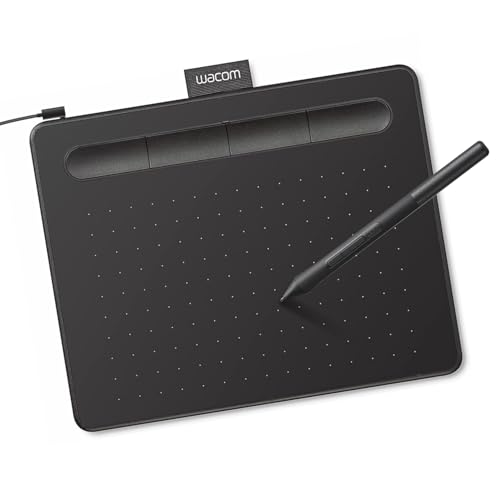
The Intuos Small asks the most interesting question in this guide: why pay a premium position for one of the smallest surfaces on the list? The answer arrives in the hand. Wacom’s pen — the company has refined this instrument longer than its rivals have existed — tracks with a steadiness and a pressure curve that artists describe as invisible, the drivers are the industry’s reference implementation, and the box includes creative software licences that can outweigh the price gap for a beginner building a toolkit from nothing. The tablet itself is compact, precisely made, and supported with the long memory Wacom applies to its whole catalogue.
The counter-argument is arithmetic, and it is honest: the same money buys a much larger Huion or XPPen, and size is not a trivial specification. The Intuos case therefore rests on who is buying. Beginners who will use the bundled software, artists whose applications are known to behave best under Wacom drivers, gift-buyers who value the name’s support network, and detail workers whose small-stroke style suits a compact area — all of them get full value. Painters who draw big, on big monitors, should let the larger budget surfaces win. Wacom sells certainty here, and certainty is a legitimate thing to buy; it is simply not the thing every artist needs.
- Active area: small format, about 6 by 4 inches
- Pen: battery-free Wacom Pen 4K with tilt recognition
- Software: bundled creative application licences (vary by promotion)
- Shortcuts: four customisable ExpressKeys
- Position: premium end of the affordable tier
Strengths
- Pen feel and driver maturity remain the category’s reference.
- Bundled software can cover a beginner’s entire starting toolkit.
- Long support memory keeps the tablet useful across OS generations.
Trade-offs
- The smallest area here at the tier’s premium position.
- Rivals offer far more surface for the same money.
- Only four shortcut keys on the tablet itself.
Best for: beginners who will use the bundled software, and detail artists who prize pen behaviour above acreage.
Not suited for: large-monitor painters whose strokes need a medium or large surface.

XPPen Deco Pro LW (2nd Gen) — The step-up — wireless tier
The final pick wears its label in its heading: this is the step up, priced beyond the strict budget line, included because many readers of a budget guide are really asking what the next rung buys. The Deco Pro LW answers with an 11-inch-class wireless drawing surface — Bluetooth freedom from the desk cable — a premium battery-free pen from XPPen’s newest generation, a remote-style shortcut cluster, and build quality that feels borrowed from a higher category. Drawing from a sofa with the tablet on your lap and the monitor across the room stops being a stunt and becomes a workflow.
Whether the rung is worth climbing depends on what the cable costs you. For a fixed desk artist, wireless solves a problem that does not exist, and the budget picks above deliver the same lines for less. For artists who move between desks, teach, present, or simply hate the cable’s drag across the drawing surface, the freedom is the feature — and the pen and surface refinements ride along as the step-up’s second argument. This guide’s discipline is to label the climb rather than hide it: buy the Deco Pro LW as a deliberate upgrade with eyes open, and it delights; buy it believing it is the budget option, and the invoice will correct you.
- Active area: about 11 by 7.5 inches — the largest surface in this guide
- Pen: battery-free premium XPPen stylus, newest generation
- Connection: Bluetooth wireless or wired USB-C
- Controls: shortcut cluster with a separate remote-style controller
- Position: step-up tier, above the strict budget line — labelled as such
Strengths
- Wireless drawing frees posture, teaching and presenting completely.
- The largest surface and newest pen in this line-up.
- Premium build that suits a permanent, visible workstation.
Trade-offs
- Priced above the budget tier this guide is named for.
- Wireless adds charging and pairing to a formerly zero-maintenance tool.
- Desk-fixed artists pay for freedom they may never use.
Best for: experienced artists upgrading from a budget tablet who draw in more than one posture or place.
Not suited for: first-time buyers, who should learn on the budget rungs and discover whether wireless matters to them.
How Do You Set Up a Pen Tablet So the First Month Goes Well?
Installation is ten minutes; calibration of habits is the real setup. Install the maker’s current driver before plugging anything in, restart, then open the driver panel and make three decisions deliberately. First, mapping: match the tablet’s area to your monitor — full area to a single screen for most artists, with multi-monitor owners restricting the map to the drawing display. Second, pen buttons: assign the barrel button to right-click or the eraser toggle, whichever your software rewards, and disable any click-feel settings that make the pen tip noisy. Third, express keys: map undo, brush size and the eyedropper before anything exotic, because those three carry ninety percent of a session’s shortcuts.
Then do the drills that close the hand-eye gap, fifteen unglamorous minutes a day. Draw rows of straight lines between dots, circles inside squares, and long curves that cross the whole surface; trace a favourite drawing until the tracing stops wobbling; sign your name fifty times. The exercises are boring in the way scales are boring for pianists, and they work for the same reason — they move the pen from conscious control to reflex, after which the monitor and the hand finally agree about where a line lives. Artists who skip the drills often blame the tablet at week two; artists who do them forget the gap existed by week three.
Software completes the setup, and the budget story is kind here: Krita is free and genuinely professional, MediBang and FireAlpaca cost nothing, and the paid standards — Clip Studio Paint, Photoshop — run identically on a budget tablet and a flagship one, because the pen input is the same language either way. Spend the savings from this guide’s tier on the application you will actually learn, or on nothing at all, and the drawing station is complete.
What Changes Between the Six Picks at a Glance?
| Pick | Active area | Connection | Ladder position | Signature strength |
|---|---|---|---|---|
| Huion Inspiroy H640P | ~6 × 4 in | Wired | Entry | Learning and travel at the gentlest cost |
| Huion Inspiroy H1060P | ~10 × 6.25 in | Wired | Mid-budget | Maximum area and shortcuts per money |
| Huion Inspiroy 2 M | Medium | Wired | Upper-middle | Scroll wheel and refined current pen |
| XPPen Deco 01 V3 | ~10 × 6.25 in | Wired | Mid-budget | Big area with gentle low-pressure feel |
| Wacom Intuos Small | ~6 × 4 in | Wired (this model) | Premium small | Reference pen, drivers and bundled software |
| XPPen Deco Pro LW | ~11 × 7.5 in | Wireless + wired | Step-up tier | Wireless freedom and premium build |
Read the ladder column as the guide’s conscience: five picks live inside the affordable promise, one sits deliberately above it with a label, and the area column shows why price and size refuse to march in step — the premium pick is small, the bargains are large, and the right answer depends on whether your hand values refinement or room.
How Do the Bundled Extras Change the Real Value?
Budget listings compete in the box as much as on the slab, and the extras deserve an audit because some of them are worth real money. Spare nibs are universal here and genuinely useful. A drawing glove, when included, saves a small separate purchase and improves palm glide from day one. Pen stands range from furniture to afterthought. The heavyweight extra is software: the Intuos Small’s bundled creative licences can constitute the majority of its premium over rivals for a beginner who would otherwise subscribe, while trial codes that expire in months should be valued at nearly nothing in the comparison. Read the box contents with a sceptic’s pencil — full licences count, trials decorate.
One more extra hides in plain sight: the community. Huion, XPPen and Wacom each carry forums, brush-sharing threads and troubleshooting archives built over years, and a beginner’s midnight driver problem has almost certainly been solved in public by someone. That accumulated help is part of what a supported brand sells, and it never appears in the box contents — yet it rescues more first months than any bundled trial.
Cables and adapters form the quiet second audit. A tablet whose connection matches your computer’s ports without a dongle is worth more than its specification admits, particularly for Mac owners whose machines speak only USB-C. Replacement-pen pricing, checked in advance, tells you the cost of the worst accident this category offers; on the budget picks it is mercifully modest, one more reason the tier forgives beginners their learning curve in every sense.
Which Mistakes Do First-Time Pen-Tablet Buyers Keep Making?
The founding mistake is expecting a screen. It survives every warning because product photography shows pen tablets beside glowing monitors and the imagination completes the wrong picture; the defence is this guide’s opening paragraph, reread at checkout. The second mistake is size confusion in both directions — a small tablet mapped to a huge monitor, so a two-centimetre hand movement crosses the whole canvas, or a large tablet bought for a laptop desk it physically overflows. Measure the desk, consider the monitor, and let those two facts vote before any review does.
A sixth error is subtler and entirely the internet’s fault: chasing the pressure-level number as if it were a resolution, and paying for figures the human hand cannot distinguish while ignoring the surface texture and initial activation force it absolutely can. No artist alive can feel the difference between the top two pressure counts on these boxes; every artist feels a gritty nib, a slick surface and a pen that needs a heavy first touch. Spend attention where nerves actually report.
Third, buyers judge the tablet during the hand-eye apprenticeship and return a perfectly good instrument on day four, mid-learning-curve — the category’s saddest and most preventable waste. Fourth comes driver impatience: plugging in before installing, running two makers’ drivers at once after an upgrade, or skipping the restart, then blaming the pen for the operating system’s confusion. Fifth is nib neglect — drawing for a year on a worn, scratchy nib when the box included spares. Every one of these mistakes is a process error wearing a product error’s clothes, which is good news: processes can be fixed for free.
What Does the Upgrade Path Look Like After a Budget Tablet?
Knowing the road beyond the first purchase calms the first purchase. Artists typically upgrade for one of three reasons, and each points at a different destination. Those who outgrow size move up the same maker’s ladder — an H640P owner to an Inspiroy 2 or a Deco artist to the Deco Pro — keeping their driver habits and shortcut muscle memory intact. Those who outgrow the hand-eye gap itself move sideways into pen displays, accepting a desk tether for direct drawing. Those who outgrow the desk move to standalone tablets, accepting app ecosystems for freedom of place. None of these roads wastes the budget tablet: it remains a travel spare, a retouching pen, a teaching tool for the next beginner in the household.
The implication for today’s decision is liberating. Because the first tablet is a teacher more than a destiny, beginners should buy for the next two years rather than the next ten — the entry and middle rungs exist precisely for that horizon — and let their developing style, not their anticipatory anxiety, choose the second instrument. The artists who overspend on day one are rarely happier than the artists who start honest and upgrade informed; they merely own a more expensive reminder of what they did not yet know about their own hand.
How Do Pen Tablets Fit Different Kinds of Drawing?
Photo retouching is the pen tablet’s stealth profession: masking, dodging and cloning are pressure-shaped tasks that a mouse performs clumsily, and even the H640P transforms them — many owners buy for drawing and stay for retouching. Comic inking rewards area and shortcut depth, pointing at the H1060P and Deco 01 V3, whose surfaces let a line travel and whose keys keep the inker’s other hand free. Painting rewards the pen’s low-pressure manners and the brush-size wheel, the Inspiroy 2 M’s home ground. Vector work in Illustrator is precision pointing more than drawing, and there the Intuos Small’s driver polish and the Deco Pro’s accuracy both shine on the monitor that does the showing.
Note-taking and annotation deserve their mention as the gateway habit: students and professionals who begin by marking PDFs on a budget tablet discover the pen’s pleasures sideways, and a fair number of the artists in this category arrived by that road. The tier’s democratic secret is that the same fifty-ish-dollar-class instrument serves all these trades without changing its settings philosophy — map it, assign three shortcuts, replace the nib when it scratches — and the trades differ only in which pick’s strengths they lean on hardest.
What Should Left-Handed Artists and Small Desks Know?
Left-handed artists are the category’s underserved constituency, and the details matter: most pen tablets place their shortcut keys along one edge, which means the slab should be rotated so the keys sit under the non-drawing hand — every driver here supports flipping the orientation, but the cable’s exit point and the desk’s geometry decide whether the flipped arrangement is comfortable or a compromise. The Inspiroy 2’s grouped controls and the Deco Pro’s separate remote-style cluster are the most handedness-forgiving designs in this guide, because the shortcuts can live wherever the spare hand rests. Left-handers should also confirm that their main application’s canvas-flip shortcut is mapped early; mirroring a drawing is the oldest trick for spotting proportion errors, and southpaws end up flipping more often as they check work drawn from the other side.
Small desks impose their own geometry. A large pen tablet does not need its full area mapped — restricting the active mapping to a comfortable sub-region converts an H1060P into a precision instrument that fits a crowded desk, at the cost of the long-stroke freedom that justified its size. Artists in genuinely tight spaces are usually happier with the H640P or Intuos Small used at full map than with a big slab used at half. Measure the desk’s clear rectangle, subtract the keyboard’s claim, and buy the surface that fits the remainder with room for the drawing arm’s elbow — the least glamorous calculation in this guide and one of the most predictive of satisfaction.
What About Drawing With the Whole Arm — Ergonomics for Long Sessions?
Pen tablets quietly teach drawing posture, and the lesson scales with size. Small surfaces concentrate movement in the fingers and wrist — precise, and fatiguing across a long day if the artist never varies the work. Larger surfaces invite the elbow and shoulder into the stroke, which is both healthier and the secret behind the confident long lines that beginners attribute to talent. Artists planning long sessions should therefore treat size as an ergonomic decision before an economic one: the medium picks exist in this guide partly because wrists, over a career, are worth more than the difference between rungs.
Session craft completes the ergonomics. Work in passes — sketch, ink, colour — with the tablet repositioned slightly between them, stand and move on the hour, and keep the pen grip loose enough that the barrel could be pulled from your fingers; a white-knuckled grip is the earliest warning sign this category gives, and every pick here is light enough that the warning is about habit, never about the tool. The budget tier’s gift is that it lets an artist learn these lessons on an instrument that forgives experimentation — the correct first chapter of a long drawing life.
How Should You Test a Pen Tablet During Its First Week?
Run the same five drawings on any candidate and the instrument will confess its character. First, a page of slow, long curves at natural arm speed — wobble here is digitiser truth no specification can argue with. Second, a value scale: ten strokes from the lightest touch you can control to full pressure, which exposes whether the pen wakes gently or only under commitment. Third, a page of tight hatching at a small brush size, where shortcut placement and nib feel dominate. Fourth, an hour of your real work — not exercises — because flow is a property of the whole system of hand, keys and software. Fifth, a retouching task with masks and selections, the stealth workload where many owners discover their tablet’s second profession.
Keep notes like a reviewer for that one week, because memory edits ruthlessly in favour of the newest purchase. Note where your non-drawing hand wanted a button that was not there, whether the cable crossed the drawing area, and the exact moment the hand-eye gap stopped being a thought. If the notes at week’s end are mostly about your drawings rather than about the tablet, the instrument has passed the only test that matters — it has begun to disappear. That disappearance, not any pressure figure, is what every rung of this guide’s ladder is actually selling.
How Do Surfaces, Nibs and Pens Wear Over Years of Drawing?
A pen tablet’s ageing is refreshingly mechanical. The surface develops a polished path where strokes concentrate — visible under raking light, mostly harmless, and on some models renewable with a protective overlay sheet. The nib is the true consumable: it wears to a chisel point that scratches and lies about pressure, and the discipline is to replace it at the first gritty stroke instead of waiting for outright failure. Every pick ships with spare nibs, and multipacks are among the cheapest accessories in all of creative hardware, so a scratchy month is always a choice, never a sentence.
The pen itself, being battery-free across this entire guide, has almost nothing in it to die — no cell to swell, no pairing to forget — which is why decade-old pen tablets still serve in studios whose computers have been replaced three times. The realistic lifespan limiter is driver support, and it is the deepest argument for the makers represented here: Huion, XPPen and Wacom all maintain drivers for older models with a diligence that no-name tablets rarely match. A budget pick from a supported ecosystem is, over five years, a cheaper instrument than a bargain from an abandoned one.
What Should Teachers and Parents Know About These as Gifts for Young Artists?
A budget pen tablet is among the most consequential gifts a young artist can receive, precisely because it is a complete instrument rather than a toy version of one — the same Krita, the same pressure language, the same skills that transfer upward for a decade. The H640P and Deco 01 V3 are the natural gift rungs: complete, forgiving, and priced so that a child’s changing interests do not turn the gift into a family investment with expectations attached. Pair the tablet with one afternoon of setup help — drivers, mapping, the drills — because the hand-eye gap defeats more young artists in solitude than any other single factor, and a guided first week converts frustration into the discovery the gift was meant to be.
Parents should also know the honest precondition: a pen tablet needs a computer the child may actually use, with permission to install a driver and a drawing program. Where the household computer is locked down or shared under strict rotation, a standalone tablet serves the young artist better despite its higher cost. The gift succeeds when the ecosystem around it — computer access, software, a corner of desk — is given along with the slab.
Can a Pen Tablet Earn Its Desk Space Beyond Drawing?
Owners consistently report a second life that reviews underplay: the pen as a mouse replacement for general computing. For wrist-comfort reasons many artists and office workers alike end up navigating, selecting and editing with the pen all day, because the grip is neutral and the movement is absolute — the cursor is where the pen points, not a relative nudge away. Photo-heavy work, spreadsheet range selection, presentation annotation and video-timeline scrubbing all quietly prefer the pen once the habit forms. Several picks here include a pen stand that keeps the instrument parked like a desk pen, which is exactly the role it graduates into.
This second life reframes the budget maths. A tablet bought for weekend drawing that also serves forty hours a week of comfortable computing has repaid its rung of the ladder several times over, and it explains why so many first pen tablets are never replaced, only joined — the budget slab stays as the desk’s pen while a larger or wireless model takes over the drawing. Buyers torn between sizes can exploit this: start with the pick that fits today’s desk and style, knowing the instrument’s usefulness compounds rather than expires.
Final Recommendation
Let your monitor and your drawing style cast the deciding votes. Beginners and travellers should start on the H640P and spend their savings on software or nothing; large-monitor artists on a firm budget should take the H1060P or the Deco 01 V3 and never apologise for the acreage; painters who live on the brush-size control should climb one rung to the Inspiroy 2 M; and buyers who value the reference pen and bundled software over size should choose the Intuos Small with a clear conscience. The Deco Pro LW waits, labelled, for the artist whose cable has genuinely become the enemy. Whichever rung you land on, give the hand-eye gap its fortnight before judging — the line you draw in week three is the review this category deserves, and it is usually a love letter.
Frequently Asked Questions
Do these tablets work with free software like Krita?
Yes — Krita, MediBang, FireAlpaca and GIMP all support pressure and tilt from every pick here, and Krita in particular is a complete professional drawing program that costs nothing. The tablet contributes the pen; the software contributes the canvas; the budget combination is a legitimate professional station.
How long does the hand-eye coordination take to learn?
Most artists feel clumsy for the first several days, functional within two weeks of daily drawing, and fully natural within a month. The drills in this guide — lines, circles, tracing, signatures — compress the curve noticeably. A minority never adapt and move to pen displays, which is a preference, not a failure.
What size should I choose for a 27-inch monitor?
A medium or large surface — the H1060P, Deco 01 V3 or Inspiroy 2 M — maps more comfortably to a big screen, keeping gestures proportionate. A small tablet can be mapped to a portion of the screen for detail work, which some retouchers prefer, but as a full-screen map it will feel twitchy.
Can I draw in bed or on the sofa with a pen tablet?
With a laptop, awkwardly; the tablet needs a firm surface and the cable sets the geography, which is why the wireless Deco Pro LW exists. Most pen-tablet drawing happens at desks by design. Artists whose imagination of drawing is fundamentally sofa-shaped should read this guide’s standalone-tablet companion instead — different family, different furniture.
Do these tablets work for signing documents and marking up PDFs?
Beautifully — a pen signature looks like a signature rather than a mouse’s forgery, and annotation is the gateway task that converts many sceptics. Every pick handles it, including the smallest, which is one reason budget pen tablets hide in so many offices that contain no artists at all.
Are replacement nibs and pens easy to find later?
For all three makers here, yes — nibs are inexpensive consumables sold in multipacks, and each tablet ships with spares to cover the first stretch. Replacement pens cost more and are model-specific, so note your exact pen model when you buy; the tablet itself has no battery or screen to age, which is why these devices routinely serve for many years.
Can I use a pen tablet with a laptop, a Chromebook or a phone?
Laptops, yes — Windows and macOS are the home turf of every pick. Chromebooks and Android devices support some models in limited ways that vary by maker and generation, so check your exact pairing before relying on it. For a guaranteed experience, plan around a Windows or Mac host.
Huion or XPPen — how do I actually decide?
On drivers and feel, not on the pressure number, which is effectively identical. XPPen’s pens tend to please light-handed sketchers; Huion’s current PenTech generation counters with refinement and the Inspiroy 2’s wheel. If a friend owns either brand, a borrowed afternoon settles more than a month of reviews. Absent that, choose by the control layout your spare hand prefers — the drawing itself will be well served by both.
What is the difference between a pen tablet and a pen display?
Where the picture lives. A pen tablet is a screenless surface — you draw on the slab and watch the monitor. A pen display puts the image under the pen on its own screen, costs considerably more, and still needs a computer. This guide covers pen tablets; the standalone family, which needs no computer at all, is a third category covered in its own roundup.
Is a used flagship pen tablet better than a new budget one?
It can be — pen tablets age mechanically and gracefully, and a used medium Intuos from a supported generation is a fine instrument. Verify three things before paying: the pen is the correct model and holds its nib properly, the surface has no deep scratches in the active area, and the maker still publishes drivers for your operating system. Pass those checks and the used route is this category’s open secret.
When is the wireless step-up actually worth it?
When the cable demonstrably costs you something — teaching while standing, drawing from a sofa, presenting, or working across two desks. At a single fixed desk, the wired budget picks draw identical lines for less money, and the saving buys software, nibs or a monitor arm instead.
Does a bigger tablet make me a better artist?
No — it makes long strokes more comfortable and short ones no better. Skill grows from hours, and the tablet that gets used daily at any size outperforms the perfect tablet used weekly. Choose the size your desk, monitor and drawing style genuinely fit, then let the hours do what hardware cannot.
Related Guides
Compare the other families in our guide to standalone tablets that draw without a computer, weigh screens in our pen display roundup for desk-based artists, and browse tablets with pens included for students.