What's inside
- Where to buy
- Key Takeaways
- Quick Picks
- How did we choose these coding laptops?
- What should you look for in the best affordable laptops for coding and programming?
- Does the x86 versus ARM question really matter for developers?
- The six picks in detail
- How do the six picks compare side by side?
- How do you set up a new coding laptop in its first evening?
- What mistakes do developers make when buying a coding laptop?
- How do these laptops cope with virtual machines and local AI assistants?
- What should a developer’s desk demand from the laptop?
- Is this a first-job laptop or a senior developer’s machine?
- What separates a fast-feeling coding laptop from a fast one?
- What should you check on the listing before you order?
- How should students and career-changers read this guide?
- Final Recommendation
- Frequently Asked Questions
- Related Guides
As an Amazon Associate I earn from qualifying purchases. This post may contain affiliate links at no extra cost to you.
gizmoverdict.com is reader-supported. When you buy through links on our site, we may earn an affiliate commission.
Where to buy
That discipline matters because the best affordable laptops for coding and programming are separated from their lesser variants by exactly those configuration lines. Each machine below links to the specific Amazon listing we checked, and the configuration printed on that listing is the configuration this guide is judging. Business laptops are sold in dense variant grids — the same model name can hide half the memory or a lesser screen — so match the processor, memory and storage in the pick’s spec list against the listing before you buy. Where a seller offers several configurations on one page, the one named in this guide is the one whose coding fitness we are describing.
The best affordable laptops for coding and programming share a secret that gaming guides never learn: programming is not a processor benchmark with a keyboard attached. A developer’s day is an IDE holding a large project open, a language server indexing in the background, a browser with documentation and issue trackers in twenty tabs, a chat client, a terminal, and very often a small fleet of containers or a virtual machine pretending to be the production server. That workload rewards memory first, a keyboard and screen you can live in for eight hours second, and single-core responsiveness — the snappiness of search, autocomplete and incremental builds — third. Raw multi-core muscle matters at compile time and almost nowhere else, which is why this guide’s picks look so different from a render-farm shopping list.
Affordable, in this guide, means the tier where professional work stops being a compromise: every machine here carries thirty-two gigabytes of memory except one ARM-based pick at sixteen, every one carries at least half a terabyte of storage, and every one is a laptop a working developer could be issued by an employer without an apology. Two of them run Windows on ARM processors from Qualcomm, and this guide treats that fact as a first-class topic rather than a footnote, because development toolchains are exactly where architecture still bites: most mainstream tools now run beautifully on ARM, and a stubborn minority of drivers, container images and native utilities still assume x86. Each Snapdragon pick carries its own honest accounting of that divide.
Two ThinkPad X1 Carbon generations appear side by side, and that is deliberate rather than lazy. The X1 Carbon line is where this class of laptop has lived for years, and the generation gap between the Gen 13 Aura Edition and the Gen 14 is real — different processor families, different screen technology, different compromises. They are labelled by generation and processor throughout, so you can weigh last generation’s polish against this generation’s silicon without confusing the two listings.
Key Takeaways
- Memory is the developer specification: thirty-two gigabytes keeps an IDE, containers and a browser fleet alive together, and five of these six picks provide exactly that.
- The ThinkPad X1 Carbon Gen 13 Aura is the safest all-round recommendation, pairing a proven keyboard and chassis with an Intel Ultra 7 and a terabyte of storage.
- The Dell XPS 14 owns the finest display in this guide, a 3.2K OLED touch panel that makes long reading and editing sessions measurably kinder.
- Both Snapdragon machines — Dell’s XPS 13 9345 and ASUS’s Zenbook A14 — trade x86 certainty for battery life and silence, a bargain that suits web and cloud developers better than driver-level or embedded work.
- HP’s EliteBook 640 G11 is the connectivity pick, the one machine here with wired Ethernet and a business-service design for developers inside managed environments.
- None of these laptops can add memory later, so the figure on the listing is a decision your future projects will live with.
Quick Picks
| Pick | Badge | Why it earns its place |
|---|---|---|
| Lenovo ThinkPad X1 Carbon Gen 13 Aura | Best All-Round Developer Laptop | The complete package for professional coding: keyboard, memory, storage and a chassis that travels without complaint. |
| Lenovo ThinkPad X1 Carbon Gen 14 | Best New-Generation Pick | The current generation’s silicon and an OLED screen for developers who buy at the front of a model’s life. |
| Dell XPS 14 DA14250 | Best Display for Long Sessions | A 3.2K OLED touch screen and strong Intel Arc graphics behind thirty-two gigabytes of memory. |
| Dell XPS 13 9345 Snapdragon X Elite | Best Battery-First ARM Pick | Snapdragon efficiency and Wi-Fi 7 in a compact body for developers whose toolchain already lives on ARM. |
| HP EliteBook 640 G11 | Best for Managed Workplaces | Ethernet, an anti-glare screen and business build for coders inside corporate networks and policies. |
| ASUS Zenbook A14 Snapdragon X Plus | Best Lightweight ARM Pick | A bright OLED panel and Snapdragon portability for mobile developers who compile in the cloud. |
How did we choose these coding laptops?
We judged each machine against a working week rather than a benchmark chart. Could it hold a large repository open in a modern IDE with the language server running, a local development stack in containers, a staging database, and the browser fleet every developer accumulates, without the fan becoming a colleague? Could its keyboard survive a novel’s worth of typing each month without turning wrists into a complaint? Could its screen render small text crisply for hours, in an office with windows, without reflections staging a coup? Machines that answered yes with headroom made the list; machines that answered yes only on a good day did not.
We also weighted the unglamorous virtues that decide whether a laptop is still loved in year three. Memory ceilings, because repositories and containers only grow. Storage speed and capacity, because node_modules folders and container images are the barnacles of modern development. Port selection, because a developer’s desk accumulates a monitor, a network cable in older buildings, a security key and a charger. And vendor seriousness about drivers and firmware, because a development machine that breaks its own toolchain with a bad update costs more than its price.
Architecture honesty shaped the final list. The two ARM laptops are genuinely excellent for the large and growing share of development that is architecture-blind — web services, cloud infrastructure, scripting, most data work — and genuinely risky for the minority that is not, from certain Docker images with no ARM build to hardware drivers for embedded targets. Rather than hide that fork, each ARM pick’s section maps it. A reader who finishes those sections will know which side of the fork their own work sits on, which is worth more than any verdict we could stamp on the machines.
What should you look for in the best affordable laptops for coding and programming?
Memory first, and it is not close. Modern development is a memory occupation wearing a processor costume. An IDE with a serious language server can hold several gigabytes by itself. Each container in your local stack takes its share; a database, a cache and an application server together take several more. The browser that documentation lives in is famously unashamed. Sixteen gigabytes, the floor in this guide and the figure on the Zenbook A14, supports a disciplined single-stack workflow. Thirty-two gigabytes — the figure on the other five picks — supports the way developers actually work, which is everything open at once, all day, with a virtual machine joining when it pleases. Because every machine here has its memory soldered or otherwise fixed at purchase, this single number predicts your satisfaction in year three better than any other line in the spec list.
The processor conversation is subtler than core counts suggest. What you feel, hour by hour, is single-core responsiveness: the instant search across a repository, the autocomplete that arrives before your thought finishes, the hot-reload that makes web development feel like sculpting. What you wait for, a few times a day, is the full build or the test suite, and those scale with cores. The Intel Ultra processors in the ThinkPads, the XPS 14 and the EliteBook balance both sides of that life. The Snapdragon chips in the XPS 13 and Zenbook A14 are strikingly quick in native ARM software and strikingly efficient always, with the compatibility asterisk this guide keeps returning to. Neither family is a wrong answer; they are answers to different questions about where your code runs.
Screens and keyboards are the peripherals you cannot replace, so they deserve a buyer’s suspicion. For coding, resolution matters as legibility: more vertical pixels show more lines of code, and a 16:10 aspect ratio quietly returns several lines that 16:9 steals. OLED panels, fitted to the XPS 14, the Gen 14 Carbon and the Zenbook A14, render text with gorgeous contrast and ask in return for a little care with static windows left at maximum brightness. Matte and anti-glare finishes, the EliteBook’s speciality, trade some of that drama for offices where the window wins. Keyboards resist specification entirely — travel, tactility and layout are felt, not read — which is why the ThinkPad line’s long-standing reputation in this one area carries real weight in this guide, and why we say plainly that Dell’s and HP’s boards are good while Lenovo’s remains the one developers write odes about.
Storage and ports close the checklist. Half a terabyte is the working minimum once container images, package caches and a few checked-out repositories move in; a terabyte, offered by most picks here, is comfort. Ports decide desk happiness: an HDMI or USB-C path to your monitor, a port for a security key, and — the EliteBook’s party trick — wired Ethernet for buildings and networks where wireless is a rumour. None of these are exciting. All of them are weekly.
Does the x86 versus ARM question really matter for developers?
For most developers in 2026, less than it did, and for a specific minority, completely. Windows on ARM has matured to the point where the mainstream toolchain — VS Code and its ecosystem, Git, Node, Python, the major browsers, WSL, the cloud CLIs — runs natively and quickly, and the Snapdragon machines’ battery life and silence are real professional advantages for anyone who works away from a desk. Cloud developers, whose code ultimately runs on a server they reach over the network, may never encounter the architecture of their own laptop at all.
The minority is equally real. Docker images published without ARM variants will emulate or fail. Some database drivers, observability agents and older native libraries lag. Embedded and hardware-adjacent development, where a vendor’s USB driver was written once for x86 and never revisited, can stop entirely. Kernel, hypervisor and low-level systems work assumes x86 in ways that surface late. The honest rule is inventory, not ideology: list the tools your current projects actually use, check the two or three most exotic for ARM support, and let that list — not a forum argument — decide whether the Snapdragon picks are bargains or traps for you.
There is a middle path worth knowing. Several developers run ARM laptops as glorious terminals into x86 cloud workstations, getting local silence and battery with remote compatibility. If your employer or your own setup already includes a cloud development environment, the ARM picks’ one weakness evaporates, and their strengths — the XPS 13’s endurance, the A14’s weight — become the whole story.
The six picks in detail

Lenovo ThinkPad X1 Carbon Gen 13 Aura — Best All-Round Developer Laptop
If a development team could issue one laptop to every member without a follow-up conversation, it would look like this. The Gen 13 Aura Edition pairs an Intel Ultra 7 255U with thirty-two gigabytes of memory and a full terabyte of storage behind a fourteen-inch WUXGA touchscreen with full sRGB coverage — a specification with no weak line for coding work. The terabyte matters more than it sounds: container images, package caches and parallel checkouts of the same monorepo at different branches all draw from the same pool, and this is the machine in the guide least likely to make you delete something you wanted to keep.
The keyboard is the other half of the recommendation, and it resists quantification in the way of all great keyboards. ThinkPad boards have been the profession’s reference point for decades because the keys travel properly, land softly and stay where your fingers’ memory expects them, and a developer types enough each week for that difference to compound into something like affection. The chassis travels like a business laptop should — the Carbon line’s whole reason for existing — and the Ultra 7’s efficiency keeps fans a background presence rather than a soundtrack during ordinary coding, reserving their voice for full builds and container storms.
- Chip: Intel Core Ultra 7 255U
- Memory: 32GB
- Storage: 1TB SSD
- Display: 14-inch WUXGA touchscreen, 100% sRGB
- Platform: Windows on x86
- Role: the default professional recommendation
Strengths
- The keyboard developers measure other keyboards against, all day every day
- A terabyte of storage swallows container images and caches without housekeeping
- Thirty-two gigabytes of memory holds the full modern stack open at once
Trade-offs
- Its screen is excellent rather than class-leading; the OLED picks out-dazzle it
- The touchscreen is a convenience most coders will use rarely
- Business-class pricing logic applies; it is affordable, not cheap
Best for: professional developers who want one machine that answers every ordinary question. Not suited for: buyers chasing the finest display or the longest battery above all else.

Lenovo ThinkPad X1 Carbon Gen 14 — Best New-Generation Pick
The Gen 14 is the same idea one year further along, and the differences are worth parsing carefully because the two listings will sit side by side in search results. This generation moves to Intel’s Series 3 vPro platform with a Core Ultra 5 335 at its heart, keeps the thirty-two gigabytes of memory — here fast LPDDR5X — halves the storage to 512 gigabytes, and upgrades the viewing experience to an OLED panel in a non-touch configuration. Read that as a trade the product planners made openly: newer silicon and a richer screen, paid for partly in drive capacity.
For developers, the calculus depends on where your bytes live. If your repositories and images already overflow half a terabyte, the Gen 13’s drive is worth more than the Gen 14’s panel. If your work lives in a handful of projects and the cloud carries the rest, the OLED screen is something you will enjoy for thousands of hours — text rendered with true blacks and contrast that makes syntax highlighting feel printed. The Ultra 5 designation deserves a calm reading too: within a generation, the step between Ultra 5 and Ultra 7 matters far less to IDE responsiveness than memory does, and this machine’s memory is full-size. Buy the generation whose trade matches your desk.
- Chip: Intel Core Ultra 5 335, Series 3 vPro
- Memory: 32GB LPDDR5X
- Storage: 512GB SSD
- Display: 14-inch OLED, non-touch
- Platform: Windows on x86
- Role: current-generation Carbon with the richer screen
Strengths
- OLED contrast turns eight hours of code reading into a kinder occupation
- Current-generation silicon with a full thirty-two gigabytes behind it
- The Carbon keyboard and travel weight carry over intact
Trade-offs
- Half the storage of the Gen 13 pick; heavy container users will feel it
- No touch layer, for the minority who annotate and present from the laptop
- OLED ownership asks modest care with static windows and brightness
Best for: developers buying at the front of a generation whose work fits half a terabyte. Not suited for: image-hoarding local-stack developers or touch-first users.
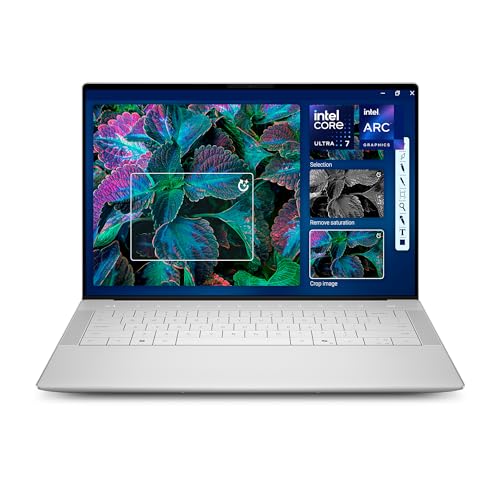
Dell XPS 14 DA14250 — Best Display for Long Sessions
The XPS 14 makes its argument through your eyes. Its 14.5-inch touch display runs at 3.2K resolution on an OLED panel with a variable refresh up to 120Hz, which in practice means code rendered with a sharpness that makes smaller fonts comfortable, scrolling through long files that feels like paper moving, and a screen you can read for a full working day without the low-grade fatigue that accumulates behind lesser panels. Behind it sit an Intel Core Ultra 7 255H — the H-series processor here, tuned for more sustained power than the U-series chips in the ThinkPads — Intel Arc graphics, thirty-two gigabytes of memory and a terabyte of storage.
That H-series chip defines the machine’s character. Sustained builds, large test suites and local model experiments all draw on power the efficiency chips ration, and the XPS 14 delivers it at the price of a fan that participates more in your day and a battery that plans around the desk rather than the week. Its keyboard and port selection are the XPS line’s known minimalism: excellent for some hands, austere for desks that expect many things plugged in at once, with a hub as the standard remedy. Developers whose bottleneck is build time and whose eyes are tired of ordinary screens will find this the most satisfying machine in the guide.
- Chip: Intel Core Ultra 7 255H
- Graphics: Intel Arc
- Memory: 32GB
- Storage: 1TB SSD
- Display: 14.5-inch 3.2K OLED touch, 48–120Hz
- Platform: Windows on x86
Strengths
- The finest screen here by a clear margin, for reading and for eyes
- H-series power sustains builds and test suites the U-series chips ration
- Full memory and storage figures; no configuration apology anywhere
Trade-offs
- Minimalist ports make a desk hub a practical necessity
- Performance tuning trades battery endurance for sustained speed
- Fans are audible companions during the heavy work it excels at
Best for: developers with long build cycles and long reading days. Not suited for: port-heavy desks without a hub, or week-long battery romantics.

Dell XPS 13 9345 Snapdragon X Elite — Best Battery-First ARM Pick
This is the machine for the developer whose office is a rotation of cafés, trains, client sites and the good chair by the window. The Snapdragon X Elite platform sips power in a way x86 laptops still envy, the listing pairs it with thirty-two gigabytes of memory and a terabyte of storage — the full professional figures, notably not trimmed for the ARM experiment — and the 13.4-inch FHD+ panel runs at up to 120Hz behind Wi-Fi 7 connectivity. In native ARM software, which now includes the core of the modern web and cloud toolchain, it feels quick and stays quiet, and it keeps feeling that way far from a wall socket.
The honesty paragraph matters more for this pick than for any other in the guide, so here it is without varnish. Windows on ARM runs most mainstream development tools natively and well. It does not run everything. A Docker image published only for x86, a vendor driver for a piece of hardware on your desk, an older native library in a legacy project — any of these can turn an elegant machine into a negotiation. The developers who thrive on this laptop are those whose stack they have actually inventoried: web services, cloud infrastructure, scripting and data work in mainstream tools. If your inventory contains an exotic dependency, believe it, and choose an x86 pick instead.
- Chip: Qualcomm Snapdragon X Elite
- Memory: 32GB
- Storage: 1TB SSD
- Display: 13.4-inch FHD+, up to 120Hz
- Connectivity: Wi-Fi 7
- Platform: Windows on ARM — read the compatibility notes
Strengths
- Battery endurance that changes where and how a working day can happen
- Full thirty-two gigabytes and a terabyte behind the ARM platform
- Quiet, cool running in the native software most web developers live in
Trade-offs
- x86-only images, drivers and legacy native tools can block real work
- The smallest screen here asks external monitors for sprawling projects
- Emulated software runs at a discount the native tools do not
Best for: mobile web and cloud developers with an inventoried, ARM-ready stack. Not suited for: embedded, driver-level or legacy-native development.

HP EliteBook 640 G11 — Best for Managed Workplaces
The EliteBook is the pick that understands offices. Its Intel Core Ultra 7 165U is paired with thirty-two gigabytes of memory and a terabyte of storage, standard professional figures, but the specification lines that earn its place are the unfashionable ones: a 14-inch FHD+ anti-glare display that behaves itself under fluorescent light and windows, Wi-Fi 6E, a 5MP infrared camera for painless sign-in, a backlit keyboard — and wired Ethernet, the port that developers in older buildings, secure facilities and conference venues ask for by name. This is a laptop designed to be issued by an IT department and serviced over a long life, and developers who work inside managed environments will recognize the virtues immediately.
Outside those environments its case rests on durability and discretion rather than dazzle. The screen will not win a contrast contest against the OLED picks, and the design language is corporate in the way of a good suit — appropriate everywhere, thrilling nowhere. For a developer whose day involves VPNs, compliance tooling, docking into whatever desk the project provides and presenting in rooms with hostile lighting, those are not consolation prizes. They are the job description, answered line by line.
- Chip: Intel Core Ultra 7 165U
- Memory: 32GB DDR5
- Storage: 1TB SSD
- Display: 14-inch FHD+ anti-glare
- Connectivity: Wi-Fi 6E and wired Ethernet
- Camera: 5MP IR for face sign-in
Strengths
- Ethernet and anti-glare practicality for real offices and secure sites
- Business build and serviceability aimed at a long managed life
- Full memory and storage for professional stacks without exception
Trade-offs
- The display is workmanlike beside the OLED picks in this guide
- Corporate styling will not quicken any pulses at the café
- Its virtues skew toward employed developers in managed fleets
Best for: developers inside corporate networks, policies and docking ecosystems. Not suited for: display romantics or buyers wanting design drama.

ASUS Zenbook A14 Snapdragon X Plus — Best Lightweight ARM Pick
The Zenbook A14 is the lightest argument in this guide, in every sense. Its Snapdragon X Plus — an eight-core chip with a 45-TOPS neural engine — drives a fourteen-inch WUXGA OLED panel specified at full DCI-P3 coverage and 600 nits of HDR brightness, which makes it the screen overachiever among the portable picks: code stays legible in bright rooms where lesser panels wash out, and the OLED contrast flatters the long reading that development mostly is. Sixteen gigabytes of memory and 512 gigabytes of storage complete a specification aimed at developers whose heavy lifting happens partly elsewhere — in cloud environments, remote dev boxes or CI — while the laptop itself stays featherweight and cool.
Its limits should be read as design, not deficiency, and then respected. Sixteen gigabytes is half the memory of the other five picks, and a developer who runs a full local container fleet will meet that ceiling in the first week. The ARM platform carries the same compatibility inventory exercise as Dell’s Snapdragon pick: glorious for the mainstream toolchain, a wall for the x86-only minority. Buyers whose work is editor-plus-browser-plus-cloud will find this the most pleasant machine here to carry and to look at. Buyers whose laptop is their entire infrastructure should step to a thirty-two-gigabyte pick and not look back.
- Chip: Qualcomm Snapdragon X Plus, 8-core, 45 TOPS NPU
- Memory: 16GB
- Storage: 512GB SSD
- Display: 14-inch WUXGA OLED, 100% DCI-P3, 600 nits HDR
- Platform: Windows on ARM — read the compatibility notes
- Role: the carry-everywhere pick for cloud-leaning workflows
Strengths
- A bright, colour-rich OLED that stays readable in hostile lighting
- The most portable full-size coding experience in this guide
- Cool, quiet ARM running for the mainstream development toolchain
Trade-offs
- Sixteen gigabytes caps local container and virtual-machine ambitions
- ARM compatibility must be inventoried before purchase, as with the XPS 13
- Storage is the guide’s joint-smallest at half a terabyte
Best for: mobile developers whose compute lives substantially in the cloud. Not suited for: local-stack maximalists or x86-dependent toolchains.
How do the six picks compare side by side?
| Pick | Platform | Memory | Storage | Defining virtue |
|---|---|---|---|---|
| ThinkPad X1 Carbon Gen 13 Aura | x86 Intel | 32GB | 1TB | The complete professional default |
| ThinkPad X1 Carbon Gen 14 | x86 Intel | 32GB | 512GB | New silicon, OLED screen |
| Dell XPS 14 | x86 Intel | 32GB | 1TB | Finest display, sustained power |
| Dell XPS 13 9345 | ARM Snapdragon | 32GB | 1TB | Endurance away from sockets |
| HP EliteBook 640 G11 | x86 Intel | 32GB | 1TB | Ethernet and office practicality |
| ASUS Zenbook A14 | ARM Snapdragon | 16GB | 512GB | Lightest carry, brightest panel |
The platform column is the first sort: it divides the guide into machines that run everything and machines that run most things beautifully while sipping power. The memory column is the second sort, and it isolates the Zenbook A14 as the one pick whose ceiling a heavy local workflow will find. Everything else is taste — screens, keyboards, ports — and taste is a legitimate way to choose among machines this evenly matched on the fundamentals.
How do you set up a new coding laptop in its first evening?
Resist the urge to install everything at once and instead build the machine in the order your future self will thank you for. Start with the operating system updates and the vendor’s firmware and driver updates, because a toolchain installed on shifting ground inherits the shifts. Then install your version control, your editor or IDE, and your runtimes — in that order — configuring Git identity and SSH keys while the steps are still fresh enough to document in a note you will one day be grateful exists. Clone one real project early, not as a celebration but as a smoke test: if the project builds on the new machine tonight, the machine is a development environment; if it does not, you have learned that while the old laptop is still within reach.
Containers deserve their own deliberate pass. Install your container runtime, pull the images your stack actually uses, and bring the whole local environment up once, watching memory as you do. That single exercise tells you more about your new machine’s fitness than any benchmark: on the thirty-two-gigabyte picks the full stack should settle with room to breathe, while on the sixteen-gigabyte Zenbook A14 you will learn which services you can leave off until needed — knowledge worth having before a deadline teaches it instead. Configure your editor’s settings sync or export your configuration, so the machine feels like yours by the second day rather than the second month.
Finish with the desk, because half of a coding laptop’s life is peripherals. Connect the external monitor and confirm the resolution and scaling your eyes prefer; small text at the wrong scaling is a headache with a settings page. Pair the keyboard and pointing device you actually use, position the laptop so its screen works as a genuine second display rather than a glowing afterthought, and route the charger cable so that plugging in is a one-handed act. Developers underestimate this hour because it contains no code. It returns its investment every single working day.
What mistakes do developers make when buying a coding laptop?
The classic mistake is buying the processor and renting the memory. A faster chip shaves seconds from builds a few times a day; insufficient memory taxes every minute, in swapped applications, restarted containers and the low background dread of closing things you wanted open. The second mistake is falling for a beautiful screen in a machine whose keyboard you cannot stand — you will type on it for years, and your hands vote daily. The third is ignoring the architecture question until an x86-only dependency announces itself mid-project, which is why this guide repeats the ARM inventory advice until it becomes reflex.
Fourth comes storage optimism: the belief that half a terabyte will be fine because the current project is small, offered by a profession whose caches, images and checkouts grow like ivy. Fifth is buying for the job you hope to have — the machine-learning role, the game engine — rather than the stack you run today; buy for today’s stack with headroom, and let the future job make its own case when it arrives. Sixth, and quietest, is forgetting the desk: the monitor connection, the security key, the network cable in the old building. A laptop is a system, and the system includes everything plugged into it by Friday.
How do these laptops cope with virtual machines and local AI assistants?
Virtual machines are the memory workload in its purest form: each guest reserves its slice and holds it whether it is busy or idle, so a developer running a Linux VM beside a Windows host is really running two computers’ worth of appetite inside one chassis. On the thirty-two-gigabyte picks that is a comfortable arrangement — a sensibly sized guest, the host’s IDE and containers, and headroom left over. On the sixteen-gigabyte Zenbook A14 it becomes an exercise in rationing, feasible for a single lean guest and inadvisable as a daily pattern. If your work is VM-centric — legacy environments, cross-platform testing, isolated client workspaces — treat the memory column of the comparison table as your shortlist and the A14 as a machine for a different kind of developer.
Local AI coding assistants have quietly joined the workload list. The editor-integrated assistants most developers use run largely in the cloud and ask little of the laptop beyond the editor itself. The newer habit — running a local model for completion, codebase chat or offline work — asks more: memory again, first, and in some configurations the neural engine or graphics processor. The Snapdragon picks carry rated neural engines, the XPS 13’s platform advertising its TOPS figure and the A14 listing 45 TOPS explicitly, while the Intel machines bring their own integrated AI acceleration. In class terms, every pick here can participate in local-assistant workflows at the modest end; none is a machine-learning workstation, and readers whose primary job is training models should be reading a different guide — one of which is linked at the foot of this page.
The through-line is the same one this guide opened with. Development loads are broad rather than deep: many medium appetites at once, all day. Machines chosen for breadth — memory, storage, a screen and keyboard that sustain attention — age well in this profession. Machines chosen for a single spectacular number tend to be spectacular a few times a day and ordinary the rest of it, which is the opposite of what a working week needs.
What should a developer’s desk demand from the laptop?
Walk around your current desk and count what the laptop must feed. A monitor, almost certainly, and on a serious desk two. A keyboard and pointing device you chose yourself. A security key for the accounts that matter. Perhaps a wired network connection, a headset for calls, a phone charging from the same brick. Each demand is small; together they describe the port selection and docking behaviour that decide whether a laptop feels like the centre of a workstation or a guest at it. The EliteBook was designed for exactly this census, which is why it keeps appearing in this guide’s practical asides. The XPS machines assume a hub or dock as the census answer and are unapologetic about it. The ThinkPads sit between, generous enough for most desks without help.
Displays deserve a desk-level thought as well. Every pick here can drive external monitors, and for many developers the laptop screen becomes the secondary display — chat, logs, documentation — while the main monitor carries the code. In that arrangement the laptop panel’s own quality matters less than its size and legibility at arm’s length, and even the guide’s humblest screen, the EliteBook’s anti-glare FHD+, performs the role gracefully. Developers without a desk monitor should weight the panel rankings in the pick sections heavily, because for them the screen is not a component. It is the workplace.
Power is the last desk demand and the easiest to forget until a conference or a client site. The ARM picks’ efficiency is a genuine professional asset in buildings where sockets are contested; the H-series XPS 14 assumes the desk provides. Neither is a flaw. They are, like everything else in this guide, a match between a machine’s design centre and a reader’s actual geography of work.
Is this a first-job laptop or a senior developer’s machine?
Both, and the guide was written to keep those two readers from buying each other’s laptop. A developer in a first professional role needs reliability, the mainstream toolchain without asterisks, and memory headroom that survives the jump from coursework-sized projects to production repositories. That reader should start at the ThinkPads and the EliteBook, where nothing in the daily stack requires an apology or an inventory, and where the keyboards will quietly teach good habits to hands that will type for decades.
A senior developer buying a personal machine has usually already made peace with their stack’s peculiarities, which is what unlocks the rest of the list. They know whether their images exist for ARM, whether their builds justify H-series power, whether their eyes need the XPS 14’s panel or their travel needs the XPS 13’s endurance. The picks do not change between the two readers; the confidence to read the trade-off columns does. If you are early in the profession, borrow that confidence from the verdict lines, which were written to be followed safely. If you are deep in it, you will already know which line in each spec list is the one your work cares about — and this guide’s job reduces to confirming the rest of the machine does not get in its way.
What separates a fast-feeling coding laptop from a fast one?
Benchmarks measure the peaks; developers live in the valleys between them. A coding laptop feels fast when search results arrive before the query is finished being typed, when switching between a dozen open projects is a gesture rather than a wait, when the machine wakes from sleep already knowing where everything was. Those sensations are built from storage speed, memory headroom and single-core responsiveness working together, and they are why a well-balanced thirty-two-gigabyte machine with a U-series processor can feel quicker across a week than a poorly balanced machine with a spectacular benchmark screenshot.
They are also why thermal design matters to people who never think about thermals. A laptop that boosts gloriously for ninety seconds and then throttles through a twenty-minute test suite has optimized for the review, not the job. The picks here were chosen for the opposite character: sustained, repeatable competence. The XPS 14’s H-series chip holds its effort longest, the ThinkPads deliver their performance with the least theatre, and the Snapdragon machines achieve their feel by barely needing to try, sipping where others gulp. When you read the detailed sections, read the cooling and character notes as performance information, because across a working week they are.
One more valley deserves naming: the network. Half of modern development is a conversation with remote systems — package registries, repositories, cloud consoles, staging servers — and a laptop’s wireless quality quietly taxes or refunds every one of those exchanges. The XPS 13’s Wi-Fi 7 and the EliteBook’s combination of Wi-Fi 6E with a wired fallback are not glamour specifications. In a building with congested air or a rack room with a cable, they are the difference between flow and friction, multiplied by every pull, push and deploy of the day.
A word, finally, about noise, because developers underestimate it until they share a room, a call or a recording with their machine. Coding loads are bursty — long quiet stretches of reading and typing punctuated by builds — and the picks differ in how they voice those bursts. The ARM machines are effectively silent citizens of a shared space. The ThinkPads and the EliteBook keep their fans mannerly and low. The XPS 14, doing the sustained work it was bought for, speaks up honestly. None of this disqualifies any machine here; all of it belongs in a decision made by someone who knows where the laptop will spend its loudest hours. A developer who demos to clients, records tutorials or pairs in a quiet room should weight silence as a feature with a straight face, because their audience will hear the alternative.
What should you check on the listing before you order?
Business laptops are the most variant-riddled products in this entire programme of guides, and coding machines are where a wrong variant hurts most, because the difference is usually the memory. Two listings can share a model name, a photograph and a headline while differing by sixteen gigabytes of RAM, a lesser panel or half the storage. Before ordering any pick here, find the configuration block on the listing itself and match four figures against the spec list printed under that pick: processor, memory, storage and display. If any figure differs, you are looking at a different machine from the one this guide judged — sometimes a fine machine, but not this recommendation.
Check the operating system edition while you are there, particularly if your work involves joining domains, using Hyper-V or matching an employer’s management requirements, since Pro and Home editions divide exactly along those lines and listings do not always volunteer the distinction in their headlines. Confirm the keyboard layout matches your country, a detail that sounds trivial in a buying guide and feels enormous in week two. And if your employer will manage the device, confirm the model against their approved list before the box is opened rather than after. None of these checks require expertise. All of them are cheaper before the purchase than after it.
How should students and career-changers read this guide?
Students meet a special version of the developer’s dilemma: coursework is light, but the machine bought for coursework is usually the machine carried into the first job’s portfolio projects, the internship’s real repository and the side project that becomes a business. The temptation is to buy for the syllabus — the smallest machine that runs the course tools — and discover its ceiling at exactly the moment opportunity arrives. Every pick in this guide is already above that ceiling, which is deliberate; the question for a student is not whether these machines are enough, but which of their virtues matches a student’s actual constraints.
Portability and battery dominate student geography, which argues for the lighter picks and flatters the ARM machines — with the standing warning that a course requiring specific x86 software, still common in systems and embedded modules, vetoes them until the syllabus has been checked. Memory argues the other way, toward the thirty-two-gigabyte machines, because a student cannot know which stack a first employer will run and headroom is insurance against the unknown. Budget argues for reading the ladder from the bottom up and stopping at the first machine with no apology in its spec list. For most students that discipline lands on a ThinkPad, and there are worse foundations for a career than the keyboard generations of working developers learned on.
Career-changers share the student’s uncertainty with an adult’s calendar. Their scarcest resource is not money but hours: evenings and weekends in which the new craft must be learned. A laptop that wastes those hours — swapping, stalling, fighting its own toolchain — taxes the exact resource the change depends on. That is the deepest reason this guide refuses to recommend anything under its floor. The machine should never be the reason a session ends early.
Treat second displays as part of the same calculation when you compare prices in your head, even though this guide prints no prices. A developer who will certainly buy a monitor, a dock and a keyboard has a workstation budget, not a laptop budget, and the laptop’s share of it should be judged against the whole. That framing occasionally reverses a ranking: the EliteBook’s built-in Ethernet and office readiness can delete a dock from the shopping list, while a minimalist machine’s true cost quietly includes the hub that makes it civilized. Count the system you will actually assemble, and several of this guide’s trade-off lines will read differently — usually in favour of the machine that asked for the fewest accessories to become complete.
There is one more reader this guide quietly serves: the developer buying a second machine, the laptop that lives in the bag while a desktop holds the desk. That reader’s priorities invert several of this guide’s defaults. The second machine does not need the finest screen, because the desk already has one; it needs to be light, patient on battery and instantly familiar, with the same editor configuration synced and the same repositories one clone away. The ARM picks flatter that role, and the Gen 14’s smaller drive stops mattering when the archive lives elsewhere. If that is the purchase you are making, read every verdict in this guide through the bag, not the desk, and the ranking reshuffles itself honestly.
Keep the box and the listing details until the return window closes, and spend one of the first evenings deliberately stress-testing your own real workload rather than synthetic scores: your largest repository, your full container stack, your longest test suite, your actual browser habits, all at once, while the machine can still be exchanged without an argument. That evening is the cheapest consultancy in computing, and it converts this guide’s general verdicts into a personal certainty no review can sell you.
Final Recommendation
Start with the ThinkPad X1 Carbon Gen 13 Aura unless something in your work points elsewhere: it is the machine with no argument against it, the keyboard and memory and storage that professional coding actually consumes. Take the Gen 14 if your projects are light enough for its smaller drive and you want its OLED and newer silicon, the XPS 14 if builds and reading dominate your days, and the EliteBook if your life is lived inside managed networks. Choose a Snapdragon pick only after your toolchain inventory says yes — and if it says yes, enjoy the quietest, longest-running coding days in this guide. Code is written by people sitting still for hours, thinking; buy the laptop that makes the sitting invisible and the thinking uninterrupted, and you will never think about this purchase again, which is the highest praise a work tool can earn.
Frequently Asked Questions
Is thirty-two gigabytes of memory really necessary for programming?
For a single small project in a light editor, no. For the way professional development actually accumulates — an IDE with language servers, a container stack, a database, a browser fleet, chat and documentation — it is the difference between a machine that disappears and a machine that negotiates. Five of the six picks here provide it because the workload demands it, and because memory cannot be added later, the headroom is bought once and enjoyed for the laptop’s whole life.
Can I write production code on a Snapdragon ARM laptop?
Many developers already do, particularly in web and cloud work where the mainstream toolchain runs natively on ARM. The condition is inventory: check your project’s most exotic dependencies — container images, database drivers, hardware tools, legacy native libraries — for ARM builds before you commit. If the inventory is clean, the Snapdragon picks reward you with endurance and silence. If it is not, the x86 picks in this guide exist precisely for you.
Which matters more for coding, screen resolution or screen size?
Legibility is the product of both, plus scaling. A fourteen-inch panel at WUXGA or better shows enough lines of code with text large enough to read all day, which is why every pick here sits in that class. Beyond it, the OLED picks add contrast that many developers find restful, and the EliteBook’s anti-glare finish adds composure in bright rooms. Size jumps matter most to developers who refuse external monitors; everyone else should optimize for the desk setup as a whole.
Do I need a dedicated graphics card for programming?
For general development, no — the integrated graphics in every pick here drive multiple displays and every IDE with ease. Dedicated graphics enter the conversation for game development, GPU computing and machine-learning work, which are different shopping trips with different guides. The Intel Arc graphics in the XPS 14 are a pleasant middle ground for light graphical work, but no pick in this guide was chosen for its GPU, and none should be bought for one.
How long should a coding laptop last?
Plan on the memory ceiling deciding. A thirty-two-gigabyte machine bought today should serve a professional comfortably through years of growing repositories and stacks; a sixteen-gigabyte machine serves a lighter or cloud-centred workflow for a similar span if its owner respects its design. Storage can be managed, batteries can be replaced, but the memory figure on the listing is forever — which is why this guide treats it as the headline specification.
Should I prioritize a better screen or more storage?
Follow your bytes. Developers whose work involves many container images, local datasets or several large repositories checked out at once will hit a storage wall in daily life, and for them the terabyte picks earn their place. Developers whose projects are modest and cloud-backed will forget their storage figure within a month but will look at their screen for years, and for them the OLED picks are the wiser indulgence. The comparison table exists to make exactly this trade visible at a glance.
Related Guides
Developers equipping the rest of their setup should read next: best laptops for machine learning and coding, best architect laptops and best affordable music production laptops.
At the budget end of the performance shelf, best dj laptops under 500 applies the same honesty to controllers and booths.


