What's inside
- Key Takeaways
- Quick Picks
- How Did We Narrow a Whole Shelf of SATA Drives Down to Six?
- What Actually Separates One 2TB SATA Drive From Another?
- Side by Side: The Six 2TB SATA Drives at a Glance
- How Do You Actually Swap a 2.5-Inch Drive Without Losing Anything?
- Which Slip-Ups Catch SATA Buyers Out Most Often?
- Which of These Drives Belongs in Which Machine?
- What Does Endurance Actually Mean for a Home User?
- Why Does a SATA Drive Still Make Sense When NVMe Exists?
- How Should You Read a 2.5-Inch SSD Listing Like a Sceptic?
- What Should You Check in the First Week After Fitting One?
- Does Fitting One Into a Desktop Differ From a Laptop?
- Final Recommendation
- Frequently Asked Questions
- Related Guides
As an Amazon Associate I earn from qualifying purchases. This post may contain affiliate links at no extra cost to you.
gizmoverdict.com is reader-supported. When you buy through links on our site, we may earn an affiliate commission.
Shoppers hunting the best 2.5 inch 2 tb internal ssds usually have a specific machine in mind: a laptop with a spinning hard drive that takes forever to boot, a desktop with an empty 2.5-inch bay, or a games console whose factory storage filled up two winters ago. All six drives in this guide answer that exact brief. Every one of them is a 2.5-inch SATA drive, every one holds 2TB, and every one connects through the same SATA III interface that has served this form factor for well over a decade. Links beside each pick lead to the verified listing for that precise capacity and shape, because with this category the wrong variant is the easiest mistake in the world to make: several of these model names also exist as M.2 sticks, and an M.2 stick will not fit a 2.5-inch bay no matter how politely you ask it.
That sameness is worth sitting with for a moment, because it shapes everything that follows. A 2.5-inch SATA SSD is capped by its interface at roughly 550 megabytes per second of sequential throughput, and all six drives here live close to that ceiling when conditions suit them. Nobody buys a drive in this class to win a benchmark. You buy it because the bay is there, the cable is there, and two terabytes of quiet, shock-resistant flash will transform a machine that currently groans through every task. The real differences between these six are quieter ones: the type of flash inside, whether the drive carries its own DRAM cache, how gracefully it behaves when you copy a hundred gigabytes in one sitting, and how much endurance the maker promises across the drive’s working life.
So this guide spends less time on headline speed, where the six are near-identical, and more time on the questions that actually separate them. Which drive keeps its pace during a long game-library transfer? Which one is honest value for a media vault that mostly sits and reads? Which budget option asks you to accept a slower tail on big writes, and is that trade worth it in a seven-year-old laptop? Read the picks with your own machine in mind, because the best answer for a daily work laptop and the best answer for a console are not the same drive wearing different badges.
Key Takeaways
- Every pick here is a true 2.5-inch SATA drive at 2TB; check the variant before ordering, since several of these names also ship as M.2 models.
- SATA III caps all six near the same sequential ceiling, so flash type, DRAM and sustained-write behaviour matter more than box speeds.
- The Samsung 870 EVO is the drive to pick when the machine matters daily and the budget stretches to the class benchmark.
- QLC flash in the 870 QVO trades write endurance for capacity value, which suits read-heavy storage far better than constant heavy writing.
- DRAM-less designs such as the BX500 and SSD Plus are perfectly respectable in older laptops, where the interface hides most of their compromises.
- Clone first, format second: keep your old drive intact until the new one has booted cleanly several times.
Quick Picks
| Pick | Badge | Why it earns its place |
|---|---|---|
| Samsung 870 EVO 2TB | The SATA benchmark | TLC flash, a DRAM cache and the most consistent long-write behaviour in this class. |
| Samsung 870 QVO 2TB | Capacity value | QLC flash aimed at big libraries that are read far more often than they are rewritten. |
| Crucial BX500 2TB | Honest budget revival | A DRAM-less drive that wakes an old laptop convincingly without pretending to be a flagship. |
| WD Blue SA510 2TB (2.5-inch) | Mainstream middle ground | Western Digital’s 2.5-inch SATA offering for buyers who want a familiar name and balanced manners. |
| SanDisk SSD Plus 2TB | Simple upgrade pick | A straightforward 7mm drive for painless swaps in thin laptops and external enclosures. |
| TEAMGROUP T-Force Vulcan Z 2TB | Gamer-styled value | TLC flash with an SLC cache, pitched at console and desktop bays on a tighter budget. |
How Did We Narrow a Whole Shelf of SATA Drives Down to Six?
The first filter was brutally literal: the drive had to be a 2.5-inch SATA model at exactly 2TB, with a verified listing for that variant. That sounds obvious until you browse the category and discover how many results are M.2 sticks wearing a familiar model name, 1TB versions ranked beside the 2TB ones, or marketplace listings where the capacity in the title and the capacity in the options disagree. The WD Blue SA510 is the clearest example in this guide: the same product family sells in both 2.5-inch and M.2 shapes, so the link here points specifically at the 2.5-inch, 7mm version, and the M.2 variant was deliberately left out.
Past that gate, we weighed the things a SATA buyer can actually feel. Flash type came first, because TLC and QLC behave differently across years of ownership even when their first-week speeds look alike. The presence or absence of a DRAM cache came next; it rarely shows in a quick file copy, but it influences how snappy a drive feels as it fills and ages. Sustained-write behaviour mattered for anyone planning to clone a full drive or move a game library on day one. Finally, we kept a spread of prices in spirit, without printing any: a benchmark drive, a capacity play, and several budget options, so the guide serves a newish work laptop and a wheezy family desktop equally honestly.
One more consideration shaped the final six: the age of the machines these drives will serve. A 2.5-inch bay in 2026 usually belongs to hardware that is not new, and that hardware often lacks the cooling, the controller sophistication and the usage intensity of a fresh build. A drive that looks ordinary on a test bench can be exactly right for a laptop that spends its life in documents and browser tabs. We judged each pick against the machines it will genuinely meet, not against an idealised rig.
What Actually Separates One 2TB SATA Drive From Another?
Start with the flash. TLC stores three bits per cell and has been the mainstream choice for years because it balances cost, speed and endurance sensibly. QLC stores four bits per cell, which packs more capacity into the same silicon and lowers the price of a 2TB drive, but each cell endures fewer write cycles and writes more slowly once the drive’s cache is exhausted. Neither is a scam and neither is magic; they are different tools. A game library that gets installed once and patched occasionally is a gentle life for QLC. A drive that records security footage all day or hosts constantly rewritten project files is a hard life, and TLC earns its keep there.
DRAM is the second dividing line. A small DRAM chip on the drive holds the map that tells the controller where your data lives. Drives with DRAM, like the 870 EVO, tend to stay composed as they fill up and age. DRAM-less drives borrow a slice of system memory or manage without, and in light duty you will honestly struggle to tell the difference. Where you might notice is years in, on a nearly full drive, during mixed workloads. That is a narrow window, and it is why the budget picks in this guide are recommended without embarrassment for the older machines they will mostly serve.
The third line is the cache cliff. Almost every consumer SSD writes into a fast SLC-mode cache first, then folds that data into its native flash. While the cache lasts, a big copy flies. When it fills, the copy settles to the flash’s native pace, which on QLC can be genuinely slow. The practical translation: cloning a 1.5TB drive will not run at box speed from start to finish on any of these six, and the QVO will take the longest over the final stretch. Plan the clone for an evening, not for the ten minutes before a meeting, and no drive here will disappoint you.

Samsung 870 EVO 2TB — The SATA benchmark
The 870 EVO is what the rest of this category gets measured against, and spending time with its specification makes the reason plain. Samsung pairs TLC flash with a proper DRAM cache and its own controller, an in-house combination the company has refined across several generations of SATA drives. In a class where the interface flattens most differences, the EVO’s distinction is consistency: it behaves the same on a half-empty drive in week one and on a well-filled drive in year three, and that predictability is exactly what you want from the disk holding your operating system and your work.
Consider the machine this drive suits best. A five-year-old business laptop with a healthy processor and a dying hard drive does not need exotic storage; it needs a drive that makes boot times, application launches and file searches feel immediate, every day, without quirks. The EVO does that with the least drama of any pick here. Its sustained-write manners also lead the group, so the initial clone of your old drive, likely the largest single write the disk will ever see, completes at a steadier pace than the budget options manage. If you edit photos or video stored locally, the same steadiness shows up when exporting large files.
There is an honest caveat, and it is not about performance. The EVO generally sits at the top of this class on price, and in a machine that will be retired within a year or two, that premium buys quality the machine may not live long enough to repay. The guide keeps cheaper picks below for precisely that situation. But where the laptop or desktop has years of service left and one drive must simply be right, this is the recommendation we would hand to a friend without a footnote.
- Form factor: 2.5-inch, 7mm height, SATA III interface
- Capacity: 2TB
- Flash: TLC (Samsung V-NAND)
- Cache: DRAM-equipped design
- Typical home: primary drive in a laptop or desktop with years of life left
Strengths
- The most consistent behaviour in the class as the drive fills and ages.
- Strong sustained writes for the day-one clone and for large exports.
- A long, well-documented track record across several hardware generations.
Trade-offs
- Usually the priciest route to 2TB in this form factor.
- Its advantages shrink in a machine near retirement.
- Still bound by the same SATA ceiling as every rival here.
Best for: the main drive in a keeper machine, where steadiness across years matters more than shaving the purchase down. Not suited for: a stopgap upgrade in hardware you already plan to replace soon.
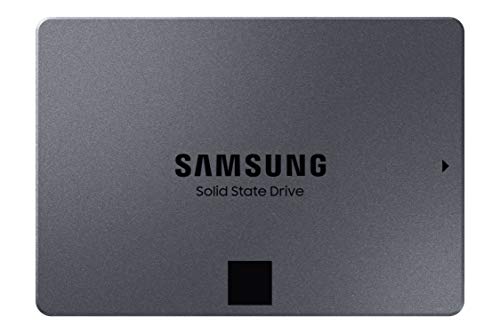
Samsung 870 QVO 2TB — Capacity value
The 870 QVO exists because Samsung understood something simple: a great deal of the storage people buy is written rarely and read often. Game libraries, photo archives, music collections, downloaded video, a Steam backlog the size of a small library — all of it sits mostly still. QLC flash, which stores four bits per cell, is the cheapest honest way to manufacture that kind of capacity, and the QVO wraps it in the same mature controller family and software ecosystem as its EVO sibling. You are not buying a cut-down mystery drive; you are buying a deliberate trade, clearly labelled.
The trade has two edges, and this guide will not sand either of them down. First, endurance: QLC cells tolerate fewer rewrites than TLC, so a QVO pressed into service as a scratch disk for video editing, a torrent workhorse or a constantly overwritten recording drive will age faster than it should. Second, pace: once a very long write exhausts the cache, the QVO settles to a modest native speed for the remainder of the copy. Installing a 120GB game is a fine experience. Cloning a nearly full 2TB predecessor in one pass is a slow afternoon. Neither edge matters much for the archive-and-play life the drive is designed for, and both matter a great deal outside it.
Placed correctly, though, the QVO is a genuinely sensible purchase. As a second drive in a desktop, a library disk in a living-room PC, or the sole drive in a console or a media laptop, it delivers the full 2TB with Samsung’s polish at a gentler cost than the EVO. The mistake is not buying QLC; the mistake is buying QLC for a writing-heavy job and then blaming the flash. Match the drive to the workload and it will serve quietly for years.
- Form factor: 2.5-inch, 7mm height, SATA III interface
- Capacity: 2TB
- Flash: QLC (Samsung V-NAND)
- Cache: DRAM-equipped design with SLC-mode write cache
- Typical home: secondary storage, game libraries, media archives
Strengths
- Full 2TB from a first-tier maker at a friendlier cost than the EVO.
- Reads, which dominate archive duty, are indistinguishable from pricier picks in daily use.
- Shares Samsung’s mature firmware and migration software ecosystem.
Trade-offs
- Lower write endurance than any TLC pick in this guide.
- Very long writes slow noticeably once the cache is spent.
- A poor choice for scratch disks and constant-overwrite workloads.
Best for: read-heavy 2TB storage — libraries, archives and console game collections. Not suited for: heavy daily writing, editing scratch space or recording duty.

Crucial BX500 2TB — Honest budget revival
The BX500 has a clear job in this guide: it is the drive you buy to rescue a machine, not to crown one. Crucial’s BX line drops the DRAM cache and keeps the design simple, and the result is a 2TB SATA drive that costs meaningfully less than the flagship names while still delivering the single transformation that matters in an old laptop — the leap from a spinning platter to flash. Boot times collapse, the desktop stops stuttering when the antivirus wakes, and a machine that felt finished starts feeling merely modest. That leap is so large that the BX500’s refinements-versus-flagship gaps shrink into near-invisibility for its intended audience.
It helps to be precise about where those gaps live, because they do exist. Without DRAM, the drive leans on simpler mapping, and under sustained writes its pace steps down earlier than the EVO’s does. Fill it nearly to the brim and keep it there, and it will feel less crisp than a DRAM-equipped drive in the same state. These are real characteristics, not defects, and they describe workloads — huge copies, permanently brimming drives — that the typical rescue candidate rarely performs. A 2016 laptop used for email, documents and streaming will never introduce you to the BX500’s limits.
Crucial also brings a maker’s steadiness to the budget tier: this is Micron’s own retail brand, with proper firmware support and cloning guidance, not a no-name gamble. For a family desktop, a student’s hand-me-down laptop, or a spare machine being pressed back into service, the BX500 at 2TB is the point where spending less stops being sensible and spending more stops being necessary. Buy it, clone carefully, leave some free space, and enjoy the resurrection.
- Form factor: 2.5-inch, 7mm height, SATA III interface
- Capacity: 2TB
- Flash: TLC
- Cache: DRAM-less design
- Typical home: revived laptops and desktops on a strict budget
Strengths
- Delivers the full hard-drive-to-SSD transformation at budget-tier cost.
- Backed by Crucial’s firmware support and cloning resources.
- Entirely adequate manners for everyday computing in older hardware.
Trade-offs
- Sustained writes step down sooner than DRAM-equipped rivals.
- Prefers some free headroom; a permanently brimming drive feels duller.
- No frills in the box or the specification.
Best for: bringing an ageing laptop or desktop back to life without overspending on it. Not suited for: buyers who routinely move hundreds of gigabytes in single sittings.

WD Blue SA510 2TB (2.5-inch) — Mainstream middle ground
Western Digital’s Blue line has always aimed at the broad middle of the market: not the cheapest drive on the shelf, not a halo product, just a competent, familiar name for a mainstream upgrade. The SA510 in its 2.5-inch, 7mm form carries that brief into this guide. A word of navigation before anything else, because it genuinely matters here: the SA510 family also includes an M.2 2280 variant, and the two are not interchangeable. The link attached to this pick is the 2.5-inch version, the one that drops into a laptop bay or a desktop sled with SATA data and power cables. If you shop around and land on a listing showing a slim circuit-board stick, you are looking at its sibling, and it will not fit your bay.
On merit, the SA510 sits comfortably between the BX500’s austerity and the EVO’s polish. It is the drive for the buyer who walks in asking for a name they recognise, a sensible specification and no drama, and who is upgrading a machine that still earns its desk space — a work-from-home laptop, a family PC that hosts the household photo library, a desktop that has not yet been replaced because it has not yet needed to be. Day to day, its manners are unremarkable in the best sense: quick boots, quiet operation, no behavioural surprises during ordinary mixed use.
Western Digital’s dashboard software is a small but real part of the appeal, giving a plain-English view of drive health and firmware for owners who like to check in occasionally. Set against the group, the SA510 does not own any single category — the EVO is steadier, the QVO is the capacity play, the BX500 undercuts it — but it asks the fewest questions of a mainstream buyer. Sometimes the middle pick is the right pick precisely because nothing about it needs explaining at the dinner table.
- Form factor: 2.5-inch, 7mm height, SATA III interface (not the M.2 variant)
- Capacity: 2TB
- Flash: TLC
- Cache: conventional mainstream design
- Typical home: the household’s main laptop or desktop upgrade
Strengths
- A familiar maker with clear health-monitoring software.
- Balanced, surprise-free behaviour for everyday mixed workloads.
- The 2.5-inch variant is a true drop-in for standard bays and sleds.
Trade-offs
- The M.2 sibling invites ordering mistakes if you shop by name alone.
- Leads the class in no single measurable respect.
- Less compelling than the BX500 when the budget is the whole argument.
Best for: a mainstream, set-and-forget upgrade from a maker many buyers already trust. Not suited for: shoppers who need the M.2 form factor — that is a different listing and a different guide.

SanDisk SSD Plus 2TB — Simple upgrade pick
The SSD Plus line has survived for years on a single virtue: it asks almost nothing of its owner. SanDisk’s entry-level SATA drive is a plain 2.5-inch, 7mm unit that fits the standard bay, speaks the standard interface, and gets on with being storage. At 2TB it becomes an interesting option for a particular kind of buyer — someone with a specific, bounded job. The PlayStation or older console that needs room. The laptop whose owner wants one cable-free swap and no decisions afterwards. The external enclosure being turned into a portable archive. For bounded jobs, an uncomplicated drive from a flash-memory giant is a perfectly grown-up choice.
Expectations should be set at the door, as with the BX500: this is a value design, and sustained heavy writing is not its party trick. A full-drive clone will take its time over the later stages, and a buyer planning to use the drive as a busy editing scratch disk should climb to the EVO instead. But notice how few real owners live in those scenarios. The SSD Plus in a thin-and-light laptop from several years ago delivers the same everyday revelation as any pick here — instant wake, silent operation, applications that open when clicked rather than after a negotiation.
SanDisk’s long history in flash also means the ecosystem around the drive is mundane in the good way: standard mounting, standard behaviour in enclosures, no exotic firmware stories. If your shortlist question is simply “which 2TB drive can I fit this weekend without researching the hobby?” the SSD Plus is the answer this guide gives, with the BX500 as its closest rival and the choice between them honestly close enough to settle by whichever listing looks healthier on the day.
- Form factor: 2.5-inch, 7mm height, SATA III interface
- Capacity: 2TB
- Flash: value-tier flash configuration
- Cache: DRAM-less design
- Typical home: consoles, simple laptop swaps, external enclosures
Strengths
- About as close to a fit-and-forget drive as this class offers.
- Standard 7mm shell suits thin laptops and enclosures alike.
- Comes from one of the longest-established names in flash memory.
Trade-offs
- Long, heavy writes are its weakest scenario.
- A spartan proposition: no performance headroom to grow into.
- Enthusiasts will find nothing here to tinker with.
Best for: a simple, bounded upgrade — a console, a spare laptop, a portable archive. Not suited for: scratch-disk duty or buyers chasing the class’s best sustained pace.

TEAMGROUP T-Force Vulcan Z 2TB — Gamer-styled value
TEAMGROUP dresses the Vulcan Z in its T-Force gaming livery, all dark shell and angular intent, but strip away the styling and the specification is more serious than the budget branding suggests: TLC flash with an SLC cache, in the standard 2.5-inch SATA shape, at the full 2TB. That combination makes it the value pick for buyers who flinched at the QVO’s QLC endurance and the DRAM-less compromises of the cheapest tier, yet still need the bill to stay modest. A gaming desktop’s second bay and a console storage swap are its natural habitats.
In practice the Vulcan Z behaves like what it is — a sensibly specified budget TLC drive. Game installs proceed briskly while the cache holds, loading times match anything else on SATA because the interface is the bottleneck for everyone, and the drive’s personality only emerges during marathon transfers, where it settles to an honest mid-pack pace. For a library drive, which is how most 2TB SATA drives in gaming rigs actually live, that profile is well judged: reads dominate, writes arrive in game-sized instalments, and neither stresses the design.
The fair question is about pedigree rather than pace. TEAMGROUP is an established memory maker, though its support footprint and documentation are thinner on the ground than Samsung’s or Western Digital’s, and a cautious buyer should register the drive and keep the receipt with a bit more care than usual. Against that, the value is real and the flash choice is the right one for the money. If the EVO is the drive you buy when the budget stretches, the Vulcan Z is the one you buy when it does not — and you give up less than the price gap implies.
- Form factor: 2.5-inch, 7mm height, SATA III interface
- Capacity: 2TB
- Flash: TLC with SLC-mode cache
- Cache: DRAM-less design
- Typical home: gaming desktop bays and console storage upgrades
Strengths
- TLC endurance at a price point where rivals often ask you to accept less.
- Well matched to game-library duty, where reads dominate.
- Gaming styling that suits a windowed desktop build, if that matters to you.
Trade-offs
- Support and documentation are thinner than the biggest brands offer.
- Marathon transfers settle to a mid-pack pace once the cache fills.
- The aggressive styling will not suit every machine or owner.
Best for: a gaming rig’s library bay or a console, where TLC at a value price is the sweet spot. Not suited for: buyers who prize the deepest support ecosystem over specification per money.
Side by Side: The Six 2TB SATA Drives at a Glance
| Drive | Flash | DRAM | Character in one line |
|---|---|---|---|
| Samsung 870 EVO 2TB | TLC | Yes | The consistent benchmark for a primary drive |
| Samsung 870 QVO 2TB | QLC | Yes | Capacity value for read-heavy libraries |
| Crucial BX500 2TB | TLC | No | The rescue drive for ageing machines |
| WD Blue SA510 2TB | TLC | Mainstream design | The familiar-name middle ground |
| SanDisk SSD Plus 2TB | Value tier | No | The simplest fit-and-forget swap |
| TEAMGROUP Vulcan Z 2TB | TLC | No | TLC value with gaming dress |
Treat the table as a map of intentions rather than a league ladder. The EVO and QVO share a maker and a shell yet aim at opposite workloads; the BX500 and SSD Plus accept simpler internals to rescue older hardware cheaply; the SA510 sells calm familiarity; the Vulcan Z sells flash quality per money. Your workload picks the row, not the other way round.
How Do You Actually Swap a 2.5-Inch Drive Without Losing Anything?
The physical swap is the easy half; protecting your data is the real task, and the order of operations matters. Begin by backing up anything irreplaceable to somewhere that is not the machine — a cloud account or a separate external drive — because a clone is a copy, not a backup, and belts want braces. Then connect the new SSD while the old drive still runs the computer. A simple USB-to-SATA adapter cable does this for a few pounds or dollars, and every major maker offers free cloning software that will copy the old drive, partitions and all, onto the new one. Start the clone when you can leave the machine alone; a nearly full 2TB source will take a while on any pick in this guide, and that is normal, not a fault.
Only when the cloning software reports success should the screwdriver come out. Power down fully, remove the battery if your laptop allows it, and ground yourself on something metal before handling the drives. Most 2.5-inch bays use a small caddy and four screws; some slim drives need the thin spacer that makes a 7mm drive sit snugly in a 9.5mm bay, and several of these picks include or accommodate one. Swap the caddy onto the new drive, seat it, reconnect, and boot. If the machine starts from the new drive, resist the urge to wipe the old one. Keep it in a drawer for a fortnight of clean boots; it is your cheapest insurance policy, and drawers are patient.
Two finishing touches reward the small effort. First, open your operating system’s drive settings and confirm that TRIM is enabled, so the SSD can manage its own housekeeping properly. Second, leave a sensible slice of the drive empty — a tenth or so — because SSDs of every tier breathe better with headroom, and the budget DRAM-less picks in this guide appreciate it most. Then simply use the machine. The transformation people describe, the boot that finishes before the coffee does, is not marketing; it is what happens when a mechanical seek time leaves a computer’s life.
Which Slip-Ups Catch SATA Buyers Out Most Often?
The classic error is ordering the right model in the wrong shape, and this category is a minefield for it. The SA510’s M.2 sibling, M.2 versions of other familiar names, and listings that show both shapes in their gallery images all conspire against a hurried buyer. The defence is dull and total: confirm the words “2.5-inch” and “SATA” on the exact variant in your basket, at the exact 2TB capacity, before paying. The second error is its mirror image — assuming a modern thin laptop still has a 2.5-inch bay at all. Many do not; their storage is an M.2 slot or soldered entirely. Ten minutes with your model’s service manual saves a return.
Capacity disappointment is the third trap, and it is arithmetic rather than deception. A drive sold as 2TB formats to roughly 1.86TB of usable space, because makers count in decimal and operating systems report in binary. Every drive in this guide plays by the same convention, so the “missing” space is missing from all of them equally. The fourth trap is filling any SSD to the last gigabyte and then wondering why it feels sluggish; flash needs room to work, and the fix is housekeeping, not a different drive. Finally, do not pay a premium for a SATA drive promising speeds the interface cannot carry. Anything claiming numbers far beyond the mid-500s megabytes per second over SATA III is describing a cache burst at best.
Which of These Drives Belongs in Which Machine?
Abstract comparisons sharpen considerably when you name the actual computers involved, so let us walk the six picks past the machines that most often prompt this purchase. First, the ageing work laptop: a business machine from five or six years ago, healthy processor, tired hard drive, owner who measures its value in mornings saved rather than benchmarks won. That machine deserves the 870 EVO if it will serve another three years, because the drive becomes invisible — no quirks, no slowdowns to explain — and invisibility is the highest praise storage can earn. If the same laptop is a stopgap until a replacement arrives next year, the BX500 delivers ninety percent of the lived experience for a fraction of the commitment, and the honest choice flips.
Second, the family desktop with a photo library that has outgrown two previous drives. Its life is writes in bursts — a phone’s worth of photos after a holiday — followed by months of reads. The QVO was designed for exactly this rhythm, and its QLC endurance, measured against a few terabytes of family photography a year, stretches across decades of ordinary use. Pair it with a cloud backup and the endurance debate evaporates entirely. Third, the games console or gaming desktop needing a library bay: installs arrive in large but occasional lumps, reads dominate completely, and the Vulcan Z’s TLC-at-value proposition or the QVO’s capacity economics both fit; choose the Vulcan if you install and delete games constantly, the QVO if your library mostly accumulates.
Fourth, the thin laptop being converted into a media machine for a kitchen counter or a child’s homework desk. It will stream, browse and store a modest media collection, and it will never once be asked to do anything heroic. The SSD Plus or the BX500 serve it perfectly, and spending flagship money here buys nothing the machine can express. Fifth, the cautious mainstream upgrade — the household’s one good computer, bought by someone who reads reviews precisely because a mistake would be annoying for years. That buyer is the SA510’s reason to exist, with the EVO as the stretch option if the budget loosens at the last moment.
What Does Endurance Actually Mean for a Home User?
Endurance figures frighten more buyers than they help, because they are quoted in terabytes written across a drive’s whole life — a unit nobody thinks in. Translate it into habits. A heavy home user might write twenty gigabytes on a busy day: operating system churn, downloads, documents, a game patch. Across a year that is roughly seven terabytes, and across five years, thirty-five. Even the QLC pick in this guide is rated for a multiple of that figure, which is why we describe QLC endurance as a workload question rather than a lifespan panic. The owners who genuinely approach endurance limits are those writing hundreds of gigabytes weekly — video editors rendering to the same disk, recording systems overwriting continuously, download machines cycling entire libraries.
There is a second, quieter point: drives of every flash type are far more likely to be retired than worn out. The laptop’s screen fails, the desktop is replaced whole, the console generation turns over. Your realistic risk is not gradual wear but sudden failure, which respects no specification sheet and no brand. That is why this guide keeps returning to backups with what may seem like stubbornness. A modest drive with a good backup behind it is a safer home for your photographs than a flagship drive with none, every single time.
Why Does a SATA Drive Still Make Sense When NVMe Exists?
A fair challenge deserves a straight answer. NVMe drives are several times faster on paper, and in a modern machine with an M.2 slot they are the obvious choice. But the machines in this guide’s world often have no M.2 slot, or have one already occupied, or belong to owners who would rather spend an afternoon with a screwdriver than replace a working computer. For those machines the comparison is not SATA versus NVMe; it is SATA SSD versus the spinning disk they already endure, and that contest is a rout. Boot times, application launches and file searches — the texture of everyday computing — are governed by access latency, where any SSD beats any hard drive by orders of magnitude.
There is also a honesty point about the paper gap. The tasks most home machines perform rarely queue data in the patterns where NVMe’s advantage blooms. Opening a browser, loading a game level, copying a folder of documents: the SATA drive finishes these so quickly that the NVMe machine’s owner would need a stopwatch and a suspicious nature to feel superior. Buy NVMe when you are buying a new machine. Buy one of these six when the machine you already own deserves to feel new, which is a different and entirely respectable ambition.
How Should You Read a 2.5-Inch SSD Listing Like a Sceptic?
Listings in this category reward a slow reader. Begin with the variant selector, because the headline price often belongs to the smallest capacity, and the photograph often shows whichever shape photographed best rather than the one selected. Confirm three facts in the options you have actually chosen: 2.5-inch, SATA, and 2TB. Then scroll to the specification table rather than the marketing banner, and look for the interface written in full — SATA III, 6Gb/s — because a listing that only says “SSD” in large type is telling you less than it should. If the same page offers an M.2 version, as the SA510’s does, treat the gallery images as suspects until the selected variant’s own description confirms the shape.
Next, read the speed claims with the interface in mind. Any 2.5-inch SATA drive, from any maker, transfers sequentially somewhere in the mid-hundreds of megabytes per second; a listing implying several thousand is either describing a different product on the same page or quoting a burst figure without context. Neither makes the drive bad, but both make the listing careless, and careless listings correlate with careless fulfilment — wrong capacities in right boxes, refurbished stock described loosely. Prefer the listing whose boring details are consistent: model number matching the maker’s own page, capacity matching in title, options and specifications alike. The six links in this guide were chosen against exactly that standard, which is why each points at one named variant rather than at a search.
Finally, glance at what is not in the box. Most bare drives arrive without cables, screws or an adapter for cloning, and none of that is a complaint — it is simply the category’s custom. If your old drive is your only drive, budget the small extra for a USB-to-SATA adapter before the SSD arrives, or your upgrade weekend will stall at the first step with a new drive in one hand and nowhere to plug it in. A little scepticism, applied for five minutes, is the difference between an upgrade and an errand.
What Should You Check in the First Week After Fitting One?
A new drive earns trust gradually, and a few light checks in the first week catch the rare problem while returns are painless. On day one, confirm the machine reports the full formatted capacity — roughly 1.86TB — and that your cloned files open properly, sampling a spread of them rather than only the desktop shortcuts. Restart the machine a handful of times across the week rather than once; intermittent boot quirks, usually a loose caddy or a tired cable rather than a failing drive, reveal themselves through repetition. If anything feels hesitant, reseat the drive before suspecting it.
Later in the week, run the maker’s health tool once — Samsung Magician, Crucial’s Storage Executive, WD’s dashboard or their equivalents — and simply note that the drive reports healthy and its firmware is current. Update firmware only if the tool recommends it, and only with the machine on mains power. Then set your backup running to its new schedule and confirm one restore of a single file works. That last step sounds excessive until the day it is the only step that matters. With those checks done, forget the drive entirely; storage that demands ongoing attention has failed at its one job, and none of the six picks in this guide should ever ask for yours again.
Does Fitting One Into a Desktop Differ From a Laptop?
Yes, in small ways that are worth knowing before the side panel comes off. A desktop usually offers 3.5-inch bays, so a 2.5-inch drive needs a mounting bracket or a case with dedicated SSD mounts behind the motherboard tray or on the power-supply shroud — many modern cases have them, older ones often do not, and a bare drive left dangling by its cables is a short-term answer that becomes a long-term embarrassment. You will also need a free SATA data cable to the motherboard and a SATA power connector from the supply; both are plentiful in most builds, but a compact prebuilt desktop can surprise you with exactly one of each, already spoken for. Check before ordering, and add a bracket and cable to the basket if the cupboard is bare.
The laptop swap is mechanically simpler and electrically fussier. Simpler, because the bay is built for exactly this shape and the connectors slide together as one unit. Fussier, because everything runs from the battery, screws are small enough to vanish into carpet, and some models hide the bay beneath the entire bottom panel while others grant a dedicated hatch. Your model’s service manual, freely published by every major maker, shows which you own in one diagram. One more laptop-specific note: if your machine also has an M.2 slot sitting empty, you face a pleasant choice rather than a problem — this 2.5-inch drive can become the capacious second disk while a future NVMe stick takes the boot role, and several owners of the EVO and SA510 in this guide will end up in exactly that arrangement.
Whichever machine you are working on, keep the old drive’s screws, caddy and any rubber rails together in a labelled bag. Hardware drawers fill with anonymous screws precisely because nobody does this, and the day you want to refit the old drive as an external backup — a genuinely good use for it, in a cheap enclosure — the bag will make you feel disproportionately clever.
Final Recommendation
If one sentence must carry this guide, it is this: match the flash to the workload and the shape to the bay, and every drive here will reward you. For a primary drive in a machine with years ahead of it, the Samsung 870 EVO remains the easiest recommendation in the class — steady, proven and composed under every load we described. For libraries and archives, the 870 QVO’s QLC trade is honestly made and honestly priced in spirit. The BX500 and SSD Plus rescue older machines without ceremony, the SA510 calms mainstream buyers, and the Vulcan Z hands gamers TLC on a budget. Pick the row that describes your machine’s actual life, clone patiently, and let a quiet 2TB of flash give that old bay a second career.
Frequently Asked Questions
Will any of these drives fit a laptop with a 9.5mm bay?
Yes. All six are 7mm drives, and a 7mm drive fits a 9.5mm bay with a thin spacer, which many laptops include in the caddy or which costs very little separately. The reverse is not true, which is one reason 7mm became the standard shape for this class.
Is QLC flash a mistake for a main drive?
Not automatically, but it is a compromise to choose knowingly. For a machine used for browsing, documents and media, an 870 QVO will feel identical to a TLC drive almost all of the time. For heavy writing, editing scratch space or constant downloads being written and deleted, TLC is the wiser spend.
Why does my new 2TB drive show less than 2TB?
Because manufacturers count a terabyte as a trillion bytes while your operating system counts in powers of two. A 2TB drive therefore reports around 1.86TB of usable space. The convention applies to every brand equally, so it should never decide a choice between these picks.
Can I use one of these in a PlayStation 4 or an external enclosure?
Yes to both, and both are classic uses for this form factor. A PS4 accepts a 2.5-inch SATA drive as an internal replacement, and any USB enclosure built for 2.5-inch SATA drives will turn one of these into fast portable storage. Check the enclosure’s height limit if your drive uses a spacer.
Do I need to reinstall Windows or macOS after the swap?
Usually not. Cloning software copies your existing system, files and settings onto the new drive, and the machine boots as if nothing changed except the speed. A clean installation is an option if your system was already troubled, but it is a choice, not a requirement.
How long should a drive like this last?
For ordinary home use, any of these drives should outlast the machine it revives, with TLC models offering the widest endurance margin. Drives fail by exception rather than by schedule, which is why the backup you made before cloning matters more than any lifespan figure.
Should I leave space empty on the drive, and how much?
Around a tenth of the capacity is a sensible habit. Flash drives move data internally as part of their housekeeping, and free space is the room they do it in; a drive kept permanently at the brim will feel duller and age less gracefully, especially the DRAM-less budget designs. Treat the last slice as a working margin rather than storage, and think of the drive as a 1.8TB device with excellent manners.
My old drive is smaller than 2TB. Can I still clone it onto one of these?
Yes — cloning upward is the easy direction. The software copies your existing partitions onto the larger drive and can usually extend the main partition to use the extra space, either during the clone or afterwards in your system’s disk management tool. The reverse journey, shrinking a large old drive onto a smaller new one, is the fiddly case, and it does not arise with any pick in this guide.
Is it worth paying more for the EVO if my laptop is already old?
It depends entirely on the laptop’s remaining life, which only you can judge. If the machine’s screen, keyboard and battery are sound and you expect three more years from it, the EVO’s steadiness is worth its premium. If the laptop is visibly on its final tour, the BX500 or SSD Plus will deliver almost the same daily experience, and the savings belong in the replacement fund instead.
What happens to my old hard drive afterwards?
Give it a second job rather than a drawer, once a fortnight of clean boots has passed. In an inexpensive USB enclosure it becomes a backup drive or a portable archive, which is a far better fate than landfill for a working disk. If it holds anything sensitive and you plan to pass it on instead, erase it properly with a full overwrite tool rather than a quick format, because a quick format hides data without removing it.
Related Guides
Storage decisions rarely stop at one bay, so browse the neighbouring shelves next: our guide to the best 2.5 ssds for everyday upgrades widens the capacity range beyond 2TB, the best 2 tb ssds roundup puts these SATA drives beside their NVMe cousins, and our cloning and migration walkthrough goes deeper on moving a system safely. See also cheapest student laptops.


