What's inside
- Where to buy
- Key Takeaways
- Quick Picks: Best 1080p PC Monitors
- How did we judge monitors meant for work rather than play?
- What size of 1080p monitor suits your desk and your eyes?
- How do you set up a work monitor for a full day of comfort?
- Should a work desk step up to 1440p instead?
- Which ports and extras actually earn their place on an office monitor?
- What should you check during the first week with a new monitor?
- How does a laptop change what you should buy?
- Can a monitor from this guide handle photos and video too?
- How do you keep a work monitor comfortable after dark?
- Which of these screens fits a student desk or a first apartment?
- What separates a good office panel from a mediocre one when you look closely?
- How do you choose between the two BenQ screens and the two HP screens?
- What is the sensible order to upgrade a desk around one of these monitors?
- Comparison Table
- Which mistakes do people make when buying a monitor for everyday use?
- Final Recommendation
- Frequently Asked Questions
- Related Guides
As an Amazon Associate I earn from qualifying purchases. This post may contain affiliate links at no extra cost to you.
gizmoverdict.com is reader-supported. When you buy through links on our site, we may earn an affiliate commission.
Where to buy
A monitor bought for work earns its keep in a completely different way from a gaming screen. It sits in front of you for six, eight, sometimes ten hours a day, displaying spreadsheets, documents, browser tabs and video calls rather than frame-rate counters, and the best 1080p PC monitors for that kind of life are the ones you stop noticing by the second week: text that stays crisp at arm’s length, a stand that puts the panel at the right height without a stack of books, and colours calm enough that a long afternoon of reading does not leave your eyes feeling sandpapered. This guide is deliberately not about esports speed. It is about the daily-driver screen for a home office, a family desk, a student room or a spare workstation, where reliability and comfort matter more than any specification printed in large type on the box.
All six picks below were confirmed against our verified pool, with the exact listing titles recorded in the sources file that accompanies this article. They divide into three temperaments. Two are straightforward 24-inch office screens built around eye comfort. Two add height-adjustable stands and the small ergonomic kindnesses that matter across a working week. One stretches to 27 inches for people who lean back or share the screen across a desk, and one is a long-running budget favourite that still makes sense when the requirement is simply a dependable second display. Refresh rates here run from 75Hz to 120Hz, and we will explain honestly where that difference shows up in office work and where it does not.
One more framing note before the picks themselves. Nothing in this guide is a stripped-down compromise pretending to be a bargain: every screen here is a current, fully featured office monitor from a maker with a real support network, chosen because the daily experience — the stand, the coating, the menu, the wake-from-sleep behaviour — is what owners actually praise or curse across years of use. Specifications decide which monitors made the shortlist. Livability decided the order.
Key Takeaways
- For desk work at typical viewing distances, a 24-inch 1080p IPS panel is the comfort sweet spot: text stays large enough to read without scaling, and the screen fits beside a laptop on a modest desk.
- Height adjustment is the single most underrated office feature; two of these picks include it, and they are the ones we would choose for anyone working full days at the screen.
- Refresh rates of 100Hz or 120Hz do not transform document work, but scrolling through long files and dragging windows does feel calmer, and the price gap over 75Hz panels has largely closed.
- Built-in speakers on office monitors are for notification sounds and the occasional call, not entertainment; every pick here that has them should be judged on that basis.
- A DisplayPort input is worth having even on a budget screen, because it frees the HDMI port for a laptop, console or streaming stick that will inevitably join the desk.
Quick Picks: Best 1080p PC Monitors
| Pick | Badge | Why it is here |
|---|---|---|
| HP 24mh | Best all-round home-office pick | A height-adjustable stand, built-in speakers and both HDMI and DisplayPort make it the easiest screen here to live with all week. |
| BenQ GW2490 | Best for long reading days | BenQ’s eye-care tuning and a 100Hz refresh rate suit people whose work is mostly text, mail and documents. |
| BenQ GW2480 | Best straightforward office screen | The older, simpler BenQ formula: an anti-glare IPS panel, three input types and brightness that adapts to the room. |
| ASUS VA249QG | Best refresh rate for office work | 120Hz and Adaptive-Sync in a frameless eye-care design, for desks that split time between documents and lighter gaming. |
| HP 27h | Best larger screen for shared desks | Twenty-seven inches, a height-adjustable stand and dual speakers for people who sit back or present across the desk. |
| Acer Nitro VG240Y | Best budget second monitor | A long-running value IPS panel with FreeSync, ideal as the second screen in a two-display setup. |
How did we judge monitors meant for work rather than play?
We started by ignoring the specifications that dominate gaming reviews. Response-time claims and refresh-rate arms races matter little when the moving content on screen is a scrolling contract. Instead we weighted the things office users actually feel: whether the stand adjusts in height or merely tilts, whether the panel coating kills window reflections without making text look grainy, whether the on-screen menu is tolerable when you need to lower brightness at night, and whether the input selection covers the machines a real desk accumulates — a desktop PC, a work laptop, perhaps a personal laptop besides.
Panel technology was the second filter. Every pick here uses an IPS-class panel, because the wide viewing angles keep colours and contrast steady when you shift in your chair, lean in to read a footnote, or turn the screen slightly toward a colleague. Older TN panels are cheaper, but their vertical colour shift is genuinely tiring across a day of documents, and VA panels, while contrast-rich, can smear dark text on light backgrounds when scrolling. IPS is not perfect — its blacks are greyish in a dark room — but for lit-room work it is the right compromise, and it is the compromise all six manufacturers here have made.
Finally, we checked the unglamorous details against the verified listings: VESA mounting holes for arm users, the exact mix of ports, whether speakers are genuinely built in or merely implied, and whether the bezel design suits a two-screen arrangement. A monitor is one of the longest-lived items on a desk; people keep them through two or three computers. The picks below were chosen as five-to-seven-year purchases, not as this season’s novelty.
HP 24mh — Best all-round home-office pick
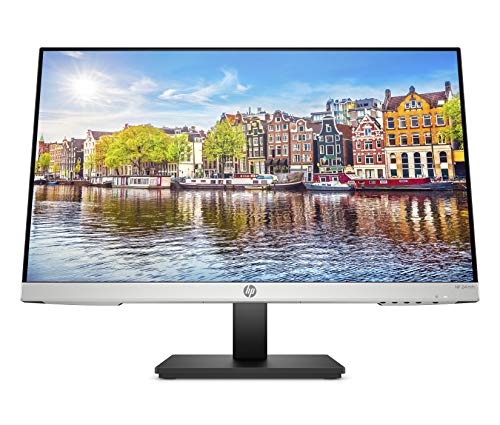
The HP 24mh has been a fixture of home-office buying guides for years, and using it makes the reason obvious within a day. The headline feature is not the 23.8-inch IPS panel, which is competent and unremarkable, but the stand: it adjusts for height and tilts smoothly, so the top of the screen can sit at or just below eye level where ergonomics guidance says it belongs. Most monitors at this level ship with tilt-only stands and quietly expect you to buy a riser or an arm. The 24mh removes that errand entirely, and for anyone setting up a first proper home office, that matters more than a few extra hertz.
In daily use the panel behaves exactly as an office screen should. Text rendering is clean at 100 percent scaling, the anti-glare surface handles a window to the side without turning the screen into a mirror, and the built-in speakers — modest, forward-firing and clear at conversational volume — cover video calls and system sounds without extra desk clutter. Connectivity is the other quiet strength: HDMI and DisplayPort side by side means a desktop and a laptop can both stay plugged in, switched from the on-screen menu rather than by re-cabling under the desk. VESA mounting holes are present if an arm enters the picture later.
There is also a maturity argument for the 24mh that spec sheets cannot show. This model has been manufactured and sold in volume for years, which means its quirks are known, its menu behaviour is documented in a thousand forum answers, and replacement stands, arms and cables are all standard. When something on a desk must simply work every morning — in a spare room, at a relative’s house you are setting up remotely, in a small office with no IT department — that predictability has real value. Newer monitors add features; the 24mh instead removes surprises, and for the machine a household or a small team depends on, removing surprises is the feature.
- Panel: 23.8-inch IPS, 1920 × 1080
- Stand: adjustable for both height and tilt
- Inputs: DisplayPort and HDMI
- Extras: built-in speakers, VESA mount
Strengths
- Height adjustment at this level is rare and genuinely useful across a full working week.
- Speakers are clear enough that calls do not demand a headset for every meeting.
- Two modern inputs plus VESA holes give the screen a long, adaptable life.
Trade-offs
- The design is plainly corporate; it will not be the prettiest object on the desk.
- There is no USB hub, so peripherals still route to the computer itself.
- At 75Hz-class behaviour it is a work screen first; fast gaming is not its purpose.
Best for: anyone building a first home office who wants one purchase to settle the monitor question for years. Not suited for: buyers who want a high-refresh screen for evening gaming on the same desk.

BenQ GW2490 — Best for long reading days
BenQ builds its GW line around a single promise — that a monitor should be easy to look at for hours — and the GW2490 is the current, refined version of that idea. The 24-inch IPS panel runs at 100Hz, which sounds like a gaming specification but earns its place in an office for a subtler reason: scrolling. Long documents, overflowing inboxes and endless web pages move with less judder than on a 60Hz or 75Hz screen, and across hundreds of small scrolls a day, the effect registers as calm rather than speed. It is the kind of improvement you notice most when you go back to a slower screen and find it faintly irritating.
The eye-care side of the design is more than a badge. Low-blue-light modes are tuned in steps rather than as a single yellow wash, flicker-free backlighting removes the subtle strobe that some people feel as fatigue by mid-afternoon, and the matte coating is fine-grained enough that text stays sharp. The bezels are thin on three sides, which makes the GW2490 a tidy candidate for a two-screen desk, and it carries both DisplayPort and HDMI, with built-in speakers for calls. The stand tilts and the panel is VESA-mountable, but height is fixed — the one ergonomic gap in an otherwise thoughtful package, and the reason riser or arm buyers should budget accordingly.
Consider who feels the GW2490’s strengths most. A contracts administrator reading forty-page PDFs, a bookkeeper living in spreadsheets, a researcher with thirty tabs and a long memory for where things were on the page — these users scroll constantly and read statically for hours between scrolls. The 100Hz panel serves the scrolling; the flicker-free backlight and graduated blue-light control serve the static reading. Neither benefit photographs well, which is why this monitor is under-recommended relative to how satisfied its owners tend to be. It is a tool tuned to a working rhythm rather than to a showroom comparison, and its thin bezels mean the natural upgrade path — a second GW2490 beside the first — stays open and affordable.
- Panel: 24-inch IPS, 1920 × 1080, 100Hz
- Stand: tilt, VESA mount ready
- Inputs: DisplayPort and HDMI
- Extras: built-in speakers, eye-care modes, thin bezels
Strengths
- 100Hz scrolling makes document-heavy work feel noticeably smoother than 60Hz.
- Eye-care tuning is graduated and usable, not a single gimmick mode.
- Thin bezels suit a matched pair for a dual-monitor desk.
Trade-offs
- No height adjustment on the supplied stand.
- Speakers are adequate for calls, thin for music or video.
- Brightness is tuned for indoor offices, not sun-flooded rooms.
Best for: writers, analysts, administrators — anyone whose day is measured in pages read. Not suited for: users who need the screen high on the desk without adding a riser or arm.

BenQ GW2480 — Best straightforward office screen
The GW2480 is the older sibling in this guide and in some ways the most honest product here. It predates the refresh-rate inflation of office monitors, so it offers a 24-inch IPS panel at the traditional pace, and concentrates instead on the fundamentals BenQ has long done well: an anti-glare surface that behaves in real rooms, adaptive brightness that responds to ambient light so the screen is not glaring at 8 a.m. or dull at dusk, and low-blue-light and flicker-free backlighting for long sessions. Nothing about it is fashionable. Everything about it works.
Its connectivity tells the same story of practical coverage. HDMI, DisplayPort and even VGA are all present, which sounds like a museum exhibit until the day an older laptop, a Raspberry Pi, a legacy desktop or a meeting-room PC needs to connect and the GW2480 is the only screen on the desk that accepts it without an adapter hunt. Built-in speakers handle call audio. For a small business equipping several desks, a school, or a household that keeps older hardware in circulation, that breadth is a feature with real cash value, because adapters and replacement cables are where simple setups quietly become expensive.
The GW2480 also deserves mention as the hand-me-down champion of this guide. Screens like this migrate: bought for a main desk, moved to a child’s homework desk three years later, then to a workshop, a reception counter or a CCTV corner after that. Each migration favours the monitor with the most inputs, the most forgiving viewing angles and no dependence on a particular modern port. VGA sounds like a joke until it is the only socket an old machine offers. If you suspect your purchase will live several lives — and most monitors do — the GW2480’s old-fashioned breadth may out-serve a newer screen’s fashionable narrowness.
- Panel: 24-inch IPS, 1920 × 1080
- Stand: tilt
- Inputs: DisplayPort, HDMI and VGA
- Extras: built-in speakers, adaptive brightness, eye-care features
Strengths
- Three input types cover new and legacy machines without adapters.
- Adaptive brightness is genuinely set-and-forget across a changing day.
- A proven, widely deployed design with predictable behaviour.
Trade-offs
- Standard refresh rate; scrolling is less fluid than the 100Hz GW2490.
- Tilt-only stand, so screen height depends on your desk furniture.
- The styling and menu system feel their age next to newer rivals.
Best for: mixed-hardware households, small offices and anyone who values compatibility over novelty. Not suited for: buyers who want the smoothest scrolling or a height-adjustable stand out of the box.

ASUS VA249QG — Best refresh rate for office work
Plenty of desks now do double duty: documents and mail from nine to five, then games, films or a child’s homework in the evening. The ASUS VA249QG is built for that split life. Its 24-inch IPS panel runs at 120Hz with Adaptive-Sync support, so the same screen that scrolls a spreadsheet smoothly can also play games at frame rates a 60Hz office monitor simply cannot show, tearing-free when paired with a compatible graphics card. ASUS wraps that in its eye-care package — low blue light modes and flicker-free backlighting — and a frameless design that looks at home in a living space rather than a cubicle.
Ports cover the double life well: HDMI, DisplayPort and a legacy VGA connection, plus built-in speakers, so a console or streaming stick can join the PC without a cable swap. Colour coverage is listed at 99 percent of sRGB, which keeps photos and video looking natural rather than merely adequate. The honest caveats are ergonomic. The stand is a tilt design and the speakers are convenience-grade, so a full-time worker will still want a riser and anyone serious about sound will use headphones or desktop speakers. But as a single screen asked to be two screens, the VA249QG makes fewer compromises than anything else in this guide.
One practical note for the double-duty desk: the VA249QG’s Adaptive-Sync works over its modern inputs with both major graphics-card families’ variable-refresh implementations, so the same panel that tears through a workday can run a console at the smooth settings modern consoles offer on compatible displays, or a gaming PC without screen tearing. That breadth is what separates a true hybrid from an office monitor that merely tolerates games. The 1ms-class response claims in its listing should be read the way all such claims should — as a sign the panel is a fast IPS design, not as a laboratory promise — but in ordinary play the screen keeps up with its refresh rate, which is the test that actually matters at the desk.
- Panel: 24-inch IPS, 1920 × 1080, 120Hz, Adaptive-Sync
- Stand: tilt, VESA wall mount ready
- Inputs: HDMI, DisplayPort and VGA
- Extras: built-in speakers, eye-care features, frameless design
Strengths
- 120Hz serves both smoother office scrolling and genuinely better gaming.
- Frameless styling suits desks that are also living spaces.
- Three inputs plus speakers make it an easy all-in-one desk screen.
Trade-offs
- No height adjustment on the stand.
- Speaker quality is functional rather than enjoyable.
- Its gaming leanings are wasted on a purely administrative desk.
Best for: hybrid desks where work and play share one screen. Not suited for: full-time office users who would benefit more from the HP 24mh’s adjustable stand.
HP 27h — Best larger screen for shared desks
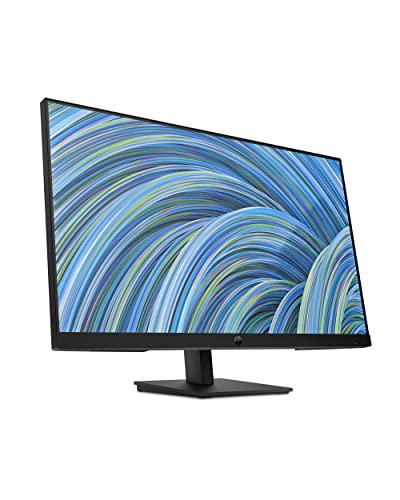
Some people do not sit close to their monitor. They lean back in a reclining chair, they show work to a partner standing beside the desk, they run a small business from a counter where the screen faces two directions across a day. For them, 24 inches at 1080p feels cramped in presence even when it is sharp enough, and the HP 27h is the answer in this guide: the same Full HD resolution stretched over 27 inches, so everything on screen — text, buttons, video-call faces — is simply bigger. The trade is pixel density. At this size, 1080p shows its grain on close inspection, and we will not pretend otherwise; what you gain is legibility at distance, not sharpness up close.
HP equips the 27h properly for its role. Its stand travels up and down as well as tilting — an adjustment that matters more as screens grow — and dual built-in speakers give calls and presentations more presence than the usual monitor audio. The three-sided micro-edge bezel keeps the large panel from looking bulky, and the 75Hz refresh rate keeps motion a step smoother than basic 60Hz screens. It suits the hybrid worker HP aims it at: laptop plugged in by day at a comfortable distance, screen turned toward the room for a shared spreadsheet or a family video call in the evening.
The 27h also answers a question buyers are sometimes embarrassed to ask: what if I just want everything bigger? Enlarged text without software scaling is a legitimate preference — for aging eyes, for a screen that doubles as a small television across the room, for presenting figures to a spouse or a client without everyone crowding in. Operating-system scaling can enlarge a 24-inch screen’s content too, but it occasionally blurs older software and it shrinks the effective workspace. The 27h enlarges with hardware instead: same workspace, bigger everything. As long as you buy it for that reason, eyes open about pixel density, it is a satisfying and honest trade.
- Panel: 27-inch IPS, 1920 × 1080, 75Hz
- Stand: height and tilt adjustment
- Inputs: HDMI (check the listing’s port list if your setup needs a specific second connection)
- Extras: dual built-in speakers, micro-edge bezel
Strengths
- Everything on screen is larger, which helps at distance and for shared viewing.
- Height-adjustable stand and dual speakers fit hybrid work well.
- Slim bezels keep a big panel visually light on the desk.
Trade-offs
- 1080p at 27 inches is visibly less sharp for close-up text work.
- The larger footprint needs a deeper desk than the 24-inch picks.
- Not the choice for photo editing or fine detail work.
Best for: lean-back workers, shared desks, counters and anyone who values size over pixel density. Not suited for: close-range readers or editors, who should stay at 24 inches for crispness.

Acer Nitro VG240Y — Best budget second monitor
Every dual-monitor setup has a hierarchy: one main screen that gets the attention and the budget, and a second screen that holds the reference document, the chat window, the inbox, the music queue. The Acer Nitro VG240Y has filled that second chair in thousands of setups, and it remains easy to recommend for the role. It is a 23.8-inch IPS panel — Full HD, a 75Hz refresh, FreeSync on board, HDMI in duplicate plus a VGA socket for older machines — sold for years at the kind of price that makes adding a second display a small decision instead of a project.
Judged as a main screen it has gaps — no DisplayPort, no height adjustment, no speakers worth planning around, and a stand that only tilts. Judged as a second screen, those gaps mostly evaporate: it will live on a VESA arm or a riser anyway, its audio is irrelevant, and its HDMI input matches the spare output most graphics cards and laptops offer. The IPS panel keeps the second screen’s colours consistent with the main one when windows straddle the gap, which is exactly where cheap TN second monitors annoy. If your desk currently has one screen and a laptop lid doing overflow duty, this is the inexpensive way to fix that properly.
A word about matching, for those building the pair. A second monitor does not need to be identical to the first, but life is easier when the two share a resolution and a similar panel type, so windows keep their size as they cross the gap and colours do not shift noticeably mid-drag. The VG240Y’s 1080p IPS specification matches the majority of main screens people already own, which is part of why it slots into existing desks so smoothly. Set both screens to the same colour temperature in their menus during the first evening, align their top edges physically, and the two-panel desk will feel like one instrument rather than two appliances.
- Panel: 23.8-inch IPS, 1920 × 1080, 75Hz, FreeSync
- Stand: tilt, VESA mountable
- Inputs: 2 × HDMI and VGA
- Extras: thin bezels for multi-monitor setups
Strengths
- Long-running value pricing makes a second screen an easy purchase.
- IPS consistency keeps a two-screen desk visually coherent.
- FreeSync and 75Hz give it light gaming ability in a pinch.
Trade-offs
- No DisplayPort input, which limits some docking setups.
- Tilt-only stand; plan on an arm or riser for good height.
- As a sole main monitor, the HP and BenQ picks serve better.
Best for: adding a second display, student desks and spare workstations. Not suited for: buyers wanting one full-featured main screen with every port and adjustment.
What size of 1080p monitor suits your desk and your eyes?
Resolution and size are a pair, and 1080p has a comfort window. At 21 to 24 inches, its pixels are fine enough that text looks clean at the typical 60-to-80-centimetre viewing distance of a desk, which is why five of our six picks cluster there. At 27 inches, the same pixel count is spread thinner; the image is bigger but not sharper, and people who read small text all day often find the softness more tiring than the size is helpful. At the other extreme, a 1080p screen under 21 inches is sharp but forces either squinting or Windows scaling, and scaling at 1080p can make some older applications blurry. The practical rule: choose 24 inches unless you have a specific reason — distance, shared viewing, eyesight that prefers larger text — to go bigger.
Desk depth is the forgotten variable. A 27-inch monitor on a 60-centimetre-deep desk sits too close, and the constant small head movements to scan corners become their own fatigue. If your desk is shallow, a 24-inch screen on an arm, pulled to the right distance, will feel better than a larger panel crowding you. Measure before you buy; the dimensions that matter are the distance from your eyes to the screen and the width left for a keyboard, not the diagonal printed on the box.
How do you set up a work monitor for a full day of comfort?
Start with height: the top third of the screen should sit around eye level, so your gaze falls slightly downward onto the middle of the panel. On the height-adjustable HP picks this is a ten-second adjustment; on tilt-only models, use a riser, a shelf or a VESA arm, and treat that small extra cost as part of the monitor budget rather than an optional extra. Next, set brightness to match the room rather than the showroom. Office monitors ship bright; in a normally lit room, a setting that makes white on screen roughly match a sheet of paper beside it is the comfortable target, and BenQ’s adaptive brightness automates exactly that judgement.
Then deal with text size honestly. If you find yourself leaning in, raise the Windows or macOS scaling a step instead of enduring it — at 1080p, 125 percent scaling on a 24-inch screen is a common and comfortable setting. Turn on a low-blue-light mode in the evening rather than all day; running it permanently shifts colours for no proven benefit during daylight hours. Finally, position the screen to avoid a window directly behind it or directly behind you; side light is the friendly arrangement, and the anti-glare coatings on every pick here handle side light well.
Should a work desk step up to 1440p instead?
It is a fair question, because 1440p monitors have fallen in price and the extra pixels are real: roughly 78 percent more workspace than 1080p, with visibly finer text at 27 inches. For a single-screen desk used for design work, large spreadsheets or code with multiple panes, that step can be worth it, and our related guides cover it. But the honest counterweight is that 1080p remains the resolution the world’s office software, video calls and web content are built around. At 24 inches, 1440p often needs display scaling to keep text comfortable, which hands back part of its workspace advantage, while 1080p runs natively with everything simply the right size. Add that a 1080p screen is easier for an older laptop or integrated graphics to drive across two displays, and the case for staying at Full HD for everyday work is stronger than resolution marketing suggests. Choose 1440p when you know the specific work that needs the pixels; choose 1080p when the need is a comfortable, compatible screen for everything else.
Which ports and extras actually earn their place on an office monitor?
Two video inputs are the practical minimum for a modern desk, because the second machine always arrives: a work laptop beside the home desktop, a console at the weekend, a streaming stick for the spare room. Every pick in this guide offers at least two ways in, counting the Acer’s twin HDMI ports, and the BenQ GW2480’s VGA keeps even legacy hardware in play. DisplayPort deserves its quiet premium because it is the input docking stations and desktop graphics cards most reliably offer at full specification, and because it frees HDMI for the device that has no alternative. VESA mounting holes look like a footnote and behave like insurance: they are what let a tilt-only monitor gain perfect height on an inexpensive arm two years from now, and every pick here except the oldest BenQ design language includes them as standard practice. The extras that matter least are the ones shouted loudest — extreme refresh rates for office use, cinematic contrast claims for panels that will show email. Spend on inputs, mounting and the stand; let the panel be good rather than spectacular.
What should you check during the first week with a new monitor?
Unbox with the return window in mind and run three quick checks on day one. First, display a full-screen white page and a full-screen black page: the white should look even, without pink or green corners, and the black in a dim room will show the gentle glow normal to IPS panels — what you are hunting for is a single bright patch or a dead, permanently dark or coloured pixel cluster, which are grounds for exchange. Second, work a full day at your intended brightness and scaling before changing anything; most early discomfort is height, not the panel, so adjust the stand or riser before blaming the screen. Third, test every input you plan to use, including waking from sleep, because a monitor that loses its signal handshake with your particular laptop is a problem to discover in week one, not month three. Keep the box until those checks pass. They take twenty minutes across a week, and they convert the small gamble of any monitor purchase into a settled, long-term fixture of the desk.
How does a laptop change what you should buy?
Half the desks these monitors land on are driven by a laptop, and that changes the shopping list in three ways. First, the lid question: a laptop used closed, on a stand or in a drawer, makes the external monitor the only screen, which argues for the full-featured picks — the HP 24mh or the BenQ GW2490 — rather than a budget panel. A laptop used open beside the monitor becomes a built-in second display, which argues for matching size and resolution so the two screens feel like relatives: a 24-inch 1080p monitor pairs naturally with most 14- and 15-inch laptop panels. Second, the cable question: recent thin laptops often carry only USB-C ports, so confirm whether you need a USB-C-to-HDMI cable, a USB-C-to-DisplayPort cable or a small dock, and remember that a dock also answers the keyboard, mouse and storage that must connect somewhere. None of the monitors in this guide charges a laptop over USB-C — that feature lives on more expensive USB-C monitors — so the laptop’s own power supply stays part of the desk either way. Third, the wake question: test that the monitor wakes reliably when the laptop wakes, during the return window, because sleep-handshake quirks are model-pair specific and are the single most common annoyance in laptop-and-monitor setups. A week of mornings will tell you whether your pairing is one of the happy ones.
Can a monitor from this guide handle photos and video too?
Within limits, comfortably. All six panels cover the sRGB colour space that the web, office documents and consumer photography live in — the ASUS VA249QG lists 99 percent sRGB coverage explicitly — so family photos, social video and streamed films look correct and pleasant, and light photo editing for prints and sharing is entirely reasonable. The limits appear with professional intent: none of these panels is factory-calibrated for print-critical work, none covers the wider colour gamuts that serious video grading uses, and 1080p gives an editor less timeline and canvas room than a larger, sharper screen. That is not a flaw in these products; it is their category. A household that edits holiday photos on Saturday and spreadsheets on Monday is well served here. A photographer selling prints should be reading a colour-critical monitor guide instead — and will pay several times more for the privilege, which is exactly the trade this guide’s readers are usually happy not to make.
How do you keep a work monitor comfortable after dark?
Evening use is where office monitors quietly fail their owners. A panel set for a bright afternoon is a lantern at 10 p.m., and the fix is a small ritual rather than a feature hunt. Lower the brightness until whites match the room’s ambient light — on most of these screens that is a surprisingly low setting — and engage the low-blue-light mode in the evening hours, accepting the warmer colour as the price of a screen that does not fight the room. All the BenQ and ASUS picks here offer stepped blue-light control, and the BenQ models’ adaptive brightness can do part of the work automatically if your room lighting changes through the day. Bias lighting — a simple light source behind the monitor washing the wall — is the other inexpensive comfort trick: it narrows the gap in brightness between the panel and the wall behind it, which is where much evening eye strain actually comes from. None of this requires a new monitor; it requires spending five minutes in the settings menu on the first evening rather than the fiftieth.
Which of these screens fits a student desk or a first apartment?
Student and first-apartment desks share a profile: small surface, one machine that does everything, a budget with hard edges, and furniture that will change within two years. The Acer Nitro VG240Y is the natural starting point — inexpensive, light, VESA-ready for whatever arm or shelf the next room offers, and good enough as a main screen while doubling gracefully as the second screen later. The ASUS VA249QG is the upgrade answer when the same desk hosts gaming in the evening, because its 120Hz panel serves the games a student actually plays far better than a pure office screen, without giving up eye-care features for the essay hours. What we would steer students away from is the 27-inch temptation: the HP 27h’s size is a liability in a small room, both on the desk and in a move. Buy the screen that fits the room you have; monitors are easy to upgrade and miserable to store.
What separates a good office panel from a mediocre one when you look closely?
Stand two 1080p IPS monitors side by side showing the same document and the differences are not in the headline specification — they are in uniformity, coating and control. Uniformity is whether the white of a page stays the same white in the corners as in the centre; cheaper panels tint toward pink or green at the edges, and once noticed during reading it cannot be unnoticed. The established office lines in this guide — BenQ’s GW models and the HP screens — are built by companies whose business customers reject visible tinting, and that discipline shows in ordinary units. Coating is the second separator: a good matte finish diffuses window light into a soft haze, while a poor one either mirrors the room or adds a sparkly grain over text. All six picks use sensible anti-glare finishes, but the BenQ panels are the ones we would put against a bright window with most confidence. Control is the third: an office monitor’s menu will be visited at dusk, in a hurry, for years. Buttons or a joystick that let you drop brightness in two seconds, and presets that remember separate day and evening settings, sound trivial in a review and feel essential in a life. Judge a work monitor by these three quiet qualities and you will rarely be disappointed; judge it by the numbers on the box and disappointment is a matter of time.
How do you choose between the two BenQ screens and the two HP screens?
Because this guide contains two models from each of two brands, the within-brand decision deserves its own answer. Between the BenQ GW2490 and GW2480, the question is whether your machines and your eyes are modern. The GW2490 is the better screen in isolation: faster, smoother, with thinner bezels and the more refined eye-care package, and it is the one to buy for a current laptop-and-desktop desk. The GW2480 wins only — but genuinely — when legacy connections matter, when several desks must be equipped identically on a tight budget, or when the screen will migrate through older hardware over its life. Between the HP 24mh and the HP 27h, the question is distance. Sit at a normal desk, reading and typing, and the 24mh’s sharper 23.8-inch panel and adjustable stand make it the better tool. Sit back, share the screen, present across a counter or prefer larger text without scaling, and the 27h’s size becomes the point. What we would not do is buy the 27h for close reading or the GW2480 for a brand-new desk; each pair contains one model aimed at the present and one aimed at a particular circumstance, and naming your circumstance honestly is the whole decision.
What is the sensible order to upgrade a desk around one of these monitors?
Readers often ask what to buy next once the monitor is chosen, and the order matters more than the items. First comes height: if the screen is not at eye level, the arm, riser or adjustable-stand model is the upgrade, before anything else, because every other improvement is filtered through your posture. Second comes light: a desk lamp that does not shine on the screen, and room light that does not sit in the panel’s reflection, will do more for evening comfort than any setting in the menu. Third comes the second screen, if your work involves constant reference material — that is where the Acer VG240Y earns its place beside a main display from this same guide. Fourth, and only fourth, come the refinements people usually buy first: a better keyboard, a tidier dock, speakers that make calls pleasant. A monitor chosen from this page will outlast several rounds of those purchases, which is precisely why the boring decisions — stand, ports, panel comfort — were given the weight they were throughout this guide.
Comparison Table
| Monitor | Size / Panel | Refresh | Stand | Inputs | Speakers |
|---|---|---|---|---|---|
| HP 24mh | 23.8in IPS | 75Hz class | Height + tilt | HDMI, DisplayPort | Yes |
| BenQ GW2490 | 24in IPS | 100Hz | Tilt, VESA | DisplayPort, HDMI | Yes |
| BenQ GW2480 | 24in IPS | Standard | Tilt | DisplayPort, HDMI, VGA | Yes |
| ASUS VA249QG | 24in IPS | 120Hz | Tilt, VESA | HDMI, DisplayPort, VGA | Yes |
| HP 27h | 27in IPS | 75Hz | Height + tilt | HDMI | Dual |
| Acer Nitro VG240Y | 23.8in IPS | 75Hz | Tilt, VESA | 2 × HDMI, VGA | No |
Which mistakes do people make when buying a monitor for everyday use?
The most expensive mistake is buying size instead of fit: a 27-inch or larger 1080p screen chosen because the number sounded generous, then placed on a shallow desk where its soft text and wide span cause the very fatigue the purchase was meant to cure. The second is ignoring the stand. Buyers compare panels and ports, then spend two years with the screen four inches too low, compensating with posture. If the monitor you like has a tilt-only stand, the arm or riser is not an accessory; it is part of the price, and it should be counted when comparing against the height-adjustable HP models in this guide.
A third mistake is assuming built-in speakers replace real audio. On every monitor here they are call-grade: fine for voices, poor for music. Budget a small pair of desktop speakers or plan on headphones if sound matters to you, rather than returning a good monitor for an audio flaw it never hid. Fourth, people forget the cable reality of their own machines — a modern thin laptop may offer only USB-C video output, needing a cable or dock that should be ordered the same day as the monitor. And finally, buyers chase gaming specifications for office desks: money spent on extreme refresh rates would usually serve a worker better spent on the adjustable stand, the second screen, or the chair.
Final Recommendation
For most home offices, the HP 24mh is the purchase we would make first: it is the complete, no-errands monitor, with the right stand, the right ports and a panel that disappears into the working day. If your work is reading — documents, mail, research, code — the BenQ GW2490’s 100Hz scrolling and careful eye-care tuning make it the specialist’s choice, while its older sibling the GW2480 remains the compatibility champion for mixed and legacy hardware. Choose the ASUS VA249QG when the desk doubles for play after hours, the HP 27h when you sit back or share the screen, and the Acer Nitro VG240Y when the job is simply to give a one-screen desk a proper second display. Buy the screen that matches the shape of your day, set its height before you set anything else, and it will quietly be the best-value object in the room — the monitor disappears, and only the work remains.
Frequently Asked Questions
Is 1080p sharp enough for office work in 2026?
At 24 inches and normal desk distances, yes — text is clean at standard scaling, and the enormous library of office software is designed around this resolution. The case for 1440p grows at 27 inches and above, where 1080p’s pixel density drops; at 24 inches the difference is a luxury rather than a need.
Does a 100Hz or 120Hz refresh rate matter if I never play games?
It matters modestly. Scrolling, window dragging and cursor movement look and feel smoother, which many people experience as reduced eye strain across a long day. It will not change the content of your work, and a good 75Hz screen with a proper stand beats a fast screen at the wrong height every time.
Should I buy one large monitor or two smaller ones?
For most desk work, two 24-inch screens beat one large one at similar total cost: the seam between them naturally organises tasks — document here, reference there — and video calls can own one screen while work continues on the other. One large screen suits shared viewing and media better. Several picks in this guide, notably the BenQ GW2490 and Acer VG240Y, are priced and bezelled with the two-screen answer in mind.
What cable should I use to connect my laptop?
HDMI is the universal answer and every pick here accepts it. DisplayPort, offered by the HP 24mh, both BenQ models and the ASUS, is equally good and frees the HDMI port for something else. Thin laptops with only USB-C output need a suitable video cable or a compact docking station; order whichever yours requires with the monitor, not after it arrives.
Are the built-in speakers on these monitors good enough?
For video calls, spoken content and system sounds, yes — that is what they are designed for, and the HP 27h’s dual speakers are the strongest here. For music, films or games, any of these monitors should be paired with headphones or desktop speakers, which will outperform built-in monitor audio by a wide and immediately obvious margin.
Do I need a monitor arm, or is the supplied stand enough?
If you choose one of the height-adjustable HP models, the supplied stand is enough for most desks and most bodies. With a tilt-only stand, an arm or riser becomes necessary whenever the screen’s fixed height does not meet your eye level — which is most of the time, since desks and chairs vary more than stands do. Every pick here except the Acer’s most basic configuration accepts a standard VESA arm, so the upgrade path stays open whenever you are ready for it.
Will these monitors work with a game console as well as a PC?
Yes, over HDMI, and the ASUS VA249QG is the standout for that mixed role because its 120Hz Adaptive-Sync panel can use the high-refresh modes current consoles offer on compatible displays. The office-first picks will show console games perfectly well at their standard settings; they simply will not unlock the fastest modes, which is a fair trade for a desk that works for a living.
How long should a monitor like this last?
Five to seven years is a reasonable expectation for an IPS office panel used daily, and monitors commonly outlive the computers they are bought with — often two of them, which is why a screen that still suits your eyes and your desk in year five is worth more than a slightly cheaper one that starts annoying you in year two and gets replaced early at full price all over again. That longevity is why stand quality, port selection and VESA compatibility — the things that let a screen adapt to your next machine and your next desk — deserve as much weight in the decision as the panel itself.
Related Guides
Setting up the rest of the desk? Read our guide to the best 1440p monitors if you are considering a sharper step up, our roundup of the best monitors for home office work for wider options, and our explainer on monitor ergonomics and desk setup before you position anything.
Related guides
- Best 1440p 165Hz Monitors: One Native 165Hz Pick, Three 180Hz Upgrades, an Overclock Headline and a 160Hz Ultrawide
- Best 144 Hz 27in Monitors: Six 27-Inch Screens That Go Beyond the Label
- Best 1440p IPS Monitors
- Best 1080p Monitors 120Hz: Two Native 120Hz Picks, a Labelled 100Hz Comfort Option and Honest Headroom Above the Rate