What's inside
- Where to buy
- Key Takeaways
- Quick Picks: Best 144Hz Monitors with DisplayPort 1.2
- How much bandwidth does 144Hz actually need — and what does DP 1.2 have?
- DisplayPort 1.2 versus HDMI — which should feed your 144Hz monitor?
- How do you confirm your system is really running 144Hz over DP 1.2?
- What about laptops, docks and the DP 1.2 machines already in the world?
- When should you actually move beyond DisplayPort 1.2?
- How do you read a monitor listing’s port claims like an engineer?
- What is daisy-chaining actually good for, then?
- Does DP 1.2 limit colour or HDR at 1080p?
- Why has DisplayPort 1.2 lasted this long?
- Which first-week checks prove a DP 1.2 setup is healthy?
- How did we choose these six from every DP-equipped monitor on sale?
- Comparison Table
- Which DisplayPort mistakes do buyers keep making?
- Final Recommendation
- Frequently Asked Questions
- Related Guides
As an Amazon Associate I earn from qualifying purchases. This post may contain affiliate links at no extra cost to you.
gizmoverdict.com is reader-supported. When you buy through links on our site, we may earn an affiliate commission.
Where to buy
This is a guide for the buyer who reads port specifications on purpose. The best 144Hz monitors with DisplayPort 1.2 exist in a specific and still-useful niche: DisplayPort 1.2, the HBR2 generation of the standard, carries more than enough bandwidth for 144Hz at 1080p — with headroom to spare — and it is the connection found on a generation of graphics cards, docks and laptops that are still in daily service everywhere. If your machine’s DisplayPort output is a 1.2 port, or your monitor budget meets a 1.2-equipped screen, the question is not whether the pairing works. It is which of these monitors uses that bandwidth best, where the standard’s limits genuinely sit, and which listings confirm the port rather than leaving you to guess. That is what this guide answers, with the bandwidth maths explained in plain terms and every pick verified against our pool.
Two picks — BenQ’s MOBIUZ EX251 and EX271 — state DisplayPort 1.2 explicitly in their verified listings, and they anchor the guide. A third, AOC’s 24G4, carries DisplayPort 1.4, which exceeds the brief and is included with that stated plainly, because a DP 1.4 port is fully backward compatible with a 1.2 source and simply adds headroom. The remaining three — from Acer, ViewSonic and Samsung — offer DisplayPort connections whose listings do not print a version, which at 1080p 144Hz-class rates makes no practical difference: as the technical sections below show, any DisplayPort generation from 1.2 onward carries these panels’ full native signal. We flag the distinction rather than blur it, because a guide about a port standard should model the honesty it recommends.
Key Takeaways
- DisplayPort 1.2 (HBR2) provides about 17.28 Gbit/s of usable data bandwidth — enough for 1920 × 1080 at 144Hz with generous headroom, and enough for 1080p at 240Hz.
- The standard’s real ceiling shows at higher resolutions: 1440p at 144Hz sits near the top of what DP 1.2 carries, and 4K over DP 1.2 tops out at 60Hz — which is why this guide’s picks are 1080p panels.
- HDMI generations are the trap in this territory: HDMI 1.4 officially caps 1080p at 120Hz, so a 144Hz monitor fed by an old HDMI port may silently run slower, while its DisplayPort input runs full rate.
- Two picks confirm DP 1.2 in their listings by name; one carries DP 1.4 (backward compatible, stated openly); the rest offer DisplayPort at rates any 1.2-or-later link sustains.
- Use the cable in the box and set the refresh rate manually in the operating system — most “my 144Hz monitor runs at 60Hz” stories are configuration stories, not bandwidth stories.
Quick Picks: Best 144Hz Monitors with DisplayPort 1.2
| Pick | Badge | Why it is here |
|---|---|---|
| BenQ MOBIUZ EX251 | Confirmed DP 1.2, fastest here | DP 1.2 named in the listing, 180Hz-class speed with a higher mode, FreeSync and a USB hub in a 25-inch esports frame. |
| BenQ MOBIUZ EX271 | Confirmed DP 1.2, most complete | The 27-inch sibling: DP 1.2 in the listing, 180Hz, wide colour, hub and speakers for the full desk. |
| AOC 24G4 | Above spec: DP 1.4 headroom | 180Hz Fast IPS with DisplayPort 1.4 — beyond the brief, backward compatible, and the value athlete of the list. |
| Acer Nitro KG241Y | Best value with DisplayPort | 180Hz and FreeSync Premium with a DisplayPort input at the friendly end of the class. |
| ViewSonic VX2428A | Best all-device flexibility | 180Hz, FreeSync, HDR10 and console-friendly behaviour alongside its PC DisplayPort duties. |
| Samsung Odyssey G3 24in | Best stand on a DP screen | 180Hz with an adjustable stand and Samsung’s gaming extras, for the DP desk that also cares about posture. |
How much bandwidth does 144Hz actually need — and what does DP 1.2 have?
Let us do the arithmetic once, carefully, because every claim in this guide descends from it. A display signal’s cost is roughly its pixel count multiplied by its refresh rate, plus overhead for blanking intervals and encoding. A 1920 × 1080 picture holds about 2.07 million pixels; at 144 frames per second that is roughly 300 million pixels per second, which with standard timings and 24-bit colour works out to around 8 to 10 Gbit/s on the wire. DisplayPort 1.2, running its HBR2 link rates, offers four lanes carrying 17.28 Gbit/s of usable data after encoding overhead. Set those two numbers side by side and the headline of this guide writes itself: at 1080p, a DP 1.2 connection runs 144Hz at barely more than half its capacity. There is headroom for 1080p at 240Hz within the same standard, which is why a generation of esports monitors shipped with DP 1.2 inputs and never wanted for bandwidth.
The ceiling appears when resolution climbs. At 2560 × 1440 and 144Hz, the pixel rate roughly doubles against the 1080p case and lands close to the standard’s practical limit — achievable on DP 1.2, and many panels of that era did exactly it, but with no margin for higher rates or sloppy cables. At 3840 × 2160, DP 1.2 tops out at 60Hz; the 4K high-refresh era belongs to DisplayPort 1.4 with DSC and to HDMI 2.1. This is why the honest shape of a “DP 1.2” guide in 2026 is a 1080p guide: the standard is not obsolete, it is specialised, and its speciality — fast Full HD with total reliability — is precisely what the six picks below deliver.
Two neighbouring traps deserve naming. HDMI 1.4, found on older consoles, laptops and monitors, officially supports 1080p only to 120Hz; a 144Hz monitor connected that way may run at 120Hz or 60Hz and never tell you why your purchase feels ordinary. HDMI 2.0 removes that ceiling for 1080p and 1440p alike. And cable quality matters at the margins: a DP 1.2 link at 1080p 144Hz is forgiving, but the no-name cable from a drawer of spares is the first suspect whenever a high-refresh mode refuses to appear. The standard is generous; the accessories are where generosity ends.

BenQ MOBIUZ EX251 — Confirmed DP 1.2, fastest here
The EX251 is the pick that takes this guide’s title literally. Its verified listing names DisplayPort 1.2 among its connections — alongside HDMI 2.0 and a USB hub — and then uses that bandwidth the way the standard invites: a 24.5-inch Full HD panel at 180Hz, with a higher 220Hz mode listed for players who chase it. At 1080p, both figures sit comfortably inside DP 1.2’s capacity as the bandwidth section above demonstrates, which means the EX251’s owner never has to wonder whether the port is the bottleneck. It is not, and the listing says so in print.
Around that connection, BenQ builds its esports-leaning MOBIUZ package: AMD FreeSync to keep the high rates tear-free, colour modes drawn from its game database, AI-assisted colour adjustment, and built-in speakers of the line’s better-than-average kind. The 24.5-inch size is the competitive format — the whole screen inside a player’s focused view without head movement — and at this density 1080p text stays acceptably crisp for the desk hours between matches. The USB hub is a quietly practical inclusion at this size, giving a mouse, keyboard receiver or headset a home on the monitor rather than in the PC’s rear panel thicket.
For the DP 1.2 brief specifically, the EX251 is the connoisseur’s answer: the port confirmed by name, the speed the highest in this guide, and a feature set with nothing essential missing. Its premium over the Acer and AOC below buys that completeness. Buyers whose source machine is a DP 1.2 laptop dock or an older gaming PC will find this the most reassuring single purchase on the page — the monitor that asks no questions of their existing hardware and gives back speed it did not know it could show.
A word on the 220Hz figure, in the spirit of this guide’s honesty policy: treat the EX251 as a 180Hz monitor with an additional mode to experiment with, and verify its stability on your own system during the return window if you intend to live there. The purchase needs no such caveat at 180Hz, where the panel, the port and the sync all operate in the middle of their envelopes — and a monitor bought for the middle of its envelope is a monitor that will still be boring, in the best sense, in five years.
- Panel: 24.5-inch, 1920 × 1080, 180Hz with a 220Hz mode listed
- Ports: DisplayPort 1.2 (named in listing), HDMI 2.0, USB hub
- Sync: AMD FreeSync
- Extras: built-in speakers, game colour database modes
Strengths
- DisplayPort 1.2 confirmed in the listing itself — no version detective work.
- The fastest panel in this guide, with all its speed inside DP 1.2’s capacity.
- Hub, speakers and colour tools make it a complete desk citizen.
Trade-offs
- Priced above the value picks for its completeness.
- The 24.5-inch competitive size is small for media-first desks.
- Its higher listed mode is a bonus to verify, not the figure to buy on.
Best for: competitive players on DP 1.2 hardware who want the confirmed port and maximum speed. Not suited for: buyers wanting a larger screen or the lowest price.

BenQ MOBIUZ EX271 — Confirmed DP 1.2, most complete
Where the EX251 is the sprinter, the EX271 is the same engineering philosophy at living-room scale: a 27-inch Full HD panel at 180Hz whose verified listing likewise names DisplayPort 1.2, HDMI 2.0 and a USB hub. Read through this guide’s technical lens, the larger BenQ demonstrates a second virtue of the DP 1.2 standard — consistency across a product line. A buyer with a DP 1.2 source can choose either BenQ on size and features alone, certain the connection story is identical and fully sufficient at 1080p, because at this resolution the bandwidth was never the constraint.
The EX271’s own character comes from its colour and its completeness. BenQ quotes the panel’s colour coverage at 95 percent of DCI-P3 — a wide figure for a Full HD gaming screen — and its game colour database and AI colour mode give games and films a richness the value picks do not attempt. The speakers are the line’s 2.5W units, adequate for calls and casual viewing. For a desk that splits between a DP 1.2 gaming PC and everything else — films, a console on the HDMI side, work in the mornings — the EX271 is the pick that treats the monitor as the room’s main screen rather than as a peripheral.
Its trade-offs mirror its sibling’s: it costs more than the class’s value athletes, and 1080p at 27 inches softens text for all-day reading, as every guide in this series notes. But for the specific reader of this keyword — someone whose machine speaks DisplayPort 1.2 and who wants the listing to say so — the EX271 and its smaller sibling are the only two picks here that close the question entirely. That certainty, plus the colour, is the product.
There is also a household argument for this model that spec sheets miss. A 27-inch screen with proper speakers, a hub and forgiving colour becomes the display other people in the home borrow — for a film, for a console session, for a laptop that needs a bigger canvas — and the EX271 absorbs those duties without its owner’s gaming settings being dismantled each time, thanks to per-input behaviour and presets. Versatility of that kind is unglamorous and decisive: it is why screens like this stay on desks for six years while purer gaming panels get replaced by the next hobby.
- Panel: 27-inch, 1920 × 1080, 180Hz
- Ports: USB hub, HDMI 2.0, and DisplayPort 1.2 — the version printed in its listing
- Sync: AMD FreeSync
- Extras: built-in speakers, wide colour coverage, game colour modes
Strengths
- DP 1.2 named in the listing, at the size most desks prefer.
- Wide colour makes it the best film-and-games screen here.
- Hub and speakers complete a one-screen setup.
Trade-offs
- Premium positioning against plainer 180Hz rivals.
- Full HD text at 27 inches is soft for full-time readers.
- Not the fastest panel here for pure competitive play.
Best for: DP 1.2 owners wanting a complete 27-inch screen for games, films and work. Not suited for: text-first workers or the tightest budgets.

AOC 24G4 — Above spec: DP 1.4 headroom
Honesty first, because this guide’s whole premise is port literacy: the AOC 24G4 carries DisplayPort 1.4, not 1.2. It belongs here for two reasons. DisplayPort is backward compatible by design — a DP 1.4 monitor input accepts a DP 1.2 source’s signal completely, running at the source’s capabilities without adapters or compromise — so a DP 1.2 machine loses nothing by choosing it. And the 24G4 is, on panel merit, one of the strongest value performers in the 1080p high-refresh class: a 24-inch Fast IPS display at 180Hz with HDR support, HDMI 2.0 alongside the DisplayPort, VESA mounting and a three-year warranty in its listing.
What the newer port buys its owner is time. A DP 1.4 input carries this panel’s full signal with capacity to spare and keeps the monitor ready for sources and rates beyond its own panel’s needs — the connection will never be the reason this screen is replaced. AOC’s execution around the panel is the value-athlete kind: the stand and finish are functional, the menu is workmanlike, and the money visibly went into the Fast IPS panel and its motion behaviour, which at 180Hz is where this monitor earns its reputation among players who read specifications before prices.
For the reader whose brief is literally a DP 1.2 port on the monitor itself, the BenQ pair above are the exact answers, and this guide says so without hedging. For the reader whose brief is a DP 1.2 source machine and the best screen it can drive, the 24G4 is arguably the smartest purchase on the page — a port above the requirement, a panel at the top of its class, and a warranty that suggests the manufacturer knows it.
One more consideration for the cross-shopper: AOC supports this model with the kind of warranty and pixel policy that value brands do not always match, and in a category where a single dead pixel can haunt a fast panel’s centre for years, that paperwork is part of the product. Read the listing’s warranty terms as carefully as its refresh rate — the 24G4 is one of the rare value picks that survives being read carefully, which is the most on-brief compliment this guide can pay.
- Panel: 24-inch Fast IPS, 1920 × 1080, 180Hz
- Ports: DisplayPort 1.4 (above the brief; backward compatible with DP 1.2 sources), HDMI 2.0
- Sync: Adaptive-Sync
- Extras: HDR support, VESA mount, three-year warranty per listing
Strengths
- A port above the brief means the connection never limits this or the next source.
- Fast IPS motion at 180Hz is the class’s value benchmark.
- Warranty length signals manufacturing confidence.
Trade-offs
- Not literally a DP 1.2 monitor — included on compatibility and merit, stated openly.
- Functional design and menus rather than premium finish.
- No USB hub for peripheral-heavy desks.
Best for: DP 1.2 source owners who value panel quality and future headroom. Not suited for: buyers who need the monitor’s own port to be 1.2 by the letter.
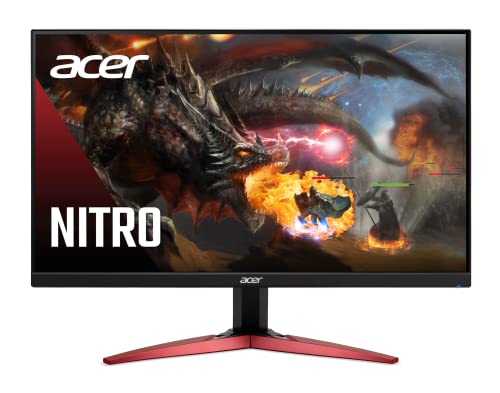
Acer Nitro KG241Y — Best value with DisplayPort
Acer’s Nitro line is where high-refresh specifications meet prices that make them ordinary, and the KG241Y is this guide’s value representative: a 23.8-inch Full HD IPS panel at 180Hz with AMD FreeSync Premium, two HDMI inputs and a DisplayPort connection. The listing does not print the DisplayPort’s version, and this review will not invent one — what can be said on the bandwidth maths is that at 1080p and 180Hz, the signal sits well within what any DisplayPort implementation from the last decade-plus carries, 1.2 emphatically included. The port’s presence, not its printed generation, is what a 1080p buyer needs.
In ownership terms the KG241Y is the screen that turns a DP-equipped older PC or a modern budget build into a high-refresh setup without a second purchase decision. FreeSync Premium brings low-framerate compensation to its sync, which at this price is a genuinely premium behaviour — budget systems fluctuate, and LFC is what keeps their dips graceful. The panel’s colour covers the sRGB world completely per its listing class, the bezels suit a dual-screen future, and VESA mounting lets an arm fix the tilt-only stand’s one ergonomic gap whenever the budget recovers.
Set expectations at the level the price sets: the finish is plain, there is no hub, and the speakers are not a reason to buy it. None of those omissions touches what you are actually buying, which is 180Hz IPS gaming with proper sync over DisplayPort at the friendliest terms in this guide. For the reader assembling a first high-refresh desk around a DP 1.2-era machine, this is where the money goes furthest.
The KG241Y also illustrates this guide’s central reassurance in its purest form. Its buyer is often someone with a perfectly good PC from the DP 1.2 era who has been told, implicitly by a decade of marketing, that high-refresh gaming requires a wholesale upgrade. It does not. It requires a panel like this one and a setting changed in an afternoon. The gap between what that machine can already do and what its owner believes it can do is the exact gap this article exists to close, and the Acer closes it at the lowest cost on the page.
- Panel: 23.8-inch IPS, 1920 × 1080, 180Hz
- Ports: DisplayPort (version not printed in listing), 2 × HDMI
- Sync: AMD FreeSync Premium
- Extras: VESA mounting, flicker-less and blue-light features
Strengths
- 180Hz with Premium-tier sync at the guide’s friendliest positioning.
- DisplayPort plus twin HDMI covers PC and console without swapping.
- LFC suits the budget systems this monitor will actually serve.
Trade-offs
- DisplayPort version is not stated in the listing.
- Plain finish, tilt-only stand, no hub.
- Audio is an afterthought; plan on headphones or speakers.
Best for: first high-refresh desks and budget builds with DisplayPort sources. Not suited for: buyers wanting a confirmed port version or premium features.

ViewSonic VX2428A — Best all-device flexibility
ViewSonic’s VX2428A approaches the DP brief from the direction of the crowded desk. Its 24-inch IPS panel runs 180Hz at Full HD with FreeSync and HDR10 support, over HDMI and DisplayPort both — and its listing makes a point of its console friendliness, naming PlayStation and Xbox alongside the PC. That breadth matters for this guide’s reader in a specific way: a DisplayPort 1.2-era gaming PC rarely owns the desk alone, and a monitor whose ports serve the whole household’s machines at their best rates is worth more than one that serves a single source brilliantly. The DisplayPort handles the PC at full 180Hz; the HDMI side handles the consoles at theirs.
The panel itself is the fast IPS kind, with the listing’s sub-millisecond response claim to be read as the genre label it is — the meaningful fact is that the panel’s real transitions support its refresh rate in the fast games it is bought for. Eye-care features, an anti-glare finish and low input lag tuning round out a specification written by people who understand that a 24-inch fast monitor in 2026 is a general-purpose object: homework at four, ranked at seven, a console session at nine.
Against the BenQ pair, the ViewSonic does not confirm its DisplayPort version in print and lacks the hub; against the Acer, it adds HDR10 support and the more polished all-device story. Its place in this guide is the flexibility seat — the monitor for the desk where the question is never only about one machine, and where DisplayPort 1.2 from the PC is one citizen among several, all of them served at full speed.
ViewSonic’s long history in education and office displays shows in the VX2428A’s manners: it is the pick here most likely to be bought by a parent for a shared family desk, and its eye-care tuning and anti-glare finish are specified accordingly. That dual citizenship — esports pace, household manners — is harder to engineer than it looks, and it explains why this model, rather than a purer gaming screen, takes the flexibility seat. A monitor that three people use needs to offend none of them.
- Panel: 24-inch IPS, 1920 × 1080, 180Hz
- Ports: DisplayPort (version not printed in listing), HDMI
- Sync: FreeSync
- Extras: HDR10 support, eye-care features, console-friendly design
Strengths
- Serves PC over DisplayPort and consoles over HDMI at full rates.
- Fast IPS panel with HDR10 support at a sensible position.
- Eye-care tuning suits the mixed work-and-play desk.
Trade-offs
- DisplayPort version not confirmed in the listing.
- Base FreeSync tier; no certified LFC.
- No USB hub for peripheral routing.
Best for: multi-device desks mixing a DP gaming PC with consoles. Not suited for: buyers who need a printed DP version or Premium sync.

Samsung Odyssey G3 24in (G30D) — Best stand on a DP screen
The final pick earns its seat on the strength of everything around the port. Samsung’s 24-inch Odyssey G3 runs 180Hz at Full HD with AMD FreeSync over HDMI and DisplayPort, and it brings two things the rest of this list mostly lacks: a properly adjustable stand — height and tilt, in a class of tilt-only bases — and Samsung’s contrast-leaning panel character, whose deep blacks flatter evening gaming in a way the IPS picks do not attempt. Its listing, like the Acer’s and ViewSonic’s, does not print a DisplayPort version; at 1080p 180Hz the signal is, again, comfortably within the capability of the DisplayPort implementations of the last decade, and the port’s presence is the operative fact.
The gaming extras are Samsung’s house recipe: Black Equalizer for visibility in dark scenes, a Virtual Aim Point overlay, and the Eye Saver and flicker-free provisions that look after your eyes during the hours the screen spends as a work display. In the context of this guide, the G3 is the pick for the reader whose DP 1.2-era machine is fine, whose cable drawer is fine, and whose actual daily irritations are a screen at the wrong height and blacks that look grey at midnight. It fixes the irritations and asks nothing about the connection, because at this resolution there was never a connection problem to fix.
Its viewing angles are narrower than the IPS picks’ — the price of its contrast — and shared viewing from the side is not its talent. Square-on, in the evening, on its adjustable stand, it is the most comfortable long-session screen in this guide, and the one whose owner is least likely to be shopping for an arm in month two.
It is worth pausing on why the stand matters disproportionately in this particular guide. A reader shopping by port specification is often keeping an older PC alive — and an older PC usually sits on an older desk, with a chair and a posture that have adapted to each other over years. Dropping a fixed-height gaming screen into that ecosystem at the wrong elevation undoes the comfort the setup had earned. The G3’s adjustability respects the existing ecosystem instead of demanding a new one, and in a guide about not replacing what still works, that respect is the point.
- Panel: 24-inch, 1920 × 1080, 180Hz
- Ports: DisplayPort (version not printed in listing), HDMI
- Sync: AMD FreeSync
- Extras: stand with height adjustment, Black Equalizer, Eye Saver
Strengths
- The adjustable stand this class usually omits.
- Deep blacks for evening and dark-genre gaming.
- 180Hz with FreeSync over a standard, sufficient connection.
Trade-offs
- DisplayPort version not stated in the listing.
- Narrower viewing angles than the IPS picks.
- Base-tier FreeSync without certified LFC.
Best for: evening players who value posture and contrast on a DP desk. Not suited for: wide-angle shared viewing or version-checkers.
DisplayPort 1.2 versus HDMI — which should feed your 144Hz monitor?
On a PC, DisplayPort is the answer this guide keeps giving, and the reasoning is historical as much as technical. DisplayPort was designed for monitors: its 1.2 generation already carries 1080p 144Hz with half its capacity unused, it negotiates high refresh rates without the edition-matching anxiety of HDMI, and it is the connection over which variable refresh was first standardised for PC gaming. HDMI’s generations complicate the same purchase — 1.4 caps 1080p at 120Hz officially, 2.0 lifts the ceiling, 2.1 lifts it further — so an HDMI-fed setup requires knowing the version at both ends and the cable between them, while a DP 1.2 link simply works at this resolution. Consoles invert the rule, since they speak HDMI natively and should use it. The mature setup, and the one most picks in this guide enable, is both: DisplayPort for the PC at full rate, HDMI for the console, the monitor switching between citizens. Buy the screen that lets each machine use its best connection, and the port wars of the last decade stop being your problem.
A footnote for owners of machines with mini DisplayPort or Thunderbolt-era outputs, since this guide’s audience includes many: those connectors carry the identical DisplayPort signal in a smaller shell, and a mini-DP-to-DP cable is a passive, full-fidelity connection — not a conversion — so nothing in this guide’s bandwidth discussion changes. What does deserve suspicion is the bargain multi-format adapter, the kind that promises every output from one port; those devices re-encode signals, occasionally cap refresh rates in ways their packaging understates, and are the wrong tool between a gaming PC and a 144Hz panel. One honest cable beats one clever adapter, at this as at every refresh rate.
How do you confirm your system is really running 144Hz over DP 1.2?
Verification is a five-minute ritual, and this guide’s reader is exactly the person who will enjoy it. Connect with the cable supplied in the monitor’s box. Then go into the display settings and choose the refresh rate yourself, explicitly — systems frequently default to 60Hz on a new display, whatever the panel can do. Open the monitor’s own menu and confirm its information page reports the expected rate and resolution; most of these panels will tell you the truth about what they are receiving. Enable FreeSync or adaptive sync in the monitor menu and the graphics driver. Then load a game with an on-screen frame counter and confirm the counter, the monitor’s report and your eyes agree. If the high rate refuses to appear, work the suspects in order: the cable (swap in the boxed one), the port (some machines have one full-specification output among lesser ones), and only then the panel. In our experience of this category, the monitor is almost never the culprit — which is the final argument for buying on panel quality and stand, and letting a standard as capable as DP 1.2 handle the rest.
What about laptops, docks and the DP 1.2 machines already in the world?
This guide’s reader often arrives from a specific direction: a laptop or dock from the generation when DisplayPort 1.2 was the standard fitment, still fast enough for the games they play, now shopping for the screen it deserves. The compatibility news is entirely good. A DP 1.2 output from a laptop, a mini-PC or a docking station drives every pick in this guide at its full native rate over a single cable, with adaptive sync available where the source supports it. Two cautions apply to the docked life specifically. Some docks split their bandwidth between displays and data, so a second monitor on the same dock can tax the budget that a single 144Hz screen does not; and some laptops route only certain ports to the discrete graphics, which decides whether sync is available at all. Both are properties of the source, not the monitor — check the dock’s and laptop’s own specifications, and where a choice exists, give the gaming monitor the machine’s best port and let the second screen take what remains.
When should you actually move beyond DisplayPort 1.2?
At exactly the boundaries this guide has drawn, and not before. Move beyond DP 1.2 when your resolution does: a 1440p panel you intend to run past 144Hz, or any 4K panel you intend to run past 60Hz, belongs to the DP 1.4-and-DSC era, and shopping for one with a 1.2-only machine means budgeting the source upgrade too. Move beyond it when a feature you genuinely need lives there — the highest console modes over HDMI 2.1, single-cable USB-C docking with power delivery, refresh rates at 1080p beyond what HBR2 carries. Until one of those sentences describes you, a DP 1.2 source is not a legacy burden; it is a fully capable gaming connection whose only crime is being old enough to be doubted. The six monitors in this guide exist to collect on that capability, and the most future-proof purchase on this page may be the one that lets a good machine stay in service for years longer.
How do you read a monitor listing’s port claims like an engineer?
Three habits will protect you in this category and every neighbouring one. First, distinguish the port’s presence from its version, and the version from the rate it will actually run: a listing that prints “DisplayPort” without a generation — as three of this guide’s picks honestly do — is telling you the connector exists, and the panel’s own maximum signal is what decides whether the generation matters. At 1080p 180Hz it does not; at higher resolutions it would, and the time to ask is before the purchase, in the manufacturer’s full specification, not in a marketplace summary. Second, treat the headline refresh rate and the port as a pair: the rate is only guaranteed over the connection the manufacturer specifies for it, which is occasionally HDMI-only or DP-only in the fine print of some models industry-wide. Third, remember that the source is half the link. A monitor cannot run faster than the machine feeding it, so the audit this guide recommends is always two-ended — panel specification in one hand, computer specification in the other, and the smaller number is your real ceiling. Readers who internalise those three habits stop needing guides to decode port claims at all, which is the most useful thing a guide can teach.
What is daisy-chaining actually good for, then?
DisplayPort 1.2 introduced multi-stream transport — the ability to run several monitors from one output, chained or through a hub — and it remains genuinely useful in its proper place: office displays at 60Hz, where two or three screens share the standard’s bandwidth without approaching its ceiling. Its proper place is not this guide’s territory. A single 1080p 144Hz signal already spends over half of what HBR2 carries, so a gaming panel and a daisy-chain are competing claims on the same budget, and the predictable outcome is one of the screens stepping down. The mature arrangement for a mixed desk is division of labour: the gaming monitor alone on the graphics card’s best DisplayPort output, at its full rate, and any additional productivity screens on the machine’s other outputs or a dock, at theirs. Bandwidth, like money, causes the fewest arguments when each job has its own account — and DP 1.2 gives a single fast monitor an account it will never overdraw.
Does DP 1.2 limit colour or HDR at 1080p?
At this resolution, essentially no — and the reason is again the arithmetic. Deep colour and HDR metadata add to a signal’s cost, but a 1080p 144Hz picture starts so far below DP 1.2’s ceiling that the standard absorbs the additions without negotiation, which is why HDR10-supporting picks like the ViewSonic in this guide can offer the feature over connections of this generation. Where buyers should keep their expectations level is not the pipe but the panel: HDR conduct on 1080p gaming LCDs is tone-mapping rather than true backlight drama, over any port generation, and a DP 1.4 badge on a rival does not change the physics of the same panel class. Colour depth follows the same logic — the wide-gamut BenQ EX271 renders its colour over DP 1.2 exactly as its designers intended, because the standard was never the constraint. In this category, the port decides the rate and the resolution; the panel decides the picture; and confusing those two jobs is the last port-literacy error this guide will correct.
Why has DisplayPort 1.2 lasted this long?
Because it was over-provisioned for its era, and over-provisioned standards age slowly. When HBR2 arrived, the mainstream monitor was a 1080p 60Hz panel using a fraction of its capacity; the standard’s designers built for the resolutions and rates the industry would reach years later, and at Full HD the industry still has not caught up with the ceiling they set. Its longevity also owes something to DisplayPort’s licensing and design philosophy — a royalty-free standard built for computers, revised in the open, and adopted by every graphics vendor — which is why a port fitted to a machine a decade ago still negotiates fluently with a monitor built this year. Standards usually die by insufficiency. DP 1.2 at 1080p simply never became insufficient, and this guide’s six monitors are what sufficiency looks like when it is allowed to keep working: no adapters, no asterisks, no apology — just the full rate, over the cable in the box, from the machine you already own.
Which first-week checks prove a DP 1.2 setup is healthy?
Run the checks in the order that isolates faults. Day one: the rate — operating system set, monitor’s information page confirming, a game agreeing. Day two: the sync — a title with a fluctuating frame rate, watched for tearing at the top and bottom of its range. Across the week: the sleep test, because DisplayPort’s hot-plug behaviour is where old machines and new monitors occasionally misunderstand each other, and a pairing that wakes cleanly ten times will wake cleanly for years. If you bought one of the picks with an unprinted port version and curiosity persists, the monitor’s information page and your system’s display diagnostics will usually report the negotiated link rate, which settles the question empirically — the link either runs at HBR2 rates or it does not, and at these panels’ full native signals, it will. Keep the retail box until the week is out; after it, this class of setup has a well-earned reputation for simply continuing.
How did we choose these six from every DP-equipped monitor on sale?
The selection ran in three passes, and the order matters. The first pass was verification: only models confirmable in our pool, with their listings recorded, were eligible at all — in a guide whose entire premise is believing port claims, unverifiable claims disqualified themselves. The second pass was the brief itself: each candidate needed a DisplayPort input and a native rate at or beyond 144Hz at 1080p, the territory where DP 1.2’s competence is total. Models whose high rates depended on connections outside the brief, or whose listings left the DisplayPort’s existence ambiguous, were set aside. The third pass was ownership judgement — panel behaviour, sync tier, stand, warranty, the maker’s record — applied to separate the six from the merely eligible. Two judgements deserve stating openly. We included one monitor above the port specification, the AOC, because backward compatibility makes it a rational answer for this guide’s reader and excluding it on a technicality would have served the letter of the brief against its spirit. And we kept three monitors whose listings do not print a port version, flagging that fact in every case, because at this resolution the version is immaterial to the signal — while insisting, in the same breath, that the two BenQ models are the picks for any reader who wants the version in writing. A guide can hold both truths when it labels them; this one has tried to.
One category was excluded on principle and deserves a sentence: monitors whose high-refresh claims run only over HDMI, with DisplayPort fitted at a reduced rate or omitted from the specification’s fine print. They are not bad products, but they are answers to a different keyword, and a reader who arrived asking about DisplayPort 1.2 deserves a page where every pick honours the port in the title. The same principle excluded the 1440p temptations that DP 1.2 can technically drive at 144Hz — real, but at the edge of the standard, where cable quality and margin stop being forgiving. This guide chose the centre of the standard’s competence over its edge, because the centre is where five-year ownership happens.
Comparison Table
| Monitor | Panel | Refresh | DisplayPort status | Sync |
|---|---|---|---|---|
| BenQ MOBIUZ EX251 | 24.5in FHD | 180Hz (220Hz mode listed) | DP 1.2 named in listing | FreeSync |
| BenQ MOBIUZ EX271 | 27in FHD | 180Hz | DP 1.2 named in listing | FreeSync |
| AOC 24G4 | 24in Fast IPS FHD | 180Hz | DP 1.4 — above brief, backward compatible | Adaptive-Sync |
| Acer Nitro KG241Y | 23.8in IPS FHD | 180Hz | DisplayPort present, version not printed | FreeSync Premium |
| ViewSonic VX2428A | 24in IPS FHD | 180Hz | DisplayPort present, version not printed | FreeSync |
| Samsung Odyssey G3 24in | 24in FHD | 180Hz | DisplayPort present, version not printed | FreeSync |
Which DisplayPort mistakes do buyers keep making?
The first is assuming the port’s age is the system’s limit: owners of DP 1.2 machines talk themselves into 60Hz monitors, unaware their connection can carry two and a half times the refresh rate at 1080p. The second is the mirror error — expecting DP 1.2 to run a 4K 144Hz panel because the plug fits, when the standard’s ceiling at that resolution is 60Hz. Third, the cable drawer gamble: unlabelled leads of unknown specification pressed into high-refresh service, then blamed on the monitor when modes go missing. Fourth, forgetting that the operating system’s refresh setting is a manual step; the panel advertises its rates, but the system chooses, and it often chooses 60. Fifth, daisy-chain confusion — DP 1.2 does support multi-stream transport for chaining compatible monitors, but each added screen spends from the same bandwidth budget, and 144Hz gaming panels are not the place to spend it. Every one of these mistakes dissolves under the same treatment this guide has applied throughout: know the two numbers — what your signal costs, what your standard carries — and the folklore burns off.
Final Recommendation
If the brief is literal — a monitor whose own listing certifies DisplayPort 1.2 — BenQ sells you the answer twice: the EX251 for the competitive desk at 24.5 inches, the EX271 for the complete 27-inch screen, both using the standard’s bandwidth exactly as it was designed to be used. If the brief is practical — the best screen a DP 1.2 machine can drive — the AOC 24G4’s newer port and Fast IPS panel make it the headroom pick, the Acer KG241Y is the value route with Premium sync as its bonus, the ViewSonic VX2428A serves the multi-device desk, and the Samsung G3 fixes the posture and the blacks. The deeper verdict of this guide is the reassurance its arithmetic provides: DisplayPort 1.2 is not a limitation to apologise for at 1080p. It is a mature, generous standard with capacity to spare for exactly the monitors on this page — and a machine that speaks it, paired with any one of them and five honest minutes of configuration, has years of high-refresh life left in it yet.
Frequently Asked Questions
Can DisplayPort 1.2 really handle 144Hz?
Yes, with room to spare at 1080p, where the signal costs roughly 8 to 10 Gbit/s against the standard’s 17.28 Gbit/s of usable bandwidth. That margin is not a rounding error; it is the reason this standard has carried a decade of esports monitors without complaint, and why owners of DP 1.2 machines should read newer-port marketing with a calm eye. The same connection also carries 1080p at 240Hz, and manages 1440p up to around 144Hz near its limit. Its hard ceiling is at 4K, where DP 1.2 tops out at 60Hz — the boundary this guide’s 1080p picks were chosen to respect.
My monitor only runs at 60Hz over DisplayPort. What is wrong?
Almost certainly configuration, not bandwidth. Tell the operating system the rate yourself — its display settings hold the switch — and confirm on the monitor’s information page that the new rate is what the panel is receiving, and if the option is missing, swap in the cable supplied with the monitor and check you are using the graphics card’s primary output. A DP 1.2 link that negotiates at all will carry 1080p 144Hz once the system is told to ask for it.
Is a DP 1.4 monitor compatible with my DP 1.2 computer?
Fully. DisplayPort versions are backward compatible: the connection runs at the capabilities of the older end, which for a 1080p 144Hz-class panel means everything the monitor can show. That is why the AOC 24G4 appears in this guide despite carrying the newer port — a DP 1.2 source loses nothing by choosing it.
Does FreeSync work over DisplayPort 1.2?
Yes — adaptive sync over DisplayPort is the technology’s original home, standardised as part of the DisplayPort ecosystem itself, and DP 1.2 carries it at these resolutions and rates without strain or special cabling of any kind. Enable it in the monitor’s menu and in the graphics driver, and the panel’s rate will follow your game’s frame rate across the sync range, exactly as it does on newer port generations.
Should I use DisplayPort or HDMI 2.0 for 144Hz at 1080p?
Both can carry the signal, but DisplayPort is the lower-friction choice on a PC: no version-matching at the monitor end to worry about beyond the 1.2 floor this guide establishes, and variable refresh is standardised over it. Reserve HDMI for consoles and for sources that offer nothing else, and beware HDMI 1.4 ports in the chain, which cap 1080p at 120Hz.
How long a DisplayPort cable can I use at these rates?
At 1080p 144Hz, a quality passive cable of ordinary desk length — up to a few metres — is well within the standard’s comfort, because the signal uses only part of DP 1.2’s capacity. Problems appear with very long runs, very cheap cables, or higher resolutions that consume the full budget. If a mode goes missing after a cable change, the cable is the first suspect, ahead of both the monitor and the port.
Are expensive DisplayPort cables worth it at 1080p 144Hz?
No. At this signal cost, any certified cable of sane length carries the link comfortably, and the cable supplied with the monitor is the correct first choice — indeed, it is the cable the manufacturer validated the panel with, which makes it the reference against which every later replacement should be judged. Money earmarked for a premium cable serves the setup better spent on the monitor itself, an arm, or simply saved — the one exception being unusually long runs, where a properly rated cable of the needed length is a specification purchase rather than a luxury one.
Will a DP 1.2 monitor work with a new computer that has DP 1.4 or USB-C?
Yes, in both directions of the pairing. Newer sources drive older-standard monitors at the monitor’s full capability, because DisplayPort negotiates down gracefully; and USB-C ports carrying DisplayPort alt mode connect to these monitors through a straightforward cable or adapter, at full rate for this class. The standard’s backward and forward manners are a large part of why this guide can recommend buying the panel you like rather than the panel your port’s birthday dictates.
Can a DisplayPort 1.2 monitor run 144Hz at 1440p?
On paper the bandwidth is almost there, and in practice it is a coin toss you should not take. A 1440p 144Hz signal with standard timings sits right at the edge of what the HBR2 link rates carry, and many panels simply cap their DisplayPort 1.2 input at 120Hz or 100Hz at that resolution even when the panel itself can go faster over a newer input. If a listing in this guide interests you for a 1440p desk, read its input table the way you would read a contract: the refresh ceiling per port, not the panel’s headline number, decides what your graphics card can actually deliver.
Does cable quality matter for 144Hz over DisplayPort 1.2?
More than marketing suggests and less than cable pricing implies. A short, certified cable from any reputable maker carries a 1080p 144Hz signal without drama; the failures appear with long, thin, unbranded runs, where the link trains down silently and the monitor settles for a lower refresh that the settings menu may not announce. When a new setup refuses to show 144Hz, swap the cable before you blame the panel — and keep the known-good cable with the monitor, because the drawer of spares is where good signals go to die.
Related Guides
Continue with our guide to the best 1080p high-refresh gaming monitors for the wider class, our explainer on DisplayPort and HDMI versions explained for the full bandwidth map, and our roundup of the best budget gaming monitors if the desk is still being assembled.
Related guides
- Best 1440p 165Hz Monitors: One Native 165Hz Pick, Three 180Hz Upgrades, an Overclock Headline and a 160Hz Ultrawide
- Best 144 Hz 27in Monitors: Six 27-Inch Screens That Go Beyond the Label
- Best 1440p IPS Monitors
- Best 1080p Monitors 120Hz: Two Native 120Hz Picks, a Labelled 100Hz Comfort Option and Honest Headroom Above the Rate

[…] the neighbouring classes in our guide to the best 1440p gaming monitors, explore the wider field in our roundup of the best 4K monitors for work and play, and read our […]