What's inside
- Where to buy
- Key Takeaways
- Quick Picks: Best 144Hz 4K Monitors
- What does it actually take to drive 4K at 144Hz?
- Is 27 inches or 32 inches the right size for 4K gaming?
- How do you configure a 4K 144Hz setup so the hardware keeps up?
- What does HDR actually deliver on these panels?
- How does a 4K 144Hz monitor change everyday desktop work?
- How future-proof is a 4K 144Hz purchase, really?
- What should you verify in the first week with a 4K flagship?
- Why not an ultrawide instead?
- What about sound, hubs and the flagship extras?
- How do you choose between the two Samsungs and the LG?
- What is the honest total cost of joining this class?
- How does room light change which of these you should buy?
- Which settings should you change first on a 4K flagship panel?
- Comparison Table
- Which mistakes do 4K high-refresh buyers make most?
- Final Recommendation
- Frequently Asked Questions
- Related Guides
As an Amazon Associate I earn from qualifying purchases. This post may contain affiliate links at no extra cost to you.
gizmoverdict.com is reader-supported. When you buy through links on our site, we may earn an affiliate commission.
Where to buy
There is a particular kind of buyer this guide is for: the one who has stopped asking whether 4K at high refresh rates is excessive, and started asking which panel does it properly. The best 144Hz 4K monitors sit at the current summit of mainstream display technology — 3840 × 2160 resolution, four times the pixels of Full HD, refreshed fast enough that motion keeps the clarity the resolution promises. They are not sensible purchases in the way a good office monitor is sensible. They are the screens you buy when the graphics card is already flagship-class, the desk is a destination rather than a workstation, and the goal is a picture that makes returning to anything lesser feel like a compromise. This guide takes that buyer seriously, verifies its picks against the pool, and is honest about the considerable hardware appetite that comes with the territory.
Four picks are linked from verified listings. Two are Samsung Odyssey models with opposite personalities — a 32-inch IPS all-rounder and a 27-inch smart display that moonlights as a television. One is LG’s Nano IPS reference of this class. The fourth is a Gigabyte QD-OLED that actually runs at 240Hz, well beyond this guide’s 144Hz brief; it is included with that figure stated plainly, because for some buyers the OLED’s contrast makes it the real flagship here and pretending the class stops at 144Hz would be a disservice. Two further respected members of the class — LG’s GP950 successor line and Gigabyte’s value-oriented M28U line — are covered as prose-only entries without links, for completeness.
A note on how this guide handles its own headline: 144Hz is treated as the class standard, not as a ceiling, and any pick that exceeds it says so in its review’s first breath. That matters because specification inflation in this category is aggressive — overclocks presented as natives, HDR badges presented as backlight performance, response figures measured in conditions no game reproduces. Where a number in these pages deserves an asterisk, the asterisk is printed in words beside it. A guide that costs its readers this much money owes them nothing less.
Key Takeaways
- 4K at 144Hz is a system purchase, not a monitor purchase: it assumes a flagship-class graphics card, a DisplayPort 1.4 connection with DSC or HDMI 2.1, and games whose settings you are willing to tune.
- At 27 inches, 4K delivers exceptional pixel density for mixed work and play; at 32 inches, the same resolution trades a little density for immersion and for text that needs no scaling.
- Three of the linked picks are IPS panels with the class’s usual contrast limits; the Gigabyte MO27U2 is QD-OLED at 240Hz — above this guide’s standard, stated openly — and its perfect blacks are a different category of picture.
- Current consoles top out at 4K 120Hz, so every pick here covers console play fully; the PC is the only machine that can use the headroom above 120Hz.
- Variable refresh matters more at 4K than anywhere else in the monitor market, because frame rates fluctuate hardest at this resolution and the dips are the deepest; every linked pick in this guide carries FreeSync, G-Sync compatibility or both.
Quick Picks: Best 144Hz 4K Monitors
| Pick | Badge | Why it is here |
|---|---|---|
| Samsung Odyssey G70B 32in | Best big-screen 4K 144Hz | Thirty-two inches of 4K IPS at 144Hz with both sync ecosystems, for the desk that wants immersion without OLED pricing logic. |
| LG 27GN950-B | Best 27-inch 4K 144Hz | The Nano IPS reference design of this class: dense, fast, colour-rich and thoroughly proven. |
| Samsung Odyssey 27in 4K Smart | Best monitor-and-TV in one | 4K 144Hz gaming panel with Samsung’s smart TV platform built in, for rooms where the screen does both jobs. |
| Gigabyte MO27U2 | Above standard: QD-OLED at 240Hz | Included honestly beyond the brief — OLED contrast and 240Hz make it the picture-quality flagship of this list. |
| LG 27GP950-B class | Prose-only: the successor line | LG’s refinement of the GN950 formula, discussed without a link for buyers who find it in stock. |
| Gigabyte M28U class | Prose-only: the value route | A 28-inch 4K 144Hz line that brought this specification down in price, discussed without a link. |
What does it actually take to drive 4K at 144Hz?
Honesty about the supporting system is this guide’s first duty, because a 4K 144Hz monitor connected to an ordinary PC is an expensive way to run games at 60 frames per second. The pixel arithmetic is unforgiving: 4K carries roughly 8.3 million pixels per frame, four times Full HD, and asking for 144 of those frames per second multiplies the rendering load again. In demanding modern games, only flagship-class graphics cards sustain that rate, and usually with settings tuned and upscaling technologies engaged. Competitive and lighter titles are far more forgiving, and a strong card will feed this class of panel handsomely there. The realistic expectation — and it is a good one — is a split life: esports at full speed, cinematic games at 80-to-120 frames with variable refresh smoothing the ride, desktop work in glorious density throughout.
The connection matters as much as the card. Full 4K at 144Hz exceeds what older display standards carry, so these monitors assume DisplayPort 1.4 — typically with DSC, a visually lossless compression that lets the link fit the signal — or HDMI 2.1 at full bandwidth. Use the cable supplied with the monitor, connect to the correct port, and confirm the operating system is actually set to the headline rate; a 4K panel left at 60Hz by a default setting is the most expensive disappointment in this category, and it happens constantly. Consoles, for their part, are simpler: current machines target 4K at up to 120Hz, which every pick here accepts over HDMI without strain.
There is one more system component worth naming, because it surprises buyers: storage and patience have nothing to do with it, but the monitor’s own scaler does. Switching resolutions, waking from sleep and negotiating DSC are handled by the panel’s electronics, and flagship panels from established lines — all four linked picks qualify — do these things quickly and without the flicker-and-renegotiate dance of cheaper 4K screens. It is an invisible virtue until you have lived with its absence, at which point it becomes the only thing you can see.
Finally, the desk itself must be ready. A 32-inch 4K panel wants viewing distance and depth; a 27-inch 4K panel wants display scaling for comfortable text in most operating systems, which modern systems handle gracefully. Neither is a problem — but both are decisions, and this guide’s reviews flag which size philosophy each pick serves.
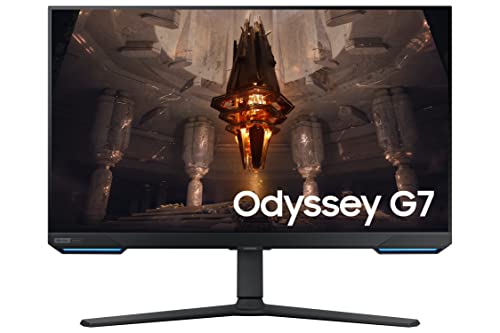
Samsung Odyssey G70B 32in — Best big-screen 4K 144Hz
The G70B is the immersion pick: 32 inches of flat IPS at 3840 × 2160, running 144Hz, with HDR400 support and both G-Sync and FreeSync compatibility confirmed in its listing. At this size, 4K changes character. Text is large enough at native scaling that many users can run the desktop at 100 percent and enjoy the full workspace the resolution offers — four document windows, a sprawling timeline, a strategy map that shows the whole theatre at once. Games, meanwhile, stop being something you look at and start being something you are inside, particularly the open-world and simulation titles that reward peripheral detail.
Samsung’s Odyssey execution brings the line’s gaming conveniences and a design that looks deliberate rather than assembled. The IPS panel delivers the wide viewing angles and colour consistency that a big screen needs — at 32 inches, the corners are far enough off-axis that a lesser panel technology would shift visibly — and variable refresh from either GPU camp keeps the heavy 4K frame rates composed when they fluctuate, which at this resolution is most of the time. HDR400, as throughout this class, is tone-mapping support rather than a backlight spectacle, and the review of the OLED below shows what the real thing costs.
The G70B’s asks are physical and computational: a desk deep enough to place it at proper distance, and a graphics card with flagship ambitions. Buyers upgrading from a 27-inch QHD screen should measure the desk before the wallet. For the reader whose room and hardware are ready, though, this is the guide’s most complete expression of the big-screen 4K 144Hz idea — the monitor that turns a gaming setup into a place.
There is a genre argument for the G70B that deserves its own paragraph. Simulation and strategy players — flight sims, city builders, grand-strategy maps, racing cockpits — gain more from screen acreage than any other tribe, because their games present worlds rather than viewpoints, and detail at the edges is information, not decoration. A 32-inch 4K panel shows the whole instrument panel, the whole front line, the whole city grid at a legibility no 27-inch screen matches, and it does so at a refresh rate that keeps panning across those worlds smooth. If your library leans that way, the size premium is not indulgence; it is interface.
- Panel: 32-inch IPS, 3840 × 2160, 144Hz
- Sync: G-Sync and FreeSync compatible
- Inputs: HDMI 2.1 class and DisplayPort
- Extras: HDR400 support, Odyssey gaming features
Strengths
- Thirty-two inches makes 4K’s workspace and immersion tangible without scaling compromises.
- Dual sync compatibility covers both GPU ecosystems.
- IPS angles suit a panel this wide, where corners sit well off-axis.
Trade-offs
- Needs desk depth and a flagship-class GPU to justify itself.
- IPS contrast is the class norm — good, not cinematic, in the dark.
- The largest footprint in this guide.
Best for: immersion-first players with deep desks and strong hardware. Not suited for: compact desks or mid-range systems.

LG 27GN950-B — Best 27-inch 4K 144Hz
The 27GN950-B is the monitor that defined this category, and it remains the reference against which 27-inch 4K gaming panels are judged. Its Nano IPS panel pairs 3840 × 2160 with 144Hz, and at 27 inches that density — well beyond what the eye can resolve into pixels at desk distance — produces the defining sensation of this class: an image with no visible structure, where text looks printed and game worlds look continuous rather than rendered. For the buyer whose desk splits between creative work and play, that density is not indulgence; it is the sharpest general-purpose canvas this guide offers.
Nano IPS brings LG’s wide-colour implementation, so the same panel that runs competitive titles at speed also renders films and photo work with saturated, confident colour. Response behaviour is the fast IPS kind the UltraGear line is known for, keeping the 144Hz honest in motion, and the design — slim bezels, a purposeful stand, the line’s signature accents — has the finished feel of a flagship that has had years to be understood by its owners. Every quirk of this model is documented somewhere by someone, which is a genuine ownership asset in a category this expensive.
Its compromises are generational rather than conceptual. Newer panels add higher rates or OLED contrast; the GN950’s own formula stays at 144Hz with IPS blacks that read grey in a dark room. Text at native scaling is small enough that most users will run operating-system scaling, surrendering a little of the workspace the resolution promises in exchange for legibility — a trade the 32-inch Samsung above avoids. But as the complete 27-inch answer to this guide’s brief, proven and precise, the GN950-B remains where we would point the buyer who wants the class’s essence without embellishment.
Consider also the GN950-B as the photographer’s gaming monitor, a combination rarer than it should be. Its density lets image work happen at honest resolutions, its colour covers the gamuts creative work actually uses, and its calibration behaviour across its long production life is documented by exactly the demanding users who would have exposed any weakness. Plenty of flagship gaming panels are unusable for serious image work; plenty of creator panels cannot game. This LG sits in the small intersection, and for the reader whose evenings alternate between a ranked queue and a photo library, that intersection is the whole decision.
- Panel: 27-inch Nano IPS, 3840 × 2160, 144Hz
- Sync: FreeSync Premium class / G-Sync Compatible class adaptive sync
- Inputs: HDMI and DisplayPort 1.4
- Extras: wide Nano IPS colour, flagship UltraGear design
Strengths
- Pixel density that makes text and game worlds look structureless.
- Wide colour serves creative work as well as games.
- A thoroughly proven flagship with a deep owner knowledge base.
Trade-offs
- Most users will need display scaling for comfortable text.
- IPS blacks are greyish in dark rooms, as the class dictates.
- Newer panels offer higher rates or OLED contrast at similar money.
Best for: mixed creative-and-gaming desks that want the sharpest 27-inch picture. Not suited for: dark-room contrast seekers, who should read the OLED review below.

Samsung Odyssey 27in 4K Smart — Best monitor-and-TV in one
This Samsung answers a question the other picks do not ask: what if the screen in the room is the only screen in the room? It is a 27-inch 4K IPS gaming panel at 144Hz with HDR400 and G-Sync compatibility — fully credentialed for this guide’s brief — with Samsung’s smart TV platform built in, so streaming services, and the living-room duties they imply, run on the monitor itself with no PC awake and no streaming stick in the HDMI port. In a studio apartment, a dorm room, a guest room or a compact home office that doubles as the evening’s entertainment space, that consolidation is not a gimmick. It is the product.
As a gaming monitor it keeps the Odyssey faith: fast IPS response for its class, the line’s gaming interface conveniences, and variable refresh to compose the fluctuating frame rates that 4K produces. As a television it does the things televisions do — apps, a remote-driven interface, instant-on viewing — at a size and sharpness that suit a small room better than a budget TV would. The dual identity does ask for small compromises in both directions: the smart platform adds menu layers a pure monitor avoids, and a dedicated television at this size would offer more living-room audio. Neither compromise touches the picture in a game or a film, which is where the money went.
Position it as the consolidation pick and it has no rival in this guide. The buyer with a separate TV and a dedicated gaming room should take the LG or the larger Samsung. The buyer whose one screen must be everything — work display at nine, ranked queue at seven, a film at ten without waking the PC — has exactly one name on this list, and it earned its place on panel credentials first and smart features second.
A practical consequence of the smart platform deserves emphasis: firmware and application updates arrive the way television updates do, and the screen’s second life is unusually graceful. When a future panel eventually takes the main desk, a smart monitor retires to a bedroom, a kitchen or a child’s room as a self-contained television in a way a dumb monitor never can. Buyers who think in total years of service — and at this category’s prices, they should — will find that second life shortens the effective cost of the first one considerably.
- Panel: 27-inch IPS, 3840 × 2160, 144Hz
- Sync: G-Sync compatible, adaptive sync
- Inputs: HDMI and DisplayPort
- Extras: built-in smart TV platform, HDR400 support
Strengths
- A genuine 4K 144Hz gaming panel that is also the room’s television.
- Streaming without a PC or stick suits small and shared spaces.
- Full gaming credentials; the smart layer costs the picture nothing.
Trade-offs
- Smart-platform menus add layers a pure monitor skips.
- Built-in audio is monitor-grade, not television-grade.
- Pointless premium for desks that already have a TV nearby.
Best for: one-screen rooms — studios, dorms, compact offices that relax in place. Not suited for: dedicated gaming rooms with separate entertainment screens.

Gigabyte MO27U2 — Above standard: QD-OLED at 240Hz
This pick requires the guide to be explicit with you: the MO27U2 is a 240Hz monitor in a 144Hz guide, included because excluding it would misrepresent the class. Its 27-inch QD-OLED panel runs 3840 × 2160 at up to 240Hz with FreeSync Premium Pro, and OLED changes the terms of every comparison in this article. Each pixel emits its own light and can switch fully off, so black is black — not the IPS approximation of it — and contrast in dark scenes is not a specification but an experience: stars against space, headlights against night roads, horror games that finally look the way their lighting designers intended.
Motion is the second OLED dividend. Pixel response on OLED is effectively immediate beside any LCD, so at high refresh rates the image stays clean in movement without the overdrive tuning and artefacts LCD panels negotiate. At 240Hz that combination — perfect blacks, instant response, 4K density — is the current summit of gaming display technology in a desk-sized panel, and the MO27U2 carries FreeSync Premium Pro to keep its variable refresh certified and its HDR behaviour within AMD’s highest tier. Gigabyte’s execution adds the connectivity breadth its enthusiast monitors are known for.
The OLED cautions are real and belong in any honest review. OLED panels require care with static content — the desktop habits of leaving fixed bright elements on screen for thousands of hours carry a burn-in risk that LCD does not, mitigated by built-in panel-care routines that should be left enabled. Peak full-screen brightness trails good LCDs, suiting controlled room light over sunlit spaces. And it is priced as the flagship it is. None of that diminishes what it is: if the question is the best picture this guide can point to, the answer sits here, one standard above the brief.
One clarification for buyers cross-shopping OLED televisions: this is a monitor first, with a monitor’s brightness behaviour, a monitor’s port selection and a monitor’s assumption that you sit close. That focus is its strength at a desk — density and response a television cannot offer at this size — and the reason its HDR, while the most genuine in this guide, still plays by desktop rules. Judge it against the other panels on this page, where it wins the picture argument outright, rather than against a 55-inch living-room flagship it was never trying to be.
- Panel: 27-inch QD-OLED, 3840 × 2160, 240Hz
- Sync: FreeSync Premium Pro
- Inputs: HDMI 2.1 class and DisplayPort
- Extras: per-pixel light control, panel-care routines
Strengths
- Perfect blacks and contrast no LCD in this guide can approach.
- 240Hz with OLED response is the fastest clean motion here.
- Premium Pro sync and HDR conduct at the highest tier.
Trade-offs
- Static-content care is a real ownership duty LCD owners skip.
- Full-screen brightness suits controlled light, not sunlit rooms.
- Flagship pricing, above the IPS picks.
Best for: picture-quality absolutists with flagship systems and dim rooms. Not suited for: bright rooms, static-desktop all-day work, or cautious budgets.
LG 27GP950-B class — Prose-only: the successor line
LG followed the GN950 with the GP950 class, and the family relationship is the story: the same 27-inch 4K Nano IPS philosophy, refined with a higher overclocked refresh ceiling and HDMI 2.1 connectivity that made it the console-friendly flagship of its moment. We present it without a link because this batch’s pool verified the GN950-B listing directly, and the successor’s listings were not confirmed to the same standard — but a buyer who finds the GP950 class in stock at a fair price should understand it as the GN950’s argument, updated: density, colour and speed in the proportions this guide endorses, with the console case strengthened.
The practical difference in ownership is mostly at the margins — a little more refresh headroom in the lightest titles, a little more convenience with current consoles — which is why this guide’s linked LG recommendation remains the verified GN950-B rather than a chase after the newer badge. Model-year fever is expensive in this category; the class’s fundamentals were settled by the GN950 generation, and the GP950 polishes them. Verify the individual listing’s refresh and port claims if you buy one, as with any prose-only entry here.
There is also a timing argument for hunting this class now. As model lines age, their prices soften while their panels remain the same silicon that reviewers praised at launch, and the GP950 generation sits in exactly that window in many markets. The risk is stock: when a successor line sells through, it does not return, and the verified GN950-B in this guide is the safer standing recommendation for that reason. Treat the GP950 class as an opportunity to check for, not a plan to depend on.
- Panel class: 27-inch Nano IPS, 3840 × 2160, 144Hz with overclock headroom
- Sync: FreeSync Premium class, G-Sync Compatible class
- Guide status: a prose entry — hunt it via the model name
- Extras: HDMI 2.1 in the class’s main configurations
Strengths
- Refines a proven flagship formula with modern console connectivity.
- Same density-and-colour virtues as the linked LG pick.
- Overclock headroom for lighter competitive titles.
Trade-offs
- No verified purchase link in this guide.
- Gains over the GN950-B are incremental, not generational.
- Availability and pricing vary as stock ages.
Best for: buyers who find it well priced and value HDMI 2.1 console support. Not suited for: anyone who prefers the fully verified route.
Gigabyte M28U class — Prose-only: the value route
Every premium category has a model that drags its specification down towards ordinary budgets, and in 4K 144Hz that role belongs to Gigabyte’s M28U class: a 28-inch IPS panel at 3840 × 2160 and 144Hz with adaptive sync and the KVM-style connectivity Gigabyte builds its name on, sold for long stretches at prices that made reviewers check the specification twice. It is presented here without a link, as with the LG above, because this batch’s verified pool covered other models — but no honest map of this category omits the value route, and the M28U class is it.
The 28-inch size is its own small argument: a step up in presence from 27 inches, a step down in price pressure from 32, with density still far beyond anything text can complain about. The compromises against the flagships are the expected ones — colour and HDR conduct a tier below the Nano IPS and OLED picks, finish and features trimmed to the price — and they are the right compromises for the buyer whose alternative was not buying into 4K 144Hz at all. If you hunt one down, verify the specific listing’s sync certification and port versions, and you will own the category’s essential experience — the density, the speed, the sync — at its most accessible terms.
The M28U class also pioneered something the flagships later normalised: treating the monitor as the desk’s switching centre, with KVM functionality that lets one keyboard and mouse serve two machines through the screen. For the growing population whose desk hosts a work laptop and a gaming PC in shifts, that feature quietly deletes a whole category of cable-swapping annoyance, and its presence at this class’s price is a large part of why the M28U name carries the loyalty it does. Value, in this design, was never only about the panel.
- Panel class: 28-inch IPS, 3840 × 2160, 144Hz
- Sync: FreeSync Premium class adaptive sync — verify the listing
- Guide status: covered without a link; check retailer listings directly
- Extras: KVM-style switching in the class’s main configurations
Strengths
- The most accessible route into genuine 4K 144Hz.
- Twenty-eight inches balances presence and price well.
- Gigabyte’s connectivity habits suit multi-machine desks.
Trade-offs
- Colour and HDR a tier below the flagship picks.
- No verified link here; check the individual listing carefully.
- Trimmed finish compared with the premium models.
Best for: value hunters who want the real specification without flagship pricing. Not suited for: colour purists or buyers wanting a verified one-click route.
Is 27 inches or 32 inches the right size for 4K gaming?
The answer is a tale of two densities. At 27 inches, 4K produces a pixel density around the level print magazines are produced at, and the reward is an image of total smoothness — the natural choice for the mixed desk, where the same screen hosts text, images and games and sharpness serves them all. Its cost is scaling: operating systems will enlarge text for comfort, and while modern scaling is good, purists lose the one-to-one pixel mapping they paid for. At 32 inches, the density relaxes to merely excellent, scaling becomes optional, and the reward shifts to immersion and workspace — the natural choice for the games-first desk, the flight-sim rig, the strategy player who wants the map to be the room. Neither is the correct size for 4K in the abstract; each is correct for a different definition of what the screen is for. This guide stocks both philosophies — LG and the smart Samsung at 27, the G70B at 32 — because the category’s buyers genuinely divide along that line, and the honest guide follows the reader’s desk rather than the manufacturer’s roadmap.
How do you configure a 4K 144Hz setup so the hardware keeps up?
Three habits separate owners who love these monitors from owners who return them. First, cable discipline: use the supplied DisplayPort or full-bandwidth HDMI cable, in the primary port, and verify in the operating system that the panel is running its headline rate before judging any game. Second, settings realism in demanding titles: use the upscaling technologies your graphics card offers, which at 4K output resolution are remarkably effective, and treat native rendering as a target for lighter games rather than a point of pride. A 4K panel fed by intelligent upscaling at 110 frames looks better in motion than the same panel fed natively at 55. Third, sync always on: at this resolution, frame rates will fluctuate, and variable refresh is the difference between fluctuation you feel as smoothness and fluctuation you feel as judder. Owners who adopt those three habits discover what this category’s fans already know — the summit is habitable, as long as you climb it with the right equipment and honest expectations.
What does HDR actually deliver on these panels?
Set expectations by technology. On the IPS picks, HDR support — HDR400 in the Samsungs’ listings — means the panel accepts an HDR signal and tone-maps it within an LCD’s physical limits: colours can gain richness and highlights some presence, but the backlight cannot darken one region while brightening another, so the transformative contrast of true HDR stays out of reach. Films and games still look good; they look like excellent SDR with better manners. On the QD-OLED, the physics invert: every pixel is its own backlight, so an HDR highlight against darkness is genuinely, measurably different from anything the LCDs here can produce, and HDR games on the MO27U2 are the one place in this guide where the HDR label fully earns its letters. The buying rule follows: never pay an IPS premium for its HDR badge, and if HDR gaming is a primary motivation rather than a bonus, the OLED is not the extravagant option — it is the only honest one on this page.
How does a 4K 144Hz monitor change everyday desktop work?
Owners consistently report that the workday, not the game, is where the purchase justifies itself most often — simply because the workday is most of the screen’s life. Text at 4K density loses the faint fuzz that even good QHD panels show on close reading, and long documents become easier on the eyes in a way that is hard to quantify and easy to feel by Friday. Images and video timelines show detail without zoom gestures. At 32 inches, the workspace itself becomes the feature: a full document, its source, its comments and a browser can share the screen at legible sizes, which quietly deletes hundreds of window-switches a week. At 27 inches with scaling, the gain is purity rather than space — everything the size it was, only sharper. Either way, a screen bought for games that also happens to be the best work display its owner has used is a screen that gets recommended, and this category’s reputation rests as much on those weekday hours as on its weekend specifications.
How future-proof is a 4K 144Hz purchase, really?
More than most technology purchases, for a structural reason: display progress is slower than graphics progress, and this specification sits at the point where the two curves cross comfortably. A 4K 144Hz panel bought today will not be embarrassed by the next two graphics-card generations — it will be fed better by them, as upscaling improves and flagship power filters down. The connection standards it speaks, DisplayPort 1.4 with DSC and HDMI 2.1, are the same ones the industry continues to build around for this resolution class. The realistic obsolescence risk is not the specification but the panel technology conversation: OLED’s advance may tempt an IPS owner in four years, the way it tempts in this guide. That is a preference risk, not a performance one — the IPS picks here will still be producing the same excellent picture on the day their owners start browsing OLED listings. Buy this class expecting five to seven years of relevance, and its price divides into a much more reasonable annual figure than the checkout total suggests.
What should you verify in the first week with a 4K flagship?
Expensive panels deserve a structured first week. Verify the link first: confirm the operating system reports the full resolution at the full refresh rate, and that your chosen connection — DisplayPort with DSC or full-bandwidth HDMI — is the one in use, because a fallback mode can look identical on the desktop while quietly capping games. Verify the panel second: fill the screen with white to judge uniformity, then kill the room lights and look for backlight misbehaviour at the corners of the IPS picks, and confirm the Gigabyte’s OLED care features are switched on. Verify sync third, in a game with a swinging frame rate, watching for tearing that would mean the variable-refresh chain is broken somewhere between driver and panel. And verify the ergonomics last: at these sizes and weights, stand wobble on a light desk and viewing distance mistakes announce themselves within days, and both are fixable inside a return window and annoying forever outside one. A flagship that passes those four checks has earned its place; one that fails them has told you so while the telling was still free.
Why not an ultrawide instead?
Because the two formats answer different appetites, and the comparison deserves a fair hearing before this guide’s money is spent. A 3440 × 1440 ultrawide offers panoramic immersion and a seamless two-window workspace, and for simulation and cinematic games it is a genuine rival. But it carries fewer total pixels than 4K, its vertical height equals a smaller monitor’s, and content that assumes 16:9 — most video, many games’ interfaces, console output entirely — either letterboxes or stretches on it. The 16:9 4K panels in this guide are the universal format: every game, every console, every film and every application is designed for their shape, at the highest density mainstream hardware supports. Readers whose hearts are set on panorama should follow them to an ultrawide guide with our blessing; readers who want the format everything is made for, at flagship speed, are in the right article — and the 32-inch G70B, notably, recovers a good deal of the ultrawide’s sense of envelopment without surrendering the universal shape.
What about sound, hubs and the flagship extras?
At this tier the extras stop being garnish and start being infrastructure, because a flagship monitor anchors a flagship desk. USB hub and KVM functionality — Gigabyte’s standing habit, present in spirit across its entries here — matter when the screen serves a gaming PC and a work laptop in rotation, letting peripherals follow the picture instead of the owner’s cable hand. Audio matters differently: no pick in this guide should be bought for its speakers, the smart Samsung’s television role included, because a screen this good deserves the modest external speakers or headphones its owner almost certainly already owns. And the small firmware things — wake behaviour, input auto-switching, a menu that remembers your settings per input — are where flagship polish actually lives day to day. Our ordering weighted those behaviours where the models’ records reveal them, which is one more reason the proven designs score as they do against newer paper specifications.
How do you choose between the two Samsungs and the LG?
Three linked IPS picks, three different rooms. The LG 27GN950-B belongs in the study: a desk where work and play share hours, where colour accuracy earns money or grades photographs, where 27 inches is the size the room allows. The Samsung G70B belongs in the games room proper: a deeper desk, a single-purpose setup, a library of worlds to be inside rather than images to inspect. The smart Samsung belongs in the room that is all rooms — the studio flat, the spare bedroom that hosts guests and deadlines in the same week. Notice that the choice is not really about panels; all three are capable IPS implementations of the same specification. It is about the life around the panel, which is why this guide describes rooms and routines as much as response times. Name your room honestly and the shortlist resolves itself — and if your room is dark and your priority is the picture above all, scroll back to the OLED and accept its different set of terms.
What is the honest total cost of joining this class?
Readers deserve the arithmetic in one place. The monitor is the visible price; the class also quietly assumes a graphics card from the top of the market or a plan to own one, a cable of proper quality (supplied, mercifully, with these panels), possibly a sturdier arm or a deeper desk for the 32-inch pick, and the electricity of a flagship system run hard — none of which appears on the monitor’s product page. Set against that, the panel will outlast the card, the arm and arguably the desk, and it improves every hour spent in front of all of them. Our judgement, stated plainly: this class is worth its total cost to the reader who already lives at the top of the PC ecosystem and wants the display to stop being the bottleneck. It is not the place to begin an upgrade path; it is the place an upgrade path ends, which is why the guides to 1440p elsewhere in this series exist for everyone still climbing.
How does room light change which of these you should buy?
More than the specifications suggest, because flagship panels divide by how they handle photons. In a bright room with daylight on the desk, the IPS picks are the comfortable choice: their higher full-screen brightness and matte finishes keep the image assertive against ambient light, and their blacks — already greyish — lose nothing further to the room. In a controlled or dim room, the equation inverts: the IPS panels’ backlight glow becomes visible in dark content, while the OLED’s per-pixel control produces the contrast the space was built for, and its lower full-screen brightness stops mattering because the room asks for less. The smart Samsung adds a wrinkle — a one-screen room is often a lit room, with lamps and life around it — which its IPS panel handles gracefully. Before ordering, look at your room at the hour you play most. The answer to that glance is worth more than any single line in this guide’s comparison table, and it is the reason two otherwise similar readers can correctly choose opposite ends of this list.
Which settings should you change first on a 4K flagship panel?
Four adjustments, in the order owners wish they had made them. First, scaling: at 27 inches, set the operating system’s display scaling to the step that makes text match the size you are used to — most readers land one or two steps up — and resist the purist urge to run native sizes that strain your eyes for a theoretical sharpness your eyes cannot use. At 32 inches, try native first; many keep it. Second, the refresh and sync pair: confirm the headline rate in the OS, enable variable refresh in the driver, and set a frame cap a few frames below maximum for games. Third, colour mode: choose the panel’s standard or sRGB-oriented preset for mixed use, because the vivid gaming defaults flatter explosions and betray faces, photographs and films. Fourth, brightness for the room and hour, saved as your preset, with the OLED’s care features verified on rather than assumed. An hour spent this way on the first evening is the difference between a flagship that feels calibrated to your life and one that feels like a showroom — and unlike the purchase itself, it costs nothing but attention.
Comparison Table
| Monitor | Size / Panel | Refresh | Sync | Link status |
|---|---|---|---|---|
| Samsung Odyssey G70B | 32in IPS 4K | 144Hz | G-Sync and FreeSync compatible | Linked |
| LG 27GN950-B | 27in Nano IPS 4K | 144Hz | Adaptive sync, both camps | Linked |
| Samsung Odyssey 27in Smart | 27in IPS 4K | 144Hz | G-Sync compatible | Linked |
| Gigabyte MO27U2 | 27in QD-OLED 4K | 240Hz (above standard) | FreeSync Premium Pro | Linked |
| LG 27GP950-B class | 27in Nano IPS 4K | 144Hz + OC class | Premium class | Prose-only |
| Gigabyte M28U class | 28in IPS 4K | 144Hz | Premium class — verify | Prose-only |
Which mistakes do 4K high-refresh buyers make most?
The costliest is sequencing: buying the monitor first and discovering the graphics card, the cable and the desk were all part of the price. The second is leaving the panel at a default 60Hz through an unexamined setting or an elderly cable, then concluding the category is a scam — a conclusion we have seen reversed in minutes by a port change. Third is native-rendering pride: refusing upscaling on principle and playing flagship games at half the panel’s rate, when the upscaled image at full rate is better by every measure the eye can test. Fourth, OLED-specific: disabling the panel-care features on the MO27U2 because they interrupt, thereby volunteering for the risk they exist to manage. And fifth, size regret in both directions — the 32-inch panel on the shallow desk, the 27-inch panel bought by the immersion seeker. Every mistake on this list is avoidable in the reading, which is what the reading is for.
Final Recommendation
For the classic mixed desk, the LG 27GN950-B remains the centre of this category: the density, the colour and the proven flagship execution, at the size that serves work and play equally. If your room and your games argue for scale, the Samsung G70B’s 32 inches convert 4K from a specification into an environment, and it is our big-screen verdict. The smart Samsung owns the one-screen room outright. And the Gigabyte MO27U2 — labelled honestly as a 240Hz panel above this guide’s brief — is where buyers for whom picture quality outranks every other consideration should end their search, because its blacks and motion are simply the best this list contains. The prose-only LG GP950 and Gigabyte M28U classes serve the stock hunter and the value hunter respectively. Whichever summit you choose, arrive with the flagship graphics card, the right cable and the settings ritual this guide describes — at 4K and 144Hz, preparation is not pedantry; it is the difference between the best screen you have ever owned and the most expensive lesson your desk has taught you — and this class, prepared for properly, teaches the happier lesson for years.
Frequently Asked Questions
Can a mid-range graphics card run a 4K 144Hz monitor?
It can run the monitor, and for desktop work, video and lighter or competitive games it will do so beautifully. For demanding modern titles it will not sustain 144 frames per second at native 4K — no card does that universally — but with upscaling engaged and variable refresh smoothing the result, the experience remains strong. Buy this class of panel for a flagship card, or for the flagship card you realistically plan to own within the monitor’s long life.
Do PlayStation and Xbox consoles use the full 144Hz?
No — current consoles target up to 120Hz at 4K, and every pick here covers that fully over HDMI, with variable refresh supported on the consoles and individual titles that implement it properly. The headroom above 120Hz belongs to the PC. Console players should weight HDMI 2.1 support and, in the Samsung smart model’s case, the built-in streaming platform, more heavily than the difference between 144Hz and 240Hz.
What is DSC and do I need to worry about it?
DSC — Display Stream Compression — is the visually lossless compression that lets DisplayPort 1.4 carry 4K at high refresh rates. You do not need to manage it; the monitor and graphics card negotiate it automatically when the cable and ports are correct. Its practical implication is only this: if your high-refresh mode will not appear, the cable is the first suspect, because DSC needs a link of proper quality to negotiate over.
Is the OLED worth it over the IPS picks?
For picture quality in controlled light, yes, unambiguously: the MO27U2’s contrast and motion clarity are a category above. The trade is ownership care — panel-care routines, sensible static-content habits — and price. If your desk is a bright room running static applications all day, the IPS picks are the safer flagship; if your screen’s life is games and films in the evening, the OLED is the summit.
Why are two entries in this guide not linked?
Because links here are reserved for listings verified against this batch’s pool. The LG GP950 and Gigabyte M28U classes are genuine, respected members of the 4K 144Hz category, but no listing for either met the pool’s bar during this batch’s verification, so they appear as named alternatives with guidance on what to check in any listing you find — rather than wearing links we cannot stand behind.
Will a 4K monitor make my non-gaming work better?
At these densities, yes in a way owners consistently remark on: text renders with print-like edges, images show their full detail without zooming, spreadsheets hold more columns at legible sizes, code editors show more context above and below the line you are editing, and the workspace at 32 inches — or the scaled workspace at 27 — organises large projects comfortably. It is the rare and satisfying gaming flagship that is also, almost incidentally, the best work screen its owner has used, which is much of this category’s defence against its own price.
Should I wait for the next generation of 4K panels?
The standing answer in this category is no, for the structural reason given in this guide: panels evolve slowly, this specification is the current plateau, and a screen bought now will be fed better by future graphics cards rather than stranded by them. Waiting buys a marginally improved panel at the cost of years of the best current one — a trade that only makes sense if a specific announced model answers your specific need, which is a rarer situation than release cycles make it feel.
Is 4K worth it for competitive shooters specifically?
For most competitive players, honestly, it is not the first place the money should go: frame rate and response outrank resolution when rankings are at stake, and the 1440p high-refresh class serves that tribe better. The exception is the player whose competitive life is serious but not professional, and who refuses to keep two screens — for them, a 4K 144Hz panel’s ability to run lighter competitive titles at full speed while rendering everything else beautifully is a legitimate one-screen answer.
Related Guides
Compare the neighbouring classes in our guide to the best 1440p gaming monitors, explore the wider field in our roundup of the best 4K monitors for work and play, and read our explainer on OLED versus IPS gaming panels before choosing a technology.
Related guides
- Best 1440p 165Hz Monitors: One Native 165Hz Pick, Three 180Hz Upgrades, an Overclock Headline and a 160Hz Ultrawide
- Best 144 Hz 27in Monitors: Six 27-Inch Screens That Go Beyond the Label
- Best 1440p IPS Monitors
- Best 1080p Monitors 120Hz: Two Native 120Hz Picks, a Labelled 100Hz Comfort Option and Honest Headroom Above the Rate