What's inside
- Where to Buy, and What a $100 Gaming Monitor Can Honestly Do
- Key Takeaways
- Quick Picks
- How Did We Choose Monitors for a Hundred-Dollar Gamer?
- Which Cheap Monitor Deserves Your Desk?
- How Do the Best 100 Dollar Gaming Monitors Compare on Paper?
- What Are You Actually Giving Up at This Price?
- How Do You Set Up a Budget Monitor for Its Best Performance?
- Which Buying Mistakes Haunt the Budget Tier?
- Should Console Players Shop Differently at This Budget?
- Final Recommendation
- How Long Will a Budget Monitor Serve Before It Feels Old?
- Should a Budget Gamer Ever Choose 1440p Instead?
- How Do You Catch a Stretch Pick Without Breaking the Budget’s Spirit?
- Which Games Actually Benefit From Each Refresh Tier?
- What Do Response Time and Overdrive Mean on a Cheap Panel?
- How Does a Budget Monitor Fit a Laptop-Gaming Setup?
- What Should You Know About Dead Pixels and Budget Warranties?
- Frequently Asked Questions
- Related Guides
As an Amazon Associate I earn from qualifying purchases. This post may contain affiliate links at no extra cost to you.
gizmoverdict.com is reader-supported. When you buy through links on our site, we may earn an affiliate commission.
Where to Buy, and What a $100 Gaming Monitor Can Honestly Do
The best 100 dollar gaming monitors exist in a price bracket that demands honesty before enthusiasm. Around the hundred-dollar mark you are not buying esports hardware; you are buying a competent 1080p screen that will not embarrass your games, and the difference between a good one and a bad one is not resolution — they are nearly all 1920×1080 — but refresh rate, panel behaviour and the small ergonomic mercies that decide whether a cheap monitor feels like a bargain or a punishment.
None of this makes the bracket a consolation prize. It makes it a discipline: at a hundred dollars you must know which specifications are load-bearing and which are decoration, because the market will happily sell you decoration at load-bearing prices. This guide’s job is to keep your money on the load-bearing parts — panel, refresh, sync, stand, warranty — and the picks below were audited in that order.
Here is the landscape stated plainly, because this guide will not pretend otherwise: at this budget, 60Hz to 100Hz is the normal range, and the screens that reach it with an IPS panel and adaptive sync are the ones worth your money. Genuinely high-refresh gaming panels — 144Hz, 180Hz — live above this bracket, and the two picks in this list that touch those speeds are included as stretch options: models that rank among the cheapest ways into high-refresh gaming when they drift toward this territory during sales, not as guaranteed hundred-dollar fixtures. We label them as such rather than dressing them in a price they do not reliably wear.
It is also worth saying who this bracket serves best, because it is a wider congregation than the stereotype suggests: the student whose gaming PC was assembled from patience, the parent equipping a first desk, the console player graduating from the family television, the older gamer returning to the hobby without wanting a second mortgage attached. Their shared requirement is not cheapness — it is proportionality, the sense that the screen’s cost matches its role in their life.
What the budget does buy, reliably, is a far better gaming experience than the ageing office monitor or television most people start with: lower input lag than a TV, a proper DisplayPort or HDMI connection for your PC or console, colours that do not wash out when you lean back, and in the best cases here, a stand that adjusts and speakers that spare you headphones for casual play. Six monitors follow, ranked for the gamer whose budget is real and whose expectations deserve respect rather than flattery — and each is judged by the same standard we would apply to our own desks, because several of the desks behind this guide have, at one time or another, run exactly this class of screen.
Key Takeaways
- BenQ’s GW2490 is the budget’s sweet spot: a 100Hz IPS panel with eye-care features that games far above its class.
- Acer’s Nitro VG240Y is the classic entry pick, pairing a 75Hz IPS screen with FreeSync for tear-free budget PC gaming.
- HP’s 24mh buys ergonomic dignity at this price — height adjustment and built-in speakers most rivals skip.
- ViewSonic’s VX2428A and AOC’s 24G4 are stretch picks: 180Hz panels that are among the cheapest routes to high-refresh play when discounted.
- BenQ’s GW2480 is the 60Hz eye-comfort choice for mixed work and play where long hours matter more than frame rates.
- At this budget, spend on panel type and refresh rate first; speakers, RGB and exotic stands are where cheap monitors hide their compromises.
Quick Picks
| Monitor | Award | The case for it |
|---|---|---|
| BenQ GW2490 | Best Overall at the Budget | 100Hz on an IPS panel with thoughtful eye care — the most complete cheap gaming screen here. |
| Acer Nitro VG240Y | Best Classic Budget Pick | A 75Hz FreeSync IPS from Acer’s gaming line, proven by years of budget builds. |
| HP 24mh | Best Ergonomics | Height and tilt adjustment plus built-in speakers, rarities at this end of the market. |
| ViewSonic VX2428A | Best Stretch Pick | A 180Hz Fast IPS panel — among the cheapest ways into genuinely high-refresh gaming. |
| AOC 24G4 | Best Stretch Alternative | Another 180Hz Fast IPS with a strong warranty, for the gamer who can flex the budget. |
| BenQ GW2480 | Best for Eye Comfort | A 60Hz IPS with mature eye-care technology for long mixed work-and-play days. |
How Did We Choose Monitors for a Hundred-Dollar Gamer?
We started by defining what gaming needs at minimum, because at this budget every feature is a trade against another. The panel must be IPS or a comparable wide-viewing technology — the cheap TN and VA panels of previous budget generations smeared motion and shifted colour in ways that genuinely harmed play, and modern IPS has reached this price, so there is no longer a reason to accept them. The refresh rate must exceed the 60Hz of a borrowed office screen, or the monitor is not a gaming purchase at all; 75Hz is the floor we accepted, 100Hz is the class leader, and the two 180Hz models are labelled stretch picks for what they are.
Adaptive sync came next. FreeSync support, present on the Acer and both stretch picks, eliminates screen tearing without the price premium of hardware G-Sync modules, and at the frame rates budget PCs produce — fluctuating between 45 and 90 in demanding titles — tearing and judder are the exact artefacts you will see most. A cheap monitor with sync will feel smoother than a slightly faster one without it, which is the kind of sentence that sounds like marketing until you play a racing game on both.
Finally we audited the whole product: stand adjustment, because a cheap monitor on a stack of books is a false economy your neck pays for; inputs, because console and PC households need both HDMI and DisplayPort; and the maker’s warranty and dead-pixel reputation, because at this price the difference between brands is less the panel — often literally shared — than the company standing behind it. The six below are the survivors of that audit, presented in the order we would spend a strict budget first.
Which Cheap Monitor Deserves Your Desk?

BenQ GW2490 — Best Overall at the Budget
The GW2490 is what happens when a manufacturer known for office monitors notices the gamers shopping at this price and decides to win them properly. Its 24-inch IPS panel runs at 100Hz — a figure that would have been a premium gaming specification not long ago — and that refresh rate transforms the feel of everyday play: camera pans stop strobing, menus and cursors glide, and fast games gain a fluidity that a 60Hz screen physically cannot offer, regardless of its other virtues. At this budget, 100Hz on a good IPS panel is the specification to beat, and nothing else in the strict-budget tier beats it.
BenQ’s eye-care heritage fills out the rest of the product thoughtfully. Low Blue Light modes, flicker-free backlighting and an adaptive brightness sensor address the reality that a gaming monitor at this price also serves as a work and study screen for eight hours before the gaming starts. The thin-bezel design suits multi-monitor ambitions later, the VESA mount accepts an arm when the desk evolves, and built-in speakers handle call audio and casual video without ceremony. It lacks adaptive sync branding, which is its one gaming-relevant omission, but the 100Hz headroom forgives much of what tearing would otherwise show.
Position it as the default recommendation and it holds up: if your budget is firm and you want the single most complete screen it can buy — for games first, and for everything else without apology — this is the monitor. Students in shared rooms, first-time PC builders, and console players whose televisions lag will all feel the upgrade immediately, and unlike many budget legends, the GW2490’s virtues do not depend on catching it during a sale.
- Panel: 24-inch IPS, 1920×1080
- Refresh rate: 100Hz
- Eye care: Low Blue Light, flicker-free, adaptive brightness
- Mounting: VESA compatible, thin-bezel design
- Audio: built-in speakers
Strengths
- 100Hz refresh leads the strict-budget class
- Eye-care features suit long mixed-use days
- Clean design that grows into multi-monitor setups
Trade-offs
- No headline adaptive-sync feature for tear control
- Stand offers tilt rather than full adjustment
- Speakers are convenient, not powerful
Best for: Budget gamers who also work and study at the same screen all day. Not suited for: Competitive players chasing the highest possible refresh rates.

Acer Nitro VG240Y — Best Classic Budget Pick
Some budget products earn their reputation the slow way, build by build, dorm room by dorm room. The VG240Y is the monitor a generation of first PC builds started on: a 23.8-inch IPS panel at 75Hz with AMD FreeSync, two HDMI ports and a VGA input for legacy machines, wrapped in the zero-frame styling of Acer’s Nitro gaming line. Its specifications are modest and honestly stated — 75Hz is a step above 60Hz rather than a leap — but the combination of IPS colour, adaptive sync and a 1ms visual-response boost mode made it the default answer to “what screen for my first gaming PC” for years, and the reasoning still holds.
FreeSync is the feature to appreciate here. Budget gaming PCs and older consoles produce uneven frame rates, and uneven frame rates on a fixed-refresh screen tear and stutter in ways that feel like the computer’s fault. Sync aligns the display to the game instead, and at 75Hz with FreeSync the VG240Y delivers a smoothness that its raw numbers undersell. The IPS panel keeps colours honest from off angles — relevant when a friend pulls up a chair — and the response behaviour is clean enough for the casual and mid-core play this monitor will actually host.
Its compromises are the familiar ones of its generation: a tilt-only stand, no DisplayPort, and brightness that suits indoor rooms rather than sun-flooded ones. None of these is a surprise at the price, and the monitor’s long production life means accessories, settings advice and replacement parts are everywhere. If the GW2490 is the budget’s present, the VG240Y is its proven past that still earns a place on the desk — particularly for AMD-based budget builds where FreeSync does its best work.
- Panel: 23.8-inch IPS, 1920×1080
- Refresh rate: 75Hz with AMD FreeSync
- Inputs: 2× HDMI, 1× VGA
- Response: 1ms VRB mode
- Design: zero-frame bezels, tilt stand
Strengths
- FreeSync smooths the uneven frame rates of budget PCs
- Proven, widely supported design with years of track record
- Dual HDMI suits a PC-plus-console desk
Trade-offs
- 75Hz trails the 100Hz class leader
- No DisplayPort input
- Tilt-only stand, no height adjustment
Best for: First gaming PCs, especially AMD builds, and console-plus-PC desks on a firm budget. Not suited for: Players who already know they want 144Hz or higher.
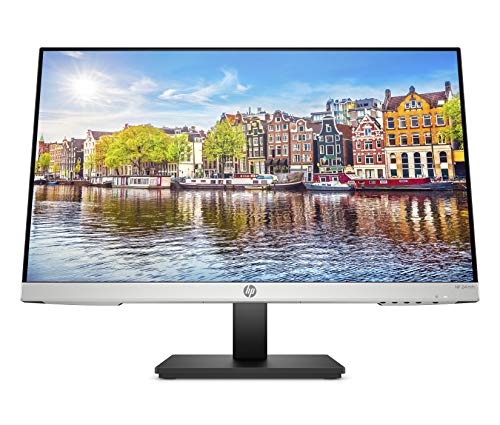
HP 24mh — Best Ergonomics
The 24mh makes an argument most gaming monitors at any price forget: you sit in front of the thing. HP built this 23.8-inch IPS display with height and tilt adjustment — a stand specification that budget gaming screens routinely omit — plus built-in speakers that are genuinely usable rather than decorative. For the gamer whose monitor also hosts schoolwork, a job, or a household’s shared computing, those ergonomic facts can matter more than a handful of extra hertz, because discomfort compounds daily while refresh rates merely impress.
As a gaming screen it is honest mid-field: 75Hz refresh, Full HD resolution, IPS viewing angles, and both HDMI and DisplayPort inputs — the DisplayPort being a welcome inclusion the Acer above lacks, and the one to use with a PC when you can. Response performance is tuned for the casual-to-regular play this monitor will see rather than tournament brackets, and in that parish it is entirely convincing: strategy titles, RPGs, racers and mainstream shooters all look clean and play smoothly, with colours that stay true when you lean back in a chair the stand helped you sit in properly.
Consider who should choose it deliberately. A parent buying a first monitor for a teenager’s desk, an adult whose gaming shares hours with remote work, a household that wants one screen to do everything without a separate speaker purchase — these buyers will use the height adjustment and speakers every single day, which is more than can be said for a marginal refresh advantage. The 24mh is the grown-up’s budget monitor, and its gaming competence is real even if its priorities are broader.
- Panel: 23.8-inch IPS, 1920×1080
- Refresh rate: 75Hz
- Stand: height and tilt adjustment
- Inputs: HDMI and DisplayPort
- Audio: built-in speakers, VESA mounting supported
Strengths
- Height adjustment almost unheard of at this budget
- Usable built-in speakers simplify a shared desk
- DisplayPort included for proper PC connection
Trade-offs
- No adaptive sync for tear-free variable frame rates
- 75Hz is a step, not a leap, above basic screens
- Design is office-first rather than gaming-styled
Best for: Shared desks, students and work-from-home gamers who value posture and simplicity. Not suited for: Competitive players or FreeSync devotees.

ViewSonic VX2428A — Best Stretch Pick
Now for the honest stretch. The VX2428A is a 24-inch Fast IPS gaming monitor running at 180Hz with a half-millisecond response figure, FreeSync, HDR10 support and both HDMI and DisplayPort — a specification list that belongs to a higher price class, and one this guide will not pretend is a permanent resident of the hundred-dollar shelf. It appears here because it is among the cheapest ways into genuinely high-refresh gaming when pricing softens, and because the gamer reading a budget guide deserves to know what a modest stretch actually buys: not a slightly better screen, but a different category of motion clarity.
The difference between 100Hz and 180Hz is not subtle in the genres that reward it. In fast shooters and racing games the image holds together during rapid turns, targets stay readable mid-flick, and the connection between mouse and cursor feels less mediated. ViewSonic’s Fast IPS panel delivers that speed without surrendering the viewing angles and colour behaviour that make IPS the right default, and the inclusion of console-friendly features acknowledges where many budget gamers actually play. Eye-care provisions and an anti-glare finish keep long sessions civilised.
The buying advice is procedural: if your budget is absolutely fixed, the GW2490 above is your monitor and this section is a postcard from a pricier country. If your budget has any flex — a sale, a birthday, a month of patience — the VX2428A is the kind of purchase that postpones its own replacement by years, because a 180Hz 1080p screen remains satisfying long after a 75Hz one starts feeling like the bottleneck. Judge it as the cheapest ticket to the high-refresh tier rather than as a budget monitor, and it is an easy recommendation to defend.
- Panel: 24-inch Fast IPS, 1920×1080
- Refresh rate: 180Hz, FreeSync
- Response: 0.5ms class
- Inputs: HDMI and DisplayPort
- Note: a stretch pick — priced above the strict budget at times
Strengths
- True high-refresh gaming without the usual tier jump
- Fast IPS keeps colour and angles at speed
- Console and PC both properly served by its inputs
Trade-offs
- Price regularly sits above the hundred-dollar brief
- Stand adjustment is basic for the class
- HDR10 at this level is a checkbox, not a transformation
Best for: Competitive-leaning players who can stretch for a screen that will last. Not suited for: Absolutely fixed budgets — take the GW2490 instead.

AOC 24G4 — Best Stretch Alternative
AOC built its name in exactly this territory — gaming monitors that undercut the famous brands by being sensible about where money shows. The 24G4 is a 24-inch Fast IPS display at 180Hz with a 1ms response class, HDR support, Adaptive-Sync for both major GPU families, DisplayPort 1.4 and HDMI 2.0, and a three-year warranty that AOC publicises because budget buyers have been burned before. Like the ViewSonic above, it is a stretch pick: among the cheapest credible ways into 180Hz gaming when its price dips toward this bracket, rather than a monitor that lives at a hundred dollars year-round.
On the desk, the 24G4’s gaming credentials are complete in the ways that matter. The Fast IPS panel keeps motion clean at speed, the sync range smooths the frame-rate dips of mid-range graphics cards, and the input selection covers a modern PC and a current console simultaneously. AOC’s gaming menus include the usual crosshair and shadow tools; use them or ignore them, but the panel underneath them is the substance. Colour coverage is generous for the class, which makes the monitor a reasonable double agent for photo browsing and media between matches.
Choose between this and the ViewSonic by the details that touch your desk: warranty confidence and menu preference argue AOC; ViewSonic’s slightly faster headline response argues the other way. Both are the same strategic purchase — escaping the budget tier’s compromises for a screen your next two PCs will still respect. If you find either within reach of your budget during a promotion, the guidance of this guide is unambiguous: the stretch is the smartest money in the entire list, because refresh rate is the one specification you cannot upgrade later without replacing the monitor.
- Panel: 24-inch Fast IPS, 1920×1080
- Refresh rate: 180Hz, Adaptive-Sync
- Inputs: DisplayPort 1.4, HDMI 2.0
- Warranty: 3-year cover highlighted by AOC
- Mounting: VESA compatible
Strengths
- Full 180Hz gaming specification at stretch money
- Three-year warranty is rare confidence at this level
- Sync and inputs cover PC and console completely
Trade-offs
- Normally priced above the strict hundred-dollar brief
- Stand is functional rather than fully ergonomic
- Design language is plainly gamer-oriented
Best for: Players planning to keep one monitor through several PC upgrades. Not suited for: Buyers whose budget cannot move at all.

BenQ GW2480 — Best for Eye Comfort
The GW2480 closes the list by defending an unfashionable priority: the health of the person watching. It is a 24-inch IPS monitor at 60Hz — the only pick here that does not raise the refresh rate — and it earns its place through BenQ’s mature eye-care suite: flicker-free backlighting, Low Blue Light modes, and a brightness sensor that adapts the screen to the room’s light so you are not squinting at a beacon during evening sessions. For the player whose gaming is woven through long days of reading, writing and working at the same desk, those features are not decoration; they are the difference between a screen that tires you and one that disappears.
Its gaming is honest, baseline competence. Sixty hertz at 1080p with an IPS panel covers an enormous library of games beautifully — strategy, simulation, RPGs, indie titles, older classics — and the panel’s colour and viewing angles shame the TN screens of the budget past. What it will not do is flatter fast competitive play, and this guide will not pretend otherwise; if your main game is a twitch shooter, the GW2490’s extra refresh is the better spend of the same general money. The GW2480’s person is different: the mixed-use household, the home office that games after hours, the reader who plays.
There is a systems argument for it too. A monitor bought for eye comfort tends to be kept, because it never becomes the thing hurting you at hour six; and its DisplayPort, HDMI and VGA spread makes it the most legacy-friendly screen here for households with older machines. Treat the GW2480 as the budget’s comfort pick — the screen for people whose screen time is measured in decades and who would like their eyes to last that long too.
- Panel: 24-inch IPS, 1920×1080
- Refresh rate: 60Hz
- Eye care: flicker-free, Low Blue Light, ambient brightness sensor
- Inputs: DisplayPort, HDMI, VGA
- Audio: built-in speakers
Strengths
- Best-in-list eye comfort for very long days
- Adaptive brightness quietly prevents eye strain
- Legacy-friendly inputs for mixed households
Trade-offs
- 60Hz is the floor for gaming, not an advance
- No adaptive sync
- Fast competitive titles deserve a faster pick
Best for: Mixed work-and-play users, readers, and households with older PCs alongside the gaming rig. Not suited for: Competitive shooter players.
How Do the Best 100 Dollar Gaming Monitors Compare on Paper?
| Monitor | Panel | Refresh | Sync | Standout trait |
|---|---|---|---|---|
| BenQ GW2490 | 24″ IPS | 100Hz | — | Budget-class refresh leader |
| Acer Nitro VG240Y | 23.8″ IPS | 75Hz | FreeSync | Proven budget gaming staple |
| HP 24mh | 23.8″ IPS | 75Hz | — | Height-adjustable stand |
| ViewSonic VX2428A | 24″ Fast IPS | 180Hz | FreeSync | Cheapest route to high refresh |
| AOC 24G4 | 24″ Fast IPS | 180Hz | Adaptive-Sync | 180Hz with 3-year warranty |
| BenQ GW2480 | 24″ IPS | 60Hz | — | Eye-care and brightness sensing |
What Are You Actually Giving Up at This Price?
An honest inventory helps more than a sales pitch. First, refresh ceiling: the strict-budget tier tops out around 100Hz, so the buttery 240Hz motion of dedicated esports screens is simply not on this menu, and 144Hz — the traditional gaming sweet spot — generally requires the stretch into the territory the ViewSonic and AOC picks represent. Second, resolution headroom: everything here is 1080p, which is sharp on a 24-inch screen and kind to budget graphics cards, but it will not grow with you into a high-end GPU the way a 1440p panel would. Third, HDR in name only: several budget monitors accept an HDR signal, but without the brightness and local dimming to render it, the feature is a compatibility note rather than a visual upgrade, and you should leave it off without regret.
Fourth, the physical product thins out. Stands tilt rather than glide, plastic replaces metal, speakers are present rather than good, and the on-screen menus are navigated with buttons that remind you of the price. Fifth, quality control varies more at this level: dead pixels, backlight bleed at the corners and coil whine exist in the budget population at rates the premium tiers engineer away, which is why the return-window discipline in a later section matters and why brand warranty — AOC’s three years, BenQ’s and HP’s service networks — is a genuine specification at this price rather than a footnote.
And yet the counterweight is real: the modern budget IPS panel is so competent that the gaming experience per dollar has never been better. You are giving up the extremes — the fastest, the sharpest, the most luxurious — not the essentials. A 100Hz IPS with good colour is not a compromise you endure; for the majority of games and gamers it is simply a good monitor, and the two stretch picks exist for the minority whose favourite titles genuinely reward more.
How Do You Set Up a Budget Monitor for Its Best Performance?
Begin with the setting most owners never find: the refresh rate itself. Windows and consoles do not always default to a monitor’s maximum, so open your display settings and confirm the panel is actually running at its rated speed — a 100Hz or 180Hz monitor idling at 60Hz is the most common own-goal in budget gaming. Connect with the right cable while you are there: DisplayPort for PCs chasing high refresh, the HDMI cable that came in the box rather than a decade-old one from a drawer, because cable generations quietly cap what the screen can receive.
Then enable the sync you paid for. FreeSync and Adaptive-Sync usually need switching on in the monitor’s menu and in your graphics driver’s control panel, and variable-refresh on consoles lives in their system settings too. Set the monitor’s response or overdrive control to its middle setting — the fastest modes on budget panels often trade smearing for inverse ghosting, bright halos trailing moving objects, and the balanced mode is the one reviewers would choose for you. Turn off the dynamic contrast and eco features that pump brightness mid-game, set brightness for your room rather than the showroom, and if the monitor offers a low-blue-light mode, schedule it for evening work rather than wearing it during colour-critical play.
Finish with placement, which costs nothing and pays daily. The top of the screen should sit near eye level — the HP’s stand does this natively; the others may want a book, a box or eventually a VESA arm — roughly an arm’s length away, with no window directly behind it competing with the image. Spend the ten minutes once, and the budget monitor stops feeling budget in every way except the receipt.
Which Buying Mistakes Haunt the Budget Tier?
The first is chasing a single number. A cheap monitor advertising an extreme response figure or a dubious HDR badge while hiding a mediocre panel catches buyers every season; the hierarchy that protects you is panel type, then refresh rate, then sync, then everything else. The second is buying a TN panel in this decade to save a small amount — the colour shift and viewing angles will tax every game and every film for years to save very little once. The third is ignoring the stand until your neck files its report: a tilt-only monitor is fine if a VESA arm or a riser is part of the plan, and a quiet liability if the plan was hoping.
Fourth, budget buyers forget the cable and port audit. A monitor with only HDMI is a fine console screen and an awkward high-refresh PC screen; a PC with only DisplayPort outputs makes the reverse mistake. Walk your desk’s connections before ordering. Fifth, the stretch picks seduce people into breaking a genuinely fixed budget for refresh rates their PC cannot feed — a 180Hz monitor behind a graphics card that produces 70 frames per second is a picture frame for frames that never arrive, and in that household the GW2490 plus a game or two is the wiser allocation. Finally, skipping the first-week inspection: check for dead pixels on solid colours, bleed on a black screen in a dark room, and confirm the rated refresh is reachable, all while the return is still painless. Budget quality control is a lottery you are allowed to redraw once — but only in week one.
Should Console Players Shop Differently at This Budget?
Yes, in three specific ways. First, know your console’s ceiling: current consoles target 60 frames per second in most titles with some offering 120Hz modes, while older consoles are 60Hz machines outright — which makes the 75Hz and 100Hz picks here perfectly matched rather than inadequate, and the 180Hz stretch picks a purchase for the PC you may build later rather than the console you own today. Second, prioritise HDMI count and behaviour: a monitor that wakes with the console, handles its HDR signal gracefully even if the panel’s HDR is modest, and offers speakers or a headphone jack for late sessions serves console life better than a DisplayPort-heavy PC specialist.
Third, sit closer than television habits suggest. A 24-inch 1080p screen at desk distance is sharper in practice than a large cheap TV across a room, with dramatically lower input lag, which is why so many console players who try a desk monitor for shooters never return to the sofa for those titles. The HP 24mh and BenQ GW2490 both make quiet sense as console screens — speakers built in, HDMI ready, nothing to configure — while the stretch picks future-proof the same desk for a gaming PC. The budget is small; the improvement over a laggy living-room TV is anything but.
Final Recommendation
Spend a strict hundred-dollar-class budget on the BenQ GW2490 and do not look back: 100Hz on a proper IPS panel with real eye care is the most complete answer this tier offers, and it serves work and study as faithfully as it serves play. The Acer VG240Y remains the classic alternative when FreeSync matters most, the HP 24mh is the ergonomic conscience of the list, and the BenQ GW2480 protects the eyes of the mixed-use household. Then there is the stretch: if any flexibility exists at all, the ViewSonic VX2428A or AOC 24G4 converts this purchase from a budget compromise into a multi-year fixture, and that conversion is the best value decision in the guide.
If you are buying for someone else — a first gaming setup for a teenager, a dorm room, a household’s shared PC — the same order of priorities protects you from the gift that disappoints: the GW2490 for the generalist, the HP for the shared desk, the stretch picks for the enthusiast whose eyes will know the difference. Whichever you choose, set it up properly in its first hour — full refresh rate, sync enabled, sensible overdrive — and inspect it in its first week. A budget monitor chosen with open eyes and configured with care is not a lesser gaming experience; for most players, most nights, it is simply the right one, and the money saved is a game library waiting to happen.
How Long Will a Budget Monitor Serve Before It Feels Old?
Physically, longer than you expect: LED-backlit IPS panels do not wear out on a gaming timescale, and a budget monitor bought today will very likely still light up in a decade. The obsolescence is experiential rather than mechanical. A 75Hz or 100Hz screen starts feeling old when the rest of your setup outgrows it — a new graphics card that could drive 1440p or 180Hz, a console generation that standardises higher frame rates, a friend’s faster screen that recalibrates your eyes in one evening. That is the strategic argument threading this whole guide: the monitor is the component you look at for five-plus years, which is why the stretch picks, when reachable, are disproportionately wise, and why within the strict budget the 100Hz leader ages more gracefully than the 60Hz laggard.
There is a graceful retirement path that softens the decision. A budget 1080p monitor demoted from main screen becomes an excellent second display — chat, guides, streams and system monitoring beside a future primary — and every pick here with VESA mounting makes that transition a five-minute job. Households find second lives for them too: a child’s first desk, a spare room, a workshop screen. Buy the strict-budget pick with that destiny in mind and the purchase never becomes waste; it becomes the first chapter of a setup that grows, which is a far better story than the premium monitor bought on credit and resented monthly.
Care extends the honeymoon. Keep brightness at the level your room needs rather than maximum — backlights age with use — dust the vents, avoid leaving a static image on screen for days, and use the sleep settings your operating system offers. None of this is precious; it is simply the difference between a monitor that looks tired in year four and one that gets demoted, still handsome, because your ambitions outgrew it rather than because it faded first.
Should a Budget Gamer Ever Choose 1440p Instead?
The temptation is understandable — 1440p is the resolution the enthusiast internet treats as standard — but at this budget it is usually the wrong trade, and it is worth understanding why. A hundred-dollar-class 1440p monitor, where one can be found, buys its pixels by surrendering refresh rate, panel quality or both, landing you with a sharper image that moves worse. Games are motion; the exchange is rarely kind. Worse, 1440p asks roughly eighty percent more work from your graphics card than 1080p, so the budget PC that ran your favourite shooter beautifully at 1080p now produces the frame rates that make adaptive sync earn its keep at the bottom of its range.
The exceptions prove the rule by their circumstances. If your gaming is dominated by slow, beautiful titles — strategy, simulation, story adventures — and your graphics card is a tier above your monitor budget, a sharp screen at 60Hz can be the right personal answer, though it is a different guide’s answer rather than this one’s. If you plan a major PC upgrade within the year, buying the monitor for the future machine is defensible in a way it is not for a static setup. But for the gamer this keyword describes — real budget, games that move, hardware that matches the screen — 1080p at the highest refresh the money reaches is the configuration that will make you smile nightly, and the six picks above are ordered by exactly that logic.
How Do You Catch a Stretch Pick Without Breaking the Budget’s Spirit?
Since the two 180Hz picks in this guide live above the strict budget and visit it, timing becomes a legitimate buying skill. Monitor pricing moves in seasons: the big retail events, the back-to-school window and the weeks when a successor model launches all push capable screens downward, and a model like the VX2428A or 24G4 that is out of reach in a quiet month can land inside a stretched budget in a loud one. The disciplined method is to decide your ceiling first — the honest maximum, not the hope — set alerts for the two or three models you have already researched, and buy the moment a researched model crosses your line rather than improvising toward an unfamiliar screen that merely looks discounted.
Refurbished and open-box channels deserve a mention for the same reason: monitors are among the safest refurbished purchases in technology, since a panel either lights correctly or visibly does not, and the inspection routine described in this guide applies within the return window exactly as it does for new stock. What you should not do is let a promotion talk you out of the fundamentals — a discounted TN panel is still a TN panel, and a no-name screen with a heroic specification sheet and a three-month warranty is a lottery ticket wearing a monitor’s clothes. The budget’s spirit is not the lowest number; it is the most gaming per unit of money over the years you will actually sit there, and patience spent on a known model serves that spirit better than urgency spent on a stranger.
Which Games Actually Benefit From Each Refresh Tier?
Matching the screen to the library is the budget gamer’s real skill, because refresh rate pays out unevenly across genres. Competitive shooters, fighting games and racing titles live on motion clarity and input immediacy; they convert every additional hertz into information your hands can use, and they are the reason the stretch picks exist. For a player whose evenings are ranked matches, the jump from 75Hz to 180Hz is not a luxury but the product itself, and skimping elsewhere in the setup to fund it is a rational trade this guide endorses openly.
The broad middle of gaming — action adventures, RPGs, open-world titles, sports games — lives happily between 60Hz and 100Hz, where the benefit of extra refresh is smoothness and comfort rather than competitive information. This is the GW2490’s home ground and the reason it leads the strict-budget list: at 100Hz the camera pans of a big adventure stop juddering, the image feels expensive, and nothing about the experience reminds you of the receipt. Strategy, simulation, management and turn-based games sit at the calm end, where they are effectively refresh-indifferent and panel quality, colour and eye comfort dominate — the natural constituency of the GW2480, whose owner trades nothing they will miss.
Run the audit on your own library before ordering. Count the hours honestly: if eighty percent of your play is calm, the comfort pick serves you better than a faster screen you will rarely stretch; if eighty percent is competitive, the opposite. Most mixed libraries land in the middle tier, which is why the middle pick leads this guide — but the audit takes four minutes and replaces a stranger’s assumption with your own data, which is the correct foundation for spending any budget, including a small one.
What Do Response Time and Overdrive Mean on a Cheap Panel?
Response time describes how quickly a pixel changes from one shade to another, and slow transitions smear moving objects into trails. The figures on budget boxes — 1ms here, 5ms there — are measured under differing standards and marketing moods, so treat them as rough weather reports rather than surveyed fact. What your eyes will actually judge is the combination of the panel’s native behaviour and its overdrive setting: the voltage push that hurries pixels along. Too little overdrive and fast motion ghosts; too much and it overshoots, drawing bright coronas around moving edges that many players find more distracting than the blur it cured.
The practical method beats the specification sheet. Every pick in this guide offers response or overdrive controls with multiple levels; start at the middle, play the fastest game you own for ten minutes, and look at high-contrast edges in motion — a dark character crossing a bright sky is the classic tell. If you see dark smearing, step the setting up; if you see pale halos, step it down. That quarter hour teaches you more about your specific panel than any review, because panel behaviour varies even between units of the same model at this price. And keep the numbers in perspective: at 75Hz and 100Hz, a well-set budget IPS is clean enough that response time stops being the story, which is precisely why this guide ranks refresh, sync and panel type above the millisecond printed largest on the box.
How Does a Budget Monitor Fit a Laptop-Gaming Setup?
A large share of budget gaming happens on laptops, and an external monitor is the single kindest upgrade that world offers: the laptop’s own small, often 60Hz screen is replaced by a larger, faster one while the machine’s graphics hardware finally gets a canvas worthy of it. The connection audit matters here. Most gaming laptops offer HDMI, which every pick in this guide accepts, and the refresh you receive over HDMI depends on both the port generation and the cable — for the 180Hz stretch picks, DisplayPort or a high-speed HDMI connection is the reliable route, so check what your laptop actually outputs before assuming the panel’s ceiling is reachable from it.
Set the arrangement up as a desk, not a compromise. The laptop sits beside the monitor, ideally raised so its screen can serve as a secondary display for chat and guides, its keyboard retired in favour of an external one when the session is long. In the display settings, extend rather than mirror — mirroring forces both screens to the lower common denominator of resolution and refresh, quietly taxing the upgrade you just bought. Thermals deserve one thought: a laptop driving an external display works its graphics harder, so give its vents air and consider the stand-and-airflow habits from our accessories guidance. Done properly, the laptop-plus-budget-monitor desk delivers an experience that embarrasses far more expensive all-in-one setups, and when the laptop is eventually replaced, the monitor simply inherits the next machine.
What Should You Know About Dead Pixels and Budget Warranties?
One specification hides in the small print of every budget monitor: the dead-pixel policy. Industry standards permit a small number of defective pixels before a panel counts as faulty, and manufacturers’ thresholds vary — some brands operate effectively zero-bright-dot promises on certain lines, others allow a few before a warranty claim succeeds. This is the practical reason the first-week inspection matters more than the policy document: within a retailer’s return window, a panel with a bright dot in the middle of your crosshair is simply exchanged, no policy exegesis required. After the window, you are negotiating with a threshold chart, which is a worse conversation held from a weaker chair.
Warranty length is the other quiet differentiator at this price, and it is why this guide notes AOC’s three-year cover and favours established makers throughout. A budget monitor’s likely failures — backlight faults, a dead input, a power supply giving up — are warranty events, not user errors, and the difference between a one-year and a three-year term is the difference between a repair and a replacement purchase across a realistic ownership span. Register the monitor when it arrives, keep the receipt somewhere findable, and photograph the serial label once; three boring minutes that convert a future failure from an expense into a shipment.
Frequently Asked Questions
Is 75Hz enough for gaming, or should I hold out for more?
It is a real improvement over 60Hz — roughly a quarter more frames and visibly smoother motion — and for casual and mid-core play it satisfies completely. Players of fast competitive shooters will feel the ceiling and should aim for the 100Hz GW2490 at minimum or the 180Hz stretch picks. The honest dividing line is your favourite genre, not a universal rule.
Can a budget PC actually use a 100Hz or 180Hz monitor?
In many games, yes. Esports titles, older games and indie games run at high frame rates on modest hardware, and even demanding games benefit in menus, desktop feel and the less intensive scenes. In the titles where your PC produces fewer frames, adaptive sync keeps the image clean. A faster monitor is never wasted — but feed it honestly when budgeting.
Does FreeSync work with Nvidia graphics cards?
Generally yes over DisplayPort: Nvidia supports FreeSync-compatible monitors as “G-Sync Compatible” in its driver, and most work well even without formal certification. Over HDMI the situation varies by card generation and monitor. If you own an Nvidia card and sync matters to you, favour a pick with DisplayPort and check the monitor’s sync range before buying.
Is 1080p sharp enough on a 24-inch screen?
At normal desk distance, yes — 1080p at 24 inches gives a pixel density that looks clean in games and perfectly serviceable for text. It is also the resolution budget graphics cards can drive at high frame rates, which is the whole strategy of this tier. Step to 27 inches at 1080p and text softens noticeably; at 24 inches the pairing is right.
What should I check when the monitor arrives?
Run a dead-pixel check on solid colour screens, look for backlight bleed on black in a dim room, confirm the advertised refresh rate is selectable and stable, test every input you plan to use, and listen for coil whine at your usual brightness. Do it all in the first week, while an exchange is a formality rather than a negotiation.
Why do some budget monitors look washed out next to others?
Usually a settings story before it is a panel story. Check that your PC is outputting the full RGB range rather than a limited television range, that the monitor is not in an eco or reading mode during play, and that brightness and contrast sit near their sensible defaults rather than showroom extremes. IPS panels in this guide have honest colour; if yours looks grey, one of those three switches is almost always the culprit.
Should I buy one good monitor or two cheap ones?
One good one, almost always. A single 100Hz screen you enjoy beats two mismatched 60Hz panels for gaming, and the second-display role can be filled later by the first monitor’s eventual replacement or a hand-me-down. Dual screens are a productivity luxury; refresh and panel quality are gaming necessities, and necessities outrank luxuries at this budget.
Are built-in monitor speakers worth having?
As a convenience, yes; as a sound system, no. The speakers in the BenQ and HP picks handle calls, videos and casual play perfectly well and declutter a small desk. Anyone who cares about game audio will use headphones or external speakers — but having the built-ins means the monitor works completely, for anyone, the moment it is unboxed.
Related Guides
Keep building the setup with our neighbouring guides: best 1080p 240hz monitors when you are ready for the esports tier, best accessories for laptops for docks and stands that complete a desk, and best 1080p acer monitors for a brand-by-brand tour of this same resolution class.