What's inside
- Where to buy
- Key Takeaways
- Quick Picks
- How did we decide which screens belong in a 120Hz roundup that spans resolutions?
- Why does 120Hz hold a special place between 60Hz and the esports rates?
- How do the best 120Hz monitors compare across resolutions?
- How do you make a console actually output 120Hz to one of these screens?
- What should PC owners check before settling for a 120Hz ceiling?
- What mistakes send 120Hz buyers back to the returns desk?
- How long does a 120Hz monitor stay a sensible purchase?
- How does pixel density change the way 120Hz feels at each resolution?
- Which of these screens handles a small desk most gracefully?
- What does adaptive sync actually rescue at 120Hz?
- How should you arrange lighting and seating for a high-refresh screen?
- What should the first week with a new 120Hz monitor include?
- Why do some 120Hz games still feel unresponsive?
- How do these six divide between work desks and play spaces?
- What happens when two people share one of these monitors?
- How does a 120Hz purchase change the rest of a setup?
- Should you wait for cheaper 144Hz and 165Hz screens instead?
- Final Recommendation
- Frequently Asked Questions
- Related Guides
As an Amazon Associate I earn from qualifying purchases. This post may contain affiliate links at no extra cost to you.
gizmoverdict.com is reader-supported. When you buy through links on our site, we may earn an affiliate commission.
Where to buy
Follow any model name in this guide to reach its Amazon listing, where the panel size, the native resolution and the refresh specification of the exact unit on sale can be checked before money changes hands. The best 120hz monitors are not a single class of screen any more, and treating them as one is the mistake this article exists to prevent. A 120Hz badge can sit on a modest 24-inch Full HD desk monitor, on a Quad HD gaming panel that treats 120Hz as one stop along a faster road, or on a 4K display bought for a console that outputs 120 frames per second in its performance modes. Those three purchases solve three different problems, so this roundup deliberately gathers all of them and labels each one by the resolution it actually renders.
That separation matters because a neighbouring guide on this site already covers 1080p screens that run at 120Hz, and only that combination. Nothing here repeats that narrower exercise. Two picks below do live at Full HD, because a buyer whose graphics card or console budget stops there still deserves honest options, yet the remaining four move upward: one Quad HD panel whose native ceiling sits well past 120Hz, and three separate 4K screens that can each accept and display a 120Hz signal. If your question is simply which resolution tier deserves your money at this refresh rate, the comparison is laid out in the open rather than buried inside six disconnected reviews.
Console players drive much of the demand behind this particular number. Current PlayStation and Xbox hardware tops out at 120Hz output, which makes a screen that handles that signal cleanly more valuable than a 240Hz esports panel whose extra speed a console can never touch. PC owners approach from the opposite direction, often stepping down from faster monitors or stepping up from 60Hz office displays, and for them 120Hz is a waypoint rather than a destination. Both audiences meet in these six picks, and each review states plainly which side of that meeting the screen serves better.
Key Takeaways
- Only the ASUS VA249QG and the LG 24G411A are native 120Hz screens; everything else here runs faster and treats 120Hz as a supported mode.
- Consoles cap their output at 120Hz, so the three 4K picks earn their keep through resolution and HDMI behaviour, not raw speed.
- Quad HD shoppers get exactly one candidate, the LG 27GP850-B, and it overshoots to 165Hz while still accepting a 120Hz feed happily.
- Feeding 120 frames per second at 4K asks far more of a graphics card than doing the same trick at Full HD.
- HDMI 2.1 is the connection that matters for console 120Hz at 4K; at 1080p, older HDMI revisions usually cope.
- Panel quality, stand design and colour behaviour separate these screens more honestly than their shared refresh figure does.
Quick Picks
| Pick | Badge | Why it earns its place |
|---|---|---|
| ASUS VA249QG 24-inch 120Hz | The honest native 120Hz desk screen | Eye-care tuning, a frameless IPS panel and speakers make this the calmest way to own exactly 120Hz at Full HD. |
| LG UltraGear 24G411A 120Hz | Gaming flavour at the native rate | UltraGear styling, G-Sync Compatible certification and an overclock path beyond its headline figure give it competitive leanings. |
| LG UltraGear 27GP850-B 165Hz | The Quad HD representative | A Nano IPS panel running to 165Hz that still welcomes 120Hz console and PC signals without complaint. |
| Samsung Odyssey G70B 32-inch 144Hz | Big-screen 4K at console speed | Thirty-two inches of 4K IPS with 144Hz on tap, sized for players who sit a little farther back. |
| LG 27GN950-B 144Hz | Compact 4K with Nano IPS colour | A 27-inch UHD panel whose colour reach suits creators who also play at 120Hz after hours. |
| Samsung Odyssey 27-inch 4K Smart 144Hz | The screen that doubles as a television | Smart TV functions and a remote control turn this 144Hz 4K panel into shared-room entertainment hardware. |
How did we decide which screens belong in a 120Hz roundup that spans resolutions?
Eligibility began with a single verifiable fact: the panel must accept a 120Hz signal and display it without frame skipping at its native resolution. Marketing language about motion interpolation, so common on televisions, counted for nothing here, because an interpolated picture is not the same thing as a rendered frame arriving from a console or a graphics card. Each candidate also needed adaptive sync support of some flavour, since locking a 120Hz display to a fixed refresh invites tearing whenever a game dips below its target frame rate, and modern titles dip constantly.
Beyond that gate, the selection chased coverage rather than repetition. Six near-identical 24-inch Full HD panels would have produced a tidier table and a far less useful article, so slots were assigned by tier: two native 120Hz Full HD models with contrasting personalities, one Quad HD gaming monitor, then three 4K screens that differ in size, colour ambition and living-room behaviour. Where a model exceeds 120Hz natively, the review says so in its heading, its specification list and the comparison table, because a buyer comparing a 144Hz or 165Hz panel against a native 120Hz one deserves to see the gap rather than discover it later.
Colour claims were handled conservatively. Manufacturer gamut percentages describe coverage under test conditions, not how a particular unit will look on your desk, so the reviews discuss colour in terms of panel family and intended work instead of promising laboratory numbers nobody at home can verify. Response-time figures received the same treatment: they appear as the manufacturers state them, framed as claims about pixel transitions under favourable settings, never as measurements taken on a test bench for this guide.
Why does 120Hz hold a special place between 60Hz and the esports rates?
Doubling a 60Hz refresh halves the time each frame waits on screen, and the improvement announces itself in places new buyers rarely expect. Window dragging stops smearing across the desktop. A camera pan in a strategy game keeps map labels legible instead of dissolving them into streaks. Even scrolling a long document feels calmer, because text holds its edges while it moves. None of that requires a competitive bone in your body; it is simply what happens when a display redraws itself every eight milliseconds or so instead of every sixteen.
The console connection gives the rate its commercial weight. When a PlayStation or Xbox title offers a performance mode, 120Hz output is the ceiling it aims for, and a television or monitor that cannot accept that signal forces the game back into its 60Hz presentation. Owners who paid for current hardware understandably want the mode they were promised, and a 120Hz-capable screen is the missing half of that bargain. Resolution decides how expensive the bargain becomes: pushing 120 frames at Full HD is routine for modern consoles, while 4K performance modes lean on reconstruction and dynamic scaling to survive.
For PC players the calculus flips. A mid-range graphics card can often sustain 120 frames at 1440p in well-optimised titles, and comfortably beyond that at 1080p, so a native 120Hz ceiling can feel like a fence once the rest of the system grows stronger. That is why half of this roundup consists of panels whose ceilings sit at 144Hz or 165Hz. They answer the 120Hz question today while leaving the door open tomorrow, and the reviews keep that trade visible instead of pretending the extra headroom is free of cost or compromise.

ASUS VA249QG 24-inch 120Hz — The honest native 120Hz desk screen
Start with the only philosophy this screen really has: do the stated job, calmly, and ask for no applause. The VA249QG is a 24-inch Full HD IPS monitor whose native refresh is genuinely 120Hz, with a 1ms claim attached to its motion handling and Adaptive-Sync to keep variable frame rates tidy. ASUS wraps it in a frameless design, adds built-in speakers, and tunes the whole package around eye comfort, with low blue light behaviour and flicker-free backlighting named in its listing. In a roundup full of screens that overshoot the headline number, this one simply is the headline number.
What that honesty buys you is a particular kind of day. Morning email and spreadsheets sit on a panel that does not strain the eyes over hours, lunch-break gaming inherits the smoothness that makes 120Hz worth wanting, and the evening film plays from the same speakers without a desk cluttered by extra hardware. The 99 percent sRGB figure in its specification points at competent colour for everyday photography and design dabbling, not at professional proofing, and the monitor behaves accordingly: pleasing, reasonably accurate, and uninterested in pretending to be a studio tool.
Connectivity quietly supports that mixed life. HDMI and DisplayPort cover modern machines, while the VGA socket that faster rivals have abandoned still welcomes an elderly laptop or a work-issued machine from another era. Wall mounting is possible for desks that need the footprint back. Nothing about the VA249QG chases a tournament, and that restraint is precisely its charm for a buyer whose gaming happens between other obligations rather than instead of them.
At a glance:
- Panel: 23.8-inch-class IPS, Full HD 1920 by 1080
- Refresh: 120Hz native with Adaptive-Sync
- Response claim: 1ms as stated by ASUS
- Colour note: 99 percent sRGB coverage claimed
- Extras: built-in speakers, VGA alongside HDMI and DisplayPort
- Mounting: VESA wall mount supported, frameless bezels
Strengths
- Exactly the advertised rate, nothing inflated
- Eye-care tuning suits long mixed-use days
- Legacy VGA keeps older machines welcome
Trade-offs
- Ceiling stops where faster rivals keep going
- Speakers serve convenience, not immersion
- Full HD softens on larger desks viewed closely
Best for: a home worker who games casually at Full HD and wants one composed screen for both halves of the day.
Not suited for: anyone chasing competitive headroom, planning a 1440p upgrade, or expecting cinema-grade sound from built-in speakers.

LG UltraGear 24G411A 120Hz — Gaming flavour at the native rate
LG dresses the same basic proposition in louder clothes. The 24G411A is a 24-inch Full HD IPS UltraGear rated at 120Hz natively, with an overclock path to 144Hz for PC owners who enjoy squeezing, plus a 1ms MBR motion figure and HDR10 support. Crucially for a gaming badge, it carries NVIDIA G-Sync Compatible certification alongside AMD FreeSync, so both graphics card camps can run variable refresh without tearing. Where the ASUS above whispers, this monitor wants a place in a setup photograph.
The playing experience leans into that positioning. Fast IPS behaviour keeps motion cleaner than older VA panels at this size, the overclock gives a PC player a small but real step beyond the console ceiling, and LG Switch software lets settings be adjusted from the desktop rather than through a joystick hunt behind the panel. HDR10 acceptance should be read modestly, as it is on every screen in this price territory: the monitor can understand an HDR signal and tone-map it, which is not the same as delivering the searing highlights of a high-end television.
Compromises gather around the stand and the brief. Height adjustment is absent from its listing, with tilt carrying the ergonomic load, so a monitor arm or a stack of patience may be needed to reach eye level. Buyers are also paying for gaming identity on a panel whose resolution remains Full HD, which suits esports and console play beautifully while looking ordinary for text-heavy work at arm’s length. Judge it as a spirited 120Hz gaming screen with a bonus gear, not as an all-purpose productivity upgrade.
At a glance:
- Panel: 24-inch IPS, Full HD 1920 by 1080
- Refresh: 120Hz native, overclockable toward 144Hz
- Sync: G-Sync Compatible and FreeSync both listed
- Motion claim: 1ms MBR as stated by LG
- Signal: HDR10 accepted, HDMI and DisplayPort inputs
- Stand: tilt adjustment; height handled by your desk setup
Strengths
- Certified for both sync ecosystems
- Overclock headroom beyond the badge
- Fast IPS character suits shooters
Trade-offs
- No height adjustment from the factory stand
- HDR10 here means compatibility, not spectacle
- Gaming styling will not suit every office
Best for: a console-and-PC player at 1080p who wants certified variable refresh and a little extra speed in reserve.
Not suited for: productivity-first buyers needing ergonomic adjustment, or anyone expecting true high-brightness HDR performance.

LG UltraGear 27GP850-B 165Hz — The Quad HD representative
Every cross-resolution 120Hz discussion needs a Quad HD voice, and this is it, speaking with a Nano IPS accent. The 27GP850-B renders 2560 by 1440 on a 27-inch panel, runs natively to 165Hz, and carries NVIDIA G-Sync Compatible status with AMD FreeSync Premium beneath it. A console feeding it 120Hz gets a clean, tear-managed picture; a PC feeding it more gets the full ceiling. Its presence here answers the shopper who suspects, correctly, that 1440p is where a 120Hz habit becomes a long-term home.
That resolution changes daily life in ways refresh alone cannot. Two documents sit side by side without constant shuffling, timelines in editing software breathe, and games gain the crispness that makes distant detail readable rather than guessed. Nano IPS colour leans wide and vivid, which flatters games and gives photo work a lively starting point, though the same enthusiasm can oversaturate content mastered narrowly for the web unless a limited-gamut mode is engaged. The full ergonomic stand, with pivot as well as height and tilt, quietly outclasses most rivals in this article.
Honesty about placement matters: this is not a native 120Hz monitor wearing a disguise, and its price class reflects the faster panel. Buyers who will only ever attach a console may be purchasing speed they cannot spend. Buyers splitting time between a console and a PC, though, get the single most balanced answer in the roundup, one screen that treats 120Hz as a floor for compatibility rather than a ceiling on ambition. Its age in the market also means a mature reputation, with quirks that are known quantities instead of launch-week surprises.
At a glance:
- Panel: 27-inch Nano IPS, Quad HD 2560 by 1440
- Refresh: 165Hz native; 120Hz signals fully supported
- Sync: G-Sync Compatible, FreeSync Premium
- Response claim: 1ms as stated by LG
- Stand: tilt, height and pivot adjustment
- Role in this guide: the sole 1440p pick
Strengths
- Resolution headroom consoles and PCs share
- Stand ergonomics lead this roundup
- Wide colour livens games noticeably
Trade-offs
- Pays for 165Hz even if you never use it
- Vivid default colour needs taming for accuracy
- No 4K bragging rights for media work
Best for: a mixed console-and-PC household ready to settle at 1440p for several years of gaming.
Not suited for: pure console players on a tight budget, or video editors who need genuine 4K timeline space.
Samsung Odyssey G70B 32-inch 144Hz — Big-screen 4K at console speed
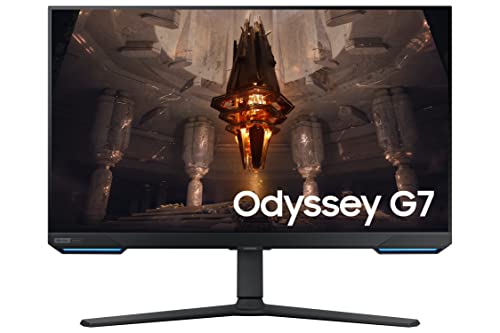
Scale changes the meaning of 120Hz, and the Odyssey G70B is where this guide scales up. Samsung fits a 32-inch 4K IPS panel with a 144Hz ceiling, a 1ms claim, HDR400 and compatibility with both G-Sync and FreeSync Premium Pro. Fed a console’s 120Hz output, it has refresh to spare; fed a capable PC, it can spend the remainder. The larger canvas suits a player who sits back with a controller, a sim racer using a wheel at desk’s edge, or anyone whose monitor moonlights as the room’s film screen.
At thirty-two inches, 4K stops being a luxury and becomes the resolution that keeps text and game interfaces composed at normal viewing distances. The flat IPS panel avoids the geometry quirks of curved screens, which matters when the same display hosts spreadsheets on weekdays. Samsung’s gaming interface layers conveniences such as an ultrawide game view mode over the standard picture controls, a gimmick for some and a genuine preference for players who like a wider crop in certain titles.
The cautions are physical and financial rather than technical. A 32-inch 4K screen demands desk depth, because sitting too close turns its size into neck exercise, and driving games at 4K anywhere near its refresh ceiling demands serious graphics hardware. HDR400 certification sets a modest brightness bar, so HDR gaming looks tidier rather than transformative. Treat the G70B as a commitment to a bigger, sharper desk, and it rewards that commitment every time a console performance mode lights up at 120Hz.
At a glance:
- Panel: 32-inch IPS, 4K UHD 3840 by 2160
- Refresh: 144Hz native; console 120Hz fully supported
- Sync: G-Sync and FreeSync Premium Pro compatible
- HDR: DisplayHDR 400 class as listed
- Extras: ultrawide game view option in menus
- Footprint: plan desk depth before ordering
Strengths
- Size and resolution in proper proportion
- Both sync families welcomed
- Flat panel suits work as well as play
Trade-offs
- Needs a deep desk and strong hardware
- HDR tier is entry-level in effect
- Overkill for close-up competitive play
Best for: a controller-first player or sim fan building a larger 4K desk that a console and PC will share.
Not suited for: shallow desks, laptop-only setups, or esports players who prefer smaller panels for scanning the whole frame.

LG 27GN950-B 144Hz — Compact 4K with Nano IPS colour
If the Samsung above argues for size, LG’s 27GN950-B argues for density. It packs 4K into 27 inches through a Nano IPS panel, again with a 144Hz ceiling, a 1ms claim, G-Sync Compatibility and FreeSync Premium Pro. At this size the pixel pitch turns fine text, photo detail and interface edges almost print-like, and a console’s 120Hz mode still lands cleanly for the player who wants one desk screen to cover employment and entertainment without moving house.
Colour ambition is the differentiator LG intends. Nano IPS panels in this line are known for wide coverage that reaches toward cinema gamut territory, giving video editors and photographers a more expressive canvas than the sRGB-bound screens elsewhere in this guide. That reach comes with the familiar caveat that unmanaged colour can look theatrical, so creators should expect to work in colour-managed applications and to calibrate if client work depends on the result. The stand, offering tilt, height and pivot, supports the long sessions such work involves.
Gaming manners remain thoroughly respectable, because the panel was born in the UltraGear family rather than borrowed from an office line. The honest limitations are the ones its dimensions impose: interface elements can feel small without scaling, and the 4K pixel count asks a graphics card to work hard for high frame rates. As a 120Hz answer, it suits the buyer whose console shares a desk with serious visual work and who refuses to choose which identity the monitor should serve.
At a glance:
- Panel: 27-inch Nano IPS, 4K UHD 3840 by 2160
- Refresh: 144Hz native; accepts 120Hz console output
- Sync: G-Sync Compatible, FreeSync Premium Pro
- Response claim: 1ms as stated by LG
- Stand: tilt, height and pivot included
- Character: colour-forward compact 4K
Strengths
- Pixel density flatters text and photography
- Wide colour reach for creative work
- Full ergonomic stand fitted
Trade-offs
- Small interface elements need scaling
- 4K gaming taxes mid-range graphics cards
- Premium positioning within this roundup
Best for: a creator-player who edits by day and uses console performance modes by night at the same desk.
Not suited for: anyone wanting a big cinematic canvas, or PC players whose hardware cannot feed 4K at high rates.

Samsung Odyssey 27-inch 4K Smart 144Hz — The screen that doubles as a television
The final pick blurs a boundary the others respect. Samsung’s 27-inch Odyssey with Smart TV functions is a 4K IPS gaming monitor, complete with 144Hz, a 1ms claim, HDR400, G-Sync and FreeSync Premium support, built-in speakers and a remote control, yet it also behaves like a small television when no computer is attached. Streaming applications and broadcast-style navigation live inside the monitor itself, which changes who the screen is for: the dorm resident, the studio flat, the spare room where a separate TV never quite justified itself.
That dual identity solves a genuine space problem. A console can occupy one input at 120Hz, a laptop another for study or work, and the evening’s streaming requires neither, because the panel fetches it alone. Height adjustment is included, a courtesy not every lifestyle-leaning product remembers. Picture behaviour in its gaming role remains credible rather than token, since the underlying panel shares its specifications with Samsung’s dedicated gaming line instead of borrowing a television panel and hoping nobody notices.
Complexity is the price of the trick. Smart interfaces add menus, updates and occasional advertising surfaces that a dumb monitor never shows its owner, and buyers who value instant, silent switching between two computers may find the television personality intrusive. Support horizons for smart software also differ from those for plain panels. Choose this Odyssey when the room truly needs one screen to be two products; choose a conventional sibling when the monitor’s job description fits on one line.
At a glance:
- Panel: 27-inch IPS, 4K UHD 3840 by 2160
- Refresh: 144Hz native; 120Hz console modes supported
- Sync: G-Sync and FreeSync Premium listed
- Smart features: built-in TV apps, remote control included
- Audio: built-in speakers fitted
- Stand: height adjustable as listed
Strengths
- Replaces a small television entirely
- Gaming specifications are genuinely present
- Remote control suits sofa-distance use
Trade-offs
- Smart menus add friction for purists
- Software support ages differently than hardware
- Speakers remain modest despite TV ambitions
Best for: a small-space dweller who games at 120Hz and streams from the same chair every evening.
Not suited for: multi-computer professionals wanting the simplest possible input switching and no smart layer at all.
How do the best 120Hz monitors compare across resolutions?
| Model | Size and resolution | Refresh | Panel and sync | Standout trait |
|---|---|---|---|---|
| ASUS VA249QG | 24-inch, 1080p | 120Hz native | IPS, Adaptive-Sync | Eye-care calm for mixed days |
| LG 24G411A | 24-inch, 1080p | 120Hz, overclock higher | IPS, G-Sync Compatible and FreeSync | Gaming trim at the native rate |
| LG 27GP850-B | 27-inch, 1440p | 165Hz native | Nano IPS, G-Sync Compatible | The balanced Quad HD answer |
| Samsung Odyssey G70B | 32-inch, 4K | 144Hz native | IPS, both sync families | Largest canvas in the guide |
| LG 27GN950-B | 27-inch, 4K | 144Hz native | Nano IPS, G-Sync Compatible | Density plus wide colour |
| Samsung Odyssey Smart 27 | 27-inch, 4K | 144Hz native | IPS, G-Sync and FreeSync Premium | Television features built in |
Read the refresh column as a story about ceilings rather than a league table. The two Full HD models meet the keyword exactly and cost their owners nothing in unused speed, while the four faster panels convert the same 120Hz signal into one mode among several. Neither philosophy is dishonest; they simply allocate money differently, toward resolution and features in one case and toward present-day sufficiency in the other.
Resolution, meanwhile, decides what kind of sharpness money buys. Full HD at 24 inches looks tidy and asks little of hardware. Quad HD at 27 inches is the density most desk workers describe as the point where upgrades stop feeling necessary. Four K at either size in this guide serves creators, console players chasing the sharpest performance-mode image, and anyone who keeps a monitor long enough for today’s premium to become tomorrow’s normal.
How do you make a console actually output 120Hz to one of these screens?
Begin inside the console, not the monitor. On PlayStation hardware, the screen and video settings hold a 120Hz output option that should be set to automatic, and individual games then expose their own performance modes, sometimes behind a setting that defaults to favouring resolution. Xbox consoles place their refresh choice in the television and display options, where 120Hz must be selected explicitly before compatible games will offer their high-frame modes. Skipping these menus is the single most common reason owners conclude, wrongly, that a new monitor changed nothing.
Cabling comes next. At 4K, a console’s 120Hz signal expects an HDMI 2.1 connection at both ends and a cable rated for that bandwidth; the cable bundled with the console qualifies, while a random veteran cable from a drawer may silently negotiate a slower mode. At 1080p the requirements relax considerably, which is one quiet advantage of the two Full HD picks for older setups. Whichever tier you choose, confirm the result in the monitor’s own information display, which reports the incoming signal honestly when menus elsewhere are vague.
Finally, manage expectations per game rather than per console. Not every title offers a 120Hz mode, and some that do trade resolution aggressively to hold the frame rate. The monitor’s job is to be ready; the software catalogue decides how often that readiness is rewarded. Adaptive sync smooths the titles that aim for the rate and wobble around it, which is why every pick in this guide carries some form of it.
What should PC owners check before settling for a 120Hz ceiling?
Inventory your games before your components. Esports titles and older favourites will pin a 120Hz screen at its limit with modest hardware, while recent open-world releases may struggle to hold half that rate at 4K without upscaling assistance. A ceiling only frustrates when your catalogue routinely exceeds it, so the honest question is not how fast your graphics card can run a benchmark but how fast it runs the five games actually installed. The faster picks in this guide exist for players whose answers embarrass 120Hz; the native picks exist for everyone else.
Connection habits deserve the same scrutiny. DisplayPort remains the dependable route to full refresh with adaptive sync on PC, while HDMI behaviour varies by generation and vendor implementation. Set the refresh explicitly in the operating system after connecting, because a fresh monitor frequently idles at 60Hz until instructed otherwise, and check again after driver updates, which occasionally reset display preferences without asking. These small rituals separate owners who experience 120Hz from owners who merely purchased it.
What mistakes send 120Hz buyers back to the returns desk?
Assuming the number guarantees the experience leads the list. A 120Hz television-style panel using interpolation, a monitor connected through an elderly cable, or a console left in its 60Hz output mode all deliver disappointment wearing the right badge. The second mistake is buying resolution without hardware: a 4K screen paired with a modest laptop becomes a beautiful 60Hz slideshow in games, its refresh ceiling theoretical. Match the tier to the machine that will feed it, today rather than in an imagined upgrade year.
Ergonomics cause quieter returns. A tilt-only stand at the wrong desk height turns a good panel into a neck complaint within a fortnight, and 32 inches placed too close produces the same result through sheer angular size. Measure the desk, note the viewing distance, and budget for an arm when a chosen model skips height adjustment. The final mistake is chasing HDR logos in this class; every HDR badge here denotes signal compatibility and modest brightness, valuable for tone mapping but no reason to choose one pick over another.
How long does a 120Hz monitor stay a sensible purchase?
Longer than the marketing cycle suggests. Consoles will speak 120Hz for the remainder of their generation, office work gains nothing beyond it, and only PC gaming keeps pushing the ceiling upward with each graphics card release. A native 120Hz Full HD screen bought for a console and a laptop today will still be doing its exact job in five years. The faster panels simply insure against a PC upgrade path, which is worth paying for only when that path is a plan rather than a daydream.
Panel longevity favours the IPS screens gathered here, which hold their colour character over years without the burn-in anxieties attached to emissive technologies. Backlights dim gradually rather than failing theatrically, stands and inputs age faster than panels do, and the likeliest reason to replace any of these six is a change in your rooms or machines, not a failure of the screen itself. Buy the tier that matches the hardware you own and the desk you actually sit at.
How does pixel density change the way 120Hz feels at each resolution?
Refresh and resolution are usually discussed as separate purchases, yet the eye experiences them as one picture. At Full HD on a 24-inch screen, individual pixels remain faintly visible in static work, but motion at 120Hz masks that grain because the image rarely sits still long enough to inspect. Players in fast titles benefit twice over: frames arrive sooner, and the lower pixel count lets modest hardware sustain the rate that makes the panel worthwhile. This is the pragmatic heart of the two smaller picks, and no amount of specification envy should talk a console owner out of it.
Quad HD tightens the picture enough that the smoothness becomes easier to appreciate in slower material. A racing game’s roadside signage, a flight simulator’s cockpit labels, a strategy map’s unit icons: all hold their edges while moving, because more pixels describe each shape between refreshes. Four K extends the same logic to its limit for desktop distances, and its cost is paid by the graphics hardware rather than the panel. When a system cannot feed the chosen resolution at 120 frames, the refresh badge turns decorative, which is why this guide keeps returning to the pairing between screen and source.
There is also a comfort dimension that specifications ignore. Denser panels let operating systems scale interfaces larger without softness, so text can be both big and crisp for readers whose eyes tire easily. A 27-inch 4K screen running sensible scaling gives documents a printed calm that a Full HD panel cannot imitate, and that calm may matter more across a working week than any gaming statistic printed on the box.
Which of these screens handles a small desk most gracefully?
Small desks punish depth before width. The 24-inch pair sit closest to the wall and leave room for speakers, notebooks and the accumulated archaeology of a working surface, while their lighter panels forgive modest monitor arms. The 27-inch models remain manageable provided the stand’s footprint is checked, since gaming stands often splay their feet wider than office designs. Samsung’s smart Odyssey earns a special mention here because deleting a separate television from a small room returns more space than any stand geometry could.
The G70B is the honest exception. Thirty-two inches across a shallow desk places the panel’s edges outside comfortable peripheral vision for many seated positions, and first-person games begin to demand head movement that smaller screens never ask for. Owners with deep desks, wall mounts or a controller-and-sofa arrangement will call the same size immersive. Context decides, and measuring tape is cheaper than a return shipment, so measure the gap between your chair and the wall before falling for the largest canvas in the guide.
What does adaptive sync actually rescue at 120Hz?
Frame rates in real games breathe. A title targeting 120 frames will hold it in a corridor, sag in a crowded market square, and surge again on a rooftop, and a fixed-refresh panel responds to that breathing with tearing or stutter. Adaptive sync lets the monitor inhale with the game, redrawing when each frame is ready instead of on a metronome, so the sag feels like a gentle softening rather than a mechanical fault. At this refresh tier the technology matters more than the badge suggests, precisely because so few games live permanently at the ceiling.
Certification flavour still deserves a glance. G-Sync Compatible panels have been validated by NVIDIA to behave within a baseline standard, FreeSync tiers from AMD layer additional requirements as they climb, and unbranded Adaptive-Sync implementations usually work while promising less. Every pick here carries at least one recognised programme, which removes the gamble. Console owners benefit too, since current Xbox hardware supports variable refresh broadly and PlayStation support continues to widen title by title.
How should you arrange lighting and seating for a high-refresh screen?
High refresh rewards attention to the room because smoother motion draws the eye across the whole panel. A window behind the screen forces pupils to fight glare during bright scenes, while a window behind the viewer paints reflections over dark ones; side lighting with a curtain beats both arrangements. Bias lighting, a soft strip behind the panel, eases the contrast between a bright screen and a dark wall during evening sessions, and several owners find it reduces the fatigue they had blamed on refresh or blue light.
Seating distance completes the arrangement. Roughly an arm’s length suits the 24-inch pair, a little more flatters the 27-inch models, and the 32-inch Samsung asks for the deepest commitment. Chair height should place your eyes near the panel’s upper third; where a stand cannot lift the screen there, a riser or arm is a health purchase disguised as an accessory. None of this appears on a specification sheet, yet it decides whether the numbers you bought are comfortable enough to enjoy nightly.
What should the first week with a new 120Hz monitor include?
Start by proving the headline. Open the monitor’s information page while a game runs and read the incoming signal, then repeat the check on the second input if two machines share the screen. Play one familiar title rather than five new ones, because a game you know exposes differences in motion clarity that novelty would hide. Note the settings you change from factory defaults, since gaming panels often ship in vivid modes that flatter a showroom and fatigue a living room.
Give ordinary work equal time in that first week. Read a long article, edit a document, sit through a video call, and pay attention to text rendering at the scaling you actually use. A screen that thrills in a shooter but irritates across a spreadsheet is the wrong screen for a mixed desk, and the return window is the cheapest moment to discover it. Check viewing angles from the chair you slouch in, not only the chair you pose in, because IPS panels vary in how gracefully they handle an off-centre viewer.
Finish the week by saving a sane everyday profile. Lower brightness for evening use, keep a brighter preset for sunlit afternoons, and resist burying the picture under every enhancement the menus offer. Motion processing, dynamic contrast and aggressive sharpening each solve a problem most owners do not have. The calmest settings usually win the long relationship, and a monitor bought for years should be tuned for the years rather than the unboxing.
Why do some 120Hz games still feel unresponsive?
Because refresh is only one delay among several. A wireless controller, the console’s own processing, the game’s engine and the panel’s electronics each add their slice of time between intention and image. A 120Hz mode shrinks the display’s contribution and often halves the game’s frame interval too, which is why the improvement feels larger than panel mathematics predicts, yet a title with heavy built-in latency will still feel heavy. Input lag figures quoted for monitors describe the panel’s share under test conditions, not the whole chain.
Settings inside games deserve suspicion when responsiveness disappoints. V-sync choices, frame-rate caps set below the refresh, and resolution modes that push the hardware into the forties all blunt what the screen can show. The monitor cannot rescue a pipeline starved upstream, and adaptive sync, for all its virtues, smooths irregular delivery rather than accelerating it. Diagnose from the source outward: game mode first, console output second, cable third, panel last.
How do these six divide between work desks and play spaces?
Think of the roundup as two overlapping families. The ASUS VA249QG, the LG 27GN950-B and, in its own way, the smart Samsung are screens a working day can be built around, with eye comfort, density or sheer versatility carrying their arguments. The 24G411A and the 27GP850-B speak gaming first and work second, while the G70B builds a play space that tolerates work when required. None of the six fails at the other family’s job; the ordering of their priorities is what a buyer is really choosing.
That framing also protects against a common overspend. A household whose screen time is eighty percent documents gains little from the fastest panel here, while a household built around a console and a gaming PC wastes the ASUS’s virtues. Write down the week’s actual hours before shopping, crude as the exercise feels. The right 120Hz monitor is the one whose strengths coincide with those hours, and this guide has deliberately made each pick’s centre of gravity easy to spot.
What happens when two people share one of these monitors?
Shared screens expose viewing angles and brightness habits that solo owners never notice. IPS technology, common to all six picks, holds colour and contrast together when a second viewer pulls up a chair at an angle, which is one reason no curved VA panel appears in this particular roundup. Films and cooperative games benefit immediately. The smart Samsung goes further by removing the host computer from the arrangement altogether, so a partner can watch a series without negotiating for the machine attached to the panel.
Sound becomes the shared bottleneck instead. Built-in speakers on the ASUS and the Samsung handle dialogue and casual viewing politely, while the remaining picks expect external audio of some kind. A compact soundbar or a pair of desktop speakers transforms film night more thoroughly than any picture setting, and the desk should be planned with that footprint in mind. Households splitting one screen between two schedules should also favour models with accessible input switching, because a buried menu turns a trivial handover into a recurring irritation.
How does a 120Hz purchase change the rest of a setup?
Owners often discover that the monitor was the easy part. A desk lamp that flickered invisibly at 60Hz habits, a capture device that cannot pass the higher rate, a docking station whose video output tops out below the panel’s ceiling: each peripheral gets re-examined under the new regime. Laptop users should check their machine’s video output specification with particular care, since an older port may drive the screen beautifully for work while quietly refusing 120Hz in games. The monitor reports what it receives, so its information page becomes the arbiter of every such dispute.
Budget planning should absorb those lessons. Reserving a little money for a compliant cable, a sturdier arm or a hub that truly passes the signal protects the main purchase from being undermined by a forgotten accessory. None of the six picks demands exotic support gear, yet all of them perform closer to their promise when the chain feeding them is as modern as the panel itself. That is the unglamorous truth behind most disappointing upgrades: the screen was ready and the wiring was not.
Should you wait for cheaper 144Hz and 165Hz screens instead?
Waiting is a strategy with a hidden cost: the games already owned stay at 60Hz while prices wander. High-refresh panels have been mature products for years, and the meaningful differences between generations now arrive as better stands, tidier menus and wider colour rather than revolutions in motion. A buyer whose console or computer is ready today gains months of visibly smoother play by acting, and the six screens here were chosen partly because none of them depends on a future price cut to make sense. The exception is the deliberate planner mid-way through saving for a stronger graphics card, for whom one of the faster picks bought slightly later can serve two machines across its life. Even then, the panel and the card should be planned as a pair, because either one purchased in isolation tends to expose the other’s limits within a week of enthusiastic use.
One last practical habit separates satisfied owners from frustrated ones: keep the packaging until the panel has survived a full week of your real routine. Dead pixels, backlight unevenness and stand wobble usually announce themselves early, and exchanges move faster with the box intact. Photograph your preferred settings once they settle, too, because a firmware update or a curious guest can scatter them in seconds. Small rituals, certainly, but a monitor is among the longest-lived objects on a desk, and the care taken in its first days quietly shapes the years that follow it.
Brightness deserves a final word of proportion. These are desk monitors designed for rooms, not stadium screens, and chasing the highest brightness figure in the class matters less than a panel that dims gracefully for late sessions and holds its colour when it does. Judge brightness by the room at the hours you truly play, and let that honest test outrank any number printed in a comparison chart.
Final Recommendation
Match the tier to the signal you will really send. Console players at a normal desk should look first at the LG 24G411A for its certified sync and small overclock bonus, or the ASUS VA249QG when eye comfort and legacy connections matter more than gaming trim. Anyone splitting time with a PC belongs at 1440p with the 27GP850-B, whose ceiling turns today’s 120Hz requirement into tomorrow’s headroom. The 4K trio then divides by lifestyle: G70B for size, 27GN950-B for density and colour, Samsung’s smart Odyssey for a room that needs its monitor to moonlight as the television. Whatever leaves the cart, verify the incoming signal on the monitor’s own readout during the first evening, because a 120Hz badge only counts when the display confirms it is receiving one.
Frequently Asked Questions
Is 120Hz the same thing as 120 frames per second?
They describe opposite ends of the same handshake. Refresh rate counts how often the panel redraws, while frame rate counts how often the console or computer delivers a new picture. The smoothest result arrives when the two march together under adaptive sync; a 120Hz screen fed a 60-frame game simply shows each frame twice, gaining nothing and losing nothing.
Why does this guide include monitors faster than 120Hz?
Because buyers searching this rate often own, or plan to own, a PC that can exceed it, and a panel capped exactly at 120Hz would fence that machine in. Each faster pick is labelled with its true ceiling everywhere it appears, so nobody mistakes a 144Hz or 165Hz screen for a native 120Hz model or pays for headroom unknowingly.
Can a 1440p monitor show a console’s 120Hz mode properly?
Yes, and the 27GP850-B in this guide is built for exactly that arrangement. Consoles output their high-frame modes at resolutions the Quad HD panel accepts, scaling is handled cleanly, and adaptive sync keeps frame pacing smooth when a title wobbles around its target.
Do I need HDMI 2.1 for 120Hz gaming?
At 4K, effectively yes, since the bandwidth of earlier HDMI generations cannot carry that combination from a console. At 1080p the requirement relaxes and many older connections cope. PC owners can sidestep the question with DisplayPort, which has carried these rates comfortably for years.
Will a 120Hz monitor improve ordinary office work?
Modestly but genuinely. Pointer movement, window dragging and scrolling all render with less smear, and many people describe long reading sessions as calmer for it. The improvement will not rescue a bad chair or a dim room, yet as a side effect of a gaming purchase it is real rather than imagined.
What separates the two Samsung 4K picks from each other?
Size and personality. The G70B stretches 4K across 32 inches for viewers who sit farther back, while the smart Odyssey keeps 27 inches and adds television behaviour, applications and a remote. Their gaming specifications are close cousins; the rooms they belong in are not.
Related Guides
Keep exploring the monitor shelf with our companion roundups: best 1440p 165Hz monitors for PC players ready to spend the headroom discussed above, best 1440p monitors for a wider tour of the Quad HD tier, and best 120Hz gaming setups for consoles when the rest of the room needs attention too.
Related guides
- Best 1440p 165Hz Monitors: One Native 165Hz Pick, Three 180Hz Upgrades, an Overclock Headline and a 160Hz Ultrawide
- Best 144 Hz 27in Monitors: Six 27-Inch Screens That Go Beyond the Label
- Best 1440p IPS Monitors
- Best 1080p Monitors 120Hz: Two Native 120Hz Picks, a Labelled 100Hz Comfort Option and Honest Headroom Above the Rate