What's inside
- Where to buy
- Key Takeaways
- Quick Picks
- How did we choose the best 1080p 144Hz monitors?
- What does the jump from 60Hz to 144Hz actually feel like?
- How do the best 1080p 144Hz monitors compare honestly?
- How do you set up a 144Hz monitor so it actually runs at 144Hz?
- Can your graphics card actually feed 144 frames per second at 1080p?
- What mistakes do people make when buying a 1080p high-refresh monitor?
- IPS or VA: which panel type suits fast gaming better?
- What do response time numbers really mean?
- Is HDR worth anything on a monitor in this class?
- Should you choose 24 inches or step up to a larger screen?
- How should you calibrate a gaming monitor in ten minutes?
- What about dual-monitor setups and monitor arms?
- How long will a 1080p 144Hz monitor remain a sensible purchase?
- How do these monitors handle everyday work and eye comfort?
- What should you check in the first evening with a new gaming monitor?
- Why has 1080p remained the esports standard for so long?
- What is the difference between 144Hz for PC and 120Hz for consoles in practice?
- Final Recommendation
- Frequently Asked Questions
- Related Guides
As an Amazon Associate I earn from qualifying purchases. This post may contain affiliate links at no extra cost to you.
gizmoverdict.com is reader-supported. When you buy through links on our site, we may earn an affiliate commission.
Where to buy
Each model name below links to its Amazon listing, where you can confirm the panel size and the exact refresh specification of the unit on offer. The best 1080 144 hz monitors occupy the sweet spot of PC gaming: Full HD resolution that mid-range graphics cards can drive at high frame rates, and a 144Hz refresh that makes motion visibly smoother than the 60Hz screens most people are upgrading from. Honesty about numbers is this guide’s house rule, so let us be precise from the first paragraph. One pick below is a true 144Hz monitor. Four of the six are actually 180Hz models — faster than the keyword asks for, and labelled as such everywhere in this article, including their spec boxes. The final pick is a 120Hz monitor, included openly as a slower, eye-care-focused alternative for buyers whose priorities are not purely competitive, and labelled as below the 144Hz standard wherever it appears.
Why gather them together? Because the real-world shelf a shopper faces mixes these rates freely, and because a 180Hz panel set to run at 144Hz behaves exactly like a 144Hz panel while keeping headroom for the day a stronger graphics card arrives. What matters is that nobody should pay for a number they are not getting, or dismiss a monitor for exceeding the number they searched for. Every refresh figure in this guide is the manufacturer’s real figure for that model, stated plainly, and the comparison table repeats them side by side so the differences cannot hide.
The shared ground is considerable: all six are roughly 24-inch Full HD IPS or fast VA-class gaming panels with adaptive sync, low response times, and HDMI plus DisplayPort inputs, aimed at esports titles, fast shooters, and the general truth that a high-refresh screen makes even the desktop feel more responsive. The differences — stand quality, colour character, eye-care features, brand tuning for console or PC — are what the individual sections are for.
Key Takeaways
- The LG UltraGear 24G414B is the true 144Hz pick of this guide, a 24-inch IPS panel that matches the keyword exactly and adds HDR10 and a height-adjustable stand.
- The Acer Nitro KG241Y, Samsung Odyssey G3 24-inch, AOC 24G4, and BenQ MOBIUZ EX251 are all 180Hz monitors — faster than 144Hz, and the better buy where their prices are close.
- The ASUS VA249QG runs at 120Hz, below the headline standard; it earns its place only as an eye-care and general-use alternative, and this guide labels it that way.
- At 1080p, a mid-range graphics card can feed these refresh rates in esports titles; in heavy AAA games, expect to use quality upscaling or reduced settings to approach them.
- Use DisplayPort, not HDMI, to guarantee the full refresh rate on PC, and set the refresh in your operating system after connecting — many monitors default to 60Hz until told otherwise.
- Stand ergonomics separate these near-identical panels more than their specifications do; height adjustment matters over long sessions.
Quick Picks
| Pick | Badge | Why it earns its place |
|---|---|---|
| LG UltraGear 24G414B (144Hz) | The genuine 144Hz choice | Exactly the refresh this guide is named for, on a bright IPS panel with HDR10 and a proper adjustable stand. |
| Acer Nitro KG241Y (180Hz) | Fast value | A 180Hz panel with FreeSync Premium at the accessible end of the class, and two HDMI ports plus DisplayPort. |
| Samsung Odyssey G3 24-inch (180Hz) | Console-and-PC all-rounder | 180Hz with an ergonomic stand, Black Equalizer for dark scenes, and Samsung’s gaming polish. |
| AOC 24G4 (180Hz) | Esports features, honest price class | Fast IPS at 180Hz with HDR, a three-year warranty, and the connectivity competitive players expect. |
| BenQ MOBIUZ EX251 (180Hz) | Colour and sound upgrade | 180Hz gaming with unusually good speakers, a USB hub, and BenQ’s colour tuning for players who also watch and create. |
| ASUS VA249QG (120Hz) | Below-spec eye-care option | Only 120Hz — under this guide’s headline rate — but flicker-free, low-blue-light, and kind for mixed work and play. |
How did we choose the best 1080p 144Hz monitors?
We started with the specification that names the category and verified it model by model rather than trusting category labels: true refresh rate, at the panel’s native 1080p, over a standard connection, without overclocking tricks. That audit is why this guide’s picks are labelled the way they are — one native 144Hz monitor, four 180Hz monitors that exceed the brief, and one 120Hz monitor fenced off as an explicit exception. A buying guide that cannot count to 144 has no business ranking the rest of the specification sheet.
Beyond refresh, we weighed the qualities that decide daily satisfaction. Panel type and response behaviour matter for motion clarity; adaptive sync — FreeSync, and G-Sync compatibility where stated — matters because screen tearing at high frame rates is the flaw this entire category exists to remove. Colour coverage and factory tuning matter for the many hours these screens will spend on video, browsing, and work. Stands matter more than buyers expect: a height-adjustable stand is an ergonomic feature you will appreciate in month six, long after the refresh novelty has become your normal.
Finally, we considered the two audiences of 1080p high-refresh gaming honestly. PC players need DisplayPort performance and the settings knowledge to unlock it; console players need to know that current consoles cap at 120Hz in their high-performance modes, which reframes the 180Hz panels as headroom and the 120Hz ASUS as a closer match than its badge suggests. Both audiences are served below, with the numbers kept straight.
What does the jump from 60Hz to 144Hz actually feel like?
Immediate, and then permanent. At 60Hz, a fast mouse movement across the desktop trails a visible staircase of cursor positions; at 144Hz the same movement draws nearly two and a half times as many intermediate frames, and the cursor — and with it, the camera in a shooter, the scroll of a page, the pan across a strategy map — moves as a continuous object rather than a strobe. Players describe the first hour as the screen feeling smaller and faster at once, because the delay between hand and image shrinks along with the stepping. The honest caveat is that the improvement is in motion: a static screen at 144Hz looks identical to one at 60Hz, which is why this category belongs to gamers and why its fans sound evangelical only after you watch them play.
The steps beyond 144Hz are real but gentler. The move to 180Hz, offered by four picks here, trims frame time a little further and is most noticeable to experienced players in fast tracking situations; nobody should feel short-changed by it, and nobody should pay a large premium for it either. Below the standard, 120Hz — the ASUS’s rate — still transforms play compared with 60Hz and matches the maximum output of current consoles, which is the entire basis on which it is included, clearly labelled, in a guide named for 144.

LG UltraGear 24G414B (144Hz) — The genuine 144Hz choice
Start with the monitor that does exactly what this guide’s title promises. The 24G414B is a 24-inch UltraGear with a Full HD IPS panel refreshing at a native 144Hz, a 1ms-class response, and support for both FreeSync and G-Sync compatibility, so whichever graphics card feeds it, tearing is handled. IPS brings the wide viewing angles and honest colour that VA panels struggle to match, HDR10 support adds a little headroom for video, and LG’s gaming interface — including its on-screen LG Switch software control — is among the least annoying in the business. A built-in speaker covers call audio and casual video without pretending to be a sound system.
The stand deserves the praise it gets in this guide’s criteria: tilt and height adjustment are both present, which at this price class is not guaranteed and over a year of evenings is the difference between a screen that fits your posture and a neck that fits the screen’s. For the buyer who searched for a 1080p 144Hz monitor and wants precisely that, from a major panel maker, with nothing inflated and nothing missing, this is the straightforward answer — and its honest 144Hz also makes it the reference against which the faster picks below should justify themselves.
There is a lineage point in the LG’s favour: UltraGear panels are what a large share of the esports world trained on, and the tuning shows in the small things — an overdrive setting that sharpens motion without the bright halos of an over-aggressive implementation, a crosshair and frame-counter overlay set that stays out of the way, and colour that arrives from the factory needing no apology. Buyers stepping up from an old office monitor will feel they have bought two upgrades at once: the speed they searched for, and a picture that makes their existing games look newly lit.
- Panel: 24-inch IPS, 1920×1080
- Refresh rate: 144Hz native
- Sync: AMD FreeSync and NVIDIA G-Sync compatible
- Extras: HDR10, built-in speaker, height and tilt stand
Strengths
- Exactly the headline specification, natively
- IPS colour and viewing angles lead the group
- Adjustable stand suits long sessions
Trade-offs
- Four rivals here refresh faster for similar money
- Speaker is for convenience, not entertainment
- HDR10 at this brightness is a modest effect
Best for: buyers who want a true 144Hz IPS monitor from a top panel brand. Not suited for: players determined to maximise refresh above all else.
Acer Nitro KG241Y (180Hz) — Fast value
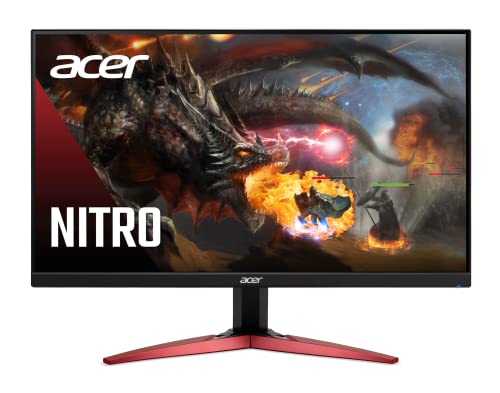
The KG241Y makes the argument that has reshaped this market: why settle for 144Hz when 180Hz costs no more? Its 23.8-inch Full HD panel refreshes at 180Hz — a figure this guide states plainly wherever the model appears, because it is faster than the category’s name, not equal to it — with a 1ms-class response and FreeSync Premium to keep frames clean. Two HDMI ports plus DisplayPort make it easy to keep a PC and a console connected together, and the panel’s eye-comfort features, flicker-free backlight and blue-light filtering, suit the long sessions its refresh rate encourages.
Acer’s Nitro line keeps its value by spending on the panel and economising on the furniture: the stand tilts but does not rise, so budget for a monitor arm or a shelf if your desk ergonomics demand height, and the design is unapologetically gamer-styled. Within those terms, the proposition is excellent — the fastest class of refresh in this roundup, from a major maker, at the accessible end of the price ladder. For a first high-refresh monitor, or a second screen for a competitive setup, it is the pick that makes the whole category feel affordable.
The KG241Y also illustrates the modern value monitor’s best trick: it is light. On a VESA arm it floats; in a dual-screen setup its slim bezels sit close against a partner panel; carried to a friend’s house or a LAN table, it asks nothing of anyone. Acer’s zero-frame styling helps there too. What it asks in return is only that you supply the ergonomics it omits — and for the many buyers who mount every monitor they own on arms as a matter of religion, even that trade is no trade at all, which is why this model recurs in budget competitive builds year after year.
- Panel: 23.8-inch, 1920×1080
- Refresh rate: 180Hz (above this guide’s 144Hz headline)
- Sync: AMD FreeSync Premium
- Inputs: 2× HDMI, DisplayPort; VESA mountable
Strengths
- 180Hz speed at an entry-tier position
- Dual HDMI suits PC-plus-console desks
- Flicker-free, low-blue-light panel
Trade-offs
- Stand tilts only; no height adjustment
- Styling will not suit every desk
- No built-in speakers headline
Best for: value-focused players wanting maximum refresh per pound or dollar. Not suited for: buyers who need an ergonomic stand out of the box.

Samsung Odyssey G3 24-inch (180Hz) — Console-and-PC all-rounder
Samsung’s Odyssey G3 in its 24-inch G30D form is the polished mainstream entry in this group: a Full HD panel at 180Hz — again, faster than this guide’s headline, and labelled so — with 1ms-class response, FreeSync, and the stand that the Acer omits, offering height, tilt, and pivot adjustment for a proper ergonomic setup. Samsung’s gaming extras are tuned for the way people actually play: Black Equalizer lifts detail in dark scenes without washing the whole image, Virtual Aim Point offers an on-screen crosshair overlay, and Eye Saver Mode with flicker-free operation looks after the late sessions.
The G3’s panel character differs from the IPS picks: its contrast and deep blacks give night scenes and cinematic games a richness the IPS models envy, at the cost of some viewing-angle strictness that matters only if you regularly watch from the side. For a mixed desk — PC for competitive titles, console for the sofa games moved to the desk, everything through one screen — the G3’s combination of speed, stand, and scene tuning is the most complete-feeling package here, and the one we would hand to a buyer who asked for the safe, finished-feeling choice above 144Hz.
Samsung’s software manners deserve their sentence. The G3’s on-screen display is navigated with a small joystick that generations of Odyssey owners have learned in an evening, its game mode remembers settings per input — so the console’s HDMI and the PC’s DisplayPort can live with different brightness and black-equalizer habits — and its firmware lineage is a flagship line’s, filtered down. None of that appears in a specification table, and all of it appears in the second month of ownership, which is when monitors stop being purchases and start being furniture you trust.
- Panel: 24-inch, 1920×1080
- Refresh rate: 180Hz (above this guide’s 144Hz headline)
- Sync: AMD FreeSync
- Stand: height, tilt, and pivot adjustable
Strengths
- Full ergonomic stand included
- Strong contrast for dark game scenes
- Thoughtful gaming features, well implemented
Trade-offs
- Viewing angles narrower than the IPS picks
- Menu system takes a session to learn
- Design is bulkier than the slim rivals
Best for: mixed PC and console players wanting speed plus a proper stand. Not suited for: colour-critical work viewed off-axis.

AOC 24G4 (180Hz) — Esports features, honest price class
AOC built its gaming reputation by giving competitive players the specifications they read first and charging fairly for them, and the 24G4 continues the tradition: a 24-inch Fast IPS panel at 180Hz — above the headline rate, as labelled throughout — with a 1ms-class response, HDR support, Adaptive-Sync for tear-free play across graphics brands, DisplayPort 1.4 and HDMI 2.0, and a three-year warranty that signals how the maker expects the panel to age. Fast IPS is the significant phrase: it pairs the motion behaviour competitive players demand with the colour and angles that make the same screen pleasant for everything else.
In the hand, the 24G4 feels like equipment rather than furniture — light, purposeful, with a stand that covers the essential adjustments and a VESA mount for arms. Its speakers and extras are minimal, because its buyer is assumed to own a headset and opinions. For the player whose games are shooters and whose second monitor ambitions are real, this is the connoisseur’s value pick of the group: the panel technology of the premium tier, the refresh of the fastest tier, and a warranty that outlasts most of its rivals’ promises.
AOC’s warranty, mentioned in its spec box, is worth pausing on because it changes the ownership maths. High-refresh panels are not fragile, but they are electronics bought to be driven hard for years, and a three-year commitment from the maker — against the shorter terms common at this price — is the difference between a monitor bought as equipment and one bought as a consumable. Competitive players, who notice a degrading panel before anyone else alive, are exactly the audience to appreciate that. The 24G4 is the pick in this guide most plainly designed to be kept.
- Panel: 24-inch Fast IPS, 1920×1080
- Refresh rate: 180Hz (above this guide’s 144Hz headline)
- Sync: Adaptive-Sync
- Inputs: DisplayPort 1.4, HDMI 2.0; VESA mount
Strengths
- Fast IPS pairs motion clarity with good colour
- Three-year warranty leads the group
- Connectivity suits serious PC setups
Trade-offs
- Minimal speakers and lifestyle extras
- Design prioritises function over looks
- Brand polish a step behind Samsung and LG
Best for: competitive PC players who read specifications closely. Not suited for: buyers wanting one screen that also entertains the room.

BenQ MOBIUZ EX251 (180Hz) — Colour and sound upgrade
BenQ’s MOBIUZ line starts from a heretical premise: a gaming monitor should also be good at the rest of a screen’s life. The EX251 is a 24.5-inch Full HD panel at 180Hz — above the headline, as always in this guide, labelled — with 1ms GTG response and FreeSync, so its competitive credentials are in order. What distinguishes it is everything around that core: genuinely listenable built-in speakers of a quality this class rarely attempts, a USB hub that tidies a desk’s worth of peripherals, 99% sRGB coverage with BenQ’s game colour database and AI colour modes that tune scenes intelligently, and the brand’s long-standing eye-care technology for the hours between matches.
The result is the monitor for the player whose desk is also a workstation and a television: spreadsheets in the morning with honest colour, competitive titles in the evening at full speed, a film at night with sound that does not insult it. It costs more than the value picks, as it should, and its size — a touch larger than the 24-inch standard — suits desks with the room. If the other picks are instruments, the EX251 is the one that also plays music at the end of the day, and for many buyers that completeness is the deciding feature.
The EX251’s colour story has a second chapter for the creator-players: BenQ’s tuning heritage comes from its professional monitor line, and it shows in skin tones and shadow gradation when the same screen that ran a tournament in the afternoon runs a film or a photo edit in the evening. Its game colour database — profiles tuned per genre — sounds like marketing until a strategy game’s fog and a racer’s night stage both arrive looking intentional rather than crushed. Players who stream, capture, or edit their footage will find this the only pick whose picture they never apologise for.
- Panel: 24.5-inch, 1920×1080, 99% sRGB
- Refresh rate: 180Hz (above this guide’s 144Hz headline)
- Sync: AMD FreeSync
- Extras: built-in speakers, USB hub, eye-care suite
Strengths
- Best speakers and colour tuning in the group
- USB hub genuinely improves a desk
- Full competitive speed with no asterisk
Trade-offs
- Premium pricing over the value tier
- Slightly larger footprint than 24-inch rivals
- Feature richness exceeds a pure esports brief
Best for: players whose monitor doubles as their entertainment and work screen. Not suited for: minimalists buying refresh rate and nothing else.

ASUS VA249QG (120Hz) — Below-spec eye-care option
This pick comes with its warning printed on its own label: the VA249QG refreshes at 120Hz, which is below the 144Hz standard this guide is named for, and it is included for a defined reader — the buyer who found this category while looking for a fast-feeling screen but whose real priorities are eye comfort, general use, and console play. Judged on those terms it is a strong monitor: a 24-inch IPS panel with 99% sRGB colour, 1ms-class response, Adaptive-Sync, ASUS’s flicker-free and low-blue-light eye-care technology, built-in speakers, and a frameless design that suits multi-monitor desks and tidy rooms.
Console players should note the arithmetic in its favour: current consoles output at most 120Hz in their performance modes, so on a PlayStation or Xbox this panel gives away nothing to the 180Hz models above. PC players chasing competitive smoothness should read the number and walk past — 120Hz is a fine rate that is simply not the rate in the title, and this guide will not pretend otherwise. Buy it knowingly, for comfort and consoles, and it will please you for years; buy it by mistake for 144Hz PC play and the fault will be in the labelling, which is why the labelling here is so blunt.
It is worth picturing the desk this ASUS was designed for, because it is a common one: a small home office where the screen works a full day of documents and calls, hosts a console underneath for the evening, and is watched by eyes that end the day tired. For that desk, flicker-free operation and low-blue-light modes are not brochure padding — they are the product — and 120Hz keeps games feeling modern without paying the competitive tier’s toll in either price or eye strain. The VA249QG is a good monitor wearing an honest label in a guide about a different number, and this guide respects it for exactly that.
- Panel: 24-inch IPS, 1920×1080, 99% sRGB
- Refresh rate: 120Hz (below this guide’s 144Hz headline)
- Sync: Adaptive-Sync
- Extras: eye-care suite, speakers, frameless design
Strengths
- Excellent eye-comfort features for long days
- Matches console maximum output exactly
- Good colour for mixed work and play
Trade-offs
- Refresh rate is below the 144Hz standard
- Competitive PC players will feel the gap
- Stand adjustment is basic
Best for: console players and comfort-first mixed use. Not suited for: PC players shopping specifically for 144Hz or above.
Sound, briefly, because desks are shared with ears. Only the BenQ in this group treats its speakers as a feature rather than a checkbox, and the LG’s single speaker covers speech and system sounds respectably; everyone else should budget their existing headset or desktop speakers into the plan and regard any built-in audio as an emergency facility. That is not a criticism of the category — competitive players live in headsets, and monitor makers spend accordingly — but a buyer whose screen must also be the room’s television should let the EX251’s audio move it up their list accordingly.
How do the best 1080p 144Hz monitors compare honestly?
| Model | Size and panel | True refresh rate | Stand | Character |
|---|---|---|---|---|
| LG UltraGear 24G414B | 24-inch IPS | 144Hz | Height and tilt | The exact-spec reference |
| Acer Nitro KG241Y | 23.8-inch | 180Hz | Tilt only | Fastest value |
| Samsung Odyssey G3 24-inch | 24-inch | 180Hz | Height, tilt, pivot | Polished all-rounder |
| AOC 24G4 | 24-inch Fast IPS | 180Hz | Adjustable, VESA | Esports value |
| BenQ MOBIUZ EX251 | 24.5-inch | 180Hz | Adjustable | Colour and sound |
| ASUS VA249QG | 24-inch IPS | 120Hz | Basic | Eye-care exception |
The refresh column is the table’s reason to exist. Shoppers who came for exactly 144Hz have one native answer and four upgrades; shoppers who came for the experience the number represents — smoothness far beyond a standard screen — are served by every row except the honestly-labelled exception. Decide which shopper you are, then let the other columns arbitrate: stand if you sit long, panel character if you watch much, speakers and hubs if the desk is shared with work.
How do you set up a 144Hz monitor so it actually runs at 144Hz?
More high-refresh monitors live at 60Hz than their owners will ever know, because the refresh rate is a setting, not a property that switches itself on. Connect with DisplayPort where possible — it guarantees the full rate at 1080p on every pick here — then open your operating system’s display settings and set the refresh explicitly: in Windows, the advanced display menu; on a Mac, the display’s refresh menu where offered. Finally, confirm inside the monitor’s own on-screen display and, for PC gaming, in the graphics control panel, that adaptive sync is enabled so the panel and the card are working the same system.
Then verify with your eyes. A smooth drag of a window across the desktop should look visibly different from the 60Hz screen you replaced; test pages and the simple act of scrolling a long document will confirm it. In games, disable any in-game frame-rate cap below your refresh, turn off vertical sync in favour of adaptive sync, and remember that the game must actually render the frames — a 144Hz panel fed 70 frames per second is a 70-frame experience with better manners. The monitor removes the ceiling; the graphics card still has to climb to it.
Cables, finally, are the cheapest component and the most common culprit. Use the DisplayPort cable that ships in the box before reaching for the drawer of inherited leads, because cable quality and version decide whether the higher rates even appear in your settings. Keep the run short, seat the connectors fully — DisplayPort’s latch rewards a firm push — and if a rate you paid for refuses to appear, suspect the cable before the panel, the port before the cable, and the settings menu before either. Nine times in ten, the missing hertz are hiding in one of those three ordinary places.
Can your graphics card actually feed 144 frames per second at 1080p?
In the games this category is bought for, very likely yes. Esports and competitive titles — the shooters, battle royales, MOBAs, and racing games that dominate high-refresh play — are engineered to run at high frame rates on modest hardware, and a mid-range card of the last few generations holds 144 frames and beyond at 1080p in them comfortably. The 180Hz picks raise that bar slightly, and the same cards generally clear it in the same titles, which is why the faster panels have become the default recommendation where prices meet.
Demanding story games are the honest exception. A modern AAA title at maximum settings may sit well below 144 frames on mid-range hardware, and the remedies are the usual ones: the game’s quality upscaling modes, a step down from ultra settings whose cost is mostly invisible, or simply accepting a beautifully smooth 90-to-120 frames under adaptive sync, which still feels like a different world from 60. Buy the monitor for the games you play most, not the benchmark you admire most, and the pairing will satisfy.
What mistakes do people make when buying a 1080p high-refresh monitor?
The first is the one this guide was written to prevent: trusting the category label instead of the model’s actual refresh rate, and discovering months later — or never — that the panel is slower, or occasionally faster, than the number in the search that found it. Read the specification of the exact model, as this article does for its six. The second mistake is cabling: connecting by an old HDMI lead or the wrong port and running at a capped rate while blaming the panel. The third is forgetting the operating-system setting entirely, the sixty-hertz tragedy described above.
The fourth is buying the stand you do not need or skipping the one you do. A tilt-only stand on a desk at the wrong height will tax your neck for years to save a small sum once; conversely, paying for a full ergonomic stand you will immediately replace with a monitor arm is its own waste. Finally, do not buy 1080p for a desk where a large screen sits close and productivity dominates — at 27 inches and above, or for text-heavy work, resolution starts to matter more than refresh, and a different category of monitor is waiting for that reader.
IPS or VA: which panel type suits fast gaming better?
The picks above divide along the industry’s oldest gaming fault line. IPS panels — the LG, the AOC, the ASUS, and their kin — answer inputs with consistent speed in every direction, hold their colour when viewed at an angle, and are the default recommendation for competitive play and mixed use. Their weakness is contrast: blacks render as very dark grey in a dark room, which cinematic players notice. VA panels, the technology behind the Samsung G3’s class of screen, invert the trade: deep, inky contrast and rich dark scenes, with response that has improved enormously but still asks to be judged model by model, and viewing angles that shift colour sooner.
For the reader of this guide, the practical ruling is simple. If your games are competitive and your room is lit, IPS’s consistency is the safer joy, and four of the six picks reflect that. If your games are atmospheric, your room is dark, and your desk also hosts films, the VA character of the G3 will seduce you nightly and its speed is honestly sufficient for all but the most demanding competitive play. Panel type is a taste with technical consequences, not a hierarchy — buy the one whose weakness you will never notice.
What do response time numbers really mean?
Response time describes how fast a pixel can change, and it governs the smearing and ghosting that trail moving objects. The figures on these boxes — 1ms in various measurement dialects — are best read as class markers rather than laboratory truths: they tell you the panel belongs to the fast modern generation, within which the differences that matter are in the tuning, not the digit. The control that embodies this is overdrive, the voltage boost that hurries pixels along. Every gaming monitor here offers overdrive levels, and the middle setting is almost always the right one: too little and motion softens, too much and bright halos — inverse ghosting — appear around moving objects, an artefact worse than the one it cures.
Set overdrive once, on the middle or “fast” preset, in a game you know well, and then leave it alone; it is a calibration, not a toy. The broader point for shoppers is liberating: at this level of the market, motion clarity is a solved problem across all six picks, and the honest differences have moved elsewhere — to stands, colour, speakers, and refresh honesty — which is why this guide spends its words there.
Is HDR worth anything on a monitor in this class?
Honesty, again, is the useful answer: HDR10 support on these panels means they can accept and display an HDR signal with expanded tone mapping, not that they deliver the searing highlights of a high-end HDR television. Their brightness and local dimming — mostly absent at this tier — cannot stage true HDR drama. What they can do, and the LG and AOC here do it decently, is render HDR video and games with richer colour volume and gentler highlight roll-off than an SDR-only screen, which is a pleasant bonus rather than a reason to buy. Judge these monitors as excellent SDR gaming displays with an HDR courtesy feature, set the HDR toggle per game rather than globally, and your expectations will be met every time — which is more than can be said for buyers who believed the badge.
Should you choose 24 inches or step up to a larger screen?
At 1080p, 24 inches is not the small option; it is the correct one. Pixel density at this size keeps game imagery clean at desk distance, the whole screen stays inside the competitive player’s central vision without head movement, and the panel’s speed is uncompromised. The 24.5-inch BenQ stretches the format as far as it comfortably goes. At 27 inches, the same 1080p grid spreads visibly thinner — fine for console distances, coarse for a close desk — and the honest upgrade at that size is a 1440p monitor, a different guide and a heavier demand on the graphics card. Buyers tempted by sheer size should sit at their real viewing distance in a shop before deciding; the esports world converged on this size for reasons that survive contact with your own eyes.
Gaming features with names — black equalizers, aim overlays, shadow boosters, frame counters — deserve a balanced verdict. Used sparingly, the shadow tools genuinely help in dark competitive maps, and an overlay crosshair can steady hip-fire in games that withhold one. Used carelessly, they flatten the image the developers graded and teach habits that do not transfer to other screens. Treat them as the monitor’s seasoning: present in the Samsung and BenQ in particular, pleasant in pinches, and never a substitute for the panel, the refresh, and the stand that this guide has ranked above them throughout.
How should you calibrate a gaming monitor in ten minutes?
Start from the maker’s game or standard preset rather than a showroom mode, set brightness by your room — lower than you think for evening play — and leave colour temperature at its neutral or sRGB setting for a week before judging it. Turn on adaptive sync, set overdrive to its middle gear, and disable any dynamic contrast or eco dimming that changes brightness mid-scene, because a screen that breathes is a screen you cannot trust in a dark game. Then play something familiar and adjust exactly two things to taste: the black equalizer or shadow control, if your model offers it, and the saturation, by a notch rather than a leap.
Write the settings down. Monitors lose their manners to firmware updates, curious housemates, and the reset option at the bottom of the menu, and the owner with a photographed settings page restores a calibrated screen in a minute while everyone else starts again from the showroom torch mode. Calibration, in this class, is not a laboratory ritual; it is five sensible decisions, recorded.
What about dual-monitor setups and monitor arms?
High-refresh gaming has a natural domestic arrangement: the fast panel in the centre, bought from this guide, and whatever screen you already own demoted to the side for chat, streams, guides, and work. The demoted monitor’s refresh becomes irrelevant, which is why upgrading one screen transforms a desk more cheaply than replacing two. All six picks are VESA-mountable or sold in versions that are, so a dual-arm stand can float both panels at matching heights and reclaim the desk the stock stands occupied — and for the tilt-only Acer, an arm is also the ergonomic fix, which is why its section prices the idea in.
Two cautions from experience. Mixed-refresh setups occasionally confuse older graphics drivers into capping the fast panel at the slow one’s rate during certain windowed workloads; keeping the game in true fullscreen on the primary display, and drivers current, disposes of nearly every case. And arms have weight and size ratings like everything else — check the panel’s VESA pattern and weight against the arm’s specification, because a drooping arm over a keyboard is a special kind of daily irritation.
How long will a 1080p 144Hz monitor remain a sensible purchase?
Longer than the upgrade cycle suggests. The competitive games that define high-refresh play are deliberately light on hardware, and their developers protect that lightness fiercely, because their audiences are the players least able to buy new graphics cards yearly. A 144Hz or 180Hz 1080p panel bought today will be fed properly by mid-range hardware for years, and its second life — as a side monitor, a console screen, a family member’s first gaming display — is built into its size and inputs. The category endures because it is the point where smoothness stopped being a luxury; the monitors in this guide are that point, priced as commodities and built, in the AOC’s case, with a warranty that says so.
How do these monitors handle everyday work and eye comfort?
A gaming panel spends most of its hours not gaming, and the class has matured accordingly. Every pick here uses a flicker-free backlight at normal brightness, which removes the strobing that older screens inflicted on sensitive eyes, and most offer low-blue-light modes for evening reading — the ASUS builds its whole identity on that suite, and BenQ’s eye-care heritage runs it close. Text at 1080p on 24 inches is honest rather than luxurious; readers who live in documents all day and game at night should test their tolerance, because that reader may be the 1440p guide’s audience. For the mixed desk — work in the day, play at night, eyes uncomplaining through both — these six are all defensible, and the two comfort-led picks, ASUS and BenQ, are defensible with emphasis.
What should you check in the first evening with a new gaming monitor?
Run the checks while returning is still easy. Display a plain dark screen in a dim room and look for backlight bleed or a dead pixel cluster; display a plain white one and look for tinting that varies across the panel. Play your fastest game and confirm the refresh in the overlay, the adaptive sync’s engagement, and the overdrive’s good behaviour on the middle setting. Sit in your real chair, at your real desk, and judge the stand’s height with your neck rather than your eyes. A panel that passes that evening will pass the year; one that fails it should go back in its box before the box goes to recycling, because monitors are kept for a long time and small irritations compound like interest.
Why has 1080p remained the esports standard for so long?
Because competitive play optimises for information, not spectacle. At 1080p, a player reads the whole screen at a glance, the graphics card renders frames fast enough that the image is never the bottleneck between intention and result, and the hardware cost of entry stays low enough that the player pool — the thing that makes competitive games live — remains enormous. Every attempt to move the standard upward has collided with that arithmetic, and the monitors in this guide are its physical form: not the sharpest screens money can buy, but the fastest honest ones at a price that keeps the arena full. Understanding that is understanding why a category named for 144Hz at 1080p is not a budget compromise at all, but a discipline with a decade of evidence behind it.
What is the difference between 144Hz for PC and 120Hz for consoles in practice?
Less than the numbers suggest, and it explains this guide’s one deliberate exception. A console in its performance mode renders up to 120 frames and the display shows them one-for-one on any panel of 120Hz or above; the extra capacity of a 144Hz or 180Hz screen is simply unused, neither helping nor harming. A PC, by contrast, uses every hertz the panel offers and the card can feed. So the console-only household loses nothing by choosing the ASUS, the PC household loses real smoothness by doing so, and the mixed household — the commonest of the three — should weight the PC’s appetite more heavily, because the console will be equally happy either way. Small arithmetic, honestly applied, settles what pages of marketing cannot.
One last word on buying timing and value in this category, because it is unusually forgiving. High-refresh 1080p panels are mature products made by many factories, which means the sensible strategy is to choose the model whose stand, panel character, and honest refresh fit your desk, and then simply watch for it in the ordinary rhythm of retail promotions rather than agonising over launch prices. The technology is not about to be overturned; a monitor bought well this season will not be embarrassed by next season’s, and the hours of smoothness begin the evening it arrives rather than at some theoretically better future date.
Final Recommendation
If your search meant what it said, buy the LG UltraGear 24G414B: a true 144Hz, a fine IPS panel, a proper stand, and no fine print. If you are open to the pleasant discovery that the market has moved past the number you searched for, the 180Hz quartet is where the value now lives — the Acer KG241Y for pure speed-per-cost, the AOC 24G4 for the competitive purist, the Samsung Odyssey G3 for the finished all-round package, and the BenQ MOBIUZ EX251 for the desk that works and entertains as hard as it plays. The ASUS VA249QG stands apart, knowingly below the headline rate, for console players and comfort-seekers who have read its label and chosen it anyway. Whichever box arrives, connect it by DisplayPort, set the refresh by hand, and give it an evening of your fastest game; the difference you feel in the first minute is the one you will keep.
Frequently Asked Questions
Is a 180Hz monitor better than a 144Hz monitor?
Measurably a little, noticeably to experienced players in fast tracking situations, and irrelevantly to everyone else, including most good players most of the time. The frame-time difference is small, and both rates sit in the territory where motion feels fluid rather than stepped. Where a 180Hz model costs about the same as a 144Hz one — as with several picks here — take the faster panel as free headroom. Where it costs much more, the 144Hz screen is not a compromise; it is the standard this category was built on.
Will these monitors work with a PlayStation 5 or Xbox Series X?
Yes, over HDMI, at up to 120Hz, which is the maximum those consoles output in their high-frame-rate modes, provided the individual game offers such a mode. That makes every pick here console-capable, and it is the specific context in which the 120Hz ASUS VA249QG loses nothing to its faster rivals. The 144Hz and 180Hz panels simply hold their extra speed in reserve for a PC, showing the console’s 120 frames exactly as delivered.
Do I need DisplayPort, or is HDMI enough?
For PC play at the full refresh rate, every time and without exceptions creeping in, DisplayPort is the safe universal answer at 1080p and the connection this guide recommends by default for everyone. HDMI can also carry these rates on the ports fitted to these monitors, but capabilities vary by port version and cable, and consoles require HDMI anyway. When in doubt: PC to DisplayPort, console to HDMI, and verify the active refresh in the settings either way.
Is 1080p sharp enough on a 24-inch screen?
For gaming at normal desk distances, yes, comfortably — 24-inch 1080p is the combination esports settled on precisely because it pairs a sharp-enough image with the frame rates that real, affordable hardware can actually reach and hold. Text is less crisp than on a 1440p panel, so readers whose days are mostly documents should weigh that honestly. For the mixed gaming-first desk this guide addresses, the resolution is a feature: it is what makes the refresh rates affordable in both monitor and graphics card.
What is adaptive sync, and do I need it?
Adaptive sync — FreeSync on AMD’s side, G-Sync compatibility on NVIDIA’s — lets the monitor refresh when the graphics card finishes a frame instead of on a fixed clock, which eliminates tearing and smooths the judder of fluctuating frame rates. At high refresh it is close to essential, because frame rates in real games wander constantly — with scene complexity, with other players, with the hundred small loads a living game world imposes — and adaptive sync is what keeps that wandering graceful instead of torn. Every pick here supports it in some form; enable it in the monitor’s menu and the graphics panel, and cap your frame rate a few frames below the panel’s maximum for the cleanest result.
Why does my new monitor say 60Hz in Windows?
Because Windows defaults conservatively to 60Hz on many systems, and the fix takes a minute: open Settings, then System, then Display, then Advanced display, and choose the highest refresh listed for the monitor. If the high rates are missing from the list, the cable or port is the suspect — switch to the DisplayPort cable supplied with the monitor. This single setting is the most common reason high-refresh monitors underperform, and the most satisfying to correct.
Can a 144Hz monitor make a 60fps game look worse?
It can, if adaptive sync is off. A fixed 144Hz panel refreshes on its own schedule, so a game delivering 60 frames per second repeats frames unevenly and can tear or judder more visibly than it would on a native 60Hz screen. That is exactly the problem FreeSync and G-Sync Compatible modes solve by letting the panel wait for the frame instead of the other way round, so before judging any monitor in this guide, enable adaptive sync in the monitor menu and in your graphics driver. Once it is on, a 60fps game on a 144Hz screen simply looks like a clean 60fps game, and the headroom is there the moment your hardware can feed more.
Related Guides
Keep exploring with our guides to the best 1080p 240Hz monitors for competitive play, the best 1440p gaming monitors for a step up in sharpness, and the best monitors for console gaming at 120Hz.

[…] best of them, best 10 tv monitors covers screens that double as televisions for small rooms, and best monitors for small desks widens the compact field beyond […]