What's inside
- Where to Buy, and How to Read Acer’s Crowded 1080p Shelves
- Key Takeaways
- Quick Picks
- How Did We Organise Acer’s Range Into Six Picks?
- Which Acer Belongs on Your Desk?
- How Do the Best 1080p Acer Monitors Compare Across the Families?
- How Do You Decode Acer’s Model Names Before Buying?
- How Do You Set Up an Acer Monitor for Its Best Picture?
- Which Mistakes Do Acer Buyers Make Most Often?
- Why Do Buyers Stay Loyal to Acer Across Upgrades?
- Final Recommendation
- How Do You Build a Dual-Monitor Acer Desk That Actually Matches?
- Which Acer Should Students and First-Time Buyers Choose?
- How Do You Look After an Acer Panel So It Ages Gracefully?
- How Do Acer’s 1080p Monitors Serve Console Players?
- Why Choose Acer at 1080p Over the Rival Badges?
- How Should a Small Office Buy Acer Screens in Quantity?
- Frequently Asked Questions
- Related Guides
As an Amazon Associate I earn from qualifying purchases. This post may contain affiliate links at no extra cost to you.
gizmoverdict.com is reader-supported. When you buy through links on our site, we may earn an affiliate commission.
Where to Buy, and How to Read Acer’s Crowded 1080p Shelves
The best 1080p acer monitors hide inside one of the most confusing catalogues in the monitor business. Acer sells Full HD screens under a thicket of letters — Nitro KG, Nitro VG, Nitro XV, KA, CB, and more — often at similar sizes with similar photographs, and the shopper who cannot decode the families ends up choosing by discount rather than by design. This guide exists to fix that: six Acer 1080p monitors, three with verified listings we can link and three discussed prose-only to complete the family map, organised by what each line was actually built to do.
It helps to know why 1080p remains Acer’s busiest resolution at all, in an era of 4K marketing. Full HD is the resolution that the world’s installed base — office PCs, school fleets, mid-range gaming rigs, every current console — can drive natively and well, and Acer, whose business is selling screens to that installed base rather than to a spec sheet, keeps its deepest engineering bench exactly there. The six families below are the result of that attention.
The short version of the map is this. Nitro is Acer’s gaming house, and within it the letters rank the intent: VG is the long-running entry line, KG is the current value-performance core, and XV is the flagship tier where Acer spends money on speed without apology. Outside Nitro, the KA series covers everyday home and office work with an emphasis on value and eye comfort, while the CB series is the business line, built around USB-C docking and ergonomic stands for people whose monitor is a colleague. Every pick below is 1080p because that is the resolution this guide promises — Acer’s 1440p and 4K models are a different conversation — and at 1080p, Acer’s range is arguably the deepest of any maker, which is both the opportunity and the confusion.
Three of the six carry the verified listings linked throughout; the other three are covered as prose-only picks because completing the map matters more than forcing a link, and we flag them at their headings so you always know which is which. Readers who already own an Acer will find their own monitor’s family in these pages too, and with it the honest answer to the question every owner eventually asks — what the next rung up actually buys, and whether their evenings would notice. Whether you arrive here as a gamer eyeing the Nitro ladder or an office buyer wondering why the CB costs more than the KA, the sections below are organised so your family’s logic comes first and the individual models second, with the buying mistakes and setup rituals that Acer owners learn the slow way written down here instead.
Key Takeaways
- Acer’s Nitro KG240Y is the family’s speed flagship in this guide: a 240Hz IPS panel with FreeSync Premium.
- The Nitro KG241Y is the balanced gamer’s Acer, at 180Hz with the same IPS clarity and a friendlier cost of entry.
- The Nitro VG240Y is the proven budget Acer, a 75Hz FreeSync screen that has anchored first builds for years.
- Acer’s KA series serves home and office buyers who want eye comfort and simplicity over gaming speed.
- The Nitro XV line is Acer’s premium esports tier, pushing refresh rates beyond the KG models for serious competitors.
- Acer’s CB series is the business choice, with USB-C connectivity and ergonomics for docked laptop work.
- Whatever the family, verify the full model string on the listing before paying — Acer’s digits carry the specification.
Quick Picks
| Monitor | Award | The case for it |
|---|---|---|
| Acer Nitro KG240Y | Best for Esports | The fastest Acer in this guide: 240Hz IPS with FreeSync Premium and a value-line price philosophy. |
| Acer Nitro KG241Y | Best Balanced Gamer | 180Hz IPS gaming that suits most players’ PCs and most evenings’ play. |
| Acer Nitro VG240Y | Best Budget Acer | The 75Hz FreeSync classic — the first-build Acer that keeps proving itself. |
| Acer KA Series (KA242Y class) | Best for Home Office (Prose-Only) | Everyday 1080p with eye-care priorities and fuss-free setup for work and family use. |
| Acer Nitro XV Series | Best Premium Esports (Prose-Only) | Acer’s flagship gaming tier, where refresh and response are pushed to their 1080p limits. |
| Acer CB Series (CB272 class) | Best for Business (Prose-Only) | USB-C docking and ergonomic stands for laptop-driven professional desks. |
How Did We Organise Acer’s Range Into Six Picks?
We began with the family structure rather than the specification sheet, because that is how Acer itself designs the catalogue and how the confusion starts. Each series exists to serve a distinct desk — the esports corner, the mixed gaming room, the first build, the home office, the premium rig, the professional workstation — and a guide that ranked all six by refresh rate alone would crown the gamers and mislead everyone else. So the six picks are the strongest representative of each intent at 1080p, judged within its own brief before being compared across the range.
Verification shaped the presentation honestly. Three models come from the verified listing pool for this guide and carry purchase links: the KG240Y, the KG241Y and the VG240Y, which happen to form a complete Nitro ladder from 240Hz down to the budget tier. The KA, XV and CB representatives are covered prose-only, described from their series’ well-established characteristics rather than from a specific verified listing, and labelled so at every mention. Where we describe those series we stay at the level of what the lines are known for — connectivity philosophy, ergonomic intent, market position — rather than inventing unit-specific numbers we have not verified.
We also read Acer’s range against the desks we have actually seen it on — the student flat, the family kitchen table, the spare-room office, the small business with six identical screens and one person who orders them. A catalogue this broad can only be judged in situ, because the same specification that is a compromise in one room is a perfect fit in another, and several early candidates for this list were removed not for being weak monitors but for being answers to a question none of those rooms was asking.
Within the linked Nitro trio, the ordering follows the logic of the ladder itself: the fastest first, because this is a guide most readers will enter from gaming, then the balanced middle, then the budget foundation. The prose-only three follow in the order of their distance from gaming — everyday, premium esports, business — so that a reader can stop at the family that matches their desk and read no further without missing the pick chosen for them.
Which Acer Belongs on Your Desk?
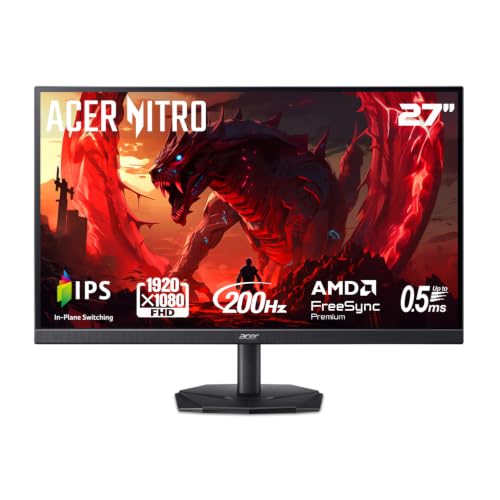
Acer Nitro KG240Y — Best for Esports
Within Acer’s own walls, this is the speed king of the 1080p range: a 23.8-inch IPS Nitro running a native 240Hz, with a half-millisecond response class and FreeSync Premium keeping the image tear-free while it flies. A few years ago an Acer with this specification would have worn the flagship XV badge and a flagship price; the KG240Y’s significance is that Acer pushed 240Hz down into its value-performance line, so the fastest panel in the family is no longer the preserve of the premium tier. For the Acer loyalist — and Acer has many, built across decades of honest monitors — this is the model that ends the upgrade debate.
The experience it delivers is the full modern one. IPS colour at 99% sRGB means the screen that wins your ranked matches also shows films and photographs without the tinted apology of older gaming panels, and the flicker-free, blue-light-managed backlight respects the length of the sessions this monitor invites. Two HDMI ports and a DisplayPort cover the PC-and-console desk, and VESA mounting means the tilt stand is a starting point rather than a life sentence. In the wider 240Hz market this monitor’s role is the value challenger; inside this guide’s Acer-only frame, it is simply the fastest citizen, and the one against which its siblings’ compromises are measured.
Those compromises are the KG line’s usual ones — a stand that tilts rather than glides, styling that speaks fluent gamer — and they are worth naming because the CB series below exists precisely for buyers who rank those things oppositely. But judged as Acer’s 1080p esports answer, the KG240Y is complete: the panel, the sync and the price philosophy align, and an Acer buyer who games seriously can stop reading here with a clear conscience and a fast screen.
- Panel: 23.8-inch IPS, 1920×1080
- Refresh rate: 240Hz, FreeSync Premium
- Response: 0.5ms class
- Inputs: 2× HDMI, DisplayPort
- Mounting: VESA compatible
Strengths
- Acer’s fastest 1080p panel in a value line
- IPS colour good enough for media and work too
- FreeSync Premium keeps demanding scenes clean
Trade-offs
- Tilt-only stand until you add an arm
- Gamer styling will not suit every room
- 240Hz demands a PC that can feed it
Best for: Acer-loyal competitive players and anyone whose one monitor must be the fast one. Not suited for: Office buyers who need USB-C docking and ergonomic stands.
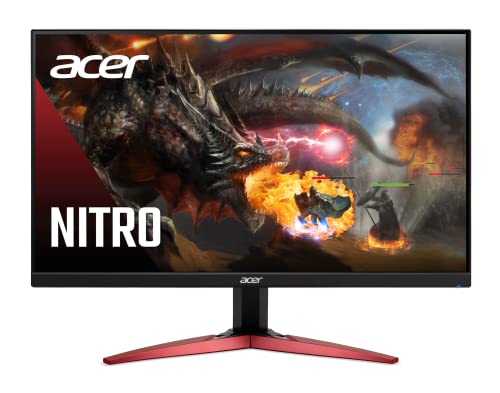
Acer Nitro KG241Y — Best Balanced Gamer
If the KG240Y is the family’s maximum, the KG241Y is its wisdom. This 23.8-inch Nitro runs 180Hz on an IPS panel with a 1ms response class and FreeSync Premium — a specification that maps almost perfectly onto the frame rates real mid-range gaming PCs sustain across a whole library, rather than the peaks they touch in one favourite title. There is a maturity to choosing the monitor your hardware can actually feed, and the KG241Y is where that maturity lands inside Acer’s range: fast enough that motion feels modern and clean, honest enough that the rest of the budget can go to the machine behind it.
Everything the KG line does well is present. The IPS panel keeps colours true from the couch-angle seats where friends watch, the sync range civilises the frame-rate dips of ambitious games on modest cards, and the port selection — two HDMI and a DisplayPort — runs a PC and console household without cable swapping. The design shares the family’s zero-frame ambition, so a pair of them builds a tidy dual-screen desk later, and the VESA mount again rescues the ergonomics when the desk matures. Acer positions this model as the KG line’s mainstream; having lived with the logic of the range, we would call it the line’s centre of gravity.
Choose it over its faster sibling when your PC’s honest frame rates live between 100 and 180, when your library mixes competitive titles with adventures that never ask for more, or when the price difference funds a better graphics card — the classic correct trade. Choose the KG240Y instead when ranked play is the main event and your hardware already produces the frames. Between the two, Acer has built a ladder with no wrong rung, only rungs matched to different evenings.
- Panel: 23.8-inch IPS, 1920×1080
- Refresh rate: 180Hz, FreeSync Premium
- Response: 1ms class
- Inputs: 2× HDMI, DisplayPort
- Mounting: VESA compatible, tilt stand
Strengths
- 180Hz matches real mid-range PCs perfectly
- Full KG-line virtues at a gentler entry point
- Dual HDMI plus DisplayPort covers mixed desks
Trade-offs
- Not the family’s fastest — ranked purists will climb
- Stand remains tilt-only
- Shares the KG line’s plainly gaming aesthetic
Best for: The majority of Acer gaming buyers, whose PCs and libraries live in the 100-180fps world. Not suited for: Esports specialists chasing every available hertz.

Acer Nitro VG240Y — Best Budget Acer
Every family has its foundation, and in Acer’s 1080p house the VG240Y is it. This is the Nitro that introduced a generation of builders to the idea that a gaming monitor need not cost like one: a 23.8-inch IPS panel at 75Hz with AMD FreeSync, a 1ms visual-response mode, and the zero-frame design that made budget desks look deliberate. Its longevity in Acer’s catalogue is itself the review — models that disappoint do not get reordered by the world’s PC builders for year after year — and its role in this guide is to mark the floor below which an Acer gaming purchase should not fall.
Understand what the floor buys. Seventy-five hertz with FreeSync is a genuine, felt upgrade over the 60Hz office surplus most first builds begin with: motion smooths, tearing disappears, and the IPS panel’s colour embarrasses the TN hand-me-downs of the previous era. The dual HDMI ports welcome a console beside the PC, and even a VGA input survives for the household’s older machine — a small, telling courtesy from a line that knows its buyers’ realities. As a second monitor bought to match a faster KG later, or as the first screen of a young player’s own desk, it remains the Acer that asks the least and delivers the essentials.
Its ceiling is equally clear, and this guide has never hidden ceilings: players who discover competitive shooters will outgrow 75Hz, and the stand and brightness are budget-grade. But Acer’s ladder is the point — the VG is where the climb starts, priced so the climb can start early, and built well enough that when its owner graduates to a KG it retires to second-screen duty with honour rather than to a cupboard. Foundations are not glamorous. They are what everything else stands on.
- Panel: 23.8-inch IPS, 1920×1080
- Refresh rate: 75Hz with AMD FreeSync
- Response: 1ms VRB mode
- Inputs: 2× HDMI, 1× VGA
- Design: zero-frame bezels
Strengths
- The Acer gaming floor: IPS and FreeSync at entry cost
- Years of production behind its reliability
- Legacy VGA keeps older machines welcome
Trade-offs
- 75Hz will be outgrown by competitive players
- No DisplayPort input
- Budget stand and brightness
Best for: First builds, young players’ desks, and second-screen duty beside a faster Acer. Not suited for: Anyone already certain they play ranked shooters nightly.
Acer KA Series (KA242Y class) — Best for Home Office (Prose-Only)
Step outside the Nitro house and Acer changes its voice. The KA series — represented here by the 24-inch class models such as the KA242Y — is Acer’s everyday line: 1080p IPS monitors designed for the home office, the family desk and the small business that needs screens which simply behave. Refresh rates in this family are modest by gaming standards, and deliberately so; the money goes instead to the things an eight-hour working day notices, namely eye-care technology in Acer’s VisionCare tradition, flicker-free backlights, low-blue-light modes and panels with wide viewing angles for the colleague leaning in beside you.
The KA buyer’s day looks different from the Nitro buyer’s, and the series honours it. Documents stay crisp, video calls look natural, the household’s evening streaming is perfectly served, and the setup ritual is the shortest in this guide: unbox, connect HDMI, work. Acer typically keeps these models’ styling neutral and their bezels slim, so a pair of them builds a respectable dual-screen office without a gaming aesthetic announcing itself on the video call. For households choosing one screen for homework, spreadsheets and the occasional film, this is the Acer temperament to buy.
We cover the KA prose-only, so consider this the signpost rather than the destination: if your desk’s main verbs are reading, writing, calling and watching, put the KA on your shortlist beside the business CB below, and let the Nitros go to the gamers. What the KA will not do is flatter fast games — its refresh ceiling is the office’s, not the arena’s — and a household that games seriously should climb back to the VG at minimum. Families are allowed to contain both kinds of user; Acer, to its credit, builds for both without confusing the two.
- Panel: 24-inch class IPS, 1920×1080
- Focus: eye comfort and everyday clarity
- Features: Acer VisionCare-style flicker-free, low blue light
- Role: home office and family desk
- Availability: discussed prose-only in this guide
Strengths
- Eye-care priorities matched to long working days
- Neutral design suits shared and professional spaces
- Simple, dependable everyday performance
Trade-offs
- Refresh rates are office-class, not gaming-class
- Fewer gaming features such as high-end sync ranges
- Not the line for a dedicated play desk
Best for: Home workers, families and small offices buying calm, comfortable screens. Not suited for: Gamers beyond the casual tier.
Acer Nitro XV Series — Best Premium Esports (Prose-Only)
At the top of the Nitro house sits the XV line, Acer’s flagship gaming tier, where the engineering brief reverses the KG’s: not the most speed for the money, but the most speed, with the money discussed afterwards. In 1080p terms the XV models are the ones that push refresh into overclocked, beyond-240Hz territory and response times toward their physical floor, wrapped in the stand ergonomics, build quality and feature depth that the value lines omit. They are, in Acer’s internal geography, the monitors built for players whose results are measured — the semi-professional, the streamer whose audience watches the screen as closely as the player does, the competitor for whom a frame is a fact of income.
What the premium buys, beyond the headline speed, is refinement of everything around it: sturdier stands with the full adjustment repertoire, better uniformity and factory attention, the connectivity to run a serious desk without compromise, and the sense — difficult to specify, easy to feel — of a product that was costed by its performance rather than by its price tag. Acer’s gaming ambitions live in this line first; features proven here historically filter down to the KG models in later generations, which is another way of saying the KG240Y’s existence is the XV philosophy succeeding.
We discuss the XV prose-only and qualitatively, because its models rotate quickly and its buyers need no convincing from a paragraph — they need the current model’s verified listing and a test in person. For everyone else, the XV’s function in this guide is perspective: it shows where Acer’s ladder tops out, so that the KG240Y can be recognised for what it is, namely most of the way up that ladder at a fraction of the fare. Admire the summit; most players should camp, happily and wisely, at the KG.
- Panel: 1080p esports-class, flagship Nitro tier
- Focus: maximum refresh and response at this resolution
- Build: full ergonomic stands, premium construction
- Role: semi-pro and high-end competitive desks
- Availability: discussed prose-only in this guide
Strengths
- Acer’s ultimate 1080p gaming engineering
- Ergonomics and build the value lines omit
- The tier where Acer’s new gaming features debut
Trade-offs
- Flagship pricing for gains most players cannot use
- Demands a genuinely high-end PC to feed it
- Overkill for mixed and casual libraries
Best for: Semi-professional competitors and no-compromise Acer gaming rigs. Not suited for: Anyone whose PC or library lives below the KG240Y’s ceiling.
Acer CB Series (CB272 class) — Best for Business (Prose-Only)
The CB series is Acer’s answer to a question the gaming lines never ask: what does a monitor owe a professional? Represented by 27-inch class models such as the CB272 — which stretches the same Full HD resolution across a larger canvas for shared viewing — the CB line is built around the docked-laptop working day. Its signature is USB-C connectivity with power delivery, so a single cable connects the laptop to the screen, charges it, and carries the peripherals hanging off the monitor’s own USB hub. Its second signature is the stand: Acer’s business models carry the full ergonomic repertoire — height, tilt, swivel, pivot into portrait — because a screen that eight-hour workers cannot position is a screen that fails its only job.
The professional details accumulate from there. Colour behaviour in this line is tuned for documents, calls and design-adjacent work rather than for game saturation; the aesthetics are deliberately anonymous, suiting client-facing offices and hot-desking floors; and the series is sold with the business buyer in mind, where a fleet of identical, dependable screens matters more than any single specification. A CB beside a laptop is the cleanest desk in this entire guide — one cable on arrival, one on departure — and for the growing population whose office is a laptop and a chair, that cleanliness is a working feature, not a style preference.
Covered prose-only here, the CB is the guide’s recommendation-by-direction for the professional reader: if your monitor’s life is documents, calls and a laptop that commutes, this family — not the Nitros, not the KA — is where Acer keeps your pick, and the premium over the KA buys the docking and ergonomics your posture and your cable drawer will thank you for daily. Gamers should look away without regret; this screen was never courting them, and its honesty about that is exactly what makes it right for its own people.
- Panel: 27-inch class IPS, 1920×1080
- Signature: USB-C with power delivery and hub functions
- Stand: full ergonomic adjustment including pivot
- Role: professional, laptop-docked desks
- Availability: discussed prose-only in this guide
Strengths
- One-cable USB-C docking for laptop workers
- The best ergonomics in Acer’s 1080p range
- Anonymous, office-appropriate design
Trade-offs
- 1080p on a larger screen softens fine text slightly
- Gaming specifications are not its brief
- Business features cost more than the KA line
Best for: Professionals and hot-deskers whose monitor serves a commuting laptop. Not suited for: Gaming-first buyers, who belong in the Nitro sections.
How Do the Best 1080p Acer Monitors Compare Across the Families?
| Pick | Family | Speed class | Signature | Desk it serves |
|---|---|---|---|---|
| Nitro KG240Y | Nitro KG | 240Hz | Flagship speed, value line | Competitive gaming |
| Nitro KG241Y | Nitro KG | 180Hz | Balanced performance | Mainstream gaming |
| Nitro VG240Y | Nitro VG | 75Hz | Proven budget gaming | First builds |
| KA series | KA | Office class | Eye comfort, simplicity | Home office, family |
| Nitro XV series | Nitro XV | Beyond 240Hz class | Flagship engineering | Premium esports |
| CB series | CB | Office class | USB-C docking, ergonomics | Professional laptop desks |
How Do You Decode Acer’s Model Names Before Buying?
Acer’s names are a compressed specification, and learning the grammar saves real money. The letters name the family: Nitro’s KG, VG and XV gaming tiers, the KA everyday line, the CB business line, with other letters covering creator and ultra-wide ranges outside this guide’s 1080p brief. The first digit after the letters generally signals the size class — the 24 in KG240Y and KG241Y marks the 24-inch family — while the trailing digits and letters distinguish the generation and variant, which is where refresh rate and panel differences hide. Two monitors can share a family name and a size while differing in the one specification you care about, which is why the discipline is to read the full model string against the specification list, never the family name alone.
Generational drift is the second trap. Acer refreshes lines in place, so a model string bought happily by a reviewer two years ago may describe a panel with a different refresh or port selection in its current production — or the reverse, a quiet upgrade wearing a familiar name. The remedy is unglamorous and absolute: at the moment of purchase, verify the refresh rate, panel type and inputs on the specific listing in front of you, the way this guide’s linked picks were verified against their listings. The third trap is regional variation, where the same model string ships with different stands or inputs in different markets; again, the listing in front of you is the only authority that will ever ship you a box.
None of this is Acer being devious — every major maker plays the same naming game, and Acer at least keeps its families semantically honest, with Nitro always meaning gaming intent and CB always meaning business. The shopper who learns the grammar gains something better than a good monitor: they gain the ability to read Acer’s entire future catalogue at a glance, including the models that will replace these six, and to spot the exact week a higher family’s feature lands in a lower family’s price.
How Do You Set Up an Acer Monitor for Its Best Picture?
The ritual begins with the refresh rate, because Acer’s gaming panels — like everyone’s — may arrive at your PC running below their ceiling until the operating system’s advanced display settings are told otherwise. Set the KG models to their full rate explicitly, connect by DisplayPort where high refresh is the goal, and confirm the figure in the monitor’s own information screen. Then enable FreeSync in the monitor’s menu and in your graphics driver’s panel; on the Nitro models it is the difference between the specification you bought and the one you merely own, because variable refresh only exists when both ends agree to it.
Picture settings follow a short, reliable order. Choose the picture mode closest to neutral — the sRGB or standard mode — rather than the vivid gaming preset, whose saturation flatters the showroom and tires the eye by week two. Set overdrive to the middle option and test it against a fast pan in your main game: dark trails argue for stepping up, bright halos for stepping down, and Acer’s menus make the experiment a two-minute job. Brightness belongs to your room, not to a number in a review; in a normally lit space the correct setting is the one where white looks like paper rather than like a lamp. KA and CB owners should make one different stop in the menus: enable the low-blue-light or reading mode for document hours, since those panels’ eye-care features are their reason for existing and they only work when switched on.
Finally, position the screen before you judge it. The top bezel near eye level, the panel an arm’s length away, no window glaring off the surface — and if your Acer is a tilt-only Nitro, a book or a VESA arm is not an admission of defeat but the standard completion of a value monitor’s setup. Acer’s own displays reward this half hour disproportionately, because their panels are generally better than their out-of-box settings suggest.
Which Mistakes Do Acer Buyers Make Most Often?
The first is buying the family photograph instead of the model: seeing “Nitro KG” and assuming the refresh of the variant they read about, when the digits after the letters were carrying that information all along. The second is its cousin — assuming a newer-looking listing is a newer monitor, in a catalogue where long-lived models like the VG240Y coexist with fresh ones by design. The third is port blindness: the VG’s lack of DisplayPort surprises its owner on unboxing day, the KA’s gaming limits surprise a different owner a week later, and both surprises were printed in the specification the whole time.
Fourth, buyers underrate the stand until their neck delivers the review. Acer’s value lines tilt; Acer’s business line glides; the price difference between a KG and a CB is partly a spine difference, and shoppers who work eight hours at the screen should price their posture honestly rather than discovering its cost. Fifth, the single-brand desk cuts both ways: matching Acer monitors make a beautiful multi-screen setup, but only if the models genuinely match in size and bezel — a KG beside a KA of the same diagonal still shows different frames, different colour tuning and different stands, and the mismatch will be visible every day. Buy the second screen as the same model as the first, or accept a deliberate contrast. Finally, do not skip the first-week panel inspection — solid colours, a dark room, every input — because Acer’s warranty service is a reasonable process that is nonetheless slower than a retailer’s exchange window.
Why Do Buyers Stay Loyal to Acer Across Upgrades?
Brand loyalty in monitors is rarely about love; it is about the absence of betrayal, and Acer has built its following by shipping competent panels at honest prices for long enough that entire households have standardised on the logo. There are practical dividends to that standardisation. Menus behave the same across the range, so the second Acer in a home is configured in minutes by hands that already know the joystick logic. Colour character is consistent enough within a family that a dual-screen desk matches without a calibrator’s intervention. And the upgrade ladder within one brand is psychologically simpler: the VG owner who graduates to a KG is climbing a staircase they can see, rather than emigrating to a stranger’s country.
The counterweight deserves its sentence too. Loyalty should be a default, not a doctrine: rival makers occasionally land a specification Acer has not matched in a given season, and the buyer who never looks sideways eventually pays a loyalty tax measured in hertz or ports. The healthiest reading of this guide is as a map of one maker’s range drawn carefully enough that you can compare it against any other — if your conclusion after that comparison is still Acer, it will be Acer chosen rather than Acer inherited, and the monitor will be better for the choosing.
Final Recommendation
Within Acer’s 1080p world, the decision tree is mercifully short. Gamers should start at the KG241Y, the balanced centre of the range, and climb to the KG240Y when their PC and their ambitions both produce the frames to justify it — or descend to the VG240Y when the budget is shared with the rest of a first build. Professionals should walk past the gaming shelves entirely to the CB series and its one-cable docking, households to the KA and its calm eye-care priorities, and the rare competitor whose results are measured should look up at the XV summit with clear eyes about what its altitude costs.
One last habit separates satisfied Acer owners from the rest of the market: they keep the box’s model string in their records and buy the second screen, the replacement or the upgrade by that string rather than by memory. Catalogues drift, families evolve, and the string is the only name that never lies about what is inside the carton. What Acer offers at 1080p, more than any single specification, is a ladder with honest rungs — a family for every desk and a path between them that never requires leaving the brand to climb. Choose your rung by the evenings you actually spend, verify the exact model string before you pay, set the refresh and the stand up properly in the first hour, and the screen that arrives will be the one this guide meant: an Acer that fits, from a range that finally makes sense — and a desk that stops asking you questions and starts answering them.
How Do You Build a Dual-Monitor Acer Desk That Actually Matches?
Acer’s range tempts buyers into pairs — two screens for work, or a fast screen for play beside a calm one for everything else — and the catalogue rewards those who plan the pairing by family rather than by the day’s discounts. The golden rule is symmetry where the eye can see it: identical models share bezels, stands, colour tuning and menu logic, so a pair of KG241Y or KA models reads as one instrument across your desk. Mixed pairs work when the roles are deliberately different — a KG240Y as the gaming primary with a KA as the reading and chat wing is a genuinely sensible desk — but accidental mismatch, two similar-but-different Acers bought a month apart, produces the daily low-grade irritation of screens that almost agree.
Connection planning comes second. Two high-refresh screens want two appropriate outputs from the PC, and the household’s cable drawer should be audited before the second box is ordered; the gaming primary takes the DisplayPort, the secondary lives happily on HDMI. Laptop-driven desks have the elegant alternative in the CB philosophy — one USB-C cable into a docking arrangement — though a dual-screen laptop setup may still need the laptop maker’s own dock to drive both panels at full specification. Height alignment is the last, unglamorous detail: two screens whose images sit at different elevations will tax your neck in stereo, so budget for matching VESA arms if the models’ stands differ, and let the desk’s geometry be settled by your posture rather than by Acer’s packaging decisions.
Which Acer Should Students and First-Time Buyers Choose?
Students live the whole Acer map in miniature: lectures and essays by day, games by night, a budget audited by reality. The honest default for that life is the KG241Y if gaming is a real pillar of the week — its 180Hz covers the competitive titles students actually play, its IPS panel serves films and coursework, and it will still feel current in the final year of a degree. Where the budget is shared with the PC itself, the VG240Y performs the classic student service of being good enough at everything that matters while leaving money for the components that decide frame rates, and its second career as a second screen is already mapped out in this guide.
The KA earns a specific student mention for the library-and-dorm reality: long reading days, shared rooms, screens that double as the household television. Its eye-care priorities are not marketing to a student pulling a late session; they are the difference between finishing the essay and finishing it with a headache. What students should avoid is the false economy at the very bottom of any catalogue — the unbranded or ancient panel whose savings evaporate into eye strain and an early replacement. Acer’s floor, the VG, exists precisely so that a first purchase can be cheap without being a mistake, and a first purchase that is not a mistake is the one that gets upgraded by choice in three years rather than by failure in one.
How Do You Look After an Acer Panel So It Ages Gracefully?
Monitor care is a short liturgy performed rarely. Dust the screen with a dry microfibre cloth and nothing harsher; solvents and paper towels are how anti-glare coatings go cloudy. Keep brightness at the level your room needs, because backlight hours are the panel’s lifespan currency and a screen run at maximum in a dim room is spending them on glare. Use the operating system’s sleep settings rather than leaving a static desktop glowing overnight, and if your Acer will sit unused for a season, a dust cover is kinder than a sunlit windowsill. The gaming models ask one extra habit: leave their vents — the slots along the top rear — unobstructed by the shelf arrangements that accumulate around a busy desk.
Warranty hygiene completes the care. Register the monitor, photograph the serial label, and keep the receipt with the same dull reliability you would apply to a passport. Acer’s service process, like every maker’s, runs on those artefacts, and the owner who can produce them in minute one gets a repair while the owner who cannot gets a research project. Panels in this guide are built for five-plus years of daily use; the difference between the ones that get there and the ones that fade early is almost never luck — it is brightness discipline, clean vents and a receipt in a known drawer.
How Do Acer’s 1080p Monitors Serve Console Players?
Consoles redraw the Acer map in a useful way, because their frame-rate ceilings — sixty in most titles, one-twenty in the performance modes of current machines — sit comfortably inside even the middle of this range. A console household can therefore buy by the other virtues: the KG241Y becomes a sweet spot rather than a compromise, its 180Hz ceiling waiting politely above the console’s output while its IPS colour, dual HDMI and FreeSync behaviour serve the living-room-desk hybrid that console desks usually are. The VG240Y, at 75Hz, covers older consoles completely and current ones in their majority modes, which is why so many first gaming desks pair it with a console years before a PC joins it.
The practical checks are three. First, HDMI count and behaviour: the linked Nitros carry two HDMI ports, so a console and a PC or a second console can coexist without a swapping ritual, and the monitor should be set to wake with the console’s signal if your evenings begin that way. Second, speakers and headphone routes: Acer’s gaming models vary here, so the console buyer who plays late in a shared home should confirm the audio path — monitor speakers, a headphone jack, or the console controller’s own jack — before the first midnight session depends on it. Third, HDR expectations should be set to honest: consoles will offer HDR modes, these 1080p panels will accept the signal, and the result will be a compatibility rather than a transformation, because HDR is a brightness technology and this class spends its brightness elsewhere. Set the console to its performance mode, sit at desk distance, and an Acer at 1080p will show you exactly why so many console players migrate from the family television to a monitor and never migrate back.
Why Choose Acer at 1080p Over the Rival Badges?
The case for Acer in this resolution is structural rather than sentimental. Few makers contest every altitude of the 1080p market simultaneously — budget gaming, balanced gaming, esports, flagship esports, home office and business docking — and that breadth produces the ladder effect this guide keeps returning to: an Acer buyer can enter anywhere and upgrade within the brand’s grammar, with menus, styling and service logic carrying across. Rival brands beat individual Acer models in individual seasons, inevitably; what they rarely beat is the completeness of the map, and for buyers outfitting more than one desk — a household, a small office, a student flat — completeness is a purchasing feature in its own right.
Price behaviour is the second structural point. Acer’s value lines have historically been where panel specifications arrive first at aggressive prices — the KG240Y’s 240Hz-in-a-value-line is the current exhibit — because Acer’s scale lets it move a specification downmarket sooner than prestige brands prefer to. The informed buyer’s strategy follows from that: watch the boundary between Acer’s families, because the interesting purchase is usually last season’s flagship feature wearing this season’s KG badge. None of which obliges anyone to buy Acer — the rival guides on this site exist to argue the other cases — but it explains why this brand, at this resolution, rewards a dedicated map more than most.
How Should a Small Office Buy Acer Screens in Quantity?
Offices buying Acer by the half-dozen play a different game from the home buyer, and the CB and KA families are where that game is won. Standardise on one model per role — the discipline sounds dull and pays out for years, because identical screens mean identical cables, stands, colour behaviour and spares, and any desk can receive any unit from the store cupboard without a negotiation. Buy one spare beyond the headcount; a fleet with a spare converts a failure from an emergency purchase into a swap, and the spare’s cost is recovered the first time it prevents a day of improvised working on a laptop screen.
Procurement should verify the same things this guide teaches individuals to verify, at fleet scale: the exact model string on the quotation against the specification required, the stand’s adjustment range against the office’s ergonomic policy, and the warranty term against the replacement cycle the finance team assumes. Offices also feel Acer’s family structure as an asset — a business can run CB screens on the client floor, KA screens in the back office and a Nitro in the break room off one supplier relationship and one service logic. That is the corporate expression of the same ladder the home gamer climbs, and it is why Acer’s name appears on so many institutional purchase orders between the famous consumer brands.
Frequently Asked Questions
What is the difference between Acer’s KG, VG and XV gaming lines?
They are Nitro’s three altitudes. VG is the long-running entry line, exemplified here by the 75Hz VG240Y. KG is the current value-performance core, spanning the 180Hz KG241Y and the 240Hz KG240Y. XV is the flagship tier, pushing speed and build beyond the KG models at premium prices. Same gaming intent, three budgets of seriousness.
Is the KG240Y or KG241Y the better buy?
It depends on the frames your PC produces and the games you play. If your system sustains very high frame rates in competitive titles, the KG240Y’s 240Hz is real and worth having. If your library and hardware live in the 100-180fps range, the KG241Y matches them exactly and leaves money for the rest of the setup. Neither answer embarrasses the other.
Can Acer’s KA or CB monitors handle gaming at all?
Yes, within their design brief. Both will display games perfectly well at their office-class refresh rates, and casual, strategy and story titles will look fine. What they do not offer is the high-refresh, sync-tuned experience of the Nitro lines, so a household that games seriously should treat the KA and CB as work screens that can play, not gaming screens.
Does the VG240Y still make sense next to newer models?
As the range’s foundation, yes. Its 75Hz FreeSync IPS specification is the minimum this guide accepts for a gaming purchase, and its long production run means proven reliability at the lowest cost of entry. It makes sense for first builds, young players and second screens — and stops making sense the moment competitive high-refresh play becomes the desk’s main purpose.
What cable should I use with a Nitro gaming monitor?
DisplayPort for high refresh rates on a PC — it is the connection that reliably delivers the KG models’ full specification — with the cable from the box preferred over elderly spares. HDMI serves consoles and lower-refresh use perfectly well, and both KG picks carry two HDMI ports for exactly that mixed life.
Should I buy a 24-inch or 27-inch Acer at 1080p?
At 1080p the resolution itself votes for 24 inches: the same pixels spread across 27 inches soften text and fine detail, which gamers tolerate for immersion but readers feel all day. Choose 24 inches for gaming and mixed desks, and 27 inches — the CB class — when the screen is shared across a desk, viewed from farther away, or bought for a user who prefers larger text over denser text.
How long should an Acer monitor last?
Budget on five years of daily use as the planning figure, with many units serving well beyond it as second screens and household spares. The panel itself rarely dies outright; what ages is the specification around your ambitions — refresh expectations, connection standards, size fashion. Buying the right family at the start, as this guide has argued throughout, is what keeps the five years feeling like service rather than sentence.
Do Acer monitors work well with Nvidia graphics cards?
Yes. The FreeSync Premium panels in this guide generally operate as G-Sync Compatible displays over DisplayPort in Nvidia’s driver, delivering variable refresh for GeForce owners as well as Radeon ones. Verify the specific model in your driver’s control panel after connecting, and prefer DisplayPort for the connection, as with most sync pairings.
Why are three picks in this guide prose-only?
Because this guide links only to listings verified for it. The KA, XV and CB families complete Acer’s 1080p map and deserve accurate, qualitative coverage, but no verified listing was in hand for the specific models discussed, so they are presented without purchase links rather than with invented ones. The three Nitro picks carry the verified links.
Related Guides
Compare beyond the single brand with our companion guides: best 1080p 240hz monitors for the cross-brand speed tier, best 100 dollar gaming monitors for the strict-budget view of this resolution, and best accessories for laptops for the docks and stands that pair with a business Acer.
Related guides
- Best 100 Dollar Gaming Monitors: Honest Picks and Sensible Stretch Options
- Best 1080p 144Hz Monitors: One True 144Hz Pick, Four Honest 180Hz Upgrades and a Labelled 120Hz Alternative
- Best 10 TV Monitors: The 6 Screens That Actually Earn a Place in Both Lives
- Best 1080p 240Hz Monitors for Competitive Gaming

[…] may also find these guides useful: best 1080p freesync monitors best gaming monitors for consoles best monitor arms for gaming desks See also 10 benq […]