What's inside
- Quick picks: best 10 13 tablets
- What "best 10 13 tablets" really means
- How the picks were chosen
- The six best 10 13 tablets
- Comparison table
- Buying guide
- Using and looking after your tablet
- Common mistakes to avoid
- Which pick suits which reader
- Final recommendation
- Frequently asked questions
- Keep reading on GizmoVerdict
As an Amazon Associate I earn from qualifying purchases. This post may contain affiliate links at no extra cost to you.
Finding the best of best 10 13 tablets means matching the tablet to the work, not chasing the biggest numbers. A cheaper tablet with the right screen and enough storage often beats a faster one that fights you on the basics. Ten to thirteen inches covers the whole of the mainstream tablet range, from the portable to the desktop-sized. The picks below span that range across systems, so the choice comes down to size first and software second.
The picks below suit different people, and the guide says so plainly for each one. Skim the comparison table first if you are short on time, then read the two or three picks that match your budget and your use.
Quick picks: best 10 13 tablets
| # | Product | Where to buy |
|---|---|---|
| 1 | Apple iPad Air 11-inch (M2) | Check on Amazon |
| 2 | Apple iPad Air 13-inch (M2) | Check on Amazon |
| 3 | Samsung Galaxy Tab S9 FE+ | Check on Amazon |
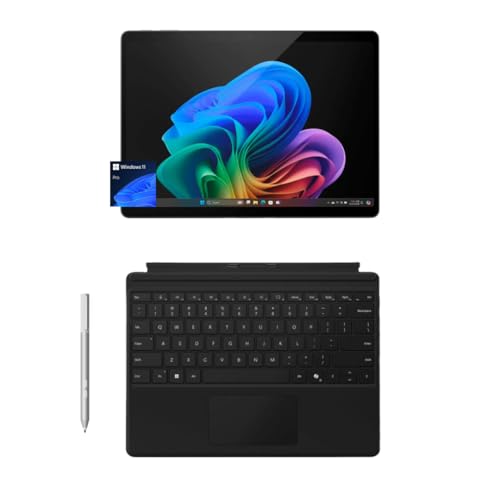
| 4 | Microsoft Surface Go 4 | Check on Amazon |
| 5 | Google Pixel Tablet | Check on Amazon |
| 6 | Samsung Galaxy Tab S9 | Check on Amazon |
What "best 10 13 tablets" really means
Before comparing models, it helps to separate the must-haves from the nice-to-haves. Screen size, storage, battery life, and whether a pen or keyboard is included in the box are the four decisions that shape the whole shortlist, and they matter more than small differences in processor speed.
How the picks were chosen
Every tablet below was assessed against the same checklist, so the recommendations stay comparable. We looked at the screen first, because it is the part you stare at for hours, then at performance under everyday loads, battery life in normal use, storage and expansion, the quality of the pen or keyboard experience where one applies, and how long the manufacturer supports the device with updates.
- We checked the screen size and quality, the chip, and the battery for each pick for every pick.
- We penalised models whose screen was too small or too dim for the use, or whose battery could not last a day.
The six best 10 13 tablets
Apple iPad Air 11-inch (M2)

At a glance: 11-inch Liquid Retina display, 2360×1640 | Apple M2 | 8GB RAM, 128GB storage | Up to 10 hours of use.
Positioned as a 10 to 13 inch tablet, with a flagship-class chip, the Apple iPad Air 11-inch (M2) offers 11-inch Liquid Retina display, 2360×1640 | Apple M2 | 8GB RAM, 128GB storage | Up to 10 hours of use. Those figures tell only part of the story. A tablet lives or dies on the details that never appear in a headline: how the screen handles glare, how comfortable it is to hold for an hour, and whether the software gets out of your way.
In daily use, the Apple iPad Air 11-inch (M2) plays to its strengths. Flagship-class chip that keeps games and heavy apps smooth. Cellular version available, so it stays online away from Wi-Fi. And usb-c port for charging, accessories and an external display. Those are the qualities that make it easy to recommend for the use case in this guide, and they are the reason it made the shortlist ahead of rivals with similar specifications.
Strengths:
- Flagship-class chip that keeps games and heavy apps smooth.
- Cellular version available, so it stays online away from Wi-Fi.
- USB-C port for charging, accessories and an external display.
Trade-offs:
- LCD panel rather than OLED, so blacks look grey in a dark room.
- Stylus costs extra, so the pen experience adds to the total cost.
- No headphone jack, so wired listening needs an adapter.
The compromises are real and worth knowing before you buy. LCD panel rather than OLED, so blacks look grey in a dark room. Stylus costs extra, so the pen experience adds to the total cost. And no headphone jack, so wired listening needs an adapter. None of these is necessarily a deal-breaker, but they are the reasons this tablet sits where it does in the ranking rather than higher.
Look beyond the headline figures with the Apple iPad Air 11-inch (M2) and the picture stays consistent: a device built for a particular job, with clear strengths in that job and clear limits outside it. Flagship-class chip that keeps games and heavy apps smooth. That focus is exactly why it belongs on this list.
Stepping back, the Apple iPad Air 11-inch (M2) makes sense for a buyer who values flagship-class chip that keeps games and heavy apps smooth. over outright speed or the newest design. It is not the flashiest tablet on this list, and it does not try to be. Its appeal is narrower and more honest than that: it does one job well, at a cost that leaves room for the accessories that make a tablet genuinely useful.
Best for: a buyer who wants a fast iPad for work and drawing
Not suited for: anyone who needs expandable storage
Apple iPad Air 13-inch (M2)
Check price on Amazon: Apple iPad Air 11-inch (M2)

At a glance: 13-inch Liquid Retina display, 2732×2048 | Apple M2 | 8GB RAM, 128GB storage | Up to 10 hours of use.
Apple iPad Air 13-inch (M2) is a 10 to 13 inch tablet, with a flagship-class chip. Its headline figures are 13-inch Liquid Retina display, 2732×2048 | Apple M2 | 8GB RAM, 128GB storage | Up to 10 hours of use, and on paper that is a sensible balance for the money. What matters in practice is how those parts behave together: the screen you look at, the responsiveness when you switch apps, and whether the battery still has charge left at the end of the day.
What keeps the Apple iPad Air 13-inch (M2) competitive is a practical set of strengths. Flagship-class chip that keeps games and heavy apps smooth. Cellular version available, so it stays online away from Wi-Fi. And large screen that suits films, split-screen work and drawing. None of these is dramatic on its own, but together they add up to a tablet that is pleasant to live with rather than merely adequate on a spec sheet.
Strengths:
- Flagship-class chip that keeps games and heavy apps smooth.
- Cellular version available, so it stays online away from Wi-Fi.
- Large screen that suits films, split-screen work and drawing.
Trade-offs:
- LCD panel rather than OLED, so blacks look grey in a dark room.
- Stylus costs extra, so the pen experience adds to the total cost.
- No headphone jack, so wired listening needs an adapter.
No tablet at this level is without trade-offs, and the Apple iPad Air 13-inch (M2) is no exception. LCD panel rather than OLED, so blacks look grey in a dark room. Stylus costs extra, so the pen experience adds to the total cost. And no headphone jack, so wired listening needs an adapter. If those limitations clash with how you plan to use the tablet, one of the other picks will serve you better.
Look beyond the headline figures with the Apple iPad Air 13-inch (M2) and the picture stays consistent: a device built for a particular job, with clear strengths in that job and clear limits outside it. Flagship-class chip that keeps games and heavy apps smooth. That focus is exactly why it belongs on this list.
For the right buyer, the Apple iPad Air 13-inch (M2) is an easy recommendation. Flagship-class chip that keeps games and heavy apps smooth. That matters more than any single specification, because it is the quality you notice every time you pick the tablet up. The trade-offs listed above are the cost of that focus, and for the audience this tablet is built for, they are a fair exchange.
Best for: a buyer who wants the biggest iPad screen for films and drawing
Not suited for: anyone who wants a light tablet for one-handed reading
Samsung Galaxy Tab S9 FE+
Check price on Amazon: Apple iPad Air 13-inch (M2)

At a glance: 12.4-inch LCD display, 2560×1600, 90Hz | Exynos 1380 | 8GB RAM, 128GB storage | 10,090mAh battery, up to 20 hours of video.
Among the six picks, the Samsung Galaxy Tab S9 FE+ stands out as a 10 to 13 inch tablet, with a pen included in the box. It brings 12.4-inch LCD display, 2560×1600, 90Hz | Exynos 1380 | 8GB RAM, 128GB storage | 10,090mAh battery, up to 20 hours of video, a combination that suits its intended use well. The sections below break down where it shines and where it asks you to compromise, so you can judge it against your own routine rather than a marketing claim.
The case for the Samsung Galaxy Tab S9 FE+ rests on how it handles ordinary days. Stylus included in the box, ready for notes and sketching. MicroSD slot, so storage can grow cheaply later. And strong built-in speakers that sound fuller than most tablets in this class. That combination is what you notice after a week of use, long after the novelty of a new device has worn off.
Strengths:
- Stylus included in the box, ready for notes and sketching.
- MicroSD slot, so storage can grow cheaply later.
- Strong built-in speakers that sound fuller than most tablets in this class.
Trade-offs:
- LCD panel rather than OLED, so blacks look grey in a dark room.
- No headphone jack, so wired listening needs an adapter.
- Large and heavy for one-hand use, so it suits a bag more than a pocket.
The compromises are real and worth knowing before you buy. LCD panel rather than OLED, so blacks look grey in a dark room. No headphone jack, so wired listening needs an adapter. And large and heavy for one-hand use, so it suits a bag more than a pocket. None of these is necessarily a deal-breaker, but they are the reasons this tablet sits where it does in the ranking rather than higher.
Ownership is where the Samsung Galaxy Tab S9 FE+ either earns its keep or shows its limits. LCD panel rather than OLED, so blacks look grey in a dark room. That is worth weighing against the strengths above, because a tablet you use every day is judged by its worst day, not its best one.
For the right buyer, the Samsung Galaxy Tab S9 FE+ is an easy recommendation. Stylus included in the box, ready for notes and sketching. That matters more than any single specification, because it is the quality you notice every time you pick the tablet up. The trade-offs listed above are the cost of that focus, and for the audience this tablet is built for, they are a fair exchange.
Best for: a buyer who wants a large Samsung tablet with a pen for notes and films
Not suited for: anyone who wants a light tablet for one-handed reading
Microsoft Surface Go 4
Check price on Amazon: Samsung Galaxy Tab S9 FE+

At a glance: 10.5-inch PixelSense display, 1920×1280 | Intel Processor N200 | 8GB RAM, 128GB storage | Up to 12.5 hours of use.
Positioned as a 10 to 13 inch tablet, with cellular data, the Microsoft Surface Go 4 offers 10.5-inch PixelSense display, 1920×1280 | Intel Processor N200 | 8GB RAM, 128GB storage | Up to 12.5 hours of use. Those figures tell only part of the story. A tablet lives or dies on the details that never appear in a headline: how the screen handles glare, how comfortable it is to hold for an hour, and whether the software gets out of your way.
What keeps the Microsoft Surface Go 4 competitive is a practical set of strengths. Cellular version available, so it stays online away from Wi-Fi. Keyboard support that turns it into a compact laptop. And capable mid-range chip that handles everyday apps and light games well. None of these is dramatic on its own, but together they add up to a tablet that is pleasant to live with rather than merely adequate on a spec sheet.
Strengths:
- Cellular version available, so it stays online away from Wi-Fi.
- Keyboard support that turns it into a compact laptop.
- Capable mid-range chip that handles everyday apps and light games well.
Trade-offs:
- LCD panel rather than OLED, so blacks look grey in a dark room.
- Stylus costs extra, so the pen experience adds to the total cost.
- Windows on a small screen, so touch-first use feels cramped.
The compromises are real and worth knowing before you buy. LCD panel rather than OLED, so blacks look grey in a dark room. Stylus costs extra, so the pen experience adds to the total cost. And windows on a small screen, so touch-first use feels cramped. None of these is necessarily a deal-breaker, but they are the reasons this tablet sits where it does in the ranking rather than higher.
Look beyond the headline figures with the Microsoft Surface Go 4 and the picture stays consistent: a device built for a particular job, with clear strengths in that job and clear limits outside it. Cellular version available, so it stays online away from Wi-Fi. That focus is exactly why it belongs on this list.
For the right buyer, the Microsoft Surface Go 4 is an easy recommendation. Cellular version available, so it stays online away from Wi-Fi. That matters more than any single specification, because it is the quality you notice every time you pick the tablet up. The trade-offs listed above are the cost of that focus, and for the audience this tablet is built for, they are a fair exchange.
Best for: a buyer who wants a small Windows tablet for work
Not suited for: anyone who wants a simple tablet for reading and video
Google Pixel Tablet
Check price on Amazon: Microsoft Surface Go 4

At a glance: 11-inch LCD display, 2560×1600 | Google Tensor G2 | 8GB RAM, 128GB storage | Up to 12 hours of video.
Among the six picks, the Google Pixel Tablet stands out as a 10 to 13 inch tablet, with a charging dock. It brings 11-inch LCD display, 2560×1600 | Google Tensor G2 | 8GB RAM, 128GB storage | Up to 12 hours of video, a combination that suits its intended use well. The sections below break down where it shines and where it asks you to compromise, so you can judge it against your own routine rather than a marketing claim.
In daily use, the Google Pixel Tablet plays to its strengths. Charging speaker dock that turns it into a smart display at home. Capable mid-range chip that handles everyday apps and light games well. And usb-c port for charging, accessories and an external display. Those are the qualities that make it easy to recommend for the use case in this guide, and they are the reason it made the shortlist ahead of rivals with similar specifications.
Strengths:
- Charging speaker dock that turns it into a smart display at home.
- Capable mid-range chip that handles everyday apps and light games well.
- USB-C port for charging, accessories and an external display.
Trade-offs:
- LCD panel rather than OLED, so blacks look grey in a dark room.
- Stylus costs extra, so the pen experience adds to the total cost.
- Wi-Fi-only version in this configuration, so it needs a hotspot outdoors.
No tablet at this level is without trade-offs, and the Google Pixel Tablet is no exception. LCD panel rather than OLED, so blacks look grey in a dark room. Stylus costs extra, so the pen experience adds to the total cost. And wi-fi-only version in this configuration, so it needs a hotspot outdoors. If those limitations clash with how you plan to use the tablet, one of the other picks will serve you better.
Look beyond the headline figures with the Google Pixel Tablet and the picture stays consistent: a device built for a particular job, with clear strengths in that job and clear limits outside it. Charging speaker dock that turns it into a smart display at home. That focus is exactly why it belongs on this list.
Stepping back, the Google Pixel Tablet makes sense for a buyer who values charging speaker dock that turns it into a smart display at home. over outright speed or the newest design. It is not the flashiest tablet on this list, and it does not try to be. Its appeal is narrower and more honest than that: it does one job well, at a cost that leaves room for the accessories that make a tablet genuinely useful.
Best for: a buyer who wants a clean Android tablet with a smart display dock
Not suited for: anyone who needs expandable storage
Samsung Galaxy Tab S9
Check price on Amazon: Google Pixel Tablet

At a glance: 11-inch Dynamic AMOLED 2X display, 2560×1600, 120Hz | Snapdragon 8 Gen 2 | 8GB RAM, 128GB storage | 8,400mAh battery, up to 15 hours of video.
Samsung Galaxy Tab S9 is a 10 to 13 inch tablet, with a vivid OLED display. Its headline figures are 11-inch Dynamic AMOLED 2X display, 2560×1600, 120Hz | Snapdragon 8 Gen 2 | 8GB RAM, 128GB storage | 8,400mAh battery, up to 15 hours of video, and on paper that is a sensible balance for the money. What matters in practice is how those parts behave together: the screen you look at, the responsiveness when you switch apps, and whether the battery still has charge left at the end of the day.
In daily use, the Samsung Galaxy Tab S9 plays to its strengths. Deep-black OLED display with vivid colour and a fast refresh rate. Flagship-class chip that keeps games and heavy apps smooth. And stylus included in the box, ready for notes and sketching. Those are the qualities that make it easy to recommend for the use case in this guide, and they are the reason it made the shortlist ahead of rivals with similar specifications.
Strengths:
- Deep-black OLED display with vivid colour and a fast refresh rate.
- Flagship-class chip that keeps games and heavy apps smooth.
- Stylus included in the box, ready for notes and sketching.
Trade-offs:
- No headphone jack, so wired listening needs an adapter.
- Flagship speed uses more battery under heavy load.
- Keyboard and case cost extra, so the full kit costs more than the tablet alone.
The compromises are real and worth knowing before you buy. No headphone jack, so wired listening needs an adapter. Flagship speed uses more battery under heavy load. And keyboard and case cost extra, so the full kit costs more than the tablet alone. None of these is necessarily a deal-breaker, but they are the reasons this tablet sits where it does in the ranking rather than higher.
Look beyond the headline figures with the Samsung Galaxy Tab S9 and the picture stays consistent: a device built for a particular job, with clear strengths in that job and clear limits outside it. Deep-black OLED display with vivid colour and a fast refresh rate. That focus is exactly why it belongs on this list.
Stepping back, the Samsung Galaxy Tab S9 makes sense for a buyer who values deep-black oled display with vivid colour and a fast refresh rate. over outright speed or the newest design. It is not the flashiest tablet on this list, and it does not try to be. Its appeal is narrower and more honest than that: it does one job well, at a cost that leaves room for the accessories that make a tablet genuinely useful.
Best for: a buyer who wants a fast Android tablet with a vivid screen and a pen in the box
Not suited for: demanding users who need the fastest chip and the most storage
Comparison table
Side by side, the differences between the six picks are easier to judge than from individual listings. The table below uses the headline figures for each model.
| Model | Display | Processor | Memory and storage | Best suited to |
|---|---|---|---|---|
| Apple iPad Air 11-inch (M2) | 11-inch Liquid Retina display, 2360×1640 | Apple M2 | 8GB RAM, 128GB storage | a 10 to 13 inch tablet, with a flagship-class chip |
| Apple iPad Air 13-inch (M2) | 13-inch Liquid Retina display, 2732×2048 | Apple M2 | 8GB RAM, 128GB storage | a 10 to 13 inch tablet, with a flagship-class chip |
| Samsung Galaxy Tab S9 FE+ | 12.4-inch LCD display, 2560×1600, 90Hz | Exynos 1380 | 8GB RAM, 128GB storage | a 10 to 13 inch tablet, with a pen included in the box |
| Microsoft Surface Go 4 | 10.5-inch PixelSense display, 1920×1280 | Intel Processor N200 | 8GB RAM, 128GB storage | a 10 to 13 inch tablet, with cellular data |
| Google Pixel Tablet | 11-inch LCD display, 2560×1600 | Google Tensor G2 | 8GB RAM, 128GB storage | a 10 to 13 inch tablet, with a charging dock |
| Samsung Galaxy Tab S9 | 11-inch Dynamic AMOLED 2X display, 2560×1600, 120Hz | Snapdragon 8 Gen 2 | 8GB RAM, 128GB storage | a 10 to 13 inch tablet, with a vivid OLED display |
Check price on Amazon: Samsung Galaxy Tab S9
Buying guide
Screen: size and quality matter most
Screen size shapes everything else about a tablet. A compact screen is easier to hold for long reading sessions and fits in a small bag, while a larger screen is better for split-screen work, handwriting, and video. Resolution matters too, but only up to a point: once text looks sharp at normal reading distance, extra pixels buy little. What does matter is brightness for outdoor or bright-room use, colour accuracy if you edit photos, and whether the panel handles reflections well. A high refresh rate makes scrolling and handwriting feel smoother, and it is worth having if you write a lot by hand. Glare is the quiet deal-breaker: a glossy screen that mirrors every window will tire your eyes faster than a slightly dimmer matte-friendly panel.
Performance: enough is enough
For browsing, video, notes, and office apps, a mid-range chip with enough memory is all you need, and paying for flagship speed buys little you can feel. Where performance does show up is in multitasking, large documents, and games: too little memory means apps reload when you switch between them, and a weak graphics chip stutters in demanding games. Storage is the more common bottleneck. A tablet with limited built-in storage fills up fast once you install apps, download video for offline viewing, and save documents, so a microSD slot or a larger storage tier is worth more than a slightly faster processor for most buyers.
Battery: all-day means all-day
Battery claims are measured under gentle conditions, so treat them as a rough guide rather than a promise. What matters is how the tablet behaves in your routine: streaming video over Wi-Fi, taking notes with the screen at a comfortable brightness, and staying connected. A tablet that comfortably survives a full day of that mix is worth more than one that needs a midday charge. Charging speed matters too, especially if you top up between classes or meetings, and a tablet that charges slowly can be more annoying than one with a slightly smaller battery that refills quickly.
Value: total cost, not sticker cost
The cheapest tablet is not always the cheapest to own. Add the cost of the pen, the keyboard, the case, and any subscription the software pushes you toward, and the ranking can change completely. A tablet that includes the pen and offers years of updates can be better value than a cheaper rival that charges for every accessory and stops getting updates after a year. Think in terms of cost per year of useful life, and buy the tablet you will still be happy with in two years, not just the one that looks good on the day.
Pen and handwriting: the details decide
A pen changes a tablet from a consumption device into a notebook, but only if the writing experience is good. Latency, pressure sensitivity, and palm rejection decide whether handwriting feels natural or frustrating. Check whether the pen is included in the box or sold separately, whether it charges from the tablet or needs its own battery, and whether there is somewhere to store it. Software matters as much as hardware: a good notes app with handwriting-to-text conversion, PDF markup, and cloud sync turns a pen from a novelty into a daily tool.
One last point from the buying guide is worth repeating: buy the tablet for the use you actually have, not the use you imagine. A tablet bought for reading that ends up running video calls all day is a different purchase from the one on the box, and the same is true in reverse. If you can, handle the tablet before you buy it, check the return policy, and keep the receipt until you have used it for a full week. The right tablet should feel right on day seven, not just on day one.
Using and looking after your tablet
Set the tablet up properly on day one and it will repay you. Install the updates, sign into your accounts, and set up cloud backup for notes and documents before you have anything to lose. Turn on automatic backups for anything handwritten, because a lost notes database is far harder to replace than a lost app.
Battery care is mostly about habits. Avoid leaving the tablet at full charge in a hot car or on a sunny windowsill, and do not let it sit dead for weeks. A partial charge kept between roughly a fifth and four fifths of capacity is kinder to the battery over years than constant full charges, and most tablets now offer a battery-protection setting worth turning on.
Manage storage before it manages you. Offload video you have finished watching, clear app caches occasionally, and move photos to cloud storage or a computer. A tablet that is nearly full runs slower and cannot install updates, so keeping a little headroom is a practical habit, not a chore.
Learn the multitasking gestures for your tablet. Split-screen, floating windows, and quick app switching turn a tablet from a single-task device into a real work tool, and they take an afternoon to learn. Pair a Bluetooth keyboard and mouse if you write long documents; the combination is surprisingly capable.
Common mistakes to avoid
- Judging by benchmarks alone: Benchmark scores say little about how a tablet feels in daily use. Screen quality, speaker quality, and software polish matter more than a few points on a synthetic test.
- Skipping the case: Most cracked tablet screens happen in the first month, before the owner gets around to buying a case. Fit protection on day one; it is the cheapest repair you will ever buy.
- Assuming all apps are available: Some tablets run a limited app store, and a specific app you rely on may be missing or behave differently. Check your must-have apps exist before you commit.
- Buying a cellular model you do not need: A tablet with mobile data costs more and needs a data plan. If you are almost always on Wi-Fi, the Wi-Fi-only model is the same tablet for less money.
- Buying on storage you will outgrow: The most common regret is buying the smallest storage tier to save money, then spending the tablet’s life deleting apps and photos. If there is no card slot, buy more storage than you think you need.
Which pick suits which reader
The six picks overlap more than they differ on paper, so the choice comes down to who you are and what the tablet has to do every day. Use the short guide below to narrow the list to two or three, then read those sections in full.
Apple iPad Air 11-inch (M2): best suited to a buyer who wants a fast iPad for work and drawing. Think twice if you are anyone who needs expandable storage.
Apple iPad Air 13-inch (M2): best suited to a buyer who wants the biggest iPad screen for films and drawing. Think twice if you are anyone who wants a light tablet for one-handed reading.
Samsung Galaxy Tab S9 FE+: best suited to a buyer who wants a large Samsung tablet with a pen for notes and films. Think twice if you are anyone who wants a light tablet for one-handed reading.
Microsoft Surface Go 4: best suited to a buyer who wants a small Windows tablet for work. Think twice if you are anyone who wants a simple tablet for reading and video.
Google Pixel Tablet: best suited to a buyer who wants a clean Android tablet with a smart display dock. Think twice if you are anyone who needs expandable storage.
Samsung Galaxy Tab S9: best suited to a buyer who wants a fast Android tablet with a vivid screen and a pen in the box. Think twice if you are demanding users who need the fastest chip and the most storage.
Final recommendation
If you want the best all-round pick here, start with Apple iPad Air 11-inch (M2): it is the choice for buyers who want a fast iPad for work and drawing. Apple iPad Air 13-inch (M2) is the alternative if you want the biggest screen for drawing and films.
There is no single winner here, because the right tablet depends on the job. If you want the cheapest usable tablet, start at the budget end of the list and check the storage and screen first. If you write by hand every day, the pen experience matters more than the processor. And if the tablet has to work away from Wi-Fi, buy the connected model once rather than regretting the Wi-Fi-only one later. Whichever you choose, buy the storage tier you will still be happy with in two years, fit a case on day one, and check the update promise before you pay.
Frequently asked questions
What size tablet should I buy?
It depends on how you hold it and what you do with it. A compact tablet is easier to hold one-handed for reading and travel, while a larger one suits films, split-screen work, and handwriting. If you can, hold both sizes before deciding, because the feel in the hand matters more than the number on the box.
Is a bigger screen always better?
No. A bigger screen shows more and suits work and films, but it is heavier to hold and harder to carry. For reading in bed or on a train, a smaller tablet is often more comfortable over a long session.
Does screen size affect battery life?
Yes, indirectly. A larger screen uses more power, but larger tablets usually carry larger batteries, so the balance varies by model. Check the battery figure for the specific tablet rather than guessing from the size alone.
Does screen size matter for reading?
Yes, but in opposite directions. A smaller screen is lighter to hold for long reading sessions, while a larger screen shows more text and suits split-screen work. For pure reading, comfort in the hand matters more than resolution.
How long should a tablet last?
A well-chosen tablet should serve for three to five years. The limiting factors are usually battery wear and the end of software updates rather than raw performance, so buy a model with a good update promise and a battery that comfortably covers your day.
Wi-Fi only or cellular?
Choose cellular if you regularly work away from Wi-Fi: commuting, fieldwork, or travel. The tablet costs more and needs a data plan. If you are usually at home, at work, or on campus Wi-Fi, the Wi-Fi model is the same device for less.
Do I need a pen with my tablet?
Only if you plan to handwrite notes, annotate documents, or draw. For reading, video, and browsing, a pen adds little. If you do write by hand, a pen that is included in the box and charges from the tablet is far more convenient than one you have to buy and keep charged separately.
Can a tablet replace a laptop?
For many people, yes, for everyday tasks: email, documents, video calls, notes, and browsing. It struggles with heavy multitasking, large spreadsheets, and specialist desktop software. A keyboard and a tablet that supports windowed multitasking close much of the gap.
Keep reading on GizmoVerdict
best 10 1 inch tablets | best 10 1 samsung tablets | best 10 12 inch tablets with stylus