What's inside
- Key Takeaways
- Quick Picks
- How We Chose These Picks
- What Should a Windows 10 Portable Drive Actually Do Well?
- File History, System Image or Maker Software: Choosing the Routine
- Six Portables, Three Philosophies: The Comparison That Matters
- The New-Machine Migration: A Portable Drive’s Finest Hour
- How Do You Turn a Portable Drive Into a Real Windows 10 Backup?
- Which Portable Drive Habits Cause the Losses?
- Final Recommendation
- Frequently Asked Questions
- Related Guides
As an Amazon Associate I earn from qualifying purchases. This post may contain affiliate links at no extra cost to you.
gizmoverdict.com is reader-supported. When you buy through links on our site, we may earn an affiliate commission.
Where to buy: The six portable drives below link to their Amazon listings, where capacity variants can be confirmed before ordering. Every pick connects over USB and draws its power from the cable, so nothing here needs a power brick, a dock or an afternoon of setup before it starts earning its keep on the desk.
Windows 10 machines accumulate data the way attics accumulate boxes: photos migrate from three phones, the documents folder absorbs a decade of work, and one day the system drive announces it is full in the middle of something important. The best portable external hard drives for Windows 10 answer that moment — and the quieter one before it, when a backup routine is being established — with the simplest storage bargain in computing: a pocket-sized drive, one cable, and terabytes of room that work on any machine the cable reaches.
This guide’s six picks come from the three makers whose portable lines define the category — Western Digital’s Elements and My Passport families, Seagate’s Portable line, and Toshiba’s Canvio range — in 2TB and 4TB sizes. They divide by philosophy more than by specification. Some are deliberately featureless, presenting storage and nothing else; others carry backup software, password protection and ransomware defence in their listings. Both philosophies are respectable, and the reviews below argue each pick on its own stated terms, claiming no speed, feature or figure its listing does not print.
A note on expectations before the table. A portable hard drive is a capacity and convenience device: it moves a library between machines, holds the backup, and frees the internal drive, at transfer speeds governed by USB and spinning platters rather than by any figure worth boasting about. No listing here is credited with a transfer rate it does not state, and the buying advice is organised around the things that actually differ — capacity, software, protection and the colour of the shell, which matters more to daily contentment than any benchmark.
Key Takeaways
- All six picks are bus-powered portables: one USB cable carries both data and power, and every drive works with Windows 10 out of the box or after a few clicks of setup.
- The WD Elements pair — 4TB and 2TB — are the deliberate minimalists: plug-and-play storage for Windows with no software layer at all between owner and files.
- The WD My Passport 2TB is the feature pick, with backup software, ransomware defence and password protection all stated in its listing rather than implied by the range’s reputation.
- Seagate’s Portable 4TB adds a one-year Rescue service and a one-year warranty, both named plainly in its listing for buyers to weigh.
- Toshiba’s Canvio Basics 2TB is the plain workhorse; the Canvio Advance 2TB adds a red finish and a step up the maker’s range.
- Choose capacity by the job: 2TB for documents, photos and a single machine’s backup; 4TB for video libraries and multi-machine households.
- Whichever pick is chosen, the routine matters more than the hardware: one configured backup, verified by an actual test restore, beats a theoretically superior drive left in a drawer.
Quick Picks
| Pick | Badge | Why it earns its place |
|---|---|---|
| WD 4TB Elements Portable | Most room, no fuss | Four terabytes of plug-and-play portable storage sold for Windows, in the simplest format there is. |
| WD 2TB Elements Portable | The everyday carry | The same minimalist formula at 2TB — the classic laptop-bag backup drive. |
| Seagate Portable 4TB | Covered capacity | Four terabytes with a one-year Rescue service and one-year warranty stated in the listing. |
| Toshiba Canvio Basics 2TB | Plain workhorse | A no-drama 2TB USB 3.0 portable from Toshiba’s entry line, in black. |
| Toshiba Canvio Advance 2TB | Colour and polish | The Advance step of the Canvio range at 2TB, in red, for an owner tired of black rectangles. |
| WD 2TB My Passport | Software and security | Backup software with ransomware defence and password protection, stated in the listing. |
How We Chose These Picks
The first requirement was the portable format itself, strictly kept: every pick is a bus-powered external drive that travels in a bag and runs from its cable, because a Windows 10 portable guide has no business recommending desktop units with power bricks. The second requirement was stated Windows intent — each listing names Windows in its positioning, its compatibility line or its title’s own words — since the keyword promises drives for this operating system and the promise should be the maker’s, not the guide’s inference.
Specification discipline followed the usual rule of this site: capacities, interfaces and features are taken only from the listings. USB generations are reported as printed — the Elements pair states USB 3.2 Gen 1 alongside USB 3.0, the Seagate and Toshiba models state USB 3.0, the My Passport states USB 3.1/USB 3.0 compatibility — and no transfer speed is claimed for any of them, because none of the listings states one and portable hard drives of this class are bought for room and reliability rather than for stopwatch figures.
A word is also owed on what was excluded and why. Desktop externals with their own power supplies were left out even at tempting capacities, because the keyword’s promise is portability and a drive that cannot travel in the bag fails it. Solid-state portables were left out for the mirror-image reason: they answer a speed question this keyword does not ask, at capacities and prices that would distort a list built around roomy, affordable storage. What remains is the category in its classic form, which is the form most Windows 10 owners are actually shopping for.
The final filter was spread of intent. A useful list for this keyword must contain the pure-storage answer, the software-and-security answer, the covered-by-a-rescue-service answer and the big-capacity answer, because Windows 10 owners arrive with all four errands. The six below cover them with deliberate overlap at 2TB — the size most buyers actually need — and two 4TB options for the video-heavy minority.
What Should a Windows 10 Portable Drive Actually Do Well?
It should be recognised instantly and without ceremony. Windows 10 arrives with the drivers and file-system support these drives expect, and the listings’ plug-and-play language — stated outright by the Elements models — describes the real experience: attach the cable, watch the drive letter appear, begin. A portable that demands software before it will store a file has misunderstood its job; software, where it exists in this list, is an addition for backup automation and protection, never a tollgate in front of the storage.
It should survive the bag. Portable drives live a harder physical life than any other storage class — carried daily, set down on café tables, occasionally dropped the short distance that feels enormous. Hard drives remain mechanical devices with spinning platters, so the honest advice is behavioural: transport the drive in a padded sleeve, avoid moving it while it is working, and let it spin down before it travels. No listing here claims ruggedisation, so none is credited with any; a drive living a genuinely dangerous life needs handling discipline as its protection layer.
It should fit the backup system the owner will actually maintain. Windows 10 carries its own tools — File History for continuous document protection, system imaging for whole-machine recovery — and a portable drive of 2TB or more serves either comfortably. The My Passport’s bundled software offers an alternative routine from the maker; the Elements drives’ emptiness suits owners standardising on the operating system’s own tools. Neither approach is superior in the abstract. The one that runs every week without being thought about is the superior one in the particular household, and the reviews are written to help that match be made.
It should also be boring in the best sense. The drives in this list come from product lines that have been sold, revised and sold again for years, and that maturity shows in the ways that matter to an owner: the cable fits properly, the enclosure does not creak, the drive announces itself to the operating system with a name the backup settings can remember. Novelty is a virtue in many tech categories; in the box holding the only backup, proven ordinariness is the entire appeal, and every pick here was chosen partly for the depth of its line’s track record.
And it should be sized for the data’s future, not its present. A drive bought exactly at today’s library size is full by next year and demoted to a drawer; the step from 2TB to 4TB, taken once, postpones that demotion for years. The capacity sections of the reviews below translate sizes into libraries — documents and photos at one scale, video at another — so the choice can be made against real contents rather than abstract terabytes.
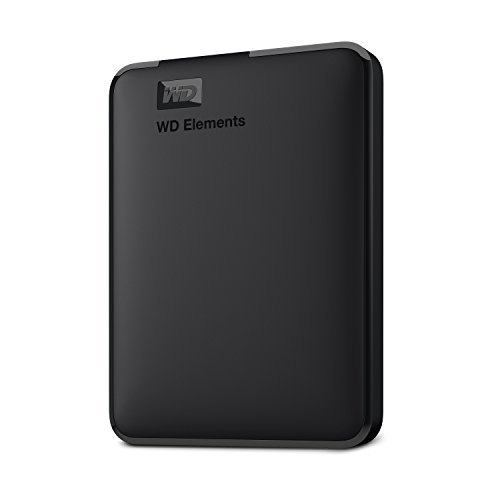
WD 4TB Elements Portable — Most room, no fuss
The Elements Portable line is Western Digital’s argument that storage should be invisible, and the 4TB model is that argument at its most useful size. Its listing states the essentials plainly: a portable external drive for Windows, USB 3.2 Gen 1 / USB 3.0 for PC and Mac, plug and play ready, model WDBU6Y0040BBK-WESN. Four terabytes in a pocket format holds a household’s whole digital estate — the photo archive, the documents of two careers, the music library and a serious shelf of video — on one drive that can also serve as the full backup of a large laptop.
The absence of bundled software is this drive’s feature, not its omission. It arrives as storage, formats cleanly into a Windows routine, and cooperates with whatever backup discipline the owner already trusts, from File History to a simple weekly copy performed by hand. Households standardising their approach across several machines often choose exactly this blankness, because every drive behaves identically and nothing needs configuring, updating or explaining to a family member at the moment a file needs rescuing.
Its boundaries are equally plain. There is no password protection in the listing, so the drive’s contents are as readable as the drive is losable — owners carrying sensitive material should encrypt at the Windows level, which the operating system supports natively. And 4TB of portable hard drive is still a spinning disk: it asks for the sleeve-and-care handling described in the buying section. Within those honest terms, this is the list’s default answer where the requirement is simply a great deal of room that works everywhere.
The size also future-proofs the purchase in a way its smaller sibling cannot. A 4TB backup drive remains adequate through the owner’s next laptop as well as the current one, and a drive that survives a machine change keeps its backup history’s value instead of restarting it. For a product whose whole worth is accumulated trust, that continuity is the strongest argument in its favour.
It is worth adding what 4TB means for the multi-machine household, since that is where this size quietly becomes the family server. One Elements 4TB can hold a File History archive for the desktop, a system image for the laptop, the shared photo library and the children’s school archive simultaneously, with the drive passed between machines on a weekly rhythm. No single smaller pick in this list can honestly promise that consolidation, and for households tired of scattered storage it is the entire case.
- Capacity: 4TB
- Type: Portable external hard drive, for Windows
- Interfaces named in the listing: USB 3.2 Gen 1 / USB 3.0, for PC and Mac
- Positioning stated in the listing: Plug and play ready
- Model named in the listing: WDBU6Y0040BBK-WESN
- Transfer speed: Not stated in the listing title — verify with Western Digital documentation
Strengths
- The joint-largest capacity here in the simplest possible product.
- No software layer between the owner and the storage.
- Stays useful across the owner’s next machine, not just the current one.
Trade-offs
- No password protection is named in its listing.
- Backup automation is entirely the owner’s arrangement.
- A full 4TB copy takes a long while over any portable connection.
Best for: a buyer seeking maximum portable room for Windows 10 with zero ceremony. Not suited for: a buyer seeking bundled backup software and drive-level password protection.

WD 2TB Elements Portable — The everyday carry
If the 4TB model is the estate drive, this is the daily one: the same Elements formula at 2TB, listing USB 3.2 Gen 1 / USB 3.0 for PC and Mac, plug and play ready, model WDBU6Y0020BBK-WESN. Two terabytes is the size that defined the portable category’s mainstream for years, and it remains the right answer for the most common Windows 10 errand — a laptop’s complete backup with room for the photo library besides, carried in the bag the laptop itself travels in.
The case for the smaller drive is partly physical. It is the one that actually gets carried, and a backup drive’s value is decided by presence: the 2TB unit in the bag protects the laptop on the train, in the office and at the kitchen table, while a larger drive left at home protects it only at home. For students, field workers and every owner on the move, the everyday-carry logic outweighs the capacity headline, and this drive is the purest expression of it in the list.
Its limits arrive with video. A 2TB ceiling accommodates documents and photographs almost indefinitely, but a growing collection of recorded footage, game captures or a media library will press against it within a couple of years, and owners with those appetites should step directly to a 4TB pick. Like its sibling it offers no stated password protection, so the Windows-level encryption conversation applies unchanged. Judged as the category’s default daily drive, though, it needs no apology: it is the size, the simplicity and the price class that made portable storage a household utility.
There is a second-career charm to this model as well. When a 2TB Elements is eventually outgrown as the main backup, it retires gracefully into service as the photo archive, the music drive for a second machine, or the off-site copy stored away from home — roles where its plainness and reliability keep it useful for years after its promotion.
Students deserve a specific mention, because this drive reads like it was specced for them: one machine, one bag, a library of coursework and photographs, and a backup that travels to the library, the lab and home at term’s end without a thought. The student carrying a current Elements backup in the bag meets a dead laptop in coursework season as an inconvenience; the one without meets it as a catastrophe. At this capacity and simplicity, the difference between those outcomes costs remarkably little foresight.
- Capacity: 2TB
- Type: Portable external hard drive, for Windows
- Interfaces named in the listing: USB 3.2 Gen 1 / USB 3.0, for PC and Mac
- Positioning stated in the listing: Plug and play ready
- Model named in the listing: WDBU6Y0020BBK-WESN
- Transfer speed: Not stated in the listing title — verify with Western Digital documentation
Strengths
- The carry-everywhere size that keeps a backup habit physically possible.
- Identical plug-and-play simplicity to its larger sibling.
- Retires gracefully into archive and off-site roles when outgrown.
Trade-offs
- Video-heavy libraries will press its ceiling within a couple of years.
- No password protection is stated in the listing.
- Owners standardising on maker’s software should look at the My Passport instead.
Best for: a buyer seeking the classic laptop-bag backup drive for one Windows 10 machine. Not suited for: a video library already measured in multiple terabytes.

Seagate Portable 4TB — Covered capacity
Seagate’s entry at 4TB distinguishes itself in its listing’s fine print: a one-year Rescue service and a one-year warranty are both stated, alongside USB 3.0 connection, an Adobe CC trial and positioning for everyday storage, plug-and-play backup and use across Windows and macOS. Capacity plus cover is the proposition — the same roomy 4TB as the Elements flagship, from the other great portable line, with a professional recovery attempt standing behind the drive’s own failure.
The Rescue service deserves the accurate framing this site gives it everywhere. If the drive fails, the service attempts laboratory recovery of its contents; that attempt is a safety net, not a guarantee, and it operates on a timescale of weeks rather than days. For a backup drive the logic is doubled-edged and worth thinking through: the archive aboard is itself a copy, so recovery matters most when the drive holds the only copy of something — which good practice says it should not. Still, as a stated inclusion at this capacity it is a genuine differentiator, and owners consolidating several older drives onto one 4TB unit will value it during the transition.
Against the Elements 4TB, the trade is philosophy. Seagate bundles a creative-software trial and the recovery cover; Western Digital bundles nothing at all. Owners who like a maker’s ecosystem around the drive will prefer this; owners who like their storage silent and empty will prefer the Elements. The hardware errand is identical — one cable, 4TB, Windows 10 recognised on connection — and the drive serves File History, system images and manual libraries with the same indifference as its rival.
One practical note suits this pick particularly: the consolidation role. Households often own three elderly portable drives of mixed sizes and uncertain health; gathering their contents onto one covered 4TB unit, verifying the copies, and then retiring the old drives to a labelled box is a weekend project that transforms a family’s storage from archaeology into a system. This drive, with its stated warranty year and recovery service, is the natural destination for that gathering.
The cross-platform note in its listing also earns this pick a particular household: the one where a Windows desktop and a Mac laptop share a desk and, occasionally, a drive. A portable that both systems welcome — with formatting chosen deliberately for the sharing, as the FAQ below discusses — simplifies the family’s file movements considerably, and Seagate prints that welcome in its own title rather than leaving it to be inferred from a compatibility chart.
- Capacity: 4TB
- Type: Portable external hard drive
- Interface: USB 3.0
- Features named in the listing: 1-year Rescue service, 1-year warranty, Adobe CC trial included
- Compatibility named in the listing: Windows and macOS
- Transfer speed: Not stated in the listing title — verify with Seagate documentation
Strengths
- Rescue recovery service and warranty are stated in the listing itself.
- 4TB covers a whole household estate or a large laptop with deep history.
- The natural destination drive for consolidating several old portables.
Trade-offs
- Recovery is an attempt on a slow timescale, never a substitute for a second copy.
- The software trial is a time-limited extra rather than lasting value.
- No password protection is named among its stated features.
Best for: a buyer seeking 4TB of portable room with recovery cover stated in the listing. Not suited for: a buyer seeking drive-level password protection as a headline feature.

Toshiba Canvio Basics 2TB — Plain workhorse
Toshiba’s Canvio Basics is the third maker’s take on the same honest product: a 2TB portable external drive on USB 3.0, in black, model HDTB520XK3AA, from the entry line of a range Toshiba has refined for years. The Basics name is a promise kept — what the listing offers is storage, connection and capacity, without a software story — and for a large class of Windows 10 owners that is the complete requirement, stated without embarrassment.
Its role in this list is the cross-shopping anchor. Owners comparing the three great portable lines at 2TB will find the same fundamental machine in each: a slim bus-powered drive that Windows 10 recognises instantly and that holds a laptop backup plus a photo library without strain. The Canvio’s case for itself rests on Toshiba’s long history in exactly this product, the Basics line’s deliberate lack of complication, and the simple fact that a household standardising on one maker’s portables across several machines loses nothing by choosing this badge.
The caveats are the class caveats, unhidden. Two terabytes bounds the video ambitions; no password protection is stated, so sensitive contents want Windows-level encryption; and no transfer figure is claimed, here or anywhere in this guide, because the listing does not state one. What the Basics offers instead is the quiet confidence of a mature entry product — the drive bought for a relative’s laptop, a small office’s shared backup, a student’s first archive — where the correct specification is that nothing about it will ever need explaining.
It also suits the two-drive rotation pattern better than most. Because the Basics proposition is deliberately plain, owning two of them — one attached, one stored elsewhere, swapped monthly — is a coherent and inexpensive disaster strategy for a small household or a sole trader with an entire business living on one Windows machine. The rotation only works when the drives are identical and unremarkable, which is this product’s whole design brief.
Small offices are the other natural home. A shared Canvio holding the week’s working files and the nightly copy of the accounts machine is infrastructure a business of five people can understand at a glance, with no server, no subscriptions and no specialist to call. When the drive eventually fills or ages, its replacement is the same product from the same shelf — an operational simplicity that larger storage systems rarely preserve.
- Capacity: 2TB
- Type: Portable external hard drive
- Colour named in the listing: Black
- Interface: USB 3.0
- Model named in the listing: HDTB520XK3AA
- Transfer speed: Not stated in the listing title — verify with Toshiba documentation
Strengths
- A mature, deliberately plain product from a maker with deep portable history.
- Identical, unremarkable units suit the two-drive rotation strategy perfectly.
- Nothing about it needs configuring, updating or explaining.
Trade-offs
- No bundled software or password protection is stated in the listing.
- 2TB is the mainstream ceiling, not the video-library size.
- Its plainness gives the spec-sheet shopper little to compare beyond capacity.
Best for: a buyer seeking a straightforward 2TB portable, possibly as one of a rotating pair. Not suited for: a buyer seeking maker software and security features bundled in.
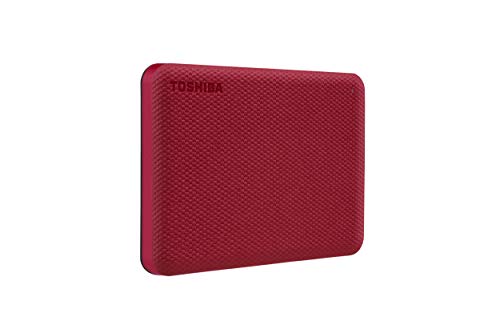
Toshiba Canvio Advance 2TB — Colour and polish
The Canvio Advance is the Basics’ more presentable sibling: the same 2TB capacity and USB 3.0 connection, model HDTCA20XR3AA, in red. That colour is not a trivial detail in a portable drive’s life. A drive that can be identified at a glance — the red one is the backup, the black one is the photo archive — prevents the category’s commonest domestic accident, which is formatting or borrowing the wrong unit. Households running several portables learn to colour-code them; the Advance simply arrives pre-coded.
The Advance tier sits a step above Basics in Toshiba’s range, and its natural owner is the one who keeps the drive visible: on the desk beside the laptop, in the home office that clients visit, in the bag that gets opened in meetings. A portable drive spends its life being seen and handled more than any other storage device, and there is no dishonesty in admitting that its finish influences how carefully it gets treated. Drives that look like equipment get handled like equipment.
Specification honesty applies here as everywhere: the listing states capacity, interface, colour and model, and this review claims nothing beyond them — no software suite, no protection feature, no speed figure is attributed to the Advance that its own title does not print. Its competition in this list is therefore the other plain 2TB drives, against which it argues on finish and range position, and the My Passport, against which it argues on simplicity. Both arguments are legitimate; the buyer’s own desk decides between them.
One more household pattern flatters this pick: the designated machine drive. In families where each person has a laptop, giving each machine its own portable — visibly distinct — ends the era of the shared backup drive that is always attached to somebody else’s computer when needed. A red Advance per person is a small organisational revolution disguised as a colour choice.
There is a gift dimension here that should not be mocked, because portable drives are frequently bought for someone else — a parent with a laptop that has never been backed up, a teenager leaving for university. A drive in a colour, with a name the recipient can remember and identify, is measurably more likely to be used, labelled and kept attached than an anonymous black slab. The Advance is the pick in this list that understands it may be bought as an act of care.
- Capacity: 2TB
- Type: Portable external hard drive
- Colour named in the listing: Red
- Interface: USB 3.0
- Model named in the listing: HDTCA20XR3AA
- Transfer speed: Not stated in the listing title — verify with Toshiba documentation
Strengths
- A colour that makes the drive identifiable at a glance in a multi-drive household.
- The step-up tier of a mature portable range, at the mainstream capacity.
- Desk-presentable finish suits a permanently visible backup drive.
Trade-offs
- Its listing states no software or protection extras; the appeal is finish and format.
- Same 2TB ceiling as the other mainstream picks here.
- Owners indifferent to appearance will find the Basics covers the same errand.
Best for: a buyer seeking a distinguishable, desk-worthy 2TB portable for one machine. Not suited for: a spec-sheet purchase where bundled software decides the winner.

WD 2TB My Passport — Software and security
The My Passport is the list’s feature complete pick, and its listing says so in a single breath: a 2TB portable in black with backup software that includes defence against ransomware, password protection, and USB 3.1/USB 3.0 compatibility, model WDBYVG0020BBK-WESN. Where the Elements drives offer storage and silence, the My Passport offers a managed routine — scheduled backups run by the maker’s software, an archive guarded by a password at the drive level, and a software layer watching for the ransomware patterns that encrypt a machine’s files and then reach for its attached drives.
That last threat deserves the explanation the feature earns. Ransomware that encrypts a Windows machine will happily encrypt an attached backup drive too, which is why backup discipline pairs the attached drive with either versioning, protection software or an offline copy. The My Passport’s stated defence addresses the attached-drive problem inside its own software routine, and its password protection addresses the older, simpler problem of a lost drive being read by a stranger. Neither replaces an offline or rotated second copy — nothing attached can — but as the most protected single-drive routine in this list, it is genuinely distinguished.
The trade for features is management. Software must be installed, kept and understood; a password must be remembered or recorded, since a forgotten one locks the owner out as firmly as any thief; and households that prefer the operating system’s own File History may find the maker’s routine a second system to think about. Owners who value set-and-configure-once automation will call those costs trivial. Owners who value emptiness will buy an Elements. The guide’s position is that both are right, about different households.
Capacity places it precisely: 2TB is the mainstream size, matched to one machine’s backup plus its owner’s working library. A video-heavy owner seeking this feature set at 4TB will not find that combination among this list’s verified picks and should weigh which matters more — the software and protection, or the room — since the list’s 4TB models argue on other grounds entirely.
Consider the sole trader as this drive’s defining owner: invoices, contracts, photographs of work, the accounts — an entire livelihood on one Windows laptop. For that owner the My Passport’s combination is not a luxury bundle but a proportionate response to a concentrated risk: the backup runs itself, the archive locks itself, and the software watches for the encryption attack that specifically hunts attached drives. The review’s verdict below reflects that owner, while noting honestly that a household with gentler risks may not need the armour.
- Capacity: 2TB
- Type: Portable external hard drive
- Colour named in the listing: Black
- Interfaces named in the listing: USB 3.1 / USB 3.0 compatible
- Features named in the listing: Backup software with defence against ransomware, password protection
- Model named in the listing: WDBYVG0020BBK-WESN
Strengths
- The most complete stated feature set here: backup software, ransomware defence, password protection.
- Drive-level password protection guards a lost drive’s contents.
- Automation suits a routine configured once and then forgotten.
Trade-offs
- The software layer must be installed and lived with; minimalists will not.
- A forgotten password locks the archive to its owner as firmly as to a stranger.
- No 4TB version of this feature set appears among these picks.
Best for: a buyer seeking an automated, password-protected backup routine for one Windows 10 machine. Not suited for: an owner committed to the operating system’s own tools and an empty drive.
File History, System Image or Maker Software: Choosing the Routine
Windows 10 gives the owner of any drive in this list two built-in routines, and the choice between them shapes what the drive must hold. File History is the continuous protector: it watches the libraries and desktop, copies changed files on a rhythm, and keeps versions, so the document as it stood last Tuesday can be summoned back. It is the right primary routine for most households, and its appetite is modest — a 2TB drive keeps a long version history for a typical machine’s documents and photographs. A system image is the opposite instrument: a complete snapshot of the machine, taken occasionally, able to restore the whole system onto a replacement drive after a catastrophe. Images are large and age quickly, so they suit a monthly rhythm on the same drive, in a separate folder the owner manages deliberately.
The maker’s software — the My Passport’s stated offering — competes on convenience rather than capability: a single schedule, a single interface, and the protection features discussed in its review. Households already fluent in the operating system’s tools gain little by switching; households that have never opened the backup settings gain a routine they might actually configure, which is worth more than theoretical superiority. The one firm rule is to pick a single primary routine per machine and let it run undisturbed. Two half-configured systems produce the worst outcome in this entire category: the confident belief that a backup exists, attached to a drive where neither routine ever completed.
Sharing a drive between Windows and a Mac introduces the one formatting decision that must be made consciously. A drive formatted for Windows alone will be read-only or invisible in the wrong places on a Mac; the cross-platform format both systems read and write is the usual compromise for a genuinely shared drive, at the cost of some Windows-native features. Dedicated backup drives should stay in their machine’s native format — which is why the shared-drive question belongs to shuttle drives, and why this guide keeps steering backup drives toward dedication.
Six Portables, Three Philosophies: The Comparison That Matters
Specifications in this category converge so tightly that the honest comparison is philosophical. The Elements pair and the Canvio Basics sell emptiness; the Canvio Advance sells finish; the Seagate Portable sells cover; the My Passport sells management. The table collects the stated facts, and the reading after it matches philosophies to households.
| Pick | Capacity | Interface as listed | Stated extras | Character |
|---|---|---|---|---|
| WD Elements Portable 4TB | 4TB | USB 3.2 Gen 1 / USB 3.0 | Plug and play ready | Maximum plain room |
| WD Elements Portable 2TB | 2TB | USB 3.2 Gen 1 / USB 3.0 | Plug and play ready | Everyday carry |
| Seagate Portable 4TB | 4TB | USB 3.0 | 1-year Rescue, 1-year warranty, Adobe trial | Covered capacity |
| Toshiba Canvio Basics 2TB | 2TB | USB 3.0 | None stated | Plain workhorse |
| Toshiba Canvio Advance 2TB | 2TB | USB 3.0 | Red finish | Identifiable and presentable |
| WD My Passport 2TB | 2TB | USB 3.1 / USB 3.0 | Backup software, ransomware defence, password protection | Managed routine |
Match by household, then. A family standardising its own routine across machines takes the Elements or the Basics and imposes one shared discipline. A sole trader with a whole business riding on one drive takes the My Passport’s protection, or the Seagate’s recovery cover, according to which risk keeps them awake. A video hobbyist takes a 4TB model and stops thinking about capacity for years. And a household drowning in identical black drives takes the red Advance and the organisational clarity that comes with it.
The New-Machine Migration: A Portable Drive’s Finest Hour
Every few years a Windows household replaces its computer, and the portable drive becomes the bridge between the old machine’s life and the new one’s. The methodical version of that weekend runs through a drive from this list: a full copy of the old machine’s documents, photographs, music and downloads is made first and verified; the new machine is set up clean; and the library is then drawn across from the portable at leisure, folder by folder, rather than in a single anxious transfer while the old machine waits to be wiped or sold. The drive that served as the old machine’s backup becomes, without any reorganisation, the archive of everything the new machine inherited.
The migration exposes why capacity headroom matters. A drive bought exactly at the old library’s size has no room to hold both the backup archive and the migration copy, forcing deletions at precisely the moment caution should rule. The 4TB picks in this list absorb a whole household’s transition without arithmetic; the 2TB picks handle a single modest machine’s. Owners planning a machine replacement within the year should let that plan vote in the capacity decision — it is the most predictable storage event in a computer’s life, and the cheapest to prepare for in advance.
After the migration, the drive’s role reverts, but its contents deserve one deliberate decision: keep the old machine’s final backup for some months before overwriting the space. Files forgotten in the transfer — the document saved to an unusual folder, the photo library’s second copy — surface during that grace period in every household that has ever moved machines, and the portable’s room is what makes the grace period possible.
How Do You Turn a Portable Drive Into a Real Windows 10 Backup?
Begin by deciding the drive’s single job and writing it on a label: this is the backup drive. Attach it, open Windows 10’s backup settings, and choose the routine. File History suits documents and photographs, copying changed files on a rhythm and keeping versions; a system image suits whole-machine recovery and is best refreshed after major changes rather than nightly. Owners of the My Passport may instead install the maker’s software and configure its schedule — the principle is identical, and running both systems at once is unnecessary and occasionally counterproductive.
Then perform the step that separates a backup from a hope: restore something. Copy a folder to the drive through the chosen routine, delete the original copy of one unimportant file, and recover it from the backup. The five minutes spent proving the round trip teaches the owner where the routine keeps its files and whether the schedule is actually running — discoveries far better made in rehearsal than in emergency. Set a monthly glance at the drive’s free space and last-run status into whatever calendar the household actually reads.
Finally, arrange the second copy according to the household’s means. The elegant minimum is the rotation: two drives, one attached and one stored with a relative or in a workplace drawer, swapped on a monthly rhythm, so that fire, theft or ransomware at home cannot take both. The acceptable minimum is a cloud copy of the irreplaceable subset — documents and photographs — alongside the portable’s full archive. What does not qualify is the single drive in the same bag as the laptop, which protects against exactly one failure mode and is the arrangement this entire category is so often misused for.
Verification should then become a rhythm rather than an event. Once a quarter, open the backup, restore one photograph and one document at random, and confirm both read correctly; glance at the drive’s reported health if the routine offers it; and check that free space still exceeds the library’s growth since the last check. These five minutes are the difference between having a backup and having a story about a backup, and they cost less time than the average software update the machine installs on its own.
Which Portable Drive Habits Cause the Losses?
The classic loss is the unplug mid-write: a drive yanked from the port while Windows is still flushing data to it, corrupting the file system in a way that announces itself weeks later. Eject properly, every time; the two seconds are the cheapest insurance in computing. Second is the single-copy shuttle — the portable treated as the only home of the photo library because it is bigger than the laptop’s drive — which converts a backup device into a single point of failure with a handle. A portable should hold copies and working libraries, never the sole instance of anything precious.
Third is the forgotten drive at the bottom of the bag, crushed gently by books and bottles until its mechanics complain; a padded sleeve is not an affectation for a spinning disk. Fourth is the mystery format: a drive borrowed for a television or a games console returns reformatted, its archive gone, which is why this guide insists on labels and dedication. And fifth is buying by the terabyte alone, filling a 2TB drive with a 3TB library’s first instalment and restarting the whole decision within the year. Size for the library of two years from now, and the purchase happens once.
Two more habits separate careful owners from regretful ones. The first is cable respect: the short cables these drives ship with are part of their reliability, and a frayed or loose substitute produces the intermittent disconnects that owners misdiagnose as a dying drive. Replace a tired cable with a sound one before condemning the hardware. The second is temperature sense — a portable left on a sunny windowsill or in a freezing car ages in dog years. Drives forgive a great deal, but the portables that serve five and six years are invariably the ones that lived indoors, in sleeves, ejected properly, as a matter of unremarkable routine.
Final Recommendation
Take the WD Elements Portable 4TB as the default for a Windows 10 household that wants room and simplicity in one purchase, and its 2TB sibling when the drive’s home is a laptop bag rather than a desk. Choose the Seagate Portable 4TB when a stated recovery service and warranty year are worth more than emptiness, the Canvio Basics when plainness itself is the requirement — ideally bought in a rotating pair — and the Canvio Advance when a drive that can be identified across a room solves a real organisational problem. Choose the My Passport when the backup should run itself and lock itself, accepting the software as the price of the automation. Every pick here will be recognised by Windows 10 the moment its cable lands; the differences that matter are the ones the household will live with weekly, and on that measure each of the six has a home it fits exactly. Buy the one whose philosophy matches the household’s habits, label it the day it arrives, configure the routine the same evening, and prove it with one restored file — after that, the best portable drive is simply the one that is never thought about again until the day it is needed, when it will be thought about with enormous, well-earned gratitude by the very people it just saved.
Frequently Asked Questions
Will these drives work with Windows 10 without installing anything?
Yes. Every pick connects over USB and is recognised by Windows 10 as storage on connection; the Elements models state plug-and-play readiness in their listings. Software enters the picture only as an option — the My Passport’s bundled backup routine, or the operating system’s own File History — never as a requirement for the drive to function.
Is 2TB or 4TB the right size?
Match the drive to the data’s trajectory. Documents, photographs and one laptop’s backup live comfortably in 2TB for years. Video — recorded footage, game captures, a media library — consumes terabytes at a different rate and belongs on the 4TB picks. When the estimate lands between sizes, buy the larger; a half-empty drive is a convenience, while a full one is a second purchase.
Can a portable drive stay plugged in all the time as a desktop backup?
It can, and many do exactly that beside a desktop machine. Keep it somewhere it will not be knocked, let it spin down between jobs if the household’s routine allows, and remember that an always-attached drive shares the machine’s risks — power events and ransomware among them — which is why the rotation or cloud second copy still matters.
What is the difference between the Elements and the My Passport?
Philosophy. The Elements line offers storage alone, formatted for the owner’s own routine, with plug-and-play stated in its listings. The My Passport adds a managed layer — backup software with ransomware defence and password protection, both stated in its listing. Households running the operating system’s tools choose the first; households preferring the maker’s automation choose the second.
Do these drives need formatting for Windows 10?
Drives sold for Windows arrive ready for it. A drive that has served another platform may need reformatting in Windows’ disk tools before use, which erases its contents — one more reason the label-and-dedicate habit matters. Owners planning to share a drive between Windows and Mac should decide the format deliberately at the start rather than discovering the constraint mid-transfer.
Does the USB version matter much for these drives?
Less than the marketing of faster standards suggests. A spinning portable drive’s own mechanics set a transfer pace that the USB generations named in these listings — 3.0, 3.1 and 3.2 Gen 1 — all accommodate, which is why this guide reports the interfaces as printed and claims no speed ranking among them. The practical differences between these picks are capacity, features and finish, and buyers are better served choosing on those than on the interface line.
Can one portable drive back up several Windows machines?
Yes, with organisation. Give each machine its own clearly named folder or let each machine’s routine manage its own space on the drive, and a 4TB pick in particular can serve a household’s whole fleet. The discipline required is scheduling — machines take turns rather than arriving simultaneously — and honesty about capacity, since several machines’ histories add up faster than owners expect. Households that outgrow the arrangement graduate one machine to a drive of its own, usually the red Advance trick from this list.
How long will a portable hard drive last?
Years of ordinary service is the reasonable expectation for a drive that is handled gently, ejected properly and not baked in a hot car or crushed in a bag. Because any single drive can still fail without much warning, the correct plan treats lifespan as a bonus and the second copy as the actual guarantee — which is why this guide’s setup section ends with rotation rather than with reassurance.
Related Guides
Portable storage leads naturally to three neighbouring questions answered elsewhere on this site. Owners who eventually outgrow these capacities can step up smoothly through our guide to the best desktop external drives; those chasing genuine speed for active project work should compare the best portable SSDs; and anyone building the full household routine will find the complete method in our guide to a backup system a household will actually maintain. Each of those guides assumes the same principle as this one: storage decisions made calmly, in advance, are the ones that hold up on the bad days.


