What's inside
- Key Takeaways
- Quick Picks
- How Did We Choose These Picks?
- Where Does the Overlay Actually Come From?
- How Do the Six Compare Side by Side?
- How Do You Build a Facebook Overlay Scene That Looks Produced?
- What Mistakes Do Facebook Streamers Make With Cameras and Overlays?
- What Computer Load Does an Overlay Stream Really Create?
- Final Recommendation
- Frequently Asked Questions
- Related Guides
As an Amazon Associate I earn from qualifying purchases. This post may contain affiliate links at no extra cost to you.
gizmoverdict.com is reader-supported. When you buy through links on our site, we may earn an affiliate commission.
Where to buy: Each camera below links to a checked listing, described by the claims its own title makes. Books, capture cards and software are not picks in this guide — the six products are cameras, and the software that creates overlays is discussed in prose, where it belongs, because that distinction is the subject of the first section.
Here is the fact that reorganises this entire purchase: the overlay does not come from the camera. When a Facebook Live stream shows a name banner, a logo in the corner, a comment ticker or a picture-in-picture layout, every one of those elements is drawn by the streaming software on the computer — OBS Studio is the common tool, and Facebook’s own Live Producer and various browser studios offer simpler versions — composited over the camera’s picture before the combined image is sent to Facebook. No webcam in this list, or any list, generates an overlay. So the best webcams for live on Facebook with overlay are really the cameras that give the software the best raw material to compose with: a clean, sharp, well-exposed picture that sits gracefully inside a layout, at a frame size that leaves room for the graphics around it.
That reframing changes what to shop for. Resolution strategy comes first, and it is subtler than bigger-is-better. A streamer whose layout shows the camera full-screen between overlays wants the strongest picture available, which is the 4K argument made by the Logitech MX Brio and the AVerMedia in this list. A streamer whose layout keeps the camera in a framed window beside slides, gameplay or a guest feed is showing that window at a fraction of the screen — and a good 1080p camera, which describes the Logitech C922, the StreamCam and the NBPOWER here, fills a window that size without visible compromise, while asking far less of the computer that must simultaneously run the streaming software, the overlay graphics and the stream itself.
Frame rate and software manners complete the brief. Sixty frames per second — claimed in the titles of the StreamCam and the NBPOWER — keeps a talking head’s gestures natural inside the layout and matters more as the camera window grows. And because the overlay workflow lives inside streaming software, a camera’s virtue includes how politely it behaves as a video source: appearing reliably, holding its settings between sessions, and exposing the controls the streamer needs without a fight. The six below divide along those lines — two 4K flagships, three proven 1080p streaming cameras, and one value design with its own fill light — and the sections that follow judge each against the overlay workflow it will actually live in.
Key Takeaways
- Overlays are drawn by streaming software such as OBS, never by the camera — buy the camera for the picture it feeds the layout.
- Layout decides resolution: full-screen segments reward 4K, while a camera shown in a small window is honestly served by good 1080p.
- Two titles claim 60fps — the Logitech StreamCam and the NBPOWER — which keeps gestures natural in larger windows.
- The Elgato Facecam’s title states no resolution figure; its streaming pedigree is its case, and the spec box flags the check.
- A camera that holds its settings between sessions is worth more to a streamer than a marginally sharper one that resets.
- Your computer is part of the camera purchase: 4K sources plus overlays plus encoding is real work for one machine.
Quick Picks
| Pick | Badge | Why it is here |
|---|---|---|
| Logitech MX Brio | Best 4K flagship | Ultra HD 4K streaming camera from Logitech’s MX line for full-screen layouts. |
| Logitech C922 Pro Stream | Best proven streamer | The 1080p camera a generation of Facebook and Twitch streamers built their layouts on. |
| Logitech StreamCam | Best 60fps window camera | Full HD 1080p at 60fps, designed for content creation layouts and vertical-friendly mounting. |
| Elgato Facecam | Best software manners | A streaming-native camera from the company whose ecosystem the overlay workflow runs on. |
| AVerMedia 4K Webcam | Best 4K alternative | 4K with a built-in microphone and privacy shutter, aimed at streaming and calls alike. |
| NBPOWER 1080P 60FPS Streaming Camera | Best lit value | 1080p at 60fps with autofocus and a fill RGB light built into the camera body. |
How Did We Choose These Picks?
The first filter was streaming intent stated in the title itself. Five of the six titles say streaming, stream or content creation outright, because a camera designed for the streaming workflow differs from a meeting camera in the details that matter here: how it exposes controls to software, how its picture is tuned for a composed scene rather than a conference grid, and how it behaves across a three-hour session rather than a forty-minute call. The sixth, the AVerMedia, splits its title between streaming, gaming and calls, and earns its place as the 4K alternative with a privacy shutter the others do not claim.
The second filter was layout realism. This guide assumes the reader’s Facebook layout is one of the three patterns streamers actually use — full-screen camera with graphic borders, camera window beside content, or multi-source interview — and the six were chosen so each pattern has a natural champion at a sane specification. A list of six 4K flagships would have failed the window-layout streamer, whose computer would spend its power downscaling pictures nobody sees at full size. A list of six budget 1080p cameras would have failed the full-screen streamer, whose face fills a television in a viewer’s living room. The spread is the point.
The third filter was a refusal, mirroring the honesty the introduction insists on: no software, book or capture card was allowed to become a pick, even though the overlay workflow needs software to exist. OBS and its peers are covered in the how-to sections as the free, standard tools they are. The picks are the cameras — the one component in the chain where spending money on the right model genuinely changes what viewers see.
Where Does the Overlay Actually Come From?
From a scene, built in software, before the stream begins. In OBS Studio — the tool most Facebook streamers use, free and standard — a scene is a stack of layers: the camera source at the bottom, then image files for the frame and logo, text sources for the name banner and the event title, perhaps a browser source showing alerts or comments, each positioned and sized on a canvas. The software composites the stack into one video feed, and that feed is what travels to Facebook. The camera’s contribution is exactly one layer. This is why two streamers with the same camera produce streams that look nothing alike, and why a modest camera inside a well-built scene defeats a flagship camera inside a bare one, every time, in every viewer’s estimation.
Facebook’s own tools cover the simpler end of the same idea. Live Producer and the browser-based studios offer titles, graphics and basic layouts without separate software, and for a streamer whose overlay ambition is a name strap and a logo, they may be enough — with any camera in this list feeding them. The step up to OBS buys scene-switching: a starting-soon screen, the main layout, a be-right-back card, an ending screen, each a scene, changed with a hotkey. That structure is what makes a stream look produced rather than merely live, and it is entirely software-side. Budget your learning time accordingly: an afternoon in the software improves your stream more than any camera upgrade in this guide.
There is a budget-order lesson buried in that architecture, and new streamers reliably get it backwards. The software is free, the graphics are an afternoon of your own time, and the light is a modest accessory — yet the camera, the one layer where money is genuinely required, is often bought first and largest, leaving nothing for the microphone and lamp that would have improved the stream more. Buy in the order the audience perceives: voice, light, scene, and then the camera’s finer distinctions, and a mid-list pick will outperform a flagship bought in the wrong order.
One practical consequence follows for camera choice
, and it is the one this guide keeps returning to. Because the software will resize, crop and border your camera’s picture to fit the scene, the picture’s edges matter less than its centre, its exposure behaviour matters more than its resolution headline, and its reliability as a source — appearing when the scene calls it, session after session — matters most of all. Judge the six below by those lights and the marketing order of the category quietly rearranges itself.

Logitech MX Brio — Best 4K flagship
The MX Brio’s title claims Ultra HD 4K for streaming and collaboration, and the MX badge places it in Logitech’s premium line — the tier the company reserves for its most considered designs. For the overlay workflow, its case is the full-screen case. A streamer whose scene regularly gives the camera the whole canvas — the coach teaching to camera, the commentator between segments, the host whose face is the programme — is showing that picture at the largest size a layout allows, on viewers’ televisions as often as their phones. At that size, 4K source material holds up through the software’s scaling and the platform’s compression with detail to spare, and the stream acquires the crispness viewers describe, inaccurately but understandably, as professional.
The collaboration half of the title is not dead weight for a streamer. Facebook Live’s interview and guest formats run through the same ecosystem of platforms and software as remote collaboration, and a camera equally at home in a meeting grid and a streaming scene suits the creator whose week contains both — the consultant who streams publicly on Tuesday and consults privately on Wednesday, from the same desk, with the same mounted camera. Versatility of that kind is a legitimate economy: one flagship, two duties, no re-rigging between them.
The costs of the flagship pattern should be stated as plainly as its virtues. A 4K source asks the streaming computer to receive, composite and encode a heavier picture while also animating overlays and running the rest of the production; on an older machine, the honest outcome is dropped frames somewhere in that chain, and viewers forgive a softer picture sooner than a stuttering one. The Brio also rewards a deliberate setup — its abilities assume a streamer who will tune the scene rather than accept defaults. Buy it as the centrepiece of a full-screen layout on a capable computer, and it is the strongest picture in this list. Buy it for a small window on a struggling laptop, and you have purchased headroom you cannot use at a price you did not need to pay.
Its natural rival in this list is the AVerMedia 4K below, and the division between them is ecosystem and emphasis rather than resolution: Logitech’s flagship polish and MX lineage against AVerMedia’s shutter-and-microphone practicality. Streamers already invested in Logitech’s software environment will feel the Brio’s integration as a daily small comfort. Streamers starting cold should weigh both titles’ claims and let the layout — full-screen flagship or all-purpose 4K — cast the vote.
- Resolution: Ultra HD 4K, as stated in the listing title
- Positioning: streaming and collaboration, per the listing title
- Line: Logitech MX series
- Frame rate: Not stated in the listing title — verify with Logitech documentation
- Microphone arrangement: Not stated in the listing title — verify with Logitech documentation
Strengths:
- 4K source suits full-screen layouts on large viewer screens.
- MX-line flagship design serves streaming and collaboration from one mount.
- Resolution headroom survives software scaling and platform compression.
Trade-offs:
- 4K production load demands a capable streaming computer.
- Its headroom is wasted in small-window layouts.
- Frame rate and audio particulars wait on the listing.
Best for: a buyer seeking a flagship 4K picture for full-screen Facebook layouts. Not suited for: a buyer seeking a light load for an older streaming laptop.
There is a testing ritual that suits a flagship particularly, because its purchase is the one a streamer is least willing to admit was oversized. During the first week, run the same scene twice — once with the camera source at full 4K, once with the software scaling it to 1080p — record both locally, and watch them on the largest screen you own. If your layout and your viewers’ devices cannot show you a difference you care about, run the lighter setting permanently and bank the computer headroom. A flagship used knowingly at the setting your production actually needs is not a waste; it is insurance with the premium already paid.

Logitech C922 Pro Stream — Best proven streamer
The C922 is the camera the streaming era grew up on, and its title’s economy — Pro Stream webcam, 1080p — reflects a product that no longer needs to explain itself. Its relevance to an overlay guide is historical in the best sense: an enormous share of the layouts, tutorials and scene templates in the streaming world were built and demonstrated around this camera’s picture, which means a new streamer adopting it inherits a decade of worked examples. When a guide video shows an OBS scene being assembled, the camera window in that scene is very often this one’s shape and character. There is a real, practical value in owning the reference device of your workflow’s folklore.
1080p is the specification to assess honestly, and the assessment favours this camera in its natural habitat. In a window layout — camera framed beside content, which is the majority pattern on Facebook — the window displays at well under full-screen size, and a clean 1080p feed fills it indistinguishably from a downscaled 4K one. The C922’s picture was tuned for exactly that duty across years of streamer feedback. Where it concedes ground is the full-screen segment: the intro and outro where the host takes the whole canvas, and where a 4K flagship visibly out-resolves it on a large television. Streamers whose format is window-first and full-screen briefly will rarely feel the concession; streamers who are the whole show should weigh the Brio.
Longevity cuts both ways and deserves a sentence each way. In its favour: a mature product’s behaviour in streaming software is a known quantity, its quirks documented in a thousand forum answers, its mounting and lighting preferences mapped. Against it: a mature product’s design assumptions date from an earlier streaming era, and a buyer should confirm on the listing that the current offering matches the workflow planned — particularly frame-rate expectations for larger windows, since the title here states resolution without a frame-rate figure.
None of that dims the central recommendation. For a first serious Facebook streaming setup — OBS scenes, a window layout, a computer of ordinary power — the C922 remains the camera against which the workflow was standardised, and there are worse strategies in any craft than starting with the standard tool and upgrading when your own format tells you to. Its price of admission in attention is low, its failure modes are known, and its picture inside a well-built scene is the picture a generation of viewers learned to call a stream.
- Resolution: 1080P, as stated in the listing title
- Positioning: Pro Stream webcam, per the listing title
- Frame rate: Not stated in the listing title — verify with Logitech documentation
- Microphone arrangement: Not stated in the listing title — verify with Logitech documentation
- Mounting: standard webcam form; verify current contents with the listing documentation
Strengths:
- The reference streaming camera, with a decade of layout knowledge behind it.
- Clean 1080p suits the window layouts most Facebook streams use.
- Mature, predictable behaviour inside streaming software.
Trade-offs:
- Full-screen segments show its resolution ceiling on large screens.
- Frame rate is unstated in the title and needs confirming for big windows.
- An older design’s assumptions deserve a current listing check.
Best for: a buyer seeking the proven standard camera for window-layout streaming. Not suited for: a buyer seeking a 4K full-screen flagship picture.
One more quiet strength belongs to the reference device: second-hand and spare availability. A streamer whose show depends on one camera lives with a small background anxiety about the morning it fails before a scheduled stream. A camera as widely owned as this one can be borrowed, replaced same-day or kept as a spare at a fraction of the flagship’s cost, and production people think in exactly those terms. Reliability is not only how rarely a device fails; it is how quickly the show recovers when one does, and on that measure the standard tool has an argument no specification can answer.

Logitech StreamCam — Best 60fps window camera
The StreamCam’s title states the pairing this category’s middle tier should be judged by: Full HD 1080p at 60fps, in a premium webcam for streaming and content creation. Sixty frames per second in a window layout is not a luxury statistic. A host’s gestures, laughter and emphasis are the animation of a Facebook stream — the overlay graphics are static by design, so the camera window carries all the life in the scene — and at 60fps that life moves the way it does across a table, without the subtle staccato that 30fps lends to quick motion. Viewers rarely name the difference; they register it as energy, and energy is what a live format sells.
Content creation, the title’s second phrase, points at the camera’s second life. Facebook streamers increasingly film once and publish twice — the live session for the community, the edited recording for the page’s video library — and a camera designed for creators anticipates that double duty in its mounting flexibility and picture character. The StreamCam’s design is known for suiting both landscape scenes and the vertical formats that short-form repurposing demands; a streamer building scenes in OBS with an eye on the clips that will be cut from them afterwards gets a camera whose framing options cooperate with that plan.
Position it against its Logitech siblings precisely. Against the C922, it trades the reference device’s folklore for a stated 60fps and a creator-first design. Against the MX Brio, it trades 4K headroom for a lighter production load and a picture honestly matched to window layouts. That middle position is where most Facebook streaming actually happens, which makes this arguably the list’s most representative pick: the camera for the streamer whose layout is a composed scene, whose computer is capable but not a workstation, and whose format lives on personality at 60 frames per second.
The checks before purchase are the usual two. The title does not state microphone particulars, and a streamer recording voice through the camera should confirm them, though most overlay workflows route audio through a separate microphone for reasons the setup section explains. And the premium positioning should be weighed against the NBPOWER at the list’s end, which matches the 1080p 60fps headline and adds a fill light at a humbler tier — the division there is ecosystem polish against bundled practicality, and either can be the right answer depending on the desk it lands on.
- Resolution: Full HD 1080p at 60fps, as stated in the listing title
- Positioning: premium streaming and content creation webcam, per the listing title
- Microphone arrangement: Not stated in the listing title — verify with Logitech documentation
- Autofocus: Not stated in the listing title — verify with Logitech documentation
- Field of view: Not stated in the listing title — verify with Logitech documentation
Strengths:
- Stated 60fps keeps the camera window’s motion natural and lively.
- Creator-first design suits filming once and publishing twice.
- Honest match for window layouts and ordinary streaming computers.
Trade-offs:
- 1080p ceiling concedes full-screen segments to the 4K picks.
- Audio and focus particulars are unstated in the title.
- Premium tier pricing invites comparison with the value pick below.
Best for: a buyer seeking lively 60fps motion inside composed overlay scenes. Not suited for: a buyer seeking maximum resolution for full-screen broadcasts.
Facebook’s audience adds a wrinkle that favours this pick’s motion specification. A large share of viewers join live streams mid-broadcast, from a feed scroll, and decide within seconds whether the stream feels alive. A window that moves at 60fps reads as present and energetic in that first glance in a way that measurably helps a host whose format depends on stopping thumbs. Streamers cannot A/B test their own charisma, but they can remove the small technical dullnesses — soft motion, dim light, drifting focus — that make a good host feel flat through a screen, and this camera’s stated pairing of resolution and frame rate addresses two of the three.

Elgato Facecam — Best software manners
The Facecam’s title is two words and a brand, and the brand is the argument. Elgato builds the streaming workflow’s furniture — the capture devices, the control decks, the software conveniences — and its camera was designed from inside that workflow rather than adapted to it. For an overlay streamer, the daily expression of that lineage is manners: a camera that presents itself to OBS and its peers as a well-behaved source, whose settings are exposed to software control and stay where the streamer put them, session after session. A stream’s pre-show ritual is long enough without renegotiating the camera’s exposure every time, and the Facecam’s reputation rests on removing that negotiation.
Honesty about the title’s silence is required here, and the spec box performs it: no resolution, no frame rate is stated in the words available, so this guide attributes none. The Facecam’s standing in the streaming world is built on its fixed-focus, software-led design philosophy — a camera that treats the streamer as the imaging department — but the figures a buyer needs for layout planning must come from the listing, and a buyer for whom a specific resolution is a hard requirement should extract it there before choosing this pick over the stated-4K alternatives. This is the one pick in the list bought on ecosystem and behaviour first and specifications second, and it should be bought knowingly in that order.
That order suits a particular streamer precisely: the one whose production is already software-centric, whose scenes are elaborate, whose stream runs on hotkeys and saved configurations. In that setup, the camera is a component in a system the streamer controls, and a component designed by the system’s own maker integrates with a smoothness that shows up as absence — no friction anecdotes, no pre-show surprises. Streamers whose setup is a laptop and a ring of good intentions will find the Facecam’s virtues less visible and its demands — a deliberate lighting and settings habit — more so.
Set it, finally, against the Logitech flagship. The Brio sells a picture; the Facecam sells behaviour inside a production. Facebook streamers graduating from their first camera usually know which of the two their streams are actually starving for: the ones re-lighting and re-framing weekly want the picture, and the ones fighting settings drift and source wrangling want the behaviour. Both diagnoses are respectable. Only one is yours, and it, rather than any specification table, should decide between these two.
- Resolution: Not stated in the listing title — verify with Elgato documentation
- Frame rate: Not stated in the listing title — verify with Elgato documentation
- Positioning: streaming camera from a streaming-ecosystem maker
- Sensor: Not stated in the listing title — verify with Elgato documentation
- Control approach: software-led; verify current software details with Elgato documentation
Strengths:
- Designed inside the streaming workflow by its ecosystem’s own maker.
- Settings behaviour streamers praise: configured once, held between sessions.
- Integrates smoothly as a source in scene-based production.
Trade-offs:
- Title states no resolution or frame rate; both need verifying.
- Rewards a deliberate lighting and settings habit.
- Its virtues are least visible in a minimal, laptop-only setup.
Best for: a buyer seeking a software-led camera for an elaborate scene setup. Not suited for: a buyer seeking stated-in-title specifications above ecosystem fit.
Consider the pre-show checklist this camera shortens. In an ecosystem-led setup, the camera, the scene software and often the control surfaces all speak the same design language, and a streamer who has configured one Elgato-flavoured tool finds the next one’s logic familiar. That familiarity compounds across a production’s life into fewer errors at showtime, which is when errors are most expensive — a live audience forgives a modest picture and remembers a chaotic start. Streamers are, in the end, small broadcasters, and broadcasters have always paid for operational calm over marginal image gains. This pick is priced and positioned for exactly that trade.
AVerMedia 4K Webcam — Best 4K alternative
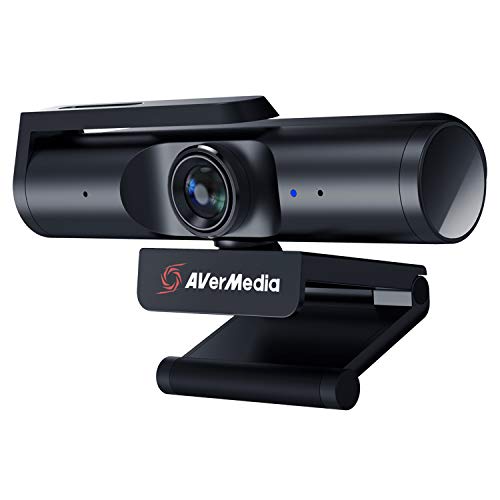
AVerMedia’s title spreads its bets in plain sight: a 4K webcam for PC, for gaming and streaming and video calls, with a built-in microphone and a privacy feature the truncated title begins to name. In a list where two picks are Logitech and one is Elgato, this is the independent 4K option, and its combination is practical rather than glamorous — flagship resolution, its own microphone for the days the full audio rig stays packed, and a privacy shutter for the desk that is also a home. Streamers whose streaming room is a bedroom or a family space will recognise that last item as the opposite of a footnote: a lens that can be physically closed is a household negotiation settled in hardware.
The gaming word in the title is worth translating for Facebook use. Gaming streamers are the overlay workflow’s most demanding civilians — multi-source scenes, animated alerts, picture-in-picture as a default rather than an event — and a camera marketed into that world is expected to behave inside busy scenes on busy computers. A Facebook streamer running interview layouts, slide windows and comment graphics is working the same muscles at lower weight. Equipment proven in the gaming scene’s gymnasium rarely struggles in the Facebook one.
Built-in microphone and 4K in one title also describe this camera’s honest niche: the self-contained setup. A streamer who goes live from a laptop at a kitchen table, or who travels with the show — a market stall, a workshop, a holiday let — carries one device that sees in 4K and hears adequately, and builds the overlay scene in software on arrival. The microphone will not match a dedicated audio chain, and the setup section of this guide will keep recommending one for a fixed studio; but as the single-device fallback that keeps a travelling show professional, the combination is coherent and, in this list, unique at 4K.
Verification duties are the standard ones, with one addition. Frame rate at 4K is unstated in the title, and it matters for full-screen segments: confirm the figure, and the frame rate at 1080p as well, since many streamers run the camera window at HD for the computer’s sake. The privacy feature’s exact form — shutter or cover — likewise deserves a listing glance. Confirmed, this is the list’s most self-sufficient 4K camera; for a flagship picture without flagship ecosystem commitments, it deserves a long look.
- Resolution: 4K, as stated in the listing title
- Positioning: gaming, streaming and video calls, per the listing title
- Audio: built-in microphone, per the listing title
- Privacy: privacy feature named in the listing title — verify form with AVerMedia documentation
- Frame rate: Not stated in the listing title — verify with AVerMedia documentation
Strengths:
- 4K resolution outside the Logitech and Elgato ecosystems.
- Built-in microphone and privacy provision suit self-contained setups.
- Gaming-scene expectations imply good behaviour in busy overlay scenes.
Trade-offs:
- Frame rates at each resolution are unstated in the title.
- Jack-of-all-formats positioning means no single workflow owns its design.
- Privacy feature’s exact form needs a listing check.
Best for: a buyer seeking a self-contained 4K camera for streaming anywhere. Not suited for: a buyer seeking a single-ecosystem flagship with stated frame rates.
The privacy provision deserves its practical paragraph, because streamers discover its value on a specific kind of day: the day the streaming room must become a bedroom, a nursery or a family office again within the hour. A shuttered lens ends the low-grade vigilance that an open camera asks of a household — no covering it with a sticky note, no unplugging rituals, no wondering. In shared homes, that settled feeling is what makes a streaming setup permanent rather than resented, and permanent setups are the ones still running, improved and familiar, a year later. AVerMedia including it in the title suggests the company knows its cameras live in real houses.

NBPOWER 1080P 60FPS Streaming Camera — Best lit value
The NBPOWER title stacks the most features per word in this list: 1080p at 60fps, streaming camera, microphone, fill RGB light, autofocus. Read it as a shopping list written by a streamer who priced the accessories separately and objected. The fill light is the headline act: a light built into the camera body, aimed where the camera aims, which lifts a face out of a dim room without a separate lamp competing for desk space. For the enormous population of streamers filming in ordinary rooms under ordinary ceiling lights, that integrated light addresses the single largest quality problem in their picture — not resolution, not frame rate, but the flat, shadowed dimness that makes a stream look tired.
RGB in the light’s description adds a second, showier possibility: coloured light as scene dressing. A streamer can wash a background wall in a brand colour, match the overlay graphics’ palette, and give a small room a produced identity that viewers recognise across sessions. Used with restraint — a background accent rather than a face tint — coloured light is a legitimate production tool that separate accessories usually deliver at separate cost and clutter. The discipline is the same as with any effect: the face stays honestly lit, the colour lives in the scenery, and the overlay, the light and the backdrop tell one design story.
The remaining claims keep the camera honest company. Autofocus suits a streamer who leans, gestures and holds products or notes toward the lens during a show; 60fps matches the StreamCam’s motion headline; a built-in microphone covers the simple setup. None of these claims carries a famous brand’s guarantee behind it, and the guide’s standing advice applies with extra weight: read the listing closely, weight the returns window, and test the camera inside your actual OBS scene during the first week, because a value camera’s real specification is the one it demonstrates in your room.
Its place in the list’s economy is clear and respectable. A new streamer assembling the whole workflow at once — camera, light, software learning curve — can put the saved difference between this and the premium picks toward the microphone that the setup section recommends, and end with a better-balanced rig than a flagship camera feeding a laptop mic. Value picks earn their place by what they let the rest of the setup become, and by that accounting the NBPOWER is not the cheap option in this list. It is the enabling one.
- Resolution: 1080P at 60fps, as stated in the listing title
- Light: fill RGB light built in, per the listing title
- Focus: autofocus, per the listing title
- Audio: microphone included, per the listing title
- Sensor: Not stated in the listing title — verify with the listing documentation
Strengths:
- Integrated fill light attacks the commonest picture problem directly.
- RGB mode lets the room match the overlay’s colour story.
- 60fps and autofocus at a value tier frees budget for audio.
Trade-offs:
- Unbranded support and documentation carry more uncertainty.
- 1080p ceiling, like the other mid-list picks.
- Effects invite overuse; the face must stay honestly lit.
Best for: a buyer seeking a lit, lively 1080p picture while building a first rig. Not suited for: a buyer seeking an established brand’s support behind the camera.
A final judgement on the light, since it will be this camera’s most-used feature and its most-abused one. A fill light’s job is to model the face gently — to lift shadows and give the eyes a catchlight — at the lowest intensity that accomplishes it. Run at full power from camera distance, any small light flattens and glares, and RGB colour across a face reads as costume rather than production. The streamers who will love this pick are the ones who treat its light as seasoning: white fill for the face, a whisper of colour for the wall, and the restraint to let the overlay graphics do the shouting. With that discipline, the value proposition here is genuinely hard to argue with.
How Do the Six Compare Side by Side?
| Pick | Resolution (title) | Frame rate (title) | Overlay-workflow strength |
|---|---|---|---|
| Logitech MX Brio | Ultra HD 4K | Not stated in title | Full-screen flagship picture |
| Logitech C922 Pro Stream | 1080P | Not stated in title | Reference window-layout camera |
| Logitech StreamCam | 1080p | 60fps | Lively motion in composed scenes |
| Elgato Facecam | Not stated in title | Not stated in title | Software-led source behaviour |
| AVerMedia 4K | 4K | Not stated in title | Self-contained 4K with mic and privacy |
| NBPOWER Streaming Camera | 1080P | 60FPS | Built-in fill light for dim rooms |
Notice what the table cannot show: the overlay itself, and one more invisible — the streamer’s own computer, silently co-deciding every row. Read your machine’s honest capacity into the table before reading your ambitions, because the best camera for a layout is the best one your production can carry at full frame rate for three hours without complaint, and that is a property of the pairing, never of the camera alone., because it is identical in potential whichever row you buy — it lives in your software. What the rows sell is the layer underneath: resolution for your layout’s largest window, motion for your format’s energy, behaviour for your production’s smoothness, and light for your room’s reality.
How Do You Build a Facebook Overlay Scene That Looks Produced?
Build four scenes before your first stream, in this order. A starting scene: a title card with your show’s name and a line of music, which covers the first minute while the audience gathers and lets you begin composed rather than flustered. The main scene: your camera in its layout, name banner, logo, and one functional element — a comment highlight or an agenda list — rather than five decorative ones. A break scene: a simple card that holds the audience during interruptions without a view of an empty chair. An ending scene: thanks, the next stream’s time, and where to follow. Four scenes, hotkeys assigned, rehearsed once aloud — that skeleton is ninety percent of what viewers mean by a produced stream, and every element of it is software.
Design the graphics for the smallest screen in your audience. Build them once, as files you keep, rather than recreating them inside each session’s software from memory — a stream’s visual identity should be an asset stored on disk, opened in seconds, identical every week, because regulars recognise a show by its frame before they register its host, and that recognition is the quiet machinery of a returning audience. Facebook streams are watched heavily on phones, where a delicate banner becomes illegible and a busy border becomes noise. Bold shapes, few words, generous margins around the camera window, and text you have personally read on a phone at arm’s length: those are the overlay virtues. Keep the camera window’s aspect consistent between scenes so the picture never jumps size as you switch, and leave the layout’s centre of gravity on the content — the overlay frames the show; it must never become the show.
Audio finishes the production, and it is the element viewers forgive least. While the test recording plays back, watch it once through on a phone with the sound coming from the phone’s own speaker, because that is the median viewer’s entire apparatus — a banner illegible there is illegible, a voice buried there is buried, and a scene that survives that small, honest screen will survive every larger one it meets. Route a decent microphone as its own source in the software, set its level against the overlay’s music and alerts so the voice always wins, and record a local test with the full scene running before going live. A stream with a modest camera, a clean scene and clear voice feels professional. The reverse combination — flagship picture, cluttered graphics, echoing audio — feels like equipment in search of a producer, and no camera in this guide can rescue it.
What Mistakes Do Facebook Streamers Make With Cameras and Overlays?
A sixth mistake is quieter and lives in the calendar: changing the setup on stream day. New camera, new scene, new graphics, introduced an hour before a scheduled broadcast, with the audience as the test audience. Productions that last treat show day as frozen — changes are rehearsed on off days, in recorded tests, and promoted to the live scene only once they have survived a full private run. The cameras in this list all reward that discipline equally, because none of them can distinguish between a streamer’s rehearsal and their premiere. Only the streamer can, and the ones who do are recognisable by streams that start, every time, as if they had already been running for an hour.
The founding mistake is shopping for the overlay in the camera aisle
— expecting a webcam to generate graphics, then blaming the camera when the stream looks bare. The overlay is a software afternoon, and this guide’s first section is the correction. Second comes resolution vanity: a 4K flagship feeding a small window on an overloaded laptop, dropping frames to display detail nobody receives. Third is graphics maximalism, borders and tickers and badges crowding a phone screen until the host is a postage stamp in their own show. Fourth is neglecting the rehearsal — the first full run of the scene happening live, in public, with the audio levels and the hotkeys untested. And fifth is buying the camera last and the light never: a dim room under a ceiling bulb defeats every pick here, while even the value camera with its own fill light, or any camera with a lamp placed for the face, looks like a production.
What Computer Load Does an Overlay Stream Really Create?
Three jobs run simultaneously on the streaming machine, and a camera choice that ignores them is only half a choice. The machine must ingest the camera’s picture, composite it with every graphic layer the scene contains — animated alerts and scrolling text are hungrier than static banners — and encode the result into the stream Facebook receives, all in real time, for hours. A 4K camera source quadruples the pixel count the first two jobs handle compared with 1080p. On a modern, capable computer that is a fair price for a full-screen layout. On a modest laptop it is the difference between a smooth stream and a slideshow, and no overlay design survives being delivered as a slideshow.
The practical test takes ten minutes and should precede any flagship purchase: build your real scene, add your real graphics, set the camera source to the resolution you intend, and stream privately — or record locally with the streaming encoder — for fifteen minutes while watching the software’s dropped-frame counter. If the counter climbs, your production has told you its ceiling, and the correct response is to honour it: run the source at a lower resolution inside the software, simplify the hungriest graphics, or choose from the 1080p tier of this list with a clear conscience. Streamers who run this test buy once. Streamers who skip it buy twice, and the second purchase is always the one the test recommended.
Final Recommendation
Build the scene first in your head, then buy its bottom layer. If your format gives the camera the full screen, the Logitech MX Brio is this list’s flagship answer, with the AVerMedia as the self-contained 4K alternative whose microphone and privacy provision suit a travelling or household setup. If your format lives in window layouts, the StreamCam’s stated 60fps is the liveliest honest picture for composed scenes, the C922 remains the reference standard the workflow grew up around, and the Elgato Facecam serves the streamer whose production is software-led and settings-disciplined. The NBPOWER earns a genuine recommendation for the new rig being assembled all at once, light included, budget left over for audio. Whichever you choose, spend the saved afternoon in OBS before the saved money on a second camera — because your audience will remember your scenes, your voice and your composure, and the camera’s job is simply to be the clear, steady window they saw them through.
Frequently Asked Questions
Can a webcam create the overlay by itself?
No. Overlays — banners, logos, tickers, layouts — are drawn by streaming software on the computer and composited over the camera’s picture before anything reaches Facebook. OBS Studio is the standard free tool; Facebook’s Live Producer covers simpler graphics. Choose a camera for the quality of the picture it hands to that software.
Do I need 4K for Facebook Live?
Only if your layout gives the camera the full screen for significant stretches, where the extra resolution survives to large televisions. In window layouts, the camera displays small, and a good 1080p feed — three picks here — is visually equivalent while loading your computer far less. Match the camera to the largest size your scene actually shows it.
What frame rate should I choose for a talk-style stream?
Sixty frames per second, where a title states it, keeps gestures and expressions natural — the StreamCam and the NBPOWER both claim it. A seated, slide-heavy show survives happily at lower rates, but a personality-led stream is carried by the face’s motion, and 60fps is the specification that protects it.
Why does my stream stutter even though my camera is high-end?
Usually the computer, not the camera. Compositing a high-resolution source with animated overlays while encoding a live stream is heavy work, and an overloaded machine drops frames somewhere in that chain. Lowering the camera source’s resolution in the software, simplifying animated elements, or choosing a 1080p camera for window layouts are the standard cures.
Should my microphone come from the camera?
For a simple or travelling setup, a camera’s built-in microphone is workable — two picks here include one in their titles. For a fixed studio, a separate microphone placed near you will always out-perform any camera-mounted one, because distance is audio’s governing variable. Treat camera audio as the convenient baseline and a separate microphone as the studio upgrade.
Can I use the same setup for Facebook and other platforms?
Yes — the scene architecture is portable. A layout built in OBS can stream to Facebook today and another platform tomorrow, with the camera layer unchanged, because the software owns the composition and the destination is just an output setting. Streamers who build their scenes thoughtfully once find that changing platforms becomes an administrative act rather than a rebuild, which is one more reason the camera decision should be made for picture quality and behaviour rather than for any single platform’s badge.
What should I check on a listing before buying for streaming?
The frame rate at the resolution you will actually run, since several titles here state resolution alone; the microphone arrangement if you plan to use it; and the mounting options against your desk. Then run the camera inside your real scene during the returns window — the software’s opinion of a camera is the one that counts.
Related Guides
Streaming setups grow in several directions at once, so you may also find our guides to high quality webcams for creator desks, webcams for making makeup videos and wireless webcams for flexible rooms helpful as yours takes shape.
Related guides
- Best Webcams for Recording Fitness Class — Tracking Cameras, Honest Frame Rates and Wide Angles for Moving Instructors
- Best Printers for Watercolor: Pigment and Fine-Art Machines for Reproducing Paintings
- Best Direct Thermal Printers: Shipping-Label Machines and Professional Label Systems
- Best 4K UHD HDR HDMI Extenders: 4K60, Long-Run and 4K120 Kits Compared