What's inside
- Key Takeaways
- Quick Picks: 27-Inch Partners for a Surface, by Desk Type
- What Does a Surface Actually Ask of a Monitor?
- QHD or 1080p at 27 Inches — Which Serves a Surface Better?
- The Six Routes to a Bigger Surface, Reviewed
- How Do You Set Up the Desk Once the Screen Arrives?
- How Should a Buyer Think About the Wattage Question?
- Three Surface Households, Three Different Desks
- What Happens When a Second External Screen Joins Later?
- Comparison Table: Five Panels and One Architecture
- Which Mistakes Do Surface Owners Make With a New Monitor?
- Final Recommendation
- Frequently Asked Questions
- Related Guides
As an Amazon Associate I earn from qualifying purchases. This post may contain affiliate links at no extra cost to you.
gizmoverdict.com is reader-supported. When you buy through links on our site, we may earn an affiliate commission.
Where to buy: each monitor below is listed on Amazon, and the names throughout this guide link to those listings, where you can check price on Amazon and read the port list in the manufacturer’s own words. Surface owners should read those titles with one specific question in mind — what does the USB-C port actually promise? — because the answer varies more in this category than in any other this site covers, and the titles, read carefully, tell the truth about it.
The best 27 inch monitors to connect to Surface devices are chosen by a different logic than ordinary monitor shopping, because a Surface is not an ordinary computer. A Surface Pro is a tablet that becomes a laptop; a Surface Laptop is a laptop that charges like a phone; both travel constantly between desks, and both meet their desk through one or two ports. The monitor at the end of that journey is therefore half display, half docking station — and the six entries below are ranked by how completely they play both roles, judged strictly on what their titles state.
Start with the discipline this guide applies, because it is the difference between a desk that charges and a desk that merely connects. USB-C on a monitor can carry the picture alone, or picture plus power. Only one title in this entire list states its power figure: the ViewSonic VG275, at 60W, which also carries the words Designed for Surface in its title. Every other pick is recorded below with its charging wattage unstated, and the reviews refuse — on principle — to promise one-cable charging where the listing is silent. A Surface that drains slowly while plugged into an underpowered port is the classic disappointment of this category, and it is an avoidable one: either buy the stated figure, or buy the prose-only dock route at the end of the list, or verify the wattage in the maker’s documentation before the box is opened.
Resolution divides the field into two honest camps. Three picks are QHD at 2560 x 1440 — the two Dells and the HP — which at 27 inches renders text at the crispness Surface owners are accustomed to from their devices’ own high-density screens. Two picks are 1080p — the ASUS docking monitor and the ViewSonic — trading pixel density for docking features and, in the ViewSonic’s case, the stated Surface design brief. Neither camp is a mistake; they answer different desks, and the reviews keep the trade visible rather than smoothing it over.
The sixth entry is the alternative architecture: a Microsoft Surface Dock — or the dock route generally — paired with any good 27-inch panel. It is prose-only, carries no link, and it earns its place because for some Surface households it is simply the correct answer: the dock stays on the desk with every peripheral attached, the Surface connects through its own purpose-built ecosystem, and the monitor is free to be chosen purely as a screen. The guide treats it as a genuine contender, not a footnote, and the comparison table weighs it alongside the five purchasable panels.
Key Takeaways
- Only one title states its USB-C charging wattage: the ViewSonic VG275 at 60W, which is also the only pick titled Designed for Surface.
- Every other pick’s USB-C charging strength is unstated in its title; this guide records that as a documentation check and never promises one-cable charging on a silent listing.
- Three picks are QHD — both Dells and the HP 527pu — and two are 1080p, the ASUS docking monitor and the ViewSonic; the split is docking features against pixel density.
- The ASUS VA27ECPSN is the only title naming an RJ45 Ethernet port, making it the dock-replacement for desks where wired networking matters.
- The Dell 27 Plus S2725DC is the motion outlier: 144Hz and 1ms as titled, figures from the gaming shelf inside a USB-C work monitor.
- The prose-only Surface Dock route remains a legitimate architecture: dock once, choose the panel purely as a panel.
Quick Picks: 27-Inch Partners for a Surface, by Desk Type
| Pick | Badge | Why it made the cut |
|---|---|---|
| ViewSonic VG275 (Designed for Surface) | The stated-wattage pick | 60W USB-C printed in the title beside the words Designed for Surface — the one-cable claim a buyer can verify from the listing itself. |
| Dell 27 Plus QHD USB-C (S2725DC) | The sharp, fast Dell | QHD at 144Hz with a full ergonomic stand and USB-C, HDMI and DisplayPort 1.4 all titled. |
| ASUS 27″ Docking Monitor (VA27ECPSN) | The dock in a screen | RJ45 Ethernet, USB-C, DisplayPort and HDMI in one 1080p panel — the monitor as the desk’s entire connection point. |
| HP Series 5 Pro 527pu | The business-desk HP | QHD USB-C docking with four-way adjustability and a titled hub, aimed at managed office desks. |
| Dell S2722DC 27″ WQHD USB-C | The established Dell | The earlier USB-C QHD model with full stand adjustment and a built-in speaker, a known quantity in Surface households. |
| Microsoft Surface Dock route | The separate-dock architecture | Prose-only: a dock keeps the peripherals; any good 27-inch panel becomes the screen. |
What Does a Surface Actually Ask of a Monitor?
Three things, in descending order of how often buyers forget them. First, a picture path that suits the device’s ports. Modern Surface devices speak USB-C with DisplayPort alt mode, which every pick here accepts directly; older devices and the Surface Connect ecosystem route through a dock, which is the sixth entry’s territory. The practical point is that the cable in the box matters — a USB-C lead that carries charge but negotiates a lesser picture mode is the classic silent failure, and it masquerades as a monitor problem for weeks.
Second, power — the subject this guide keeps returning to because the titles keep declining to. A Surface under working load draws meaningful wattage, and a monitor’s USB-C port that delivers less than the device’s own charger turns the desk into a slow discharge with a nice view. The ViewSonic’s stated 60W is the class’s reference figure: enough for the Surface Pro and Laptop lines in ordinary work. For the four linked picks whose titles are silent, the documentation check is not a formality; it is the purchase decision, and it should be run before ordering, with the figure compared against the wattage printed on the Surface’s own power supply.
Third, the desk’s peripherals. A Surface arrives with a keyboard cover or a laptop keyboard and very little else; the desk must supply the mouse, the network, perhaps an external drive and a headset. Monitors with titled USB hubs — the HP names one, the ViewSonic names one, the ASUS builds its whole identity around docking including Ethernet — absorb those peripherals into the screen, so the Surface’s single cable becomes the desk’s single gesture. Monitors without hubs push the same job to a separate dock. Neither is wrong, but the buyer should know which architecture they are purchasing, because retrofitting the other one costs a second box. The broader cable landscape is surveyed in our best computer monitors with thunderbolt connection guide, where the neighbouring port standard gets its own examination.
A fourth ask deserves naming, though no title can answer it: manners. A Surface sleeps when its lid or cover closes, wakes when it opens, and expects its external screen to follow that rhythm without negotiation. Most modern panels do; the exceptions announce themselves in the first week as screens that must be woken by hand or that greet the morning with a no-signal banner. Because no listing title can certify wake behaviour, this guide treats it as the one specification settled by the returns window rather than by research — buy from a listing whose terms allow a change of mind, run the sleep-and-wake ritual a dozen times in the first days, and let that lived test, honestly applied, have the final vote it deserves.
QHD or 1080p at 27 Inches — Which Serves a Surface Better?
The Surface’s own screen prejudices this question. Surface devices ship with unusually sharp displays, and their owners’ eyes are calibrated by them; a 27-inch 1080p panel beside that standard can look soft on first acquaintance, its pixels describing text at roughly two-thirds the density of the QHD alternative. For document work — the centre of most Surface desks — the QHD trio in this guide (the two Dells and the HP) preserve the household’s visual standard, and readers who spend their days in text should weight that heavily.
The 1080p pair answer with the rest of the desk. The ASUS spends its budget on being a dock: Ethernet, a full port list, eye-care features. The ViewSonic spends its on the stated Surface brief: 60W of titled charging, a USB hub, advanced ergonomics, even a VGA port for the projector in the meeting room that refuses to retire. On a desk where the Surface is one device among several and the monitor serves them all, those features can outweigh density. On a desk built around the Surface alone, density usually wins. The reviews below keep both honest, and the comparison table puts the split in a single view.
Scaling complicates the arithmetic in a way worth understanding before the choice is made. A QHD panel can be run with interface scaling to enlarge text while keeping its rendering crisp, because the pixels are there to spend; a 1080p panel enlarged the same way simply shows bigger, softer letters, having no spare density to draw on. Surface owners are, of all laptop users, the most likely to run scaled interfaces — their own devices demand it — so the QHD trio’s headroom aligns with an existing habit rather than asking for a new one. Conversely, the 1080p pair’s honest one-to-one rendering at full size suits the shared and standardised desks where every machine must see the same interface at the same size, which is its own form of clarity.
The Six Routes to a Bigger Surface, Reviewed

ViewSonic VG275 (60W USB-C, Designed for Surface) — The stated-wattage pick
ViewSonic did something in this title that the rest of the category should copy: it printed the number. The VG275 is a 27-inch 1080p IPS monitor whose title states 60W USB-C — twice, in case the point was missed — alongside the words Designed for Surface, plus HDMI, DisplayPort, VGA, a USB hub and advanced ergonomics. For a Surface owner, that combination answers the category’s central question inside the listing itself: yes, the cable carries picture and charge, at a wattage that matches the Surface line’s working appetite, in a product the maker explicitly aimed at these devices.
The Designed for Surface designation deserves a calm reading. It signals that ViewSonic built and validated the monitor against Microsoft’s device ecosystem — the connection behaviour, the charging profile, the wake habits — rather than merely including a USB-C port and hoping. Hope is what the other titles in this list offer on the charging question; this one offers a design brief. The USB hub extends the same logic to peripherals, letting a mouse receiver and a headset live on the monitor while the Surface comes and goes on its single cable.
The trade is printed just as plainly: 1080p. At 27 inches, that resolution renders text more coarsely than any QHD pick here, and Surface owners calibrated by their devices’ sharp screens will see the difference in documents. The VG275 is therefore the pick for the Surface desk that values the connection above the canvas — the hot-desking household, the office where the Surface docks and undocks four times a day, the user whose work is calls, mail and browser rather than dense text. For that desk, it is not a compromise; it is the only entry whose central promise can be verified before purchase.
- Panel: 27-inch IPS computer monitor
- Resolution: 1080p Full HD
- USB-C: 60W, stated in the title; Designed for Surface
- Inputs: HDMI, DisplayPort, VGA
- Hub: USB hub as titled
- Stand: advanced ergonomics as titled
- Refresh rate: Not stated in the listing title — verify with the maker’s documentation
- Built-in speakers: Not stated in the listing title — verify with the maker’s documentation
Strengths
- The list’s only stated USB-C wattage — 60W — and the only Designed for Surface designation, both in the title.
- A USB hub is titled, so peripherals can live on the monitor while the Surface travels.
- VGA survives in the input list, a small mercy for meeting rooms with legacy projectors.
Trade-offs
- 1080p at 27 inches is the coarsest text rendering in this guide.
- Refresh rate goes unstated in the title, so motion smoothness is a documentation matter.
- Speakers are not mentioned; call audio needs the Surface’s own speakers or a headset.
Best for: Surface households that dock and undock constantly and rank a verified one-cable charge above pixel density.
Not suited for: Dense document work at native scaling — 1080p across 27 inches visibly coarsens small text.
Dell 27 Plus QHD USB-C (S2725DC) — The sharp, fast Dell
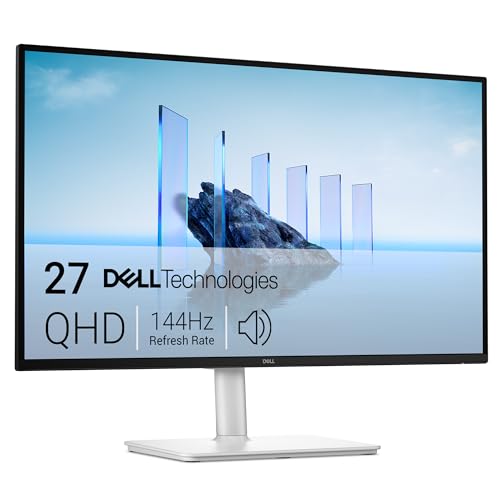
Dell’s newer entry pairs the specification text workers ask for — 27-inch QHD at 2560 x 1440 — with figures borrowed from the gaming shelf: 144Hz refresh and a 1ms response, both titled, plus AMD FreeSync. Around that panel sits the fullest furniture list among the QHD picks: USB-C, HDMI and DisplayPort 1.4 named outright, two 3W speakers, and a stand adjusting in all four directions — height, tilt, pivot and swivel — in an Ash White finish that suits the bright, minimal desks Surface devices tend to live on.
For a Surface desk, the 144Hz figure is not about gaming; it is about the pen. Surface owners ink — annotating documents, sketching in whiteboard sessions, marking up drawings — and a high-refresh external panel keeps pen strokes and scrolling in the same fluid register as the device’s own screen. Even without a pen, the rate makes window dragging and document scrolling feel like the Surface itself rather than like a lesser peripheral, which matters more to daily satisfaction than most specifications on this page.
The standing caution of this guide applies to the Dell in full: its title names USB-C and prints no wattage. The port will carry the picture; whether it charges a Surface at full working pace is a question for Dell’s documentation, and the answer should be in hand before this otherwise complete package is ordered for a one-cable desk. Buyers who run a separate dock anyway — the sixth entry’s architecture — can treat the caution as moot and enjoy the list’s most complete QHD panel. Pivot, the stand’s party trick, also serves the portrait-document layout discussed in our best monitors as second monitor for laptop guide.
- Panel: 27-inch QHD USB-C monitor
- Resolution: 2560 x 1440
- Refresh rate: 144Hz; 1ms response as titled
- Sync: AMD FreeSync
- Inputs: USB-C, HDMI, DisplayPort 1.4
- Audio: 2 x 3W speakers as titled
- Stand: height, tilt, pivot and swivel
- Finish: Ash White
- USB-C power delivery wattage: Not stated in the listing title — verify with the maker’s documentation
Strengths
- QHD sharpness with a titled 144Hz rate — the Surface’s own fluidity, preserved on the big screen.
- Four-way stand adjustment is fully enumerated in the title, including pivot for portrait documents.
- Speakers are titled with their wattage, covering call audio without extra hardware.
Trade-offs
- USB-C charging wattage is unstated; one-cable buyers must verify it in Dell’s documentation.
- No USB hub inventory is detailed in the title, so the peripheral story needs the same check.
- The gaming-grade rate is wasted on desks whose work is entirely static text and mail.
Best for: Pen-and-text Surface users on a dock-based or verified-wattage setup, who read and ink all day.
Not suited for: One-cable minimalists buying on the title alone — the charging figure simply is not printed there.

ASUS 27″ Docking Monitor (VA27ECPSN) — The dock in a screen
ASUS names this product a docking monitor, and the title substantiates the claim with the list’s most complete port inventory: RJ45 Ethernet, USB-C, DisplayPort and HDMI, in a 27-inch Full HD IPS panel at 75Hz with Adaptive-Sync, speakers, Eye Care with Low Blue Light and Flicker Free designations, height adjustment and VESA wall mounting. The RJ45 is the signature. Wired Ethernet is the feature docks exist to provide and monitors almost never include; its presence here means the network cable, like the peripherals, can live on the screen while the Surface travels.
Consider the desk this builds. The Surface arrives, one USB-C cable connects, and the device inherits a wired network, a full-size display, speakers and whatever the monitor’s hub holds — a complete workstation conjured from a tablet. For offices that issue Surfaces as primary machines, that is the entire IT proposition in a single product, and the titled eye-care features suit the all-day occupancy such desks involve. The 75Hz rate and Adaptive-Sync keep the picture composed beyond the office baseline without pretending to gaming ambitions.
The costs are the familiar pair, stated plainly. Resolution is 1080p, with the text-density consequence this guide has already weighed. And the USB-C charging wattage is unstated in the title — a more pointed silence in a product whose whole identity is docking, and the first figure a buyer should pull from ASUS’s documentation. Neither cost erases the proposition; both belong in the decision. As a dock that happens to contain a screen, the VA27ECPSN has no rival in this list; as a screen that happens to dock, it asks the density question the QHD trio answers better.
- Panel: 27-inch docking monitor, IPS
- Resolution: Full HD 1080p
- Refresh rate: 75Hz; Adaptive-Sync
- Inputs and network: RJ45 Ethernet, USB-C, DisplayPort, HDMI
- Audio: speakers as titled
- Eye features: Eye Care, Low Blue Light, Flicker Free as titled
- Stand and mounting: height adjustment; VESA wall mountable
- USB-C power delivery wattage: Not stated in the listing title — verify with the maker’s documentation
Strengths
- RJ45 Ethernet in the title — the only pick that wires the network into the screen itself.
- The fullest docking identity here: ports, speakers and eye-care features all enumerated.
- VESA mounting plus height adjustment covers both the arm-mounted and standing desk.
Trade-offs
- 1080p resolution, with the same text coarseness as the ViewSonic and none of its stated wattage.
- The charging figure’s absence from a docking monitor’s title is the list’s most conspicuous documentation check.
- 75Hz is the joint-lowest refresh here; fine for office motion, nothing more.
Best for: Offices issuing Surfaces as primary machines, where one screen must supply network, ports and picture together.
Not suited for: Text-dense solo work — the QHD picks render documents at nearly double the pixel count.

HP Series 5 Pro 527pu — The business-desk HP
HP’s entry speaks the dialect of the managed office: a Series 5 Pro 27-inch QHD USB-C docking monitor with four-way adjustability — tilt, swivel, pivot, height, enumerated — VESA mounting, DisplayPort named, and a hub referenced in the title’s closing words. The Series 5 Pro badge positions it in HP’s commercial line, the range bought by IT departments in trays rather than by individuals in ones, and the title’s emphases follow: ergonomics for occupational-health checklists, mounting for facilities teams, docking for standardised desks.
For a Surface fleet, that commercial character is the argument. A desk standard built on this panel gives every hot-desking Surface the same QHD canvas, the same stand geometry and the same connection ritual, and the pivot adjustment supports the portrait-document stations that legal, editorial and coding desks favour. The titled hub absorbs the standard peripheral set. What the title withholds is the now-familiar figure — USB-C wattage — plus the refresh rate and the full input list beyond DisplayPort, so a fleet buyer faces a documentation exercise before standardising; the spec box records the gaps in the guide’s usual form.
Individually, a home Surface user gets the same virtues in a single box: QHD clarity, a fully articulated stand, VESA options for an arm, and a panel from a line built for eight-hour days. The HP is the least self-explanatory pick in the list — its title assumes a buyer who reads spec sheets professionally — but for the desk it pictures, a managed Surface workstation, its priorities are correctly ordered, and its silences are the kind a procurement process is designed to fill.
- Panel: 27-inch QHD USB-C docking monitor, Series 5 Pro
- Resolution: QHD (2560 x 1440 class, as titled)
- Stand: four-way adjustability — tilt, swivel, pivot, height
- Mounting: VESA mount
- Inputs: DisplayPort named in the title
- Hub: hub referenced in the title (W/DKZ Hub)
- Finish: black and silver
- Refresh rate: Not stated in the listing title — verify with the maker’s documentation
- USB-C power delivery wattage: Not stated in the listing title — verify with the maker’s documentation
Strengths
- Commercial-line build and positioning, with the full four-way stand enumerated for managed desks.
- QHD resolution keeps fleet-wide text at the Surface household’s expected sharpness.
- VESA mounting and a titled hub cover the facilities and peripheral requirements in one product.
Trade-offs
- The title is the list’s most telegraphic: refresh, wattage and the full port list all require documentation.
- Its commercial framing means home buyers must translate fleet language into single-desk terms.
- No speakers are mentioned, so standardised desks add audio elsewhere.
Best for: Managed Surface fleets and hot-desking offices standardising on one QHD docking panel.
Not suited for: Impulse single purchases — too much of this specification lives in the documentation to buy it casually.

Dell S2722DC 27″ WQHD USB-C — The established Dell
The S2722DC is the earlier Dell in this guide, and its title shows the formula before the newer model sharpened it: a 27-inch WQHD 2560 x 1440 display at 75Hz with a 4ms response as titled, AMD FreeSync, a built-in speaker, USB Type-C connectivity, and a stand adjusting for height, pivot, swivel and tilt, finished in Platinum Silver. Where the 27 Plus chased refresh, this model is content with the office register — and for a Surface desk, that register covers the working day entirely.
Its virtue is maturity. The S2722DC has been the default answer to this guide’s exact question for several product cycles, which means its behaviour with Surface devices — the connection ritual, the charging character, the wake habits — is documented by a large owner base rather than promised by a launch page. A buyer who values the known over the newest will find that history persuasive, and the full stand adjustment plus titled speaker mean the known quantity arrives without furniture compromises.
The guide’s caution applies here as it does to its newer sibling: USB Type-C is named, wattage is not. Owners’ experience fills that gap informally across the web, but this review’s standard is the title, and the title is silent — so the documentation line stands in the spec box, and one-cable buyers should verify before ordering. Within that term, the S2722DC remains the list’s steady hand: QHD, fully adjustable, spoken for by years of desks. Households planning a second matching panel later can note its pairing behaviour alongside the best daisy chainable monitors survey.
- Panel: 27-inch WQHD USB-C monitor
- Resolution: 2560 x 1440
- Refresh rate: 75Hz; 4ms response as titled
- Sync: AMD FreeSync
- Inputs: USB Type-C connectivity as titled
- Audio: built-in speaker
- Stand: height, pivot, swivel and tilt adjust
- Finish: Platinum Silver
- USB-C power delivery wattage: Not stated in the listing title — verify with the maker’s documentation
Strengths
- The established answer: years of Surface desks have mapped this model’s behaviour in public.
- Full four-direction stand adjustment and a titled speaker cover the daily furniture completely.
- QHD at 75Hz with FreeSync is the honest office register, without gaming-shelf pricing theatre.
Trade-offs
- Charging wattage is unstated in the title, as with its newer sibling.
- 75Hz and a titled 4ms response are the modest end of the list’s motion figures.
- The input list beyond USB-C is not enumerated in the title.
Best for: Buyers who prize a mapped, mature product over a newer one, for a QHD Surface desk with a dock or verified charging.
Not suited for: Desks standardising on one cable without a documentation check — the wattage question is open here too.
Microsoft Surface Dock route — The separate-dock architecture
The final entry is prose-only: no link, no ASIN, no single product — because it is not a monitor at all, but the other way to build the desk. Put a Microsoft Surface Dock, or the dock route generally, at the centre: the dock owns the power, the network, the peripherals and the display outputs, permanently cabled and permanently resident. The Surface then connects through its own ecosystem’s handshake, and the 27-inch panel at the end of the chain is chosen purely as a panel — any good QHD screen, including the linked picks above with their USB-C ports simply unused for docking, or a plainer monitor from the wider market.
The architecture’s virtues are the mirror of the docking monitors’ compromises. Charging is the dock’s whole purpose, so the wattage anxiety that runs through this guide evaporates. Peripherals multiply without asking a monitor’s hub for permission. And the two halves of the desk age independently: a new Surface inherits the dock, a new panel inherits the desk, and neither purchase is hostage to the other’s port selection. For households already inside the Surface accessory ecosystem — docks at home and office, the same connection ritual in both places — this is frequently the correct engineering, and the guide would be dishonest to rank it below panels it can outperform as a system.
Its costs are equally structural. It is two purchases, two boxes, two warranties, and a desk with a dock’s brick and cable fan to manage. The single-gesture elegance of one cable into a screen is replaced by the dock’s own ritual. And the panel freedom it grants can become decision fatigue: the whole 27-inch market reopens as candidates. Buyers who know they want the ecosystem route should take the freedom seriously and shortlist panels on picture alone — the best 27 4k monitors guide covers the step up in density for desks where the dock has already solved every other question.
- Architecture: dedicated Surface dock plus a separate 27-inch panel
- Charging: the dock’s purpose — specified by the dock, not inferred from a monitor title
- Peripherals: owned by the dock, independent of the panel’s hub
- Panel choice: any good 27-inch screen; docking features in the panel become optional
- Connection ritual: the Surface ecosystem’s own, identical at every desk with the same dock
- Cost structure: two purchases instead of one
- Link: none — prose-only entry by design
Strengths
- Charging certainty: power delivery is the dock’s reason to exist, not a monitor title’s implication.
- Panel and dock upgrade independently, so neither purchase ages the other.
- The same connection ritual can be replicated at a second desk exactly.
Trade-offs
- Two boxes, two budgets, and a dock’s worth of extra cabling on the desk.
- The one-cable-into-the-screen elegance is given up by design.
- Total spend typically exceeds the docking-monitor route for equivalent results.
Best for: Surface households already invested in the dock ecosystem, or standardising the same desk in two locations.
Not suited for: Minimalist single-purchase desks — this route is deliberately two products, not one.
How Do You Set Up the Desk Once the Screen Arrives?
Begin with the cable, because in this category the cable is the setup. Use the USB-C lead supplied with the monitor or a certified lead rated for both power and DisplayPort alt mode, and distrust the anonymous cable from the drawer: a charge-only lead produces the category’s signature haunting, a Surface that connects, displays, and quietly loses battery all day. Connect, then verify — the Surface’s battery indicator should show charging at a plausible pace under a working load, not merely the plugged-in icon. That single check, done on day one, is the difference between this guide’s cautionary tale and a non-event.
Next, set the picture. The Surface will offer the panel’s native resolution; accept it, and then make the scaling decision deliberately. QHD at 27 inches usually runs comfortably at full density for Surface-calibrated eyes, while the 1080p picks may tempt an interface size adjustment that should be made in the Surface’s display settings rather than by lowering the resolution. Arrange the two screens’ relative positions in settings to match the desk’s physical layout, so the cursor crosses between the Surface and the monitor where the eye expects the border to be — a small setting that governs a thousand daily micro-frustrations.
Finish with the peripherals and the ritual. Move the mouse receiver, the headset and the network — where the pick provides for them — onto the monitor or dock permanently, and rehearse the arrival and departure: one cable in, everything wakes; one cable out, the Surface leaves with its work. If any step of that ritual requires a second cable, a menu dive or a prayer, the setup is not finished, and the documentation check this guide keeps prescribing is the place to finish it. A Surface desk succeeds as a ritual before it succeeds as a specification.
How Should a Buyer Think About the Wattage Question?
As a budget, drawn against the device’s own charger. Every Surface ships with a power supply of a stated rating, and that rating is the maker’s own account of what the machine can draw at full stretch — screen bright, processor busy, battery charging from low. A monitor port delivering close to that figure reproduces the factory desk exactly. A port delivering substantially less does not fail outright; it rations. The battery charges more slowly, then holds, then — under the heaviest sustained loads — quietly subsidises the machine from its own reserves while the screen stays lit and the icon stays reassuring. That is why the failure is so often discovered late and described as mysterious: everything worked, except the arithmetic.
Ordinary office work rarely draws the full budget, which is why owners of unstated-wattage monitors so often report no trouble: mail, documents and browsing sip power, and a modest port keeps pace indefinitely. The rationing appears at the edges of the working life — the video render queued over lunch, the long call with screen sharing on a hot afternoon, the battery that started the day at a third and never recovered. A buyer whose days include those edges should treat the wattage figure as a headline specification and either choose the ViewSonic’s stated 60W, verify the silent titles in documentation, or hand the whole question to the dock route, where the answer is engineered rather than inferred.
There is a second, quieter number to think about: the wattage the monitor itself consumes from the wall while also feeding the Surface, which matters to desks on shared circuits and to anyone counting the household’s standby draw. Titles do not state it, and this guide will not invent it — it joins the documentation list, beneath the charging figure in importance and above it in nobody’s priorities. The discipline is the point: in a category where the central number is so often missing, the buyer’s skill is knowing exactly which numbers they hold and which they are owed.
Three Surface Households, Three Different Desks
The first household is the commuter’s. The Surface Pro leaves in a sleeve at eight, returns at six, and the desk it docks into belongs equally to a partner’s laptop on weekends. That desk lives and dies by the arrival ritual — one cable, everything wakes, the battery climbs — and by a panel that forgives being shared. The ViewSonic was designed into exactly this life: the stated 60W removes the category’s central doubt, the hub holds the shared peripherals, and the 1080p canvas, shared between two machines with different owners, offends nobody because neither owner calibrated their eyes on it full-time. Where the commuter’s work is documents all day, the calculus shifts toward the Dell 27 Plus plus a verified charging figure — but the household’s defining act is the docking, and the pick should honour it.
The second household is the studio flat of a single Surface Laptop owner whose machine never leaves except to the sofa. That desk is permanent, personal and optimised once: the panel can be chosen as a panel, the cable run can be dressed and forgotten, and the charging question can be settled by a single documentation check on a single afternoon. This is the Dell S2722DC’s natural home — or its newer sibling’s — with the Surface’s own screen open beside the big panel as the permanent second display for ink and reference. The dock route tempts here too, but a desk that never reconfigures gains least from the dock’s flexibility and pays its two-box cost for nothing.
The third household is the small office standardising ten desks. Its buyer reads the HP’s title natively, thinks in trays and spares, and cares about the ritual being identical at every seat — the same QHD canvas, the same four-way stand set by the same facilities checklist, the same hub absorbing the same peripheral kit. For that buyer the individual documentation checks this guide keeps prescribing are not friction; they are the procurement process itself, and the panel that survives it becomes invisible infrastructure, which is the highest praise a fleet product can earn. The three households share a keyword and almost nothing else, and the list above was built to serve each of them without pretending they are one buyer.
What Happens When a Second External Screen Joins Later?
Many Surface desks grow. The 27-inch panel that was the whole horizon in spring gains a sibling by winter — a second external screen for the reference library, the monitoring dashboard, the call that never ends. Planning for that growth at the first purchase costs nothing and saves the usual tangle. The questions are two: how the second screen will connect, and whether the two panels will match well enough to sit side by side without the eye noticing the seam between their behaviours.
Connection is where the architectures of this guide diverge again. A docking monitor driving the first screen leaves the Surface’s remaining output capacity — or the hub’s pass-through arrangements, where the documentation confirms them — to feed the second. The dock route, by contrast, was built for exactly this expansion: display outputs are the dock’s home territory, and a second panel is a cable rather than a research project. Households that already suspect a second screen is coming should weigh that asymmetry now, because it is the strongest practical argument the prose-only entry makes.
Matching is the subtler half. Two panels of the same resolution class and similar brightness behaviour sit together peacefully; a QHD Dell beside a 1080p ASUS will always read as two different desks sharing a surface, however carefully they are aligned. The pragmatic pattern is to buy the second panel from the same family as the first — the two Dells in this list are natural siblings — or to accept the mismatch deliberately by giving the screens different jobs, one for text and one for the call grid, so the difference reads as intent rather than accident. Growth planned that way turns the second purchase into an upgrade of the whole desk instead of a negotiation with the first one.
Comparison Table: Five Panels and One Architecture
| Pick | Resolution as titled | USB-C position | Standout feature | Detail that decides it |
|---|---|---|---|---|
| ViewSonic VG275 | 1080p | 60W stated; Designed for Surface | USB hub, VGA, advanced ergonomics | The verifiable one-cable claim |
| Dell 27 Plus S2725DC | QHD 2560 x 1440 | Port named; wattage unstated | 144Hz, four-way stand, titled speakers | Sharpest and fastest panel here |
| ASUS VA27ECPSN | 1080p | Docking monitor; wattage unstated | RJ45 Ethernet in the screen | The dock-replacement for wired offices |
| HP Series 5 Pro 527pu | QHD | Docking monitor; wattage unstated | Four-way stand, VESA, titled hub | The fleet-standardisation pick |
| Dell S2722DC | WQHD 2560 x 1440 | Port named; wattage unstated | Full stand adjustment, built-in speaker | The mature, mapped quantity |
| Surface Dock route | Panel-dependent | Dock owns charging | Independent upgrades | Prose-only: the two-box architecture |
Which Mistakes Do Surface Owners Make With a New Monitor?
The first is assuming USB-C implies charging at full strength — the assumption this entire guide is organised against. Four of the five linked titles are silent on wattage, and silence is not a figure. The second is buying a docking monitor and a dock, duplicating the same job in two boxes because each was bought on a different day; choose the architecture once, as the sixth entry argues, and let one product own the connection. The third is judging the panel in the first hour, before the scaling and screen-arrangement settings have been taught the desk’s layout — most early disappointment in this category is settings, not hardware.
The fourth is forgetting the Surface’s own screen. The device remains a superb second display — for ink, for a reference document, for the call window — and desks that close the lid by reflex discard a screen they already own. The fifth is cable complacency, covered in the setup section but worth repeating in the mistakes list because it causes more returned monitors than any panel defect: a charge-only USB-C lead in a display role. Keep the supplied or certified cable with the desk, label it if the household shares cables, and let the anonymous leads charge phones. Readers planning the wider multi-device desk can cross-check their port arithmetic in the best usb c monitors survey.
A sixth mistake belongs to the shopping itself: reading a docking monitor’s title as a promise about every port it contains. A title is a selection, not an inventory — the HP names DisplayPort and a hub but leaves the rest to its documentation, the ASUS enumerates generously yet still omits its charging figure, and even the ViewSonic, the list’s most forthcoming title, leaves its refresh rate unprinted. The buyer who treats any title as complete will eventually be surprised by a port that is absent, a wattage that is lower than hoped, or a feature that lives only in a sibling model. The spec boxes in this guide are built to make that surprise structurally impossible: whatever the title did not say is written down as unsaid, in the open, where a careful buyer can act on it.
Final Recommendation
Let the charging question decide first, because it decides so much else. If the desk must run on one cable into the screen and the purchase must be verifiable from the listing, the ViewSonic VG275 is the only pick that closes the question in its title — 60W, Designed for Surface — and its 1080p panel is the honest price of that certainty. If density matters more and a documentation check or an existing dock covers the power, the Dell 27 Plus is the finest panel here, with the S2722DC as its mature understudy and the HP as the fleet choice. The ASUS owns the wired-office niche outright. And the dock route stands behind them all, ready to make the panel a pure panel again. Pick the architecture, verify the wattage where the title is silent, rehearse the one-cable ritual until it disappears into habit — and the Surface will feel less like a traveller at its own desk and more like what it always wanted to be: a small machine with a large home.
Frequently Asked Questions
Will any USB-C monitor charge my Surface while I work?
Not necessarily, and this guide’s central caution exists because of that word. A USB-C port guarantees the picture path; charging strength is a separate figure that only the ViewSonic states in its title, at 60W. For every other pick, the wattage must be confirmed in the maker’s documentation and compared with the Surface’s own charger before the one-cable desk is assumed to work.
Is 60W enough for a Surface?
For the Surface Pro and Surface Laptop lines in ordinary office work, 60W is the class’s reference figure and matches the appetite of the devices’ own supplied chargers in typical use. Sustained heavy loads — rendering, compiling, charging accessories through the device — push any setup toward its ceiling, which is why the figure should be read as a working specification rather than a guarantee for every workload.
Should I choose QHD or the docking features of the 1080p models?
Follow the work. Dense text, spreadsheets and design favour the QHD trio’s pixel count, which at 27 inches roughly doubles the 1080p panels’ density. Desks defined by connection — wired networks, many peripherals, constant docking — favour the ASUS’s port inventory or the ViewSonic’s stated charging. The mistake is buying either camp while actually living in the other.
Does the Surface Dock route make docking monitors pointless?
No — it serves a different desk. The dock route suits households replicating the same setup in two places, or already owning the ecosystem’s accessories. A single desk usually reaches the same result more cheaply and tidily with a docking monitor, provided its charging figure is verified. The architectures are rivals in the abstract and neighbours in practice; many homes run one of each.
Does the colour or finish of the monitor matter at a Surface desk?
Only socially, but socially is not nothing. The two Dells title their finishes — Ash White and Platinum Silver — because Surface devices themselves are finished objects, and a desk assembled from matching tones reads as designed rather than accumulated. A black fleet panel like the HP disappears into an office; a silver Dell converses with the device beside it. No picture quality turns on the choice, and this guide ranks it last among considerations — but it is the consideration the owner will see every day, long after the wattage question is forgotten.
Can I run the monitor and keep the Surface’s own screen in use?
Yes, and this guide recommends it. The Surface’s display remains one of the sharpest screens in the room; parked beside the 27-inch panel it serves ink, reference documents and call windows while the big screen carries the main work. Set the arrangement in the display settings so the two screens’ virtual positions match their physical ones, and the pair behaves like one wide desk with a hinge of air in the middle.
My Surface shows a picture but loses charge on the monitor. What is happening?
Almost certainly the rationing described in the wattage section: the port’s power delivery is below the machine’s working draw, so the battery subsidises the difference while the picture stays perfect. Confirm with a cable swap first — a charge-limited lead produces the identical symptom — and then compare the monitor’s documented wattage against the Surface’s own charger. The durable fixes are a verified higher-wattage port or the dock route.
Why do several titles omit the refresh rate or the port list?
Because titles are advertisements before they are documents, and each maker advertises what it believes its buyer is counting. This guide’s response is procedural rather than indignant: every omission is recorded in the spec boxes as a documentation check, so the buyer can complete the specification from the maker’s own full documentation before money moves.
Related Guides
The design-desk continuation of this conversation — colour accuracy joining the docking questions — lives in the best graphics design monitors guide, and the general second-screen landscape for laptop households is covered by the best monitors as second monitor for laptop roundup referenced earlier, where the Surface is one traveller among many.