What's inside
- Key Takeaways
- Quick Picks
- How Did We Weigh These Tablets for Older Users?
- Which of These Six Belongs in Your Family’s Hands?
- How Do You Set Up a Tablet So It Stays Easy for Years?
- What Makes a Video Call Feel Effortless Rather Than Technical?
- How Should Families Think About the GrandPad’s Plan and Other Ongoing Costs?
- How Do Photographs Become the Quiet Heart of These Tablets?
- What Simple Habits Keep an Older User Safe From Scams and Confusion?
- How Do You Choose When the Buyer and the User Are Different People?
- What Does a Good First Week With the Tablet Look Like?
- How Long Should One of These Tablets Last, and What Ends Its Life?
- What Mistakes Do Families Make When Buying a Tablet for a Parent?
- Final Recommendation
- Frequently Asked Questions
- Related Guides
As an Amazon Associate I earn from qualifying purchases. This post may contain affiliate links at no extra cost to you.
gizmoverdict.com is reader-supported. When you buy through links on our site, we may earn an affiliate commission.
Weight is a promise a tablet makes to the hand that holds it, and it is the first promise to break. A device that feels fine for a five-minute demonstration grows heavy across a forty-minute video call with grandchildren, heavier still across an evening of reading in a favourite chair. That is why the best lightweight tablets for seniors are mostly small tablets, and why this guide treats that honestly rather than apologising for it. Screens between eight and ten inches dominate the list because physics is not negotiable: smaller glass, smaller battery, less ache in the wrist at minute thirty.
Where to buy: each linked pick sits on Amazon, whose listing spells out storage, colour and case options, with the current price shown on the page for the family to weigh before deciding. Two of the six picks, the GrandPad and the Pix Star Touch, are designed specifically for older users with simplified interfaces, while the other four are mainstream tablets from Lenovo, Amazon and Samsung whose lightness, price and simplicity of setup make them easy to adapt. Both routes can work beautifully. The dedicated machines trade flexibility for calm; the mainstream machines trade a busier first setup for a wider world afterwards, and the reviews below keep that trade in plain view.
One pick requires its cost structure stated at the very start rather than buried. The GrandPad is locked to its own service plan: the listing itself says the tablet requires a plan, and without that ongoing subscription the device does not deliver its calling, photo sharing and protected browsing. That is not a flaw to hide or a scandal to expose; it is simply the deal, priced as hardware plus a continuing service, and it should be compared against the other picks on that full basis. You will find the same plain statement repeated in its review, because a family buying for a parent deserves to meet that fact early and often.
A note on what this guide will not claim. Tablets can make text larger, buttons clearer and calls easier to start, and those are comfort and usability statements drawn from the listings themselves. This guide makes no medical or cognitive claims for any device, because a tablet is a tool for staying in touch and entertained, not a treatment for anything. What it can do, chosen well, is disappear into a daily rhythm: the morning call, the photographs that arrive by themselves, the book that is always the right size of print.
Key Takeaways
- Lightness over a long call or reading session is the deciding quality here, which is why screens cluster between eight and ten inches.
- The GrandPad requires its own paid service plan to work as described; that subscription is part of its real cost and is stated plainly in its review.
- The Lenovo Tab One and Galaxy Tab A7 Lite are the mainstream featherweights, with folio cases included or readily matched.
- The Fire HD 8 is the simplest budget route into video calling and reading, provided the buyer is comfortable inside Amazon’s ecosystem.
- The Pix Star Touch stretches to 10.1 inches for those who want a larger picture and accept a little more to hold.
- Set the tablet up once, properly, with large text and a tidy home screen, and any of these becomes far easier than its box suggests.
Quick Picks
| Pick | Badge | Why it suits an older hand and eye |
|---|---|---|
| GrandPad | Purpose-built, plan required | A simplified tablet for calling and family photographs that works only with its own service plan, stated plainly up front. |
| Lenovo Tab One 8.7 | Featherweight all-rounder | An 8.7-inch tablet light enough for long calls, with a folio case in the box and battery life Lenovo pitches around streaming. |
| Amazon Fire HD 8 | Budget simplicity | The 2020 Fire HD 8 in a no-lockscreen-ads configuration, suited to calling, reading and catch-up viewing on a small budget. |
| Samsung Galaxy Tab A7 Lite | Sturdy compact | An 8.7-inch Samsung in a metal frame that tolerates daily handling while staying easy to hold one-handed. |
| Lenovo Tab M9 | Reading-leaning nine-incher | A 9-inch screen that gives books and news a little more room while keeping the weight in the one-hand class. |
| Pix Star Touch 10.1 | Big-picture senior design | A 10.1-inch touch tablet built around a simple interface for calls, photographs and web searches, popular as a gift. |
How Did We Weigh These Tablets for Older Users?
The first measure was literal: how the tablet feels in one hand across time. Manufacturers’ gram counts matter less than the lived experience of holding a device through a long call, so we favoured compact formats with balanced bodies and cases that add grip without adding bulk. An 8.7-inch tablet that gets used daily beats a 12-inch showcase that migrates to a drawer because lifting it became a decision. Every pick here can be raised, held and set down without ceremony, which is the true accessibility feature from which all others follow.
The second measure was the first hour. Whoever sets the tablet up, often an adult child or a grandchild, shapes the next year of its life in that hour: text size raised, home screen pruned to the handful of things that matter, calling contacts pinned where a thumb expects them. Machines were judged on how gracefully they accept that shaping. The dedicated senior tablets arrive pre-shaped, which is their entire appeal, while the mainstream picks accept shaping well but demand the hour be spent. Our comparison piece on best ipad and tablets for seniors covers the larger-screen end of the same question for readers whose priority is display size over weight.
The third measure was honesty about running costs and ecosystems. A tablet that needs a subscription says so in this guide, in the same tone as a tablet that needs nothing beyond Wi-Fi. A tablet tied to one company’s store for its apps and books says that too. Older buyers and the families who shop with them are poorly served by surprises in month two, so every continuing obligation attached to these six picks is named where the pick is introduced, not in a footnote.
Finally, we valued repairability of the relationship rather than of the hardware: can a family member help from another city? Video calling that starts with one tap, photo sharing that arrives without the owner doing anything, and settings simple enough to describe over the phone all scored heavily. A tablet that generates a support call every week will be abandoned no matter how light it is, and abandonment, not specifications, is the failure this category exists to prevent.
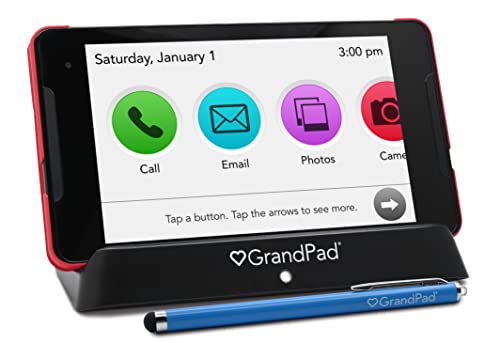
GrandPad — Purpose-built, plan required
The GrandPad begins from a refusal: it refuses to be a general tablet. Its listing describes a simple, secure device for video calling, family photo sharing, games and built-in scam protection, wrapped in an interface designed for someone who may never have owned a touchscreen. There are no app stores to wander, no settings thickets to get lost in, and no home screen clutter, because the machine’s whole personality is a short list of things an older person actually asked for, presented large and plainly.
Now the part that must be stated without decoration, exactly as the listing states it: the GrandPad is locked and requires a plan. The tablet works with GrandPad’s own service, and that subscription is a continuing cost for as long as the device is used. Families should therefore price this pick as hardware plus an ongoing service, compared honestly against a mainstream tablet plus the family’s own time spent setting it up and supporting it. For some households that trade is obviously worth it; the service carries the support burden, the curated environment and the family connection features in one arrangement. For others, particularly where money is tight and a confident relative lives nearby, the same money buys more flexibility elsewhere in this guide. Neither answer is wrong, but buying the GrandPad without knowing about the plan would be.
Within its walls, the experience is genuinely kind. Family members connect through the service’s own channels, photographs flow to the tablet without the owner managing anything, and the scam protection the listing describes reflects a real anxiety that mainstream tablets leave families to solve themselves. The walls are also the limit: this is not a machine for exploring the wider internet, installing a favourite newspaper’s app or handing down to a grandchild later. It is a communication appliance with a subscription, judged best by households who want exactly that and value the calm it buys.
- Type: dedicated senior tablet with simplified interface
- Service: locked to the maker’s own plan, which the listing states is required
- Headline uses: video calling, family photo sharing, games
- Protection: built-in scam protection as described in the listing
- Flexibility: curated environment, no general app store
- Cost shape: hardware plus an ongoing subscription
Strengths
- Interface removes the clutter and dead ends that frustrate new touchscreen users
- Family photographs and calls arrive without the owner managing accounts
- Support and curation are carried by the service rather than by relatives
Trade-offs
- The required plan is a continuing cost that never ends while the tablet is used
- Locked environment blocks apps and services outside the maker’s selection
- Little second life as a hand-me-down general tablet for grandchildren
Best for: families who want a calm, managed calling-and-photographs appliance and accept a subscription as the price of that calm.
Not suited for: buyers who dislike ongoing plans or want an open tablet for the wider internet.

Lenovo Tab One 8.7 — Featherweight all-rounder
The Lenovo Tab One is the mainstream pick that most respects the brief in this guide’s title. Lenovo sells it explicitly as a lightweight tablet, and the 8.7-inch HD display sits in the size class a hand can hold through a long call without the slow wrist negotiation that ends sessions early. The listing includes a folio case, which matters more than it sounds: the case adds the grip and the stand that turn a slippery slab into something that props itself on a kitchen table for hands-free calling and rests securely in the hand for reading.
Battery claims in listings deserve careful reading, and Lenovo’s here is refreshingly specific in shape: up to 12.5 hours of YouTube streaming. Translate that into senior use and it means video calls, catch-up programmes and music across a day without the charger becoming a character in the story. The specification beneath, 4GB of memory and 64GB of storage on a MediaTek Helio G85, is modest in the wider tablet world and entirely sufficient for calling, photographs, books, news and gentle games, which is the actual workload this guide is shopping for.
Because the Tab One is a full Android tablet, its ceiling is higher than the dedicated machines: a newspaper app, a library app, a video service the family already subscribes to, all install normally. Its floor is also lower on day one, since a mainstream home screen arrives busier than a senior deserves. The fix is the setup hour described earlier in this guide, and Lenovo’s software tolerates that tidying well. Spend the hour, raise the text, pin the calling app and the photographs to the first screen, and the Tab One becomes the pick we would hand to a confident relative who wants a real tablet that happens to be kind to hold.
- Screen: 8.7-inch HD display as listed
- Memory and storage: 4GB and 64GB as listed
- Processor: MediaTek Helio G85 as listed
- Battery framing: up to 12.5 hours of YouTube streaming as listed
- Included: folio case in the listing
- Platform: full Android with the standard app store
Strengths
- Genuinely light in one hand across a long call or chapter
- Folio case supplies grip and a table stand from day one
- Open Android runs the family’s existing news, library and video apps
Trade-offs
- Arrives with a mainstream home screen that needs a tidying hour
- Modest processor will not flatter demanding games or heavy multitasking
- No dedicated senior support service behind it
Best for: older users who want a proper tablet for calls, reading and apps, light enough to use for hours.
Not suited for: anyone who wants a pre-simplified appliance with managed support included.
Amazon Fire HD 8 — Budget simplicity
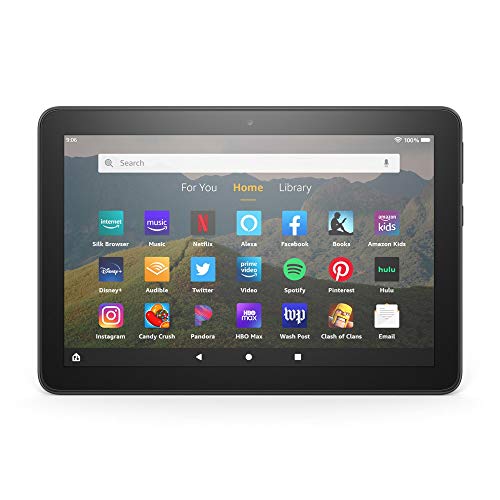
The Fire HD 8 occupies the pragmatic corner of this guide: the least expensive credible route to a light tablet for calls, books and viewing. This listing is the 2020 release with an 8-inch HD display and 32GB of storage, specified without lockscreen ads, a detail worth choosing deliberately because a lock screen that advertises is a small daily irritation an older owner never asked for. In the hand it is the joint-smallest machine here, and its simplicity of purpose shows in how little there is to go wrong.
Amazon’s ecosystem is both the Fire’s strength and its boundary. Calling family who use Amazon’s services is painless, books and video from Amazon arrive without friction, and the interface stays comparatively uncluttered. Step outside that world and the walls appear: apps come from Amazon’s store, which is narrower than Google’s, and some services a family takes for granted elsewhere need checking before purchase. For a tablet whose job description reads calls, reading, photographs and catch-up viewing, most households find the walls sit beyond the garden they actually use, but the check costs five minutes and should never be skipped.
Age deserves a sentence of honesty. A 2020 model bought today is a mature design, and its software horizon should be planned accordingly; this is a tablet for now, priced like one, rather than a five-year heirloom. Within that frame it is a kind purchase: light, cheap enough that a drop is a disappointment rather than a disaster, and easy to replace like-for-like so the owner never has to relearn anything. Families buying a first tablet to discover whether an older relative takes to the idea at all could do far worse than starting here and upgrading only when enthusiasm proves the concept. Readers comparing the wider Fire range will find our roundup of best fire tablets helpful.
- Screen: 8-inch HD display as listed
- Storage: 32GB in this configuration
- Release: 2020 model as listed
- Lockscreen: specified without lockscreen ads in this listing
- Platform: Fire OS with Amazon’s app store
- Role: budget calling, reading and viewing tablet
Strengths
- Low cost makes a first tablet a low-risk experiment
- Small, light body suits one-handed reading and holding
- Amazon calling and reading services integrate smoothly
Trade-offs
- App store is narrower than Google’s, so check needed apps first
- 2020 vintage means a shorter remaining software horizon
- Storage is tight if the owner becomes an enthusiastic photographer
Best for: a first tablet, a tight budget, or a household already living happily inside Amazon’s services.
Not suited for: buyers who need Google’s full app catalogue or expect many years of software updates.
Samsung Galaxy Tab A7 Lite — Sturdy compact
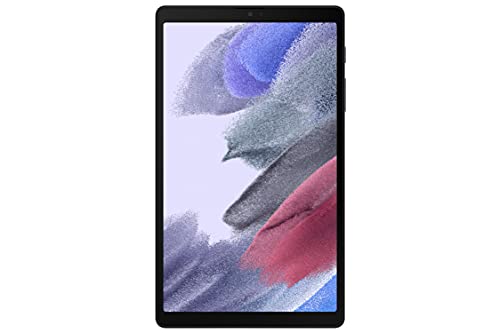
The A7 Lite is the pick for hands that have no patience for fragile things. Samsung builds this 8.7-inch tablet in a sturdy metal frame, per its listing, and that construction shows in daily life: it can be picked up by a corner, set down firmly, wiped clean and generally treated like the kitchen equipment it will live alongside. The compact body and long-lasting battery the listing describes suit the rhythm of a day built around calls, the news, a programme after lunch and photographs in the evening.
Samsung’s software brings a particular kind of reassurance to family tech support. The interface is the one millions of phones use, so a relative helping over the phone is likely describing screens they know, and the settings for text size, display zoom and simplified home-screen layouts are mature and findable. With 32GB of storage in this configuration, the A7 Lite covers calling, reading and photograph storage for most owners, though enthusiastic photographers should treat the tablet as a viewer of family photographs rather than their only archive.
Set against the Lenovo Tab One, the Samsung trades the included folio case for the metal build and the brand’s support familiarity; against the Fire, it trades a higher price for Google’s full app store and a more standard Android experience. Those are honest, legible trades, and different households will call them differently. What is not in doubt is the A7 Lite’s character: a compact, well-made, undemanding tablet that asks little of its owner beyond charging, and gives back the calls and photographs that are the point of the whole purchase.
- Screen: 8.7-inch display as listed
- Storage: 32GB WiFi configuration as listed
- Build: sturdy metal frame as listed
- Battery: described as long lasting in the listing
- Platform: Samsung Android with Google’s app store
- Design: compact and slim as listed
Strengths
- Metal frame tolerates the knocks of everyday kitchen-table life
- Familiar Samsung interface eases family help over the phone
- Full Android app access without ecosystem workarounds
Trade-offs
- Folio case is a separate purchase rather than a box inclusion
- 32GB fills quickly if treated as the family’s photo archive
- Specification is modest for anything beyond its intended gentle workload
Best for: owners who value sturdy construction and a familiar interface in a compact, light body.
Not suited for: heavy multitaskers or anyone storing a lifetime of photographs on the device itself.
Lenovo Tab M9 — Reading-leaning nine-incher
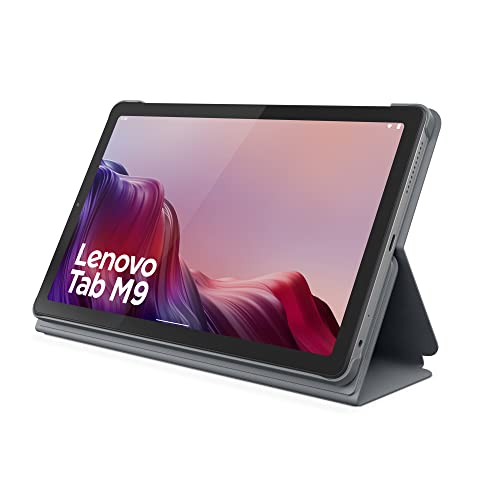
Nine inches sounds like a rounding error next to the 8.7-inch picks, but in a chair with a book it is a perceptible kindness. The Tab M9’s 9-inch HD screen gives a novel’s page, a newspaper column or a crossword a little more air while the body stays in the hold-it-in-one-hand class that defines this guide. Lenovo lists long battery life among its headline traits, and the machine’s whole specification reads like a reading-and-calling tablet that declined to pretend it was anything else.
The details support that reading. Front and rear cameras listed at 2MP and 8MP are humble by phone standards and adequate for their actual jobs here: the front camera carries video calls where being seen clearly matters more than resolution trophies, and the rear camera photographs a letter, a label or a grandchild’s drawing well enough to share it. The listing includes a folio case, restoring the grip-and-stand combination this guide keeps praising, and the 3GB of memory with 32GB of storage suits a workload of books, calls, news and light browsing without strain.
Honesty requires noting the M9’s vintage: it is a 2023 model running Android 12 or later, so it sits between the Fire’s maturity and the Tab One’s freshness. For its intended work that matters little, because calling and reading apps are not demanding tenants, but a buyer choosing between the two Lenovos should know the Tab One is the newer machine while the M9 is the slightly larger page. Households whose senior reads for hours daily and calls twice a week may reasonably pick the page; households who call daily and read occasionally may pick the newer all-rounder. Both instincts are defensible, and the difference between the two tablets is smaller than the difference either makes to a lonely evening.
- Screen: 9-inch HD display as listed
- Cameras: 2MP front and 8MP rear as listed
- Memory and storage: 3GB and 32GB as listed
- Software: Android 12 or later as listed
- Included: folio case in the listing
- Release: 2023 model as listed
Strengths
- Extra screen room flatters books, newspapers and crosswords
- Included folio case covers grip and stand duties immediately
- Battery life pitched for long reading days between charges
Trade-offs
- Older platform than the Tab One, with a shorter update future
- Front camera is basic, fine for calls but not flattering
- Storage suits a reader’s library, not a photographer’s archive
Best for: dedicated readers who call regularly and want the largest page that stays light in one hand.
Not suited for: buyers who prioritise the newest software or heavy app collections.

Pix Star Touch 10.1 — Big-picture senior design
The Pix Star name is familiar to many families from digital photo frames, and the Touch 10.1 applies that heritage to a tablet: a 10.1-inch touchscreen with a simple interface, built, per its listing, for video calls, web search and photographs, and described as highly giftable, which is a fair summary of how most of them are bought. A son or daughter chooses it precisely because the interface ambitions are modest and the screen is not. Among these six picks it is the one that most plainly prioritises a big, friendly picture over featherweight minimalism.
That size deserves the same honesty this guide applies to weight everywhere. At 10.1 inches the Pix Star is the largest machine here and therefore the one least suited to being held aloft through a long call; it is happiest propped on a table or a stand, where its screen becomes a window the whole room can share. Used that way, as a kitchen or living-room fixture that rings when family calls and shows photographs when it is not ringing, its design makes complete sense, and the two cameras listed cover both the seated call and the quick snap of something to share.
As a specialist senior product from a smaller maker, it asks the usual questions in return for its simplicity. The wider app world is not its territory, software longevity depends on a niche brand rather than a giant, and families should confirm how calling works with their own preferred services before wrapping it. What it offers in exchange is focus: a big touch surface that an older person can approach without the apprehension a busy mainstream tablet can provoke. For the right household, particularly one where the tablet will live on a table rather than travel in a hand, that focus is the entire point. Our guide to best large screen tablets for reading explores the bigger-screen trade from the reading side.
- Screen: 10.1-inch touchscreen as listed
- Interface: simple interface designed for seniors as listed
- Cameras: two cameras as listed
- Headline uses: video calls, web search, photographs
- Maker background: known for digital photo frames
- Role: table-friendly senior tablet, often bought as a gift
Strengths
- Largest, friendliest picture of the six for shared viewing
- Simple interface lowers the barrier for hesitant users
- Photo-frame heritage shows in effortless photograph display
Trade-offs
- Too large to hold comfortably through long handheld calls
- Niche maker means a smaller support and accessory world
- Not the route to a broad app library
Best for: a living-room or kitchen fixture for calls and photographs, propped rather than held.
Not suited for: reading in bed or any use that means holding a tablet up for long stretches.
Which of These Six Belongs in Your Family’s Hands?
| Pick | Screen | Character | Deciding trait |
|---|---|---|---|
| GrandPad | Senior-format display | Dedicated appliance | Simplest interface, with a required service plan |
| Lenovo Tab One | 8.7-inch HD | Mainstream featherweight | Lightest all-round balance with case included |
| Amazon Fire HD 8 | 8-inch HD | Budget Amazon tablet | Cheapest calm route to calls and reading |
| Samsung Galaxy Tab A7 Lite | 8.7-inch | Sturdy compact | Metal frame and familiar Samsung software |
| Lenovo Tab M9 | 9-inch HD | Reading-leaning Lenovo | A little more page for books, case included |
| Pix Star Touch | 10.1-inch touch | Senior-focused big screen | Friendly size for a propped, shared window |
Decide first where the tablet will live. In a hand, the Lenovos and the Samsung rule, with the Fire as the budget understudy. On a table, the Pix Star’s size turns from burden to blessing. Inside a managed service, the GrandPad stands alone, plan and all. The wrong answers in this category almost never come from bad hardware; they come from a good tablet matched to the wrong chair, the wrong hand or the wrong household’s appetite for subscriptions.
How Do You Set Up a Tablet So It Stays Easy for Years?
Setup is a gift you give once and the owner receives daily. Begin with the display: raise the text size two steps beyond what looks right to younger eyes, turn on display zoom where the system offers it, and set the screen to stay awake longer before sleeping, because a tablet that blacks out mid-sentence teaches its owner to distrust it. Remove every icon that will not be used weekly. A home screen with six large, familiar destinations, call, photographs, books, news, weather and one beloved extra, is a kindness that compounds.
Continue with the accounts, decided deliberately. The tablet should sign in with an account the family can recover together, with passwords written down and kept somewhere sensible at the owner’s home rather than memorised under pressure. Turn on automatic updates so security never depends on the owner approving a dialog they do not understand, and automatic photo backup so the pictures taken on the tablet survive the tablet. Add the family’s faces and numbers as favourites in the calling app, with photographs attached to contacts, because recognising a face is faster and warmer than reading a ringing screen’s small print.
Finish with the physical setup. The case goes on before the first use, not after the first drop. A charging spot gets chosen, visible and habitual, ideally where the tablet already wants to live: beside the chair, on the kitchen counter’s calm end. A tablet with a home gets charged; a tablet that wanders gets lost at four percent. Write the Wi-Fi password and the family’s key phone numbers on a card that lives in the case, because the day the router is replaced, that card is the difference between a phone call and a crisis. Readers planning the reading side of the setup in more depth will find a natural companion in our guide to best reading tablets for adults.
What Makes a Video Call Feel Effortless Rather Than Technical?
Most failed calls between grandparents and grandchildren fail on furniture, not technology. The tablet needs a stand or a folio case folded into one, at a height where the camera sees a face rather than a ceiling or a chin, in light that falls on the face rather than behind it. A window behind the caller turns them into a silhouette; the same window in front of them makes the call feel like a visit. Ten minutes spent arranging the caller’s usual chair, lamp and tablet spot will improve every call for years, more than any camera specification in this guide.
Sound is the other half. A quiet room, the television muted, and the tablet’s speakers unobstructed by the case’s folded flap cover most of it. Where hearing the call is a struggle, a simple pair of comfortable headphones or a small speaker the family sets up once can transform the experience, and saying so is a comfort suggestion, not a medical one. Agree as a family on one calling app and stick to it across everyone’s devices, because the second-most-common call failure is the call arriving on the service the owner never opens.
Finally, rehearse the call like the visit it replaces. The first week, call daily for five minutes on purpose, at a predictable time, so the mechanics fade and the habit forms. Families who treat the tablet as a standing appointment, Sunday at eleven, Tuesday after lunch, find it becomes furniture in the best sense: always there, rarely thought about, quietly holding the family’s week together across whatever distance separates the chairs.
How Should Families Think About the GrandPad’s Plan and Other Ongoing Costs?
Put every continuing cost on one line of paper before buying anything. The GrandPad’s required service plan belongs at the top of that list, named plainly, because it is the only pick here whose core functions depend on a subscription continuing. Beneath it sit the smaller obligations shared across the category: a streaming service if the owner watches one, a book subscription if the family chooses one, cloud storage if photographs outgrow the free tier. None of these is unreasonable; all of them should be chosen rather than discovered.
The fair comparison for the GrandPad is not its shelf price against the Lenovo’s shelf price. It is the plan’s yearly total against the value of the support, curation and protected environment the service provides, weighed by the family who would otherwise supply that support themselves, in hours, over the phone, at unpredictable moments. Some families will find the plan buys peace at a fair rate. Others, with time and confidence to spare, will find the mainstream picks cheaper in money and richer in flexibility. The only indefensible outcome is the uninformed one, which is why this guide repeats the plan’s existence at every GrandPad mention.
Whatever is chosen, assign the bills an owner. Subscriptions attached to an older relative’s card have a way of surprising everyone at renewal, and subscriptions attached to a child’s card need the child’s continuing agreement. One short family conversation at setup, recorded on the same card as the passwords, keeps the money as calm as the technology.
How Do Photographs Become the Quiet Heart of These Tablets?
Ask families what actually happens on a senior’s tablet after the novelty fades and the answer is rarely the app anyone planned. It is photographs. A grandchild’s school play, a neighbour’s new dog, the garden in June: pictures arriving on a device that sits in the living room, always charged, always showing something new, turn a tablet from a gadget into a hearth. Every pick in this guide can receive photographs, but they differ in how much work the arrival takes, and that difference decides whether the hearth stays lit.
At one end sit the managed services. The GrandPad’s family sharing exists precisely so photographs flow in without the owner opening anything, and the Pix Star’s frame heritage means its makers have thought about photograph display longer than most tablet brands have existed. At the other end, the mainstream tablets ask the family to build the flow once: a shared album in the family’s usual photo service, set as a screensaver or pinned to the home screen, with automatic sync over Wi-Fi. That hour of plumbing, done by a relative at setup, delivers the same magic on open hardware.
Teach the owner one photograph skill and make it the sending direction. Receiving is passive and delightful; sending is where grandparents become participants. The big, simple act of taking a picture of the crossword, the cake or the cat and sending it to the family thread repays practice like nothing else on the device. Practise it together at setup, twice, with laughter, and leave a one-line reminder on the card in the case. A tablet that only receives eventually feels like a television; a tablet that sends back becomes a conversation.
What Simple Habits Keep an Older User Safe From Scams and Confusion?
This guide makes no grand security promises for any device, and families should distrust any product page that does. What genuinely helps is a small set of habits, agreed in advance and written on the card in the case. The tablet never needs urgent action: no message on it will ever require money to move today. Any request for payment, gift cards or bank details that arrives on the screen gets one response, which is a phone call to a family member at a number already saved, never a number supplied by the message itself.
The GrandPad’s listing advertises built-in scam protection as part of its service, and a curated environment does reduce the surface where strange messages arrive. On the mainstream picks, the family’s setup hour supplies the equivalent calm: notifications limited to known apps, the browser’s homepage set to a familiar newspaper or search page, and app installs left to the relative who manages the account. None of this makes a tablet proof against a determined fraudster, and this guide will not pretend otherwise. It makes the ordinary confusions rarer and the family’s rescue easier, which is the honest goal.
Agree the rescue plan out loud. If something on the screen frightens or confuses the owner, the instruction is to set the tablet down, make a cup of tea and ring the named family member, who can usually solve it by description or visit. A tablet that comes with a calm human plan attached will be used with confidence for years; a tablet surrounded by warnings will be avoided, and avoidance, once again, is the real enemy in this category.
How Do You Choose When the Buyer and the User Are Different People?
Most of these tablets are bought by one generation for another, which creates a predictable distortion: the buyer shops for the user they imagine, who is often themselves in older costume. Resist it. The owner may not want the family’s video service, may read in a different app than everyone else, and may value the weather forecast over the entire app store. Twenty minutes of genuine questions before buying, about calls, books, photographs and patience with learning, outperforms any amount of specification research after it.
Ask also about the home the tablet will live in. Where is the comfortable chair, and is there a socket near it? Is the Wi-Fi strong in that room, or does the router live two floors away behind a closed door? Does the owner wear the tablet’s sound comfortably in a quiet house, or will calls disturb a spouse’s programmes in the same room? These domestic details decide satisfaction more reliably than processor names, and they are free to discover.
Finally, buy the return window as much as the tablet. Choose a configuration a retailer will exchange, keep the packaging until the second week, and treat a change of mind as information rather than failure. A senior who tries the Fire and finds its store limiting has learned something worth the experiment, and the Tab One that replaces it will be chosen with knowledge no review can supply. The goal is a tablet still in daily use at Christmas, not the theoretically perfect one abandoned by Easter.
What Does a Good First Week With the Tablet Look Like?
Day one belongs to wonder, kept deliberately small. One call, placed by the family to the tablet so the owner practises answering rather than dialling, and one photograph sent in each direction. Nothing else needs to happen, and resisting the urge to demonstrate twelve features in an afternoon is the kindest discipline a family can show. Confidence in this category grows by successful repetitions of tiny acts, not by tours.
Days two to seven add one habit at a time. The morning weather check. The evening chapter of a book, with the text set large enough that reading feels like reading rather than decoding. The crossword or the gentle game that becomes a personal ritual. Each addition arrives when the previous one feels ordinary, and each is chosen by the owner from a short menu the family offers, because ownership grows from choosing. By the end of the week the tablet should have a place, a charging spot and a time of day, which together matter more than its entire settings menu.
Expect one wobble. A call will fail, a screen will show something unexpected, an update will rearrange a familiar corner. Plan the family’s response in advance: patience, a visit or a calm phone walkthrough, and absolutely no sighing down the line, because the owner will remember the sigh longer than the solution. Households that survive the wobble with humour usually keep the tablet for years. Households that treat it as a test the owner is failing tend to find the tablet back in its box, and the box in a cupboard, by the second month.
How Long Should One of These Tablets Last, and What Ends Its Life?
Physically, any pick here can survive years of chair-side duty; the case and the charging habit decide more than the brand. Software is the real clock. The Fire’s 2020 vintage and the M9’s 2023 platform will reach the end of their update stories sooner than the newer Tab One, while the GrandPad’s horizon is a service question rather than a software one, lasting as long as the plan and the company’s support continue. None of this makes the older picks bad purchases. It makes them purchases with a known shape: excellent value now, a planned replacement conversation later.
When replacement day eventually comes, the family’s earlier tidiness pays off. Photographs backed up automatically are already safe. Contacts and favourites live in an account, not in the dying device. The new tablet, ideally a like-for-like successor the owner does not have to relearn, signs in and restores the familiar world in an afternoon. Keep the old tablet, wiped, as the household spare for video calls in another room, and the category’s gentle economics complete themselves.
What Mistakes Do Families Make When Buying a Tablet for a Parent?
The grand gesture is the commonest: a huge, expensive flagship bought to show love, too heavy to hold, too busy to learn, quietly retired to a drawer within a season. This entire guide exists to argue for the smaller, kinder purchase. The second mistake is handing over a factory-fresh tablet unconfigured, which transfers the hardest hour of ownership to the person least equipped for it. Set it up, in person, with tea, and test a call before leaving.
The third mistake is ignoring the subscription facts until the first bill, which is why the GrandPad’s required plan is stated so insistently here; any device with continuing costs deserves that daylight. The fourth is choosing by the giver’s ecosystem instead of the owner’s habits: the right tablet is the one whose calling app matches the family’s phones and whose book store matches the owner’s reading, not the one the giver personally prefers. The fifth is forgetting the humble accessories, the case, the stand, the longer charging cable that reaches the chair, without which even the perfect tablet underperforms its promise.
Final Recommendation
For most households, the Lenovo Tab One is the sweet spot of this guide: genuinely light, honestly priced, open to the family’s apps and gentle in the hand for as long as a call lasts. Readers whose parent reads for hours should look at the Tab M9’s extra page, the budget-conscious at the Fire HD 8, and those who prize sturdy familiarity at Samsung’s A7 Lite. The Pix Star serves the table-top household that wants the biggest friendly window, and the GrandPad serves the family that values a managed, simplified service enough to pay its plan with open eyes. Whichever you choose, set it up with love and large text before you hand it over. The measure of success is not the specification sheet; it is the ordinary Tuesday when the call connects, the photographs have arrived by themselves, and the tablet has become so unremarkable that nobody remembers it was ever new.
Sound and light in the owner’s own room deserve one last check before the family declares setup finished. Sit in the chair at the hour the tablet will mostly be used, and look at the screen as the owner will: is the window’s reflection sitting exactly where the caller’s face appears, and would a small lamp moved a foot to the left fix it? Play a programme at the volume the owner prefers and walk to the doorway; if the whole house is listening, a small speaker or a pair of comfortable headphones, arranged once by the family, keeps the peace without a nightly negotiation. These are furnishing decisions disguised as technology decisions, and they are the sort this category quietly runs on.
Leave the owner’s world tidier than the box did. A labelled charger, because every household owns four identical black cables and only one will be within reach at the critical moment. A home screen with nothing on it that needs an apology or an explanation. A card in the case with the Wi-Fi password, the family’s numbers and the one instruction that matters most, which is to ring a person rather than wrestle a dialog box. Then make the first call, watch a face light up on both ends of it, and let the tablet begin its real work.
One more gift costs nothing and is remembered longest: a short printed note, in large type, tucked into the case, saying who to call for what. Not the manual, not a tutorial, just three names and three situations in the family’s own words. When the tablet is new and the owner is proud and slightly nervous, that note converts every future confusion into a phone call to a person who loves them, which was the reason for buying the tablet in the first place. Technology that ends in a conversation has done its job; technology that ends in a settings menu has merely been purchased.
And when the first month closes with the tablet in daily use, tell the family so. The relative who set it up, possibly in another city, is quietly wondering whether the gift landed or joined the drawer of good intentions. A photograph of the owner mid-call, sent from the tablet itself, answers the question better than any thank-you card, and it usually arrives with the cat in frame.
Consider, too, the humble question of whose name the purchase sits under. Buying on the family’s account simplifies returns, replacements and the day the tablet needs a sibling for a spouse who has watched a month of calls and quietly wants in. That second purchase is the category’s most reliable compliment, and it is worth planning for from the start: same model where possible, same setup hour, same card in the case. Two matching tablets in one house support each other, because every skill one owner learns transfers to the other’s machine, and the family’s phone support halves overnight.
Budget, finally, for the unphotogenic extras that decide daily comfort and never appear in advertisements: the longer charging cable that reaches from the socket to the chair without crossing a walkway, the stand that holds the tablet at reading angle on the kitchen table, and a spare case in a colour the owner actually likes. Together they cost a fraction of any tablet in this guide, and together they are the difference between a device that is used where life happens and one that is used only where its short cable allows.
Keep the receipt and the order details with the card in the case as well. The day a screen fails or a charger gives up, the person solving it may be a grandchild on a visit rather than the original buyer, and paperwork that travels with the device saves a detective story nobody wants to star in during a holiday visit with the whole family watching and waiting hopefully together nearby.
Frequently Asked Questions
Why are most of these tablets smaller than the ones sold for general use?
Because weight grows with screen size, and this guide’s priority is a tablet that stays comfortable in one hand across a long call or reading session. The 10.1-inch Pix Star is included for households that prefer a larger screen propped on a table.
Does the GrandPad really need a subscription?
Yes. Its listing states the tablet is locked and requires a plan, and its calling, photo sharing and related services run through that plan. Price it as hardware plus an ongoing service when comparing it with the other picks.
Which pick is best for reading books?
The Lenovo Tab M9’s 9-inch screen gives books and newspapers the most room while staying light, and the Fire HD 8 is the budget reading route inside Amazon’s book ecosystem. Dedicated reading machines are covered in the reading guide linked above.
Can these tablets make video calls to any phone?
Each tablet calls through apps, so the family should agree on one calling service that everyone installs. The dedicated picks route calling through their own simplified systems, which the family joins as part of setup.
Who should set the tablet up?
Ideally a family member, in person, before the gift is handed over: text enlarged, home screen tidied, contacts pinned, updates set to automatic and a test call completed. That single hour decides most of the ownership experience.
What if the owner has never used a touchscreen?
Start with the simplest interface the household can support, either the GrandPad’s managed environment with its plan, or a mainstream pick reduced to a handful of large home-screen destinations, and build the calling habit with short daily calls in the first week.
Related Guides
Continue with our guide to best affordable android tablets for the wider budget Android picture, and the seniors comparison linked earlier for the larger-screen alternatives when weight is not the first concern.
At the opposite extreme of the tablet shelf sit the armoured models, and our guide to the best rugged android tablets shows what survives a building site.
placeholder-never
Simple interfaces matter at the ear as much as at the screen, and our guide to the best bluetooth headsets for hearing aids keeps that promise in audio form.
A tablet light enough for the sofa can still run a market stall on Saturday, and our guide to the best tablets for point of sale with paypal explains the till side.
Related guides
- Best Balancing Stabilizers for Mirrorless Cameras: Payload, Balancing and Native Vertical Shooting
- Best Canon Point and Shoot Digital Cameras: PowerShot Picks From Pocket Compacts to Travel Zooms
- Best Basic Phones Camera Buyers Can Trust: Flip Phones and Simple Handsets That Still Take a Photograph
- Best Sony Full Frame Cameras for Astrophotography: Sensitivity vs Resolution